

10 Best Document Capture Software Reviewed in 2026

Best Document Capture Software Shortlist


Managing documents can be a real headache, especially when you’re juggling multiple projects. You need a solution that helps your team find, organize, and share documents efficiently. Document capture software can ease this burden by turning cluttered files into organized digital assets.
I’ve spent time testing various tools to bring you a list of the best document capture software on the market. My reviews are independent and well-researched, aimed at giving you a straightforward understanding of what each solution offers.
In this article, you’ll find insights into how these tools can tackle your document challenges. Whether you need better compliance or easier access, there’s something here for every project manager.
Why Trust Our Software Recommendations
Our team has been testing and reviewing software since 2012. As project managers ourselves, we know how difficult—and important—it is to choose the right software.
For this guide, we evaluated tools using hands-on testing and independent research, scoring tools using our selection criteria. We also draw on insights from industry thought leaders and practicing project management experts.
Our reviews reflect our human editorial judgment, not a sales pitch.
Expert reviewers:
Best Document Capture Software Summary
This comparison chart summarizes pricing details for my top document capture software selections to help you find the best one for your budget and business needs.
| Tool | Best For | Trial Info | Price | ||
|---|---|---|---|---|---|
| 1 | Best for no-code mobile field data capture | Free trial + free demo available | From $20/user/month (billed annually) | Website | |
| 2 | Best for intelligent data extraction | Free demo available | Pricing upon request | Website | |
| 3 | Best for process automation | Free demo available | From $73/user/month (billed annually) | Website | |
| 4 | Best for mobile field teams | 14-day free trial + free demo available | From $20/user/month | Website | |
| 5 | Best for compliance-focused industries | Free trial available | Pricing upon request | Website | |
| 6 | Best for remote document access | Free demo available | Pricing upon request | Website | |
| 7 | Best for metadata-driven organization | Free demo available | From $65/user/month | Website | |
| 8 | Best for secure document sharing | 14-day free trial + free demo available | Pricing upon request | Website | |
| 9 | Best for enterprise integration | 30-day free trial available | From $5.40/user/month (billed annually) | Website | |
| 10 | Best for sales document management | Free plan available + 14-day free trial available | From $19/user/month (billed annually) | Website |
Best Document Capture Software Review
Below are my detailed summaries of the best document capture software that made it onto my shortlist. My reviews offer a detailed look at the key features, pros & cons, integrations, and ideal use cases of each tool to help you find the best one for you.
Appenate
Best for no-code mobile field data capture
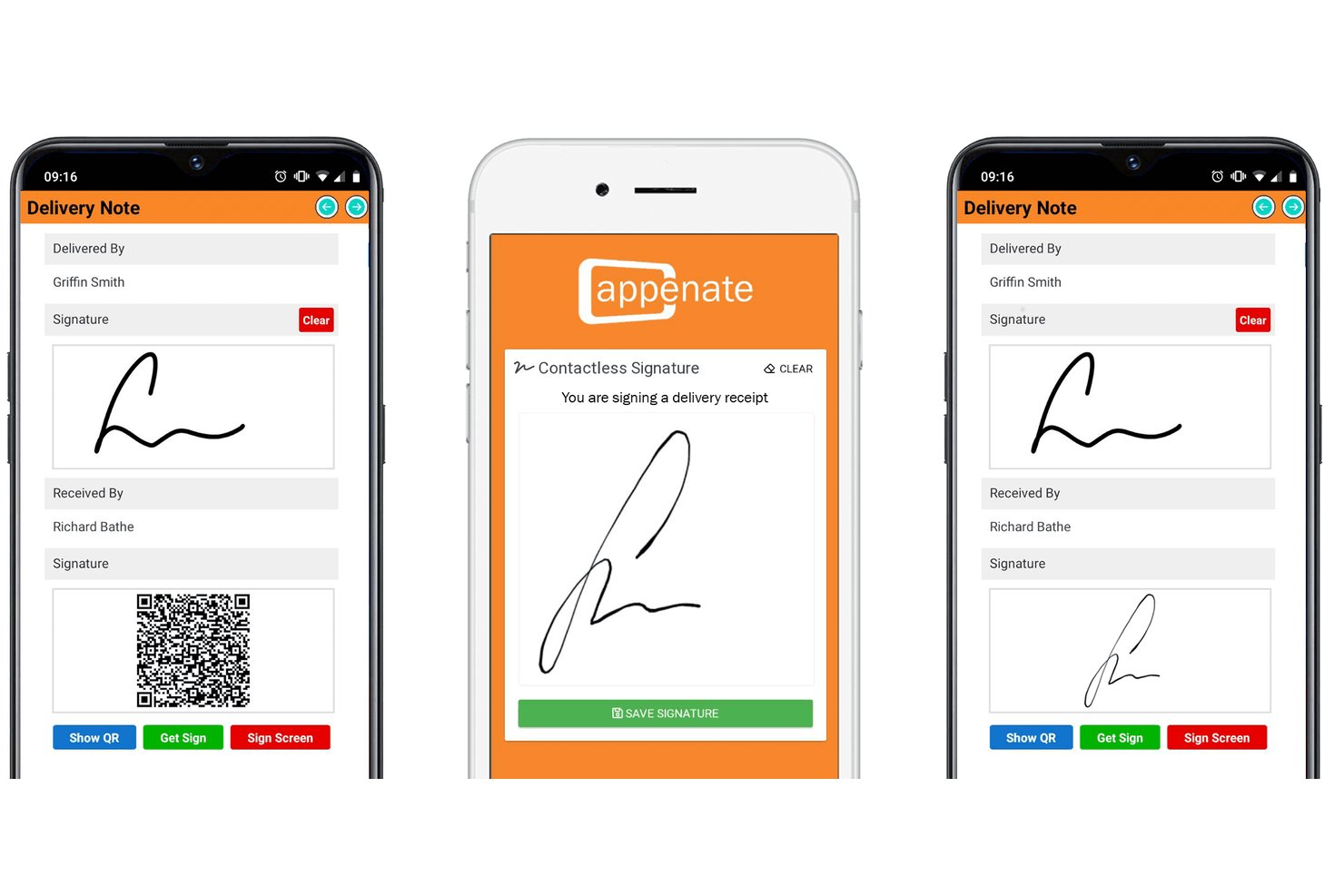
Appenate is a no-code mobile forms platform that lets field teams capture data through photos, OCR, voice input, barcodes, GPS, and signatures on iOS, Android, and Windows devices, with full offline support.
Who Is Appenate Best For?
Appenate is a strong fit for field teams in construction, utilities, and asset-heavy industries that need to capture data on-site without reliable internet access.
Why I Picked Appenate
I picked Appenate as one of the best because it solves a real problem for field teams: capturing structured data from paper documents without a reliable connection. AI Photo Fill lets you snap a photo of any document and have the data extracted and mapped directly into form fields, cutting what used to take 15–20 minutes down to seconds. Add offline-capable mobile capture across iOS, Android, and Windows, and your team can log inspections, signatures, and barcodes on-site whether or not the signal holds.
Appenate Key Features
- AI Voice Fill: Speak your data into form fields—dates, text, and dropdowns—across multiple languages without typing anything.
- Multi-step process forms: Route forms sequentially between team members, with push notifications and accept/reject controls at each step.
- Contactless signature capture: Clients scan a QR code and sign on their own device, with no shared hardware required.
- Cloud storage connectors: Push captured data directly to SharePoint, Google Drive, Box, Dropbox, or Amazon S3 from within the platform.
Appenate Integrations
Appenate offers native integrations with SharePoint, Google Drive, Dropbox, Box, Egnyte, Amazon S3, Salesforce, and Power BI. It also supports custom connections through REST and PUSH APIs, plus data sources such as SQL Server.
Pros and Cons
Pros:
- Supports photos, signatures, barcodes, and GPS
- AI extracts handwritten and printed text
- Captures documents fully offline
Cons:
- Missing version control and retention policies
- No automatic document-type classification
Best for intelligent data extraction

An API-first intelligent document processing platform, Doxis AI.dp. provides OCR, data extraction, document classification, verification, and conversion for more than 50 document types and output formats.
Who is Doxis AI.dp. Best For?
Doxis AI.dp. suits mid-size to enterprise businesses in finance, logistics, retail, and healthcare that process high volumes of documents and need structured data routed into existing systems.
Why I Picked Doxis AI.dp.
I picked Doxis AI.dp. as one of the best because its extraction engine goes well beyond basic OCR. It captures 150+ data fields across 50+ document types, including invoice line items, tax IDs, and employment dates, with results returned in seconds. I also like the human-in-the-loop validation layer, where operators review and correct AI output on complex or low-quality scans, which gets real-world accuracy much closer to 100% than fully automated tools typically achieve.
- Document classification: Sorts and labels incoming documents by type, such as invoices, receipts, contracts, or IDs, before processing begins.
- Data anonymization: Detects and redacts sensitive information, including names, addresses, and ID numbers, within captured documents.
- Fraud detection: Uses pixel-level analysis, EXIF metadata checks, and duplicate detection on captured documents to flag suspicious files.
- Multi-format output: Exports extracted data in JSON, XML, CSV, XLSX, UBL, PDF, or TXT for routing to downstream systems.
Doxis AI.dp. Integrations
Doxis AI.dp. connects to over 200 systems through its plug-and-play integrations, including accounting and ERP systems such as Xero, Oracle NetSuite, SAP, Microsoft Dynamics, and QuickBooks. It also works with Google Drive, Pipedrive, and Make, connects with Zapier via Eden AI, and provides an API and SDK for custom integrations.
Pros and Cons
Pros:
- Provides GDPR-compliant data anonymization
- Includes document fraud detection layers
- Covers over 50 document types
Cons:
- VAT extraction often requires manual correction
- User feedback does not improve models
New Product Updates from Doxis AI.dp.
Doxis AI.dp Improves Dataset Validation and API Controls
Doxis AI.dp improves dataset editing with real-time type validation, better field controls, and save prevention on invalid values, plus new API capabilities. These updates help teams maintain cleaner dataset values and manage rows more reliably. For more information, visit Doxis AI.dp’s official site.
 .
.
Best for process automation

Laserfiche is an enterprise content management system that helps organizations automate processes and manage documents efficiently. Its main users are businesses looking to streamline operations and improve workflow management.
Why I picked Laserfiche: Laserfiche excels in process automation, making it a valuable tool for businesses that rely on efficient workflows. It offers features like automated document routing, which reduces manual handling of documents. You can also create custom workflows to suit your team's specific needs. The platform's user-friendly interface helps you set up these automations with minimal hassle.
Standout Features & Integrations
Features include electronic forms to collect and process data efficiently, document versioning that tracks changes over time, and audit trails that ensure compliance and transparency. These features work together to enhance your document management processes.
Integrations include Microsoft Office, Salesforce, DocuSign, QuickBooks, SAP, SharePoint, Google Workspace, Adobe Acrobat, AutoCAD, and Box.
Pros and Cons
Pros:
- Offers detailed audit trails
- Supports large-scale document management
- Custom workflows are easy to create
Cons:
- Customization options can be overwhelming
- Learning curve for new users
- Initial setup can be time-consuming

Fluix
Best for mobile field teams

Fluix is a workflow automation and document management tool designed for mobile field teams who need to manage tasks and documents on the go. It supports industries like construction, energy, and aviation by simplifying document handling and task management.
Why I picked Fluix: Fluix is ideal for mobile field teams, offering features that enhance productivity while on the move. It provides offline access, so your team can work without connectivity issues. The tool's form-filling capabilities allow you to capture data efficiently in the field. Additionally, task management features keep your team organized and on track, even in remote locations.
Standout Features & Integrations
Features include digital signatures for secure document approval, real-time data capture that ensures accurate information collection, and customizable workflows that adapt to your team's processes. These features help your team stay productive and efficient in various environments.
Integrations include Salesforce, Google Workspace, Microsoft Office 365, Box, Dropbox, OneDrive, Adobe Acrobat, SharePoint, QuickBooks, and Zapier.
Pros and Cons
Pros:
- Tailored for remote environments
- Digital signatures for secure approvals
- Customizable workflows for field tasks
Cons:
- Limited integration with non-mainstream tools
- Limited advanced analytics features
- Initial setup can be complex

FileHold
Best for compliance-focused industries

FileHold is a document management software designed for industries that require strict compliance and document control, such as healthcare and finance. It helps organizations manage documents, ensure regulatory compliance, and maintain secure records.
Why I picked FileHold: FileHold is particularly suited for compliance-focused industries, offering features that support regulatory adherence. It provides document version control, ensuring you always have the right version at hand. The software also includes audit trails for tracking document history, which is crucial for compliance audits. Additionally, its secure access controls protect sensitive information from unauthorized access.
Standout Features & Integrations
Features include automated document workflows that streamline approval processes, electronic forms that simplify data capture, and advanced search capabilities to quickly locate documents. These features enhance your team's ability to manage documents efficiently.
Integrations include Microsoft Office, SharePoint, Adobe Acrobat, QuickBooks, Salesforce, DocuSign, Google Workspace, Dropbox, SAP, and Box.
Pros and Cons
Pros:
- Offers electronic forms for data capture
- Secure document access controls
- Strong focus on regulatory compliance
Cons:
- Customization options may be overwhelming
- Requires dedicated server setup
- Higher initial costs for small teams

DocuWare
Best for remote document access

DocuWare is a document management and workflow automation solution designed for industries like healthcare, finance, and manufacturing. It helps businesses automate processes, manage documents, and ensure compliance efficiently.
Why I picked DocuWare: DocuWare excels in providing remote document access, making it a top choice for teams needing flexibility. It features intelligent document processing and automated invoice management, which are vital for reducing manual workload. The platform's secure document archiving ensures that your files are safely stored and easily accessible from anywhere. You’ll find that its integration with tools like Microsoft Teams enhances collaboration and accessibility.
Standout Features & Integrations
Features include intelligent document processing that automates data entry, automated invoice management for efficient financial operations, and secure archiving to keep your documents safe. These features ensure that your team can access and manage documents without being tied to a particular location.
Integrations include Microsoft Teams, Outlook, SAP, QuickBooks, Google Workspace, Salesforce, DocuSign, SharePoint, Dropbox, and OneDrive.
Pros and Cons
Pros:
- Offers secure document archiving
- Supports various industries
- Effective in automating processes
Cons:
- No public API available
- May require training for setup
- Pricing details are not transparent

M-Files
Best for metadata-driven organization

M-Files is a document management solution that caters to businesses of all sizes, focusing on organizing and managing information based on metadata. It helps teams improve document accessibility and control across various departments.
Why I picked M-Files: M-Files is designed to enhance metadata-driven organization, which makes it unique among document management tools. It allows you to tag documents with metadata, making it easier to find and categorize files. You can access documents based on what they are, not where they're stored. This feature is particularly useful for teams that handle large volumes of documents and need efficient retrieval methods.
Standout Features & Integrations
Features include advanced document permissions that ensure only authorized users access certain files, automated workflows that reduce manual tasks, and version control that keeps track of document changes. These features are designed to make document management more efficient for your team.
Integrations include Microsoft Office, Salesforce, Google Workspace, SharePoint, DocuSign, QuickBooks, SAP, HubSpot, Autodesk, and Adobe Acrobat.
Pros and Cons
Pros:
- Includes document version control
- Offers advanced permission settings
- Supports metadata-driven searches
Cons:
- The interface can feel cluttered
- Requires training for effective use
- Metadata setup can be complex
Revver
Best for secure document sharing

Revver is a document management solution aimed at businesses that prioritize secure document sharing and collaboration. It helps teams efficiently manage, store, and share documents while ensuring data security.
Why I picked Revver: Revver emphasizes secure document sharing, which is crucial for organizations handling sensitive information. It provides features like encryption and access controls to protect your data. You can easily share documents with external parties without compromising security. The platform's audit trails give you visibility into document access and modifications, enhancing accountability.
Standout Features & Integrations
Features include document version history that allows you to track changes over time, automated workflows that streamline document approvals, and customizable dashboards to monitor document activities. These features help your team stay organized and informed.
Integrations include Microsoft Office 365, Salesforce, QuickBooks, Google Workspace, Dropbox, Box, Adobe Acrobat, Slack, SharePoint, and DocuSign.
Pros and Cons
Pros:
- Supports external collaboration
- Provides detailed audit trails
- Strong focus on data security
Cons:
- Learning curve for new users
- Complex permissions management
- Limited mobile app functionality

Best for enterprise integration

Microsoft SharePoint is a collaboration and document management platform commonly used by large enterprises to facilitate internal communication and document sharing. It streamlines business processes, supports content management, and enhances team collaboration.
Why I picked Microsoft SharePoint: Microsoft SharePoint is tailored for enterprises that need seamless integration within their existing Microsoft ecosystem. It provides document libraries where your team can store and share files securely. The platform's workflow automation allows you to automate repetitive tasks, saving time and reducing errors. Version control ensures that everyone is working on the most up-to-date documents.
Standout Features & Integrations
Features include advanced search capabilities that help you quickly find documents, customizable team sites for personalized collaboration spaces, and content management features that ensure compliance and security. These features enhance your organization's ability to manage and share content effectively.
Integrations include Microsoft Teams, Office 365, OneDrive, Power BI, Yammer, Dynamics 365, PowerApps, Azure, Outlook, and Planner.
Pros and Cons
Pros:
- Offers customizable team sites
- Supports large-scale document management
- Strong integration with Microsoft products
Cons:
- Complexity in permissions management
- Requires training for effective use
- Complex setup for new users
PandaDoc
Best for sales document management

PandaDoc is a document automation software primarily used by sales teams to create, manage, and distribute sales documents efficiently. It streamlines the proposal and contract process, making it easier for businesses to close deals faster.
Why I picked PandaDoc: PandaDoc excels in managing sales documents, offering features that simplify the creation and distribution of proposals and contracts. It provides customizable templates, which save your team time when generating documents. The eSignature feature ensures that signing is quick and legally binding. Additionally, real-time analytics help you track document interactions, giving you insights into client engagement.
Standout Features & Integrations
Features include document collaboration that allows multiple team members to work on a document simultaneously, payment processing to collect payments directly through documents, and a content library that stores reusable document components. These features enhance your team's productivity and document management capabilities.
Integrations include Salesforce, HubSpot, Microsoft Dynamics 365, Pipedrive, Zoho CRM, Google Workspace, Dropbox, Box, Slack, and QuickBooks.
Pros and Cons
Pros:
- Efficient eSignature process
- Real-time analytics for document tracking
- Customizable templates for quick setup
Cons:
- Complex setup for advanced features
- Steep learning curve for new users
- Limited offline functionality
Other Document Capture Software
Here are some additional document capture software options that didn’t make it onto my shortlist, but are still worth checking out:
- Dropbox Business
For team collaboration
- Hightail
For creative project management
- DocuPipe
For AI capture of unstructured docs
- Egnyte
For secure file sharing
- DocuPhase
For automated workflow management
- Adobe Scan
For mobile document scanning
- PaperScan
For batch document scanning


How I Evaluate Document Capture Software
I split my evaluation into two layers: baseline criteria every tool must clear—like OCR, field capture, and PM integrations—and the differentiators that separate the best fit from the rest.
Core Functionality (Table Stakes For This List)
When I'm selecting tools for my list, I rank each one on a scale from 0 (does not offer the functionality) to 5 (excels in this area) for each core functionality listed below. Then, I calculate the tool's total score into a percentage. Each tool needs to achieve a minimum total score of 65% to be considered for inclusion.
- Multi-Source Document Capture: I check whether a tool can ingest documents from scanners, mobile devices, email inboxes, and cloud drives so field teams and office staff can submit from wherever they work.
- OCR & Data Extraction: Each tool gets evaluated on how well its OCR handles real-world inputs like photographed receipts, scanned contracts, and handwritten notes—and whether it pulls structured data from them.
- Automated Classification & Indexing: I look for the ability to auto-sort incoming documents into categories like invoices, change orders, or submittals and tag them with searchable metadata.
- Workflow Automation & Routing: Captured documents need to move somewhere useful. I evaluate whether the tool routes files through approval chains tied to project stages or stakeholder roles.
- PM & Storage Integrations: Connecting to project management platforms and cloud storage matters. I look at native connectors to tools like Jira, Procore, SharePoint, and Google Drive, plus API availability.
- Secure Storage & Audit Trail: Every tool gets assessed on version control, role-based permissions, and audit logging—features project teams rely on during compliance reviews or contract disputes.
Once I have a list of tools that meet this criteria, I consider what sets each platform apart.
Differentiating Factors (What Sets Vendors Apart)
Here's how I compare and contrast different vendors:
Standout Features
Mobile field capture is a big differentiator—I look for offline-capable apps that let site crews upload delivery tickets or inspection photos without needing connectivity. AI-powered data validation also matters because it can flag mismatches between extracted invoice amounts and approved purchase orders before anyone reviews them. I evaluate collaborative markup tools too, since project teams often need to redline drawings or annotate scanned contracts directly inside the platform.
Beyond Features
Deployment flexibility is something I always consider—some teams need cloud-hosted tools, while others in regulated sectors require on-premise or hybrid options. Compliance matters here too. I check for certifications like SOC 2 Type II and ISO 27001, along with data residency choices for teams running projects across multiple regions. Implementation speed is another factor I weigh, especially how quickly a team can configure OCR templates and approval workflows without heavy IT involvement during onboarding.
How to Choose Document Capture Software
It’s easy to get bogged down in long feature lists and complex pricing structures. To help you stay focused as you work through your unique software selection process, here’s a checklist of factors to keep in mind:
| Factor | What to Consider |
|---|---|
| Scalability | Can the software grow with your business? Consider future needs and whether the tool can handle increased document volumes without performance issues. |
| Integrations | Does it work with tools you already use? Check for compatibility with your current systems like CRM or ERP to avoid workflow disruptions. |
| Customizability | Can you tailor it to fit your processes? Look for options to adjust workflows or templates to match your team's unique ways of working. |
| Ease of use | Is it user-friendly for all team members? Consider the learning curve and whether training resources are available to help your team get up to speed. |
| Implementation and onboarding | How long will it take to get started? Evaluate the setup process and whether support is available to help with migration and training. |
| Cost | Does the pricing fit your budget? Be aware of hidden fees, such as for extra users or additional storage, and compare with similar tools. |
| Security safeguards | Does it protect your data? Look for encryption standards, user access controls, and compliance with data protection regulations. |
| Support availability | Can you get help when needed? Check if support is available 24/7 and through multiple channels like chat, email, or phone. |
What Is Document Capture Software?
Document capture software is a tool that converts physical and digital documents into organized, searchable files. It's commonly used by professionals like project managers, accountants, and administrators who need to manage large volumes of documents efficiently. Scanning, optical character recognition, and indexing features help with organizing, accessing, and retrieving documents quickly. Overall, these tools save time and reduce manual errors in document handling.
Features of Document Capture Software
When selecting document capture software, keep an eye out for the following key features:
- Scanning capabilities: This allows you to digitize physical documents, making them easier to store and access electronically.
- Optical character recognition (OCR): OCR converts scanned images into editable and searchable text, saving time on manual data entry.
- Indexing: This feature helps categorize documents with tags or metadata, improving searchability and organization.
- Workflow automation: Automates repetitive tasks like routing documents for approval, increasing efficiency.
- Data security: Provides encryption and access controls to protect sensitive information from unauthorized access.
- Mobile access: Enables you to capture and manage documents using mobile devices, supporting work on the go.
- Version control: Tracks changes and maintains document history, ensuring everyone works on the latest version.
- Real-time collaboration: Allows multiple users to work on documents simultaneously, enhancing teamwork.
- Integration support: Ensures compatibility with existing tools like CRM or ERP systems, maintaining workflow continuity.
- Customizable templates: Offers pre-designed templates that can be tailored to fit specific business needs, saving setup time.
Benefits of Document Capture Software
Implementing document capture software provides several benefits for your team and your business. Here are a few you can look forward to:
- Increased efficiency: Automating document workflows reduces manual tasks, freeing up time for more important work.
- Enhanced data accuracy: Optical character recognition minimizes errors by converting text from images into editable formats.
- Improved organization: Indexing and metadata tagging make it easy to categorize and find documents quickly.
- Better collaboration: Real-time document sharing and editing help teams work together more effectively.
- Cost savings: Digitizing documents reduces the need for physical storage space and related expenses.
- Secure document handling: Data security features like encryption protect sensitive information from unauthorized access.
- Remote accessibility: Mobile access allows teams to work with documents from anywhere, supporting flexible work environments.
Costs and Pricing of Document Capture Software
Selecting document capture software requires an understanding of the various pricing models and plans available. Costs vary based on features, team size, add-ons, and more. The table below summarizes common plans, their average prices, and typical features included in document capture software solutions:
Plan Comparison Table for Document Capture Software
| Plan Type | Average Price | Common Features |
|---|---|---|
| Free Plan | $0 | Basic scanning, limited storage, and basic sharing. |
| Personal Plan | $5-$25/user/month | OCR, metadata tagging, and mobile access. |
| Business Plan | $25-$50/user/month | Workflow automation, integration support, and enhanced security features. |
| Enterprise Plan | $50-$100/user/month | Advanced analytics, custom workflows, dedicated support, and compliance features. |
Document Capture Software FAQs
Here are some answers to common questions about document capture software:
What is the difference between scanning software and document capture software?
Scanning software creates static images of documents like PDFs or TIFFs. Document capture software goes a step further by using OCR to make these files searchable and allows for data extraction. This added functionality helps automate document management tasks and improves data accessibility.
How does document separation work in document capture software?
Document capture software can scan multiple documents at once and automatically separate them into individual files. This is useful for batch processing large volumes of paperwork, saving you the time and effort of manually sorting documents.
Can document capture software integrate with existing systems?
Yes, many document capture solutions can integrate with existing document management systems. This allows you to route captured documents directly into your current workflows, making it easier to manage and retrieve files across different platforms.
What types of scanners are compatible with document capture software?
Most document capture software supports a wide range of scanners, including popular brands like Kodak, Canon, and Epson. Always check the software’s compatibility list to ensure your scanner is supported, which will help avoid any integration issues.
What is advanced data extraction (ADE) in document capture software?
Advanced data extraction allows the software to identify and extract specific text from documents. This feature makes documents more searchable and can be used to automate naming conventions or integrate with workflow software, enhancing document management efficiency.
How does OCR integration benefit document capture software users?
OCR integration turns scanned documents into searchable and editable files. This feature eliminates the need for separate OCR software, streamlining your document management process and making it easier to locate specific information within your documents.
What’s Next:
If you're in the process of researching document capture software, connect with a SoftwareSelect advisor for free recommendations.
You fill out a form and have a quick chat where they get into the specifics of your needs. Then you'll get a shortlist of software to review. They'll even support you through the entire buying process, including price negotiations.