
22 AI Automation Tools Picked for 2026

AI Automation Tools Shortlist
Here’s my shortlist of AI automation tools:


AI automation tools are software platforms that use artificial intelligence to automate repetitive tasks, manage workflows, and coordinate project activities across teams. If you’re searching for the best AI automation tools, you’re likely looking to reduce manual work, improve project visibility, and keep pace with shifting priorities.
With so many options available, it’s tough to know which tools actually fit your team’s needs and integrate with your existing processes. This list will help you quickly compare top solutions, understand their unique features, and choose the right platform to support your project delivery goals in 2026.
Why You Can Trust Us
Best AI Automation Tools Summary
This comparison chart summarizes pricing details for my top AI automation tool selections to help you find the best one for your budget and business needs.
| Tool | Best For | Trial Info | Price | ||
|---|---|---|---|---|---|
| 1 | Best for AI-structured workflows built on relational data | Free plan + free demo available | From $20/user/month (billed annually) | Website | |
| 2 | Best for lightweight AI-style automation on Kanban boards | Free plan available | From $5/user/month (billed annually) | Website | |
| 3 | Best for AI-powered client service delivery | 30-day free trial + free plan + free demo available | From $10.99/user/month (billed annually) | Website | |
| 4 | Best for Copilot-assisted planning in Microsoft 365 | Free trial available | From $10/user/month (billed annually) | Website | |
| 5 | Best for AI-driven agile execution | 14-day free trial + free plan available | From $7.91/user/month | Website | |
| 6 | Best for AI-unifying tasks, docs, and knowledge in one workspace | Free plan + 14-day free trial + free demo available | From $7/user/month (billed annually) | Website | |
| 7 | Best for AI-assisted workflow orchestration | 30-day free trial + free plan available | From $10.99/user/month (billed annually) | Website | |
| 8 | Best for AI-powered docs + databases | Free plan + free demo available | From $10/member/month (billed annually) | Website | |
| 9 | Best for AI-enhanced spreadsheet-style project work | Free trial + free demo available | From $9/member/month (billed annually) | Website | |
| 10 | Best for AI-powered cross-team workflows | Free plan + free demo + 14-day free trial available | From $10/user/month (billed annually) | Website |

-

Insightful
Visit WebsiteThis is an aggregated rating for this tool including ratings from Crozdesk users and ratings from other sites.4.8 -
Accelo
Visit WebsiteThis is an aggregated rating for this tool including ratings from Crozdesk users and ratings from other sites.4.4 -
Wrike
Visit WebsiteThis is an aggregated rating for this tool including ratings from Crozdesk users and ratings from other sites.4.2



AI Automation Tools Reviews
Below are my detailed summaries of the AI automation tools that made it onto my shortlist. My reviews offer a detailed look at the features, best use cases, and integrations of each platform to help you find the best one for you.

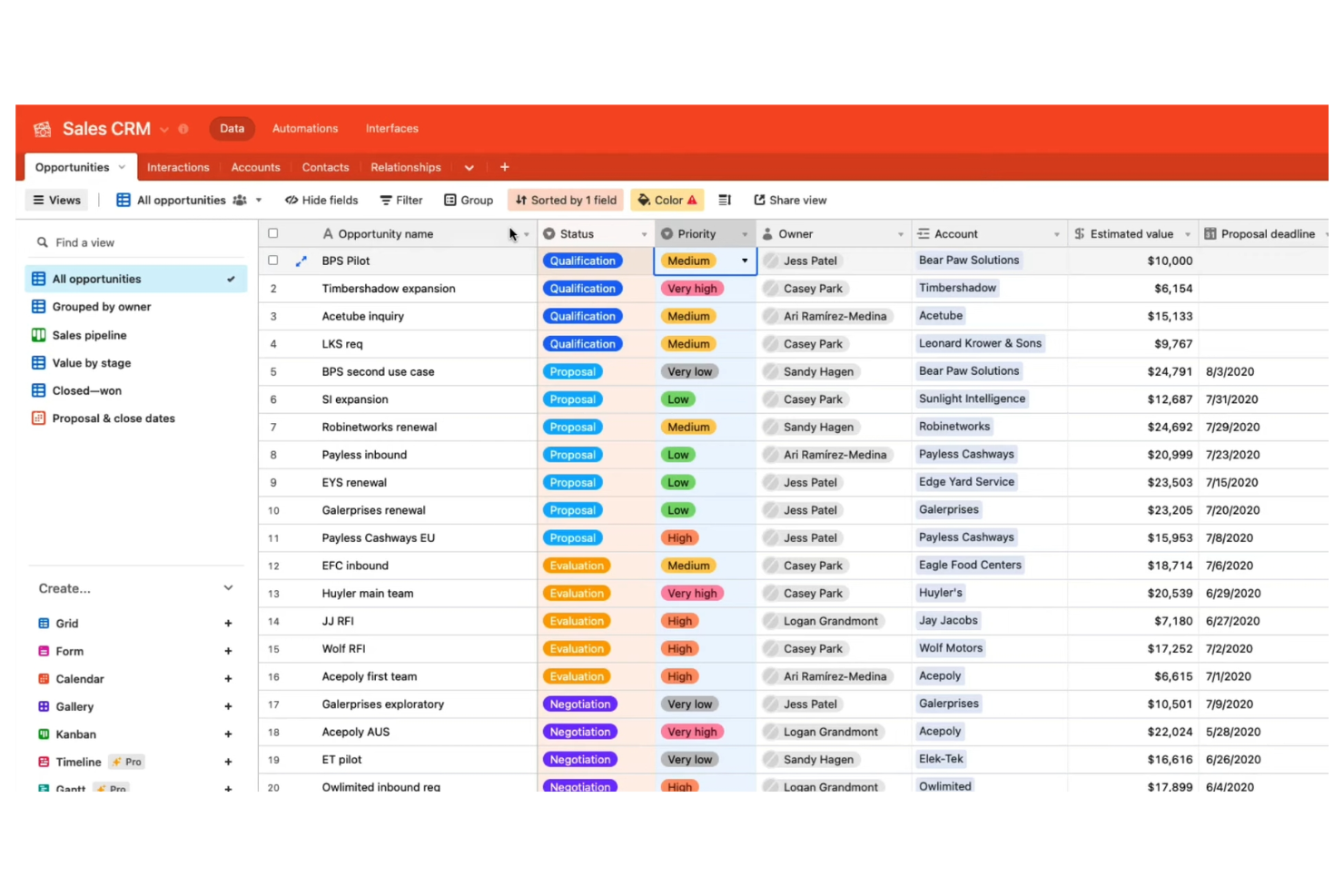
Airtable stands out for teams that need to automate workflows built on complex, relational data. It’s a strong fit for product managers, marketing teams, and operations leads who want to connect databases, trigger actions, and manage projects in a highly customizable environment. Airtable’s automation features let you build logic-driven workflows that update records, send notifications, and integrate with other tools—all from a flexible database interface.
Why I Picked Airtable
What sets Airtable apart is its database-driven approach to project tracking, which is especially valuable for teams managing complex, interconnected data. You can design custom tables with linked records, then use built-in automation to trigger actions like updating fields, sending notifications, or creating tasks based on changes in your data.
I appreciate how Airtable’s automation builder lets you set up multi-step workflows that respond to specific conditions within your database. For project managers who need granular control over data and workflow automation, Airtable offers a flexible and scalable solution.
Features
Some other features that make Airtable useful for automation and project management include:
- Interface Designer: Build custom dashboards and visual interfaces for your data without coding.
- AI Field Type: Add AI-powered fields to generate summaries, categorize data, or extract insights directly in your tables.
- Sync: Automatically sync data between different Airtable bases or with external sources.
- Revision History: Track changes to records and revert to previous versions when needed.
Integrations
Integrations include Google Drive, Salesforce, Slack, Jira, Zendesk, Box, Dropbox, GitHub, Gmail, and ChatGPT.
Pros and Cons
Pros:
- Interface Designer builds custom dashboards for automations
- Automations trigger multi-step workflows from changes
- AI fields generate summaries and categorize data
Cons:
- AI features require higher-tier plans
- Automation runs are limited per workspace

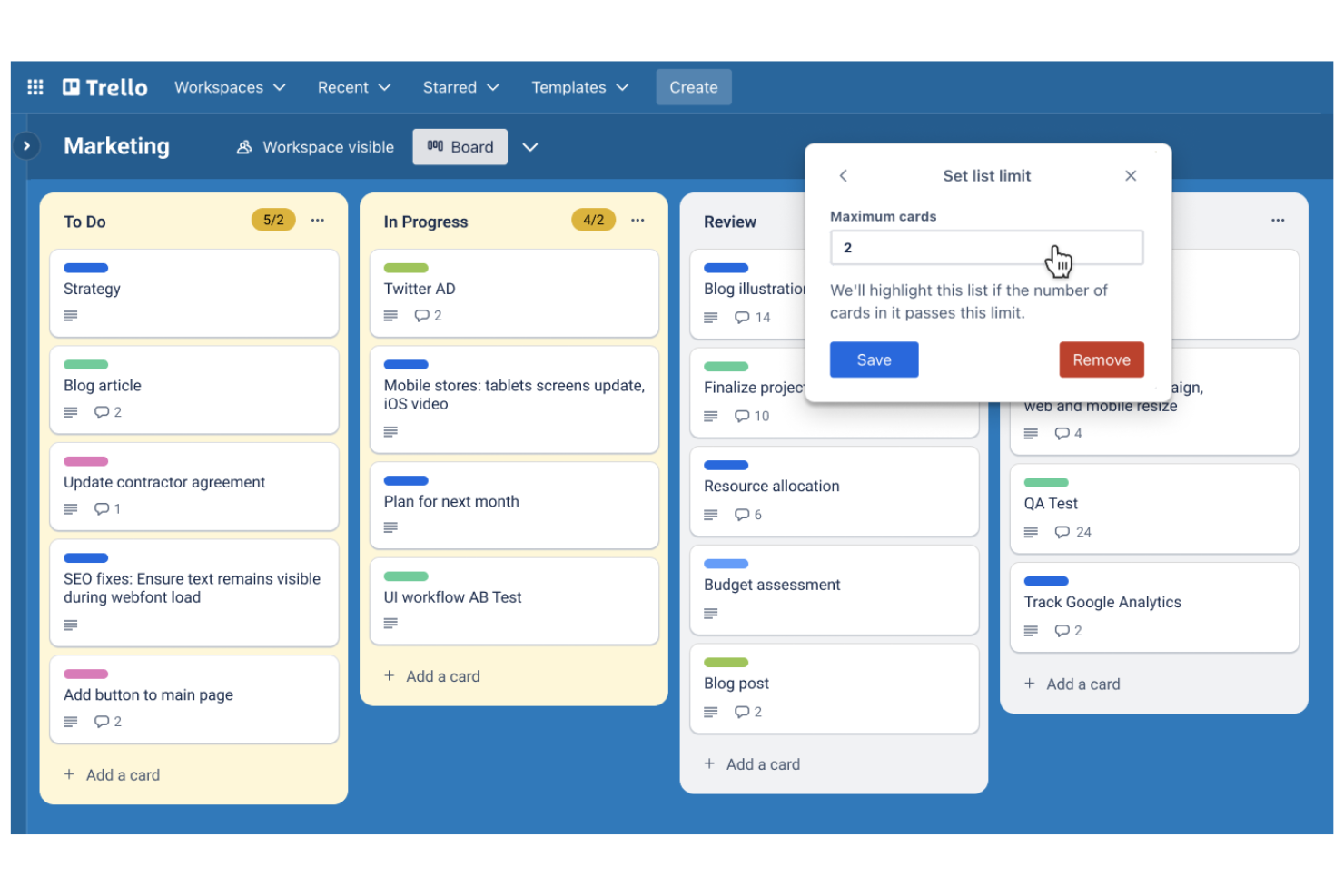
Trello brings AI-powered automation to kanban-style project boards, making it a fit for teams that want visual task management with minimal setup. It’s especially useful for marketing, product, and operations teams that need to automate repetitive card actions and keep workflows moving. With built-in automation for card sorting, due date reminders, and rule-based triggers, Trello helps teams manage projects without manual board updates.
Why I Picked Trello
For teams that rely on kanban-style project boards, Trello stands out by embedding automation directly into its visual workflow. Its built-in automation tool, Butler, lets you set up rules that move cards, assign tasks, or send reminders based on board activity. I like that you can automate recurring actions, such as sorting cards by due date or tagging items when they reach certain columns. These features make Trello a strong choice for anyone looking to add AI-driven automation to a kanban board without extra complexity.
Features
Some other features in Trello that support automation and project management include:
- Custom Card Templates: Create reusable templates for common task types or workflows.
- Calendar Power-Up: Visualize cards with due dates on a calendar view for better scheduling.
- Advanced Checklists: Add checklists with assignable items and due dates to individual cards.
- Card Aging Automation: Automatically highlight or fade cards that haven’t been updated in a set period.
Integrations
Integrations include Slack, Jira, Miro, GitLab, Dropbox, Evernote, Pipedrive, Egnyte, Testmo, and Pastel.
Pros and Cons
Pros:
- AI can suggest due dates for tasks
- Rule-based triggers automate repetitive board actions
- Butler automates card movement and notifications
Cons:
- No native AI for document summarization
- AI automation is limited to board-level actions
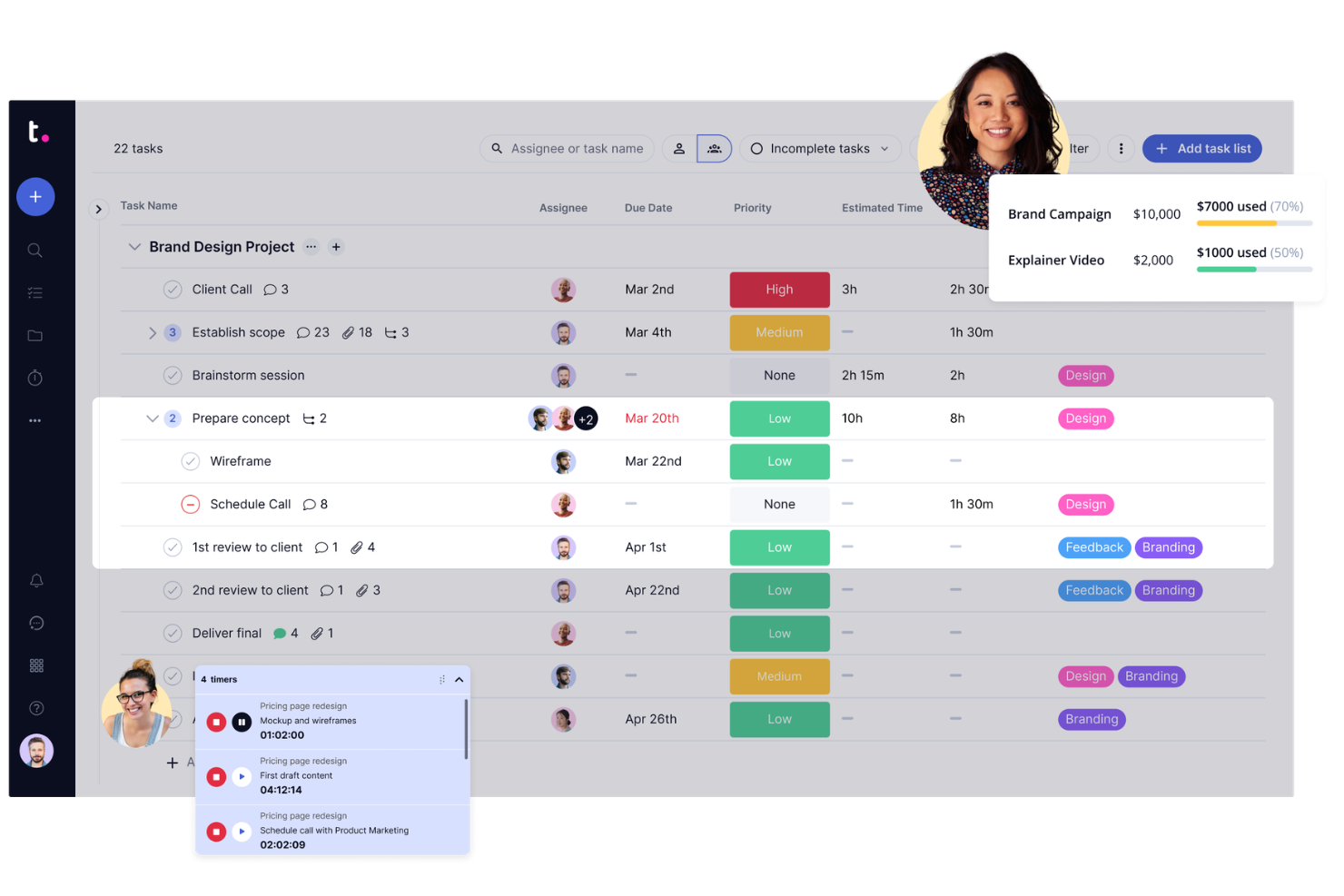
If your team manages projects for clients and needs automation built for transparency, Teamwork.com is worth a look. Agencies and service providers use it to automate client communications, approvals, and billing while keeping project data accessible to both internal and external stakeholders. Its client-facing features and workflow automation help teams reduce manual updates and keep clients in the loop without extra effort.
Why I Picked Teamwork.com
Unlike many project management platforms, Teamwork.com is designed with client collaboration and visibility at its core. I picked it because its automation features—like automated client status updates and approval workflows—help agencies and service teams keep clients informed without manual follow-up.
The platform also supports automated billing and time tracking, so you can connect project progress directly to client invoices. These features make Teamwork.com a strong choice for teams that need to automate both internal processes and client-facing interactions.
Features
Some other features that make Teamwork.com useful for project teams include:
- Task Automation Triggers: Set up rules to automatically assign, update, or move tasks based on project activity.
- Project Templates: Create and reuse project templates to automate the setup of recurring client projects.
- Workload Planner: Visualize and balance team capacity with drag-and-drop workload planning.
- Integrated Chat: Communicate with team members and clients directly within the platform using built-in chat.
Integrations
Integrations include Slack, Microsoft Office, Harvest, Xero, HubSpot, Google Drive, Dropbox, QuickBooks, ChatGPT, and Stripe.
Pros and Cons
Pros:
- Task triggers can assign or escalate work
- Supports automated invoice and billing workflows
- Automates client status updates and reminders
Cons:
- No AI-driven document summarization features
- No built-in AI for meeting transcription
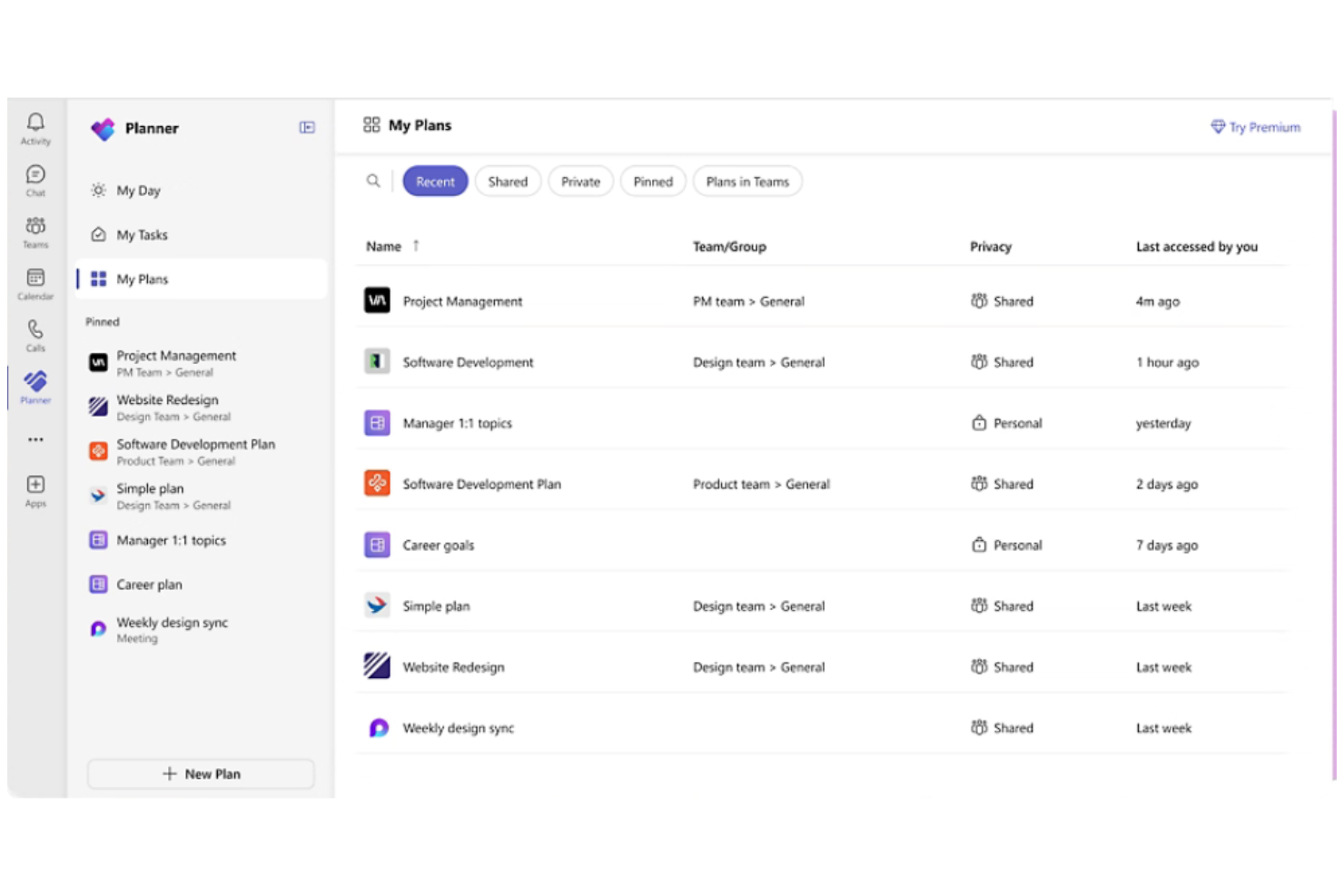
If your team already relies on Microsoft 365, Microsoft Planner offers a way to automate task management directly within your existing workflows. It’s designed for organizations that want to connect project planning, file sharing, and communication across Outlook, Teams, and OneDrive. Planner’s integration with Microsoft Copilot brings AI-powered task suggestions and automated updates to help teams keep projects on track.
Why I Picked Microsoft Planner
Because Microsoft Planner is built into the Microsoft 365 ecosystem, it’s a natural fit for teams that want to automate project tasks without leaving their familiar tools.
Its integration with Microsoft Copilot means you can use AI to generate task lists, assign work, and receive automated project updates right inside Teams or Outlook. I appreciate how Planner automatically syncs with other Microsoft 365 apps, so files, conversations, and deadlines stay connected across your workspace. For organizations already using Microsoft 365, Planner’s AI-driven automation features help centralize and simplify project management.
Features
Some other features that make Microsoft Planner useful for automation and project tracking include:
- Task Buckets: Organize tasks into customizable columns for different project stages or categories.
- Due Date Reminders: Automatically send notifications to team members as deadlines approach.
- Progress Tracking: Visualize task status with built-in charts and dashboards.
- Attachment Support: Add files and documents directly to tasks for easy reference.
Integrations
Integrations include Microsoft Teams, Outlook, OneDrive, SharePoint, Microsoft To Do, Microsoft Loop, Viva Goals, Power Automate, Microsoft Project, and Excel.
Pros and Cons
Pros:
- Power Automate enables advanced workflow automation
- Task updates sync across Microsoft 365 apps
- Copilot generates automated task suggestions
Cons:
- Limited automation outside the Microsoft ecosystem
- No AI-driven workflow approvals available

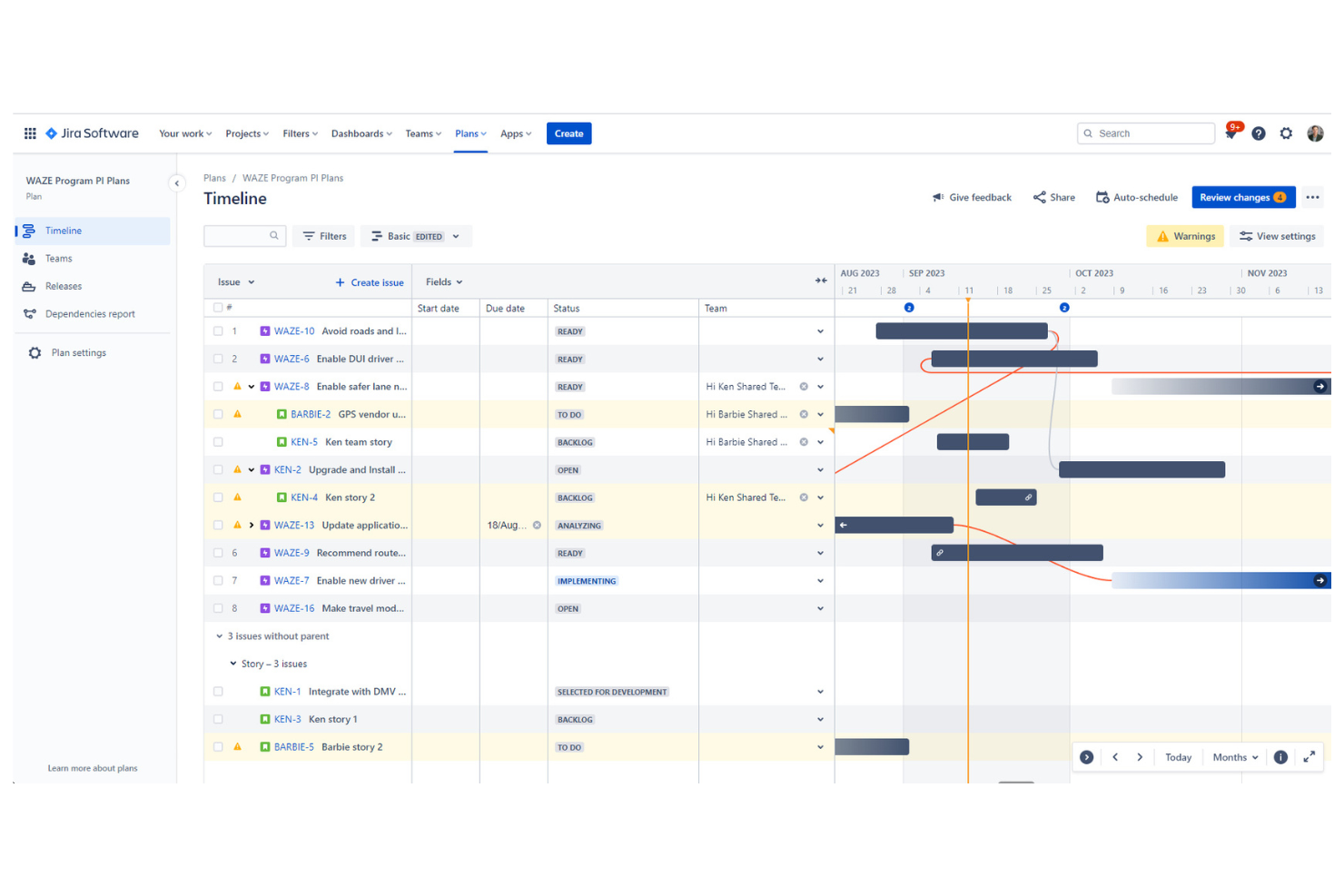
Jira is purpose-built for teams managing agile projects and sprint cycles, especially in software development and IT. It appeals to project managers and scrum masters who need automation for backlog grooming, sprint planning, and tracking work across distributed teams. With built-in AI features for issue triage and workflow automation, Jira helps teams prioritize tasks and keep projects moving without manual intervention.
Why I Picked Jira
When it comes to agile sprint planning, Jira offers automation features that directly support fast-moving development teams. Its AI-powered issue triage helps prioritize and assign tasks based on urgency and workload, which is essential for keeping sprints on track. I appreciate how Jira’s automation rules can update statuses, trigger notifications, and move issues between boards without manual input.
These capabilities make Jira a strong choice for teams that want to automate repetitive sprint management tasks and focus on delivering value.
Features
Some other features in Jira that support automation and agile workflows include:
- Custom Workflow Designer: Build and modify workflows with drag-and-drop tools to match your team’s processes.
- Advanced Roadmaps: Visualize project timelines, dependencies, and resource allocation across multiple teams.
- Bulk Issue Actions: Update, transition, or assign multiple issues at once using batch operations.
- Automation Template Library: Access pre-built automation templates for common agile and project management scenarios.
Integrations
Integrations include Slack, Microsoft Teams, Google Drive, Figma, Zoom, GitHub, Salesforce, Miro, QMetry, and Google Docs.
Pros and Cons
Pros:
- Bulk actions automate repetitive backlog management
- Automation rules support multi-step sprint workflows
- AI auto-triages and assigns incoming issues
Cons:
- Workflow automation setup can require admin access
- No native AI for code review automation


ClickUp brings together tasks, docs, goals, and automation in a single workspace, making it a strong fit for teams looking to consolidate their tools. Operations leads and project managers can use ClickUp to automate repetitive processes, centralize project communication, and manage everything from sprints to documentation. Its flexible structure and built-in AI features help teams reduce context switching and keep all work in one place.
Why I Picked ClickUp
For teams aiming to bring all their work into one place, ClickUp stands out with its all-in-one workspace consolidation. The platform combines task management, document collaboration, and AI-powered automation within a single environment, so you don’t have to juggle multiple tools.
I like that ClickUp’s AI features can generate summaries, automate routine updates, and assist with content creation directly inside your workflows. This unified approach helps project managers and operations leads keep everything organized and automate processes without leaving the platform.
Features
Some other features in ClickUp that support automation and workspace management include:
- Custom Automations Builder: Set up multi-step automations using triggers, conditions, and actions tailored to your workflows.
- Whiteboards: Visualize ideas, map out processes, and connect whiteboard elements directly to tasks.
- Goal Tracking: Set, track, and update progress on goals with automated status updates.
- Workload View: Monitor team capacity and task allocation with a visual workload dashboard.
Integrations
Integrations include Slack, GitHub, GitLab, HubSpot, Google Drive, Outlook, Figma, Zoom, Microsoft Teams, and Dropbox.
Pros and Cons
Pros:
- AI can rewrite or expand task descriptions
- Custom automation builder supports complex logic
- Whiteboards link directly to automated tasks
Cons:
- No native AI for image or file analysis
- AI suggestions sometimes miss project-specific context
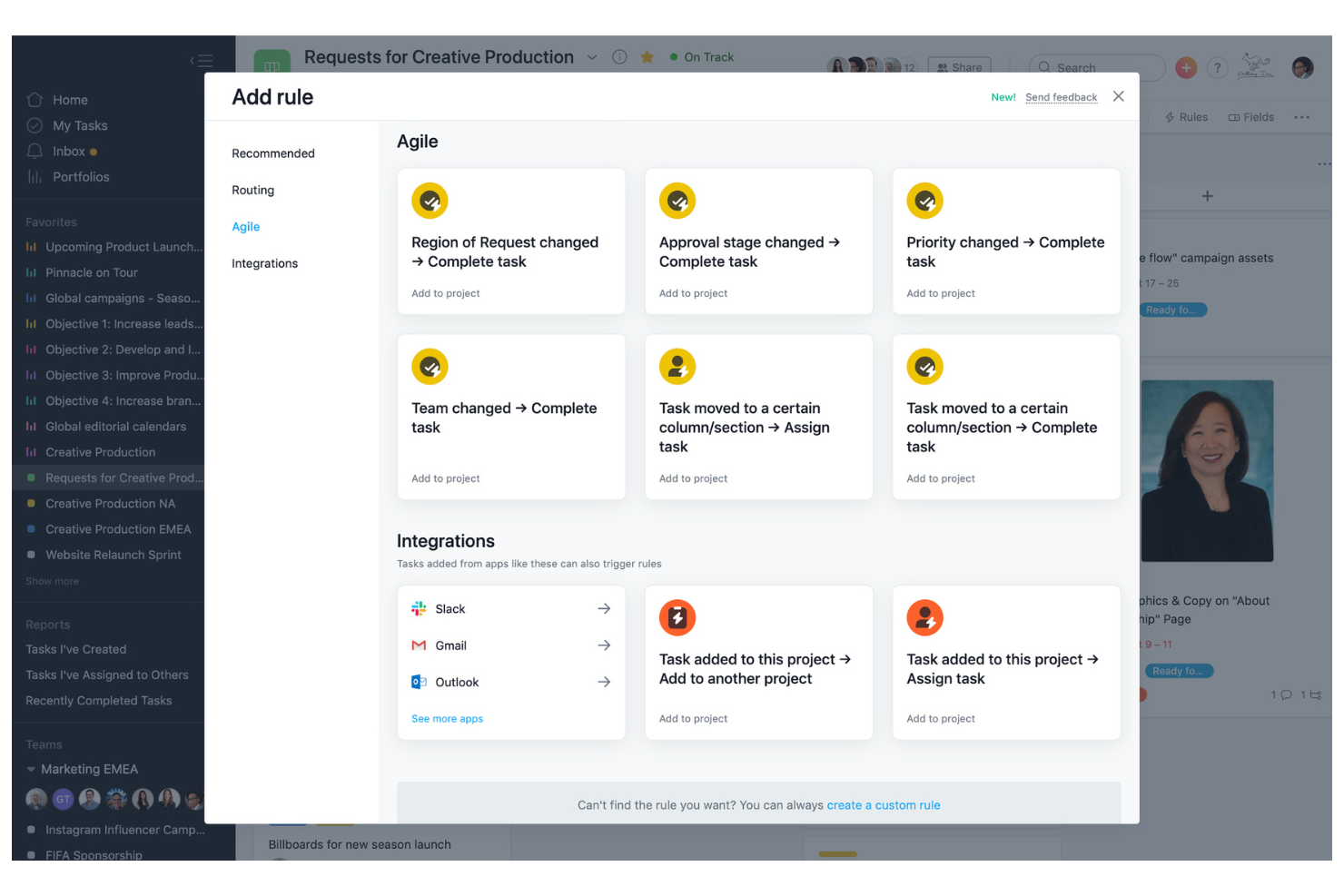
Asana offers a platform built for flexible workflow automation and detailed process customization, with AI features that help teams run those workflows with less manual oversight. Project managers and cross-functional teams use it to automate task assignments, approvals, and status updates, while Asana AI can draft project status updates and summarize work so it’s easier to spot blockers and next steps. Its rule-based automation reduces manual coordination and keeps complex projects moving forward.
Why I Picked Asana
I chose Asana for its strong focus on workflow customization, which is essential for teams looking to automate unique processes—and its growing layer of AI assistance that turns project activity into clear, actionable updates. Asana’s rule builder lets you set up automated triggers for task assignments, status changes, and notifications based on project needs.
I also like that Asana AI can generate smart status updates and surface key changes through summaries, which helps reduce the time spent chasing updates across stakeholders. Combined with custom templates and multi-step workflow automation, these capabilities help teams reduce manual work and keep projects aligned with their preferred processes.
Features
Some other features in Asana that support automation and project management include:
- Timeline View: Visualize project schedules and dependencies with a drag-and-drop Gantt chart interface.
- Workload Management: Monitor team capacity and balance assignments to avoid overloading team members.
- Milestone Tracking: Mark key project milestones to track progress and highlight important deadlines.
- Forms Automation: Collect and route requests or project inputs automatically using customizable forms.
Integrations
Integrations include Slack, Google Drive, Microsoft Teams, Salesforce, Tableau, Jira, Zoom, Dropbox, GitHub, and Outlook.
Pros and Cons
Pros:
- Visual timeline for tracking dependencies
- Custom templates for unique workflow needs
- Rule-based automation for recurring tasks
Cons:
- Workflow automation is limited to the project level only
- Limited AI-driven suggestions for process optimization
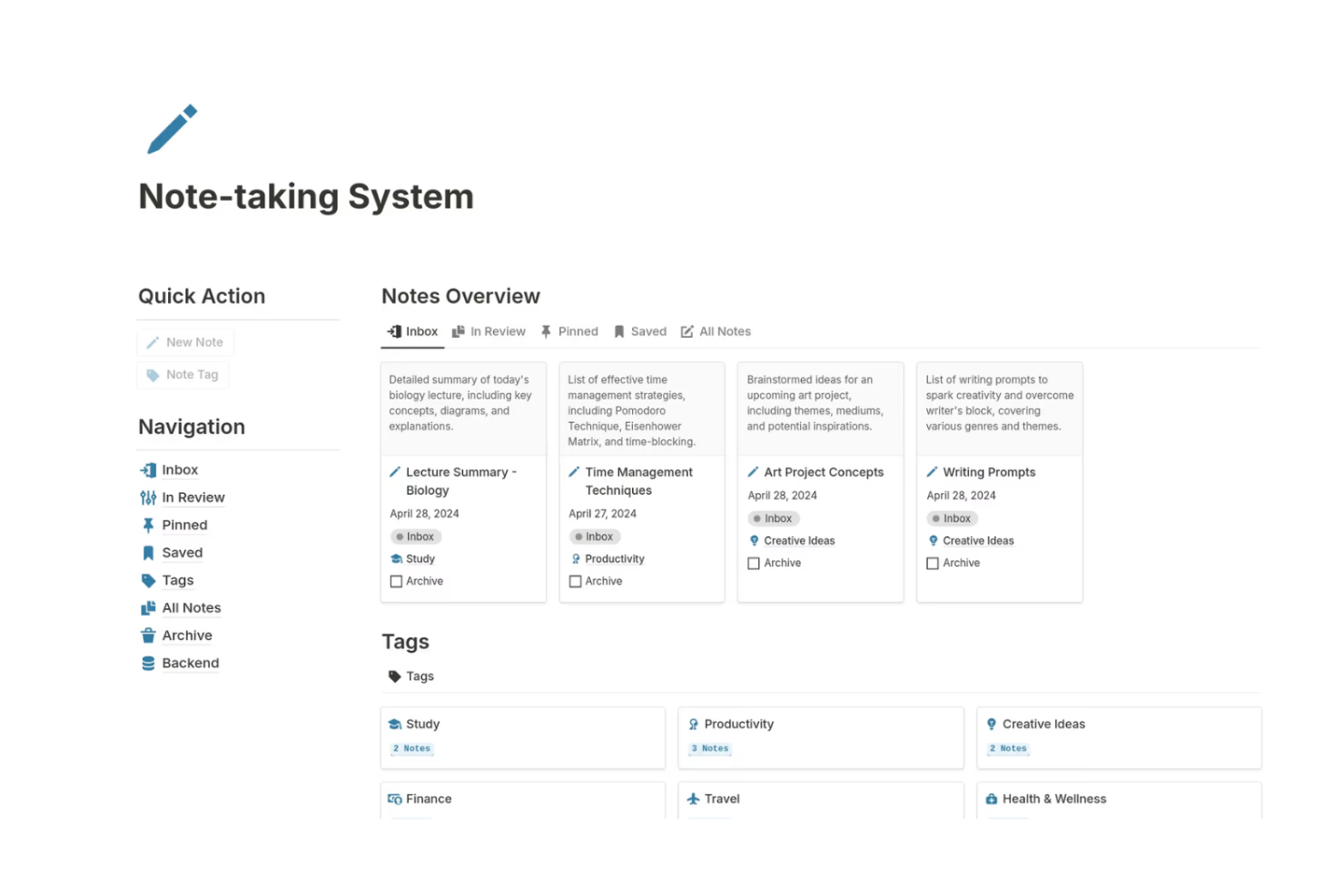
Notion brings together note-taking, project management, and AI-powered automation in a single workspace. It’s especially useful for product teams, content creators, and startups that want to connect meeting notes, tasks, and documentation with AI features like auto-summarization and smart task suggestions. Notion’s flexible databases and AI blocks help teams automate routine work while keeping everything organized in one place.
Why I Picked Notion
Notion stands out for teams that want to combine notes, project tasks, and AI automation in a single workspace. Its AI blocks let you generate summaries, draft content, and automate repetitive documentation tasks directly within your notes and project boards.
I like how you can link databases so that meeting notes, tasks, and project timelines all update together, making it easier to keep information connected and actionable. For teams looking to automate knowledge management and task tracking without switching between tools, Notion offers a unified and flexible solution.
Features
Some other features that make Notion valuable for automation and project management include:
- Custom Templates: Create and reuse templates for recurring project workflows or documentation.
- API Access: Connect Notion to other tools and automate data flows using its public API.
- Permissions and Sharing: Set granular access controls for pages, databases, and workspaces.
- Version History: Review and restore previous versions of any page or database.
Integrations
Integrations include Slack, Jira, GitHub, Asana, Google Drive, Figma, Trello, GitLab, Typeform, and Webex.
Pros and Cons
Pros:
- Page mentions enable automated cross-linking of tasks
- Custom templates support repeatable automation workflows
- AI autofill generates content for project docs
Cons:
- Limited native automation triggers compared to competitors
- Bulk automation actions are not natively supported
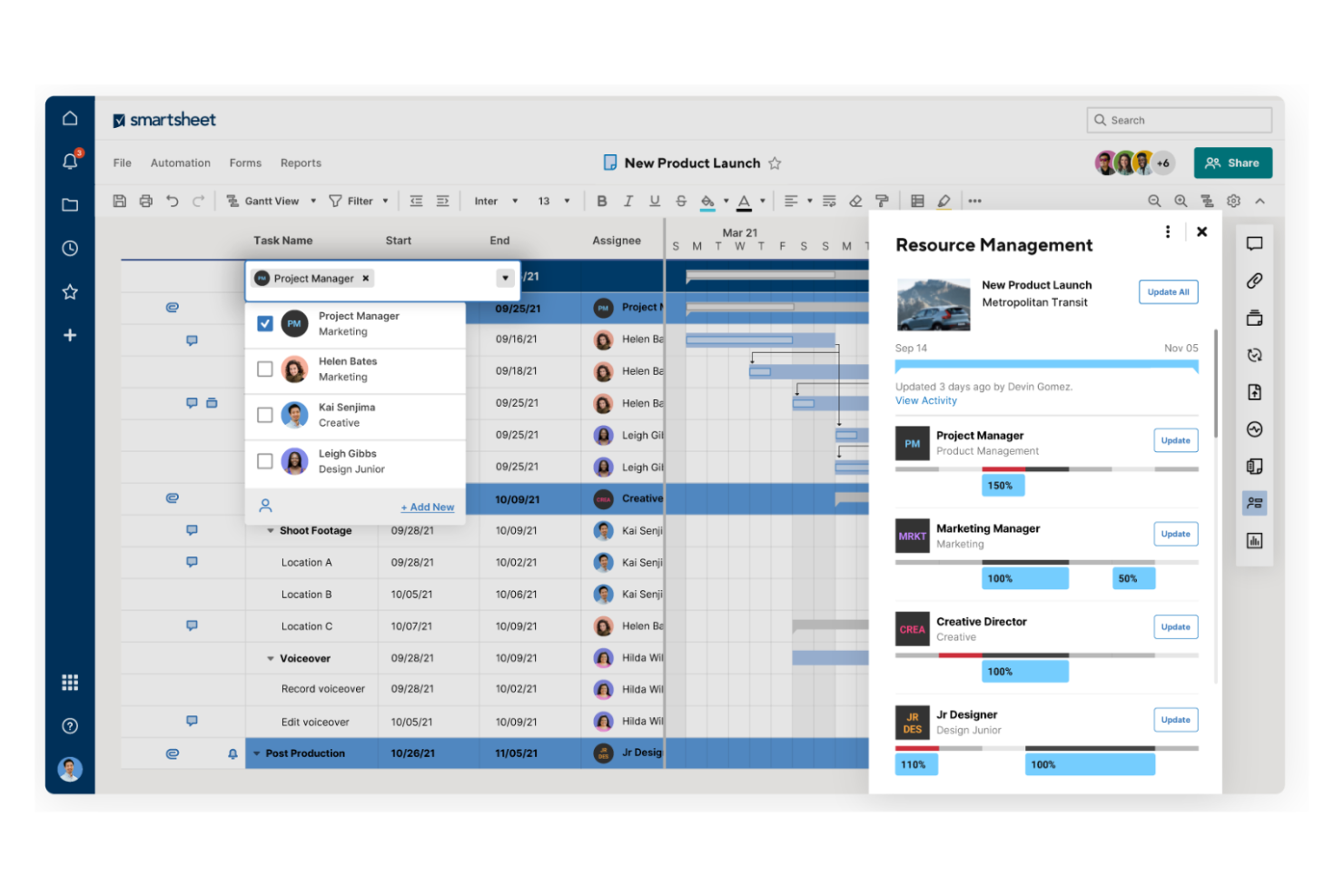
If your team prefers working in a familiar spreadsheet format but needs advanced automation, Smartsheet offers a unique blend of both. It’s especially useful for project managers and operations teams who want to automate approvals, reminders, and data collection without leaving a grid view. Smartsheet’s automation tools help teams manage complex projects while keeping everything organized in a spreadsheet-style interface.
Why I Picked Smartsheet
Smartsheet’s spreadsheet-style project views make it a natural fit for teams that want to automate work without leaving a familiar grid layout. Its automation builder lets you set up rules for approvals, notifications, and task assignments directly within sheets, so you can keep processes moving with minimal manual effort.
I like that you can trigger workflows based on changes in cell values or form submissions, which is especially useful for managing high-volume or repetitive tasks. For project managers who want to combine spreadsheet flexibility with automation, Smartsheet offers a practical solution.
Features
Some other features that make Smartsheet useful for automation and project management include:
- Document Generation: Automatically create documents from sheet data using pre-built templates.
- Resource Management: Allocate and track team resources across multiple projects in real time.
- Cell Linking: Connect data between sheets to keep information updated and consistent.
- Data Shuttle: Import and export data between Smartsheet and external systems on a schedule.
Integrations
Integrations include Jira Software, Salesforce, Microsoft Teams, Slack, Power BI, Tableau, Google Drive, Adobe Creative Cloud, ServiceNow, and Docusign.
Pros and Cons
Pros:
- Scheduled data imports and exports are available
- AI-powered content summarization for sheets
- Automates approval workflows with conditional logic
Cons:
- Some AI features are limited to the Enterprise plan
- Automation actions capped per sheet
New Product Updates from Smartsheet

Smartsheet Adds Direct Data Import to Existing Sheets
Smartsheet introduces direct data import to existing sheets in table view. This update lets you import CSV, XLS, and XLSX files directly into sheets, reducing manual work and speeding up data setup. For more information, visit Smartsheet's official site.
 .
.
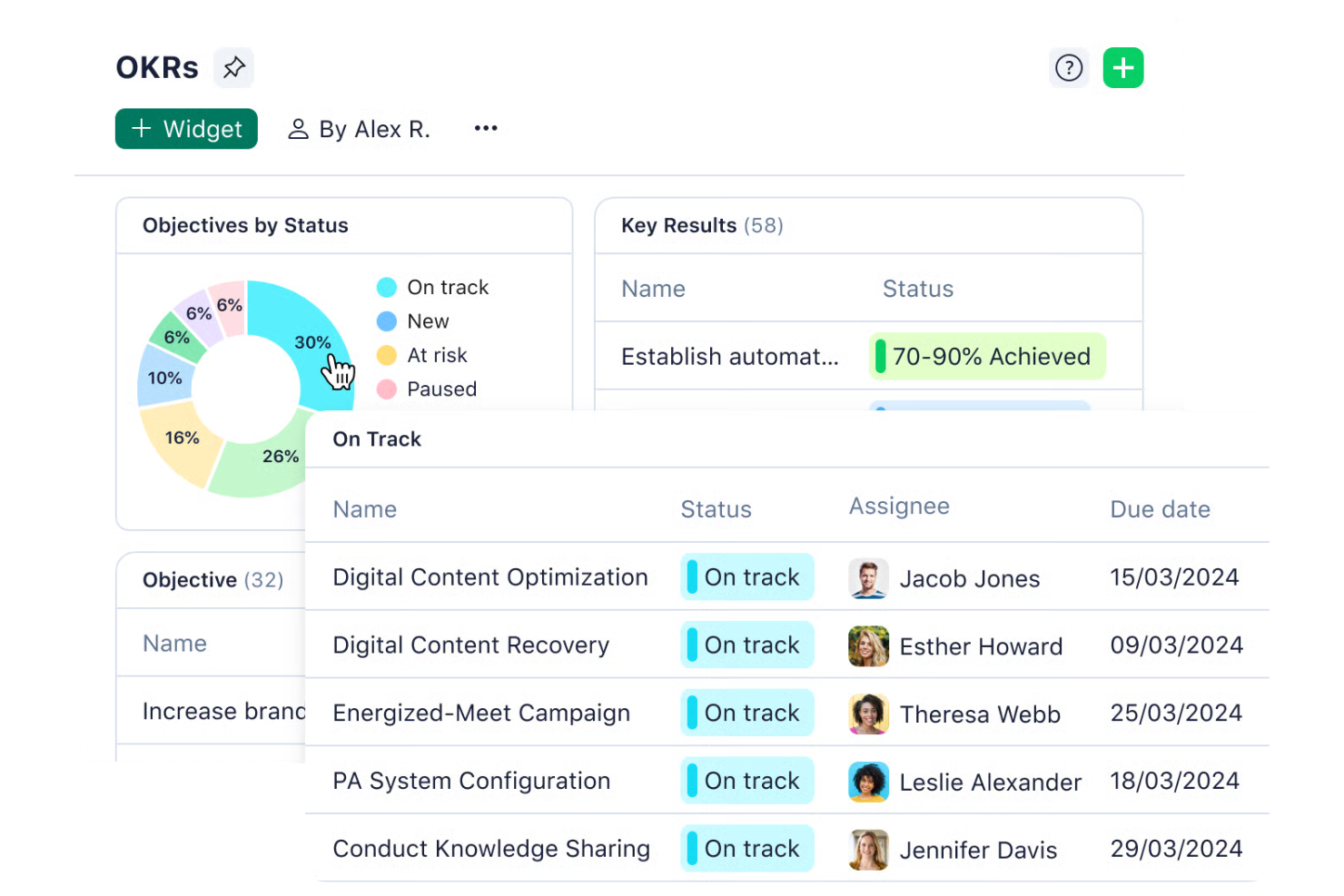
Wrike adds AI-driven automation to project management for teams coordinating work across departments. It suits operations, marketing, and IT groups that need to automate task assignments, approvals, and shared workflows. Its automation engine cuts down on manual updates and keeps multi-team projects on track.
Why I Picked Wrike
When it comes to cross-department collaboration, Wrike stands out for its ability to automate complex workflows that span multiple teams. Its AI-powered Work Intelligence features help identify project risks and suggest task prioritization, which is especially useful when several departments are involved.
I appreciate how Wrike’s automation engine can trigger actions like task assignments, status updates, and approval requests based on custom rules. This makes it a strong choice for organizations that need to keep projects moving smoothly across different business functions.
Features
In addition to its automation engine and AI-powered project insights, Wrike offers several other features that support automation and collaboration:
- Blueprints: Build reusable project templates with pre-set tasks and timelines for faster project launches.
- Dynamic Request Forms: Route incoming work requests automatically to the right team or workflow based on form responses.
- Automated Time Tracking: Track time spent on tasks automatically for more accurate reporting and resource planning.
- Custom Item Types: Create and automate unique work item types tailored to your team’s processes.
Integrations
Integrations include Salesforce, Microsoft Teams, Google Drive, Zoom, Adobe Creative Cloud, QuickBooks, Tableau, Power BI, Miro, and Klaxoon.
Pros and Cons
Pros:
- Blueprints automate recurring project structures
- Automated request forms route tasks instantly
- AI flags project risks in real time
Cons:
- Workflow automation rules have execution limits
- Automation setup can be complex for teams
New Product Updates from Wrike

Streamlining Workspaces with New Updates
Wrike announces custom space templates, AI Agents in Wrike Labs, and a new Guage widget to improve project management. For more information, visit Wrike's official site.
Other AI Automation Tools
Here are some additional AI automation tools options that didn’t make it onto my shortlist, but are still worth checking out:
- Zoho Projects
For AI-assisted time + project delivery
- monday.com
For AI-powered visual work tracking
- Scoro
With integrated billing tools
- Kantata
Teams with billable services that want AI-assisted planning and workflow automation
- Forecast
For resource allocation powered by AI-driven insights
- Hootsuite
For AI-assisted social media management at scale
- Hive
For using AI prompts to create structured project plans and tasks
- Motion
With AI-powered scheduling
- ChatGPT
For conversational AI task automation
- OpenAI
For building custom AI agents and automation workflows
- Zapier
For no-code AI workflow automation across apps
- Gemini
For AI-powered automation inside Google Workspace


AI Automation Tools Selection Criteria
When selecting the best AI automation tools to include in this list, I considered common buyer needs and pain points like automating repetitive workflows and integrating AI-driven insights into daily operations. I also used the following framework to keep my evaluation structured and fair:
Core Functionality (25% of total score) To be considered for inclusion in this list, each solution had to fulfill these common use cases:
- Automate repetitive tasks and workflows
- Integrate with other business software
- Provide AI-powered recommendations or insights
- Support rule-based and trigger-based automation
- Enable team collaboration and communication
Additional Standout Features (25% of total score) To help further narrow down the competition, I also looked for unique features, such as:
- Natural language processing for task creation
- AI-driven project risk prediction
- Automated document summarization
- Smart scheduling and resource allocation
- Built-in AI chat or virtual assistant
Usability (10% of total score) To get a sense of the usability of each system, I considered the following:
- Simple and intuitive user interface
- Clear navigation and dashboard layout
- Minimal clicks to automate tasks
- Customizable views and workflows
- Accessibility across devices
Onboarding (10% of total score) To evaluate the onboarding experience for each platform, I considered the following:
- Availability of training videos and tutorials
- Access to pre-built templates
- Interactive product tours or walkthroughs
- In-app chatbots for onboarding support
- Live or recorded webinars for new users
Customer Support (10% of total score) To assess each software provider’s customer support services, I considered the following:
- 24/7 live chat or email support
- Comprehensive help center or knowledge base
- Fast response times to inquiries
- Access to dedicated account managers
- Community forums for peer support
Value For Money (10% of total score) To evaluate the value for money of each platform, I considered the following:
- Transparent and flexible pricing plans
- Features included at each pricing tier
- Free trial or free plan availability
- No hidden fees or surprise charges
- Discounts for annual billing or larger teams
Customer Reviews (10% of total score) To get a sense of overall customer satisfaction, I considered the following when reading customer reviews:
- Positive feedback on automation capabilities
- Reports of reliable AI-driven features
- Comments on integration with other tools
- User satisfaction with support and onboarding
- Value perception compared to similar tools
How to Choose an AI Automation Tool
It’s easy to get bogged down in long feature lists and complex pricing structures. To help you stay focused as you work through your unique software selection process, here’s a checklist of factors to keep in mind:
| Factor | What to Consider |
|---|---|
| Scalability | Will the tool handle your team’s growth and increased automation needs over time? Check user, workflow, and data limits. |
| Integrations | Does the tool connect natively with your existing systems (CRM, ERP, chat, file storage)? List your must-have integrations before shortlisting. |
| Customizability | Can you tailor automation rules, workflows, and notifications to fit your team’s processes? Avoid tools that force rigid templates. |
| Ease of use | Will your team adopt the tool quickly, or will it require extensive training? Look for clear navigation and minimal setup steps. |
| Implementation and onboarding | How long will it take to get up and running? Ask about migration support, onboarding resources, and typical time-to-value for similar teams. |
| Cost | Are pricing tiers transparent and predictable as you scale? Watch for hidden fees, per-automation charges, or required add-ons. |
| Security safeguards | Does the tool offer encryption, access controls, and compliance with your industry’s standards? Confirm data residency and audit logging if needed. |
| Support availability | Will you have access to timely help if issues arise? Check for live chat, phone support, and response time guarantees, especially if automations are business-critical. |
What Are AI Automation Tools?
AI automation tools are software platforms that use artificial intelligence to automate repetitive tasks, workflows, and decision-making processes across business operations. These tools help teams reduce manual work, improve accuracy, and gain insights by applying machine learning, natural language processing, or predictive analytics.
Project managers, IT teams, and business leaders use AI automation tools to streamline processes, increase efficiency, and support data-driven decision-making in dynamic environments.
Features
When evaluating an AI automation platform, look for tools that combine no-code configuration with intelligent AI models to support real business processes at scale. The right system should make it easier to design, automate, and improve workflows without requiring technical expertise.
- Workflow builder: A no-code workflow builder lets you design, visualize, and manage multi-step processes using drag-and-drop tools or rule-based logic. This makes it easier to deploy AI agents that handle repetitive steps and keep work progressing automatically.
- Task assignment: Automatically or manually assign tasks to specific team members or groups based on project needs. AI models can help prioritize assignments based on workload or deadlines, ensuring better coordination.
- Notifications and alerts: Send real-time updates about task changes, deadlines, or workflow progress through email, in-app messages, or push notifications. AI agents can trigger alerts when risk patterns or delays are detected.
- Role-based access control: Set permissions and restrict access to sensitive data or actions based on user roles. This supports secure automation across departments and protects critical business processes.
- Audit logs: Track and record all user actions and workflow changes, creating a transparent history for compliance and troubleshooting.
- Integration hub: Connect with other business tools and platforms so data flows between systems and reduces manual data entry. A strong automation platform ensures your workflows extend beyond a single app.
- Reporting dashboard: View performance metrics, task completion rates, and process bottlenecks in real time. In more advanced systems, AI generates summaries and insights from your data to highlight trends and emerging risks.
- Template library: Access pre-built workflow and task templates that can be customized and reused for recurring processes, helping reduce setup time and shorten the learning curve.
- Calendar view: Display tasks, deadlines, and project milestones in a visual calendar format for easier scheduling and planning.
- Mobile access: Manage workflows, approve tasks, and receive notifications from any device, supporting remote teams and on-the-go decision-making.
Benefits
Adopting AI automation tools can significantly improve how your organization manages work and executes business processes.
- Reduced manual workload: AI agents automate repetitive tasks and rule-based AI workflows, allowing your team to focus on strategic, higher-value initiatives.
- Improved accuracy: Automated processes follow consistent logic every time, reducing human error and improving high-quality data reliability across systems.
- Faster project delivery: Automated task routing, notifications, and workflow triggers keep projects advancing without unnecessary delays, delivering tactical results in less time.
- Better resource allocation: AI models analyze workload data and project timelines to support smarter forecasting and workload planning.
- Enhanced visibility: Real-time dashboards, audit logs, and AI-generated insights provide clarity into project status, performance gaps, and operational risks.
- Stronger compliance: Role-based access controls and audit trails help enforce governance policies and regulatory requirements.
- Scalable operations: As your organization grows, a flexible automation platform adapts to increasing workloads, more complex workflows, and evolving business processes without adding operational friction.
Costs and Pricing
Selecting AI automation tools requires an understanding of the various pricing models and plans available. Costs vary based on features, team size, add-ons, and more. The table below summarizes common plans, their average prices, and typical features included in AI automation tools solutions:
Plan Comparison Table for AI Automation Tools
| Plan Type | Average Price | Common Features |
|---|---|---|
| Free Plan | $0 | Basic workflow automation, limited integrations, single-user access, and community support. |
| Personal Plan | $5-$15/user/month | Multi-step workflows, basic reporting, email notifications, and limited customization options. |
| Business Plan | $20-$40/user/month | Advanced automation, team collaboration tools, integration hub, audit logs, and priority support. |
| Enterprise Plan | $400+ per user/month (varies widely) | Custom workflows, advanced security, dedicated onboarding, compliance features, and premium support. |
AI Automation Tools FAQs
Here are some answers to common questions about AI automation tools:
How do AI automation tools differ from traditional automation software?
AI automation tools use machine learning and data analysis to make decisions, adapt workflows, and provide recommendations, while traditional automation software relies on fixed rules and manual configuration. This allows AI tools to handle more complex, dynamic processes and improve over time as they learn from data.
Can AI automation tools integrate with legacy systems?
Yes, many AI automation tools offer integration options for legacy systems through APIs, middleware, or custom connectors. Before choosing a tool, check if it supports your existing software stack and whether integration will require additional development or third-party services.
What security considerations should I keep in mind when using AI automation tools?
You should look for features like data encryption, access controls, audit logs, and compliance certifications. Make sure the tool aligns with your organization’s data privacy policies and industry regulations, and ask vendors about their incident response and data residency practices.
How long does it take to implement an AI automation tool?
Implementation time varies based on the complexity of your workflows and the level of customization required. Simple setups can take a few days, while more complex integrations and onboarding may take several weeks. Ask vendors for typical timelines and available onboarding resources.
Are there hidden costs with AI automation tools?
Yes, some tools may charge extra for premium integrations, advanced features, or higher usage limits. Always review the pricing details, ask about add-on fees, and clarify what’s included in each plan before making a decision.
What’s Next:
If you're in the process of researching AI automation tools, connect with a SoftwareSelect advisor for free recommendations.
You fill out a form and have a quick chat where they get into the specifics of your needs. Then you'll get a shortlist of software to review. They'll even support you through the entire buying process, including price negotiations.