

De 10 beste programvarene for visuell prosjektstyring i 2026

10 Beste programvare for visuell prosjektstyring – kortliste


Hvis du noen gang har slitt med spredt informasjon, uklare tidslinjer eller med å følge opp arbeid på tvers av team, er du ikke alene. Det er her programvare for visuell prosjektstyring kommer inn i bildet. Ved å bruke interaktive oversikter, dynamiske rapporter og intuitive arbeidsflyter hjelper disse verktøyene deg med å få et tydelig sanntidsbilde av prosjektene dine med et øyekast.
Det kan imidlertid være vanskelig å finne ut hvilket verktøy som passer best for deg, når så mange ulike verktøy tilbyr visuelle funksjoner. Derfor gjør jeg det enkelt i dette innlegget. Jeg bruker min erfaring med å lede store, komplekse prosjekter og med å bruke dusinvis av ulike prosjektstyringsverktøy til å gi deg denne kortlisten over den beste programvaren for visuell prosjektstyring.
Why Trust Our Software Recommendations
Our team has been testing and reviewing software since 2012. As project managers ourselves, we know how difficult—and important—it is to choose the right software.
For this guide, we evaluated tools using hands-on testing and independent research, scoring tools using our selection criteria. We also draw on insights from industry thought leaders and practicing project management experts.
Our reviews reflect our human editorial judgment, not a sales pitch.
Expert reviewers:
Sammenligningstabell for løsninger innen visuell prosjektstyring
| Tool | Best For | Trial Info | Price | ||
|---|---|---|---|---|---|
| 1 | Best for free plan with bold color-coding of tasks | Free plan available | From $9/user/month (billed annually) | Website | |
| 2 | Best collaborative visual project management software | 14-day free trial | Pricing upon request | Website | |
| 3 | Best for real-time financial reporting | 14-day free trial + free demo available | From $10/user/month (billed annually) | Website | |
| 4 | Best for capacity planning visualization | Free demo available | Pricing upon request | Website | |
| 5 | Best for visualizing projects of varying complexity | Free plan + 15-day free trial + free demo available | From $4/user/month (billed annually) | Website | |
| 6 | Best for spreadsheet-style visual scheduling | 30-day free trial | From $9/user/month (billed annually) | Website | |
| 7 | Best for 15-plus views on one dataset | Free plan available | From $10/user/month | Website | |
| 8 | Best for projects, resources, and finances in one | Free demo available | Pricing upon request | Website | |
| 9 | Best for entreprise control with frontline flexibility | 30-day free trial | From $15/user/month (billed annually) | Website | |
| 10 | Best for portfolio-wide analysis reports | Free plan available; 14-day free trial | From $3/user/month | Website |


Oversikt over de 10 beste løsningene for visuell prosjektstyring
Hvis du noen gang har slitt med spredt informasjon, uklare tidslinjer eller med å følge opp arbeid på tvers av team, er du ikke alene. Det er her programvare for visuell prosjektstyring kommer inn i bildet. Ved å bruke interaktive oversikter, dynamiske rapporter og intuitive arbeidsflyter hjelper disse verktøyene deg med å få et tydelig sanntidsbilde av prosjektene dine med et øyekast. Her er en kort beskrivelse av hver programvare for visuell prosjektstyring som er med på denne listen.
Best for free plan with bold color-coding of tasks
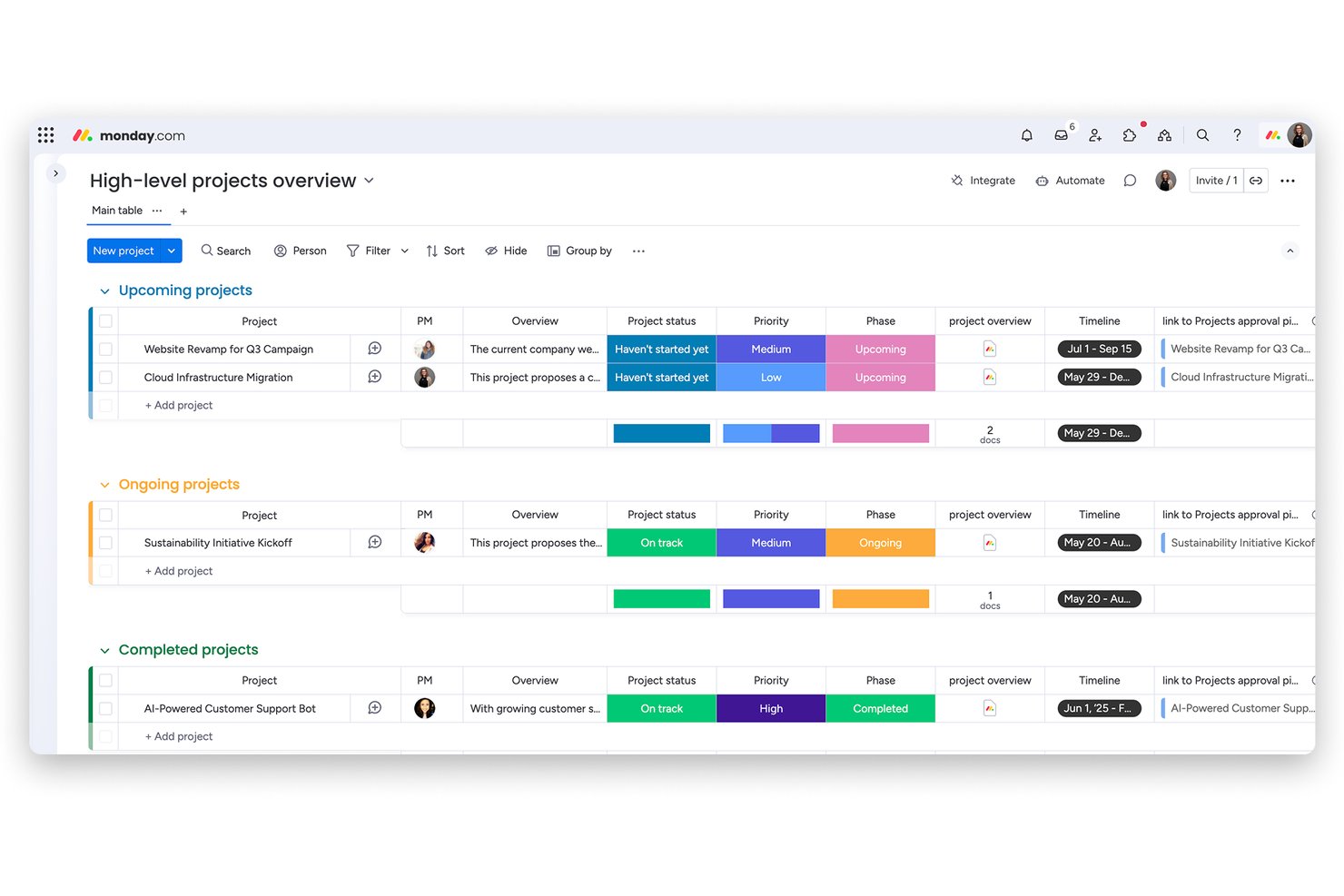
monday AI Workspace is a visual work management platform that combines color-coded task boards, Gantt timelines, Kanban views, and AI-powered dashboards to help teams plan, track, and report on projects across functions.
Who Is monday AI Workspace Best For?
It's a strong fit for cross-functional teams at mid-size companies that need a visually intuitive way to manage multiple projects without heavy IT setup.
Why I Picked monday AI Workspace
monday AI Workspace earns its spot on my shortlist because the free plan delivers a genuinely visual experience, not a stripped-down text list. You get up to three color-coded boards where each status column maps to a distinct color, so task states like "Stuck," "In Progress," and "Done" are immediately readable across a whole team's work. I particularly like that those status colors are fully customizable, so my team can build a visual language that reflects our actual workflow stages.
monday AI Workspace Key Features
- AI-powered dashboards: Build customizable visual dashboards that sync project data in real time from multiple boards.
- Drag-and-drop Gantt and timeline views: Schedule and adjust tasks visually across timelines and milestones without switching tools.
- No-code workflow automation: Automate task assignments, notifications, and status changes with an intuitive visual builder.
- Native portfolio project tracking: Aggregate progress and status updates from several boards into a single high-level portfolio view.
monday AI Workspace Integrations
monday AI Workspace offers hundreds of native and marketplace integrations, including Slack, Google Workspace, Microsoft 365, Salesforce, HubSpot, Jira, GitHub, and Zendesk. It also supports Zapier and provides an API for custom integrations.
Pros and Cons
Pros:
- AI auto-generates project plans from prompts
- Multiple project views sync in real time
- Free plan includes real color-coded visual boards
Cons:
- Dashboards require higher-tier plans to unlock
- Gantt charts locked behind paid tiers
New Product Updates from monday AI Workspace
monday AI Workspace Adds Human Approval Routing
monday AI Workspace adds a human-in-the-loop approval block to AI Workflows, sending approval requests and routing workflow paths based on responses. For more information, visit monday AI Workspace's official site.
Wrike
Best collaborative visual project management software
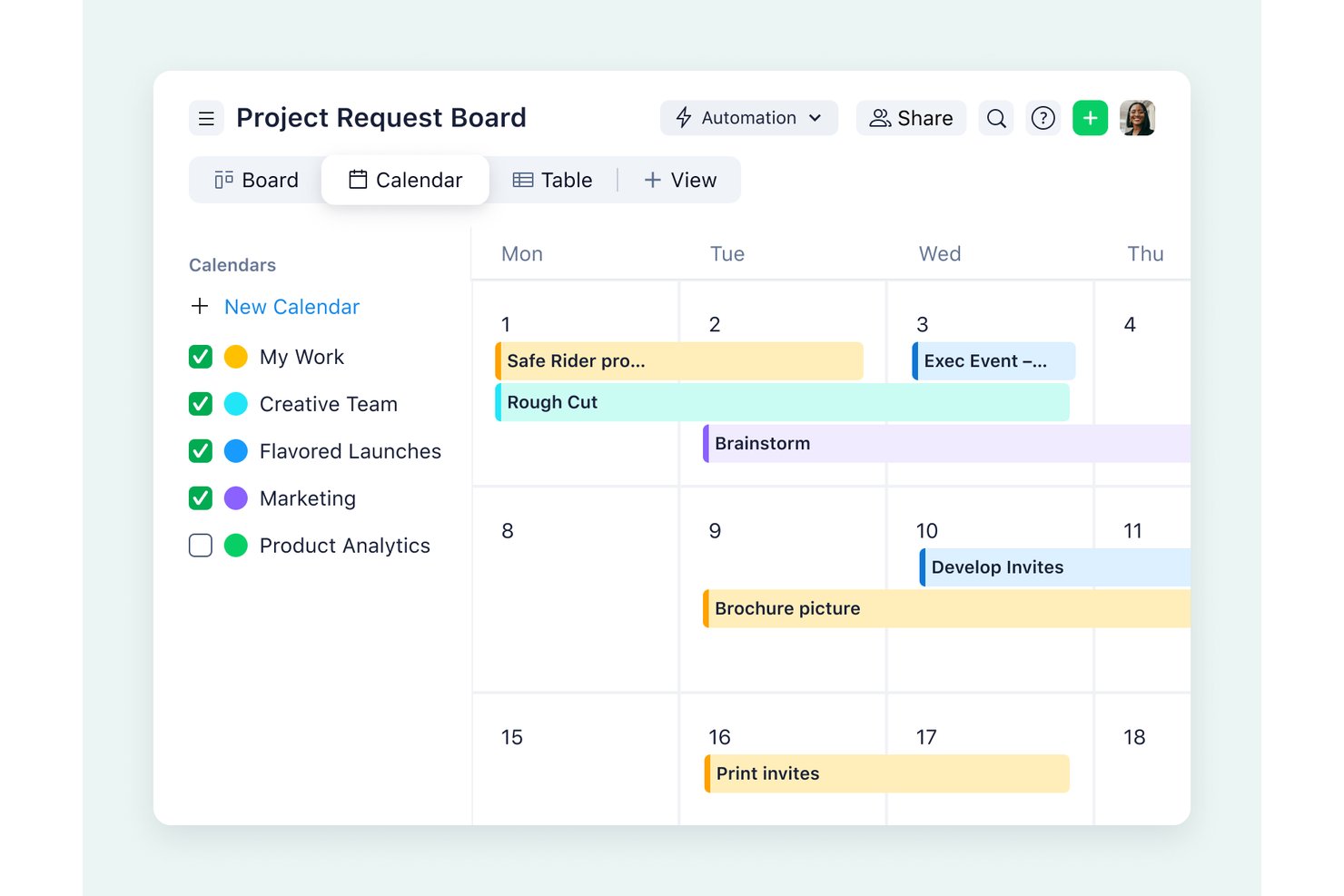
Wrike is a visual project management platform that brings together Gantt charts, Kanban boards, workload views, and real-time dashboards alongside built-in proofing, approval workflows, and automated dependency scheduling.
Who Is Wrike Best For?
Wrike is a strong fit for project managers and team leads at mid-size to large organizations who need enterprise-grade dependency tracking, workload visibility, and cross-functional collaboration in one place.
Why I Picked Wrike
Wrike earns its spot as one of the best on my shortlist because the depth of its collaborative visual tools genuinely sets it apart. I love that proofing, approval chains, and live document editing sit right alongside Gantt charts and workload heatmaps in one workspace. When my team is reviewing a campaign asset, we can leave pinned visual feedback, route it through an approval chain, and immediately see how sign-off delays ripple through dependent tasks on the timeline.
Wrike Key Features
- Critical path tracking: Wrike highlights the tasks that directly control your project's finish date, showing total and free float so you can spot schedule risk before it becomes a problem.
- Workload charts: Visualize each team member's capacity at a glance and reassign tasks directly from the chart to balance uneven workloads.
- Dynamic request forms: Capture incoming work through customizable intake forms that automatically route tasks to the right project or folder.
- Public Gantt links: Share a live, view-only timeline with external stakeholders via a password-protected link, no Wrike account required.
Wrike Integrations
Wrike supports 400+ prebuilt connectors, including Jira, GitHub, Slack, Microsoft Teams, Google Workspace, Adobe Creative Cloud, Salesforce, and Power BI. It also offers an open REST API for custom integrations; two-way Jira and GitHub sync requires Wrike Sync.
Pros and Cons
Pros:
- Proofing connects visual feedback with approval workflows
- Workload charts expose capacity imbalances across teams
- Gantt dependencies reschedule linked tasks automatically
Cons:
- Seat bundles can leave small teams overprovisioned
- Complex setup can slow team onboarding
New Product Updates from Wrike
Wrike Adds Klaxoon MCP Integration
Wrike’s Klaxoon MCP integration is now generally available, enabling AI agents to navigate between Wrike tasks and attached whiteboards, read task context, and manage whiteboard attachments via API. For more information, visit Wrike's official site.

Celoxis
Best for real-time financial reporting
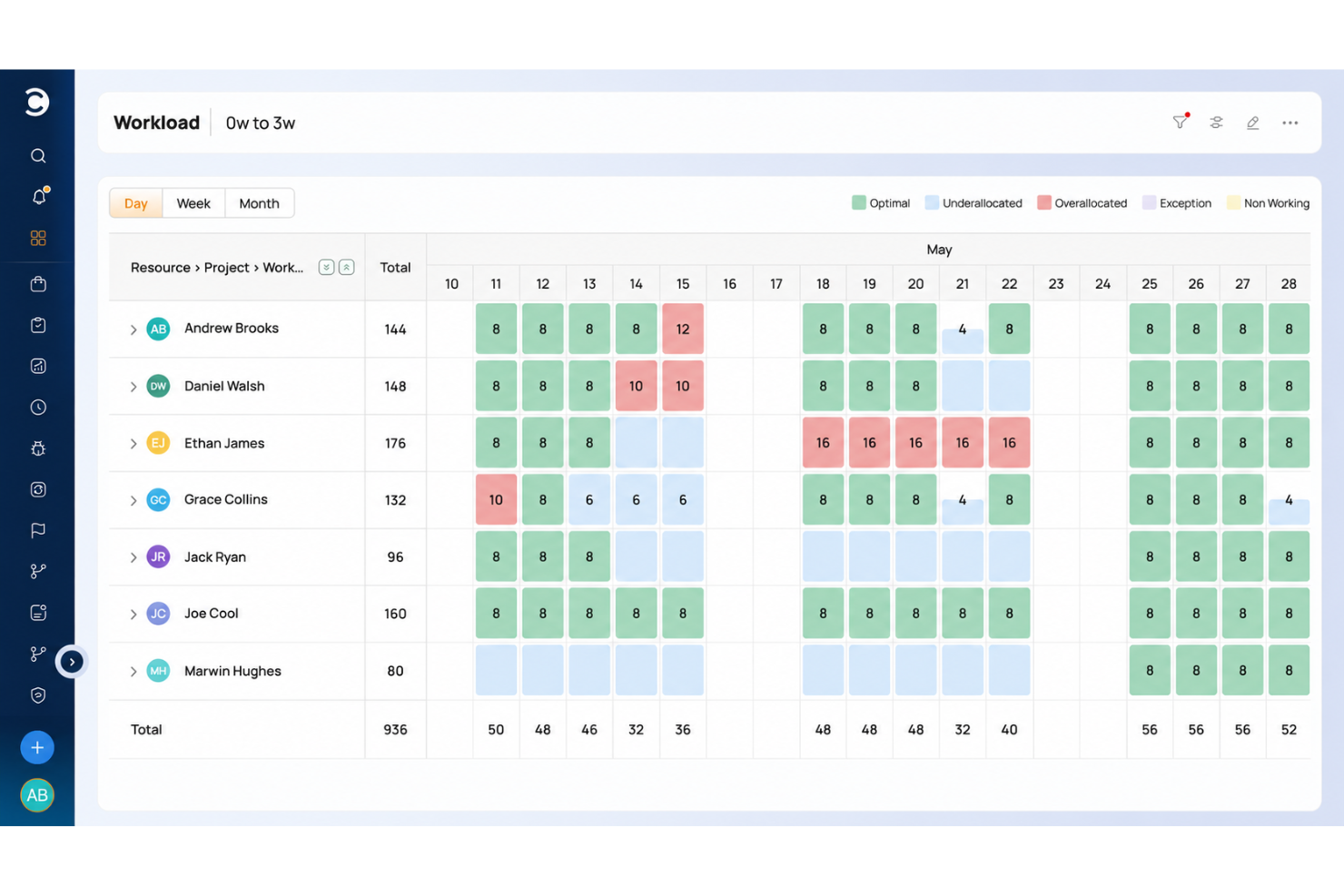
Celoxis is an enterprise project and portfolio management platform offering Gantt scheduling, dependency mapping, resource workload heatmaps, financial tracking, and customizable dashboards across multiple project views.
Who Is Celoxis Best For?
Celoxis suits PMOs and portfolio managers at mid-to-large organizations who need financial tracking and scheduling depth alongside visual project reporting.
Why I Picked Celoxis
Celoxis earns its spot on my shortlist because its real-time financial reporting goes deeper than what most visual project management tools offer. I love that earned value metrics, plan vs. actual cost tracking, and project health RAG indicators all feed into customizable dashboards that update live. Pair that with full critical path Gantt scheduling across multiple projects simultaneously, and portfolio managers get a genuinely clear financial and timeline picture in one place.
Celoxis Key Features
- Multi-project Gantt view: See tasks, dependencies, and milestones across multiple projects simultaneously in a single interactive Gantt timeline.
- Workload heatmaps: Visualize team capacity across the portfolio and spot overloads or availability gaps before they affect delivery.
- Client portal: Share branded, customizable project reports and task updates with clients directly, with financial fields automatically hidden.
- Automatic task rescheduling: When a dependency shifts, Celoxis recalculates downstream task dates based on work calendars, holidays, and shifts.
Celoxis Integrations
Celoxis offers 21 native integrations, including Jira, GitHub, Azure DevOps, Slack, Google Drive, Google Sheets, Microsoft 365, Outlook, Trello, and QuickBooks Online. It also supports a REST API, webhooks, and Zapier.
Pros and Cons
Pros:
- Workload heatmaps reveal team capacity gaps
- Financial dashboards track earned value and costs
- Gantt maps dependencies across project portfolios
Cons:
- Complex screens slow first-time project setup
- Kanban cards depend on editable report fields
Best for capacity planning visualization
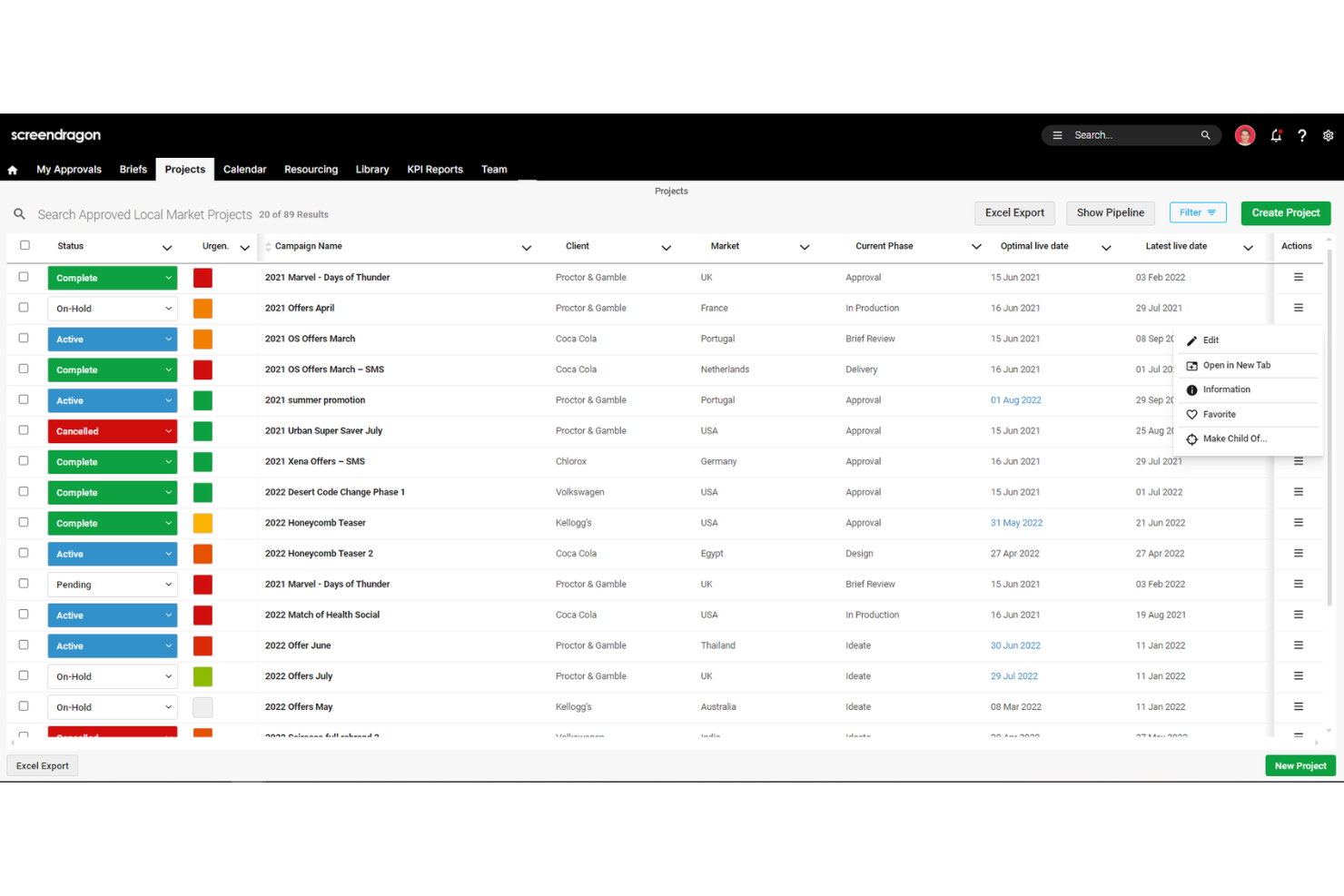
Screendragon is an enterprise workflow and project management platform built for marketing and creative teams, offering Gantt, Kanban, and calendar views alongside capacity heatmaps, resource planning, financial dashboards, and built-in proofing tools.
Who Is Screendragon Best For?
Screendragon is built for enterprise marketing and creative teams that need to visualize resource capacity across large, multi-project workloads.
Why I Picked Screendragon
Screendragon earns its spot on my shortlist because the capacity heatmaps genuinely change how you manage workload visibility across large, multi-project environments. I love that you can filter by department, skill, region, or client to see exactly where demand outpaces availability before a deadline slips. The platform also syncs Gantt, Kanban, and calendar views in real time, so color-coded task changes ripple across every view automatically.
Screendragon Key Features
- Built-in proofing tools: Review and annotate static, video, and rich media assets directly in the platform, with time-stamped comments, markups, and side-by-side version comparison.
- Financial reporting dashboard: Track budget vs. actuals, resource burn, and out-of-pocket spend across projects, with drill-down views and multi-currency support.
- Automated timeline adjustment: When dependencies shift, the planner automatically updates related timelines, assignees, and budget figures without manual rescheduling.
- Customizable live dashboards: Monitor project status, milestones, and bottlenecks in real time, with one-click export of client-ready reports to Excel or PDF.
Screendragon Integrations
Screendragon offers integrations with Microsoft Power BI, Slack, Microsoft Teams, Jira Software, Trello, Smartsheet, Google Drive, and Microsoft 365. It also provides an open API, developer portal, and Zapier connectivity.
Pros and Cons
Pros:
- Custom workflows and responsive support earn praise
- Synced Gantt, Kanban, and calendar views
- Capacity heatmaps expose workload gaps early
Cons:
- No traditional drag-and-drop task cards
- Busy menus slow new-user navigation
New Product Updates from Screendragon
Screendragon Unveils New AI Hub
Screendragon introduced AI Hub, a new capability that lets teams build and manage AI agents directly within workflows. The update helps marketing teams automate tasks, maintain governance controls, and scale AI-driven operations more efficiently. For more information, visit Screendragon's official site.

Best for visualizing projects of varying complexity
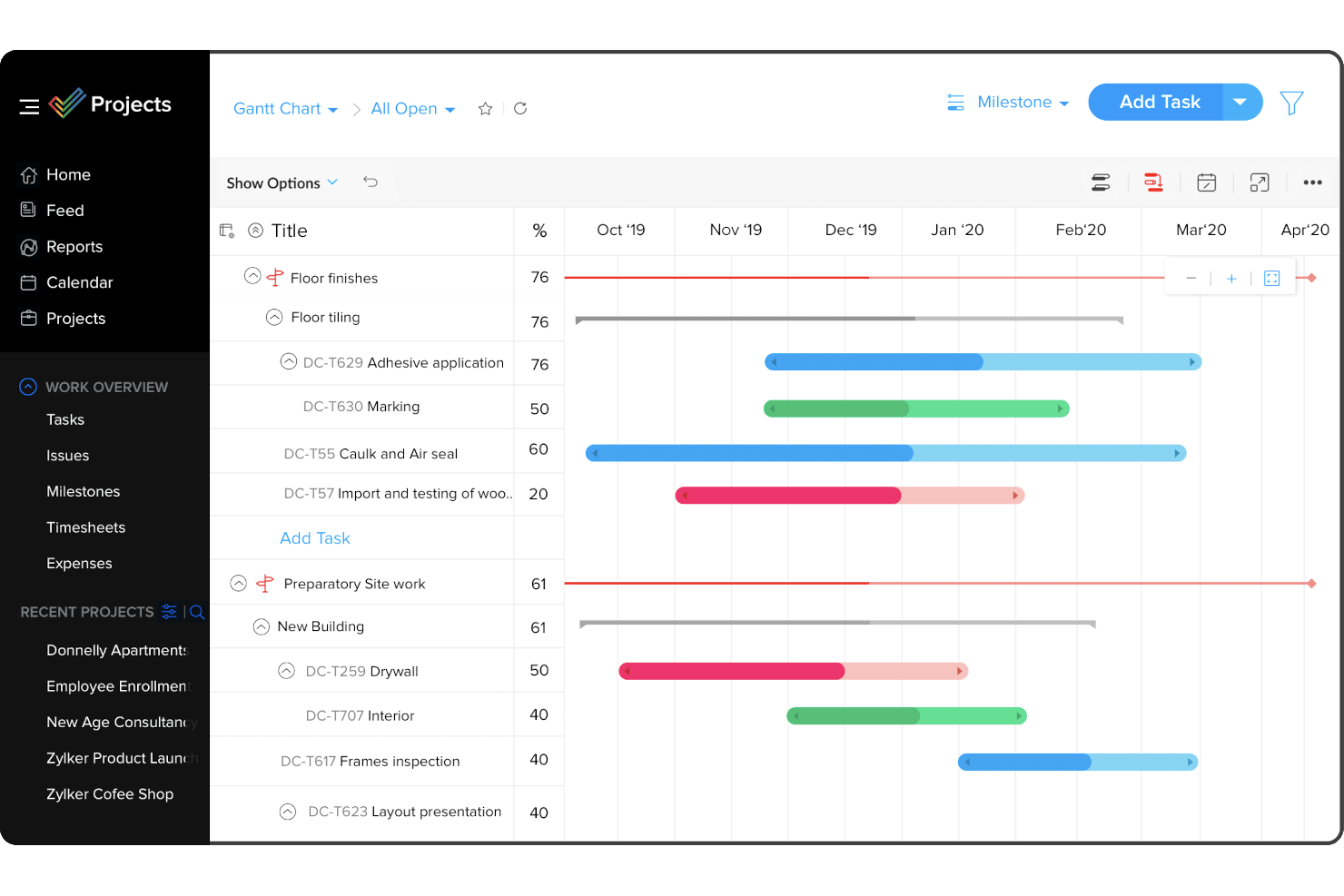
Zoho Projects is a project management platform that brings together Gantt charts, Kanban boards, calendar views, workload heatmaps, and dependency tracking across tasks and milestones.
Who Is Zoho Projects Best For?
Zoho Projects is a strong fit for project managers and creative teams that need a wide range of visual views—from Gantt charts to Kanban boards to workload heatmaps—without paying enterprise-level prices.
Why I Picked Zoho Projects
Zoho Projects earns its spot on my shortlist because it handles projects of wildly different shapes without forcing you into a single view. I can run a simple Kanban board for a quick campaign sprint, then switch to a full Gantt with critical path analysis and baseline comparisons for a longer, dependency-heavy rollout. The workload heatmap is what I keep coming back to: it color-codes overloaded team members instantly, and I can drag tasks directly onto another person to reassign without leaving the chart.
Zoho Projects Key Features
- All four task dependency types: You can set finish-to-start, start-to-start, finish-to-finish, and start-to-finish dependencies between tasks, with lag time applied to any of them.
- Baseline comparison: Enterprise and Ultimate plans let you save up to 15 project baselines and compare them against current progress to track schedule slippage.
- Workload bar and heatmap views: Two resource views display team capacity side by side, color-coding anyone booked beyond their available hours.
- Blueprint process automation: A drag-and-drop editor lets you map out task workflows with defined transitions, conditions, and approvals before work begins.
Zoho Projects Integrations
Zoho Projects offers 50+ integrations, including Zoho CRM, Slack, Microsoft Teams, Google Drive, Figma, GitHub, Google Calendar, and Zapier. It also connects with Microsoft 365, SharePoint, Dropbox, Jira, and Power BI.
Pros and Cons
Pros:
- Drag tasks between owners from workload charts
- Heatmaps expose overloaded teammates at a glance
- Kanban, calendar, and Gantt views stay synced
Cons:
- Large Gantt charts can drag slowly
- Dense screens can obscure project views
New Product Updates from Zoho Projects
Zoho Projects Adds CodeX Scripts for Custom Modules
Zoho Projects now supports CodeX Scripts for custom modules, enabling conditional logic and rules for creating, updating, and deleting records. For more information, visit Zoho Projects' official site.
 .
.
Best for spreadsheet-style visual scheduling
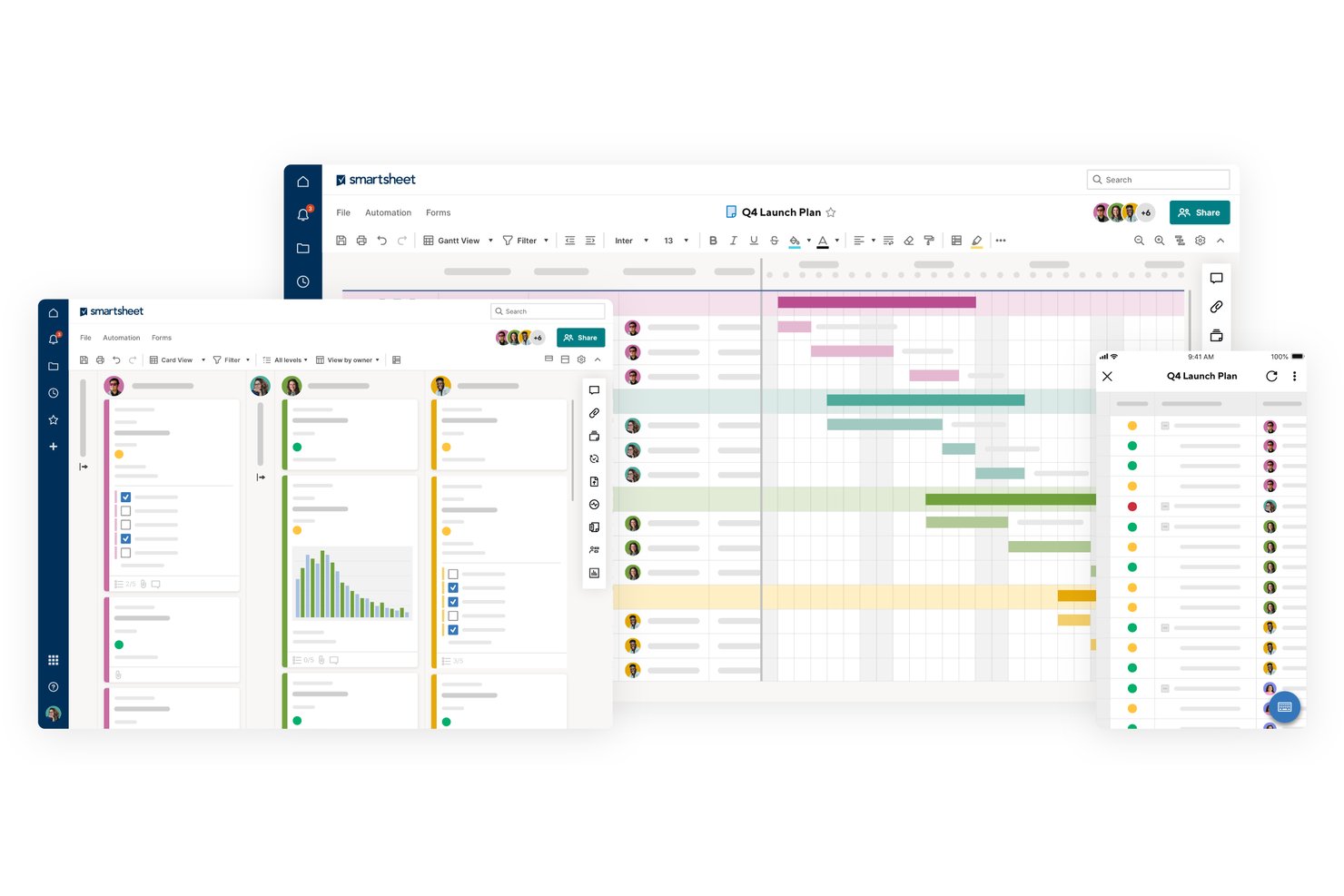
Smartsheet is a spreadsheet-style project management platform that combines grid, board, Gantt, calendar, and timeline views with task dependencies, workload tracking, and automated scheduling.
Who Is Smartsheet Best For?
Smartsheet is a strong fit for project managers and operations teams who want the structure of a spreadsheet with the visual flexibility of Gantt, board, and calendar views built in.
Why I Picked Smartsheet
I picked Smartsheet as one of the best because it's the only tool on this list that starts from a spreadsheet and grows into a full visual scheduling suite. I love how dependencies automatically cascade date changes across the entire project, so when one task slips, the Gantt chart adjusts without manual rework. The workload heatmap is genuinely useful too, surfacing over-allocated team members directly in the grid before a deadline becomes a problem.
Smartsheet Key Features
- Board view: Arrange tasks into Kanban-style lanes with cards that display up to 14 sheet fields, including assignees, due dates, and status indicators.
- No-code workflow automation: Build automated alerts, reminders, and approval requests without writing code, with unlimited automations on Business plans and above.
- Resource workload heatmap: View team allocation across all tracked sheets in a color-coded heatmap that flags over-assigned members before deadlines are missed.
- Publishable dashboards and reports: Share live dashboards and editable reports with stakeholders who don't need a paid seat, using public links or free Contributor access.
Smartsheet Integrations
Smartsheet offers native integrations with Slack, Google Workspace, Microsoft 365, Microsoft Teams, Jira, Adobe Creative Cloud, Power BI, and Tableau. Business plans and above include API access for custom integrations, with additional marketplace connectors available.
Pros and Cons
Pros:
- Workload heatmaps flag team over-allocation
- Dependencies automatically recalculate downstream dates
- Spreadsheet grid eases migration from Excel
Cons:
- Large, complex sheets can feel slow
- Grid-first workflow keeps visual work sheet-centered
New Product Updates from Smartsheet

Smartsheet Adds Non-Plan User Management in Admin Center
Smartsheet adds a Non plan users tab to the Seat types and true-up page in Admin Center. This lets system admins review non-plan users and add them to the plan or remove them from the organization in one place. For more information, visit Smartsheet’s official site.
ClickUp
Best for 15-plus views on one dataset
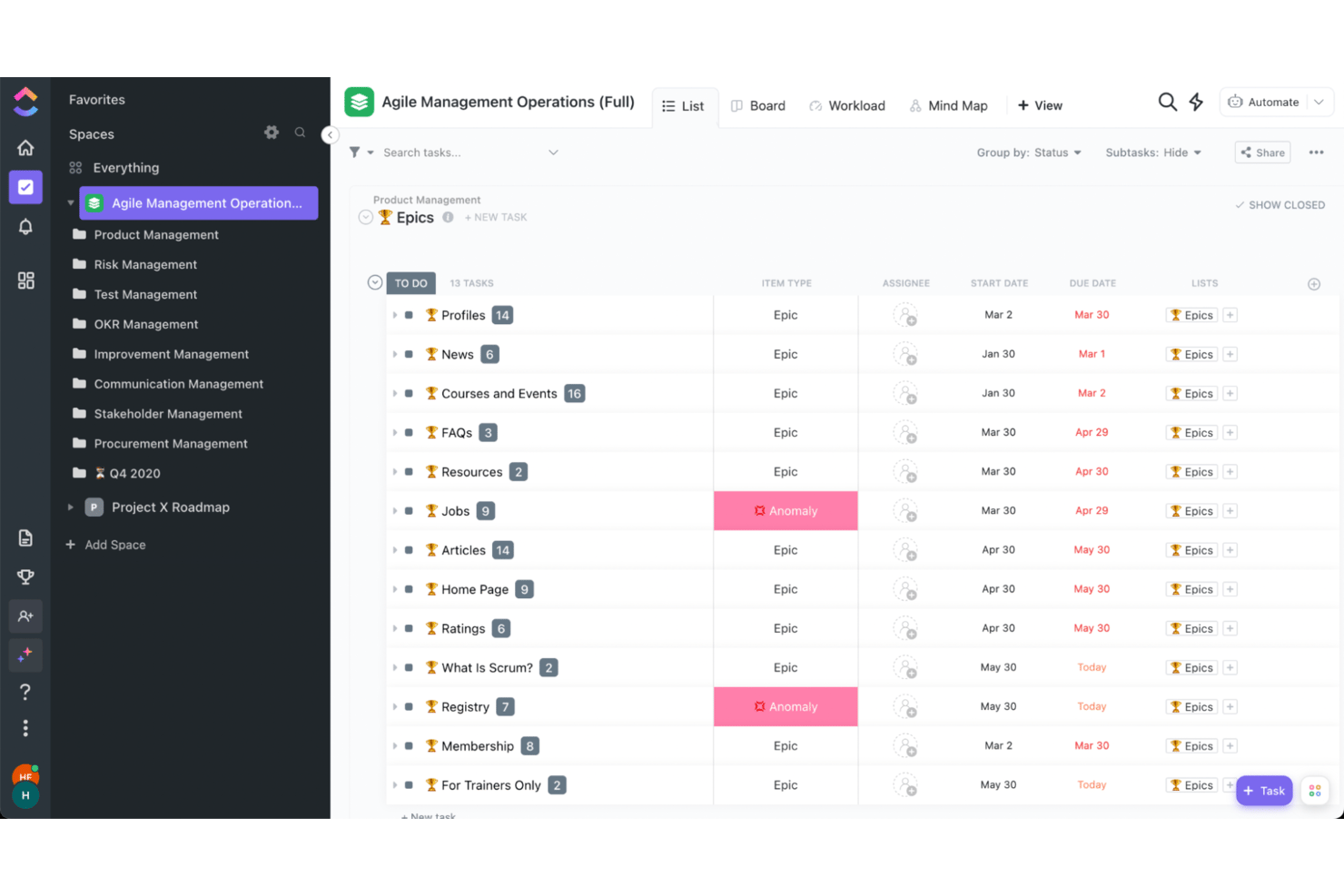
ClickUp is a visual project management platform that brings together Kanban boards, Gantt charts, workload views, whiteboards, mind maps, and dashboards across 15+ view types in a single, highly customizable workspace.
Who Is ClickUp Best For?
ClickUp is a strong fit for project managers and team leads who need to manage complex, multi-workstream projects across a single, deeply customizable visual workspace.
Why I Picked ClickUp
ClickUp earns its spot as one of the best on my shortlist because its hyper-customizable visual interface lets you surface exactly what matters across 15+ view types, from Gantt with full dependency mapping and critical path to workload heatmaps that show daily capacity by time estimates or sprint points. I especially like that whiteboards and mind maps connect directly to your task layer, so a brainstorming session can become a tracked workstream without switching tools.
ClickUp Key Features
- Native time tracking: Log time directly from tasks or the global toolbar, mark entries as billable, and feed data into dashboard widgets or exported reports.
- ClickUp Brain AI: Ask questions about at-risk tasks, blocked dependencies, and workload trends, and get AI-generated answers pulled from your live workspace data.
- Automated scheduling: Drag a task in Gantt and dependent tasks reschedule automatically, keeping your timeline accurate without manual updates.
- External dashboard sharing: Share live dashboards with stakeholders who don't need a ClickUp account, with granular permission controls over what they can see.
ClickUp Integrations
ClickUp offers documented integrations with Slack, Microsoft Teams, GitHub, GitLab, Figma, Google Drive, Tableau, and Zapier. Its public API and webhooks support custom integrations and workflow connections.
Pros and Cons
Pros:
- Whiteboards turn brainstorming into tracked tasks
- Workload heatmaps expose capacity by person
- Gantt maps dependencies across project timelines
Cons:
- Large workspaces can feel sluggish
- Dense setup can overwhelm new project teams
New Product Updates from ClickUp
ClickUp Adds Meetings Hub, Super Agent Templates, and ZoomInfo Integration
ClickUp adds a searchable Meetings Hub, new ways to clone and template Super Agents, and a ZoomInfo integration through the App Center. These updates improve meeting retrieval, agent reuse, and access to sales intelligence. For more information, visit ClickUp’s official site.

Forecast
Best for projects, resources, and finances in one
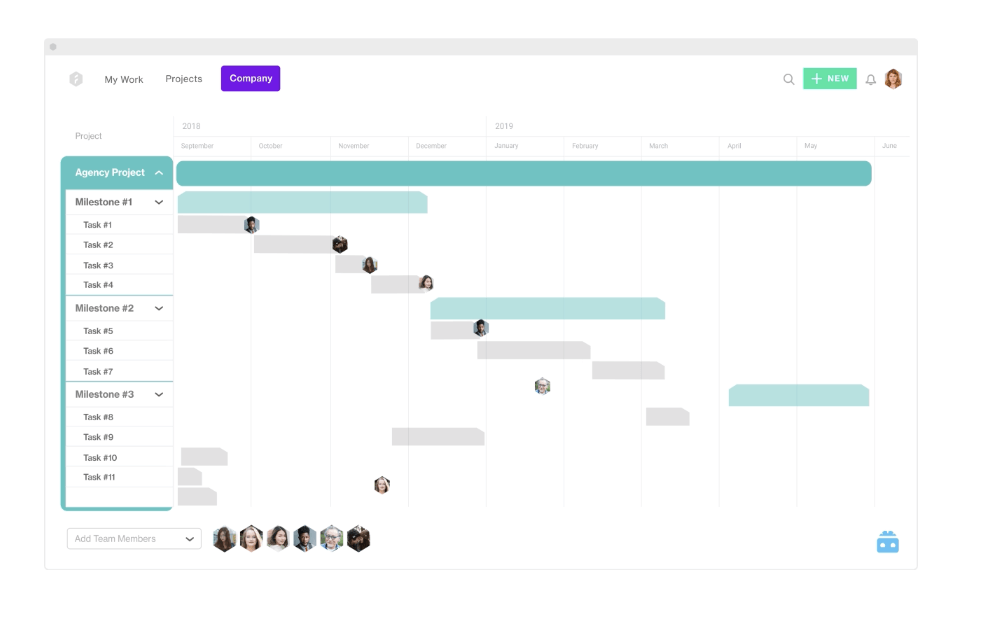
Forecast is a professional services automation platform that brings together visual project management, resource scheduling, and financial tracking through Gantt timelines, Kanban boards, portfolio views, and workload heatmaps.
Who Is Forecast Best For?
Forecast is built for project managers and operations leads at consulting, agency, and IT services firms that need to manage project timelines, team capacity, and budgets in a single platform.
Why I Picked Forecast
I picked Forecast as one of the best because it's the only tool on my list that genuinely unifies project timelines, resource scheduling, and budget tracking in one view. I love how the People Schedule heatmap shows capacity by role or department in real time, so I can spot overbooked teammates before it becomes a problem. The All Timelines portfolio Gantt layers project stages, completion percentages, and team allocations across every active project at once.
Forecast Key Features
- Sprint board: A dedicated Scrum board that lets agile teams manage sprint cycles separately from the main Kanban task view.
- Dependency chain lock: A toggle that moves an entire chain of linked tasks together when you drag one, keeping sequences intact across the timeline.
- Advanced Analytics dashboards: Four built-in reporting dashboards covering profit, portfolio performance, revenue, and resource management, with custom widgets and exportable PDFs.
- Guest user access: Client contacts can be added as guests at no extra seat cost, with admin controls to limit what each guest can view or edit.
Forecast Integrations
Forecast offers integrations with Jira, Azure DevOps, GitHub, GitLab, Slack, MS Teams, Trello, Asana, Google Drive, and Zapier. It also provides REST and Forms APIs for custom integrations.
Pros and Cons
Pros:
- Timeline shading compares logged and remaining work
- Portfolio Gantt connects stages, progress, and allocations
- Resource heatmaps expose overbooking across projects
Cons:
- Mobile task workflows receive usability complaints
- Cluttered screens can obscure task details

Best for entreprise control with frontline flexibility
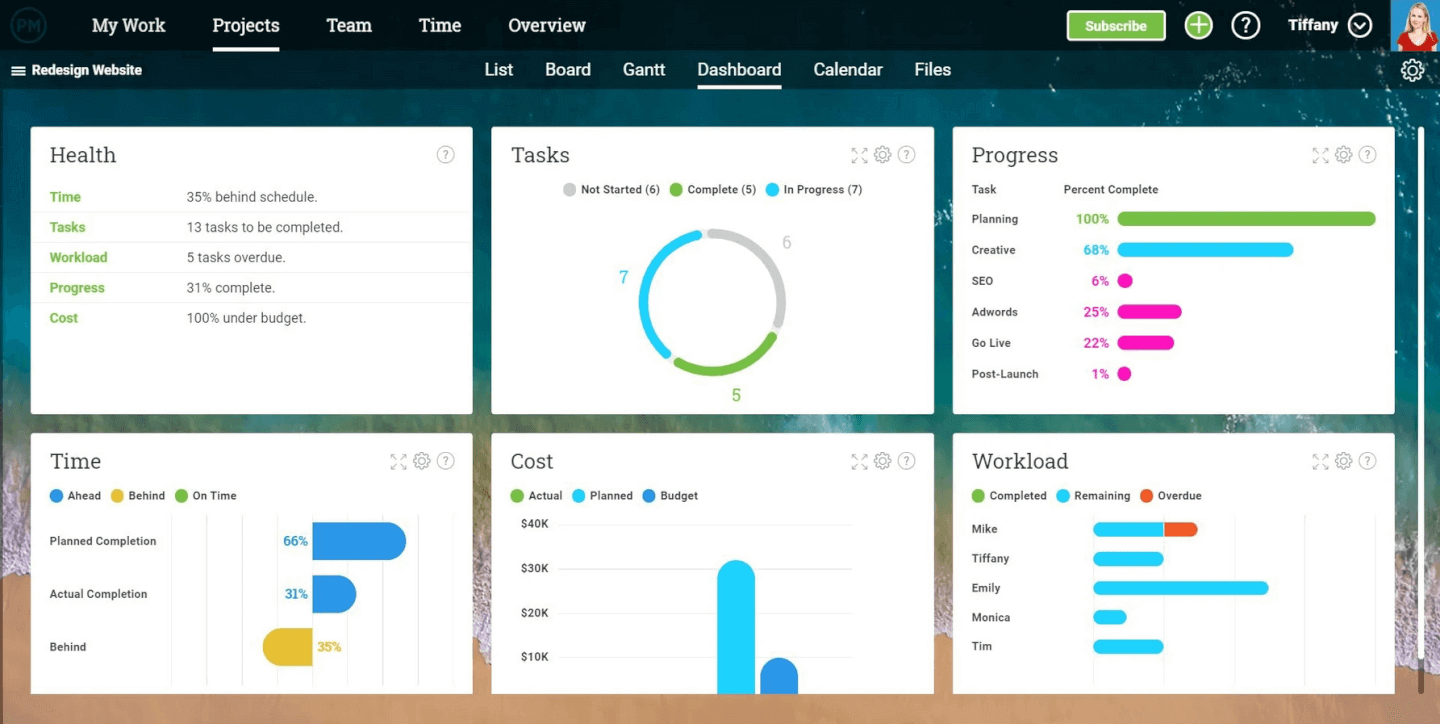
ProjectManager is a visual project management platform offering Gantt charts, Kanban boards, real-time dashboards, and multi-view scheduling tools designed for teams managing complex, dependency-heavy projects.
Who Is ProjectManager Best For?
ProjectManager is a strong fit for project managers and operations teams running complex, dependency-heavy projects who need real-time visibility across multiple workstreams.
Why I Picked ProjectManager
I've included ProjectManager in my top picks because its real-time dashboards are genuinely the best-looking I've seen in this category. Every widget, from percent complete to planned-versus-actual cost, updates automatically with no manual setup. I also love that you can customize colors, filters, and expandable metric tiles, then share or print a polished view for executive check-ins without reformatting anything.
ProjectManager Key Features
- Critical path filtering: The Gantt view highlights the critical path so you can instantly see which tasks directly affect your project's end date.
- Four dependency types: Link tasks using finish-to-start, start-to-start, finish-to-finish, or start-to-finish dependencies, with automatic schedule updates when anything shifts.
- Baseline tracking: Set a project baseline to compare planned versus actual dates and costs, so you can spot schedule slippage as it happens.
- Unlimited free guest licenses: Every plan includes read-only guest seats, letting stakeholders follow project progress without taking up a paid user slot.
ProjectManager Integrations
ProjectManager offers native integrations with Jira, Azure DevOps, Microsoft Teams, Slack, QuickBooks Online, and Microsoft Excel. It also supports an open API and Zapier.
Pros and Cons
Pros:
- Four dependency types protect connected project timelines
- Five synced views keep task updates aligned
- Customizable dashboards show live schedule and cost
Cons:
- Pages can lag or require refreshing
- Complex schedules take time to learn

Best for portfolio-wide analysis reports
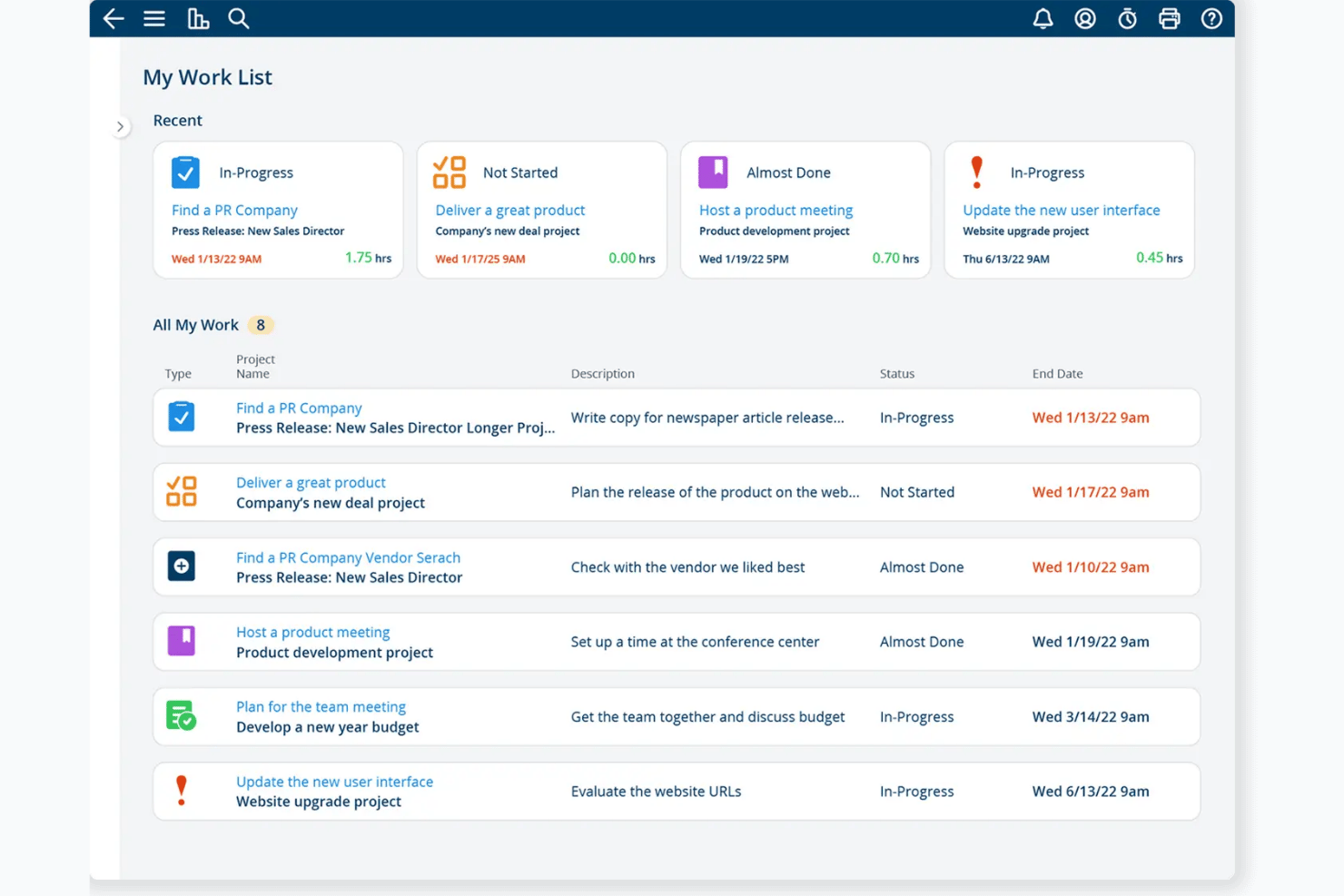
Project Insight is a strategic PPM platform built for PMOs that combines portfolio reporting, Gantt and Kanban views, intelligent scheduling, and resource capacity planning across projects.
Who Is Project Insight Best For?
Project Insight is a strong fit for PMO teams and project managers who need to track multiple projects and present progress through detailed, visual reports.
Why I Picked Project Insight
I picked Project Insight as one of the best because its portfolio reporting capabilities are genuinely impressive. Cross-project dashboards roll up status, health, and KPIs from every active project, and you can edit assignments or adjust resources directly inside a report without leaving the view. I also love that saved reports can be scheduled and delivered to stakeholders automatically, which makes sharing progress with leadership far less manual.
Project Insight Key Features
- Intelligent scheduling: Tasks auto-reschedule based on dependencies, so date changes cascade through the plan without manual updates.
- Cross-project Gantt view: A portfolio-level Gantt chart shows timelines across all active projects in a single, editable view.
- Resource capacity planning: Capacity and demand views show team availability across projects, with drag-and-drop reassignment for overloaded members.
- Kanban task boards: Project and task-level boards let teams move cards between columns, updating status and completion percentages in real time.
Project Insight Integrations
Project Insight offers native integrations with Jira, Azure DevOps, Microsoft Teams, Slack, Power BI, Trello, Basecamp, and Microsoft Project. It also supports REST API access for custom integrations.
Pros and Cons
Pros:
- Dependency-driven scheduling updates connected timelines automatically
- Synced Gantt, Kanban, and calendar views
- Editable portfolio reports roll up project health
Cons:
- PMO workflows exceed lightweight task-tracking needs
- Dense interface can overwhelm first-time users
Andre alternativer for visuell prosjektstyring
Her er noen flere alternativer som ikke kom med på topplisten. Hvis du trenger flere forslag til praktiske apper for visuell prosjektstyring, kan du ta en titt på disse.
- GanttPRO
For building Gantt charts
- Hive
For time-logged tasks with timesheet approval
- airfocus
For scalable multi-view product roadmaps
- Teamwork.com
Free plan for small businesses and freelancers
- ProWorkflow
For visualizing resource management
- Notion
For remote or hybrid teams
- GoodDay
For visual project timelines and planning
- Asana
For scalability, large or small teams
- TaskRay
For CRM-linked project tracking in Salesforce


How I Evaluate Visual Project Management Software
I look for two things: baseline functionality a tool must have to qualify—like drag-and-drop Gantt scheduling—and differentiators that make one tool the right fit over another.
Core Functionality (Table Stakes For This List)
When I'm selecting tools for my list, I rank each one on a scale from 0 (does not offer the functionality) to 5 (excels in this area) for each core functionality listed below. Then, I calculate the tool's total score into a percentage. Each tool needs to achieve a minimum total score of 75% to be considered for inclusion.
- Multiple Visual Views: I check how many built-in views a tool offers—Kanban, Gantt, timeline, calendar, workload—and whether they stay synced when you toggle between them.
- Drag-and-Drop Interaction: Rescheduling a sprint task by dragging it across a timeline or reassigning it on a board should feel instant, not clunky or view-restricted.
- Task Dependencies & Milestones: I evaluate whether a tool renders dependency lines and milestones directly on Gantt or timeline views and flags scheduling conflicts visually.
- Visual Workflow Customization: Teams running creative pipelines or release processes need to build custom stages and statuses visually—I look for no-code workflow builders here.
- Visual Dashboards & Reporting: I look for configurable widgets like burndown charts, status breakdowns, and progress bars that pull real-time data across projects.
- Collaboration on Visual Elements: Comments, @mentions, and file attachments should live directly on cards, timeline items, or board columns—not in a separate thread.
Once I have a list of tools that meet the criteria, I consider what sets each platform apart.
Differentiating Factors (What Sets Vendors Apart)
Here's how I compare and contrast different vendors:
Standout Features
Portfolio roadmapping is a big differentiator—I look for tools that roll up multiple projects into a single visual timeline so PMO directors can present status to leadership without building a slide deck. Workload heatmaps matter too, since spotting an over-allocated engineer mid-sprint is much easier with a color-coded capacity view than a spreadsheet. I also check whether a tool includes built-in whiteboards or mind maps, which let teams sketch out plans and convert ideas into structured tasks without leaving the platform.
Beyond Features
Integration depth matters a lot here. I check whether a tool connects natively with Jira, GitHub, Figma, and Slack—because a visual board that lives outside your team's actual workflow becomes a manual chore to maintain. Pricing transparency is another factor I evaluate closely, especially whether core visual views like Gantt charts and dashboards are locked behind higher tiers. I also consider onboarding support, including prebuilt templates for common workflows like sprint planning or campaign launches that help teams get value from day one.
Slik velger du programvare for visuell prosjektstyring
Det er lett å gå seg vill i lange funksjonslister og kompliserte prismodeller. For å hjelpe deg med å holde fokus mens du går gjennom den unike prosessen din for valg av programvare, får du her en sjekkliste over faktorer du bør ha i tankene:
| Faktor | Hva du bør vurdere |
|---|---|
| Skalerbarhet | Forsikre deg om at programvaren kan vokse sammen med teamet ditt. Vurder om den kan håndtere en økning i antall brukere eller prosjekter uten ytelsesproblemer. |
| Integrasjoner | Undersøk om verktøyet kan kobles til eksisterende apper som Slack, Google Workspace eller Trello, slik at arbeidsflytene effektiviseres og datasiloer unngås. |
| Tilpasningsmuligheter | Se etter muligheter for å tilpasse funksjonene til teamets behov. Dette omfatter å opprette egendefinerte felt, arbeidsflyter eller oversikter som samsvarer med prosessene deres. |
| Brukervennlighet | Velg en plattform med et intuitivt grensesnitt som teamet raskt kan ta i bruk uten omfattende opplæring. Vurder hvor bratt læringskurven er. |
| Budsjett | Vurder kostnaden opp mot budsjettet ditt. Se etter transparente prisplaner som passer de økonomiske rammene dine og gir god verdi for funksjonene. |
| Sikkerhetstiltak | Vurder plattformens tiltak for databeskyttelse. Forsikre deg om at den overholder bransjestandarder som GDPR og tilbyr funksjoner som kryptering og tilgangskontroller. |
| Samarbeidsverktøy | Vurder verktøy som støtter samarbeid i sanntid, for eksempel delte tavler eller direkteoppdateringer, for å forbedre kommunikasjonen i teamet og prosjektets effektivitet. |
| Brukerstøtte og ressurser | Se etter programvare med god kundestøtte og et stort utvalg ressurser som veiledninger, forum og vanlige spørsmål, slik at teamet får hjelp ved behov. |
Trender innen programvare for visuell prosjektstyring
I undersøkelsen min hentet jeg inn utallige produktoppdateringer, pressemeldinger og versjonslogger fra ulike leverandører av programvare for visuell prosjektstyring. Her er noen av de fremvoksende trendene jeg følger med på:
- AI-drevne innsikter: AI brukes til å forutsi prosjektresultater og gi innsikt, slik at team kan ta bedre beslutninger. Verktøy som Wrike integrerer AI for å analysere prosjektdata og foreslå forbedringer.
- Samarbeid med virtuell virkelighet (VR): VR utforskes for å skape mer engasjerende samarbeidsopplevelser, slik at team kan samhandle i et virtuelt rom. Miro eksperimenterer med VR for å forbedre samarbeid i eksterne team. Selv om dette er en trend som kan passe bedre for prosjektstyringsprogramvare for kreative byråer, ser det ut til at den også sprer seg til mindre spesialisert programvare.
- Markedsplasser for maler: Flere plattformer tilbyr markedsplasser for brukerskapte maler, noe som gjør det enklere å finne og dele arbeidsflyter. Notion utvider malgalleriet sitt med bidrag fra fellesskapet.
- Forbedret datavisualisering: Nye verktøy fokuserer på avansert datavisualisering for å hjelpe team med å forstå prosjektmålinger med et blikk. Monday.com tilbyr tilpassbare dashbord for effektiv visualisering av data.
- Fokus på bærekraft: Noen leverandører innarbeider funksjoner for å spore og redusere prosjektenes miljøpåvirkning. Denne trenden får stadig større utbredelse ettersom virksomheter prioriterer bærekraft i driften.
Hva er visuell prosjektstyringsprogramvare?
Visuell prosjektstyringsprogramvare er en type prosjektstyringsprogramvare som er spesialisert på visuelle fremstillinger for å forenkle prosjektplanlegging, -oppfølging og kommunikasjon. Den går lenger enn tradisjonelle tekstbaserte grensesnitt ved å tilby grafiske elementer som diagrammer, illustrasjoner og dashbord for å presentere prosjektinformasjon i et mer oversiktlig og handlingsrettet format.
Visuell prosjektstyringsprogramvare bidrar til å effektivisere prosjektoppfølgingen ved å tilby en visuelt intuitiv plattform som legger til rette for bedre kommunikasjon med interessenter, forståelse av kompleks informasjon og beslutningstaking gjennom hele prosjektets livssyklus.
Vanlige spørsmål om visuell prosjektstyring
Finn svar på vanlige spørsmål andre stiller om dette emnet.
Hvilke nøkkelfunksjoner finnes i visuell programvare for prosjektstyring?
\u003col\u003e
\t\u003cli\u003eVisuell organisering av oppgaver og prosjektplanlegging med dra-og-slipp\u003c/li\u003e
\t\u003cli\u003eFargekoding (for forfallsdatoer, prosjektstatus eller prosjektfremdrift)\u003c/li\u003e
\t\u003cli\u003eOppgavehåndtering, inkludert avhengigheter mellom oppgaver, egendefinerte felt osv.\u003c/li\u003e
\t\u003cli\u003eFildeling eller muligheten til å utveksle og administrere dokumenter\u003c/li\u003e
\t\u003cli\u003eRapporterings- og analysedashbord for å måle produktivitet og resultater\u003c/li\u003e
\t\u003cli\u003eSjekklister eller gjøremålslister for individuell eller delt prioritering av oppgaver\u003c/li\u003e
\t\u003cli\u003eFlere prosjektvisninger, som Gantt-diagrammer, Kanban-tavler, tidslinjevisninger, kalendervisninger osv.\u003c/li\u003e
\t\u003cli\u003e\u003ca href=\u0022https://thedigitalprojectmanager.com/tools/visual-collaboration-tools/\u0022\u003eSamarbeidsverktøy\u003c/a\u003e slik at distribuerte team kan arbeide sammen i sanntid\u003c/li\u003e
\t\u003cli\u003eFunksjoner for smidig prosjektstyring for å håndtere prosjektets livssyklus\u003c/li\u003e
\t\u003cli\u003eMuligheten til å visualisere og følge komplekse prosjekter under gjennomføring\u003c/li\u003e
\u003c/ol\u003e
Hva er fordelen med å bruke visuell programvare for prosjektstyring?
Den største fordelen er den positive effekten på produktiviteten din og teamets produktivitet. Dette henger sammen med målene for utforming av brukergrensesnitt og skyldes redusert tenketid. Jo mindre tid du bruker på å finne informasjonen, desto mer tid kan du bruke på å analysere den, trekke konklusjoner og utføre oppgaver.
Hvordan følger du visuelt opp et prosjekt?
\u003c!– wp:paragraph –\u003e
\u003cp\u003eDet finnes fire vanlige måter å følge prosjekter visuelt på:\u003c/p\u003e
\u003c!– /wp:paragraph –\u003e \u003c!– wp:list {\u0022ordered\u0022:true} –\u003e
\u003col\u003e
\t\u003cli\u003e\u003cstrong\u003e\u003ca href=\u0022https://thedigitalprojectmanager.com/projects/managing-schedules/what-should-gantt-chart-include/\u0022\u003eGantt-diagrammer\u003c/a\u003e.\u003c/strong\u003e Å se prosjektplanen i en tidslinjevisning er en flott måte å se hvor du står, avhengighetene mellom oppgavene og de viktigste leveransene dine på.\u003c/li\u003e
\t\u003cli\u003e\u003cstrong\u003e\u003ca href=\u0022https://thedigitalprojectmanager.com/projects/pm-methodology/kanban-board/\u0022\u003eKanban-tavler\u003c/a\u003e. \u003c/strong\u003eI likhet med tidslinjer lar tavler deg ha arbeidsflytene dine i én visning. Dette hjelper team med å arbeide med smidige rammeverk og raskt endre statusen til en oppgave med et enkelt dra-og-slipp.\u003c/li\u003e
\t\u003cli\u003e\u003cstrong\u003e\u003ca href=\u0022https://thedigitalprojectmanager.com/projects/leadership-team-management/how-to-set-up-project-management-dashboard/\u0022\u003eDashbord\u003c/a\u003e.\u003c/strong\u003e En rask måte å få oppsummert informasjon om ulike prosjektkomponenter på.\u003c/li\u003e
\t\u003cli\u003e\u003ca href=\u0022https://thedigitalprojectmanager.com/tools/project-roadmap-software/\u0022\u003eProsjektveikart\u003c/a\u003e\u003cstrong data-start=\u0022982\u0022 data-end=\u00221003\u0022\u003e.\u003c/strong\u003e En visuell oversikt på høyt nivå over et prosjekts mål, milepæler og viktige leveranser over tid. Veikart er særlig nyttige for strategisk planlegging og kommunikasjon med interessenter.\u003c/li\u003e
\u003c/ol\u003e
\u003c!– /wp:list –\u003e