

10 beste programvarer for prosjektstyring på datamaskin i 2026

10 Beste skrivebordsbaserte prosjektstyringsprogramvare – kortliste


Effektiv prosjektstyring handler ofte om å ha de riktige verktøyene. Skrivebordsbasert prosjektstyringsprogramvare tilbyr en pålitelig måte å planlegge, følge opp og levere prosjektene dine på uten å være avhengig av en konstant internettilkobling. Det er perfekt for deg som trenger stabilitet, personvern eller bedre kontroll over dataene dine.
I denne artikkelen deler jeg mine beste anbefalinger for skrivebordsbasert prosjektstyringsprogramvare som er tilgjengelig i dag. Jeg har vurdert hvert alternativ ut fra brukervennlighet, funksjoner og hvor godt det oppfyller behovene til moderne prosjektledere.
I denne artikkelen får du en kort oversikt over alternativene dine, kan sammenligne detaljene og til slutt avgjøre hvilken skrivebordsprogramvare som fungerer best for deg.
Hvorfor du kan stole på våre programvareanbefalinger
Teamet vårt har testet og anmeldt programvare siden 2012. Vi er selv prosjektledere, så vi vet hvor vanskelig og hvor viktig det er å velge riktig programvare.
I denne guiden har vi vurdert verktøyene gjennom praktisk testing og uavhengig research og gitt dem poeng ut fra våre utvelgelseskriterier. Vi bygger også på innsikt fra ledende eksperter i bransjen og erfarne prosjektledere.
Anmeldelsene våre bygger på vår egen redaksjonelle vurdering. De er ikke et salgsargument.
Ekspertanmeldere:
Sammenligningstabell for skrivebordsbasert prosjektstyringsprogramvare
Denne sammenligningstabellen oppsummerer prisdetaljene for mine beste utvalg av skrivebordsbasert prosjektstyringsprogramvare:
| Tool | Best For | Trial Info | Price | ||
|---|---|---|---|---|---|
|
1
|
Best for Gantt scheduling in a cloud-synced app |
Free plan + 14-day trial available |
From $9/user/month (billed annually) | Website | |
|
2
|
Best for Gantt depth and critical path tracking |
Free plan + 14-day free trial + free demo available |
From $10/user/month (billed annually) | Website | |
|
3
|
Best for agency financials alongside project tracking |
14-day free trial |
From $10/user/month (billed annually) | Website | |
|
4
|
Best for Gantt scheduling on a subscription budget |
Free plan + 15-day free trial + free demo available |
From $4/user/month (billed annually) | Website | |
|
5
|
Best for subscription-based Gantt with AI task flagging |
Free plan + free trial + free demo available |
From $12/user/month | Website | |
|
6
|
Best for one-time licensed, offline-first scheduling |
Not available |
From $679.99 one-time | Website | |
|
7
|
Best for Mac-native Gantt and critical path planning |
30 days free trial |
From $16.99 / month | Website | |
|
8
|
Best for large-scale CPM scheduling offline |
Free demo available |
From $125/user/month | Website | |
|
9
|
Best for Mac-native critical path scheduling |
14-day free trial |
From $199.99/year (billed annually) | Website | |
|
10
|
Best for compliance-driven CPM scheduling |
Free demo available |
Pricing upon request | Website |


Anmeldelser av den beste skrivebordsbaserte prosjektstyringsprogramvaren
Her er en kort beskrivelse av hver prosjektstyringsløsning, med fremheving av bemerkelsesverdige funksjoner i skrivebordsmiljøet og skjermbilder som gir deg en idé om brukergrensesnittet.
Best for Gantt scheduling in a cloud-synced app
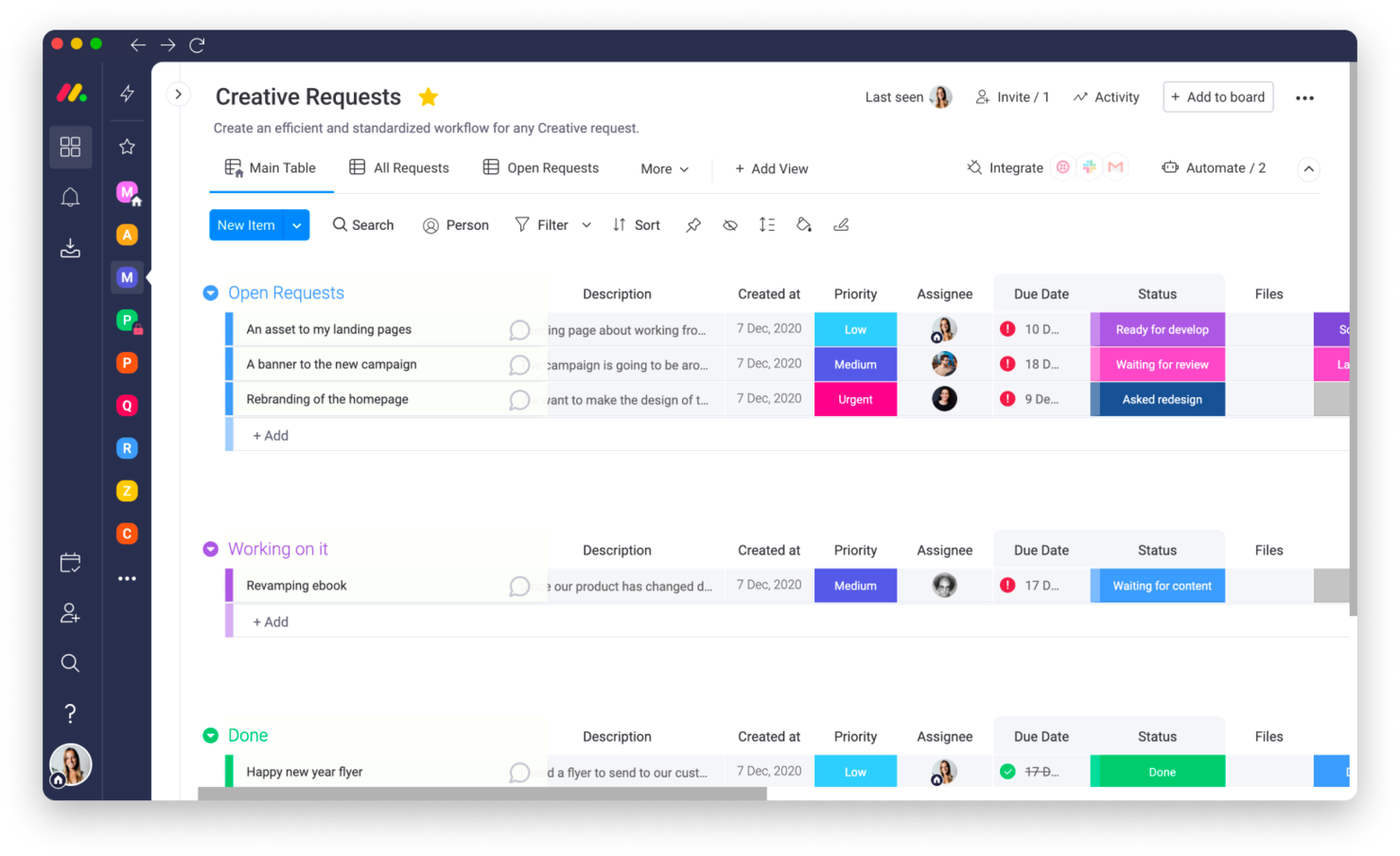
monday.com is a project management platform that helps teams organize, track, and execute work efficiently. It caters to businesses of all sizes, offering tools to manage workflows, projects, and collaborative tasks. Overall, the software simplifies complex processes with customizable boards and automation.
Why I picked monday.com: monday.com delivers a desktop experience nearly identical to its browser version, ensuring your team has a consistent workflow across devices. Its customizable boards allow you to tailor task tracking to match your project needs. Automation features can also save you time by handling repetitive tasks, such as status updates or notifications. You can additionally visualize your work in multiple views, including timelines, Gantt charts, and Kanban boards, to gain better insights into your progress.
monday.com Standout Features & Integrations:
Features include built-in time tracking to help your team monitor how long tasks take and identify inefficiencies. The software also supports resource management tools that allow you to allocate workloads and track team capacity. Additionally, the platform's dashboard functionality pulls data from multiple boards into one view for better overall project visibility.
Integrations include project management apps like Slack, Google Drive, Gmail, Google Calendar, Jira, GitHub, Trello, Dropbox, Typeform and many more, accessible through a paid plan with Zapier.
Pros and Cons
Pros:
- Consistent desktop and browser experience
- Advanced search for locating tasks quickly
- Automation reduces repetitive administrative tasks
Cons:
- Boards can become cluttered with large projects
- Learning curve for setting up custom automations
New Product Updates from monday AI Workspace
monday AI Workspace Adds Human Approval Routing
monday AI Workspace adds a human-in-the-loop approval block to AI Workflows, sending approval requests and routing workflow paths based on responses. For more information, visit monday AI Workspace's official site.
Wrike
Best for Gantt depth and critical path tracking
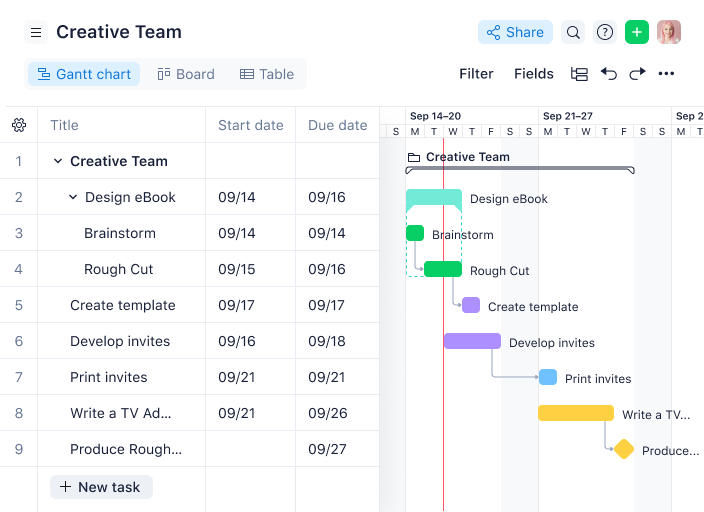
Wrike is a collaborative project management tool designed for teams to organize tasks, manage workflows, and track progress in real time. It’s particularly suitable for businesses looking to enhance team productivity and simplify task management processes.
Why I picked Wrike: Wrike provides a desktop platform that allows you to open multiple tabs at once, enabling better multitasking compared to its browser interface. You can quickly switch between projects, dashboards, and tasks without losing context. The desktop app also minimizes distractions by consolidating all your tools in one place, improving focus for you and your team. This setup is ideal for teams balancing complex workflows or managing multiple projects simultaneously.
Wrike Standout Features & Integrations:
Features include task automation to reduce repetitive work and AI-powered risk predictions to help you identify potential bottlenecks. The software also includes dynamic request forms to streamline project intake and advanced workload management tools to prevent team burnout.
Integrations include Microsoft Teams, Google Drive, Slack, Salesforce, Box, Dropbox, Zoom, OneDrive, Jira, and Adobe Creative Cloud.
Pros and Cons
Pros:
- Flexible permissions for different team roles
- Real-time updates across all devices
- Centralized file management system
Cons:
- No built-in chat feature for quick team discussions
- Limited native storage for attachments
New Product Updates from Wrike

Wrike Redesigns AI Agent Builder
Wrike redesigns its AI Agent Builder with a side-by-side setup, Scopes, sentence-style triggers and actions, and clearer filters. These changes make it easier to configure, test, and manage agent behavior. For more information, visit Wrike’s official site.

Best for agency financials alongside project tracking
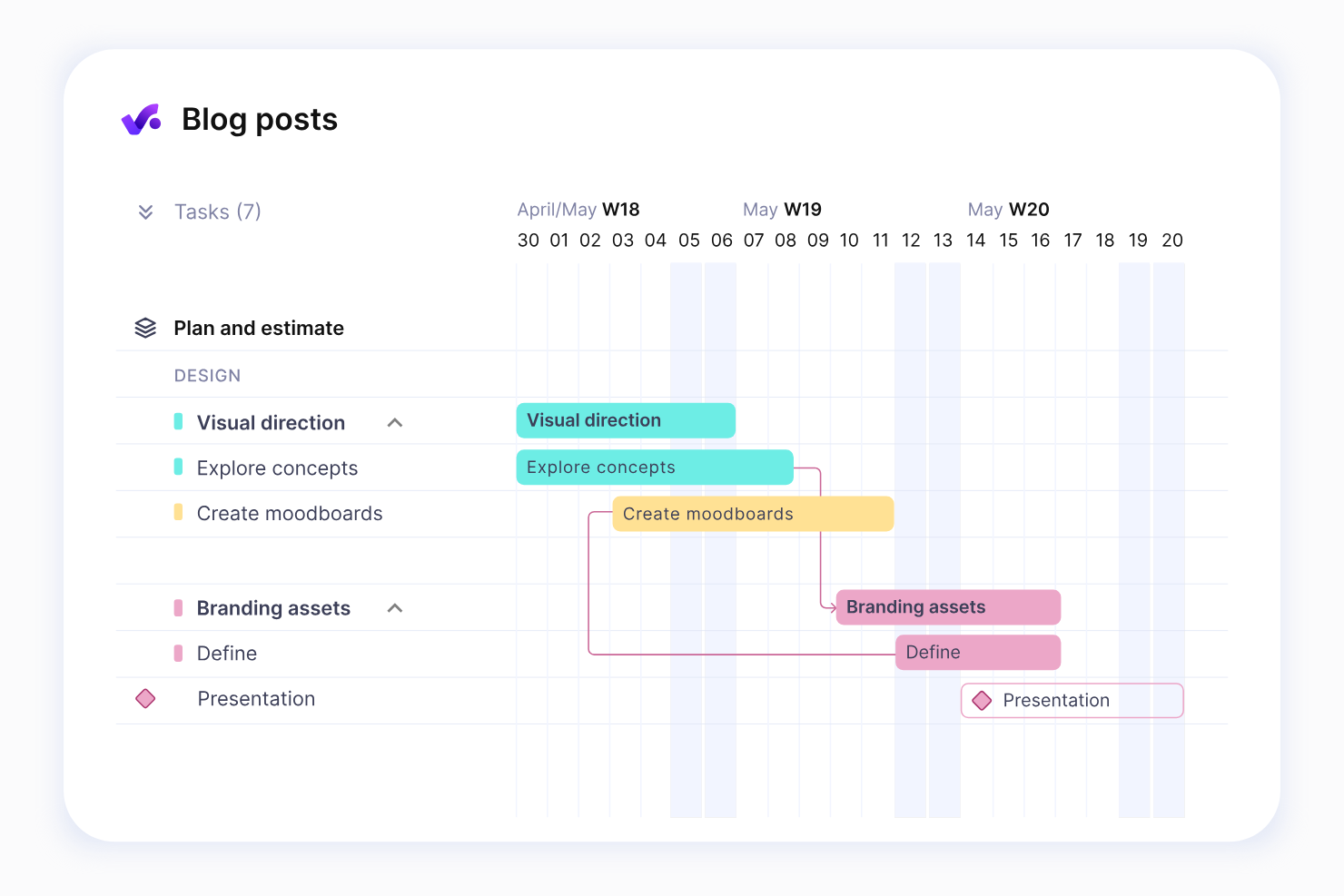
Productive is a comprehensive work management platform designed to help agencies plan, track, and deliver projects while managing team resources effectively. It offers tools to streamline workflows, monitor progress, and ensure project profitability.
Why I picked Productive: Productive provides an all-in-one solution for managing agency work, from project planning to financial tracking. You can use features like resource scheduling to optimize team workloads and time tracking to monitor billable hours. The platform also includes profitability reports that show how projects are performing financially in real time. Collaboration tools keep your team connected, and built-in invoicing simplifies billing for completed work.
Productive Standout Features & Integrations:
Features include resource utilization dashboards to see team availability and workload at a glance. Profitability tracking helps you measure the financial performance of individual projects, while advanced time tracking ensures accurate billing. Task and project templates simplify repetitive workflows for quicker setups.
Integrations include Slack, QuickBooks, Xero, Zapier, Jira, Google Drive, Dropbox, Harvest, HubSpot, and Trello.
Pros and Cons
Pros:
- Custom project and task templates save time
- Visual dashboards for resource utilization and availability
- Simplified setup for recurring tasks and projects
Cons:
- Time tracking requires consistent manual input
- Reporting may lack granularity for niche metrics
New Product Updates from Productive
Productive Adds Voice Dictation, Slack Connector, Proposals, and Overtime
Productive adds voice dictation, a Slack Connector, proposal controls, and overtime tracking. These updates support faster AI interactions, client proposals, and time management. For more information, visit Productive’s official site.

Best for Gantt scheduling on a subscription budget
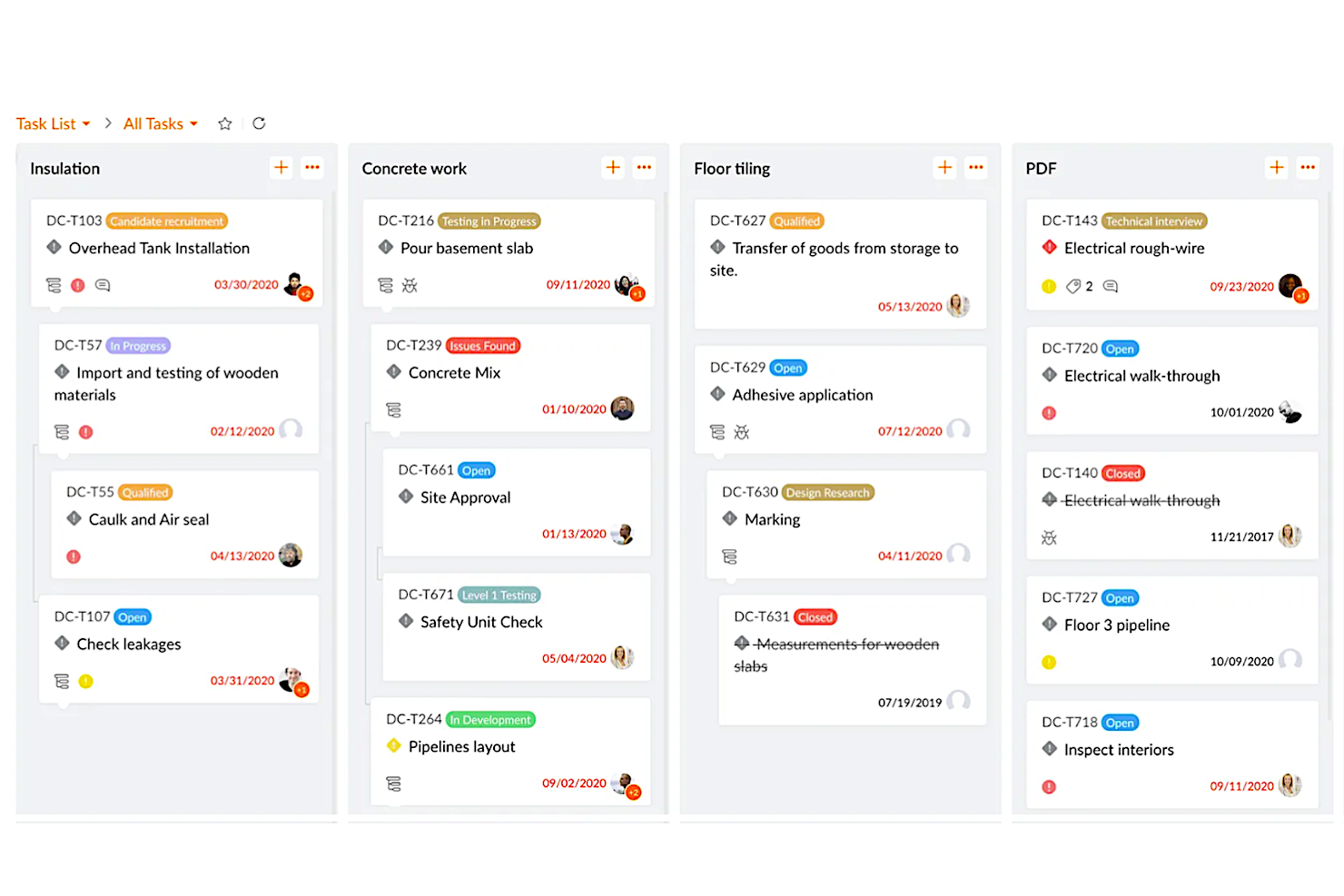
Zoho Projects is a project management tool designed to help teams plan, track, and execute projects effectively. It provides a comprehensive platform for organizing workflows, monitoring progress, and enhancing team collaboration.
Why I picked Zoho Projects: Zoho Projects offers a visual interface with Gantt charts, task boards, and resource management tools to help your team stay on top of every project. You can assign tasks, set milestones, and track progress using customizable workflows. The platform's built-in time tracking and timesheets make it easy to monitor billable hours and project timelines. Moreover, collaboration features like forums and feeds keep your team connected, making it a great choice for teams looking for an all-in-one project management solution.
Zoho Projects Standout Features & Integrations:
Features include task automation to reduce repetitive work and baseline reports to compare planned versus actual progress. You can also use dependencies to link tasks and avoid scheduling conflicts and advanced time logging for better resource allocation.
Integrations include Slack, Microsoft Teams, Google Drive, Dropbox, Zapier, Zoho CRM, Zoho Books, Trello, Asana, and GitHub.
Pros and Cons
Pros:
- Task dependencies prevent scheduling conflicts
- Advanced time logging helps allocate resources
- User-friendly interface with drag-and-drop functionality
Cons:
- Some features require extensive configuration to implement
- Lacks built-in advanced analytics or dashboards
New Product Updates from Zoho Projects
Zoho Projects Adds CodeX Scripts for Custom Modules
Zoho Projects now supports CodeX Scripts for custom modules, enabling conditional logic and rules for creating, updating, and deleting records. For more information, visit Zoho Projects' official site.
 .

ClickUp
Best for subscription-based Gantt with AI task flagging
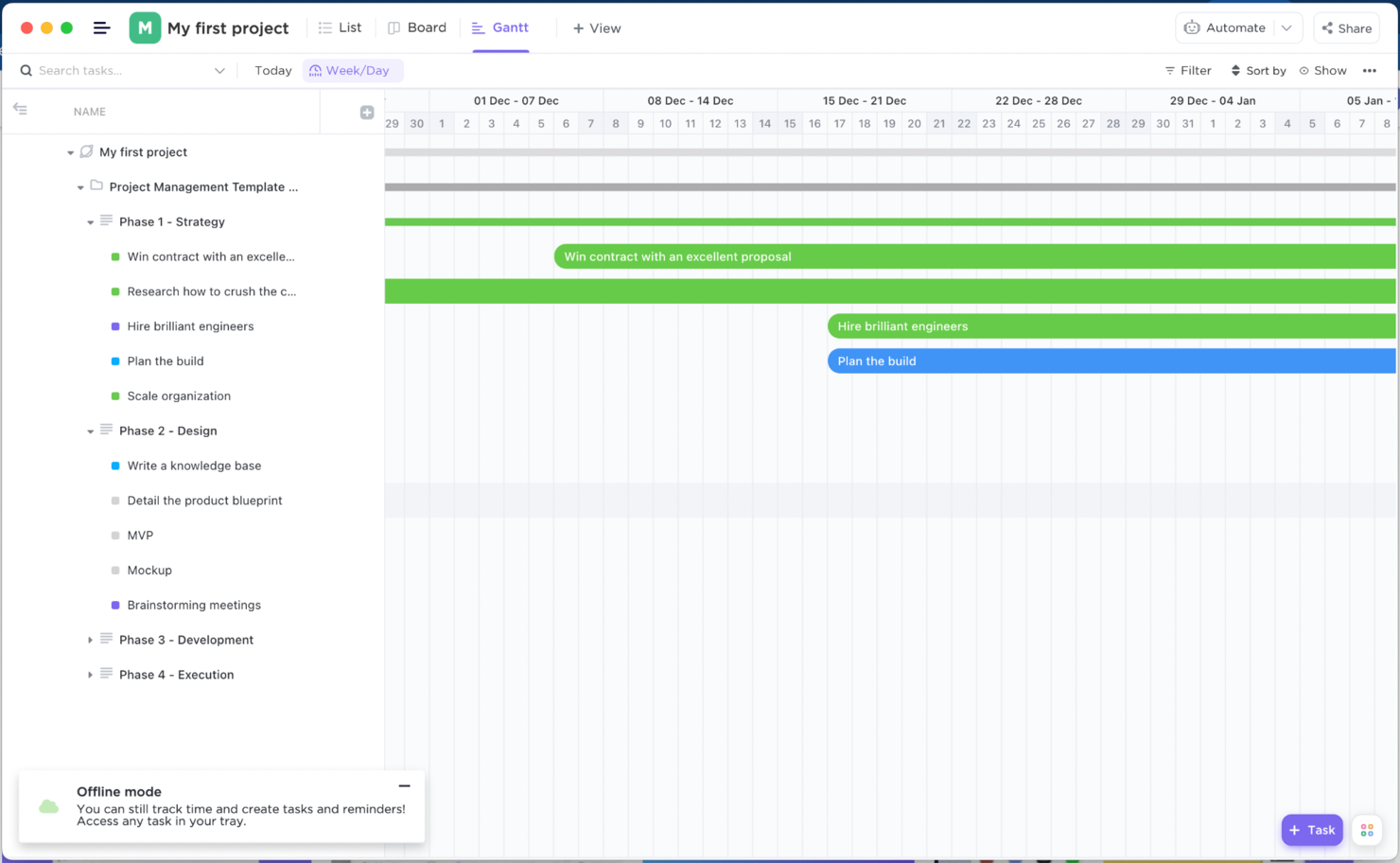
ClickUp is a versatile project management platform designed to help teams organize, track, and execute their work more efficiently. It caters to businesses of all sizes, providing tools for task management, time tracking, and collaboration. The software aims to centralize your team’s work in one place to improve productivity and accountability.
Why I picked ClickUp: ClickUp’s desktop app mirrors the browser version while offering offline access, so you can stay productive even without an internet connection. Customizable task views, like list, board, and timeline, let you organize your workflow in a way that makes sense for your team. You can also manage resources and budgets by assigning workloads and tracking time spent on tasks. Automation features reduce repetitive tasks, ensuring your team focuses on what matters most.
ClickUp Standout Features & Integrations:
Features include goal tracking that allows you to set, monitor, and achieve team objectives with clear metrics. The platform’s document creation tool makes it easy to draft and share project-related documents without leaving the app. ClickUp also provides advanced recurring task options, so you can automate repeating assignments without manual updates.
Integrations include Google Drive, Slack, Zoom, Microsoft Teams, Dropbox, GitHub, Zapier, HubSpot, Evernote, and Outlook.
Pros and Cons
Pros:
- Highly customizable task views
- Time tracking integrated into task management
- Offline mode for uninterrupted work
Cons:
- Some features require extra configuration
- Resource-intensive on older devices
New Product Updates from ClickUp
ClickUp Adds Meetings Hub, Super Agent Templates, and ZoomInfo Integration
ClickUp adds a searchable Meetings Hub, new ways to clone and template Super Agents, and a ZoomInfo integration through the App Center. These updates improve meeting retrieval, agent reuse, and access to sales intelligence. For more information, visit ClickUp’s official site.

Best for one-time licensed, offline-first scheduling
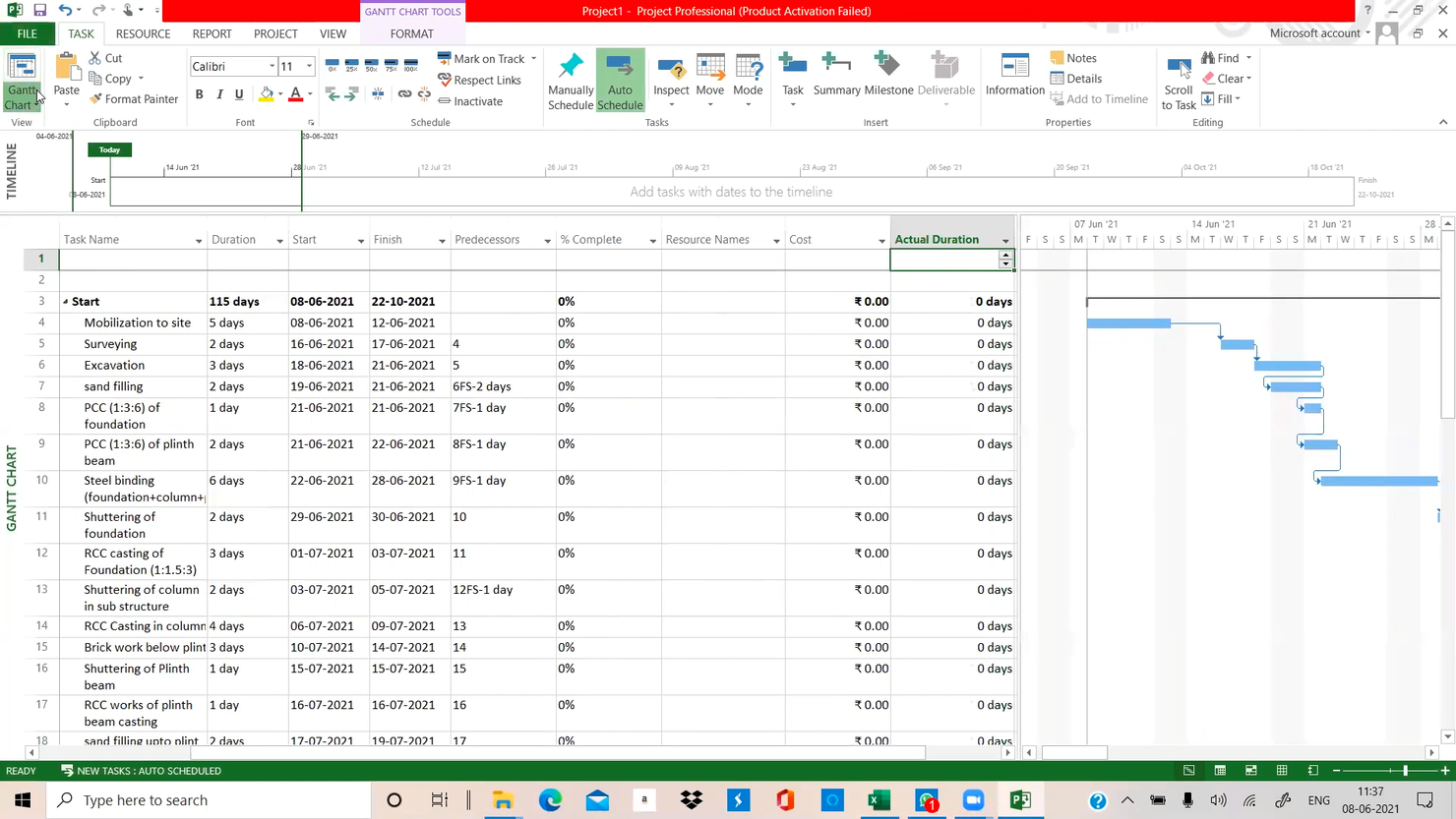
Microsoft Project is a Windows desktop project management application that covers Gantt chart scheduling, critical path analysis, resource leveling, baseline tracking, and multi-project management through a perpetual, locally installed licence.
Who Is Microsoft Project Best For?
Microsoft Project is a strong fit for project managers and IT teams running complex, multi-phase projects who need deep scheduling control without depending on a cloud subscription.
Why I Picked Microsoft Project
Microsoft Project earns its spot on my shortlist because no other desktop tool matches its depth for offline, one-time-licensed scheduling. I've run multi-phase plans with up to 11 saved baselines and used the Tracking Gantt to compare actual progress against each one without needing a single cloud connection. Resource leveling is where it really pulls ahead: you can set precise leveling rules that automatically delay or split tasks to resolve overallocations across a large team, all stored in a local .mpp file you fully own.
Microsoft Project Key Features
- Automatic scheduling: Project calculates start and end dates based on task dependencies, so your plan updates across the board when anything changes.
- Critical path highlighting: The tool identifies the longest sequence of dependent tasks and flags which ones directly control your project's finish date.
- Team Planner view: A visual, drag-and-drop interface shows each team member's assignments across time, making it easy to spot gaps and overallocations at a glance.
- Master project linking: You can consolidate multiple .mpp files into a single master project to track cross-project dependencies and resource conflicts from one place.
Microsoft Project Integrations
Microsoft Project integrates with Microsoft 365, Teams, Excel, Power BI, and SharePoint. Project Professional 2024 syncs with Project Online and Project Server, while XML import and export supports custom data exchange.
Pros and Cons
Pros:
- Levels overloaded resources with configurable rules
- Tracks up to 11 baselines locally
- Handles complex schedules and large plans reliably
Cons:
- Shared .mpp files complicate concurrent editing
- Dense scheduling controls take time to master

Best for Mac-native Gantt and critical path planning
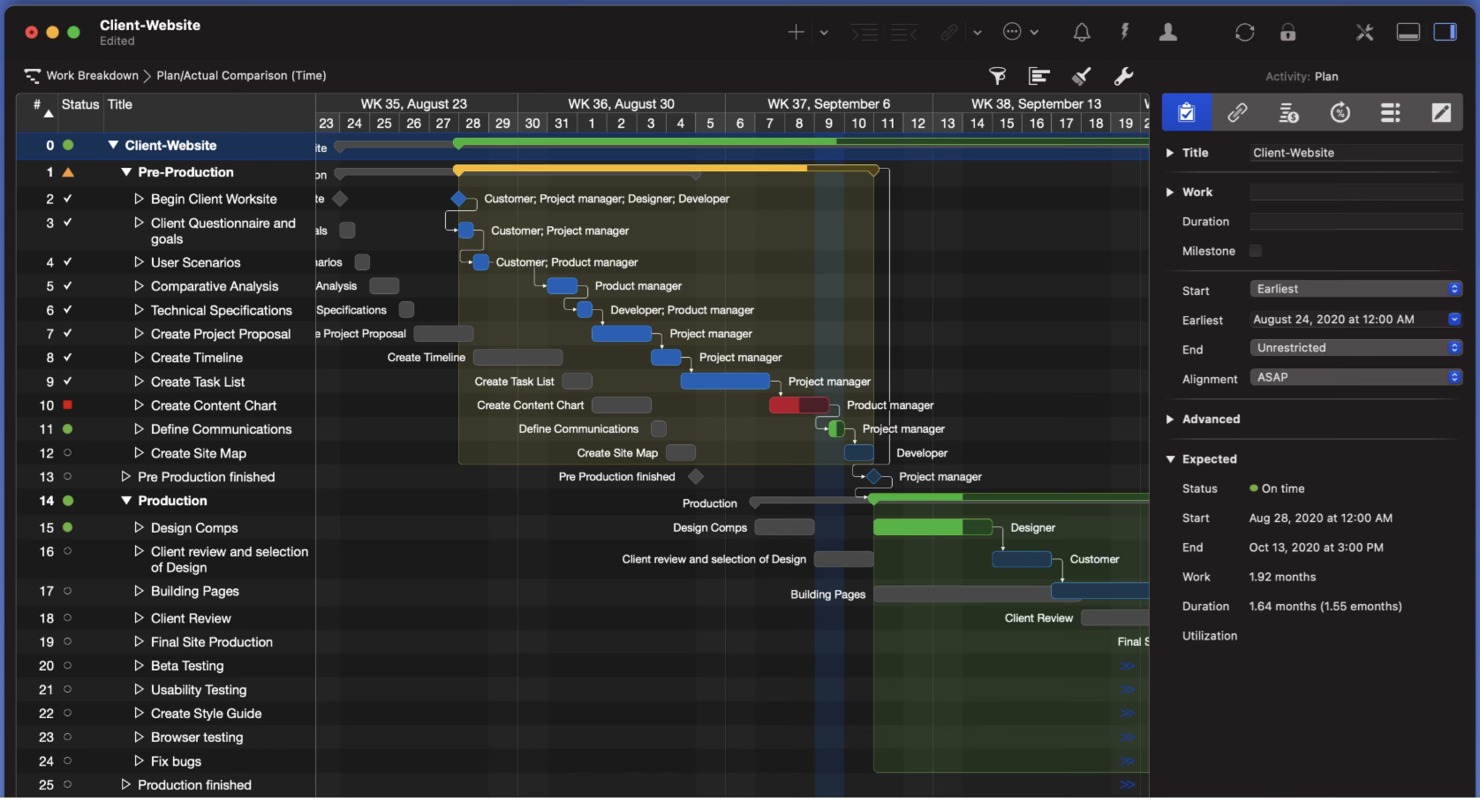
Merlin Project is a Mac-native desktop project management app that combines Gantt chart scheduling, critical path tracking, resource leveling, Kanban boards, and multi-project coordination across Mac, iPad, and iPhone.
Who Is Merlin Project Best For?
Merlin Project is a strong fit for project managers and operations managers who work entirely within the Apple ecosystem and need deep scheduling control without depending on a web-based tool.
Why I Picked Merlin Project
Merlin Project earns its spot on my shortlist because it's the most complete Mac-native Gantt and critical path tool I've seen built specifically for the Apple ecosystem. I love how the critical path recalculates automatically as you log progress, whether you're updating tasks on the Gantt or checking off cards on the Kanban board. The dynamic baseline is also a standout detail: every activity is tracked from the start with no manual setup, so I can compare current progress against any point in the project's history.
Merlin Project Key Features
- Mind map to work breakdown structure: Convert a mind map into a fully structured project plan with a single click, complete with tasks, phases, and hierarchy.
- MagicSync collaboration: Multiple users can edit the same project file simultaneously through iCloud Drive or Dropbox, with changes merging automatically without conflict files.
- Multi-project master documents: Combine several project files into one master document with linked subprojects that update in both directions, giving you a consolidated resource and timeline view.
- MS Project file import: Open native MPP files from Microsoft Project versions 2003 through 2016, as well as MS Project XML and MPX formats.
Merlin Project Integrations
Merlin Project has documented connections with iCloud Drive, Dropbox, Apple Contacts, Apple Calendar, and Apple Mail. It also imports MPP files, exports Microsoft Project XML, and supports SFTP and WebDAV publishing.
Pros and Cons
Pros:
- Users praise mind-map-to-Gantt conversion
- Automatic baselines preserve schedule history
- Project files work fully offline
Cons:
- Complex schedules can overwhelm new users
- No Windows or browser-based access

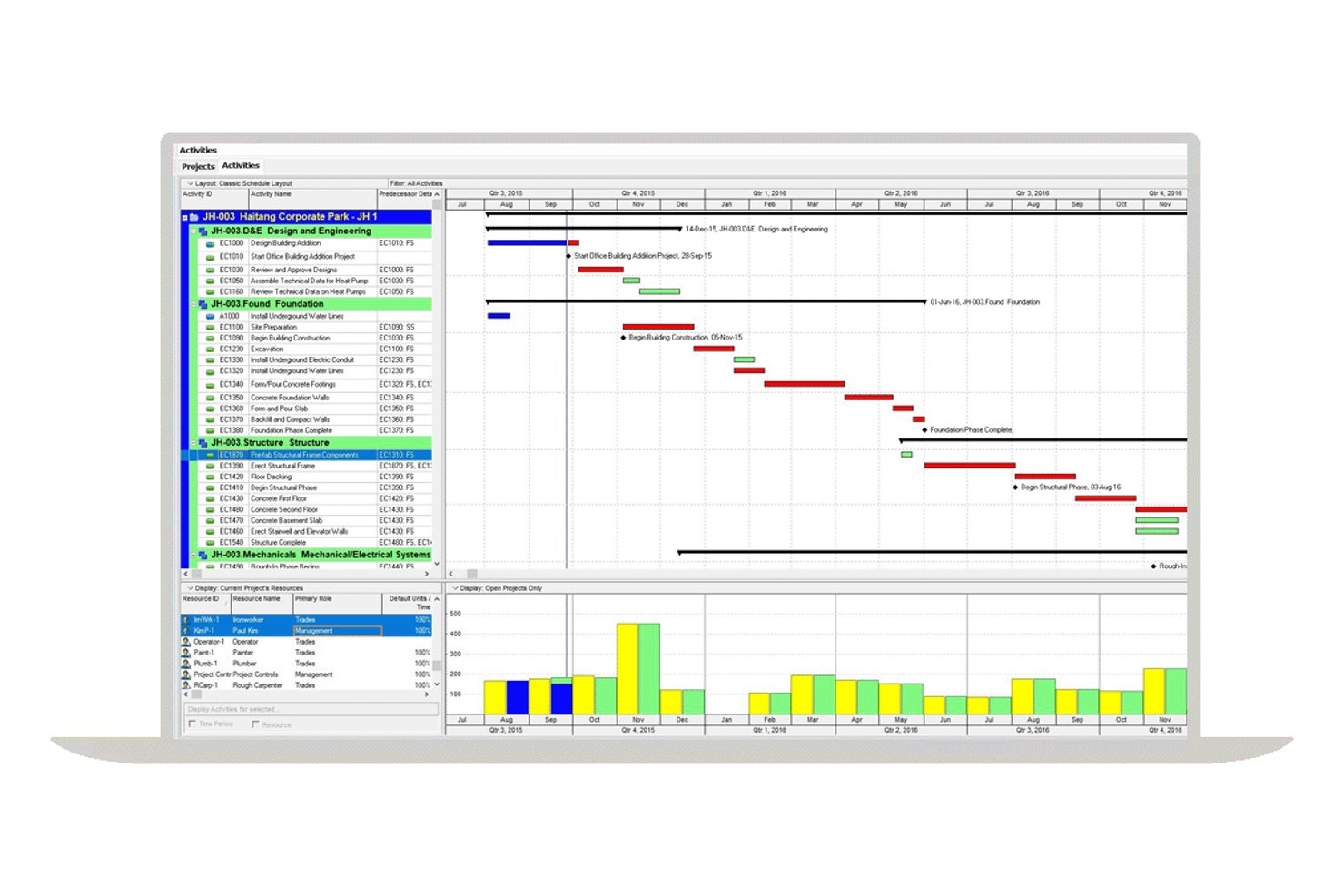
Oracle Primavera P6 is a Windows-based desktop project management tool built around CPM scheduling, WBS, resource leveling, and multi-project planning across an Enterprise Project Structure.
Who Is Oracle Primavera P6 Best For?
Oracle Primavera P6 is built for project managers and operations managers overseeing large, multi-project programs where CPM scheduling depth and offline data control aren't optional.
Why I Picked Oracle Primavera P6
Oracle Primavera P6 earns its spot on my shortlist because no other desktop tool matches its depth of CPM scheduling for large, multi-project programs. I particularly like its Enterprise Project Structure, which lets you open, schedule, and level resources across multiple projects simultaneously from a single Windows client. Its standalone SQLite mode is a genuine offline solution: all project data lives in one local file, no server required, which matters when you're managing a capital project on a site with unreliable connectivity.
Oracle Primavera P6 Key Features
- WBS (work breakdown structure): Organize projects into hierarchical work packages and deliverables that tie directly to your CPM schedule.
- Activity codes: Tag and filter activities across projects using customizable codes to sort, group, and report on work your way.
- Global change: Apply bulk edits to activity data across your schedule using conditional logic, without updating records one at a time.
- XER file import/export: Move complete project data, including resources and roles, between P6 installations using Oracle's native XER format.
Oracle Primavera P6 Integrations
Oracle Primavera P6 supports integrations with Microsoft Project, Microsoft Excel, P6 EPPM, Oracle Primavera Cloud through Primavera Gateway, and Primavera Unifier. Its API supports custom integrations when connected to Oracle XE or SQL Server standalone databases.
Pros and Cons
Pros:
- Compare baseline schedules against current progress
- Level shared resources across open projects
- Work offline in a standalone SQLite file
Cons:
- Dense interface slows first-time schedule setup
- Standalone SQLite restricts workgroup collaboration

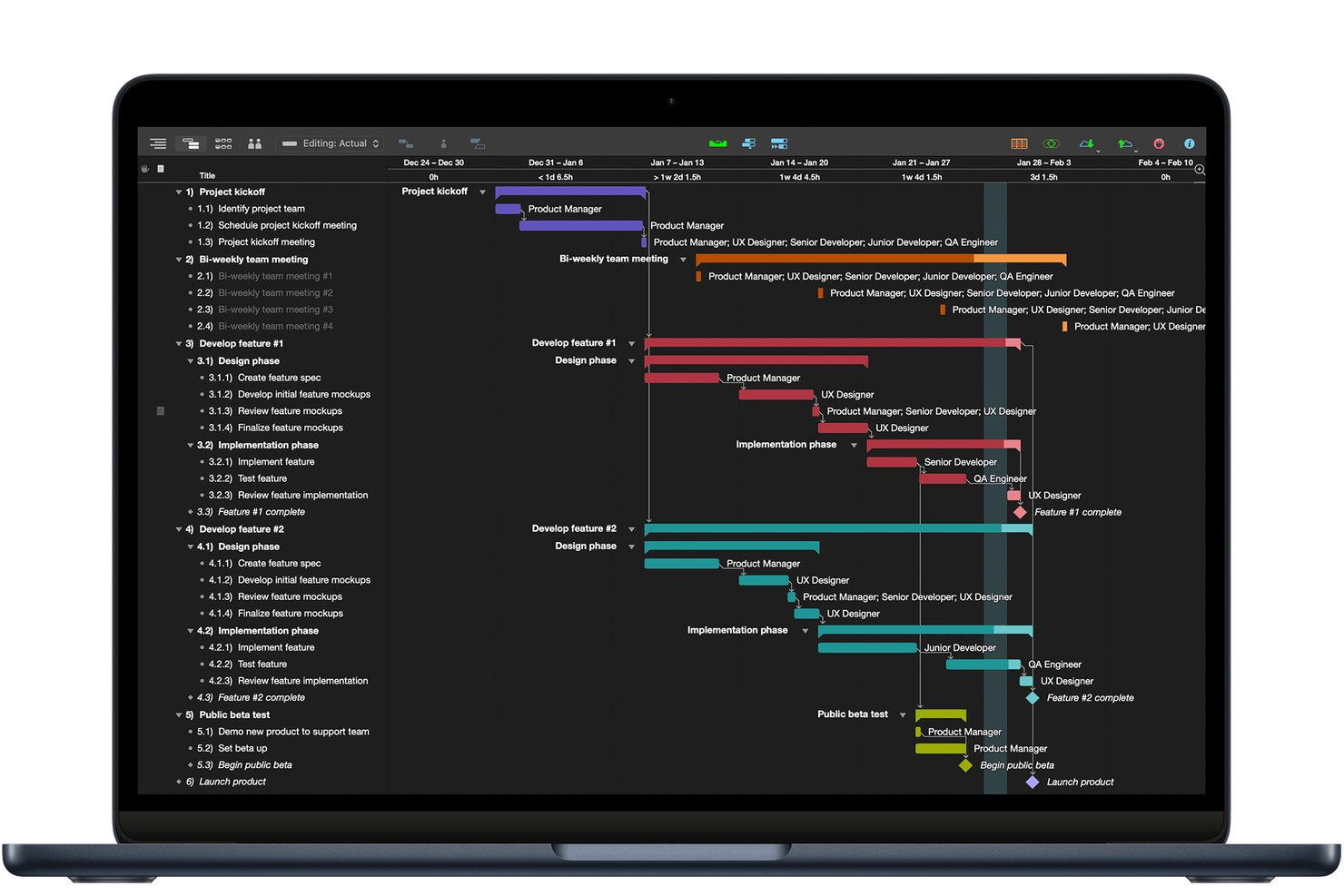
OmniPlan is a Mac-native desktop project management app built around Gantt charts, critical path scheduling, resource leveling, and multi-baseline tracking.
Who Is OmniPlan Best For?
OmniPlan is a strong fit for Mac-based project managers who need deep scheduling control—critical path, resource leveling, and baselines—without relying on a browser or cloud platform.
Why I Picked OmniPlan
OmniPlan earns its spot on my shortlist because it's the only native Mac app I've found that gives you a full critical path scheduling engine without a browser in sight. I like how it automatically highlights the critical path on your Gantt chart, shows float for every task, and lets you compare progress against multiple saved baselines, which matters when plans shift mid-project. Resource leveling runs automatically too, so if a team member is overbooked, OmniPlan redistributes the load without you having to hunt through the schedule manually.
OmniPlan Key Features
- Monte Carlo simulation: Runs probability-based risk forecasting to estimate how likely your project is to finish on time, using best-case and worst-case effort ranges.
- Multi-project dashboard: Displays a portfolio view of all published projects alongside team workload in a single Mac interface, available in the Pro edition.
- Microsoft Project file support: Imports and exports .mpp and XML files, letting you exchange schedules with teams or clients who use Microsoft Project.
- Change tracking: Logs edits from collaborators in a sidebar where you can review, accept, or reject each change before it's applied to the project.
OmniPlan Integrations
OmniPlan integrates with iCloud Drive, Box, Git, WebDAV, Omni Sync Server, CalDAV, and Google Calendar, while Pro supports Microsoft Project MPP/XML files. It has no native Jira or Slack integrations.
Pros and Cons
Pros:
- Baselines help compare plans against progress
- Automatic resource leveling balances assigned workloads
- Detailed Gantt charts clarify schedule dependencies
Cons:
- Collaboration requires publishing instead of live editing
- Apple-only apps exclude Windows-based teams
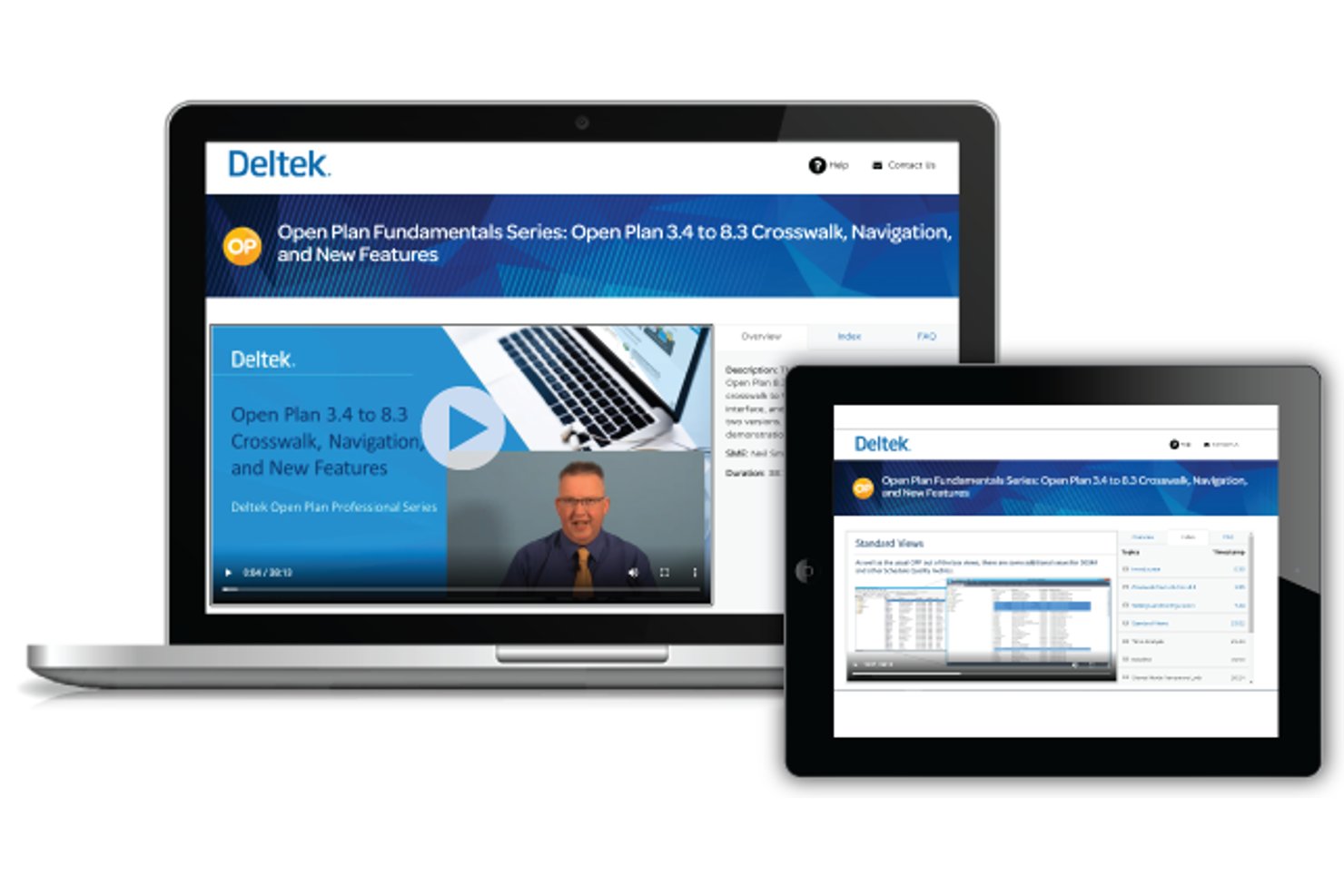
Deltek Open Plan is a Windows desktop scheduling application built around CPM methodology, offering multi-project tracking, resource-constrained leveling, Monte Carlo risk analysis, and DCMA compliance checks.
Who Is Deltek Open Plan Best For?
Deltek Open Plan is a strong fit for project managers in government contracting, aerospace, and defense who need rigorous CPM scheduling with built-in compliance checks.
Why I Picked Deltek Open Plan
I've included Deltek Open Plan in my top picks because it's the only desktop scheduling tool I know that has DCMA 14-point compliance checks built directly into the scheduling engine. For government contracting or aerospace programs where schedule health is auditable, that's a real differentiator. I also like that Monte Carlo risk analysis and resource-constrained leveling run natively, so you're not stitching together separate tools to manage risk and capacity on complex, multi-project programs.
Deltek Open Plan Key Features
- Master/subproject rollups: Nest subprojects under a master project to roll up schedules, resources, and progress across a full program portfolio.
- Jira import: Map and import Jira data directly into Open Plan, with field-level control and an import preview and log.
- Multiple baseline storage: Save and compare multiple schedule baselines, including a Performance Measurement Baseline, with role-based access and a full audit history.
- Batch processing: Run time analysis, resource scheduling, and risk analysis across several projects simultaneously rather than one at a time.
Deltek Open Plan Integrations
Deltek Open Plan has native integrations with Microsoft Project, Project Server, Oracle Primavera P6, Jira, and Deltek Cobra. It also offers REST APIs and an MCP server for custom integrations.
Pros and Cons
Pros:
- Resource leveling spans multiple projects
- Built-in DCMA schedule health checks
- Runs offline with local Access storage
Cons:
- Database setup burdens small teams
- Reviewers report sluggish, hard-to-navigate screens
Annen skrivebordsbasert prosjektstyringsprogramvare
Her er flere verktøy som ikke nådde helt opp, men som likevel er verdt å vurdere.
-
Project Plan 365
For MS Project file compatibility on desktop
-
Smartsheet
For Google Workspace-connected scheduling
-
RationalPlan
For PMBOK-aligned one-time licensed scheduling
-
Hive
For Gantt and critical path via desktop app
-
ProjectLibre
For free, offline MS Project file scheduling
-
Asta Powerproject
For construction schedule planning and control
-
Milestones Professional
For one-time licensed schedule reporting
-
FastTrack Schedule
For one-time-buy Gantt and critical path
-
GanttProject
For free, offline Gantt scheduling
-
ConceptDraw PROJECT
For one-time licensed multi-project tracking


How I Evaluate Desktop Project Management Software
I split my evaluation into three parts, giving the most weight to core functionality: working offline and mapping tasks, dates, and dependencies. Next, I weigh standout features such as critical-path scheduling. Finally, I consider factors beyond features, including licensing, support, and control of locally stored project data.
Core Functionality (Table Stakes For This List)
When I'm selecting tools for my list, I score each one on a scale from 0 (does not offer the functionality) to 5 (excels in this area) for each core functionality listed below. I then convert the total into a percentage to help assess each tool's overall fit, with extra weight on any functionalities I’ve deemed essential.
- Local Desktop Operation (Essential): I look for a native desktop app that can open and update schedules offline, then sync changes when a connection returns.
- Task & Schedule Management (Essential): I check that tasks have dates and dependencies, and that linked work can shift when a predecessor slips during a release plan.
- Gantt Chart Views: For overlapping launch work, I assess whether the chart makes dependencies, milestones, and schedule changes easy to read and adjust.
- Resource Allocation: I look for assignments and workload views that reveal when the same designer or engineer is booked across concurrent tasks.
- Local Storage & Export: I assess whether teams can keep project files on a device or network drive and export usable schedules for handoffs.
- Multi-Project Tracking: I check whether separate projects can be opened or compared together, especially when a lead tracks deadlines across client workstreams.
Once I have a list of tools that meet the criteria, I consider what sets each platform apart.
Differentiating Factors (What Sets Vendors Apart)
Here's how I compare and contrast different vendors:
Standout Features
I look for a critical path engine that recalculates automatically when dates shift, since missing one delayed predecessor can silently push a launch. Baseline comparison matters just as much—I check whether I can snapshot a schedule early on and overlay actual progress to spot slippage before a status meeting. I also evaluate file compatibility, especially MPP and XML support, because most stakeholders still exchange schedules in those formats. A perpetual license option is a plus for teams that want predictable costs without recurring fees.
Beyond Features
I evaluate whether project data stays fully under your organization's control—on local drives or private network shares—since teams in regulated industries often can't send schedules to third-party servers. Licensing structure matters too: a perpetual license can save money over years, but I check upgrade and multi-seat costs to avoid surprises during version migrations. I also consider how teams share files offline, looking for check-in/check-out or local server sync so two planners don't overwrite each other's work on the same schedule.
Slik velger du skrivebordsbasert prosjektstyringsprogramvare
Det er lett å gå seg vill i lange funksjonslister og komplekse prismodeller. For å hjelpe deg med å holde fokus mens du arbeider deg gjennom den unike prosessen med å velge programvare, får du her en sjekkliste over faktorer du bør ha i bakhodet:
| Faktor | Hva bør du vurdere? |
| Skalerbarhet | Vil programvaren utvikle seg i takt med teamets skiftende behov? |
| Integrasjoner | Integreres programvaren sømløst med de eksisterende verktøyene dine? |
| Tilpasningsmuligheter | Kan du tilpasse programvaren til teamets spesifikke arbeidsflyter? |
| Brukervennlighet | Hvor raskt kan teamet ditt lære å bruke programvaren? |
| Budsjett | Er verktøyets prismodell bærekraftig for behovene dine på lang sikt? |
| Sikkerhetstiltak | Tilbyr programvaren det sikkerhetsnivået dataene dine krever? |
| Samarbeid | Støtter programvaren effektivt teamarbeid og kommunikasjon? |
| Rapportering | Gir programvaren innsikten teamet ditt trenger for å følge fremdriften? |
Trender innen skrivebordsbasert prosjektstyringsprogramvare
I researcharbeidet mitt hentet jeg inn utallige produktoppdateringer, pressemeldinger og utgivelseslogger fra ulike leverandører av skrivebordsbasert prosjektstyringsprogramvare. Her er noen av trendene som er på fremmarsj, og som jeg følger med på:
- Fleksible distribusjonsalternativer: Brukerne ser i økende grad etter fleksibilitet i hvordan de får tilgang til verktøyene sine. Leverandører tilbyr Windows-programvare for skrivebordsadministrasjon som kan veksle mellom skybaserte og frakoblede moduser, slik at arbeidet kan utføres sømløst enten brukerne er på eller uten nett.
- Tilpassbare kontrollpaneler: Det er en økende etterspørsel etter skrivebordsverktøy som lar brukerne tilpasse arbeidsområdene sine. Fra å endre oppsett til å prioritere viktige data ønsker brukerne mer kontroll over opplevelsen av PC-skrivebordsadministrasjon. Denne trenden er særlig tydelig i programvare for prosjektstyring med åpen kildekode, der tilpassbare kontrollpaneler er et must.
- AI-drevet prosjektplanlegging: AI finner veien inn i prosjektapper for skrivebordet for smartere planlegging og ressursfordeling. Det er ikke lenger bare et påfunn, men en funksjon i Windows-verktøy for prosjektstyring, der AI foreslår optimaliserte tidslinjer og oppgaveavhengigheter.
- Sikkerhetsfokuserte funksjoner: Etter hvert som bekymringene rundt datasikkerhet øker, utvikles administrasjonspakker for skrivebordet til å omfatte kraftigere kryptering og tilgangskontroll. For eksempel tilbyr både programvare for administrasjon av bærbare datamaskiner og programvare for PC-administrasjon nå multifaktorautentisering og sikre alternativer for fildeling.
- Samarbeidsbasert skrivebordsteknologi: Selv om integrasjoner ikke er en trend, er måten team samarbeider på i programvare for prosjektstyring på skrivebordet, i endring. Nye funksjoner, som tilbakemeldinger i sanntid i løsninger for skrivebordsadministrasjon, lar team arbeide sammen uten behov for separate kommunikasjonsverktøy. Dette gjør samarbeidet mer effektivt direkte fra skrivebordet.
Hva er programvare for prosjektstyring på skrivebordet?
Programvare for prosjektstyring på skrivebordet er et dataprogram som installeres på en datamaskin, og som hjelper deg med å planlegge, organisere og administrere prosjekter. Den omfatter vanligvis funksjoner som oppgaveadministrasjon, planlegging, ressursfordeling, samarbeidsverktøy og frakoblet tilgang.
Programvare for prosjektstyring på skrivebordet fungerer som et sentralisert verktøy for å kontrollere prosjekter direkte fra skrivebordsmiljøet ditt, og kan gi raskere ytelse og bedre respons enn nettleserbaserte løsninger – perfekt når du arbeider med store og komplekse prosjektdata.
Funksjoner i programvare for prosjektstyring på skrivebordet?
Vi forventer at en app for prosjektstyring med skrivebordsprogramvare har de samme funksjonene som skybaserte løsninger. Her er noen av funksjonene du kan finne i disse verktøyene for prosjektplanlegging.
- Integrasjoner: Kobler programvaren til andre plattformer, for eksempel Google-apper.
- Oppgaveadministrasjon: Mulighet til å prioritere og spore prosjektoppgaver og flytte dem gjennom prosjektets arbeidsflyt.
- Kommunikasjon: Et sted i prosjektstyringssystemet der teammedlemmer kommuniserer for å styrke teamsamarbeidet på tvers av flere prosjekter, får tilgang til fildeling og mer.
- Automatiseringer: En funksjon som effektiviserer gjentakende oppgaver ved at programvaren kan utløse handlinger på dine vegne.
- Visninger: Arbeidsområder som viser informasjonen din på ulike måter, blant annet som oppgaveliste, Gantt-diagram, kanban-tavle og kalendervisning.
- Ressursadministrasjon: En funksjon der vi for eksempel kan se arbeidsbelastningen til teamet vårt eller hvor mange prosjekter de er tildelt. Små team klarer seg sannsynligvis uten dette, men det samme gjelder ikke for større team.
- Prosjektmaler: Ferdiglaget innhold som kan fungere som et utgangspunkt for prosjektene dine.
- Tilgangskontroll: Muligheten til å angi tillatelser per bruker, slik at bare de riktige personene kan redigere oppgavene. Dette kan for eksempel være til hjelp ved administrasjon av frilansere.
- Kontrollpaneler: En del av plattformen der du kan overvåke den samlede fremdriften i prosjektene dine.
- Tidsadministrasjon: En modul som hjelper deg med å spore individuelle oppgaver og timelister og måle hvilken innvirkning de har på leveransene dine.
Fordeler med programvare for prosjektstyring på skrivebordet
Implementering av programvare for prosjektstyring på skrivebordet gir flere fordeler for teamet og virksomheten din. Her er noen av fordelene du kan se frem til:
- Forbedret fokus: Ved å bruke skrivebordsteknologi kan du redusere distraksjoner forårsaket av nettleserbaserte verktøy, slik at du kan konsentrere deg fullt ut om oppgavene dine.
- Tilgjengelig uten nett: Med Windows-administrasjonsløsninger kan du fortsette å jobbe selv uten internettilkobling, slik at prosjektene dine holder seg på rett spor uansett hvor du befinner deg.
- Forbedret sikkerhet: Programvare for administrasjon av datamaskiner holder sensitive data sikrere med lokal lagring og bedre kontroll over tilgang, noe som reduserer risikoene forbundet med skylagring.
- Tilpassbare arbeidsområder: Verktøy for skrivebordsadministrasjon lar deg organisere grensesnittet ditt, slik at det er enkelt å tilpasse det til teamets eller individuelle prosjekters spesifikke behov.
- Raskere ytelse: Programvare for datamaskinadministrasjon kjører jevnere enn mange skybaserte alternativer og gir raskere tilgang til data og verktøy.
- Lavere kostnader: Mange alternativer for åpen kildekode-basert prosjektstyringsprogramvare for Windows er tilgjengelige uten kostnad, noe som reduserer utgiftene samtidig som du får kraftige funksjoner for prosjektplanlegging.
- Pålitelig sikkerhetskopiering: Med programvare for skrivebordet kan filene og prosjektdataene dine lagres direkte på datamaskinen, slik at du får bedre kontroll over datagjenoppretting og sikkerhetskopier.
Kostnader og priser for skrivebordsbasert prosjektstyringsprogramvare
Ved valg av skrivebordsbasert prosjektstyringsprogramvare er det viktig å forstå de ulike prismodellene og abonnementene som er tilgjengelige. Kostnadene varierer basert på funksjoner, teamstørrelse, tillegg og mer. Tabellen nedenfor oppsummerer vanlige abonnementer, gjennomsnittsprisene deres og typiske funksjoner som er inkludert i skrivebordsbaserte prosjektstyringsløsninger:
| Abonnementstype | Gjennomsnittlig pris | Vanlige funksjoner |
| Gratisabonnement | $0 | Grunnleggende oppgaveadministrasjon, begrenset lagringsplass og tilgang for én bruker. |
| Privatabonnement | $5-$15/per bruker/måned | Oppgavesporing, tilpassbare arbeidsflyter og et begrenset antall prosjektmaler. |
| Bedriftsabonnement | $20-$40/per bruker/måned | Verktøy for teamsamarbeid, avansert rapportering, tidsregistrering og mer lagringsplass. |
| Storbedriftsabonnement | $50-$100/per bruker/måned | Prioritert kundestøtte, forbedrede sikkerhetsfunksjoner, ubegrenset antall prosjekter og integrasjoner. |
Vanlige spørsmål
Her finner du svar på vanlige spørsmål om stasjonær programvare for prosjektstyring: