Microsoft Project per Mac OS: 10 alternative e soluzioni alternative

Le migliori alternative a MS Project per Mac
- 8. OmniPlan


Le alternative a Microsoft Project per Mac aiutano i project manager a pianificare, programmare e gestire il lavoro senza rinunciare a funzionalità o compatibilità. Sebbene la versione web di Microsoft Project offra una certa accessibilità, mancano alcune funzionalità chiave su macOS, rendendo più difficile per gli utenti Mac gestire con sicurezza tempistiche, dipendenze e risorse.
Ho testato e recensito in modo indipendente i principali strumenti di gestione dei progetti che rappresentano valide alternative a Microsoft Project per Mac. Dalle funzionalità dei diagrammi di Gantt agli strumenti di collaborazione del team e alle prestazioni native su Mac, ogni strumento presentato in questa guida offre un'esperienza fluida e completa, progettata per supportare i moderni flussi di lavoro dei progetti.
Che cos'è Microsoft Project?
Microsoft Project è un software di gestione dei progetti sviluppato da Microsoft che aiuta i team a pianificare, programmare e monitorare l'avanzamento dei progetti.
Progettato per flussi di lavoro complessi, offre strumenti per l'assegnazione delle attività, i diagrammi di Gantt, la gestione delle risorse e il monitoraggio del budget. Sebbene in origine fosse disponibile solo per Windows, ora è disponibile una versione basata sul web per gli utenti Mac, anche se offre meno funzionalità rispetto alla versione desktop.
Perché fidarsi dei nostri consigli sui software
Il nostro team testa e recensisce software dal 2012. In quanto project manager noi stessi, sappiamo quanto sia difficile — e importante — scegliere il software giusto.
Per questa guida, abbiamo valutato gli strumenti attraverso test pratici e ricerche indipendenti, assegnando un punteggio agli strumenti in base ai nostri criteri di selezione. Ci basiamo inoltre sulle competenze di leader di pensiero del settore e di professionisti attivi nella gestione dei progetti.
Le nostre recensioni riflettono il nostro giudizio editoriale umano, non un discorso di vendita.
Revisori esperti:
Tabella comparativa: alternative a Microsoft Project per Mac
Questa tabella comparativa riassume i dettagli sui prezzi delle mie migliori alternative a Microsoft Project per Mac:
| Tool | Best For | Trial Info | Price | ||
|---|---|---|---|---|---|
| 1 | Ideale per la gestione dei collaboratori esterni | Prova gratuita di 14 giorni | Da $9.80/utente/mese | Website | |
| 2 | Miglior strumento intuitivo per la gestione dei progetti | 14 giorni di prova gratuita | A partire da $6/utente/mese | Website | |
| 3 | Ideale per la gestione del budget dei progetti | Prova gratuita di 30 giorni | A partire da $25/utente/mese | Website | |
| 4 | Più adatto alla scalabilità | Prova gratuita di 10 giorni | Da $4/utente/mese con fatturazione annuale. Disponibile anche una versione freemium fino a 3 utenti per 2 progetti | Website | |
| 5 | Ideale per team marketing & media | Piano gratuito + demo gratuita disponibile | Gratis per sempre con piani a pagamento da $5/mese | Website | |
| 6 | Prova gratuita di 30 giorni | A partire da $16.99 / mese | Website | ||
| 7 | Ideale per la pianificazione gratuita in stile MS Project | Piano gratuito disponibile | Da $9.99/utente/mese (fatturato annualmente) | Website | |
| 8 | Prova gratuita di 14 giorni | Da $199.99/anno (con fatturazione annuale) | Website | ||
| 9 | Best for skalerbarhet | 10 dagers gratis prøveperiode | Fra $4/bruker/måned fakturert årlig. Har også en gratisversjon for opptil 3 brukere for 2 prosjekter | Website | |
| 10 | Ideale per la pianificazione collaborativa dei progetti | Prova gratuita di 14 giorni | A partire da $7.99/utente/mese | Website |


Panoramica delle migliori alternative a Microsoft Project per Mac
Di seguito sono riportate alcune alternative a Microsoft Project e alcuni visualizzatori di progetti. Molti di questi strumenti sono infatti basati sul browser, il che consente aggiornamenti in tempo reale su tutti i dispositivi, indipendentemente da quello utilizzato.

Wrike
Ideale per la gestione dei collaboratori esterni
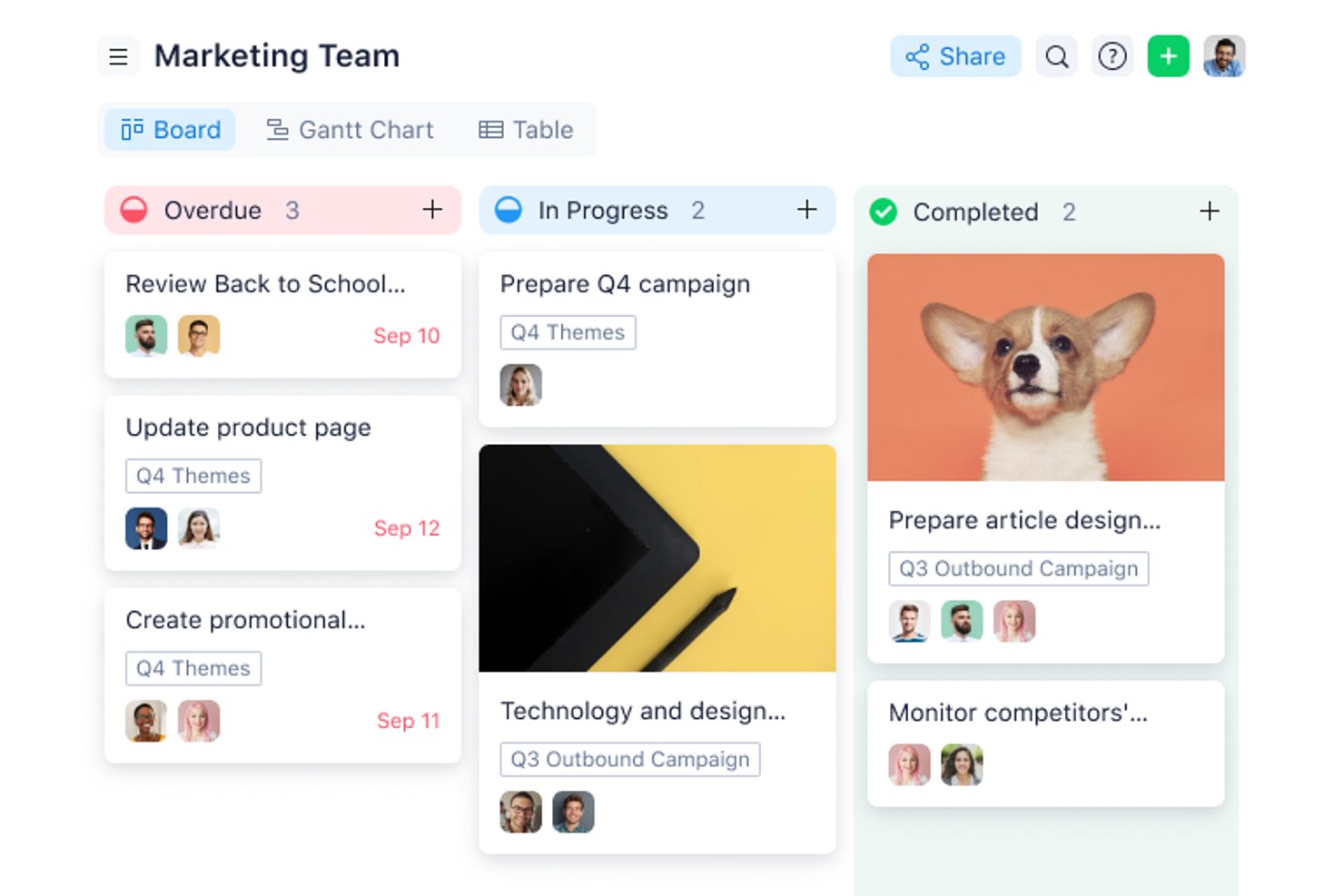
Wrike è una piattaforma di gestione del lavoro per i team di progetto che devono pianificare le attività, monitorare i compiti, coordinare gli aggiornamenti e mantenere visibili le priorità e le dipendenze in continuo cambiamento.
Per chi è più adatto Wrike?
Wrike è adatto ai project manager che coordinano collaboratori esterni e team interni e hanno bisogno di una chiara assegnazione delle attività e di scadenze definite.
Perché Wrike è una valida alternativa e soluzione alternativa a Microsoft Project per Mac OS
Ho scelto Wrike come alternativa a Microsoft Project per Mac OS perché è ideale per la gestione dei collaboratori esterni. Utilizzo i suoi programmi di progetto, l’assegnazione delle attività e le scadenze per chiarire chi è responsabile di ogni risultato da consegnare. I team possono inoltre monitorare le dipendenze e coordinare gli aggiornamenti quando le tempistiche dei collaboratori esterni cambiano.
Funzionalità principali di Wrike
- Flussi di lavoro personalizzati: Configura le fasi e gli stati dei progetti in base ai processi del tuo team.
- Moduli di richiesta: Raccogli le richieste di progetto tramite moduli con campi personalizzabili.
- Revisione e approvazioni: Esamina i file, aggiungi commenti e gestisci le decisioni di approvazione in Wrike.
- Dashboard: Crea viste che mostrano le informazioni selezionate su progetti e attività.
Integrazioni di Wrike
La directory di Wrike elenca 60 app e integrazioni, tra cui Slack, Microsoft Teams, Google Sheets e Salesforce; le connessioni di Wrike con Slack e Microsoft Teams sono integrazioni documentate. Wrike supporta inoltre Zapier e offre un’API per le integrazioni personalizzate.
Pros and Cons
Pros:
- Le dipendenze del diagramma di Gantt ricalcolano i percorsi critici
- I grafici del carico di lavoro rendono visibile l'assegnazione delle responsabilità
- I flussi di lavoro personalizzati si adattano ai passaggi di consegne dei collaboratori esterni
Cons:
- La navigazione articolata richiede tempo per la formazione iniziale
- Le linee delle dipendenze del diagramma di Gantt possono sovrapporsi
New Product Updates from Wrike

Wrike Adds Quick Search to Table View
Wrike adds Quick Search to Table View with full-table search across titles, descriptions, and fields, plus highlighted matches. This helps users find tasks faster in large tables. For more information, visit Wrike’s official site.

Miglior strumento intuitivo per la gestione dei progetti
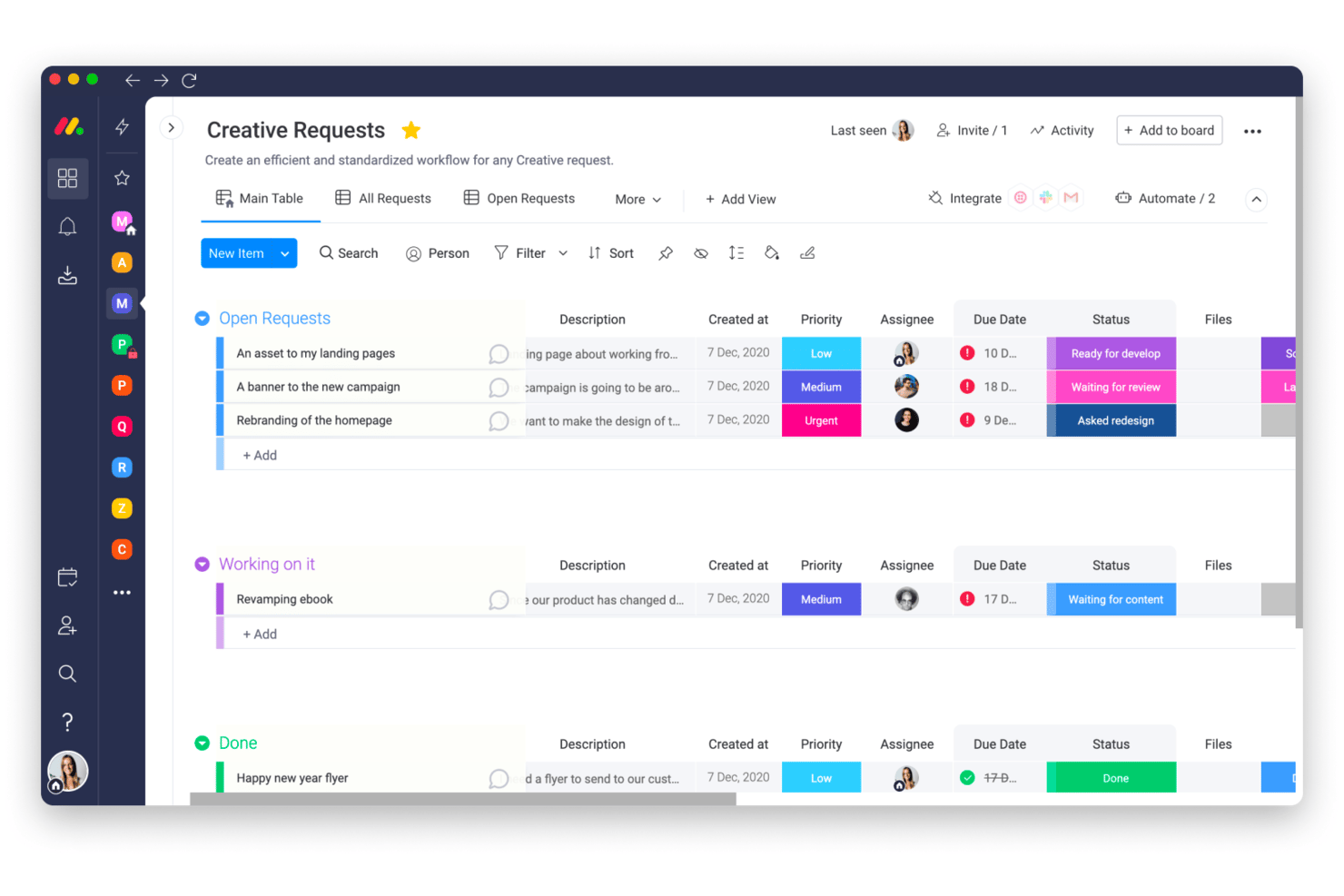
monday AI Workspace offre ai team di prodotto e di realizzazione uno spazio visivo e configurabile per pianificare i progetti, coordinare il lavoro interfunzionale e mantenere visibili le priorità e le responsabilità in continua evoluzione.
Per chi è più adatto monday AI Workspace?
Team digitali piccoli e medi alla ricerca di un modo intuitivo per organizzare i progetti e coordinare il lavoro quotidiano.
Perché monday AI Workspace è una valida alternativa a Microsoft Project per Mac OS: alternative e soluzioni
Ho scelto monday AI Workspace come miglior strumento intuitivo per la gestione dei progetti perché il suo spazio di lavoro visivo per i progetti offre agli utenti Mac un'alternativa a Microsoft Project basata sul browser. Utilizzo le tempistiche e il monitoraggio delle dipendenze per mappare le tappe fondamentali del lancio, mentre i pannelli di controllo in tempo reale mostrano i progressi tra i team e gli eventuali ritardi.
Funzionalità principali di monday AI Workspace
- Suggerimenti dell'IA per l'assegnazione: Ricevi suggerimenti sui responsabili delle attività del progetto.
- Rilevamento dei rischi: Visualizza i rischi del progetto segnalati dall'IA e il relativo contesto.
- Riepiloghi dei documenti: Utilizza l'IA per riepilogare i documenti del progetto.
- Instradamento delle richieste: Indirizza le richieste in arrivo al flusso di lavoro appropriato.
Integrazioni di monday AI Workspace
monday.com elenca oltre 850 integrazioni e app, tra cui Slack, Google Calendar, Outlook, Microsoft Teams, GitHub e Jira. Supporta Zapier e offre API e SDK per integrazioni personalizzate.
Pros and Cons
Pros:
- Le tempistiche visive rendono le tappe fondamentali facili da individuare
- I pannelli di controllo mostrano i progressi tra i team e i ritardi rispetto alla pianificazione
- L'IA segnala i rischi dei progetti e suggerisce i responsabili delle attività
Cons:
- Le dipendenze complesse non offrono la profondità dei tradizionali percorsi critici
- Le bacheche personalizzate possono diventare disordinate nel tempo
New Product Updates from monday AI Workspace
monday AI Workspace Adds Human Approval Routing
monday AI Workspace adds a human-in-the-loop approval block to AI Workflows, sending approval requests and routing workflow paths based on responses. For more information, visit monday AI Workspace's official site.

Celoxis
Ideale per la gestione del budget dei progetti
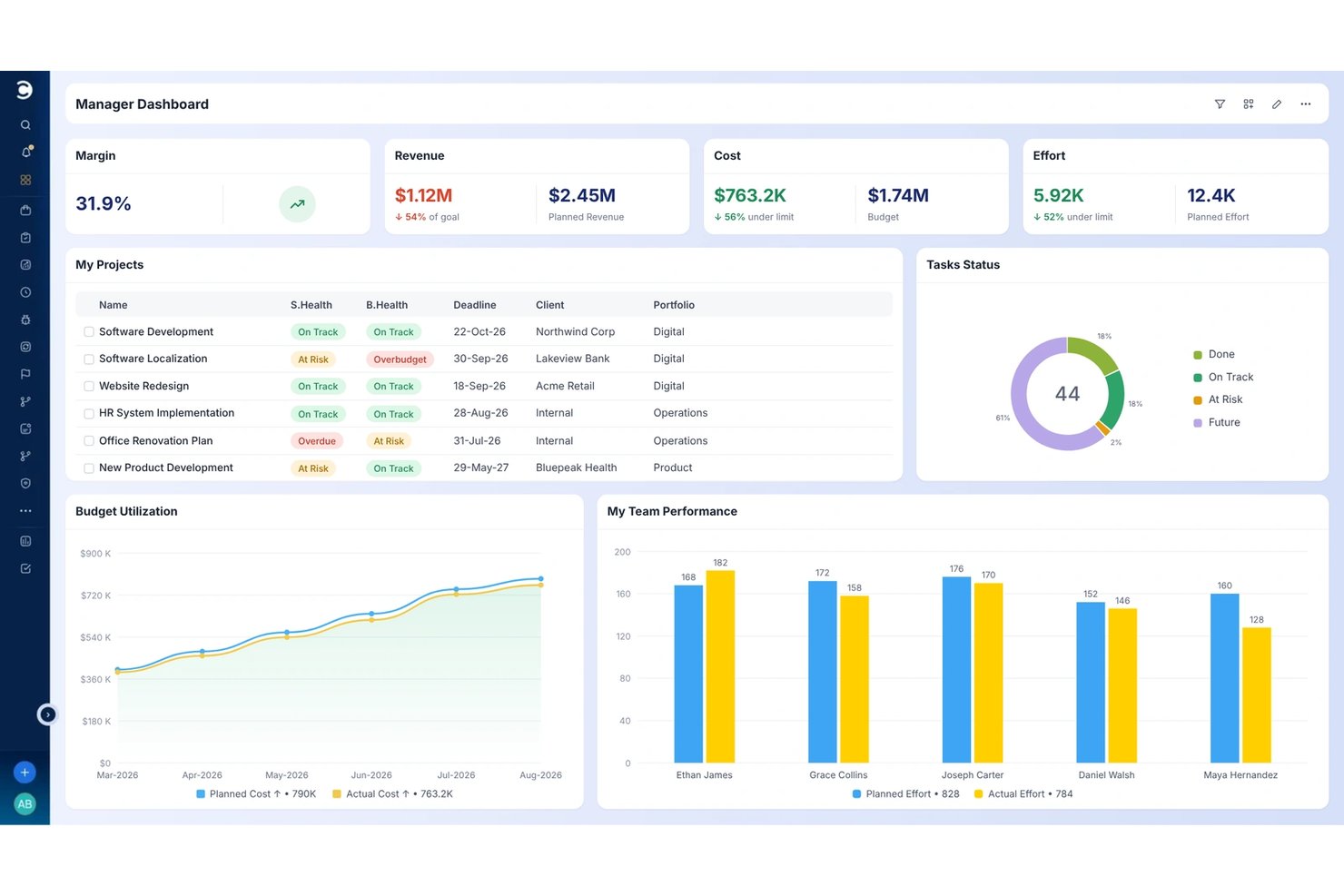
Celoxis aiuta i team di progetto a coordinare attività complesse riunendo piani di progetto, gestione delle risorse, pianificazioni e visibilità sulla consegna tra i vari reparti.
Per chi è più adatto Celoxis?
Celoxis è adatto ai project manager che devono pianificare i costi dei progetti e monitorare i budget insieme alle pianificazioni e alle esigenze di risorse.
Perché Celoxis è una buona alternativa e soluzione a Microsoft Project per Mac OS
Ho scelto Celoxis come alternativa a Microsoft Project per Mac OS perché è ideale per la gestione del budget dei progetti. Mi piace il fatto che riunisca costi e budget dei progetti con le pianificazioni e le esigenze di risorse, aiutandomi a valutare in che modo una modifica dell'ambito influisca sia sul budget sia sul piano di assegnazione del personale.
Funzionalità principali di Celoxis
- Acquisizione dei progetti: Raccogli le richieste tramite e-mail, moduli o fogli di calcolo e indirizzale per l'approvazione.
- Dashboard personalizzate: Crea dashboard con widget di report, grafici e filtri per i dati dei progetti.
- App per i flussi di lavoro: Configura campi personalizzati, stati, instradamento ed escalation per i processi di progetto.
- Discussioni del team: Commenta progetti, attività ed elementi delle app con menzioni e notifiche via e-mail.
Integrazioni di Celoxis
Celoxis offre 21 integrazioni configurabili all'interno del prodotto, tra cui Microsoft Project, Microsoft 365, Jira, Azure DevOps, Google Drive, Slack e QuickBooks Online. Si collega inoltre a Zapier e mette a disposizione un'API REST per integrazioni personalizzate.
Pros and Cons
Pros:
- L'accesso tramite browser funziona su Mac
- Importa le dipendenze MPP e le assegnazioni delle risorse
- Monitora i budget insieme a pianificazioni e risorse
Cons:
- Le importazioni MPP omettono calendari e campi personalizzati
- La navigazione articolata può rallentare la configurazione del progetto

Più adatto alla scalabilità
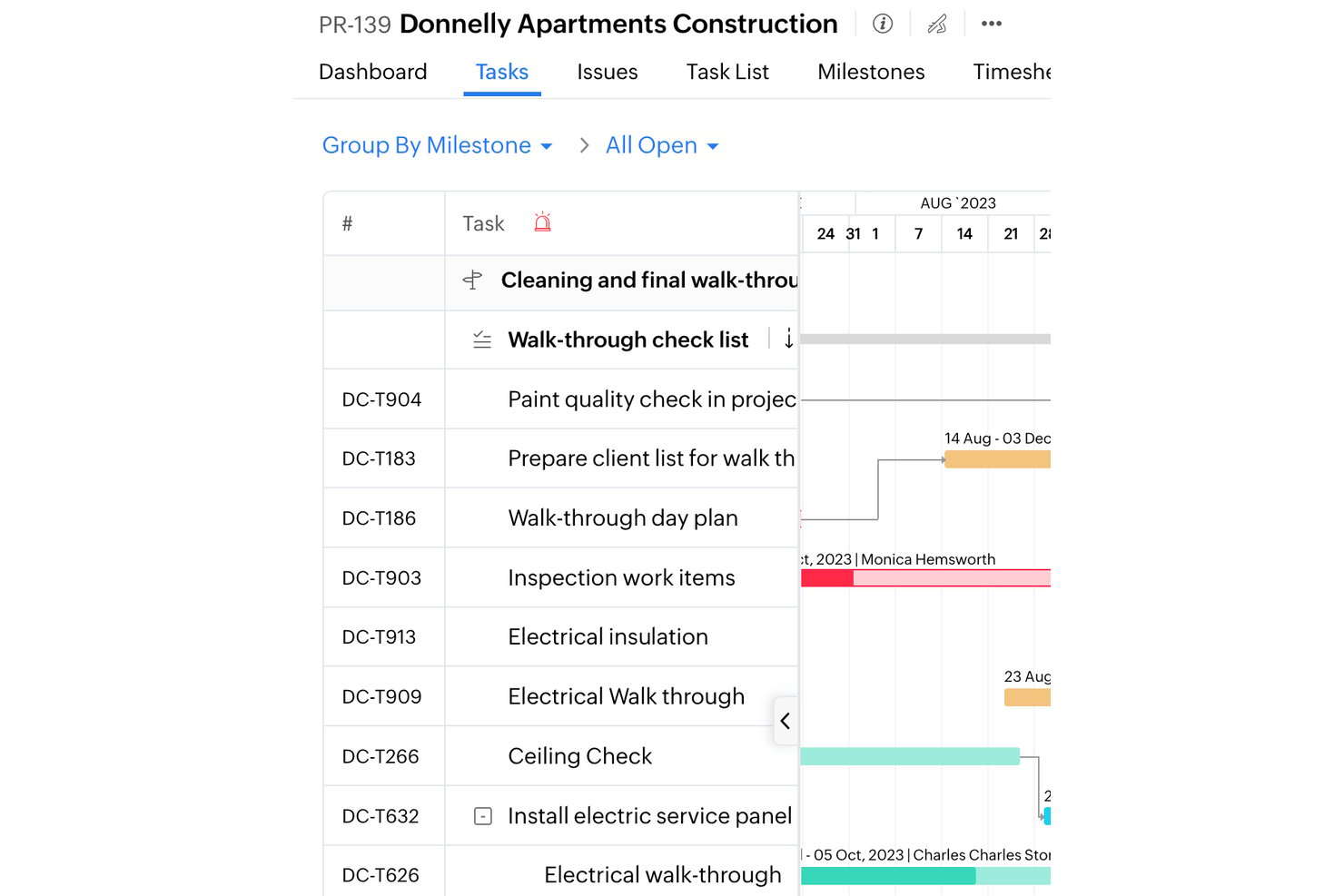
Zoho Projects è una piattaforma di gestione dei progetti basata sul cloud per i team che cercano un'alternativa a Microsoft Project, combinando pianificazione delle attività, programmazione, dipendenze e collaborazione per coordinare la distribuzione.
Per chi è più adatto Zoho Projects?
Zoho Projects è adatto ai team in crescita che devono coordinare più progetti, dipendenze, programmi e attività interfunzionali con l'aumentare delle esigenze di distribuzione.
Perché Zoho Projects è una buona alternativa a Microsoft Project per Mac OS: alternative e soluzioni
Ho scelto Zoho Projects come soluzione “più adatta alla scalabilità” perché il suo spazio di lavoro basato sul cloud consente agli utenti Mac di coordinare il lavoro senza dipendere dall'app desktop di Microsoft Project. Utilizzo la sua programmazione e la pianificazione delle dipendenze per mappare le tappe fondamentali collegate tra versioni simultanee dei prodotti e mantenere allineati i team di progetto man mano che il lavoro si amplia.
Funzionalità principali di Zoho Projects
- Monitoraggio del tempo: Registra le ore di lavoro associate alle attività e invia i fogli di presenza.
- Monitoraggio dei problemi: Registra i bug e monitora il loro stato fino alla risoluzione.
- Gestione dei documenti: Archivia i file di progetto e condividili con i membri del team.
- Automazione dei flussi di lavoro: Imposta regole per attivare azioni quando le attività soddisfano condizioni specifiche.
Integrazioni di Zoho Projects
Zoho Projects si integra con l'ecosistema di app Zoho, Microsoft Project e Teams, Google Drive, Slack, GitHub, Dropbox, Zendesk e Zapier. Offre inoltre un'API per integrazioni personalizzate.
Pros and Cons
Pros:
- La pianificazione Gantt basata sul cloud funziona nei browser Mac
- Le dipendenze visive tra le attività mappano le tappe fondamentali collegate delle versioni
- I registri delle ore integrati monitorano il lavoro fatturabile
Cons:
- I piani Gantt di grandi dimensioni possono risultare lenti
- I report avanzati offrono possibilità di personalizzazione limitate
New Product Updates from Zoho Projects
Zoho Projects Adds CodeX Scripts for Custom Modules
Zoho Projects now supports CodeX Scripts for custom modules, enabling conditional logic and rules for creating, updating, and deleting records. For more information, visit Zoho Projects' official site.
 .
.
ClickUp
Ideale per team marketing & media
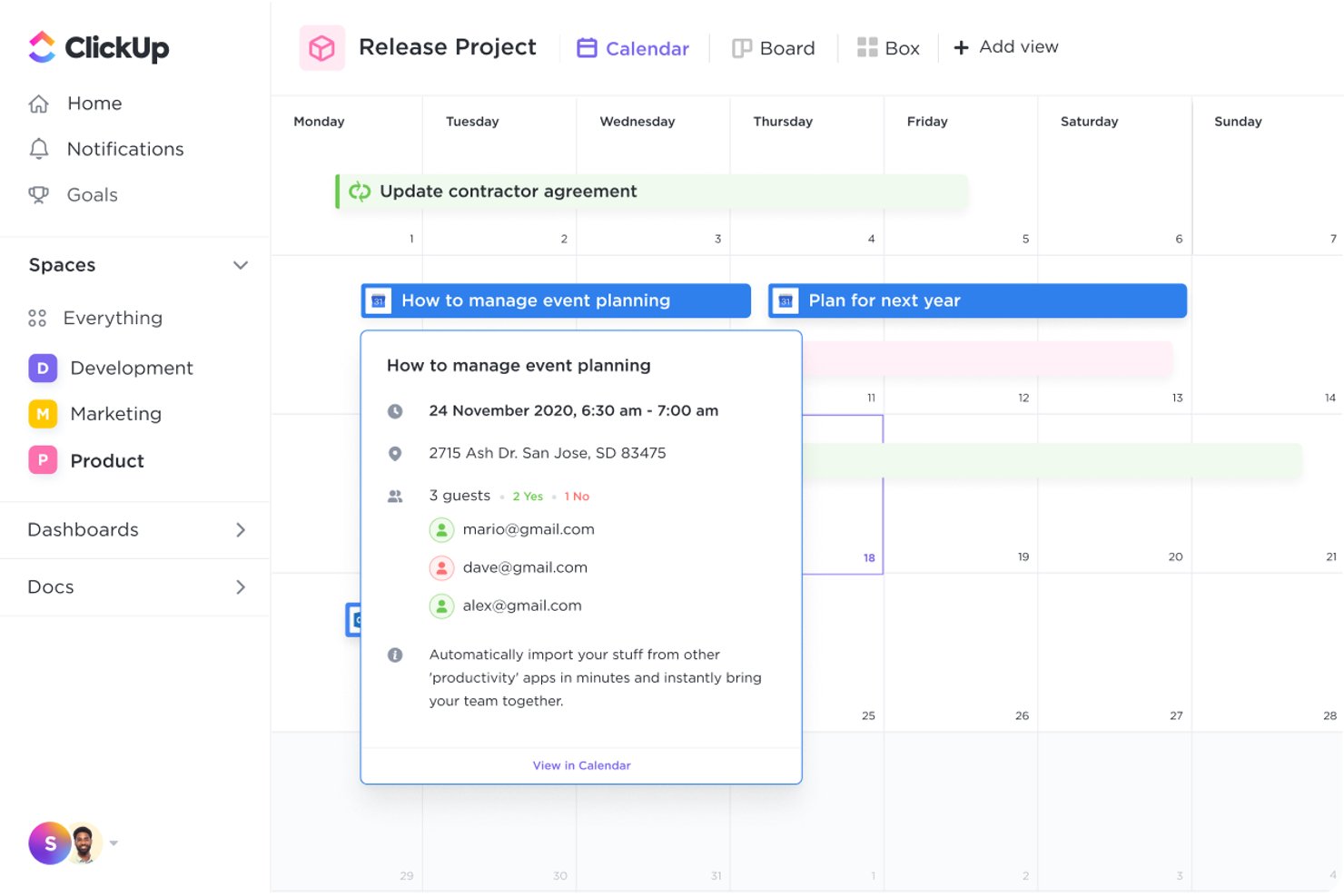
ClickUp può gestire tutte le principali funzioni di gestione progetti che ci si aspetta da MS Project e Microsoft Project Server, come dipendenze tra attività, una vista a bacheca Agile, statistiche sul carico di lavoro, organizzazione tramite drag-and-drop, riprogrammazione in blocco e tabelle dinamiche. ClickUp è una delle alternative a MS Project più convenienti, grazie a un piano freemium molto generoso (senza limite di utenti) e al piano a pagamento che parte da soli $5 per utente al mese.
ClickUp è speciale perché il suo piano freemium non limita il numero di utenti che puoi includere nel tuo account, il che lo rende il miglior piano gratuito per un software di gestione progetti che funziona su Mac. Inoltre, ClickUp si distingue come opzione particolarmente adatta per i team di project management che lavorano con i media, permettendo l'integrazione con servizi video e di streaming, la creazione di mappe mentali libere, la registrazione dello schermo integrata e una mappa interattiva per monitorare il lavoro svolto a livello globale.
L'elenco delle funzionalità di ClickUp è ampio e, a volte, un po' dispersivo—cerca di fare troppo, risultando un tuttologo. Padroneggiare tutto ciò che ClickUp ha da offrire richiederebbe un grande impegno di tempo e i team che non necessitano di tutte le funzionalità potrebbero trovare la navigazione e la formazione piuttosto stancanti. È davvero un difetto avere 'troppe funzionalità'? Lascio a te la decisione.
ClickUp si integra con migliaia di app di terze parti tramite un piano a pagamento con Zapier e include molte connessioni native gratuite con altri strumenti. Le integrazioni native includono Slack, Github, Gitlab, Toggl, Harvest, Google Drive, Dropbox, Outlook, Google Calendar, YouTube, Zoom, Zendesk, Microsoft Teams, Box, Clockify e molte altre.
ClickUp parte da $5/utente/mese e offre un account freemium per un massimo di 5 spazi e 100 campi personalizzati. Inoltre, offre una politica di rimborso entro 30 giorni se passi a un piano a pagamento e non sei soddisfatto. È disponibile anche l’app per iPhone.
New Product Updates from ClickUp
ClickUp Adds Meetings Hub, Super Agent Templates, and ZoomInfo Integration
ClickUp adds a searchable Meetings Hub, new ways to clone and template Super Agents, and a ZoomInfo integration through the App Center. These updates improve meeting retrieval, agent reuse, and access to sales intelligence. For more information, visit ClickUp’s official site.

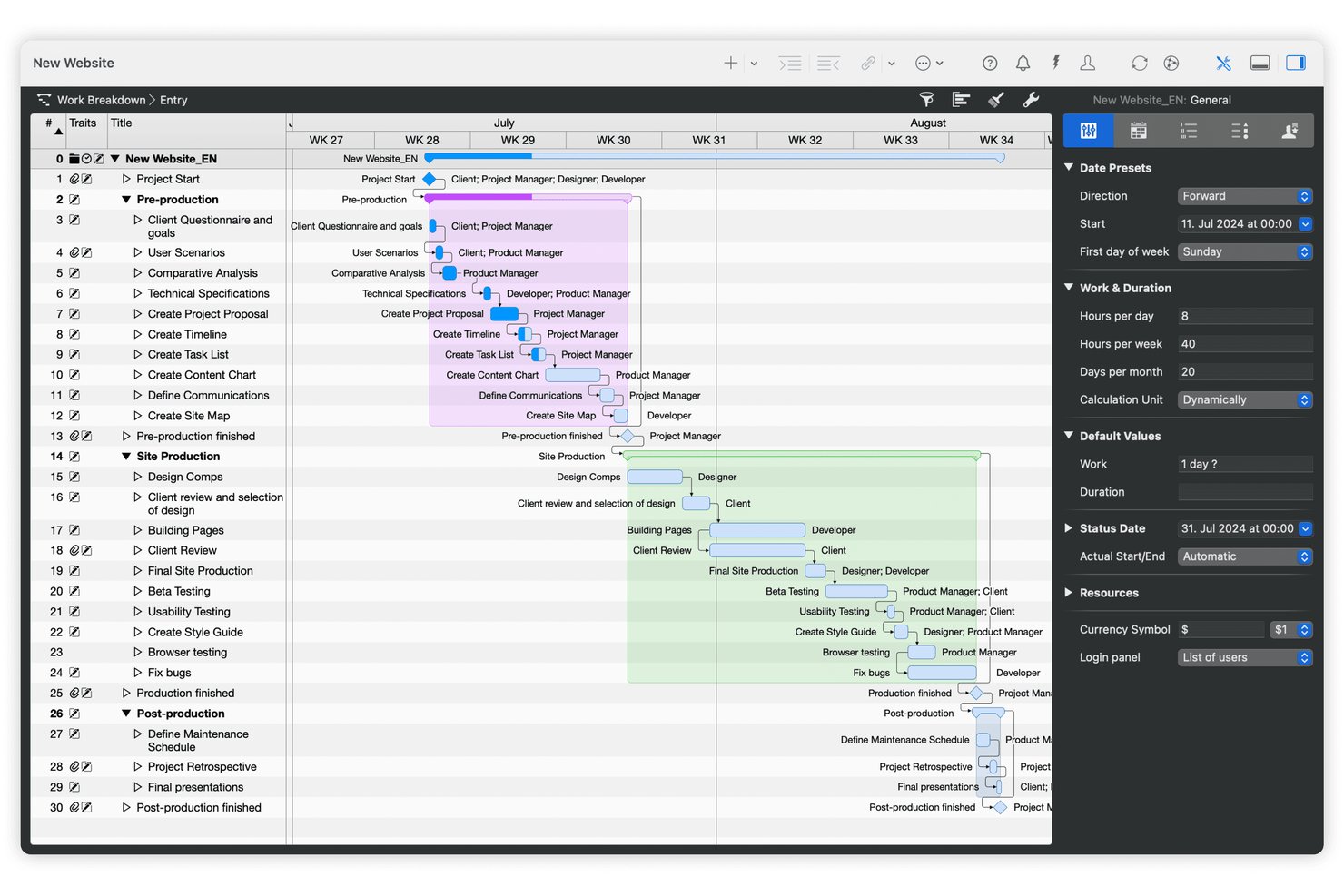
Merlin Project è un'app di gestione dei progetti per le squadre che usano Mac e che devono pianificare le tempistiche, coordinare le risorse e gestire lavori complessi senza affidarsi a Microsoft Project per Windows.
Per chi è più adatto Merlin Project?
Merlin Project è adatto ai responsabili di progetto che devono creare e mantenere pianificazioni dettagliate basate sulle dipendenze su Mac.
Perché ho scelto Merlin Project
Considero Merlin Project la soluzione “migliore per la pianificazione nativa su Mac con MS Project” perché apre ed esporta file XML di Microsoft Project. I suoi diagrammi di Gantt collegano le dipendenze tra le attività e calcolano il percorso critico, permettendomi di capire come il ritardo nel passaggio di consegne di un'API sposti la data di rilascio. Le assegnazioni delle risorse mi aiutano inoltre a individuare il sovraccarico degli sviluppatori o del team QA.
Funzionalità principali di Merlin Project
- Commenti sulle attività: Discuti il lavoro e registra le decisioni direttamente nelle attività del progetto.
- Allegati: Aggiungi file, immagini, e-mail e note alle singole attività.
- Mappe mentali: Trasforma una raccolta di idee in una struttura di scomposizione del lavoro con un solo clic.
- Resoconti di progetto: Crea aggiornamenti sullo stato, confronti tra pianificato ed effettivo e panoramiche dei costi.
Integrazioni di Merlin Project
Merlin Project si connette a Calendario Apple e Promemoria Apple e sincronizza i progetti condivisi tramite servizi di archiviazione online come Dropbox e Box. Importa ed esporta inoltre file XML di Microsoft Project.
Pros and Cons
Pros:
- Importa ed esporta file XML di Microsoft Project
- I diagrammi di Gantt collegati alle dipendenze mostrano l'impatto sulla pianificazione
- Il livellamento delle risorse segnala le assegnazioni sovraccariche
Cons:
- Gli scambi di file XML possono comportare una perdita di compatibilità
- La disponibilità esclusiva per Mac esclude i collaboratori che usano Windows

Ideale per la pianificazione gratuita in stile MS Project
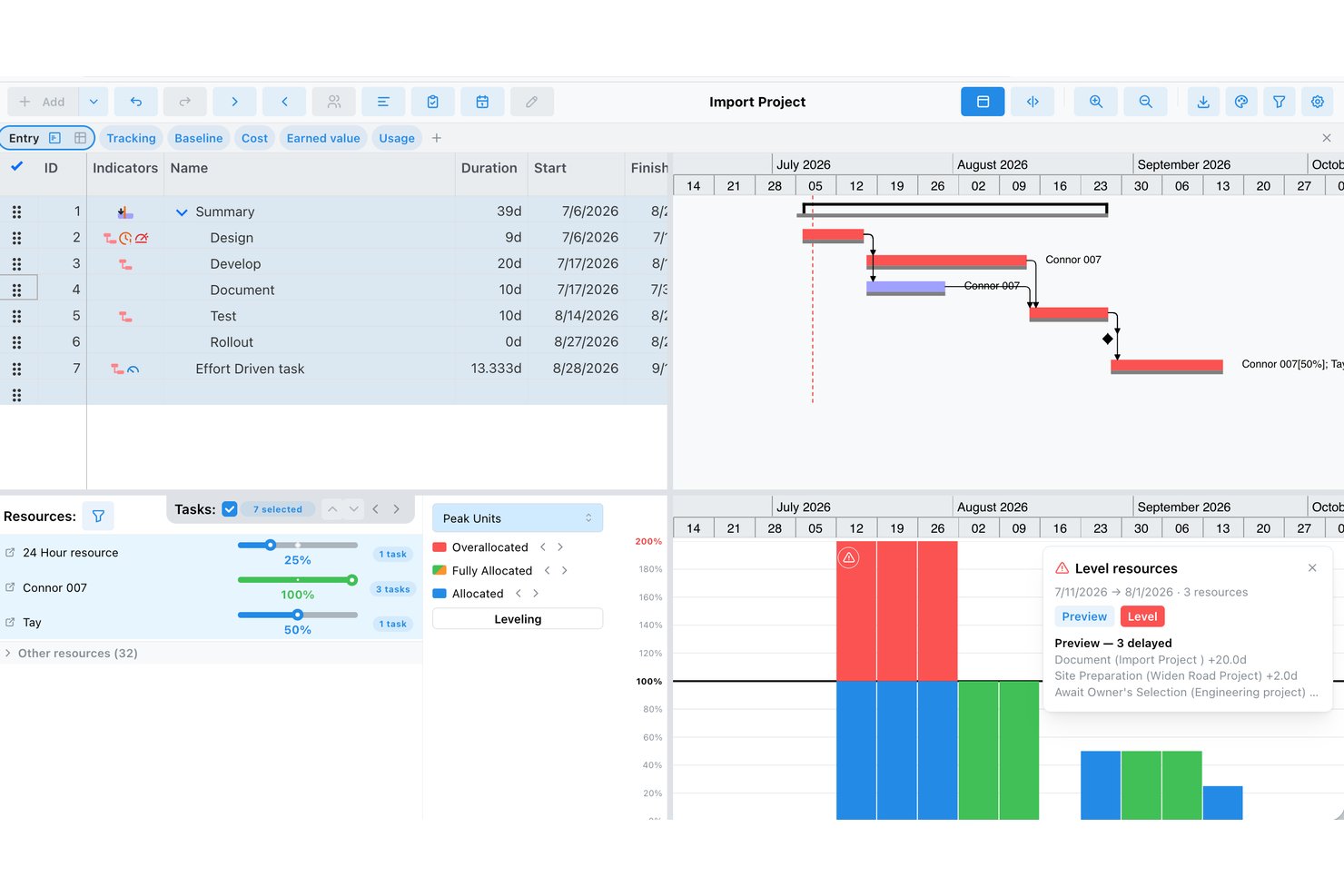
ProjectLibre è un software di gestione dei progetti per i team che hanno bisogno di pianificazioni chiare, dipendenze tra attività e visibilità sulle risorse per coordinare progetti tecnologici e digitali.
A chi è più adatto ProjectLibre?
ProjectLibre è adatto ai responsabili di progetto attenti al budget e ai piccoli team che desiderano una pianificazione familiare in stile MS Project senza pagare una licenza.
Perché ho scelto ProjectLibre
Ho scelto ProjectLibre perché soddisfa il requisito “Ideale per la pianificazione gratuita in stile MS Project” per gli utenti Mac. I suoi diagrammi di Gantt collegano le attività dipendenti, mentre la gestione delle risorse e le linee di riferimento mi aiutano a pianificare le date di consegna e a monitorare le modifiche. La compatibilità con Microsoft Project mi consente inoltre di lavorare con file di progetto esistenti.
Funzionalità principali di ProjectLibre
- Struttura di scomposizione del lavoro: Organizza l'ambito del progetto in una struttura gerarchica delle attività.
- Diagrammi di rete: Visualizza le attività del progetto come un diagramma di flusso della loro sequenza.
- Monitoraggio dei costi: Registra le tariffe delle risorse e i costi del progetto.
- Calendari di progetto: Imposta i giorni e gli orari lavorativi per la pianificazione.
Integrazioni di ProjectLibre
ProjectLibre non dispone di integrazioni native chiaramente documentate; la sua applicazione desktop può aprire file di Microsoft Project e Primavera P6, ma si tratta di compatibilità dei file e non di sincronizzazione in tempo reale.
Pros and Cons
Pros:
- Le dipendenze del diagramma di Gantt rappresentano visivamente la logica della pianificazione
- I confronti con le linee di riferimento evidenziano gli slittamenti della pianificazione
- Le visualizzazioni delle risorse aiutano a individuare le sovrallocazioni
Cons:
- Sono stati segnalati errori di avvio su Mac nelle versioni più recenti di macOS
- Le pianificazioni complesse possono far emergere bug e arresti anomali

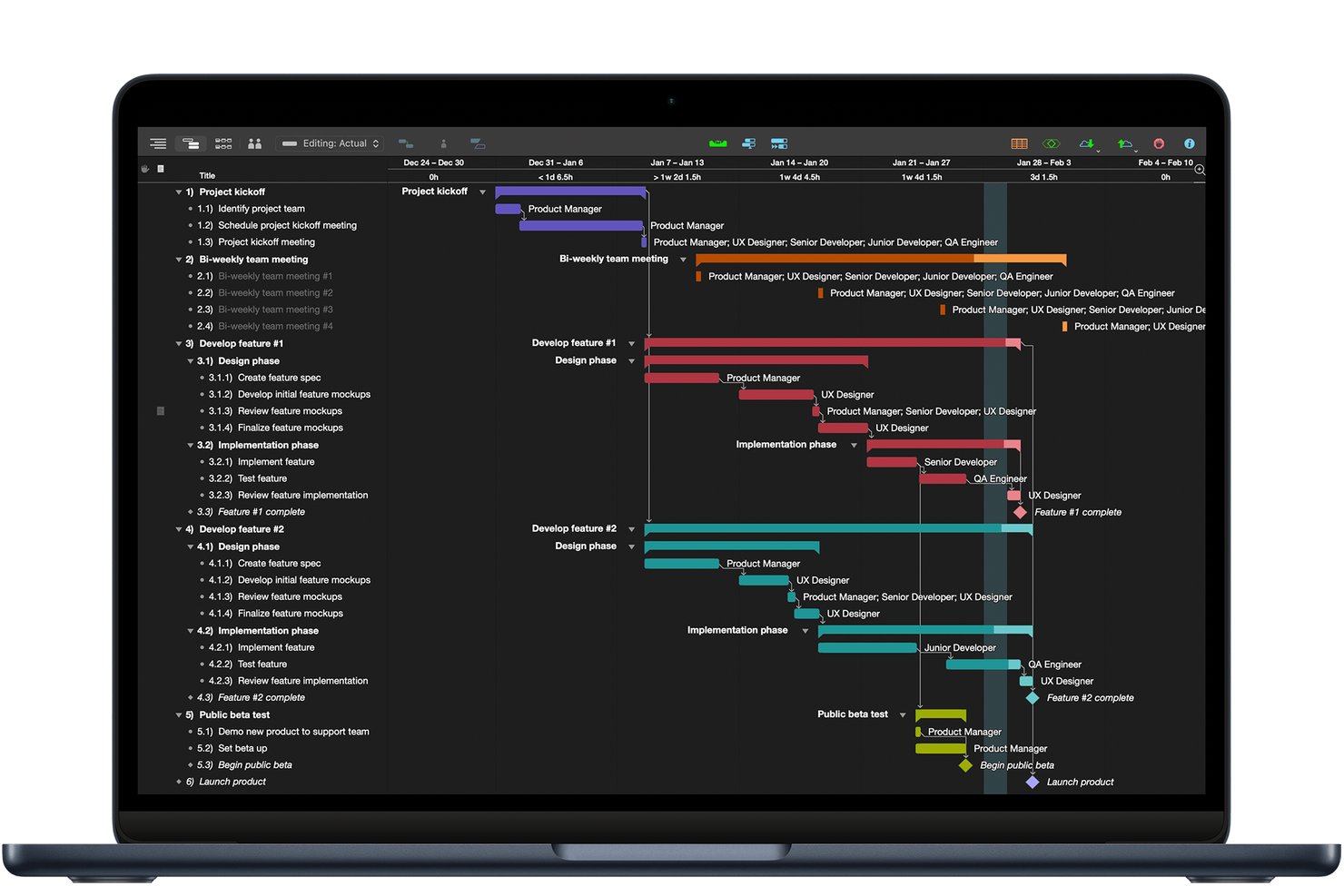
OmniPlan offre ai project manager che lavorano principalmente su Mac uno strumento desktop per la pianificazione, che consente di organizzare attività, dipendenze e risorse, aiutandoli a trasformare requisiti di progetto variabili in pianificazioni monitorabili.
Per chi è più adatto OmniPlan?
OmniPlan è adatto ai project manager che lavorano su Mac e hanno bisogno della pianificazione Gantt per mappare le dipendenze tra le attività e coordinare le risorse.
Perché ho scelto OmniPlan
Ho scelto OmniPlan, la soluzione migliore per la pianificazione Gantt nativa per Mac, come alternativa a Microsoft Project per Mac OS. Mi piace il modo in cui le dipendenze tra le attività e i calendari del team importati rivelano i conflitti di pianificazione, mentre le evidenziazioni del percorso critico mostrano cosa potrebbe essere ritardato da una data di rilascio posticipata.
Funzionalità principali di OmniPlan
- Modelli di progetto: Inizia con i modelli Progetto standard, Progetto con stile o Progetto semplice.
- Dashboard multiprogetto: Visualizza più progetti insieme nelle dashboard del portafoglio.
- Più baseline: Confronta i progressi attuali del progetto con i piani salvati.
- Analisi del valore maturato: Monitora il budget e il valore del progetto rispetto a una baseline.
Integrazioni di OmniPlan
OmniPlan non documenta un catalogo di integrazioni native, ma OmniPlan Pro può sincronizzare le ore di lavoro da un calendario e importare ed esportare file Microsoft Project
.mpp
e XML. I progetti possono inoltre essere sincronizzati tramite iCloud Drive, Box, Git o WebDAV.
Pros and Cons
Pros:
- Il livellamento delle risorse risolve le pianificazioni sovraccariche
- Previsioni del percorso critico e Monte Carlo
- Le baseline e il valore maturato monitorano gli scostamenti
Cons:
- Le esportazioni MPP possono modificare lo stato di completamento
- Nessun client Windows per i team che utilizzano dispositivi diversi

Zoho Projects er en skybasert prosjektstyringsplattform for team som ser etter et alternativ til Microsoft Project, og kombinerer oppgaveplanlegging, tidsplaner, avhengigheter og samarbeid for å koordinere leveranser.
Hvem passer Zoho Projects best for?
Zoho Projects passer for team i vekst som trenger å koordinere flere prosjekter, avhengigheter, tidsplaner og tverrfunksjonelt arbeid etter hvert som leveransebehovene øker.
Hvorfor Zoho Projects er et godt alternativ til Microsoft Project for Mac OS: Alternativer og omveier
Jeg valgte Zoho Projects som mitt valg for «best for skalerbarhet» fordi det skybaserte arbeidsområdet lar Mac-brukere koordinere arbeidet uten å være avhengige av skrivebordsapplikasjonen til Microsoft Project. Jeg bruker tidsplanene og avhengighetsplanleggingen til å kartlegge sammenkoblede milepæler på tvers av samtidige produktlanseringer og holde prosjektteamene samkjørte etter hvert som arbeidet utvides.
Viktige funksjoner i Zoho Projects
- Tidsregistrering: Loggfør arbeidstimer på oppgaver og send inn timelister.
- Problemsporing: Registrer feil og følg statusen deres frem til de er løst.
- Dokumenthåndtering: Lagre prosjektfiler og del dem med teammedlemmer.
- Arbeidsflytautomatisering: Angi regler som utløser handlinger når oppgaver oppfyller bestemte betingelser.
Integrasjoner med Zoho Projects
Zoho Projects integreres med Zoho-appøkosystemet, Microsoft Project og Teams, Google Drive, Slack, GitHub, Dropbox, Zendesk og Zapier. Det tilbyr også et API for tilpassede integrasjoner.
Pros and Cons
Pros:
- Skybasert Gantt-planlegging fungerer i Mac-nettlesere
- Visuelle oppgaveavhengigheter kartlegger sammenkoblede lanseringsmilepæler
- Innebygde tidslogger registrerer fakturerbart arbeid
Cons:
- Store Gantt-planer kan føles trege
- Avanserte rapporter har begrensede tilpasningsmuligheter

GanttPRO
Ideale per la pianificazione collaborativa dei progetti
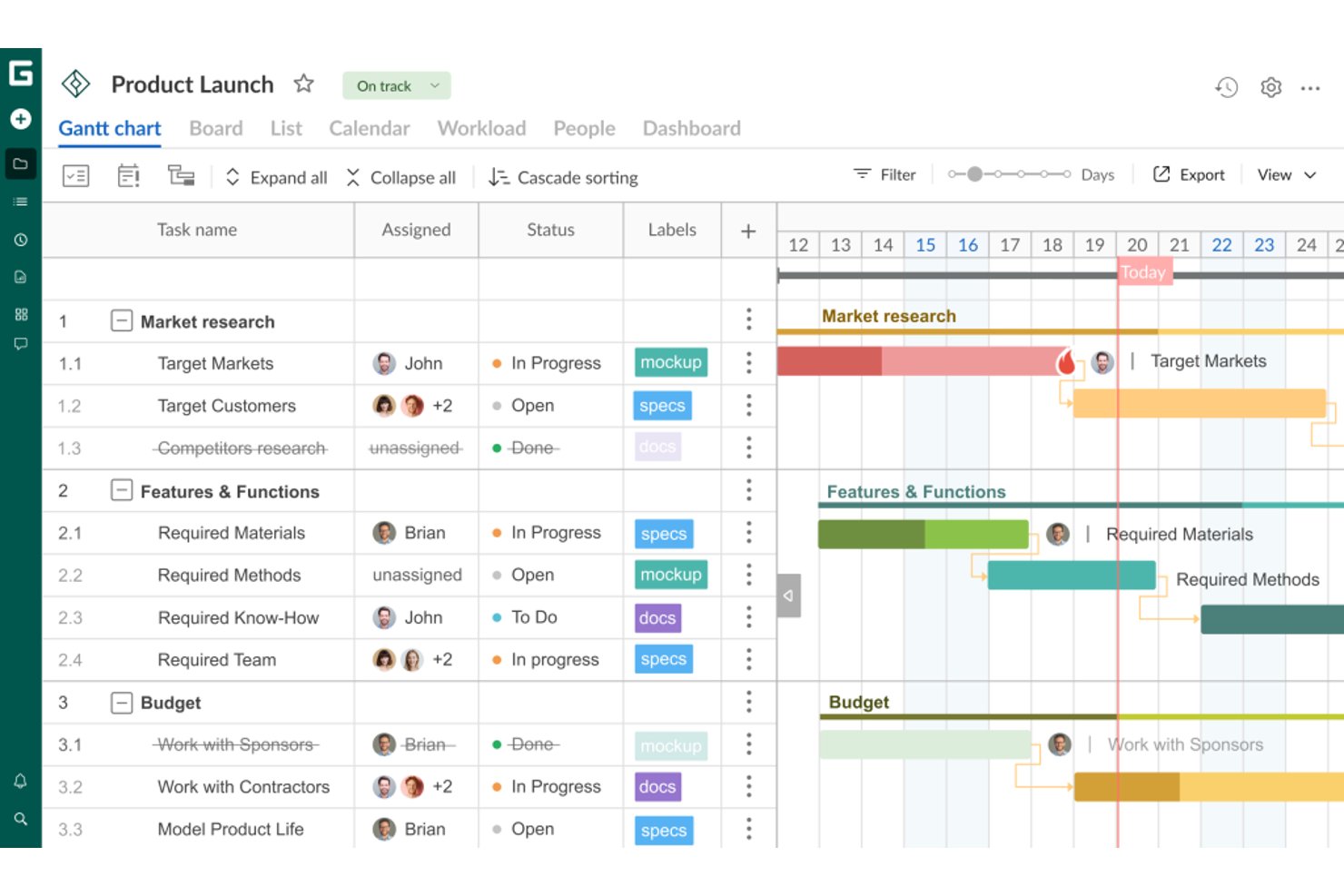
GanttPRO è uno strumento di gestione dei progetti basato sul cloud con diagrammi di Gantt, pensato per i team di prodotto e ingegneria che devono mappare pianificazioni, dipendenze e carichi di lavoro senza affidarsi all'app desktop Windows di Microsoft Project.
Per chi è più adatto GanttPRO?
GanttPRO è adatto ai project manager che devono coordinare team interfunzionali attorno a piani condivisi, responsabilità delle attività e aggiornamenti del progetto.
Perché GanttPRO è una buona alternativa e soluzione alternativa a Microsoft Project per Mac OS
Ho scelto GanttPRO, 'Ideale per la pianificazione collaborativa dei progetti', come alternativa basata sul browser a Microsoft Project per gli utenti Mac. I suoi diagrammi di Gantt condivisi mostrano le date delle attività e le dipendenze, mentre le visualizzazioni del carico di lavoro mi aiutano a individuare i conflitti quando cambiano le pianificazioni dei team di prodotto e ingegneria. Il mio team può aggiornare il piano senza affidarsi a un'app desktop Windows.
Funzionalità principali di GanttPRO
- Percorso critico: Identifica le attività che influiscono sulla data di completamento del progetto.
- Monitoraggio del tempo delle attività: Registra il tempo dedicato alle singole attività.
- Campi personalizzati: Aggiungi campi specifici del progetto per monitorare informazioni oltre le metriche standard.
- Modelli di progetto: Salva i piani come modelli riutilizzabili o inizia con modelli preconfigurati.
Integrazioni di GanttPRO
GanttPRO offre sette integrazioni documentate: Slack, Microsoft Teams, Google Drive, OneDrive, Google Calendar, calendari Outlook e Jira Cloud. Fornisce inoltre un'API per le integrazioni personalizzate.
Pros and Cons
Pros:
- Funziona in un browser su macOS
- Le dipendenze spostano automaticamente le date successive
- Le visualizzazioni del carico di lavoro evidenziano i conflitti tra le risorse
Cons:
- I file MPP possono essere importati, ma non esportati
- Non supporta le modifiche offline ai progetti
Altre alternative a MS Project per Mac
Ecco alcune alternative aggiuntive a MS Project per Mac che non sono entrate nella mia selezione, ma che vale comunque la pena prendere in considerazione:
- Smartsheet
Ideale per i rapporti Gantt in stile foglio di calcolo
- Hive
Migliore suite di messaggistica integrata per la collaborazione
- Asana
Ideale per visualizzazioni Gantt e di portafoglio multipiattaforma
- Jira
Ideale per i team agili che vogliono abbandonare le soluzioni alternative per Windows
- ProjectManager
Ideale per una gestione delle risorse robusta
- Teamwork.com
Ideale per il monitoraggio dei progetti di agenzia rivolti ai clienti
- GoodDay
Ideale per la pianificazione su Mac senza Windows


Come valuto le alternative a Microsoft Project per Mac
Divido la mia valutazione in criteri di base, come il supporto nativo a macOS e la pianificazione con diagrammi di Gantt, e fattori distintivi che separano gli strumenti validi da quelli eccellenti per i responsabili di progetto che usano Mac e abbandonano MS Project.
Funzionalità principali (requisiti essenziali per questo elenco)
Quando seleziono gli strumenti per il mio elenco, assegno a ciascuno un punteggio su una scala da 0 (non offre la funzionalità) a 5 (eccelle in quest'area) per ogni funzionalità principale indicata di seguito. Poi converto il punteggio totale dello strumento in una percentuale. Ogni strumento deve raggiungere un punteggio totale minimo del 65% per essere preso in considerazione.
- Compatibilità con macOS: verifico se lo strumento funziona nativamente su macOS come applicazione desktop o applicazione web completamente funzionale, senza bisogno di emulazione di Windows o di soluzioni alternative basate su Boot Camp.
- Pianificazione con diagrammi di Gantt: in questo caso sono importanti viste interattive di Gantt con modifica tramite trascinamento, milestone e calcolo del percorso critico; le semplici grafiche statiche delle tempistiche non sono sufficienti.
- Supporto ai file di MS Project: valuto la capacità di ogni strumento di gestire importazioni ed esportazioni nei formati .mpp e .xml, poiché la maggior parte dei team che passa da MS Project ha anni di piani esistenti da migrare.
- Gestione delle risorse e del carico di lavoro: gli strumenti dovrebbero consentire di assegnare persone alle attività indicando ore o impegno, per poi mostrare a colpo d'occhio la capacità e le sovrassegnazioni tra i vari progetti.
- Dipendenze tra attività e linee di base: cerco il supporto per tutti i tipi di dipendenza (FS, SS, FF, SF), oltre a istantanee della pianificazione di riferimento che consentano di confrontare nel tempo le pianificazioni previste con quelle effettive.
- Collaborazione multiutente: valuto l'accesso condiviso ai progetti, i commenti, le notifiche e i controlli delle autorizzazioni, soprattutto per i team distribuiti che lavorano in fusi orari diversi.
Dopo aver stilato un elenco di strumenti che soddisfano questi criteri, considero ciò che distingue ogni piattaforma.
Fattori distintivi (ciò che differenzia i fornitori)
Ecco come confronto e metto a paragone i diversi fornitori:
Funzionalità distintive
Oltre agli aspetti di base, considero quante viste di progetto offre uno strumento. I team che combinano pianificatori e creativi traggono vantaggio dalla possibilità di passare dai layout Gantt a quelli Kanban e del calendario senza perdere dati. Anche il monitoraggio del budget e dei costi è un fattore distintivo: i responsabili della produzione nelle agenzie e i responsabili dei progetti edilizi hanno bisogno di tariffe fatturabili e di report sui valori previsti rispetto a quelli effettivi integrati nel piano di progetto. Valuto inoltre le automazioni senza codice e i modelli riutilizzabili, poiché ricostruire ogni volta da zero la stessa struttura dello sprint o il piano di inserimento di un cliente fa perdere ore.
Oltre le funzionalità
Il prezzo è un fattore importante. MS Project vincola l'utente alle licenze Microsoft 365, quindi valuto se le alternative offrono piani flessibili per utente, livelli gratuiti o acquisti una tantum che non includano servizi non necessari. Anche le integrazioni con l'ecosistema sono importanti: i team che usano Mac tendono ad affidarsi a Slack, Google Workspace e Figma, quindi verifico la presenza di connettori nativi e l'accesso a API aperte. Considero inoltre il supporto all'avvio per la migrazione, in particolare se i fornitori offrono procedure guidate per l'importazione di file .mpp o assistenza dedicata ai team che stanno abbandonando MS Project.
Come scegliere Microsoft Project per Mac
È facile perdersi in lunghi elenchi di funzionalità e strutture di prezzo complesse. Per aiutarti a rimanere concentrato mentre affronti il tuo specifico processo di selezione del software, ecco un elenco di fattori da tenere a mente:
| Fattore | Cosa considerare |
|---|---|
| Scalabilità | Assicurati che il software possa crescere insieme al tuo team. Valuta se sarà in grado di gestire un numero maggiore di progetti o membri del team nel tempo. |
| Integrazioni | Verifica la compatibilità con gli altri strumenti che utilizzi, come Microsoft Office o app di terze parti, per semplificare i flussi di lavoro. |
| Personalizzazione | Cerca opzioni che consentano di adattare il software al tuo stile di gestione dei progetti e alle esigenze del team. |
| Facilità d'uso | Valuta l'interfaccia utente e la curva di apprendimento. Uno strumento facile da adottare per il team farà risparmiare tempo e fatica. |
| Budget | Analizza i prezzi per assicurarti che siano in linea con i tuoi piani finanziari. Considera sia i costi iniziali sia le eventuali spese future. |
| Misure di sicurezza | Verifica le funzionalità di protezione dei dati e conformità per mantenere sicuri i tuoi progetti e rispettare gli standard del settore. |
| Collaborazione | Cerca funzionalità che migliorino la comunicazione del team, come dashboard condivise o aggiornamenti in tempo reale. |
| Supporto | Verifica la disponibilità e la qualità dell'assistenza clienti, così da ricevere aiuto quando si verificano dei problemi. |
Onestamente, c'è molto da assimilare e molta pressione per fare la scelta giusta, quindi ti suggerirei di utilizzare il nostro servizio di consulenza per software di gestione dei progetti per aiutarti a selezionare gli strumenti di gestione dei progetti più adatti alle tue esigenze specifiche e a quelle della tua organizzazione.
Funzionalità delle alternative a Microsoft Project per Mac
Quando selezioni alternative a Microsoft Project, presta attenzione alle seguenti funzionalità chiave, alle quali potresti avere accesso limitato o nullo nella versione web:
- Gestione delle attività: consente di creare, assegnare e monitorare facilmente le attività, utilizzando visualizzazioni come Griglia, Bacheca e Sequenza temporale per gestire le tempistiche e le dipendenze del progetto.
- Strumenti di collaborazione: consentono la comunicazione e la collaborazione del team tramite chat o commenti integrati, spesso richiedendo l'integrazione con altri strumenti come Teams o Slack per migliorare l'interazione.
- Gestione delle risorse: facilita l'assegnazione e la gestione efficiente delle risorse, spesso offrendo visualizzazioni per monitorare l'allocazione delle risorse e il carico di lavoro.
- Monitoraggio del tempo: offre la possibilità di monitorare il tempo dedicato alle attività, una funzione essenziale per gestire i costi e le scadenze dei progetti.
- Gestione dei documenti: supporta l'allegazione e la gestione dei documenti all'interno delle attività, integrandosi talvolta con piattaforme come SharePoint per l'archiviazione centralizzata dei file.
- Integrazioni: offre compatibilità con altri strumenti e piattaforme, come Power BI per la reportistica e altre app Microsoft, per un flusso di lavoro senza interruzioni.
- Report e dashboard: offre dashboard e report personalizzabili per monitorare l'avanzamento del progetto e le metriche chiave.
- Interfaccia intuitiva: presenta un'interfaccia intuitiva e facile da navigare, fondamentale per l'adozione da parte degli utenti e l'efficienza.
- Gestione dei costi: include strumenti per gestire e prevedere i budget dei progetti, assicurando che rimangano entro i limiti finanziari.
Domande frequenti su Microsoft Project per Mac
Esistono alternative a MS Project esclusive per Mac?
Se utilizzi esclusivamente dispositivi Apple e non vuoi avere nulla a che fare con Windows, esistono alcune opzioni dedicate a Microsoft Project che puoi installare sul tuo Apple Mac o iPad. Questi sono 4 dei migliori software di gestione dei progetti per Mac.
- XProline - Software per la produttività con una piattaforma collaborativa di gestione dei progetti chiamata EasyGantt.
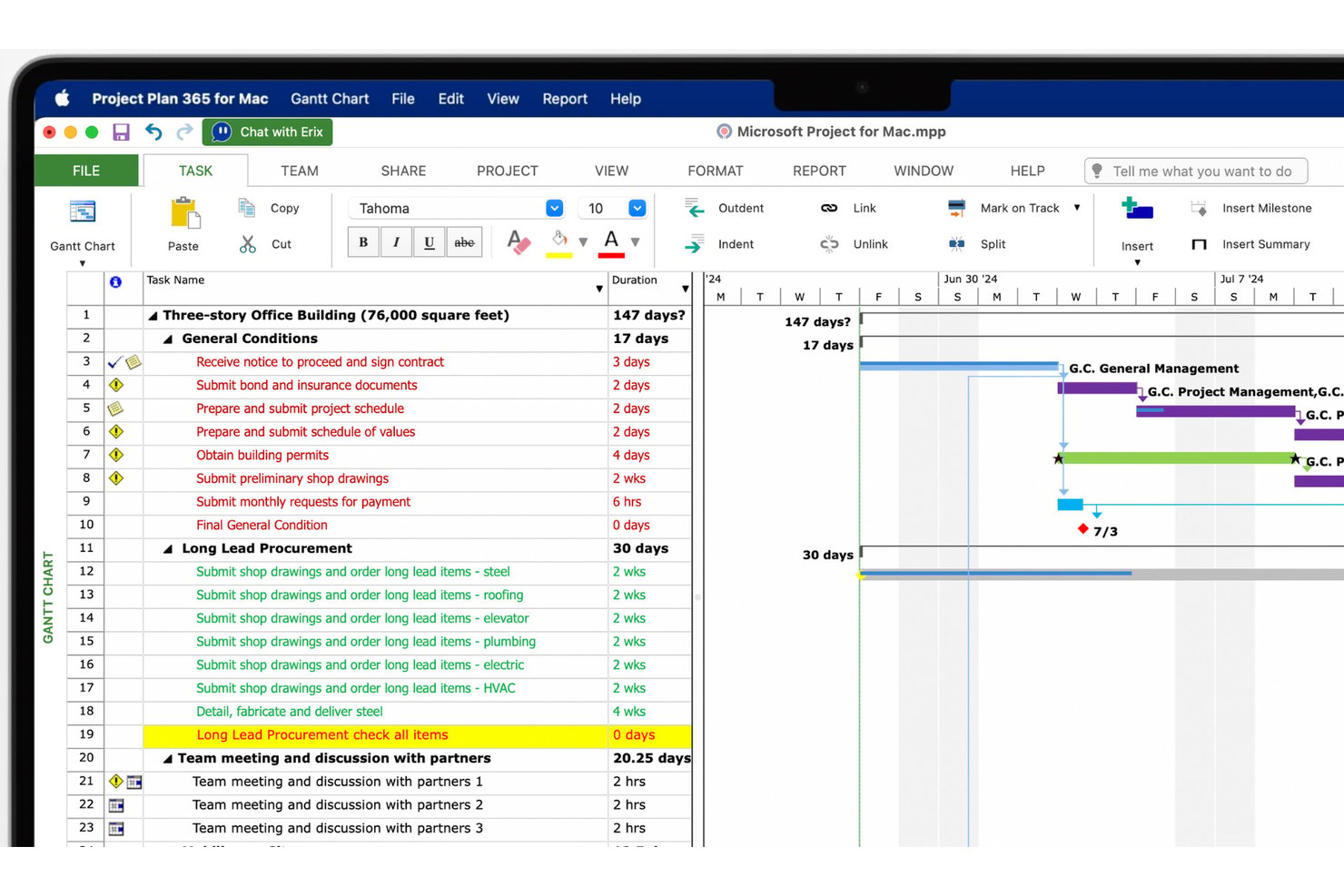
- Project Plan 365 (in questo elenco).
- Omniplan - Funzionalità di gestione dei progetti ottimizzate per Mac, iPad e iPhone.
- Merlin Project - Strumento di brainstorming e gestione dei progetti presente sul mercato da 19 anni.
Posso utilizzare Microsoft Project per Mac?
Sì e no: la versione tradizionale di MS Project basata su licenza non funziona su Mac. Microsoft Project non può essere eseguito su Mac perché i due sistemi non sono compatibili. Purtroppo, la questione è così semplice. MS Project è stato progettato e ottimizzato specificamente per il sistema operativo Windows.
Tuttavia, esiste una versione online di MS Project basata sul browser e quindi indipendente dal sistema operativo. Ma se ricevi file .mpp e non vuoi acquistare la tua versione di MS Project, puoi valutare l'utilizzo di un visualizzatore di progetti.

Purtroppo, ora non funziona!
Come fare per eseguire MS Project sul tuo Mac
Lavorando come project manager digitale, è facile abituarsi a un software specifico e non voler cambiare, a meno che non sia assolutamente necessario. Se vuoi davvero continuare a lavorare sulla versione con licenza di MS Project, possiamo trovare una soluzione. Tuttavia, saranno necessarie alcune soluzioni creative.
Ecco quello che considero il modo migliore per eseguire Windows su Mac. Per utilizzare MS Project sul tuo Mac, dovrai creare una macchina virtuale Windows (VM) sul computer. Esistono due soluzioni VM che funzionerebbero per i project manager digitali: Parallels e VirtualBox. Ti illustrerò i pro e i contro di ciascuna VM e ti spiegherò come installarle.
Che cos'è una macchina virtuale?
Una VM offre agli utenti le funzionalità di Windows su un Mac. Questo consente agli utenti, come un utente Mac che ha bisogno di MS Project per i propri clienti, di svolgere il lavoro specifico per Windows senza acquistare un nuovo portatile.
Opzione n. 1: Parallels
Parallels è l'opzione più semplice e intuitiva: offre una transizione fluida tra MacOS e Windows e propone una prova gratuita di 14 giorni per iniziare.
Parallels non è gratuito. Al termine della prova di 14 giorni, dovrai pagare $99.99 all'anno oppure $129.99 per il servizio perpetuo.
1. Scarica Parallels
Quando scarichi l'applicazione, il gestore di avvio ti guiderà attraverso il processo di installazione di Windows. È semplice come installare qualsiasi altro software. Non sono necessarie operazioni di gestione dello spazio di archiviazione o di partizionamento.
2. Scarica e installa MS Project
Una volta avviato Parallels, l'installazione delle app Windows funziona proprio come su un PC. Apri il browser, vai al sito web, scarica l'applicazione e avvia il processo di installazione.
Tutte le app Windows che richiedono Parallels per funzionare saranno contrassegnate dal logo di Parallels.
3. Passa da Windows a Mac
Quando utilizzi Parallels, puoi avere il sistema operativo Windows aperto nella sua finestra. Ecco come appare:
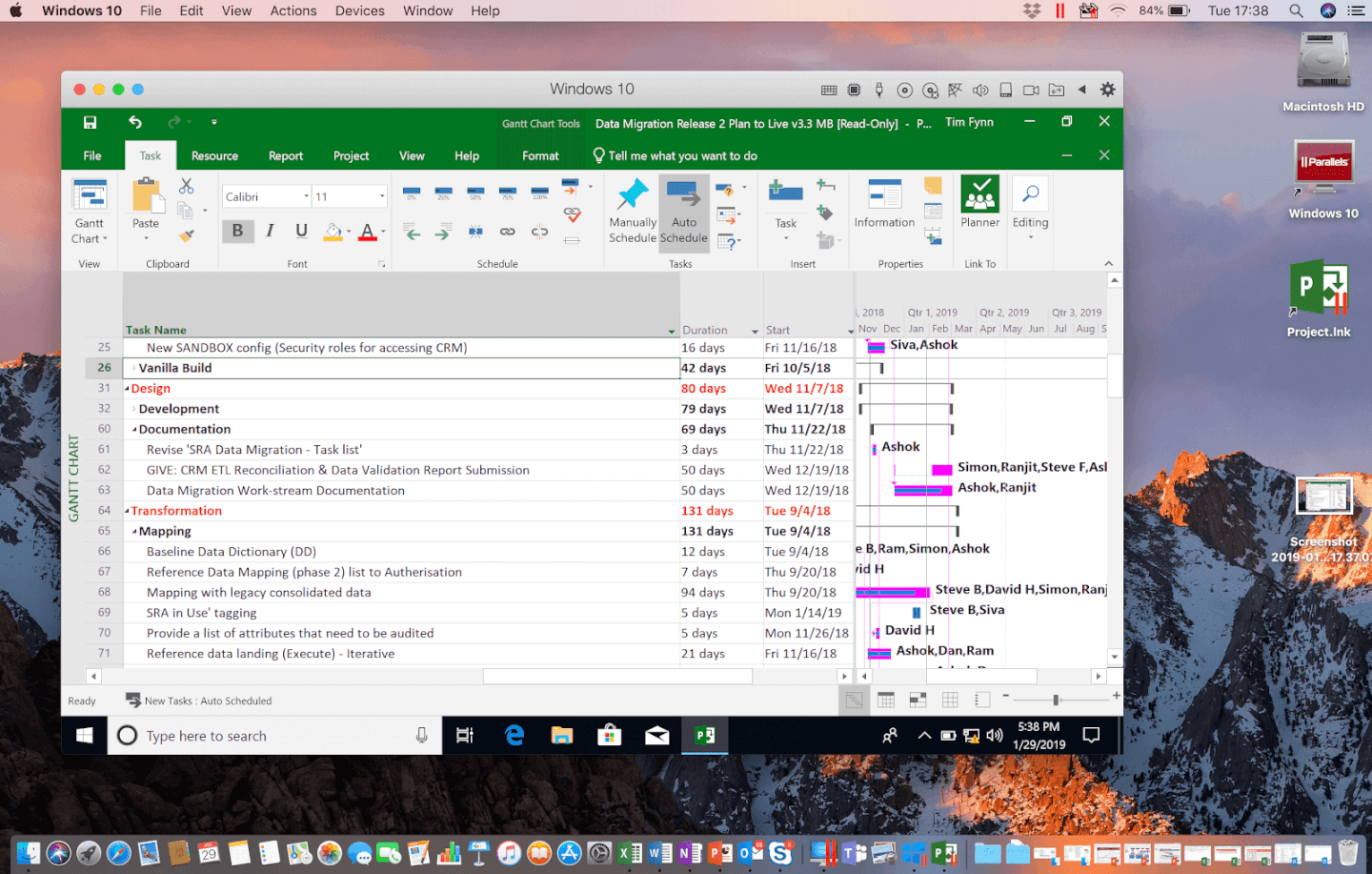
Utilizzando Parallels su un Mac, puoi avere il sistema operativo Windows aperto nella sua finestra.
Utilizzando Parallels su un Mac, puoi avere il sistema operativo Windows aperto nella sua finestra.
Proprio come per le app del Mac, le app Windows possono essere salvate nel dock e aperte con un solo clic. L'apertura di MS Project avvierà automaticamente Parallels, creerà la tua VM e avvierà l'app.
Oppure, se preferisci utilizzare Windows a schermo intero mentre lavori, puoi assegnare a Parallels una scrivania dedicata.
- Fai clic sull'angolo in alto a sinistra della scheda Windows per attivare la modalità a schermo intero.
- Passa da Mac a Windows scorrendo con due dita sul Magic Mouse o sul trackpad.
- Quando hai finito di lavorare, sposta il cursore nella parte superiore dello schermo.
- Si aprirà un menu a discesa che ti consentirà di uscire dalla modalità a schermo intero.
Qui puoi trovare un video guida di Parallels:


Opzione n. 2: VirtualBox
Per gli utenti più esperti di tecnologia, l'altra opzione è VirtualBox: una VM gratuita e open source che chiunque può scaricare e utilizzare. Lo svantaggio è che non offre la facilità d'uso che rende Parallels così interessante. Con un po' di impegno, è possibile farlo. Ti mostrerò come.
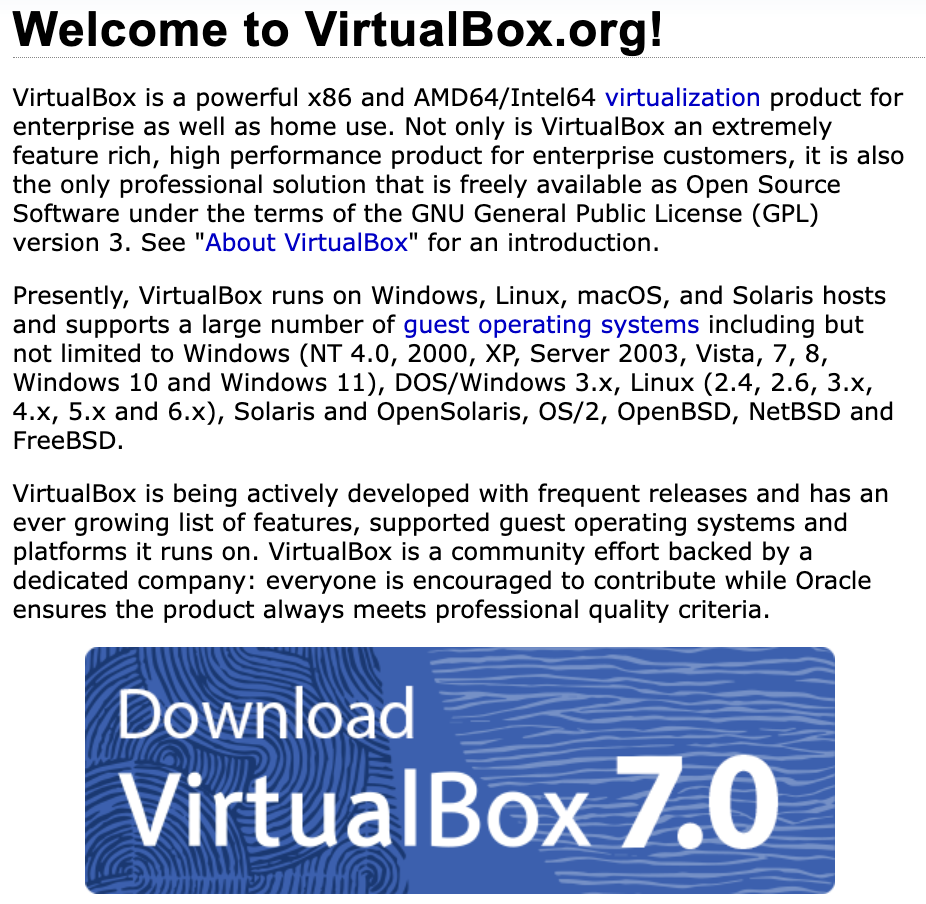
1. Vai su VirtualBox.org e fai clic su “Scarica VirtualBox 7.0”
2. Scarica gli host macOS
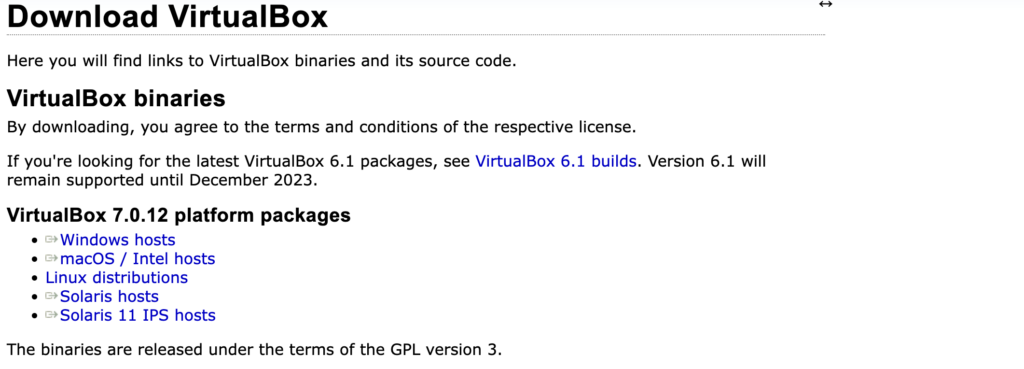
Dato che installerai Windows sul tuo Mac, dovrai scaricare il pacchetto macOS / host Intel.
3. Installa VirtualBox sul Mac
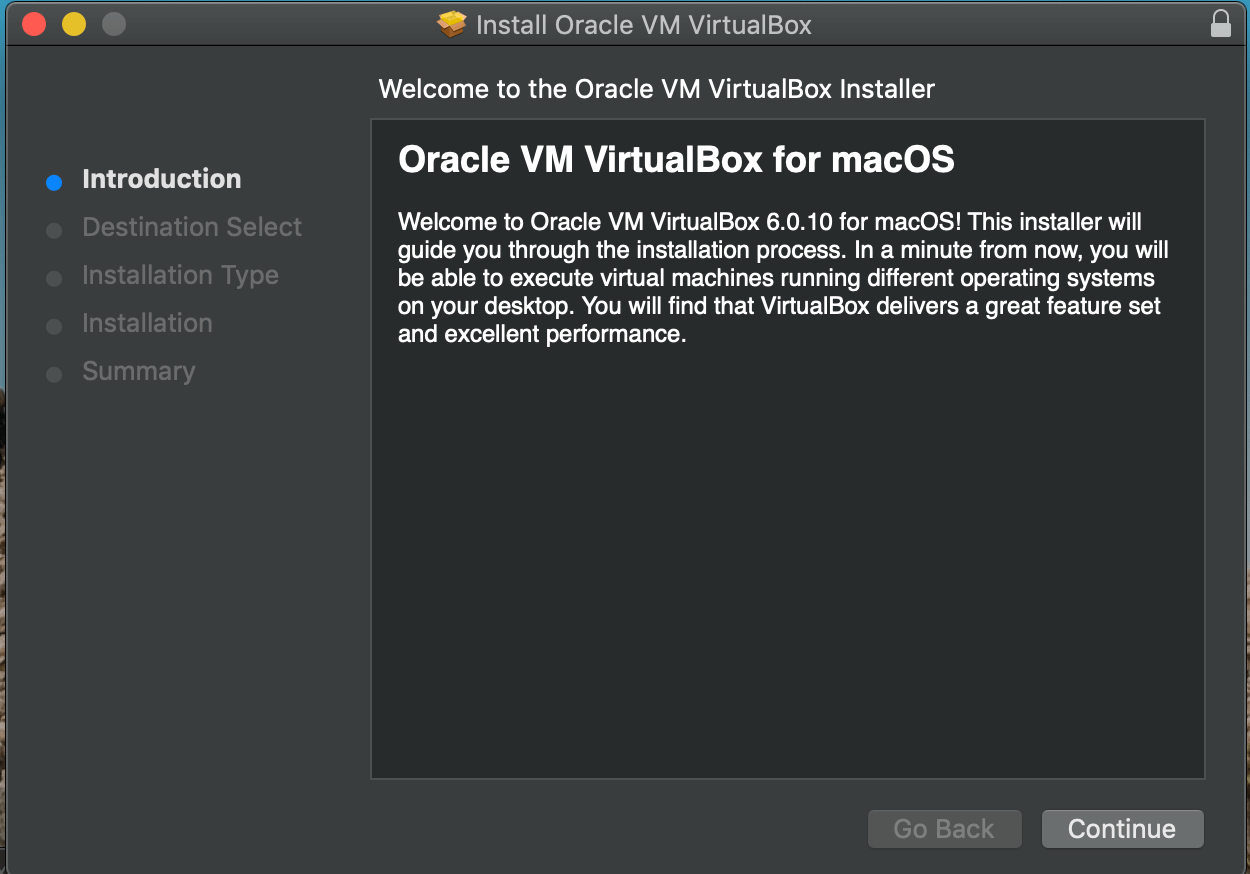
Dopo aver fatto clic su Continua, ti verrà chiesto di inserire il tuo nome utente e la password.
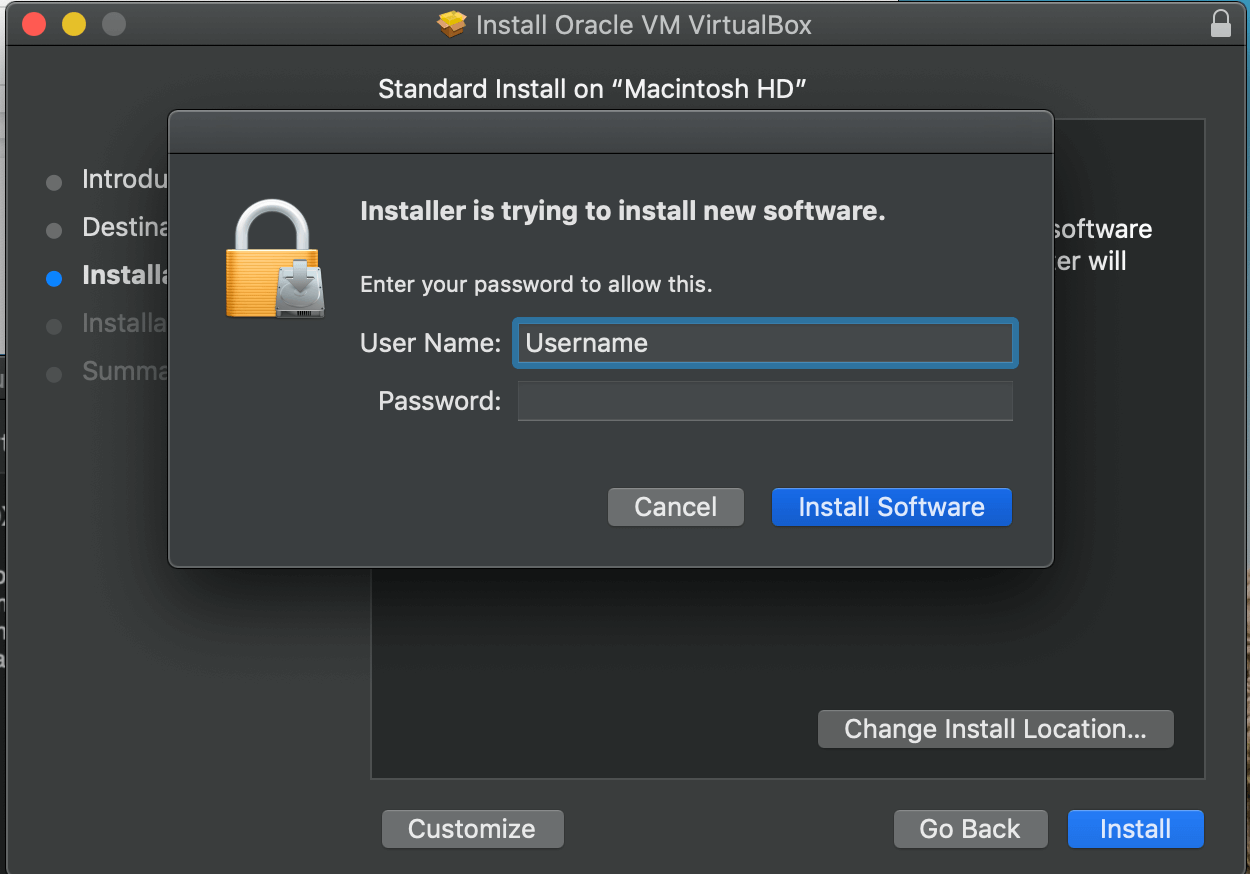
Dopo aver inserito la password, il programma verrà installato e potrai configurare una VM Windows. A differenza di Parallels, dovrai indicare a VirtualBox quale sistema operativo vuoi installare e quanto spazio di archiviazione desideri assegnargli.
4. Crea la tua macchina virtuale
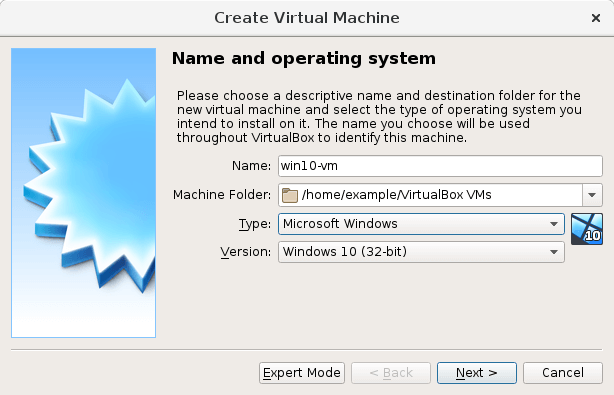
È consigliabile assegnare alla VM lo stesso nome del sistema operativo che stai creando. Nel nostro caso, quindi, dovresti scegliere un nome simile a quello mostrato nell'immagine sopra.
5. Assegna lo spazio di archiviazione
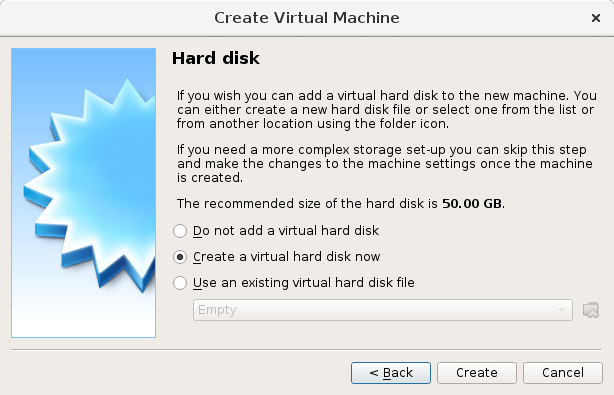
In questo modo indichi a VirtualBox quanto deve essere grande la tua VM. È preferibile accettare le dimensioni consigliate.
6. Seleziona posizione e dimensioni
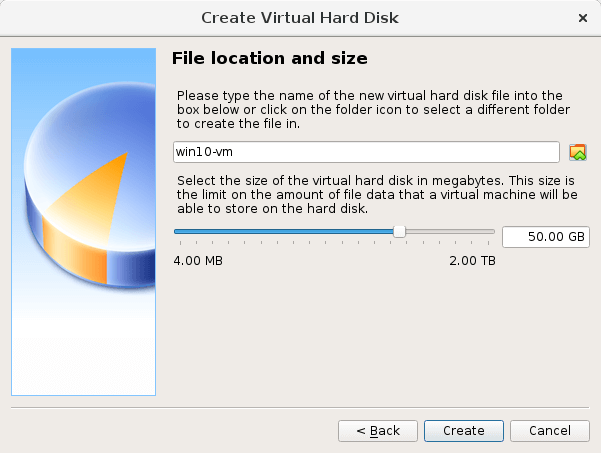
In questo modo indichi a VirtualBox dove salvare la VM e hai la possibilità di modificarne le dimensioni. Se il nome della cartella e lo spazio di archiviazione ti soddisfano, fai clic su Crea.
A questo punto hai finito. Puoi aprire la tua VM in qualsiasi momento aprendo VirtualBox, selezionando la VM e facendo clic su Avvia. So che richiede un po' di lavoro, ma ti consente di eseguire Windows sul Mac gratuitamente e di installare Microsoft Project 2019 o qualsiasi versione per cui disponi di una licenza.
Per una guida più dettagliata, VirtualBox mette a disposizione un tutorial dedicato.