

10 Best Small Business Communication Tools in 2026

Small Business Communication Tools Shortlist


Small business communication tools are software platforms that help your team connect, share information, and collaborate across projects and daily tasks. If you’re searching for the best small business communication tools, you’re likely juggling multiple channels, remote work, and the need to keep everyone on the same page—without adding complexity.
The right tools can make it easier to manage conversations, organize files, and coordinate work, so you can focus on growing your business. In this guide, you’ll find trusted options that fit different team sizes, workflows, and budgets, helping you choose the best fit for your business in 2026.
Why Trust Our Software Recommendations
Our team has been testing and reviewing software since 2012. As project managers ourselves, we know how difficult—and important—it is to choose the right software.
For this guide, we evaluated tools using hands-on testing and independent research, scoring tools using our selection criteria. We also draw on insights from industry thought leaders and practicing project management experts.
Our reviews reflect our human editorial judgment, not a sales pitch.
Expert reviewers:
Best Small Business Communication Tools Summary
This comparison chart summarizes pricing details for my top small business communication tool selections to help you find the best one for your budget and business needs.
| Tool | Best For | Trial Info | Price | ||
|---|---|---|---|---|---|
| 1 | Best for visual task organization | 14-day free trial | From $5/user/month (billed annually) | Website | |
| 2 | Best for collaborative document editing | 14-day free trial available | From $7/user/month (billed annually) | Website | |
| 3 | Best with Microsoft 365 integration | Free trial available | From $4.00/user/month (billed annually) | Website | |
| 4 | Best for centralized team communication | 30-day free trial + free demo available | From $15/user/month | Website | |
| 5 | Best for custom workflow creation | 30-day free trial + free plan + free demo available | From $11.20/user/month (billed annually) | Website | |
| 6 | Best for workflow automation features | Free plan available | From $10.99/user/month (billed annually) | Website | |
| 7 | Best for interactive online whiteboarding | Free plan + 14-day free trial available | From $8/user/month (billed annually) | Website | |
| 8 | Best for channel-based team messaging | Free plan available | From $7.25/user/month (billed annually) | Website | |
| 9 | Best for mobile workforce management | 14-day free trial | From $29/month (billed annually) | Website | |
| 10 | Best for customizable project dashboards | 14-day free trial | From $10/user/month (billed annually) | Website |


Small Business Communication Tools Reviews
Below are my detailed summaries of the best small business communication tools that made it onto my shortlist. My reviews offer a detailed look at the features, integrations, and best use cases of each platform to help you find the best one for you.
Trello
Best for visual task organization
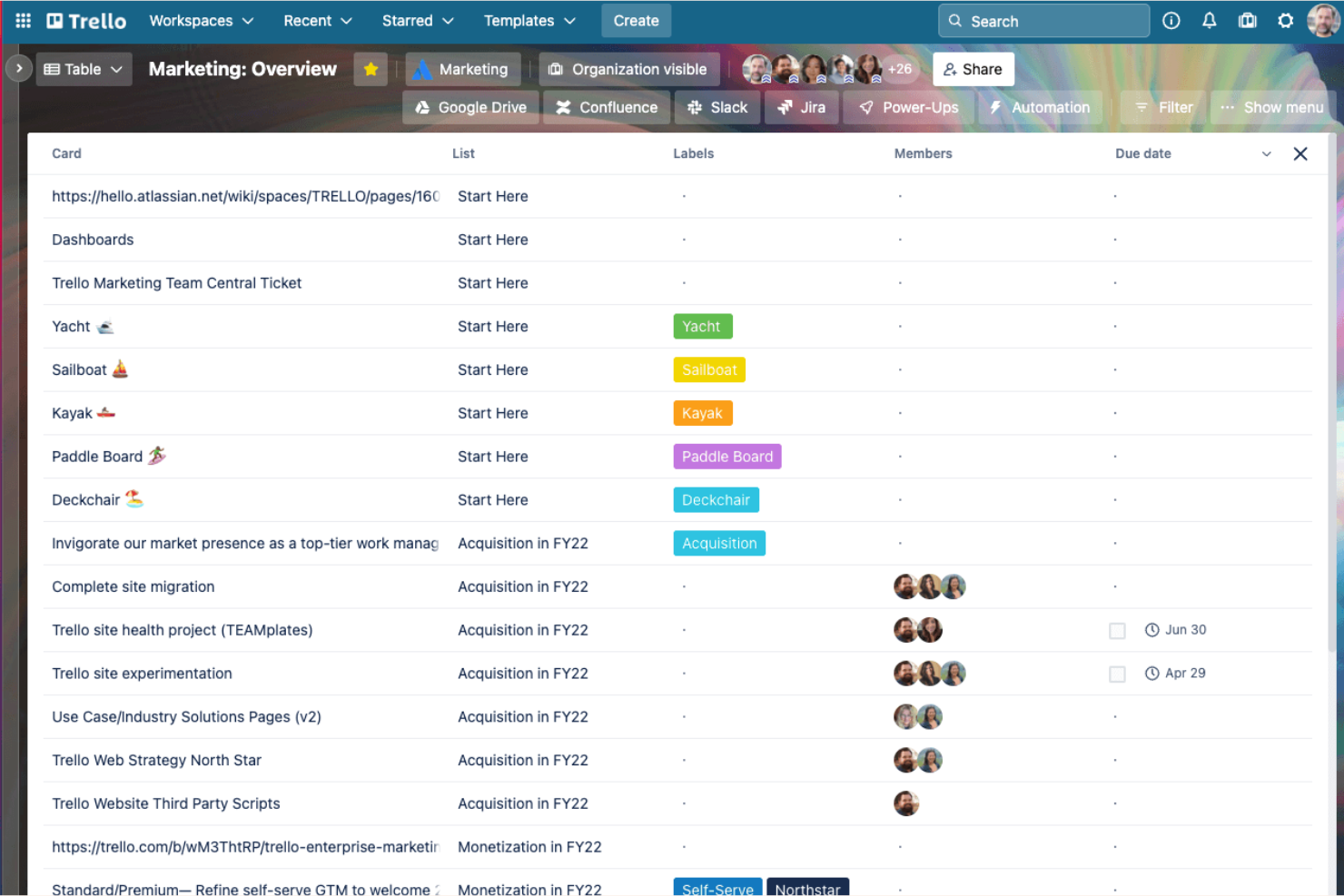
Trello gives small teams and startups a flexible way to organize projects, assign tasks, and track progress visually, making it easy for everyone to see what’s happening and who’s responsible for what.
Who Is Trello Best For?
Small business owners and team leads who want a simple, visual way to manage tasks and workflows.
Why I Picked Trello
I picked Trello as one of the best because I can map out projects visually using Kanban boards, lists, and cards, which makes it easy for my team to see priorities at a glance. I like using labels and checklists to break down tasks and keep everyone aligned on progress. My team uses card comments and attachments to keep all communication and files tied directly to the work, so nothing gets lost in email threads.
Trello Key Features
- Power-Ups: Add integrations like Slack, Google Drive, and Jira to boards.
- Calendar view: Visualize tasks and deadlines on a shared calendar.
- Butler automation: Automate repetitive actions with custom rules and triggers.
- Team board templates: Start projects quickly with pre-built board layouts for common workflows.
Trello Integrations
Integrations include Slack, Google Drive, Jira, Gmail, Microsoft Teams, InVision, Dropbox, Box, Evernote, and Salesforce.
Pros and Cons
Pros:
- Calendar view helps track deadlines together
- Drag-and-drop cards streamline task updates
- Visual boards make project status obvious
Cons:
- Attachments can get buried in card activity
- Limited reporting for communication trends

Best for collaborative document editing
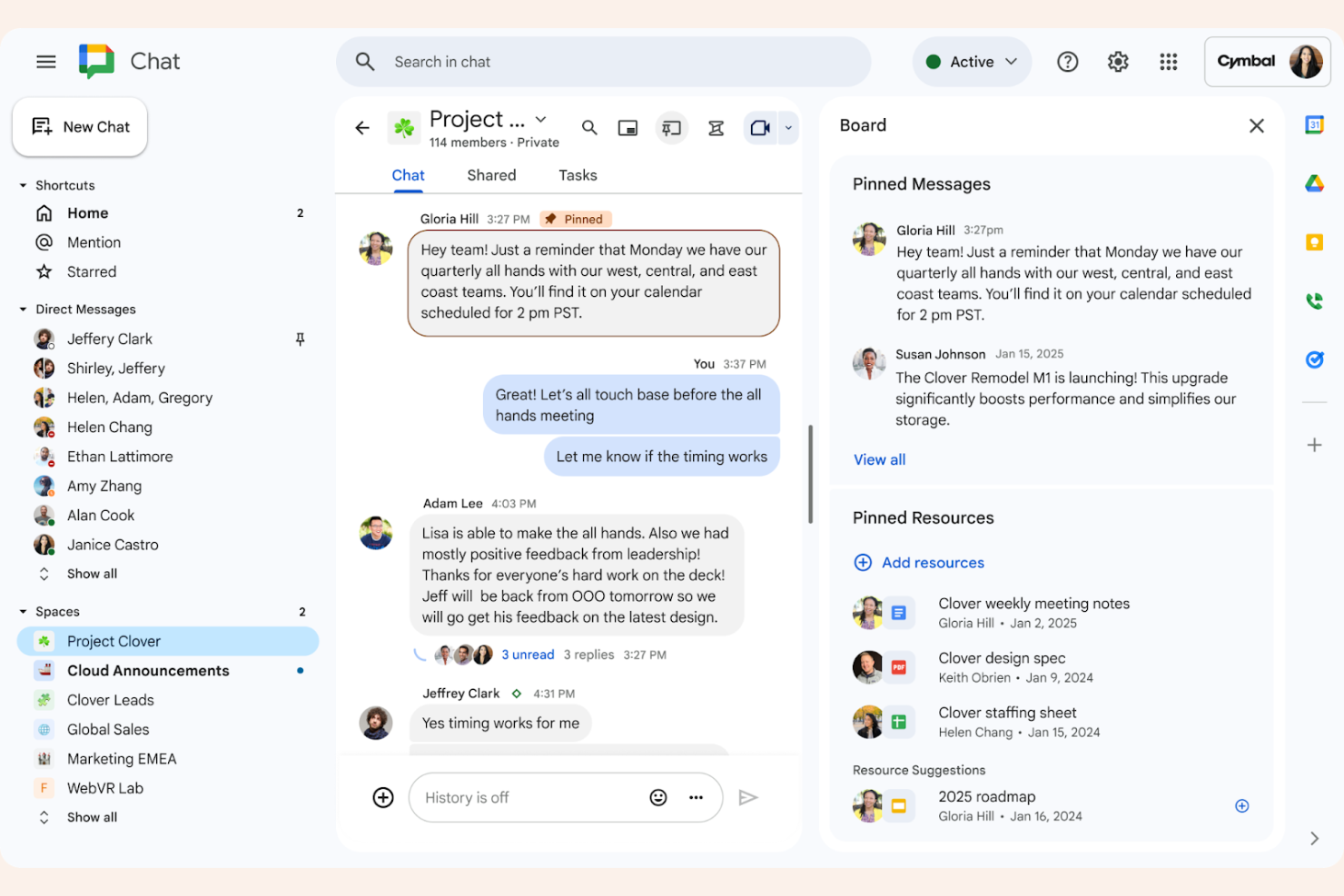
Google Workspace gives small businesses a cloud-based suite for email, chat, meetings, and document sharing, making it easy for distributed teams to collaborate and stay organized in real time.
Who Is Google Workspace Best For?
Remote and hybrid teams that need real-time document collaboration and communication.
Why I Picked Google Workspace
I picked Google Workspace as one of the best because my team can co-edit Google Docs, Sheets, and Slides in real time without version confusion. I like how comments, suggestions, and chat are built right into the files, so we never have to leave the document to discuss changes. My team is able to share files instantly and control permissions with a few clicks, which keeps our project work moving.
Google Workspace Key Features
- Gmail integration: Manage business email with custom domains, which can be paired with a business phone number for a professional reach.
- Google Meet video calls: Host secure video meetings directly from your calendar or email.
- Shared Google Calendar: Schedule meetings and share team calendars for better coordination.
- Google Chat rooms: Create topic-based chat rooms for ongoing team discussions.
Google Workspace Integrations
Integrations include Salesforce, Asana, Zoom, Slack, Trello, Zendesk, Dropbox, Box, and HubSpot.
Pros and Cons
Pros:
- Strong mobile app support for all tools
- Easy file sharing with granular permissions
- Real-time co-editing in Docs, Sheets, and Slides
Cons:
- Limited project management features natively
- Offline access setup can be unreliable

Best with Microsoft 365 integration
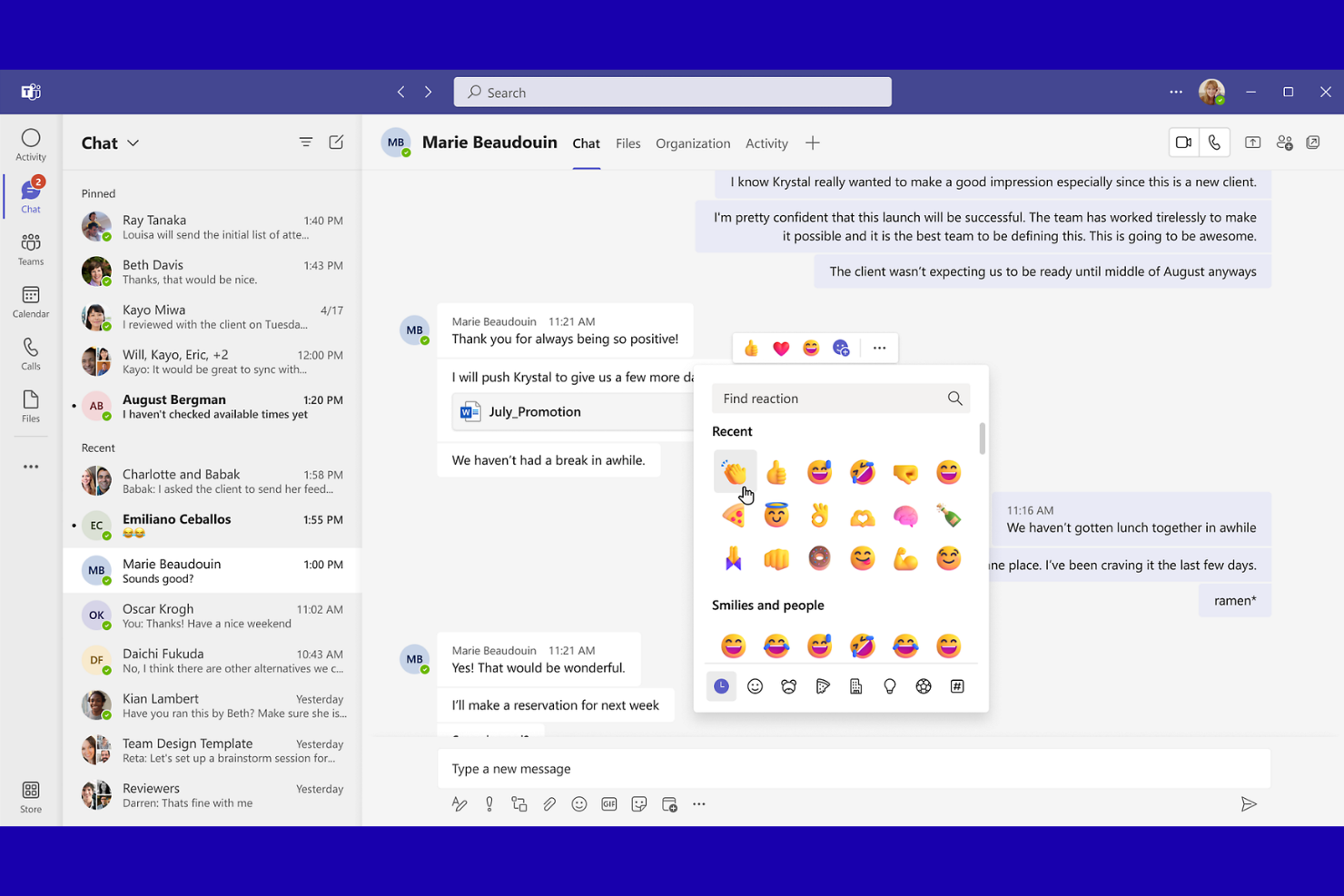
Microsoft Teams is a collaboration platform for small businesses and professional teams who need chat, video meetings, and file sharing in one place to keep projects and daily communication organized.
Who Is Microsoft Teams Best For?
Small to midsize businesses that already use Microsoft 365 for daily operations and collaboration.
Why I Picked Microsoft Teams
I picked Microsoft Teams as one of the best because I can launch video calls, share files, and collaborate on documents right inside the same workspace as my team's chats. I like how Teams syncs with Outlook calendars and lets me schedule meetings without switching apps. My team is able to co-edit Word, Excel, and PowerPoint files in real time, which keeps our project work moving without endless email threads.
Microsoft Teams Key Features
- In-app chat: Send instant messages to individuals or groups within your organization.
- Channel organization: Create dedicated channels for projects, departments, or topics.
- Guest access: Invite external partners or clients to join specific conversations.
- Meeting transcription: Automatically generate searchable transcripts of meetings.
Microsoft Teams Integrations
Integrations include Outlook, OneDrive, SharePoint, Dynamics 365, Trello, Asana, Salesforce, GitHub, Adobe Creative Cloud, and Zoom.
Pros and Cons
Pros:
- Persistent chat channels for ongoing projects
- Built-in video conferencing for up to 300 users
- Deep integration with Microsoft 365 apps
Cons:
- Requires Microsoft account for full features
- Limited search functionality in chat history
Basecamp
Best for centralized team communication
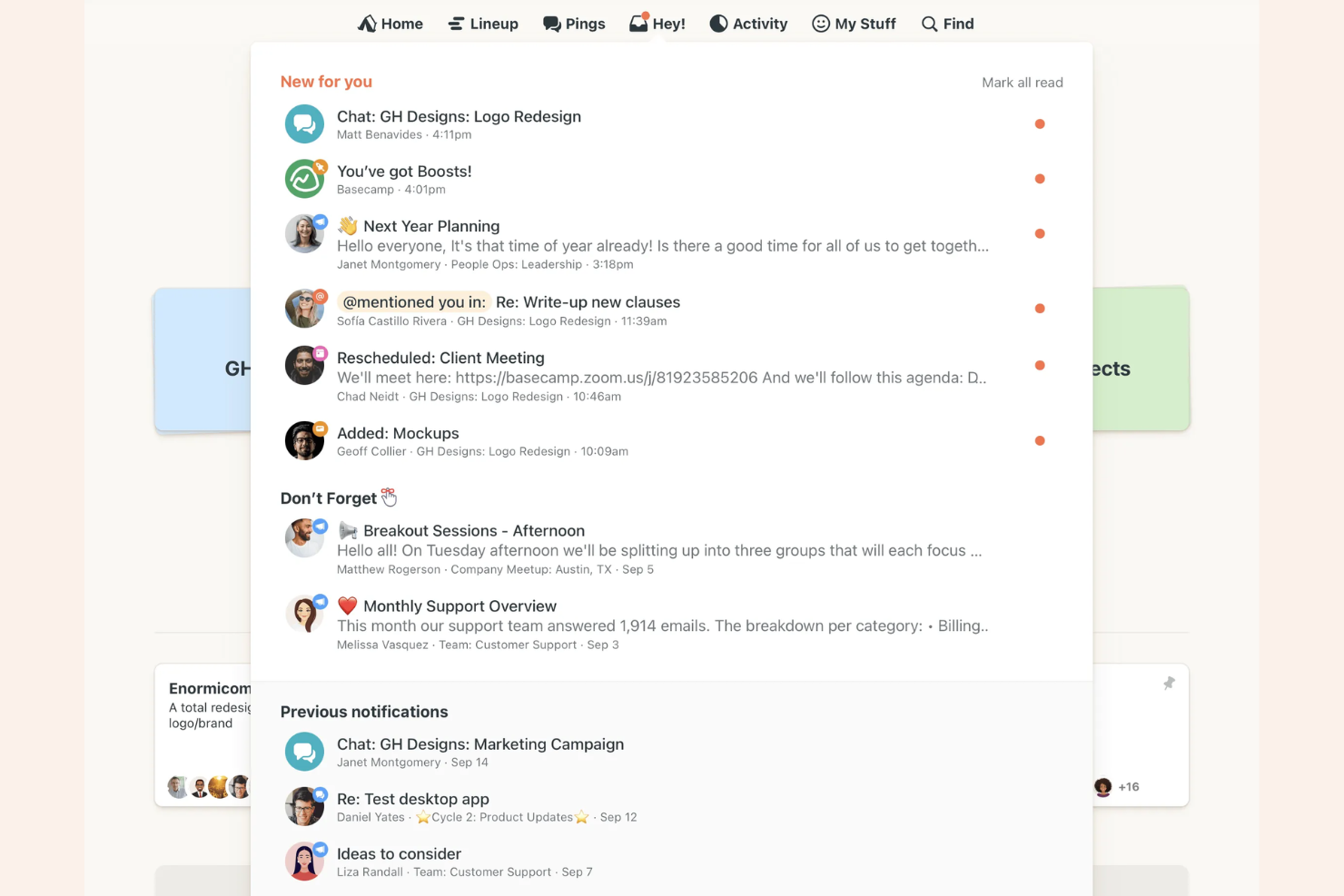
Basecamp is a project management and team communication platform used by small businesses, creative agencies, and consultancies to organize conversations, share files, and keep everyone aligned in one place.
Who Is Basecamp Best For?
Small business owners and team leads who want to centralize project discussions and task management.
Why I Picked Basecamp
I picked Basecamp as one of the best because I can keep all team conversations, project updates, and files in one place using its Message Board and Campfire chat. My team uses the centralized Docs & Files section to avoid digging through email threads or scattered drives. I like how automatic check-ins prompt everyone for quick status updates without extra meetings.
Basecamp Key Features
- To-do lists: Assign tasks, set due dates, and track progress for each project.
- Schedule: View project milestones and deadlines on a shared calendar.
- Client access: Invite clients to specific projects with customizable permissions.
- Hill Charts: Visualize project progress and identify potential bottlenecks.
Basecamp Integrations
Integrations include Slack, Google Drive, Dropbox, Harvest, Everhour, Clockify, GitHub, Zendesk, Trello, and Proposify.
Pros and Cons
Pros:
- Client access allows controlled external collaboration
- Automatic check-ins reduce status update meetings
- Campfire chat enables asynchronous conversations
Cons:
- Lacks advanced reporting features
- Limited formatting options for messages
Podio
Best for custom workflow creation
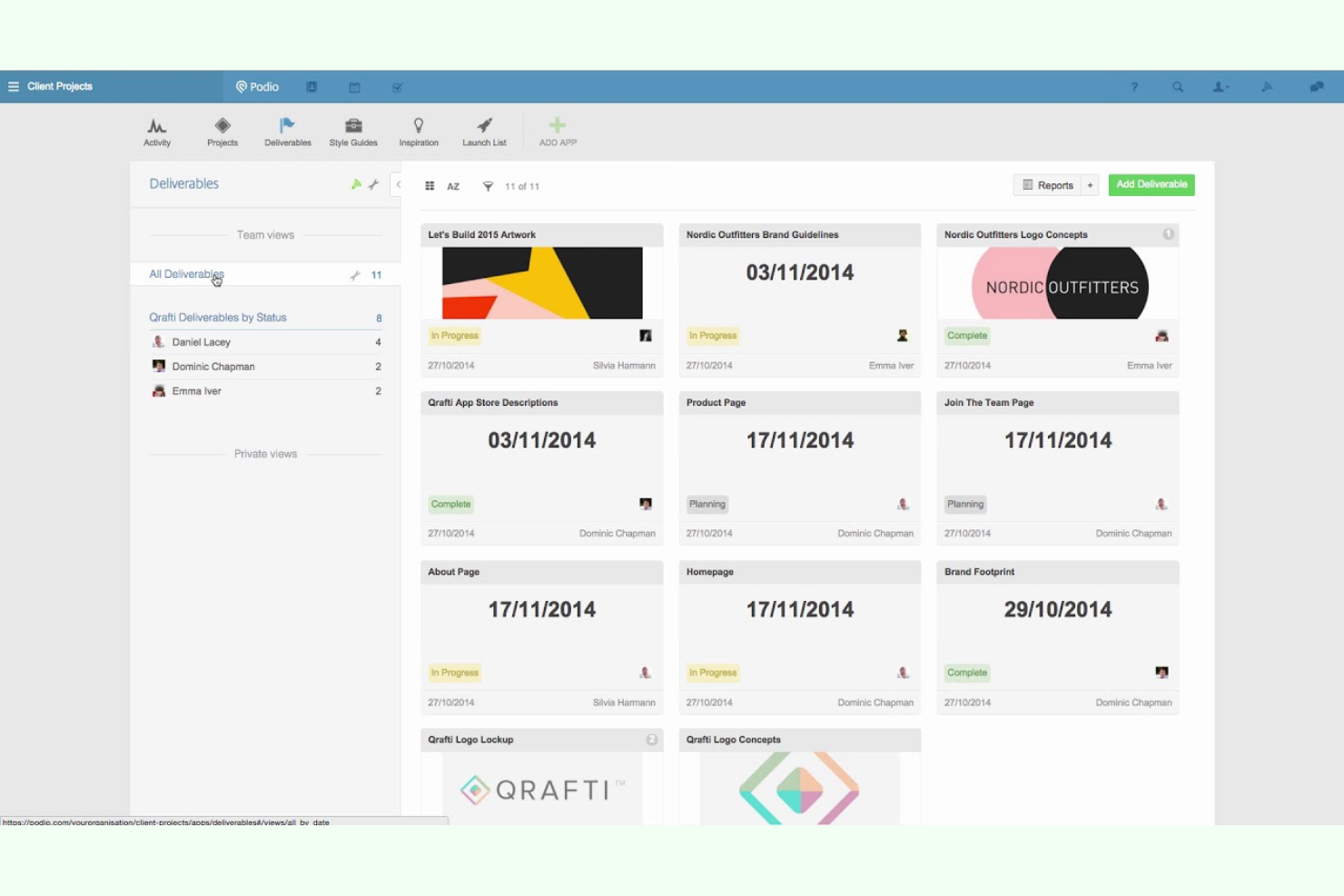
Podio is a flexible work management platform for small businesses and agencies who need to centralize team communication, manage projects, and build custom apps to fit unique workflows.
Who Is Podio Best For?
Podio is a strong fit for small to midsize teams that need to design custom workflows for project collaboration and communication.
Why I Picked Podio
I picked Podio as one of the best because I can build custom workflows using drag-and-drop app builders and automate routine communication between teams. My team uses Podio’s granular permission controls to keep sensitive conversations private. I also like how we can create project-specific chat spaces that match our unique processes.
Podio Key Features
- Activity stream: See all team updates and conversations in a single feed.
- Task management: Assign, track, and comment on tasks within projects.
- File sharing: Upload and share documents directly in workspaces.
- Calendar integration: Sync project deadlines and meetings with external calendars.
Podio Integrations
Integrations include ShareFile, smrtPhone, Plecto, Google Drive, Dropbox, Microsoft Exchange, Evernote, Zendesk, GoToMeeting, and an open API for custom integrations.
Pros and Cons
Pros:
- Granular permission settings for sensitive data
- Workspace chat keeps discussions organized
- Custom app builder for unique team needs
Cons:
- File storage limits on lower-tier plans
- Limited built-in video or voice calling options
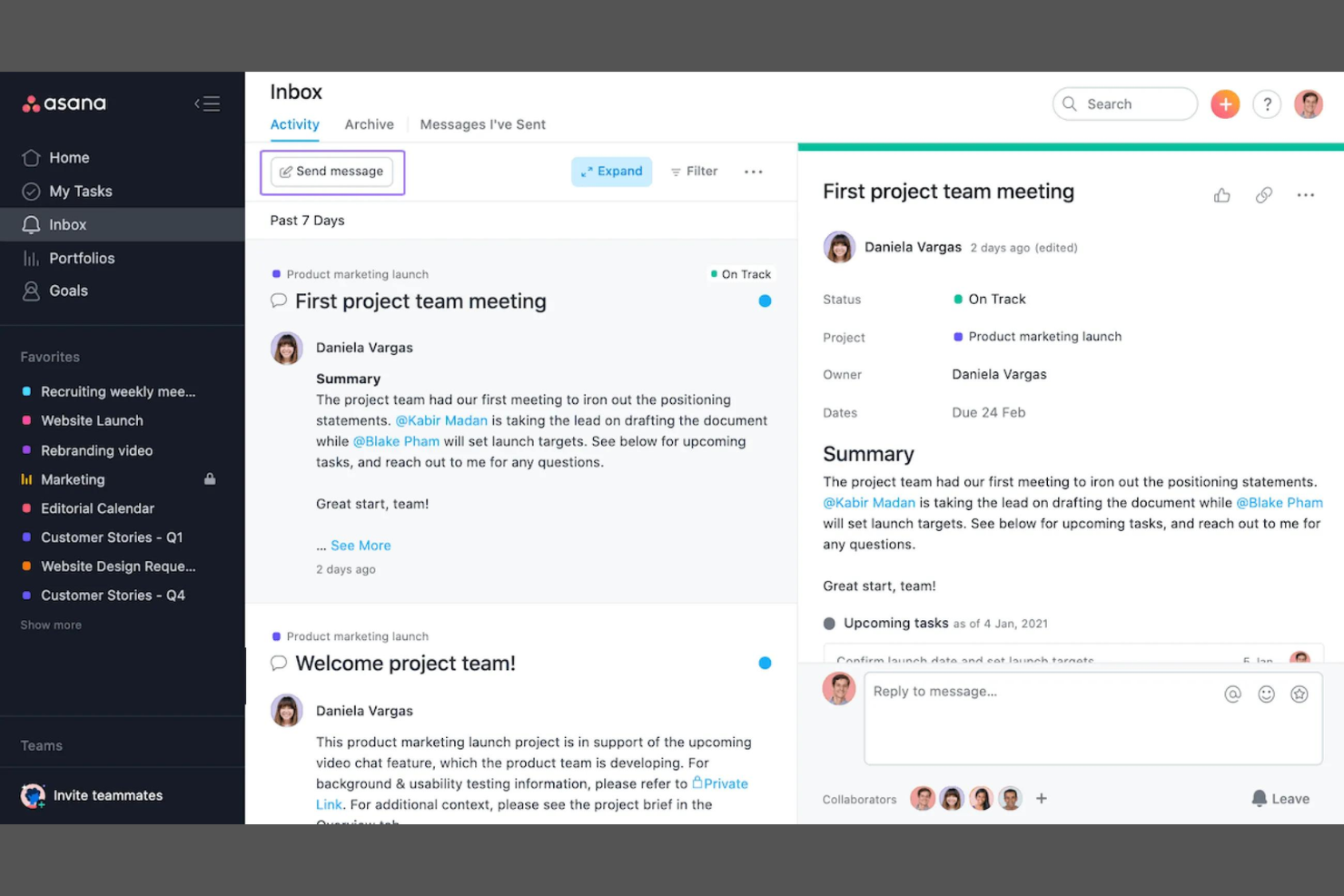
Asana gives project managers and cross-functional teams a centralized workspace to coordinate tasks, manage communication, and keep projects moving without losing track of conversations or responsibilities.
Who Is Asana Best For?
Project managers and operations leads at growing tech companies who need to coordinate complex workflows across distributed teams.
Why I Picked Asana
I picked Asana as one of the best because I can automate recurring tasks and approvals, which saves my team time on manual follow-ups. I like using custom workflow rules to assign tasks and trigger updates when project stages change. My team uses Asana’s timeline and workload features to visualize dependencies and balance assignments across projects.
Asana Key Features
- Task comments: Collaborate directly on tasks with threaded discussions.
- Project milestones: Mark and track key achievements within projects.
- Team calendar: View all team tasks and deadlines in a shared calendar.
- File attachments: Add documents and images directly to tasks for easy reference.
Asana Integrations
Integrations include Slack, Google Drive, Microsoft Teams, Zoom, Salesforce, Gmail, Dropbox, Jira, Outlook, and Box.
Pros and Cons
Pros:
- Custom fields support detailed task tracking
- Timeline view helps visualize project schedules
- Supports comments attached to tasks
Cons:
- Limited video conferencing tools integration
- No built-in chat or direct messaging
Miro
Best for interactive online whiteboarding
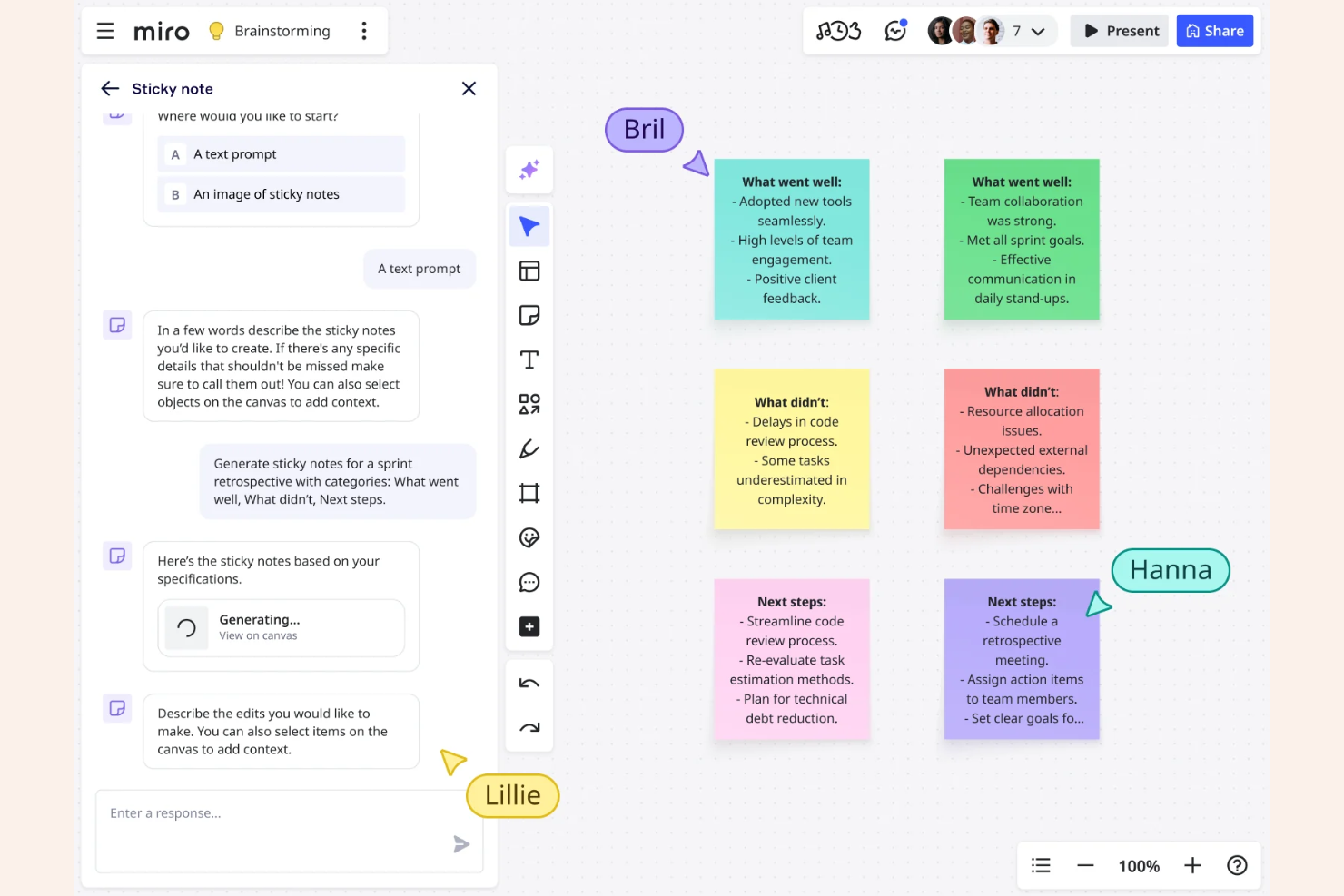
Miro gives distributed teams, agencies, and startups a shared online canvas to brainstorm, map processes, and visually organize ideas in real time for more dynamic project collaboration.
Who Is Miro Best For?
Product managers and creative teams who need a visual workspace for brainstorming and mapping out ideas together.
Why I Picked Miro
I picked Miro as one of the best because I can run live brainstorming sessions with sticky notes, voting, and timers all in one place. My team uses the infinite canvas to map out workflows and processes visually, which helps us clarify complex ideas together. I like using Miro’s pre-built templates for retrospectives and mind mapping, so we can jump straight into collaboration without setup.
Miro Key Features
- Commenting and tagging: Add comments and tag teammates directly on boards for quick feedback.
- Video chat integration: Start video calls within boards to discuss ideas in real time.
- Document and image embedding: Upload and display files, images, and PDFs right on the canvas.
- Presentation mode: Turn boards into guided presentations to walk teams through ideas step by step.
Miro Integrations
Integrations include Microsoft Teams, Google Workspace, Jira, Confluence, Slack, Zoom, Asana, Trello, Dropbox, and Box.
Pros and Cons
Pros:
- Visual mapping tools for process documentation
- Templates for meetings, planning, and workshops
- Real-time collaboration supports distributed teams
Cons:
- Large boards can lag with many users
- Limited board access on free plan
New Product Updates from Miro
Miro Adds Japan Data Residency for Enterprise Customers
Miro has introduced Japan data residency for enterprise customers, offering in-region storage for production data, backups, and metadata, plus in-region compute infrastructure. For more information, visit Miro's official site.

Slack
Best for channel-based team messaging
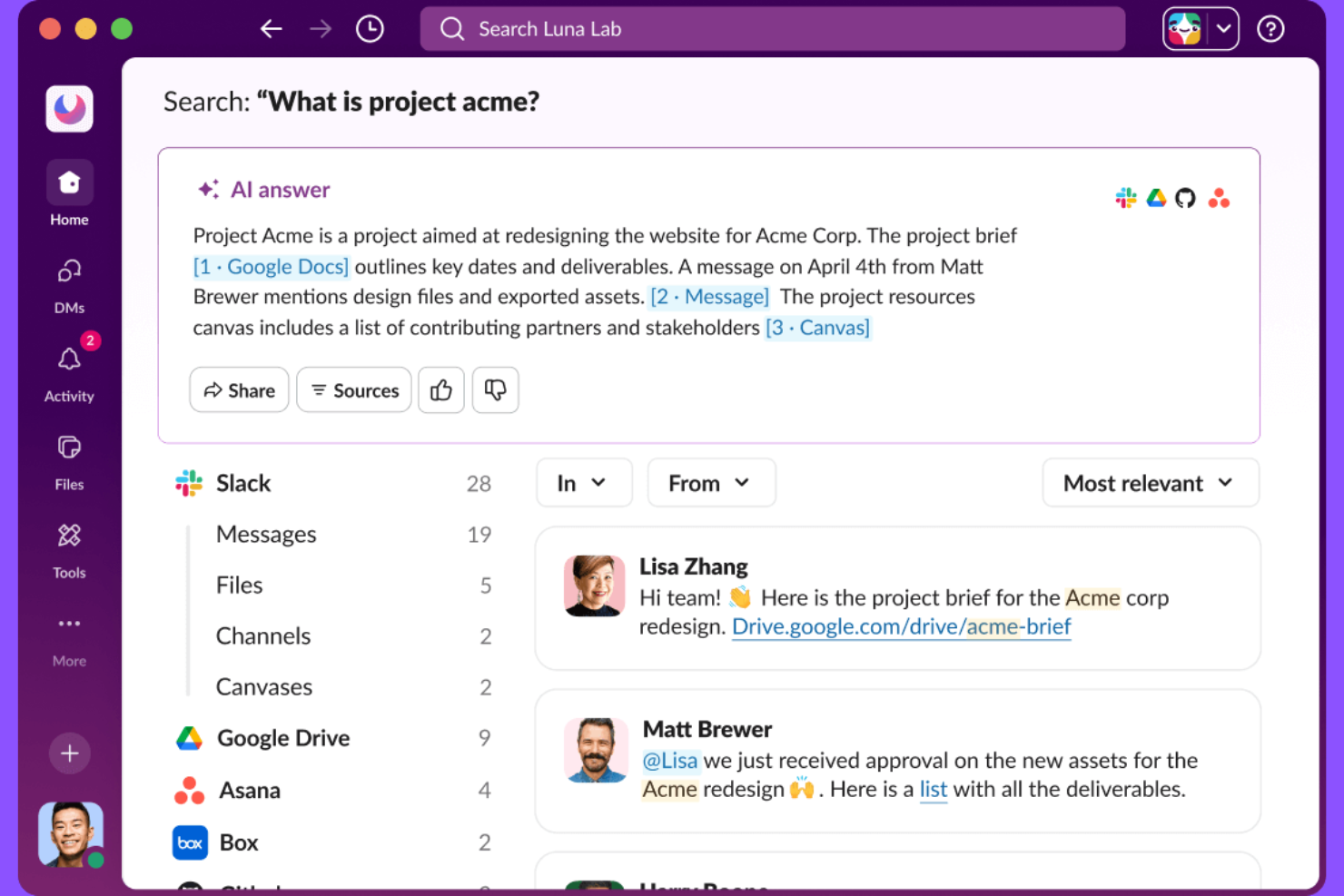
Slack is a messaging platform designed for small businesses and teams that need to organize conversations, share files, and keep projects moving without relying on email or scattered chat apps.
Who Is Slack Best For?
Slack suits small teams and startups that need organized, real-time messaging to coordinate projects and daily work.
Why I Picked Slack
I picked Slack as one of the best because its channel-based messaging lets my team organize conversations by project, topic, or client. I like how we can create private or public channels for different workstreams and use threads to keep discussions focused. My team is able to share files, pin important messages, and quickly search past conversations without losing context.
Slack Key Features
- App integrations: Connects with tools like Google Drive, Asana, and Zoom for streamlined workflows.
- Customizable notifications: Lets users set notification preferences by channel or keyword.
- Workflow builder: Automates routine tasks and approvals with no-code workflows.
- Guest access: Allows external partners or clients to join specific channels securely.
Slack Integrations
Integrations include Google Drive, Asana, Zoom, Salesforce, Jira, Box, AWS, Notion, ChatGPT, and PagerDuty.
Pros and Cons
Pros:
- Integrates natively with many business tools
- Search function quickly finds old messages and files
- Workflow builder automates repetitive team tasks
Cons:
- Audio and video calls lack advanced features
- Message history is limited on free plan
Best for mobile workforce management
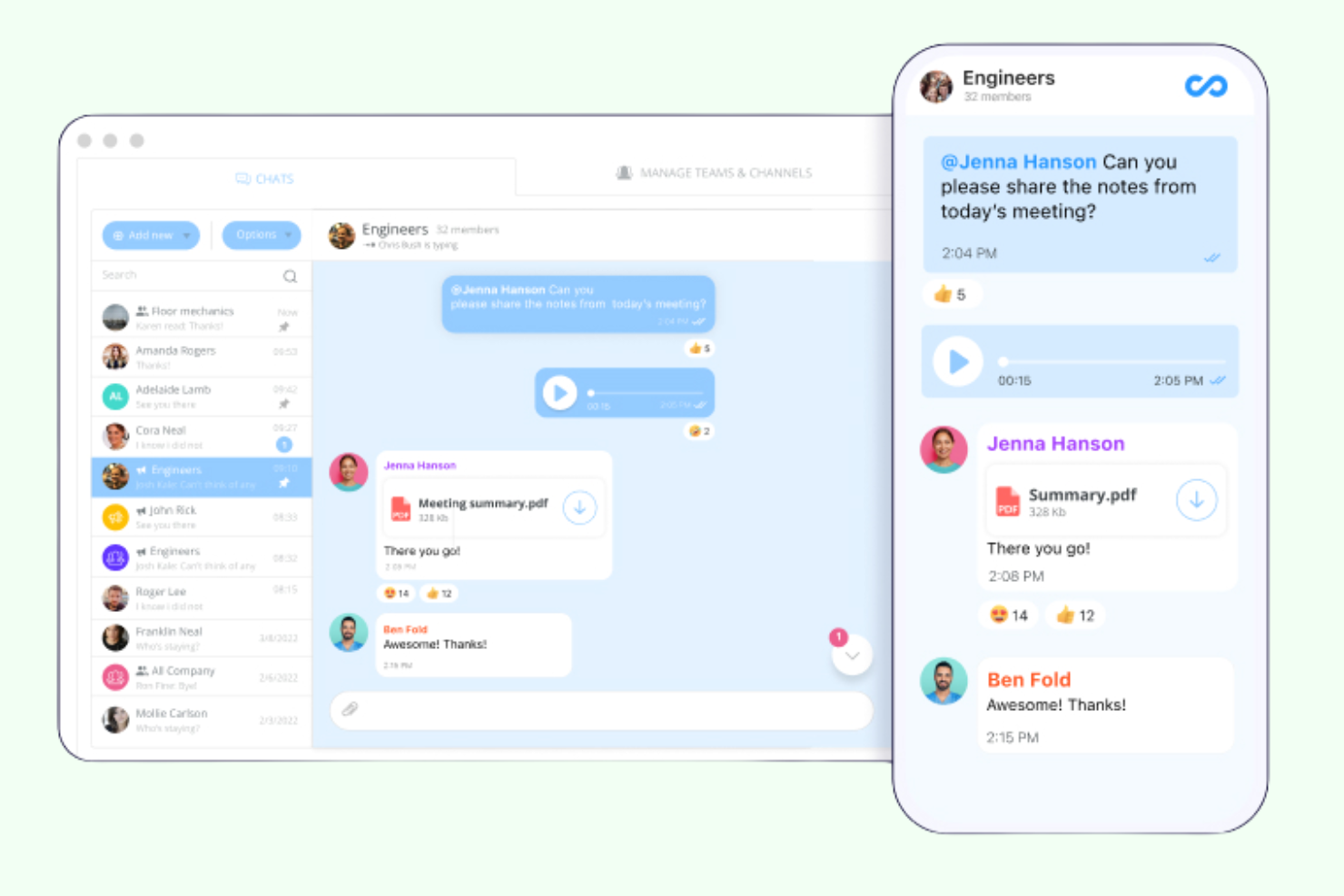
Connecteam is a communication and operations platform built for small businesses with deskless or field teams who need to manage scheduling, daily updates, and real-time messaging from a single mobile app.
Who Is Connecteam Best For?
Connecteam is a strong fit for small businesses with distributed, deskless, or mobile teams in industries like retail, hospitality, and construction.
Why I Picked Connecteam
I picked Connecteam as one of the best because I can manage shift scheduling, time tracking, and team chat all from a single mobile app. My team uses the built-in directory and announcement features to keep everyone in the loop, even when we’re spread across job sites. I like how Connecteam’s mobile-first approach fits the realities of field teams who rarely sit at a desk.
Connecteam Key Features
- Task management: Assign, track, and comment on tasks directly in the app.
- Surveys and polls: Collect feedback from staff to drive employee engagement with customizable surveys and live polls.
- Knowledge base: Store and share important documents, policies, and training materials.
- Event management: Schedule company events and track RSVPs within the platform.
Connecteam Integrations
Integrations include QuickBooks, Gusto, Xero, ADP, Zapier, Wix, Lightspeed, PrismHR, Square, and BambooHR.
Pros and Cons
Pros:
- Employee directory with role-based access
- Customizable forms for daily checklists and reports
- Mobile-first design for field-based teams
Cons:
- File sharing has size and format restrictions
- Admin dashboard can feel cluttered
New Product Updates from Connecteam

Connecteam Expands Break and Timesheet Controls
Connecteam adds flexible break thresholds, personalized policies, auto-end options, a centralized exceptions report, and improved timesheet issue visibility to help teams manage breaks and timesheets more effectively. For more information, visit Connecteam’s official site.
 .
.
Wrike
Best for customizable project dashboards
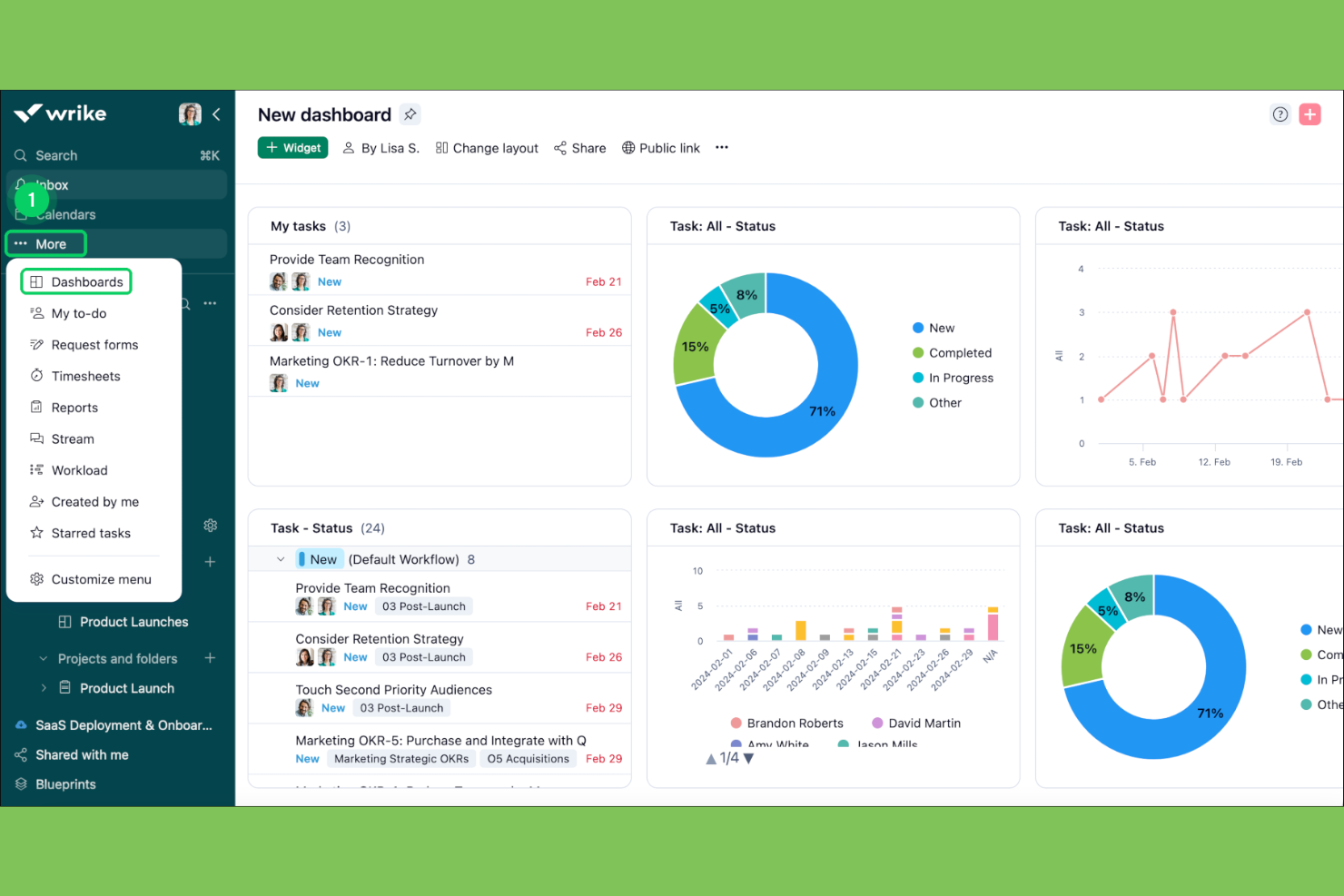
Wrike is a project management platform built for teams who need to coordinate tasks, share files, and communicate updates in one place, making it a strong choice for agencies, consultancies, and fast-moving small businesses.
Who Is Wrike Best For?
Project managers and operations leads at growing small to midsize businesses who need flexible project tracking and team coordination.
Why I Picked Wrike
I picked Wrike as one of the best because I can build custom dashboards that show exactly the project data my team needs—like overdue tasks, project statuses, and workload charts. I like using Wrike’s widget-based dashboards to track multiple projects at once and quickly spot bottlenecks. My team uses the real-time activity stream to keep everyone in sync without switching between tools.
Wrike Key Features
- In-app chat: Message teammates directly within tasks and projects.
- File sharing and versioning: Upload, share, and track document changes in one place.
- Mentions
- Calendar sync: Connect project timelines with Google Calendar or Outlook.
Wrike Integrations
Integrations include Slack, Microsoft Teams, Google Workspace, Adobe Creative Cloud, Salesforce, Zoom, Tableau, GitHub, HubSpot, and Jira.
Pros and Cons
Pros:
- File sharing supports version control and feedback
- In-app chat keeps conversations tied to tasks
- Custom dashboards display real-time project data
Cons:
- Interface can feel cluttered with many projects
- Guest access is limited on lower plans
New Product Updates from Wrike

Wrike Adds Quick Search to Table View
Wrike adds Quick Search to Table View with full-table search across titles, descriptions, and fields, plus highlighted matches. This helps users find tasks faster in large tables. For more information, visit Wrike’s official site.
Other Small Business Communication Tools
Here are some additional small business communication software options that didn’t make it onto my shortlist, but are still worth checking out:
- Zoho Projects
For built-in time tracking
- Zoom
For video conferencing with large groups
- monday AI Workspace
For visual workflow customization
- ProofHub
For built-in team chat and notes
- Redbooth
For timeline-based task tracking
- GanttPRO
For interactive Gantt chart planning
- Staffbase
For internal employee communications
- CAFLOU
For business process automation
- Missive
For shared inbox collaboration
- ClickUp
For all-in-one task and doc management


How I Evaluate Small Business Communication Tools
I split my evaluation into two layers: the baseline capabilities a tool needs to qualify—like persistent channels and built-in video—and the differentiators that separate good tools from great ones.
Core Functionality (Table Stakes For This List)
When I'm selecting tools for my list, I rank each one on a scale from 0 (does not offer the functionality) to 5 (excels in this area) for each core functionality listed below. Then, I calculate the tool's total score into a percentage. Each tool needs to achieve a minimum total score of 65% to be considered for inclusion.
- Team Messaging Channels: I look for persistent, organized channels where project teams can separate conversations by workstream—like having distinct channels for design reviews, sprint planning, and client updates.
- Video & Voice Calling: Whether it's a daily standup or a stakeholder demo, I evaluate whether the tool supports group video calls with screen sharing and recording built in.
- File Sharing & Storage: Teams constantly pass around briefs, mockups, and specs, so I check that files shared in conversations are previewable, searchable, and stored with enough retention to stay useful.
- PM Tool Integrations: I look at whether the platform connects with tools like Asana, Trello, or Jira so task updates and project notifications flow directly into team conversations.
- Notifications & Mentions: Granular control matters here—I evaluate whether you can @mention teammates in threads, mute noisy channels, and set custom notification schedules to stay focused during deep work.
- Small Business Pricing & Scale: I check that the vendor offers a free or low-cost entry tier suited to teams under 50 users, with transparent per-seat pricing that scales as your team grows.
Once I have a list of tools that meet the criteria, I consider what sets each platform apart.
Differentiating Factors (What Sets Vendors Apart)
Here's how I compare and contrast different vendors:
Standout Features
AI-powered channel summaries and meeting recaps make a real difference for distributed teams—when someone misses a standup, a quick AI recap beats scrolling through hundreds of messages. I also evaluate client and guest access, because project managers regularly need to loop in external stakeholders without exposing internal channels. Workflow automations that trigger deadline reminders or post status updates to a channel save hours of manual coordination each week.
Beyond Features
Small business budgets are tight, so I look at total cost of ownership—whether a vendor's free tier is genuinely usable or just a teaser that forces an upgrade the moment your team hits 10 people. Mobile experience matters too, especially for project managers who split time between meetings and their desk. I check that the mobile app mirrors desktop functionality rather than offering a stripped-down version. Security rounds out my evaluation: SOC 2 compliance and admin controls like SSO and MFA are important when your team handles sensitive client deliverables.
How to Choose Small Business Communication Tools
It’s easy to get bogged down in long feature lists and complex pricing structures. To help you stay focused as you work through your unique software selection process, here’s a checklist of factors to keep in mind:
| Factor | What to Consider |
|---|---|
| Scalability | Will the tool support your team as you grow from 10 to 100+ users? Check user limits and upgrade paths. |
| Integrations | Does it connect natively with your payroll, HR, or project management systems? Avoid tools that require manual workarounds. |
| Customizability | Can you tailor channels, permissions, and notifications to fit your workflows? Look for flexible settings, not just templates. |
| Ease of use | Will your team adopt it quickly, or will it require extensive training? Test with a small group before rolling out. |
| Implementation and onboarding | How long will it take to get everyone set up and communicating? Ask about migration support and onboarding resources. |
| Cost | Are there hidden fees, user minimums, or required add-ons? Compare total cost of ownership, not just monthly rates. |
| Security safeguards | Does the tool offer encryption, access controls, and compliance with data privacy standards? Ask for documentation if handling sensitive info. |
| Support availability | Can you reach support when you need it—especially outside standard business hours? Check for live chat, phone, or email options. |
What Are Small Business Communication Tools?
Small business communication tools are software platforms that help teams exchange messages, share files, and coordinate work in real time. These tools support direct messaging, group chats, and announcements, making it easier for employees to stay connected and informed. These team communication tools are designed to fit the budgets of smaller organizations with mobile-friendly features.
Features
When selecting small business communication tools, keep an eye out for the following key features:
- Direct messaging: Enables private, one-on-one conversations between team members for quick questions or sensitive topics.
- Group communication channels: Lets teams create topic-based or project-based chat rooms to keep discussions organized and accessible.
- File sharing: Allows users to upload, send, and access documents, images, and other files directly within the communication platform.
- Searchable message history: Provides the ability to search past conversations and files, making it easy to retrieve important information when needed.
- Push notifications: Sends real-time alerts to users’ devices so they never miss important updates or messages.
- User roles and permissions: Lets admins control who can access certain channels, send announcements, or manage settings, supporting security and organization.
- Announcement broadcasting: Enables leaders to send company-wide or team-wide messages that reach everyone at once, ensuring critical updates are seen.
- Mobile app access: Offers dedicated mobile applications so employees can communicate and collaborate from anywhere, not just at their desks.
- Integration with other tools: Connects with calendars, project management, or HR systems to centralize workflows and reduce context switching.
Benefits
Implementing internal communication tools provides several benefits for your team and your business. Here are a few you can look forward to:
- Faster decision-making: Real-time messaging and group channels help teams resolve questions and make decisions quickly.
- Improved team alignment: Centralized announcements and searchable message history keep everyone on the same page with company updates and project details.
- Greater flexibility for remote work: Mobile apps and push notifications let employees stay connected and responsive from anywhere.
- Simplified information sharing: Built-in file sharing and integrations with other tools make it easy to distribute documents and resources.
- Enhanced security and control: User roles and permissions ensure sensitive information is only accessible to the right people.
- Reduced onboarding time: Intuitive interfaces and onboarding resources help new team members get up to speed faster.
- Cost-effective solution: All-in-one platforms can replace multiple tools, reducing software expenses and administrative overhead.
Costs & Pricing
Selecting small business communication tools requires an understanding of the various pricing models and plans available. Costs vary based on features, team size, add-ons, and more. The table below summarizes common plans, their average prices, and typical features included in small business communication tools solutions:
Plan Comparison Table for Small Business Communication Tools
| Plan Type | Average Price | Common Features |
|---|---|---|
| Free Plan | $0 | Basic messaging, limited file sharing, basic search, and access for a small number of users. |
| Personal Plan | $5–$10/user/month | Direct and group messaging, increased storage, basic integrations, and priority support. |
| Business Plan | $10–$25/user/month | Unlimited channels, advanced admin controls, enhanced security, integrations with other tools, and analytics. |
| Enterprise Plan | $25–$50/user/month | Custom roles, advanced compliance, dedicated account management, premium support, and custom integrations. |
Small Business Communication Tools FAQs
Here are some answers to common questions about small business communication tools:
How do I know if my business needs a communication tool?
If your team struggles to keep track of conversations, misses important updates, or relies on scattered emails and texts, you’ll likely benefit from a dedicated communication tool. These platforms help centralize discussions and make information easier to find.
Can small business communication tools integrate with other software?
Yes, most small business communication tools offer integrations with project management, HR, and file storage platforms. This helps you connect your workflows and reduce manual data entry or context switching.
Are there security risks with using these tools?
Yes, as with any cloud-based software, there are security considerations. Look for tools with encryption, user permissions, and compliance certifications to help protect sensitive business information.
What should I look for when evaluating ease of use?
Focus on tools that facilitate effective communication through intuitive navigation and minimal setup steps. A good sign is when new team members can start using the tool with little or no training.
Can these tools support remote or hybrid teams?
Yes, most small business communication tools are designed for distributed teams, offering mobile apps, SMS notifications, voicemail options, and cloud access so everyone can stay connected from anywhere.