

10 Best Process Management Software for Small Business in 2026

Best Process Management Software for Small Business Shortlist


Process management software for small business helps you organize, automate, and track your team’s workflows so you can deliver projects on time and keep operations running smoothly. If you’re searching for the best process management software for small business, you’re likely juggling shifting priorities, limited resources, and the need to keep everyone aligned—without adding complexity.
In this guide, you’ll find practical, proven tools that fit small business needs, along with insights to help you choose the right platform for your team’s size, goals, and day-to-day challenges.
Why Trust Our Software Recommendations
Our team has been testing and reviewing software since 2012. As project managers ourselves, we know how difficult—and important—it is to choose the right software.
For this guide, we evaluated tools using hands-on testing and independent research, scoring tools using our selection criteria. We also draw on insights from industry thought leaders and practicing project management experts.
Our reviews reflect our human editorial judgment, not a sales pitch.
Expert reviewers:
Comparison Table: Process Management Software for Small Business
This comparison table summarizes pricing details for my top process management software for small business selections.
| Tool | Best For | Trial Info | Price | ||
|---|---|---|---|---|---|
| 1 | Best for automating app integrations | 14-day free trial and free plan available | From $19.99/month (billed annually) | Website | |
| 2 | Best for customizable workflow templates | 14-day free trial + free demo available | From $17/user/month (billed annually) | Website | |
| 3 | Best for no-code workflow automation | 14-day free trial + free demo available | From $11/user/month (billed annually) | Website | |
| 4 | Best for checklist-driven task automation | Free demo available | Pricing upon request | Website | |
| 5 | Best for building custom business apps | 15-day free trial | From $8/user/month (billed annually) | Website | |
| 6 | Best for client onboarding workflows | 7-day free trial + free demo available | From $190/month/3 seats | Website | |
| 7 | Best for low-code process design | Free demo available | Pricing upon request | Website | |
| 8 | Best for database-driven workflow management | 14-day free trial | From $19/month | Website | |
| 9 | Best for kanban-style workflow boards | Free plan available | From $5/user/month (billed annually) | Website | |
| 10 | Best for team task coordination | Free plan available | From $10.99/user/month (billed annually) | Website |

Best Process Management Software for Small Business Reviews
Below are my detailed summaries of the best process management software for small business that made it onto my shortlist. My reviews offer a detailed look at the features, best use cases, and integrations of each platform to help you find the best one for you.

Zapier
Best for automating app integrations
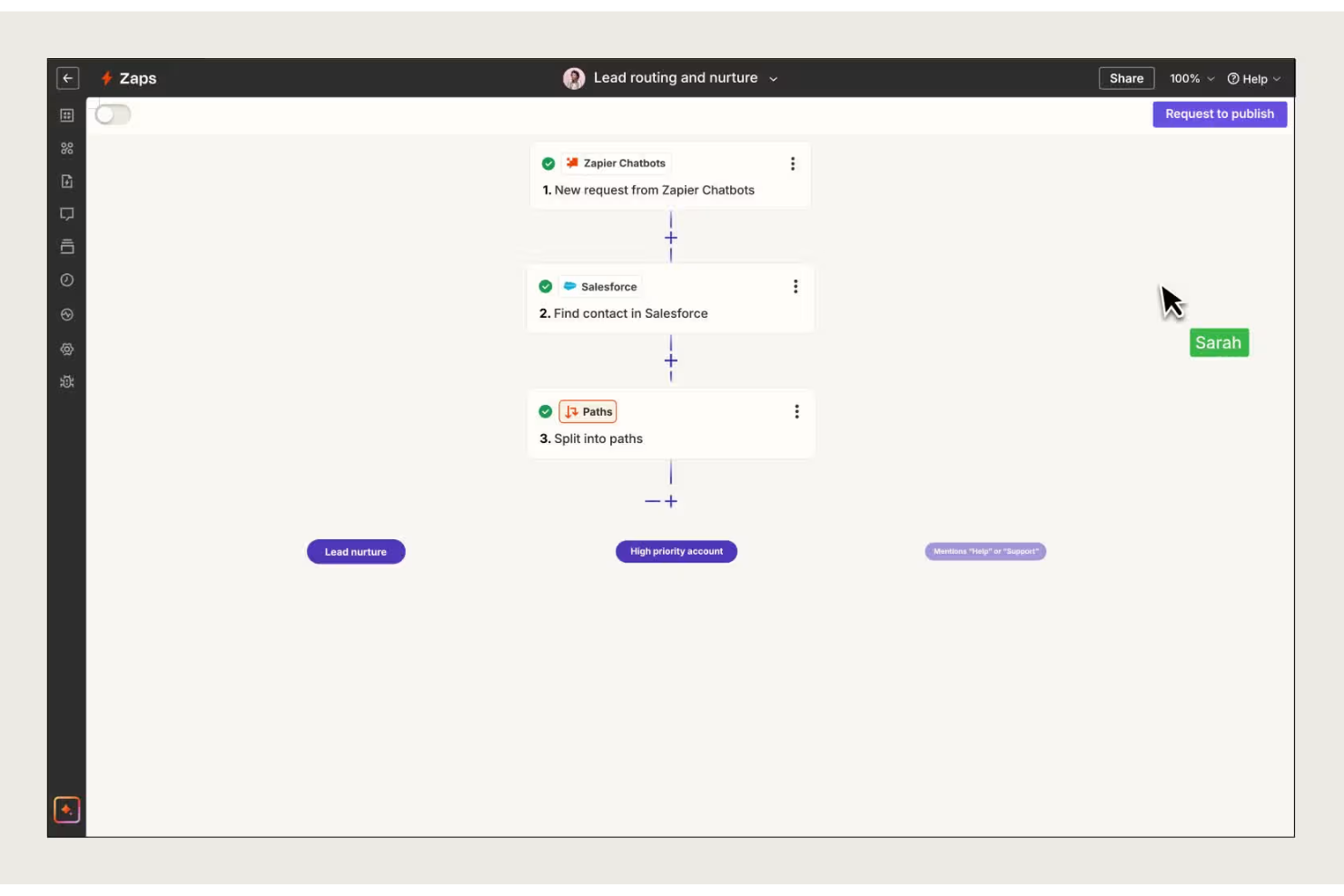
Zapier connects your favorite business apps so small teams, agencies, and service providers can automate repetitive tasks, reduce manual data entry, and keep processes running smoothly without custom code.
Who Is Zapier Best For?
Small business operations and admin teams who need to connect multiple cloud apps without developer support.
Why I Picked Zapier
I picked Zapier as one of the best because I can set up automated workflows—called Zaps—that move data between apps like QuickBooks, Slack, and Google Sheets without writing code. My team uses multi-step Zaps to trigger actions across several tools from a single event. I like that I can schedule tasks, filter data, and even add conditional logic to keep our processes running smoothly.
Zapier Key Features
- Shared folders: Organize and manage Zaps with your team in dedicated folders.
- Zap history: View detailed logs of every Zap run for troubleshooting and auditing.
- App directory: Access thousands of pre-built app connections for quick setup.
- User roles and permissions: Assign different access levels to team members for better control and business management.
Zapier Integrations
Integrations include Google Sheets, Gmail, Slack, Google Calendar, Google Drive, Notion, HubSpot, Facebook Lead Ads, Mailchimp, and Stripe.
Pros and Cons
Pros:
- Built-in filters and logic for process control
- Supports thousands of business app connections
- Automates repetitive tasks across multiple apps
Cons:
- Task limits can restrict high-volume use
- Limited error handling for failed automations

Flokzu
Best for customizable workflow templates
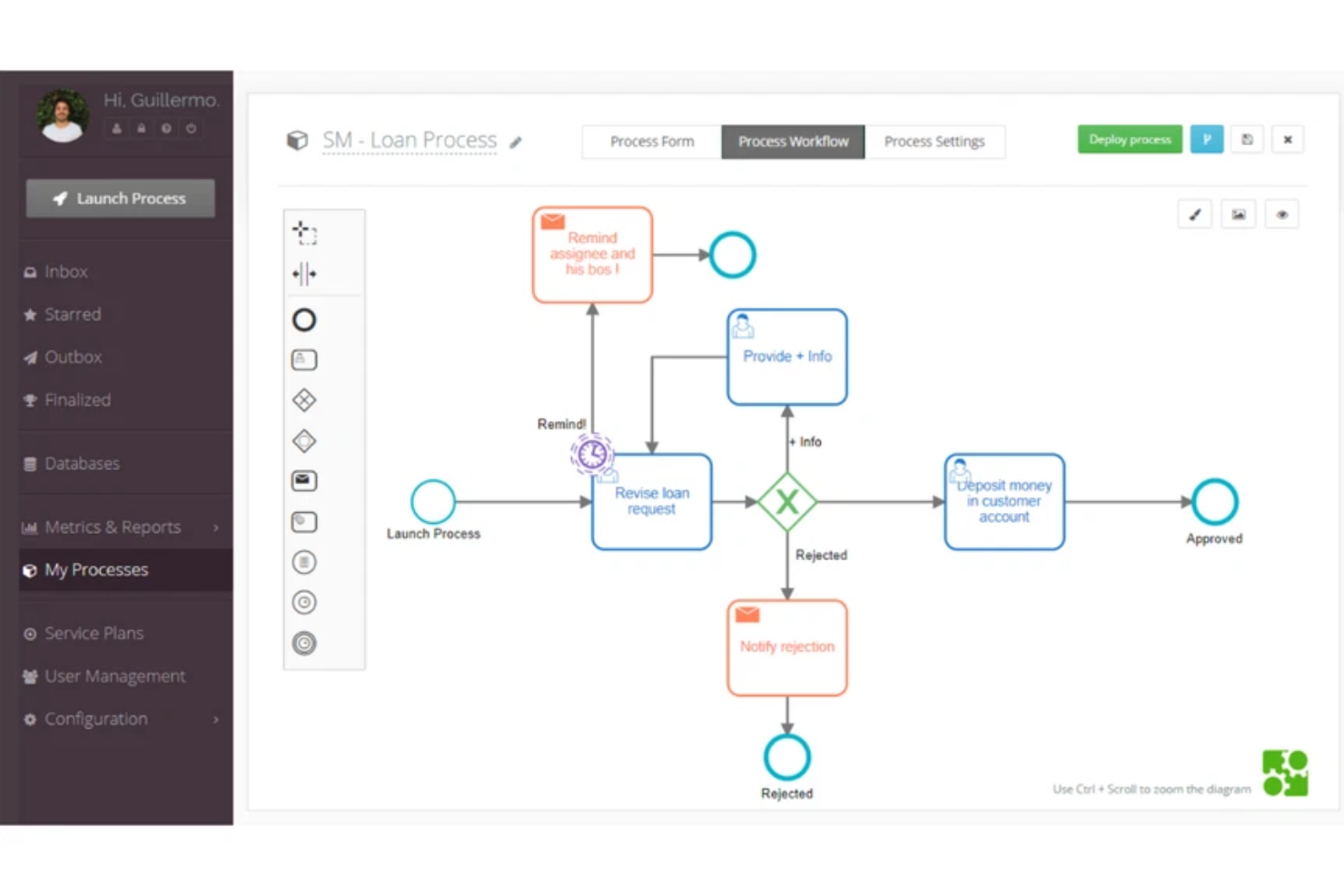
Flokzu is a cloud-based workflow automation platform designed for small businesses and teams who want to map, automate, and optimize their business processes without coding.
Who Is Flokzu Best For?
Small business operations teams who need to automate and customize internal workflows without coding.
Why I Picked Flokzu
I picked Flokzu as one of the best because I can quickly deploy customizable workflow templates for everything from invoice approvals to employee onboarding. I like that I can tweak process steps, forms, and rules without writing code. My team uses the drag-and-drop process designer to adapt workflows as our business changes.
Flokzu Key Features
- Task assignment: Assign tasks to specific users or groups for accountability.
- Document management: Store, attach, and manage documents within each workflow.
- Deadline tracking: Set deadlines and receive notifications for overdue tasks.
- Process analytics dashboard: Visualize workflow performance with built-in charts and reports.
Flokzu Integrations
Integrations include Google Sheets, Microsoft Excel, Salesforce, HubSpot, Slack, Trello, QuickBooks Online, Dropbox, and Microsoft Teams.
Pros and Cons
Pros:
- Audit trail tracks every workflow action
- AI-powered form and script generation
- BPMN 2.0 standard visual process modeling
Cons:
- Restricted reporting filters in basic tiers
- Interface sessions timeout frequently
Cflow
Best for no-code workflow automation

Cflow is a cloud-based workflow automation platform built for small businesses and teams who want to digitize, automate, and track business processes across HR, finance, and operations without needing IT support.
Who Is Cflow Best For?
Small business operations managers who want to automate and monitor workflows without coding or IT resources.
Why I Picked Cflow
I picked Cflow as one of the best because I can automate multi-step business processes without writing a single line of code. I like that I can build custom forms, set up approval flows, and trigger notifications using a visual workflow builder. My team uses Cflow to lead our digital transformation by digitizing everything from purchase requests to leave approvals in just a few clicks.
Cflow Key Features
- Role-based access control: Set permissions for users based on their roles in the organization.
- Audit logs: Track every action and change within each workflow for compliance.
- Document management: Attach, store, and manage documents directly within workflows.
- SLA monitoring: Define and monitor service level agreements for process steps.
Cflow Integrations
Integrations include Salesforce, Slack, Trello, Dropbox, QuickBooks, HubSpot CRM, Google Drive, Microsoft Teams, Xero, and Docusign.
Pros and Cons
Pros:
- Lookup fields connect multiple internal workflows
- Automatic mobile app generation for forms
- Parallel branch routing for concurrent approvals
Cons:
- Restricted visual dashboard customization
- Steep learning curve for form editing

Best for checklist-driven task automation
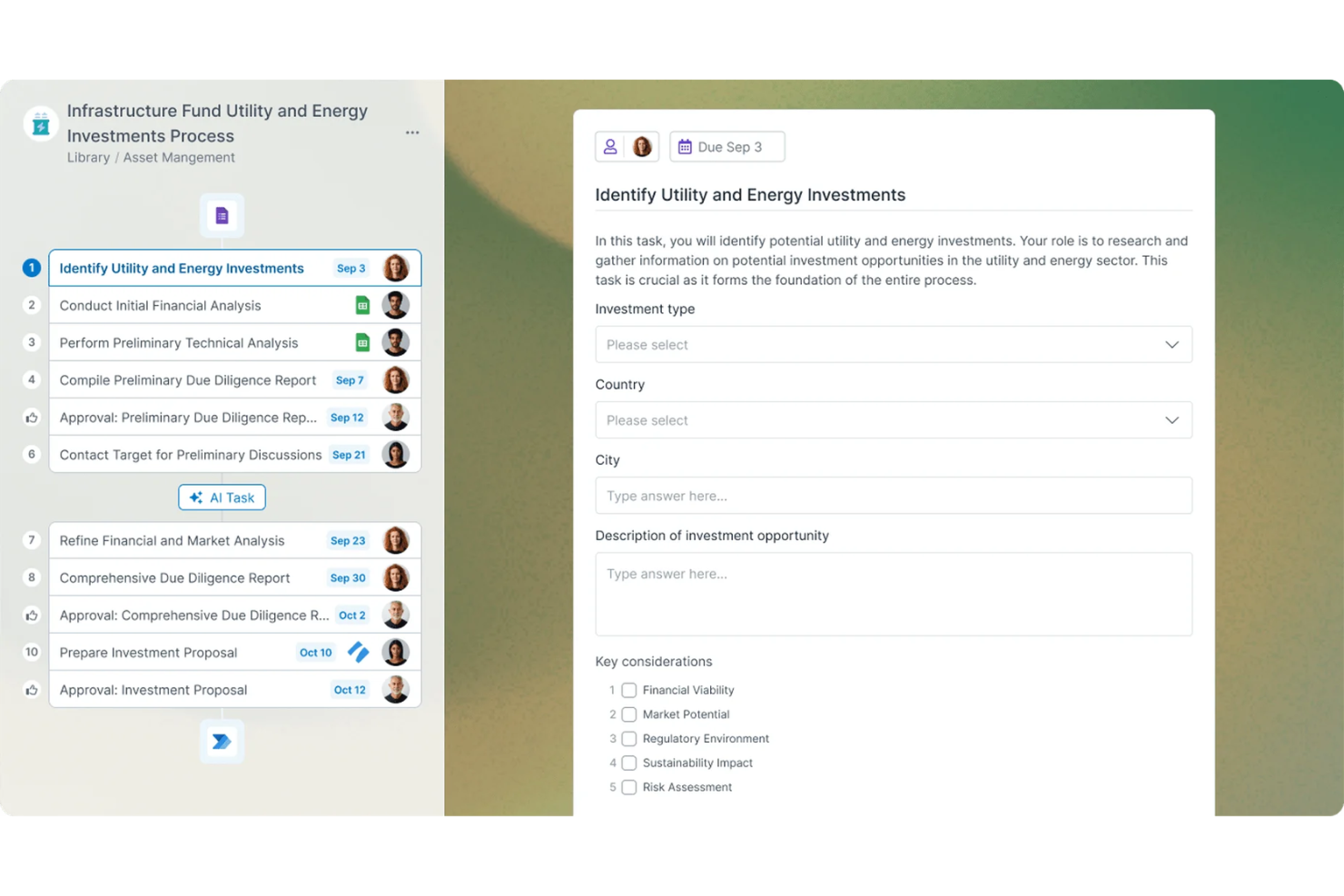
Process Street is a workflow management platform built for small businesses and teams who need to document, automate, and track recurring processes with clear, actionable checklists.
Who Is Process Street Best For?
Process Street is a strong fit for operations managers and small business teams who need structured case management to track recurring tasks.
Why I Picked Process Street
I picked Process Street as one of the best because I can build dynamic checklists that trigger automated actions when tasks are completed. I like using conditional logic to create branching workflows for different scenarios. My team relies on the approvals feature to keep stakeholders informed while keeping task sign-offs organized.
Process Street Key Features
- Task assignments: Assign checklist tasks to specific team members for accountability.
- Form fields: Collect structured data directly within checklists using customizable form fields.
- Template library: Access a library of pre-built workflow templates for common business processes.
- Audit trail: Track every action and change within a checklist for compliance and transparency.
Process Street Integrations
Integrations include Salesforce, Slack, Microsoft Teams, Google Sheets, Jira, HubSpot, Mailchimp, Stripe, and BambooHR.
Pros and Cons
Pros:
- Free guest seats for external collaborators
- Stop tasks enforce strict process order
- Conditional logic creates dynamic checklists
Cons:
- No offline access for mobile checklists
- Limited built-in complex data modeling

Best for building custom business apps
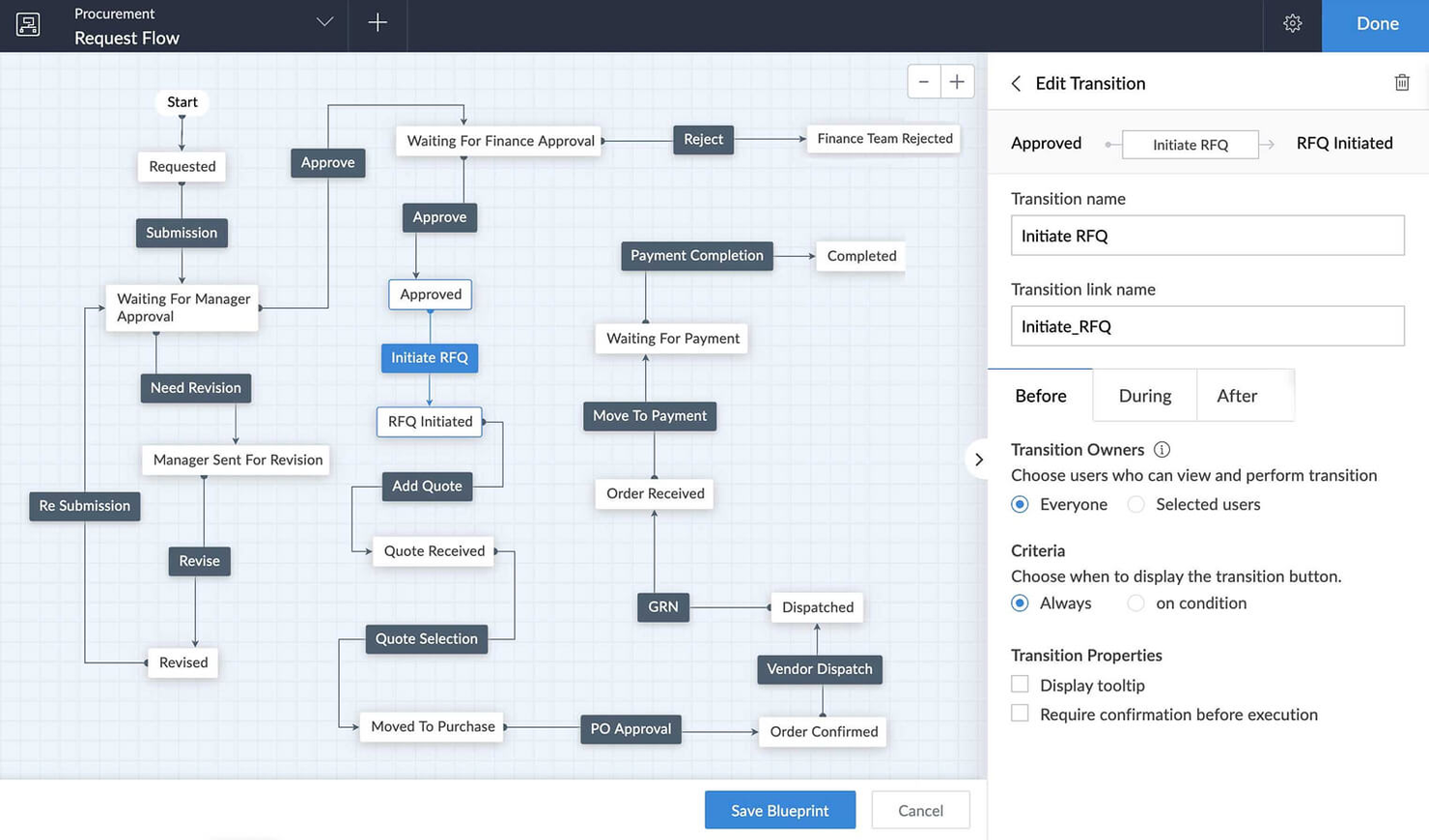
Zoho Creator is a low-code platform for small businesses and teams who want to automate processes, centralize data, and build custom workflows without relying on IT or complex coding.
Who Is Zoho Creator Best For?
Small business owners and operations managers who want to design custom apps to automate unique business processes.
Why I Picked Zoho Creator
I picked Zoho Creator as one of the best because I can quickly build custom business apps with drag-and-drop tools and prebuilt templates. I like that I can automate multi-step workflows and set up approval processes without writing code. My team uses its built-in analytics to improve operational efficiency and spot bottlenecks as we scale.
Zoho Creator Key Features
- Role-based access controls: Assign permissions to users based on their roles in your organization.
- Multi-platform deployment: Launch apps for web, iOS, and Android from a single build.
- Integration with Zoho and third-party apps: Connect workflows to Zoho CRM, Zoho Books, and other popular tools.
- Custom report builder: Design and generate reports using your app’s data to drive better decision-making through enhanced process visibility.
Zoho Creator Integrations
Integrations include Zoho CRM, Zoho Books, Zoho Projects, Zoho Desk, Zoho People, Zoho Analytics, Zoho Invoice, Zoho Inventory, Zoho Mail, and Zoho Sign.
Pros and Cons
Pros:
- Native integration with other Zoho business tools
- Built-in database for centralized business data
- Drag-and-drop app builder for custom workflows
Cons:
- User interface can feel dated to some teams
- Limited advanced workflow logic without scripting

Clustdoc
Best for client onboarding workflows
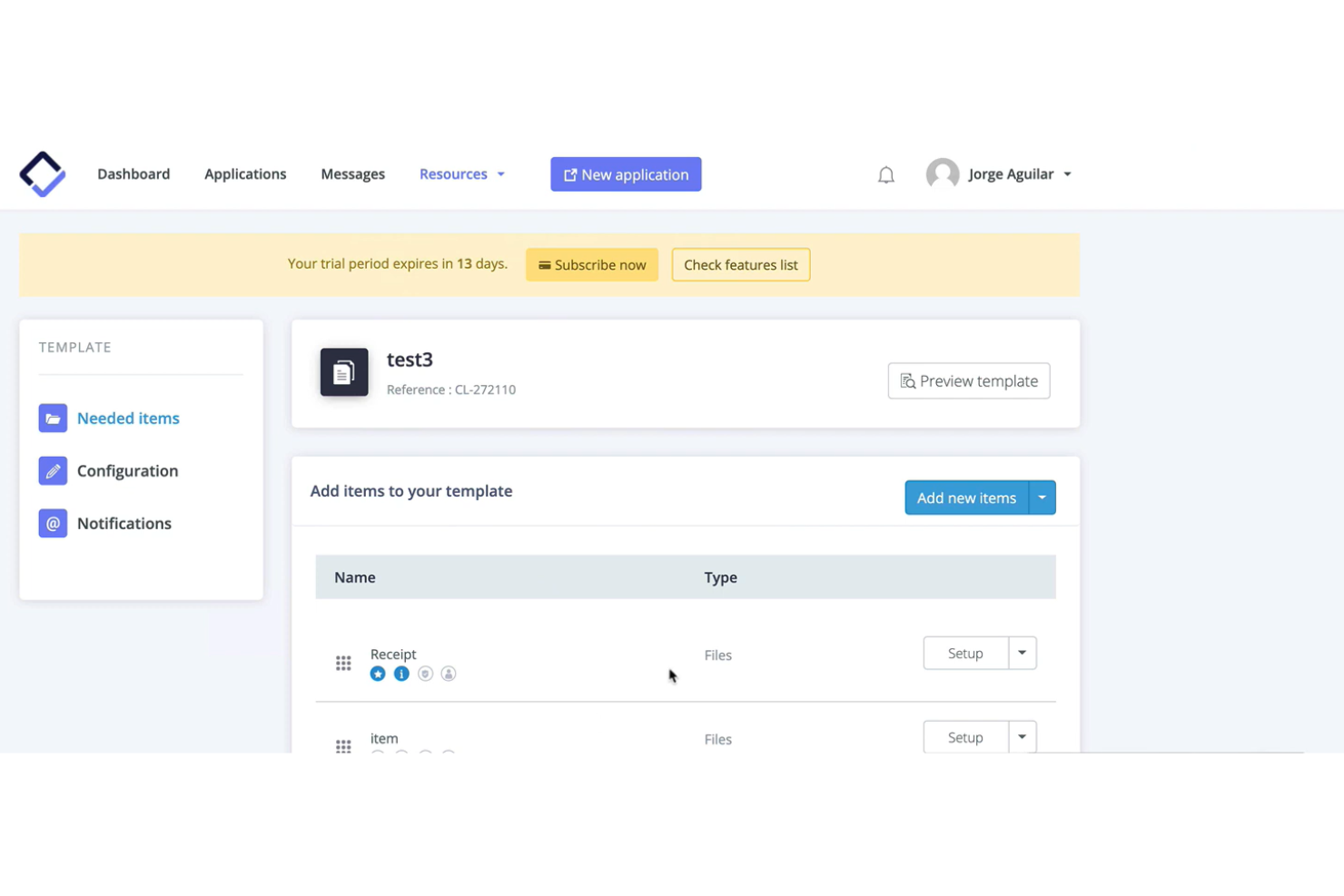
Clustdoc is a workflow automation platform designed for small businesses and professional services teams who need to collect documents, manage client submissions, and simplify onboarding or application processes.
Who Is Clustdoc Best For?
Small business teams in legal, finance, or consulting who need to automate client onboarding and document collection.
Why I Picked Clustdoc
I picked Clustdoc as one of the best because I can build step-by-step onboarding workflows with custom checklists and document requests tailored to each client. I like that my team can automate reminders and approvals, so nothing falls through the cracks. The branded client portal lets us collect forms, signatures, and payments in one place, which keeps everything organized and professional.
Clustdoc Key Features
- Conditional logic workflows: Trigger steps or requests based on client responses.
- Team collaboration tools: Assign tasks and communicate with team members inside the platform.
- Template library: Access ready-made onboarding and document collection templates.
- Audit trail tracking: Monitor every action and change made within each workflow.
Clustdoc Integrations
Native integrations include Google Drive, Dropbox, OneDrive, Docusign, Stripe, and Clustdoc also offers an API for custom integrations.
Pros and Cons
Pros:
- Conditional logic customizes onboarding steps
- Automated reminders reduce manual follow-ups
- Client portal supports secure document uploads
Cons:
- Limited custom branding options
- No built-in time tracking feature

Best for low-code process design
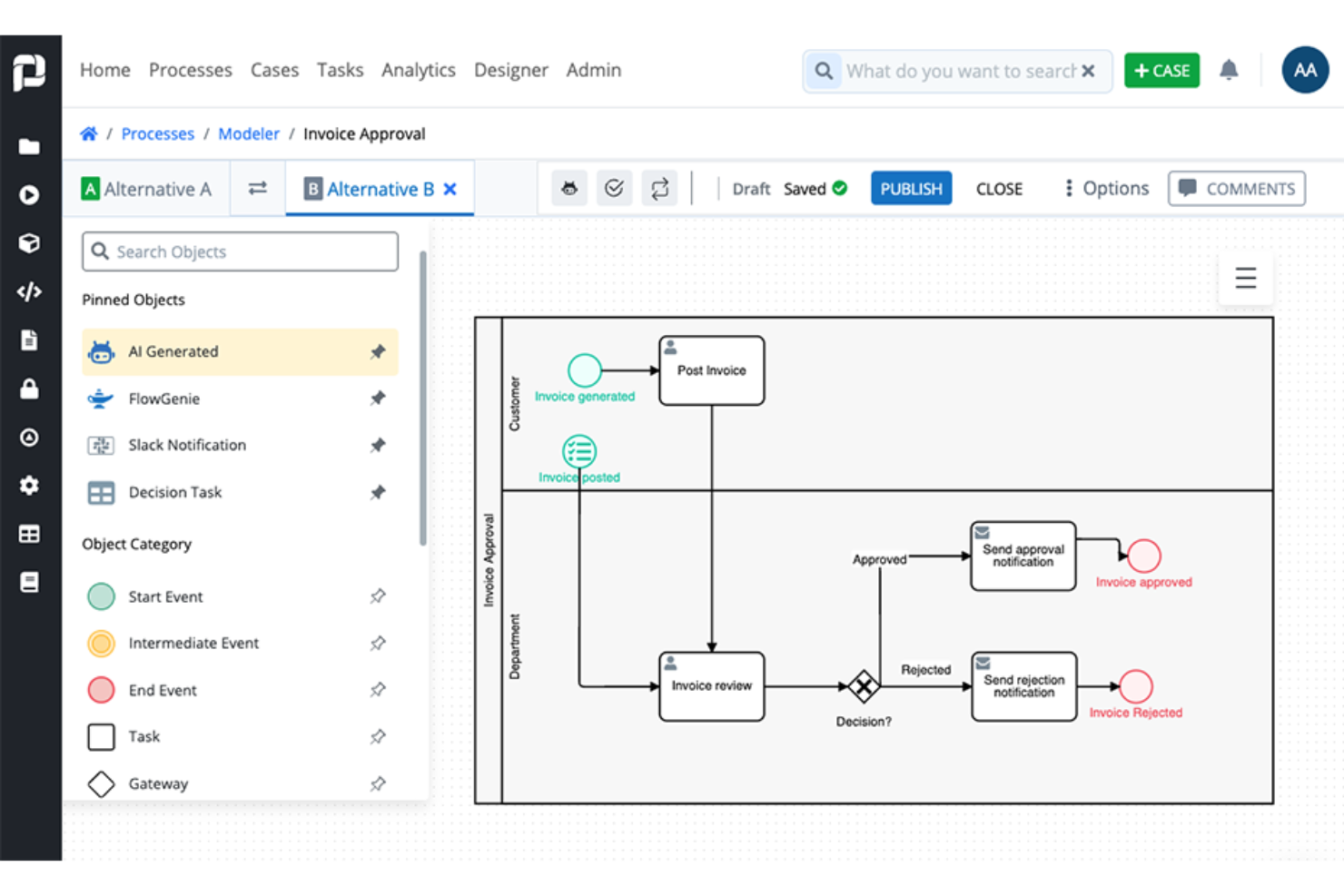
ProcessMaker is a workflow automation platform for operations teams and business analysts who need to map, automate, and optimize complex business processes without heavy IT involvement.
Who Is ProcessMaker Best For?
Mid-sized and enterprise operations teams who need to automate and manage complex, multi-step business processes.
Why I Picked ProcessMaker
I picked ProcessMaker as one of the best because I can visually design and automate complex workflows using its low-code process modeler. I like that I can set up multi-step approvals and conditional routing without heavy IT support. My team uses its drag-and-drop form builder for document processing and standardize data collection.
ProcessMaker Key Features
- Role-based access controls: Set permissions for users based on job function or department.
- Process analytics dashboard: Monitor process performance with real-time visual reports.
- Document management integration: Attach, store, and retrieve documents within workflows.
- REST API support: Connect external systems and automate data exchange.
ProcessMaker Integrations
Integrations include SAP, Salesforce, Microsoft SharePoint, Slack, Google Drive, Box, Dropbox, Oracle, and Jira.
Pros and Cons
Pros:
- Real-time process analytics and dashboards
- Strong e-signature integration
- Built-in approval routing for multi-step processes
Cons:
- Occasional delays in customer support response
- Custom scripting requires technical expertise

Knack
Best for database-driven workflow management
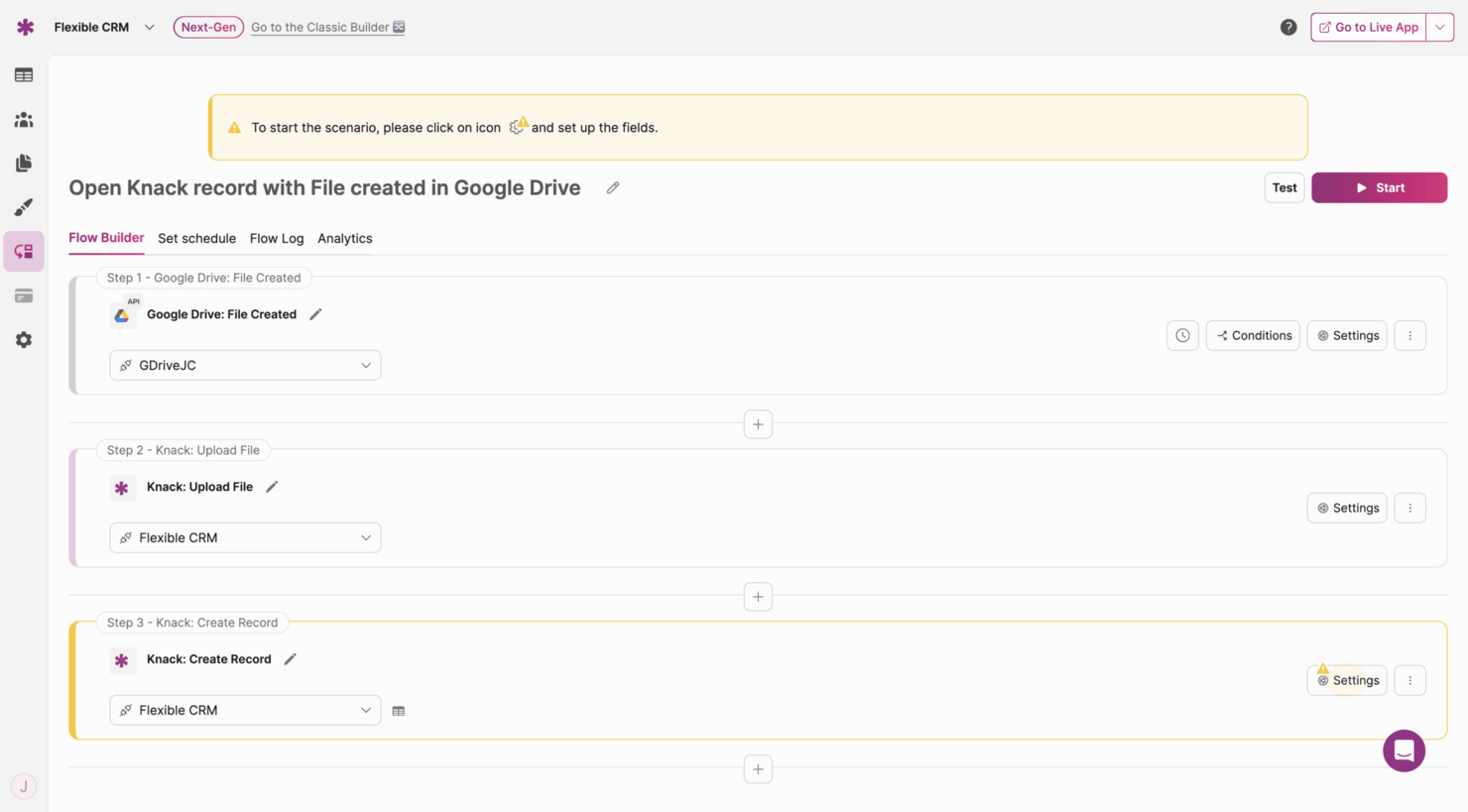
Knack gives small businesses and operations teams a way to build custom workflow apps that connect data, automate processes, and manage tasks without needing to code.
Who Is Knack Best For?
Operations managers and small business owners who need to build custom workflow solutions around their unique data and processes.
Why I Picked Knack
I picked Knack as one of the best because I can design workflow apps that connect directly to my business data, letting me automate approvals, notifications, and status changes without coding. I like that I can build custom dashboards and forms that match my team’s exact process steps. In practice, that means my team is able to manage everything from order tracking to project handoffs in one place, all driven by our own database structure.
Knack Key Features
- Role-based access controls: Set permissions for users and groups to control data visibility.
- Custom notifications: Send automated emails or alerts based on workflow triggers.
- File uploads: Allow users to attach and store documents within records.
- Calendar views: Display tasks, events, or deadlines in a visual calendar format.
Knack Integrations
Integrations include Zapier, Make, Integromat, Webhooks, Google Sheets, Mailchimp, QuickBooks, Salesforce, Slack, and Dropbox. An API is also available for custom integrations.
Pros and Cons
Pros:
- Supports file uploads within workflow records
- Database-centric architecture for relational data
- Custom database builder for unique workflows
Cons:
- Basic front-end design and styling options
- Limited native multi-step automation logic

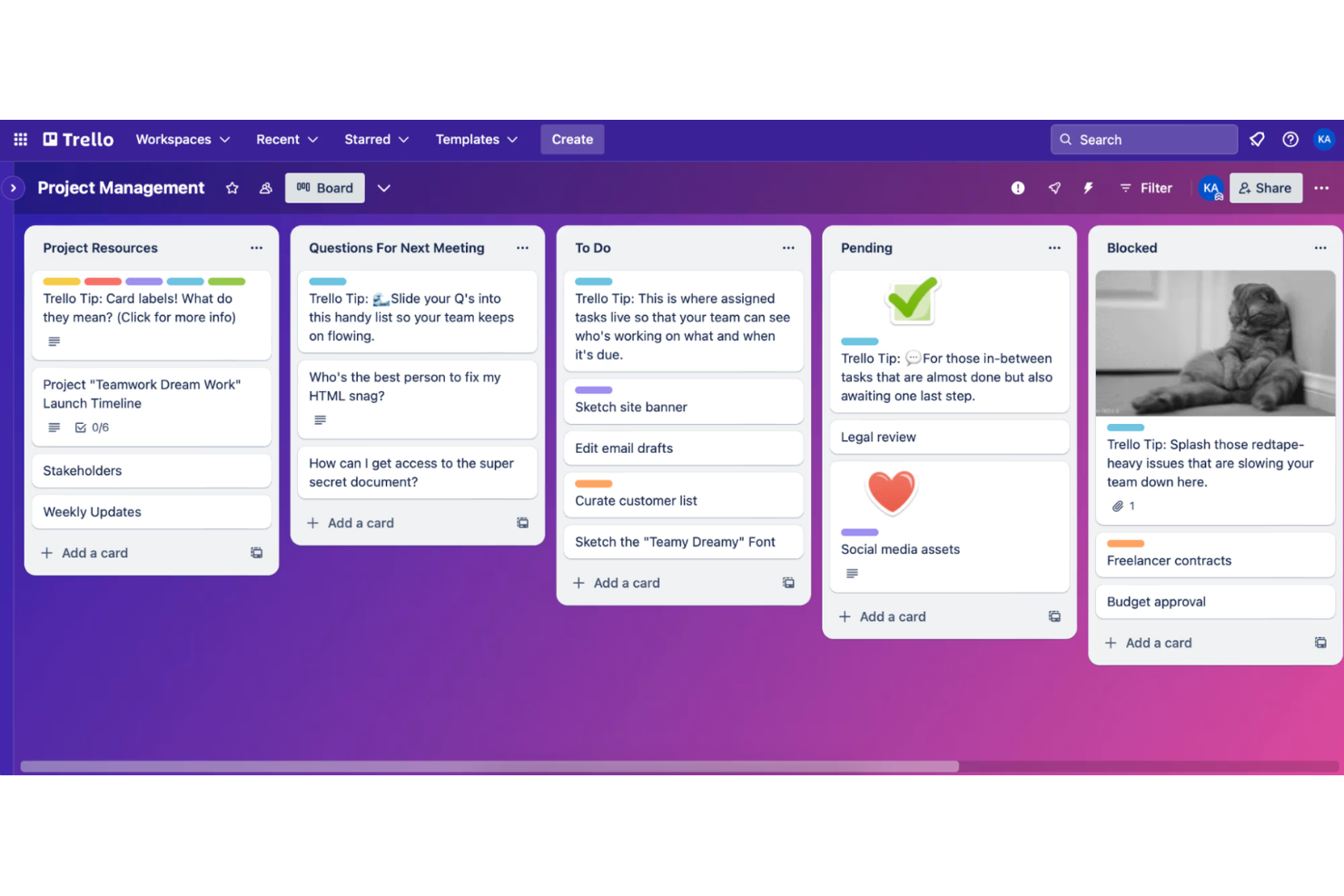
Trello gives small business teams a visual way to organize projects, manage workflows, and track progress using customizable boards, making it easy for marketing, operations, and client service teams to collaborate and stay on top of tasks.
Who Is Trello Best For?
Small business teams in marketing, operations, or client services who want a simple, visual way to manage projects and workflows.
Why I Picked Trello
I picked Trello as one of the best because I can set up kanban boards in minutes and customize lists for each stage of my team’s workflow. I like using Trello’s card system to attach files, add checklists, and assign tasks to specific team members. My team uses Power-Ups to add calendar views and automate repetitive actions right from the board.
Trello Key Features
- Butler automation: Automate card movements, due dates, and notifications with rule-based triggers.
- Board templates: Choose from a library of pre-built workflow templates for different business needs.
- Custom fields: Add dropdowns, dates, or text fields to cards for tailored data tracking.
- Activity log: Track all board and card changes in a detailed timeline.
Trello Integrations
Integrations include Slack, Google Drive, Gmail, Microsoft Teams, Jira, Dropbox, Evernote, Salesforce, and Box.
Pros and Cons
Pros:
- Board templates speed up new project setup
- Card checklists help track task subtasks
- Kanban boards make workflow stages visible
Cons:
- Card comments can get buried in busy boards
- No built-in Gantt or timeline view
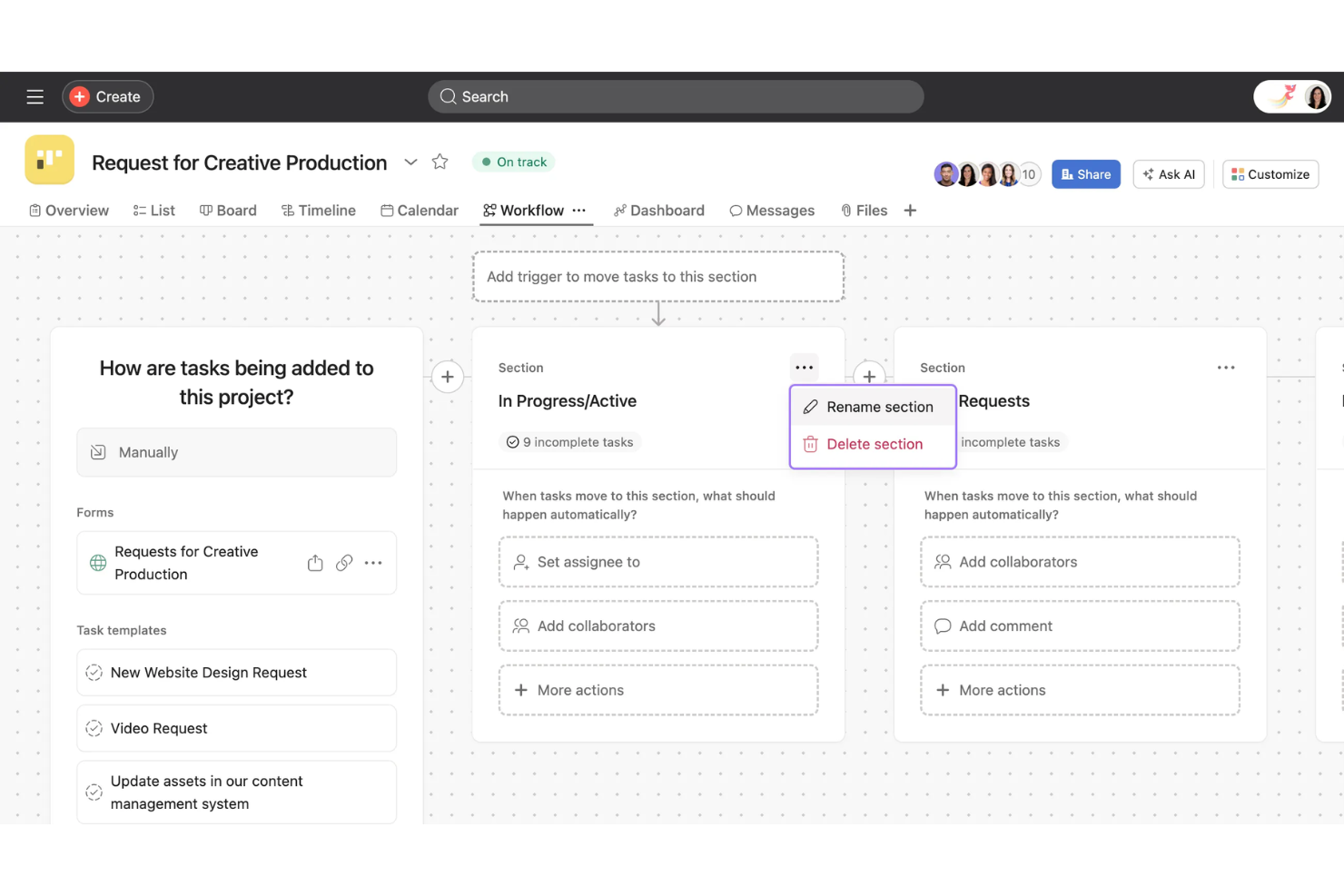
Asana is a workflow management platform that helps small business teams organize projects, assign tasks, and track progress across marketing, operations, and client work in one place.
Who Is Asana Best For?
Project leads and team managers at small to midsize businesses who need to coordinate tasks and deadlines across multiple projects.
Why I Picked Asana
I picked Asana as one of the best because I can assign tasks, set dependencies, and visualize project timelines with its timeline and board views. My team uses Asana to coordinate marketing initiatives and product launches, keeping everyone aligned on deadlines and deliverables. I like that I can automate routine tasks and set up custom rules to reduce manual follow-up.
Asana Key Features
- Forms: Collect and route work requests directly into projects.
- Milestones: Mark key points in projects to track progress.
- Workload management: View team capacity and balance assignments.
- Project templates: Start new workflows quickly with pre-built templates.
Asana Integrations
Integrations include Slack, Google Drive, Microsoft Teams, Salesforce, Dropbox, Zoom, Jira Cloud, Outlook, HubSpot, and Zapier.
Pros and Cons
Pros:
- Milestones track progress toward key goals
- Task dependencies prevent missed handoffs
- Timeline view helps visualize project schedules
Cons:
- Subtasks can be hard to manage at scale
- Guest access controls are basic
Other Process Management Software for Small Business
Here are some additional process management software options for small business that didn’t make it onto my shortlist, but are still worth checking out:
- Bizagi
For visual process modeling in small teams
- Jira
For tracking complex workflows
- Smartsheet
For spreadsheet-style process planning
- Wrike
For real-time workflow visibility
- monday AI Workspace
For customizable workspaces
- Orderry
For service business job tracking
- Pabbly Connect
For multi-app workflow connections
- UiPath
For robotic task automation
- Bitrix24
For integrated communication tools
- Nintex Process Manager
For documenting procedures


How I Evaluate Process Management Software for Small Business
I evaluate these tools in two layers: the core functionality a small team actually needs—like recurring checklists and process templates—and the differentiators that make one tool the right fit.
Core Functionality (Table Stakes For This List)
When I'm selecting tools for my list, I rank each one on a scale from 0 (does not offer the functionality) to 5 (excels in this area) for each core functionality listed below. Then, I calculate the tool's total score into a percentage. Each tool needs to achieve a minimum total score of 65% to be considered for inclusion.
- Process Mapping & Documentation: I look for visual workflow builders where you can map out a process like employee onboarding or client intake step by step, not just describe it in a text doc.
- Workflow Automation: Each tool should let you set triggers and conditions that move work forward automatically, like routing an approval to a manager when a form is submitted.
- Recurring Task & Checklist Management: I check whether you can save a process as a reusable template, so something like a monthly close or weekly reporting cycle launches with the right steps every time.
- Collaboration & Task Assignment: The tool should support role-based task assignment with comments and mentions, so team members stay aligned within the process instead of chasing updates over email.
- Progress Tracking & Reporting: Dashboards and reports that show where processes stall matter here. I evaluate whether you can spot a bottleneck, like an approval stuck for three days, at a glance.
- Integrations With Business Tools: Small teams rely on connected stacks, so I look at native integrations with tools like Google Workspace, Slack, and QuickBooks, plus support for Zapier or an open API.
Once I have a list of tools that meet the criteria, I consider what sets each platform apart.
Differentiating Factors (What Sets Vendors Apart)
Here's how I compare and contrast different vendors:
Standout Features
Conditional logic branching is a big differentiator. A tool that adjusts the next step based on a form response—like skipping a legal review when a contract falls below a set threshold—saves small teams from manually rerouting work. Embedded forms that capture structured data at kickoff are equally valuable, since they feed variables into later steps without copy-pasting between apps. I also evaluate whether a platform offers guest or client portals, so external stakeholders can submit requests or track progress without needing a paid seat.
Beyond Features
Pricing transparency matters for small teams. I check whether a vendor locks automations or templates behind enterprise tiers, since a five-person team running client onboarding workflows shouldn't need to upgrade just to add conditions. Time-to-value is another factor I weigh—pre-built templates for common processes like employee offboarding or vendor approvals help teams go live in days, not weeks. I also look at support availability on lower-tier plans, because small businesses rarely have a dedicated admin to troubleshoot configuration issues on their own.
How to Choose Process Management Software for Small Business
It’s easy to get bogged down in long feature lists and complex pricing structures. To help you stay focused as you work through your unique software selection process, here’s a checklist of factors to keep in mind:
| Factor | What to Consider |
|---|---|
| Scalability | Will the software handle more users, data, or workflows as your business grows? Check user limits and upgrade paths. |
| Integrations | Does it connect natively to your existing tools (like accounting, CRM, or email)? Avoid relying solely on third-party connectors. |
| Customizability | Can you tailor workflows, fields, and permissions to match your processes without heavy IT involvement? |
| Ease of use | Will your team adopt it quickly, or will training be a barrier? Look for intuitive navigation and clear labeling. |
| Implementation and onboarding | How long will setup take, and what resources are required? Ask about migration support, templates, and onboarding help. |
| Cost | Are pricing tiers transparent and predictable as you scale? Watch for hidden fees or required add-ons. |
| Security safeguards | Does the tool offer role-based access, data encryption, and compliance with relevant standards (like GDPR)? |
| Support availability | What support channels are offered, and during what hours? Consider if you’ll need live help or self-service resources. |
What is Process Management Software for Small Business?
Process management software for small business is a digital tool that helps teams organize, track, and automate recurring workflows and tasks. It centralizes process documentation, assigns responsibilities, and monitors progress so teams can reduce manual work and errors. These platforms are designed to fit the needs and budgets of startups and smaller organizations, making it easier to manage day-to-day operations and adapt as the business grows.
Features
When selecting process management software for small business, keep an eye out for the following key features:
- Task assignment: Assign specific tasks to team members, set deadlines, and track completion to ensure accountability and progress.
- Workflow automation: Automate repetitive steps in your processes, such as approvals or notifications, to save time and reduce manual errors.
- Document management: Store, organize, and share files within the platform so everyone has access to the latest versions and related materials.
- Role-based permissions: Control who can view, edit, or approve different parts of your workflows to protect sensitive information and maintain order.
- Progress tracking: Visualize the status of tasks and processes with dashboards, kanban boards, or progress bars for real-time oversight.
- Customizable forms: Create forms to capture data, requests, or feedback directly within your workflows, tailored to your business needs.
- Calendar integration: Sync tasks and deadlines with team calendars to keep everyone aligned on upcoming milestones and deliverables.
- Reporting and analytics: Generate reports on workflow efficiency, bottlenecks, and team performance to support data-driven improvements.
- Mobile access: Use the software on smartphones or tablets so your team can manage processes and tasks from anywhere.
- Integration capabilities: Connect with other business tools, such as email, CRM, or accounting platforms, to simplify information flow and reduce duplicate work.
Benefits
Implementing process management software for small business provides several benefits for your team and your business. Here are a few you can look forward to:
- Greater visibility: Track tasks and workflows in real time, so you always know what’s in progress and what needs attention.
- Improved accountability: Assign responsibilities and deadlines, making it clear who owns each step and reducing missed tasks.
- Faster onboarding: Use templates, guided tours, and centralized documentation to help new team members get up to speed quickly.
- Reduced manual work: Automate repetitive tasks and approvals, freeing up your team to focus on higher-value activities.
- Better collaboration: Centralize communication, files, and updates so everyone stays aligned and informed throughout each process.
- Informed decisions: Access reporting and analytics tools to identify bottlenecks, measure performance, and optimize workflows.
- Enhanced security: Control access to sensitive information with role-based permissions and audit trails, protecting your business data.
Costs and Pricing
Selecting process management software for small business requires an understanding of the various pricing models and plans available. Costs vary based on features, team size, add-ons, and more. The table below summarizes common plans, their average prices, and typical features included in process management software for small business solutions:
Plan Comparison Table for Process Management Software for Small Business
| Plan Type | Average Price | Common Features |
|---|---|---|
| Free Plan | $0 | Basic task management, limited users, simple workflow templates, and basic support. |
| Personal Plan | $5-$15/user/month | Task assignment, calendar integration, limited automation, file storage, and email notifications. |
| Business Plan | $15-$35/user/month | Advanced workflow automation, reporting tools, integrations, role-based permissions, and mobile access. |
| Enterprise Plan | $35-$60/user/month | Custom integrations, enhanced security, priority support, advanced analytics, and onboarding assistance. |
Process Management Software for Small Business FAQs
Here are some answers to common questions about process management software for small business:
Is business process management software (BPM) different from process management software?
Yes, a business process management software or BPM software differs from a process management tool:
- Process management software focuses on task coordination and team collaboration. It is designed to help users organize, assign, and track individual pieces of work within a project.
- A BPM platform focuses on workflow automation and systemic optimization. It is designed to model, execute, and measure end-to-end complex processes that are repeatable and structured.
In short: If you want to help your team stay organized, you want process management software. If you want to eliminate manual work through strict automation and data integration, you are looking for a BPM solution.
How do I know if my small business needs process management software?
If you’re struggling to keep track of tasks, deadlines, or team responsibilities, or if manual processes are slowing you down, it’s a good sign you could benefit from process management software. These tools help organize workflows and reduce errors as your business grows.
Can process management software integrate with my existing tools?
Yes, most process management software for small business offers integrations with popular tools like email, calendars, CRM, and accounting platforms. Always check which integrations are available natively and whether you’ll need third-party connectors for your specific stack.
Is process management software difficult to set up for a small team?
No, most process management software solutions are designed for quick setup and include onboarding resources like templates, product tours, and training videos. You can usually get started without IT support, but more advanced customization may require extra time or technical help.
What security features should I look for in process management software?
Look for role-based permissions, data encryption, and compliance with standards like GDPR. These features help protect sensitive business information and control who can access or edit different workflows.
How much should I expect to pay for process management software for small business?
Pricing varies, but most small businesses pay between $5 and $35 per user per month for business plans. Free plans are available with limited features, while enterprise plans with advanced security and support cost more. Always review what’s included at each tier.