

19 Best Focus Apps for 2026

Best Focus Apps Shortlist


Focus apps are digital tools that help you block distractions, manage your attention, and stay on task throughout the workday. If you’re searching for the best focus apps, you’re likely juggling shifting priorities, constant notifications, and the pressure to deliver results without losing momentum. The right app can give you more control over your workflow, whether you need strict website blocking, Pomodoro timers, or detailed usage analytics. In this list, you’ll find options tailored for different work styles and platforms, so you can choose the tool that fits your team’s needs and helps you maintain focus in 2026.
Why Trust Our Software Recommendations
Our team has been testing and reviewing software since 2012. As project managers ourselves, we know how difficult—and important—it is to choose the right software.
For this guide, we evaluated tools using hands-on testing and independent research, scoring tools using our selection criteria. We also draw on insights from industry thought leaders and practicing project management experts.
Our reviews reflect our human editorial judgment, not a sales pitch.
Expert reviewers:
Focus Apps Comparison Table
This comparison table summarizes pricing details for my top focus app selections:
| Tool | Best For | Trial Info | Price | ||
|---|---|---|---|---|---|
| 1 | Best for visual progress tracking with timers | Free plan available | Free to download | Website | |
| 2 | Best for multi-device website blocking | 7-day free trial available | From $3.33/month (billed annually) | Website | |
| 3 | Best for distraction-free work intervals | 7-day free trial available | From $3.33/month (billed annually) | Website | |
| 4 | Best for combining tasks with Pomodoro sessions | Free plan available | Free to download | Website | |
| 5 | Best for detailed app usage analytics | Free plan available | Free to download | Website | |
| 6 | Best for customizable daily limits | Free plan available | Free to download | Website | |
| 7 | Best for intentional app opening delays | Not available | From $5.99/month (billed annually) | Website | |
| 8 | Best for gamified productivity incentives | Free plan available | Free to download | Website | |
| 9 | Best for advanced browser blocking rules | Free plan available | Free to download | Website | |
| 10 | Best for strict website blocking on Mac | Free plan available | Free to download | Website |
Best Focus Apps Reviews
Below are my detailed summaries of the focus apps that made it onto my shortlist. My reviews offer a detailed look at the features, best use cases, and capabilities of each tool to help you find the best one for you.

Forest
Best for visual progress tracking with timers
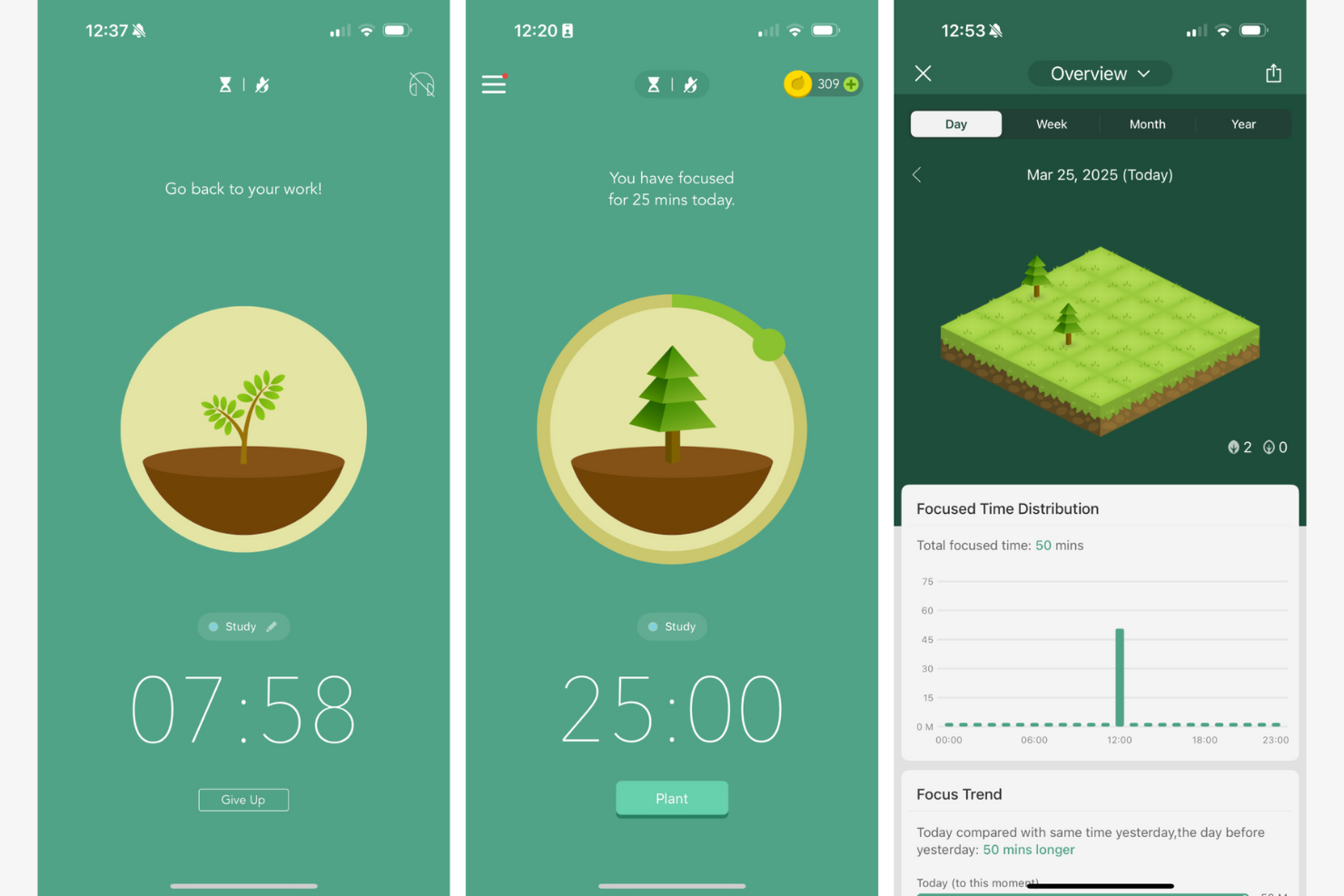
Forest uses a visual approach to help you stay focused by growing virtual trees as you work. This app is a good fit for professionals who want a tangible sense of progress while managing their time. If you’re looking for a focus tool that turns productivity into a visual experience, Forest stands out with its timer-based tree planting system.
Why I Picked Forest
I chose Forest because its visual progress tracking with timers offers a unique way to reinforce focus. The app lets you plant a virtual tree that grows as you stay on task, giving you a clear visual representation of your productivity. I find the growing forest motivates users to avoid distractions, since leaving the app causes your tree to wither. This approach is especially helpful for anyone who wants a more tangible sense of accomplishment while managing their attention.
Forest Key Features
Some other features in Forest make it a versatile choice for anyone looking to improve focus:
- Whitelist Mode: Allows you to select which apps or websites are permitted during focus sessions, giving you more control over your digital environment.
- Daily and Weekly Statistics: Tracks your focused time and displays trends to help you understand your work patterns.
- Team Mode: Lets you join focus sessions with friends or colleagues, encouraging group accountability.
- Customizable Tags: Enables you to categorize focus sessions by project or task, making it easier to review how your time is spent.
Forest Integrations
Native integrations are not currently listed.
Pros and Cons
Pros:
- Team mode enables collaborative focus challenges
- Timer-based sessions support Pomodoro-style workflows
- Visual tree growth motivates consistent focus sessions
Cons:
- No built-in support for recurring schedules
- Limited reporting export options for teams

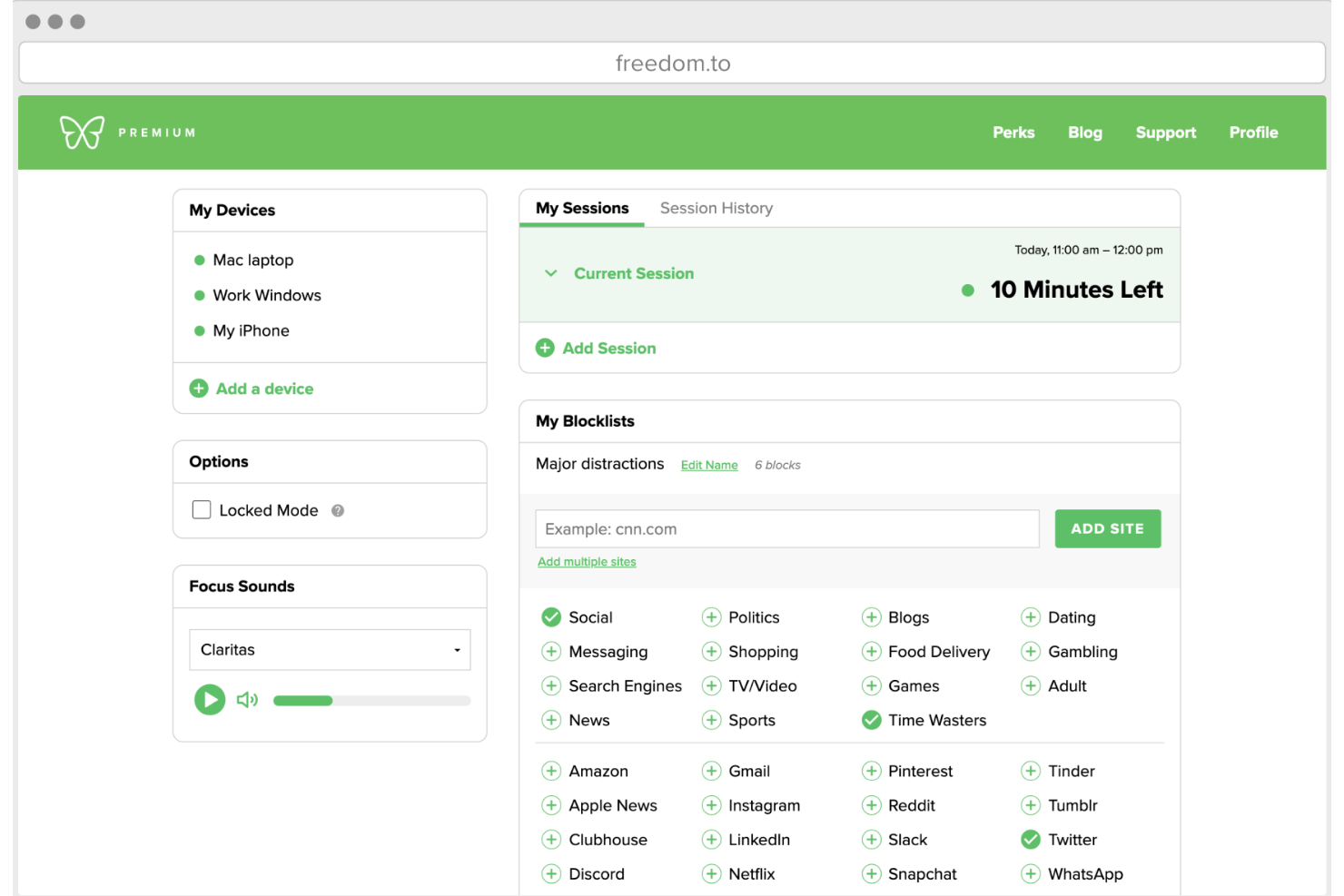
Freedom gives you control over distractions by letting you block websites and apps across all your devices at once. This tool is especially useful for remote teams, freelancers, and anyone who needs to maintain focus in a multi-device environment. If you’re looking for a way to enforce boundaries between work and distractions, Freedom’s cross-platform blocking stands out among focus apps.
Why I Picked Freedom
What sets Freedom apart is its ability to block distracting websites and apps across multiple devices at the same time. This is especially valuable for anyone who works on both a laptop and a phone, since distractions can easily jump from one device to another. I picked Freedom because you can start a session on your computer and have the same restrictions instantly apply to your phone or tablet. This unified blocking approach helps maintain focus no matter where your work happens.
Freedom Key Features
Some other features in Freedom help make it a flexible choice for managing distractions:
- Locked Mode: Prevents you from ending a session early, adding an extra layer of commitment to your focus time.
- Custom Blocklists: Lets you create and save multiple lists of sites and apps to block for different types of work sessions.
- Scheduled Sessions: Allows you to set recurring blocks in advance, so you don’t have to remember to start them manually.
- Ambient Soundscapes: Offers built-in background sounds to help you create a more focused work environment.
Freedom Integrations
Native integrations are not currently listed.
Pros and Cons
Pros:
- Custom blocklists for different work scenarios
- Locked mode prevents ending sessions early
- Blocks websites and apps across all devices
Cons:
- No built-in analytics or productivity reports
- Some users report bypass issues on Android

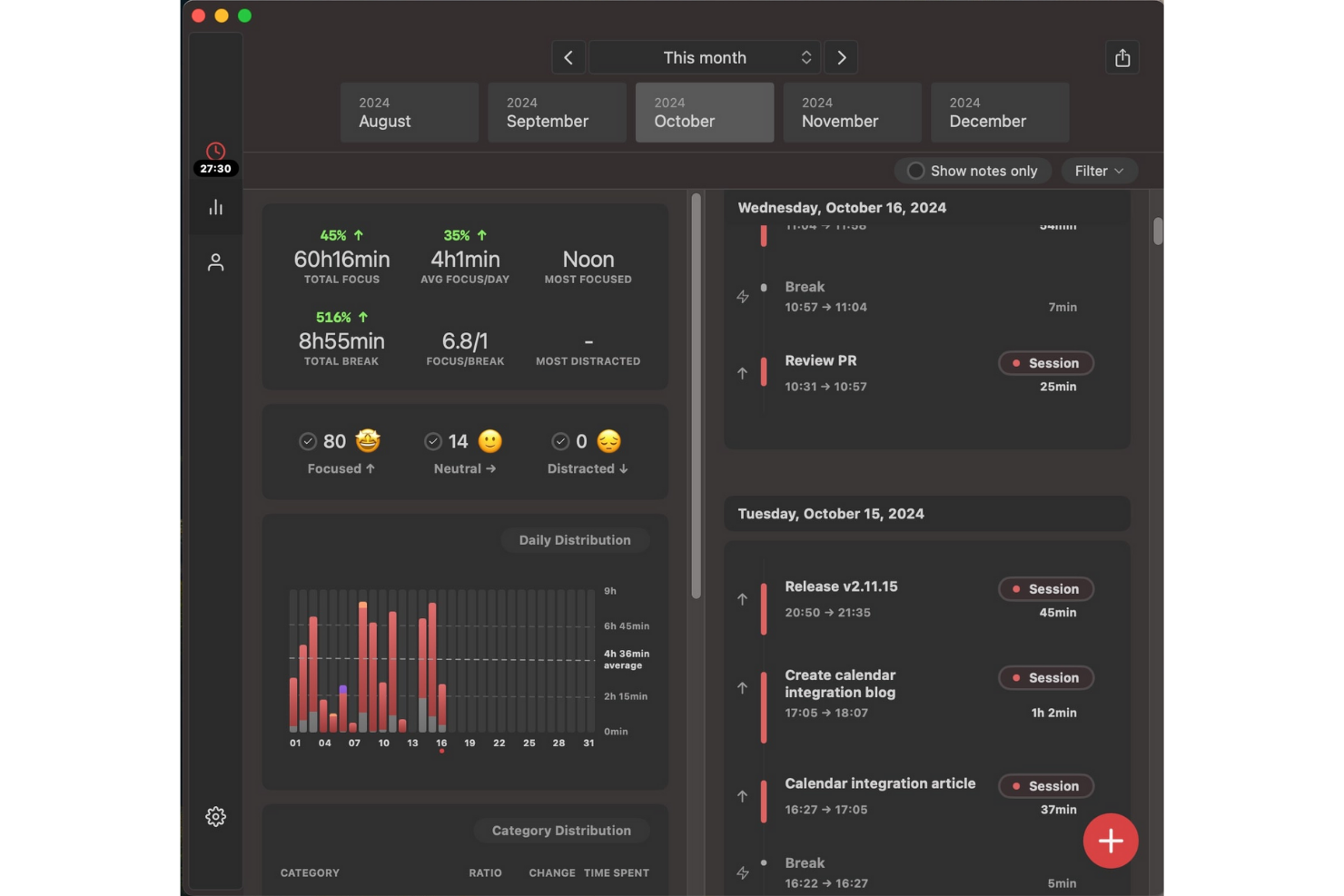
Session Pomodoro takes a unique approach to focus by guiding users through structured, distraction-free work intervals. This tool is especially useful for professionals, freelancers, and remote teams who want to break work into focused sprints and minimize interruptions. With built-in timers and session analytics, Session Pomodoro helps you maintain momentum and track your productivity patterns over time.
Why I Picked Session Pomodoro
What sets Session Pomodoro apart is its focus on creating truly distraction-free work intervals, which is essential for anyone looking to build deep work habits. I picked Session Pomodoro because it combines a minimalist interface with a built-in timer that helps you structure your day into focused sprints. The app also includes features like session analytics and automatic break reminders, so you can track your progress and avoid burnout. For anyone who wants to protect their attention and work in defined bursts, Session Pomodoro offers a focused environment that’s hard to find elsewhere.
Session Pomodoro Key Features
Some other features in Session Pomodoro help you personalize your focus experience and support your workflow:
- Distraction Blocking: Blocks access to distracting websites during active sessions.
- Session Notes: Lets you jot down quick notes or intentions before starting a session.
- Focus Music Integration: Offers built-in background music options to help you concentrate.
- Daily and Weekly Reports: Provides summaries of your completed sessions and focus trends.
Session Pomodoro Integrations
Native integrations are not currently listed.
Pros and Cons
Pros:
- Distraction blocking for specific websites
- Session notes feature for pre-session intentions
- Built-in focus music options for sessions
Cons:
- Lacks advanced analytics for long-term trends
- No mobile app for Android devices
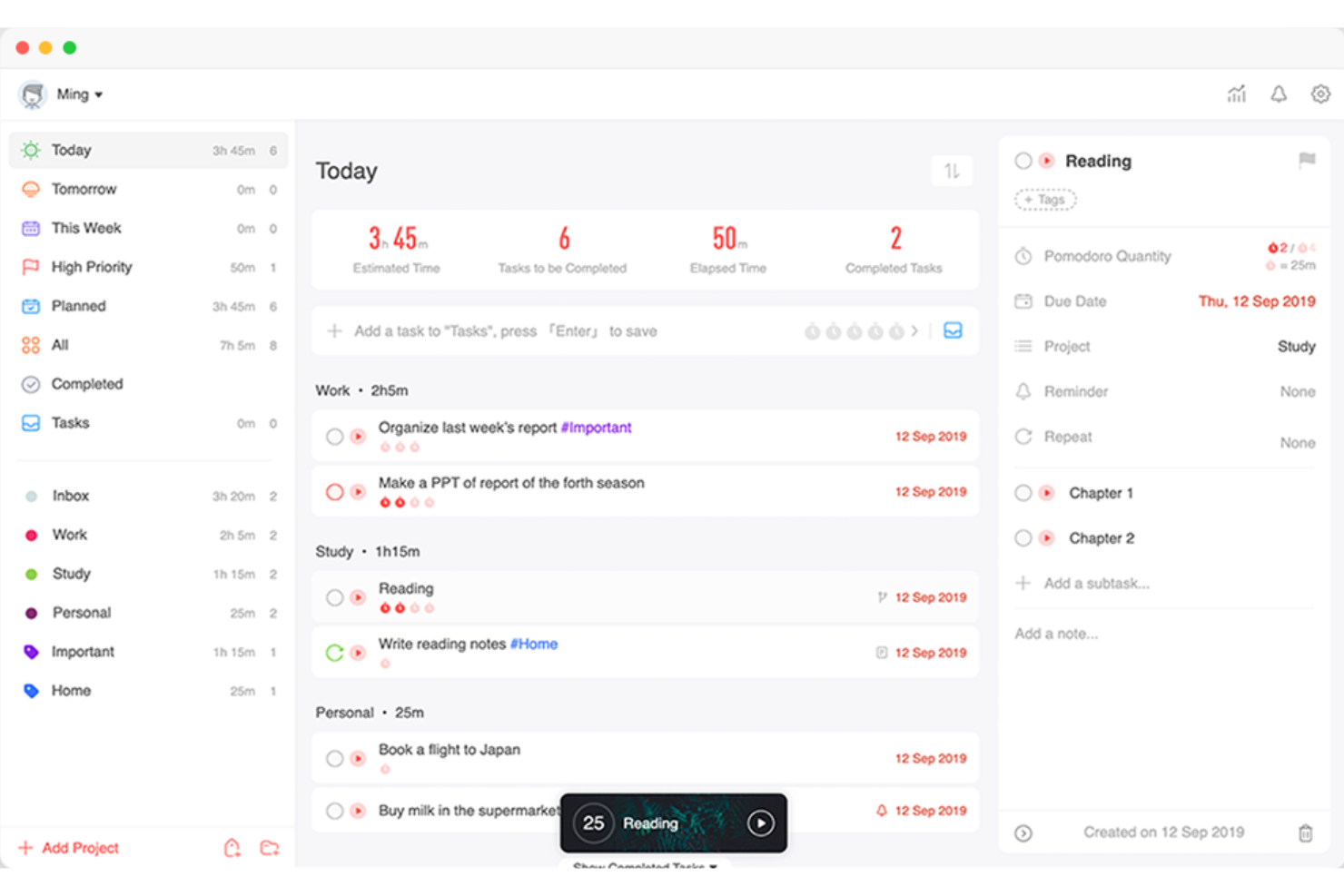
Focus To-Do brings together task management and Pomodoro timers in a single app, making it a practical choice for anyone who wants to structure their workday around focused sprints. This tool is especially useful for project managers, students, and remote workers who need to balance task lists with time-blocked work sessions. If you’re looking for a way to tie actionable tasks directly to Pomodoro cycles, Focus To-Do offers a tightly integrated approach.
Why I Picked Focus To-Do
Combining task management with Pomodoro timers in one place is what makes Focus To-Do stand out among focus apps. If you want to link your to-do list directly to timed work sessions, this tool lets you assign Pomodoro cycles to individual tasks and track your progress as you go. I picked Focus To-Do because it gives you a clear structure for breaking down work into manageable sprints, which is especially helpful for anyone juggling multiple priorities. The built-in analytics also help you see how much time you’re spending on each task, so you can adjust your workflow as needed.
Focus To-Do Key Features
Some other features in Focus To-Do help round out its approach to managing focus and productivity:
- Cross-Device Sync: Keeps your tasks and timers updated across desktop and mobile devices.
- Reminders and Due Dates: Lets you set reminders and deadlines for each task to help you stay on track.
- Subtasks: Allows you to break larger tasks into smaller, actionable steps within your main to-do list.
- Habit Tracking: Includes a built-in habit tracker so you can monitor daily routines alongside your work tasks.
Focus To-Do Integrations
Native integrations are not currently listed.
Pros and Cons
Pros:
- Syncs data across multiple device platforms
- Offers a built-in habit tracking feature
- Combines Pomodoro timer with task lists
Cons:
- No calendar view for task scheduling
- Lacks website or app blocking functionality
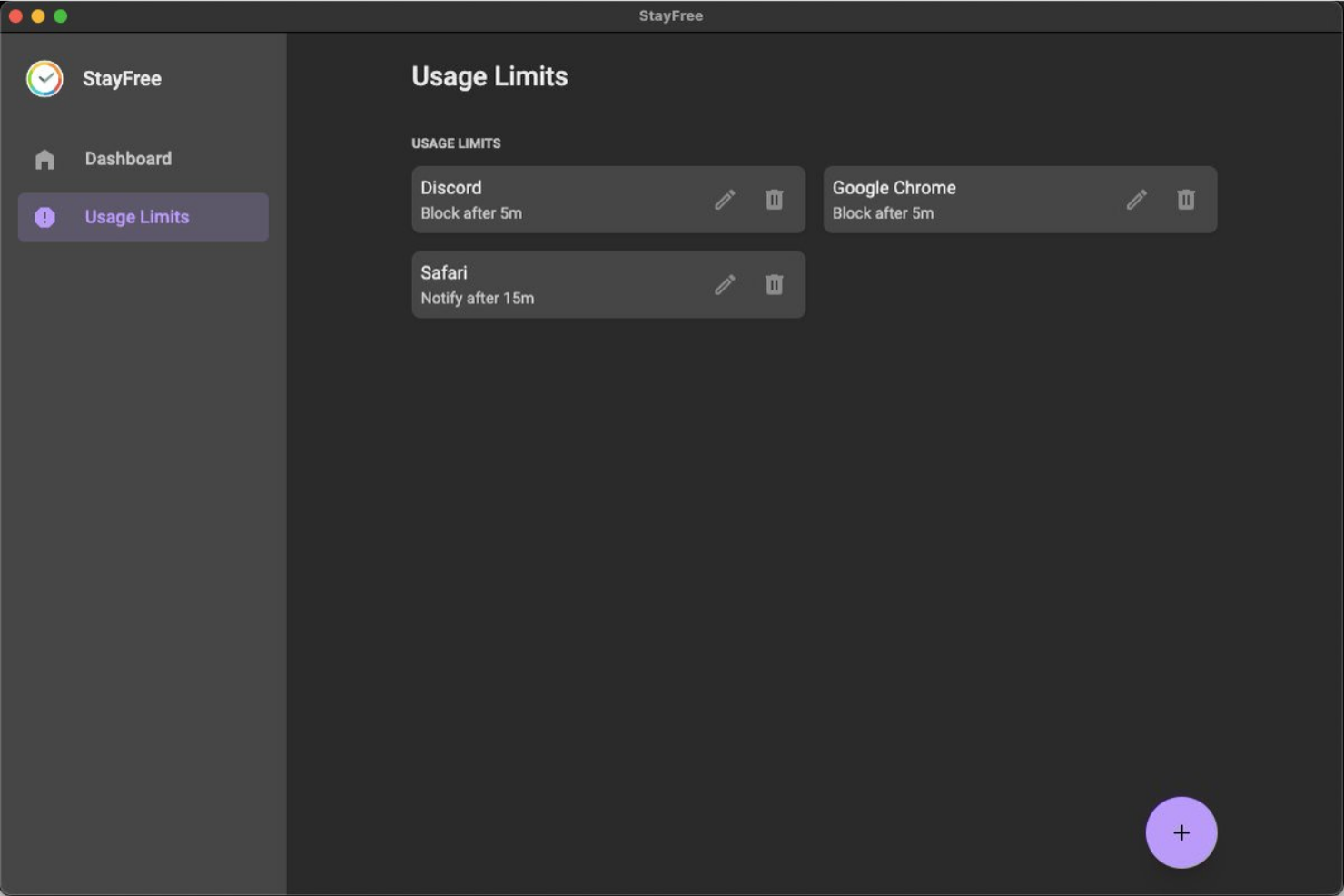
If you want to understand exactly how your time is spent on your phone, StayFree gives you detailed analytics on app usage and screen time. This tool is a strong fit for project managers, freelancers, and anyone who needs to identify digital distractions and set usage limits. StayFree stands out by offering granular reports and customizable alerts that help you take control of your digital habits.
Why I Picked StayFree
When you need to pinpoint exactly where your digital time goes, StayFree offers some of the most detailed app usage analytics available in focus apps. I picked StayFree because it tracks screen time and app usage down to the minute, giving you a clear picture of your habits. The tool also lets you set daily limits for specific apps and sends alerts when you’re close to exceeding them. For anyone serious about reducing distractions and building better focus, these analytics and controls make StayFree a strong choice.
StayFree Key Features
Some other features in StayFree help you manage your focus and digital habits more proactively:
- Historical Usage Charts: Lets you view trends in your app usage over days, weeks, or months.
- Customizable Notifications: Allows you to set personalized reminders and warnings for specific usage patterns.
- Export Data: Enables you to export your usage statistics for further analysis or reporting.
- Widget Support: Offers home screen widgets for quick access to your current usage stats.
StayFree Integrations
Native integrations are not currently listed.
Pros and Cons
Pros:
- Sends alerts when limits are reached
- Lets you set daily app usage limits
- Tracks app usage with detailed analytics
Cons:
- Does not support team or group monitoring
- Only available for Android devices

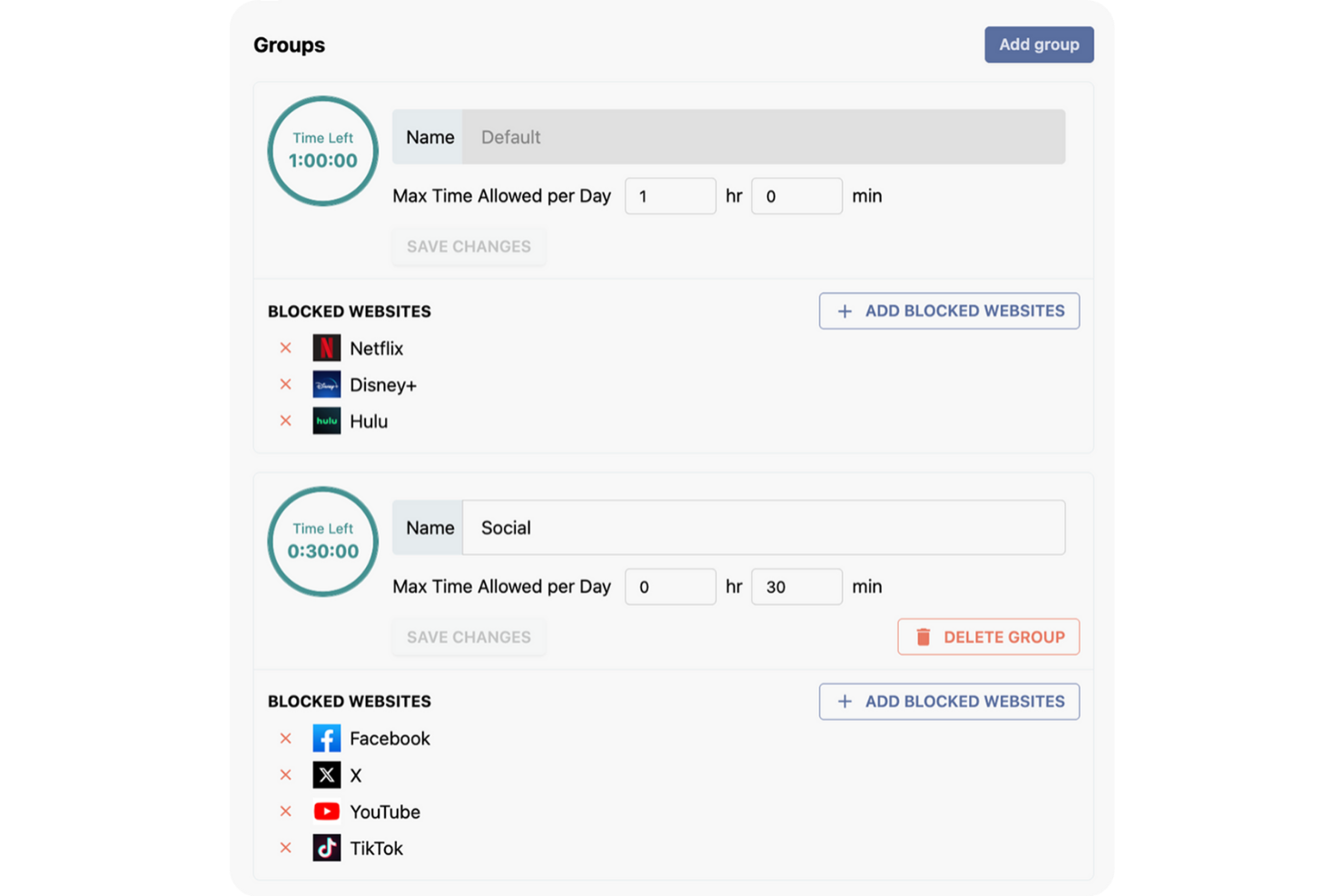
Stay Focused is designed for anyone who wants strict control over their daily digital habits, especially those who need to set precise limits on distracting websites. This tool is a strong fit for project managers, freelancers, and remote workers who want to customize which sites are accessible and for how long each day. With its flexible daily limit settings, Stay Focused helps you enforce boundaries and reclaim your focus during work hours.
Why I Picked Stay Focused
Unlike many focus apps that offer only basic blocking, Stay Focused lets you set highly customizable daily limits for specific websites or categories. I picked Stay Focused because it allows you to define exactly how much time you can spend on distracting sites each day, down to the minute. You can also create exceptions, block entire domains, or even schedule recurring focus periods. This level of control is especially useful if you want to tailor your digital boundaries to match your unique work patterns and productivity goals.
Stay Focused Key Features
Some other features you’ll find in Stay Focused include:
- Nuclear Option: Temporarily blocks all sites on your blocked list for a set period, overriding any existing settings.
- Active Days and Hours Scheduling: Lets you specify which days and times Stay Focused should enforce restrictions.
- Challenge Mode: Requires you to complete a task or answer a question before changing settings, adding friction to disabling blocks.
- Allowed Sites List: Lets you create a whitelist of sites that remain accessible even when restrictions are active.
Stay Focused Integrations
Native integrations are not currently listed.
Pros and Cons
Pros:
- Challenge Mode prevents quick disabling of blocks
- Nuclear Option blocks all sites instantly
- Customizable daily limits for individual websites
Cons:
- No team or group management features
- Does not track detailed usage analytics

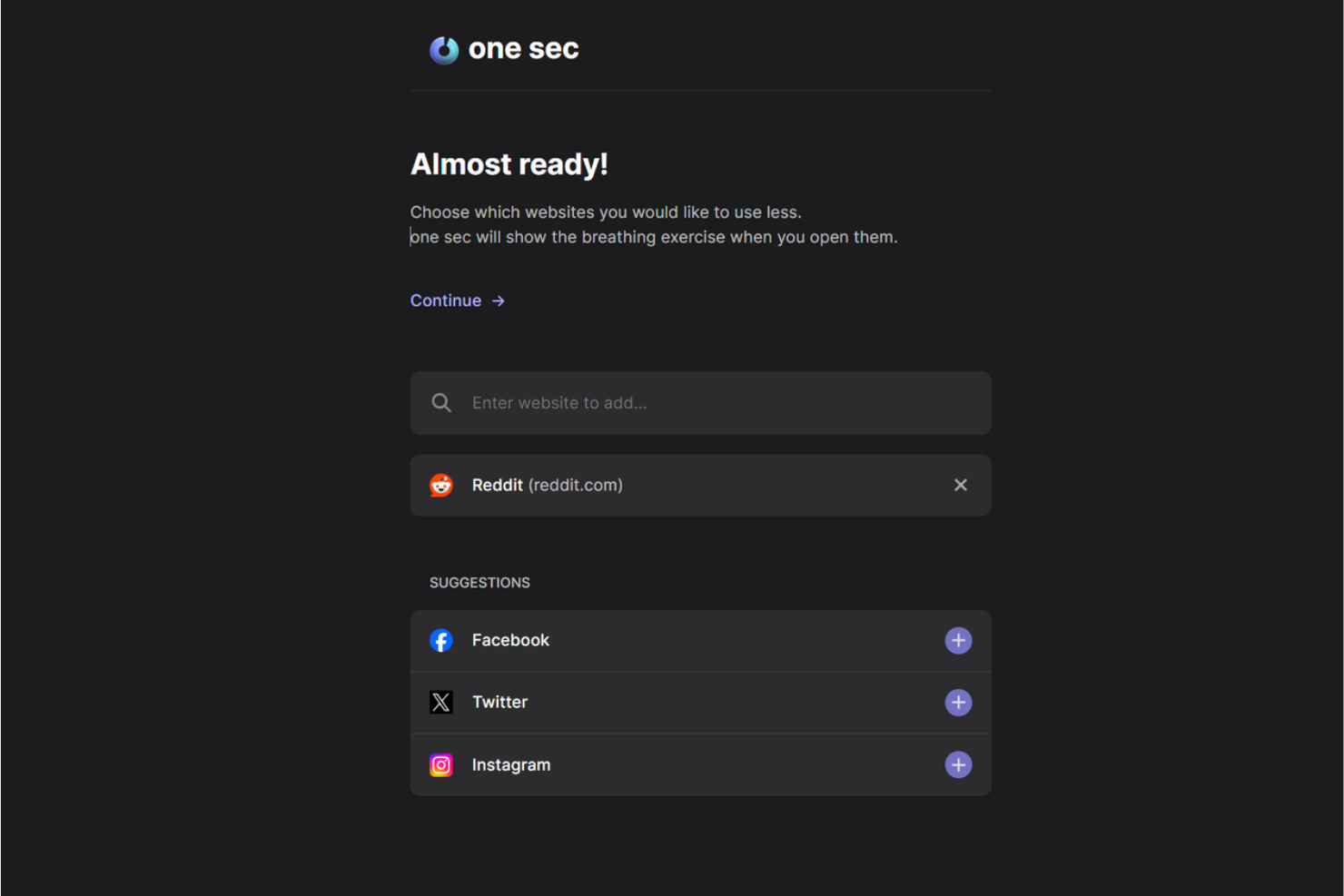
one sec introduces a deliberate pause before you open distracting apps or websites, helping you break automatic habits. This tool is especially useful for professionals, students, and anyone who wants to reduce mindless app usage throughout the workday. By adding a short delay and a mindful prompt, one sec encourages you to make more intentional choices about your digital attention.
Why I Picked one sec
Unlike most focus apps, one sec interrupts your impulse to open distracting apps by adding a short, intentional delay. I picked one sec because it uses a forced pause and a mindful breathing prompt to help you reconsider whether you really want to open an app or website. This approach is especially effective for breaking automatic scrolling habits and building more conscious digital routines. For anyone who struggles with mindless app usage, one sec’s intentional delay creates a valuable moment to reset your focus.
one sec Key Features
Some other features in one sec help you customize your experience and track your progress:
- App and Website Blocking: Lets you set up intentional delays for both apps and websites across devices.
- Analytics Dashboard: Shows detailed statistics on how often you attempt to open blocked apps or sites.
- Shortcuts and Automation Support: Integrates with Apple Shortcuts for custom workflows and triggers.
- Focus Mode Scheduling: Allows you to schedule specific times when delays or blocks are active.
one sec Integrations
Native integrations are not currently listed.
Pros and Cons
Pros:
- Tracks and displays app opening statistics
- Mindful breathing prompt before app opens
- Customizable delay times for each app
Cons:
- Delay can be bypassed with repeated attempts
- Requires device-level permissions for setup

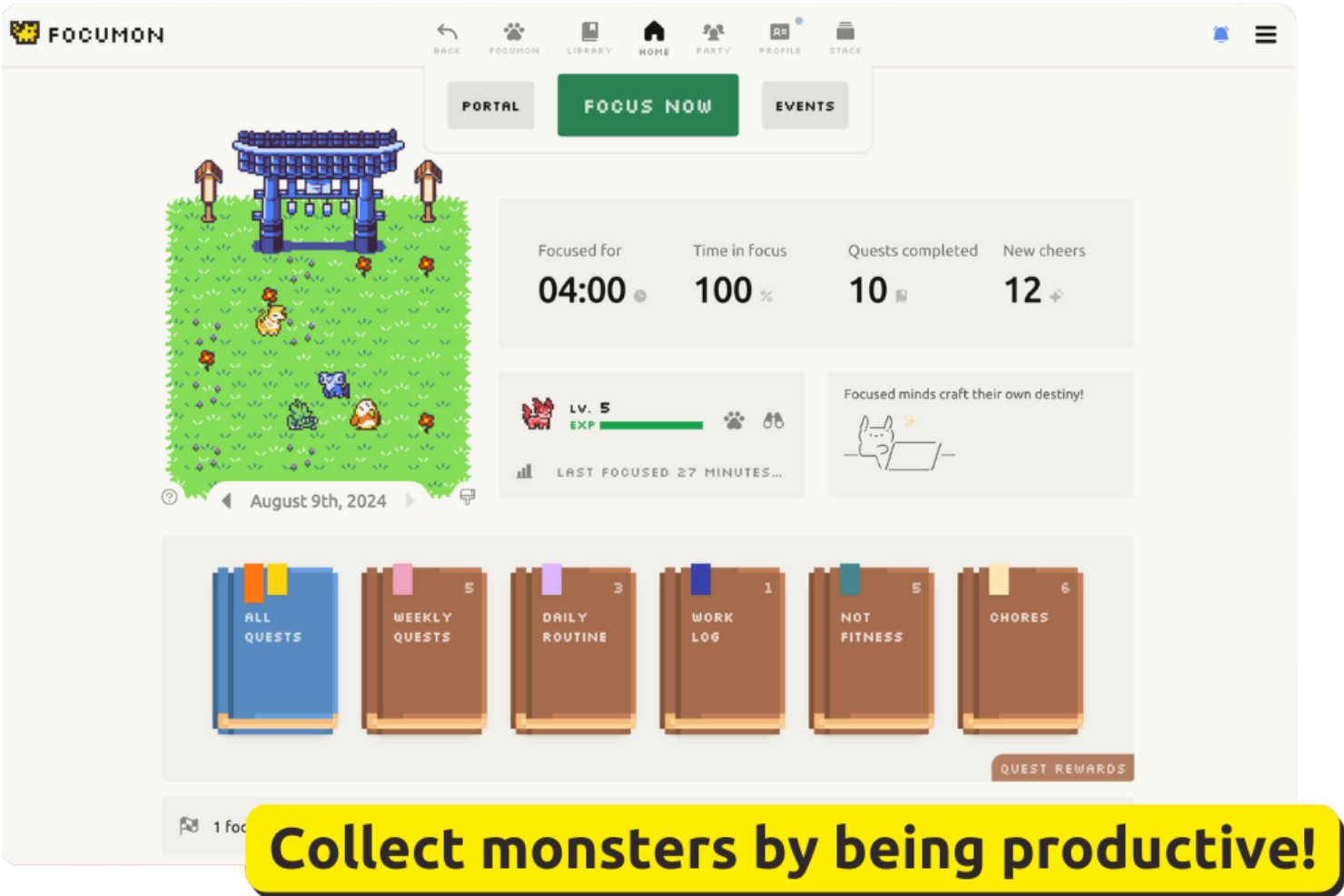
Focumon turns productivity into a game by letting you earn and collect digital creatures as you complete tasks. This approach appeals to teams and individuals who want a playful way to stay motivated and accountable. If you’re looking for a focus app that rewards progress with tangible, gamified incentives, Focumon offers a unique twist on habit-building.
Why I Picked Focumon
What sets Focumon apart is its creative use of gamified incentives to drive productivity. I picked Focumon because it transforms task completion into a rewarding experience by letting you collect and evolve digital creatures as you stay focused. The platform also introduces competitive and collaborative elements, allowing users to join teams and participate in productivity challenges. For anyone who finds traditional focus apps uninspiring, Focumon’s playful approach can make building better habits feel genuinely engaging.
Focumon Key Features
In addition to its gamified rewards system, I also found these features worth noting:
- Daily Focus Timer: Tracks your focused work sessions and helps you monitor productivity streaks.
- Task List Integration: Lets you create, organize, and check off tasks directly within the platform.
- Progress Analytics: Provides visual reports on your completed tasks and focus trends over time.
- Customizable Avatars: Allows you to personalize your digital creatures with unique accessories and themes.
Focumon Integrations
Native integrations are not currently listed.
Pros and Cons
Pros:
- Visual progress analytics track productivity trends
- Team challenges encourage group accountability
- Gamified rewards system motivates consistent focus
Cons:
- No offline functionality for focus sessions
- Progress resets if daily streak is broken

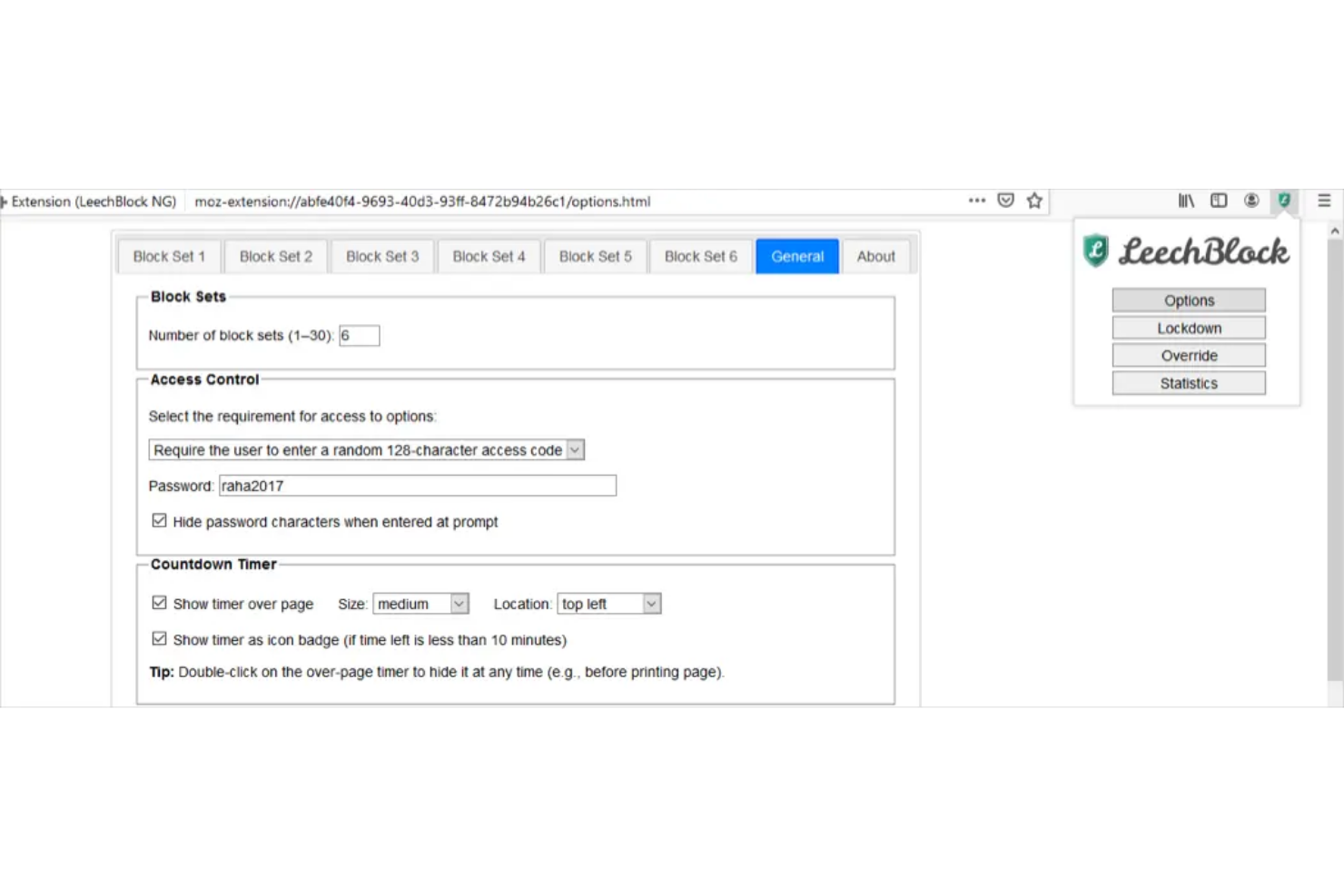
LeechBlock NG is a browser extension designed for anyone who needs granular control over distracting websites. It’s especially useful for professionals and students who want to set up detailed blocking schedules and custom rules for different sites. If you’re looking for a focus app that lets you fine-tune exactly when and how sites are blocked, LeechBlock NG offers a level of flexibility that’s hard to match.
Why I Picked LeechBlock NG
LeechBlock NG stands out for its ability to create highly customized browser blocking rules, which is essential for anyone who needs strict control over online distractions. I picked LeechBlock NG because it lets you set up multiple blocking sets, each with its own schedule, time limits, and exceptions. You can block sites based on specific days, hours, or even after a certain amount of time spent browsing. For users who want to tailor their focus app to match complex work routines or personal productivity goals, LeechBlock NG offers unmatched flexibility.
LeechBlock NG Key Features
Some other features that make LeechBlock NG appealing for focus management include:
- Password Protection: Requires a password to access blocked sites or change settings.
- Lockdown Mode: Instantly blocks all specified sites for a set period.
- Customizable Block Messages: Lets you display personalized messages when a blocked site is accessed.
- Statistics Dashboard: Tracks and displays your browsing and blocking activity over time.
LeechBlock NG Integrations
Native integrations are not currently listed.
Pros and Cons
Pros:
- Lockdown mode enables immediate, total blocking
- Password protection prevents bypassing restrictions
- Supports unlimited custom blocking sets and rules
Cons:
- No built-in focus timer or Pomodoro feature
- No mobile app or cross-device sync
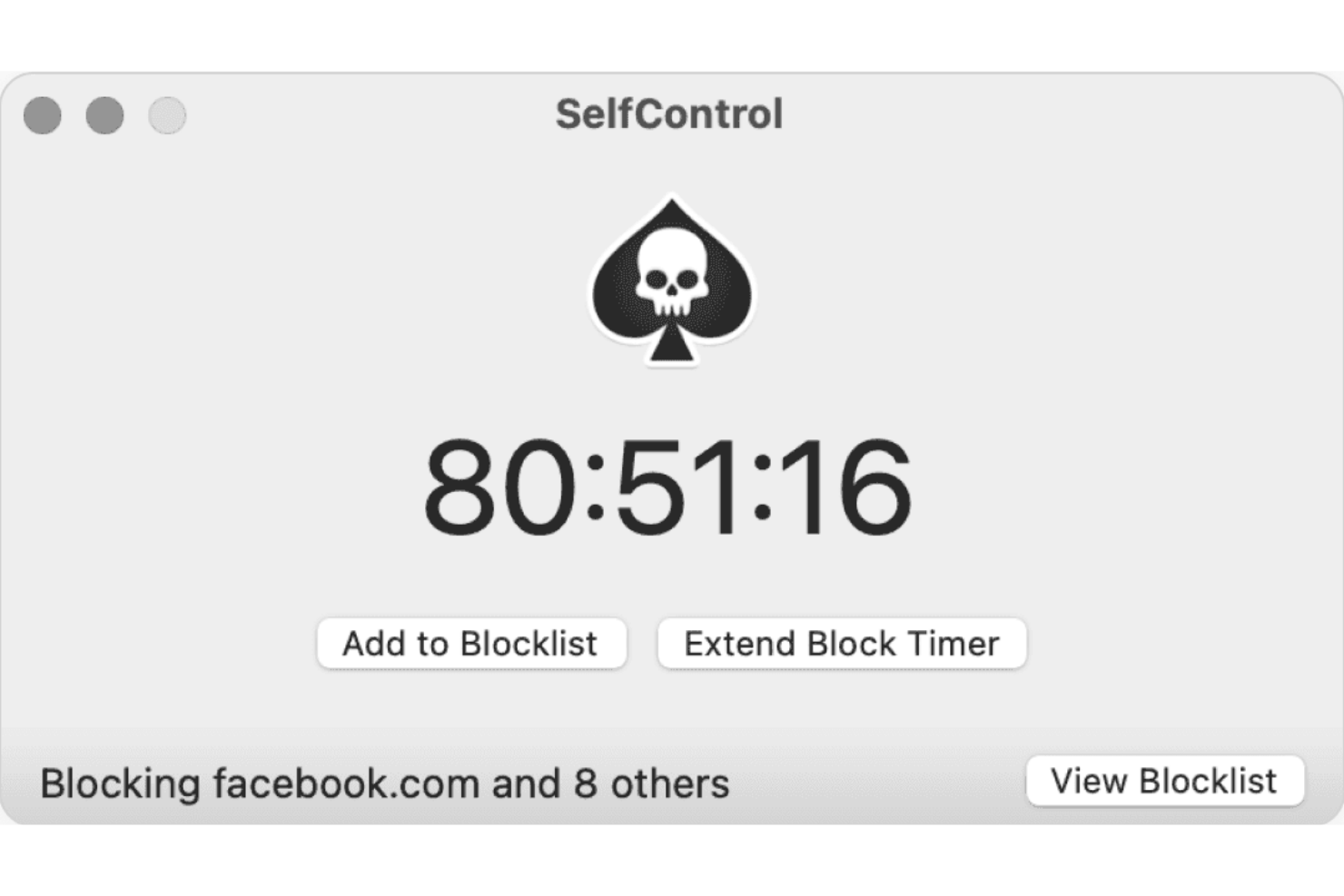
If you need a no-excuses approach to blocking distractions on your Mac, SelfControl is built for you. This app appeals to students, freelancers, and anyone who wants to enforce strict website blocking that can’t be undone—even by restarting your device. SelfControl is a strong choice if you want a focus app that makes it impossible to access blocked sites until your timer runs out.
Why I Picked SelfControl
What sets SelfControl apart is its uncompromising approach to blocking access to distracting websites on Mac devices. I picked SelfControl because once you start a block session, there’s no way to disable it—not even by restarting your computer or deleting the app. This strict enforcement is ideal for anyone who needs a focus app that removes all temptation to override their own rules. For users who struggle with self-discipline or need a hard barrier against online distractions, SelfControl’s irreversible timer and blacklist features make it uniquely effective.
SelfControl Key Features
Some other features that make SelfControl useful for focus sessions include:
- Custom Blocklist: Lets you add any website or mail server to your personal blocklist.
- Adjustable Timer: Allows you to set block sessions anywhere from 15 minutes to 24 hours.
- Open Source Code: Provides transparency and the ability for users to review or modify the app.
- Lightweight Application: Runs with minimal system resources and doesn’t require background services.
SelfControl Integrations
Native integrations are not currently listed.
Pros and Cons
Pros:
- Open source for transparency and community input
- No way to disable timer once started
- Blocked sites remain inaccessible after restarting
Cons:
- Cannot whitelist sites during a block session
- No scheduling or recurring block sessions
Other Focus Apps
Here are some additional focus apps options that didn’t make it onto my shortlist, but are still worth checking out:
- Focus Friend
For accountability partner integration
- Cold Turkey Blocker
For scheduled lockout sessions
- Todoist
For team collaboration features
- Brain.fm
For productivity-boosting music
- Microsoft To Do
With Microsoft 365 ecosystem
- TickTick
For built-in calendar integration
- Things
For intuitive task organization
- Sunsama
For daily planning workflows
- Habitify
For habit tracking alongside tasks


How I Evaluate Focus Apps
I look for tools that clear two bars: the baseline requirements—like distraction blocking and session tracking—and the differentiators that make one app a better fit than another for how project teams actually work.
Core Functionality (Table Stakes For This List)
When I'm selecting tools for my list, I rank each one on a scale from 0 (does not offer the functionality) to 5 (excels in this area) for each core functionality listed below. Then, I calculate the tool's total score into a percentage. Each tool needs to achieve a minimum total score of 65% to be considered for inclusion.
- Distraction Blocking: I check whether the app blocks websites, apps, and notifications—and whether it offers strict or lockdown modes that prevent you from overriding blocks mid-sprint.
- Focus Timer or Pomodoro: The timer should support multiple session styles, like classic Pomodoro intervals or longer deep-work blocks for planning sessions and backlog grooming.
- Session Tracking & Analytics: I look for logged session history and trend reports that help you see where your focus hours actually go across a workweek.
- Task or Project Integration: Connecting a focus session to a specific task in tools like Asana, Jira, or Todoist turns time data into something useful for standups and sprint reviews.
- Cross-Device Availability: I evaluate whether the app runs on desktop, mobile, and browser with synced data, so your focus setup follows you between a laptop and a phone.
- Customizable Work/Break Rules: Good focus apps let you configure session lengths, break intervals, and blocklists per project—so your rules for creative work differ from your rules for admin tasks.
Once I have a list of tools that meet the criteria, I consider what sets each platform apart.
Differentiating Factors (What Sets Vendors Apart)
Here's how I compare and contrast different vendors:
Standout Features
Team focus sessions are a big deal for remote project leads—apps like Flown and Focusmate let distributed teammates co-work in real time, which builds accountability during sprint pushes. I also look for calendar sync that pulls in your Google Calendar or Outlook schedule and auto-blocks focus time around existing meetings. Gamification features like streaks and virtual rewards help sustain focus habits over weeks, not just one productive afternoon.
Beyond Features
Pricing structure matters—I check whether a tool offers a free tier for solo PMs exploring options and transparent per-seat pricing for rolling it out across a project team. Privacy and data handling also deserve a close look, especially for apps that track screen activity or browsing behaviour. I evaluate whether the vendor is clear about what data it collects and how it stores it. Team admin capabilities round out my assessment; scrum masters and program coordinators need aggregate dashboards and shared blocklist controls without crossing into micromanagement.
How to Choose Focus Apps
It’s easy to get bogged down in long feature lists and complex pricing structures. To help you stay focused as you work through your unique software selection process, here’s a checklist of factors to keep in mind:
| Factor | What to Consider |
|---|---|
| Scalability | Will the tool support your needs as your team or workload grows? Consider user limits and upgrade paths. |
| Integrations | Does the app connect with your existing tools (like calendars or project management platforms)? Check for native integrations, not just API access. |
| Customizability | Can you tailor block lists, schedules, and notifications to fit your workflow? Avoid tools that force rigid structures if your needs are unique. |
| Ease of use | Is the interface straightforward for all users? Test for clear navigation and minimal training requirements, especially for distributed teams. |
| Implementation and onboarding | How quickly can your team get started? Look for onboarding resources, migration support, and whether setup requires IT involvement. |
| Cost | Does the pricing model fit your budget and usage patterns? Watch for hidden fees, per-user charges, or required upgrades for core functionality. |
| Security safeguards | How does the tool protect your data and privacy? Check for encryption, data retention policies, and admin controls, especially if handling sensitive information. |
| Support availability | What support channels are offered, and during what hours? Consider if you need live chat, phone support, or only email, and whether support is included or extra. |
What Are Focus Apps?
Focus apps are productivity apps designed to help users minimize distractions and maintain concentration during work or study sessions. These best apps often block access to distracting sites like social media, schedule focus periods, and track productivity patterns to reduce procrastination and help you get more done in less time. Available on platforms like the App Store and Google Play, many offer a free version and support devices across macOS and Windows. Some also include gamification features to make staying focused more engaging.
Features of Focus Apps
When selecting focus apps, keep an eye out for the following key features:
- Website and app blocking: Prevents access to distracting websites or applications during scheduled focus periods, helping users stay on task.
- Scheduled sessions: Allows users to set specific times for focus or break periods, supporting structured work routines and time management.
- Custom block lists: Lets users create personalized lists of sites or apps to block, tailoring the experience to individual distraction triggers.
- Lockout modes: Enforce restrictions that cannot be easily bypassed, ensuring users remain committed to their focus sessions.
- Productivity tracking: Monitors time spent in focus mode and provides reports or analytics to help users understand and improve their habits.
- Password protection: Requires a password to change or disable blocking settings, adding an extra layer of accountability.
- Motivational messaging: Displays custom or preset messages when users attempt to access blocked content, reinforcing focus goals.
- Break reminders: Notifies users when it’s time to take a break, supporting healthy work rhythms and reducing burnout.
- Multi-device support: Enables blocking and tracking across multiple devices, ensuring consistent focus whether on desktop or mobile.
- User profiles: Allows multiple users to set up individual preferences and schedules, making the app suitable for teams or shared devices.
Benefits of Focus Apps
Implementing focus apps provides several benefits for your team and your business. Here are a few you can look forward to:
- Reduced digital distractions: Blocking access to distracting sites and apps helps users maintain concentration and avoid interruptions during work sessions.
- Improved time management: Scheduled sessions and break reminders encourage structured work habits and more intentional use of time.
- Greater accountability: Lockout modes and password protection make it harder to bypass restrictions, supporting users in sticking to their focus goals.
- Better productivity insights: Productivity tracking and analytics give users and managers visibility into focus patterns and areas for improvement.
- Personalized focus strategies: Custom block lists and motivational messaging allow users to tailor the app to their unique triggers and preferences.
- Consistent focus across devices: Multi-device support ensures that focus boundaries are maintained whether working on a desktop or mobile device.
- Healthier work routines: Built-in break reminders help prevent burnout and promote sustainable, balanced work habits.
Costs and Pricing of Focus Apps
Selecting focus apps requires an understanding of the various pricing models and plans available. Costs vary based on features, team size, add-ons, and more. The table below summarizes common plans, their average prices, and typical features included in focus apps solutions:
Plan Comparison Table for Focus Apps
| Plan Type | Average Price | Common Features |
|---|---|---|
| Free Plan | $0 | Basic website and app blocking, limited scheduled sessions, simple reports, and single device support. |
| Personal Plan | $5–$10/user/month | Unlimited block lists, advanced scheduling, productivity tracking, password protection, and multi-device sync. |
| Business Plan | $10–$25/user/month | Team management, user profiles, centralized admin controls, usage analytics, and priority support. |
| Enterprise Plan | $25–$50/user/month | Custom integrations, advanced security safeguards, onboarding assistance, compliance features, and dedicated account management. |
Focus Apps FAQs
Here are some answers to common questions about focus apps:
Can focus apps be used across multiple devices?
Yes, many focus apps offer multi-device support. This lets you block distractions and track focus sessions on both desktop and mobile devices, ensuring consistent boundaries no matter where you work.
How do focus apps handle scheduled breaks?
Most focus apps let you schedule both focus periods and breaks. The app will notify you when it’s time to take a break, helping you maintain a healthy work rhythm and avoid burnout.
Are focus apps suitable for teams or just individuals?
Yes, several focus apps include features for teams. These may include centralized admin controls, user profiles, and team-wide reporting, making them useful for both individuals and groups.
What happens if I need to access a blocked site during a session?
Some focus apps allow emergency access or require a password to override a block, while others enforce strict lockout modes that can’t be bypassed. Check the app’s settings to see which approach fits your needs.
Does focus apps store or share my data?
Most focus apps store usage data locally or in the cloud, depending on the product. Review each app’s privacy policy and security safeguards to understand how your data is handled and whether it’s shared with third parties.