

10 Best Document Scanning Software Reviewed in 2026

Best Document Scanning Software Shortlist


Managing a project means juggling countless documents, and keeping them organized is no small feat. You’ve probably faced the frustration of sifting through piles of paper or cluttered digital files. Document scanning software can be a lifesaver, helping you and your team organize your documents efficiently.
In my experience, finding the right tool can transform how you handle paperwork, saving time and reducing stress. I tested and reviewed these tools independently, aiming to provide you with honest and well-researched insights.
You’ll discover the top picks in document scanning software, each with unique features tailored to different needs. Whether you’re a small business or a large enterprise, there’s a solution that fits.
Why Trust Our Software Recommendations
Our team has been testing and reviewing software since 2012. As project managers ourselves, we know how difficult—and important—it is to choose the right software.
For this guide, we evaluated tools using hands-on testing and independent research, scoring tools using our selection criteria. We also draw on insights from industry thought leaders and practicing project management experts.
Our reviews reflect our human editorial judgment, not a sales pitch.
Expert reviewers:
Document Scanning Software Comparison Table
This comparison table summarizes pricing details for my top document scanning software selections.
| Tool | Best For | Trial Info | Price | ||
|---|---|---|---|---|---|
| 1 | Best for accurate scans with quality detection | Free demo available | Pricing upon request | Website | |
| 2 | Best for AI-based data extraction | Free trial available + free demo | Pricing upon request | Website | |
| 3 | Best for mobile device scanning | Not available | Website | ||
| 4 | Best for OCR accuracy | Not available | Website | ||
| 5 | Best for small business use | Not available | Website | ||
| 6 | Best for secure document handling | Not available | Website | ||
| 7 | Best for open-source flexibility | Free plan available | Website | ||
| 8 | Best for multi-page scanning | Not available | Website | ||
| 9 | Best for quick cloud integration | Not available | Website | ||
| 10 | Best with custom extraction pipelines | Free plan available | From $79.20/month (billed annually) | Website |
Best Document Scanning Software Review
Below are my detailed summaries of the best document scanning software that made it onto my shortlist. My reviews offer a detailed look at the key features, pros & cons, integrations, and ideal use cases of each tool to help you find the best one for you.

Best for accurate scans with quality detection

Doxis AI.dp. is a document scanning software that uses AI to capture, analyze, and extract data from a wide range of document types.
Who Is Doxis AI.dp. Best For?
Doxis AI.dp. is a good fit for operations and finance teams that process large volumes of documents and need reliable, automated data capture.
Why I Picked Doxis AI.dp.
I picked Doxis AI.dp. as one of the best because of how seriously it takes scan quality as a prerequisite for accurate data extraction. The OCR SDK includes real-time user feedback during capture—alerting users if a document is too far away, poorly lit, or if the camera is unstable. This real-time guidance prevents my team from discovering bad scans later. Additionally, the image pre-processing module automatically enhances images before extraction, improving results for low-resolution uploads and imperfect physical documents. The human-in-the-loop feature adds another layer, letting skilled operators validate and correct AI-extracted data to push accuracy close to 100%.
Doxis AI.dp. Key Features
- Document classification: Automatically sorts and labels documents using AI algorithms, with support for custom classification rules and parameters.
- Data anonymization: Detects and redacts sensitive fields from documents to support GDPR and other data privacy compliance requirements.
- Document fraud detection: Uses EXIF analysis, duplicate detection, copy-move checks, and pixel-level analysis to flag manipulated or forged documents.
- Workflow builder: A drag-and-drop interface lets you design and deploy custom document processing workflows, from intake through data extraction and output.
Doxis AI.dp. Integrations
Native integrations are not clearly documented. The tool supports integrations via API for custom connections.
Pros and Cons
Pros:
- Supports conversion to JSON, XML, CSV, XLSX
- Image quality detection reduces unusable scans
- Mobile SDK captures documents in seconds
Cons:
- Some issues with rotated images affecting extraction quality
- Custom-model training may take initial effort
New Product Updates from Doxis AI.dp.
Doxis AI.dp Improves Dataset Validation and API Controls
Doxis AI.dp improves dataset editing with real-time type validation, better field controls, and save prevention on invalid values, plus new API capabilities. These updates help teams maintain cleaner dataset values and manage rows more reliably. For more information, visit Doxis AI.dp’s official site.
 .
.
TrailHQ
Best for AI-based data extraction

Nanonets is a document scanning and data extraction platform that uses AI to capture, classify, and process information from a wide range of document types.
Who Is Nanonets Best For?
Nanonets is a good fit for operations and finance teams that need to automate high-volume document processing across invoices, receipts, and forms.
Why I Picked Nanonets
Nanonets earns its spot on my shortlist because of how far its AI-based data extraction goes beyond basic OCR. I've used it to pull structured data from invoices, bills of lading, and bank statements—and it supports over 300 pre-trained document extractors, so my team isn't starting from scratch every time we onboard a new document type. The model learns from corrections over time, so extraction accuracy improves as you use it. I also like that the OCR API supports multiple programming languages, so engineering teams can embed document scanning directly into existing pipelines without a heavy lift.
Nanonets Key Features
- Document classification: Automatically sorts incoming documents into predefined categories based on their content and layout.
- Workflow automation: Build multi-step approval and processing workflows that trigger based on extracted data values.
- Human-in-the-loop review: Flag low-confidence extractions for manual review before data moves downstream.
- Audit trail: Logs every action taken on a document, including edits, approvals, and exports, for compliance tracking.
Nanonets Integrations
Nanonets offers native integrations with Google Drive, Dropbox, Salesforce, QuickBooks, and Zapier. An API is available for custom integrations.
Pros and Cons
Pros:
- Real-time data processing
- Custom workflow creation
- AI improves accuracy over time
Cons:
- Learning curve for custom models
- Limited offline capabilities
- High starting price


Adobe Scan is a document scanning app that lets you capture, convert, and organize physical documents into digital files using your mobile device, with built-in OCR and PDF export capabilities.
Who Is Adobe Scan Best For?
Adobe Scan is a good fit for individuals and teams who need to scan and digitize documents on the go using a smartphone or tablet.
Why I Picked Adobe Scan
Adobe Scan is one of my top picks because I love how it turns a smartphone camera into a fully capable document scanner without needing any additional hardware. Its AI-powered image correction automatically detects document edges, removes shadows and glare, and sharpens text, so scans come out clean even in imperfect lighting. I also rely on the built-in OCR, which makes scanned documents searchable and editable. Scans sync directly to Adobe Document Cloud, so I can open them in Acrobat on desktop or web without any manual file transfers.
Adobe Scan Key Features
- Capture modes: Switch between document, whiteboard, business card, and form capture modes to match what you're scanning.
- Markup tools: Add drawings, shapes, and annotations directly within the app before saving or sharing a scan.
- PDF compression: Reduce file size with adjustable compression levels (high or low) to make scans easier to share.
- Custom folder organization: Save scans with recommended filenames and dates, and sort them into custom folders within the app.
Adobe Scan Integrations
Adobe Scan offers native integration with Adobe Document Cloud, allowing you to access and manage scanned files across Adobe Acrobat and other Adobe apps. Native integrations with third-party tools are not clearly documented.
Pros and Cons
Pros:
- Organize with recommended filenames
- AI-enhanced text clarity
- Easy mobile scanning
Cons:
- Basic editing tools
- Subscription needed for extra features
- Requires Adobe account


ABBYY FineReader is a document scanning and OCR software that lets you digitize, convert, and edit scanned documents and PDFs in multiple formats.
Who Is ABBYY FineReader Best For?
ABBYY FineReader is a good fit for legal, finance, and administrative teams that regularly process large volumes of scanned documents and need accurate text extraction.
Why I Picked ABBYY FineReader
ABBYY FineReader earns its spot on my shortlist because its OCR accuracy is genuinely hard to beat—up to 99.8% recognition accuracy across 198 languages. I've used it to process scanned contracts and multi-language documents where other tools introduced errors that required manual correction. FineReader's AI-guided image preprocessing automatically corrects skewed pages, pixelated text, and distorted characters before recognition begins, improving results on lower-quality scans. The Compare Documents feature is another one I rely on—it uses OCR to detect text-level differences between a scanned PDF and a Word file, which saves my team from tedious line-by-line reviews.
ABBYY FineReader Key Features
- Batch processing: Convert or recognize multiple documents simultaneously using automated workflows without manual file-by-file handling.
- PDF editing: Modify text, images, and pages directly within scanned or native PDFs without converting to another format first.
- Document conversion: Export scanned files to editable formats including Word, Excel, PowerPoint, and searchable PDF.
- Hot folder automation: Set up watched folders that automatically process incoming scanned documents based on predefined rules.
ABBYY FineReader Integrations
ABBYY FineReader offers native integrations with Microsoft 365, SharePoint, and Dropbox, and an API for custom integrations.
Pros and Cons
Pros:
- Document comparison feature
- Direct PDF editing
- High OCR accuracy
Cons:
- High learning curve
- Requires desktop installation
- Limited mobile support


CamScanner is a document scanning software that lets you scan, digitize, organize, and share documents using your mobile device, with features like OCR and multi-format export.
Who Is CamScanner Best For?
CamScanner is a good fit for small business teams that need a lightweight, mobile-first way to scan, digitize, and manage documents on the go.
Why I Picked CamScanner
I picked CamScanner as one of the best because it covers the full document scanning workflow that small business teams encounter daily. When my team scans contracts, receipts, or invoices on the go, the AI-enhanced image processing automatically crops edges, removes backgrounds, and applies filters to produce clean, professional-looking PDFs without any manual cleanup. I also rely heavily on the OCR feature, which pulls editable text from scanned images in 41 languages, making it easy to search, copy, or repurpose content from physical documents. The ability to export directly to Word, Excel, or PPT from a phone scan is something I rarely see in mobile-first tools.
CamScanner Key Features
- PDF editing tools: Merge, split, reorder, compress, add watermarks, and password-protect PDF files directly within the app.
- E-signature support: Add electronic signatures to scanned documents without leaving the app or exporting to a separate tool.
- Smart translation: Translate text extracted from scanned documents across multiple languages using built-in AI translation.
- Multi-device sync: Access and manage your scanned files across phones, tablets, and desktop computers through cloud backup.
CamScanner Integrations
Native integrations are not clearly documented. CamScanner offers cloud storage connections with Google Drive, Dropbox, and OneDrive, and provides an API for custom integrations.
Pros and Cons
Pros:
- Secure sharing options
- Document enhancement features
- Easy mobile scanning
Cons:
- Limited desktop functionality
- Ads in free version
- Limited free features


MyQ is a document scanning and print management platform that lets you capture, digitize, and route documents securely from multifunction devices and desktop environments.
Who Is MyQ Best For?
MyQ is a good fit for IT administrators and document managers in mid-size to enterprise organizations that need centralized control over print and scan environments.
Why I Picked MyQ
MyQ earns its spot on my shortlist because of how seriously it treats document security at every stage of the scanning process. I particularly like the zonal redaction feature, which automatically strips personal data from documents during scanning—useful when my team handles contracts or HR files. Scanned PDFs can be encrypted, password-protected, and stamped with a digital signature and timestamp, creating a clear chain of custody if a document's integrity is questioned. The automatic document classification also means sensitive files like invoices or contracts get routed to the right destination without manual intervention.
MyQ Key Features
- Easy Scan: Launches a full scan-to-destination workflow in one click, sending documents directly to a network folder, email, or cloud storage.
- OCR conversion: Converts scanned documents into searchable, editable PDFs using optical character recognition.
- Barcode and QR code reading: Reads barcodes and QR codes embedded in documents to identify, split, and route multi-document batches automatically.
- Document indexing: Lets you attach metadata—like invoice numbers, due dates, and totals—to scanned documents during the scanning process.
MyQ Integrations
MyQ offers native integrations with Microsoft 365, Google Workspace, Dropbox, Box, and OneDrive, and provides an API for custom integrations.
Pros and Cons
Pros:
- Customizable interfaces
- Detailed audit trails
- User authentication options
Cons:
- Limited mobile functionality
- Requires IT support
- Complex setup process


NAPS2 is an open-source document scanning software that lets you scan, organize, and convert documents using a wide range of scanners and file formats.
Who Is NAPS2 Best For?
NAPS2 is a good fit for developers, IT professionals, and technically inclined individuals who want a free, customizable scanning tool they can adapt to their own workflows.
Why I Picked NAPS2
NAPS2 earns its spot on my shortlist because of how much control it gives you over the scanning process without locking you into a paid ecosystem. What I find particularly compelling is the CLI—you can script entire scanning workflows, set output paths with auto-numbered placeholders, trigger OCR in specific languages, and pipe results directly into other tools. I've used it to automate batch scanning jobs that would otherwise require manual intervention at every step. The MSI installer and GPO deployment support also make it genuinely practical for IT teams rolling it out across multiple machines.
NAPS2 Key Features
- PDF and image output formats: Export scans directly to PDF, TIFF, JPEG, PNG, and other common file formats from within the app.
- OCR text recognition: Convert scanned pages into searchable or editable text using built-in OCR powered by Tesseract.
- Multi-page document editing: Reorder, rotate, crop, and delete individual pages before finalizing your scan output.
- TWAIN and WIA scanner support: Connect to a wide range of physical scanners using standard TWAIN and WIA drivers.
NAPS2 Integrations
Native integrations are not clearly listed.
Pros and Cons
Pros:
- Batch scanning available
- Simple user interface
- Supports many file formats
Cons:
- Not cloud-based
- No native integrations
- Limited advanced features


PaperScan is a document scanning software for digitizing, processing, and organizing paper documents, offering batch scanning, image correction, and support for a wide range of scanner devices and file formats.
Who Is PaperScan Best For?
PaperScan is a good fit for individuals and small teams who need a desktop-based tool for high-volume document scanning and image processing.
Why I Picked PaperScan
PaperScan earns its spot on my shortlist because of how well it handles multi-page document workflows. I particularly like the separator sheet scanning feature, which lets me batch-scan large stacks of mixed documents and automatically split them into separate files—something that saves a lot of manual sorting. PaperScan also handles blank page detection and removal automatically, so multi-page scans don't end up bloated with empty pages I'd otherwise have to clean up by hand. Duplex scanning support means I can capture both sides of a page in a single pass.
PaperScan Key Features
- Image enhancement tools: Apply filters like deskew, despeckling, and brightness adjustment to improve scan quality before saving.
- OCR support: Convert scanned pages into searchable or editable text using built-in optical character recognition.
- Annotation tools: Add stamps, highlights, and notes directly onto scanned documents within the application.
- Multiple export formats: Save scanned documents as PDF, TIFF, JPEG, PNG, and other common file formats.
PaperScan Integrations
Native integrations are not clearly listed.
Pros and Cons
Pros:
- Wide file format support
- Automatic blank page removal
- Easy multi-page scanning
Cons:
- Requires desktop installation
- Limited mobile support
- No cloud integration


Swift Scan is a document scanning software that lets you capture, digitize, and organize documents with features like high-resolution scanning, automatic edge detection, and direct uploads to cloud storage platforms.
Who Is Swift Scan Best For?
Swift Scan is a good fit for individuals and small teams who need to digitize physical documents and sync them directly to cloud storage without a complex setup.
Why I Picked Swift Scan
Swift Scan earns its spot on my shortlist because it moves scanned documents into the cloud with minimal delay. I like that it connects directly to Google Drive, Dropbox, and OneDrive, so my team can scan a document and have it uploaded and organized in seconds. The automatic edge detection and perspective correction mean we're not spending time cleaning up scans before sharing them. Batch scanning also lets us process multi-page documents into a single PDF without interrupting the upload flow.
Swift Scan Key Features
- OCR text recognition: Converts scanned documents into searchable, selectable text you can copy or index.
- Annotation tools: Add notes, highlights, or signatures directly onto scanned documents before saving or sharing.
- Custom folder organization: Create and manage folder structures within the app to keep scanned files sorted by project or category.
- QR and barcode scanning: Scan QR codes and barcodes alongside documents to capture linked data in a single workflow.
Swift Scan Integrations
Swift Scan offers native integrations with Google Drive, Dropbox, OneDrive, Evernote, and Box for direct document uploads. An API is not clearly documented for custom integrations.
Pros and Cons
Pros:
- Multi-page PDF creation
- Automatic edge detection
- Quick cloud integration
Cons:
- No desktop version
- Subscription needed for full features
- Limited to mobile devices

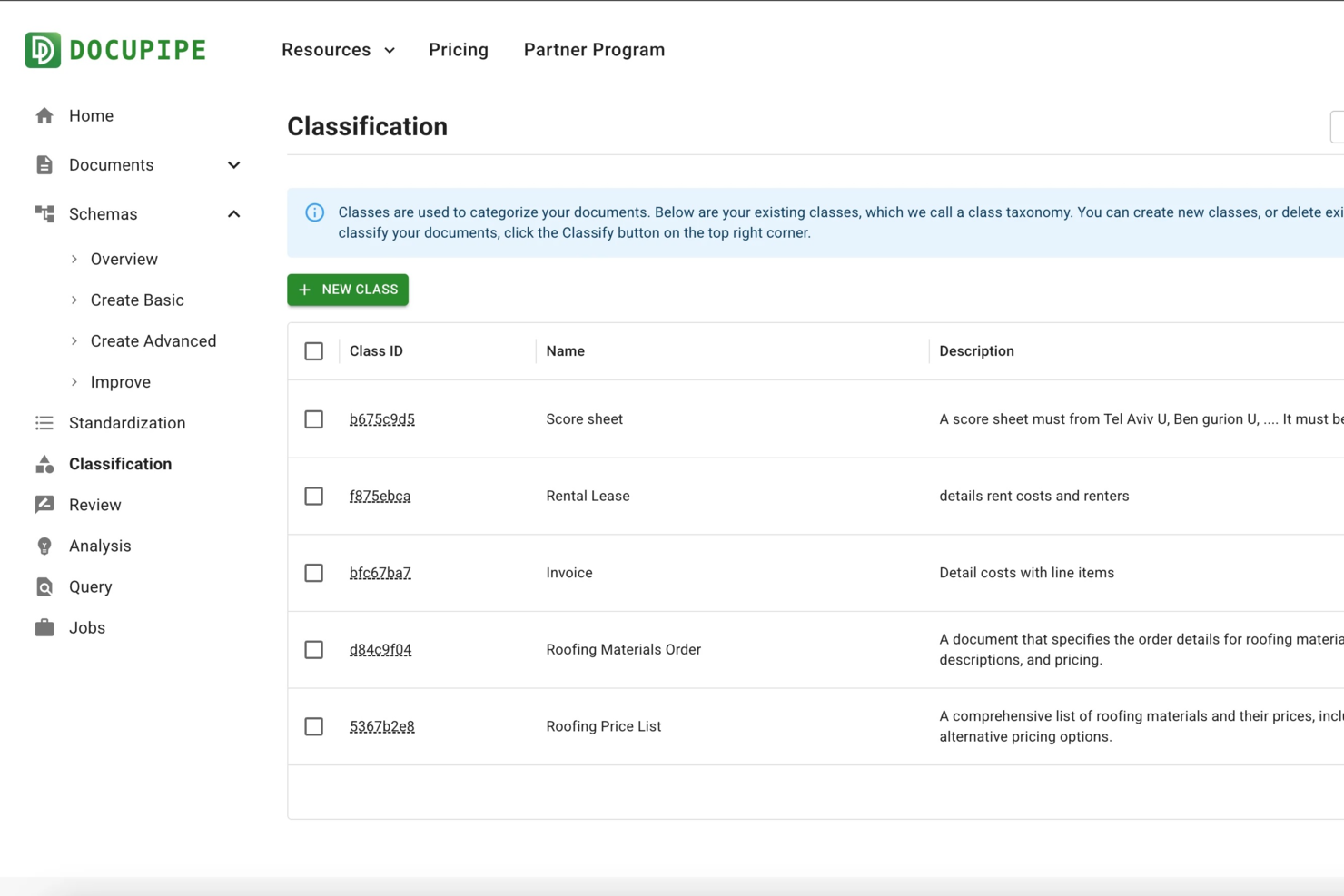
DocuPipe is a document scanning and processing platform that lets you build custom extraction pipelines, automate data capture, and handle complex document types with advanced OCR and workflow tools.
Who Is DocuPipe Best For?
DocuPipe suits operations teams and solution architects who need to automate document processing across diverse formats and workflows.
Why I Picked DocuPipe
I picked DocuPipe as one of the best because its custom extraction pipeline builder lets me design document workflows tailored to unique business rules and data structures. I like that I can set up multi-step extraction logic for invoices, contracts, or forms—my team is able to automate complex data capture scenarios without coding. The visual pipeline editor makes it easy to adapt processes as requirements change.
DocuPipe Key Features
- Handwritten text recognition: Accurately extracts data from scanned handwritten documents and forms.
- Multi-language OCR: Processes documents in over 60 languages for global document handling.
- Automated data validation: Flags inconsistencies and errors in extracted data before export.
- API access: Integrates document processing workflows directly into your existing systems.
DocuPipe Integrations
Native integrations are not clearly documented. DocuPipe provides an API for custom integrations.
Pros and Cons
Pros:
- Automatic field detection adapts to layouts
- Offers custom extraction pipeline builder
- Handles handwritten and mixed-content documents
Cons:
- Lacks built-in export to cloud storage
- Credit-based usage limits on free plan
New Product Updates from DocuPipe
DocuPipe Adds Source View and Auto-Refresh Jobs Page
DocuPipe adds Source view comparisons, auto-refreshing jobs, and real-time progress bars to improve document review and processing visibility. The updates help teams monitor extraction and standardization workflows more efficiently. For more information, visit DocuPipe’s official site.
 .
.Other Document Scanning Software
Here are some additional document scanning software options that didn’t make it onto my shortlist, but are still worth checking out:
- Scan2x
For automated workflows
- Genius Scan
For quick batch scanning
- Scan.Plus
For high-resolution scanning
- Tiny Scanner
For lightweight mobile use


How I Evaluate Document Scanning Software
I evaluate document scanning tools in two layers: the core OCR, capture, and output capabilities to qualify, then the differentiators that matter for AP clerks, records teams, and legal ops.
Core Functionality (Table Stakes for This List)
These core capabilities serve as the acceptance criteria for inclusion on my list of document scanning software:
- Multi-Source Document Capture: I check whether a tool supports scanner, MFP, mobile camera, and file import inputs—field teams need camera capture while mailrooms rely on ADF-fed scanners.
- OCR & Text Recognition: Accuracy across languages and document types matters, so I evaluate how well each tool handles degraded originals like faxes, carbon copies, and older contracts.
- Image Processing & Enhancement: Auto-deskew, despeckle, and blank page removal should happen without manual tweaking—especially for high-volume AP teams scanning inconsistent invoice stacks.
- File Format & Export Options: I look for searchable PDF, TIFF, Word, and Excel output with direct export paths to cloud storage, network folders, or connected business systems.
- Data Extraction & Indexing: Barcode separation, zonal OCR, and metadata tagging are what turn a raw scan into a retrievable record—I evaluate how each tool handles structured forms vs. freeform documents.
- Document Redaction Controls: Automated and manual redaction capabilities, granular access controls, encryption, and audit trails are essential for organizations handling sensitive information.
I rank each vendor on a scale from 0 (does not offer the functionality) to 5 (excels in this area) for each criterion.
Vendors need to achieve a minimum average score to be considered for inclusion on my list. From there, I consider what sets each platform apart.
Differentiating Factors (What Sets Vendors Apart)
Once I've curated my list, here's how I contrast and compare different vendors in the document scanning software space:
Standout Features
I look for intelligent document processing powered by AI/ML, since automated classification and entity extraction can dramatically reduce time spent on manual data entry. Tools that offer native mobile capture apps with edge detection and offline sync are valuable for remote teams or field workers who need to digitize paperwork on the go. Batch processing capabilities also matter for environments handling thousands of pages a day—barcode separation and queue management streamline high-volume workflows.
Beyond Features
Scanner hardware compatibility is one of the first things I evaluate—teams using production scanners need confirmed TWAIN and ISIS driver support. Deployment model matters too, since healthcare and legal teams often require on-premise installs to meet data residency policies. I also check for documented compliance certifications like HIPAA, SOC 2 Type II, or GDPR readiness, especially when a tool will handle PHI or attorney-client privileged records.
How to Choose Document Scanning Software
It’s easy to get bogged down in long feature lists and complex pricing structures. To help you stay focused as you work through your unique software selection process, here’s a checklist of factors to keep in mind:
| Factor | What to Consider |
|---|---|
| Scalability | Can the software handle your growing document volume? Consider future needs and whether the tool can scale with your business without requiring a complete system overhaul. |
| Integrations | Does it connect with your existing tools? Check for compatibility with your current systems like CRM, cloud storage, or accounting software to avoid workflow disruptions. |
| Customizability | Can you tailor the software to fit your processes? Look for options that allow you to adjust workflows, user permissions, and settings to match your business needs. |
| Ease of use | Is the interface intuitive for your team? Choose software that doesn’t require extensive training, so your team can start using it effectively right away. |
| Implementation and onboarding | How easy is it to get started? Evaluate the time and resources needed for setup and whether the vendor offers support like training videos or product tours. |
| Cost | Does the pricing align with your budget? Consider all costs, including setup fees, subscription plans, and potential hidden charges, to ensure it fits your financial plan. |
| Security safeguards | Are your documents protected? Ensure the software offers encryption, access controls, and regular security updates to keep sensitive information secure. |
| Support availability | Is help available when you need it? Check if the vendor provides 24/7 support, multiple contact options, and quick response times to resolve any issues promptly. |
What Is Document Scanning Software?
Document scanning software is a tool that converts physical documents into digital formats like PDFs or images. Professionals like office managers, accountants, and legal assistants use these tools to efficiently manage and organize paperwork. Automatic text recognition, multi-page scanning, and secure sharing help with simplifying document management and increasing productivity. Overall, these tools save time and reduce the hassle of handling paper documents.
Features of Document Scanning Software
When selecting document scanning software, keep an eye out for the following key features:
- Optical character recognition (OCR): Converts scanned text into editable and searchable data, making it easier to work with digital documents.
- Multi-page scanning: Allows users to scan multiple pages into a single document, saving time and maintaining organization.
- Secure document sharing: Offers options to share files safely with encryption and permissions, ensuring sensitive information stays protected.
- Batch processing: Enables scanning of large volumes of documents at once, increasing efficiency for busy offices.
- Cloud integration: Connects with cloud storage services to automatically save and access documents from anywhere.
- Customizable workflows: Provides the ability to tailor document processes to fit specific business needs and improve productivity.
- Automatic document classification: Identifies and categorizes documents automatically, reducing manual sorting and errors.
- User-friendly interface: Ensures ease of use with intuitive navigation, allowing teams to start using the software quickly.
- Annotation and editing tools: Offers features to add notes, highlights, or edits directly on scanned documents for better collaboration.
- Training and onboarding support: Includes resources like videos and tutorials to help users get started and make the most of the software.
Benefits of Document Scanning Software
Implementing document scanning software provides several benefits for your team and your business, including streamlined workflows that complement free eSignature solutions. Here are a few you can look forward to:
- Time savings: Automates the process of converting paper documents to digital, saving you and your team countless hours.
- Improved organization: Helps keep documents in order with features like multi-page scanning and automatic classification, reducing clutter and confusion.
- Enhanced accessibility: Makes documents easily accessible from anywhere through cloud integration, supporting remote work and collaboration.
- Increased security: Protects sensitive information with secure sharing and encryption, giving you peace of mind.
- Error reduction: Minimizes manual data entry errors with OCR, ensuring accuracy in your digital documents.
- Cost efficiency: Reduces the need for physical storage space and paper, lowering operational costs.
- Better collaboration: Allows team members to annotate and edit documents together, fostering teamwork and communication.
Costs and Pricing of Document Scanning Software
Selecting document scanning software requires an understanding of the various pricing models and plans available. Costs vary based on features, team size, add-ons, and more. The table below summarizes common plans, their average prices, and typical features included in document scanning software solutions:
Plan Comparison Table for Document Scanning Software
| Plan Type | Average Price | Common Features |
|---|---|---|
| Free Plan | $0 | Basic scanning, limited storage, and watermark on documents. |
| Personal Plan | $5-$15/user/month | OCR capabilities, cloud storage integration, and basic editing tools. |
| Business Plan | $20-$50/user/month | Advanced security features, multi-page scanning, and customizable workflows. |
| Enterprise Plan | $60-$100/user/month | High-level data encryption, dedicated support, and comprehensive integration options. |
Document Scanning Software FAQs
Here are some answers to common questions about document scanning software:
How secure are scanned documents?
Scanned documents can be very secure if you use software that offers encryption and access controls. Look for features that let you set permissions, so only authorized users can view or edit documents. Always ensure that your provider complies with data protection regulations.
What file formats should I use for scanned documents?
Common formats include PDF and TIFF, which are widely supported and maintain quality. PDFs are ideal for text-heavy documents, while TIFFs are great for images. Consider your needs for editing and sharing when choosing a format.
How long does it take to scan documents?
The time varies based on volume and complexity. Small projects might take a few days, while larger ones can take weeks. Planning ahead and using batch processing features can help speed up the process.
Can I make scanned documents searchable?
Yes, by using Optical Character Recognition (OCR) technology. OCR converts scanned text into editable data, making it searchable. This is useful for quickly finding information within your documents.
What happens to original documents after scanning?
You can choose to store, shred, or return them. Many opt to shred documents to save space and ensure security. However, if originals are needed for legal reasons, proper storage is essential.
How can I access my scanned documents remotely?
Cloud integration allows you to access documents from anywhere with an internet connection. Ensure your software supports this feature and offers secure access for remote work.
Related Reviews
If you still haven’t found what you’re looking for here, check out these other tools that we’ve tested and evaluated: