

4 Resource Planning Templates For Excel & Sheets


Project success often relies on a solid plan for allocating and managing resources throughout your project. Whether you have a small team looking for simple resource planning tools or you have extra resources at your disposal, our easy-to-use, customizable project resource planning templates will help you better allocate resources, track availability, and keep the team on track to deliver their work on time and on budget.
These templates are compatible with both Microsoft Excel and Google Sheets. The first two templates on this list are free, and to access the others, you’ll need to sign up for our membership community.
Which Template Do You Need?
Each template answers a different question, and together they build on each other. I usually work through them in this order: break down the work, estimate it, check who's available, then allocate.

| Template | The question it answers | Reach for it when |
|---|---|---|
| Work breakdown structure | What exactly needs doing? | Scope is agreed, but nobody has split it into tasks yet |
| Project estimate | How long will it take, and what will it cost? | You need a budget, a quote, or a reality check on the deadline |
| Team availability chart | Who can actually do it, and when? | Your team has part-timers, time zones, or a lot of PTO |
| Resource allocation spreadsheet | Who's doing what, and is the budget holding? | You're staffing the project and want to track hours and spend as it runs |
You don't need all four on every project. A two-week sprint for a team you know well might only need the allocation spreadsheet. A fixed-bid client project probably needs the full set.
1. Resource Allocation Spreadsheet
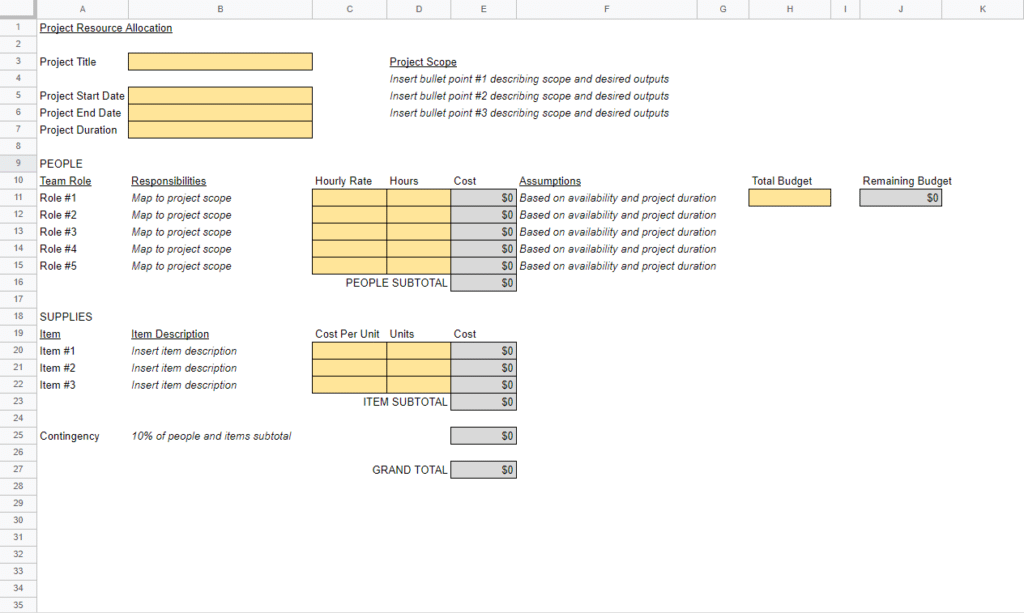
This resource allocation spreadsheet is where the plan meets the budget. You list who's on the project, their rates and their hours, and the sheet tells you what it all costs and how much budget you have left.
What's inside
- Input and auto-calculating cells: Yellow cells (such as the project start date) need your input, and gray cells calculate automatically. You can't accidentally overwrite a formula, which is more than most homemade versions can say.
- Hourly rates, hours and costs per person: Each team member's cost is worked out from their rate and allocated hours.
- An assumptions column: Use it to note whether someone is full-time, part-time or shared with another project.
- Built-in contingency: Contingency is set at 10% by default, and you can change it in the formula.
- A remaining budget counter: It shows at a glance how much budget is left as hours are allocated.
How to use it
- Make a copy in Google Sheets, or download it for Excel.
- Enter the project start date and your total budget in the yellow cells.
- Add a row for each team member above the subtotal rows, so the totals keep working.
- Enter each person's rate and allocated hours, and use the assumptions column to flag anyone who isn't full-time.
- Adjust the contingency if 10% doesn't fit. I'd go higher for projects with fuzzy scope or a new client.
- Revisit it weekly, and update hours as the project moves rather than only at kickoff.

Best for
Teams running a single project who need to see people, hours and money in one place, without buying a tool.

2. Work Breakdown Structure
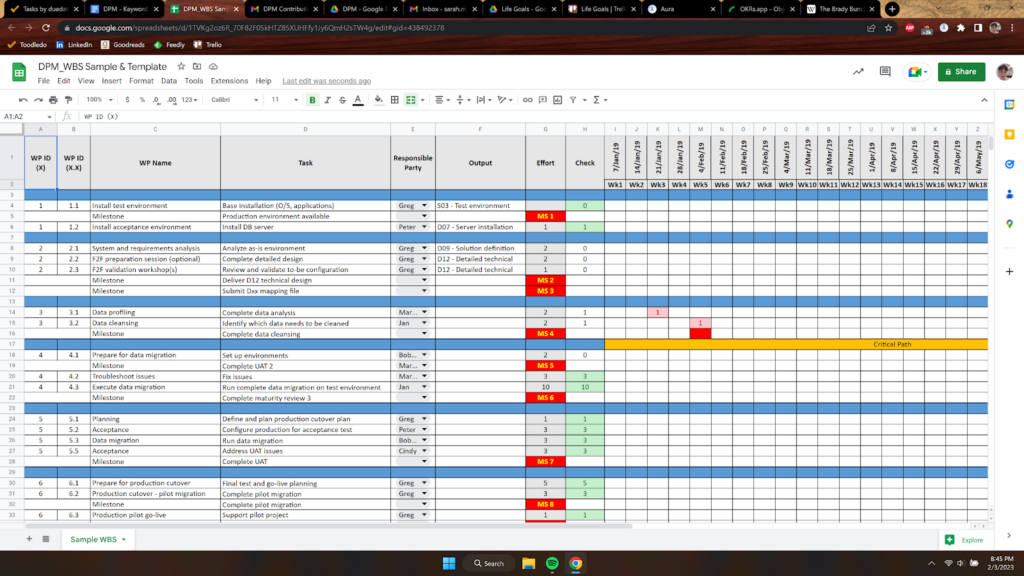
A work breakdown structure (WBS) is used to divide a project into smaller, manageable components within a hierarchy. This makes planning, executing, and monitoring the team’s work easier, and makes sure that every aspect of the project is accounted for and no essential tasks are overlooked.
What's inside
- A hierarchy of work: The project at the top, major deliverables or phases below it, and work packages and tasks below those.
- Room for numbered levels: Give each item an ID (1.0, 1.1, 1.1.1), so everyone can refer to the same piece of work without confusion.
- Space to assign resources: Each task can be matched to an owner, which feeds straight into your allocation and estimate.
How to use it
- Start with the final deliverables, not the activities. Ask what the client actually receives, and work down from there.
- Break each deliverable into work packages until every item is small enough to estimate with a straight face. My rule of thumb is that nothing should be bigger than a few days of work for one person.
- Check each level adds up to the one above it. If a deliverable needs something that isn't listed, it'll show up later as scope creep.
- Assign an owner to every task. Any task without a name next to it is a task nobody is doing.
- Share it with the team before you estimate. They'll spot the missing work you didn't know existed.
Best for
New projects, fixed-scope client work, and any project where "what's included?" is likely to become an argument later.
If you'd like to see how other teams structure theirs, these work breakdown structure examples cover a range of project types.
3. Team Availability Chart
A team availability chart gives you a visual overview of resource availability for specific periods. You can use this chart to allocate tasks based on dependencies, available resources, and timing, as well as balance your team’s workload (which is made easier when you have a better understanding of team members' schedules).
This planning tool is handy when team members have varying work hours, schedules, or other commitments.
What's inside
- Working hours per person: Who works when, including part-time schedules and compressed weeks.
- Time zones: Where everyone is, so you can find overlap windows for handoffs and meetings.
- Preferred contact method: The best way to reach each person, which saves a surprising number of "did you see my message?" follow-ups.

How to use it
- Fill it in with the team rather than for them. People know their own schedules better than the HR system does.
- Add known time off for the length of the project, including public holidays in every location your team works from.
- Mark the overlap windows. Those are the hours for reviews, handoffs and anything that needs a live conversation.
- Use it alongside your capacity planning to set realistic hours in the allocation spreadsheet.
- Update it whenever someone joins, leaves, or changes their schedule. A stale availability chart is worse than none, because people trust it.
Best for
Distributed and hybrid teams, teams with part-timers or contractors, and anyone who's ever scheduled a "quick sync" at 7 a.m. for half the team.
4. Project Estimate
A project estimate helps you forecast the resources, project timeline, and costs required to complete your project successfully, which is essential for setting realistic expectations and making sure projects are delivered within budget and on time.
This template provides a roadmap for current and future projects when allocating resources effectively and making informed decisions throughout the project life cycle.
What's inside
- Two versions: A simple estimate for smaller projects and quick quotes, and a complex estimate for multi-phase projects with more roles and more moving parts.
- Effort by task and role: Hours for each piece of work, matched to the people or roles doing it.
- Costs: Effort converted into a budget, so you can see what the project will cost before the client asks.

How to use it
- Pick the version that fits. Use the simple one for a few weeks of work with a small team, and the complex one when several phases or several teams are involved.
- Pull the tasks straight from your work breakdown structure, so nothing gets estimated that isn't in scope, and nothing in scope gets missed.
- Estimate with the people doing the work. If they're not available, estimate in ranges, then firm the numbers up once the team is confirmed.
- Add contingency for the unknowns, and say clearly what it covers.
- Write your assumptions down next to the numbers. "Two rounds of design feedback" is a scope boundary. Without it, you're just hoping.
Best for
Quotes, budget approvals, fixed-bid client work, and any time someone asks, "Can we have it by the end of the month?"
Join For More Resource Management Insights
When it comes to meeting your resource needs, The Digital Project Manager community is the perfect place to go for templates, tool roundups, and tips. We have hundreds of active and experienced project managers who can share best practices or additional resources.


