

40 Best Document Management Systems Reviewed for 2026

10 Best Document Management Systems Shortlist


A document management system (DMS) helps teams securely organize, store, and retrieve business-critical documents—streamlining collaboration, improving version control, and supporting compliance. The right DMS reduces time spent hunting down files, keeps teams aligned, and makes it easier to manage document lifecycles across departments and locations.
To help you choose the best document management system for your business, I’ve tested and reviewed a range of tools for usability, scalability, security, and integrations. Whether you're looking for cloud-based flexibility, on-premise control, or industry-specific features, this list covers the top DMS options in 2026.
Why Trust Our Document Management System Reviews
We’ve been testing and reviewing document management systems since 2012. As project managers ourselves, we know how critical and difficult it is to make the right decision when selecting software.
We invest in deep research to help our audience make better software purchasing decisions. We’ve tested more than 2,000 tools for different project management use cases and written over 1,000 comprehensive software reviews. Learn how we stay transparent & our review methodology.
The Best Document Management Systems Comparison Chart
Here is a table where you can compare the tools we just covered in the overviews.
| Tool | Best For | Trial Info | Price | ||
|---|---|---|---|---|---|
| 1 | Best for secure PDF document control | 7-day free trial available | From $14.99/month (billed annually) | Website | |
| 2 | Best for AI-powered training content | 10-day free trial + free demo available | From $49/month | Website | |
| 3 | Best for preserving historical HR & payroll data | Free demo available | Pricing upon request | Website | |
| 4 | Best for integration with Microsoft 365 | 30-day trial available | From $10.65/user/month | Website | |
| 5 | Best for centralized document storage | Free demo available | Pricing upon request | Website | |
| 6 | Best with customizable data retention policies | 7-day free trial available | From $199/month | Website | |
| 7 | Best for real-time collaboration | 14-day free trial available | From $7/user/month (billed annually) | Website | |
| 8 | Best for Microsoft users | 30-day free trial available | From $5.00/user/month (billed annually) | Website | |
| 9 | Best DAM for enterprises | Free trial + free demo available | Pricing upon request | Website | |
| 10 | Best document management system for workflow automations | Free demo available | Pricing upon request | Website |
-

Accelo
Visit WebsiteThis is an aggregated rating for this tool including ratings from Crozdesk users and ratings from other sites.4.4 -
Wrike
Visit WebsiteThis is an aggregated rating for this tool including ratings from Crozdesk users and ratings from other sites.4.3 -
Monitask
Visit WebsiteThis is an aggregated rating for this tool including ratings from Crozdesk users and ratings from other sites.4.8




10 Best Document Management System Reviews
Here’s a brief description of each digital document management system to showcase what each tool does best. I’ve included screenshots to highlight the best features.

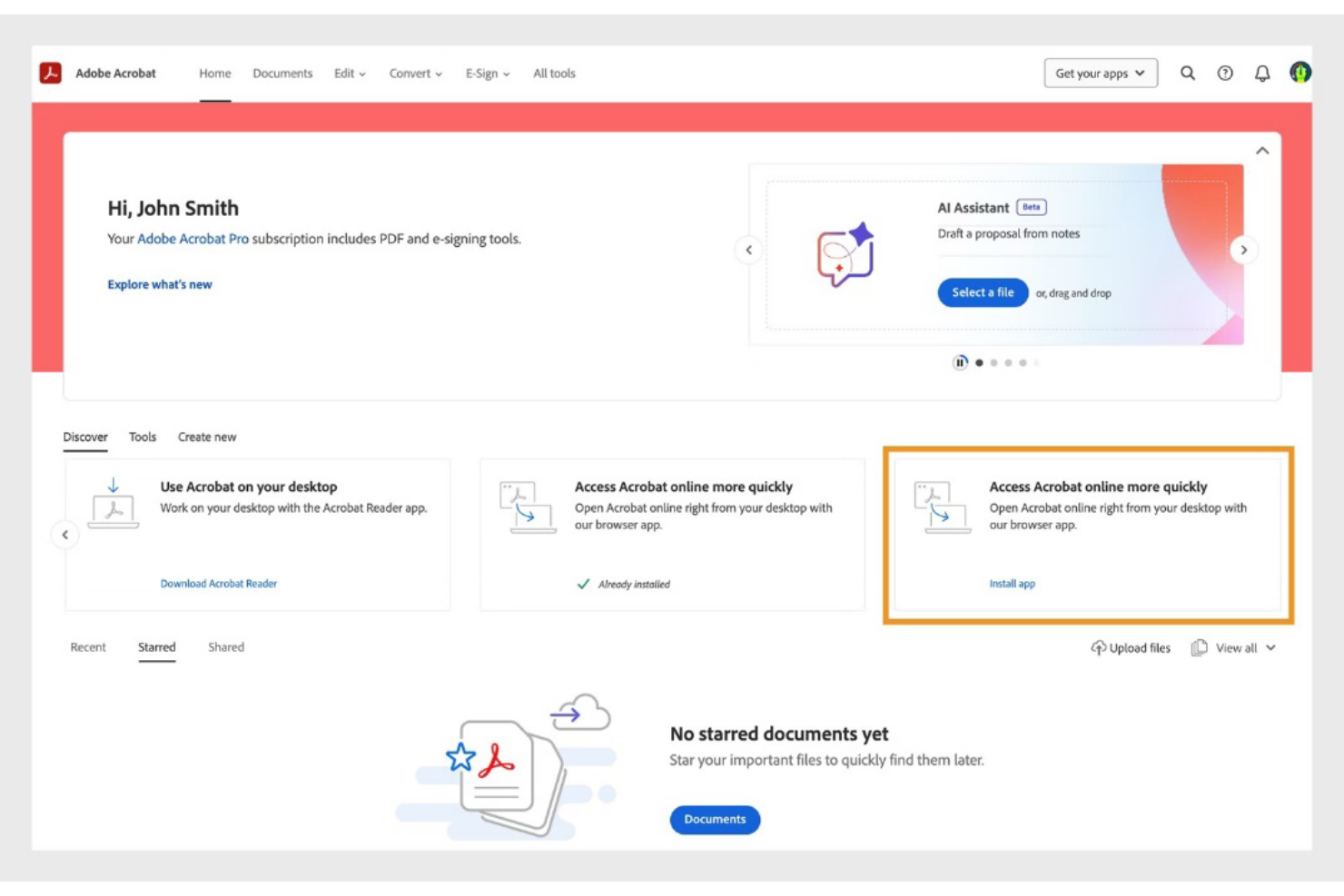
Adobe Acrobat is a PDF-focused document management system that enables teams to create, edit, store, share, and secure documents within a centralized cloud environment. It supports structured document control, permission management, and e-signature workflows for organizations handling high volumes of files.
Who Is Adobe Acrobat Best For?
Adobe Acrobat is best suited for teams that primarily manage documents in PDF format and need secure sharing, version tracking, and structured access controls across departments or locations.
Why I Picked Adobe Acrobat
I picked Adobe Acrobat for its secure document controls and centralized cloud storage. Teams can assign permissions, restrict editing rights, and monitor document activity. These features make it easier to manage contracts, technical files, and internal documentation while maintaining oversight and compliance.
Adobe Acrobat Key Features
- PDF editing tools: Modify text, images, and formatting directly within PDF documents.
- Version history: Track document updates and maintain revision visibility.
- Role-based permissions: Control who can view, edit, or share documents.
- Batch processing: Apply actions such as watermarking or conversion to multiple files.
- E-signature workflows: Collect legally binding electronic signatures within the platform.
Adobe Acrobat Integrations
Adobe Acrobat integrates with Microsoft 365, Google Workspace, Microsoft Teams, SharePoint, Box, Salesforce, and Workday. APIs are available for custom integrations.
Pros and Cons
Pros:
- Supports secure document sharing and permissions
- Advanced PDF editing and redaction tools
- Built-in e-signature workflows for contracts
Cons:
- Limited workflow automation compared to competitors
- No free-forever business plan available

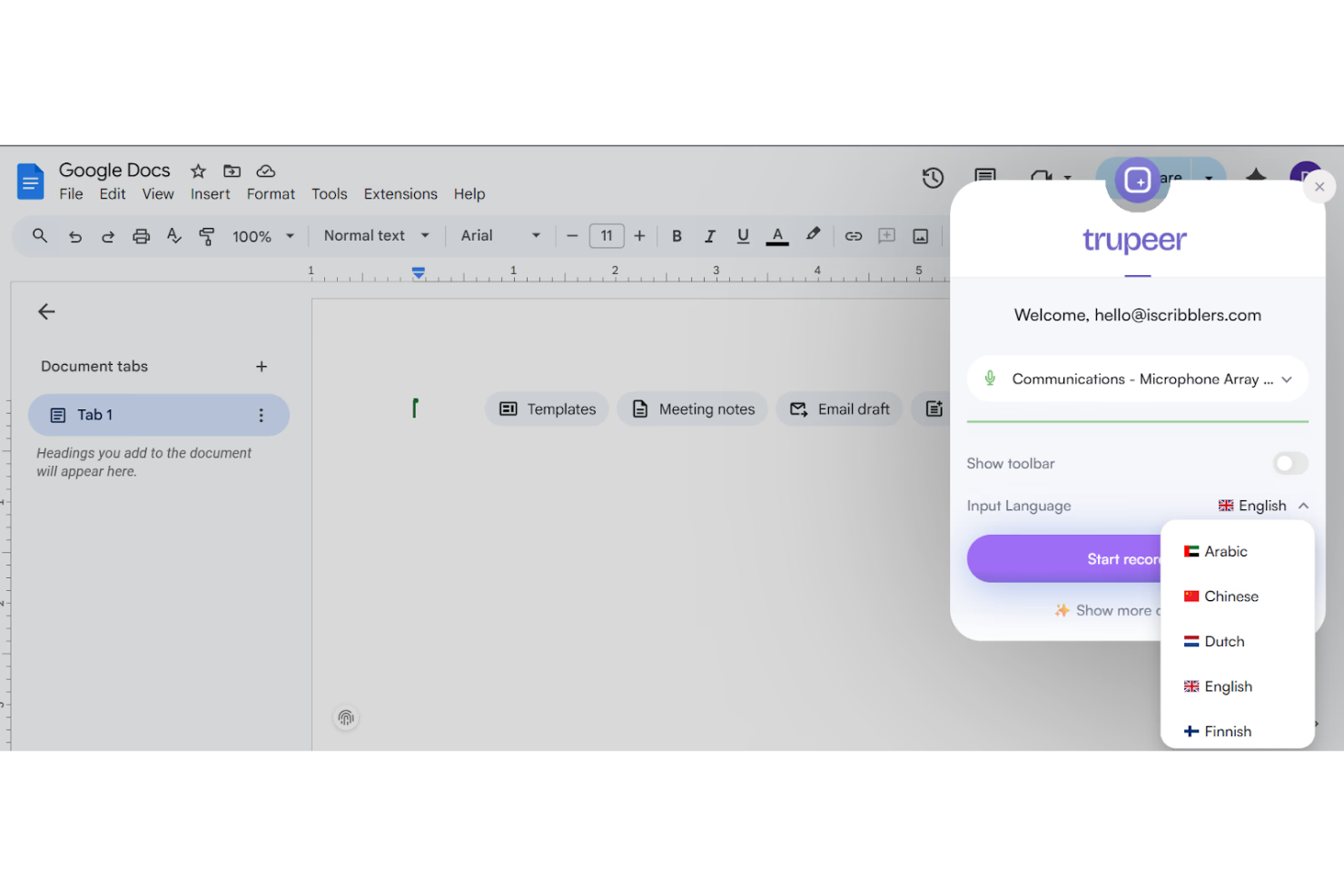
TruPeer helps organizations create, manage, and deliver AI-driven training content, centralizing learning materials and resources on a single platform.
Who Is TruPeer Best For?
TruPeer is a good fit for L&D teams and HR professionals looking to build and manage AI-powered training content at scale.
Why I Picked TruPeer
I've included TruPeer in my top picks because its AI-powered content creation tools make it easy to build structured training materials directly from existing documents and knowledge sources. I like how it can automatically generate quizzes, summaries, and learning modules from uploaded content, which keeps training materials tightly connected to the source documents. My team is able to maintain a centralized library of training content that stays organized and version-aware as materials evolve.
TruPeer Key Features
- Content library: Store and organize all training documents and materials in a searchable, centralized repository.
- Role-based access controls: Assign permissions to control who can view, edit, or publish training content.
- Content versioning: Track changes to training documents over time and revert to previous versions when needed.
- Collaborative editing: Allow multiple team members to co-author and review training materials in real time.
TruPeer Integrations
Native integrations are not currently listed.
Pros and Cons
Pros:
- Includes enterprise-grade SSO security
- Supports over 65 languages
- AI-generated documentation from screen recordings
Cons:
- AI output may require editing
- Limited free plan functionality
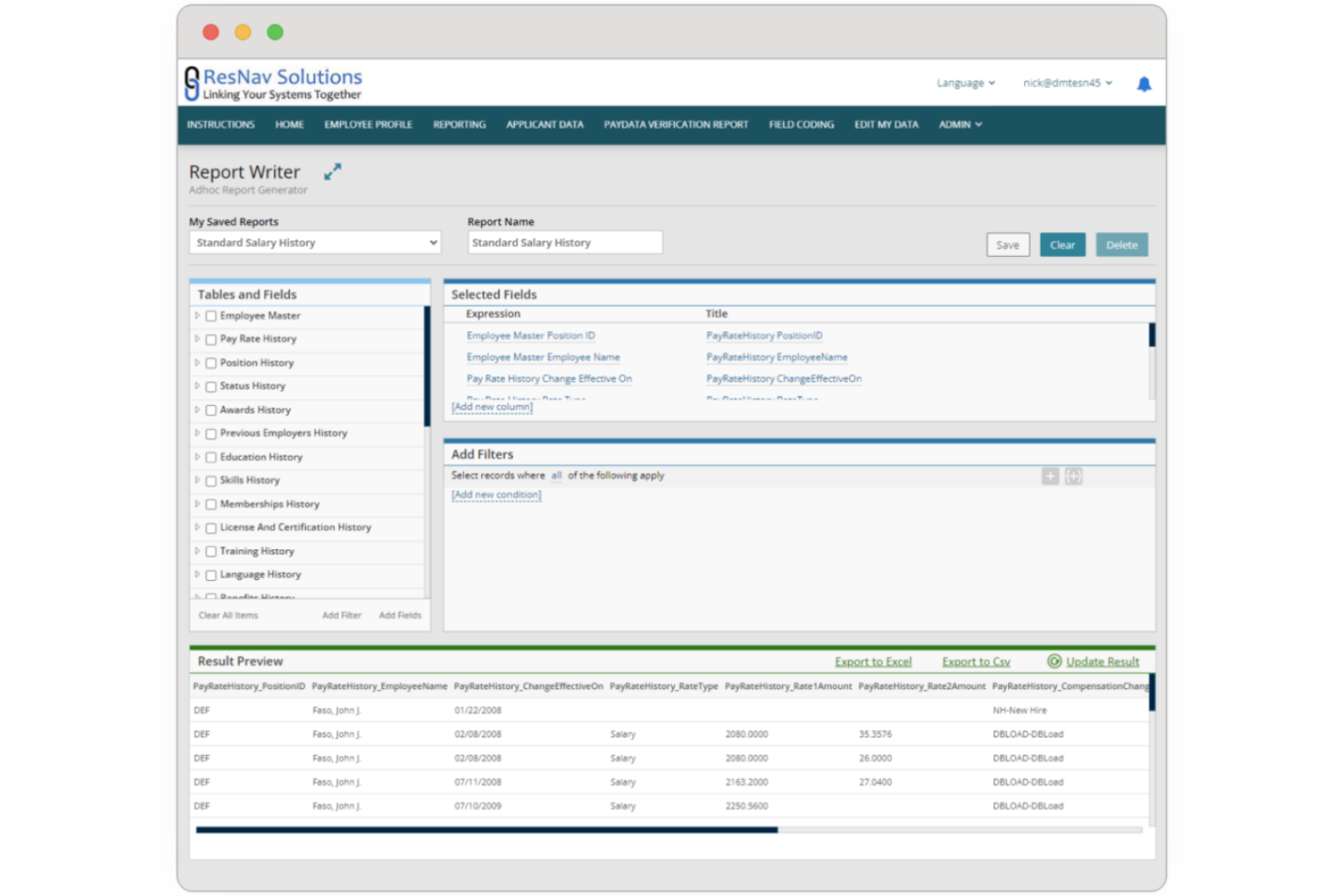
ResNav serves HR and payroll teams who need a secure, organized way to store and access historical employment documents and manage compliance and data retention requirements.
Who Is ResNav Best For?
ResNav suits HR and payroll professionals who need a reliable system for retaining and retrieving historical employee records.
Why I Picked ResNav
I picked ResNav's History Link as one of the best because of how it handles the specific problem of preserving HR and payroll records when switching providers. When your old payroll system hands you a CSV export, that data becomes static and unauditable the moment anyone touches it. History Link solves this by extracting and storing your full historical record set in an Azure-based platform where the data stays unaltered and audit-ready. I also like that it retains granular record types like check detail, time and attendance, quarterly tax reports, and benefit history at both the employee and company level—not just top-level summaries.
ResNav Key Features
- Comprehensive record type coverage: History Link stores a wide range of record types, including pay rate history, employee status changes, dependent benefit history, and census data.
- Joint reporting capabilities: History Link integrates with your payroll and HRIS vendor to unlock cross-system reporting from a single platform.
- State-specific retention guidance: Built-in reference to state-level record retention laws helps you align your archiving practices with local compliance requirements.
- Single source of truth: All historical data is stored in one centralized portal, giving your team a consistent reference point for audits, employee inquiries, and decision support.
ResNav Integrations
ResNav has integrations and partnerships with Paycor, Workday, UKG, ADP, Paycom, Paylocity, Gusto, and isolved.
Pros and Cons
Pros:
- Secure, searchable portal gives teams fast access to old records.
- Supports extraction from hundreds of legacy payroll vendors with protocols.
- Precise archive of payroll history beyond flat exports makes data usable.
Cons:
- Integration beyond archival extraction may require custom work.
- Not a full general-purpose DMS — focused mainly on HR/payroll records.


MacroView helps organizations that rely on Microsoft 365 manage, track, and organize documents at scale, making it easier for teams in legal, finance, and professional services to capture, search, and control files across SharePoint and Teams.
Who Is MacroView Best For?
MacroView is a strong fit for mid-to-large organizations in legal, financial, and professional services that are already running Microsoft 365 and need tighter document control within that ecosystem.
Why I Picked MacroView
I've included MacroView in my top picks because it embeds document management into the Microsoft 365 tools your team already uses. MacroView DMS's automatic email filing rules route incoming and outgoing messages to the correct SharePoint location without manual filing, keeping the document store complete even when teams are busy. The configurable search panels let you search the entire SharePoint store by keyword, metadata, or document type directly from Outlook, without switching to a browser. DMS Pro also adds document management panels inside Word, Excel, PowerPoint, and Adobe Acrobat, allowing teams to save, open, and tag files directly within those apps.
MacroView Key Features
- Drag-and-drop to SharePoint: Move files directly into SharePoint folders without navigating away from your current app.
- Automatic metadata capture: MacroView captures metadata at the point of filing, so documents are tagged consistently without manual input.
- Version history and restore: Track every version of a document stored in SharePoint and restore previous versions when needed.
- Windows-style file explorer for SharePoint: Browse SharePoint, Teams, and OneDrive using a familiar tree-view interface instead of the standard SharePoint web UI.
MacroView Integrations
Integrations include Microsoft SharePoint, Microsoft Teams, Microsoft 365, Microsoft Outlook, Microsoft Word, Microsoft Excel, Microsoft PowerPoint, OneDrive, Windows, and Adobe Acrobat.
Pros and Cons
Pros:
- Automated metadata capture improves document organization.
- Familiar file-explorer-style interface simplifies user navigation.
- Seamless integration with Microsoft 365 enhances existing tools.
Cons:
- Not ideal for organizations not using Microsoft products.
- Limited support for mobile applications restricts accessibility.

Axero is a document management platform for organizations that need to centralize, secure, and collaborate on business documents, helping teams find, share, and manage files across departments.
Who Is Axero Best For?
Axero is a good fit for mid-sized to large organizations that need a centralized hub for managing internal documents, knowledge, and team collaboration across multiple departments.
Why I Picked Axero
Axero earns its spot as one of the best on my shortlist because of how well it handles centralized document storage across a large, distributed organization. The Files & Documents feature lets my team organize documents and other content into structured, permission-controlled repositories—so the right people can access what they need without stumbling across confidential content. The federated search lets me search across the entire intranet, connected file repositories, and integrations like SharePoint from one place. Content workflows provide version tracking, approval processes, and expiration dates that keep the document library accurate and trustworthy over time.
Axero Key Features
- AI Copilot chatbot: An AI assistant trained on your intranet's knowledge base that lets employees ask questions and retrieve information in a conversational interface.
- Required reading tracking: Flag specific documents or content as mandatory and monitor completion progress with built-in analytics.
- Custom workspaces: Create dedicated digital hubs for departments or projects, each with its own documents, resources, and permission settings.
- Role-based permissions: Fine-grained, role-based access controls let you define exactly who can view, edit, or manage content across the platform.
Axero Integrations
Integrations include Microsoft Office 365, Google Workspace, Slack, Twilio, Microsoft Teams, Zoom, Salesforce SSO, and SharePoint Online Documents.
Pros and Cons
Pros:
- Secure document storage ensures data protection and compliance.
- Advanced search capabilities aid quick document retrieval.
- Workflow automation reduces manual task burden for teams.
Cons:
- Integration challenges may require technical support.
- Occasional updates may disrupt system functionality.

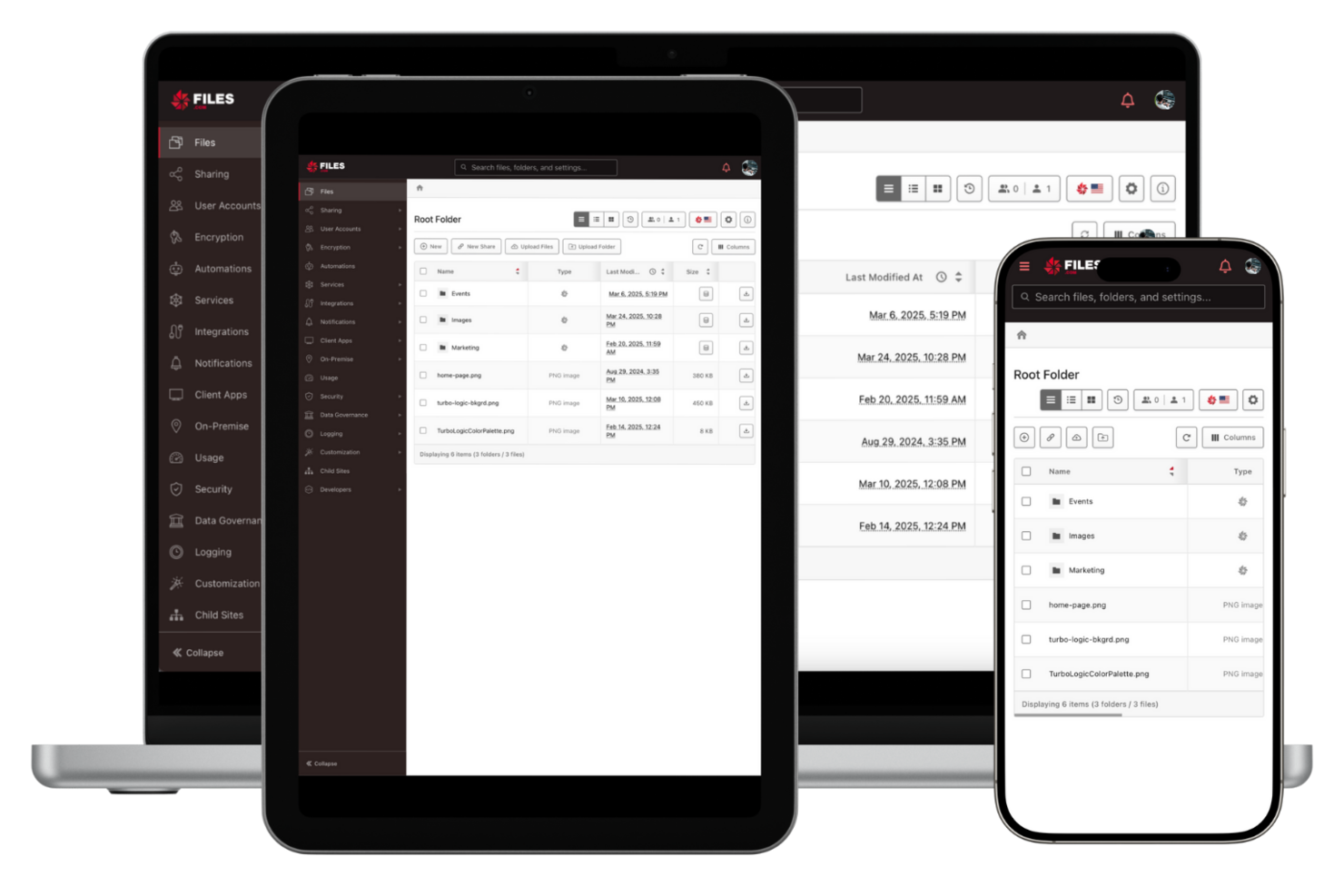
Files.com is a cloud-based document management platform built for IT teams and businesses that need secure file storage, advanced sharing controls, and detailed audit trails to manage sensitive documents and streamline collaboration.
Who Is Files.com Best For?
Files.com is a strong fit for mid-size to enterprise IT and operations teams that handle large volumes of sensitive documents and need granular control over file access, storage, and compliance.
Why I Picked Files.com
Files.com earns its spot on my shortlist because of how deeply retention is built into the platform rather than bolted on as an afterthought. I particularly like the folder-level expiration policies, which let my team set different retention windows for different document types—tax records stay for seven years, marketing drafts are purged after 30 days. The archive-only mode is another feature I rely on for compliance-sensitive documents, since it locks folders into an immutable state where files can't be deleted or modified regardless of the interface used. Additionally, every policy action—deletions, archives, holds—gets captured in a full audit log, so when a compliance review comes up, I'm not scrambling to reconstruct what happened.
Files.com Key Features
- Role-based permissions: Assign granular access controls at the folder or file level to manage who can view, upload, or edit documents.
- Automated workflows: Trigger file actions like moving, copying, or notifying team members based on predefined rules when documents are uploaded or updated.
- Remote server mounting: Connect external storage sources, including SFTP, S3, and SharePoint, and manage them alongside native files in one interface.
- Activity logging: Track every file interaction—uploads, downloads, deletions, and shares—with timestamped logs tied to individual user accounts.
Files.com Integrations
Integrations include Amazon S3, Box, Dropbox, Google Drive, Microsoft OneDrive, SharePoint, Slack, Okta, Microsoft Teams, and WebDAV.
Pros and Cons
Pros:
- Detailed audit logs for compliance tracking
- Customizable data retention and deletion policies
- Supports file transfers up to 5TB each
Cons:
- Advanced automation features require higher-tier plans
- Lacks built-in document editing tools


Google Workspace gives teams and organizations a cloud-based platform to create, store, and organize documents, so they can manage files, control access, and keep documents searchable and accessible from anywhere.
Who Is Google Workspace Best For?
Google Workspace is a strong fit for teams of all sizes that rely on cross-functional collaboration across distributed or hybrid work environments.
Why I Picked Google Workspace
Google Workspace earns its spot on my shortlist because real-time collaboration in Google Docs is genuinely one of the best I've used. My team can edit the same document simultaneously, leave inline comments, and tag teammates for input—all without version conflicts. I also rely heavily on the named version history in Google Docs, which lets me label and restore specific document states rather than hunting through a long list of auto-saves. That combination of live co-editing and granular version control makes it a strong pick for document-heavy teams.
Google Workspace Key Features
- Shared drives: Store documents in team-owned drives so files remain accessible even when individual team members leave.
- Granular sharing permissions: Set view, comment, or edit access at the file or folder level for internal and external users.
- Google Drive search: Locate documents using full-text search across file names, content, and metadata.
- Document templates: Create and reuse standardized templates in Google Docs to keep document formats consistent across your team.
Google Workspace Integrations
Integrations include Salesforce, Box, Microsoft Office 365, Jira, Okta, DocuSign, Zoom, Slack, Asana, and Trello.
Pros and Cons
Pros:
- Includes a suite of productivity tools like Docs, Sheets, and Slides.
- Provides secure cloud storage accessible from any device.
- Offers real-time collaboration with seamless document sharing.
Cons:
- Compatibility issues when collaborating externally with teams using non-Google file formats or Microsoft Office workflows.
- Shared drive permissions and complex folder hierarchies can become difficult to manage if not structured carefully.
New Product Updates from Google Workspace

Google Workspace Enhances Email Proofreading In Gmail
Google Workspace introduces enhanced email proofreading in gmail. This update uses gemini to refine drafts for clarity, tone, and conciseness before sending. For more information, visit Google Workspace’s official site.
 .
.

Microsoft SharePoint is a document management platform designed for organizations that need secure file storage, version control, and real-time collaboration across distributed teams.
Who Is Microsoft SharePoint Best For?
SharePoint is a natural fit for mid-size to enterprise teams already running on Microsoft 365 who need a centralized place to manage, share, and control access to documents.
Why I Picked Microsoft SharePoint
Microsoft SharePoint earns its spot on my shortlist because it's the most natural document management choice for teams already running on Microsoft 365. I like that document libraries in SharePoint connect directly to Word, Excel, and PowerPoint—when my team opens a file from SharePoint they're in a familiar editing environment with version history tracked automatically. The granular permission settings also stand out: you can control access at the site, list, or even individual item level, which is important when managing sensitive project documents across multiple stakeholders. Additionally, SharePoint's metadata tagging and AI-powered search help surface the right file without digging through folders.
Microsoft SharePoint Key Features
- Co-authoring: Multiple team members can edit the same document in real time without overwriting each other's changes.
- Document check-in/check-out: Lock a file while editing to prevent conflicting changes from other users.
- Retention policies: Set rules to automatically archive or delete documents based on age or compliance requirements.
- Custom document templates: Create and store standardized templates in SharePoint so your team always starts from the right format.
Microsoft SharePoint Integrations
Integrations include Microsoft Teams, Outlook, OneDrive, Word, Excel, PowerPoint, Yammer, Power Automate, Power BI, and Dynamics 365.


FileHold is a document management platform built for organizations that need secure, centralized control over large volumes of business documents, helping teams in regulated industries manage compliance, versioning, and workflow automation.
Who Is FileHold Best For?
FileHold is a strong fit for mid-to-large enterprises in regulated industries like healthcare, government, and finance that need structured document control at scale.
Why I Picked FileHold
FileHold earns its spot as one of the best on my shortlist because of how well it handles enterprise-scale document management without sacrificing control. I particularly like the virtual folders feature, which lets project managers aggregate documents from across the entire library into a single personal view—so a PM can pull together contracts, design specs, and invoices into one place even when they're stored in completely different parts of the system. I also find the records management capabilities genuinely impressive for enterprise use: retention and disposition policies are built in as standard, and every user action is captured in a full audit trail. That combination of flexible document organization and built-in compliance tracking is exactly what large organizations need when managing millions of documents across multiple teams and locations.
FileHold Key Features
- Document scanning and indexing: Scan paper documents directly into FileHold using supported scanner types, with OCR processing and automatic metadata pre-population before import.
- Watched folders: Configure local or network folders that FileHold monitors and automatically imports into the library, with auto-tagging and destination folder pre-assignment.
- Document linking: Build parent-child relationships between documents and create shortcuts to frequently accessed files, keeping related records organized across the library.
- User roles and security: Choose from 11 predefined security roles—from read-only to system administrator—to control exactly what each user can access and modify.
FileHold Integrations
Integrations include Microsoft Teams, Microsoft Office, Microsoft Active Directory, Adobe Electronic Signature, and SmartSoft Capture.
Pros and Cons
Pros:
- Automatic data extraction minimizes manual entry.
- Efficient digital management of documents saves physical space.
- Advanced search tool simplifies document retrieval.
Cons:
- Data transfer processes could be improved for smoother experience.
- Concerns about long-term file security and potential glitches.


DocuWare is a document management platform built for businesses that need secure storage, fast document retrieval, and automated processes to keep teams organized and compliant.
Who Is DocuWare Best For?
DocuWare suits mid-sized to enterprise businesses in industries like finance, healthcare, and manufacturing that need structured document control across departments.
Why I Picked DocuWare
DocuWare earns its spot as one of the best on my shortlist because of how far its workflow automation capabilities go beyond basic document routing. I particularly like the Workflow Manager's drag-and-drop designer, which lets you map out multi-step approval processes—like invoice sign-offs or employee onboarding—without writing a single line of code. You can set automatic escalation rules so that if a task deadline is missed, it gets reassigned to the next available team member rather than sitting idle. I also find the workflow history log genuinely useful: it shows exactly which user made which decision at each step, which gives you a clear audit trail without any extra effort.
DocuWare Key Features
- Intelligent indexing: Automatically reads and tags document content using optical character recognition (OCR) to make files searchable by keyword, date, or custom field.
- Document versioning: Tracks every saved change to a file and lets you restore any previous version directly from the document's history.
- Role-based access control: Assigns specific read, edit, or delete permissions to individual users or groups to control who can interact with each document cabinet.
- Digital document stamps: Applies customizable stamps—like "Approved" or "Reviewed"—directly onto documents to mark their status within a process.
DocuWare Integrations
Integrations include Microsoft Power Automate, Make, webmethods.io, elastic.io, and an API for custom integrations.
Pros and Cons
Pros:
- Workflow automation significantly reduces manual tasks.
- Quick document retrieval is enabled by advanced search capabilities.
- Comprehensive security features protect sensitive data effectively.
Cons:
- The interface feels outdated compared to newer solutions.
- Limited customization options may not suit all business needs.
Other Document Management Systems
Here’s a few more tools that didn’t make the top list. These are still good options for the right company.
- OpenText
For content lifecycle management
- Revver
For combining document and business process management
- MedTrainer
For healthcare organizations
- Guru
For searching any app, document or chat stream for answers
- PandaDoc
For a simple, friendly interface
- Arena Solutions
For complex electronics and medical device companies
- Amazon WorkDocs
For compliance requirements
- OpenDocMan
Free document management system
- Hyland Alfresco
For enterprise content management
- MasterControl
For companies in regulated industries
- docEdge DMS
For feature-packed document management
- Meridian
For engineering teams
- Dokkio
For cross-platform document management
- Filecamp
For its wide range of sorting, filtering, and searching information
- Document360
For managing an internal knowledge base
- DocHub
For comprehensive PDF editing
- pdfFiller
For secure, all-in-one PDF management
- Doxis AI.dp.
For automated document sorting
- SignNow
For efficient eSignature workflows
- MediaValet
For its exceptional customer support
- Bynder
For multimedia asset management
- Stockpress
For AI-powered file tagging
- Wrike
Work management software with built-in document management functionality
- altaFlow
For drag-and-drop workflow builder
- XaitPorter
For collaborating on bids and proposals
- NetDocuments
For email management
- OpenKM
Open source document management system
- Document Locator
For Windows users
- Rubex by eFileCabinet
For individuals and small businesses
- DocStar ECM
For accounts payable features


Related Project Management Software Reviews
If you still haven't found what you're looking for here, check out these other related tools that we've tested and evaluated:
- Project Management Software
- Resource Management Software
- Workflow Automation Software
- Task Management Software
- Collaboration Tools
- Productivity Tools
- Intelligent Document Processing Software
- Document Automation Software
- Document Collection Software
- Document Verification Software
- Open Source Document Management
Selection Criteria For Document Management Systems
Selecting the right document management system (DMS) hinges on a deep understanding of the tool's core functionality and how it aligns with specific use cases. As such, my evaluation criteria are grounded in extensive personal trials and research into these tools, in order to ensure that my recommendations meet the diverse needs of buyers. Each criterion focuses on an aspect of the tools that I believe are key to buyer success. Each is also weighted to reflect its importance to my overall evaluation.
Core Document Management Functionality (25% of total weighting score): To be considered for inclusion on my list of the best project documentation management systems, the solution had to support the ability to fulfill common use cases. These include:
- Secure document storage and backup
- Quick and advanced document search capabilities
- Collaboration on documents with version control
- Access control for sensitive information
- Compliance and audit trail features for regulatory adherence
Additional Standout Features (25% of total weighting score): Distinguishing one DMS from another often comes down to unique features that address specific buyer needs beyond the basics. These attributes should demonstrate a DMS's ability to provide added value through innovation and integration, enhancing productivity and security beyond standard offerings. I look for:
- Integration with third-party applications, enhancing workflow automation and efficiency.
- Mobile access capabilities, for document management on-the-go.
- AI-powered categorization and tagging, simplifying document organization.
- Innovative security features like blockchain-based authentication or machine learning for anomaly detection.
Usability (10% of total weighting score): Usability ensures that the DMS can be effectively adopted by all users within an organization, regardless of their technical expertise. When evaluating usability, I consider:
- Intuitive design that requires minimal training.
- User interfaces that simplify complex operations, making advanced features accessible.
- Customizable dashboards that allow users to tailor the system to their work habits.
Onboarding (10% of total weighting score): The initial setup and onboarding process is critical for ensuring that a team can quickly begin to see the value of their new DMS. Here, I assess:
- Comprehensive training materials, including videos and interactive tutorials.
- Availability of templates and best practices guides.
- Responsive customer support for immediate help during setup.
Customer Support (10% of total weighting score): Responsive and helpful customer support is essential for addressing any issues that arise and ensuring that users can make the most of the DMS. I look for:
- Multiple channels for support, including live chat, email, and phone.
- A knowledge base for self-service troubleshooting.
- Quick response times and effective problem resolution.
Value For Money (10% of total weighting score): Determining the value for money requires looking beyond the sticker price to assess how well the DMS's pricing structure aligns with its offered features and benefits. This involves comparing:
- Pricing structures against the feature set.
- Flexibility in pricing plans, including scalability options.
- Free trials or demonstrations to assess the software before commitment.
Customer Reviews (10% of total weighting score): Customer reviews offer invaluable insights into how the DMS performs in real-world scenarios, highlighting both its strengths and areas for improvement. I generally consider:
- Overall satisfaction ratings and specific feedback on usability, support, and functionality.
- Testimonials on how the DMS has addressed business challenges.
- Reports of any recurring issues or limitations encountered by users.
This criteria framework ensures that each recommended document management system not only meets the standard requirements for document handling, but also stands out through unique features, ease of use, and overall value, and that they are able to help businesses overcome challenges and succeed overall.
How to Choose a Document Management System
With so many different document management solutions available, it can be challenging to make decisions on what document management system (DMS) is going to be the best fit for your needs.
As you're shortlisting, trialing, and selecting document management systems, consider the following:
- What problem are you trying to solve - Start by identifying the document management feature gap you're trying to fill to clarify the features and functionality the project document management system needs to provide.
- Who will need to use it - To evaluate cost and requirements, consider who'll be using the software and how many licenses you'll need. You'll need to evaluate if it'll just be the project management professionals, or the whole organization that will require access. When that's clear, it's worth considering if you're prioritizing ease of use for all, or speed for your document management system power users.
- What other tools it needs to work with - Clarify what tools you're replacing, what tools are staying, and the tools you'll need to integrate with, such as accounting, CRM or HR software. You'll need to decide if the tools will need to integrate together, or alternatively, if you can replace multiple tools with one consolidated project and document management software.
- What outcomes are important - Consider the result that the software needs to deliver to be considered a success. Consider what capability you want to gain, or what you want to improve, and how you will be measuring success. For example, an outcome could be the ability to get greater visibility into performance. You could compare document management system features until you’re blue in the face but if you aren’t thinking about the outcomes you want to drive, you could be wasting a lot of valuable time.
- How it would work within your organization - Consider the software selection alongside your workflows and delivery methodology. Evaluate what's working well, and the areas that are causing issues that need to be addressed. Remember every business is different — don’t assume that because a tool is popular that it'll work in your organization.
Features of Document Management Systems
When selecting a document management system, keep an eye out for the following key features:
- Document storage and organization: A good system lets you neatly store, sort, and categorize all your files in digital folders. This means you never have to go on a wild goose chase through endless emails or desktop folders to dig up a document.
- Access control and permissions: Protect sensitive information by deciding exactly who can view, edit, or share each document. You can grant access by role or individual, which cuts down on accidental edits or leaks.
- Version control: Track every change and keep old versions handy. This way, you can roll back if someone makes a mistake or see who made specific edits—no more "who changed this?" mysteries.
- Document search and retrieval: Find anything in seconds with robust search tools. Whether you remember the exact filename or just a keyword, you can get what you need without manual hunting.
- Audit trails and activity logs: See a history of who did what and when. This feature provides transparency so you can troubleshoot issues, ensure compliance, or simply keep an eye on document flow.
- Collaboration tools: Work together—even remotely—by allowing multiple people to comment, review, and co-edit documents. This keeps projects moving forward without endless email threads or overlapping changes.
- Mobile accessibility: Check, edit, or share documents from anywhere using your phone or tablet. Perfect for when you’re not glued to your desk but still need to get things done.
- Document retention and archiving: Automatically archive older documents or set policies for document retention, making sure your system stays tidy and compliant without you having to babysit it.
- Integration capabilities: Connect with other tools you already use, like email, project management apps, or cloud storage, so your workflow stays seamless and you don’t have to juggle apps.
Common Document Management Systems AI Features
Beyond the standard document management system features listed above, many of these solutions are incorporating AI with features like:
- Intelligent document classification: AI recognizes document types and automatically categorizes them for you, so you spend less time labeling and filing.
- Automated data extraction: AI scans documents and pulls out important info—like names, dates, or contract terms—saving you hours of manual entry.
- Smart search and recommendations: AI delivers more accurate search results or even suggests related documents based on your habits and queries.
- Automated workflow routing: AI analyzes content and context to automatically send documents to the right team members or departments, reducing delays and ensuring the work gets to the right person fast.
- Anomaly detection: AI spots unusual activity like unauthorized access or changes, giving you an extra layer of security and peace of mind.
Trends in Document Management Systems
In my research, I sourced countless product updates, press releases, and release logs from different document management system vendors. Here are some of the emerging trends I’m keeping an eye on:
- AI-Powered Document Insights: AI tools now analyze and summarize documents, making it easier to identify key information without reading every word. These features help teams quickly extract actionable data from large volumes of text, such as contracts or reports.
- Blockchain for Document Verification: Blockchain tech ensures document authenticity by creating tamper-proof audit trails. This is particularly useful for legal and financial documents, where proof of integrity and a clear history of changes are critical.
- Granular User Access Controls: Advanced permission settings let organizations define specific access levels for individual users and teams. This helps maintain security and compliance, especially when dealing with sensitive or confidential information.
- Native E-Signature Integration: More systems are embedding e-signature tools directly within the platform, eliminating the need for third-party software. This trend simplifies approval workflows and speeds up processes like contract signing or client onboarding.
- Advanced Metadata Tagging: Enhanced tagging systems use AI to automatically categorize documents based on content, improving searchability. This is particularly helpful for companies managing extensive archives, as it reduces the time spent locating files.
What Is A Document Management System?
A document management system (DMS) is a digital platform that stores, organizes, and tracks electronic documents in one centralized location.
It replaces manual, paper-based processes to simplify access, improve collaboration, and strengthen document security. By making files easy to retrieve, share, and manage, DMS tools help teams work more efficiently and reduce the risk of lost or misfiled information.
Benefits of Document Management Systems
Implementing a document management system provides several benefits for your team and your business. Here are a few you can look forward to:
- Increased Productivity: By automating workflows and reducing the time spent on manual document-related tasks, users and organizations can focus more on core business activities, thus boosting overall productivity.
- Enhanced Security: A DMS ensures that sensitive information is protected through access controls, encryption, and audit trails, significantly reducing the risk of data breaches and unauthorized access.
- Improved Accessibility: With a DMS, documents can be retrieved quickly and efficiently from anywhere, at any time, ensuring that users have immediate access to the information they need.
- Better Collaboration: By allowing multiple users to access and work on documents simultaneously, a DMS fosters a collaborative environment that enhances teamwork and speeds up project completions.
- Compliance and Regulatory Adherence: Document management systems can be configured to comply with industry-specific regulations, making it easier for organizations to adhere to legal standards and avoid penalties.
Costs & Pricing for Document Management Systems
When exploring document management software (DMS), it's crucial for software buyers to understand the various plan options and pricing structures available. These systems come in a variety of configurations, each designed to meet different organizational needs, from small teams looking for basic document storage solutions to large enterprises requiring advanced document management and collaboration tools.
Pricing can vary significantly based on the features offered, the number of users, and the level of support provided. Below is a breakdown of typical plan options for DMS, including a free option, to help you navigate your choices with greater clarity.
Plan Comparison Table for Document Management Systems
| Plan Type | Average Price | Common Features |
|---|---|---|
| Free | $0 | Basic document storage, limited storage space, community support, essential security features |
| Basic | $5-10 per user/month | Cloud storage, document sharing, access controls, basic collaboration tools, email support |
| Standard | $10-25 per user/month | Increased storage capacity, advanced search, version control, integrations, priority email support |
| Premium | $25-50 per user/month | Customizable workflows, advanced security options, AI capabilities, phone and live chat support |
| Enterprise | Custom pricing | Unlimited storage, dedicated support, enterprise-grade security, custom integrations |
Choosing the right plan depends on your organization's size, how you plan to use the document management system, and the level of support you might need. It's important to balance cost against functionality to find a solution that meets your needs without overspending. Additionally, considering the scalability of the plan is crucial, as your needs may grow and change over time, requiring a seamless transition to more robust features and capacities.
Document Management Systems Frequently Asked Questions
Here are some commonly asked questions about document management tools.
How is a DMS different from cloud storage (e.g., Google Drive or Dropbox)?
A document management system (DMS) is designed for more advanced document control than basic cloud storage platforms. Unlike Google Drive or Dropbox, a DMS lets you automate document workflows, set up granular permissions, and track every version or change made by your team. For project managers, this means you can enforce approval processes, monitor document lifecycles, ensure only the right people access sensitive files, and maintain a complete audit trail for compliance. While cloud storage is good for sharing and syncing, a DMS offers structure, accountability, and process automation that supports complex project needs.
How do document management systems support remote or distributed project teams?
Document management systems give remote project teams a single, secure hub for all documents, no matter where team members are located. You can upload, edit, and share documents in real time, with everyone seeing updates instantly. Collaboration features like version tracking, in-document commenting, and task assignments help keep remote teams coordinated and reduce confusion. Automatic notifications let you know when documents change or need your review, so nothing slips through the cracks. As a project manager, this means you can keep your whole team aligned, even across different time zones or locations, and maintain full visibility over project documentation.
Can document management systems integrate with project management tools like Asana or Jira?
Yes, most leading document management systems integrate with project management tools such as Asana, Jira, Trello, and Microsoft Teams. Integrations let you attach relevant documents to tasks, update files from within your PM tool, and trigger DMS workflows based on project milestones. This means you don’t have to search through email attachments or multiple systems—everything’s connected, saving time and reducing errors. With these integrations, you can link requirements docs to Jira tickets or meeting notes to Asana tasks, making it easier for everyone to find what they need when planning or executing projects.
How does metadata extraction and text extraction work in a document management system?
Document management systems use metadata and text extraction to improve how you organize and find documents. When you upload files, the DMS scans and pulls out key information—like dates, project names, authors, or contract values—from the document’s content or properties. This can be done automatically using built-in AI or OCR (optical character recognition). For project managers, that means when a new contract or RFP is uploaded, the system tags it without manual input, making future searches faster and more accurate. This saves time on organizing documents and helps you quickly locate the right file during project work.
Are document management systems secure?
Yes, document management systems provide strong security through features like file encryption, access controls, and audit trails. You set detailed permissions so only authorized users can view, edit, or share specific documents. Most systems also include automatic backups and multi-factor authentication to prevent unauthorized access or data loss. As a project manager, this means you can confidently store sensitive project files—like contracts and financials—without worrying about leaks. The audit log also helps track who accessed or changed documents, supporting accountability and data security.
How does document management software help with compliance?
Document management software helps project managers meet regulatory or client compliance by automating recordkeeping and enforcing document policies. It offers features like permission controls, enforced retention schedules, electronic signatures, and detailed audit logs that record who accesses or changes files. This provides clear documentation for audits and proves compliance with regulations such as GDPR, HIPAA, or industry-specific standards. Plus, automatic archiving and deletion reduce manual errors and the risk of non-compliance, making it easier to demonstrate proper document management during reviews.
Is it difficult to migrate to a document management system?
No, moving to a document management system is usually manageable with careful planning and support. Most providers offer migration tools to transfer your files, folder structure, and metadata while minimizing downtime. Start by auditing your current documents to remove outdated files, then test a sample migration with key stakeholders. Provide training or onboarding resources for your team to reduce resistance and ease adoption. If issues arise, vendor support is typically available to troubleshoot technical challenges, making the move smoother for project managers and their teams.
What's Next?
Keep up with leaders in the digital project management space by subscribing to our newsletter.