

10 Process Analysis Tools Picked for 2026

Process Analysis Tools Shortlist


Process analysis tools are software platforms that help you map, visualize, and evaluate business processes to identify inefficiencies and areas for improvement. If you’re searching for the best process analysis tools, you’re likely aiming to gain clearer visibility into workflows, manage complex dependencies, and support better decision-making across your projects. With so many options available, it’s essential to find a solution that fits your team’s needs, integrates with your existing systems, and keeps pace with evolving project demands. This list will help you compare leading tools for 2026, so you can confidently choose the right platform to optimize your processes and drive better outcomes.
Why Trust Our Software Recommendations
Our team has been testing and reviewing software since 2012. As project managers ourselves, we know how difficult—and important—it is to choose the right software.
For this guide, we evaluated tools using hands-on testing and independent research, scoring tools using our selection criteria. We also draw on insights from industry thought leaders and practicing project management experts.
Our reviews reflect our human editorial judgment, not a sales pitch.
Expert reviewers:
Process Analysis Tools Comparison Table
This comparison table summarizes pricing details for my top process analysis tools selections:
| Tool | Best For | Trial Info | Price | ||
|---|---|---|---|---|---|
| 1 | Best with advanced data mining capabilities | Free demo | Pricing upon request | Website | |
| 2 | Best for rapid workflow automation setup | Free demo available | Pricing upon request | Website | |
| 3 | Best for real-time performance monitoring | Free demo available | Pricing upon request | Website | |
| 4 | Best for collaborative diagramming features | Free demo + 30-day free trial available | From $6/month | Website | |
| 5 | Best for integration with SAP environments | 30-day free trial + free demo available | Pricing upon request | Website | |
| 6 | Best for customizable process modeling | Free demo available | Pricing upon request | Website | |
| 7 | Best for audit-ready documentation | 14-day free trial + free demo available | Pricing upon request | Website | |
| 8 | Best for detailed modeling standards | Free demo + 30-day free trial available | From $245/license | Website | |
| 9 | Best for simulation-driven analysis | Free demo available | Pricing upon request | Website | |
| 10 | Best for unified low-code integration | Free demo available | Pricing upon request | Website |
Process Analysis Tools Reviews
Below are my detailed summaries of the process analysis tools that made it onto my shortlist. My reviews offer a detailed look at the features, capabilities, and best use cases of each platform to help you find the best one for you.
Celonis
Best with advanced data mining capabilities
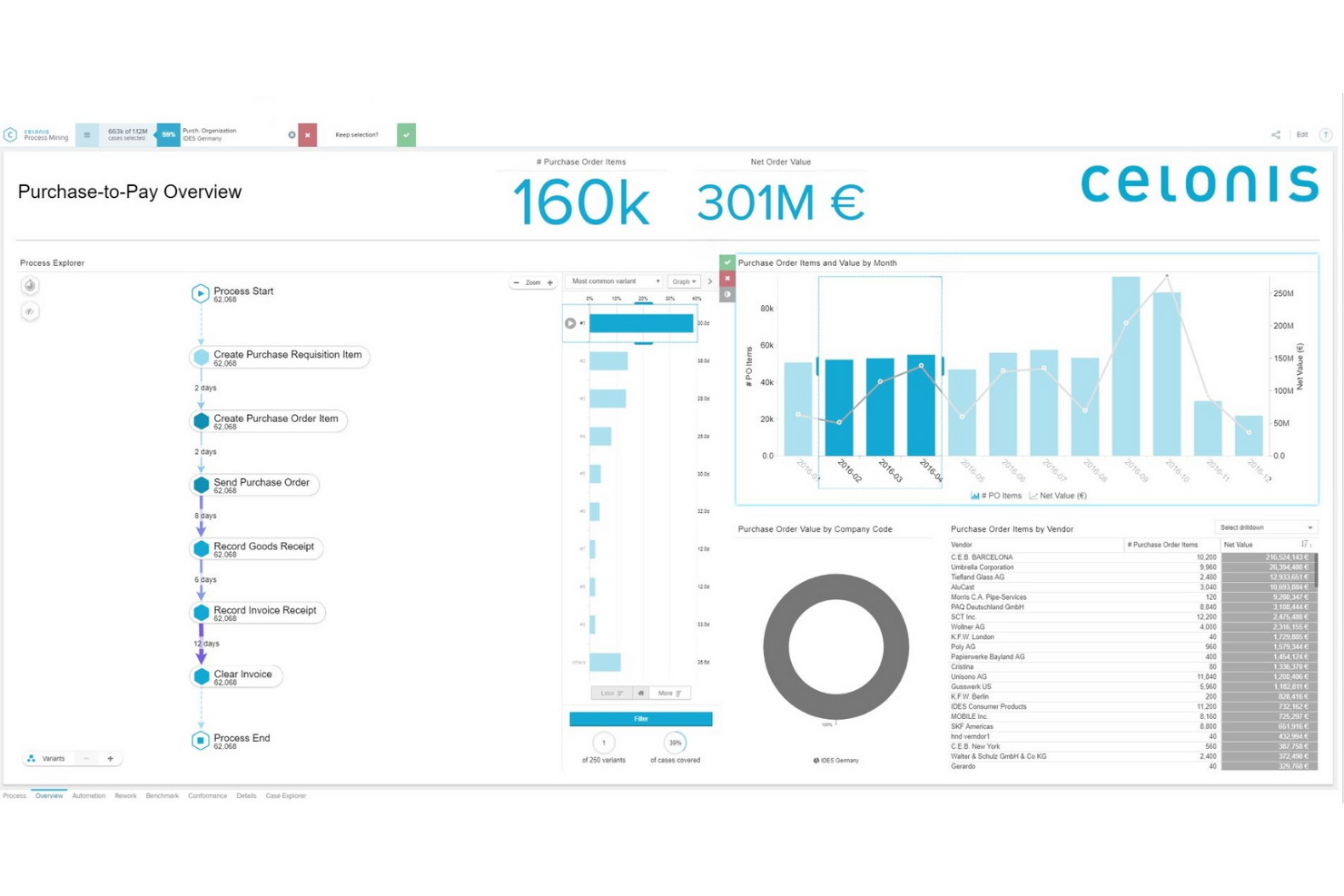
Celonis brings advanced data mining and process intelligence to organizations that need deep visibility into complex business operations. It’s especially useful for enterprise teams in finance, supply chain, and IT who want to uncover inefficiencies and hidden process variants. The platform’s unique strength lies in its ability to analyze real-time data from multiple systems and surface actionable insights for process improvement.
Why I Picked Celonis
What sets Celonis apart for process analysis is its advanced data mining capabilities, which go far beyond traditional workflow mapping. The platform uses process mining algorithms to extract and visualize process flows directly from your business systems, revealing inefficiencies and deviations that are often missed by manual analysis. I picked Celonis because it offers real-time process analytics and root cause analysis, allowing teams to quickly identify bottlenecks and optimize operations. These features make it a strong choice for organizations that need granular, data-driven insights into their end-to-end processes.
Celonis Key Features
Some other features that make Celonis valuable for process analysis include:
- Action Flows: Automate responses to process insights with configurable workflows.
- Collaboration Hub: Share findings and collaborate with team members directly within the platform.
- Pre-Built Connectors: Integrate with popular enterprise systems like SAP, Oracle, and Salesforce.
- Custom Dashboard Builder: Design tailored dashboards to visualize process metrics and KPIs.
Celonis Integrations
Native integrations are not currently listed.
Pros and Cons
Pros:
- Custom dashboard builder for tailored analytics
- Automated root cause detection for process issues
- Real-time process mining across multiple systems
Cons:
- Advanced features require significant data preparation
- Limited support for smaller or legacy systems

Best for rapid workflow automation setup

ProcessMaker offers a low-code platform designed for teams that need to automate and analyze complex workflows quickly. It’s a strong fit for IT departments, operations leaders, and digital transformation teams looking to reduce manual steps and improve process visibility. The tool stands out for its rapid workflow automation setup, making it easier to adapt processes as business needs change.
Why I Picked ProcessMaker
I chose ProcessMaker because its rapid workflow automation setup directly addresses the need for quick process deployment and iteration. The platform’s drag-and-drop process designer lets you build and modify workflows without heavy coding, which is ideal for teams that need to respond to changing requirements. I also appreciate the built-in process analytics dashboard, which helps you monitor performance and identify bottlenecks as soon as they arise. These features make ProcessMaker a strong choice for organizations that want to accelerate process analysis and automation without long development cycles.
ProcessMaker Key Features
Some other features that make ProcessMaker useful for process analysis include:
- Form Builder: Create custom forms to capture and validate process data at each workflow step.
- Role-Based Access Control: Assign permissions and manage user access to sensitive process information.
- Process Versioning: Track changes and maintain multiple versions of workflows for audit and compliance needs.
- REST API Integration: Connect with external systems and automate data exchange across your tech stack.
ProcessMaker Integrations
Native integrations are not currently listed.
Pros and Cons
Pros:
- Built-in process analytics and reporting
- Visual process mapping with drag-and-drop tools
- Rapid deployment of automated workflows
Cons:
- Limited advanced AI-driven process insights
- High starting price for small teams
Best for real-time performance monitoring
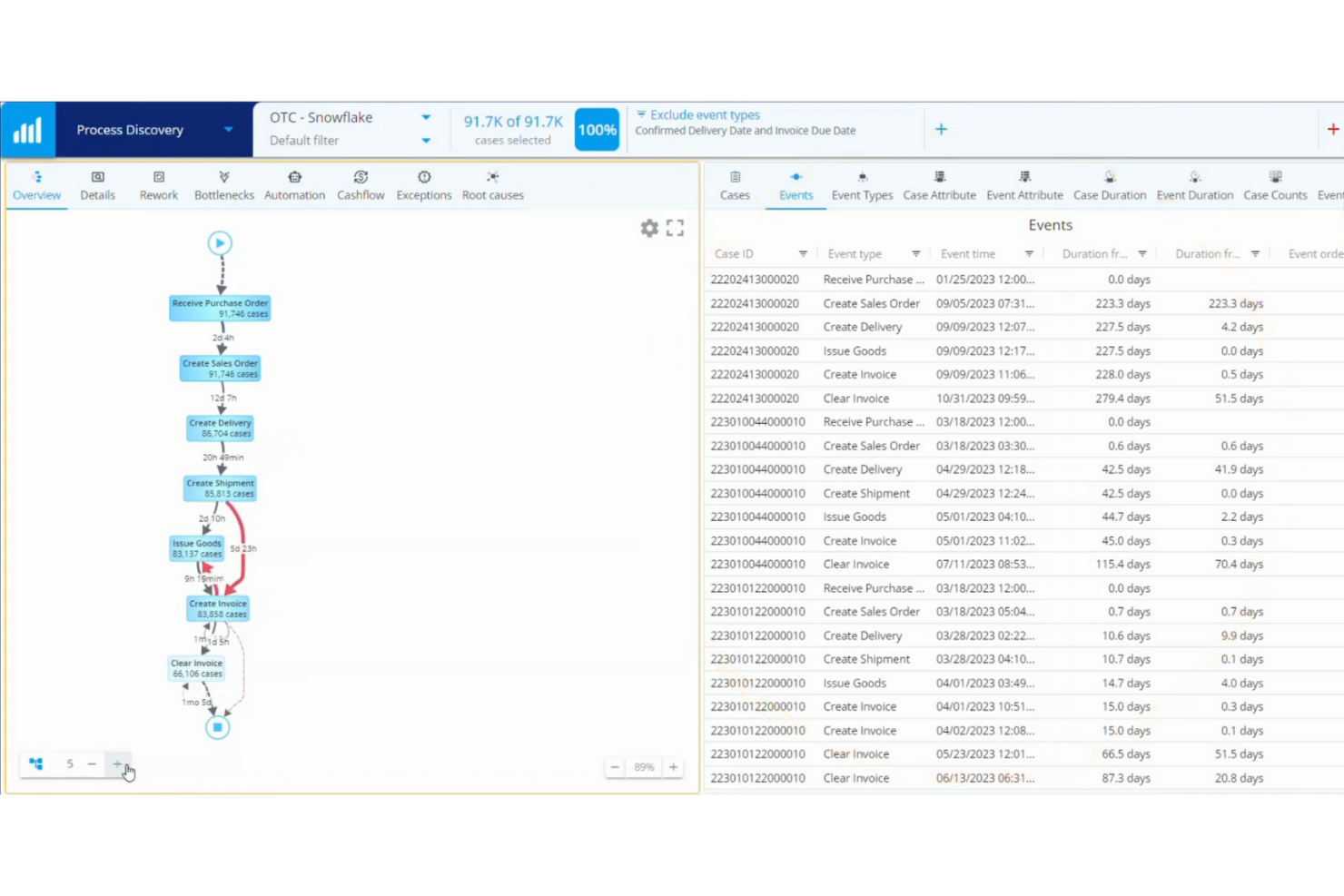
QPR ProcessAnalyzer is designed for teams that need real-time visibility into process performance and bottlenecks. It’s a strong fit for operations managers and analysts in industries like finance, manufacturing, and logistics who want to monitor, analyze, and optimize processes as they happen. The platform’s real-time dashboards and automated root cause analysis help users quickly identify inefficiencies and compliance issues.
Why I Picked QPR ProcessAnalyzer
QPR ProcessAnalyzer stands out for its ability to deliver real-time performance monitoring across complex business processes. The platform’s live dashboards and automated alerts let teams track process KPIs and spot bottlenecks as they occur, which is essential for organizations that need to react quickly to operational issues. I picked QPR ProcessAnalyzer because it also offers automated root cause analysis, helping users drill down into the reasons behind process deviations without manual investigation. This focus on immediate, actionable insights makes it a strong choice for process analysis in fast-paced environments.
QPR ProcessAnalyzer Key Features
Some other features that make QPR ProcessAnalyzer useful for process analysis include:
- Process Discovery Engine: Automatically maps out actual process flows from event logs for accurate visualization.
- Conformance Checking: Compares real process execution against predefined models to identify deviations.
- Customizable Reporting: Lets users build tailored reports with filters and drill-down options.
- Data Source Connectivity: Connects directly to ERP, CRM, and other enterprise systems for continuous data ingestion.
QPR ProcessAnalyzer Integrations
Integrations include SAP, Oracle, Salesforce, Microsoft, IBM, Workday, ServiceNow, Epicor, Infor, and more.
Pros and Cons
Pros:
- Customizable reporting supports advanced filtering options
- Automated root cause analysis pinpoints process issues
- Real-time dashboards update with live process data
Cons:
- Documentation can be sparse for advanced features
- Visualization options are limited for complex flows

Best for collaborative diagramming features
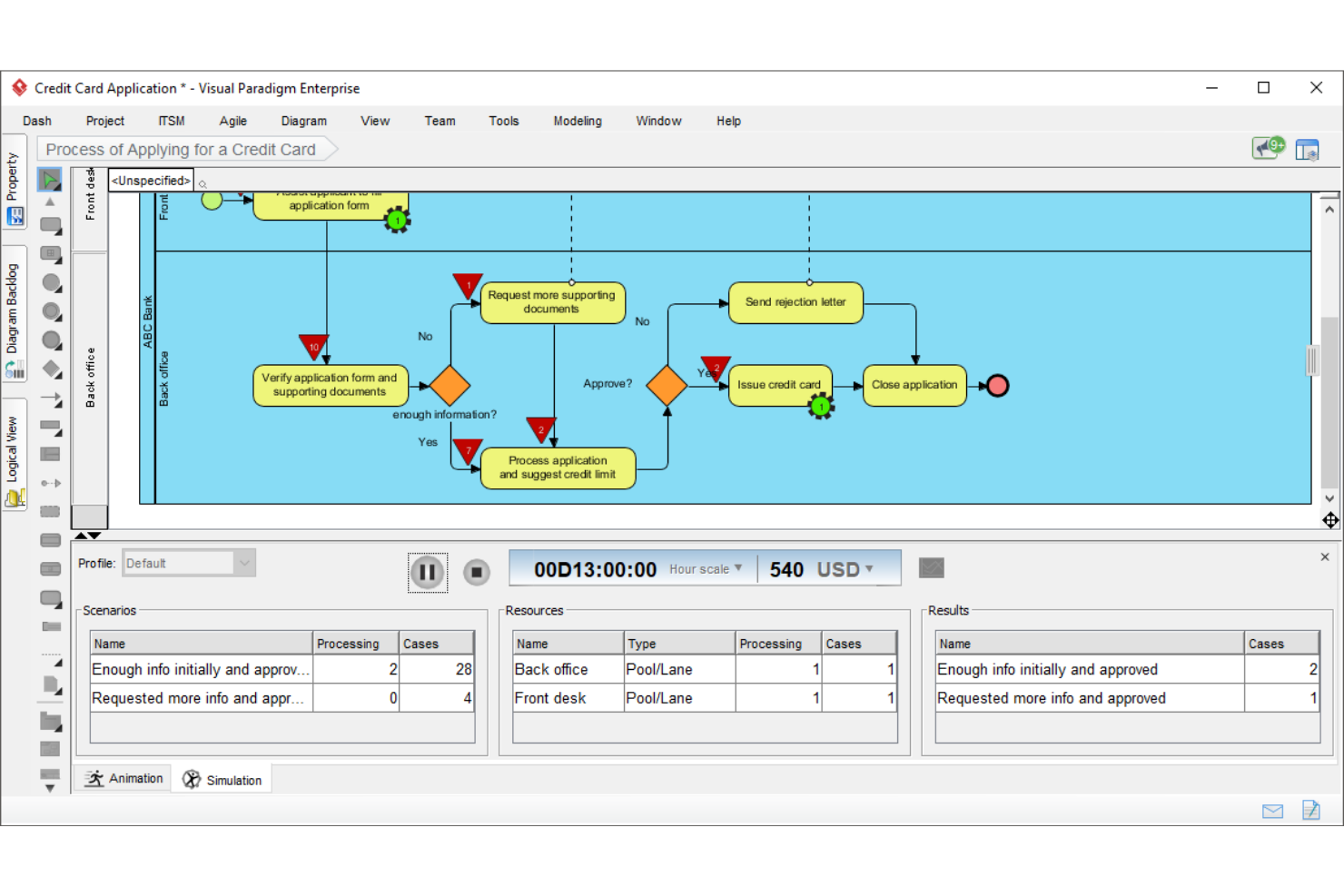
Visual Paradigm is designed for teams that need to create, share, and refine process diagrams together in real time. It’s especially useful for business analysts, IT consultants, and cross-functional teams who want to map workflows, model systems, and document processes collaboratively. The platform’s built-in commenting, versioning, and live editing features help teams keep everyone aligned as they design and improve business processes.
Why I Picked Visual Paradigm
For teams that need to work together on process diagrams, Visual Paradigm offers a set of collaborative features that stand out in the process analysis space. I picked Visual Paradigm because its live editing, in-app commenting, and version control let multiple users contribute to and refine diagrams at the same time. The tool supports a wide range of diagram types, including BPMN, flowcharts, and UML, so you can document and analyze processes from different perspectives. These collaborative diagramming features help teams quickly align on process changes and keep documentation up to date.
Visual Paradigm Key Features
Some other features that make Visual Paradigm useful for process analysis include:
- Process Animation: Lets you animate process diagrams to visualize step-by-step flows.
- Document Generation: Automatically creates process documentation from diagrams in various formats.
- Enterprise Architecture Tools: Supports frameworks like TOGAF and ArchiMate for modeling business and IT alignment.
- Import and Export Options: Allows you to bring in or send out diagrams in formats like Visio, PDF, and image files.
Visual Paradigm Integrations
Native integrations are not currently listed.
Pros and Cons
Pros:
- Process animation visualizes step-by-step execution
- BPMN, UML, and flowchart templates included
- Real-time collaboration supports distributed process teams
Cons:
- Limited automation for repetitive diagramming tasks
- No built-in process simulation capabilities

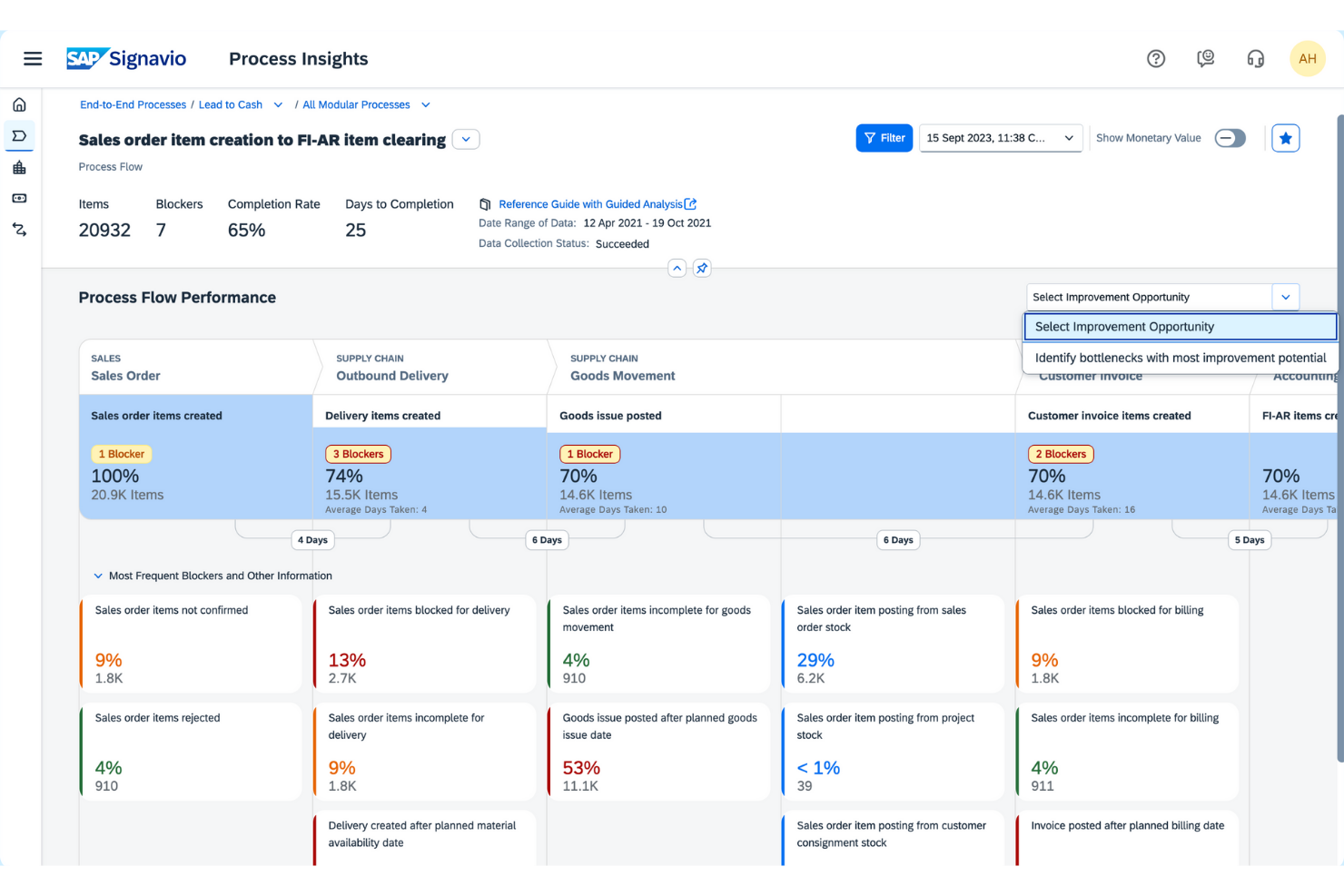
SAP Signavio is built for organizations that need deep process analysis tightly connected to SAP systems and data. It’s a strong fit for enterprise IT teams, business process owners, and transformation leaders who want to model, analyze, and optimize processes across complex SAP landscapes. The platform’s integration with SAP environments helps teams uncover inefficiencies, align process changes with system realities, and drive continuous improvement at scale.
Why I Picked SAP Signavio
When process analysis needs to be tightly aligned with SAP systems, SAP Signavio is purpose-built for that environment. I picked SAP Signavio because it offers native connectivity to SAP data and applications, making it possible to map, analyze, and optimize processes directly within the context of your SAP landscape. The platform’s process mining capabilities let you visualize real process flows based on actual SAP data, while its collaboration tools help teams document and refine processes across business units. These features make it especially valuable for organizations running SAP who want to drive process improvement with full visibility into their operational reality.
SAP Signavio Key Features
Some other features that make SAP Signavio a strong choice for process analysis include:
- Customizable Process Modeling Notations: Supports BPMN, DMN, and other industry-standard modeling languages for flexible diagramming.
- Automated Process Documentation: Generates process documentation automatically from models to support compliance and audits.
- Role-Based Access Controls: Lets you manage permissions and visibility for different users and teams.
- Change Impact Analysis: Highlights how proposed process changes may affect related workflows and systems.
SAP Signavio Integrations
Integrations include SAP S/4HANA, SAP ECC, SAP SuccessFactors, SAP Ariba, SAP Concur, SAP Business AI, and more.
Pros and Cons
Pros:
- Change impact analysis for process updates
- Native integration with SAP business applications
- Built-in process mining for SAP data
Cons:
- Limited functionality outside SAP environments
- Advanced analytics require additional SAP modules
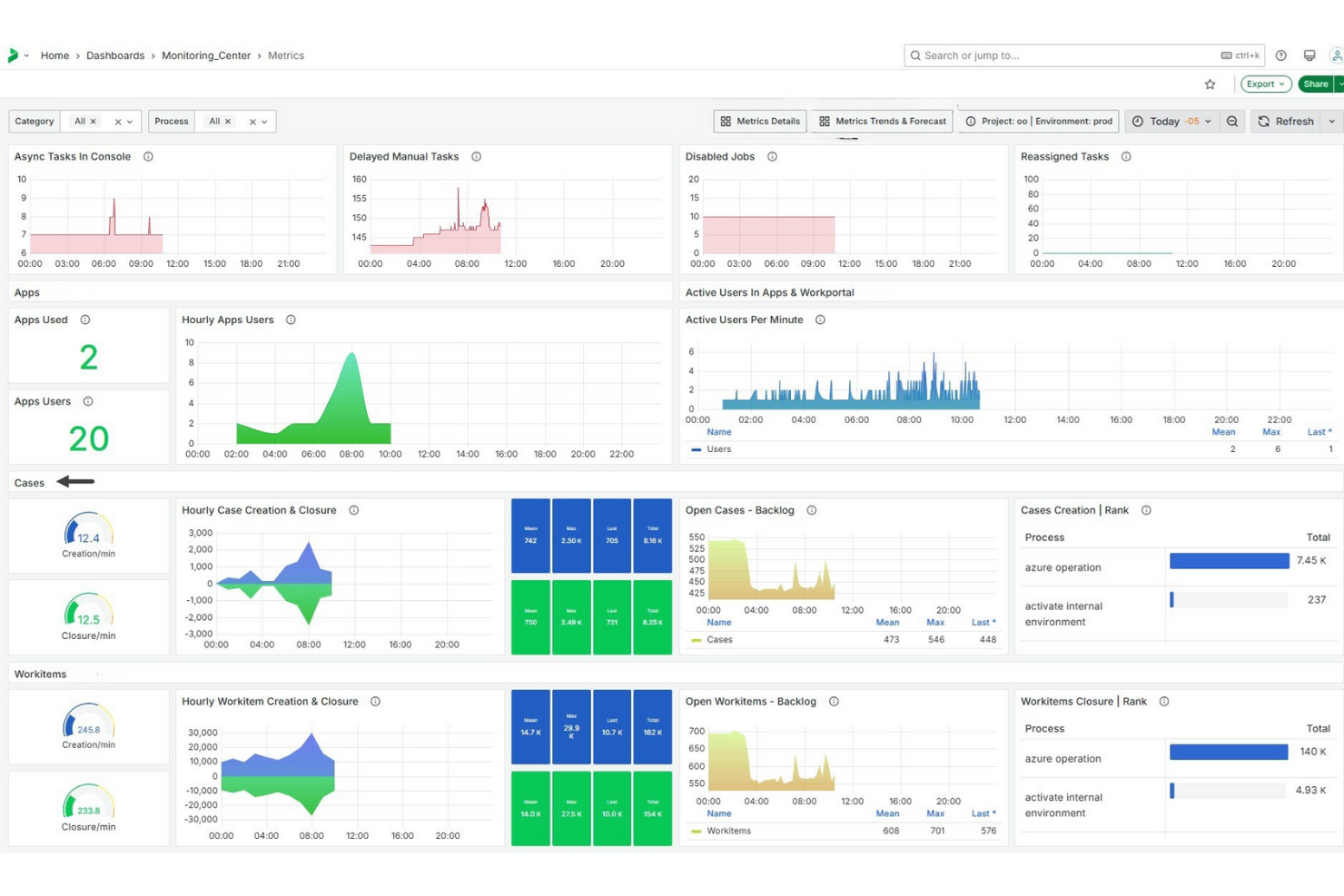
Bizagi offers a process automation platform designed for teams that need highly customizable process modeling. It’s especially useful for business analysts and operations leaders who want to map, automate, and optimize complex workflows with detailed control. The platform’s flexibility helps organizations adapt processes to unique requirements and regulatory standards.
Why I Picked Bizagi
What sets Bizagi apart for process analysis is its deep focus on customizable process modeling. The platform lets you build detailed process maps with advanced branching, conditional logic, and role assignments, so you can reflect real-world complexity in your workflows. I picked Bizagi because it supports granular process documentation and simulation, which helps teams test and refine processes before deployment. This level of customization is especially valuable for organizations with unique compliance needs or highly specialized operations.
Bizagi Key Features
In addition to its modeling flexibility, Bizagi offers several other features for process analysis:
- Process Simulation Tools: Test process performance under different scenarios using built-in simulation capabilities.
- Collaboration Portal: Share process models and gather feedback from stakeholders in a centralized workspace.
- Document Management Integration: Attach and manage supporting documents directly within process flows.
- Audit Trail Tracking: Monitor and record every change made to process models for compliance and transparency.
Bizagi Integrations
Integrations include Zendesk, Salesforce, AWS, DocuSign, Box, Dropbox, and more.
Pros and Cons
Pros:
- Collaboration portal enables stakeholder feedback collection
- Simulation tools allow scenario-based process testing
- BPMN-compliant modeling supports industry standards
Cons:
- Performance can lag with complex process models
- On-premises deployment requires significant IT resources
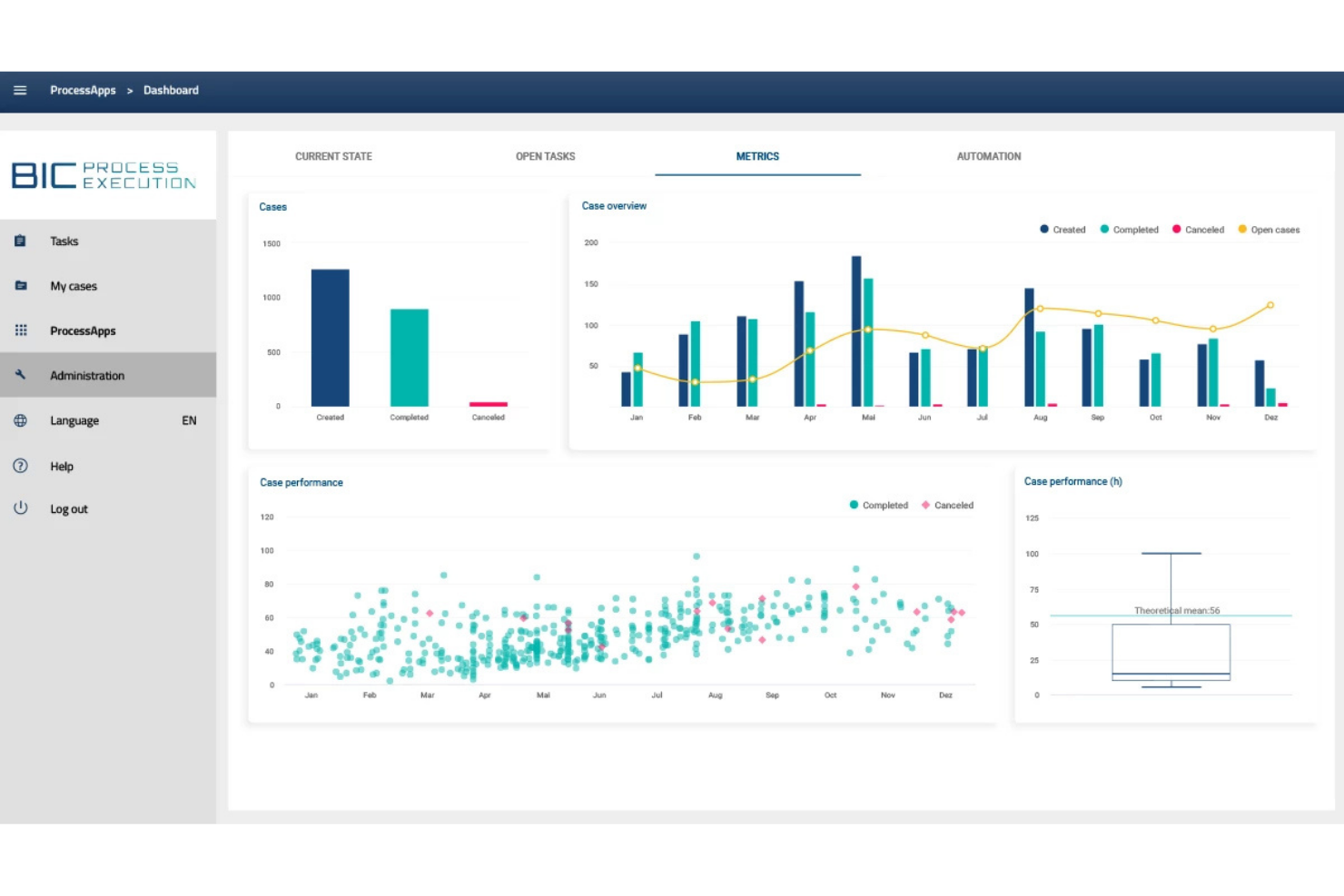
GBTEC’s BIC Process Design stands out for teams that need audit-ready process documentation and compliance support. It’s especially useful for regulated industries, internal auditors, and compliance managers who need to ensure every process is documented, versioned, and traceable. The platform’s focus on structured documentation and automated audit trails helps organizations meet strict regulatory and quality standards.
Why I Picked GBTEC
For organizations that need to maintain audit-ready documentation, GBTEC’s BIC Process Design offers a focused solution. I picked GBTEC because it provides automated version control and detailed change logs, making it easy to track every update for compliance purposes. The tool also supports structured process modeling with built-in approval workflows, so you can ensure that every process is reviewed and documented according to regulatory standards. These features make it a strong choice for teams that need to demonstrate process transparency and accountability during audits.
GBTEC Key Features
In addition to its audit-focused documentation tools, GBTEC offers several other features for process analysis:
- Drag-and-Drop Process Modeling: Lets you quickly build and modify process diagrams using an intuitive visual editor.
- Customizable Reporting Dashboards: Provides configurable dashboards for tracking process performance and KPIs.
- Collaboration Workspaces: Enable multiple users to work together on process models and documentation in real time.
- Integrated Risk Management: Allows you to link risk assessments directly to process steps for better oversight.
GBTEC Integrations
Native integrations are not currently listed.
Pros and Cons
Pros:
- Real-time collaboration on process models
- Built-in risk management linked to processes
- Automated audit trails for process documentation
Cons:
- User management can be complex for large teams
- Advanced analytics require separate modules

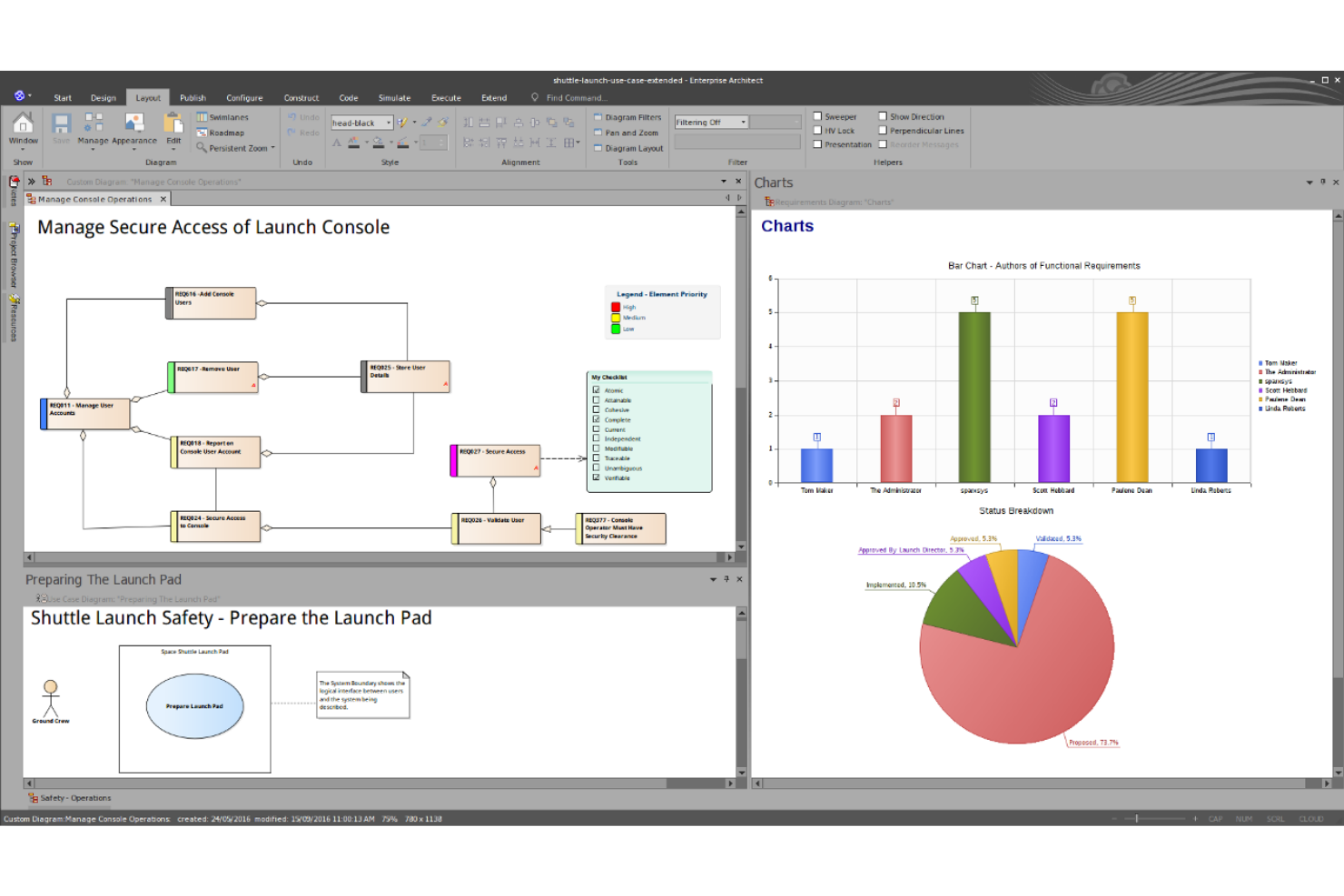
Enterprise Architect is built for organizations that need to model, analyze, and manage complex business processes using industry-standard frameworks. It’s a strong fit for enterprise architects, business analysts, and IT teams who require support for standards like BPMN, UML, and ArchiMate in a single platform. The tool’s depth in modeling standards helps teams document, align, and optimize processes across large, regulated, or highly structured environments.
Why I Picked Enterprise Architect
When you need a process analysis tool that supports a wide range of modeling standards, Enterprise Architect is hard to match. I picked Enterprise Architect because it covers BPMN, UML, ArchiMate, and other frameworks in one environment, making it easier to maintain consistency across different types of process documentation. The platform’s support for detailed modeling, validation, and traceability helps teams ensure their processes align with industry and regulatory requirements. This depth in modeling standards is especially valuable for organizations with complex or highly governed process landscapes.
Enterprise Architect Key Features
Some other features that make Enterprise Architect valuable for process analysis include:
- Simulation Tools: Lets you simulate business processes to test flows and identify bottlenecks.
- Requirements Management: Provides tools to capture, trace, and manage requirements alongside process models.
- Collaboration Portal: Offers a web-based portal for sharing models and gathering stakeholder feedback.
- Custom Reporting: Allows you to generate tailored reports from process models in multiple formats.
Enterprise Architect Integrations
Native integrations are not currently listed.
Pros and Cons
Pros:
- Requirements traceability links models to documentation
- Built-in process simulation and validation tools
- Supports BPMN, UML, and ArchiMate standards
Cons:
- Limited cloud-based deployment options available
- Collaboration features require additional configuration
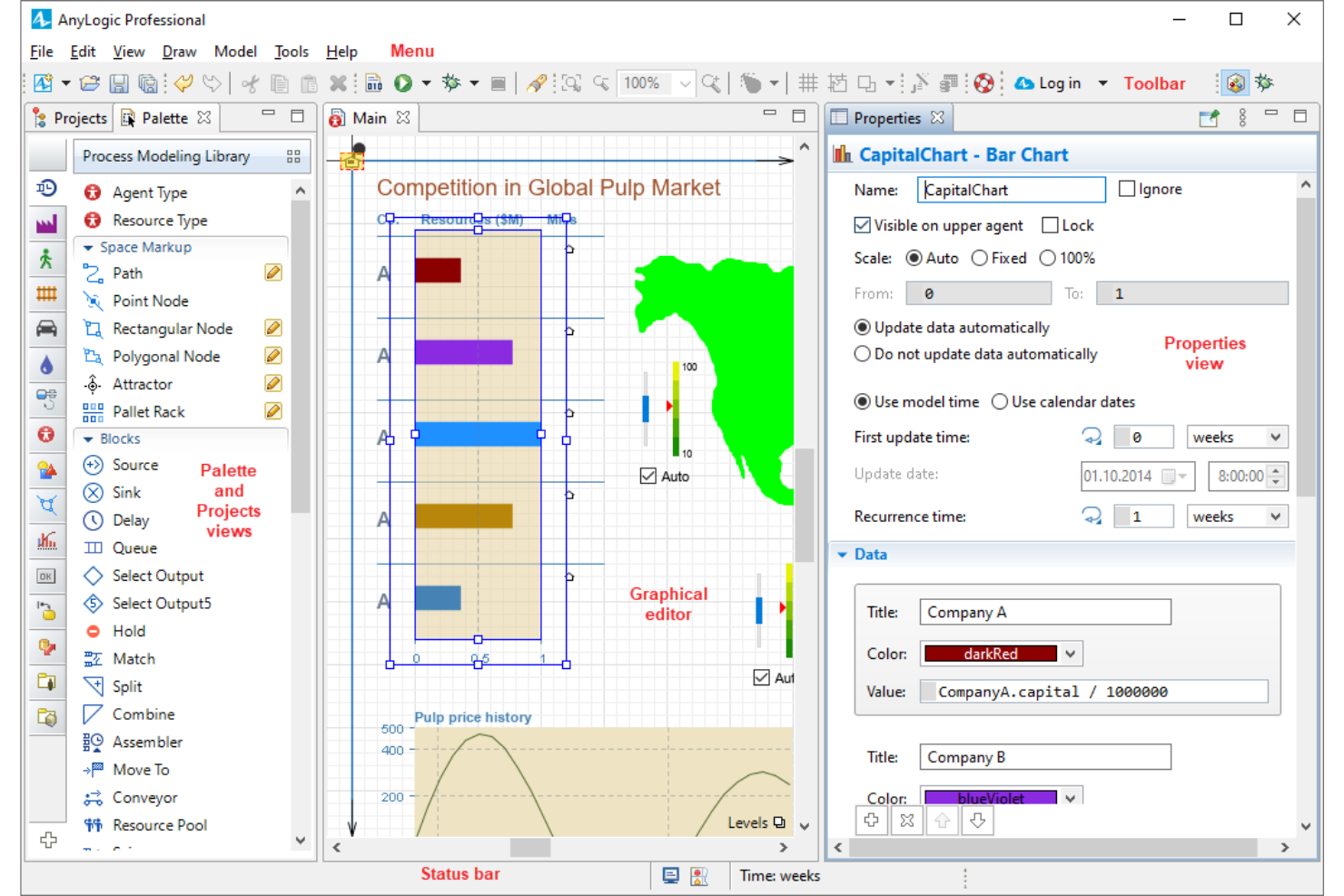
AnyLogic stands out for teams that need to simulate and analyze complex business processes before making changes. It’s a strong fit for operations researchers, process engineers, and analysts who want to test scenarios and predict outcomes using dynamic models. The platform’s simulation-driven approach helps organizations visualize bottlenecks, experiment with process improvements, and make data-backed decisions.
Why I Picked AnyLogic
Unlike most process analysis tools, AnyLogic lets you build simulation models that mirror real-world business processes and test how they perform under different scenarios. I picked AnyLogic because its discrete-event, agent-based, and system dynamics modeling options give you flexibility to analyze everything from supply chains to customer service workflows. The platform’s visual modeling environment makes it possible to experiment with process changes and see the impact before implementation. This simulation-driven approach is especially valuable for teams that need to predict outcomes and optimize processes in complex, dynamic environments.
AnyLogic Key Features
Some other features that make AnyLogic useful for process analysis include:
- Cloud-Based Model Sharing: Lets users publish and share simulation models online for collaboration.
- Customizable Animation Tools: Provides visual tools to animate process flows and resources in real time.
- Data Import and Export: Supports integration with spreadsheets and databases for importing process data and exporting results.
- Scenario Comparison: Allows users to run and compare multiple process scenarios side by side.
AnyLogic Integrations
Native integrations are not currently listed.
Pros and Cons
Pros:
- Data import supports integration with external sources
- Cloud sharing allows collaborative model access
- Animation tools visualize process flows dynamically
Cons:
- Limited process mapping templates for quick starts
- Requires Java knowledge for advanced customization


Appian Process HQ stands out for teams looking to combine process intelligence with low-code automation in a single platform. It’s a strong fit for IT leaders and business analysts who want to unify data, automate workflows, and analyze processes without heavy coding. The platform’s unique approach helps organizations quickly adapt processes and integrate systems across departments.
Why I Picked Appian Process HQ
For process analysis, I picked Appian Process HQ because it uniquely combines low-code automation with process intelligence in one environment. The platform lets you design, analyze, and optimize workflows using visual tools, so you can quickly adapt processes as business needs change. Its unified data fabric connects information from multiple sources, making it easier to analyze end-to-end processes without manual data wrangling. This approach is especially useful for teams that want to automate and analyze processes without relying on heavy IT resources.
Appian Process HQ Key Features
Some other features that make Appian Process HQ useful for process analysis include:
- Process Mining Engine: Uncover process inefficiencies by analyzing event logs from connected systems.
- AI-Powered Recommendations: Get automated suggestions for process improvements based on real-time data.
- Business Rules Designer: Configure and manage business logic visually without writing code.
- Role-Based Access Controls: Set permissions and manage user access to sensitive process data.
Appian Process HQ Integrations
Native integrations are not currently listed.
Pros and Cons
Pros:
- Unified data fabric for cross-system analysis
- Visual process modeling for rapid workflow changes
- Low-code automation built into process analysis
Cons:
- Some features require Appian ecosystem adoption
- Advanced analytics require significant data preparation
Other Process Analysis Tools
Here are some additional process analysis tools options that didn’t make it onto my shortlist, but are still worth checking out:
- Lucidchart
For collaborative diagramming in real time
- Nintex
For rapid workflow mapping in large enterprises
- Cflow
For customizable approval workflows
- Kissflow
For no-code automation in mid-sized teams
- TIBCO
With advanced data integration features
- Microsoft Visio
With Microsoft 365 ecosystem integration
- ProcessGene
For multi-organization process governance
- Orbus Software
For enterprise architecture alignment
- ARIS Express
For entry-level process mapping


How I Evaluate Process Analysis Tools
I split evaluation into two layers: core capabilities every qualifying tool must have, and differentiators that matter when you're surfacing delivery bottlenecks or auditing process conformance.
Core Functionality (Table Stakes For This List)
When I'm selecting tools for my list, I rank each one on a scale from 0 (does not offer the functionality) to 5 (excels in this area) for each core functionality listed below. Then, I calculate the tool's total score into a percentage. Each tool needs to achieve a minimum total score of 65% to be considered for inclusion.
- Process Mapping & Modeling: I check whether you can diagram workflows in standard notations like BPMN or swimlanes, not just basic shapes on a canvas.
- Process Discovery & Mining: Event log ingestion matters here. I look for tools that can reconstruct how a sprint or release cycle actually played out.
- Performance Analytics & KPIs: Dashboards should surface metrics like cycle time and throughput. I evaluate how well each tool lets you drill into the data.
- Simulation & What-If Analysis: I look for the ability to model scenarios, like testing how adding a QA gate would affect delivery timelines before committing.
- Bottleneck & Variance Detection: Tools should flag where actual execution drifts from the designed process, such as a recurring handoff delay between teams.
- Collaboration & Documentation: I evaluate shared repositories, version history, and commenting. Cross-functional teams need to co-own process artifacts together.
Once I have a list of tools that meet the criteria, I consider what sets each platform apart.
Differentiating Factors (What Sets Vendors Apart)
Here's how I compare and contrast different vendors:
Standout Features
AI-powered insights are a major differentiator. I look for tools that proactively flag patterns, like predicting a sprint bottleneck before it stalls delivery. Native connectors to project management platforms also matter, since they determine how fast you can start mining real project data. A digital twin of the process takes things further, giving you a live replica that updates as your team works so you can monitor conformance in real time.
Beyond Features
Integration ecosystem is the first thing I evaluate. A tool that can't pull event logs from your existing project stack is dead on arrival. I also consider deployment and scalability, especially whether the platform can handle the jump from a single-team pilot to an enterprise PMO rollout without performance issues. Pricing transparency matters too. I look for clear licensing models that let you start small and expand, since process analysis often begins as a proof-of-concept before leadership commits budget.
How to Choose Process Analysis Tools
It’s easy to get bogged down in long feature lists and complex pricing structures. To help you stay focused as you work through your unique software selection process, here’s a checklist of factors to keep in mind:
| Factor | What to Consider |
|---|---|
| Scalability | Will the tool support your process mapping needs as your organization grows or changes structure? |
| Integrations | Does the tool connect natively with your existing systems (ERP, CRM, HRIS) to avoid manual work? |
| Customizability | Can you adapt process templates, fields, and workflows to match your team’s terminology and needs? |
| Ease of use | Will team members across departments be able to use the tool with minimal training or frustration? |
| Implementation and onboarding | How long will it take to get up and running, and what resources or support will you need internally? |
| Cost | Are pricing tiers clear, and do they align with your expected usage and user count over time? |
| Security safeguards | Does the tool offer role-based access, audit logs, and compliance with standards like ISO or GDPR? |
| Compliance requirements | Can the tool help you meet industry-specific regulations or audit standards relevant to your sector? |
What Are Process Analysis Tools?
Process analysis tools are software platforms that help teams visualize, document, and evaluate business processes. These tools support business process management (BPM) by helping teams map workflows, define inputs and outputs, identify redundancies, and assess opportunities for value-added analysis and gap analysis. Project managers, analysts, and process owners use them for business process analysis, workflow management, and continuous improvement initiatives. By providing a clear view of how work gets done, these tools support data-driven decisions, help teams design a new process when needed, and improve overall business value. Many organizations also reference case studies to evaluate results and best practices.
Features
When selecting process analysis tools, keep an eye out for the following key features:
- Process modeling: Lets you create visual diagrams of workflows, making it easier to map out each step and understand how tasks connect.
- Version control: Tracks changes to process documentation over time, so you can review previous versions and maintain an audit trail.
- Collaboration tools: Enable multiple users to work together on process maps, leave comments, and share feedback in real time.
- Reporting and analytics: Provides dashboards and reports that highlight process performance, bottlenecks, and areas for improvement.
- Role-based access: Allows you to set permissions for different users, ensuring sensitive process information is only accessible to the right people.
- Process documentation: Lets you attach detailed notes, instructions, and supporting files to each process step for clarity and compliance.
- Export and sharing options: Supports exporting process maps and documentation to formats like PDF, Word, or image files for easy sharing with stakeholders.
- Integration capabilities: Connects with other business systems, such as ERP or CRM platforms, to pull in data or trigger workflows automatically.
- Approval workflows: Lets you set up review and approval steps for process changes, ensuring updates are vetted before going live.
Benefits
Implementing process analysis tools provides several benefits for your team and your business. Here are a few you can look forward to:
- Greater process visibility: Visual modeling and documentation features give everyone a clear view of how work gets done across teams.
- Improved compliance: Version control, audit trails, and approval workflows help you meet regulatory requirements and maintain accurate records.
- Faster process optimization: Reporting and analytics highlight bottlenecks and inefficiencies, making it easier to target areas for improvement.
- Improved collaboration: Real-time editing and commenting tools support teamwork and keep stakeholders aligned on process changes.
- Reduced manual errors: Integration capabilities and standardized documentation minimize the risk of mistakes and data entry issues.
- Easier onboarding: Detailed process documentation and role-based access help new team members understand workflows and responsibilities quickly.
- Better change management: Approval workflows and change tracking ensure updates are reviewed and communicated before implementation.
Costs & Pricing
Selecting process analysis tools requires an understanding of the various pricing models and plans available. Costs vary based on features, team size, add-ons, and more. The table below summarizes common plans, their average prices, and typical features included in process analysis tools solutions:
Plan Comparison Table for Process Analysis Tools
| Plan Type | Average Price | Common Features |
|---|---|---|
| Free Plan | $0 | Basic process modeling, limited users, basic export options, and community support. |
| Personal Plan | $5-$15/user/month | Single user access, unlimited process maps, basic analytics, and email support. |
| Business Plan | $20-$40/user/month | Multi-user collaboration, advanced reporting, integration options, version control, and role-based access. |
| Enterprise Plan | $50-$3000/user/month | Custom integrations, audit trails, dedicated support, compliance features, and advanced security controls. |
Process Analysis Tools FAQs
Here are some answers to common questions about process analysis tools:
How do process analysis tools support compliance and audit requirements?
Process analysis tools support compliance by providing version control, audit trails, and approval workflows. These features help you track changes, document process ownership, and maintain records needed for regulatory audits or internal reviews.
Can process analysis tools integrate with other business systems?
Yes, most process analysis tools offer integration capabilities with systems like ERP, CRM, and HR platforms. Integrations help automate data flow, trigger workflows, and reduce manual entry, making process management more efficient and accurate.
What should I consider when migrating existing process documentation into a new tool?
Start by reviewing your current documentation for completeness and accuracy. Look for import options such as CSV, XML, or diagram file support in your new tool. Plan for a phased migration and involve key stakeholders to ensure nothing is lost or misrepresented.
Are process analysis tools suitable for small teams or only large organizations?
Process analysis tools can be used by both small teams and large organizations. Many vendors offer scalable plans and features, so you can start small and expand as your needs grow without overwhelming your team with unnecessary complexity.
How often should business processes be reviewed and updated in these tools?
Review and update business processes at least annually or whenever there are significant changes in operations, regulations, or team structure. Regular updates help keep documentation accurate and ensure your workflows remain efficient and compliant.