

10 Best AI Flowchart Generators Reviewed in 2026

Best AI Flowchart Generator Tools Shortlist


AI flowchart generators are easy-to-use, intuitive tools that can create flowcharts and workflow diagrams for you. They can provide a clear visual representation of your processes to help improve workflows, increase clarity for the team, and make complex tasks more manageable.
In this article, I'll share my top picks for AI flowchart generators that can help you organize your thoughts, plan projects, and communicate effectively with your team. I'll give you an unbiased review and highlight key features and benefits so you can find the right solution and help your team work smarter, not harder.
Why Trust Our Software Recommendations
Our team has been testing and reviewing software since 2012. As project managers ourselves, we know how difficult—and important—it is to choose the right software.
For this guide, we evaluated tools using hands-on testing and independent research, scoring tools using our selection criteria. We also draw on insights from industry thought leaders and practicing project management experts.
Our reviews reflect our human editorial judgment, not a sales pitch.
Expert reviewers:
AI Flowchart Generator Tools Comparison Table
This comparison table summarizes pricing details for my top AI flowchart generator tool selections:
| Tool | Best For | Trial Info | Price | ||
|---|---|---|---|---|---|
| 1 | Best for beginner-friendly use | Free trial + free plan available | From $144/user/year (billed annually) | Website | |
| 2 | Best for team collaboration | Free plan available | From $10/user/month (billed annually) | Website | |
| 3 | Best for creative teams | Free plan available | From $10/user/month (billed annually) | Website | |
| 4 | Best for infographic-style diagrams | Free plan available | From $10/month (billed annually) | Website | |
| 5 | Best for cross-platform use | Free plan available | From $41.99/user/month (billed annually) | Website | |
| 6 | Best for automatic note integration | Free plan available | From $9/month (billed annually) | Website | |
| 7 | Best for enterprise process automation | 14-day free trial + free demo available | Pricing upon request | Website | |
| 8 | Best for quick diagram edits | Free plan available | From $10/user/month (billed annually) | Website | |
| 9 | Best for switching between map types | Free trial available | From $0/month | Website | |
| 10 | Best for AI-driven suggestions | Free plan available | From $7.90/user/month (billed annually) | Website |
Best AI Flowchart Generator Software Reviews
Below are my detailed summaries of each of the best AI flowchart generators. I cover key features, pros & cons, integrations, and ideal use cases so you can find the best tool for you.
Canva
Best for beginner-friendly use
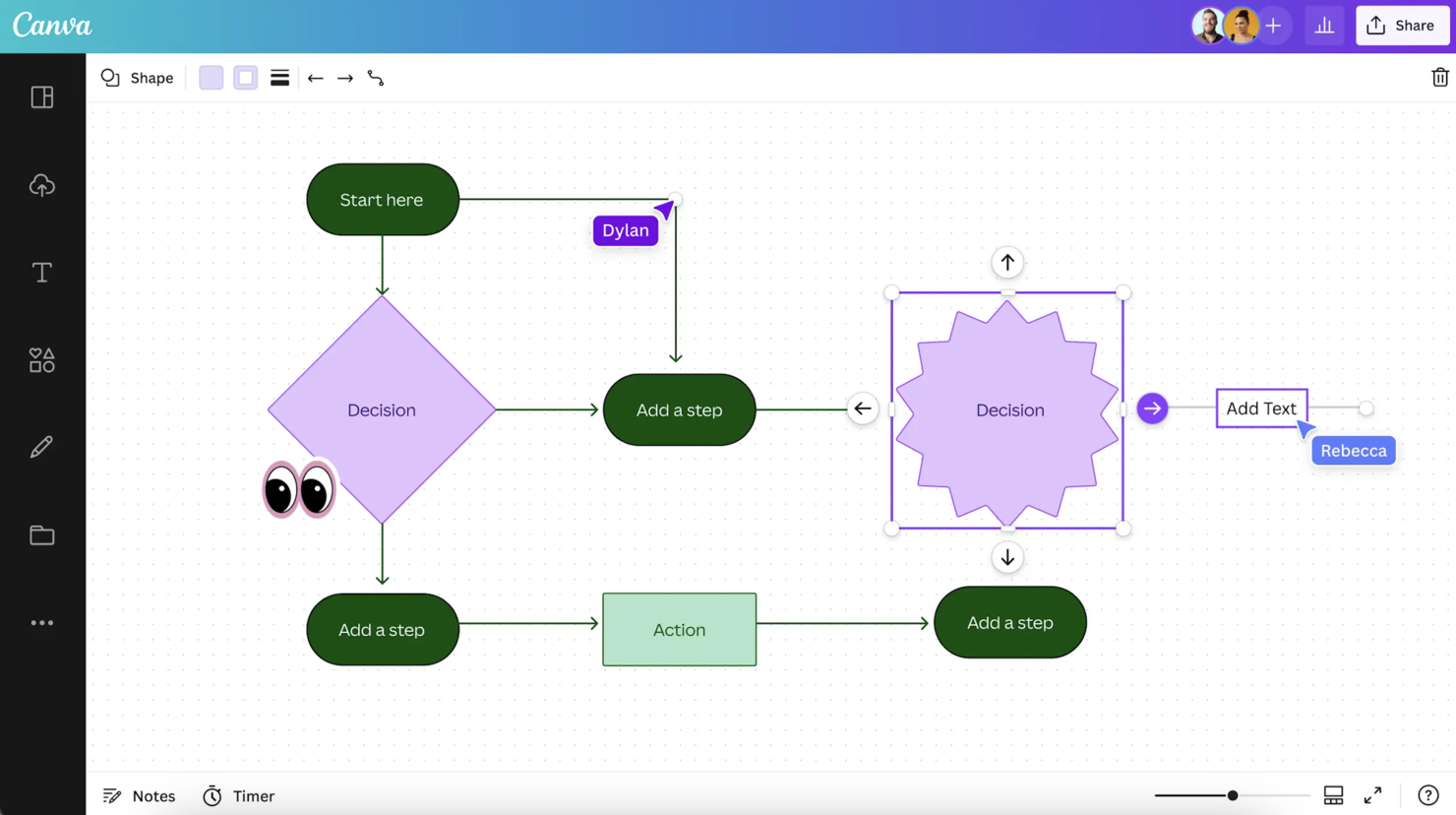
Canva makes this list for anyone who wants a hassle-free way to create and edit flowcharts with AI support. I've watched entry-level and non-design teams use its AI-powered Magic Design and customizable templates to generate diagrams in a few clicks.
What I appreciate most is how straightforward it is to transform an idea or text prompt into a full diagram, then tweak layouts or branding with Canva's drag-and-drop editor. This works best when you want to go from concept to visual fast, without learning dedicated diagramming software.
Canva’s Best For
- Non-designers making flowcharts from templates or AI suggestions
- Small teams needing fast, simple workflow diagrams
Canva’s Not Great For
- Technical teams needing advanced diagram logic or automation
- Organizations with strict enterprise or compliance requirements
What sets Canva apart
Canva takes flowchart creation out of the hands of designers and gives it to anyone who needs a fast, visual diagram. I like how its AI-assisted tools let you generate draft flowcharts from text or ideas in seconds. Unlike Lucidchart or SmartDraw, Canva expects you to work visually, experimenting with layouts and styles before worrying about technical details.
This works well when you want to share a draft or brainstorm visually in a meeting, rather than lock down a rigid diagram.
Tradeoffs with Canva
Canva optimizes for speed and visual appeal, but this limits logic controls and automation. When you need detailed processes or technical frameworks, you’ll find it lacks advanced tools for precision.
Pros and Cons
Pros:
- Supports a wide range of projects
- Easy drag-and-drop interface
- Extensive template library
Cons:
- Limited export options
- Limited advanced tools

Taskade
Best for team collaboration
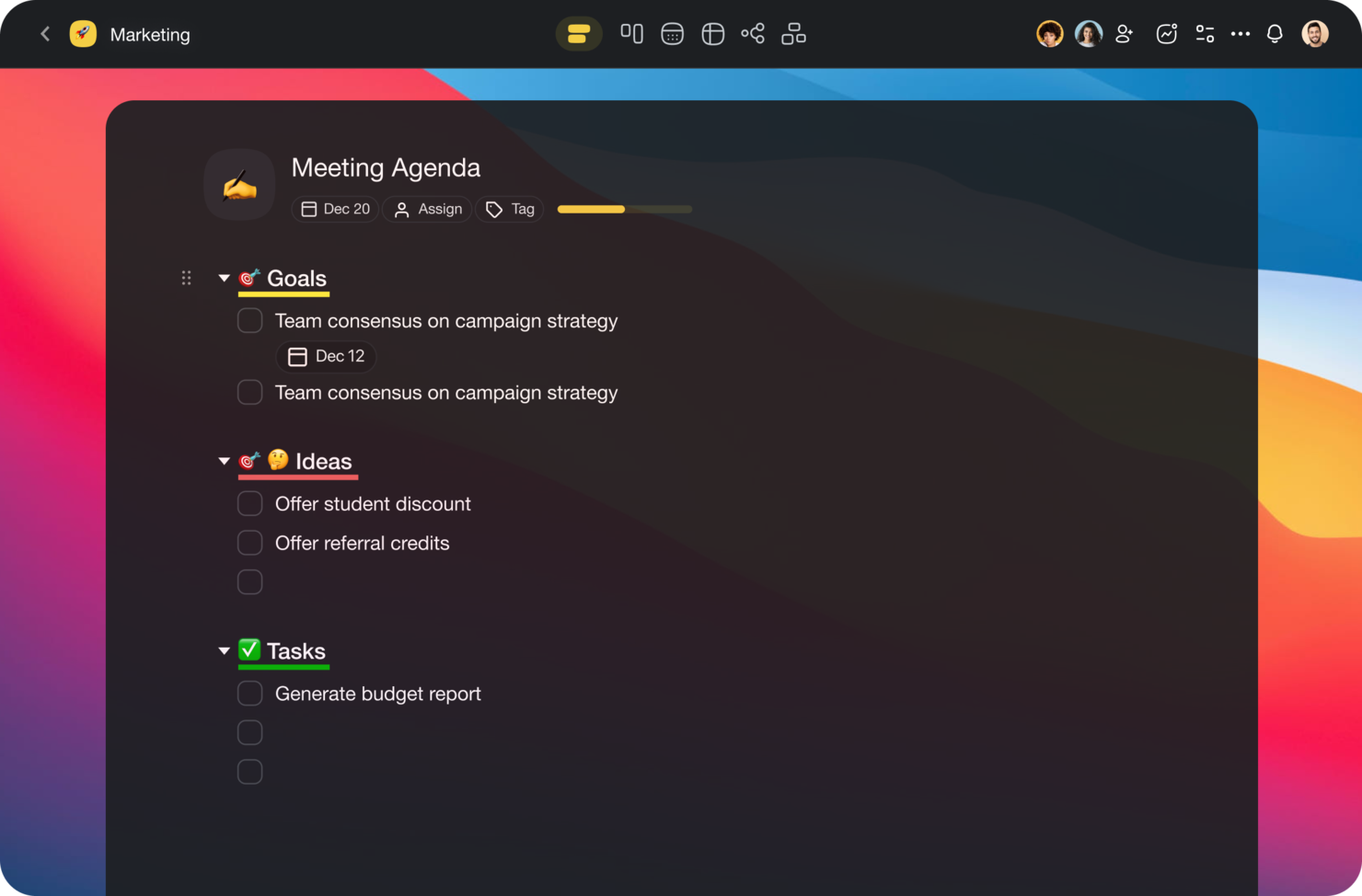
Taskade makes this list because few tools handle team brainstorming and diagramming in one place as well as it does. I recommend it when teams want collaborative, AI-supported flowchart generation right inside their shared workspace.
I like how you can map out processes visually, build flowcharts with AI, and switch smoothly between mind maps, lists, and kanban—all in real time with your team. This makes it much easier to keep everyone on the same page during strategy sessions or project planning.
Taskade’s Best For
- Creative and product teams that need live, visual collaboration
- Teams who want AI-assisted flowchart and mind mapping tools
Taskade’s Not Great For
- Users needing advanced flowchart controls or detailed process modeling
- Teams focused on engineering or technical diagram standards
What sets Taskade apart
Taskade approaches diagramming as a live collaboration experience, blending AI flowchart creation with real-time teamwork in a shared workspace. Instead of the strict, formal design you see in Lucidchart or the complexity of Jira, Taskade encourages fluid conversation, note-taking, and brainstorming right on the canvas. This tends to work best when teams want to plan and visualize thinking together, not document prescriptive workflows.
Tradeoffs with Taskade
Taskade optimizes for quick, flexible co-creation, but that means advanced controls or rigorous process modeling are limited. If you need detailed diagram standards or rules-based flows, you’ll find it falls short.
Pros and Cons
Pros:
- Mind mapping capabilities
- Supports remote team management
- Customizable workflow templates
Cons:
- Limited advanced features
- Requires fast internet connection

Best for creative teams
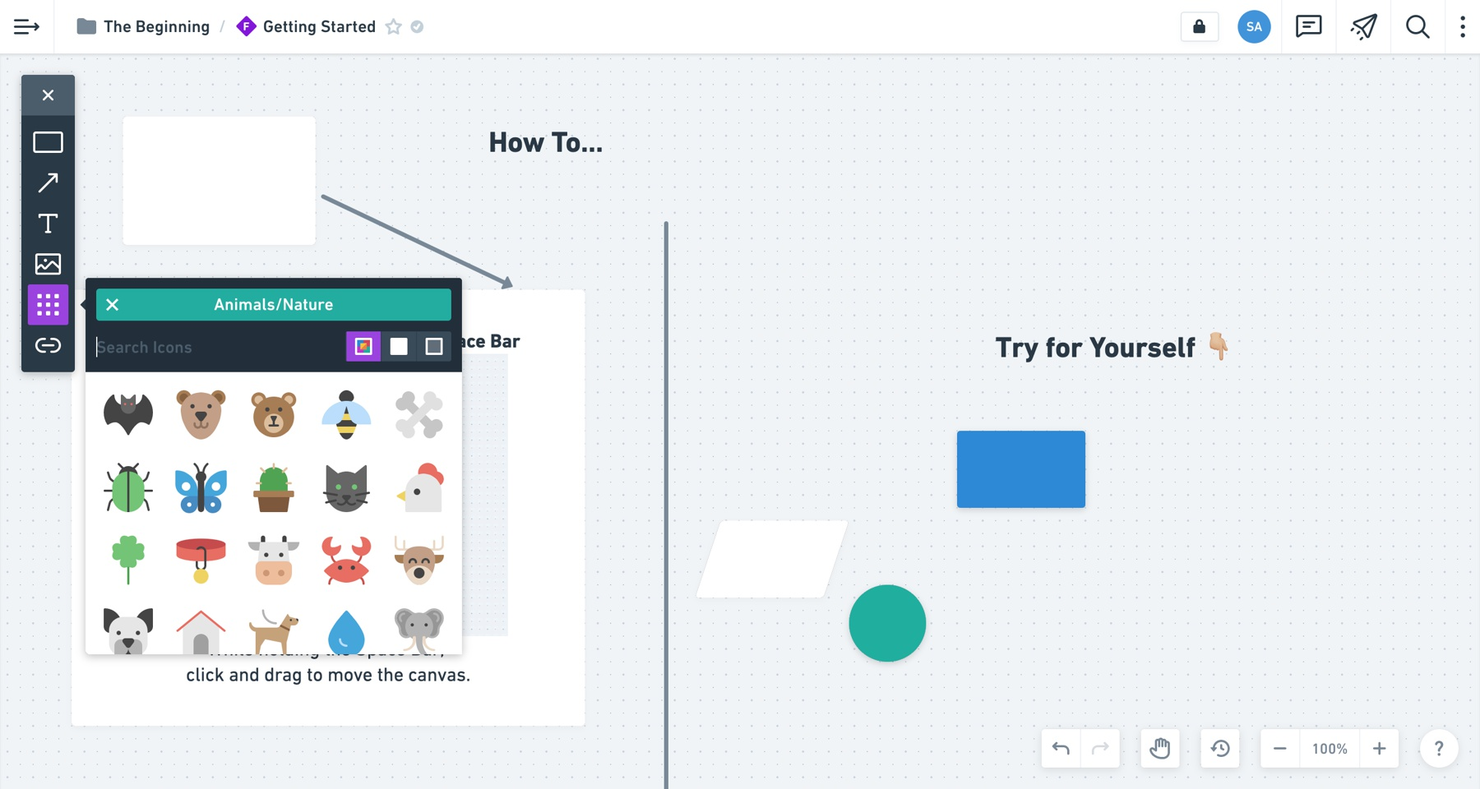
Whimsical is my go-to when I see creative teams mapping out ideas or collaboration flows that need to stay visual but flexible. I’ve used its AI-driven flowchart generator and like how quickly you can shape diagrams with natural language, then refine them with grouped objects and sticky notes.
What I appreciate is how it combines structured AI diagrams with mind maps and wireframes, so work feels fluid as ideas change direction.
Whimsical’s Best For
- Creative teams mapping flows, ideas, and wireframes
- Fast brainstorming with AI-generated diagrams and mind maps
Whimsical’s Not Great For
- Engineering teams needing process-specific symbols or rules
- Formal documentation or compliance-driven diagramming
What sets Whimsical apart
Whimsical feels different because it keeps brainstorming fluid, not forcing you into strict shapes or syntax like Lucidchart or Microsoft Visio. I see teams shifting between flowcharts, mind maps, and wireframes without switching tools or workflows. Instead of treating diagrams as static assets, it expects you to keep tweaking and layering ideas as projects evolve.
Tradeoffs with Whimsical
Whimsical optimizes for fluid ideation, but you lose access to diagram controls and process-specific libraries engineering teams expect. This means work can feel unstructured and lacks the rigor needed for formal documentation.
Pros and Cons
Pros:
- Real-time collaboration
- Great for remote teams
- Built-in icon library
Cons:
- Less suitable for large projects
- Few advanced design tools

Venngage
Best for infographic-style diagrams

Venngage makes my list because it brings infographic-level polish to flowcharts and process visuals. When I see teams needing visuals for client proposals, pitches, or marketing that actually catch attention, this is the one that fits best.
You get slick templates and an AI diagram wizard that suggests layouts and iconography for your content. I appreciate how I can transform dry technical flows into something that gets traction with non-technical stakeholders.
Venngage’s Best For
- Marketers and comms teams making visual process diagrams
- Creating flowcharts for stakeholder presentations or client reports
Venngage’s Not Great For
- Engineering or dev teams needing technical diagram standards
- Anyone needing automated diagram syncing with live data sources
What sets Venngage apart
Venngage stands out because it treats flowcharts as visual communication pieces instead of technical diagrams. You get an interface built for creating presentations and reports with strong visual appeal. Unlike tools like Lucidchart, which focus on structured diagramming, Venngage works best for client-facing deliverables where style matters just as much as clarity.
You can take a process or workflow and turn it into something that engages stakeholders who don’t think in boxes and arrows.
Tradeoffs with Venngage
Venngage optimizes for presentation and design, so you lose out on technical diagram features and granular logic controls that matter to engineers or IT teams.
Pros and Cons
Pros:
- Accessible for non-designers
- Easy color and font customization
- Extensive template library
Cons:
- Learning curve for advanced features
- Limited free features

EdrawMax
Best for cross-platform use
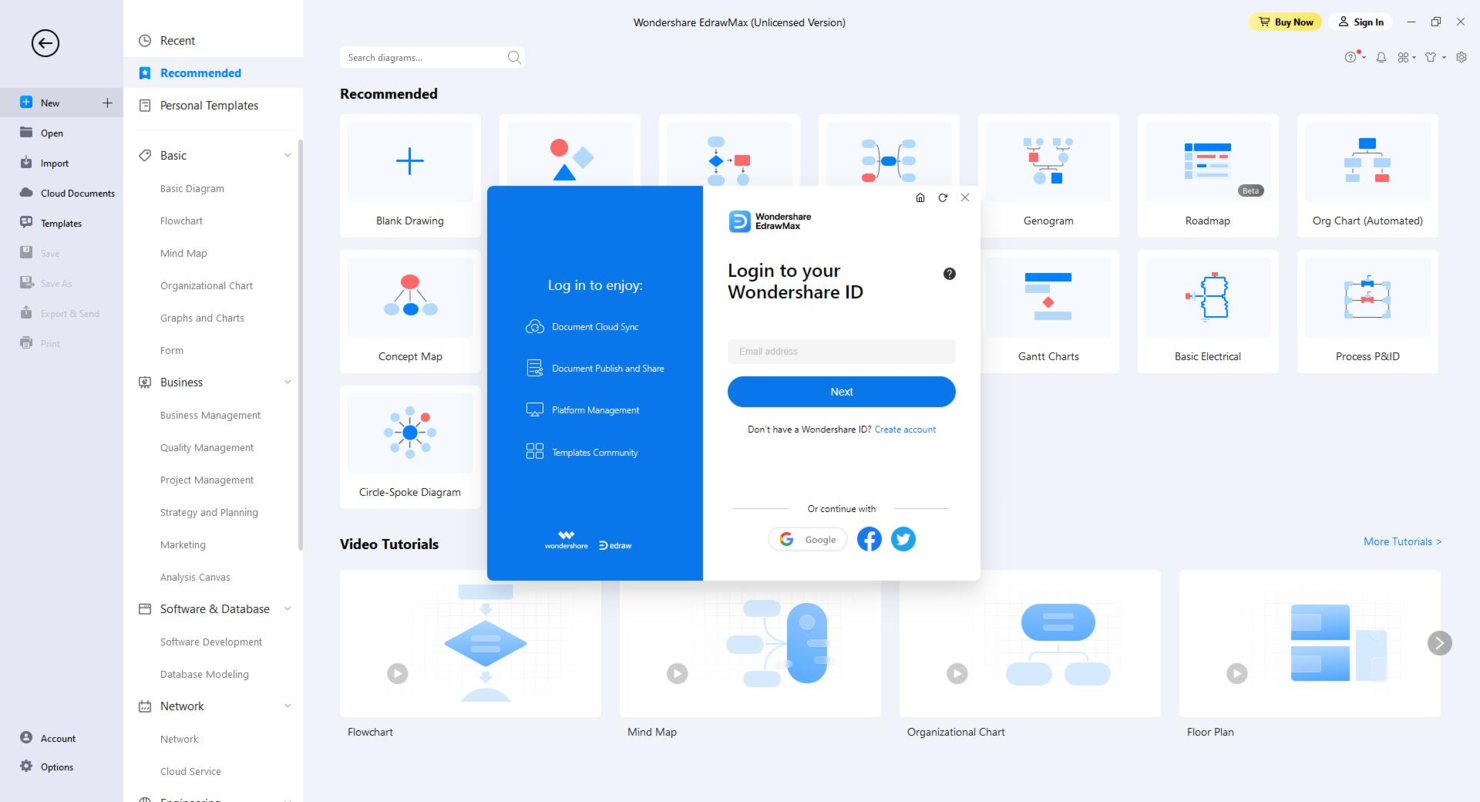
EdrawMax earns its place here because it runs smoothly across different platforms, including Windows, Mac, Linux, and web browsers, which I find rare for flowchart tools. When teams are split across operating systems or need to share diagrams easily, this flexibility makes a difference.
I like how EdrawMax uses AI to generate flowcharts from text prompts or data, letting you focus on structure rather than shapes. I think you'll get the most value from it when you need to collaborate without worrying about compatibility or software installs.
EdrawMax’s Best For
- Teams working across Windows, Mac, and Linux environments
- Users who want AI-generated flowcharts from text input
EdrawMax’s Not Great For
- Teams that need deep version control or change tracking
- Users looking for specialized engineering diagram features
What sets EdrawMax apart
EdrawMax stands out because it’s built to work the same way across Windows, Mac, Linux, and the web. You don’t have to worry about which device or operating system you use, everything looks and acts the same. Unlike Visio, which locks you to Windows, or Lucidchart, which is web-first, EdrawMax gives you a full client wherever you are.
This works well for dispersed teams or anyone who moves between platforms.
Tradeoffs with EdrawMax
EdrawMax focuses on cross-platform access, but that comes at the cost of advanced diagram controls and deep change management. If you need high-level versioning or engineering diagram features, you might feel boxed in.
Pros and Cons
Pros:
- Supports multiple file formats
- Customizable diagram elements
- Extensive template library
Cons:
- Occasional lag with large files
- Steeper learning curve
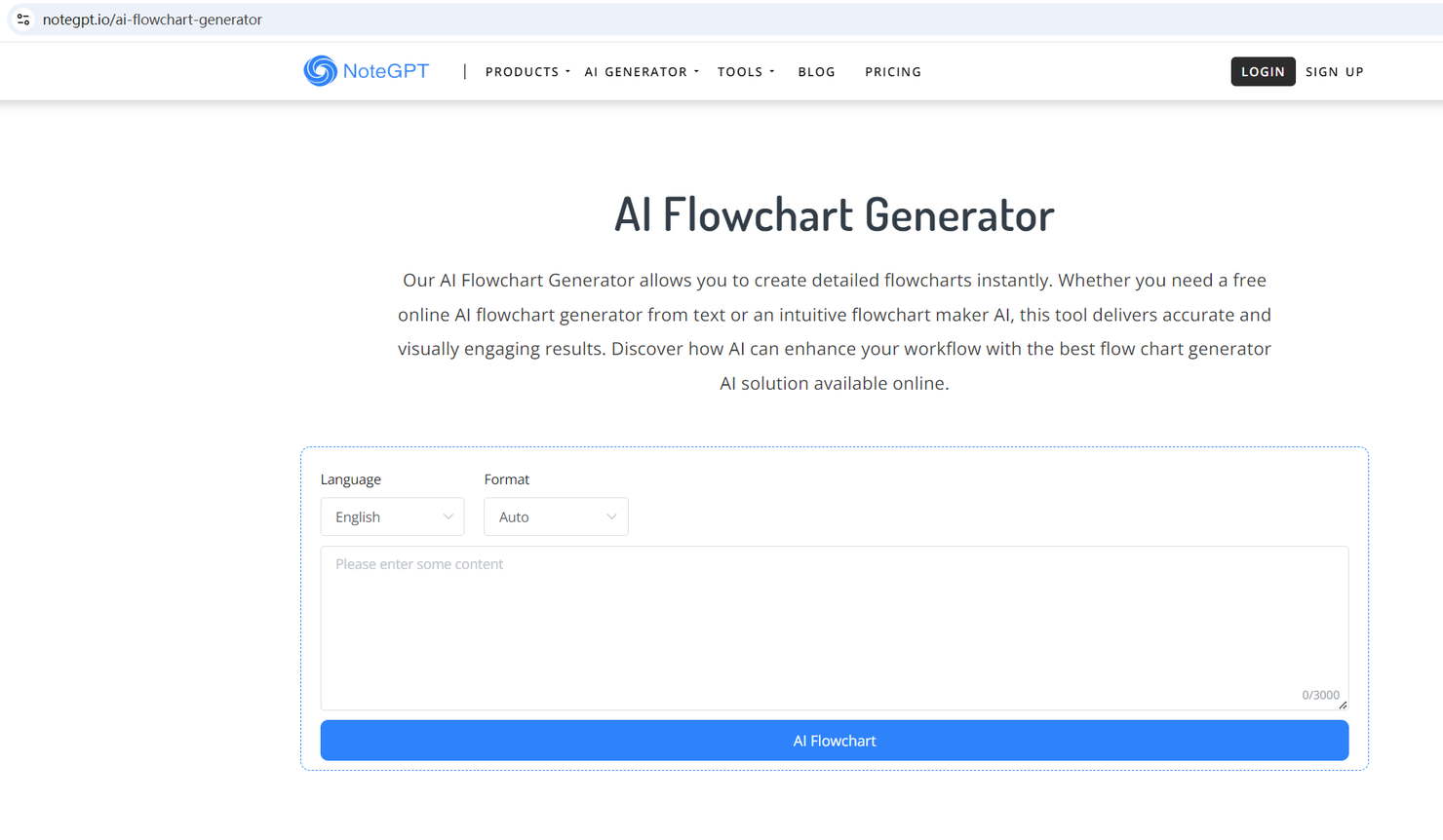
NoteGPT earns its spot here thanks to how well it turns conversations and meetings into structured, AI-generated diagrams and visual notes. I recommend it when you want automatic flowchart creation as part of your broader note-taking process rather than managing two separate tools.
What I appreciate about NoteGPT is how it pulls in context from audio or text and builds diagrams on the fly. That saves teams from duplicating efforts just to document a process or discussion.
NoteGPT’s Best For
- Teams wanting notes and flowcharts auto-generated from meetings
- Users who document processes directly from audio or transcripts
NoteGPT’s Not Great For
- Designers needing advanced flowchart customization tools
- Anyone wanting pure flowchart software without note integration
What sets NoteGPT apart
NoteGPT is designed around the idea that meeting notes and flowcharts shouldn’t be separate workflows. Unlike Miro, which keeps diagramming fully manual, NoteGPT expects you to use transcripts and discussions as live inputs for structured outputs. In practice, this means you get diagrams that reflect what’s actually discussed, rather than what someone remembers to draw up after the meeting.
Tradeoffs with NoteGPT
NoteGPT optimizes for automation and speed, but that comes at the cost of customization. If you want to tailor flowcharts beyond what the system interprets, you will hit limits fast.
Pros and Cons
Pros:
- Discounts for new users
- Supports multiple diagram types
- Automatic note generation
Cons:
- Limited customization options
- Limited free access

GBTEC earns its place here for how it covers enterprise-level process automation and AI-driven mapping. When I need to design flowcharts that connect directly to real operational processes, this platform stands out. I like how its AI tools generate visual process flows based on complex business logic and workflows. Teams handling large-scale, regulated operations tend to get a lot from using GBTEC, especially for translating existing process documentation into clear, living diagrams.
GBTEC’s Best For
- Large enterprises with process compliance and automation needs
- Teams automating complex, regulated business workflows
GBTEC’s Not Great For
- Individuals or early-stage startups needing simplicity
- Teams wanting basic, lightweight diagramming tools
What sets GBTEC apart
GBTEC is built around mapping out, automating, and auditing business processes at a scale you won’t get from diagramming tools like Lucidchart or Miro. I find it expects you to approach flowcharts as living business processes, not just static visuals. This tends to work best when you need governance or traceability because real workflows are being executed and updated in the tool.
Tradeoffs with GBTEC
GBTEC optimizes for end-to-end process automation, so you give up quick, ad hoc diagramming. If you want to brainstorm ideas fast, the setup and configuration can slow you down.
Pros and Cons
Pros:
- Connects rules and forms to diagrams
- Highlights risks linked to each step
- Simulates flows before publishing
Cons:
- Hard to make quick visual edits
- Takes time to master process logic

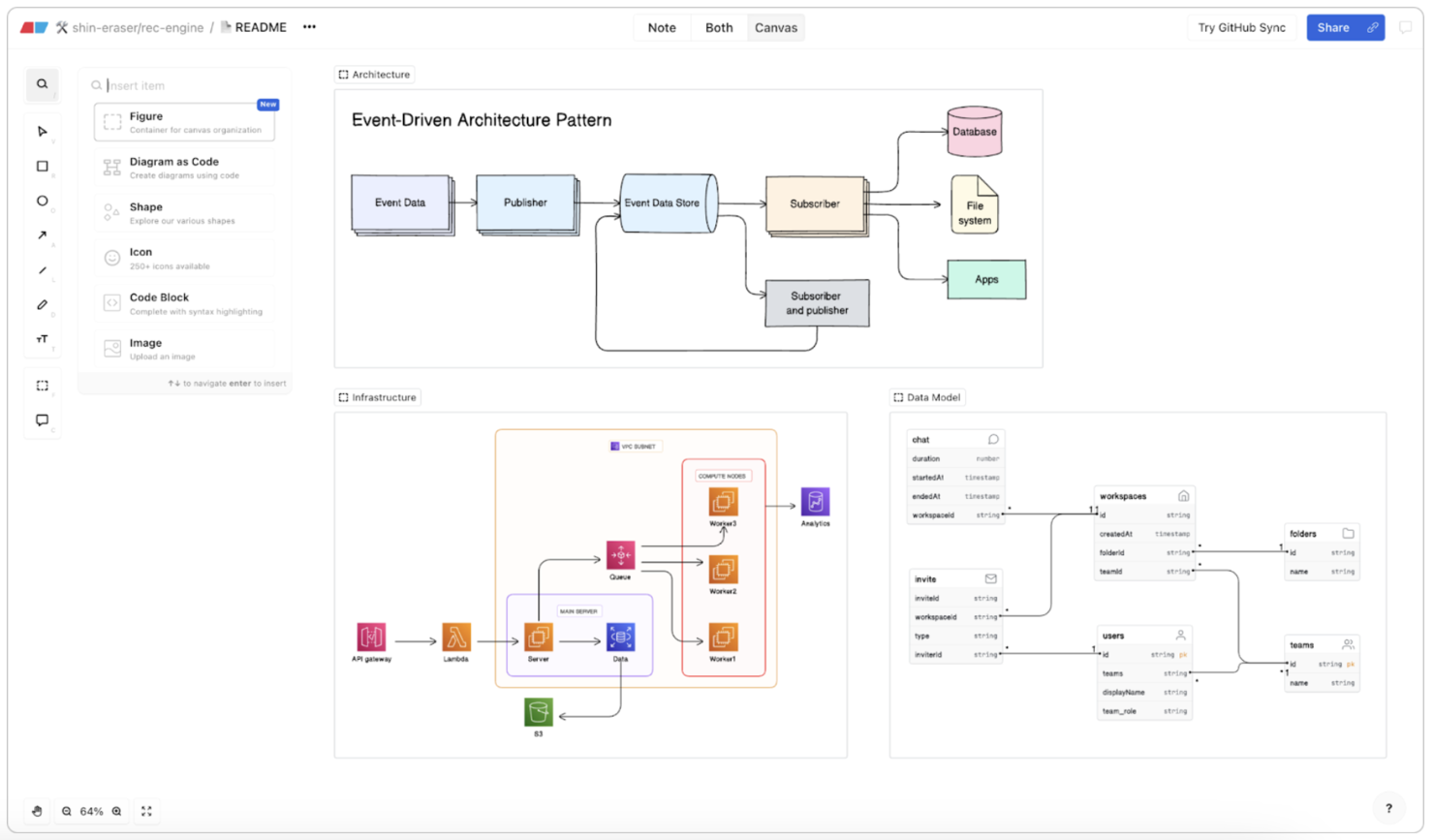
Eraser earns its spot for teams who need to whip up or update diagrams fast, especially when changes come in late or frequently. When I tested the AI features, I found generating flowcharts from text prompts or quick sketches is actually fast enough for live meetings.
What I like is how teams can start in freeform mode, drop in comments, and instantly switch to a tidy diagram without losing the collaborative feel or having to rework from scratch.
Eraser’s Best For
- Teams who need fast AI-generated diagram edits
- Whiteboarding and annotating during live collaboration sessions
Eraser’s Not Great For
- Building large-scale, highly detailed process maps
- Teams needing advanced version control or audit trails
What Sets Eraser Apart
Eraser is built for speed and flexibility, letting you sketch ideas, drop in AI-generated visuals, and edit diagrams right in the middle of a discussion. Instead of focusing on strict structure like Lucidchart or Visio, Eraser assumes you want open-ended brainstorming and quick iteration. In practice, this shines when you’re gathering input from a group and diagrams need to change on the fly.
Tradeoffs with Eraser
Eraser optimizes for fast edits and informal diagrams, but you give up advanced version control and in-depth process modeling. For highly detailed or regulated documentation, you’ll probably run into limits.
Pros and Cons
Pros:
- Wide range of templates
- Intuitive drag-and-drop interface
- Quick editing capabilities
Cons:
- Can be complex for beginners
- Limited offline functionality


MyMap.AI stands out because it lets you build, switch, and compare multiple flowchart and map styles within a single project view. I see teams using this to quickly visualize the same data as a mind map, flowchart, or concept map without exporting or redrawing anything.
I like how easy it is to toggle layouts and find the best one for each part of a process—especially when workflows aren’t linear.
MyMap.AI's Best For
- Teams that compare multiple flowchart or map layouts
- Users mapping non-linear or rapidly changing processes
MyMap.AI's Not Great For
- People needing advanced diagram automation
- Teams who only want one static chart format
What sets MyMap.AI apart
MyMap.AI is built around the idea that workflows and mind maps often need to shift form. You aren’t locked into viewing a process as a flowchart or mind map. Instead, you can quickly toggle between styles, which is something I haven’t seen in mainstream diagramming tools like Lucidchart or Miro. In practice, this makes it a good fit for teams who change mapping styles as they clarify ideas.
Tradeoffs with MyMap.AI
MyMap.AI optimizes for layout flexibility, but it’s light on deep automation or niche diagramming controls. That means you may need another tool if you require automated logic or diagram validation.
Pros and Cons
Pros:
- Dynamic presentation model
- Real-time web search capabilities
- AI-driven diagram creation
Cons:
- Limited customization options
- Limited offline features


FloChartAI landed on my list after seeing how its AI-driven suggestions take a lot of busywork out of mapping processes. When I tested it, the automatic node recommendations felt tuned to real workflow logic, not just generic next-steps. If you want a tool that actively proposes flow direction as you build, this hits that need well.
I appreciate how it can draft entire branches with a single prompt, especially when projects start messy and unstructured.
FloChartAI’s Best For
- Process mappers who want AI to suggest next steps
- Teams building complex flows from loose requirements
FloChartAI’s Not Great For
- Teams needing manual control over every node and branch
- Organizations requiring strict visual style or branding options
What sets FloChartAI apart
FloChartAI takes an AI-first approach, letting you build process flows by prompting the system instead of dragging every shape yourself. In practice, it feels closer to using ChatGPT or a text command interface than working in Visio or Lucidchart. That means you can sketch out large, messy processes fast and the tool actively suggests structure as you go.
It’s good when you need loose, iterative mapping—unlike classic diagram tools that expect you to come in with a clear design.
Tradeoffs with FloChartAI
FloChartAI optimizes for speed and AI-generated mapping, but you lose granular control over layout and fine-tuned styling. If you work in industries where strict format and custom branding matter, this approach can be limiting.
Pros and Cons
Pros:
- Quick adjustments and revisions
- Customizable prediction features
- AI-driven diagram suggestions
Cons:
- Occasional AI suggestion errors
- Requires a learning curve
Other AI Flowchart Generator Software
Here are some additional AI flowchart maker options that didn’t make it onto my shortlist, but which are still worth checking out:
- Miro
For live team whiteboarding
- Jotform Workflows
For extensive payment gateway integrations
- Lucidchart
For large org diagramming
- Visily
For UI/UX design teams
- GitMind
For mind mapping collaboration
- draw.io
For open-source projects
- Chat Diagram
For chatbot integration
- AI Flowchart
For automated process mapping


How I Evaluate AI Flowchart Generators
Every tool here needs to do more than slap an AI label on a basic diagramming canvas—I look for generators that turn a text prompt or project brief into a usable, logically sound flowchart. I split my evaluation into core functionality every tool must meet to make the list and differentiating factors that separate good options from great ones.
Core Functionality (Table Stakes For This List)
When I'm selecting tools for my list, I rank each one on a scale from 0 (does not offer the functionality) to 5 (excels in this area) for each core functionality listed below. Then, I calculate the tool's total score into a percentage. Each tool needs to achieve a minimum total score of 65% to be considered for inclusion.
- AI-Powered Flowchart Generation: I check whether the tool can take a plain-text prompt—like "map our sprint review process"—and produce a structured flowchart without manual shape placement.
- Project-Oriented Templates: The template library should include PM-relevant formats like swimlane diagrams, approval workflows, and decision trees, not just generic shapes.
- Editable Visual Canvas: I look for full drag-and-drop editing on AI-generated outputs so PMs can restructure nodes, restyle connectors, and adjust layouts after generation.
- Real-Time Collaboration: Teams need shared editing, commenting, and version history—I evaluate whether multiple users can work on the same diagram simultaneously.
- Export and Integration Support: I check for exports to standard formats (PNG, SVG, PDF) and connections to PM tools like Jira, Asana, or Confluence where diagrams actually get used.
- Diagram Logic Intelligence: The AI should understand conditional branches and sequential steps, producing logically accurate flows rather than just visually arranged boxes.
Once I have a list of tools that meet this criteria, I consider what sets each platform apart.
Differentiating Factors (What Sets Vendors Apart)
Here's how I compare and contrast different vendors:
Standout Features
Iterative prompt refinement is a big differentiator—I look for tools that let you tweak an AI-generated flowchart through follow-up prompts like "add an approval gate before deployment" instead of rebuilding from scratch. Multi-source input ingestion also matters when PMs need to turn a meeting transcript or project brief into a visual workflow. I pay close attention to diagram-to-workflow conversion, where a finished flowchart can push tasks directly into tools like Jira or Asana.
Beyond Features
Security matters here because your flowcharts often map internal processes, dependencies, and team structures. I evaluate whether vendors offer SSO, role-based access, and clear policies on how AI models handle your data. Pricing transparency is another factor I weigh—some tools gate AI generation behind usage caps or premium tiers, so I check whether the licensing model fits a growing PM team. I also consider onboarding speed, especially whether the tool ships with PM-focused prompt libraries and starter templates that shorten ramp-up time.
How to Choose an AI Flowchart Generator
It’s easy to get bogged down in long feature lists and complex pricing structures. To help you stay focused as you work through your unique software selection process, here’s a checklist of factors to keep in mind:
| Factor | What to Consider |
|---|---|
| Scalability | Make sure the tool can grow with your team. Consider whether it supports increased users or more complex diagrams as your projects expand. |
| Integrations | Look for compatibility with tools you already use, like Google Workspace or Slack, to make sure the tool itself fits into your existing workflows. |
| Customizability | Check if you can tailor or personalize templates and design elements to fit your brand or project needs. |
| Ease of Use | A user-friendly interface with minimal learning curve is essential. Make sure your team can start using it quickly without extensive training. |
| Budget | Determine whether the tool fits your financial constraints. Consider the total cost of ownership, including any hidden fees or necessary add-ons. |
| Security Safeguards | Check that the tool offers data protection features, such as encryption and secure access controls, to keep your information safe. |
| Collaboration | Make sure the tool offers real-time collaboration features so your team can work together effectively, even from different locations. |
| Support | Evaluate the availability and quality of customer support. Consider whether there's 24/7 assistance and how quickly issues are resolved. |
What Is an AI Flowchart Generator?
AI flowchart generators are digital tools that use artificial intelligence to help you create flowcharts and diagrams more efficiently. Professionals like project managers, educators, and business analysts use these tools to visualize processes and ideas clearly.
Automation, real-time collaboration, and template customization features help you simplify complex tasks, improve communication, and save time. They can also improve productivity and clarity in project planning and execution.
Features of AI Flowchart Generators
When selecting an AI flowchart generator, keep an eye out for the following key features:
- Automation: Helps with the flowchart creation process by predicting the next steps, which helps save time and reduces manual effort.
- Real-time collaboration: Allows team members to work together on a project simultaneously, which improves communication and teamwork.
- Template library: Provides a variety of pre-designed templates to help users get started quickly and maintain consistency.
- Customization options: Lets users modify templates and elements to fit specific needs.
- Data integration: Connects diagrams with real-time data from other tools in order to keep information up-to-date and relevant.
- User-friendly interface: Lets you easily navigate the tool and reduces the learning curve for new users.
- Security safeguards: Protects sensitive data with encryption and secure access controls.
- Cross-platform compatibility: Offers access to the tool on various devices and operating systems to provide flexibility and convenience.
- Scalability: Supports growing teams and projects so the tool remains functional as demands increase.
- Interactive elements: Engages users with features like sticky notes and voting to facilitate feedback and decision-making.
Benefits of AI Flowchart Generators
Implementing an AI flowchart generator provides several benefits for your team and your business. Here are a few you can look forward to:
- Improved efficiency: Automation and real-time collaboration features help your team complete projects faster and reduce manual work and errors.
- Better communication: Visual tools like diagrams and flowcharts make it easier to convey complex ideas and keep everyone on the same page.
- Flexibility: Customization options and cross-platform compatibility allow you to adapt the tool to your specific needs and work environment.
- Better decision-making: Interactive elements like voting and sticky notes facilitate feedback and help your team make informed decisions.
- Cost-effectiveness: Scalability means the tool can grow with your business and provide value without the need for constant upgrades.
- Increased security: Data protection features safeguard your sensitive information, which means more peace of mind.
Costs and Pricing of AI Flowchart Generators
Selecting an AI flowchart generator requires an understanding of the various pricing models and plans available. Costs vary based on features, team size, add-ons, and more. The table below summarizes common plans, their average prices, and typical features included in AI flowchart generator solutions:
Plan Comparison Table for AI Flowchart Generators
| Plan Type | Average Price | Common Features |
|---|---|---|
| Free Plan | $0 | Basic diagram creation, limited templates, and single-user access. |
| Personal Plan | $5-$15/user/month | More templates, basic collaboration, and limited customization options. |
| Business Plan | $20-$50/user/month | Advanced collaboration, real-time editing, and increased storage capacity. |
| Enterprise Plan | $60-$100/user/month | Comprehensive security, full customization, and priority customer support. |
AI Flowchart Generator Tools FAQs
Here are some answers to common questions about AI flowchart generators:
How do AI flowchart generators improve team collaboration?
AI flowchart generators improve collaboration by letting multiple users edit and view diagrams in real-time. You can work simultaneously with your team, which reduces the need for constant updates and emails. This keeps everyone on the same page and speeds up the workflow.
Can AI flowchart generators integrate with other tools?
Yes, many AI flowchart generators offer integrations with popular tools like Google Workspace, Slack, and Microsoft Office. These integrations help you import and export data easily, so your diagrams are always up-to-date with the latest information from other platforms.
What are the security features of AI flowchart generators?
Security features often include data encryption, secure access controls, and compliance with data protection regulations. These safeguards protect your sensitive information and make sure only authorized users can access and edit your diagrams.
Are there customization options available in AI flowchart generators?
AI flowchart generators typically offer a range of customization options, including templates, colors, and shapes. You can tailor the diagrams to fit your brand and specific project needs.
How do AI-driven suggestions work in flowchart generators?
AI-driven suggestions predict the next steps in your diagram based on the current flow and input data. This saves time by automating parts of the process and helps you create accurate diagrams with minimal input. It’s particularly useful for complex workflows.
What should I consider when choosing an AI flowchart generator?
Consider factors like scalability, ease of use, customization options, and integration capabilities. Make sure the tool fits your team’s needs and budget, and check if it offers a user-friendly interface that supports efficient workflows and collaboration.