

Capacity Planning Template: Plan Team Workloads Faster


A quick, visual way to manage workloads makes the difference between a burnt-out team and a high-performing one. This template is your project playbook—designed to help you spot gaps, balance hours, and keep projects on track.
Capacity Planning Template: Download Here
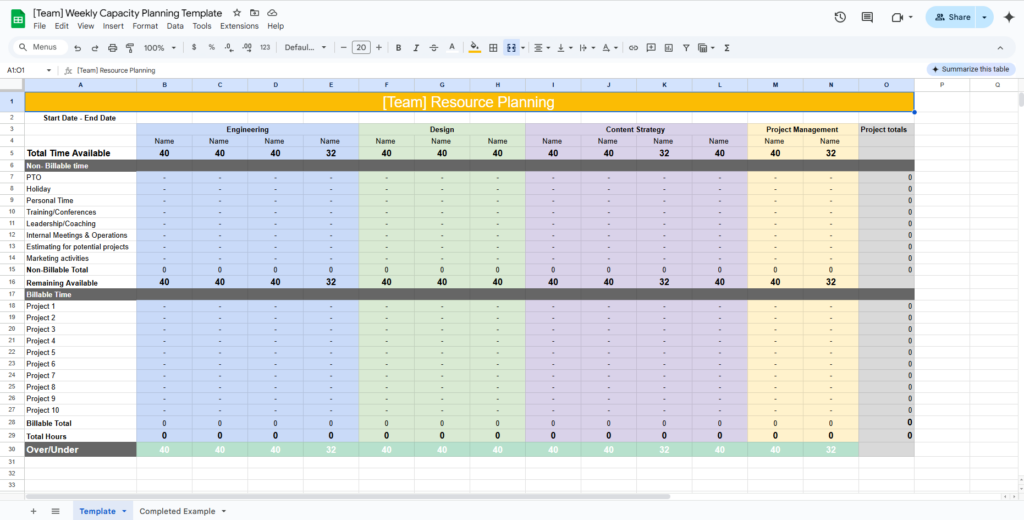
What’s Included:
- Plug-and-Play Formulas: Automated totals so you don’t have to do the math.
- Strategic Categories: Dedicated sections for billable work, non-billable time, and PTO.
- Sample Data: A pre-filled version to show you exactly how to structure your planning.
- Full Compatibility: Works seamlessly in both Microsoft Excel and Google Sheets.
Free Basic Version
Need a quick, manual fix? Download the table below and open it with Numbers, Google Sheets, or Excel for a simple capacity overview.

How to Use the Capacity Planning Template
Master your workflow in four simple steps.
1. Prepare Your Workspace
Download the template and tailor it to your project demands.
- Set your timeframe: Plan by week, month, or sprint.
- Define your categories: Our template separates Billable Work from Non-billable Time (PTO, meetings, training).
- Pro Tip: Make sure to note part-time vs. full-time bandwidth so your formulas calculate availability accurately.
2. Team Input
Share the sheet with your team. Have them plug in their anticipated hours and any planned time off.
The goal is a realistic snapshot of the week ahead, not an idealized version of it.
3. Leadership Review & Leveling
Check for "Red Zones" where team members are over-allocated to better manage resource allocation.
- Reassign: Can a task move from an overbooked designer to someone with 5 hours of "white space"?
- Reprioritize: Does that non-urgent task really need to happen this week?
- Onboard: If reassigning, give the new owner a quick 5-minute brief to ensure they hit the ground running.
4. Analyze Plan vs. Actuals
At the end of the week, compare your plan against your time-tracking software. This will help you get a better picture of your overall workforce capacity planning.
- Spot the Blockers: Don't aim for perfection—aim for patterns. If one project consistently runs over, it’s time to investigate the bottleneck.
Why Use a Capacity Planning Template?
A solid capacity planning template, or capacity planning software tool, doesn't just organize your week; it transforms how your team operates. Here’s how it helps:
- Reclaims Your Time: When your team fills out their own plans, you stop chasing status updates and start focusing on high-level strategy. Using capacity planning best practices turns a chaotic workflow into an efficient machine.
- Builds Predictable Consistency: Monitoring resource planning and resource allocation the same way every week reveals patterns. If a developer consistently overestimates their hours, you can use that data to shift next week’s plan to reflect reality.
- Spotlights Resourcing Gaps: Stop reacting to shortages and start planning proactively. A template helps you identify exactly where you need more hands on deck, especially when juggling a large portfolio of projects.
- Balances Team Workload: By grouping members by function, you can see who is drowning and who has breathing room. Example: If two designers are overbooked by 3 hours and one is underbooked by 8, you can shift the load to prevent burnout and overtime.
- Accounts for the "Hidden" Hours: Real life isn't just project work—it's meetings, emails, and admin. The capacity planning process ensures you document the tasks that usually "disappear" from a standard schedule.
Join To Get This Template And 100+ More
Get this exact template plus hundreds of other PM templates by joining our membership community today.
Capacity Planning Template FAQs
Here are a few common questions you might have about capacity planning and creating/using a template:
What is capacity planning?
Capacity planning is the process of estimating how much work your team can realistically take on during a specific time period. It helps you compare available hours against planned work, so you can spot overbooked team members, unused capacity, and potential delivery risks before they become problems.
Capacity planning vs. resource planning: what’s the difference?
Capacity planning focuses on whether your team has enough available time or bandwidth to complete planned work. Resource planning is broader: it includes assigning people, tools, budget, and other resources to specific projects or tasks. In practice, capacity planning is often one part of resource planning.
Can you use capacity planning with Kanban?
Yes. Kanban capacity planning usually involves setting realistic work-in-progress limits, reviewing team availability, and checking whether incoming work matches the team’s actual bandwidth. Instead of planning capacity around fixed sprints, Kanban teams often monitor capacity continuously and adjust based on flow, blockers, and current workload.
How can I calculate resource capacity?
To calculate resource capacity, start with each team member’s total available working hours for the planning period. Then subtract time for PTO, meetings, admin work, training, and other non-project responsibilities. What’s left is their available project capacity.
Resource capacity = total working hours – non-project time
Example:
If a team member works 40 hours per week but has 4 hours of meetings, 2 hours of admin work, and 8 hours of PTO, their available project capacity is 26 hours for that week.
A capacity planning template helps you repeat this calculation across your whole team, so you can see total availability, planned work, and remaining capacity in one place.


