

10 beste verktøy for teamsamarbeid gjennomgått for 2026

10 Beste verktøy for teamsamarbeid


Det er vanskelig å velge riktig verktøy for teamsamarbeid når det finnes så mange alternativer. Du ønsker å forbedre kommunikasjonen og produktiviteten i teamet, men må finne ut hvilket verktøy som passer best. Jeg hjelper deg!
Med utgangspunkt i mange års erfaring med å administrere digitale prosjekter og bruke ulike samarbeidsverktøy, vil jeg hjelpe deg med å finne de beste alternativene. Disse verktøyene legger til rette for kommunikasjon i sanntid og prosjektoppfølging. De bidrar til å redusere misforståelser, effektivisere arbeidsflyter og sørge for at alle er på samme side.
Why Trust Our Software Recommendations
Our team has been testing and reviewing software since 2012. As project managers ourselves, we know how difficult—and important—it is to choose the right software.
For this guide, we evaluated tools using hands-on testing and independent research, scoring tools using our selection criteria. We also draw on insights from industry thought leaders and practicing project management experts.
Our reviews reflect our human editorial judgment, not a sales pitch.
Expert reviewers:
Sammenligningstabell for verktøy for teamsamarbeid
| Tool | Best For | Trial Info | Price | ||
|---|---|---|---|---|---|
| 1 | Best for email-first team collaboration | 30-day free trial | From $24/user/month (billed annually) | Website | |
| 2 | Best for AI-driven project workflow automation | Free plan + 14-day free trial + free demo available | From $5/user/month (billed annually) | Website | |
| 3 | Best for task-linked conversations | 14-day free trial | Pricing upon request | Website | |
| 4 | Best for all-in-one workspace | Free plan available | From $10/user/month (billed annually) | Website | |
| 5 | Best for comprehensive productivity tools | 14-day free trial available | From $7/user/month (billed annually) | Website | |
| 6 | Best for cross-functional team collaboration | 30-day free trial + free plan available | From $4.50/user/month (billed annually) | Website | |
| 7 | Best for integrated Office 365 collaboration | Not available | Pricing upon request | Website | |
| 8 | Best for Salesforce-integrated collaboration | Not available | From $10/user/month (billed annually) | Website | |
| 9 | Best for customizable workflows | 30-day free trial + free plan + free demo available | From $11.20/user/month (billed annually) | Website | |
| 10 | Best for end-to-end encrypted teamwork | 14-day free trial | From €9/user/month (billed annually) | Website |

Anmeldelser av de beste verktøyene for teamsamarbeid
Denne delen gir en grundig analyse og oversikt over ulike verktøy for teamsamarbeid. Jeg går gjennom fordeler og ulemper ved hvert verktøy, funksjonene deres og de beste bruksområdene.
Missive
Best for email-first team collaboration
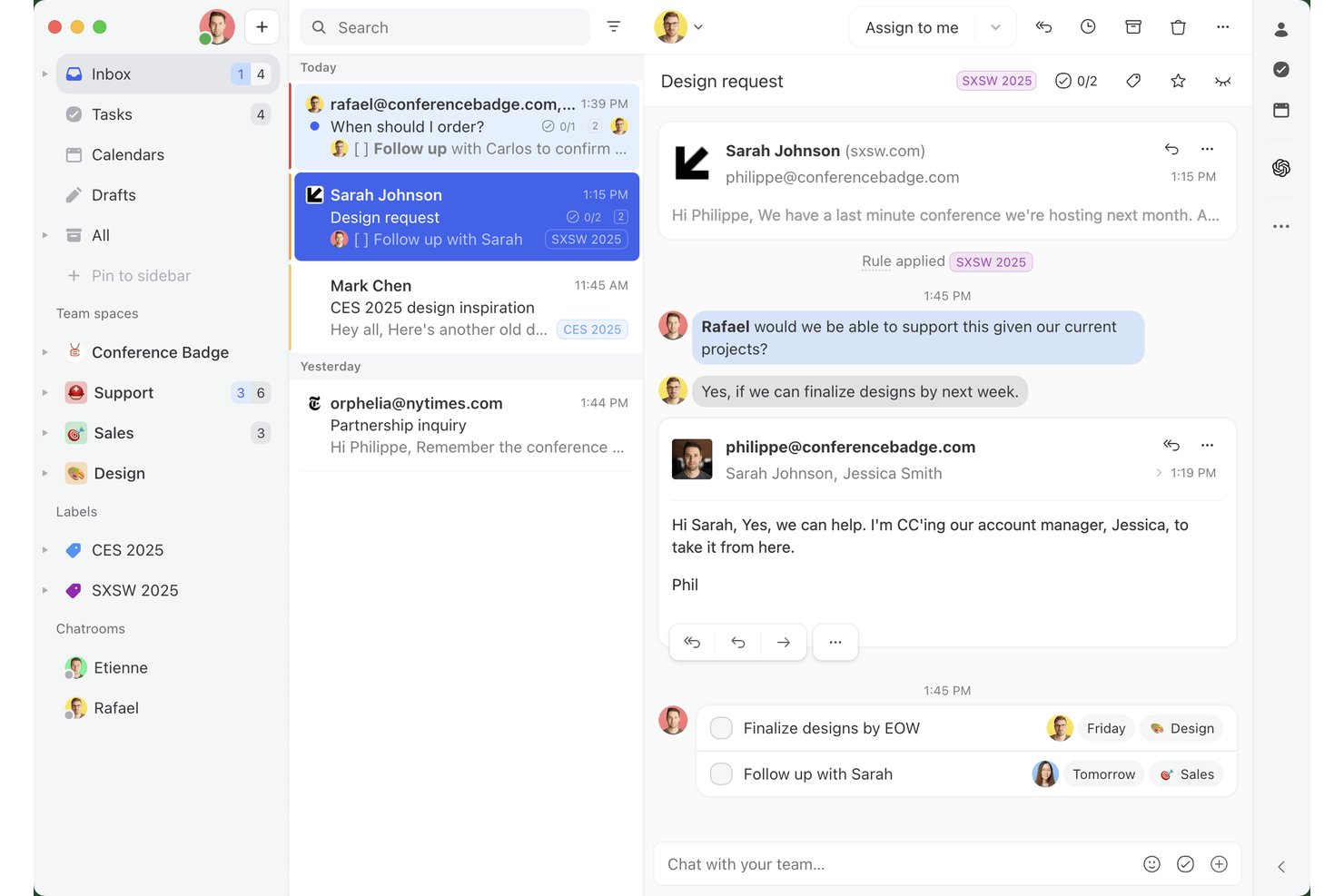
Missive is a collaborative inbox and team messaging platform that unifies email, SMS, WhatsApp, and social messaging channels into a shared workspace with internal threads, task management, and workflow automation.
Who Is Missive Best For?
Missive is a strong fit for customer-facing and cross-functional teams that live in their inboxes and need to collaborate on external communication without switching tools.
Why I Picked Missive
Missive earns its spot on my shortlist because it's the only team collaboration tool I've found that treats email as a genuinely shared workspace rather than a solo activity. I love how internal threads let my team debate a client reply directly inside the conversation, invisible to the recipient, so nothing gets lost across chat apps. Real-time co-drafting means two teammates can edit the same outgoing email simultaneously, like a Google Doc but for your inbox.
Missive Key Features
- Multi-channel unified inbox: Manage email, SMS, WhatsApp, Instagram, and Facebook Messenger from a single shared workspace.
- Rules-based workflow automation: Build up to 1,000 automation rules to handle auto-assignment, follow-ups, escalations, and canned responses.
- Guest access: Invite external collaborators like clients or contractors into specific conversations without giving them full account access.
- AI-powered assistance: Connect OpenAI, Claude, or Gemini to summarize threads, translate messages, and trigger smart automation rules.
Missive Integrations
Missive offers native integrations with Google Drive, Dropbox, Asana, ClickUp, Trello, Todoist, Zoom, Google Meet, HubSpot, and Salesforce. It also supports custom integrations through its API, webhooks, and Zapier.
Pros and Cons
Pros:
- Customizable automation rules for workflow control
- Real-time co-drafting of outgoing emails
- Turns email into collaborative team workspace
Cons:
- AI assistant requires separate provider setup
- No Kanban boards or timeline views
New Product Updates from Missive
Missive Adds Conversation Pins
Missive now lets you pin key links, decisions, and notes inside a conversation, keeping them accessible in a dedicated Pins section in the Details sidebar. For more information, visit Missive's official site.
 .
.
Hive
Best for AI-driven project workflow automation
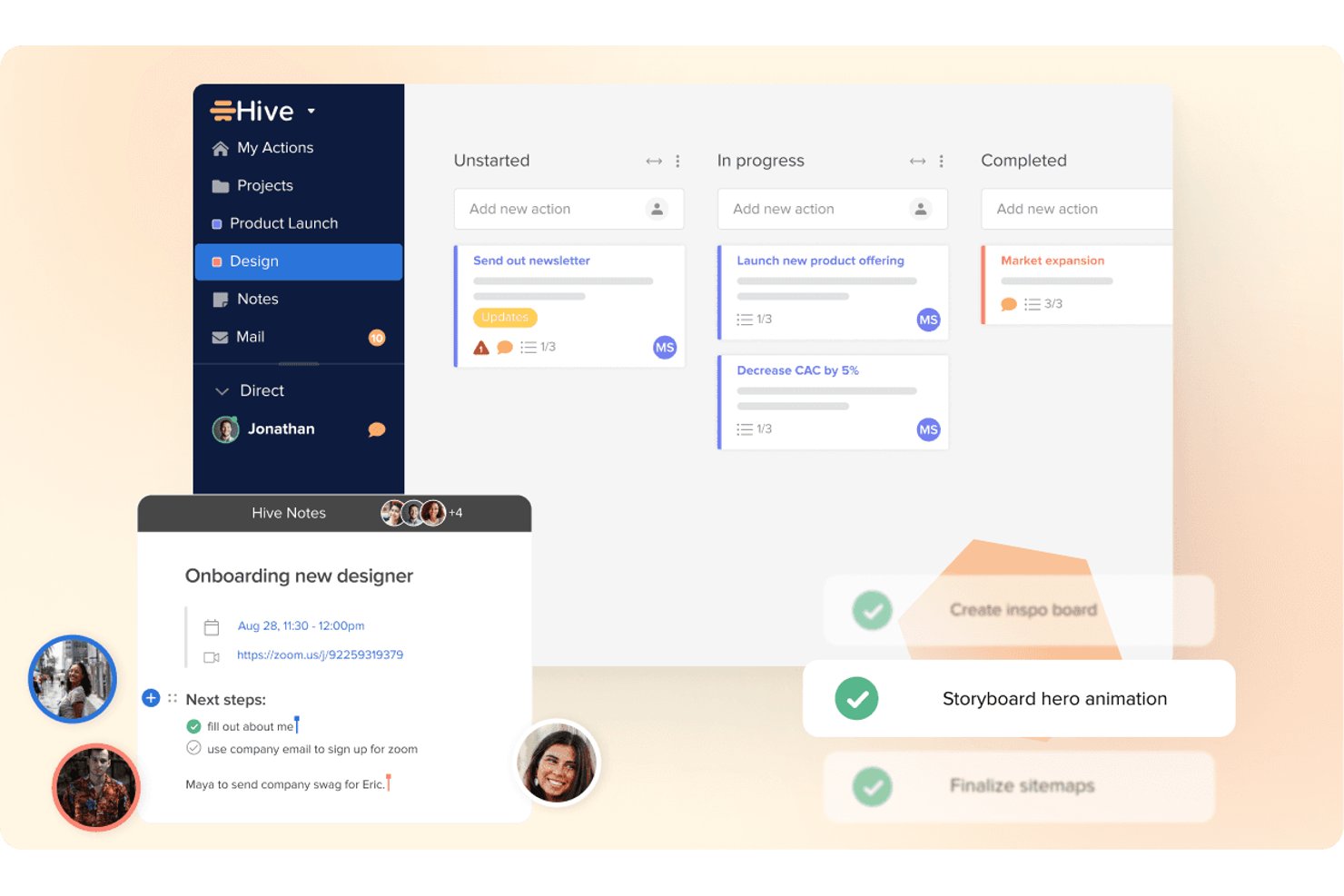
Hive is an AI workspace that combines task management, project planning, messaging, notes, and workflow automation in one platform.
Who Is Hive Best For?
Hive is a strong fit for project managers who want AI-powered automation and task management built into a single workspace.
Why I Picked Hive
I've included Hive in my top picks because its AI-driven automation genuinely sets it apart from other collaboration tools. Buzz, Hive's built-in AI assistant, can build entire multi-step workflows from a plain-English description, so my team spends less time configuring and more time executing. I also rely on it to convert emails and meeting notes directly into task cards with owners and deadlines attached.
Hive Key Features
- Hive Notes: A shared document editor that lets multiple teammates write and edit content at the same time, with comments and slash-command formatting built in.
- Proofing & Approvals: A paid add-on for reviewing documents, images, and video files with markup tools, side-by-side version comparison, and multi-stage approval rounds.
- Guest and client access: The External Users add-on lets clients and partners join specific projects to view tasks, upload files, comment, and submit forms without a full licence.
- Granular notification controls: Per-category settings let you manage banner, email, and push alerts individually, with admin-lockable defaults available on Enterprise plans.
Hive Integrations
Hive offers about 15 native integrations, including Slack, Microsoft Teams, Zoom, Google Drive, Dropbox, OneDrive, Google Calendar, Outlook Calendar, Jira, and GitHub. It also provides a public API and Zapier connectivity.
Pros and Cons
Pros:
- External users collaborate inside project spaces
- Shared notes support real-time co-editing
- AI builds multi-step project workflows
Cons:
- Video meetings require third-party conferencing tools
- Messaging lacks threads, channels, and search
Wrike
Best for task-linked conversations
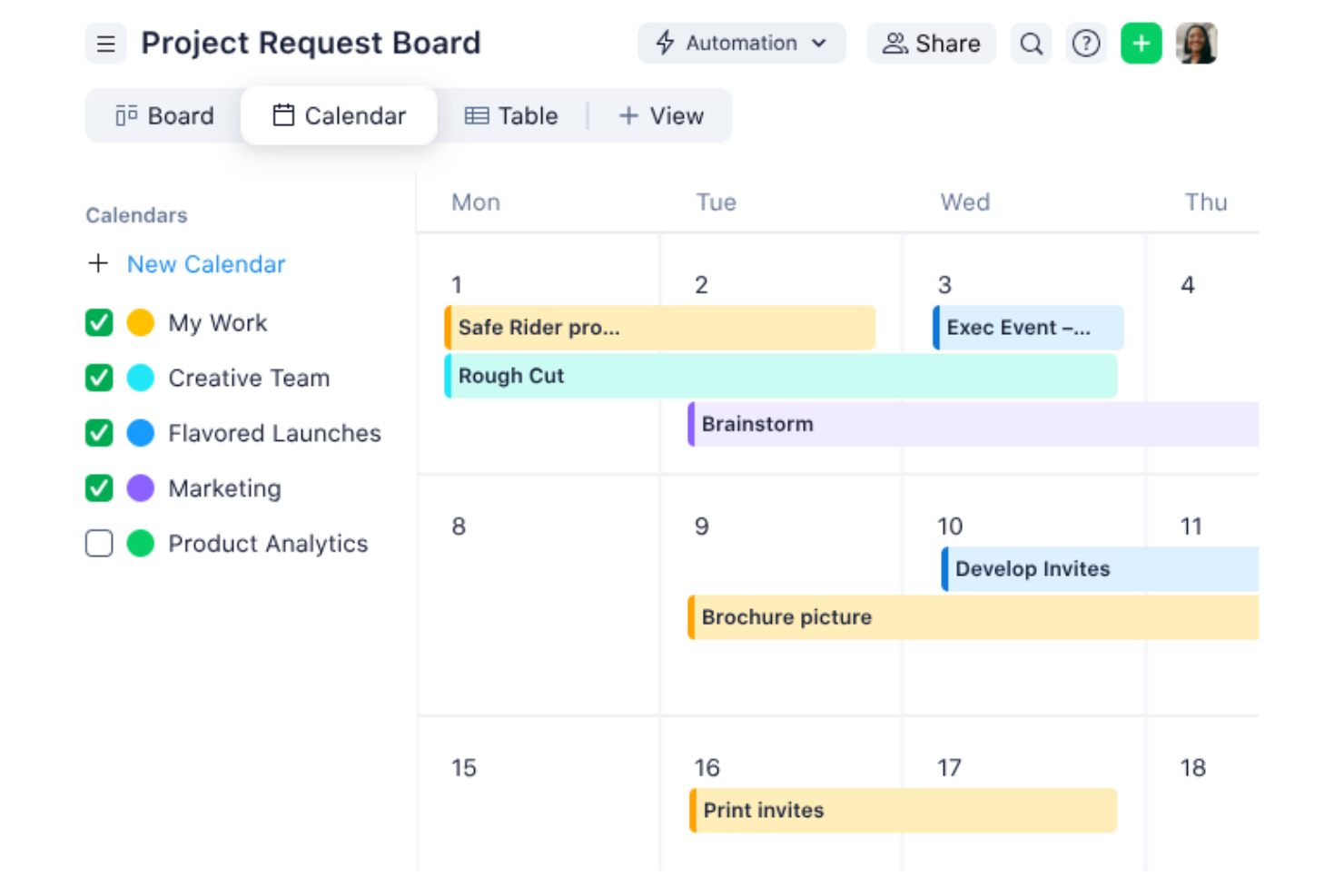
Wrike is a cloud-based work management platform that combines task management, project planning, Gantt scheduling, proofing, approvals, and task-linked commenting across projects and portfolios.
Who Is Wrike Best For?
Wrike is a strong fit for project managers and PMO leads who want all task-related discussion, approvals, and feedback tied directly to the work item.
Why I Picked Wrike
Wrike earns its spot on my shortlist because every conversation lives directly on the work item. When you a teammate in a task comment, Wrike automatically shares that task with them and adds them as a follower, so nothing gets lost in email. I also rely on the proofing and approvals feature to keep feedback on the actual deliverable, not scattered across threads. The live-editable description field even lets multiple people write and revise simultaneously, with named cursors, so context stays exactly where the work happens.
Wrike Key Features
- Proofing and approvals: Leave visual feedback directly on files and share approval links with internal or external reviewers without requiring a Wrike account.
- Interactive Gantt chart: Map task dependencies and milestones across projects, then adjust timelines by dragging and dropping directly on the chart.
- No-code automation builder: Create workflow automation rules in plain language, or let AI generate them, to trigger status changes, assignments, and notifications automatically.
- Wrike Whiteboard: A built-in collaborative canvas with sticky notes, mind maps, and diagrams that syncs directly with tasks, so whiteboard output converts into actionable work items.
Wrike Integrations
Wrike offers 400+ integrations, including Slack, Microsoft Teams, Zoom, Google Workspace, Microsoft 365, Miro, Adobe Creative Cloud, Jira, GitHub, and Salesforce. It also provides an open REST API, Wrike Integrate, and an MCP Server for custom connectivity.
Pros and Cons
Pros:
- Proofing keeps visual feedback on files
- @Mentions automatically share and follow tasks
- Conversations stay attached to deliverables
Cons:
- Attachment editing locks files for teammates
- No native chat or video meetings
New Product Updates from Wrike
Wrike Adds Klaxoon MCP Integration
Wrike’s Klaxoon MCP integration is now generally available, enabling AI agents to navigate between Wrike tasks and attached whiteboards, read task context, and manage whiteboard attachments via API. For more information, visit Wrike's official site.
Notion
Best for all-in-one workspace

Notion is a connected workspace that brings docs, wikis, project tracking, and AI-powered tools into one platform for teams who want to manage knowledge and work in the same place.
Who Is Notion Best For?
Notion is a great fit for tech and product teams that want to consolidate their docs, wikis, and project workflows into a single shared environment.
Why I Picked Notion
Notion earns its spot as one of the best on my shortlist because it genuinely replaces multiple tools at once. My team uses Notion to write specs, track sprints, and maintain our product wiki without ever switching tabs. I also like how Notion AI sits inside the same environment, so I can search across every doc, summarize meeting notes, and draft follow-ups directly in context. The Teamspaces feature lets different functions own their own space while still sharing visibility across the org.
Notion Key Features
- Connected database views: Switch between table, board, calendar, and timeline views on the same dataset without duplicating any data.
- Synced blocks: Embed a block of content across multiple pages so updates appear everywhere automatically, keeping shared info consistent.
- Notion Forms: Build forms that feed responses directly into a Notion database, routing incoming requests into your team's existing workflows.
- Custom Agents: Set up automated agents that handle repetitive tasks like triaging requests, tagging items, or generating status updates on a schedule.
Pros and Cons
Pros:
- Supports collaborative editing and real-time updates
- Combines multiple tools into one platform
- Highly customizable workspace
Cons:
- Performance issues with large databases
- Limited offline access features
- Can be overwhelming for new users

Best for comprehensive productivity tools

Google Workspace is a cloud-based productivity and collaboration suite that brings together email, video conferencing, team messaging, document co-editing, and shared storage in one platform.
Who Is Google Workspace Best For?
Google Workspace is a natural fit for distributed and hybrid teams that need a single platform for communication, document collaboration, and file management.
Why I Picked Google Workspace
Google Workspace is one of my top picks because no other platform gives my team a fully connected set of tools for communication and document work under one roof. I can start a conversation in Google Chat, share a Google Doc for review, and jump into a Google Meet call without ever leaving the browser tab. What I find especially useful is real-time co-editing in Docs, Sheets, and Slides, where I can see cursor positions, comments, and edits from colleagues as they happen. The Gemini AI integration also lets my team draft content, summarize threads, and generate meeting notes directly inside the apps they're already using.
Google Workspace Key Features
- Shared drives: Store files under team ownership in Google Drive so everyone retains access even when colleagues leave or change roles.
- Google Calendar: Create shared team calendars, schedule meetings with availability overlays, and book shared resources like conference rooms.
- Google Forms: Build surveys, intake forms, and team polls that feed responses directly into a connected Google Sheet for quick review.
- Google Sites: Create internal team sites or project hubs using a drag-and-drop editor, and embed Docs, Sheets, or Slides directly into the page.
Pros and Cons
Pros:
- Excellent cloud storage and sharing options
- Strong real-time collaboration features
- Comprehensive suite of productivity tools
Cons:
- Offline access is somewhat limited
- Limited customization outside Google ecosystem
- Can be overwhelming for new users

Flock
Best for cross-functional team collaboration

Flock is a team messaging and collaboration platform that brings channel-based communication, video conferencing, file sharing, and built-in productivity tools like shared to-dos, notes, and reminders into a single workspace.
Who Is Flock Best For?
Flock is a good fit for small to mid-sized teams that need a straightforward messaging and collaboration hub without the complexity of enterprise-grade platforms.
Why I Picked Flock
Flock earns its spot on my shortlist because of how well it handles collaboration across teams that don't naturally work together day-to-day. I particularly like Smart Channels, which use auto-membership rules to pull the right people in—so when product, engineering, and marketing need to align, no one is left out of the loop. My team also relies on the built-in polls and shared to-dos to make decisions and assign follow-ups without leaving the conversation.
Flock Key Features
- Video conferencing: Launch audio and video calls with screen sharing directly from any channel or direct message.
- Announcement channels: Post one-way broadcasts to keep the entire team informed without opening up a thread to replies.
- Guest access: Invite external collaborators into specific channels without giving them access to your full workspace.
- Advanced search: Search across messages, files, and links using filters to pinpoint specific conversations or shared content.
Pros and Cons
Pros:
- Affordable pricing structure
- Built-in productivity tools
- Supports cross-functional team collaboration
Cons:
- Lacks advanced project management features
- Interface can be cluttered
- Limited third-party app integrations

Best for integrated Office 365 collaboration

Microsoft Teams is a collaboration platform that brings together persistent chat, video meetings, file sharing, and real-time document collaboration in a single workspace built around the Microsoft 365 ecosystem.
Who Is Microsoft Teams Best For?
Microsoft Teams is a natural fit for mid-size to enterprise organizations already running on Microsoft 365 who want a single hub for communication and collaboration.
Why I Picked Microsoft Teams
Microsoft Teams stands out because the depth of its Microsoft 365 integration is unmatched. When my team is in a Teams channel, we can co-author a Word doc, pull up a SharePoint file, or jump into a PowerPoint presentation without leaving the app. I also rely on the Outlook calendar sync—meeting links are created and joined directly from calendar invites, which simplifies scheduling across the organization.
Microsoft Teams Key Features
- Channels and threaded chat: Organize conversations by project, team, or topic using dedicated channels with threaded replies to keep discussions in context.
- Video meetings with breakout rooms: Host meetings with up to 300 participants and split attendees into smaller breakout rooms for focused group discussions.
- Guest access: Invite external collaborators like clients or contractors into specific channels without giving them full access to your organization's environment.
- Microsoft Copilot integration: Use AI-generated meeting recaps, live transcription, and suggested action items directly within the Teams interface.
Pros and Cons
Pros:
- Strong security and compliance features
- Supports large teams and organizations
- Deep integration with Office 365
Cons:
- Performance can slow with heavy usage
- Limited customization outside Office ecosystem
- Can be complex for new users

Quip
Best for Salesforce-integrated collaboration
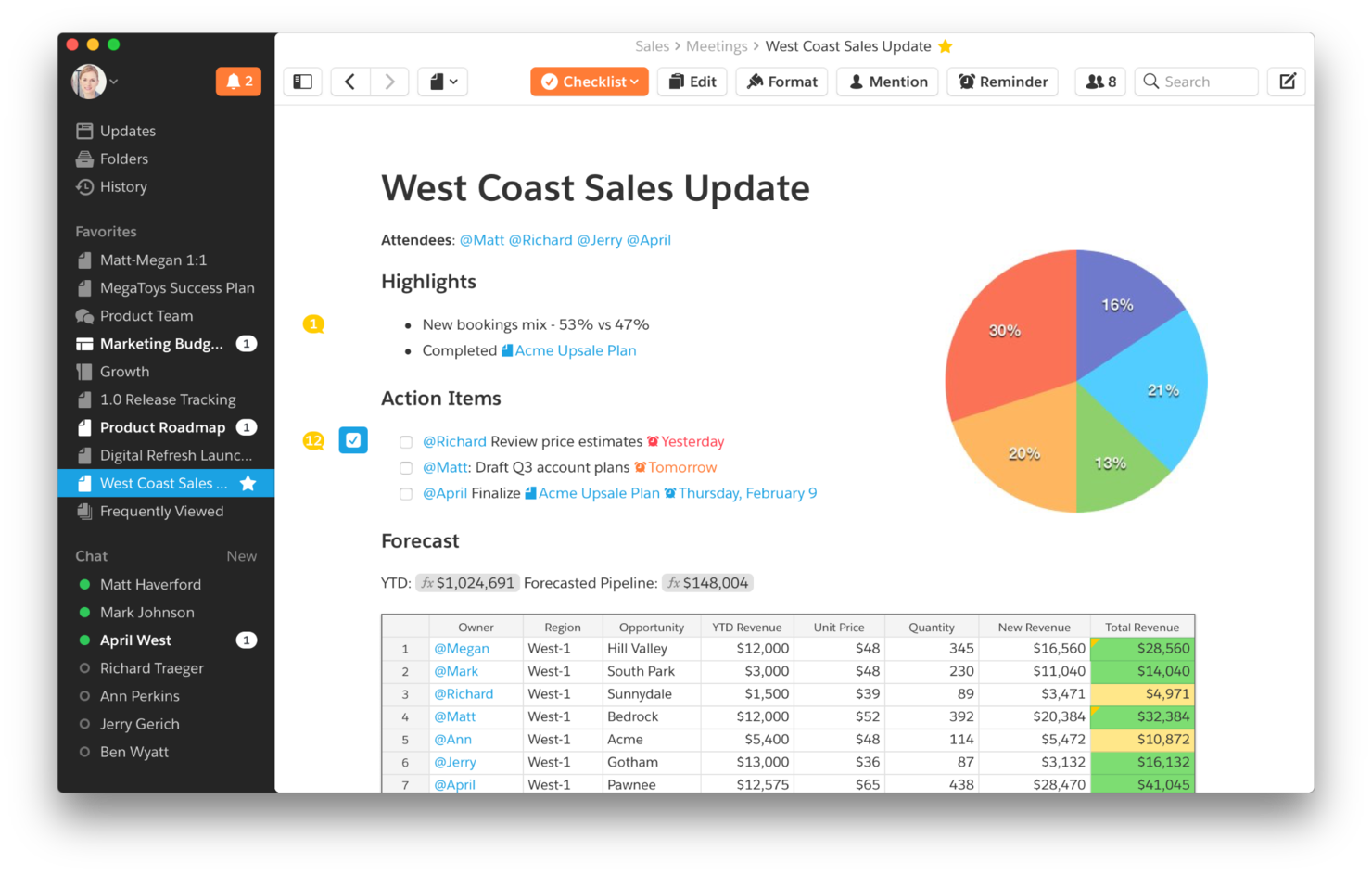
Quip is a Salesforce-built collaboration platform that combines live documents, spreadsheets, and team chat in a single workspace with native CRM data embedded directly into your content.
Who Is Quip Best For?
Quip is a strong fit for sales teams already working inside Salesforce who want to collaborate on documents without leaving their CRM.
Why I Picked Quip
I've included Quip in my top picks because no other tool places collaborative documents inside Salesforce records like Quip. I like how your team can embed a live Mutual Close Plan or Account Plan inside an opportunity record, with Salesforce data updating in real time as the deal progresses. The built-in document-level chat lets my team discuss a spreadsheet or sales playbook without switching to a separate messaging tool.
Quip Key Features
- Embedded spreadsheets: Place spreadsheets inside Quip documents so your team can view data and written context side by side.
- Sales templates: Pre-built templates for Account Plans, Sales Playbooks, and Case Swarms give teams a structured starting point for common sales workflows.
- Team chat rooms: Create dedicated chat rooms for groups, plus channels separate from document threads for broader team conversations.
- Version history: Track document changes over time and restore previous versions to keep a clear record of how content has evolved.
Pros and Cons
Pros:
- Real-time collaboration features
- Combines documents, spreadsheets, and chat
- Smooth Salesforce integration
Cons:
- Interface may feel basic for power users
- Limited features outside Salesforce ecosystem
- Higher cost for smaller teams
Podio
Best for customizable workflows

Podio is a team collaboration platform built around customizable workspaces, letting you combine task management, file sharing, real-time messaging, and no-code app building in one place.
Who Is Podio Best For?
Podio is a good fit for small to mid-sized teams that need to tailor their workspace structure to match how they work.
Why I Picked Podio
I've included Podio in my top picks because its no-code app builder lets my team design custom workspaces from scratch rather than bending our work to fit a rigid template. I particularly like Podio's automated workflow tool, which triggers actions like status updates, task assignments, and notifications based on conditions we define. Combined with custom fields and views, my team can map out a content approval process or client onboarding flow exactly as it needs to run.
Podio Key Features
- Activity streams: Each workspace has a real-time feed where team members can comment, attach files, and @mention colleagues directly on any item.
- Workspace permissions: Assign employee, light user, or external access roles to control who sees and interacts with each workspace.
- Task management: Create, assign, and track tasks with due dates inside any workspace or app.
- File sharing: Attach files directly to individual items, keeping documents tied to the relevant work.
Pros and Cons
Pros:
- Supports automation of repetitive tasks
- Strong task and project management features
- Highly customizable workflows
Cons:
- Interface may feel cluttered to some users
- Can become costly for small teams
- Steeper learning curve

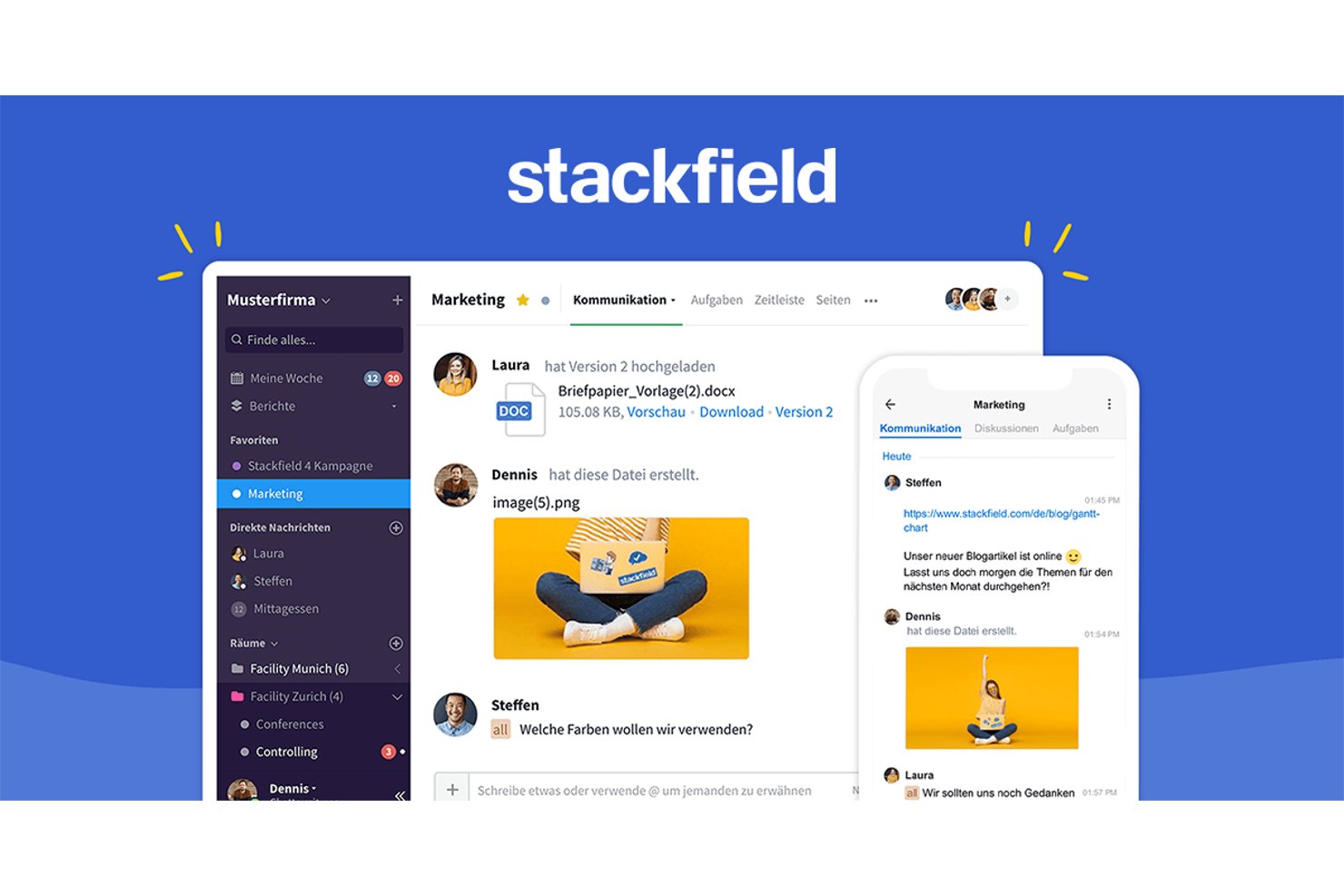
Stackfield is a team collaboration platform that combines encrypted chat, task management, Kanban and Gantt views, file sharing, whiteboards, and video conferencing inside shared project workspaces called rooms.
Who Is Stackfield Best For?
Stackfield is a strong fit for project teams in regulated industries, like law, finance, healthcare, and government, where data sovereignty and end-to-end encryption are requirements.
Why I Picked Stackfield
I picked Stackfield because it wraps chat, task boards, files, and whiteboards inside zero-knowledge, end-to-end encryption, so your team can collaborate without exposing project data to the platform itself. Each room gets its own encryption key, and content is encrypted and decrypted in the browser. Within a room, you can turn chat messages into tasks and run work in Kanban or Gantt views. External collaborators can also join video conferences through a browser link without creating an account, which helps when you're working with clients under strict confidentiality rules.
Stackfield Key Features
Stackfield also includes features that keep everyone on your team aligned day to day.
- My Week feed: A personal dashboard that shows task changes, reminders, approvals, and upcoming appointments across all your rooms.
- Mentionsmentions
- Threaded discussions: A separate discussion module keeps longer, topic-based conversations out of the main chat stream.
- Workflow automation: Set up approval steps and status changes to route tasks without third-party tools.
Stackfield Integrations
Integrations include Google Calendar, Outlook, Apple Calendar (iCal), Zapier, and IFTTT. Stackfield also offers an open API and incoming webhooks for custom connections.
Pros and Cons
Pros:
- Free, license-free collaboration for external clients
- Chats, tasks, and files linked in rooms
- End-to-end encrypted whiteboards and task boards
Cons:
- Group meetings capped in size and duration
- No native connectors to common PM tools
Andre verktøy for teamsamarbeid
Nedenfor finner du en liste over flere verktøy for teamsamarbeid som jeg vurderte, men som ikke kom med på topplisten. Det er absolutt verdt å ta en titt på dem.
- Trello
For visual project tracking
- Huddle
Good for secure document collaboration
- Jira
For software development tracking
- Miro
For visual collaboration and brainstorming
- Slack
For organized team communication
- Smartsheet
For project and portfolio management
- Asana
For goal-oriented project management
- Basecamp
For simple project management
- Zoho Projects
For integration with Zoho suite
- monday AI Workspace
Good for visual project tracking
- Redbooth
Good for task and time tracking
- ClickUp
For all-in-one project management


How I Evaluate Team Collaboration Tools
I split my evaluation into two layers: baseline must-haves like threaded messaging and task integration, and the differentiators—AI, security, and ecosystem fit—that determine the best pick.
Core Functionality (Table Stakes For This List)
When I'm selecting tools for my list, I rank each one on a scale from 0 (does not offer the functionality) to 5 (excels in this area) for each core functionality listed below. Then, I calculate the tool's total score into a percentage. Each tool needs to achieve a minimum total score of 75% to be considered for inclusion.
- Real-Time Messaging: I check for channels, threads, and direct messages—the kind of structured chat that keeps a sprint standup recap separate from a design review discussion.
- File Sharing & Co-Editing: Teams pass specs, mockups, and briefs back and forth constantly, so I look for inline previews, version history, and the ability to co-edit without leaving the platform.
- Task & Project Integration: I evaluate whether conversations connect to actual deliverables—for example, turning a chat message into a tracked task with an assignee and due date.
- Video & Voice Conferencing: Built-in or deeply embedded video calls matter when your team needs to jump from async chat to a live screen-share session without switching apps.
- Notifications & @Mentions: Granular notification controls are what I look for here—targeted @mentions, per-channel muting, and smart filters that help PMs stay on top of critical updates.
- Third-Party Integrations: I evaluate how well each tool connects to PM platforms like Jira, Asana, or monday.com, plus storage and productivity suites your team already relies on.
Once I have a list of tools that meet this criteria, I consider what sets each platform apart.
Differentiating Factors (What Sets Vendors Apart)
Here's how I compare and contrast different vendors:
Standout Features
AI features like thread summaries and auto-generated action items save PMs hours of post-meeting documentation. I also look for guest and client access controls—when you're coordinating with external vendors or agency partners, shared channels with scoped permissions keep conversations in one place without exposing internal work. No-code workflow automation is another differentiator I evaluate, especially the ability to auto-route approvals or trigger task updates in connected PM tools when a message or status changes.
Beyond Features
Security and compliance matter when your team handles sensitive project data—I check for SSO, MFA, and certifications like SOC 2 or ISO 27001. PM ecosystem fit is equally important; I evaluate how deeply a tool syncs with platforms like Jira or Asana, since a two-way connection between chat and your task board changes how updates flow. I also consider total cost of ownership, paying close attention to how vendors handle per-user pricing, guest access fees, and storage limits as teams scale.
Slik velger du verktøy for teamsamarbeid
Når du går gjennom din egen unike prosess for programvarevalg, bør du ha følgende punkter i tankene:
- Enkel integrasjon: Vurder hvor godt teamets samarbeidsverktøy integreres med annen programvare dere allerede bruker. Hvis teamet for eksempel er svært avhengig av prosjektstyringsverktøy som Trello eller Asana, bør du sørge for at samarbeidsverktøyet du velger, kan synkroniseres sømløst med disse plattformene for å unngå avbrudd. Manglende integrasjon kan føre til ineffektive arbeidsflyter og frustrasjon blant teammedlemmene.
- Kommunikasjonsfunksjoner: Evaluer kommunikasjonsfunksjonene som er tilgjengelige i verktøyet, for eksempel chat, videokonferanser og fildeling. Disse funksjonene er avgjørende for fjernteam som trenger å holde kontakten og være samkjørte om oppgavene. Hvis teamet for eksempel arbeider på tvers av ulike tidssoner, vil direktemeldinger og alternativer for asynkron kommunikasjon være avgjørende.
- Skalerbarhet: Vurder om verktøyet kan skaleres i takt med at virksomheten vokser. En liten oppstartsbedrift kan oppleve at grunnleggende samarbeidsfunksjoner er tilstrekkelige, men etter hvert som teamet utvides, kan mer avanserte funksjoner som tilpassbare arbeidsflyter, avanserte tillatelser og brukerroller bli nødvendige. Ved å velge et verktøy som kan vokse sammen med dere, unngår dere bryet med å bytte plattform senere.
- Brukeropplevelse: Vurder hvor enkelt og intuitivt verktøyet er for alle teammedlemmer, uavhengig av deres tekniske ferdigheter. Et verktøy som er for komplisert, kan føre til lav bruk, mens et verktøy som er for enkelt, kan mangle viktige funksjoner. Et verktøy med et brukervennlig grensesnitt og omfattende støtteressurser kan for eksempel sikre at alle i teamet kan bruke det effektivt.
- Sikkerhet og samsvar: Sørg for at teamets samarbeidsverktøy oppfyller bransjens sikkerhetsstandarder og krav til samsvar (f.eks. HIPAA-kompatible samarbeidsverktøy). For virksomheter som håndterer sensitiv informasjon, for eksempel innen helsevesen eller finans, er datakryptering og samsvar med regelverk som GDPR eller HIPAA ikke-forhandlingsbart. Hvis man overser sikkerhetshensyn, kan det føre til datainnbrudd og juridiske problemer.
Trender innen samarbeidsverktøy for team
Landskapet for samarbeidsverktøy for team fortsetter å utvikle seg. Viktige trender former hvordan team arbeider sammen og effektiviserer prosessene sine.
- AI-drevet samarbeid: Integrasjon av AI i samarbeidsverktøy blir stadig mer utbredt og øker produktiviteten gjennom automatisert oppgavehåndtering og smarte forslag. Denne trenden er viktig fordi den reduserer manuelt arbeid og hjelper team med å konsentrere seg om strategisk arbeid. AI-drevet innsikt blir stadig viktigere for datadrevet beslutningstaking.
- Tilrettelegging for hybridarbeid: Verktøy støtter i økende grad hybride arbeidsmiljøer og tilbyr funksjoner som er tilpasset både ansatte på kontoret og fjernarbeidere. Denne trenden er viktig fordi den gjenspeiler overgangen til fleksible arbeidsordninger. Forbedrede videokonferanser og virtuelle arbeidsområder står sentralt i denne endringen.
- Forbedret sikkerhet og samsvar: Etter hvert som cybertruslene øker, fokuserer samarbeidsverktøy på robuste sikkerhetsfunksjoner og samsvar med globale regelverk. Denne trenden er avgjørende for bransjer som håndterer sensitive data, slik at samarbeid ikke går på bekostning av sikkerheten. Virksomheter prioriterer verktøy som tilbyr kryptering og sikre kommunikasjonskanaler.
- Integrerte økosystemer: Samarbeidsverktøy utvider integrasjonene sine og skaper økosystemer som kobler sammen ulike forretningsapplikasjoner. Denne trenden er bemerkelsesverdig fordi den forenkler arbeidsflyter og reduserer behovet for flere plattformer. Sømløs datadeling på tvers av verktøy blir en forventet standard.
- Personalisering og tilpassede arbeidsflyter: Det legges stadig større vekt på tilpassbare arbeidsflyter som dekker spesifikke behov i teamet. Denne trenden er interessant fordi den lar team tilpasse verktøyene til sine unike prosesser og dermed øke effektiviteten. Personalisering blir en viktig faktor som skiller samarbeidsplattformer fra hverandre.
Disse trendene fremhever den dynamiske utviklingen innen samarbeidsverktøy for team.
Hva er samarbeidsverktøy for team?
Samarbeidsverktøy for team er programvareløsninger som er utviklet for å legge til rette for kommunikasjon, koordinering og samarbeid mellom teammedlemmer, enten de arbeider på samme sted eller eksternt. De gjør det mulig for team å dele informasjon, følge oppgaver og arbeide sammen om prosjekter i sanntid, og integreres ofte med andre produktivitetsverktøy for å effektivisere arbeidsflyter.
De primære brukerne av programvare for teamsamarbeid er virksomheter, prosjektteam og organisasjoner av alle størrelser som trenger effektiv kommunikasjon og koordinering på tvers av ulike avdelinger eller steder. Brukerne trenger dette for å forbedre produktiviteten, sikre at alle er samkjørte om prosjektmålene og håndtere oppgaver effektivt ved å tilby en sentralisert plattform for kommunikasjon, dokumentdeling og oppfølging av oppgaver.
Funksjoner i programvare for teamsamarbeid
Når jeg velger nettbaserte samarbeidsverktøy, ser jeg etter flere viktige funksjoner for å sikre at de dekker teamets behov. Disse funksjonene bidrar til å effektivisere kommunikasjonen, håndtere prosjekter effektivt og holde alle oppdatert.
- Meldinger i sanntid: Gjør det mulig for teammedlemmer å kommunisere umiddelbart, uansett hvor de befinner seg.
- Oppgavehåndtering: Gjør det mulig for brukere å tildele, følge opp og prioritere oppgaver i teamet.
- Fildeling: Forenkler deling av dokumenter, bilder og andre filer på plattformen.
- Videokonferanser: Støtter virtuelle møter med teammedlemmer, kunder eller interessenter.
- Integrasjoner: Kobler sammen andre verktøy, som e-post, kalendere og prosjektstyringsprogramvare, for å effektivisere arbeidsflyten.
- Dokumentsamarbeid: Lar flere brukere redigere og kommentere dokumenter samtidig.
- Varsler: Holder teamet informert om oppdateringer, tidsfrister og endringer i sanntid.
- Tilpassbare arbeidsområder: Gjør det mulig for team å opprette og tilpasse arbeidsområdene sine etter spesifikke prosjektbehov.
- Sikkerhetsfunksjoner: Beskytter sensitive data med kryptering, tilgangskontroller og samsvar med bransjestandarder.
- Mobil tilgang: Gir tilgang til plattformen via mobilapper, slik at man kan samarbeide uansett hvor man er.
- Kanban-tavler: Visuelle verktøy som viser oppgaver på kort, organisert i kolonner som representerer ulike stadier i et prosjekt, og som gjør det enklere å følge fremdriften.
- Skjermdeling: Lar brukere dele skjermen sin under møter, slik at de kan demonstrere og samarbeide i sanntid.
- Gantt-diagrammer: Visuelle tidslinjer som viser oppgaver, datoer, milepæler, avhengigheter og fremdrift, og som gjør det enklere å planlegge og følge opp prosjektets tidslinje.
- Korrektur: Gjør det mulig for team å gjennomgå, kommentere og godkjenne digitalt innhold for å sikre kvalitet før ferdigstilling.
- Arbeidsflytstyring: Automatiserer og effektiviserer prosesser, slik at oppgaver beveger seg effektivt gjennom forhåndsdefinerte trinn.
Disse funksjonene er avgjørende for å sikre at programvaren støtter effektivt teamsamarbeid og øker den samlede produktiviteten.
Fordeler med programvare for teamsamarbeid
Programvare for teamsamarbeid gir flere viktige fordeler som kan forbedre hvordan team arbeider sammen og når målene sine. Disse fordelene er spesielt verdifulle for organisasjoner som ønsker å øke produktiviteten, kommunikasjonen og prosjektstyringen.
- Bedre kommunikasjon: Effektiviserer kommunikasjonen på tvers av team og muliggjør asynkron kommunikasjon, noe som reduserer misforståelser og sikrer at alle er samkjørte når det gjelder prosjektmål og oppgaver.
- Økt produktivitet: Samler all prosjektrelatert informasjon og alle oppgaver på ett sted, slik at teammedlemmer kan konsentrere seg om arbeidet uten å måtte bytte mellom flere verktøy.
- Forbedret samarbeid: Legger til rette for samarbeid om dokumenter og oppgaver i sanntid, slik at team kan arbeide effektivt sammen, også når de arbeider eksternt.
- Bedre prosjektstyring: Tilbyr verktøy for å følge opp fremdrift, håndtere tidsfrister og tildele oppgaver, slik at prosjekter holder seg på rett spor og innenfor budsjettet.
- Bedre datasikkerhet: Beskytter sensitiv informasjon gjennom kryptering og tilgangskontroller, slik at virksomheter kan dele dokumenter og data med større trygghet.
Disse fordelene gjør programvare for teamsamarbeid til en verdifull investering for enhver organisasjon som ønsker å forbedre hvordan teamene arbeider sammen. Ved å velge riktig verktøy kan virksomheter øke effektiviteten, fremme bedre kommunikasjon og oppnå større suksess i prosjektene sine.
Kostnader og priser for programvare for teamsamarbeid
Når du vurderer kostnadene og prisene på de beste samarbeidsverktøyene, er det viktig å se på de ulike tilgjengelige abonnementene og hvordan de samsvarer med teamets behov. Ved å forstå disse alternativene blir det enklere å velge et abonnement som gir riktig balanse mellom funksjonalitet og kostnad for organisasjonen din.
| Abonnementstype | Gjennomsnittlig pris | Vanlige funksjoner |
| Gratisabonnement | $0/user/month | Grunnleggende meldinger, fildeling, begrensede integrasjoner og støtte for små team. |
| Grunnleggende | $5-$10/user/month | Oppgavehåndtering, fillagring, gruppechat og viktige integrasjoner. |
| Standard | $10-$20/user/month | Videokonferanser, forbedret sikkerhet, avanserte integrasjoner og verktøy for prosjektstyring. |
| Premium | $20-$30/user/month | Tilpassbare arbeidsflyter, prioritert brukerstøtte, omfattende rapportering og funksjoner for samsvar. |
| Bedrift | $30+/user/month | Avansert sikkerhet, ubegrenset lagring, dedikert brukerstøtte og integrasjoner på bedriftsnivå. |
Når du velger en plan, bør du ta hensyn til størrelsen på teamet ditt, kompleksiteten i prosjektene dine og hvilket støttenivå organisasjonen din trenger. Den riktige planen bør tilby funksjonene som er nødvendige for å dekke teamets behov, uten at du bruker penger på unødvendige funksjoner.
Vanlige spørsmål om programvare for teamsamarbeid
Hvordan forbedrer programvare for teamsamarbeid produktiviteten?
Programvare for teamsamarbeid samler kommunikasjon, oppgavehåndtering og deling av dokumenter på én plattform. Dette reduserer behovet for å bytte mellom ulike verktøy, effektiviserer arbeidsflyten og hjelper team med å holde fokus på oppgavene sine. Det muliggjør også oppdateringer og samarbeid i sanntid, noe som minimerer forsinkelser og holder prosjektene fremdriftsrettet.
Kan programvare for teamsamarbeid brukes av eksterne team?
Ja, programvare for teamsamarbeid er ideell for fjernarbeid. Den tilbyr funksjoner som videokonferanser, meldinger og fildeling, slik at teammedlemmer kan holde kontakten uavhengig av hvor de befinner seg. Disse verktøyene bidrar til å opprettholde kommunikasjonen og sørger for at alle er samkjørte om prosjektmålene, selv når de arbeider fra forskjellige steder.
Hvilke integrasjoner er vanlige med programvare for teamsamarbeid?
Vanlige integrasjoner omfatter verktøy som Google Drive, Google Kalender, Google Dokumenter, Slack, Trello, Zoom og Microsoft Teams. Disse integrasjonene gjør det mulig å koble eksisterende verktøy til samarbeidsplattformen, slik at det blir enklere å håndtere oppgaver og dele informasjon på tvers av ulike applikasjoner.
Er data sikre ved bruk av programvare for teamsamarbeid?
Det meste av programvaren for teamsamarbeid omfatter sikkerhetsfunksjoner som kryptering, tilgangskontroller og samsvar med bransjestandarder. Disse tiltakene beskytter sensitiv informasjon og sørger for at data bare er tilgjengelige for autoriserte brukere, noe som gjør dette til et sikkert alternativ for forretningskommunikasjon og samarbeid.
Hvor tilpasningsbar er programvare for teamsamarbeid?
Mange verktøy for teamsamarbeid tilbyr tilpasningsbare funksjoner som arbeidsflyter, brukertillatelser og grensesnittinnstillinger. Dette gjør det mulig for team å tilpasse programvaren etter sine spesifikke behov og optimalisere arbeidsflytene for større effektivitet.
Hvilken teamstørrelse har størst nytte av programvare for teamsamarbeid?
Programvare for teamsamarbeid er nyttig for team i alle størrelser, fra små oppstartsbedrifter til store virksomheter. Det viktigste er å velge et verktøy som kan skaleres med teamet ditt, og som tilbyr de nødvendige funksjonene for å støtte den spesifikke arbeidsflyten og prosjektkravene dine.
Kan programvare for teamsamarbeid følge prosjektets fremdrift?
Ja, mange verktøy for teamsamarbeid omfatter prosjektstyringsfunksjoner som oppgavesporing, tidslinjer og fremdriftsoversikter. Disse verktøyene hjelper team med å overvåke fremdriften, identifisere flaskehalser og sørge for at prosjektene holder tidsplanen.
Er opplæring nødvendig for å bruke programvare for teamsamarbeid?
Selv om enkelte apper for teamsamarbeid er intuitive, kan det være nødvendig med opplæring for å utnytte avanserte funksjoner fullt ut. Grunnleggende brukere kan ofte komme i gang med minimal veiledning, men mer komplekse arbeidsflyter og integrasjoner kan kreve en læringsperiode.