
Las 15 Mejores Herramientas de Gestión de Proyectos de 2026: Una Reseña Experta

15 ¿Cuáles Son las Mejores Herramientas de Gestión de Proyectos?
Here's my pick of the 15 best software from the 26 tools reviewed.


A continuación encontrarás una descripción general de la administración de estas herramientas de administración de proyectos, con capturas de pantalla, resumen de funciones, y precios.
Conceptos Básicos de la Gestión de Proyectos
¿Qué son las herramientas de gestión de proyectos?
Cuando hablamos de herramientas de gestión de proyectos, estamos hablando sobre:
- Los informes, cuadros, resúmenes, planes y documentos que un gerente de proyecto produce y utiliza para hacer su trabajo.
- Software para gestionar proyectos, que incluye funciones para generar gráficos e informes, compartir documentos, hacerle seguimiento al presupuesto, comunicarse, etc.
En esta reseña, utilizamos el término “herramientas de gestión de proyectos” para hablar sobre el software. Para obtener excelentes recursos sobre el otro tipo de herramientas (informes, gráficos, resúmenes, planes), puedes comenzar echándole un vistazo a las Guías Prácticas de The Digital Project Manager.
¿Por qué usar software de gestión de proyectos?
Ya sea que trabajemos en agencias, marketing o consultoría, sin un buen software de gestión de proyectos, nos encontraremos ahogados en un mar interminable de hojas de cálculo, ‘post-its’ y mucho papeleo. Como gerentes de proyectos, nuestro kit de herramientas podría ser lo único que nos salve del colapso total. Para que los proyectos salgan como uno espera, necesitamos las herramientas adecuadas para que así sea.
¿Qué son las herramientas ágiles de gestión de proyectos?
Las herramientas ágiles son herramientas de gestión de proyectos diseñadas para ser compatibles con cualquier metodología ágil, ya sea Scrum, Kanban, Scrumban o algún otro método híbrido. Aquí tienes algunos ejemplos de herramientas ágiles:
- Zenhub
- Taiga
- Pivotal Tracker
Descubre más herramientas ágiles en mi reseña de programas para la gestión de proyectos ágiles.
¿Cuál es el software de gestión de proyectos más fácil?
De acuerdo con las reseñas de los usuarios, estas son algunas de las herramientas para la gestión de proyectos más fáciles de usar y aprender:
- Paymo – https://www.paymoapp.com/
- Flow – https://www.getflow.com
- Teamwork – https://www.teamwork.com/
- monday.com – https://monday.com/
- 10,000ft – www.10000ft.com/
Todas han recibido muchos elogios por su navegación intuitiva, interfaz sencilla, y buenos recursos de entrenamiento que las hacen fácil de usar.
¿Es Jira una herramienta de gestión de proyectos?
Sí. Jira, una herramienta desarrollada por Atlassian, empezó como una herramienta de desarrollo de software, pero ahora es utilizada para el control de errores, la gestión de fallas, y la gestión de proyectos. Fue diseñada para ser utilizada en el desarrollo de software ágil, y ofrece funciones como tableros Scrum, tableros Kanban, hojas de ruta, herramientas para la gestión del flujo de trabajo, y herramientas para crear informes del proyecto, además de su aplicación para el desarrollo de software.
¿Cómo evalúa el software de gestión de proyectos?
Existe una relación simbiótica entre nuestras herramientas y técnicas de gestión de proyectos. Elegir las adecuadas para cada caso es una práctica continua, pero puedes comenzar viendo los criterios básicos que uso al momento de evaluar el software de gestión de proyectos:
- Interfaz de usuario: ¿está bien diseñada, con vistas claras y navegación intuitiva?
- Usabilidad: ¿es fácil de aprender? ¿La empresa ofrece capacitación, tutoriales y soporte técnico al usuario?
- Características y funcionalidad: ¿brinda las características clave de gestión de proyectos como gestión de tareas, herramientas de programación, informes, uso compartido de archivos, herramientas de colaboración?
- Integraciones: ¿se sincroniza fácilmente con otras herramientas comerciales?
- Relación calidad-precio: ¿es su precio es acorde a las características y capacidades que ofrece?
¿Acabas de darte cuenta de que no buscas un software de gestión de proyectos? Eche un vistazo a otras herramientas útiles:
- Software de programación de recursos para ayudarte a asignar equipos, salas, personal y otros recursos.
- Software de gestión de flujo de trabajo para optimizar tu colaboración, documentos y cargas de trabajo de principio a fin.
En este artículo encontrarás una reseña experta de las herramientas de gestión de proyectos para que puedas escoger el mejor software de gestión de proyectos para tus proyectos.
En las agencias digitales que trabajan de manera muy rápida, es probable que el gerente de proyecto promedio utilice una docena de aplicaciones de administración de proyectos diferentes para mantenerse al tanto de la lista de tareas, la cual se mantiene en constante cambio. Este artículo lo ayudará a reducir las opciones para seleccionar el software de PM correcto respondiendo algunas preguntas comunes y ofreciendo una comparación de las herramientas de gestión de proyectos junto con los criterios utilizados para evaluarlos.
Compara y Evalúa Rápidamente las 15 Mejores Herramientas de Gestión de Proyectos
La gestión de proyectos es una industria amplia: en nuestra reseña de herramientas de gestión de proyectos hemos seleccionado las plataformas que son las mejores para las agencias. Por supuesto, algunas de estas pueden adaptarse a diferentes entornos (TI, salud, finanzas), pero estamos enfocados en cómo funcionan para los equipos digitales en las agencias. Estos incluyen:
- Proyectos de desarrollo de software
- Agencias web
- Agencias creativas
- Agencias de marketing digital (aunque es posible que tengas más suerte si visitas nuestra reseña sobre herramientas de gestión de proyectos de agencias de marketing)
Sigue leyendo para conocer el mejor software de gestión de proyectos para agencias y estudios:
The Digital Project Manager es financiado por sus lectores. Cuando haces clic en los enlaces de nuestro sitio, podríamos ganar una comisión. Más información.
-

Insightful
Visit WebsiteThis is an aggregated rating for this tool including ratings from Crozdesk users and ratings from other sites.4.8 -
Accelo
Visit WebsiteThis is an aggregated rating for this tool including ratings from Crozdesk users and ratings from other sites.4.4 -
Wrike
Visit WebsiteThis is an aggregated rating for this tool including ratings from Crozdesk users and ratings from other sites.4.2


Reseña de las 15 Mejores Herramientas de Gestión de Proyectos
En esta publicación, hemos tratado de cubrir un amplio espectro de herramientas de administración de proyectos, teniendo en cuenta la complejidad, los precios y la funcionalidad. Pero todo se reducirá a tu flujo de trabajo y a la funcionalidad específica que necesitas para mejorar esa función. Echa un vistazo y aprovecha las pruebas gratuitas para encontrar las herramientas de gestión de proyectos que se ajustan a tu agencia o estudio.
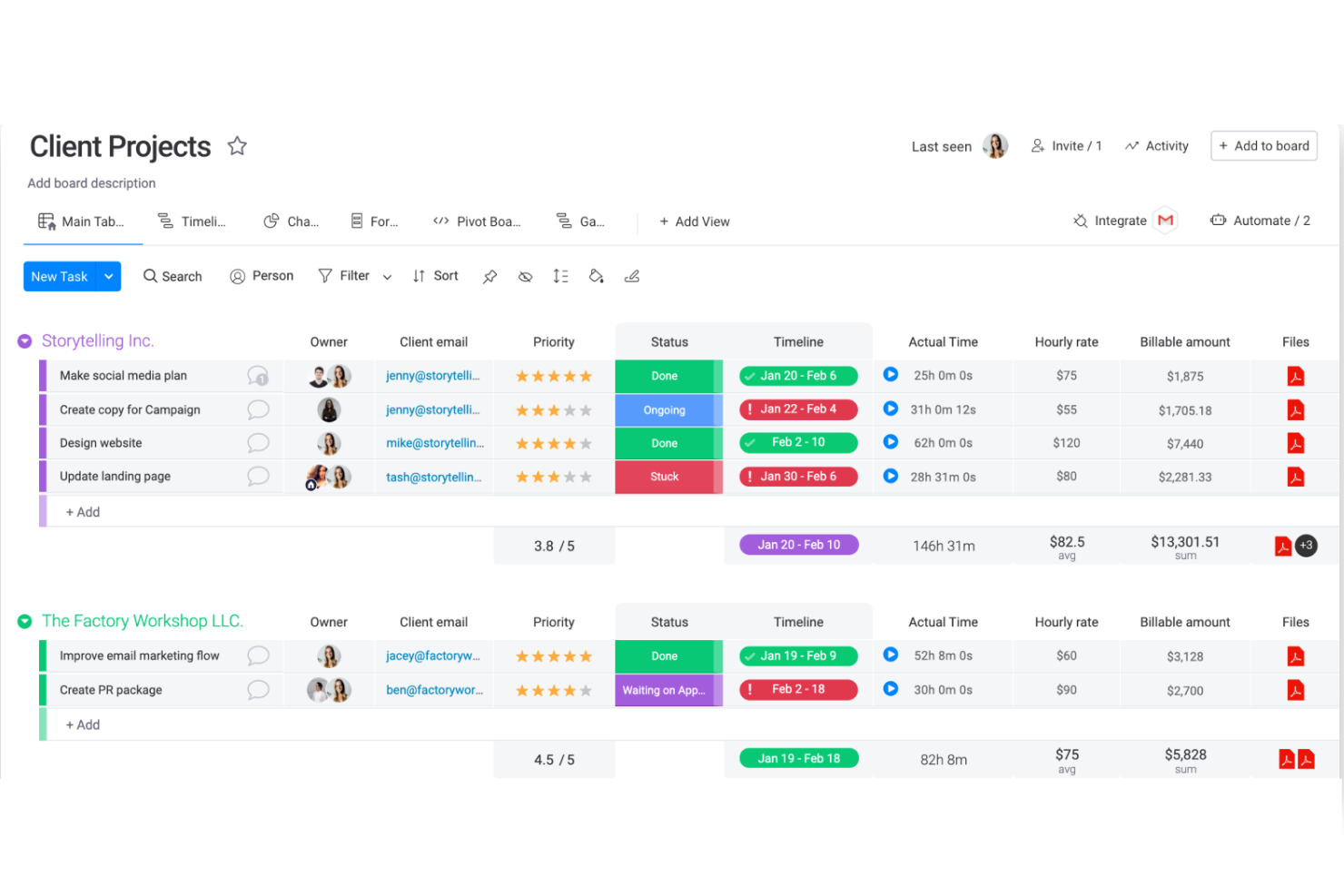
If your team needs to automate repetitive project tasks and connect workflows across tools, monday.com is worth a close look. It’s especially useful for tech, marketing, and operations teams that want to reduce manual updates and keep projects moving without constant check-ins. monday.com stands out for its visual automation builder and flexible board structure, making it easy to design and adjust processes as your needs change.
Why I Picked monday.com
When it comes to workflow automation, monday.com offers a visual automation builder that lets you set up custom triggers and actions without code. I picked monday.com because it allows teams to automate status updates, notifications, and task assignments directly from their boards. The platform’s automation recipes cover a wide range of scenarios, so you can quickly connect processes and reduce manual work. This makes it a strong fit for teams that want to keep projects moving with minimal intervention.
monday.com Key Features
Some other features in monday.com that project managers may find valuable include:
- Timeline View: Visualize project schedules and dependencies in a Gantt-style format.
- Form Builder: Collect requests or project inputs directly into boards using customizable forms.
- Workload Management: Monitor team capacity and balance assignments across multiple projects.
- Document Collaboration: Create, edit, and share documents within the platform for centralized project communication.
monday.com Integrations
Integrations include Slack, Gmail, Microsoft Teams, GitLab, Mailchimp, Excel, Outlook, DocuSign, Google Drive, and Trello.
Pros and Cons
Pros:
- Automations are easy to create and require no coding
- Easy to connect to other tools via integrations library
- Huge focus on collaboration
Cons:
- Some views have trouble auto-updating
- The Gantt view cannot be used to build a project from scratch
New Product Updates from monday.com

monday.com Adds Time Range Support to Calendar Widget
monday.com introduces time range support in the Calendar Widget. This update allows users to visualize events across their full duration instead of single dates, improving scheduling clarity. For more information, visit monday.com’s official site.
 .
.
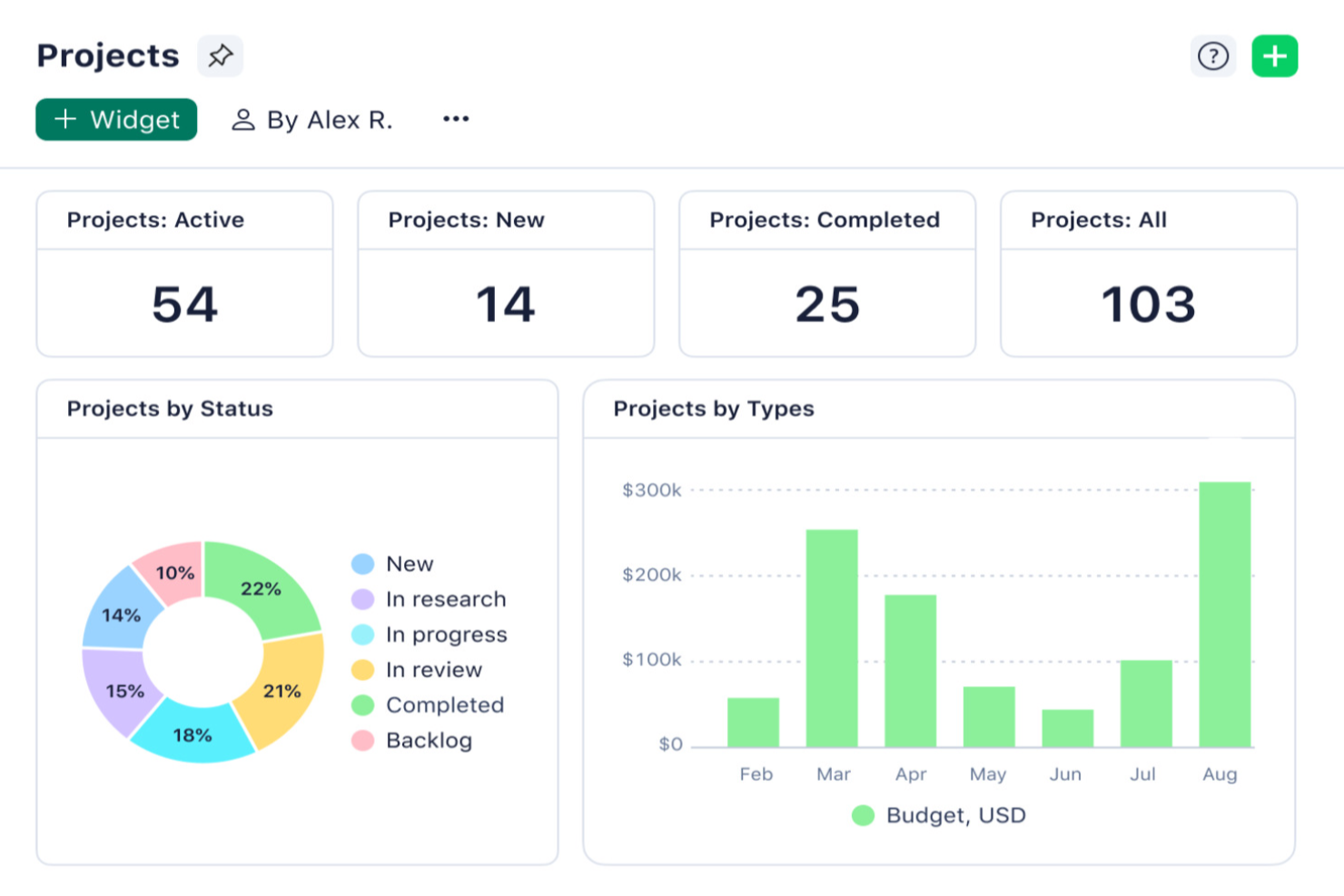
Wrike is designed for teams managing complex, large-scale projects that need advanced visibility and control. It’s a strong fit for organizations in tech, marketing, and professional services that juggle multiple workstreams and shifting priorities. Wrike stands out for its customizable workflows and real-time reporting, helping teams coordinate resources and keep projects on track as they grow.
Why I Picked Wrike
For teams handling large projects and scaling operations, Wrike offers advanced project structuring and resource management tools that are hard to match. I picked Wrike because its custom workflow builder and dynamic request forms let you tailor processes to fit complex, multi-team environments. The platform’s real-time Gantt charts and workload views help project managers spot bottlenecks and balance resources as priorities shift. These features make Wrike a strong choice for organizations that need to coordinate across departments and keep large initiatives moving forward.
Wrike Key Features
Some other features in Wrike that project managers may find useful include:
- Document Versioning: Track changes and maintain a full history of project files directly within the platform.
- Time Tracking: Log hours spent on tasks and projects to support accurate reporting and resource planning.
- Calendar Sync: Integrate project schedules with external calendars to keep everyone aligned on deadlines and milestones.
- Role-Based Access Controls: Set permissions for users and teams to manage sensitive information and maintain data security.
Wrike Integrations
Integrations include Slack, Microsoft Teams, Google Drive, Adobe Creative Cloud, Salesforce, Zoom, Tableau, Jira, Dropbox, and HubSpot.
Pros and Cons
Pros:
- Worldclass onboarding through video walkthroughs
- Right-click context menus allow you to do more with fewer clicks
- AI features are available in all plans at no extra cost
Cons:
- Integrations come at an extra cost, regardless of the plan
- 2FA is locked behind the enterprise plan
New Product Updates from Wrike

Streamlining Workspaces with New Updates
Wrike announces custom space templates, AI Agents in Wrike Labs, and a new Guage widget to improve project management. For more information, visit Wrike's official site.
 .
.
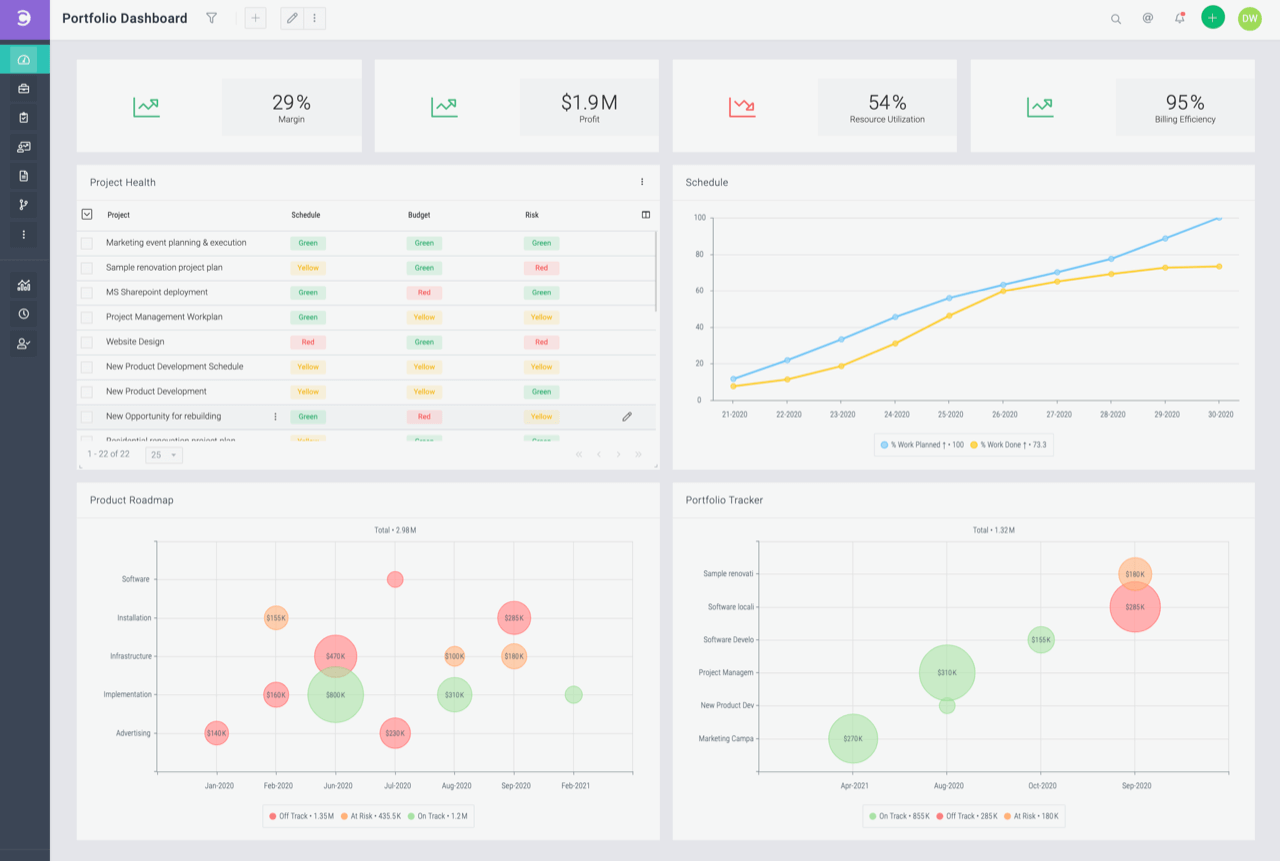
Celoxis is designed for teams that want to simplify project planning without sacrificing visibility or control. It’s a strong fit for professional services, IT, and consulting teams that need to manage multiple projects and resources in one place. With its interactive Gantt charts and built-in workflow automation, Celoxis helps teams keep projects on track and adapt quickly to changes.
Why I Picked Celoxis
What drew me to Celoxis is how it streamlines project planning and workflow management without adding complexity. The interactive Gantt chart lets you adjust timelines and dependencies with just a few clicks, making it easy to respond to shifting priorities. I also appreciate the built-in workflow automation, which helps teams standardize processes and reduce manual updates. These features make Celoxis a strong choice for teams that want to keep planning simple but still need robust project controls.
Celoxis Key Features
Some other features in Celoxis that project managers may find useful include:
- Custom Dashboards: Build personalized dashboards to track KPIs and project health in real time.
- Resource Allocation: Assign and balance resources across multiple projects from a centralized view.
- Project Request Tracking: Capture and manage incoming project requests with a dedicated intake system.
- Time and Expense Tracking: Log billable hours and expenses directly within each project workspace.
Celoxis Integrations
Integrations include Microsoft Project, Excel, Google Drive, Outlook, Salesforce, Jira, QuickBooks Online, iCal, Slack, and Trello. Celoxis also offers an API for custom integrations.
Pros and Cons
Pros:
- Offers a portfolio-level view with real-time dashboards
- Highly customizable and flexible for scaling organizations
- Advanced reporting and analytics, including AI forecasting
Cons:
- No mobile app available
- May not be suitable for small teams or organizations with fewer than 5 employees
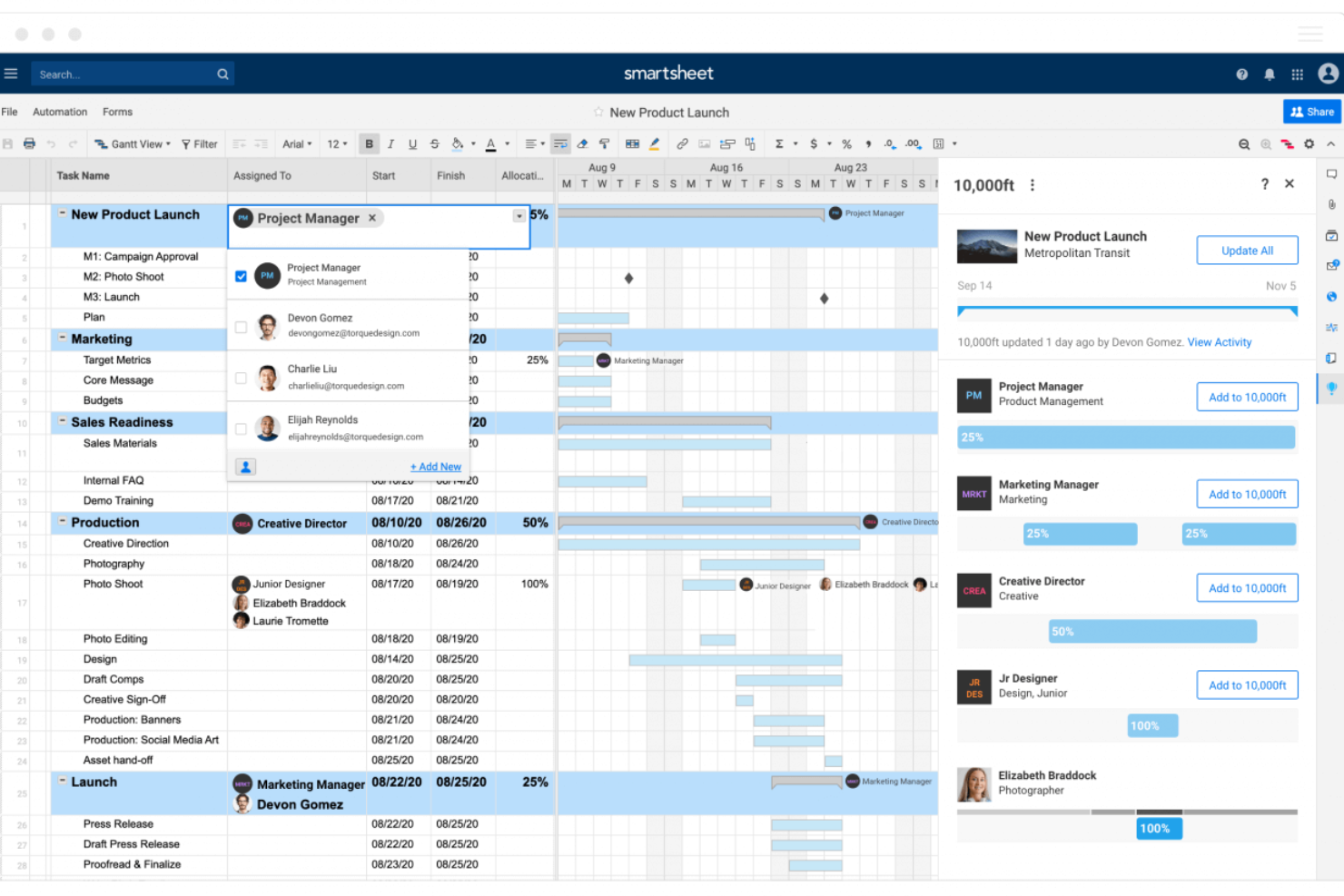
If you need a project management platform that adapts to your reporting and visualization needs, Smartsheet is worth a look. It’s especially useful for project managers and operations teams who want to build custom dashboards that pull in live data from multiple sources. Smartsheet helps teams track progress, manage resources, and share updates with stakeholders in a format that fits their workflow.
Why I Picked Smartsheet
What sets Smartsheet apart for me is how deeply you can customize dashboards to match your team’s reporting needs. You can pull in live data from sheets, reports, and forms, then visualize it with widgets like charts, graphs, and summary fields. I like that you can tailor each dashboard for different audiences, whether it’s executives, project teams, or clients. This flexibility makes Smartsheet a strong choice for teams that need to present project data in a way that’s both actionable and easy to understand.
Smartsheet Key Features
Some other features in Smartsheet that project managers may find valuable include:
- Automated Workflows: Set up rules to trigger alerts, reminders, and status updates based on project activity.
- Resource Management: Allocate team members to tasks and monitor workload across multiple projects.
- Document Attachment: Attach files directly to rows, tasks, or projects for easy reference.
- Cell-Level Comments: Add and track discussions on specific cells to keep context with the data.
Smartsheet Integrations
Integrations include Microsoft Teams, Slack, Google Drive, Microsoft OneDrive, DocuSign, Jira, Salesforce, ServiceNow, Box, and Dropbox. Smartsheet also offers an API for custom integrations.
Pros and Cons
Pros:
- Facilitates collaborative project management
- Allows for automation of tasks
- Can tailor the tool to specific project management needs
Cons:
- Not ideal for simpler project management needs
- Lacks built-in time tracking
New Product Updates from Smartsheet

Smartsheet Adds Direct Data Import to Existing Sheets
Smartsheet introduces direct data import to existing sheets in table view. This update lets you import CSV, XLS, and XLSX files directly into sheets, reducing manual work and speeding up data setup. For more information, visit Smartsheet's official site.
 .
.
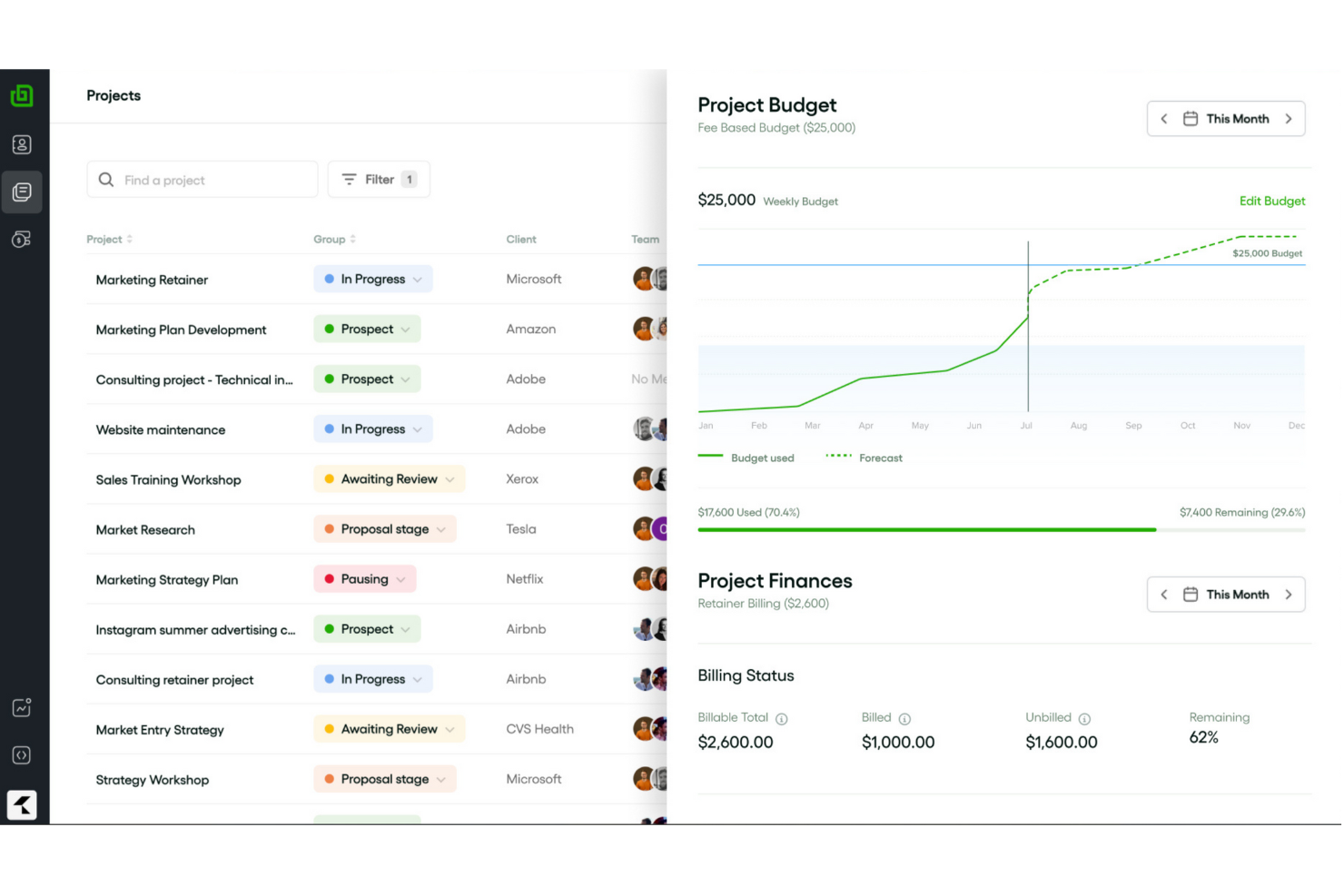
Creative agencies looking for a single platform to manage client work, finances, and collaboration often turn to Bonsai Agency Software. This tool brings together project tracking, invoicing, contracts, and client communication in one place. It’s especially useful for agencies that want to keep every part of their workflow connected from proposal to payment.
Why I Picked Bonsai Agency Software
What makes Bonsai Agency Software a strong choice for agencies is its ability to connect every stage of a client project in one platform. You can manage proposals, contracts, project tasks, and invoicing without switching tools or losing context. I appreciate how Bonsai’s client portal centralizes communication and document sharing, so nothing gets lost in email threads. For agencies that want a true end-to-end solution, Bonsai covers the full project lifecycle from onboarding to final payment.
Bonsai Agency Software Key Features
Some other features in Bonsai Agency Software that agencies may find valuable include:
- Time Tracking: Log billable and non-billable hours directly within each project.
- Automated Recurring Payments: Set up and manage recurring invoices for ongoing client work.
- Task Dependencies: Link tasks together to manage project timelines and handoffs.
- Team Collaboration Tools: Assign roles, share files, and comment on tasks within the platform.
Bonsai Agency Software Integrations
Integrations include QuickBooks, Xero, HubSpot, Google Sheets, Calendly, Trello, ClickUp, Gmail, Google Calendar, and Slack.
Pros and Cons
Pros:
- Client portal helps manage multiple clients
- Offers high-quality customizable templates
- Automation for tasks like recurring invoices
Cons:
- May not be best for scaling operations
- Lack of advanced features

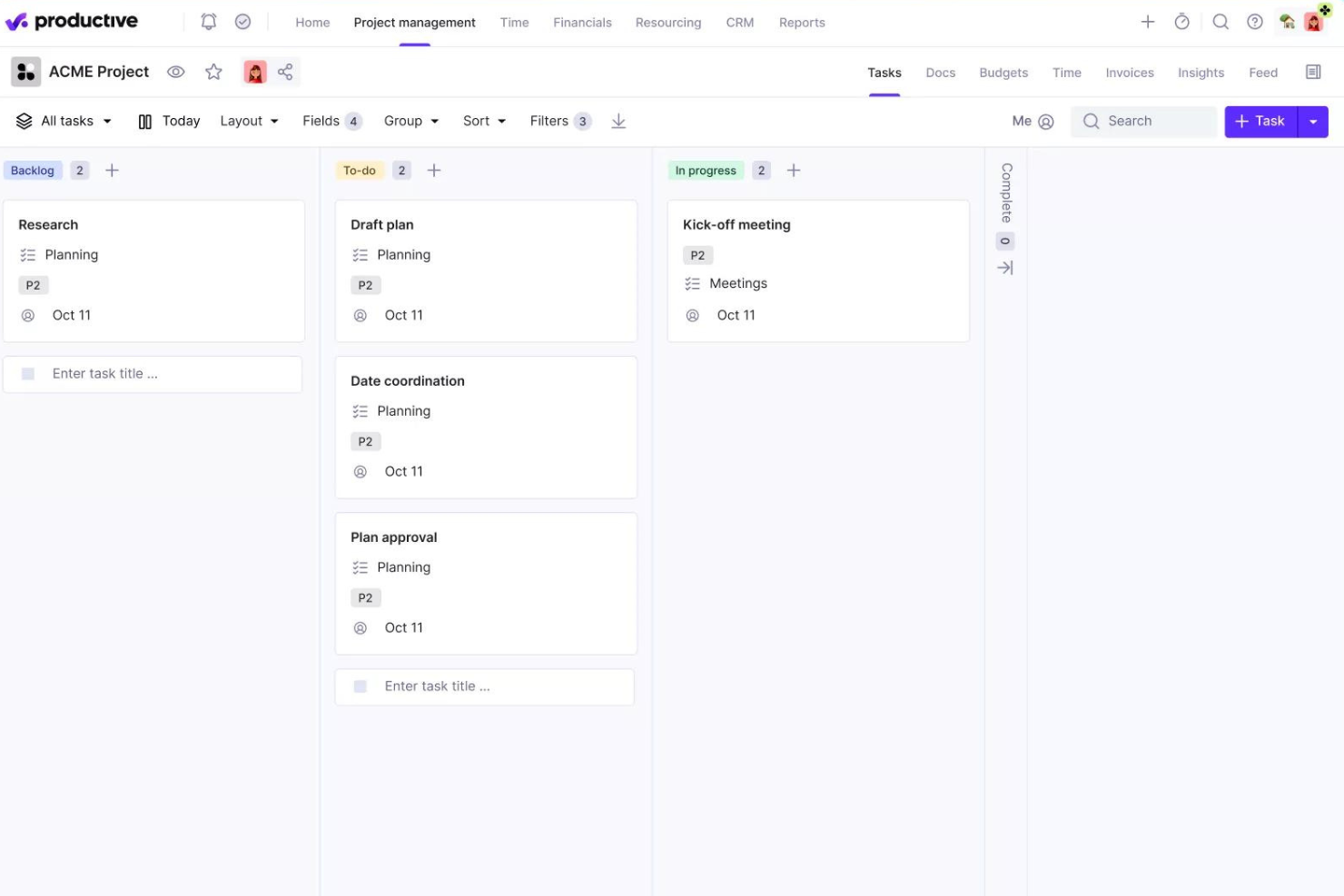
Productive is designed for agencies that need to manage projects, budgets, and client work in one place. It’s especially useful for creative, digital, and marketing teams that juggle multiple client accounts and need real-time insight into profitability. The platform brings together project management, time tracking, and financial tools to help agencies keep projects on track and budgets under control.
Why I Picked Productive
What sets Productive apart for agency projects and budgeting is its focus on unifying project delivery with financial oversight. The platform lets you track project budgets, forecast revenue, and monitor profitability in real time, all from within the same workspace. I like that you can connect time tracking directly to client billing and project costs, which helps agencies avoid budget overruns. This level of financial visibility is especially valuable for agencies managing multiple clients and shifting project scopes.
Productive Key Features
Some other features in Productive that agencies may find valuable include:
- Task Management: Organize, assign, and prioritize tasks across multiple projects.
- Sales Pipeline Tracking: Manage leads and opportunities from initial contact through to project kickoff.
- Document Storage: Store, share, and collaborate on project files within the platform.
- Resource Scheduling: Plan team workloads and visualize availability with a drag-and-drop scheduler.
Productive Integrations
Integrations include Jira, Slack, QuickBooks, Xero, Zapier, Sage, BambooHR, Google Calendar, Rippling, and HubSpot.
Pros and Cons
Pros:
- Integrated financial management and reporting
- User-friendly interface that simplifies task management
- Robust resource planning and tracking
Cons:
- Initial setup can be time-consuming
- Could have more integrations
New Product Updates from Productive

Productive Introduces Resource Request Feature
Productive introduces a resource request feature that helps teams request and allocate resources more efficiently. For more information, visit Productive's official site.
 .
.
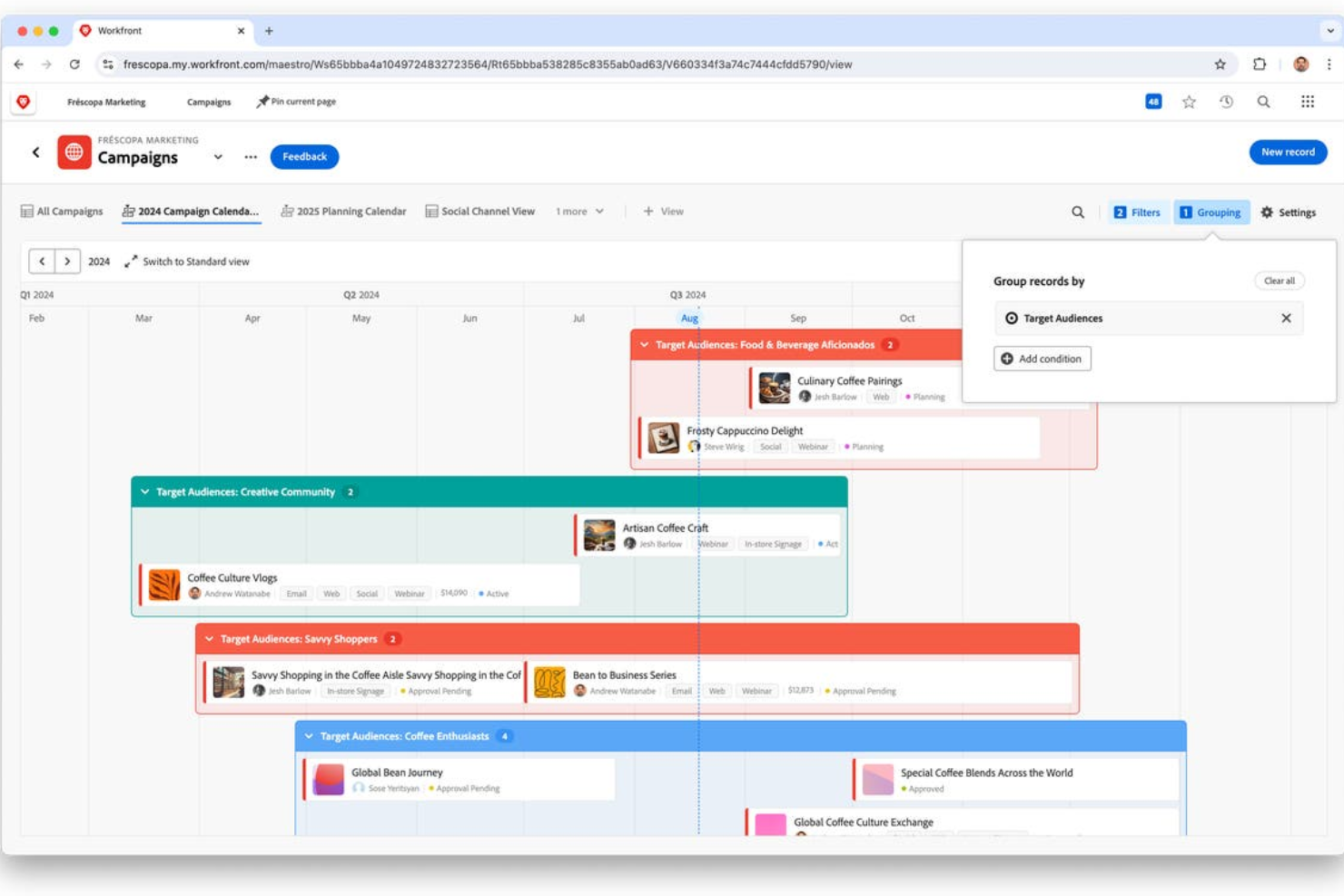
For teams that need to standardize and scale project delivery, Adobe Workfront offers a flexible approach to project planning. It’s a strong fit for enterprise project managers and PMOs who want to build and reuse detailed project templates across departments. Workfront helps organizations enforce process consistency while still allowing for customization at the project level.
Why I Picked Adobe Workfront
What drew me to Adobe Workfront is how deeply you can customize project templates to fit different teams and workflows. You can build templates with pre-set tasks, dependencies, milestones, and even approval processes, making it easy to launch new projects with consistent structure. I appreciate that you can also tailor templates for specific departments or project types, so each team gets exactly what they need. This level of template flexibility is especially useful for organizations managing complex, repeatable projects at scale.
Adobe Workfront Key Features
Some other features in Adobe Workfront that project managers may find useful include:
- Portfolio Management: Group related projects and track progress at the portfolio level.
- Resource Scheduling: Assign and balance workloads across teams and individuals.
- Custom Forms: Build forms to capture project requests and standardize intake.
- Proofing and Approvals: Review, comment, and approve digital assets directly within the platform.
Adobe Workfront Integrations
Integrations include Adobe Creative Cloud, Microsoft Teams, Slack, Jira, Salesforce, Google Drive, Microsoft Outlook, Box, Dropbox, and ServiceNow. Adobe Workfront also offers an API for custom integrations.
Pros and Cons
Pros:
- Customizable dashboards and reports
- Integration with BI tools like Tableau and Power BI
- Supports various project methodologies
Cons:
- Integration setup can be time-consuming
- No AI forecasting or predictive analytics
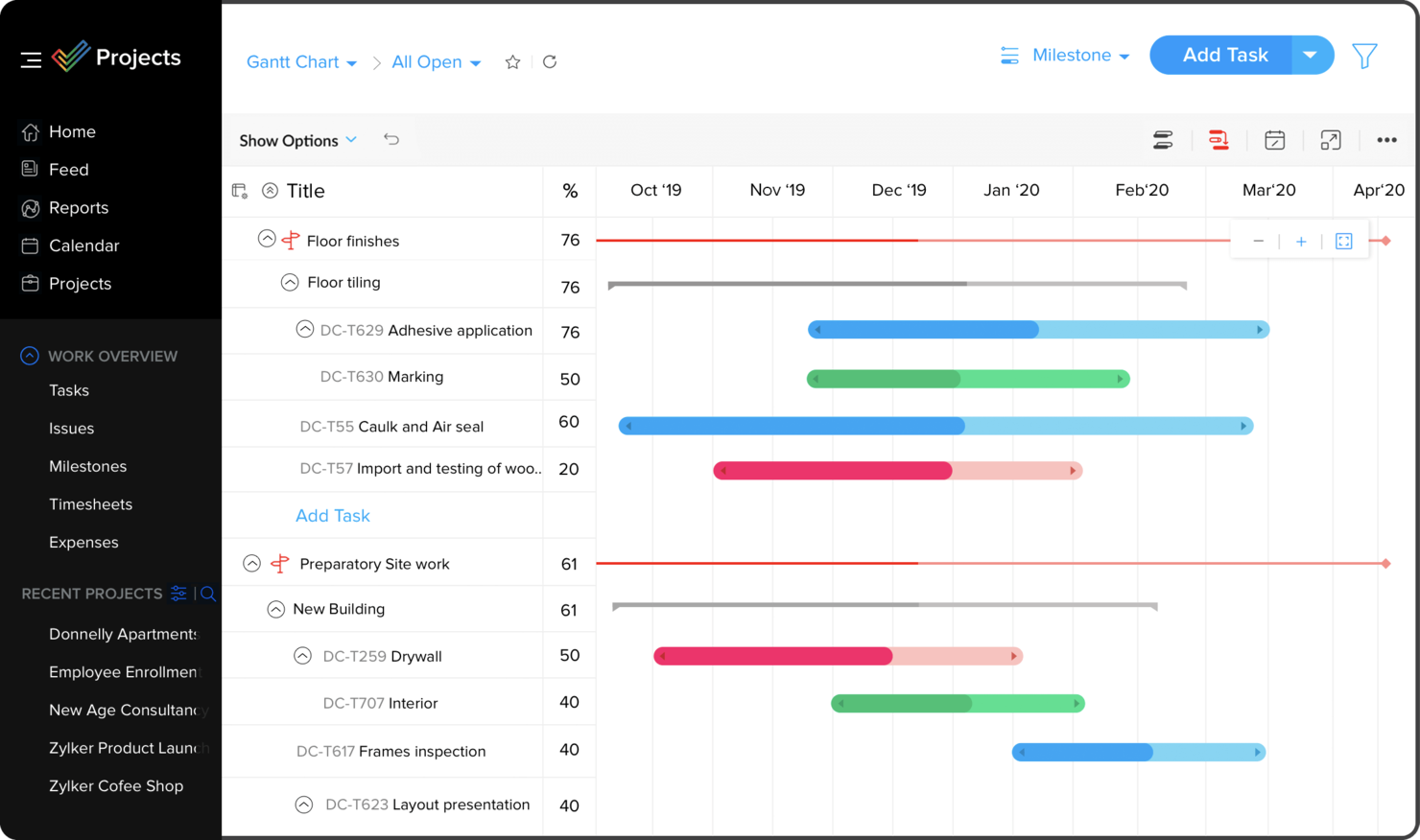
If your team already relies on the Zoho Suite, Zoho Projects offers a project management solution that fits right into your existing workflows. It’s a strong choice for businesses that want to connect project planning, collaboration, and reporting with Zoho’s CRM, finance, and HR tools. The platform helps unify data and processes across departments, making it easier to manage projects without switching between disconnected apps.
Why I Picked Zoho Projects
Zoho Projects stands out for teams that want deep integration with the broader Zoho Suite. You can link project tasks directly to Zoho CRM deals, automate workflows using Zoho Flow, and sync project time tracking with Zoho Books for billing. I appreciate how these connections let you manage projects, sales, and finances without leaving the Zoho ecosystem. This level of integration is especially useful for businesses that already use Zoho tools across multiple departments.
Zoho Projects Key Features
Some other features in Zoho Projects that are worth noting include:
- Gantt Charts: Visualize project timelines and dependencies with interactive Gantt charts.
- Issue Tracking: Log, assign, and monitor bugs or issues within each project.
- Custom Fields: Add custom data fields to tasks, projects, or timesheets for tailored tracking.
- Project Forums: Facilitate team discussions and knowledge sharing with built-in project forums.
Zoho Projects Integrations
Integrations include several of Zoho’s other services, such as Zoho Books and Zoho’s finance suite. The new Zoho marketplace allows third-party integrations as well, like Microsoft Office 365, Microsoft Teams, Google Drive, Zapier, Zendesk, and ServiceNow. Integrations via Zapier and Zoho Flow are also supported.
Pros and Cons
Pros:
- Time-track multiple tasks at once
- Easy workflow automations
- Unlimited number of projects
Cons:
- Lack of file type export options
- Does not integrate with Quickbooks


If your team needs a workspace built for real-time collaboration, Hive is designed to keep everyone connected and moving together. It’s a strong choice for digital project managers and cross-functional teams who want to manage tasks, chat, share files, and automate workflows in one place. Hive stands out for its flexible project views and built-in messaging, making it easier to coordinate work and decisions without leaving the platform.
Why I Picked Hive
Hive’s focus on collaborative project management makes it a strong option for teams that need to work together in real time. The built-in chat and direct messaging features let you discuss tasks and projects without switching tools. I picked Hive because it also offers flexible project views—like Gantt, Kanban, and calendar—so everyone can work the way they prefer while staying aligned. This combination of communication and adaptable planning tools helps teams coordinate and make decisions quickly.
Hive Key Features
Some other features in Hive that are worth noting include:
- Proofing and Approval Tools: Review and approve files, images, and documents directly within tasks.
- Native Time Tracking: Track time spent on tasks and generate timesheets for projects.
- Automated Workflows: Set up custom automations to handle repetitive actions and task updates.
- Forms: Create and share forms to collect project requests or feedback from stakeholders.
Hive Integrations
Integrations include Google Drive, Dropbox, Zoom, Microsoft Teams, Outlook Calendar, Jira, Slack, Github, Box, and QuickBooks.
Pros and Cons
Pros:
- Easy to integrate with other tools
- Great all-in-one option for SMBs
- Excellent built-in communication features
Cons:
- Mobile version limited in functionality
- Reporting functions could be expanded
New Product Updates from Hive

Hive Launches AI-Powered Buzz Mail
Hive introduces Buzz Mail, an AI-driven email organizer that prioritizes messages and suggests personalized replies. For more information, visit Hive's official site.
 .
.
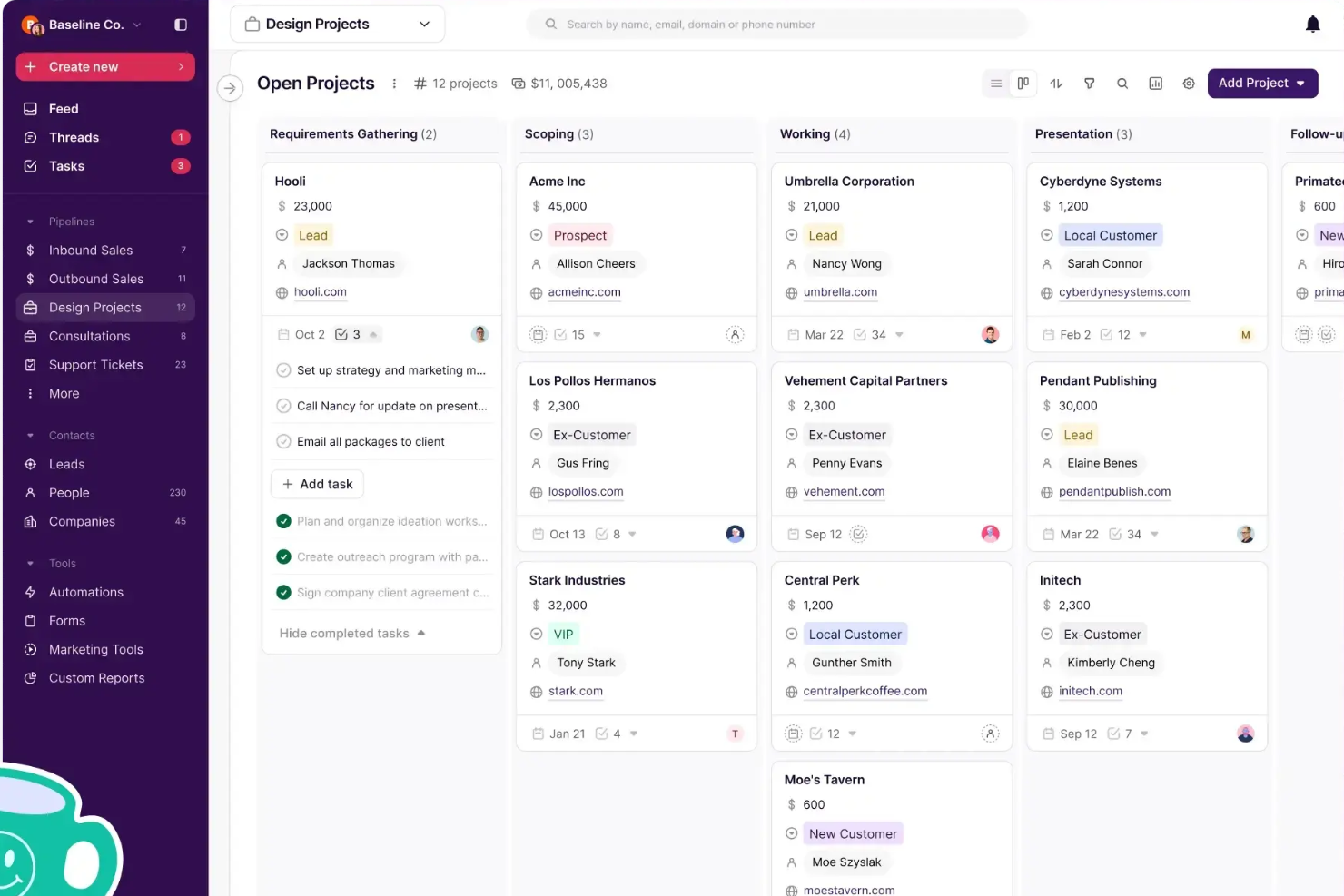
If your agency needs to connect sales and project delivery without extra admin work, Copper is built for you. It’s designed for teams that rely on Google Workspace and want a CRM that fits naturally into their workflow. Copper helps agencies keep client data, communications, and project handoffs organized from the first pitch through final delivery.
Why I Picked Copper
Copper stands out for agencies that want to bridge the gap between sales and project delivery without manual data entry. Its deep integration with Google Workspace means you can track leads, manage contacts, and move deals forward right from Gmail and Google Calendar. I picked Copper because it automatically captures emails, files, and meeting notes, so your team always has the latest client context as projects move from sales to delivery. This approach helps agencies avoid dropped handoffs and keeps everyone aligned throughout the client lifecycle.
Copper Key Features
Some other features in Copper that agencies may find useful include:
- Pipeline Management: Visualize and manage sales opportunities through customizable pipeline stages.
- Workflow Automation: Set up automated actions for repetitive tasks like follow-ups or status updates.
- Reporting and Analytics: Generate detailed reports on sales performance, activities, and team productivity.
- Mobile App: Access client information, update deals, and communicate with your team on the go.
Copper Integrations
Integrations include Gmail, Google Calendar, Google Drive, Mailchimp, Google Sheets, LinkedIn, RingCentral, Docusign, QuickBooks, and Dropbox.
Pros and Cons
Pros:
- Integrates CRM and project management
- Chrome extension brings tools into Gmail, Calendar, LinkedIn, and more
- Ideal for Google Workspace-based client teams
Cons:
- Does not connect to Microsoft 365, Outlook, or other email platforms
- Could offer more robust project management features, like resourcing

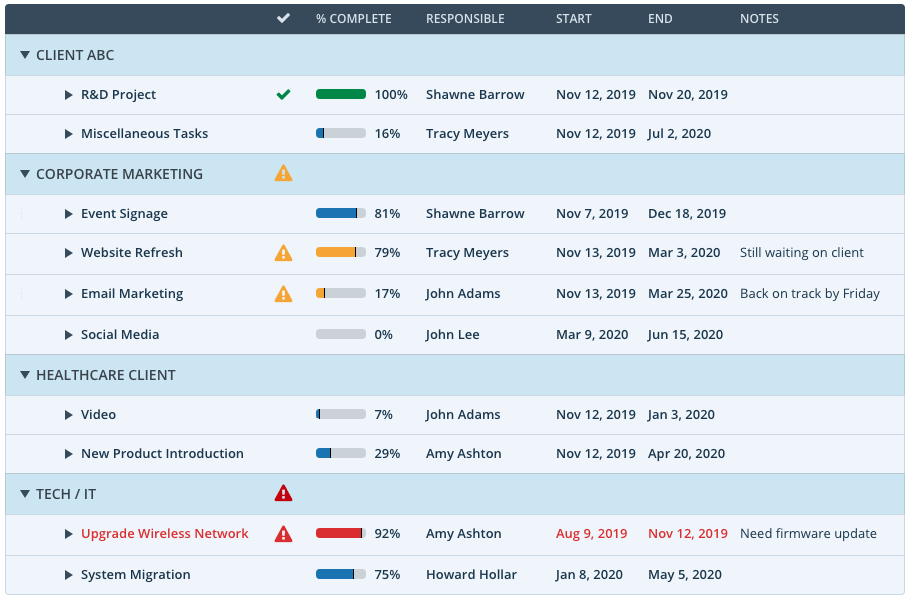
Teams managing multiple projects at once often turn to Workzone for its strong visibility and control features. It’s especially useful for project managers in agencies, marketing departments, and operations who need to track progress across portfolios and spot risks early. Workzone’s detailed dashboards and cross-project reporting help you keep everything on track without losing sight of the big picture.
Why I Picked Workzone
What sets Workzone apart is how it gives project managers a clear, real-time view across all active projects. Its portfolio dashboards and workload reports make it easy to spot bottlenecks and balance resources before issues escalate. I picked Workzone because it lets you drill down from high-level overviews to individual task details, so nothing gets missed. This level of visibility is especially valuable for teams juggling complex, multi-project environments.
Workzone Key Features
Some other features in Workzone that are worth highlighting include:
- Task Dependencies: Set up relationships between tasks to manage sequencing and deadlines.
- Document Sharing and Versioning: Store, share, and track changes to project files within the platform.
- Custom Project Request Forms: Collect and organize new project requests directly from stakeholders.
- Automated Alerts and Reminders: Send notifications to team members about upcoming deadlines or task updates.
Workzone Integrations
Integrations include Slack, Microsoft Teams, Google Drive, Salesforce, Box, Dropbox, Jira, HubSpot, QuickBooks Online, and OneDrive.
Pros and Cons
Pros:
- Easy template creation from existing projects
- Thoughtful collaboration so you don’t have to dig for comments
- Portfolio-to-task level visibility with robust filtering
Cons:
- Waterfall and board views are separate
- No video mark-up tool
- Delayed tasks negatively affect independent tasks on the timeline

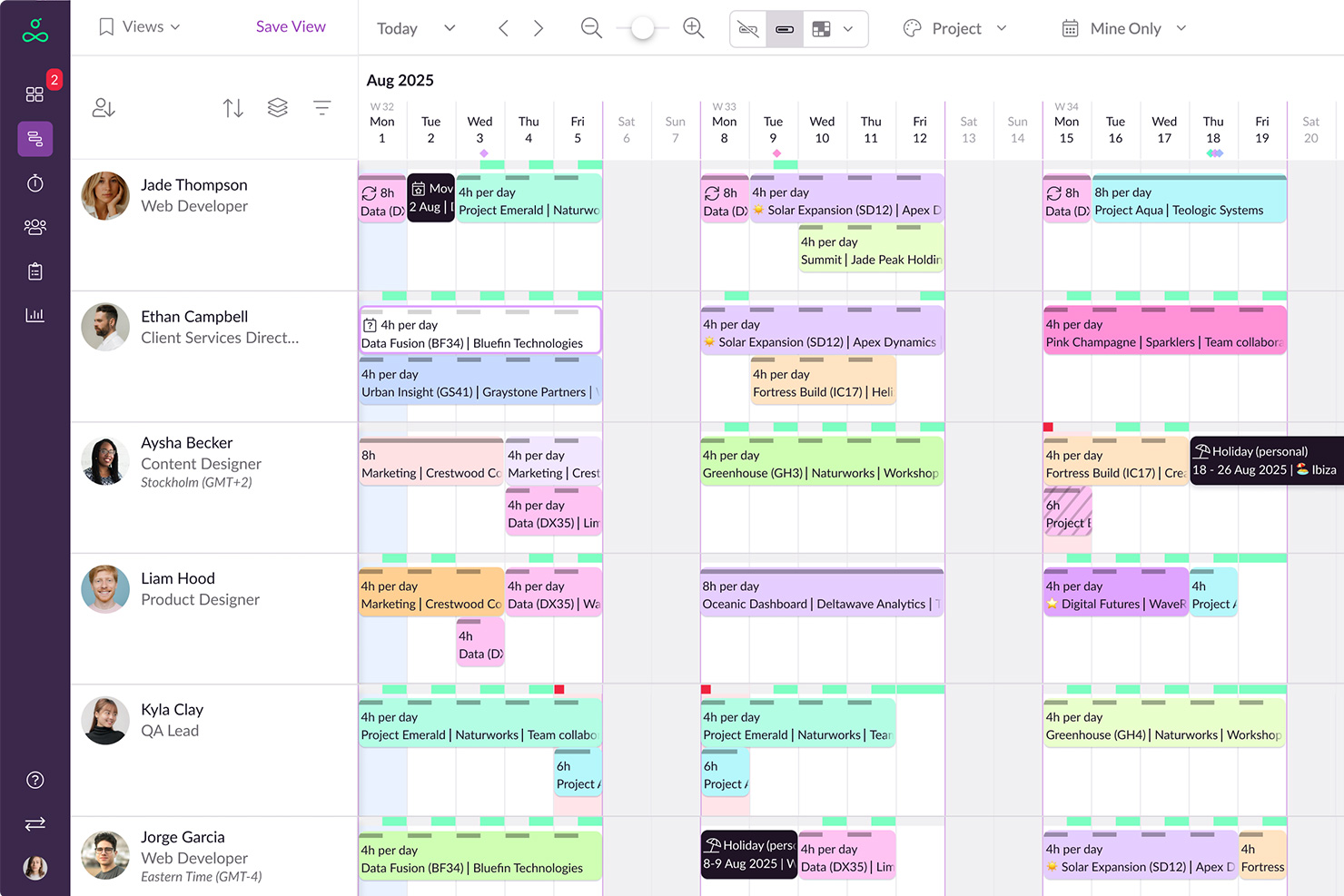
If your team struggles with double-booking or resource conflicts, Resource Guru is built to help. This tool is designed for project managers and operations leads who need clear visibility into team availability and workloads. Its unique scheduling grid and clash management features make it easier to prevent over-allocation before it happens.
Why I Picked Resource Guru
What stands out about Resource Guru is its focus on preventing over-allocation before it disrupts your project. The tool’s scheduling grid gives you a real-time view of team capacity, so you can spot conflicts and adjust assignments quickly. I like that it includes clash management, which flags double-bookings and helps you resolve them on the spot. For project managers who need to balance workloads and avoid burnout, Resource Guru offers targeted features that address these challenges directly.
Resource Guru Key Features
Some other features in Resource Guru that project teams may find useful include:
- Leave Management: Track and approve vacation, sick days, and other absences directly in the platform.
- Resource Categories: Organize people, rooms, and equipment into custom categories for easier scheduling.
- Personal Dashboards: Give each team member a personalized view of their assignments and availability.
- Reporting Suite: Generate utilization and capacity reports to support resource planning decisions.
Resource Guru Integrations
Native integrations include Outlook Calendar, Google Calendar, and Jira. An API is also available for custom integrations.
Pros and Cons
Pros:
- Comprehensive reporting features
- Good leave management system
- Offers flexibility in managing different types of resources
Cons:
- Could offer more native integrations
- Approval workflows are limited to higher-tier plans
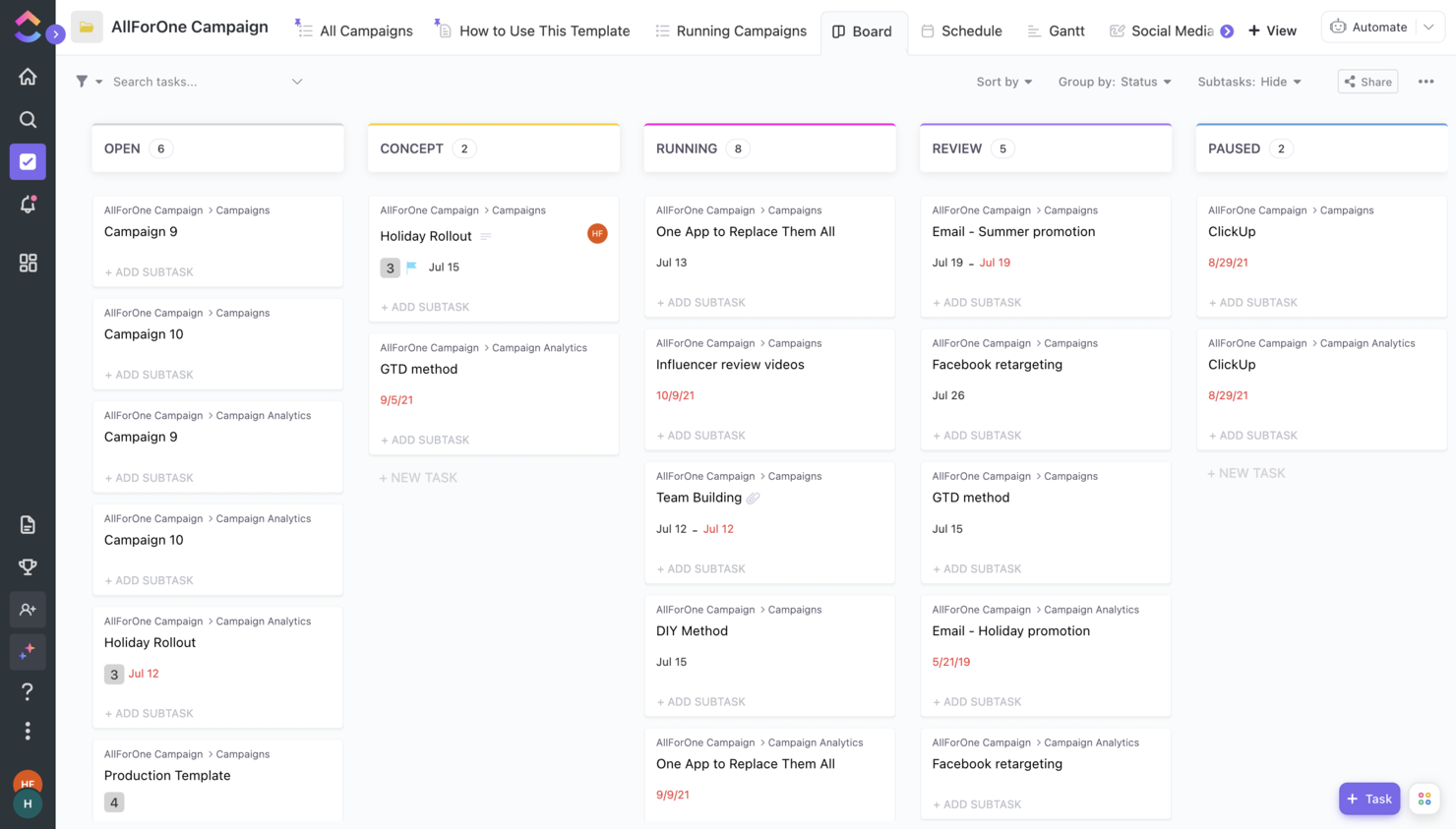
ClickUp brings project management, docs, goals, and chat into one platform, making it a strong fit for teams tired of juggling multiple tools. It’s especially useful for tech and digital teams that want to centralize work, automate processes, and keep everything—from tasks to knowledge bases—in a single workspace. If you’re looking to reduce context switching and unify your workflows, ClickUp offers a flexible solution that adapts to a wide range of project needs.
Why I Picked ClickUp
What sets ClickUp apart is its ability to bring together project management, documentation, and team communication in one place. You can manage tasks, create and share docs, and even run team chat without switching platforms. I picked ClickUp because it lets teams replace separate tools for wikis, goal tracking, and whiteboards with a single, customizable workspace. This approach helps reduce tool sprawl and keeps all your project information connected.
ClickUp Key Features
Some other features in ClickUp that are worth highlighting include:
- Custom Dashboards: Build visual dashboards to track project metrics, workload, and progress.
- Time Tracking: Log time directly on tasks and generate time reports for projects.
- Automation Builder: Set up custom automations to handle repetitive actions and task updates.
- Mind Maps: Create visual mind maps to brainstorm ideas and organize project structures.
ClickUp Integrations
Integrations include native ones with Slack, HubSpot, TogglTrack, Figma, Loom, Sentry, G Suite, Dropbox, Clockify, and Calendly. Additionally, you can connect to another 1,000+ apps using a paid membership with Zapier. Finally, if making custom integrations is within your reach, there is a public API you can use for it.
Pros and Cons
Pros:
- Improved performance after its latest upgrade to ClickUp 3.0
- Low price compared to the number of features it offers.
- Great knowledge base with helpful articles and tutorials.
Cons:
- AI is available for an extra fee, regardless of the plan.
- Free version becomes read-only after reaching limits.

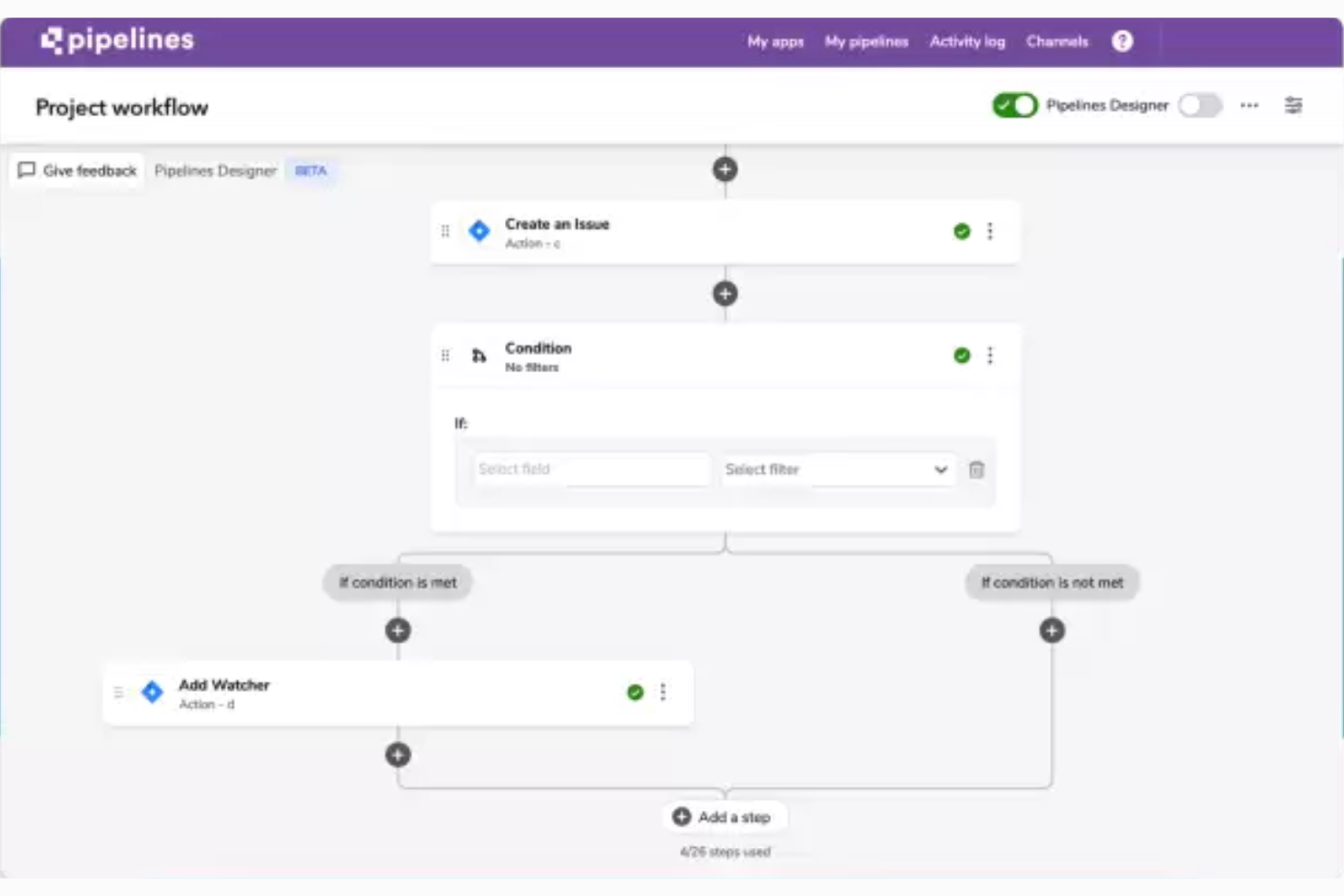
For teams that need a flexible platform to build custom workflows, Quickbase offers a no-code environment that adapts to almost any process. Operations leads, IT teams, and project managers use it to connect data, automate tasks, and manage projects across departments. Its versatility stands out for organizations with unique requirements that off-the-shelf tools can’t address.
Why I Picked Quickbase
What sets Quickbase apart is how it lets you design custom applications and workflows without writing code. I picked it for its ability to handle complex, cross-functional processes that don’t fit into standard project management templates. The platform’s drag-and-drop builder, dynamic forms, and real-time reporting tools make it possible to tailor solutions for almost any business scenario. If your team needs a tool that adapts to your processes—not the other way around—Quickbase is built for that level of versatility.
Quickbase Key Features
Some other features in Quickbase that project managers may find valuable include:
- Automated Workflows: Set up triggers and actions to automate repetitive tasks across your apps.
- Role-Based Permissions: Control access to data and features for different user groups.
- Audit Logs: Track changes and user activity for compliance and transparency.
- Mobile Access: Use Quickbase apps on smartphones and tablets for work on the go.
Quickbase Integrations
Integrations include Salesforce, DocuSign, ServiceNow, Microsoft Teams, Gmail, Slack, Box, Dropbox, QuickBooks, and Google Drive. An API is also available for custom integrations.
Pros and Cons
Pros:
- Highly customizable and flexible to suit various contexts
- On-premise options with enterprise level plans
- FDA & HIPAA compliance with higher-tier plans
Cons:
- Some features come as paid add-ons
- Not all integrations are available with all plans
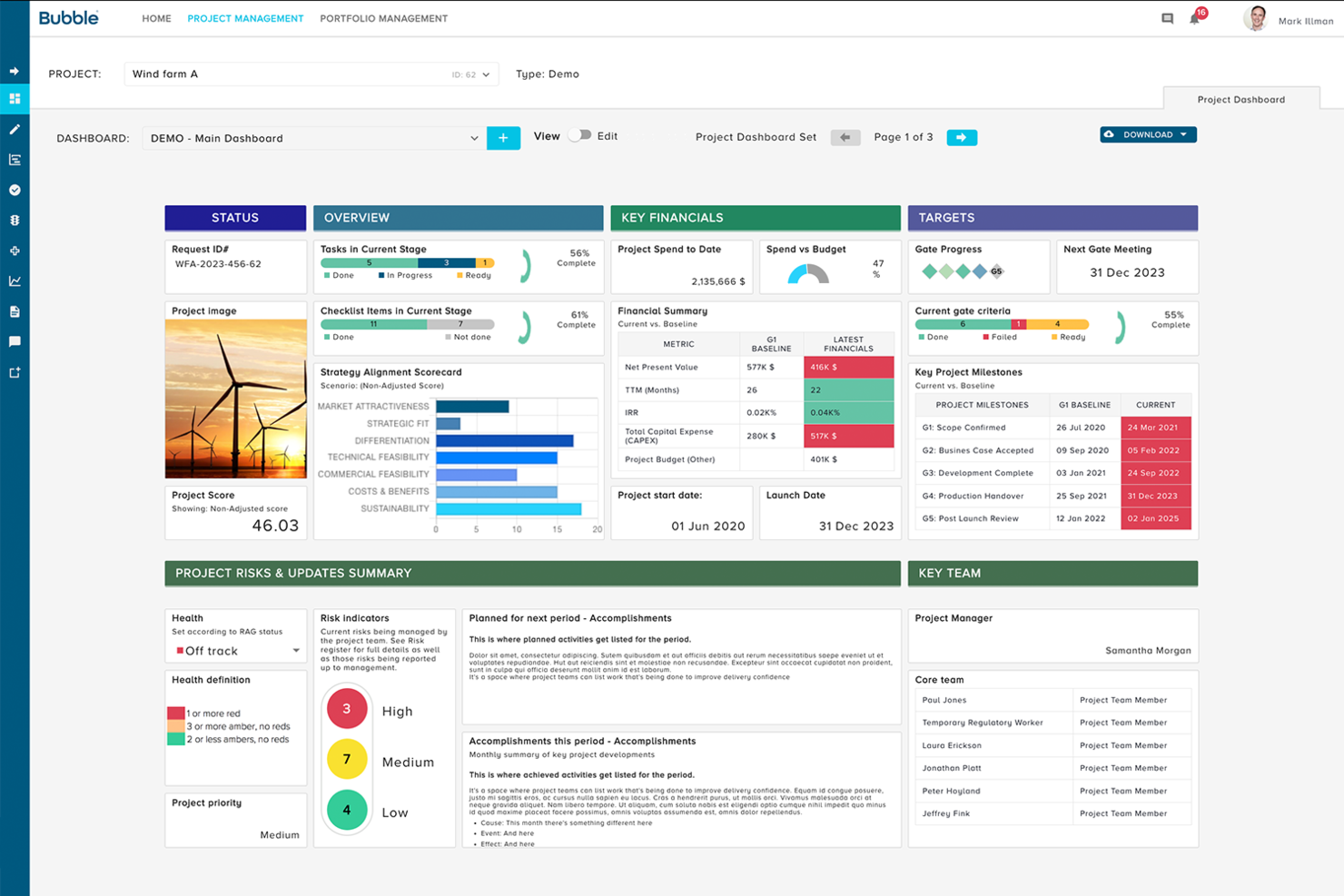
If you need a single platform to manage project portfolios, Bubble PPM is designed for organizations balancing multiple initiatives and resources. Portfolio managers and PMOs use it to align projects with business strategy and track progress across programs. Its configurable dashboards and scenario modeling help teams prioritize investments and respond to shifting priorities.
Why I Picked Bubble PPM
Bubble PPM stands out for its focus on portfolio management, giving teams a centralized view of all projects and programs. I picked it because its configurable dashboards let you track key metrics and portfolio health at a glance. The scenario modeling feature helps decision-makers weigh trade-offs and optimize resource allocation across competing initiatives. For organizations managing complex portfolios, these capabilities support better alignment with business goals and more informed prioritization.
Bubble PPM Key Features
Some other features in Bubble PPM that project managers may find useful include:
- Stage Gate Process Management: Structure projects with customizable stage gates for governance and control.
- Document Management: Store, organize, and share project documents within the platform.
- Risk and Issue Tracking: Log, monitor, and address risks and issues across portfolios.
- Automated Reporting: Generate and schedule reports on project and portfolio performance.
Bubble PPM Integrations
Integrations include over 400 native integrations with apps like SAP, JIRA, Confluence, MS Teams, Slack, Salesforce, Hubspot, Sailpoint, Power BI, and SSO/MFA. Plus, you can build your own integrations with their powerful API.
Pros and Cons
Pros:
- Project and portfolio management in one
- Real-time updates and summaries of projects
- User-friendly interface, easy to learn
Cons:
- Limited dashboard color customization
- Substantial implementation efforts may be necessary to get started
Resumen de las Mejores Herramientas de Software de Gestión de Proyectos
A continuación, he aquí un resumen de las mejores herramientas y software de gestión de proyectos disponibles en el mercado.
| Tool | Best For | Trial Info | Price | ||
|---|---|---|---|---|---|
| 1 | Best for workflow automation | Free plan available | From $9/user/month (billed annually) | Website | |
| 2 | Best for large projects and scaling | Free plan + free demo + 14-day free trial available | From $10/user/month (billed annually) | Website | |
| 3 | Best for simplified planning and workflows | 14-day free trial + free demo available | From $10/user/month (billed annually) | Website | |
| 4 | Best for customizable dashboards | Free trial + free demo available | From $9/member/month (billed annually) | Website | |
| 5 | Best for end-to-end agency projects | Free 7-day trial available | From $9/user/month (billed annually) | Website | |
| 6 | Best for agency projects and budgeting | 14-day free trial + free demo available | From $9/user/month (billed annually) | Website | |
| 7 | Best for customizable project templates | Free demo available | Pricing upon request | Website | |
| 8 | Best for integration with Zoho Suite | Free plan + free demo available + 15-day free trial | From $4/user/month (billed annually) | Website | |
| 9 | Best for collaborative project management | Free plan available | From $1/user/month (billed annually) | Website | |
| 10 | Best for agencies streamlining sales to delivery | 14-day free trial available | From $12/seat/month (billed annually) | Website | |
| 11 | Best for comprehensive project visibility | 14-day free trial + free demo available | From $6/user/month | Website | |
| 12 | Best for preventing over-allocation | Free 30-day trial available | From $4.16/user/month | Website | |
| 13 | Best for replacing multiple separate tools | Free plan + free demo available | From $7/user/month (billed annually) | Website | |
| 14 | Best for platform versatility | 30-day free trial | From $35/user/month (billed annually, min 20 users) | Website | |
| 15 | Best for portfolio management | 14-day free trial | From $17/user/month | Website |

Otras Herramientas de Software de Gestión de Proyectos Para Considerar
Aunque no se incluyen en esta revisión del software de gestión de proyectos, a continuación hay una lista de opciones de herramientas de gestión de proyectos adicionales. Revísala si aún buscas el mejor software de gestión de proyectos para tu agencia o estudio:
- Microsoft Project
For teams using Microsoft 365
- FigJam
For creative collaboration
- Dock
For customer collaboration management
- Nifty
For milestone tracking
- MeisterTask
For simple project management
- Kintone
For custom applications
- Teamwork.com
For remote teams
- ProjectManager
For real-time project tracking and insights
- Jira
For cross-team project tracking
- ProofHub
For organizing via board and table views


¿Necesitas Ayuda Para Reducir las Opciones?
Esta herramienta es bastante útil. Nos hemos asociado con Crozdesk para brindarte acceso a su “Buscador de software”.
Si ingresas algunos de los detalles sobre tu proyecto y las funciones que buscas en una herramienta de administración de proyectos, generará una lista de herramientas que coinciden con tus preferencias. Sólo debes proporcionar tu correo electrónico y te enviarán una bonita guía en PDF con un resumen de las mejores coincidencias.
Los Mejores en su Clase – Programas de Proyecto de Una Sola Faceta
¿Pero cuál es la ‘herramienta de gestión de proyectos correcta?’ Hay muchas herramientas que hacen un solo trabajo relacionado con el proyecto, excepcionalmente bien. Estas son las herramientas especializadas en la planificación y programación de proyectos, seguimiento de hitos, comunicación, gestión de tareas, informes, etc. Herramientas como Slack, Microsoft Project, Harvest y Dropbox son ejemplos de estas herramientas especializadas. Las herramientas especializadas pueden ser excelentes, especialmente para un equipo pequeño o cuando se trabaja con requisitos sencillos o pocos clientes.
Las Herramientas de Gestión de Proyectos te Permiten Trabajar de Manera Más Inteligente
Sin embargo, si no eres cuidadoso, terminarás con una colección de programas de proyecto SaaS online que no guardan relación alguna y que no se sincronizan correctamente. Si usas una herramienta para la comunicación, otra para compartir archivos y otra más para la gestión de tareas, terminarás ingresando los mismos datos en cada aplicación.
¿Tal vez existe una mejor manera? En lugar de usar herramientas dedicadas y unirlas manualmente, utiliza una herramienta de administración de proyectos que incorpore la funcionalidad de datos compartidos. Esto facilita una mejor información, comunicación contextual y una gestión más directa de los equipos de proyectos y clientes.
¿Qué Hace Que Una Herramienta de Gestión de Proyectos Sea Buena?
Al definir una buena herramienta de gestión de proyectos digitales, nos centramos en herramientas que facilitan el aspecto de “hacer” de un proyecto. Eso significa reunir a la gente para crear algo increíble para el mundo digital.
Entonces, ¿qué se necesita para entregar un proyecto digital? Hemos identificado cinco aspectos clave de la funcionalidad que creemos que facilitan la entrega de proyectos digitales. Puedes usarlos para deshacerte de tus ‘post-its’, hojas de cálculo y correos electrónicos, y para ejecutar los proyectos de manera más eficiente.
- Listas de tareas: los proyectos se componen de subtareas y sub-subtareas, listas y tareas pendientes. Ser capaz de delinear lo que se necesita hacer, cuándo, quién lo hace, es fundamental para que un proyecto se desarrolle bien.
- Cronogramas: los cronogramas, calendarios y diagramas de Gantt te ayudan a saber dónde encajan las tareas dentro del esquema amplio de un proyecto. Esto es clave para poder entregar un proyecto a tiempo.
- Uso compartido de archivos: a nadie le gusta perder el tiempo tratando de buscar archivos aleatorios. La capacidad de organizar y compartir archivos y activos clave del proyecto es importante para entregar un proyecto de manera eficiente.
- Comunicación: la comunicación contextual específica del proyecto para analizar rápidamente las cosas y chatear con tu equipo y el cliente es vital para mantener las tareas en el buen camino.
- Informes: como gerentes de proyecto, nuestro trabajo es saber si nuestro proyecto está o no encaminado. Por lo tanto, es esencial saber cómo avanzan las tareas de un proyecto, ¿se entregará a tiempo o no?
Pero Aún Faltan Cosas…
Sí, muchas. Con cualquier software de gestión de proyectos, debes trazar una línea entre lo que es esencial y lo que no. En nuestros criterios para las herramientas de gestión de proyectos, nos hemos centrado en la ejecución de un proyecto. Eso significa que no nos hemos centrado en la planificación, facturación u otra funcionalidad. Por esa razón, no nos hemos centrado en la estimación previa al proyecto o en los aspectos posteriores al proyecto del software de gestión de proyectos. Consulta nuestro artículo sobre las mejores herramientas de programación de recursos, si eso es lo que buscas. Dicho esto, hay muchas similitudes entre estas herramientas. Hemos tratado de resaltar la funcionalidad o características que, para nosotros, las hacen únicas.
¿Qué Opinas?
¿Qué crees que nos falta en esta reseña de herramientas de gestión de proyectos? ¿Tienes otros criterios para elegir una herramienta de gestión de proyectos para tu agencia o estudio? Nos encantaría saber si tienes alguna sugerencia, consejo o idea sobre el uso de este tipo de software de. ¿Por qué no los compartes en los comentarios?