
13 Best Whimsical Alternatives Picked for 2026

Whimsical Alternatives Shortlist
Here’s my shortlist of whimsical alternatives:


A strong Whimsical alternative gives your team flexible data visualization, real-time collaboration, and easy diagramming without limiting creativity or workflow. If you’re searching for alternatives to Whimsical, you likely need tools that support brainstorming, mapping, and prototyping across distributed teams—without sacrificing usability or integration with your existing stack. This list will help you compare the top options for 2026, so you can find the right fit for your team’s collaboration style, technical needs, and project goals.
What Is Whimsical?
Whimsical is a collaborative visual workspace tool designed for creating flowcharts, wireframes, mind maps, and sticky notes in real time. Teams use Whimsical to brainstorm, map processes, and prototype ideas together, whether they’re in the same room or distributed across locations. Its simple and intuitive interface, ease of use, and built-in templates help users quickly turn concepts in project planning into shareable visuals, making it popular for product, design, and engineering teams.
Best Whimsical Alternatives Summary
This comparison chart summarizes pricing details for my top Whimsical alternative selections to help you find the best one for your budget and business needs.
| Tool | Best For | Trial Info | Price | ||
|---|---|---|---|---|---|
| 1 | Best for real-time UI prototyping | Free plan available | From $3/collab seat/month (billed annually) | Website | |
| 2 | Best for visual project documentation | Free plan available | From $5/user/month (billed annually) | Website | |
| 3 | Best for collaborative brainstorming maps | Free plan + free demo available | From $6.50/user/month (billed annually) | Website | |
| 4 | Best with Microsoft 365 compatibility | Free demo + 30-day free trial available | From $6.80/user/month (billed annually) | Website | |
| 5 | Best with integrated task management | Free plan available | From $7/user/month (billed annually) | Website | |
| 6 | Best for remote design thinking workshops | Free plan + free demo available | From $9.99/member/month (billed annually) | Website | |
| 7 | Best for free-flow diagram creation | Not available | Free to use | Website | |
| 8 | Best for structured mind mapping | Free plan available | From $4.92/month (billed annually) | Website | |
| 9 | Best for cross-team brainstorming sessions | Free plan available | From $8/user/month (billed annually) | Website | |
| 10 | Best for advanced diagram automation | Free plan available | From $9/user/month (billed annually) | Website |

Why You Can Trust Us
-

Insightful
Visit WebsiteThis is an aggregated rating for this tool including ratings from Crozdesk users and ratings from other sites.4.8 -
Accelo
Visit WebsiteThis is an aggregated rating for this tool including ratings from Crozdesk users and ratings from other sites.4.4 -
Wrike
Visit WebsiteThis is an aggregated rating for this tool including ratings from Crozdesk users and ratings from other sites.4.2





Whimsical Alternatives Reviews
Below are my detailed summaries of the Whimsical alternatives that made it onto my shortlist. My reviews offer a detailed look at the features, best use cases, and integrations of each platform to help you find the best one for your team.

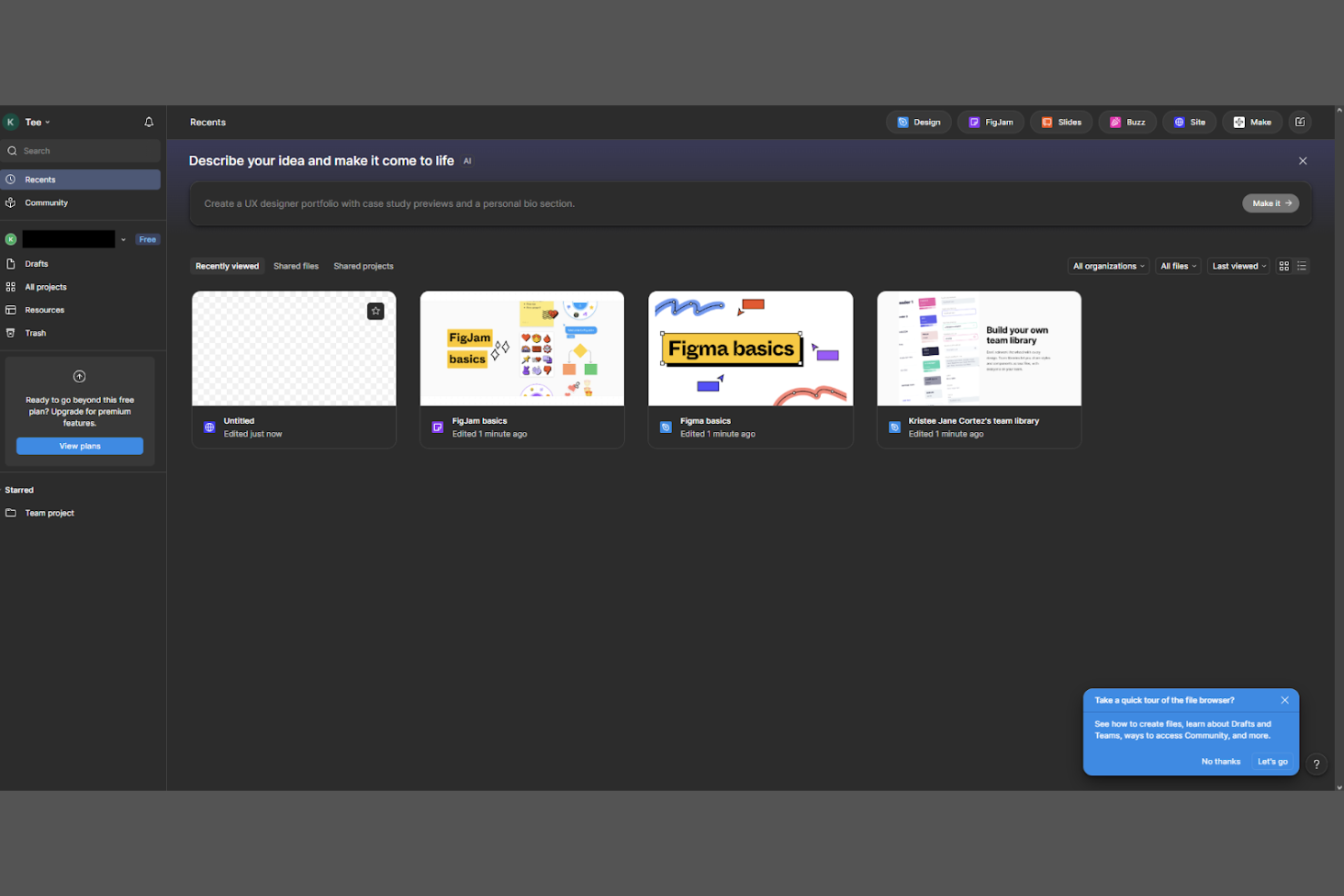
Design and product teams looking for real-time collaboration on UI and prototyping often turn to Figma. The platform is especially useful for distributed teams that need to co-design, review, and iterate on interfaces together in the same workspace. Figma stands out from Whimsical by offering pixel-precise design tools, interactive prototyping, and developer handoff features all in one browser-based environment.
Why Figma Is a Good Whimsical Alternative
For teams that need to prototype user interfaces together in real time, Figma offers a level of collaboration that’s hard to match. I picked Figma because it lets multiple users co-edit designs, leave comments, and test interactive prototypes all in the same browser window.
The tool’s vector editing and prototyping features are built for UI and UX work, making it easy to move from wireframes to high-fidelity mockups without switching platforms. If your team’s workflow centers on rapid, collaborative interface design, Figma is a strong alternative to Whimsical.
Figma Key Features
Some other features in Figma help teams manage and scale their design work:
- Design Systems Support: Create, maintain, and share reusable components and styles across projects.
- Version History: Access and restore previous versions of files to track changes over time.
- Plugin Ecosystem: Extend functionality with a wide range of community and official plugins.
- Presentation Mode: Share designs in a view-only mode for stakeholder reviews and feedback.
Figma Integrations
Integrations include Slack, Jira, Trello, GitHub, Zeplin, Asana, Microsoft Teams, Notion, Airtable, and Google Drive.
Pros and Cons
Pros:
- Design system libraries help maintain consistent UI components across projects
- Interactive prototyping tools allow clickable flows without extra software
- Real-time multiplayer editing supports large, distributed design teams
Cons:
- Offline access is limited compared to some desktop-based alternatives
- Diagramming tools are less specialized than dedicated mind mapping apps

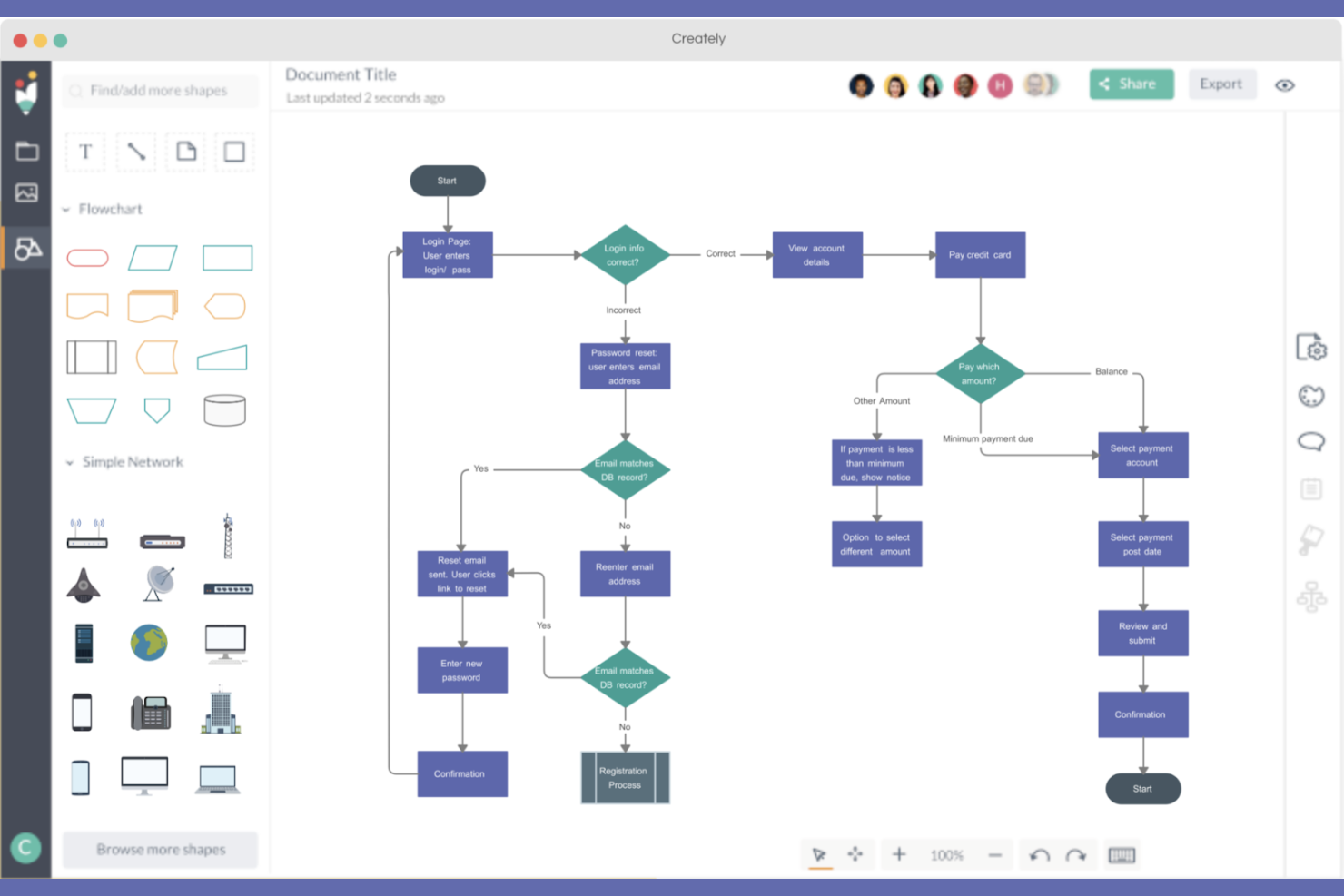
If your team needs a workspace that combines diagrams, notes, and data in one place, Creately is designed for visual project documentation. It’s a strong fit for project managers, business analysts, and product teams who want to map processes, link documents, and track project assets visually. Unlike Whimsical, Creately lets you connect diagrams directly to project data, making it easier to keep documentation and workflows in sync.
Why Creately Is a Good Whimsical Alternative
What sets Creately apart for visual project documentation is its ability to combine diagrams, notes, and data in a single workspace. I picked Creately because you can link diagrams directly to project assets, documents, and even databases, which helps keep everything connected and up to date.
The tool also supports multi-layered canvases, so you can organize complex projects with nested workflows and documentation. If your team needs more than just whiteboarding—like visualizing and managing project documentation—Creately offers a depth that Whimsical doesn’t.
Creately Key Features
Some other features in Creately help teams work visually and stay organized:
- Real-Time Collaboration: Multiple users can edit, comment, and brainstorm together on the same canvas.
- Template Library: Access a wide range of templates for flowcharts, org charts, mind maps, and more.
- Drag-and-Drop Interface: Easily add, move, and connect elements on your workspace with simple gestures.
- Role-Based Permissions: Control who can view, edit, or comment on specific documents and diagrams.
Creately Integrations
Integrations include Google Drive, Slack, Microsoft Teams, Confluence, Jira, Trello, Dropbox, GitHub, and OneDrive.
Pros and Cons
Pros:
- Real-time collaboration includes commenting and in-canvas chat features
- Multi-layered canvases support organizing complex documentation structures
- Visual linking lets you connect diagrams directly to project data
Cons:
- Mobile editing features are less advanced than desktop capabilities
- Export options for diagrams are limited to higher-tier plans

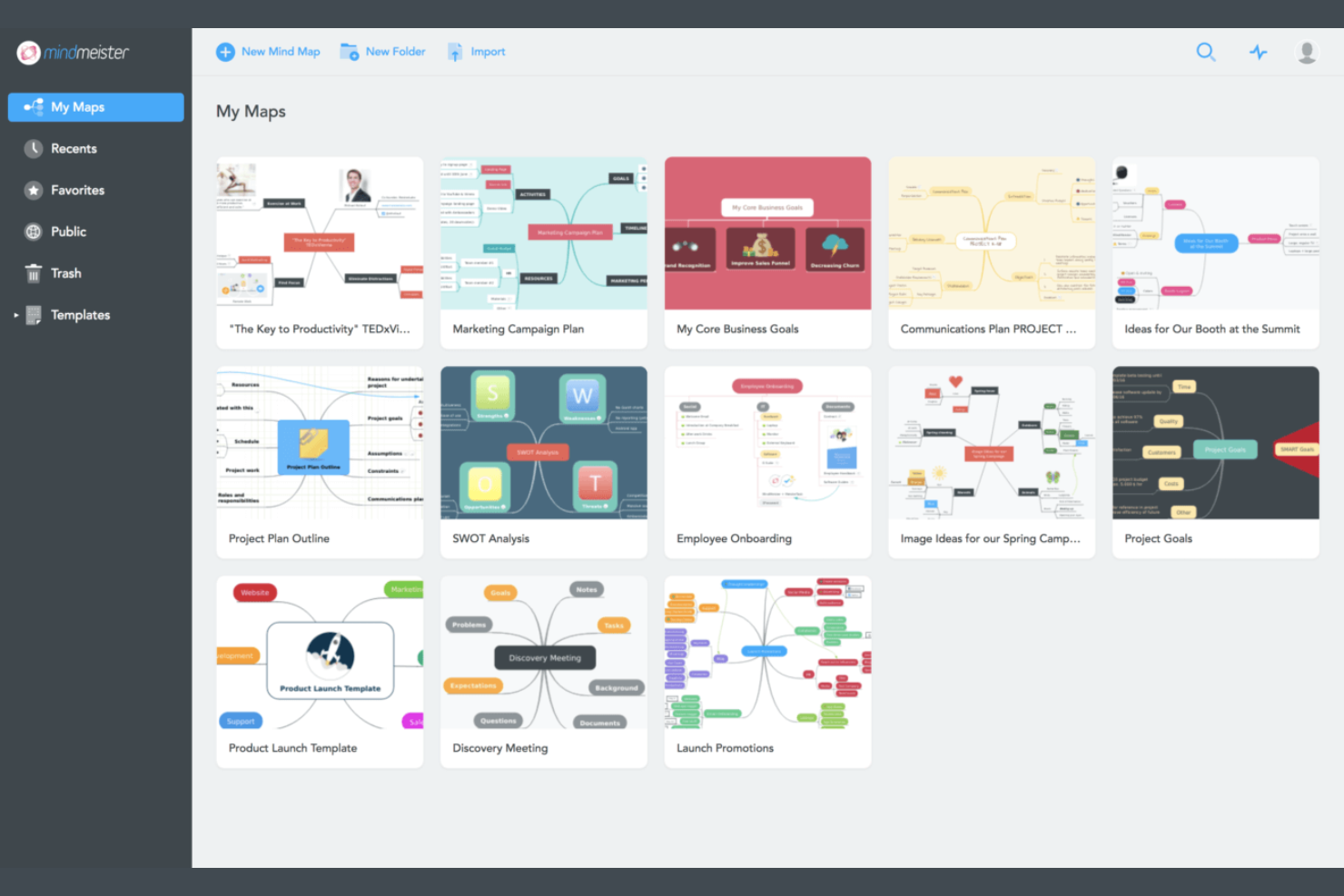
When your team needs to brainstorm ideas together in real time, MindMeister offers a dedicated platform for collaborative mind mapping. It’s especially useful for product teams, agencies, and educators who want to capture, organize, and refine ideas visually with input from multiple contributors. Unlike Whimsical, MindMeister centers its workspace around live co-editing, built-in commenting, and easy sharing to keep group brainstorming sessions interactive and organized.
Why MindMeister Is a Good Whimsical Alternative
For teams that want to brainstorm together in real time, MindMeister is built specifically for collaborative mind mapping. I picked MindMeister because it lets multiple users co-edit maps simultaneously, making it easy to capture and refine ideas as a group.
The tool also includes built-in commenting and voting features, so everyone can give feedback and prioritize ideas directly on the map. If your team values interactive brainstorming sessions with live input, MindMeister offers a focused experience that Whimsical doesn’t match.
MindMeister Key Features
Some other features in MindMeister help teams organize and present their ideas more effectively:
- Presentation Mode: Turn mind maps into interactive presentations directly within the platform.
- Custom Themes and Styles: Apply different colors, fonts, and layouts to personalize maps.
- Task Management Integration: Assign tasks, set due dates, and track progress from within your mind map.
- Revision History: View and restore previous versions of your mind maps at any time.
MindMeister Integrations
Integrations include MeisterTask, Google Drive, Dropbox, Evernote, Microsoft Teams, Slack, Confluence, Zendesk, and Trello.
Pros and Cons
Pros:
- Revision history lets you restore or review previous map versions
- Built-in presentation mode turns maps into slide decks instantly
- Real-time co-editing supports live group brainstorming sessions
Cons:
- Advanced map styling features require a paid subscription
- No built-in whiteboarding or diagramming tools like Whimsical
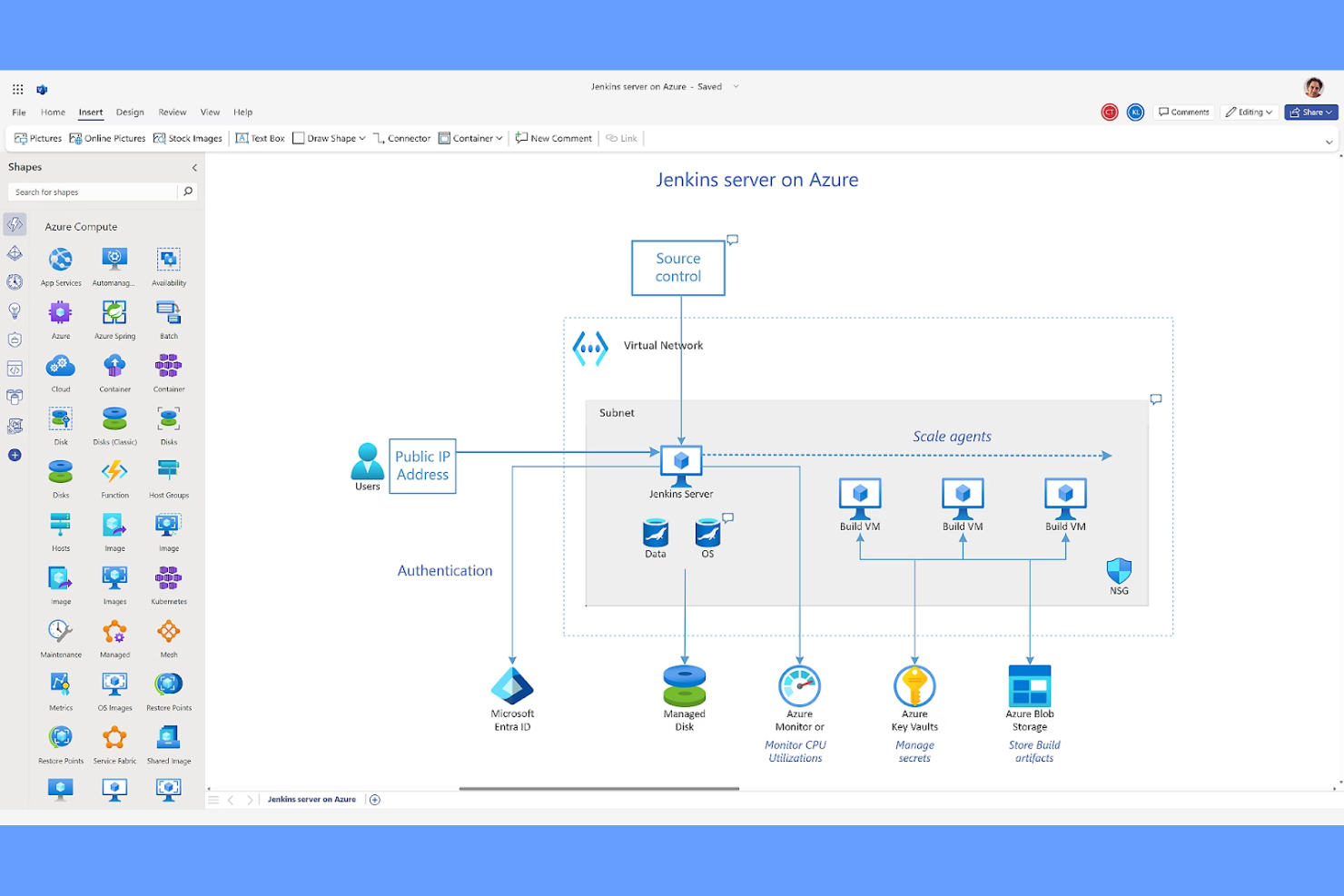
For teams already using Microsoft 365, Visio offers a familiar way to create diagrams and flowcharts within your existing workflow. The tool is especially useful for IT, engineering, and business operations teams that need advanced diagramming with deep Microsoft integration. Visio stands apart from Whimsical by supporting complex process mapping and offering seamless connectivity with Microsoft apps like Teams, Excel, and SharePoint.
Why Visio Is a Good Whimsical Alternative
If your team relies on Microsoft 365, Visio is a natural fit for collaborative diagramming and process mapping. I picked Visio because it lets you embed diagrams directly into Microsoft Teams, SharePoint, and Excel, making it easy to keep visual workspaces connected to your daily tools.
The tool also supports advanced diagram types, including network diagrams and organizational charts, which are useful for technical and business teams. For anyone who needs deep Microsoft compatibility in a visual workspace, Visio is a strong alternative to Whimsical.
Visio Key Features
Some other features in Visio help teams create and manage complex diagrams collaboratively:
- Data Linking: Connect diagrams to live data sources like Excel for real-time updates.
- Shape Library: Access a wide range of pre-built shapes for flowcharts, network diagrams, and more.
- Auto-Alignment and Spacing: Automatically organize shapes and connectors for cleaner layouts.
- Layer Support: Use layers to manage and separate different elements within a single diagram.
Visio Integrations
Integrations include Microsoft 365, SharePoint, OneDrive, Teams, Excel, Power BI, Outlook, Azure Active Directory, and Dynamics 365.
Pros and Cons
Pros:
- Data linking allows real-time updates from Excel spreadsheets
- Advanced diagramming supports network, engineering, and process charts
- Deep integration with Microsoft 365 apps streamlines diagram sharing
Cons:
- Web version lacks some features found in the desktop app
- Real-time multi-user editing is less fluid than some competitors

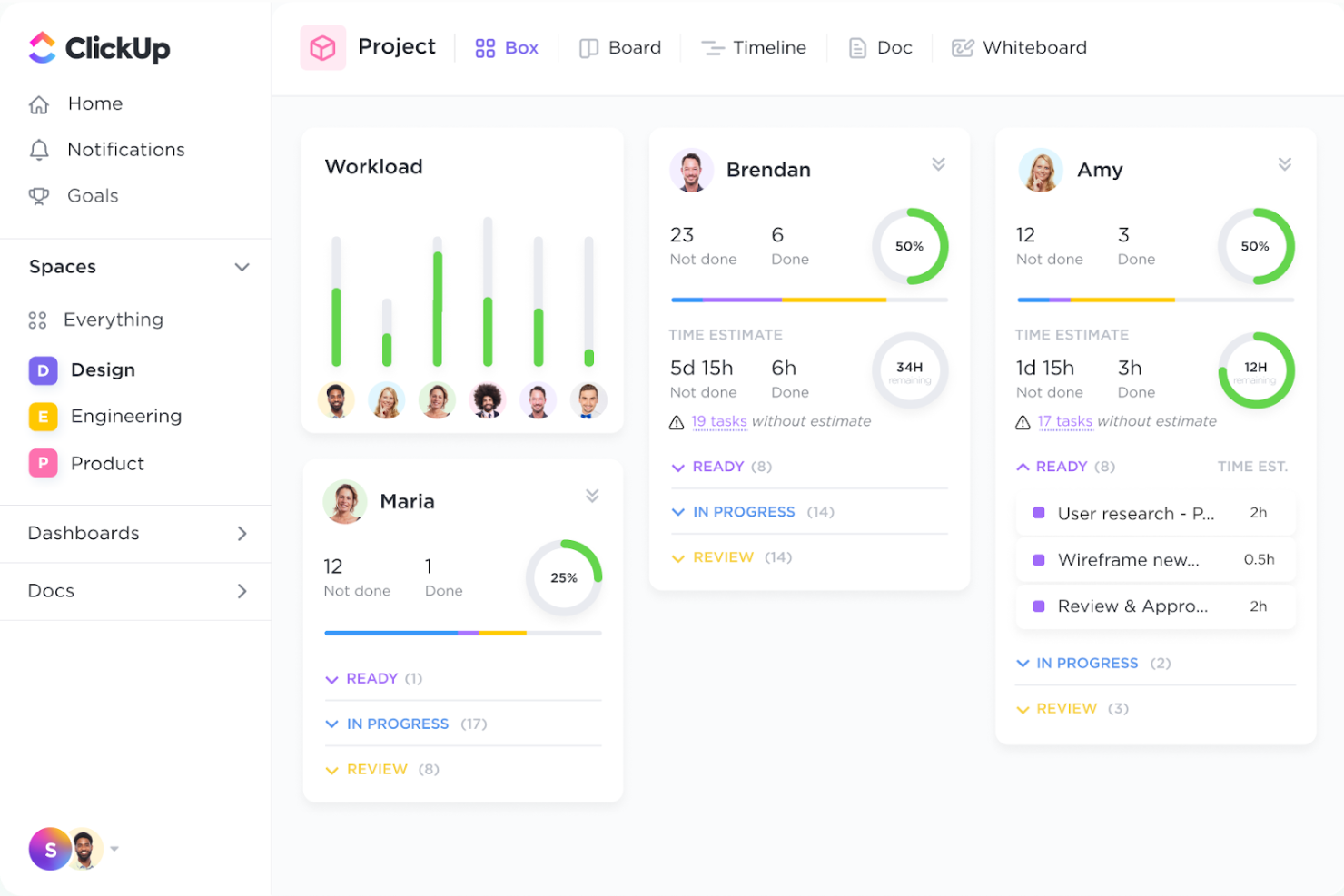
ClickUp brings together visual collaboration and task management in a single platform, making it a strong fit for product, engineering, and cross-functional teams. If you need to connect brainstorming, whiteboarding, and project tracking without switching tools, ClickUp’s integrated workspace stands out. Its ability to link visual work directly to actionable tasks sets it apart from Whimsical and other visual workspace solutions.
Why ClickUp Is a Good Whimsical Alternative
Unlike most visual workspace tools, ClickUp combines whiteboards, mind maps, and Kanban boards with built-in task management. I picked ClickUp because you can turn ideas and diagrams directly into actionable tasks without leaving the platform.
Its visual collaboration features connect seamlessly to project tracking, so teams can move from brainstorming to execution in one place. For anyone who wants to bridge the gap between planning and delivery, ClickUp’s integrated approach offers a clear advantage over Whimsical.
ClickUp Key Features
Some other features in ClickUp help teams organize and collaborate visually across projects:
- Custom Dashboards: Build dashboards with widgets for tracking goals, workloads, and project status.
- Docs and Wikis: Create, share, and collaborate on documents and knowledge bases within the platform.
- Time Tracking: Log time spent on tasks directly in ClickUp for better project visibility.
- Automations: Set up rule-based automations to handle repetitive actions and notifications.
ClickUp Integrations
Integrations include Slack, Google Drive, Zoom, Microsoft Teams, GitHub, Google Calendar, Outlook, Dropbox, and Salesforce.
Pros and Cons
Pros:
- Real-time editing supports collaboration across distributed teams
- Mind maps and Kanban boards are built into the same workspace
- Whiteboard feature lets you turn diagrams into actionable tasks
Cons:
- Large workspaces can become cluttered without strict organization
- Visual workspace tools are less advanced than dedicated diagramming apps

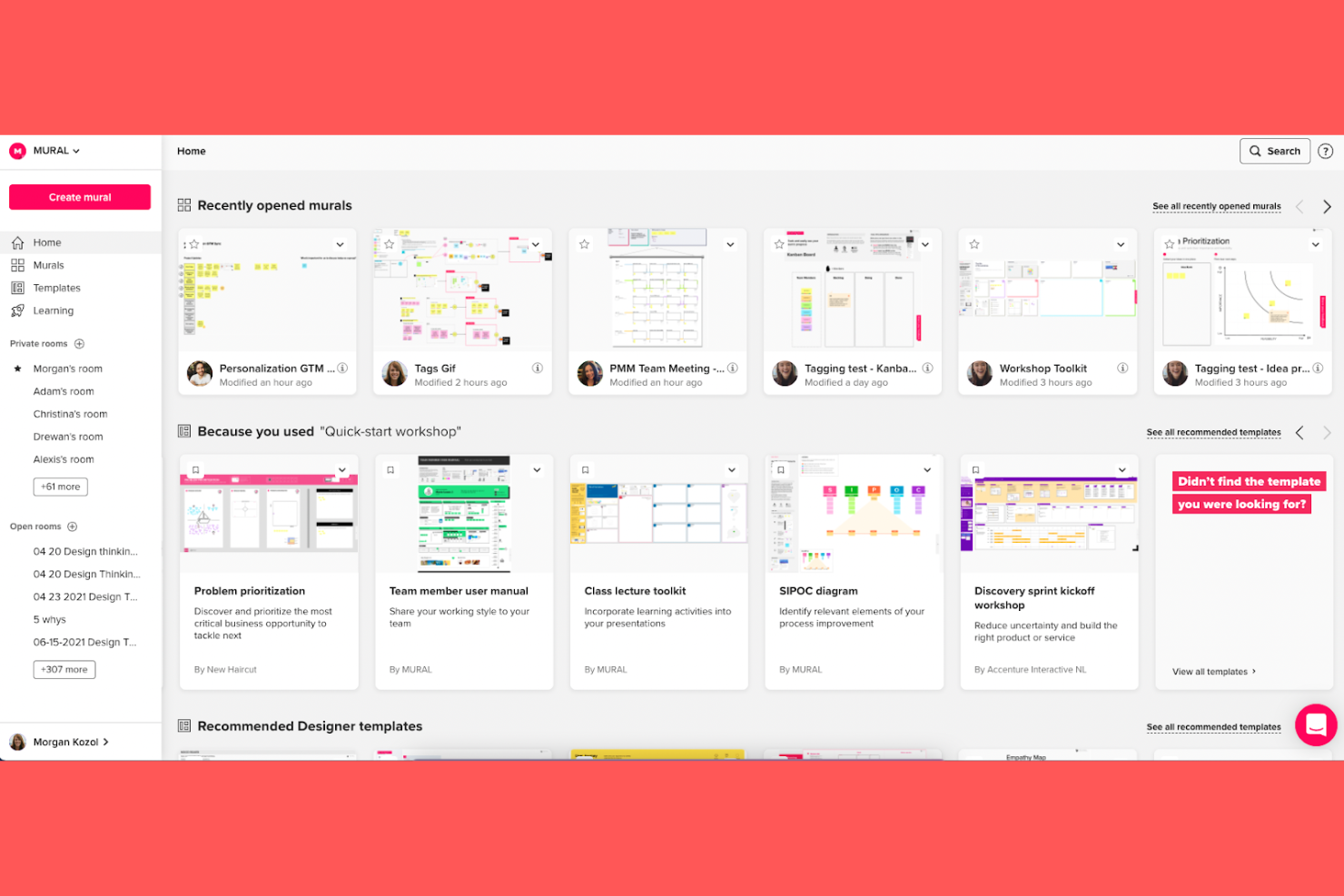
If you’re running remote design thinking workshops or need to facilitate creative sessions across distributed teams, Mural is purpose-built for you. The platform offers a wide range of templates and facilitation tools that help structure brainstorming, mapping, and ideation in real time. Mural stands out from Whimsical by focusing deeply on guided collaboration and workshop facilitation for design, product, and innovation teams.
Why Mural Is a Good Whimsical Alternative
For teams that need to run remote design thinking workshops, Mural offers specialized features that go beyond basic visual collaboration. I picked Mural because its facilitation tools—like timer, voting, and private mode—help structure group activities and keep workshops focused.
The platform also provides a large library of templates designed for design sprints, customer journey mapping, and ideation sessions. If you’re looking for a workspace that supports guided, interactive workshops, Mural is a strong alternative to Whimsical.
Mural Key Features
Some other features in Mural help teams collaborate visually and organize ideas across projects:
- Infinite Canvas: Work on a limitless digital workspace that supports large, complex diagrams and maps.
- Sticky Notes and Shapes: Add, move, and group sticky notes and shapes for flexible brainstorming and organization.
- Commenting: Leave feedback and tag teammates directly on the canvas for contextual discussions.
- Export Options: Download murals as images or PDFs to share outcomes outside the platform.
Mural Integrations
Integrations include Microsoft Teams, Slack, Google Drive, Jira, Confluence, Trello, Zoom, Asana, Dropbox, and Microsoft OneDrive.
Pros and Cons
Pros:
- Infinite canvas allows for complex mapping and brainstorming sessions
- Large template library covers design thinking and agile processes
- Built-in facilitation tools support structured remote workshops and sprints
Cons:
- Navigation can feel overwhelming on very large canvases
- Exported boards sometimes lose formatting or interactivity

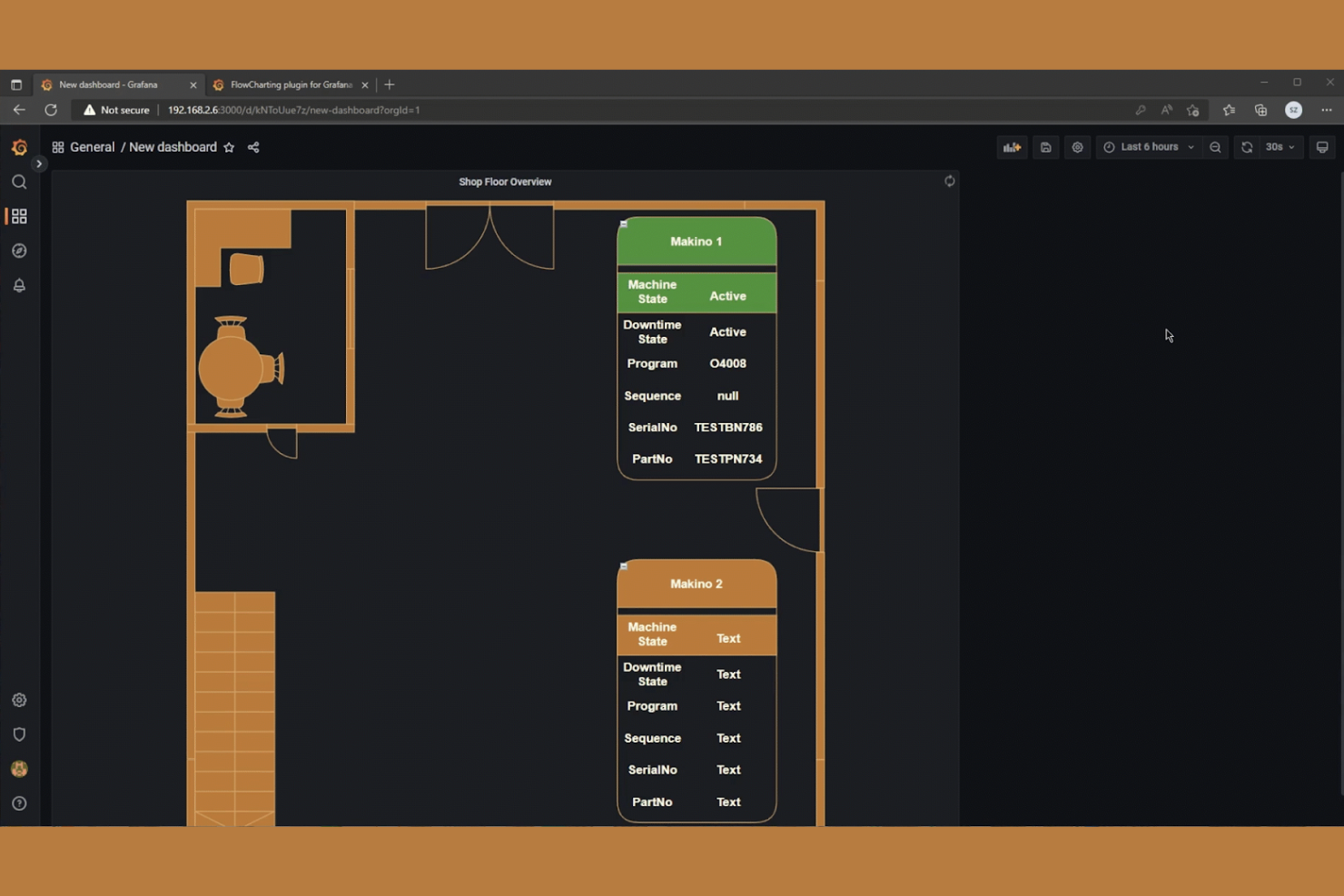
If your team needs a flexible way to create diagrams without software restrictions, draw.io is worth a look. It’s especially useful for technical teams, educators, and business analysts who want to map out processes, systems, or ideas with complete control over layout and structure. Unlike Whimsical, draw.io stands out for its free-form canvas, offline access, and the ability to save diagrams directly to cloud storage platforms like Google Drive or OneDrive.
Why draw.io Is a Good Whimsical Alternative
When you need a diagramming tool that doesn’t limit your creativity, draw.io gives you a truly free-flow workspace. I picked draw.io because it lets you start with a blank canvas and build any type of diagram, from flowcharts to network maps, without being locked into templates or rigid structures.
The drag-and-drop interface supports unlimited shapes, connectors, and layers, so you can map out complex systems or brainstorm ideas visually. For teams that want total control over diagram layout and structure, draw.io is a strong alternative to Whimsical.
draw.io Key Features
Some other features in draw.io help teams collaborate and manage diagrams more efficiently:
- Cloud Storage Integration: Save and access diagrams directly from Google Drive, OneDrive, or Dropbox.
- Revision History: Track changes and restore previous versions of diagrams as needed.
- Template Library: Start quickly with a wide range of pre-built diagram templates.
- Export Options: Export diagrams in multiple formats, including PNG, SVG, PDF, and XML.
draw.io Integrations
Integrations include Confluence, Jira, Google Drive, Microsoft OneDrive, Dropbox, GitHub, GitLab, Nextcloud, Trello, and Asana.
Pros and Cons
Pros:
- Allows exporting diagrams in multiple formats, including SVG and PDF.
- Direct integration with Google Drive, OneDrive, and Dropbox for storage
- Free access with no feature restrictions for individual users
Cons:
- No built-in chat or commenting for team feedback within diagrams
- Real-time collaboration features are less advanced than Whimsical

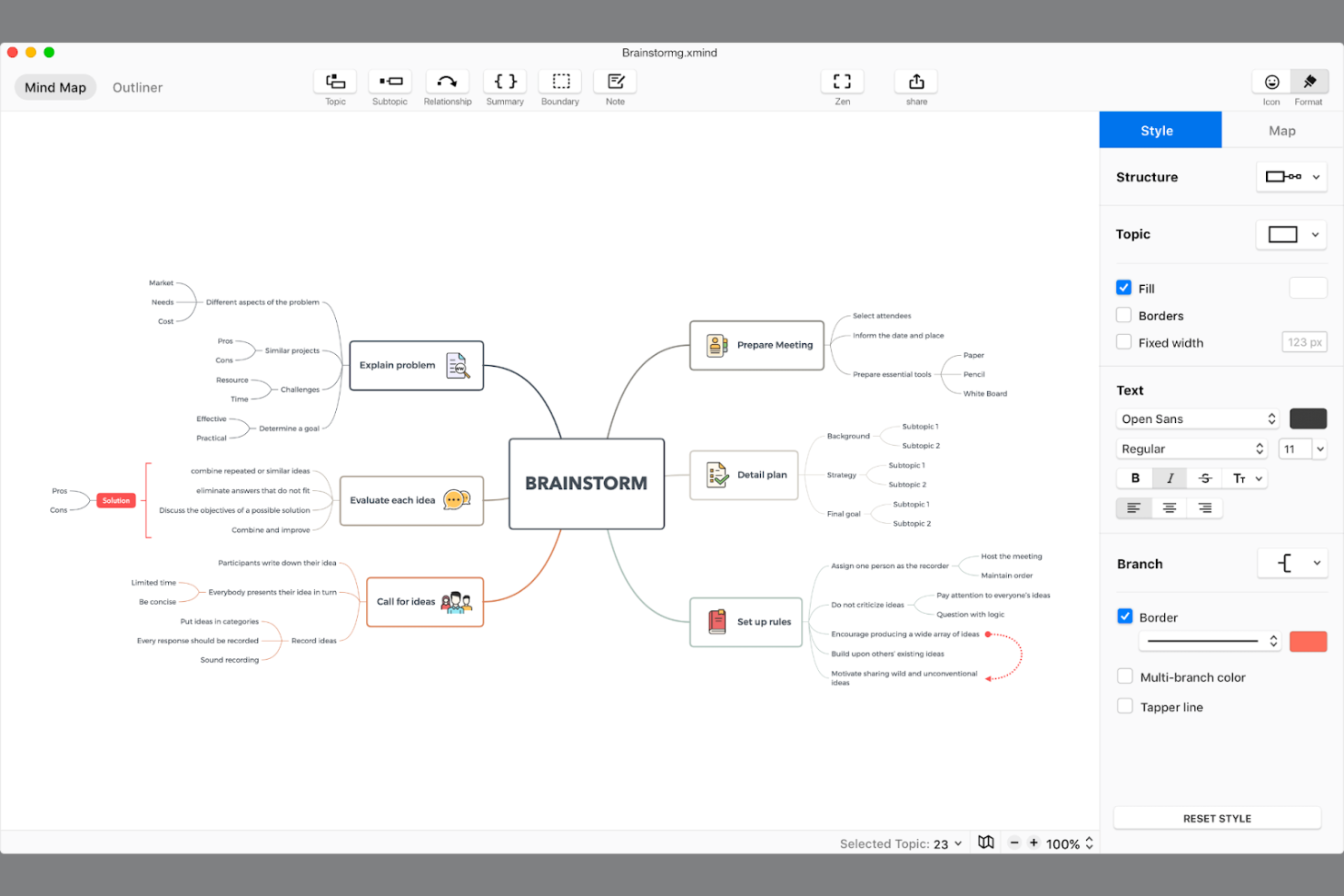
For teams that need to organize complex ideas into clear, logical structures, Xmind offers a focused approach to mind mapping. It’s a strong fit for product managers, consultants, and educators who want to break down projects, strategies, or research into visual hierarchies. Xmind stands apart from Whimsical by emphasizing structured layouts, advanced map styles, and export options tailored for presenting and sharing organized thinking.
Why Xmind Is a Good Whimsical Alternative
If you’re looking for a tool that excels at structured mind mapping, Xmind is a strong choice. I picked Xmind because it offers advanced map layouts like logic charts, tree diagrams, and fishbone diagrams, which help teams organize information in a highly structured way.
The tool also supports features like topic folding and boundary markers, making it easy to manage large, complex maps without losing clarity. For anyone who needs to break down projects or ideas into organized, visual hierarchies, Xmind brings a level of structure that Whimsical doesn’t focus on.
Xmind Key Features
Some other features in Xmind help teams create, share, and present mind maps more flexibly:
- Zen Mode: Focus on your map without distractions by hiding all toolbars and menus.
- Gantt Chart View: Visualize project timelines and task dependencies directly from your mind map.
- Export to Multiple Formats: Export maps as PNG, PDF, Word, Excel, and Markdown files.
- Mobile and Desktop Apps: Access and edit mind maps across Windows, macOS, iOS, Android, and Linux.
Xmind Integrations
Integrations include Dropbox, Google Drive, Evernote, OneDrive, Box, iCloud, Trello, Slack, Microsoft Teams, and Jira.
Pros and Cons
Pros:
- Zen Mode provides a distraction-free workspace for focused mapping
- Exports maps to multiple formats, including PDF, Word, and Markdown
- Offers advanced mind map structures like fishbone and logic charts
Cons:
- Limited template variety compared to other visual workspace tools
- Lacks real-time multi-user collaboration found in Whimsical


Miro gives distributed teams a shared online whiteboard for real-time brainstorming and visual collaboration. If you’re managing cross-functional projects or need to align product, design, and engineering teams, Miro’s flexible canvas and deep integration options help you map ideas, workflows, and feedback in one place. Its focus on interactive workshops and live co-creation sets it apart from more static diagramming tools like Whimsical.
Why Miro Is a Good Whimsical Alternative
When your team needs to brainstorm across departments or locations, Miro’s collaborative whiteboard stands out. I picked Miro for its ability to support live, interactive sessions where everyone can contribute ideas, draw connections, and vote on priorities in real time. Its built-in templates for mind mapping, retrospectives, and workshops make it easy to kick off structured sessions without starting from scratch. Miro’s visual tools help teams move from ideation to action, making it a strong choice for cross-team collaboration.
Miro Key Features
Some other features in Miro make it a flexible choice for a range of visual collaboration needs:
- Infinite Canvas: Expand your workspace as much as you need, so you never run out of room for ideas or diagrams.
- Sticky Notes: Add color-coded sticky notes anywhere on the board to capture quick thoughts, feedback, or to-dos.
- Presentation Mode: Turn your board into a guided presentation, letting you walk stakeholders through your visuals step by step.
- Commenting and Tagging: Leave comments and tag teammates directly on specific elements to keep discussions organized and actionable.
Miro Integrations
Integrations include Slack, Microsoft Teams, Google Drive, Jira, Confluence, Dropbox, Asana, Trello, Zoom, and GitHub.
Pros and Cons
Pros:
- Wide range of templates for product, design, and agile workflows
- Infinite canvas allows for complex, multi-layered brainstorming sessions
- Real-time collaboration supports large, distributed teams on projects
Cons:
- Advanced features like diagramming require higher-tier plans
- Board performance can lag with very large or complex projects
New Product Updates from Miro

Miro Enhances AI Workflows and Tables for Task Planning
Miro enhances AI workflows and Tables with AI-generated planning boards and web-aware automation. These updates help teams organize tasks faster and analyze external content within workflows. For more information, visit Miro’s official site.

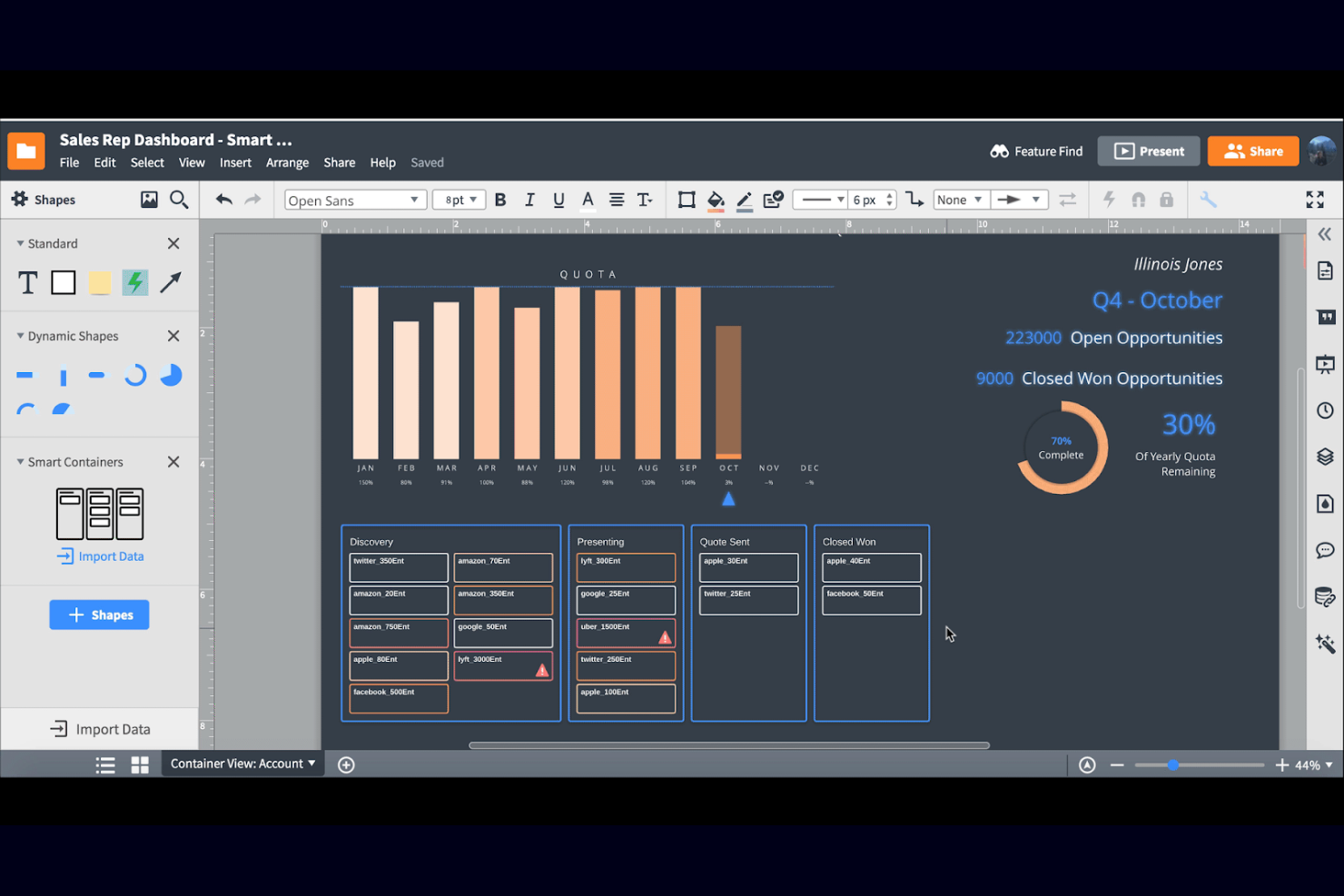
Lucidchart stands out for teams that need to automate complex diagrams and visualize data-driven processes. If you’re in IT, engineering, or operations, Lucidchart’s advanced automation and data linking features help you keep diagrams accurate and up to date. Its ability to connect live data and automate diagram updates sets it apart from Whimsical and other visual workspace tools.
Why Lucidchart Is a Good Whimsical Alternative
For teams that need more than just static diagrams, Lucidchart’s automation capabilities make it a strong Whimsical alternative. I picked Lucidchart because it lets you link diagrams to live data sources, so your visuals update automatically as information changes.
Its conditional formatting and data-driven shapes help you highlight key metrics and process changes without manual edits. If you’re managing complex systems or workflows, these automation features can save time and reduce errors compared to more basic visual workspace tools.
Lucidchart Key Features
Some other features in Lucidchart help teams collaborate and organize complex information visually:
- Revision History: Track changes and restore previous versions of diagrams at any time.
- Shape Libraries: Access a wide range of industry-specific shapes for network diagrams, org charts, and more.
- Collaboration Comments: Add comments directly on diagrams to discuss feedback or request changes.
- Presentation Mode: Turn diagrams into step-by-step presentations for meetings or stakeholder reviews.
Lucidchart Integrations
Integrations include Google Drive, Microsoft Teams, Slack, Atlassian Jira, Confluence, Microsoft Office, Salesforce, GitHub, Dropbox, and Box.
Pros and Cons
Pros:
- Revision history allows teams to track and restore diagram versions
- Conditional formatting highlights process changes and key metrics visually
- Data linking keeps diagrams updated with live information sources
Cons:
- Export options are limited on the basic or free plans
- Advanced automation features are only available on higher-tier plans


Whimsical Alternatives Selection Criteria
When selecting the best Whimsical alternatives to include in this list, I considered common buyer needs and pain points related to collaborative visual workspaces tool products, like supporting real-time team collaboration and managing complex project documentation visually. I also used the following framework to keep my evaluation structured and fair:
Core Functionality (25% of total score)
To be considered for inclusion in this list, each solution had to fulfill these common use cases:
- Create and edit diagrams and flowcharts
- Collaborate with team members in real time
- Share visual workspaces with stakeholders
- Comment and provide feedback on visual assets
- Export diagrams and documents in standard formats
Additional Standout Features (25% of total score)
To help further narrow down the competition, I also looked for unique features, such as:
- Link diagrams to live data sources
- Support for multi-layered or nested canvases
- Built-in version history and change tracking
- Advanced permissions and access controls
- AI-powered diagram or wireframe generation
Usability (10% of total score)
To get a sense of the usability of each system, I considered the following:
- Intuitive drag-and-drop interface
- Minimal clicks to complete common actions
- Clean and modern visual design
- Responsive performance with large diagrams
- Accessibility for users with different needs
Onboarding (10% of total score)
To evaluate the onboarding experience for each platform, I considered the following:
- Availability of interactive product tours
- Access to training videos and documentation
- Pre-built templates for common use cases
- In-app chatbots or guided help
- Webinars or live onboarding sessions
Customer Support (10% of total score)
To assess each software provider’s customer support services, I considered the following:
- Live chat or real-time support options
- Email and ticket-based support availability
- Response time and resolution quality
- Access to a searchable help center
- Community forums or user groups
Value For Money (10% of total score)
To evaluate the value for money of each platform, I considered the following:
- Transparent and flexible pricing plans
- Features included in lower-tier plans
- Free plan or trial availability
- Cost compared to similar tools
- Discounts for annual billing or teams
Customer Reviews (10% of total score) To get a sense of overall customer satisfaction, I considered the following when reading customer reviews:
- Positive feedback on collaboration features
- Reports of reliability and uptime
- Comments on customer support experiences
- User sentiment about feature updates
- Critiques of limitations or missing features
Why Look For a Whimsical Alternative?
While Whimsical is a good choice of collaborative visual workspaces tool, there are a number of reasons why some users seek out alternative solutions. You might be looking for a Whimsical alternative because…
- You need more advanced diagramming or data linking features
- Your team requires deeper project documentation capabilities
- You want native integrations with specific business tools
- You need better support for large or complex projects
- Your organization has strict access control or compliance needs
If any of these sound like you, you’ve come to the right place. My list contains several collaborative visual workspaces tool options that are better suited for teams facing these challenges with Whimsical and looking for alternative solutions.
Whimsical Key Features
Here are some of the key features of Whimsical, to help you contrast and compare what alternative solutions offer:
- Real-time collaborative whiteboarding and diagramming
- Built-in templates for flowcharts, wireframes, and mind maps
- Sticky notes and comments for team feedback
- Visual project boards for task organization
- Easy drag-and-drop interface for creating visuals
- Version history and change tracking
- Quick sharing with public or private links
- Markdown support for text formatting
- Multi-user editing with live cursors
- Simple workspace and folder organization
What’s Next:
If you're in the process of researching Whimsical alternatives, connect with a SoftwareSelect advisor for free recommendations.
You fill out a form and have a quick chat where they get into the specifics of your needs. Then you'll get a shortlist of software to review. They'll even support you through the entire buying process, including price negotiations.