
14 Best Client Document Management Software for 2026

Client Document Management Software Shortlist
Here’s my shortlist of client document management software:


Client document management software lets your team organize, store, and share client files securely in one place. If you’re searching for the best way to manage sensitive documents, file storage, track changes, and control access across distributed teams, you know how quickly manual business processes can break down. The right platform helps you manage multiple file types, maintain compliance, and ensure everyone’s working from the latest version—without endless email threads or lost attachments.
Additionally, many tools also combine task management features with a user-friendly interface. As a result, it's easier to coordinate work while keeping client documents organized. In this guide, you’ll find a clear comparison of leading client document management tools for 2026, so you can choose the best fit for your workflow, security needs, and collaboration style.
Why You Can Trust Us
Best Client Document Management Software Summary
This comparison chart summarizes pricing details for my top client document management software selections to help you find the best one for your budget and business needs.
| Tool | Best For | Trial Info | Price | ||
|---|---|---|---|---|---|
| 1 | Best with Microsoft ecosystem integration | Free plan available | From £19.99/user/month | Website | |
| 2 | Best for real-time document editing | 14-day free trial | From $7/user/month (billed annually) | Website | |
| 3 | Best for legal case document tracking | Free demo + free trial available | Pricing upon request | Website | |
| 4 | Best for secure client file sharing | Free demo + free trial available | From $50/user/month (billed annually) | Website | |
| 5 | Best for automated workflow routing | Free demo available | Pricing upon request | Website | |
| 6 | Best with large enterprise scalability | Free trial + free demo available | Pricing upon request | Website | |
| 7 | Best for metadata-driven search | Free demo + 30-day free trial available | Pricing upon request | Website | |
| 8 | Best with advanced collaboration controls | 14-day free trial | From $15/user/month (billed annually) | Website | |
| 9 | Best for compliance management needs | Free demo available | Pricing upon request | Website | |
| 10 | Best for small team organization | Free trial available | From $53/month + tax | Website | |
| 11 | Best for built-in productivity tools | 30-day free trial available | From $9.99/user/month | Website | |
| 12 | Best for granular access permissions | Free demo + 30-day free trial available | Pricing upon request | Website |
-

Insightful
Visit WebsiteThis is an aggregated rating for this tool including ratings from Crozdesk users and ratings from other sites.4.8 -
Accelo
Visit WebsiteThis is an aggregated rating for this tool including ratings from Crozdesk users and ratings from other sites.4.4 -
Forecast
Visit WebsiteThis is an aggregated rating for this tool including ratings from Crozdesk users and ratings from other sites.4.6




Client Document Management Software Reviews
Below are my detailed summaries of the client document management software that made it onto my shortlist. My reviews offer a detailed look at the features, best use cases, and integrations of each platform to help you find the best one for you.


For businesses already using Microsoft 365, OneDrive offers a familiar way to manage and share client documents. It’s especially useful for IT teams, consultancies, and professional services that rely on Microsoft apps for daily work. OneDrive stands out for its deep integration with Outlook, Teams, and SharePoint, making it easy to keep client files connected to your existing workflows.
Why I Picked OneDrive
When your team relies on Microsoft 365 tools, OneDrive fits naturally into your client document management process. I picked OneDrive because it lets you save, share, and co-edit files directly from familiar apps like Outlook and Teams. The automatic syncing with SharePoint ensures that client documents stay organized and accessible across your organization. These features make OneDrive a strong choice for businesses that want document management tightly woven into their Microsoft ecosystem.
OneDrive Key Features
Some other features that make OneDrive useful for client document management include:
- File Request: Collect documents from clients securely without giving them access to your folders.
- Personal Vault: Store sensitive client files in a protected area with an extra layer of security.
- Granular Sharing Permissions: Set view, edit, or download rights for each file or folder.
- Automatic Ransomware Detection: Receive alerts and file recovery options if suspicious activity is detected.
OneDrive Integrations
Integrations include Microsoft 365, Outlook, Teams, SharePoint, Power Automate, Power BI, Dynamics 365, and more.
Pros and Cons
Pros:
- Offline file access for remote client work
- File Request feature simplifies client uploads
- Direct integration with Microsoft Teams chat
Cons:
- No built-in document annotation tools
- Sync conflicts can cause duplicate client files

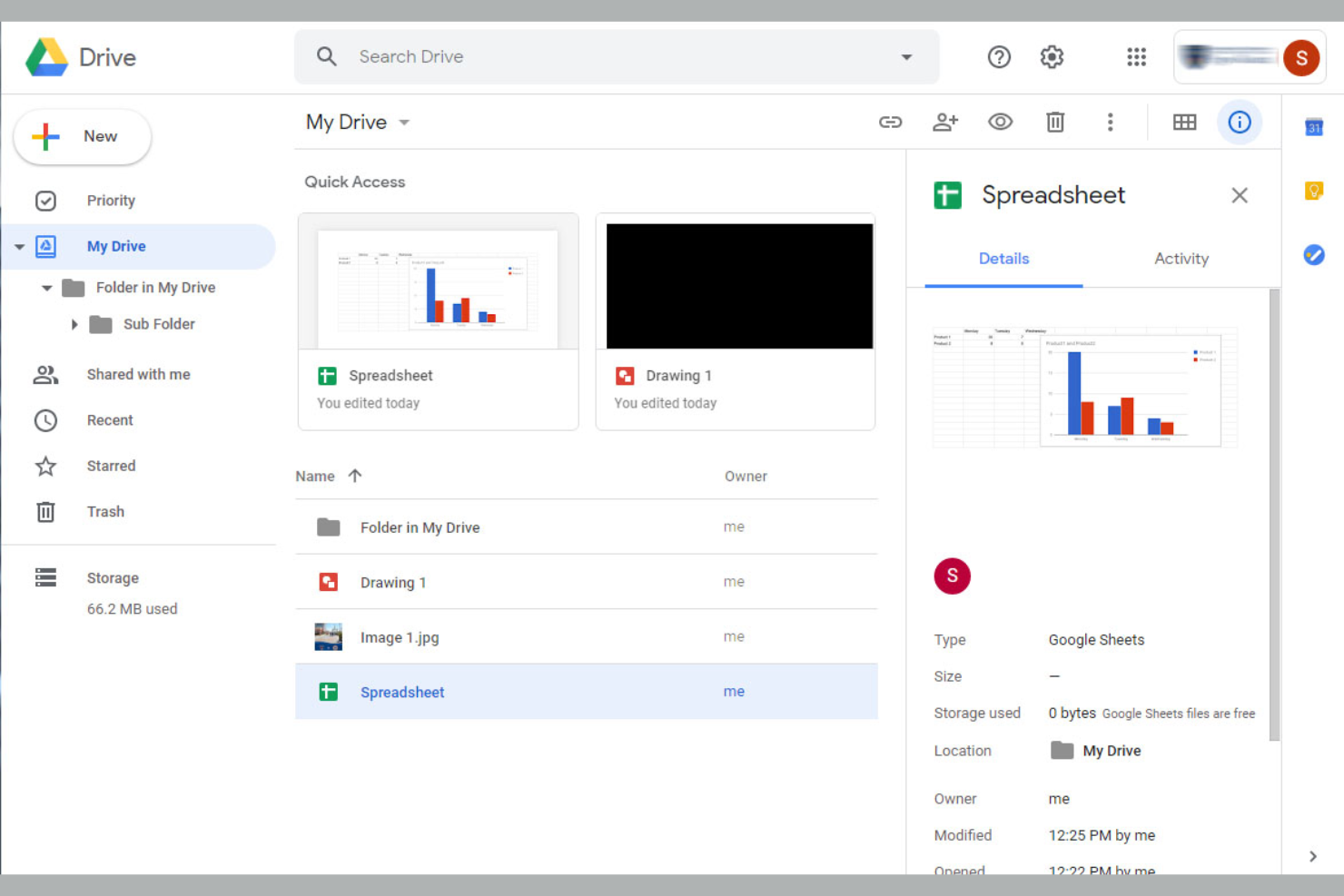
If your team needs to collaborate on client documents in real time, Google Drive is a top choice. It’s especially useful for agencies, consultancies, and distributed teams that rely on fast, shared editing and commenting. Google Drive stands out for its live co-authoring, easy sharing controls, and seamless integration with Google Workspace apps.
Why I Picked Google Drive
For teams that need to edit and review client documents together, Google Drive’s real-time collaboration features are hard to match. I picked Google Drive because it lets multiple users work on the same document at once, with changes and comments appearing instantly. The built-in version history makes it easy to track edits and revert to previous drafts if needed. These features make Google Drive a strong fit for client document management, where live feedback and fast turnaround are priorities.
Google Drive Key Features
Some other features that make Google Drive useful for client document management include:
- Shared Drives: Create dedicated spaces for teams or clients to organize and access documents collectively.
- Advanced Search Filters: Locate files quickly using filters for owner, type, date modified, and more.
- File Expiration Controls: Set access expiration dates for shared files to maintain client confidentiality.
- Offline Access: View and edit documents without an internet connection, syncing changes when you’re back online.
Google Drive Integrations
Integrations include Google Docs, Google Sheets, Google Slides, Gmail, Google Calendar, Google Meet, Tableau, Atlassian, and more.
Pros and Cons
Pros:
- Shared Drives organize files by client or team
- File version history tracks all document changes
- Real-time editing supports fast client collaboration
Cons:
- Search results can include irrelevant files
- No built-in e-signature functionality

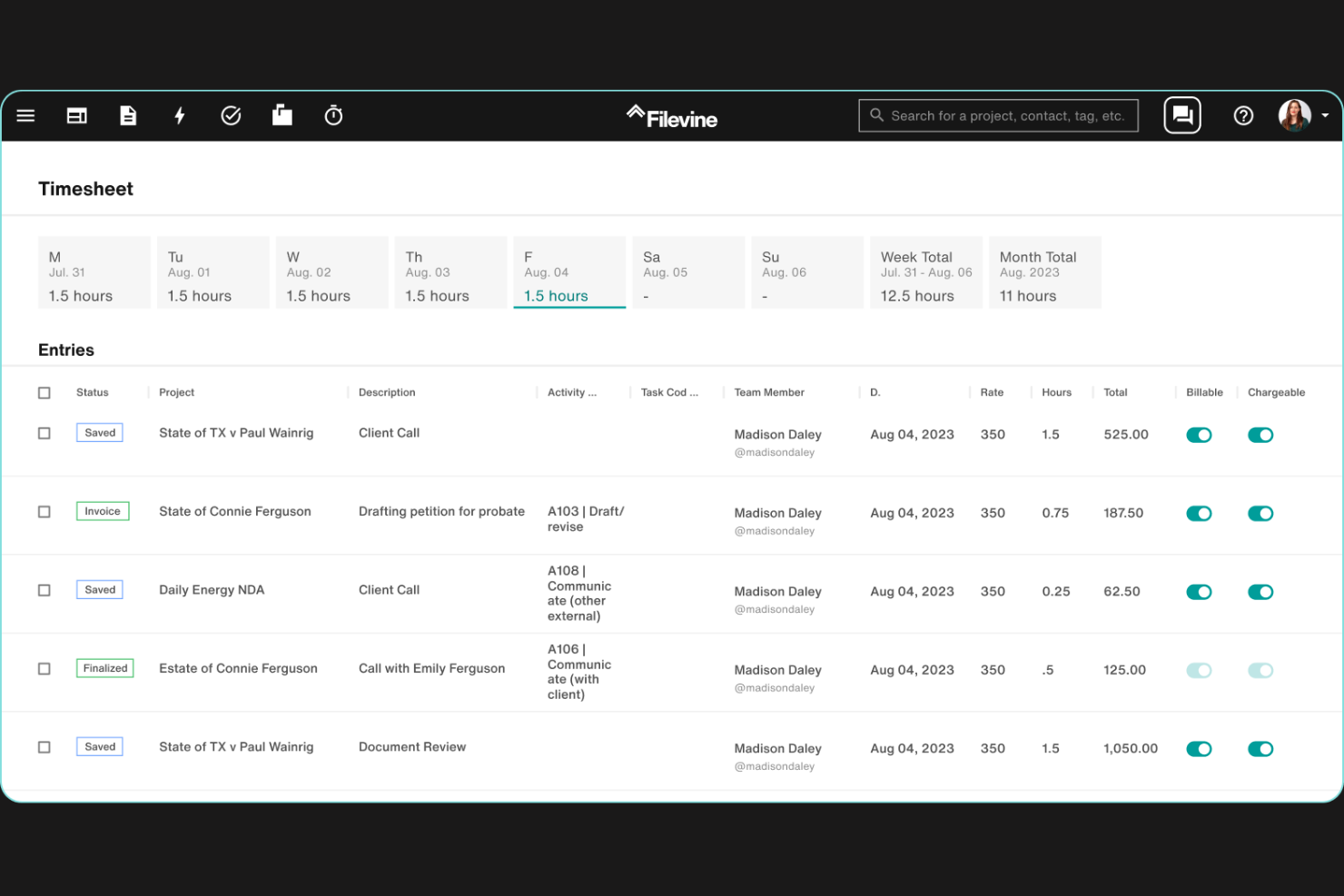
Filevine is designed for legal teams that need to track, organize, and collaborate on case documents throughout the entire lifecycle of a matter. It’s especially useful for law firms and legal departments managing high volumes of case files, deadlines, and client communications. With its case-centric approach, Filevine helps you keep every document, note, and task connected to the right client and matter.
Why I Picked Filevine
Legal case document tracking is a core strength of Filevine, making it a strong choice for law firms and legal teams. The platform organizes all documents, notes, and communications by case, so you always know where to find the right file. I like that Filevine also offers deadline and task tracking tied directly to each matter, which helps keep teams on top of critical dates and deliverables. For legal professionals who need to manage complex case files and maintain a clear audit trail, these features make Filevine a focused solution.
Filevine Key Features
Some other features in Filevine that support client document management include:
- Document Generation Tools: Create and populate legal documents using customizable templates.
- Text-to-Case File Integration: Send texts directly to a case file for automatic documentation.
- eSignature Collection: Request and track electronic signatures within the platform.
- Role-Based Access Controls: Set permissions for users based on their role or case involvement.
Filevine Integrations
Integrations include Outlook, Gmail, QuickBooks, LawPay, Dropbox, Box, Google Drive, Microsoft Teams, and more.
Pros and Cons
Pros:
- eSignature collection directly within the platform
- Automated document generation from templates
- Built-in text-to-case file documentation
Cons:
- Custom reporting setup requires vendor assistance
- Document search can be slow with large volumes

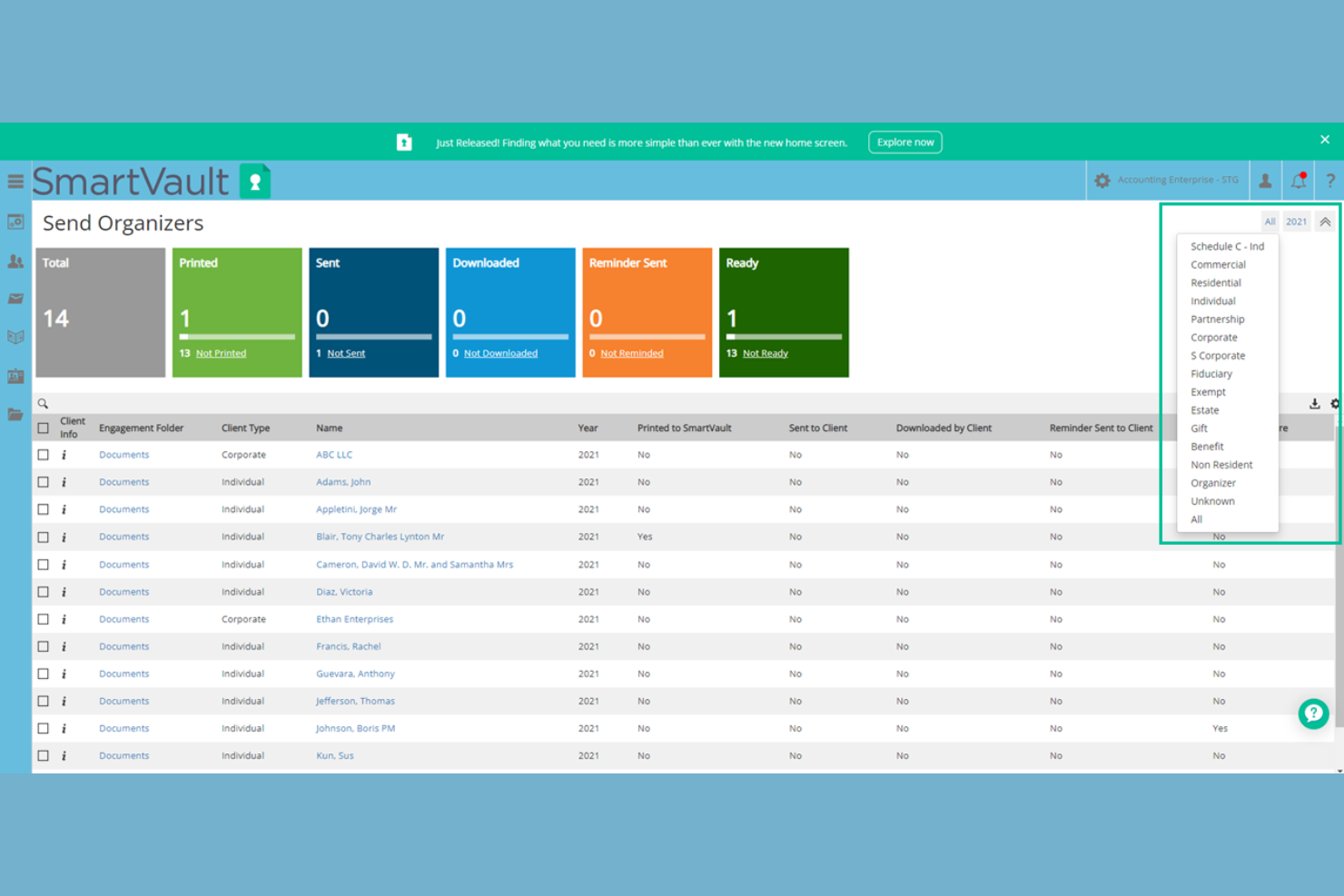
SmartVault is designed for teams that need secure, centralized client file sharing and document storage. It’s a strong fit for accounting firms, financial advisors, and other professionals handling sensitive client data. The platform addresses challenges around secure access, audit trails, and compliance requirements in client communications. With features like cloud storage, tools to sign documents, and workflows that support paperless operations, SmartVault helps teams spend less time managing files while maintaining security. Many organizations also reference case studies to evaluate how the platform supports secure client document management.
Why I Picked SmartVault
I chose SmartVault because secure client file sharing is a top priority for many businesses handling confidential information. The platform offers bank-level encryption and customizable access permissions, which help teams control exactly who can view or edit sensitive documents. I also like that SmartVault provides detailed audit logs, so you can track every document interaction for compliance and accountability. These features make it a strong choice for professionals who need to protect client data while maintaining efficient workflows.
SmartVault Key Features
Some other features in SmartVault that support client document management include:
- Client Portal: Clients can securely upload, download, and view documents through a branded online portal.
- Document Request List: Create and send lists of required documents to clients, tracking submissions in real time.
- eSignature Integration: Collect legally binding electronic signatures directly within the platform.
- Folder Templates: Standardize folder structures for different client types or projects to keep files organized.
SmartVault Integrations
Integrations include QuickBooks Online, Xero, Sage Intacct, Bill.com, Hubdoc, Salesforce, Microsoft Office 365, DocuSign, Adobe Sign, Intuit ProConnect, and more.
Pros and Cons
Pros:
- Document request lists for client submissions
- Detailed audit trails for compliance tracking
- Secure client portal for document sharing
Cons:
- Interface can feel dated compared to competitors
- Occasional slow upload speeds reported by users

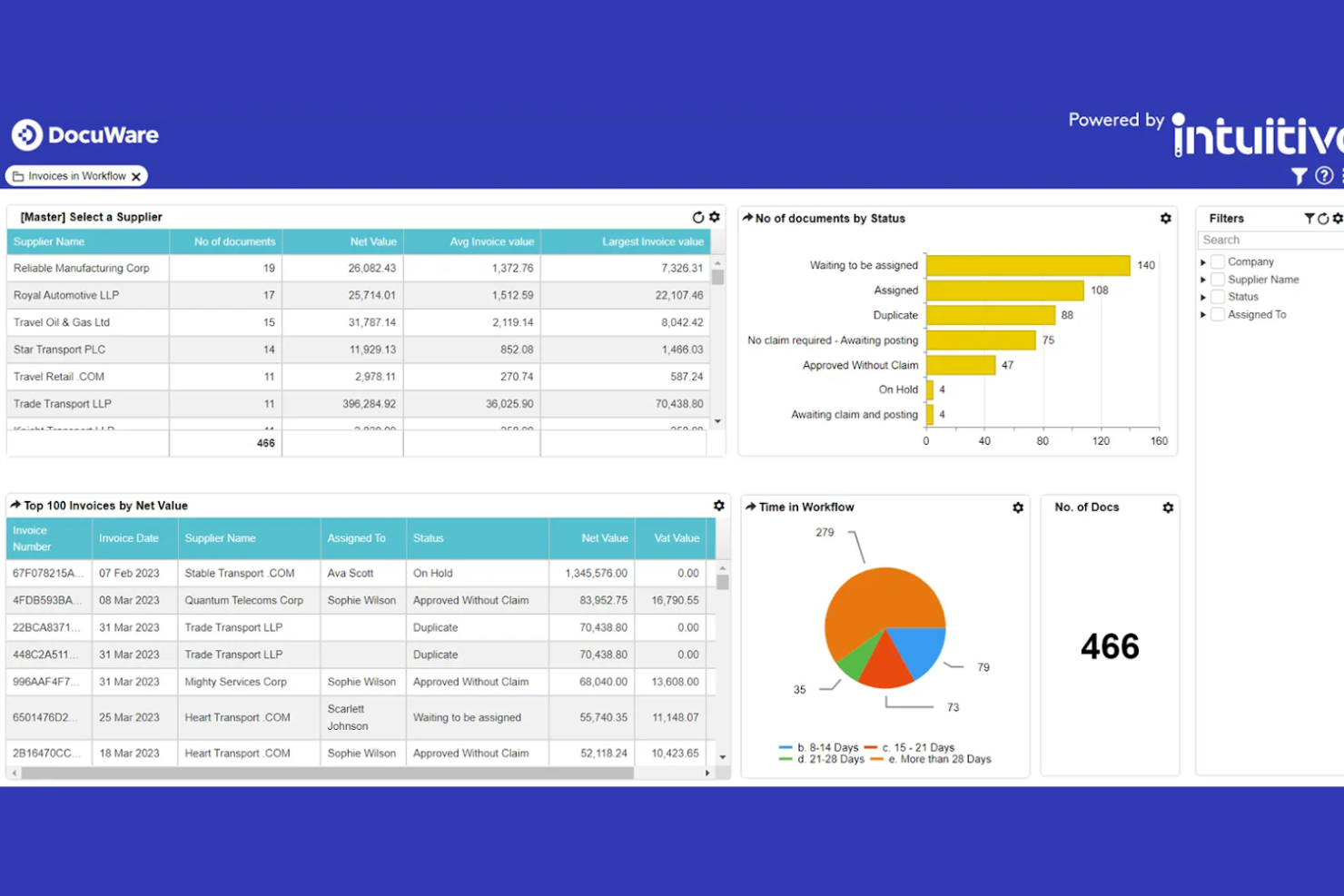
DocuWare stands out for teams that need to automate complex document workflows and approvals. It’s especially useful for organizations with high-volume document routing needs, like finance, HR, and operations. The platform helps reduce manual handoffs and errors by letting you design and trigger multi-step workflows directly from your document repository, while also supporting e-signing to simplify approvals and document completion.
Why I Picked DocuWare
Automated workflow routing is where DocuWare really shines for client document management. The platform lets you build custom workflows that automatically route documents for review, approval, or archiving based on rules you set. I appreciate how you can trigger notifications and assign tasks as documents move through each stage, which helps teams avoid bottlenecks and manual follow-ups. For organizations that need to manage high volumes of client paperwork with strict process controls, DocuWare’s workflow automation features are a strong fit.
DocuWare Key Features
Some other features in DocuWare that support client document management include:
- Document Version Control: Track changes and maintain a full history of document edits and updates.
- Role-Based Access Permissions: Set granular access levels for users and groups to protect sensitive information.
- Full-Text Search: Locate documents quickly using keyword and metadata search across your entire repository.
- Mobile Document Management: Access, review, and approve documents from mobile devices using the DocuWare app.
DocuWare Integrations
Integrations include Microsoft Dynamics 365, SAP, Outlook, Sage, QuickBooks, SharePoint, Oracle, and more.
Pros and Cons
Pros:
- Version control with detailed document history
- Role-based access for granular permission control
- Full-text search across all stored documents
Cons:
- Interface updates may disrupt established workflows
- Occasional delays in document indexing reported

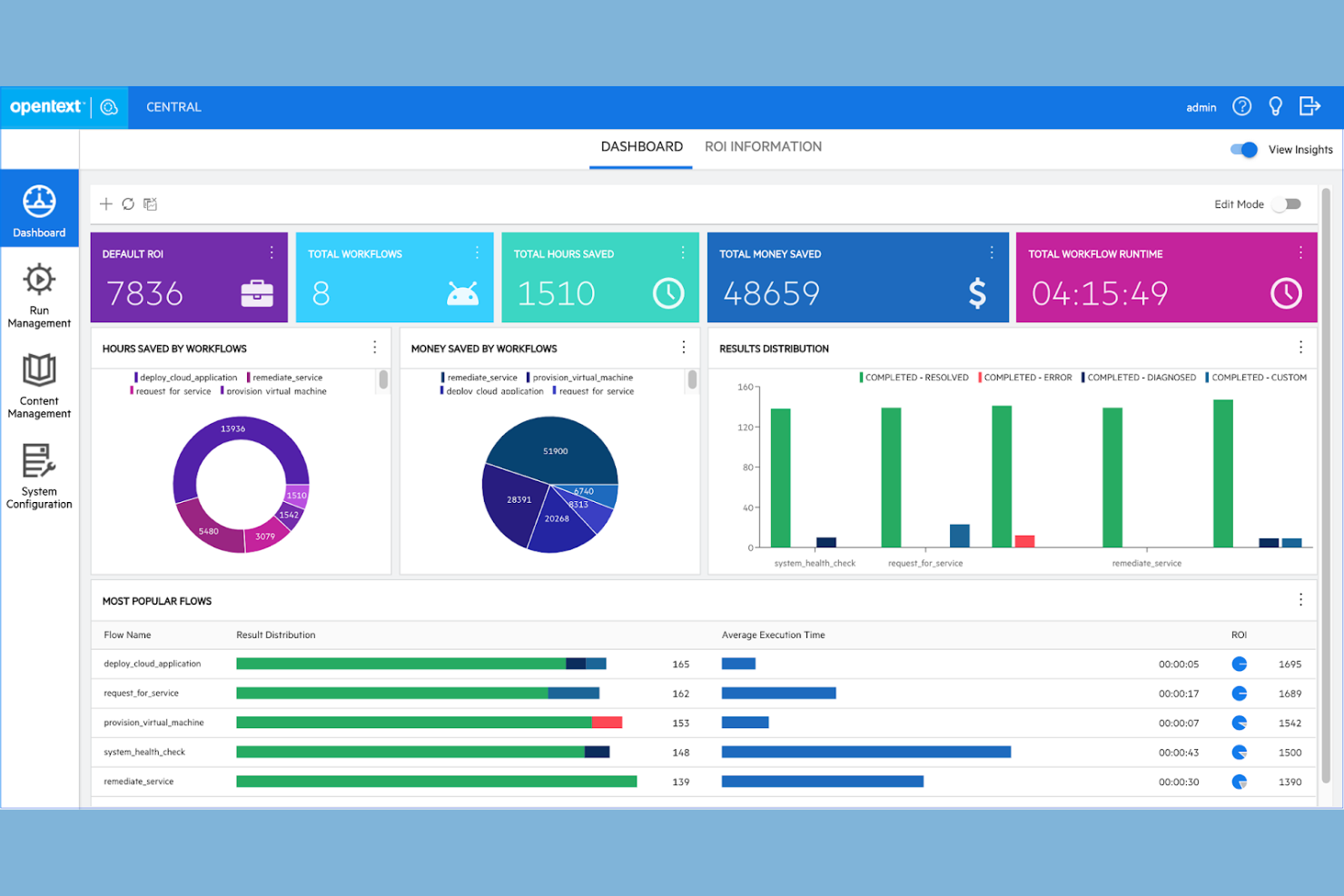
OpenText is built for large enterprises that need to manage massive volumes of client documents across global operations. It’s especially suited for organizations with complex compliance, security, and workflow requirements that go beyond what most mid-market solutions can handle. OpenText stands out for its ability to centralize, automate, and secure document processes at scale for highly regulated industries.
Why I Picked OpenText
What sets OpenText apart is its ability to handle document management at a truly global, enterprise scale. I picked OpenText because it supports high-volume document storage and retrieval, with advanced security controls that meet strict regulatory standards. The platform’s workflow automation tools help large organizations manage complex approval chains and document lifecycles across multiple departments. For teams that need to centralize and control client documents in a highly distributed environment, OpenText offers the scalability and governance that smaller platforms can’t match.
OpenText Key Features
Some other features that make OpenText a strong option for client document management include:
- Version Control: Maintain a complete history of document changes and access previous versions as needed.
- Granular Permission Settings: Assign user and group-based access controls for sensitive client files.
- Document Classification: Automatically categorize documents using AI-driven tagging and metadata extraction.
- eDiscovery Tools: Search, preserve, and export documents for legal or compliance purposes.
Revver Integrations
Integrations include SAP, Microsoft Office, Salesforce, Oracle, IBM, Adobe, Google Workspace, SharePoint, Box, and DocuSign.
Pros and Cons
Pros:
- Supports complex, multi-stage workflow automation
- AI-powered document classification and tagging
- Advanced audit trails for regulatory compliance
Cons:
- Search performance can lag with legacy data
- Interface updates require significant IT involvement


M-Files takes a metadata-driven approach to document management, making it easier for teams to find and organize client files based on what they are, not just where they’re stored. This platform is especially useful for professional services firms, legal teams, and consultancies that handle large volumes of client documents with complex search and compliance needs. M-Files stands out for its ability to automate document classification and surface relevant content quickly, even across multiple repositories.
Why I Picked M-Files
What sets M-Files apart is its metadata-driven search, which helps teams locate client documents based on context and content rather than folder location. I picked M-Files because it lets you tag files with custom metadata, making it much easier to organize and retrieve information across projects and clients. The platform’s automatic document classification and advanced search filters mean you can quickly surface the right files, even in large, distributed repositories. For teams that need to manage complex client records and ensure nothing gets lost, these features make M-Files a strong fit.
M-Files Key Features
Some other features in M-Files that support client document management include:
- Automated Workflow Routing: Assign documents to specific users or teams based on predefined rules.
- Granular Access Permissions: Control who can view, edit, or share each document at a detailed level.
- Document Versioning: Maintain a complete history of changes and easily revert to previous versions.
- eSignature Integration: Collect legally binding electronic signatures directly within the platform.
M-Files Integrations
Integrations include Microsoft 365, Salesforce, SAP, Google Workspace, and more.
Pros and Cons
Pros:
- Audit trails help with compliance requirements
- Granular permissions restrict client file access
- Version history tracks all document changes
Cons:
- Advanced search setup requires admin configuration
- Desktop client installation required for full features

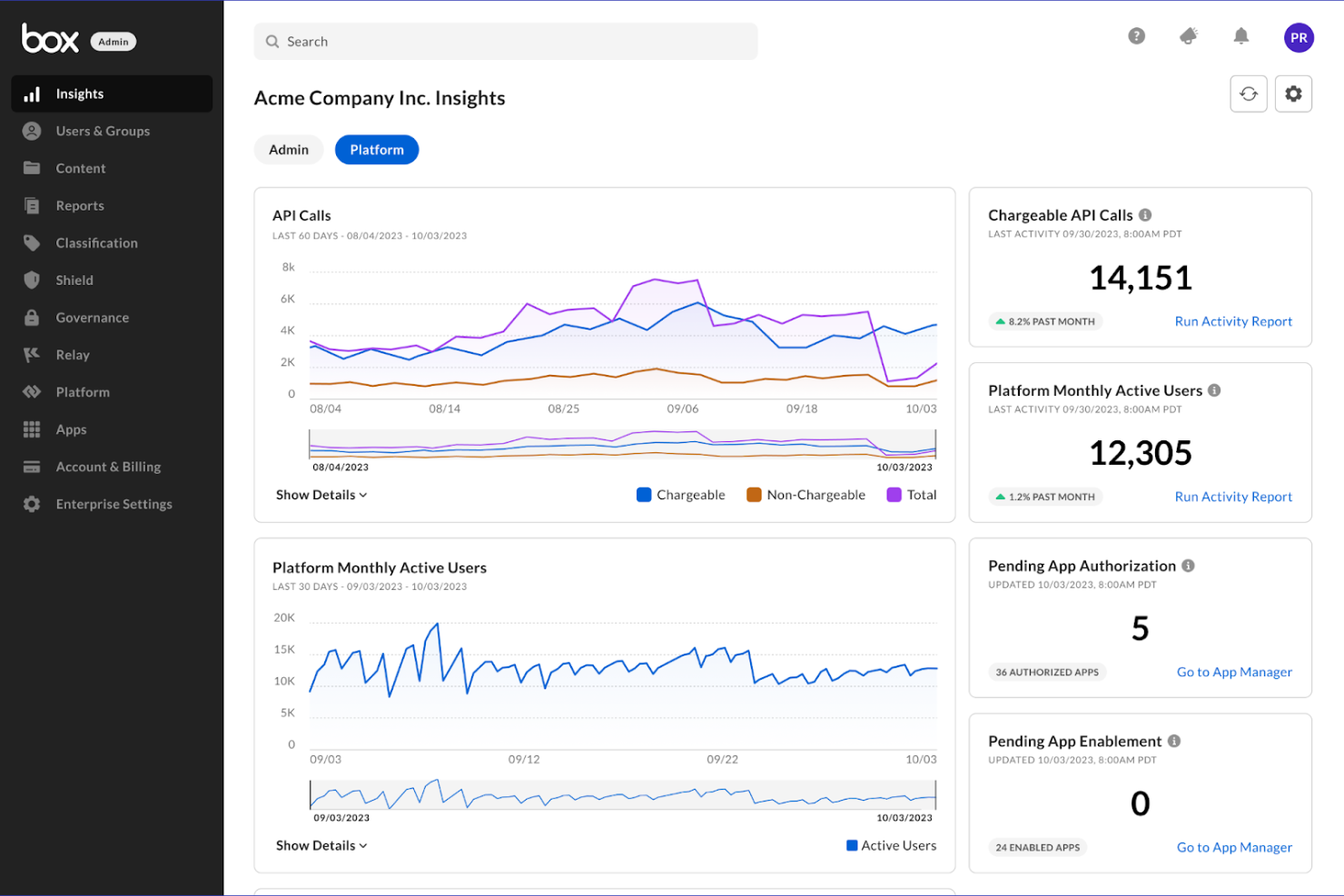
Box is designed for teams that need granular control over document sharing and collaboration. It’s a strong fit for organizations in regulated industries or those managing sensitive client files across distributed teams. With advanced permission settings and detailed activity tracking, Box helps you manage who can access, edit, or share client documents at every stage.
Why I Picked Box
Advanced collaboration controls set Box apart for client document management. The platform lets you set detailed permissions at the file, folder, or user level, so you can control exactly who can view, edit, or share sensitive client documents. I like that Box also provides audit trails and activity logs, which help you track document access and changes for compliance or client transparency. For teams that need to manage confidential files and coordinate across departments or external partners, these collaboration features make Box a strong choice.
Box Key Features
Some other features in Box that support client document management include:
- Document Watermarking: Add visible watermarks to files to deter unauthorized sharing or copying.
- Automated Retention Policies: Set rules for document retention and automatic deletion to support compliance requirements.
- eSignature Integration: Collect legally binding electronic signatures directly within Box using Box Sign.
- File Request Links: Create secure links that let clients or partners upload documents directly into designated folders.
Box Integrations
Integrations include Microsoft Office 365, Google Workspace, Salesforce, Slack, Adobe, Servicenow, and more.
Pros and Cons
Pros:
- File request links simplify client document intake
- Automated retention policies for compliance support
- eSignature collection built directly into platform
Cons:
- Folder structure can become complex quickly
- Upload speeds can lag with large files
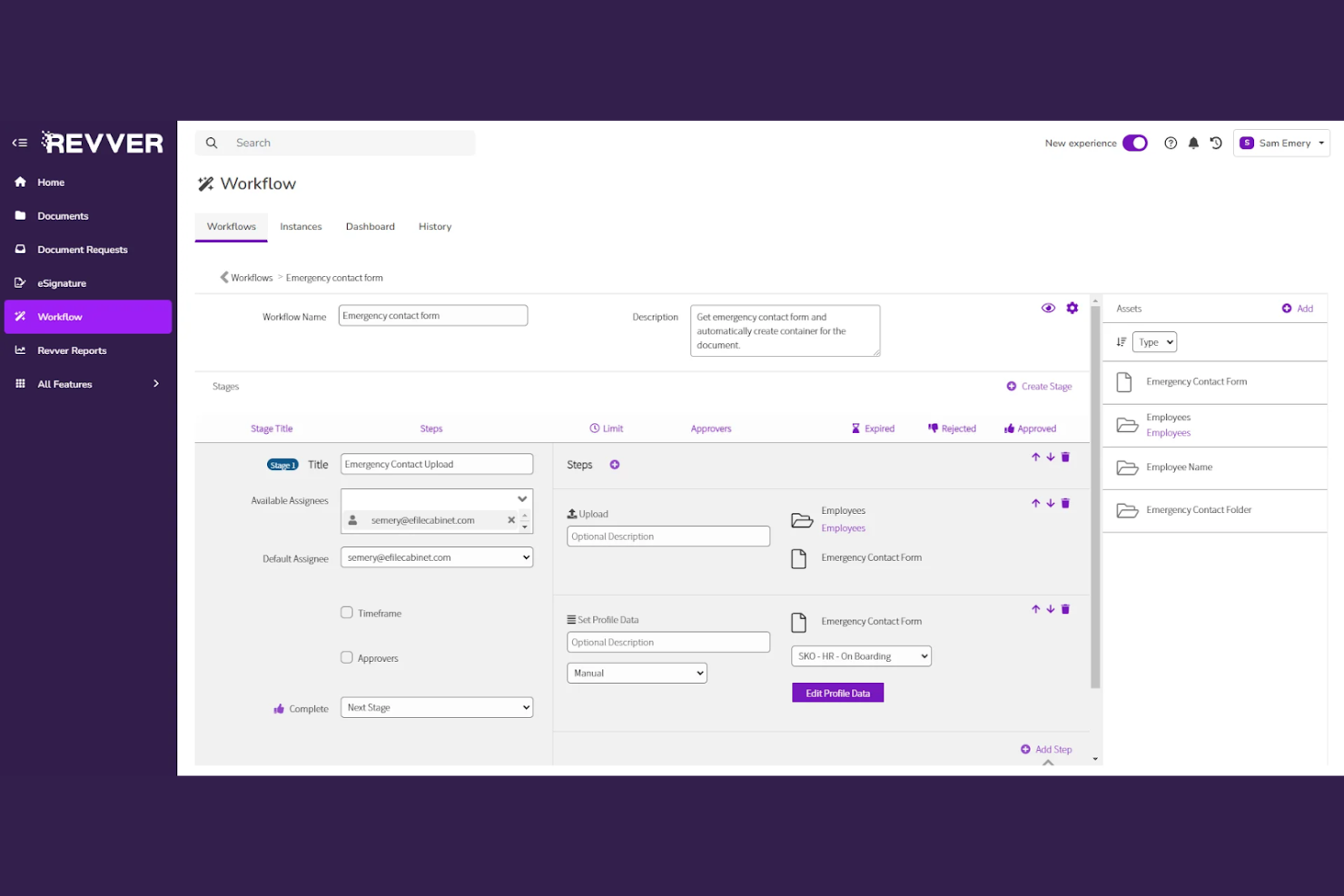
Revver is designed for organizations that need to manage client documents with strict compliance and audit requirements. It’s a strong fit for financial services, healthcare, and legal teams that face complex regulatory standards and need to prove document control. Revver stands out for its built-in compliance workflows and detailed audit trails that help teams stay ready for inspections and audits.
Why I Picked Revver
Revver caught my attention because it’s built with compliance management at its core, which is essential for teams handling sensitive client documents. The platform offers automated retention policies and audit trails, so you can demonstrate compliance with industry regulations at any time. I picked Revver for its ability to lock down document access and track every action, which is especially important for regulated industries. These features make it a strong choice for organizations that need to prove document integrity and control during audits or inspections.
Revver Key Features
In addition to its compliance-focused controls, Revver offers several other features for managing client documents:
- Document Templates: Create and reuse standardized templates for common client documents.
- Bulk Uploading: Add multiple files at once to speed up onboarding or migration.
- Custom Metadata Fields: Tag documents with client-specific or project-specific metadata for easier organization.
- Advanced Search Filters: Narrow down document searches using multiple criteria like date, owner, or document type.
Revver Integrations
Integrations include OneDrive, Google Drive, Google Sheets, Google Docs, Microsoft 365, and more.
Pros and Cons
Pros:
- Audit logs track every document action
- Document templates standardize client-facing files
- Bulk uploading accelerates document migration
Cons:
- Search filters can be slow with large volumes
- Limited public documentation for advanced features

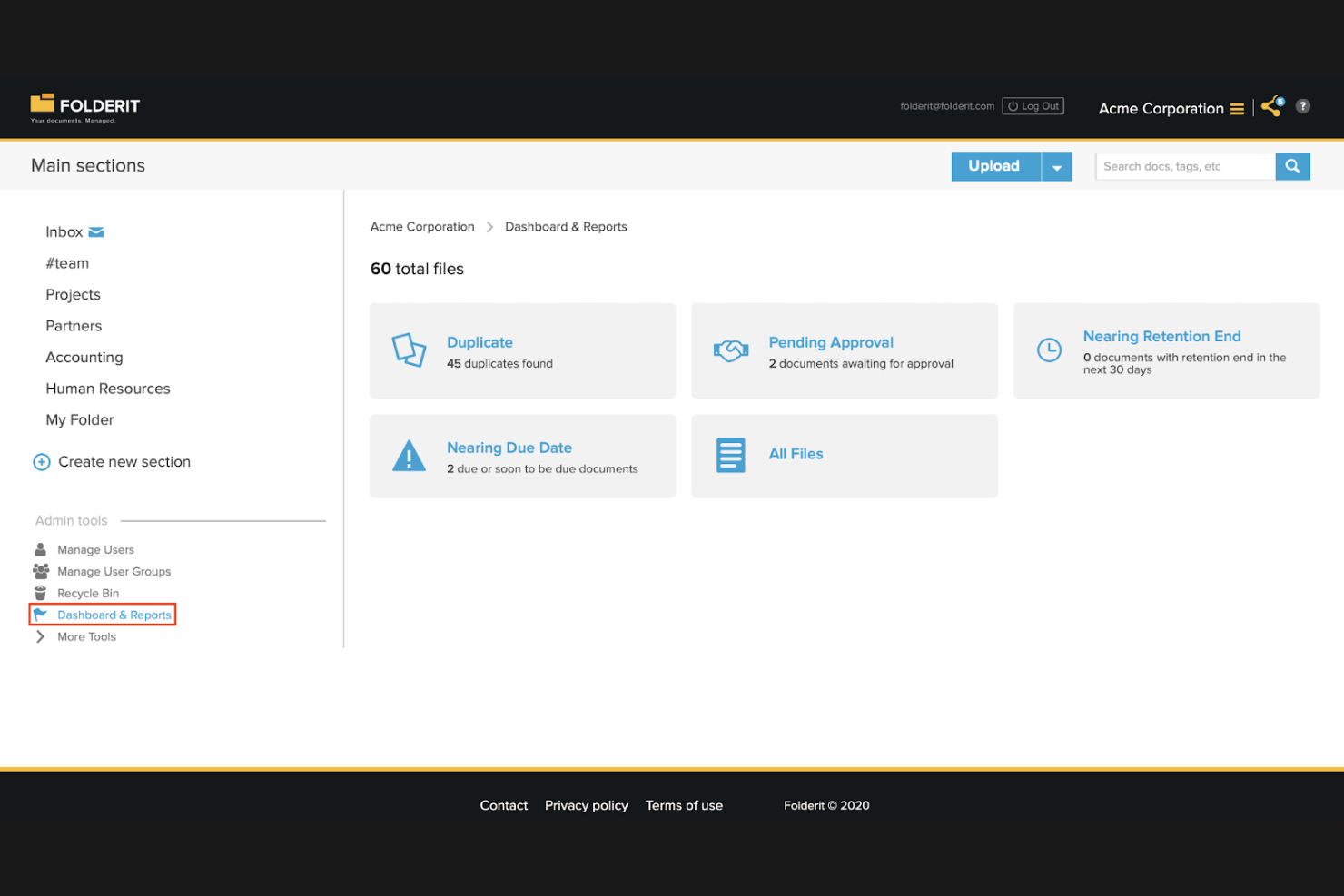
Folderit offers a document management platform built for small teams that need to organize, share, and secure client files without complexity. It’s a good fit for consultancies, agencies, and small businesses that want straightforward folder structures and granular access controls. Folderit stands out for its simple permission settings and easy document approval workflows, helping teams keep client information organized and accessible.
Why I Picked Folderit
For small teams that need to keep client documents organized without extra complexity, Folderit offers a focused solution. The platform lets you set up clear folder hierarchies and assign permissions at the folder or document level, so only the right people access sensitive files. I appreciate how Folderit includes document approval workflows, which help teams track changes and maintain accountability. These features make Folderit a practical choice for small businesses that want to manage client files with structure and control.
Folderit Key Features
Some other features in Folderit that support client document management include:
- Automated Retention Scheduling: Set rules for how long documents are kept before automatic deletion.
- Version Control: Track and restore previous versions of documents as needed.
- Metadata Tagging: Add searchable tags and custom metadata to files for easier retrieval.
- Audit Trail: Monitor document access and changes with a detailed activity log.
Folderit Integrations
Native integrations are not currently listed. Folderit does offer an API for custom integrations.
Pros and Cons
Pros:
- Version control allows restoring previous file versions
- Automated retention scheduling for compliance needs
- Folder permissions can be set for each user
Cons:
- No built-in document editing functionality
- Bulk upload speed can be inconsistent

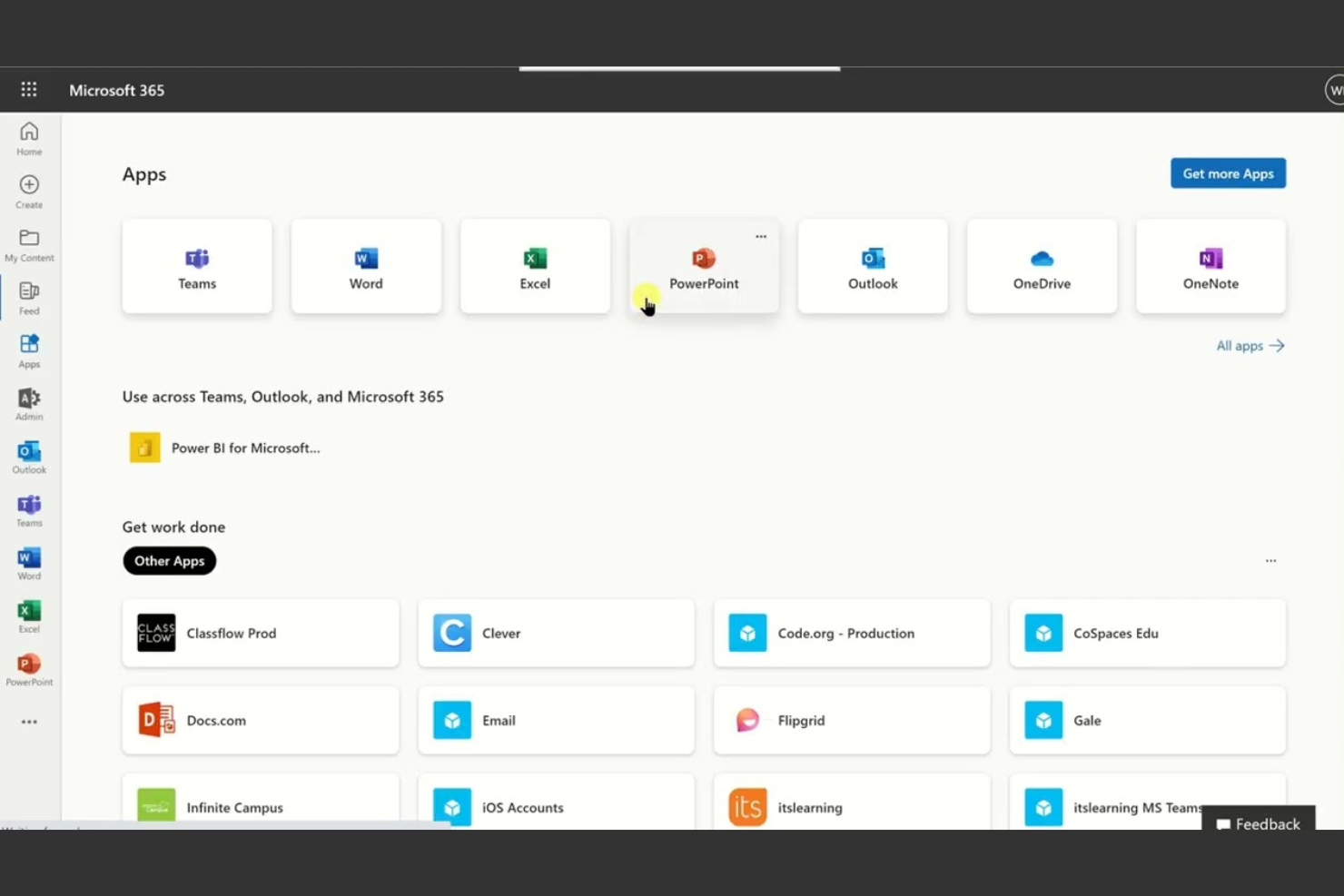
If your team needs client document management tightly connected to productivity tools, Microsoft 365 brings everything under one roof. It’s a strong fit for consultancies, agencies, and professional services that want document storage, editing, and collaboration in the same environment as email, calendars, and meetings. With built-in apps like Word, Excel, and SharePoint, you can manage client files and communications without switching platforms.
Why I Picked Microsoft 365
What sets Microsoft 365 apart for client document management is how it combines document storage with built-in productivity tools. I picked Microsoft 365 because you can create, edit, and share client files using Word, Excel, and PowerPoint without leaving the platform. SharePoint adds structured document libraries and permission controls, which help teams organize and secure client materials. This all-in-one approach means you can manage client documents and collaborate on them in real time, all within the same workspace.
Microsoft 365 Key Features
Some other features that make Microsoft 365 useful for client document management include:
- Data Loss Prevention (DLP): Set up policies to help prevent accidental sharing of sensitive client information.
- Co-Authoring: Multiple team members can work on the same document at the same time.
- eDiscovery: Search and export client documents for legal or compliance needs.
- OneDrive Sync: Access and sync client files across devices for offline work.
Microsoft 365 Integrations
Integrations include Microsoft Teams, OneDrive, SharePoint, Outlook, Power BI, Dynamics 365, and more.
Pros and Cons
Pros:
- Microsoft Purview adds audit and compliance tools
- eDiscovery supports legal and compliance needs
- Built-in DLP policies protect client data
Cons:
- File sharing outside organization often restricted
- SharePoint permissions can be complex to manage

Docsvault gives organizations detailed control over who can access, edit, or share client documents. It’s especially useful for firms with strict confidentiality requirements, such as legal, financial, or healthcare teams. With its granular permission settings, Docsvault helps you manage sensitive client files while supporting compliance and internal security policies.
Why I Picked Docsvault
Granular access permissions are where Docsvault really shines for client document management. The platform lets you assign user- and group-level permissions down to individual files or folders, so you can tightly control who sees or edits sensitive client information. I appreciate that Docsvault also supports role-based access and audit trails, which help you monitor document activity and maintain compliance. For teams that need to enforce strict confidentiality and track every document interaction, these features make Docsvault a strong fit.
Docsvault Key Features
Some other features in Docsvault that support client document management include:
- Document Version Control: Track and manage multiple versions of a document to maintain a clear revision history.
- Automated Workflow Routing: Set up rules to automatically route documents for review, approval, or other actions.
- Integrated Document Scanning: Scan paper documents directly into the system and convert them to searchable digital files.
- Custom Metadata Fields: Add and manage custom metadata to organize and search for client documents more efficiently.
Docsvault Integrations
Integrations include Microsoft Office, Microsoft Teams, and more.
Pros and Cons
Pros:
- Automated workflow routing for approvals
- Custom metadata fields for advanced search
- Built-in document scanning for paper records
Cons:
- No built-in eSignature collection feature
- Web access requires additional configuration steps
Other Client Document Management Software
Here are some additional client document management software options that didn’t make it onto my shortlist, but are still worth checking out:
- Dropbox
For cross-platform file syncing
- Zoho WorkDrive
For team-based folder management


Client Document Management Software Selection Criteria
When selecting the best client document management software to include in this list, I considered common buyer needs and pain points like secure file sharing and permission management. I also used the following framework to keep my evaluation structured and fair:
Core Functionality (25% of total score)
To be considered for inclusion in this list, each solution had to fulfill these common use cases:
- Store and organize client documents
- Share files securely with clients
- Set user and group permissions
- Track document versions and changes
- Search and retrieve documents quickly
Additional Standout Features (25% of total score)
To help further narrow down the competition, I also looked for unique features, such as:
- Built-in e-signature capabilities
- Automated document retention policies
- Advanced audit trails and reporting
- Integration with client communication tools
- AI-powered document tagging and search
Usability (10% of total score)
To get a sense of the usability of each system, I considered the following:
- Simple and intuitive user interface
- Clear navigation and folder structure
- Minimal clicks to complete key tasks
- Responsive design for all devices
- Customizable dashboard or workspace
Onboarding (10% of total score)
To evaluate the onboarding experience for each platform, I considered the following:
- Step-by-step setup guides or wizards
- Availability of training videos and tutorials
- Pre-built templates for common workflows
- Interactive product tours or walkthroughs
- Access to onboarding webinars or live sessions
Customer Support (10% of total score)
To assess each software provider’s customer support services, I considered the following:
- 24/7 live chat or phone support
- Detailed online knowledge base
- Fast response times to inquiries
- Access to community forums or user groups
- Availability of dedicated account managers
Value For Money (10% of total score)
To evaluate the value for money of each platform, I considered the following:
- Transparent and predictable pricing structure
- Range of features included in base plans
- Flexible plans for different team sizes
- No hidden fees or surprise charges
- Free trial or demo availability
Customer Reviews (10% of total score)
To get a sense of overall customer satisfaction, I considered the following when reading customer reviews:
- Positive feedback on document security
- Consistent praise for collaboration features
- Reports of reliable uptime and performance
- Comments on ease of adoption and training
- Constructive criticism about limitations or bugs
How to Choose Client Document Management Software
It’s easy to get bogged down in long feature lists and complex pricing structures. To help you stay focused as you work through your unique software selection process, here’s a checklist of factors to keep in mind:
| Factor | What to Consider |
|---|---|
| Scalability | Will the software handle your document volume and user growth over time? Check storage limits and user caps. |
| Integrations | Does it connect natively to your existing tools (email, CRM, project management)? List your must-have integrations before shortlisting. |
| Customizability | Can you tailor folder structures, permissions, and workflows to match your client processes? Avoid rigid systems that force you to adapt. |
| Ease of use | Will your team and clients adopt it quickly? Look for clear navigation, minimal training needs, and a familiar interface. |
| Implementation and onboarding | How long will it take to migrate documents and train users? Ask about data import tools, onboarding support, and available resources. |
| Cost | Are pricing tiers transparent and predictable as your needs grow? Watch for extra charges for storage, users, or advanced features. |
| Security safeguards | Does it offer encryption, granular permissions, and audit trails? Confirm compliance with your industry’s data protection standards. |
| Compliance requirements | Does the software support your regulatory needs (GDPR, HIPAA, SOC 2)? Request documentation and check for built-in compliance tools. |
What Is Client Document Management Software?
Client document management software is a digital system for storing, organizing, sharing, and securing documents related to client work. These platforms help teams manage files, control access, track changes, and maintain compliance with data protection standards. Project managers use them to centralize client communications, streamline collaboration, and ensure sensitive information is handled safely throughout the project lifecycle.
Features of Client Document Management Software
When selecting client document management software, keep an eye out for the following key features:
- Document storage: Centralizes all client files in a secure, organized digital repository, making it easy to upload, access, and manage documents from anywhere.
- Permission controls: Allows you to set granular access levels for users and groups, ensuring only authorized individuals can view, edit, or share sensitive client information.
- Version history: Tracks changes to documents over time, letting users view, compare, or restore previous versions to prevent data loss or confusion.
- Audit trails: Records all document activity, such as views, edits, and shares, providing transparency and accountability for compliance and security needs.
- File sharing: Enables secure sharing of documents with clients or team members, often with options for password protection, expiration dates, or download restrictions.
- Search and retrieval: Offers advanced search tools to quickly locate documents by keyword, metadata, or filters, saving time and reducing manual effort.
- Collaboration tools: Supports real-time editing, commenting, and notifications so teams and clients can work together on documents without version conflicts.
- Document templates: Provides reusable templates for common client documents, helping standardize processes and reduce repetitive work.
- Mobile access: Lets users view, edit, and share documents from smartphones or tablets, supporting remote work and on-the-go collaboration.
Benefits of Client Document Management Software
Implementing client document management software provides several benefits for your team and your business. Here are a few you can look forward to:
- Centralized document access: All client files are stored in one secure location, making it easy for your team to find and manage documents.
- Improved data security: Permission controls and audit trails help protect sensitive client information and support compliance with industry regulations.
- Faster collaboration: Real-time editing, commenting, and sharing features enable teams and clients to work together without delays or version confusion.
- Reduced manual errors: Version history and document templates minimize mistakes and ensure consistency across client deliverables.
- Streamlined onboarding: Search tools and organized folder structures help new team members quickly get up to speed on client projects.
- Enhanced accountability: Activity logs and audit trails provide transparency into who accessed or changed documents, supporting internal reviews and audits.
- Remote work support: Mobile access and cloud-based storage allow your team to manage client documents from anywhere, keeping projects moving forward.
Costs and Pricing of Client Document Management Software
Selecting client document management software requires an understanding of the various pricing models and plans available. Costs vary based on features, team size, add-ons, and more. The table below summarizes common plans, their average prices, and typical features included in client document management software solutions:
Plan Comparison Table for Client Document Management Software
| Plan Type | Average Price | Common Features |
|---|---|---|
| Free Plan | $0 | Basic document storage, limited sharing options, simple search, and basic permission controls. |
| Personal Plan | $5-$15/user/month | Increased storage, individual user access, version history, and basic collaboration tools. |
| Business Plan | $15-$30/user/month | Team-based permissions, advanced sharing, audit trails, integration options, and enhanced security. |
| Enterprise Plan | $30-$60/user/month | Custom workflows, compliance tools, advanced analytics, dedicated support, and unlimited storage. |
Client Document Management Software FAQs
Here are some answers to common questions about client document management software:
How do I migrate existing client documents into a new document management system?
Most client document management software offers import tools or migration services. Start by organizing your files, then use the built-in import features or work with the vendor’s support team to transfer documents. Check for compatibility with your current file formats and test the migration with a small batch first.
Can I control who sees or edits specific client documents?
Yes, permission controls let you set who can view, edit, or share each document or folder. Assign roles to users or groups, and regularly review permissions to ensure only authorized people have access to sensitive client information.
What security measures should I look for in client document management software?
Look for encryption (in transit and at rest), audit trails, multi-factor authentication, and compliance certifications like SOC 2 or ISO 27001. These features help protect client data and support your organization’s security requirements.
How do document versioning and audit trails work?
Document versioning automatically saves previous versions when changes are made, so you can review or restore earlier drafts. Audit trails log all document activity—such as views, edits, and shares—providing a record for compliance and accountability.
Is it possible to integrate client document management software with other business tools?
Yes, many platforms offer integrations with email, CRM, project management, and e-signature tools. Check the vendor’s integration marketplace or API documentation to confirm compatibility with your existing systems.