

As melhores aplicações de produtividade: Aumenta 2026

10 das melhores aplicações de produtividade (incluindo alternativas gratuitas)


Vivemos tempos estranhos – além de uma indústria de aplicações de mindfulness em rápido crescimento, que supostamente nos ajuda a fazer menos, todos usamos todo o tipo de aplicações de produtividade que nos ajudam a alcançar mais.
Se trabalhas no setor digital, provavelmente já experimentaste algum software de produtividade. Mas o que é um software de produtividade? As ferramentas de produtividade abrangem uma área vasta, desde simples listas de tarefas até ferramentas de acompanhamento da produtividade que medem o desempenho que alcanças num determinado dia.
Quando pensares em aplicações que funcionam bem para ti, lembra-te de que as melhores aplicações de organização ou as melhores aplicações de lembretes só são as “melhores” se te ajudarem, no teu caso específico, a realizar o trabalho certo de uma forma que funcione consistentemente bem para ti.
Em suma, as melhores aplicações de produtividade são ferramentas que te ajudam a trabalhar de forma eficaz.
Como ser eficaz e produtivo
Demasiadas vezes, concentramos-nos na produtividade como uma questão de quantidade: quanto produzo e com que rapidez? Para conseguirmos trabalhar de forma verdadeiramente eficaz, temos de reformular a nossa perspetiva sobre a produtividade: na realidade, trata-se de utilizar melhor o teu tempo.
Como podes utilizar melhor o teu tempo?
Primeiro, temos de descobrir como podemos utilizar o nosso tempo da forma mais produtiva. Faz uma pausa e pergunta a ti próprio:
- Que impacto terá se não tratar agora desta questão aparentemente urgente? (Porque, na verdade, esta questão urgente provavelmente não é assim tão importante!)
- Que atividades são mais importantes para mim?
- O que posso fazer (e só eu), que, se for bem feito, fará uma verdadeira diferença?
Uma boa forma de responder a estas perguntas é utilizar uma matriz de prioridades para listar as tarefas de acordo com a sua urgência e importância. Gosto de utilizar a matriz abaixo, baseada na Matriz de Eisenhower:
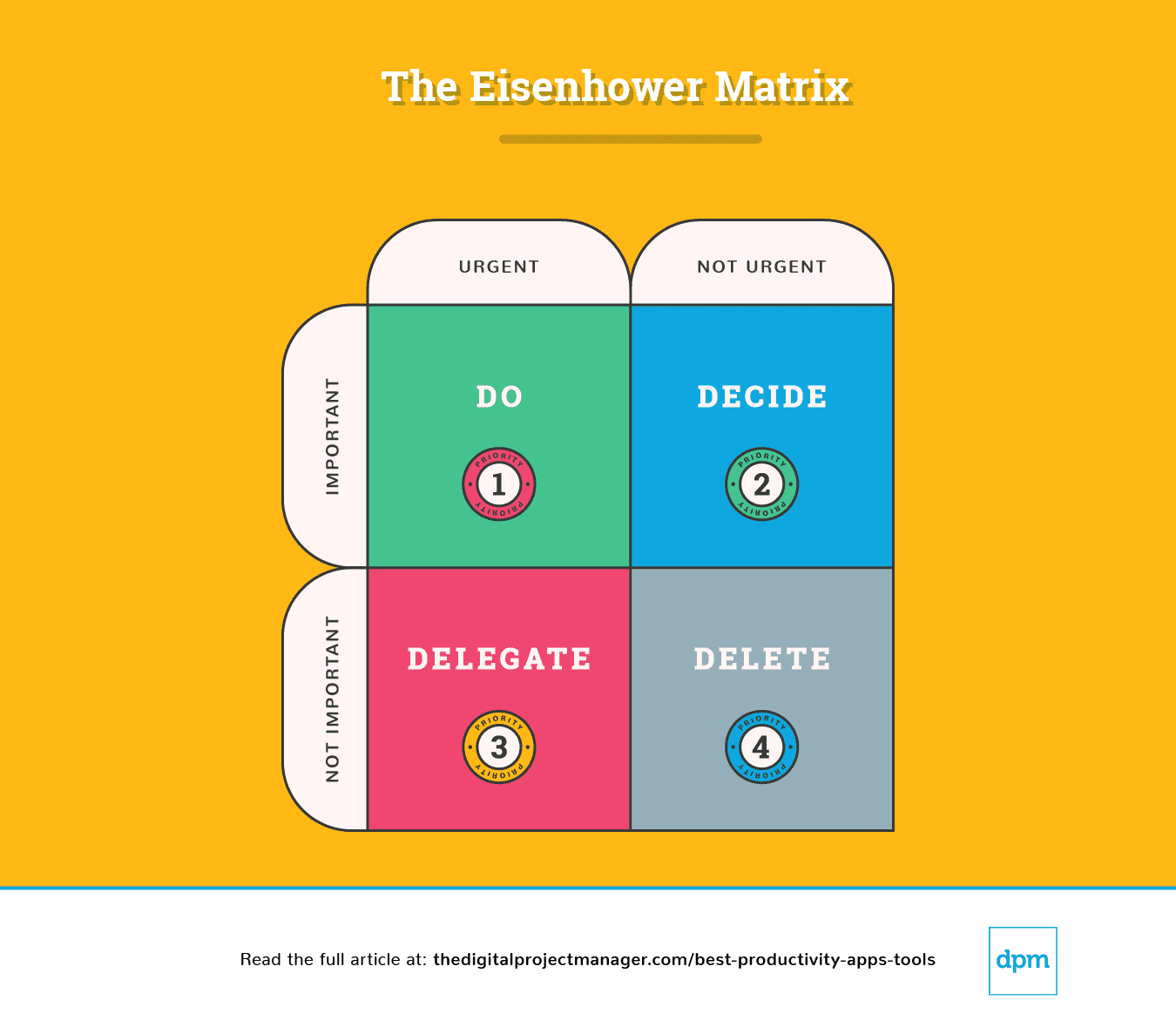
Explicação da Matriz de Eisenhower
Uma divisão simples deste diagrama mostra-nos como devemos abordar uma tarefa:
Prioridade #1: É urgente e importante. Avança, faz isso.
Prioridade #2: Não é urgente, mas é importante. Determina todos os pontos que impedem o processo de avançar. Determina o momento ideal, a pessoa e o método para executar a tarefa.
Prioridade #3: É urgente, mas não é importante. Delega a tarefa à pessoa responsável, para que possas concentrar-te nas tarefas importantes.
Prioridade #4: Não é urgente nem importante; é a quarta prioridade. Elimina a tarefa.
No final de cada dia, deves dedicar 10 minutos a descobrir como será o teu dia de amanhã – o que vais fazer, decidir, delegar e eliminar?
Depois, deves consultar estas aplicações de produtividade. Selecionei as que te podem ajudar a realizar o trabalho importante e a utilizar o teu tempo de forma eficaz, automatizando, acompanhando, sincronizando e lembrando-te das tarefas – assim terás mais tempo para fazer o trabalho que é mais importante!
O The Digital Project Manager é apoiado pelos leitores. Se clicar em links no nosso website, poderemos receber uma comissão. Saiba mais.
Prioridade #1: É urgente e importante. Faça-o já.
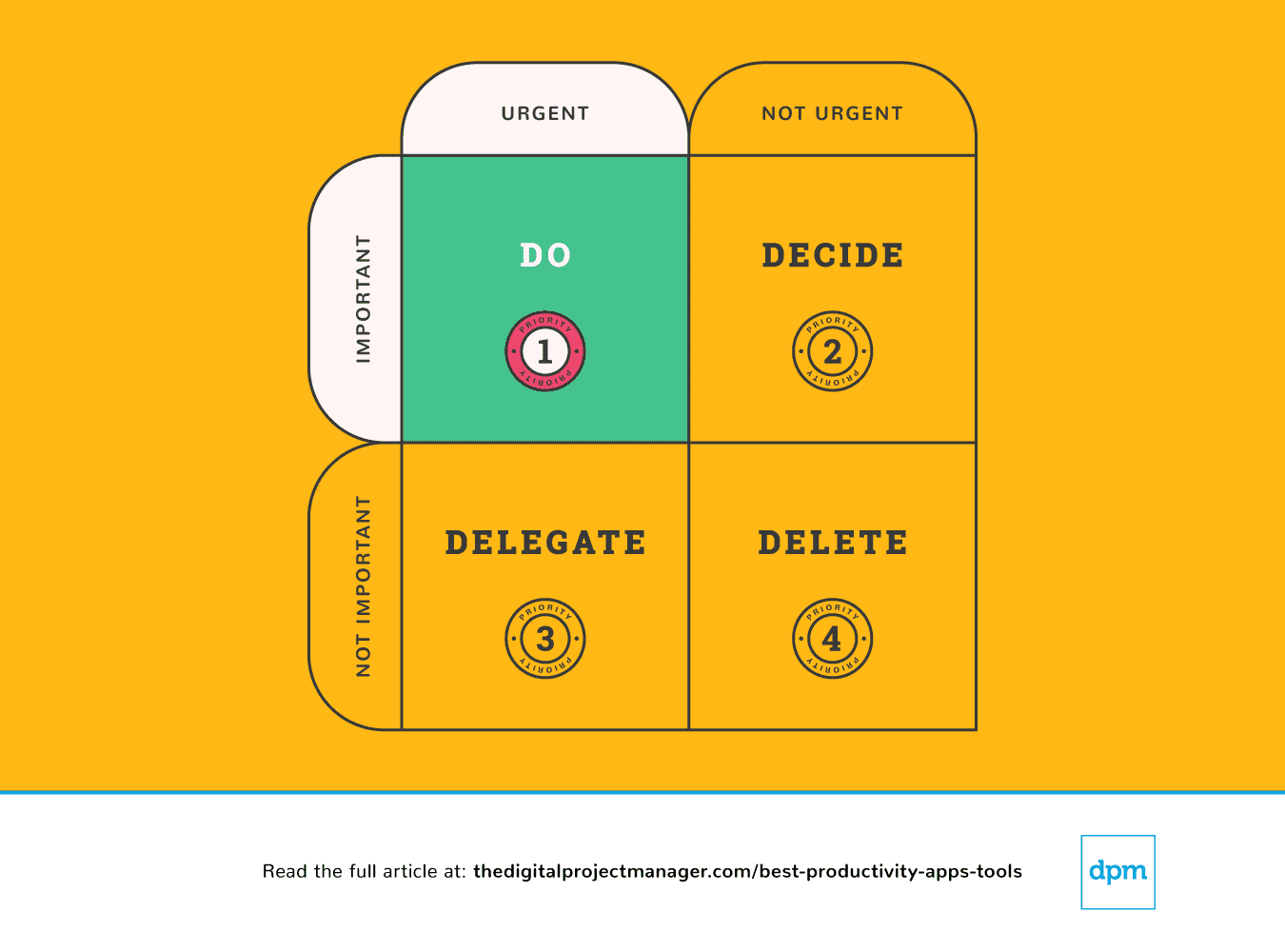
As suas tarefas mais importantes exigem a regra “Faça agora”. Nesse sentido, quando vir uma tarefa que demora menos de 2 minutos, faça-a simplesmente de imediato (Porquê? Porque demora mais tempo adicioná-la à sua lista de tarefas e depois planeá-la e dar-lhe prioridade).
Começar uma tarefa de alta prioridade e continuar com ela até estar 100% concluída é o verdadeiro teste à sua personalidade. Não é fácil, mas é isso que determina o quão produtivo será. Isto exige autodisciplina, mas podemos facilitar o processo com algumas ferramentas de produtividade.
Prioridade #2: Não é urgente, mas continua a ser importante. Determine todos os pontos importantes.
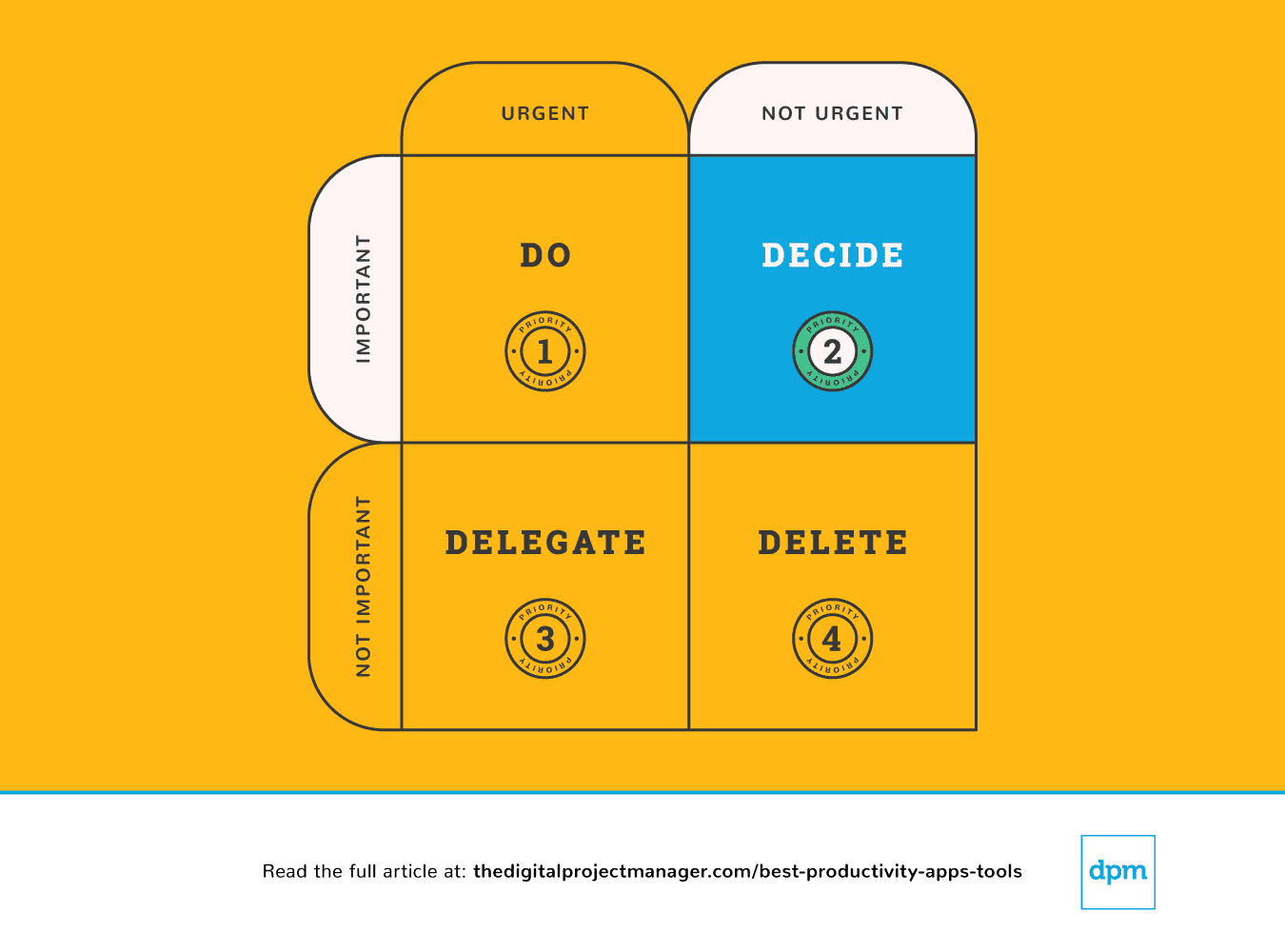
Quando algo é importante, mas não necessariamente urgente, precisa de reservar algum tempo para encontrar um plano adequado para lidar com esse assunto. Pare de se desviar do caminho – planeie fazer corretamente as coisas importantes.
Podemos sentir-nos completamente sobrecarregados porque somos puxados em demasiadas direções – parece que há demasiado trabalho em cima da mesa e nenhuma forma de deixar toda a gente satisfeita. Para tomarmos as decisões mais sensatas para nós, para a nossa equipa e para os nossos projetos, precisamos de ter uma visão clara de todas as nossas tarefas, prioridades e progressos.
As seguintes aplicações de produtividade ajudam especialmente a dar prioridade às tarefas – ao analisar o fluxo de trabalho, acompanhar o progresso e disponibilizar todas as informações necessárias para tomar decisões sólidas enquanto gerimos o nosso trabalho.
Prioridade #3: É urgente, mas não é importante. Delegue.
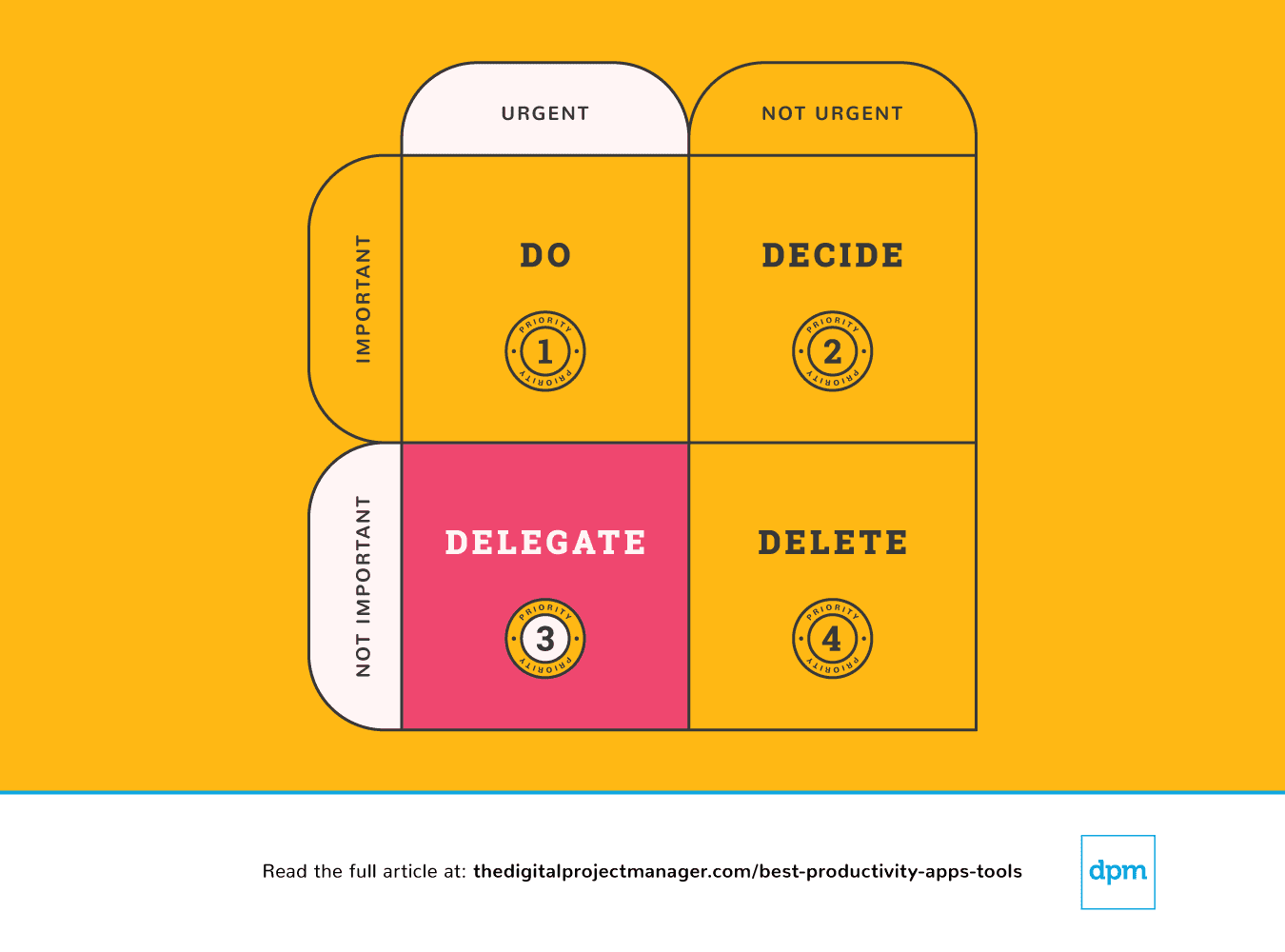 Algumas pessoas acham fácil delegar tarefas, enquanto outras sentem um impulso muito forte para simplesmente “fazerem elas próprias”. Por mais difícil que possa ser passar tarefas a outras pessoas, é muito mais fácil passá-las para uma máquina. Existem muitas aplicações de produtividade que nos permitem fazer mais em menos tempo, adicionando mais automatização aos nossos fluxos de trabalho e deixando que um algoritmo execute o trabalho rotineiro.
Prioridade #4: Não é urgente nem importante. Elimine-o.
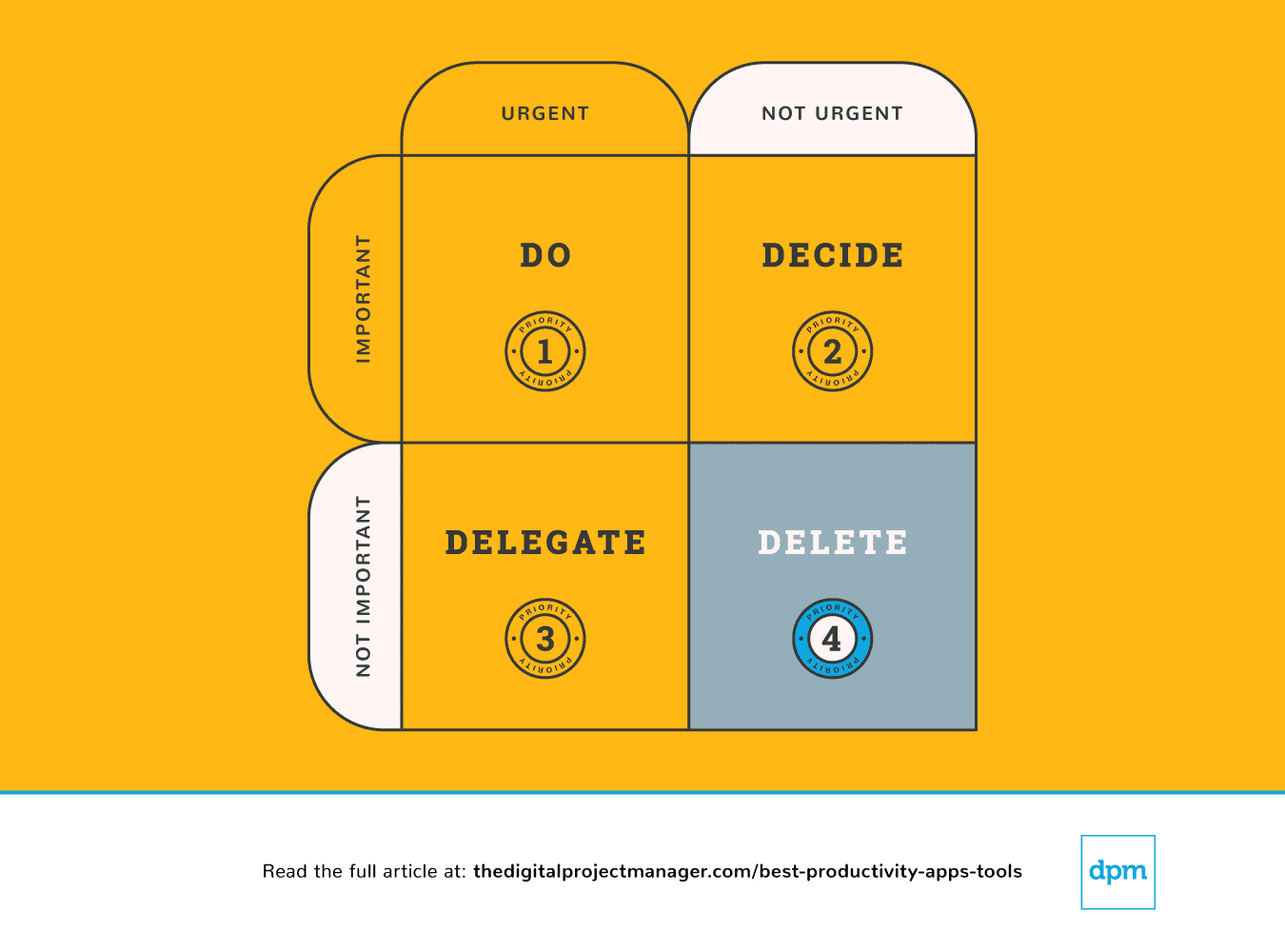 Em última análise, por vezes podemos ser mais eficazes se fizermos menos. Existem possibilidades infinitas (e muitas aplicações de produtividade que o ajudam) para dizer “Sim” a ideias fantásticas. Ao mesmo tempo, isso significa que tem de dizer “não” às coisas certas para conseguir concretizá-las. Aprenda a estabelecer limites e diga não.
É ótimo ser simpático e amável e ajudar as pessoas. O problema é que nem sempre temos tempo. Isso pode levar-nos a entregar pouco ou mesmo nada. Não estará a fazer um favor a ninguém se decidir fazer algo em relação ao qual não consegue realmente dar o seu melhor.
Eis uma excelente aplicação de produtividade que lhe permite limpar tarefas da sua mesa e estabelecer limites, criando um sistema que lhe permite dizer simplesmente “não”:

Best for custom workflows and task boards
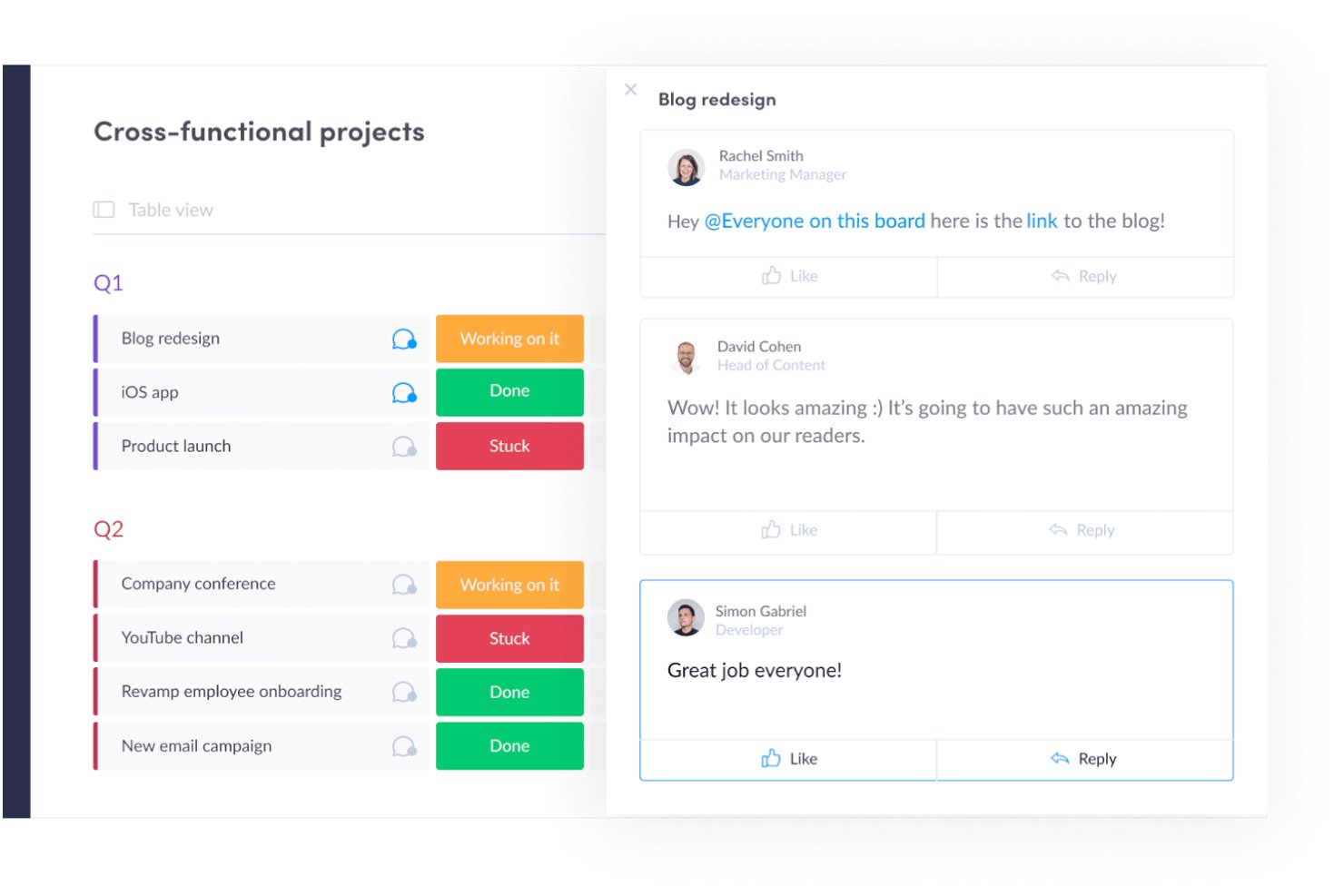
monday AI Workspace is a work management platform that combines customizable task boards, project planning, workflow automation, and AI-powered execution tools across project management, CRM, dev, and service operations.
Who Is monday AI Workspace Best For?
It's a strong fit for mid-to-large teams running multiple workstreams across product, marketing, operations, or engineering who need a single, highly configurable workspace.
Why I Picked monday AI Workspace
I've included monday AI Workspace in my top picks because no other tool makes it this easy to build workflows that match how your team works. The board system lets you configure custom columns, statuses, and automations around your specific process. I particularly like the AI Workflow Builder, which orchestrates multi-step automations across boards without needing a developer. My team can build a sprint board for engineering and a campaign tracker for marketing, each with its own automations.
monday AI Workspace Key Features
- AI Meeting Notetaker: Captures, summarizes, and distributes action items from project meetings automatically.
- Time tracking: Lets team members log hours directly within tasks for accurate project reporting.
- Integrated Docs: Supports collaborative note-taking and documentation tied to specific boards or projects.
- Custom dashboard reporting: Allows creation of real-time dashboards to visualize metrics across multiple workspaces.
monday AI Workspace Integrations
monday AI Workspace offers hundreds of native integrations through its built-in marketplace, including Slack, Microsoft Teams, Google Workspace, Salesforce, HubSpot, Jira, GitHub, Dropbox, Zoom, and Outlook. It also supports Zapier and provides an API for custom integrations.
Pros and Cons
Pros:
- Multiple project views including Gantt and workload
- AI workflow builder handles multi-step automations
- Highly customizable boards with flexible column types
Cons:
- Notification volume can become hard to manage
- Dashboards require manual configuration across boards
New Product Updates from monday AI Workspace
monday AI Workspace Adds Human Approval Routing
monday AI Workspace adds a human-in-the-loop approval block to AI Workflows, sending approval requests and routing workflow paths based on responses. For more information, visit monday AI Workspace's official site.
 .

Slack
Best instant messaging app for teams
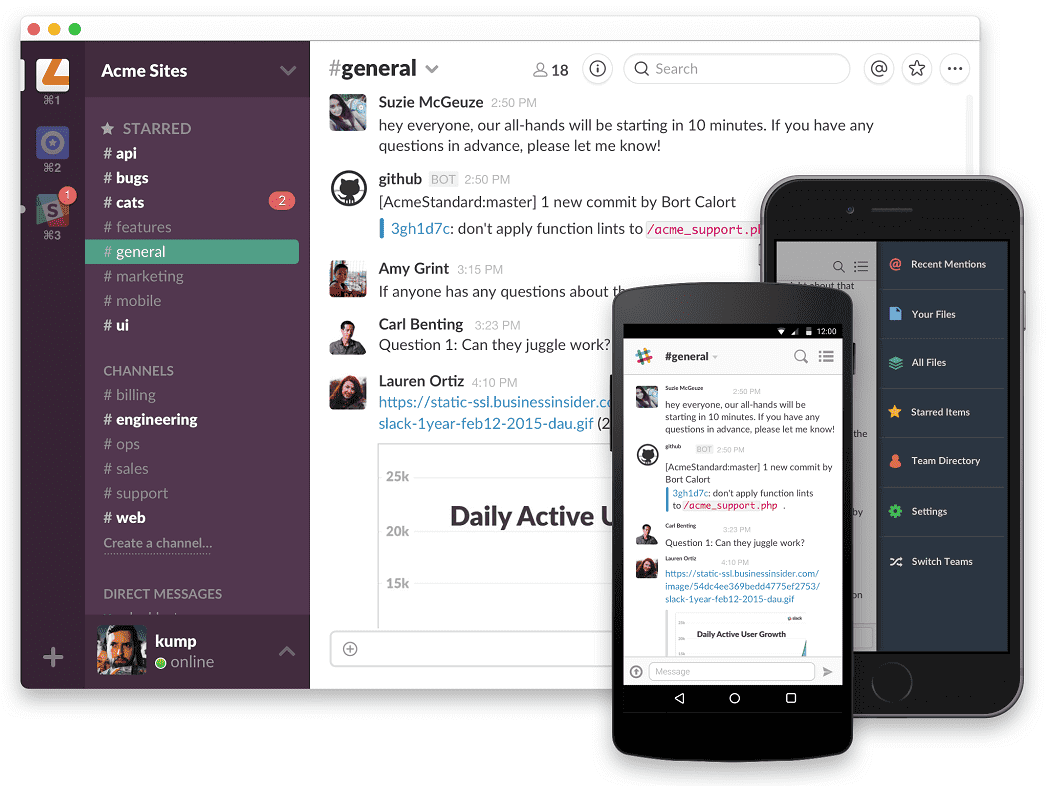
Slack is a collaboration and messaging platform that enables teams to communicate and work together in real-time. It offers a range of features, including channels, file sharing, integration with other software tools, and robust security.
Why I Picked Slack: If you’re doing a lot of task management and delegation within a team, Slack is a best-in-class tool for team collaboration. Slack provides a platform for you to communicate with team members-this includes private chats and group channels, file sharing, tagging and mentions, and loads of integrations with productivity apps to sync up your activities. You can use this tool to break out of endless email threads and enjoy a more transparent, easy-to-follow flow of communication and resources between you and your collaborators.
Slack Standout Features & Integrations
Features include collaboration, file sharing, powerful search, customization, robust security, and has a mobile app, and third-party integrations/plugins.
Integrations include Teamline, Workstreams, ClickUp, Asana, Sentry, SimplePoll, Trello, and dozens of development, management, communication, finance, media, marketing, design, wellness, and other apps.
Toggl
Best with automated time tracking
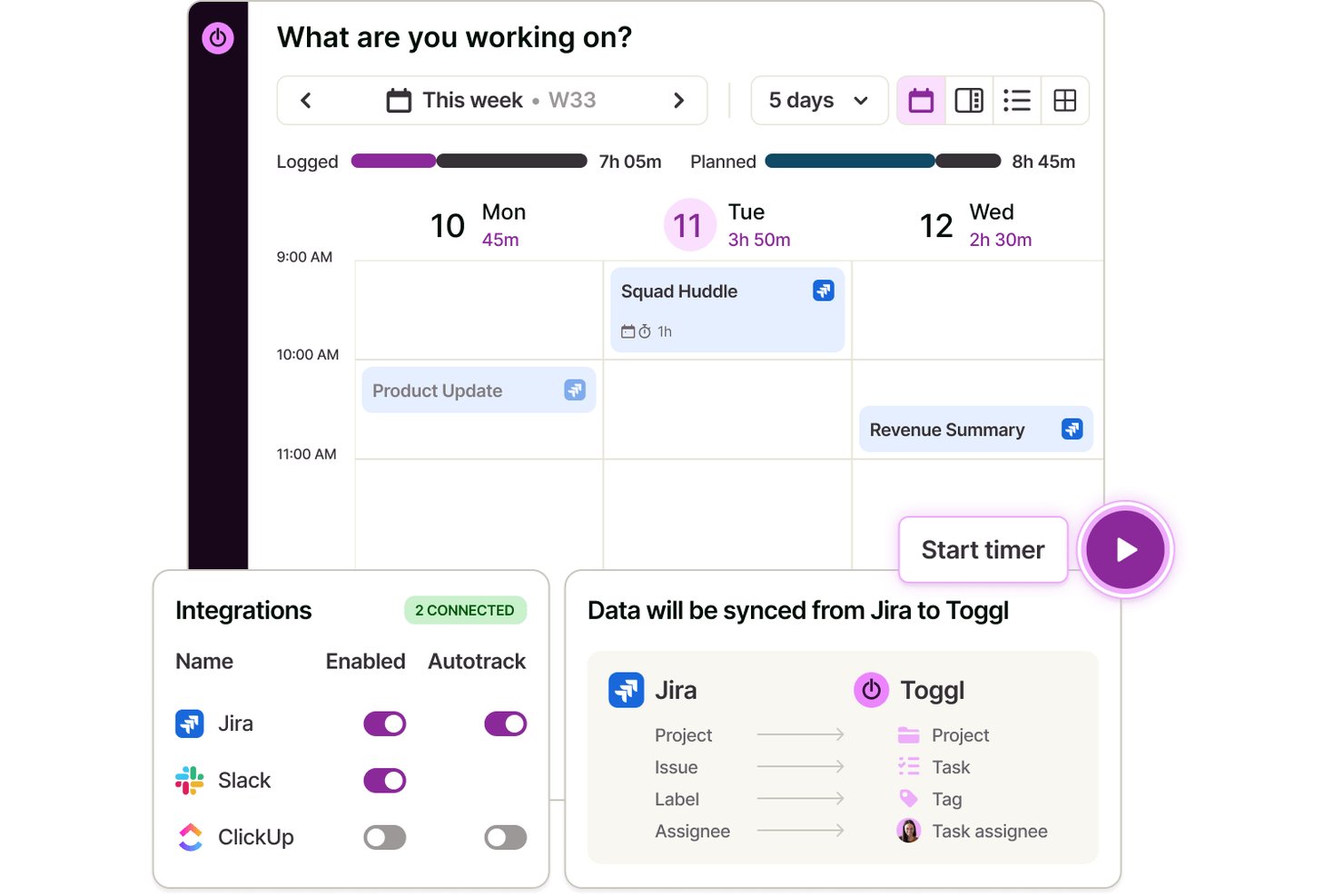
Toggl is a time tracking app that lets individuals and teams log hours across web, desktop, and mobile, with automated time capture, calendar integrations, and detailed productivity and profitability reporting.
Who Is Toggl Best For?
Toggl is a strong fit for freelancers, consultants, and agencies that bill by the hour and need accurate time data without invasive employee monitoring.
Why I Picked Toggl
I picked Toggl as one of the best because its approach to automated tracking is genuinely different. The desktop app silently logs every app and website you use for over 10 seconds, but that data stays private to you alone. You decide what becomes an official time entry, which means no screenshots, no keystroke logs, and no manager surveillance. It also converts calendar events into time entries automatically, so logging a client call takes zero extra effort. Toggl also has an AI assistant that lets you ask plain-language questions about your time and project data, making it easier to pull insights from what you've tracked.
Toggl Key Features
- Calendar view: See tracked time as blocks on a visual calendar and connect with Google or Outlook.
- Project and client tracking: Organize time entries by unlimited projects and clients for clean reporting.
- AI task creation and management: Create tasks from screenshots, notes, and ideas and manage them in Board, List, Calendar, or Timeline view
- Customizable reports: Build bar, donut, pivot, and line charts to analyze trends in tracked hours.
Toggl Integrations
Toggl offers native integrations with Asana, Trello, Jira, ClickUp, Salesforce, Google Calendar, Outlook Calendar, QuickBooks Online, Xero, and Slack.
Pros and Cons
Pros:
- Simple switching between projects and clients
- Full privacy controls on activity data
- Calendar events become time entries automatically
Cons:
- Mobile app can miss background tracking
- Lacks advanced task management features

Best productivity app for end-to-end project management
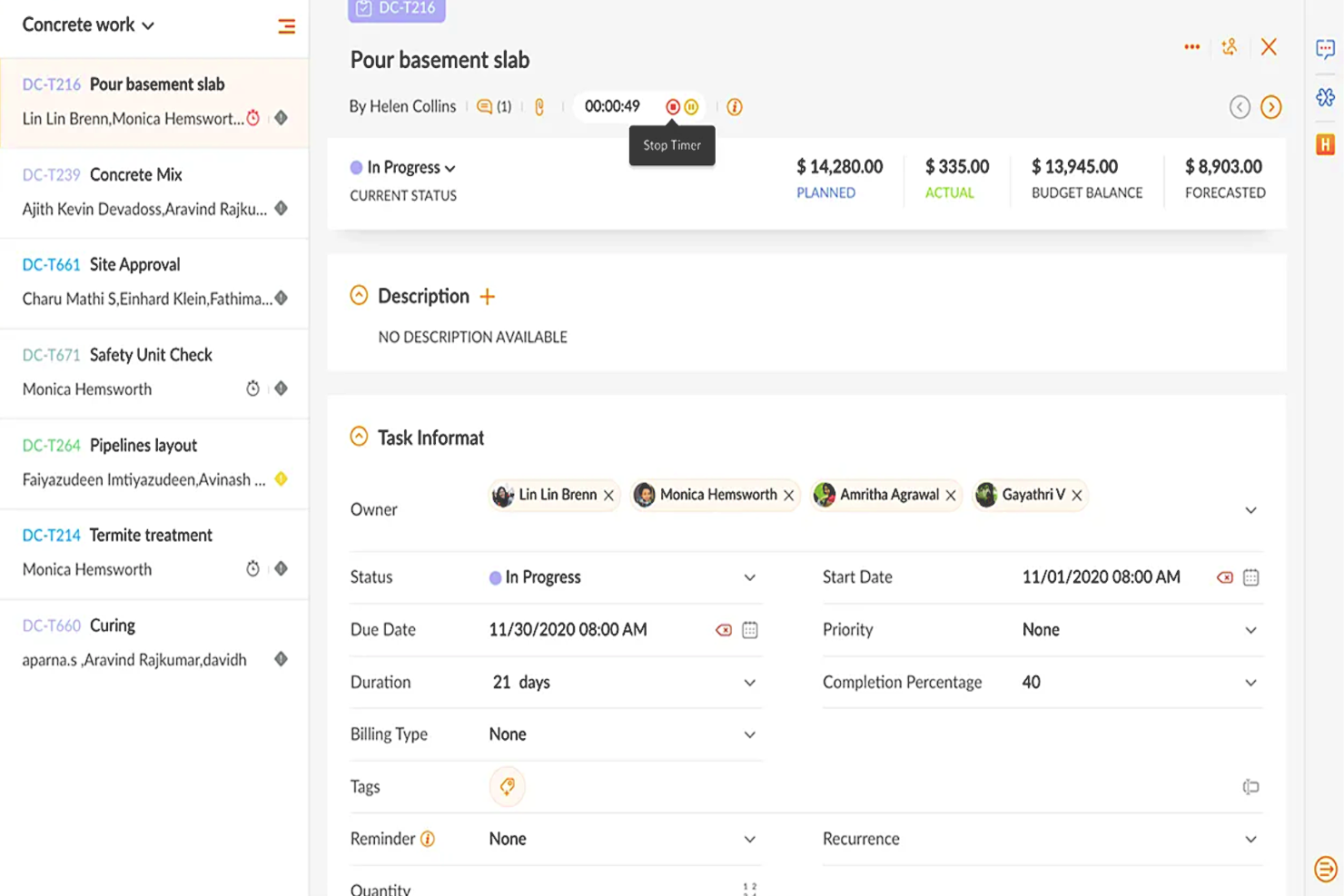
Zoho Projects is a cloud-based project management software that allows individuals and teams to collaborate, plan, and execute projects efficiently. The software enhances productivity by providing a centralized platform for task management, time tracking, document sharing, and team communication.
Why I picked Zoho Projects: It's a versatile software solution that different types of organizations and teams can use to manage their projects effectively. Its intuitive interface makes it easy to navigate and utilize, and it's user-friendly, with features that are easily accessible and organized logically. Their customizable user interface lets you choose the layout and features that best suit your needs.
You can create, manage, assign, and set task deadlines using Zoho Projects. You can also create task dependencies, ensuring that each job is completed in the correct order. It includes a calendar view allowing users to see their upcoming tasks and deadlines in one place.
Users can also track their time spent on each task, making it easier to manage their workload and allocate resources effectively. The time tracking feature can generate reports, providing valuable insights into team performance and project progress.
Zoho Projects Standout Features & Integrations
Features include collaboration tools that make it easy for team members to communicate and work together, a chat feature that supports real-time communication, and a comments section where team members can discuss specific tasks and projects. It also includes a document management system where team members can share and collaborate on documents, spreadsheets, and presentations.
Integrations are available with other Zoho apps, commonly used Google apps (Google Calendar, Drive, Spreadsheets, etc.), Microsoft apps (Calendar, Excel, Office 365, OneDrive, Teams, and SharePoint), and other third-party apps such as Basecamp, Jira, Slack, Zendesk, and Zapier.
New Product Updates from Zoho Projects
Zoho Projects Adds CodeX Scripts for Custom Modules
Zoho Projects now supports CodeX Scripts for custom modules, enabling conditional logic and rules for creating, updating, and deleting records. For more information, visit Zoho Projects' official site.
 .
Best for brainstorming, ideation, and task management in one

MeisterTask is a versatile project management tool that combines intuitive Kanban boards with powerful collaboration and customization features, making it ideal for teams of all sizes. Its seamless integration with MindMeister for brainstorming and ideation, along with robust task automation and real-time communication capabilities, streamlines workflow and enhances productivity across projects.
Why I picked MeisterTask: MeisterTask excels as a productivity app by offering a streamlined, intuitive interface that simplifies task and project management. It effectively combines customizable Kanban boards for visual workflow management with powerful features like task automation, due date reminders, and time tracking to enhance efficiency.
The app facilitates seamless collaboration through easy file sharing, commenting, and task assignments, keeping teams aligned and focused. Its integration with tools like MindMeister for mind mapping ensures a smooth transition from brainstorming to execution, making it easier for users to turn ideas into actionable tasks. MeisterTask's focus on user-friendly design and practical functionality makes it a valuable tool for individuals and teams aiming to boost productivity and achieve their goals more efficiently.
MeisterTask Standout Features and Integrations
Features include Kanban boards, task automation, mindmeister integration, customizable workflows, project templates, time tracking, file attachments, due date reminders, collaboration tools, activity streams, mobile apps, secure data encryption, multiple integrations with other tools, personalized dashboards, and flexible project views.
Integrations include Slack, Dropbox, Github, Google Drive, Microsoft Teams, Outlook, Trello, Asana, MindMeister, and hundreds more through a paid plan with Zapier.
Kintone
Best for building custom productivity apps
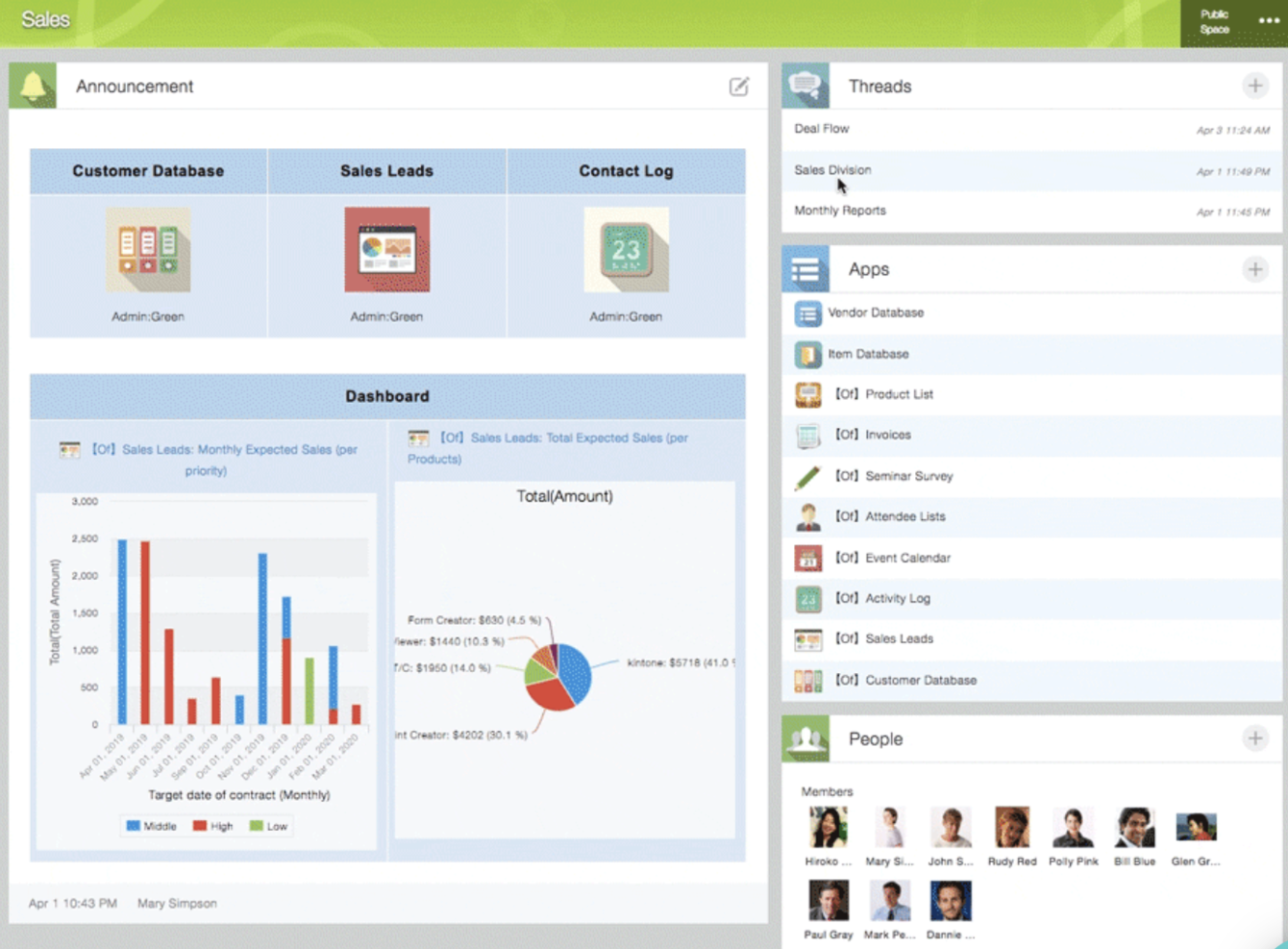
Kintone is a customizable app platform used by teams at Volvo Trucks North America, Japan Airlines, Shiseido, and over 23,000 organizations worldwide. Their unique approach allows you to build a wide variety of customizable “apps” either from scratch, using templates or from your existing spreadsheets, for data management, business processes, and workflows. Kintone apps can be customized for project management, sales CRM, customer databases, expense reports, shared to-do lists, equipment management, product feedback, and much more.
Why I Picked Kintone: Kintone lets you build no-code task management apps by dragging and dropping elements that you want to see onto the page: rich text fields, date fields, drop-down menus, number fields with built-in calculations, spaces for attachments, user or group selection menus, related data from other apps, tables, and more.
Once you’ve built the app you want, you can use it to more easily manage whatever data and tasks you and your team need to track. And with custom notifications and reminders as well as detailed permissions settings, your project tracking solution can look and work however you want it to.
What makes Kintone particularly great for project tracking are the features to filter and prioritize tasks by data field or team member to generate custom reports or dashboard views, as well as the ability to automate reminders and handoffs between team members for multi-step workflows.
Kintone’s built-in communication features also allow teams to discuss projects directly in the app and in topic or project-based threads. Dedicated “spaces” organize everything your team needs for your project, including task-tracking apps and searchable conversation threads.
Kintone Standout Features & Integrations
Features include project management, dashboards, resource management, analytics, calendar management, conversion tracking, employee onboarding, forecasting, lead scoring, timesheets, collaboration support, reports, pipeline management, budgeting, and process modeling.
Integrations include Slack, Gmail, Google Calendar, Outlook, Tableau, Dropbox, Salesforce, HubSpot, Eventbrite, WordPress, QuickBooks, MailChimp, and many more through a paid plan with Zapier or via API integrations.
Trello
Best for card-based task lists and Kanban boards
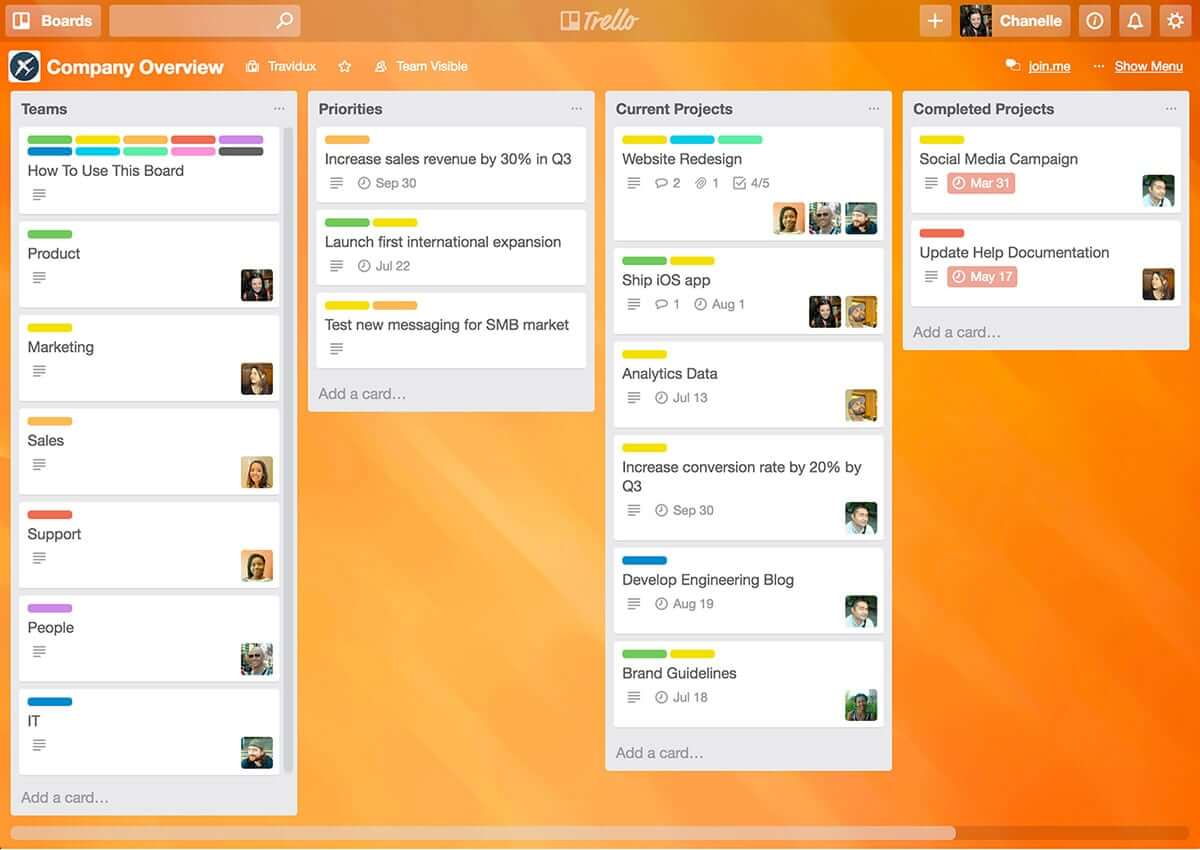
Trello is a Kanban board app that can be used to organize tasks visually. It’s user-friendly, with an intuitive drag-and-drop interface that makes it easy to learn. This popular tool can be used to help you visualize your deadlines, items in progress, and completed tasks, enabling you to make informed decisions about what to work on next according to the big picture.
Why I Picked Trello: Trello is a popular project management tool that helps teams organize tasks and collaborate on projects visually and intuitively. It uses a system of boards, lists, and cards to represent tasks and workflows, allowing team members to easily see what needs to be done, who is responsible for each task, and what the status of each task is. Trello can be customized to fit a wide range of project management needs, and it offers features such as due dates, checklists, attachments, and team member assignments. Its flexibility and ease of use make it a great tool for teams of all sizes and types, from small startups to large enterprises.
Trello Standout Features & Integrations
Features include boards, to-do lists, task management, workflow management, priority labels, due dates, file sharing, communication, a mobile app, and third-party integrations/add-ons.
Integrations include 200+ apps and tools your team depends on, like Slack, Google Drive, Salesforce, Dropbox directly into your Trello boards. (Note: Some connections require an additional subscription fee.)

Best for real-time collaboration

Whether you're leading a small business, managing a large enterprise, or navigating the educational sector, Google Workspace offers a suite of productivity tools designed to meet your diverse needs. With apps like Gmail, Drive, and Meet, you can seamlessly manage communications, storage, and virtual meetings while enhancing collaboration and maintaining strong security. With Gemini—Google’s premium AI—integrated across all plans, Workspace helps you draft emails faster, summarize documents instantly, generate ideas, and stay organized across devices. Whether you're handling client communication, creating content, or coordinating daily operations, Workspace boosts productivity and keeps your team connected.
Why I Picked Google Workspace
I picked Google Workspace for its unique blend of real-time collaboration, cloud accessibility, and AI-driven assistance. Tools like Google Docs and Sheets allow your team to work together simultaneously, eliminating version-control issues and reducing unnecessary email threads. Google Meet provides convenient video conferencing without relying on external software, making communication frictionless. Gemini is built directly into apps like Gmail, Docs, Sheets, and Meet, going beyond collaboration to actively enhance how you work. From drafting content to summarizing documents and managing tasks, having AI built in helps you stay efficient, responsive, and adaptive to changing business or project needs.
Google Workspace Key Features
In addition to its collaborative capabilities, Google Workspace offers several other features that boost productivity:
- Drive: Secure cloud storage with generous space options, ensuring your files are accessible anywhere, anytime.
- Calendar: Simplified scheduling with shared calendars and appointment booking pages to keep your team organized.
- Chat: Integrated messaging platform for real-time team communication and collaboration.
- NotebookLM: Instant insights and podcast-style Audio Overviews to accelerate team learning and content understanding.
Google Workspace Integrations
Integrations include Salesforce, Atlassian, Tableau, SAP, Okta, Microsoft Office 365, Slack, Zoom, Trello, and Asana.
Pros and Cons
Pros:
- Generous cloud storage options facilitate easy file access and sharing.
- Real-time collaboration tools improve team productivity and communication.
- Seamless integration with Google services enhances workflow efficiency.
Cons:
- Shared drive permissions and complex folder hierarchies can become difficult to manage if not structured carefully.
- Compatibility issues when collaborating externally with teams using non-Google file formats or Microsoft Office workflows.
Guru
Best tool for searching through all your apps to surface answers quickly
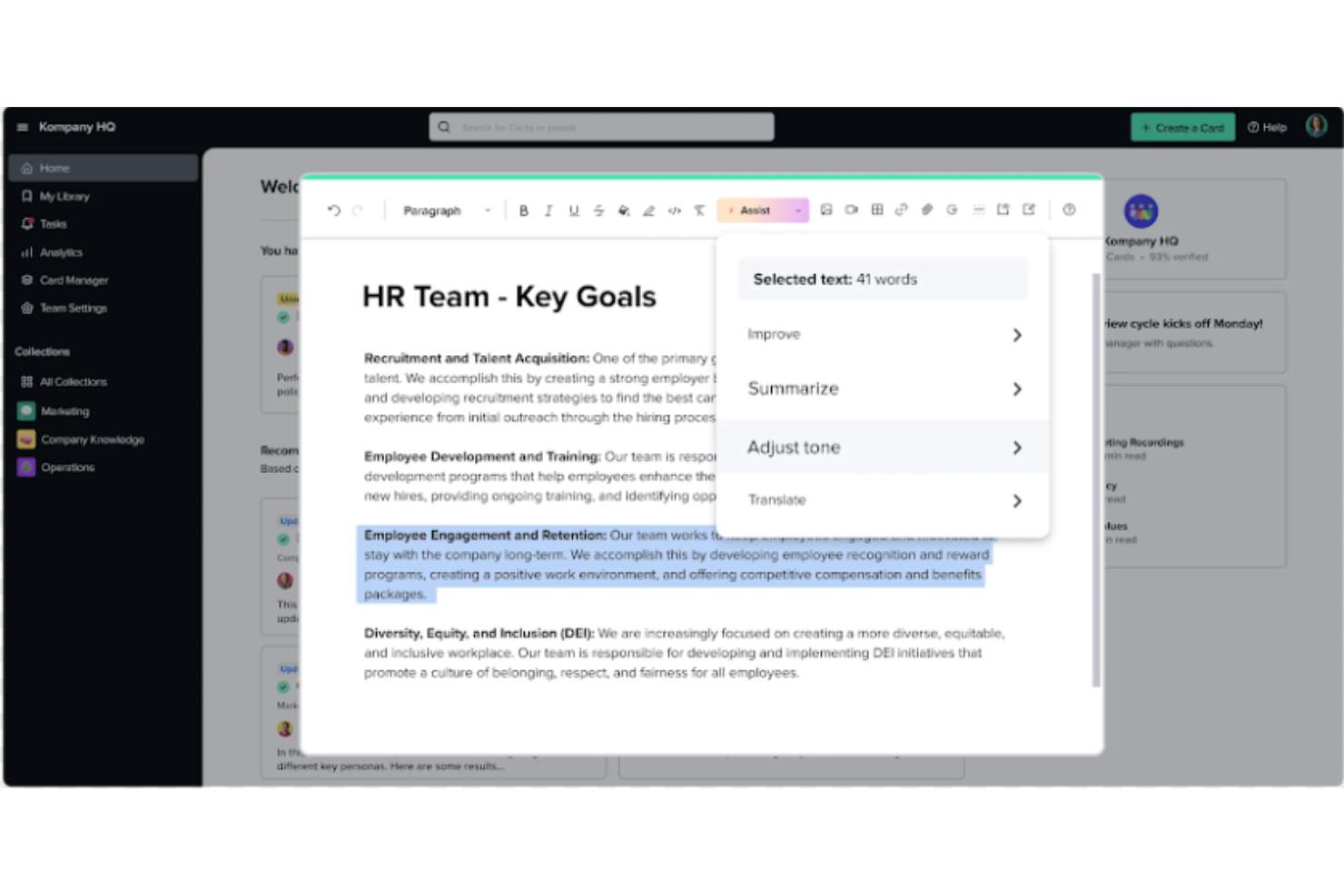
Guru is an advanced search and knowledge management platform that's designed to help users find relevant information quickly. Their advanced AI-driven search feature can search all your apps, documents, and slack #channels for answers — either directly in Slack or via a Chrome extension — making it easier to find information fast.
Why I Picked Guru: Guru employs AI to deliver instant answers within the user's workflow that are tailored to their specific role, location, and activities. The tool also facilitates the onboarding process for new hires, streamlines the creation, sharing, and organization of company documentation, and acts as a knowledge hub to disseminate educational content and troubleshooting guidance throughout an organization. The platform also integrates with a multitude of tools and services, enabling users to find answers and collaborate without leaving their workflow.
Overall, Guru is intended to eliminate the barriers created by knowledge silos and to improve productivity by automating information retrieval, thus allowing employees to concentrate on tasks that require human intelligence.
Guru Standout Features & Integrations
Features include enterprise AI search, an employee intranet, a company wiki, AI suggest and assist, custom branding tools, collaboration and feedback tools, mobile accessibility, and access controls and permissions.
Integrations include Trello, Cognito Forms, Jira Software Cloud, Confluence Cloud, HubSpot, Google Chat, Confluence Server, and GitHub.

Visor
Best for its user-friendly interface

Visor is a cloud-based SaaS product that aims to help individuals and businesses manage their time and tasks more efficiently. It's best suited for individuals and teams who need a comprehensive and easy-to-use productivity tool that allows them to manage their projects, tasks, and time all in one place.
Why I picked Visor: I chose Visor as one of the best productivity software because it's an all-in-one solution that brings together task management, project management, time tracking, and calendar features in a user-friendly interface. I appreciate that I can keep track of everything I need to do without having to switch between multiple tools or apps.
Another great feature is its real-time collaboration capabilities, which allow you to work with your team members on projects, assign tasks, and track progress. This feature makes it easy to communicate with team members and stay on top of everything that's going on in your projects. It also has an intelligent scheduling feature that suggests the best time slots for each task based on your availability and workload. This feature is particularly helpful when you have a lot of tasks to complete and you need to prioritize your time effectively.
Visor Standout Features & Integrations
Features include API, dashboards, data export/data import, data visualization, external integrations, Gantt charts, project management, task scheduling/tracking, resource management and third-party plugins/add-ons.
Integrations include Jira, HubSpot, and Salesforce.
Resumo das melhores aplicações de produtividade
| Tool | Best For | Trial Info | Price | ||
|---|---|---|---|---|---|
| 1 | Best for custom workflows and task boards | Free plan + 14-day free trial + free demo available | From $9/user/month (billed annually) | Website | |
| 2 | Best instant messaging app for teams | Free plan available | From $7.25/user/month (billed annually) | Website | |
| 3 | Best with automated time tracking | Free plan available; 30-day free trial; Free demo available | From $9/user/month | Website | |
| 4 | Best productivity app for end-to-end project management | Free plan + 15-day trial + demo available | From $4/user/month (billed annually) | Website | |
| 5 | Best for brainstorming, ideation, and task management in one | Free plan + 14-day free trial available | From €17.50/user/month | Website | |
| 6 | Best for building custom productivity apps | 30-day free trial + free demo available | From $24/user/month | Website | |
| 7 | Best for card-based task lists and Kanban boards | Free plan + free trial available | From $5/user/month (billed annually) | Website | |
| 8 | Best for real-time collaboration | 14-day free trial available | From $7/user/month (billed annually) | Website | |
| 9 | Best tool for searching through all your apps to surface answers quickly | 30-day free trial + free demo available | Pricing upon request | Website | |
| 10 | Best for its user-friendly interface | Free plan available | From $18/user/month | Website |

Mais ferramentas de produtividade
Ainda não tive oportunidade de analisar todas estas ferramentas em profundidade, mas aqui ficam mais algumas para descobrires, caso as ferramentas apresentadas neste artigo não correspondam às tuas necessidades:
- Pneumatic Workflow
For unlimited workflow management
- Collabio Spaces
For iPhone & Mac
- Focus Booster
For the Pomodoro productivity technique
- SaneBox
For increasing productivity by streamlining your email inbox
- ClickUp
For in-app communication tools
- actiTIME
For detailed time tracking
- Hubstaff
For managing remote and field teams
- Hive
For flexible project views according to team needs
- Lucidspark
For ideation and collaboration using an infinite canvas
- Wrike
Productivity app for team collaboration


Precisas de ajuda para restringir as opções?
Esta ferramenta é bastante útil. Em colaboração com a Crozdesk, esforçámo-nos por te dar acesso ao “localizador de software”.
Se introduzires alguns detalhes sobre o teu projeto e as funcionalidades que procuras numa ferramenta de gestão de projetos, será criada uma lista de ferramentas que correspondem às tuas preferências. Partilhas o teu e-mail com a equipa e esta envia-te um guia útil em PDF com um resumo das opções que melhor correspondem às tuas necessidades.
Critérios de seleção para as aplicações de produtividade
Quando analisas software de produtividade, é importante teres algo em mente: como a produtividade depende em grande medida das tuas configurações e hábitos pessoais, a própria ferramenta de produtividade só será tão eficaz quanto a forma como a utilizares.
No entanto, ao analisarmos estas ferramentas, utilizámos os seguintes critérios de seleção nesta lista de aplicações de produtividade:
- Facilidade de utilização: A interface é simples e o sistema da aplicação é fácil de compreender? As funcionalidades da aplicação são confusas ou úteis? Selecionámos apenas aplicações realmente fáceis de utilizar, sem trabalho adicional!
- Organização e definição de prioridades: A aplicação de produtividade para listas de tarefas dispõe de um sistema claro para organizar e reorganizar tarefas? Permite identificar prioridades e gerir as tarefas mais importantes?
- Acessibilidade: Está disponível em vários sistemas operativos? Existem várias aplicações de produtividade para Mac que não estão disponíveis no Android, como a OmniFocus. No entanto, tentámos optar por aplicações disponíveis em vários dispositivos.
- Relatórios: Que tipos de funcionalidades de elaboração de relatórios inclui a aplicação? Podes acompanhar o tempo dedicado às tarefas, comparar a produtividade ao longo do tempo ou utilizar análises para verificar se estas funcionam realmente para ti?
- Integrações: Pode ser integrada com algumas das melhores aplicações de organização, aplicações de lembretes, aplicações de acompanhamento da produtividade, etc.? Procuramos aplicações que possam ser sincronizadas com outras ferramentas, de modo a automatizar o máximo possível da gestão das tuas tarefas.
- Preço: O sistema de preços faz sentido tendo em conta a utilidade que a aplicação oferece? Na maioria dos casos, podes utilizar uma versão freemium para uso pessoal. Os planos pagos custam normalmente cerca de $6/mês.
O que pensas sobre isto?
Que aplicações de produtividade utilizas para trabalhar de forma organizada e eficaz? Consideras que estas são úteis ou preferes outros métodos de definição de prioridades? Fala-nos sobre as ferramentas que te permitem ser verdadeiramente produtivo.