

10 melhores escolhas de software de gestão de projetos para computador para 2026

10 Melhor seleção de software de gestão de projetos para computador


Gerir projetos de forma eficaz depende muitas vezes de ter as ferramentas certas. O software de gestão de projetos para computador oferece uma forma fiável de planear, acompanhar e entregar os seus projetos sem depender de uma ligação constante à Internet. É perfeito para quem precisa de estabilidade, privacidade ou maior controlo sobre os seus dados.
Neste artigo, partilho as minhas principais escolhas de software de gestão de projetos para computador disponíveis atualmente. Avaliei cada opção com base na facilidade de utilização, nas funcionalidades e na forma como responde às necessidades dos gestores de projetos modernos.
Neste artigo, pode obter uma breve visão geral das suas opções, comparar os detalhes e, em última análise, decidir qual o software para computador que melhor se adapta às suas necessidades.
Why Trust Our Software Recommendations
Our team has been testing and reviewing software since 2012. As project managers ourselves, we know how difficult—and important—it is to choose the right software.
For this guide, we evaluated tools using hands-on testing and independent research, scoring tools using our selection criteria. We also draw on insights from industry thought leaders and practicing project management experts.
Our reviews reflect our human editorial judgment, not a sales pitch.
Expert reviewers:
Tabela de comparação de software de gestão de projetos para computador
Esta tabela de comparação resume os detalhes de preços das minhas principais escolhas de software de gestão de projetos para computador:
| Tool | Best For | Trial Info | Price | ||
|---|---|---|---|---|---|
| 1 | Best for Gantt scheduling in a cloud-synced app | Free plan + 14-day free trial + free demo available | From $9/user/month (billed annually) | Website | |
| 2 | Best for Gantt depth and critical path tracking | Free plan + 14-day trial + demo available | From $10/user/month (billed annually) | Website | |
| 3 | Best for agency financials alongside project tracking | 14-day free trial | From $10/user/month (billed annually) | Website | |
| 4 | Best for Gantt scheduling on a subscription budget | Free plan + 15-day trial + demo available | From $4/user/month (billed annually) | Website | |
| 5 | Best for subscription-based Gantt with AI task flagging | Free plan + demo available | From $7/user/month (billed annually) | Website | |
| 6 | Best for one-time licensed, offline-first scheduling | Not available | Pricing upon request | Website | |
| 7 | Best for Mac-native Gantt and critical path planning | 30 days free trial | From $16.99 / month | Website | |
| 8 | Best for large-scale CPM scheduling offline | Free demo available | From $125/user/month | Website | |
| 9 | Best for Mac-native critical path scheduling | 14-day free trial | From $199.99/year (billed annually) | Website | |
| 10 | Best for compliance-driven CPM scheduling | Free demo available | Pricing upon request | Website |


Avaliações do melhor software de gestão de projetos para computador
Segue-se uma breve descrição de cada solução de gestão de projetos, destacando funcionalidades importantes no respetivo ambiente para computador, bem como capturas de ecrã para lhe dar uma ideia da interface do utilizador.

Best for Gantt scheduling in a cloud-synced app

monday.com is a project management platform that helps teams organize, track, and execute work efficiently. It caters to businesses of all sizes, offering tools to manage workflows, projects, and collaborative tasks. Overall, the software simplifies complex processes with customizable boards and automation.
Why I picked monday.com: monday.com delivers a desktop experience nearly identical to its browser version, ensuring your team has a consistent workflow across devices. Its customizable boards allow you to tailor task tracking to match your project needs. Automation features can also save you time by handling repetitive tasks, such as status updates or notifications. You can additionally visualize your work in multiple views, including timelines, Gantt charts, and Kanban boards, to gain better insights into your progress.
monday.com Standout Features & Integrations:
Features include built-in time tracking to help your team monitor how long tasks take and identify inefficiencies. The software also supports resource management tools that allow you to allocate workloads and track team capacity. Additionally, the platform's dashboard functionality pulls data from multiple boards into one view for better overall project visibility.
Integrations include project management apps like Slack, Google Drive, Gmail, Google Calendar, Jira, GitHub, Trello, Dropbox, Typeform and many more, accessible through a paid plan with Zapier.
Pros and Cons
Pros:
- Consistent desktop and browser experience
- Advanced search for locating tasks quickly
- Automation reduces repetitive administrative tasks
Cons:
- Boards can become cluttered with large projects
- Learning curve for setting up custom automations
New Product Updates from monday AI Workspace
monday AI Workspace Adds Human Approval Routing
monday AI Workspace adds a human-in-the-loop approval block to AI Workflows, sending approval requests and routing workflow paths based on responses. For more information, visit monday AI Workspace's official site.
Wrike
Best for Gantt depth and critical path tracking

Wrike is a collaborative project management tool designed for teams to organize tasks, manage workflows, and track progress in real time. It’s particularly suitable for businesses looking to enhance team productivity and simplify task management processes.
Why I picked Wrike: Wrike provides a desktop platform that allows you to open multiple tabs at once, enabling better multitasking compared to its browser interface. You can quickly switch between projects, dashboards, and tasks without losing context. The desktop app also minimizes distractions by consolidating all your tools in one place, improving focus for you and your team. This setup is ideal for teams balancing complex workflows or managing multiple projects simultaneously.
Wrike Standout Features & Integrations:
Features include task automation to reduce repetitive work and AI-powered risk predictions to help you identify potential bottlenecks. The software also includes dynamic request forms to streamline project intake and advanced workload management tools to prevent team burnout.
Integrations include Microsoft Teams, Google Drive, Slack, Salesforce, Box, Dropbox, Zoom, OneDrive, Jira, and Adobe Creative Cloud.
Pros and Cons
Pros:
- Flexible permissions for different team roles
- Real-time updates across all devices
- Centralized file management system
Cons:
- No built-in chat feature for quick team discussions
- Limited native storage for attachments
New Product Updates from Wrike
Wrike Expands Gantt Planning, Approvals, and AI Work Intake
Wrike adds cross-project Gantt dependencies, flexible approval routing, and AI work intake through Wrike MCP. These updates give teams more control over planning, decision-making, and incoming work. For more information, visit Wrike’s official site.

Best for agency financials alongside project tracking

Productive is a comprehensive work management platform designed to help agencies plan, track, and deliver projects while managing team resources effectively. It offers tools to streamline workflows, monitor progress, and ensure project profitability.
Why I picked Productive: Productive provides an all-in-one solution for managing agency work, from project planning to financial tracking. You can use features like resource scheduling to optimize team workloads and time tracking to monitor billable hours. The platform also includes profitability reports that show how projects are performing financially in real time. Collaboration tools keep your team connected, and built-in invoicing simplifies billing for completed work.
Productive Standout Features & Integrations:
Features include resource utilization dashboards to see team availability and workload at a glance. Profitability tracking helps you measure the financial performance of individual projects, while advanced time tracking ensures accurate billing. Task and project templates simplify repetitive workflows for quicker setups.
Integrations include Slack, QuickBooks, Xero, Zapier, Jira, Google Drive, Dropbox, Harvest, HubSpot, and Trello.
Pros and Cons
Pros:
- Custom project and task templates save time
- Visual dashboards for resource utilization and availability
- Simplified setup for recurring tasks and projects
Cons:
- Time tracking requires consistent manual input
- Reporting may lack granularity for niche metrics
New Product Updates from Productive
Productive Adds Voice Dictation, Slack Connector, Proposals, and Overtime
Productive adds voice dictation, a Slack Connector, proposal controls, and overtime tracking. These updates support faster AI interactions, client proposals, and time management. For more information, visit Productive’s official site.

Best for Gantt scheduling on a subscription budget

Zoho Projects is a project management tool designed to help teams plan, track, and execute projects effectively. It provides a comprehensive platform for organizing workflows, monitoring progress, and enhancing team collaboration.
Why I picked Zoho Projects: Zoho Projects offers a visual interface with Gantt charts, task boards, and resource management tools to help your team stay on top of every project. You can assign tasks, set milestones, and track progress using customizable workflows. The platform's built-in time tracking and timesheets make it easy to monitor billable hours and project timelines. Moreover, collaboration features like forums and feeds keep your team connected, making it a great choice for teams looking for an all-in-one project management solution.
Zoho Projects Standout Features & Integrations:
Features include task automation to reduce repetitive work and baseline reports to compare planned versus actual progress. You can also use dependencies to link tasks and avoid scheduling conflicts and advanced time logging for better resource allocation.
Integrations include Slack, Microsoft Teams, Google Drive, Dropbox, Zapier, Zoho CRM, Zoho Books, Trello, Asana, and GitHub.
Pros and Cons
Pros:
- Task dependencies prevent scheduling conflicts
- Advanced time logging helps allocate resources
- User-friendly interface with drag-and-drop functionality
Cons:
- Some features require extensive configuration to implement
- Lacks built-in advanced analytics or dashboards
New Product Updates from Zoho Projects
Zoho Projects Adds CodeX Scripts for Custom Modules
Zoho Projects now supports CodeX Scripts for custom modules, enabling conditional logic and rules for creating, updating, and deleting records. For more information, visit Zoho Projects' official site.
 .

ClickUp
Best for subscription-based Gantt with AI task flagging

ClickUp is a versatile project management platform designed to help teams organize, track, and execute their work more efficiently. It caters to businesses of all sizes, providing tools for task management, time tracking, and collaboration. The software aims to centralize your team’s work in one place to improve productivity and accountability.
Why I picked ClickUp: ClickUp’s desktop app mirrors the browser version while offering offline access, so you can stay productive even without an internet connection. Customizable task views, like list, board, and timeline, let you organize your workflow in a way that makes sense for your team. You can also manage resources and budgets by assigning workloads and tracking time spent on tasks. Automation features reduce repetitive tasks, ensuring your team focuses on what matters most.
ClickUp Standout Features & Integrations:
Features include goal tracking that allows you to set, monitor, and achieve team objectives with clear metrics. The platform’s document creation tool makes it easy to draft and share project-related documents without leaving the app. ClickUp also provides advanced recurring task options, so you can automate repeating assignments without manual updates.
Integrations include Google Drive, Slack, Zoom, Microsoft Teams, Dropbox, GitHub, Zapier, HubSpot, Evernote, and Outlook.
Pros and Cons
Pros:
- Highly customizable task views
- Time tracking integrated into task management
- Offline mode for uninterrupted work
Cons:
- Some features require extra configuration
- Resource-intensive on older devices
New Product Updates from ClickUp
ClickUp Adds Meetings Hub, Super Agent Templates, and ZoomInfo Integration
ClickUp adds a searchable Meetings Hub, new ways to clone and template Super Agents, and a ZoomInfo integration through the App Center. These updates improve meeting retrieval, agent reuse, and access to sales intelligence. For more information, visit ClickUp’s official site.
Best for one-time licensed, offline-first scheduling
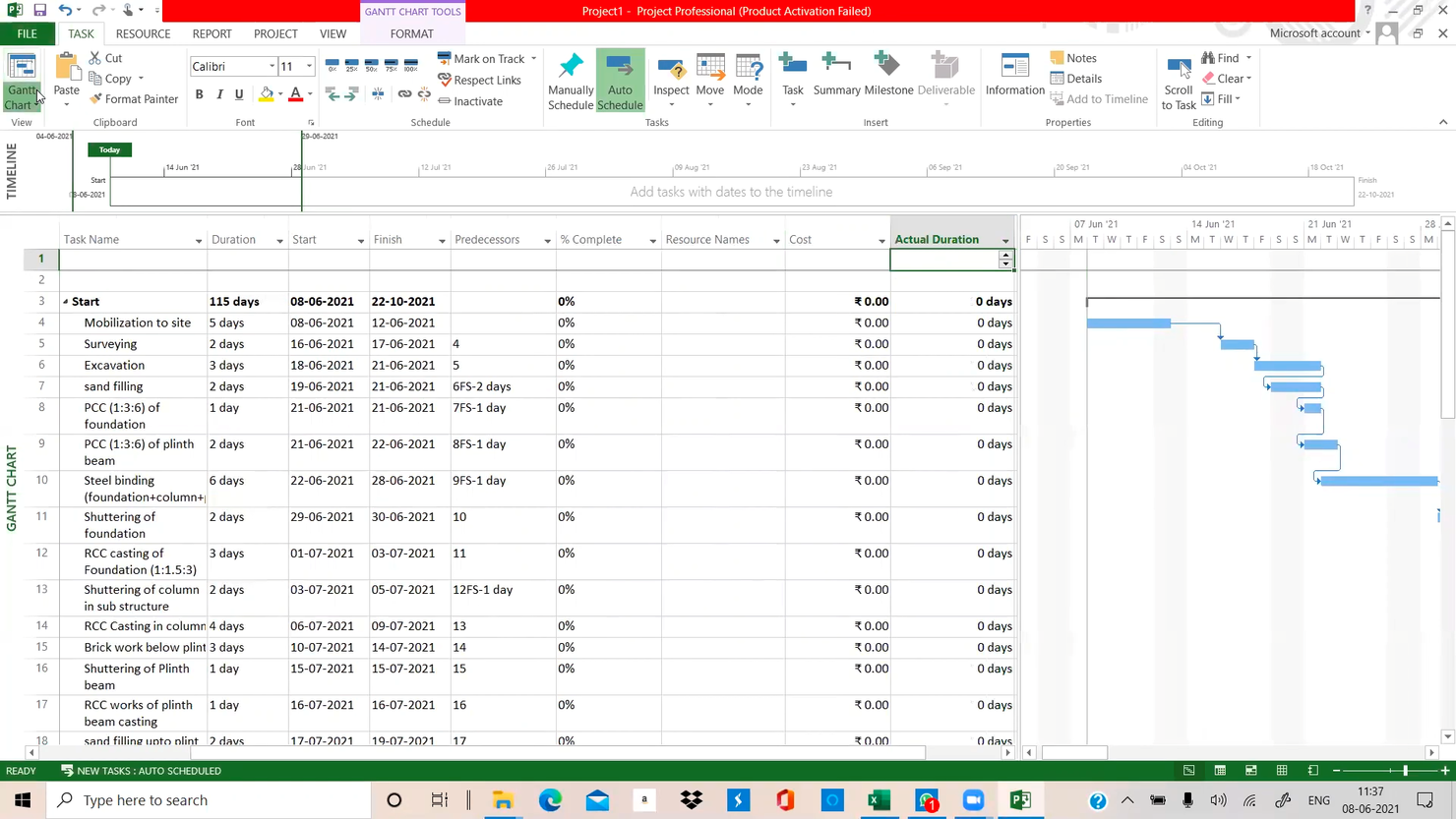
Microsoft Project is a Windows desktop project management application that covers Gantt chart scheduling, critical path analysis, resource leveling, baseline tracking, and multi-project management through a perpetual, locally installed licence.
Who Is Microsoft Project Best For?
Microsoft Project is a strong fit for project managers and IT teams running complex, multi-phase projects who need deep scheduling control without depending on a cloud subscription.
Why I Picked Microsoft Project
Microsoft Project earns its spot on my shortlist because no other desktop tool matches its depth for offline, one-time-licensed scheduling. I've run multi-phase plans with up to 11 saved baselines and used the Tracking Gantt to compare actual progress against each one without needing a single cloud connection. Resource leveling is where it really pulls ahead: you can set precise leveling rules that automatically delay or split tasks to resolve overallocations across a large team, all stored in a local .mpp file you fully own.
Microsoft Project Key Features
- Automatic scheduling: Project calculates start and end dates based on task dependencies, so your plan updates across the board when anything changes.
- Critical path highlighting: The tool identifies the longest sequence of dependent tasks and flags which ones directly control your project's finish date.
- Team Planner view: A visual, drag-and-drop interface shows each team member's assignments across time, making it easy to spot gaps and overallocations at a glance.
- Master project linking: You can consolidate multiple .mpp files into a single master project to track cross-project dependencies and resource conflicts from one place.
Microsoft Project Integrations
Microsoft Project integrates with Microsoft 365, Teams, Excel, Power BI, and SharePoint. Project Professional 2024 syncs with Project Online and Project Server, while XML import and export supports custom data exchange.
Pros and Cons
Pros:
- Levels overloaded resources with configurable rules
- Tracks up to 11 baselines locally
- Handles complex schedules and large plans reliably
Cons:
- Shared .mpp files complicate concurrent editing
- Dense scheduling controls take time to master

Best for Mac-native Gantt and critical path planning
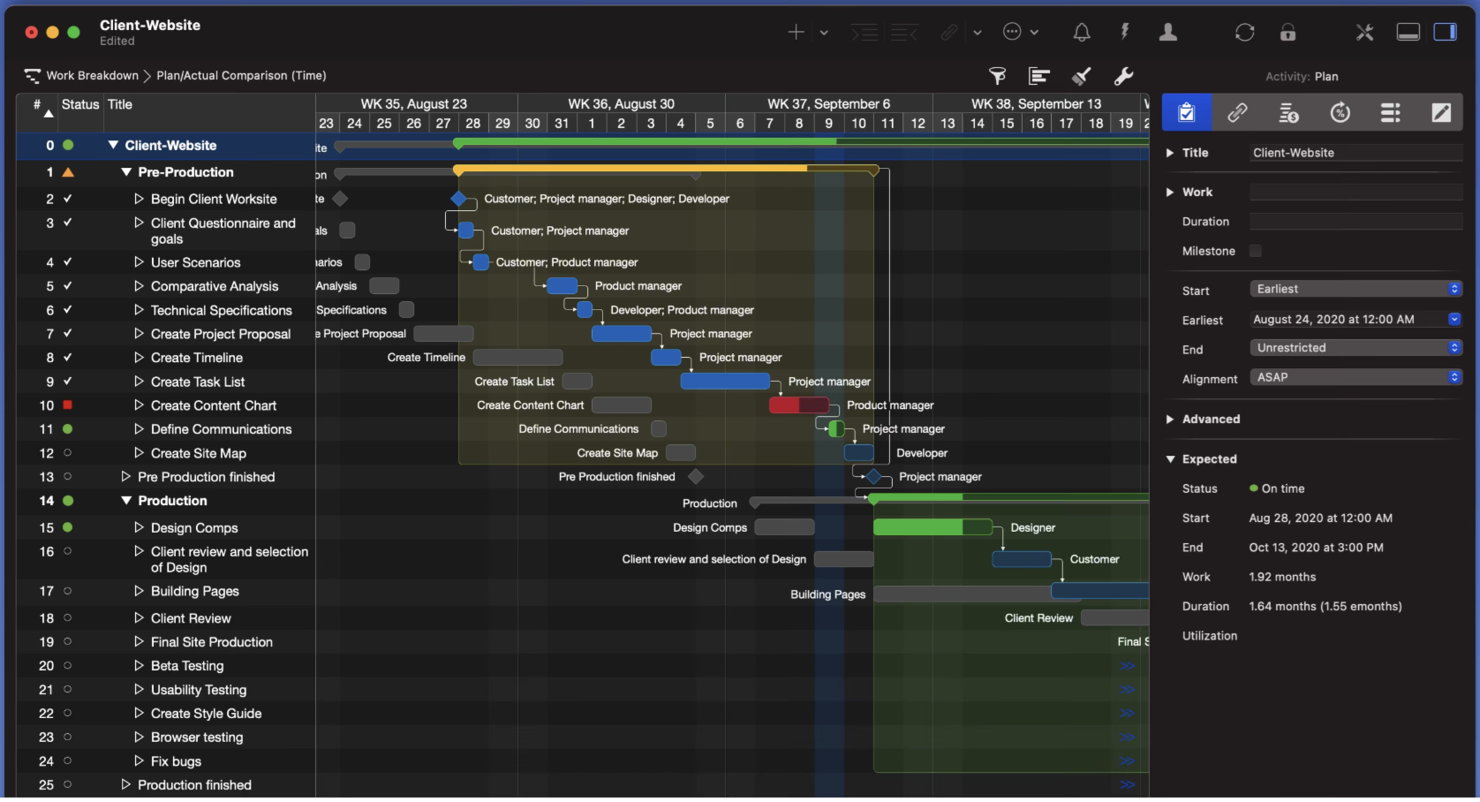
Merlin Project is a Mac-native desktop project management app that combines Gantt chart scheduling, critical path tracking, resource leveling, Kanban boards, and multi-project coordination across Mac, iPad, and iPhone.
Who Is Merlin Project Best For?
Merlin Project is a strong fit for project managers and operations managers who work entirely within the Apple ecosystem and need deep scheduling control without depending on a web-based tool.
Why I Picked Merlin Project
Merlin Project earns its spot on my shortlist because it's the most complete Mac-native Gantt and critical path tool I've seen built specifically for the Apple ecosystem. I love how the critical path recalculates automatically as you log progress, whether you're updating tasks on the Gantt or checking off cards on the Kanban board. The dynamic baseline is also a standout detail: every activity is tracked from the start with no manual setup, so I can compare current progress against any point in the project's history.
Merlin Project Key Features
- Mind map to work breakdown structure: Convert a mind map into a fully structured project plan with a single click, complete with tasks, phases, and hierarchy.
- MagicSync collaboration: Multiple users can edit the same project file simultaneously through iCloud Drive or Dropbox, with changes merging automatically without conflict files.
- Multi-project master documents: Combine several project files into one master document with linked subprojects that update in both directions, giving you a consolidated resource and timeline view.
- MS Project file import: Open native MPP files from Microsoft Project versions 2003 through 2016, as well as MS Project XML and MPX formats.
Merlin Project Integrations
Merlin Project has documented connections with iCloud Drive, Dropbox, Apple Contacts, Apple Calendar, and Apple Mail. It also imports MPP files, exports Microsoft Project XML, and supports SFTP and WebDAV publishing.
Pros and Cons
Pros:
- Users praise mind-map-to-Gantt conversion
- Automatic baselines preserve schedule history
- Project files work fully offline
Cons:
- Complex schedules can overwhelm new users
- No Windows or browser-based access

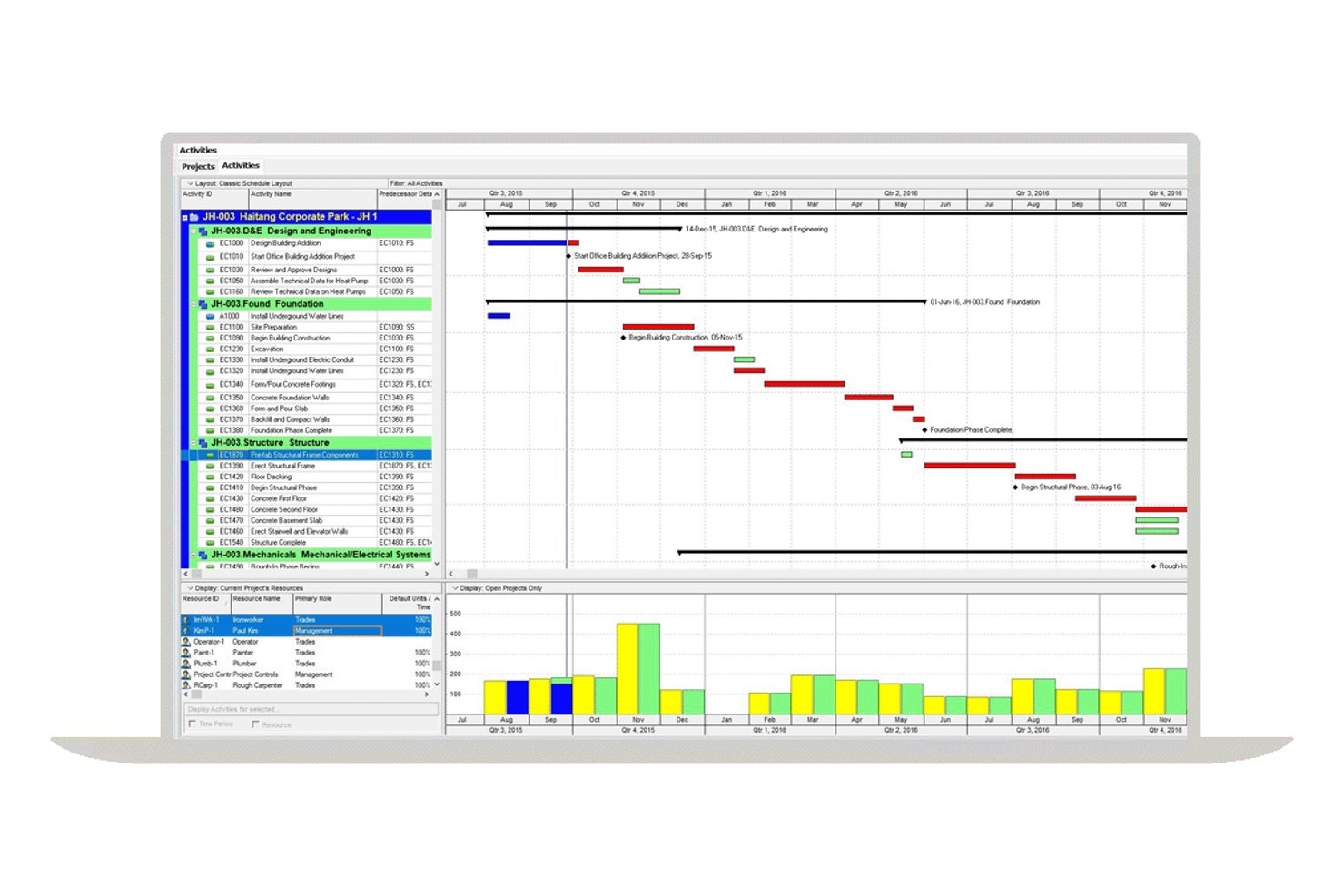
Oracle Primavera P6 is a Windows-based desktop project management tool built around CPM scheduling, WBS, resource leveling, and multi-project planning across an Enterprise Project Structure.
Who Is Oracle Primavera P6 Best For?
Oracle Primavera P6 is built for project managers and operations managers overseeing large, multi-project programs where CPM scheduling depth and offline data control aren't optional.
Why I Picked Oracle Primavera P6
Oracle Primavera P6 earns its spot on my shortlist because no other desktop tool matches its depth of CPM scheduling for large, multi-project programs. I particularly like its Enterprise Project Structure, which lets you open, schedule, and level resources across multiple projects simultaneously from a single Windows client. Its standalone SQLite mode is a genuine offline solution: all project data lives in one local file, no server required, which matters when you're managing a capital project on a site with unreliable connectivity.
Oracle Primavera P6 Key Features
- WBS (work breakdown structure): Organize projects into hierarchical work packages and deliverables that tie directly to your CPM schedule.
- Activity codes: Tag and filter activities across projects using customizable codes to sort, group, and report on work your way.
- Global change: Apply bulk edits to activity data across your schedule using conditional logic, without updating records one at a time.
- XER file import/export: Move complete project data, including resources and roles, between P6 installations using Oracle's native XER format.
Oracle Primavera P6 Integrations
Oracle Primavera P6 supports integrations with Microsoft Project, Microsoft Excel, P6 EPPM, Oracle Primavera Cloud through Primavera Gateway, and Primavera Unifier. Its API supports custom integrations when connected to Oracle XE or SQL Server standalone databases.
Pros and Cons
Pros:
- Compare baseline schedules against current progress
- Level shared resources across open projects
- Work offline in a standalone SQLite file
Cons:
- Dense interface slows first-time schedule setup
- Standalone SQLite restricts workgroup collaboration

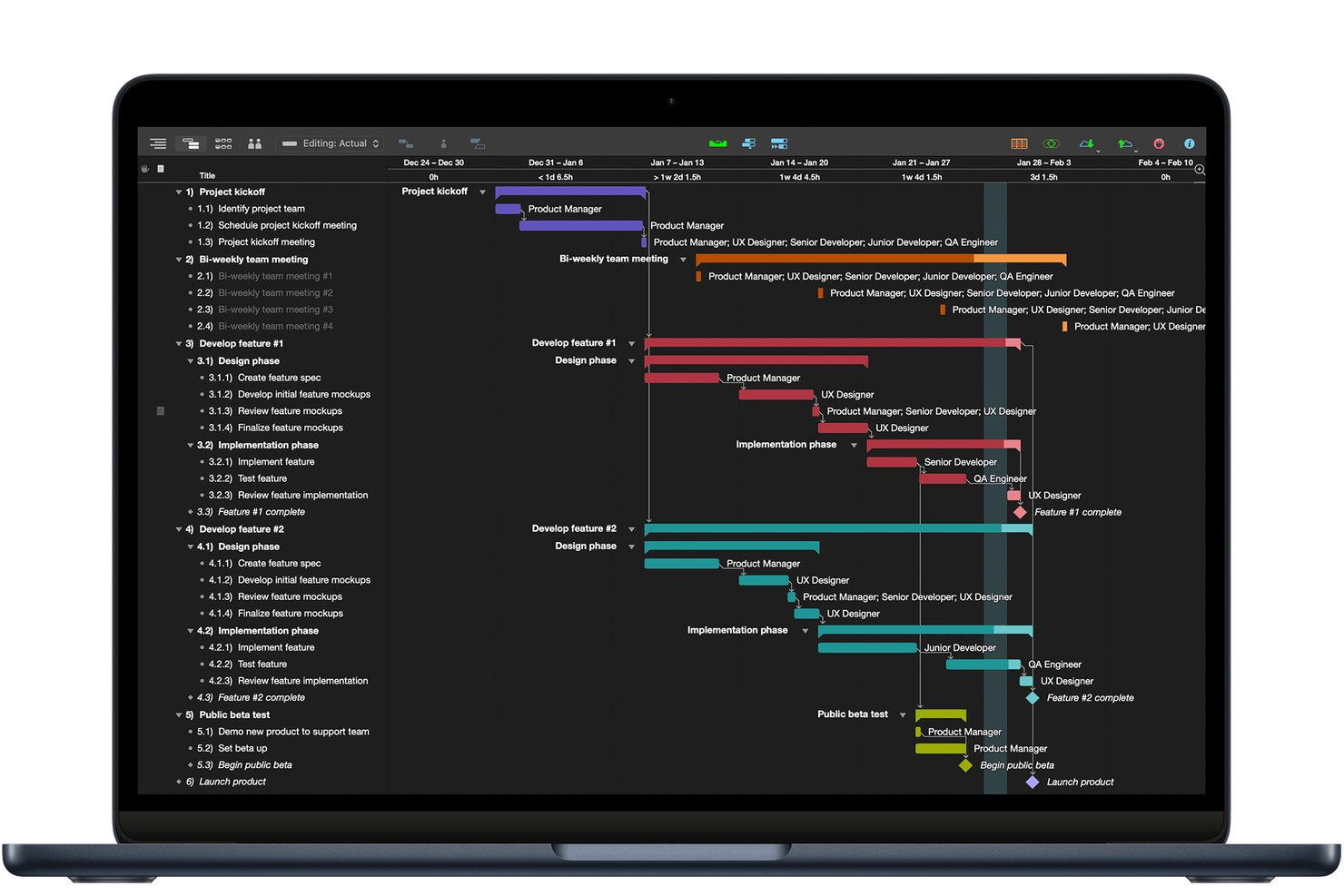
OmniPlan is a Mac-native desktop project management app built around Gantt charts, critical path scheduling, resource leveling, and multi-baseline tracking.
Who Is OmniPlan Best For?
OmniPlan is a strong fit for Mac-based project managers who need deep scheduling control—critical path, resource leveling, and baselines—without relying on a browser or cloud platform.
Why I Picked OmniPlan
OmniPlan earns its spot on my shortlist because it's the only native Mac app I've found that gives you a full critical path scheduling engine without a browser in sight. I like how it automatically highlights the critical path on your Gantt chart, shows float for every task, and lets you compare progress against multiple saved baselines, which matters when plans shift mid-project. Resource leveling runs automatically too, so if a team member is overbooked, OmniPlan redistributes the load without you having to hunt through the schedule manually.
OmniPlan Key Features
- Monte Carlo simulation: Runs probability-based risk forecasting to estimate how likely your project is to finish on time, using best-case and worst-case effort ranges.
- Multi-project dashboard: Displays a portfolio view of all published projects alongside team workload in a single Mac interface, available in the Pro edition.
- Microsoft Project file support: Imports and exports .mpp and XML files, letting you exchange schedules with teams or clients who use Microsoft Project.
- Change tracking: Logs edits from collaborators in a sidebar where you can review, accept, or reject each change before it's applied to the project.
OmniPlan Integrations
OmniPlan integrates with iCloud Drive, Box, Git, WebDAV, Omni Sync Server, CalDAV, and Google Calendar, while Pro supports Microsoft Project MPP/XML files. It has no native Jira or Slack integrations.
Pros and Cons
Pros:
- Baselines help compare plans against progress
- Automatic resource leveling balances assigned workloads
- Detailed Gantt charts clarify schedule dependencies
Cons:
- Collaboration requires publishing instead of live editing
- Apple-only apps exclude Windows-based teams
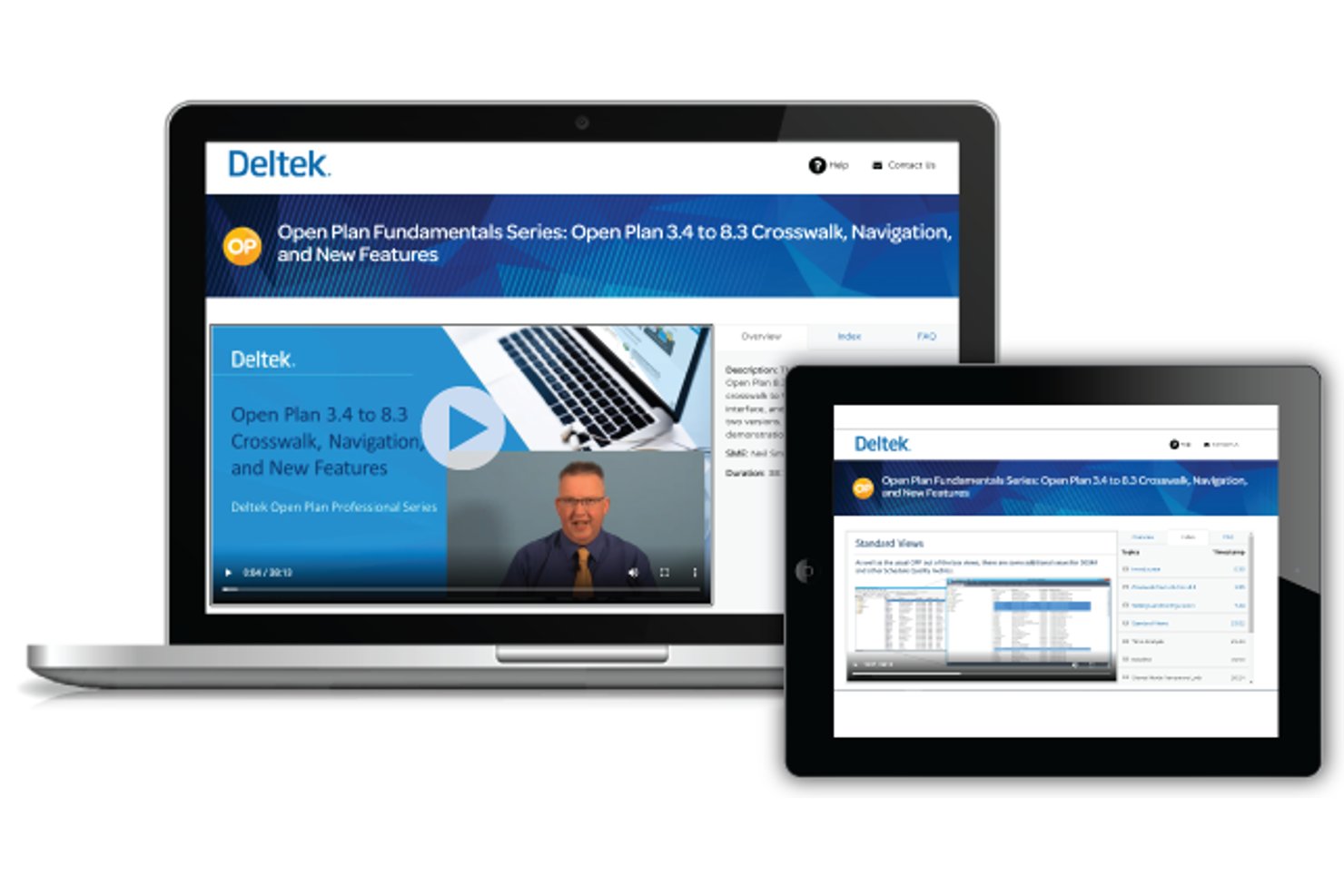
Deltek Open Plan is a Windows desktop scheduling application built around CPM methodology, offering multi-project tracking, resource-constrained leveling, Monte Carlo risk analysis, and DCMA compliance checks.
Who Is Deltek Open Plan Best For?
Deltek Open Plan is a strong fit for project managers in government contracting, aerospace, and defense who need rigorous CPM scheduling with built-in compliance checks.
Why I Picked Deltek Open Plan
I've included Deltek Open Plan in my top picks because it's the only desktop scheduling tool I know that has DCMA 14-point compliance checks built directly into the scheduling engine. For government contracting or aerospace programs where schedule health is auditable, that's a real differentiator. I also like that Monte Carlo risk analysis and resource-constrained leveling run natively, so you're not stitching together separate tools to manage risk and capacity on complex, multi-project programs.
Deltek Open Plan Key Features
- Master/subproject rollups: Nest subprojects under a master project to roll up schedules, resources, and progress across a full program portfolio.
- Jira import: Map and import Jira data directly into Open Plan, with field-level control and an import preview and log.
- Multiple baseline storage: Save and compare multiple schedule baselines, including a Performance Measurement Baseline, with role-based access and a full audit history.
- Batch processing: Run time analysis, resource scheduling, and risk analysis across several projects simultaneously rather than one at a time.
Deltek Open Plan Integrations
Deltek Open Plan has native integrations with Microsoft Project, Project Server, Oracle Primavera P6, Jira, and Deltek Cobra. It also offers REST APIs and an MCP server for custom integrations.
Pros and Cons
Pros:
- Resource leveling spans multiple projects
- Built-in DCMA schedule health checks
- Runs offline with local Access storage
Cons:
- Database setup burdens small teams
- Reviewers report sluggish, hard-to-navigate screens
Outro software de gestão de projetos para computador
Eis mais algumas ferramentas que não chegaram ao topo, mas que continuam a merecer a sua consideração.
- Project Plan 365
For MS Project file compatibility on desktop
- Smartsheet
For Google Workspace-connected scheduling
- RationalPlan
For PMBOK-aligned one-time licensed scheduling
- Hive
For Gantt and critical path via desktop app
- ProjectLibre
For free, offline MS Project file scheduling
- Asta Powerproject
For construction schedule planning and control
- Milestones Professional
For one-time licensed schedule reporting
- FastTrack Schedule
For one-time-buy Gantt and critical path
- GanttProject
For free, offline Gantt scheduling
- ConceptDraw PROJECT
For one-time licensed multi-project tracking


How I Evaluate Desktop Project Management Software
I split my evaluation into three parts, giving the most weight to core functionality: working offline and mapping tasks, dates, and dependencies. Next, I weigh standout features such as critical-path scheduling. Finally, I consider factors beyond features, including licensing, support, and control of locally stored project data.
Core Functionality (Table Stakes For This List)
When I'm selecting tools for my list, I score each one on a scale from 0 (does not offer the functionality) to 5 (excels in this area) for each core functionality listed below. I then convert the total into a percentage to help assess each tool's overall fit, with extra weight on any functionalities I’ve deemed essential.
- Local Desktop Operation (Essential): I look for a native desktop app that can open and update schedules offline, then sync changes when a connection returns.
- Task & Schedule Management (Essential): I check that tasks have dates and dependencies, and that linked work can shift when a predecessor slips during a release plan.
- Gantt Chart Views: For overlapping launch work, I assess whether the chart makes dependencies, milestones, and schedule changes easy to read and adjust.
- Resource Allocation: I look for assignments and workload views that reveal when the same designer or engineer is booked across concurrent tasks.
- Local Storage & Export: I assess whether teams can keep project files on a device or network drive and export usable schedules for handoffs.
- Multi-Project Tracking: I check whether separate projects can be opened or compared together, especially when a lead tracks deadlines across client workstreams.
Once I have a list of tools that meet the criteria, I consider what sets each platform apart.
Differentiating Factors (What Sets Vendors Apart)
Here's how I compare and contrast different vendors:
Standout Features
I look for a critical path engine that recalculates automatically when dates shift, since missing one delayed predecessor can silently push a launch. Baseline comparison matters just as much—I check whether I can snapshot a schedule early on and overlay actual progress to spot slippage before a status meeting. I also evaluate file compatibility, especially MPP and XML support, because most stakeholders still exchange schedules in those formats. A perpetual license option is a plus for teams that want predictable costs without recurring fees.
Beyond Features
I evaluate whether project data stays fully under your organization's control—on local drives or private network shares—since teams in regulated industries often can't send schedules to third-party servers. Licensing structure matters too: a perpetual license can save money over years, but I check upgrade and multi-seat costs to avoid surprises during version migrations. I also consider how teams share files offline, looking for check-in/check-out or local server sync so two planners don't overwrite each other's work on the same schedule.
Como escolher software de gestão de projetos para computador
É fácil ficar perdido em listas extensas de funcionalidades e estruturas de preços complexas. Para o ajudar a manter o foco enquanto percorre o seu processo específico de seleção de software, eis uma lista de verificação dos fatores a ter em conta:
| Fator | O que considerar |
| Escalabilidade | O software acompanhará a evolução das necessidades da sua equipa? |
| Integrações | O software integra-se facilmente com as ferramentas que já utiliza? |
| Personalização | Pode adaptar o software aos fluxos de trabalho específicos da sua equipa? |
| Facilidade de utilização | Com que rapidez pode a sua equipa começar a utilizar o software? |
| Orçamento | A estrutura de preços da ferramenta é sustentável para as suas necessidades a longo prazo? |
| Medidas de segurança | O software oferece o nível de segurança de que os seus dados necessitam? |
| Colaboração | O software permite um trabalho de equipa e uma comunicação eficientes? |
| Relatórios | O software fornece os dados de que a sua equipa necessita para acompanhar o progresso? |
Tendências no software de gestão de projetos para computador
Durante a minha pesquisa, recolhi inúmeras atualizações de produtos, comunicados de imprensa e registos de lançamentos de diferentes fornecedores de software de gestão de projetos para computador. Eis algumas das tendências emergentes que estou a acompanhar:
- Opções de implementação híbrida: Os utilizadores procuram cada vez mais flexibilidade na forma como acedem às suas ferramentas. Os fornecedores estão a disponibilizar software de gestão de computadores Windows que pode alternar entre modos baseados na nuvem e sem ligação à Internet, permitindo trabalhar de forma contínua, quer os utilizadores estejam ligados à Internet ou sem ligação à Internet.
- Painéis personalizáveis: Existe uma procura crescente por ferramentas para computador que permitam aos utilizadores personalizar os seus espaços de trabalho. Desde alterar esquemas até dar prioridade a dados essenciais, os utilizadores querem ter mais controlo sobre a sua experiência de gestão do computador. Esta tendência é especialmente evidente no software de gestão de projetos de código aberto, onde os painéis personalizados são indispensáveis.
- Planeamento de projetos orientado por IA: A IA está a chegar às aplicações de projetos para computador, permitindo um agendamento e uma atribuição de recursos mais inteligentes. Já não é apenas um recurso supérfluo, mas uma funcionalidade presente nas ferramentas de gestão de projetos para Windows, onde a IA sugere cronogramas e dependências de tarefas otimizados.
- Funcionalidades centradas na segurança: À medida que aumentam as preocupações com a segurança dos dados, os pacotes de gestão para computador estão a evoluir para incluir encriptação e controlo de acesso mais robustos. Por exemplo, tanto o software de gestão de computadores portáteis como o software de gestão de computadores pessoais disponibilizam agora autenticação multifator e opções seguras de partilha de ficheiros.
- Tecnologia colaborativa para computadores: Embora as integrações não sejam uma tendência, a forma como as equipas colaboram no software de gestão de projetos para computador está a mudar. As novas funcionalidades, como os comentários em tempo real incluídos nas soluções de gestão para computador, permitem que as equipas trabalhem em conjunto sem precisarem de ferramentas separadas para a comunicação, tornando a colaboração mais eficiente diretamente a partir do computador.
O que é o software de gestão de projetos para computador?
O software de gestão de projetos para computador é uma aplicação informática instalada num computador que ajuda a planear, organizar e gerir projetos. Normalmente, inclui funcionalidades como gestão de tarefas, agendamento, atribuição de recursos, ferramentas de colaboração e acesso sem ligação à Internet.
O software de gestão de projetos para computador funciona como uma ferramenta centralizada para controlar projetos diretamente a partir do ambiente do computador e pode proporcionar um desempenho e uma capacidade de resposta superiores aos das soluções baseadas no navegador – ideal para trabalhar com dados de projetos grandes e complexos.
Funcionalidades do software de gestão de projetos para computador?
Esperamos que uma aplicação de gestão de projetos com software para computador tenha as mesmas funcionalidades que as soluções baseadas na nuvem. Estas são algumas das funcionalidades que pode encontrar nestas ferramentas de planeamento de projetos.
- Integrações: Ligação do software a outras plataformas, por exemplo, aplicações Google.
- Gestão de tarefas: Possibilidade de dar prioridade e acompanhar as tarefas do projeto e de as mover dentro do fluxo de trabalho do projeto.
- Comunicações: Um espaço dentro do sistema de gestão de projetos onde os membros da equipa comunicam para aumentar a colaboração entre a equipa em vários projetos, têm acesso à partilha de ficheiros e muito mais.
- Automatizações: Funcionalidade que permite simplificar tarefas recorrentes, permitindo que o software desencadeie ações em seu nome.
- Vistas: Espaços de trabalho que apresentam as suas informações de diferentes formas, incluindo lista de tarefas, gráfico de Gantt, quadro kanban e vista de calendário.
- Gestão de recursos: Funcionalidade que permite ver a carga de trabalho da equipa ou, por exemplo, quantos projetos estão atribuídos a cada membro. As equipas pequenas provavelmente conseguem trabalhar sem esta funcionalidade, mas o mesmo não acontece com as equipas maiores.
- Modelos de projetos: Conteúdo pré-criado que pode servir como ponto de partida para os seus projetos.
- Controlo de acesso: Possibilidade de definir permissões por utilizador, para que apenas as pessoas certas possam editar as tarefas. Isto pode ajudar, por exemplo, na gestão de trabalhadores independentes.
- Painéis: Secção da plataforma onde pode monitorizar o progresso geral dos seus projetos.
- Gestão do tempo: Módulo que ajuda a acompanhar tarefas individuais e folhas de horas, bem como a medir o seu impacto nos resultados entregáveis.
Benefícios do software de gestão de projetos para computador
A implementação de software de gestão de projetos para computador proporciona vários benefícios à sua equipa e à sua empresa. Eis alguns dos benefícios que pode esperar:
- Maior concentração: Ao utilizar tecnologia para computador, pode reduzir as distrações causadas por ferramentas baseadas no navegador, permitindo-lhe concentrar-se totalmente nas suas tarefas.
- Acesso sem ligação à Internet: Com soluções de gestão do Windows, pode continuar a trabalhar mesmo sem ligação à Internet, garantindo que os seus projetos se mantêm no caminho certo, independentemente do local onde se encontre.
- Segurança reforçada: O software de gestão para computador mantém os seus dados confidenciais mais seguros através do armazenamento local e de um melhor controlo do acesso, reduzindo os riscos associados ao armazenamento na nuvem.
- Áreas de trabalho personalizáveis: As ferramentas de gestão para computador permitem-lhe organizar a sua interface, facilitando a adaptação às necessidades específicas da sua equipa ou de projetos individuais.
- Desempenho mais rápido: O software de gestão para computador funciona de forma mais fluida do que muitas alternativas baseadas na nuvem, proporcionando um acesso mais rápido aos dados e às ferramentas.
- Custos mais baixos: Existem muitas opções de software de gestão de projetos de código aberto para Windows disponíveis gratuitamente, reduzindo as despesas e proporcionando, ainda assim, capacidades avançadas de planeamento de projetos.
- Cópias de segurança fiáveis: Com software para computador, os seus ficheiros e dados dos projetos podem ser guardados diretamente no seu computador, dando-lhe um maior controlo sobre a recuperação de dados e as cópias de segurança.
Custos e preços do software de gestão de projetos para computador
Ao selecionar software de gestão de projetos para computador, é necessário compreender os vários modelos de preços e planos disponíveis. Os custos variam consoante as funcionalidades, o tamanho da equipa, os complementos, entre outros fatores. A tabela abaixo resume os planos mais comuns, os respetivos preços médios e as funcionalidades normalmente incluídas nas soluções de software de gestão de projetos para computador:
| Tipo de plano | Preço médio | Funcionalidades comuns |
| Plano gratuito | $0 | Gestão básica de tarefas, armazenamento limitado e acesso para um único utilizador. |
| Plano pessoal | $5-$15/utilizador/mês | Acompanhamento de tarefas, fluxos de trabalho personalizáveis e modelos de projeto limitados. |
| Plano empresarial | $20-$40/utilizador/mês | Ferramentas de colaboração em equipa, relatórios avançados, acompanhamento do tempo e mais espaço de armazenamento. |
| Plano empresarial de grande dimensão | $50-$100/utilizador/mês | Suporte prioritário, funcionalidades de segurança reforçadas, projetos ilimitados e integrações. |
Perguntas frequentes
Eis algumas respostas a perguntas frequentes sobre software de gestão de projetos para computador: