

De 10 beste prosjektstyringsprogrammene for iPad i 2026

Beste prosjektstyringsprogramvare for iPad – kortliste


Hvorfor du kan stole på våre programvareanbefalinger
Teamet vårt har testet og anmeldt programvare siden 2012. Vi er selv prosjektledere, så vi vet hvor vanskelig og hvor viktig det er å velge riktig programvare.
I denne guiden har vi vurdert verktøyene gjennom praktisk testing og uavhengig research og gitt dem poeng ut fra våre utvelgelseskriterier. Vi bygger også på innsikt fra ledende eksperter i bransjen og erfarne prosjektledere.
Anmeldelsene våre bygger på vår egen redaksjonelle vurdering. De er ikke et salgsargument.
Ekspertanmeldere:
Sammenligningstabell for prosjektstyringsprogramvare til iPad
Denne sammenligningstabellen oppsummerer prisopplysningene for mine beste utvalg av prosjektstyringsprogramvare til iPad:
| Tool | Best For | Trial Info | Price | ||
|---|---|---|---|---|---|
| 1 | Best for budget tracking | Free plan + 15-day free trial + free demo available | From $4/user/month (billed annually) | Website | |
| 2 | Best for personal and team task tracking on iPad | Free plan available | From $5/user/month (billed annually) | Website | |
| 3 | Best for dependencies tracked on the go | Free plan + trial + demo available | From $10.99/user/month (billed annually) | Website | |
| 4 | Best for construction field work on iPad | Free demo available | Pricing upon request | Website | |
| 5 | Best for construction site management on iPad | Free plan available | From $39/user/month (billed annually) | Website | |
| 6 | Best for Apple-native mobile project planning | 30 days free trial | From $16.99 / month | Website | |
| 7 | Best for GTD task tracking on Apple devices | 14-day free trial | From $4.99/month | Website | |
| 8 | Best for all-in-one notes and task tracking | Free plan + trial available | From $10/user/month | Website | |
| 9 | Best for Apple-native Gantt scheduling on iPad | 14-day free trial | From $199.99/year (billed annually) | Website | |
| 10 | Best for personal task planning on iPad | 15-day free trial (Mac only) | From $9.99 | Website |
Anmeldelser av den beste prosjektstyringsprogramvaren for iPad
Les min detaljerte oppsummering av hvert av mine utvalg blant den beste prosjektstyringsprogramvaren for iPad. Jeg går gjennom viktige funksjoner, fordeler & ulemper, integrasjoner og bruksområder, slik at du kan finne det som passer best.

Best for budget tracking
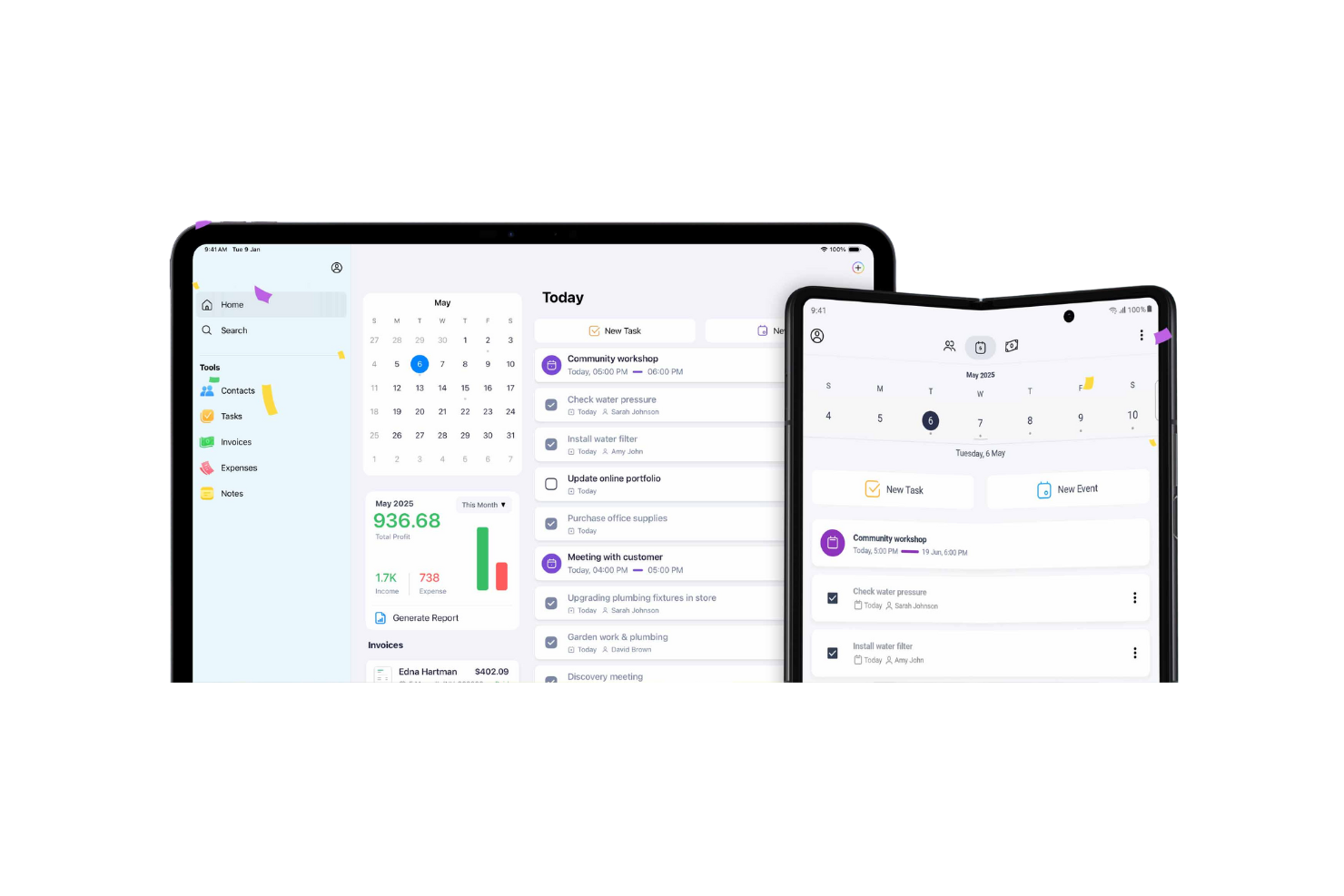
Zoho Projects is a project management platform with a native iPad app that covers task tracking, Gantt charts, Kanban boards, time logging, and budget management across your projects.
Who Is Zoho Projects Best For?
Zoho Projects is a strong fit for small teams and growing businesses that need budget tracking alongside core project management at an affordable price point.
Why I Picked Zoho Projects
I've included Zoho Projects in my top picks because it's one of the few iPad-compatible project management tools that builds budget tracking directly into the core workflow. On Premium, you get project budgeting with planned vs. actual cost comparisons and earned value management, so you can monitor financial health right alongside task progress. I also like that mobile Gantt charts let you set dependencies and reschedule tasks by drag and drop from your iPad, keeping budget and schedule aligned without switching to a desktop.
Zoho Projects Key Features
- Mobile Kanban board: Drag and drop task and bug cards across status columns directly from your iPad.
- Task dependencies on mobile: View, add, and configure predecessor or successor dependencies with lag time from the mobile app.
- Mobile timesheet logging: Log hours against tasks and issues and review time entries by day, week, or month from your iPad.
- Document scanner: Scan physical documents from your iPad and attach them directly to tasks using the built-in scanner.
Zoho Projects Integrations
Zoho Projects has native integrations with Zoho CRM, Zoho Books, Zoho Invoice, Zoho Analytics, Zoho WorkDrive, and Zoho Sprints. It also supports 50+ marketplace integrations, including Google Calendar, Microsoft Teams, Slack, and GitHub, plus Zoho Flow, Zapier, and REST API access.
Pros and Cons
Pros:
- Comments and files keep updates together
- Kanban cards make status changes tactile
- Task dependencies clarify tablet schedules
Cons:
- Lacks full offline access
- Mobile app trails desktop responsiveness
New Product Updates from Zoho Projects
Zoho Projects Adds CodeX Scripts for Custom Modules
Zoho Projects now supports CodeX Scripts for custom modules, enabling conditional logic and rules for creating, updating, and deleting records. For more information, visit Zoho Projects' official site.
 .
Todoist
Best for personal and team task tracking on iPad
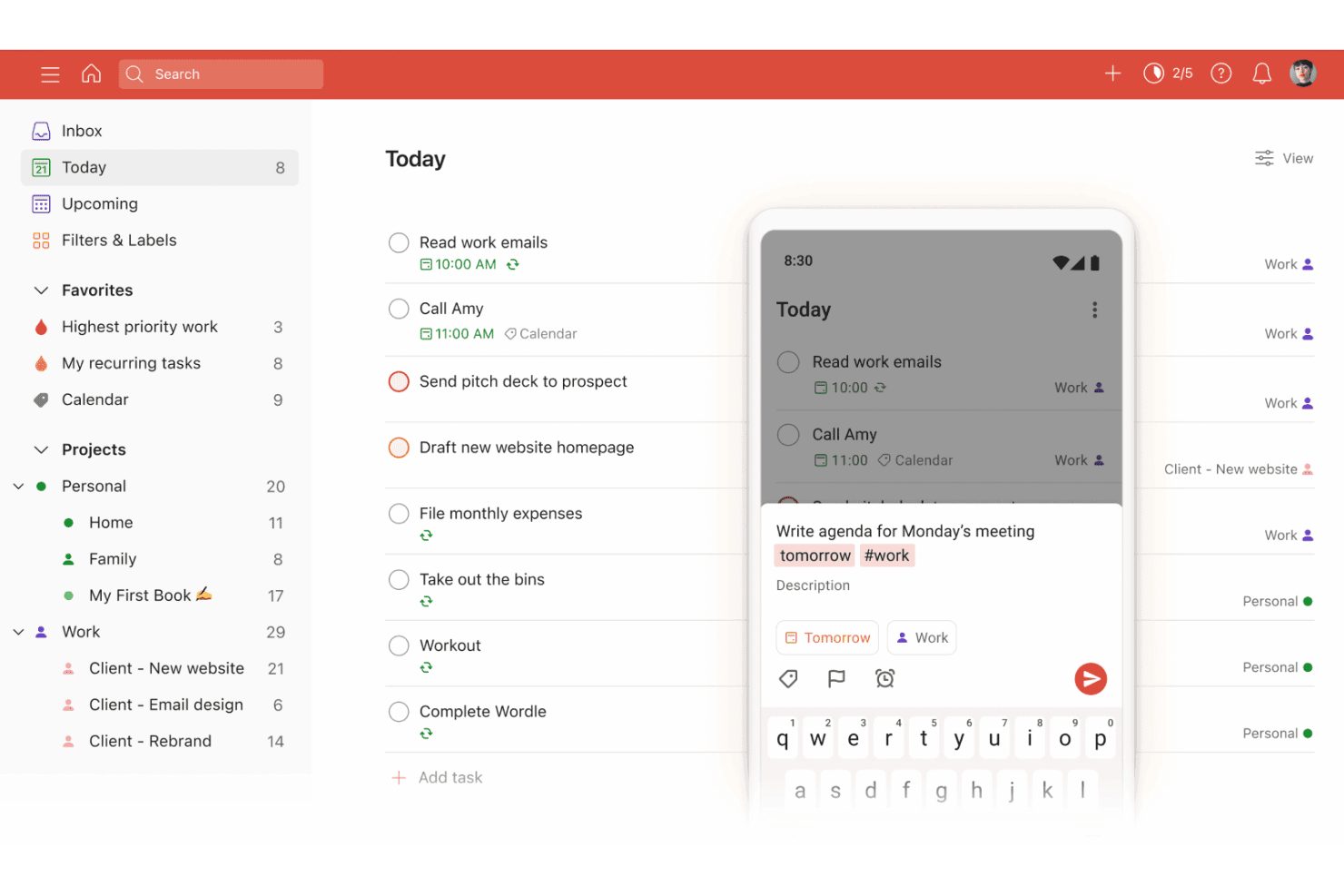
Todoist is a task management app that lets individuals and teams capture, organize, and track tasks across projects using list, board, and calendar layouts, with a dedicated iPad app that supports offline editing, widgets, and team collaboration.
Who Is Todoist Best For?
Todoist fits individuals and small teams who want a clean, low-friction way to manage personal and shared tasks across devices, including iPad.
Why I Picked Todoist
I've included Todoist in my top picks because it's one of the cleanest ways to manage personal and team tasks from an iPad without the overhead of a full project suite. I particularly like how natural-language Quick Add lets you capture tasks with dates, priorities, and labels in a single line, and Ramble takes that further by turning spoken input into structured tasks directly from your iPad. The shared project workspace, task assignment, and comment threads with audio attachments make it genuinely useful for small teams coordinating across devices.
Todoist Key Features
- Offline task editing: Add, delete, or change tasks without an internet connection, and Todoist syncs your changes automatically once you reconnect.
- iPad home-screen widgets: Place task list, productivity stats, and quick-add widgets on your home screen, with direct task completion supported on iPadOS 17.
- Location reminders: Set reminders tied to a specific place so you're notified when you arrive at or leave a location on your iPad.
- AI-powered task capture from files: Extract action items from screenshots, PDFs, photos, and handwritten notes directly within the app.
Todoist Integrations
Todoist lists 80+ integrations, including Google Calendar, Outlook Calendar, Slack, Microsoft Teams, ChatGPT, Claude, Toggl Track, and Trello Power-Up. It also supports IFTTT, Zapier, and a RESTful API for custom integrations.
Pros and Cons
Pros:
- Shared tasks support comments and file context
- Offline edits sync after reconnecting across devices
- Natural-language entry captures dates and recurring tasks
Cons:
- No documented iPad-specific multi-pane interface
- No task dependencies or workload visibility
Asana
Best for dependencies tracked on the go
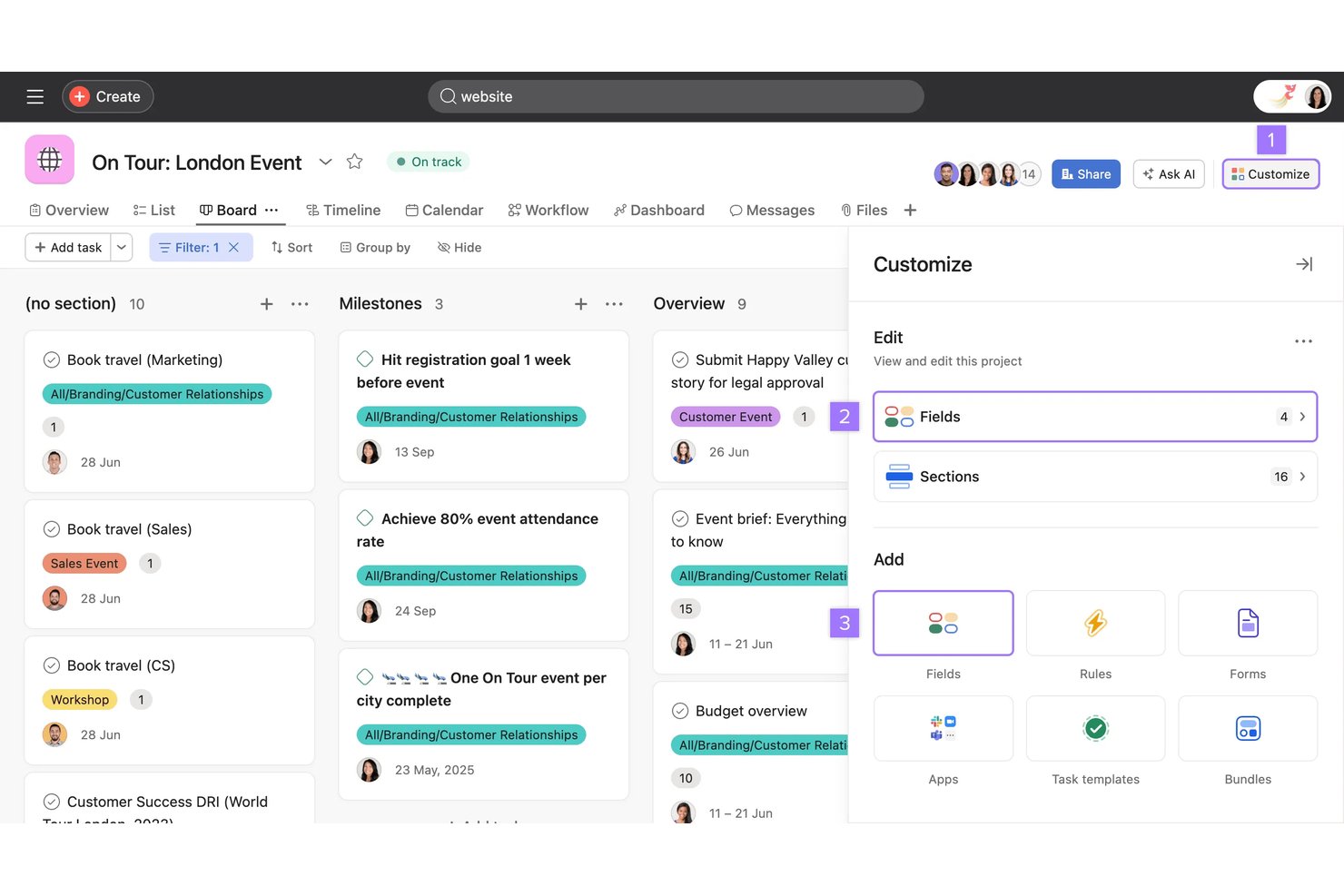
Asana is a project management platform with a native iPad app that covers task tracking, dependency management, team collaboration, and portfolio-level progress visibility across projects.
Who Is Asana Best For?
Asana suits project managers and team leads who need to track task dependencies and project progress from their iPad without losing context between mobile and desktop.
Why I Picked Asana
I picked Asana as one of the best because it handles task dependencies on iOS better than most tools I've used. You can define which tasks are blocking others, then track those relationships from your iPad without losing context between mobile and desktop. I also like that Portfolios on iOS show project status, overdue task counts, and progress percentages, so you're not flying blind when you're away from your desk.
Asana Key Features
- Offline task editing: Edit due dates, assignees, and task details without a connection, and Asana syncs all changes automatically when you're back online.
- Voice-to-task capture: Record audio in the iOS app to create a task instantly, with the transcription saved as the description and the recording attached.
- Home-screen widget: The "Tasks Due Today" widget lets you view, edit, and complete tasks directly from your iPad home screen.
- Push notifications: Get real-time alerts for assignments, comments, due tasks, and status updates so you never miss a team action while on the go.
Asana Integrations
Asana lists 270+ marketplace integrations, including Slack, Microsoft Teams, Google Drive, Gmail, Jira Cloud, Figma, and Zoom. It also offers a REST API, webhooks, SDKs, and an MCP server for custom integrations.
Pros and Cons
Pros:
- Comments keep project discussions beside tasks
- Offline edits sync after reconnecting
- Task dependencies remain visible on the go
Cons:
- iOS uploads accept photos only
- Cramped menus hinder quick iPad actions

Procore
Best for construction field work on iPad
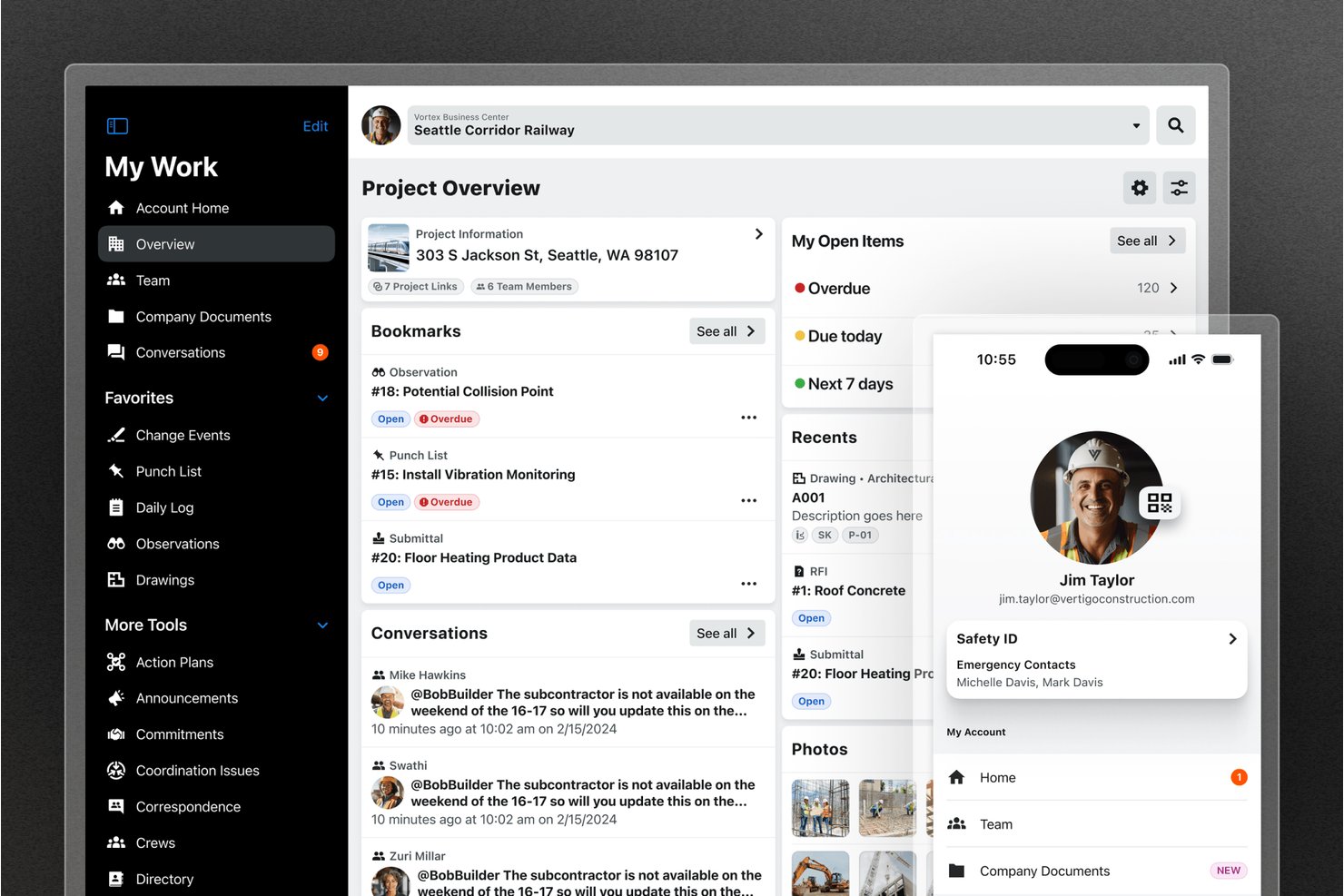
Procore is a construction project management platform with a dedicated iPad app that covers drawings, RFIs, punch lists, daily logs, task tracking, scheduling, and offline field workflows.
Who Is Procore Best For?
Procore is built for construction teams that need to manage drawings, RFIs, punch lists, and field data from an iPad on active job sites.
Why I Picked Procore
Procore earns its spot on my shortlist because no other tool I've reviewed matches its depth of construction-specific field workflows on iPad. I particularly like how you can snap a photo on-site and immediately convert it into a punch list item, observation, or RFI, keeping everything tied to the relevant drawing without switching between apps. Priority Sync lets you pre-load drawings, submittals, and specs before heading into a low-signal area, so offline work on active job sites is genuinely practical.
Procore Key Features
- Daily log: Record field activity directly from your iPad, including weather, labor, equipment, and notes, and report it to the office in real time.
- RFI tracking: Create, track, and link RFIs to specific drawings so field and office teams stay aligned on open questions.
- Punch list management: Log, assign, and monitor punch list items from the field, with configurable templates for trade, assignee, and approver.
- Photo geo-tagging: Capture photos on-site with automatic GPS stamps and pin them directly to drawing locations for full spatial context.
Procore Integrations
Procore lists 500+ marketplace integrations and apps, including Bluebeam, Microsoft Project, Oracle Primavera P6, Sage 100 Contractor Connector, Smartsheet, Newmetrix, and Zoom. An API is available for custom integrations.
Pros and Cons
Pros:
- Shared drawings help field-office coordination
- Photos become punch items, observations, or RFIs
- Offline access supports active jobsite work
Cons:
- Routine workflows can feel administratively heavy
- Users report mobile sync delays and crashes

Best for construction site management on iPad
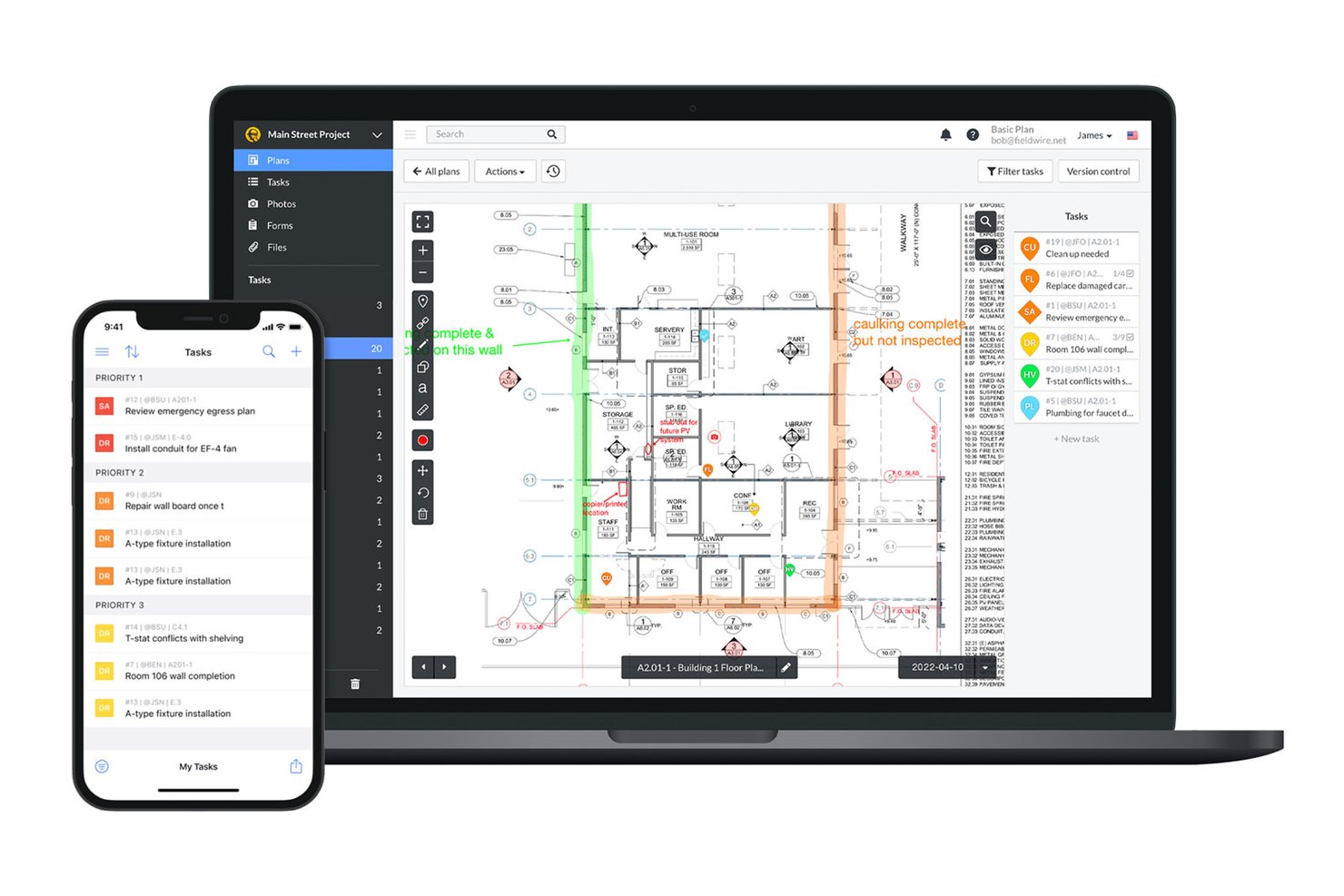
Fieldwire is a construction jobsite management app that covers task tracking, plan viewing, markups, photo documentation, and project coordination across field and office teams.
Who Is Fieldwire Best For?
Fieldwire is a strong fit for construction teams who need to manage plans, tasks, and site documentation from an iPad in the field.
Why I Picked Fieldwire
I picked Fieldwire as one of the best because it's purpose-built for construction jobsite work in a way that most iPad project management tools simply aren't. On an active site, I can pull up a plan, drop a task directly onto the drawing, and attach a geo-tagged photo from within that same task—all from my iPad. Apple Pencil markup support, including handwriting-to-text conversion, makes annotating plans on-site feel natural rather than forced.
Fieldwire Key Features
- Location-based task creation: Pin tasks directly to a spot on a plan drawing, with due dates, priorities, categories, and photo attachments tied to that location.
- Offline plan access: Download project drawings and content to your iPad before heading to site, then view and edit without a network connection.
- Geo-tagged photo capture: Take photos from within a task on iOS and have GPS coordinates and date/time metadata automatically stamped onto each image.
- Task messaging and watchers: Message assignees and followers directly within a task, and add watchers to keep additional team members informed of updates.
Fieldwire Integrations
Fieldwire offers native integrations with Google Drive, Microsoft SharePoint, Microsoft Teams, Google Calendar, Outlook Calendar, Microsoft Power BI, and Microsoft Entra ID. It also provides a REST API for custom integrations.
Pros and Cons
Pros:
- Offline edits sync after reconnecting
- Plan markups work well with a stylus
- Drawing-linked tasks keep field updates contextual
Cons:
- Mobile lacks drag-and-drop task planning
- Offline work requires advance downloads

Best for Apple-native mobile project planning
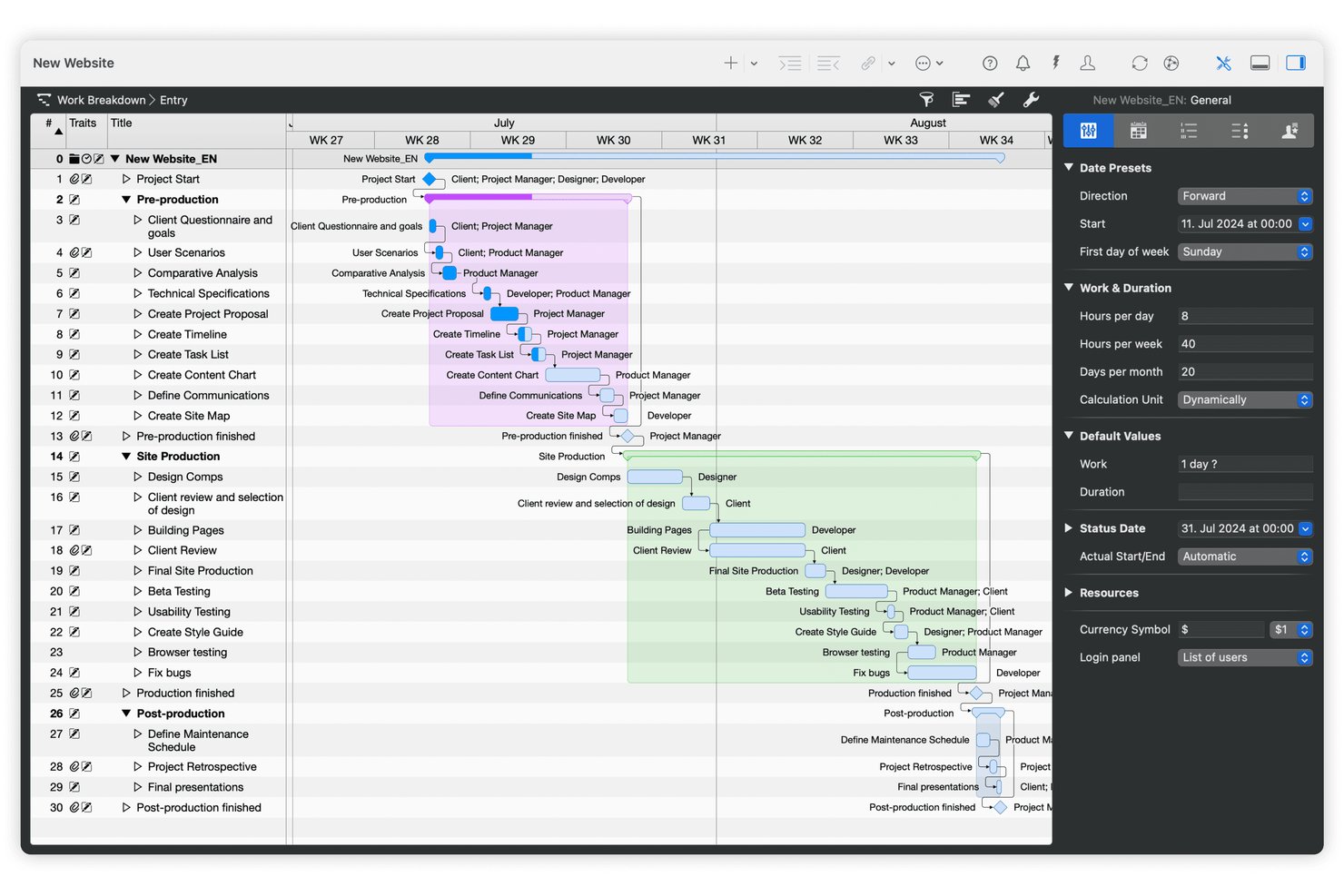
Merlin Project is an Apple-native project management app for iPad, iPhone, and Mac that brings Gantt charts, Kanban boards, mind maps, resource management, and offline project editing into a single touch-optimized tool.
Who Is Merlin Project Best For?
Merlin Project is a strong fit for project managers and small business owners who work entirely within the Apple ecosystem and need full-featured planning on iPad, iPhone, or Mac.
Why I Picked Merlin Project
I picked Merlin Project as one of the best because it's built exclusively for Apple platforms, which means the iPad app isn't an afterthought—it's a full planning environment. I love that you can drag Gantt bars with a finger, pinch to zoom across your timeline, and use Apple Pencil to write directly into text fields. MagicSync reconciles changes across devices automatically, so switching between iPad on-site and Mac at your desk keeps everyone's plan current without manual steps.
Merlin Project Key Features
- Offline project editing: Work on tasks, milestones, and assignments without a connection, and MagicSync updates everything once you're back online.
- Multi-view project planning: Switch between Gantt, Kanban, Mind Map, and Work Breakdown views directly on your iPad without leaving the app.
- Resource workload view: See resource capacity and spot double-bookings across projects from your iPad before they become a problem.
- PDF and image export: Export any project view as a PDF vector image, PNG, or JPEG directly from your iPad for sharing with stakeholders.
Merlin Project Integrations
Merlin Project offers native integrations with iCloud Drive, Dropbox, Microsoft Project, MindManager, FreeMind, and OmniPlan. It also supports project exchange through OPML, CSV, and iCalendar formats.
Pros and Cons
Pros:
- Flexible views clarify project progress
- Offline edits sync after reconnecting
- Detailed dependencies and resource planning
Cons:
- Exported reports often need client-facing cleanup
- Apple-only files complicate Windows collaboration

Best for GTD task tracking on Apple devices
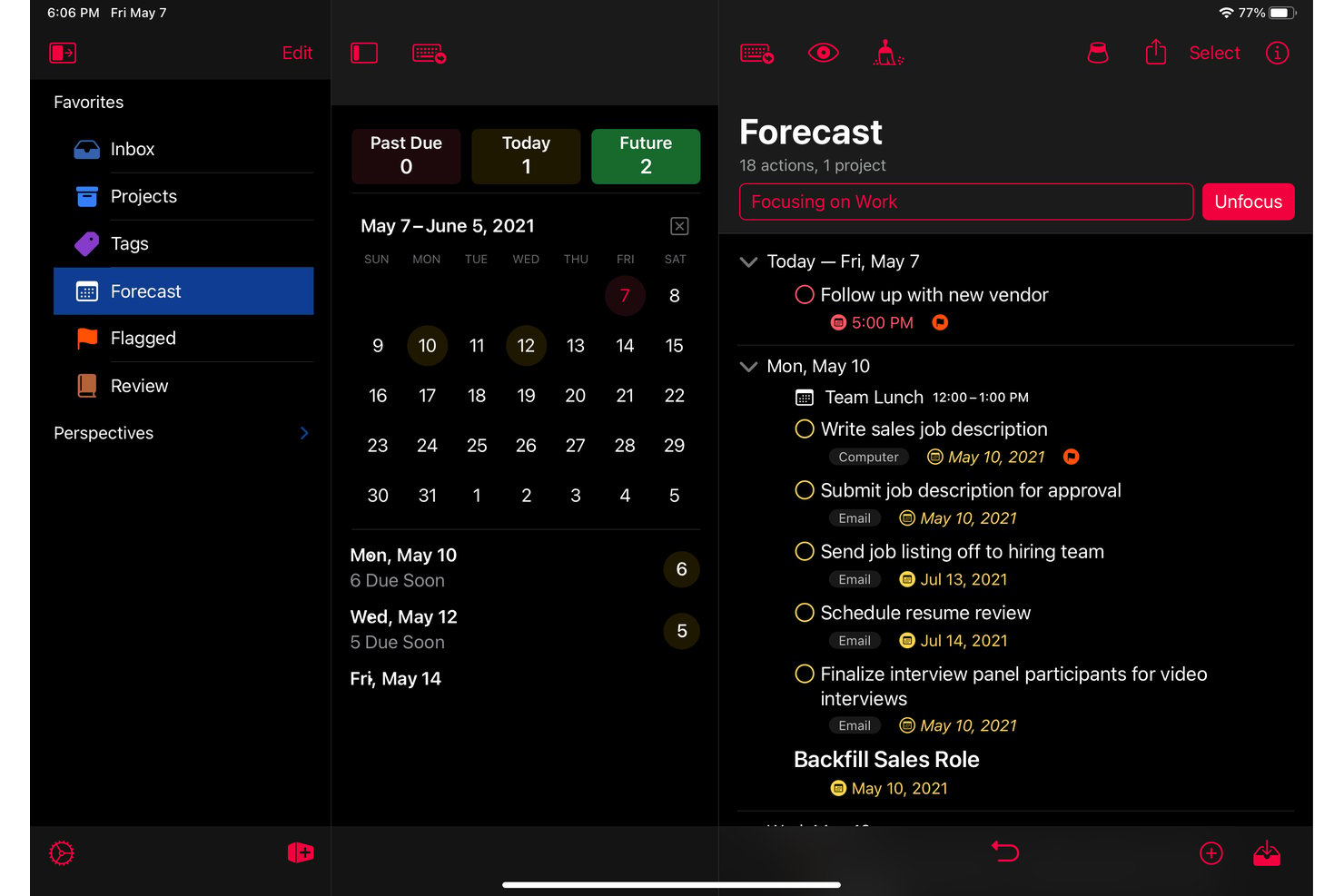
OmniFocus is a personal task management app from The Omni Group that organizes actions into projects, folders, and tags with custom perspectives, review workflows, and native support across Apple devices including iPad.
Who Is OmniFocus Best For?
OmniFocus is a strong fit for individual contributors and solo practitioners who manage complex personal workloads across Apple devices using GTD principles.
Why I Picked OmniFocus
I picked OmniFocus as one of the best because it's the strongest GTD-native task manager built specifically for the Apple ecosystem. Custom perspectives let you build filtered views of your work by tag, project, or energy level, so you can pull up exactly what needs attention on your iPad without digging through noise. I also rely on the geo-tagged task triggers, which surface relevant actions based on your location, a genuinely useful feature when you're moving between sites or offices.
OmniFocus Key Features
- Review workflow: Set regular review intervals for projects so nothing falls through the cracks between active work sessions.
- Forecast view: See upcoming tasks and calendar events together in a single daily list, reordered to match your priorities.
- Location-based notifications: Assign location tags to tasks and receive alerts when you arrive at or leave a specific area.
- Widget support: Add Forecast, Overdue Items, and Quick Entry widgets to your iPad Home Screen or Lock Screen for at-a-glance task access.
OmniFocus Integrations
OmniFocus has documented native integrations with Apple Calendar, Apple Shortcuts, and Siri, plus WebDAV support for syncing through a user-managed server. Its Omni Automation API, AppleScript support, Shortcuts actions, and URL schemes support custom integrations.
Pros and Cons
Pros:
- Quick capture fits work away from your desk
- Tags and perspectives organize complex work
- Mac-like iPad workflow for solo planning
Cons:
- Windows and Android teams need another tool
- No shared status or teammate assignments

Notion is a block-based workspace app for iPad that combines notes, task databases, project tracking, and team collaboration in a single, customizable environment.
Who Is Notion Best For?
Notion works well for small teams and project managers who want notes, docs, and task tracking in one place rather than juggling multiple tools.
Why I Picked Notion
I've included Notion in my top picks because it genuinely collapses notes, project databases, and task tracking into a single iPad workspace, so I'm not bouncing between apps mid-project. I like that you can switch a task database between board, timeline, and list views on the fly, and set up dependencies that automatically shift dates when something slips. It's the kind of flexibility that makes managing a sprint or a client deliverable from your iPad feel manageable rather than makeshift.
Notion Key Features
- Offline page editing: Mark pages for offline access and read, edit, or create content without a connection; changes sync automatically when you're back online.
- Database automations: Set up rule-based automations to update properties, assign tasks, or trigger actions without writing code.
- Comments and mentions: Add comments, reactions, and directly in pages and databases to keep feedback tied to the work.
- Mobile home screen widgets: Add Notion widgets to your iPad home screen to jump directly to a workspace, page, database, Favorites, or Recents.
Notion Integrations
Notion supports integrations with Slack, Google Drive, GitHub, Figma, Jira, Asana, Linear, Trello, and Salesforce, including marketplace connections. Its API, webhooks, MCP, and SDK support custom integrations.
Pros and Cons
Pros:
- Marked pages remain editable offline
- Keeps project docs and tasks together
- Flexible task views and dependencies
Cons:
- Complex workflows require hands-on setup
- Large tables frustrate mobile editing

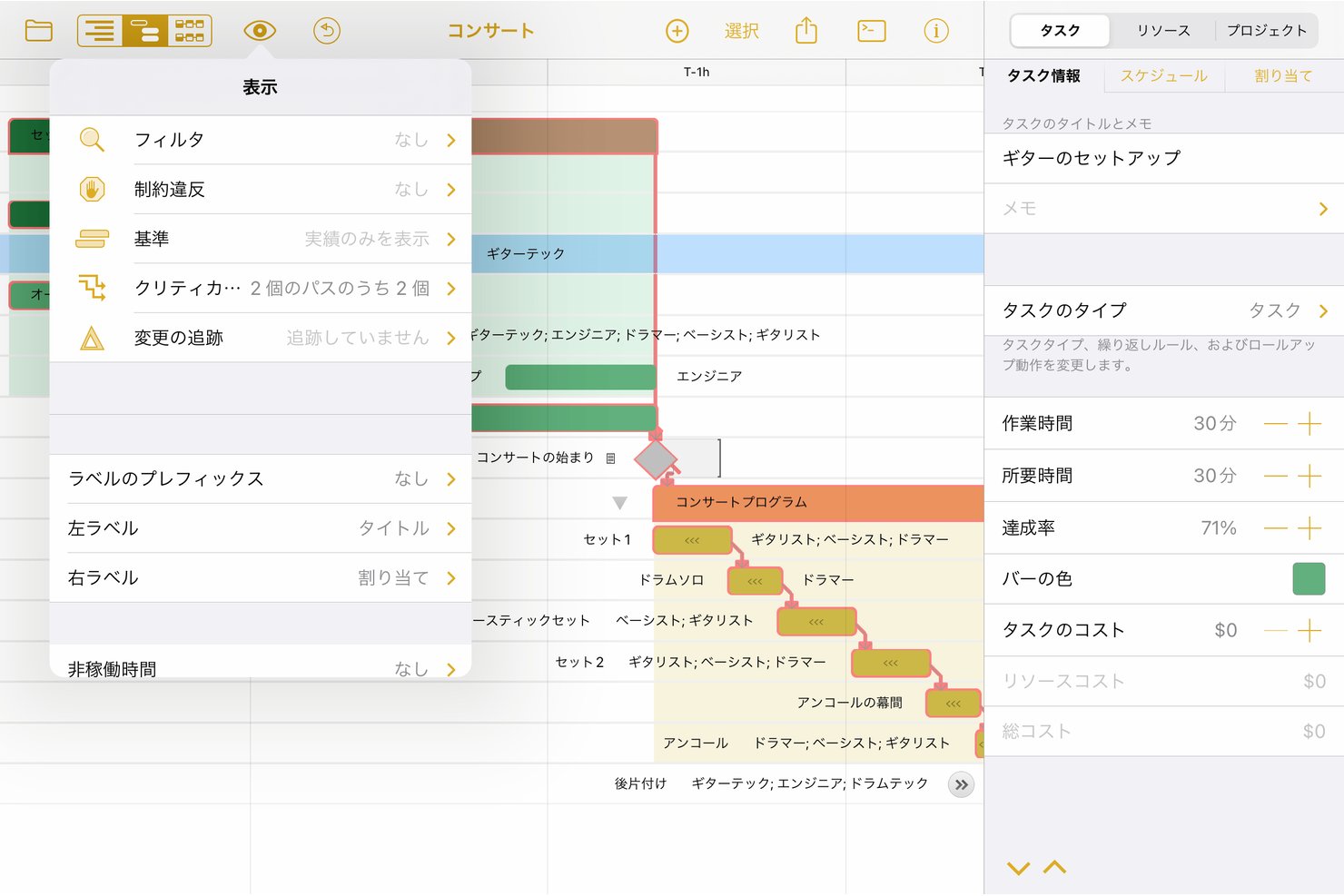
OmniPlan is an Apple-native project management app from The Omni Group that covers Gantt scheduling, resource leveling, critical path analysis, and multi-project tracking across Mac, iPad, iPhone, and Apple Vision Pro.
Who Is OmniPlan Best For?
OmniPlan is a strong fit for project managers who live in the Apple ecosystem and need serious Gantt scheduling, critical path analysis, and resource leveling on their iPad or Mac.
Why I Picked OmniPlan
OmniPlan earns its spot on my shortlist because it's the most fully realized Gantt scheduling tool built natively for Apple devices. I love that you can pinch to zoom the Gantt timeline directly on iPad, adjust task durations with a tap, and chain dependencies without ever touching a mouse. The critical path highlighting and resource leveling work on-device, so if a deadline shifts, OmniPlan instantly shows which tasks are at risk.
OmniPlan Key Features
- Resource leveling: Automatically reschedules tasks to prevent overallocation and keep resource assignments within available capacity.
- Monte Carlo simulation: Runs probability-based forecasts to estimate milestone completion dates at varying confidence levels.
- Multi-project dashboard: Displays multiple projects side by side so you can see team availability and workload across all active work.
- Microsoft Project support: Opens and exports .mpp and XML files, letting you exchange project data with teams using Microsoft Project.
OmniPlan Integrations
OmniPlan supports project syncing through iCloud Drive, Box, Git, and WebDAV, plus Microsoft Project .mpp and XML import and export.
Pros and Cons
Pros:
- Task progress and dependencies editable on iPad
- Resource leveling helps prevent overloaded schedules
- Pinch gestures adjust Gantt timelines on iPad
Cons:
- Apple-only access complicates mixed-device teamwork
- Collaboration relies on manual publishing and refresh

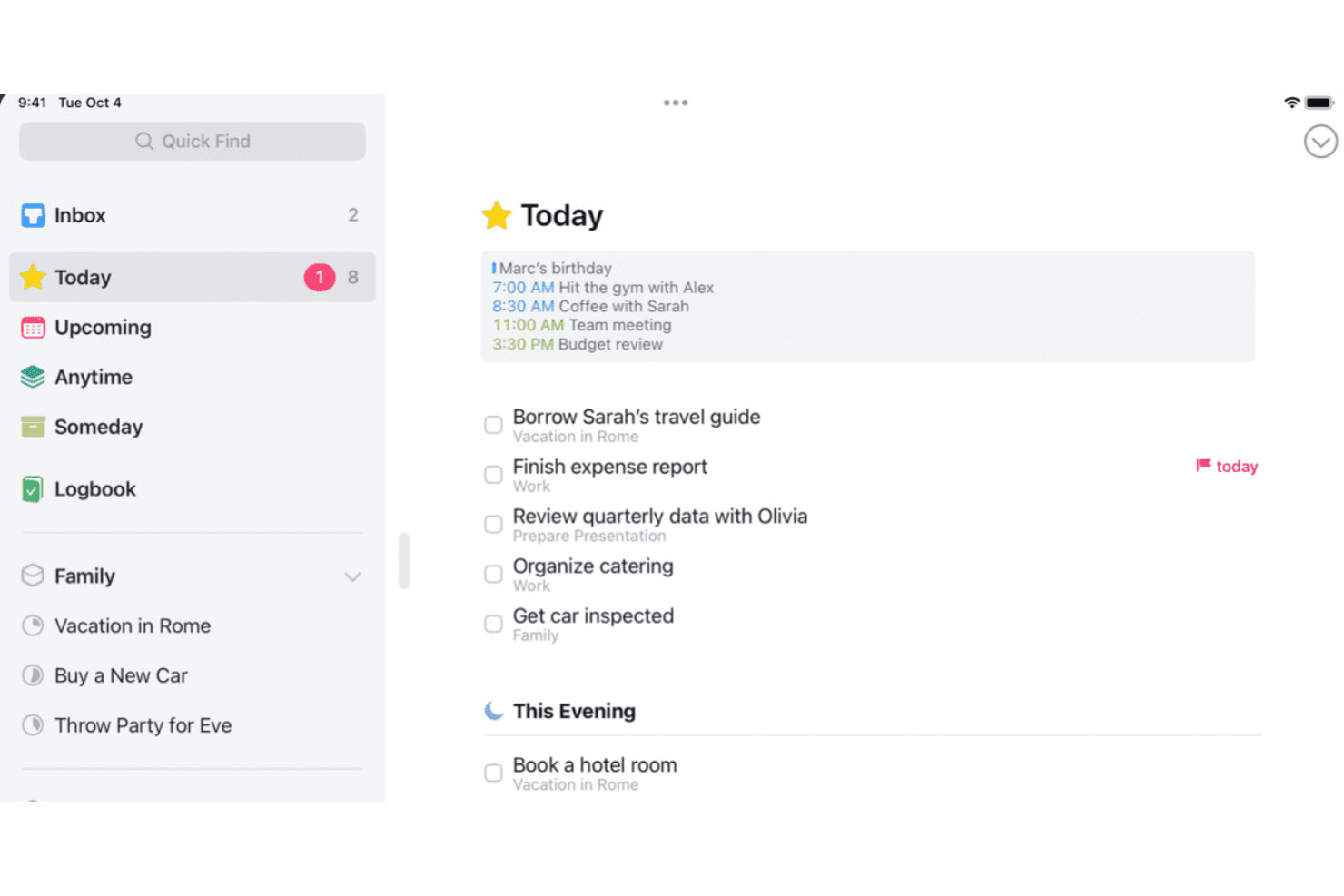
Things is a personal task manager for Apple devices that covers individual task capture, project organization, and daily planning through lists, deadlines, checklists, and cross-device sync via Things Cloud.
Who Is Things Best For?
Things is a great fit for individual contributors and solo professionals who want a clean, Apple-native way to manage their personal tasks and projects on iPad.
Why I Picked Things
Things earns its spot on my shortlist because it's the most refined personal task manager built specifically for iPad. I love how the Magic Plus button lets you drag a new to-do exactly where you need it in a project list, and progress pies give you an instant read on how far along each project is. For individual contributors who want to plan their day, track personal project milestones, and capture tasks with Apple Pencil Scribble, Things is hard to beat on iPad.
Things Key Features
- Today list: Combines your scheduled to-dos and Apple Calendar events into a single daily view so you can plan your day in one place.
- Repeating to-dos: Set tasks to recur on a custom schedule, keeping routine work visible without manual re-entry each time.
- Apple Shortcuts integration: Build automated workflows that create or manage Things to-dos without opening the app manually.
- Things Cloud sync: Keeps your tasks updated across all your Apple devices, including iPhone, Mac, and Apple Watch.
Things Integrations
Things offers six documented native integrations, including Apple Calendar, Siri, Apple Shortcuts, Mail to Things, Apple Share Extension, and Apple Reminders. Its URL scheme, JSON commands, and x-callback-url support enable custom integrations.
Pros and Cons
Pros:
- Clean interface keeps daily plans readable
- Projects, headings, and tags organize personal work
- Purpose-built iPad gestures speed task sorting
Cons:
- No file attachments for project context
- No shared lists, assignments, or comments
Annen prosjektstyringsprogramvare for iPad
Her er noen flere av de beste prosjektstyringsappene for iPad som ikke kom med på kortlisten min, men som likevel er verdt å undersøke:
- Smartsheet
For spreadsheet-style project tracking on iPad
- Wrike
For offline task edits on the go
- Adobe Workfront
For creative team proofing on the go
- monday AI Workspace
For cross-team visibility on the go
- Trello
For Kanban boards on the go
- ClickUp
For all-in-one workspace
- Airtable
For building custom project workflows
- Microsoft Planner
For Microsoft 365 teams on the go
- Jira
For agile sprint tracking on the go
- QuickPlan
For Gantt planning on iPad


How I Evaluate Project Management Software for iPad
I split my evaluation into three parts, weighting core functionality most: use a native iPad app to assign tasks, track deadlines, and update projects. Next, I look for Apple Pencil markup on plans. Finally, I consider onboarding, support, and pricing value beyond features.
Core Functionality (Table Stakes For This List)
When I'm selecting tools for my list, I score each one on a scale from 0 (does not offer the functionality) to 5 (excels in this area) for each core functionality listed below. I then convert the total into a percentage to help assess each tool’s overall fit, with extra weight on any functionalities I’ve deemed essential.
- Native iPad App (Essential): I look for a dedicated iPad app with tablet-friendly navigation and core project actions, not just a browser view or scaled-up phone interface.
- Task & Project Tracking (Essential): I assess whether you can organize projects, update tasks, and manage deadlines or dependencies from structured views on your iPad.
- Touch-Optimized Interface: I consider whether touch controls and screen layouts make it practical to review a timeline or update tasks during a meeting.
- Offline Access: I check whether you can view and edit project information without a connection, then sync those changes when you’re back online.
- Cross-Device Sync: I look for updates made on an iPad to appear promptly across web, desktop, and mobile, including during active team work.
- Team Collaboration: I evaluate whether you can comment, share task files, and get notifications in the iPad app while coordinating work remotely.
Once I have a list of tools that meet the criteria, I consider what sets each platform apart.
Differentiating Factors (What Sets Vendors Apart)
Here's how I compare and contrast different vendors:
Standout Features
Apple Pencil markup is the first thing I check—I want to annotate directly on plans, mockups, or PDFs without leaving the app. On a site walkthrough or design review, that saves a round trip to the desktop. I also look for camera-to-task integration that lets you snap a photo and attach it to a task instantly, which pairs well with geo-tagged updates so each image carries location context. Finally, I evaluate widget and lock screen support for surfacing deadlines without opening the app mid-conversation.
Beyond Features
I evaluate how well each app performs on weak cell or Wi-Fi signals, since field managers uploading site photos can't afford a failed sync mid-walkthrough. I also look for industry-specific templates—construction punch lists or creative review workflows—that cut setup time when a new project kicks off. For teams already on Apple hardware, I check for Handoff and Continuity support so you can start a task update on your iPad and finish it on your Mac without missing a beat.
Slik velger du prosjektstyringsprogramvare for iPad
Det er lett å gå seg vill i lange lister over funksjoner og komplekse prismodeller. For å hjelpe deg med å holde fokus i prosessen med å velge programvare, har jeg laget en sjekkliste over faktorer du bør ha i mente:
| Faktor | Hva du bør vurdere |
|---|---|
| Skalerbarhet | Vurder om programvaren kan vokse sammen med teamet ditt. Kan den håndtere flere prosjekter eller brukere uten ekstra kostnader? Tenk på fremtidige behov og utvidelser. |
| Integrasjoner | Kontroller om programvaren kobles til verktøyene du allerede bruker. Synkroniseres den med e-posten, kalenderen eller CRM-systemet ditt? Unngå verktøy som krever manuell dataoverføring. |
| Tilpasningsmuligheter | Finn ut om du kan tilpasse programvaren til arbeidsflytene dine. Kan du justere innstillinger eller opprette egendefinerte maler? Sørg for at den tilpasser seg prosessene dine, ikke omvendt. |
| Brukervennlighet | Vurder om programvaren er intuitiv. Kan nye brukere raskt forstå den uten omfattende opplæring? Se etter et ryddig grensesnitt som forenkler oppgavene i stedet for å gjøre dem mer kompliserte. |
| Implementering og oppstart | Vurder hvor enkelt det er å komme i gang. Finnes det ressurser som veiledninger eller kundestøtteteam som kan hjelpe teamet med oppstarten? Unngå verktøy med komplisert oppsett som forsinker produktiviteten. |
| Kostnad | Se på de totale kostnadene, inkludert skjulte gebyrer. Er prisen i tråd med budsjettet ditt? Vurder om funksjonene rettferdiggjør kostnaden, og sammenlign med konkurrentene. |
| Sikkerhetstiltak | Sørg for at programvaren beskytter dataene dine. Tilbyr den kryptering, regelmessige sikkerhetskopier og samsvar med bransjestandarder? Unngå verktøy med svake sikkerhetstiltak. |
| Tilgjengelig kundestøtte | Kontroller hvilket nivå av kundestøtte som tilbys. Finnes det hjelp døgnet rundt hvis du trenger det? Se etter responsive kundestøttekanaler som chat eller telefon, og unngå verktøy med begrenset hjelp som kan gjøre at du blir stående fast. |
Hva er prosjektstyringsprogramvare for iPad?
Prosjektstyringsprogramvare for iPad er digitale verktøy som hjelper deg med å organisere og administrere prosjekter via iPaden din. De er vanligvis også tilgjengelige på andre Apple-produkter som kjører iOS, for eksempel Mac-maskiner og iPhone-enheter. Fagpersoner som prosjektledere, teamledere og frilansere bruker disse verktøyene for å øke produktiviteten og holde orden.
Funksjoner for oppgavehåndtering, samarbeid og tidsregistrering bidrar til å koordinere oppgaver, legge til rette for kommunikasjon og følge med på fremdriften, slik at du kan forbedre effektiviteten og holde prosjektene på rett spor.
Funksjoner i prosjektstyringsprogramvare for iPad
Se etter følgende viktige funksjoner i prosjektstyringsprogramvare for iPad.
- Oppgavehåndtering: Organiserer oppgaver og tidsfrister for å holde teamene på rett spor og sørge for at ingen detaljer blir oversett.
- Samarbeidsverktøy: Legger til rette for kommunikasjon mellom teammedlemmer, slik at det blir enklere å dele oppdateringer og tilbakemeldinger.
- Tidsregistrering: Følger med på tiden som brukes på oppgaver, for å forbedre produktiviteten og sikre nøyaktig fakturering.
- Tilpassbare oversikter: Lar brukerne tilpasse arbeidsområdet etter behov og gir rask tilgang til viktig informasjon.
- Gantt-diagrammer: Visualiserer prosjektets tidslinjer og hjelper brukerne med å planlegge og følge fremdriften.
- Budsjetteringsverktøy: Håndterer økonomiske ressurser for å holde prosjektene innenfor budsjettet og opprettholde lønnsomheten.
- KPI-oversikter: Viser viktige resultatindikatorer for å hjelpe teamene med å ta informerte beslutninger basert på data.
- Ressursplanlegging: Optimaliserer utnyttelsen av teamet, slik at ressursene fordeles effektivt for å gjennomføre prosjektet.
- Sikkerhetstiltak: Beskytter sensitive data med kryptering og samsvar med bransjestandarder.
- Integrasjonsmuligheter: Kobler seg til andre verktøy og plattformer for å skape en sømløs arbeidsflyt på tvers av ulike applikasjoner.
Fordeler med prosjektstyringsprogramvare for iPad
Implementering av prosjektstyringsprogramvare for iPad gir flere fordeler for teamet ditt:
- Økt mobilitet: Få tilgang til prosjekter og oppgavelister mens du er på farten, slik at teamet kan arbeide hvor som helst med iPad-en sin.
- Bedre samarbeid: Kommunikasjonsverktøy hjelper teammedlemmene med å holde kontakten og dele oppdateringer, noe som forbedrer samarbeidet og prosjektresultatene.
- Bedre tidsstyring: Funksjoner for tidsregistrering bidrar til å sikre at oppgavene fullføres effektivt og at tidsfristene overholdes.
- Bedre organisering: Oppgavehåndtering og tilpassbare oversikter holder prosjektene organiserte, slik at det blir enklere å prioritere arbeidet.
- Effektiv budsjettstyring: Budsjetteringsverktøy hjelper med å overvåke utgifter og holde prosjektene innenfor de økonomiske rammene.
- Datadrevne beslutninger: KPI-oversikter gir innsikt i resultater og hjelper teamene med å ta informerte valg basert på faktiske data.
- Effektiv ressursfordeling: Ressursplanlegging hjelper deg med å utnytte teamet effektivt og optimalisere produktiviteten og prosjektgjennomføringen.
Kostnader og priser for prosjektstyringsprogramvare for iPad
Kostnadene for prosjektstyringsprogramvare for iPad varierer ut fra funksjoner, teamstørrelse, tillegg og mer. Tabellen nedenfor oppsummerer vanlige abonnementer, gjennomsnittspriser og typiske funksjoner som inngår i prosjektstyringsplattformer for iPad:
Sammenligningstabell for abonnementer for prosjektstyringsprogramvare for iPad
| Abonnementstype | Gjennomsnittspris | Vanlige funksjoner |
|---|---|---|
| Gratisabonnement | $0 | Grunnleggende oppgavehåndtering, begrenset lagringsplass og grunnleggende samarbeidsverktøy. |
| Personlig abonnement | $5-$15/bruker/måned | Oppgavehåndtering, grunnleggende integrasjoner og begrensede tilpasningsmuligheter. |
| Bedriftsabonnement | $15-$30/bruker/måned | Avansert oppgavehåndtering, tidsregistrering, budsjettstyring og flere samarbeidsfunksjoner. |
| Virksomhetsabonnement | $30-$60/bruker/måned | Tilpassbare oversikter, avanserte sikkerhetsfunksjoner, dedikert brukerstøtte og omfattende integrasjoner. |
Programvare for prosjektstyring for iPad – ofte stilte spørsmål
Her er svar på vanlige spørsmål om programvare for prosjektstyring for iPad:
Kan jeg bruke programvare for prosjektstyring for iPad uten nettforbindelse?
Ja, mange apper for prosjektstyring tilbyr tilgang uten nettforbindelse, slik at du kan fortsette å arbeide uten internettilkobling. Når du er på nett igjen, skal dataene dine synkroniseres automatisk. Sjekk om den aktuelle appen du vurderer, støtter denne funksjonen, ettersom mulighetene for bruk uten nettforbindelse kan variere.
Finnes det sikkerhetsproblemer knyttet til bruk av apper for prosjektstyring på iPad?
Sikkerhet bør ha høy prioritet når du velger en app. Sørg for at programvaren tilbyr kryptering, regelmessige oppdateringer og samsvar med bransjestandarder. Sjekk om appen tilbyr brukerautentisering og tilgangskontroller for å beskytte dataene dine, og les alltid anmeldelser for å se hvordan andre brukere vurderer appens sikkerhet.
Hva slags støtte kan jeg forvente fra leverandører av programvare for prosjektstyring?
De fleste leverandører tilbyr støttekanaler som e-post, chat og telefonstøtte. Noen tilbyr også hjelpesentre med vanlige spørsmål og veiledninger. Før du velger et verktøy, bør du sjekke om åpningstidene for brukerstøtten passer med behovene dine, og om det finnes en egen kundeansvarlig for større team.
Kan jeg integrere andre verktøy med prosjektstyringsappen min på iPad?
Ja, det finnes integrasjoner med andre verktøy som e-post, kalendere og CRM-systemer. Sjekk appens alternativer for å forsikre deg om at den støtter verktøyene du allerede bruker, slik at du kan opprettholde arbeidsflyten din.
Hvor mye kan apper for prosjektstyring for iPad tilpasses?
Mulighetene for tilpasning kan variere mellom apper. Se etter muligheten til å tilpasse oversikter, arbeidsflyter og varsler etter teamets behov. Muligheten til å opprette egendefinerte felt og maler kan også gjøre appen bedre egnet til de spesifikke prosessene dine.