

10 beste KI-verktøy for å lage Gantt-diagrammer – vurdert i 2026

10 Kortliste over de beste AI-verktøyene for å lage Gantt-diagrammer


AI-verktøy for å lage Gantt-diagrammer gjør prosjektplanlegging mindre kaotisk. De hjelper deg med å visualisere tidslinjer, balansere arbeidsbelastningen og ligge i forkant av skiftende prioriteringer – uten endeløse regneark eller behov for å følge opp oppdateringer på tvers av verktøy.
Som en som har brukt utallige timer på å teste prosjektstyringsprogramvare, vet jeg hvor overveldende det kan føles når du prøver å holde flere prosjekter, personer og tidsfrister synkronisert. Det er nettopp derfor jeg har satt sammen denne veiledningen – for å hjelpe deg med å skille ut det viktigste og finne et verktøy som faktisk gjør hverdagen enklere.
I denne artikkelen tar jeg deg gjennom de beste AI-verktøyene for å lage Gantt-diagrammer som er tilgjengelige akkurat nå, og forklarer hva som gjør hvert av dem verdt oppmerksomheten din. Enten du leder et lite kreativt team eller har ansvar for prosjekter i virksomhetsskala, finner du alternativer som passer arbeidsflyten, målene og fornuften din.
Hvorfor du kan stole på våre programvareanbefalinger
Teamet vårt har testet og anmeldt programvare siden 2012. Vi er selv prosjektledere, så vi vet hvor vanskelig og hvor viktig det er å velge riktig programvare.
I denne guiden har vi vurdert verktøyene gjennom praktisk testing og uavhengig research og gitt dem poeng ut fra våre utvelgelseskriterier. Vi bygger også på innsikt fra ledende eksperter i bransjen og erfarne prosjektledere.
Anmeldelsene våre bygger på vår egen redaksjonelle vurdering. De er ikke et salgsargument.
Ekspertanmeldere:
Sammenligningstabell for AI-verktøy for å lage Gantt-diagrammer
Denne sammenligningstabellen oppsummerer prisdetaljene for mine beste utvalgte AI-verktøy for å lage Gantt-diagrammer.
| Tool | Best For | Trial Info | Price | ||
|---|---|---|---|---|---|
| 1 | Best with drag-and-drop timeline editing | 14-day free trial + free demo available | From $7/user/month (billed annually) | Website | |
| 2 | Best for fast implementation and user adoption | Free plan + 14-day trial available | From $9/user/month (billed annually) | Website | |
| 3 | Best for customizable project workflows | Free plan + 15-day free trial + free demo available | From $4/user/month (billed annually) | Website | |
| 4 | Best for automated scheduling | Free trial available | From $19/seat/month (billed annually) | Website | |
| 5 | Best for open-source projects | Free plan available | From $9.99/user/month (billed annually) | Website | |
| 6 | Best for resource management | 7-day free trial | From $7.99/user/month | Website | |
| 7 | Best for simplicity in planning | 14-day free trial | From $9.95/user/month (1 project for free) | Website | |
| 8 | Best for visual AI insights | Free plan available | From $6.58/month | Website | |
| 9 | Best for team collaboration | 30-day free trial + free plan available | From $24/manager/month | Website | |
| 10 | Best for AI task predictions | Free plan available | From $3/month | Website |

Anmeldelse av de beste AI-verktøyene for å lage Gantt-diagrammer
Nedenfor finner du mine detaljerte oppsummeringer av den beste programvaren for å lage AI-baserte Gantt-diagrammer som kom med på kortlisten min. Anmeldelsene mine gir et detaljert innblikk i de viktigste funksjonene, fordeler & ulemper, integrasjonene og ideelle bruksområdene for hvert verktøy, slik at du kan finne det beste alternativet for deg.

GanttPRO
Best with drag-and-drop timeline editing
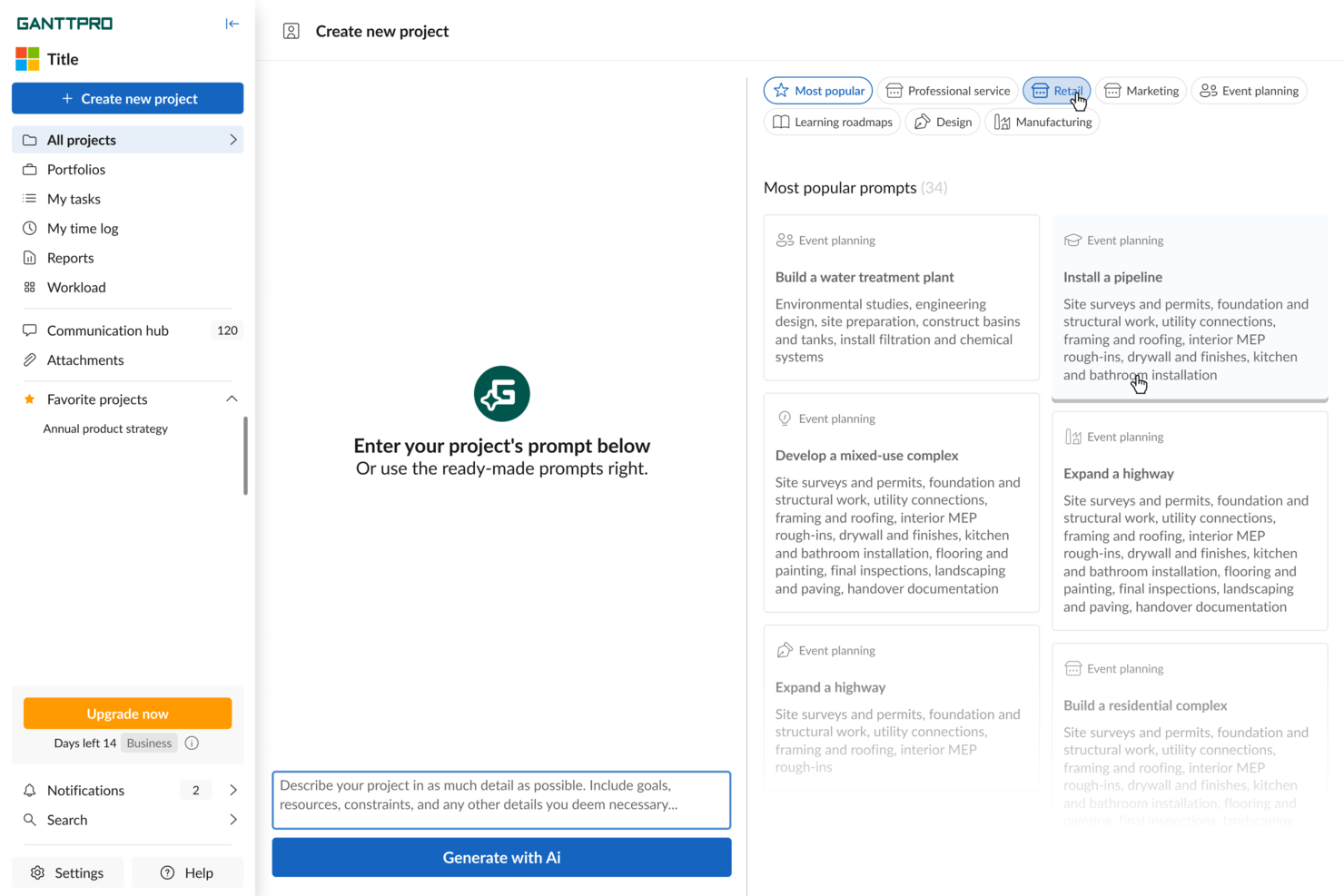
GanttPRO earns a spot for its reliable drag-and-drop timeline editing, which is where I’ve seen most Gantt tools fall short. When I’m mapping project dependencies or shifting large schedules mid-sprint, moving bars and milestones feels natural and responsive.
What I like most is how it lets you adjust entire phases without fuss, so you can handle delays and rescheduling painlessly. For projects with lots of moving parts, this is usually where teams get stuck, but GanttPRO just lets you drag, drop, and keep moving.
GanttPRO’s Best For
- Project managers who need fast timeline changes
- Teams handling resource planning and dependency mapping
GanttPRO’s Not Great For
- Organizations needing deep AI task recommendations
- Users focused on task-level automation or recurring tasks
What sets GanttPRO apart
GanttPRO is built around a visual-first planning style. Unlike Jira, which leans into ticket and backlog management, GanttPRO focuses you on intuitive timeline editing. You adjust dates, dependencies, and phases directly on the chart itself. I find this matches teams that want to plan visually and see project flow at a glance, without lots of buried configuration or menus.
Tradeoffs with GanttPRO
GanttPRO optimizes for fast, visual planning, but you lose some automation and depth you get from tools that focus more on task-level AI and rules. If you need recurring task logic or advanced AI-driven scheduling, you’ll find yourself limited.
Pros and Cons
Pros:
- Baseline tracking shows plan vs. actual
- Supports task dependencies with drag-and-drop editing
- AI generates full project timelines automatically
Cons:
- Collaboration features are behind paywall tiers
- Limited customization of Gantt chart color themes

Best for fast implementation and user adoption
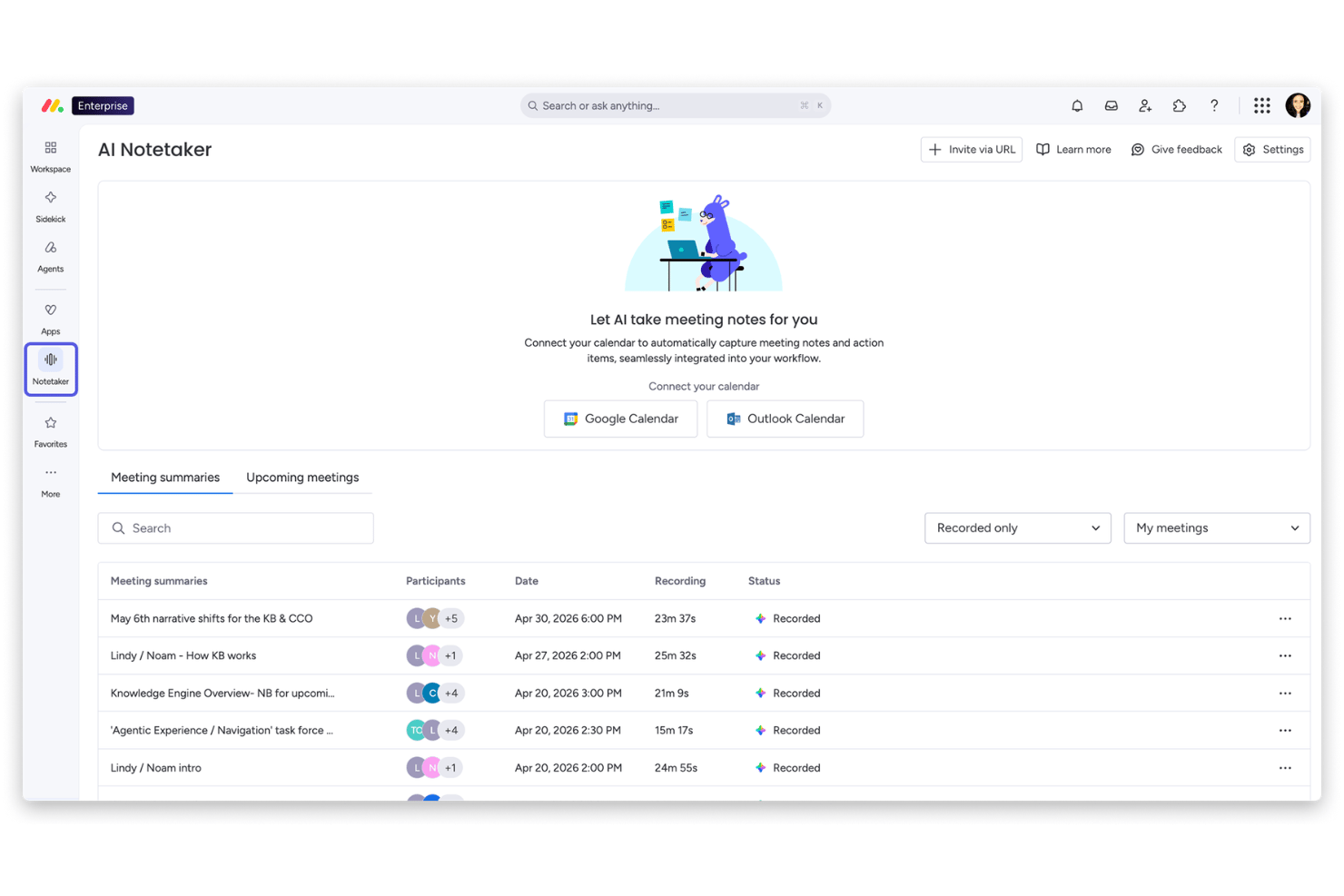
monday AI Workspace is an AI-powered work management platform that combines Gantt chart views, timeline planning, dependency tracking, and AI-driven workflow tools including an AI Sidekick, AI Columns, and an AI workflow builder.
Who Is monday AI Workspace Best For?
It's a strong fit for cross-functional teams in mid-market companies who need a project tracking tool that non-technical users can pick up quickly.
Why I Picked monday AI Workspace
I picked monday AI Workspace as one of the best because its AI Workflow Builder lets teams generate a structured project board from a prompt, which means you can move from a blank canvas to a working Gantt view in minutes. I also like that the Gantt syncs in real time with Kanban, Workload, and Timeline views, so different stakeholders stay oriented without rebuilding anything. The AI Sidekick adds another layer by surfacing risks and summarizing progress directly inside the timeline.
monday AI Workspace Key Features
- AI Columns: Automatically extract, summarize, and structure information from unstructured data within your project boards.
- Workload view: Visualize team capacity and assigned tasks to easily manage resource distribution across projects.
- Document ingestion: Convert meeting notes, emails, or spreadsheets into actionable tasks that feed directly into project timelines.
- Real-time comments and mentions: Collaborate on projects interactively with threaded discussions and user tagging on Gantt charts.
monday AI Workspace Integrations
monday AI Workspace offers native integrations with Slack, Salesforce, HubSpot, Google Workspace, Microsoft Teams, Outlook, Jira, GitHub, Dropbox, and Zoom. It also supports Zapier and provides an API for custom integrations.
Pros and Cons
Pros:
- Risk insights and summaries inside the timeline
- Gantt charts sync with other views instantly
- AI builds project boards from plain text
Cons:
- Baselines and critical path are enterprise only
- Dependencies require manual configuration each time
New Product Updates from monday AI Workspace
monday AI Workspace Adds Human Approval Routing
monday AI Workspace adds a human-in-the-loop approval block to AI Workflows, sending approval requests and routing workflow paths based on responses. For more information, visit monday AI Workspace's official site.

Best for customizable project workflows

Zoho Projects is on my list because its Gantt chart features are deeply customizable and let teams tailor workflows to complex needs. When I test AI-driven task automation here, I see teams use blueprint workflows to adapt project stages and approvals right in the Gantt view.
What stands out for me is how you can trigger dependencies and status updates automatically, which helps on projects where change requests and client reviews keep shifting timelines.
Zoho Projects’ Best For
- Teams that need customizable Gantt workflows
- Organizations managing projects with frequent approval cycles
Zoho Projects’ Not Great For
- Teams wanting a simple, out-of-the-box Gantt tool
- Users needing advanced resource management or portfolio tracking
What sets Zoho Projects apart
Zoho Projects is built around flexible workflow automation and customizable Gantt charts. Unlike more rigid tools like Microsoft Project, Zoho expects you to design your own project stages, blueprint flows, and custom fields as your process evolves. In practice, this fits when you want the Gantt chart to drive your process and adapt as requirements shift mid-project.
Tradeoffs with Zoho Projects
Zoho optimizes for customization and workflow flexibility, but that also means you spend more time up front configuring, which can slow new teams or those who want fast adoption.
Pros and Cons
Pros:
- Integrates seamlessly with Zoho and external applications
- Offers detailed reporting and analytics for project insights
- Provides robust time tracking and billing functionalities
Cons:
- Performance slowdowns when handling large or complex projects
- Some useful features locked behind higher pricing tiers
New Product Updates from Zoho Projects
Zoho Projects Adds CodeX Scripts for Custom Modules
Zoho Projects now supports CodeX Scripts for custom modules, enabling conditional logic and rules for creating, updating, and deleting records. For more information, visit Zoho Projects' official site.
 .

Motion
Best for automated scheduling

Motion earns its spot on my shortlist for its AI-driven scheduling built into Gantt-style planning. I see this working best when teams want their tasks, meetings, and project dependencies automatically scheduled without constant manual tweaking.
What I like is how Motion shifts schedules in real time as plans change, so your Gantt chart is always current even if priorities move around.
Motion’s Best For
- Teams needing automatic task and meeting scheduling
- Project managers who want AI-powered Gantt chart updates
Motion’s Not Great For
- Organizations with rigid, fixed project timelines
- Teams that want advanced custom Gantt chart styling
What sets Motion apart
Motion is built around the idea that schedules should be dynamic, not fixed. Instead of requiring you to constantly move tasks around on a Gantt chart like you would in ClickUp or Smartsheet, Motion uses automation to update project timelines as meetings and priorities shift. In practice, I’ve found this especially helpful when teams want their calendar, tasks, and project chart to stay in sync automatically.
Tradeoffs with Motion
Motion optimizes for automation and schedule flexibility, but that means you lose granular control over Gantt chart layouts and custom dependencies. This can frustrate teams that need highly detailed project visuals or strict task sequencing.
Pros and Cons
Pros:
- Shared calendar integration
- AI assistants for task optimization
- Automated task scheduling
Cons:
- Not ideal for complex projects
- Basic design aesthetics

Best for open-source projects

ProjectLibre earns its spot for being a truly open-source choice if you want direct control over your project data while building Gantt charts. I find this tool fits best when teams want a no-frills, locally hosted alternative to cloud-first platforms. ProjectLibre’s critical path visualization and baseline comparison help you keep a tight handle on shifting deadlines, especially when open access and transparency matter most. I appreciate how it lets you customize workflows for unusual or nonstandard project needs.
ProjectLibre’s Best For
- Open-source teams managing projects on-premises
- Organizations that need customizable Gantt chart workflows
ProjectLibre’s Not Great For
- Teams needing built-in AI-powered planning tools
- Users who prefer modern, cloud-based collaboration
What sets ProjectLibre apart
ProjectLibre is structured for teams that want full control of project plans on their own infrastructure instead of relying on commercial solutions like Microsoft Project or cloud-based tools such as Smartsheet. The workflow feels familiar if you’ve used legacy desktop Gantt tools, and the open-source approach means you can adapt the software to unique needs or integrate with custom scripts. In practice, teams invested in maintaining local data or working behind strict firewalls find it much easier to adopt than web-first apps.
Tradeoffs with ProjectLibre
ProjectLibre optimizes for autonomy and customizability, which means you lose out on built-in real-time collaboration and the AI-powered planning tools now common in modern cloud platforms.
Pros and Cons
Pros:
- Suitable for educational use
- Detailed cost tracking
- Supports task dependencies
Cons:
- Limited customer support
- Outdated user interface

Ingantt
Best for resource management

Ingantt makes my shortlist because its approach to resource management is more detailed and actionable than most AI-driven Gantt tools. I like how you can instantly see resource assignments, track workload, and rebalance staff directly from the Gantt view, which keeps task timelines connected to actual capacity. You’ll get scheduling insights that help spot bottlenecks early and adjust without hunting through scattered reports. This comes in handy when teams work across multiple projects and need to avoid overloading key people.
Ingantt’s Best For
- Project managers who need live resource allocation
- Teams juggling multiple projects and dependencies
Ingantt’s Not Great For
- Teams only needing basic Gantt chart features
- Organizations seeking extensive integrations or automation
What sets Ingantt apart
Ingantt is structured for hands-on resource management right inside your Gantt chart. Unlike simple timeline tools like ClickUp or Trello, it expects you to actively assign and rebalance work as you plan. I find this approach works well when you need to see exactly who is overloaded and make immediate staffing changes from the project view.
This type of workflow lets you connect scheduling with actual team capacity, not just task deadlines.
Tradeoffs with Ingantt
Ingantt optimizes for precise resource matching, but that focus means you give up broader automation and fewer integration options. If you rely on syncing project data with lots of SaaS tools, expect more manual work.
Pros and Cons
Pros:
- Edits update across charts instantly
- Auto-levels team workloads easily
- Detects resource overloads early
Cons:
- Mobile plan priced differently
- Enterprise quote required for upgrade


Tom’s Planner makes my shortlist for how it strips back Gantt chart building to the core mechanics. When I need to create and visualize timelines quickly without managing extra complexity, this is where I land. I like that you can add, move, and modify tasks on a single page—no nested menus or layers to dig through. It’s especially good for teams who want to focus on their plan, not on learning a new tool.
Tom’s Planner’s Best For
- Small teams who want visual project planning
- Project managers needing fast, no-frills Gantt charts
Tom’s Planner’s Not Great For
- Teams needing custom automation or advanced AI features
- Organizations managing complex, multi-layered projects
What sets Tom’s Planner apart
Tom’s Planner is built for people who want to sketch out timelines and dependencies without spending time configuring templates or complex boards. Instead of the multi-layered approach you see in Jira or even Smartsheet, this tool focuses on letting you build a Gantt chart quickly and adjust it in real time. In practice, I see teams using it when they just want to map out a project plan fast without fielding a learning curve.
Tradeoffs with Tom’s Planner
Tom’s Planner optimizes for speed and simplicity, but you lose out on custom automations and advanced scheduling. This can limit what you can coordinate once projects become large or require rigid workflows.
Pros and Cons
Pros:
- Color-coding for tasks
- Quick setup process
- Easy drag-and-drop interface
Cons:
- Not suitable for large teams
- Limited advanced features


Edraw.AI stands out for me because of its unique AI-driven chart generation and analysis. When I tested its visual AI insights, I found that turning raw project data into Gantt charts feels immediate and clear, especially when handling large or changing datasets.
What I appreciate is how it automatically highlights trends or bottlenecks in visual form, making it a solid fit for teams who rely on seeing smart data-driven insights at a glance.
Edraw.AI’s Best For
- Teams needing AI-generated visual Gantt insights
- Users who want instant visual analysis from data
Edraw.AI’s Not Great For
- Projects requiring custom task automation
- Teams needing deep workflow process control
What sets Edraw.AI apart
Edraw.AI is focused on turning project data into visual timelines using AI, letting you instantly see and adjust project plans. Unlike Gantt chart tools like Smartsheet, it expects you to start with data imports or text inputs rather than building everything task by task. This works well when you want the insights and visualizations driven by your own project data, quickly surfaced in chart form.
Tradeoffs with Edraw.AI
Edraw.AI optimizes for automatic visualization, but you lose out on hands-on control over workflow automation and detailed task customizations. If you want step-by-step process refinement or integrated task dependencies, you’ll run into limits.
Pros and Cons
Pros:
- AI-driven formatting suggestions
- Intuitive interface for quick learning
- Wide range of templates available
Cons:
- Advanced features may need a learning curve
- Limited mobile optimization


TeamGantt is on my list because it turns the classic Gantt chart into something you can actually collaborate in, not just look at. When I'm working with teams who need to coordinate handoffs, update deadlines live, and manage priorities together, this is the first place I check.
I’ve found the drag-and-drop scheduling, team-based assignments, and discussion threads right on tasks make true project collaboration way less chaotic. What I like best is how everyone can stay updated in context, not chasing down separate chats or email chains.
TeamGantt’s Best For
- Teams that need to coordinate work directly on a shared Gantt chart
- Project leads managing schedules and dependencies with live team input
TeamGantt’s Not Great For
- Teams that need advanced resource forecasting or workload balancing
- Organizations looking for heavy automation or AI-driven suggestions
What sets TeamGantt apart
TeamGantt puts real-time project collaboration at the center, letting multiple people update timelines, assign tasks, and keep conversations all in one place. While tools like Asana or Trello focus more on tasks or boards, TeamGantt expects you to plan visually first and make decisions directly on the chart together. This works well for groups that want face-to-face-level coordination without endless status meetings.
Tradeoffs with TeamGantt
TeamGantt optimizes for shared planning and live coordination, but you lose out on deeper automation and workload forecasting. For teams needing predictive scheduling or sophisticated resource management, that's a real limitation.
Pros and Cons
Pros:
- Customizable project templates
- Real-time updates for team collaboration
- Easy drag-and-drop scheduling
Cons:
- Can be slow with large projects
- Limited advanced reporting features


GanttChart.ai stands out to me for its ability to predict project task durations and dependencies using AI, which you don’t see in most traditional Gantt makers. I think the auto-adjustment of timelines as tasks change is where this tool really shines, especially when your requirements shift or new blockers emerge.
What I like most is how the AI uses existing project data to suggest more realistic timelines, saving my teams from endless rescheduling. When you need forecasts that adapt as your projects evolve, this tool’s automated adjustments are tough to beat.
GanttChart.ai’s Best For
- Project teams needing dynamic, AI-driven timeline adjustments
- Managers who want predictive scheduling based on real data
GanttChart.ai’s Not Great For
- Teams wanting classic, manual-only Gantt charts
- Projects needing deep integrations with engineering tools
What sets GanttChart.ai apart
GanttChart.ai expects you to approach project planning as a living process, not just a static chart. It pulls past project data and current changes into its scheduling logic, making adjustments and predictions on the fly. Unlike classic tools like Microsoft Project that require every adjustment to be manual, this tool does much of the heavy lifting for you.
In practice, this is good for environments where task durations or dependencies change often and you want less timeline babysitting.
Tradeoffs with GanttChart.ai
GanttChart.ai optimizes for automation and rapid adjustments, but you lose hands-on control over every timeline detail, which can frustrate teams that need highly custom Gantt structures.
Pros and Cons
Pros:
- Clear workload management
- Great for team collaboration
- Simple timeline visualization
Cons:
- Slight learning curve
- Limited reporting options
Andre AI-verktøy for å lage Gantt-diagrammer
Her er noen flere AI-verktøy for å lage Gantt-diagrammer som ikke kom med på kortlisten min, men som likevel er verdt å sjekke ut:
- ONES.com
For enterprise solutions
- Miro
For whiteboard-style collaboration and visual brainstorming
- Instagantt
For Trello integration
- Wrike
For cross-team collaboration
- Zenhub
For GitHub integration


How I Evaluate AI Gantt Chart Makers
I look for tools where AI saves real planning hours—say, building a full schedule from a project brief or resequencing tasks when a deadline shifts. I split my evaluation into core functionality every tool needs to qualify and differentiating factors that set one vendor apart.
Core Functionality (Table Stakes For This List)
When I'm selecting tools for my list, I rank each one on a scale from 0 (does not offer the functionality) to 5 (excels in this area) for each core functionality listed below. Then, I calculate the tool's total score into a percentage. Each tool needs to achieve a minimum total score of 65% to be considered for inclusion.
- AI-Powered Chart Generation: I check whether a tool can turn a plain-text project brief or a pasted task list into a structured Gantt chart without manual setup.
- Automated Task Scheduling: Each tool should assign dates and sequence tasks using AI, like auto-building a sprint plan when you drop in a backlog.
- Dependency & Timeline Management: I look for standard Gantt features like drag-and-drop editing, milestones, critical path views, and multiple dependency types.
- Predictive Risk & Delay Insights: The tool's AI should flag risks before they hit—for example, warning that a delayed design review will push a launch date.
- Smart Resource Allocation: I evaluate whether AI can suggest task reassignments based on team capacity, not just show who's overloaded after the fact.
- Collaborative Project Workspace: Teams need real-time co-editing, comment threads on tasks, and sharing controls so stakeholders can view timelines without full access.
Once I have a list of tools that meet this criteria, I consider what sets each platform apart.
Differentiating Factors (What Sets Vendors Apart)
Here's how I compare and contrast different vendors:
Standout Features
Scenario simulation is a big differentiator for me. I want to see if a tool lets you model alternate timelines—like what happens to your launch date if engineering loses a sprint—and compare AI-projected outcomes side by side. Auto-generated status reports also save real hours; the best tools pull live Gantt data and draft stakeholder updates you can send with minimal editing. For PMO leads running multiple workstreams, I look for a portfolio view that tracks cross-project dependencies with AI.
Beyond Features
Integration depth matters a lot here. A Gantt tool that doesn't sync with your existing stack—Jira, Asana, Slack, or whatever your team runs on—creates more manual work than it eliminates. I also evaluate how each vendor handles AI data privacy, especially whether project data fed into prompts is used for model training. For enterprise buyers, I check for SSO, audit logs, and role-based permissions. Finally, onboarding support makes a real difference when teams are adopting AI-driven planning for the first time.
Slik velger du et AI-verktøy for å lage Gantt-diagrammer
Det er lett å gå seg vill i lange funksjonslister og kompliserte prismodeller. For å hjelpe deg med å holde fokus mens du går gjennom den unike prosessen din for valg av programvare, er her en sjekkliste over faktorer du bør ha i bakhodet:
| Faktor | Hva du bør vurdere |
| Skalerbarhet | Vil verktøyet vokse sammen med teamet ditt? Vurder om det kan håndtere flere brukere eller prosjekter etter hvert som teamet utvides, uten betydelige kostnadsøkninger. |
| Integrasjoner | Kan det kobles til de eksisterende verktøyene dine? Sørg for at det integreres med plattformer som Slack, Trello eller Jira for å forbedre arbeidsflyten. |
| Tilpasningsmuligheter | Kan du tilpasse verktøyet etter behovene dine? Se etter muligheter for å endre visninger, felt og rapporter slik at de passer arbeidsflyten til teamet ditt. |
| Brukervennlighet | Er verktøyet intuitivt? Et brukervennlig grensesnitt reduserer opplæringstiden og hjelper teamet ditt med å ta i bruk programvaren raskt. |
| Implementering og oppstart | Hvor raskt kan du komme i gang? Vurder om det finnes veiledninger, kundestøtte og ressurser for oppsett som kan gjøre overgangen enklere. |
| Kostnad | Passer prisen budsjettet ditt? Sammenlign kostnaden med funksjonene som tilbys, og se etter skjulte gebyrer eller nødvendige oppgraderinger. |
| Sikkerhetstiltak | Hvor sikre er dataene dine? Sørg for at verktøyet tilbyr kryptering, regelmessige sikkerhetskopier og overholder bransjestandarder. |
| Tilgjengelig kundestøtte | Hvilken støtte er tilgjengelig? Vurder responstidene, om direktechat er tilgjengelig, og om teknisk støtte er inkludert i abonnementet ditt. |
Hva er et AI-verktøy for Gantt-diagrammer?
Et AI-verktøy for Gantt-diagrammer hjelper prosjektledere med å opprette og administrere prosjektplaner ved hjelp av kunstig intelligens. Disse verktøyene brukes ofte av prosjektledere, teamledere og planleggere for å forbedre organiseringen og effektiviteten. Automatisert planlegging, oppgaveavhengigheter og funksjoner for samarbeid i sanntid støtter effektiv prosjektstyring og teamsamordning. Alt i alt forenkler disse verktøyene kompleks prosjektplanlegging og -gjennomføring, sparer tid og reduserer feil.
Funksjoner i AI-verktøy for Gantt-diagrammer
Når du velger et AI-verktøy for Gantt-diagrammer, bør du se etter følgende viktige funksjoner:
- Automatisert planlegging: Juster prosjektplaner automatisk basert på oppgaveavhengigheter og teamets tilgjengelighet, slik at du sparer tid og reduserer manuelle feil.
- Oppgaveavhengigheter: Knytt oppgaver sammen slik at endringer i én oppgave automatisk oppdaterer relaterte oppgaver, noe som sikrer nøyaktige prosjektplaner.
- Samarbeid i sanntid: La flere teammedlemmer arbeide med det samme prosjektet samtidig, slik at kommunikasjonen og samordningen blir bedre.
- Tilpassbare maler: Bruk forhåndsutformede maler til raskt å sette opp nye prosjekter, og tilpass dem til behovene i en bestemt bransje eller et bestemt team.
- Dra-og-slipp-grensesnitt: Flytt enkelt oppgaver rundt på tidslinjen for å justere tidsplaner, noe som gir fleksibilitet i prosjektplanleggingen.
- Ressursfordeling: Tildel teammedlemmer til oppgaver og følg med på arbeidsbelastningen deres. Dette bidrar til å fordele ansvaret og forhindre utbrenthet.
- Fremdriftssporing: Følg med på fullføringen av oppgaver og prosjektmilepæler for å holde teamet informert og i rute.
- Integrasjonsmuligheter: Koble til andre verktøy som Slack, Trello eller Jira for å samle prosjektstyringen på ett sted og støtte arbeidsflyter.
- Datasikkerhet: Sørg for at prosjektdata beskyttes med kryptering og regelmessige sikkerhetskopier, slik at konfidensialitet og samsvar opprettholdes.
- Visuell tidslinje: Bruk en tydelig, visuell fremstilling av prosjektoppgaver og tidsplaner for å gjøre komplekse prosjekter enklere å forstå og administrere.
Fordeler med et AI-verktøy for Gantt-diagrammer
Ved å ta i bruk et AI-verktøy for Gantt-diagrammer får teamet og virksomheten din flere fordeler. Her er noen av fordelene du kan se frem til:
- Bedre effektivitet: Automatisert planlegging og oppgaveavhengigheter reduserer behovet for manuelle justeringer, sparer tid og minimerer feil.
- Bedre samarbeid: Funksjoner for samarbeid i sanntid holder teamet tilkoblet og informert, og forbedrer kommunikasjonen og samordningen.
- Bedre ressursstyring: Verktøy for ressursfordeling hjelper deg med å balansere arbeidsbelastningen og forhindre utbrenthet, slik at teamet forblir produktivt.
- Tydelig prosjektoversikt: Visuelle tidslinjer gir en oversiktlig fremstilling av prosjektets fremdrift, noe som gjør det enklere å administrere og forstå komplekse oppgaver.
- Økt fleksibilitet: Dra-og-slipp-grensesnitt gjør det mulig å justere tidsplaner raskt, noe som gir fleksibilitet i prosjektplanleggingen.
- Forenklet prosjektoppsett: Tilpassbare maler lar deg starte prosjekter raskere og tilpasse dem til behovene i din spesifikke bransje eller ditt team.
- Sikker datahåndtering: Datasikkerhetstiltak beskytter prosjektinformasjonen din og sikrer konfidensialitet og samsvar med bransjestandarder.
Kostnader og priser for AI-verktøy for Gantt-diagrammer
Når du velger et AI-verktøy for Gantt-diagrammer, må du forstå de ulike prismodellene og abonnementene som er tilgjengelige. Kostnadene varierer basert på funksjoner, teamstørrelse, kundeonboarding, tilleggstjenester og mer. Tabellen nedenfor oppsummerer vanlige abonnementer, gjennomsnittsprisene deres og typiske funksjoner som er inkludert i løsninger for AI-verktøy for Gantt-diagrammer:
Sammenligningstabell for AI-verktøy for Gantt-diagrammer
| Abonnementstype | Gjennomsnittspris | Vanlige funksjoner |
| Gratisabonnement | $0 | Grunnleggende oppretting av Gantt-diagrammer, begrenset antall oppgaver og minimal lagringsplass. |
| Personlig abonnement | $5-$15/bruker/måned | Oppgaveavhengigheter, grunnleggende rapportering og begrensede integrasjoner. |
| Bedriftsabonnement | $15-$40/bruker/måned | Samarbeid i sanntid, avansert rapportering og ressursstyring. |
| Abonnement for store virksomheter | $40-$100/bruker/måned | Tilpassbare maler, dedikert brukerstøtte og forbedrede sikkerhetsfunksjoner. |
Vanlige spørsmål om AI-verktøy for Gantt-diagrammer
Her er noen svar på vanlige spørsmål om AI-verktøy for Gantt-diagrammer:
Hvordan forbedrer AI opprettelsen av Gantt-diagrammer?
AI forbedrer opprettelsen av Gantt-diagrammer ved å automatisere planleggingsprosessen. Den bruker algoritmer til å analysere oppgaver og avhengigheter, noe som reduserer behovet for manuell inndata. Det betyr at du kan spare tid og minimere feil. AI kan også justere tidslinjer automatisk når prosjektdetaljene endres.
Kan jeg integrere Gantt-diagrammer med andre verktøy?
Ja, mange verktøy for AI-generering av Gantt-diagrammer tilbyr integrasjoner med populære verktøy som Slack, Trello og Jira. Dette hjelper deg med å samle prosjektdata på ett sted og forbedre effektiviteten i arbeidsflyten. Før du velger et verktøy, bør du sjekke integrasjonsalternativene i appen for å sikre at det passer med den eksisterende teknologibunken din.
Hva bør jeg vurdere når jeg velger et verktøy for å lage Gantt-diagrammer?
Når du velger et verktøy for å lage Gantt-diagrammer, bør du vurdere faktorer som skalerbarhet, brukervennlighet og integrasjonsmuligheter for å øke kundelojaliteten. Tenk på prosjektets kompleksitet og hvilke repetitive oppgaver som kan automatiseres for å spare tid. Sørg for at verktøyet tilbyr funksjoner som passer arbeidsflyten din og kan vokse i takt med behovene dine. I tillegg bør du undersøke og diskutere prosessen for kundeintroduksjon for å sikre en produktiv programvareintegrasjon. Disse vurderingene vil øke sannsynligheten for en vellykket introduksjonsprosess, redusere kundefrafall og forbedre kundeopplevelsen.
Hvordan håndterer AI-genererte Gantt-diagrammer oppgaveavhengigheter?
AI-genererte Gantt-diagrammer håndterer oppgaveavhengigheter ved å oppdatere relaterte oppgaver automatisk når det oppstår endringer. Dette sikrer at prosjektets tidslinje forblir nøyaktig. Du kan koble sammen oppgaver for å gjenspeile avhengigheter i den virkelige verden, noe som hjelper deg med å visualisere prosjektflyten og unngå flaskehalser.
Finnes det sikkerhetsproblemer med AI-verktøy for Gantt-diagrammer?
Sikkerhet er viktig når du bruker AI-verktøy for Gantt-diagrammer. Se etter funksjoner som datakryptering og regelmessige sikkerhetskopier for å bygge tillit til plattformen. Sørg for at verktøyet overholder bransjestandarder for å beskytte prosjektinformasjonen din. Gå alltid gjennom sikkerhetstiltakene leverandøren tilbyr.
Tilbyr verktøy for AI-generering av Gantt-diagrammer mobiltilgang?
Mange verktøy for AI-generering av Gantt-diagrammer tilbyr mobiltilgang, slik at du kan administrere prosjekter mens du er på farten. Sjekk om verktøyet tilbyr en mobilapp eller en responsiv nettversjon. Denne fleksibiliteten kan være nyttig for team som trenger tilgang til prosjektdata når som helst og hvor som helst.