

I 10 migliori software di sincronizzazione dei file recensiti nel 2026

Elenco dei migliori software di sincronizzazione dei file


I migliori software di sincronizzazione dei file mantengono automaticamente i tuoi file aggiornati e accessibili su tutti i tuoi dispositivi, riducono i problemi legati al controllo delle versioni e rendono più fluida la collaborazione sui tuoi progetti. Senza lo strumento giusto, avrai difficoltà a mantenere coerenti i documenti, conservare dati accurati e lavorare in modo efficiente con i team remoti.
Ho utilizzato la mia esperienza nella gestione dei progetti e oltre 3 anni di test del software per esaminare decine di strumenti e creare il mio elenco dei migliori software di sincronizzazione dei file. Ognuna delle mie raccomandazioni si sincronizzerà facilmente con i tuoi flussi di lavoro, permettendo a te e al tuo team di concentrarvi sulla collaborazione produttiva, ridurre la confusione tra i file e realizzare progetti di grande impatto.
Perché fidarsi dei nostri consigli sui software
Il nostro team testa e recensisce software dal 2012. In quanto project manager noi stessi, sappiamo quanto sia difficile — e importante — scegliere il software giusto.
Per questa guida, abbiamo valutato gli strumenti attraverso test pratici e ricerche indipendenti, assegnando un punteggio agli strumenti in base ai nostri criteri di selezione. Ci basiamo inoltre sulle competenze di leader di pensiero del settore e di professionisti attivi nella gestione dei progetti.
Le nostre recensioni riflettono il nostro giudizio editoriale umano, non un discorso di vendita.
Revisori esperti:
Tabella comparativa dei software di sincronizzazione dei file
Questa tabella comparativa riassume i dettagli sui prezzi delle mie migliori selezioni di software di sincronizzazione dei file:
| Tool | Best For | Trial Info | Price | ||
|---|---|---|---|---|---|
| 1 | Ideale per il supporto al trasferimento multiprotocollo | Prova gratuita di 25 giorni | Prezzo su richiesta | Website | |
| 2 | Ideale per l'archiviazione cloud con crittografia end-to-end | Prova gratuita di 14 giorni + demo gratuita disponibile | Da $4,75/mese (fatturazione annuale) | Website | |
| 3 | Ideale per la crittografia a conoscenza zero | Piano gratuito disponibile | Da $5.89/mese (fatturato annualmente) | Website | |
| 4 | Ideale per la gestione di documenti legali | Demo gratuita disponibile | Prezzo su richiesta | Website | |
| 5 | Ideale per la sincronizzazione automatizzata dei file in ambito enterprise | Prova gratuita di 7 giorni disponibile | A partire da $199/mese | Website | |
| 6 | Ideale per l'integrazione cloud-desktop | Prova gratuita di 15 giorni + demo gratuita disponibile | Da $2.50/utente/mese (fatturato annualmente) | Website | |
| 7 | Ideale per l'archiviazione cloud sicura | Prova gratuita di 30 giorni | A partire da $6/utente/mese (fatturazione annuale) | Website | |
| 8 | Ideale per l'integrazione con l'ecosistema Microsoft | Prova gratuita di 1 mese | Da $6.00/utente/mese (fatturato annualmente) | Website | |
| 9 | Ideale per la sincronizzazione decentralizzata dei file | Not available | Gratuito | Website | |
| 10 | Ideale per la sincronizzazione automatica dei file | Prova gratuita di 30 giorni disponibile | Da $7.49/mese | Website |
Recensioni dei migliori software di sincronizzazione dei file
Questa sezione offre un’analisi approfondita e una panoramica di ciascun software di sincronizzazione dei file. Di seguito esaminerò i pro e i contro, le funzionalità e i casi d’uso ideali di ogni strumento.

Ideale per il supporto al trasferimento multiprotocollo
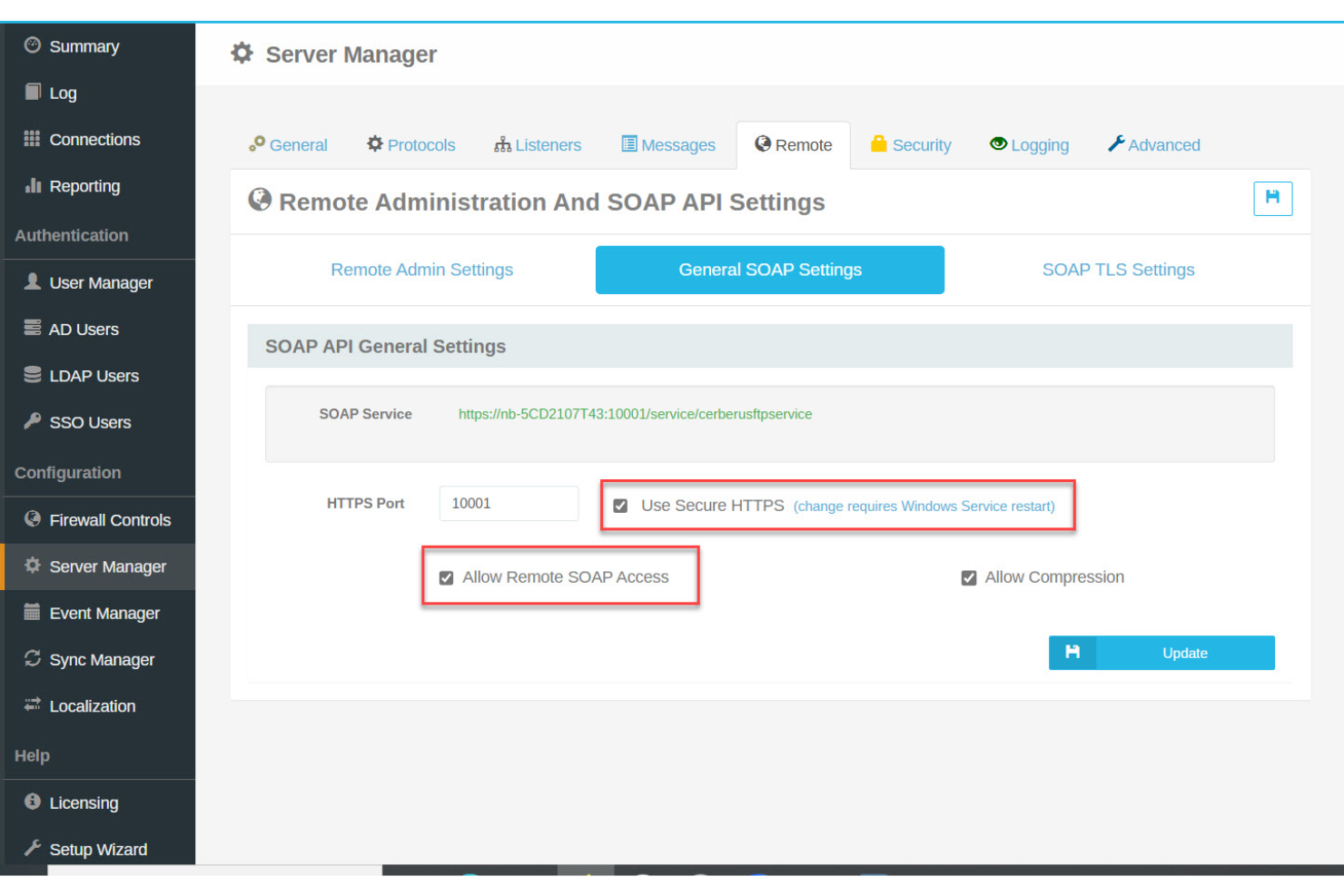
Cerberus FTP Server è una piattaforma sicura per il trasferimento e la sincronizzazione dei file, progettata per le organizzazioni che richiedono un controllo rigoroso sul movimento dei dati. È particolarmente adatto ai team IT, ai settori regolamentati e alle aziende che gestiscono file sensibili in ambienti distribuiti. Cerberus affronta problematiche quali la compatibilità tra protocolli, la conformità e la gestione centralizzata di flussi di lavoro complessi per il trasferimento dei file.
Per chi è indicato Cerberus FTP Server?
Cerberus FTP Server è una scelta valida per gli amministratori IT e i team focalizzati sulla sicurezza nei settori regolamentati che necessitano di trasferimenti di file sicuri, tracciabili e con controlli di accesso granulari.
Perché ho scelto Cerberus FTP Server
Per i team che devono sincronizzare file tra sistemi e protocolli diversi, Cerberus FTP Server si distingue per il suo supporto al trasferimento multiprotocollo. L'ho scelto perché gestisce nativamente FTP, FTPS, SFTP e HTTPS, il che significa che è possibile collegare sistemi legacy e flussi di lavoro cloud moderni senza la necessità di middleware aggiuntivi. Questa flessibilità è particolarmente utile per le organizzazioni con ambienti misti o partner esterni che adottano standard differenti. La capacità di automatizzare i trasferimenti e gestirli in modo sicuro tra protocolli rende Cerberus una scelta pratica per esigenze di sincronizzazione file complesse.
Funzionalità chiave di Cerberus FTP Server
Altre funzionalità che rendono Cerberus FTP Server una soluzione valida per la sincronizzazione e il trasferimento dei file includono:
- Politiche automatizzate di conservazione dei file: Imposta regole per la cancellazione o l'archiviazione automatica dei file in base all'età o all'attività, a supporto della conformità e della gestione dello spazio di archiviazione.
- Console di amministrazione web: Gestisci utenti, monitora attività e configura le impostazioni da qualsiasi browser senza necessità di software locale.
- Autenticazione a due fattori: Aggiunge un ulteriore livello di sicurezza per gli accessi utente, contribuendo a proteggere i trasferimenti di file sensibili.
- Integrazione con Active Directory e LDAP: Collega direttamente l'autenticazione e le autorizzazioni degli utenti ai servizi directory già presenti nell'organizzazione.
Integrazioni di Cerberus FTP Server
Le integrazioni includono Microsoft Entra ID (precedentemente Azure Active Directory), Okta, Amazon Web Services (AWS), Microsoft Azure, Active Directory e LDAP. Cerberus FTP Server offre inoltre un'API per integrazioni personalizzate.
Pros and Cons
Pros:
- Fornisce log di audit dettagliati e report
- Include un'interfaccia di gestione file basata su browser
- Si integra con Active Directory e LDAP
Cons:
- Mancanza di funzionalità di versioning dei file integrate
- Strumenti di collaborazione limitati per i flussi di lavoro di team

Tresorit
Ideale per l'archiviazione cloud con crittografia end-to-end

Tresorit è una piattaforma di archiviazione cloud e condivisione di file. Offre spazi di lavoro cloud sicuri, condivisione di file con controllo dei permessi, soluzioni di firma digitale e crittografia delle email.
Perché ho scelto Tresorit: Tresorit offre una solida crittografia end-to-end, che garantisce la protezione dei dati dalla creazione alla condivisione e alla firma. Questo la distingue dalle altre soluzioni di archiviazione cloud che potrebbero non offrire lo stesso livello di sicurezza. Inoltre, il suo modello di crittografia 'zero-knowledge' significa che solo l'utente può accedere alle chiavi di crittografia, rendendola la scelta ideale per un'archiviazione cloud sicura.
Caratteristiche distintive & integrazioni:
Le funzionalità includono crittografia end-to-end, condivisione sicura dei file con controllo dei permessi, soluzioni di firma digitale e crittografia delle email.
Le integrazioni includono Microsoft Outlook, Google Drive, Dropbox, Box, Nextcloud, ownCloud, Egnyte, Boxcryptor, Gmail e Swiss Post.
Pros and Cons
Pros:
- Crittografia end-to-end
- Condivisione sicura dei file
- Soluzioni di firma digitale
Cons:
- Costo superiore rispetto ad alcune alternative
- La configurazione può risultare complicata per chi non ha competenze tecniche

MEGA
Ideale per la crittografia a conoscenza zero
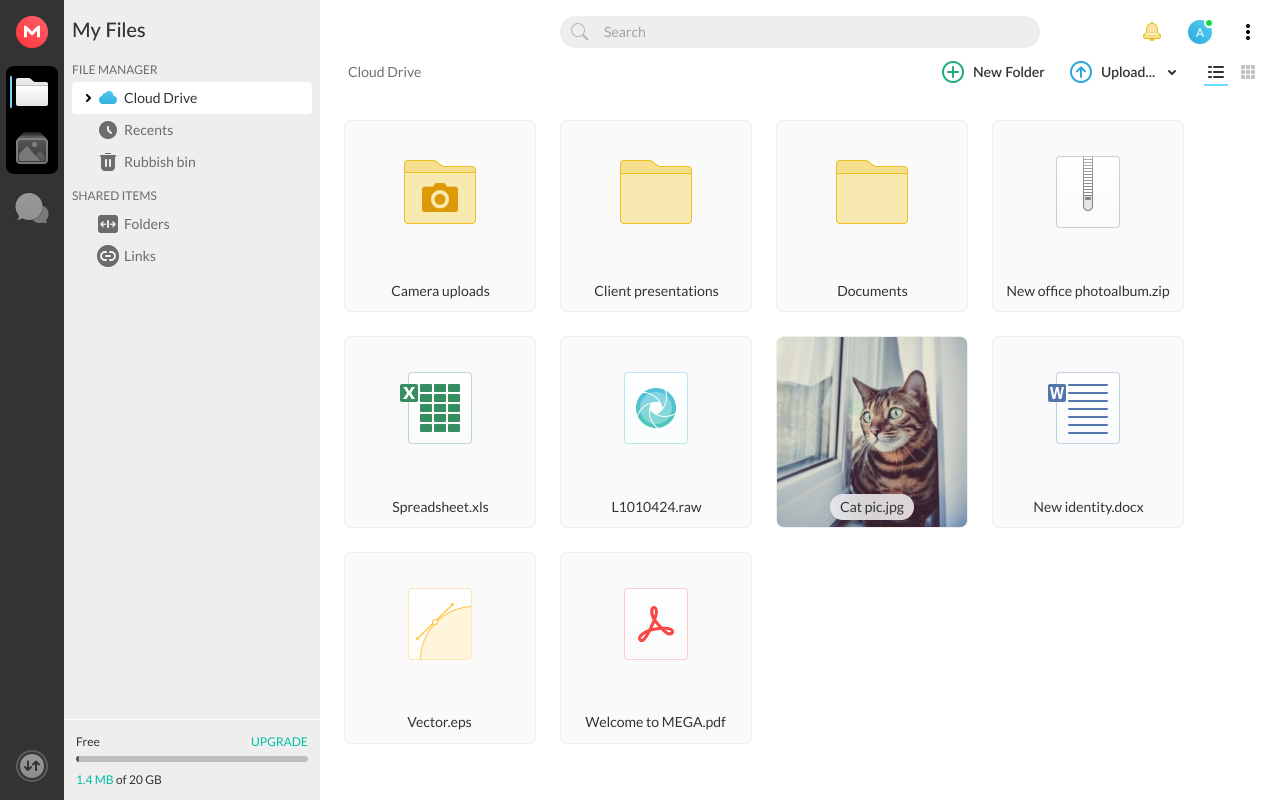
MEGA è un software di sincronizzazione dei file che offre archiviazione cloud sicura e sincronizzazione dei file. Inoltre, propone la crittografia a conoscenza zero, garantendo che solo gli utenti possano accedere ai propri dati.
Perché ho scelto MEGA: Le avanzate funzionalità di sicurezza di MEGA e il suo impegno per la privacy degli utenti lo rendono una delle migliori opzioni di software per la sincronizzazione dei file. A differenza di altri strumenti di sincronizzazione, la crittografia a conoscenza zero di MEGA assicura che solo l’utente possa accedere ai propri dati, distinguendosi così dal punto di vista della sicurezza.
Funzionalità e integrazioni principali:
Funzionalità includono condivisione sicura dei file, organizzazione dei file multimediali e archiviazione scalabile di oggetti compatibile con S3.
Integrazioni includono Windows, macOS e Linux.
Pros and Cons
Pros:
- Crittografia avanzata
- Sincronizzazione multi-dispositivo
- Condivisione sicura dei file
Cons:
- Limitazioni di banda
- Assistenza clienti limitata

iManage
Ideale per la gestione di documenti legali
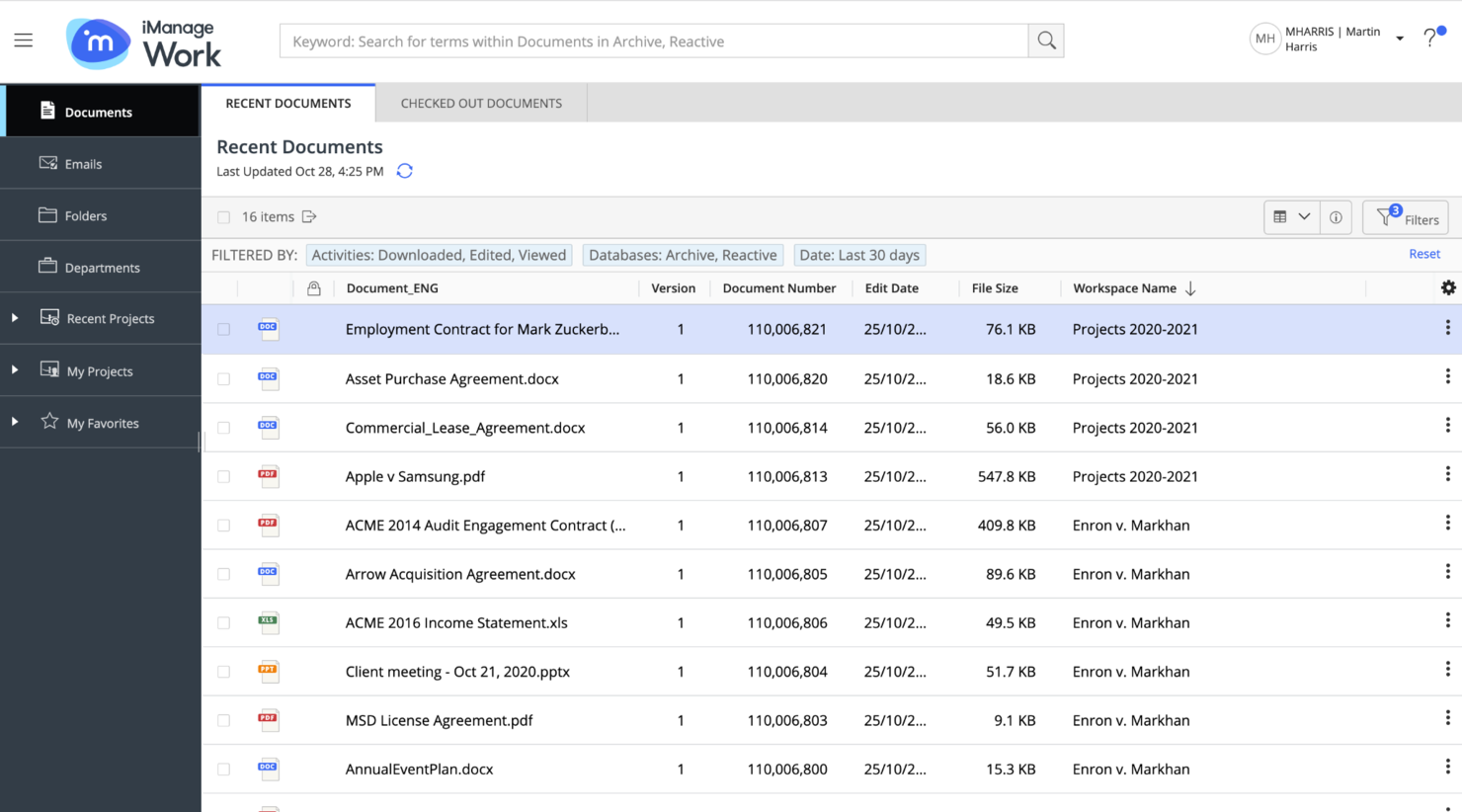
iManage è una piattaforma per la gestione della conoscenza progettata per aiutare le organizzazioni a gestire documenti ed email in modo efficiente. Offre funzionalità avanzate pensate per il settore legale, tra cui la gestione di documenti ed email, sicurezza e governance, rischio e conformità, e gestione delle transazioni legali.
Perché ho scelto iManage: iManage offre solide capacità nella gestione di documenti ed email legali, fondamentali per studi legali e reparti legali aziendali. Il suo focus su sicurezza, conformità e produttività lo rende unico rispetto ad altre soluzioni di sincronizzazione file. Inoltre, il software offre strumenti specializzati che rispondono alle esigenze specifiche dei professionisti legali, garantendo una gestione sicura ed efficiente delle informazioni sensibili.
Funzionalità salienti & integrazioni:
Funzionalità comprendono la gestione di documenti ed email, sicurezza e governance, rischio e conformità, gestione delle transazioni legali e gestione di compiti e flussi di lavoro.
Integrazioni includono Microsoft Office, Outlook, Adobe Sign, Salesforce, Docusign, NetDocuments, Worldox, HighQ, Relativity e Clio.
Pros and Cons
Pros:
- Gestione documentale legale completa
- Elevate funzionalità di sicurezza
- Integrazione con popolari strumenti legali
Cons:
- Richiesto numero minimo di licenze
- Configurazione complessa per casi d'uso non legali

Ideale per la sincronizzazione automatizzata dei file in ambito enterprise
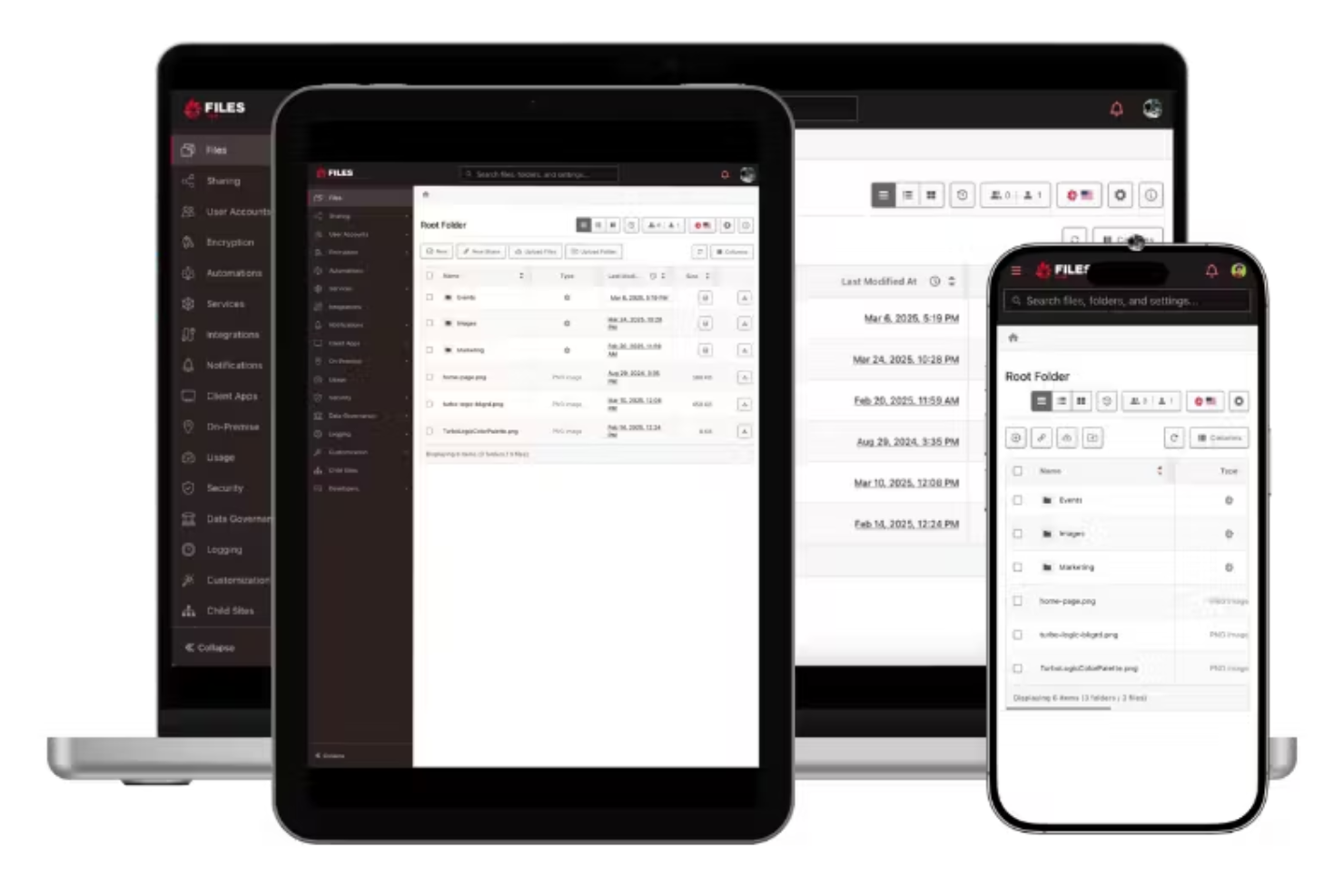
Files.com è una piattaforma cloud per il trasferimento gestito di file e la condivisione sicura dei dati. Unifica più sistemi di archiviazione in un unico namespace, offrendo visibilità e controllo centralizzati su tutti gli ambienti di storage. Grazie al supporto di oltre 50 connettori cloud, la piattaforma rende più semplice la gestione dei file aziendali senza dover passare da un provider all'altro.
Perché ho scelto Files.com: Ho scelto Files.com perché ti permette di gestire tutti i flussi di lavoro dei file in un unico posto. Invece di dover usare diversi strumenti di sincronizzazione, ottieni un tessuto unificato che si integra con quasi tutte le principali piattaforme e protocolli di storage. Apprezzo anche il fatto che Files.com includa flussi di lavoro predefiniti, così puoi automatizzare i trasferimenti di file e ridurre le attività IT ripetitive, rispettando al tempo stesso i requisiti di conformità. Queste caratteristiche sono particolarmente utili per le aziende che necessitano di sincronizzazione senza interruzioni nella gestione di grandi volumi di file.
Caratteristiche e integrazioni principali di Files.com:
Caratteristiche includono orchestrazione sicura dei file, supporto universale ai protocolli (FTP, SFTP, WebDAV), flussi di lavoro predefiniti per l'utente e crittografia di livello enterprise.
Integrazioni includono Amazon S3, Google Drive, Microsoft OneDrive, SharePoint, Box, Dropbox, Slack, Zapier, MuleSoft e Okta.
Pros and Cons
Pros:
- Ampio supporto di integrazioni cloud
- Automazione dei flussi di lavoro integrata
- Funzionalità di sicurezza di livello enterprise
Cons:
- Richiesto un minimo di 10 utenti
- Costo superiore rispetto alle alternative

Ideale per l'integrazione cloud-desktop

Zoho WorkDrive è un software avanzato di sincronizzazione file che migliora la collaborazione e la produttività del team. La funzione TrueSync consente una sincronizzazione senza interruzioni tra il desktop e l'archiviazione cloud.
Perché ho scelto Zoho WorkDrive: Le potenti capacità di integrazione tra desktop e cloud di Zoho WorkDrive lo distinguono rispetto ad altri strumenti di sincronizzazione file. La funzione TrueSync del software garantisce che gli utenti possano accedere e gestire i loro file online e offline senza occupare spazio di archiviazione locale, rendendolo la migliore opzione per chi necessita di un'integrazione cloud-desktop efficiente e affidabile.
Funzionalità e integrazioni principali:
Funzionalità includono cartelle di team per il lavoro collaborativo, ricerca avanzata con OCR e rilevamento oggetti, versioni illimitate dei file, applicazioni Zoho e strumenti di terze parti.
Integrazioni includono Zoho CRM, Zoho Projects e Zoho Mail.
Pros and Cons
Pros:
- Funzionalità di ricerca avanzate
- Versioni illimitate dei file
- Controlli di accesso granulari
Cons:
- Accesso offline limitato
- Possibile curva di apprendimento

Sync
Ideale per l'archiviazione cloud sicura

Sync è una piattaforma di archiviazione file e collaborazione sui documenti che mantiene i team sicuri, protetti e connessi nel cloud.
Perché ho scelto Sync: Sync offre un'attenzione eccezionale alla sicurezza e alla privacy, che lo distingue dalle altre soluzioni di archiviazione cloud. La crittografia end-to-end del software e la conformità a normative come il GDPR e l'HIPAA lo rendono una soluzione ideale per i team che necessitano di sincronizzazione dei file collaborativa con solide misure di sicurezza per la massima protezione.
Caratteristiche e integrazioni principali:
Le funzionalità includono crittografia end-to-end, backup in tempo reale, recupero dei file, portali client personalizzati con il proprio brand e controlli avanzati di condivisione.
Le integrazioni includono Microsoft Office 365, Google Workspace, Slack, Trello, Asana, Zoom, Salesforce, Dropbox, Box e iCloud.
Pros and Cons
Pros:
- Crittografia end-to-end
- Backup in tempo reale
- Portali personalizzati con il proprio brand
Cons:
- Poche integrazioni con app
- Ritardi nella sincronizzazione durante le ore di punta


Microsoft OneDrive è un servizio di archiviazione e sincronizzazione dei file basato su cloud. Le sue funzionalità di sincronizzazione dei file semplici aiutano i team a conservare, gestire e creare documentazione da condividere attraverso diversi software Microsoft.
Perché ho scelto Microsoft OneDrive: L'integrazione senza pari di Microsoft OneDrive con l'ecosistema Microsoft lo rende una scelta eccezionale per chi già utilizza prodotti Microsoft. La perfetta compatibilità con le applicazioni Microsoft 365 come Word, Excel e PowerPoint lo rende la migliore opzione per chi dipende da questi strumenti nelle attività quotidiane.
Funzionalità e integrazioni di spicco:
Le funzionalità includono backup automatico dei file, accesso multipiattaforma, condivisione sicura dei file e opzioni avanzate di sicurezza come il rilevamento e il ripristino da ransomware.
Le integrazioni includono Microsoft 365, Outlook, Teams, SharePoint, OneNote, Excel, PowerPoint, Word, Windows e Microsoft Edge.
Pros and Cons
Pros:
- Integrazione perfetta con Microsoft 365
- Funzionalità di sicurezza avanzate
- Accesso multipiattaforma
Cons:
- Spazio di archiviazione gratuito limitato
- Richiede Microsoft 365 per tutte le funzionalità

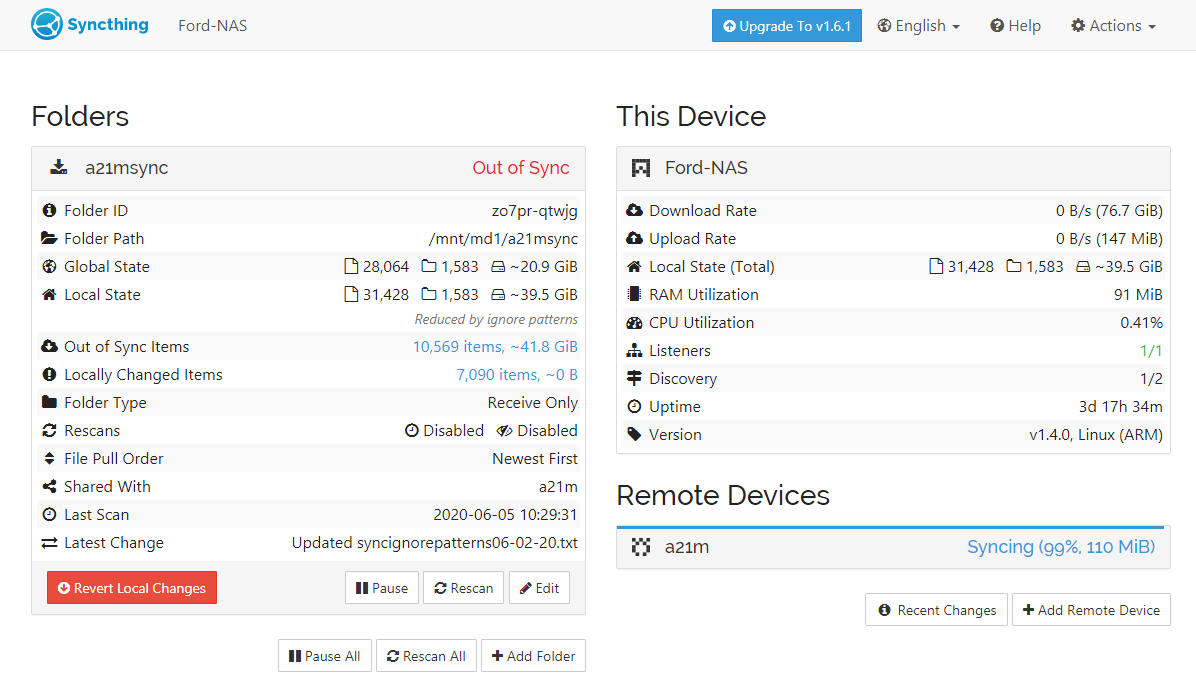
Syncthing è un software di sincronizzazione continua dei file che sincronizza i file tra dispositivi in tempo reale. Funziona senza un server centrale, garantendo la privacy e la sicurezza dei dati.
Perché ho scelto Syncthing: Syncthing elimina la necessità di un server centrale, rendendolo una delle migliori scelte per un software di sincronizzazione dei file. Questo modello decentralizzato assicura che i tuoi dati rimangano privati e sicuri, poiché non vengono mai archiviati su server di terze parti. Inoltre, il software pone una forte enfasi su privacy, sicurezza e controllo dell’utente sui propri dati.
Funzionalità e integrazioni principali:
Le funzionalità includono sincronizzazione in tempo reale, crittografia avanzata e compatibilità multipiattaforma con macOS, Windows, Linux, FreeBSD, Solaris e OpenBSD.
Le integrazioni includono GitHub, UPnP, TLS, Kastelo, macOS, Windows, Linux, FreeBSD, Solaris e OpenBSD.
Pros and Cons
Pros:
- Sincronizzazione decentralizzata
- Crittografia avanzata
- Compatibilità multipiattaforma
Cons:
- Nessun server centrale
- Richiede configurazione manuale

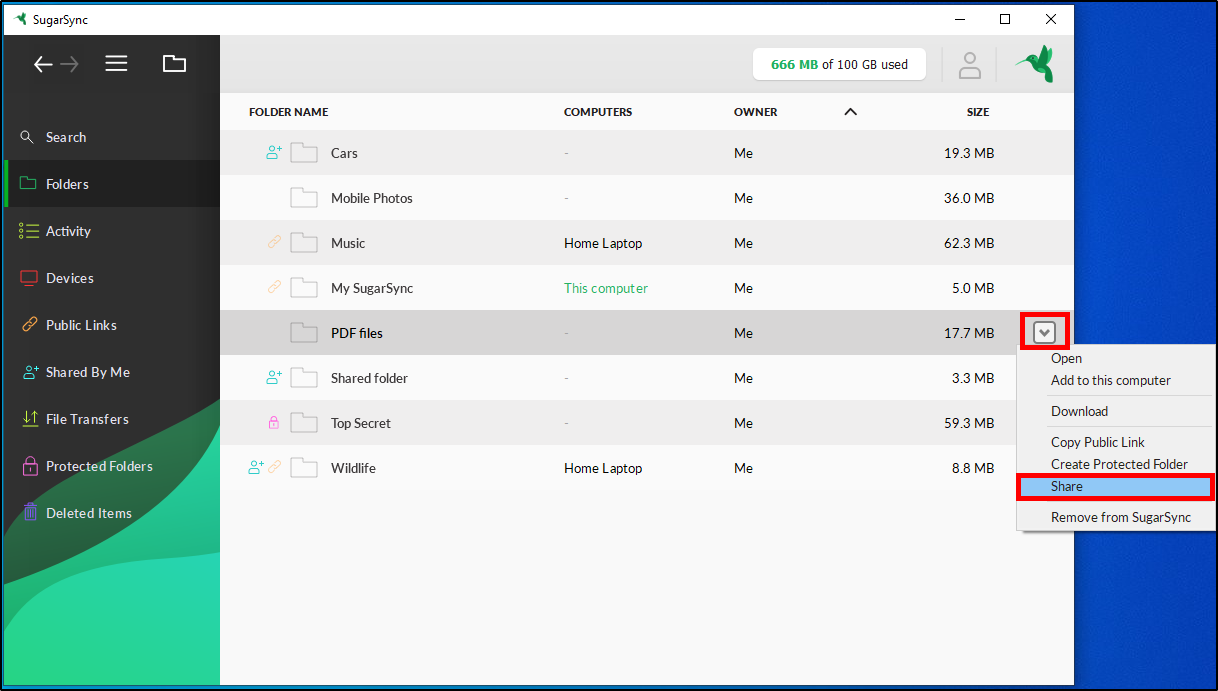
SugarSync è un servizio di sincronizzazione file che consente agli utenti di accedere e condividere i propri file da qualsiasi dispositivo. Permette di configurare la sincronizzazione automatica per più cartelle, garantendo che le modifiche vengano applicate istantaneamente su tutti i dispositivi.
Perché ho scelto SugarSync: SugarSync offre potenti funzionalità di sincronizzazione automatica dei file, distinguendosi dagli altri strumenti di sincronizzazione. La sua capacità di sincronizzare automaticamente più cartelle e consentire l'accesso ai file da qualsiasi dispositivo lo rende una scelta eccellente. Inoltre, la sincronizzazione automatica del software assicura che gli utenti abbiano sempre la versione più aggiornata dei propri file, rendendolo il migliore per la sincronizzazione automatica dei file.
Caratteristiche principali & integrazioni:
Caratteristiche includono la sincronizzazione automatica dei file su più dispositivi, accesso fluido per gestire e copiare file, crittografia avanzata per la protezione sicura dei dati e compatibilità multipiattaforma per macOS, Windows e dispositivi mobili.
Le integrazioni includono Microsoft Outlook, Microsoft Office, Adobe Acrobat, Google Drive, Dropbox, Box, OneDrive, Slack, Salesforce e Trello.
Pros and Cons
Pros:
- Sincronizzazione automatica dei file
- Cancellazione dati da remoto
- Accesso da dispositivi mobili
Cons:
- È richiesto un minimo di tre utenti
- Opzioni di archiviazione limitate
Altri software di sincronizzazione dei file
Di seguito è riportato un elenco di software aggiuntivi per la sincronizzazione dei file. Anche se non sono entrati nella mia selezione, vale la pena esaminarli se non hai trovato quello che cercavi sopra.
- SyncBack
Ideale per soluzioni di backup personalizzabili
- Resilio
Ideale per la sincronizzazione file P2P
- Syncplicity
Ideale per l'archiviazione ibrida nel cloud


Recensioni correlate dei software di gestione dei progetti
Se non hai ancora trovato quello che cerchi qui, dai un'occhiata a questi altri strumenti correlati che abbiamo testato e valutato:
- Software di gestione dei progetti
- Software di gestione delle risorse
- Software di automazione dei flussi di lavoro
- Software per il monitoraggio del tempo
- Software di gestione delle attività
- Strumenti di collaborazione
- Creatore di diagrammi di Gantt
- Strumenti per la produttività
- Software per il monitoraggio dei progetti
- Software per la pianificazione dei progetti
- Software di sincronizzazione dei file
Come Valuto il Software di Sincronizzazione File
Quando un collaboratore apre il blueprint sbagliato o una revisione di sprint si blocca per un file obsoleto, la sincronizzazione viene meno—valuto gli strumenti su due livelli: requisiti fondamentali e fattori chiave di differenziazione.
Funzionalità di Base (Requisiti Minimi per Questa Lista)
Quando seleziono gli strumenti per la mia lista, valuto ciascuno di essi su una scala da 0 (non offre la funzionalità) a 5 (eccelle in quest’area) per ogni funzionalità fondamentale elencata di seguito. Poi calcolo il punteggio totale dello strumento in percentuale. Ogni strumento deve raggiungere un punteggio totale minimo del 65% per essere preso in considerazione.
- Sincronizzazione File in Tempo Reale: Controllo la rapidità con cui le modifiche ai file si propagano sui dispositivi connessi—quando un PM aggiorna il calendario di progetto, il resto del team dovrebbe vedere la modifica entro pochi secondi.
- Supporto Multi-Dispositivo e Multi-Piattaforma: I team di progetto lavorano da laptop, smartphone e tablet su diversi sistemi operativi, quindi cerco app native con funzionalità coerenti su ciascuno.
- Controllo delle Versioni e Cronologia dei File: Valuto quanto a lungo viene mantenuta la cronologia delle versioni e quanto sia facile recuperare una versione precedente di un file—ad esempio, ripristinare una consegna che un cliente ha rifiutato la scorsa settimana.
- Sincronizzazione Selettiva e Gestione Cartelle: I team che sincronizzano centinaia di gigabyte di risorse progettuali hanno bisogno di un controllo granulare su cosa viene salvato localmente, quindi cerco opzioni di sincronizzazione a livello di cartella e file.
- Gestione della Risoluzione dei Conflitti: Quando due membri del team modificano lo stesso documento offline, verifico se lo strumento segnala il conflitto, crea copie oppure offre un confronto affiancato per unire le modifiche.
- Condivisione Sicura e Controlli di Accesso: Valuto la granularità dei permessi e gli standard di crittografia, soprattutto per condividere file sensibili di progetto con stakeholder esterni come clienti o fornitori.
Una volta compilata la lista degli strumenti che soddisfano i criteri, considero cosa distingue ciascuna piattaforma.
Fattori di Differenziazione (Cosa Distingue i Fornitori)
Ecco come confronto e metto a confronto i diversi fornitori:
Funzionalità Distintive
La sincronizzazione a livello di blocco è fondamentale quando il team lavora con grandi consegne come file CAD o risorse video—solo i byte modificati vengono trasferiti, quindi la sincronizzazione si conclude in pochi secondi invece che minuti. Cerco anche l’accesso offline, dato che i team distribuiti spesso lavorano da cantieri o in viaggio dove la connettività può mancare. Le integrazioni native con strumenti PM come Jira o Asana mantengono i file collegati alle attività specifiche, preservando il contesto di progetto senza bisogno di organizzare manualmente le cartelle.
Oltre le Funzionalità
Le certificazioni di sicurezza e conformità come SOC 2, ISO 27001 e la prontezza al GDPR meritano una verifica preventiva—specialmente se i vostri progetti toccano settori regolamentati o implicano dati di clienti esterni. Anche i modelli di prezzo variano molto: alcuni fornitori fanno pagare per utente, altri per spazio di archiviazione, cambiando così le logiche di costo a seconda che il team sia numeroso o che i file siano voluminosi. Valuto inoltre la scalabilità dell’archiviazione per team che sincronizzano risorse pesanti come file di design o documenti di costruzione che possono superare rapidamente le soglie dei piani base.
Come scegliere un software di sincronizzazione dei file
Mentre affronti il tuo personale processo di selezione del software, tieni presenti i seguenti aspetti:
- Funzionalità di sicurezza: L'accesso non autorizzato ai dati può compromettere la riservatezza delle informazioni fondamentali della tua organizzazione, pertanto garantire la sicurezza dei tuoi dati è di primaria importanza. Cerca un software di sincronizzazione dei file che offra funzionalità di sicurezza avanzate come la crittografia dei dati, la scansione antivirus e l'autenticazione a due fattori.
- Compatibilità multipiattaforma: Il software scelto dovrebbe poter funzionare senza problemi su diversi sistemi operativi come Windows, macOS e Linux. Questo è particolarmente importante per le aziende con ambienti IT eterogenei.
- Scalabilità: Man mano che la tua azienda cresce, aumenteranno anche i tuoi dati e la tua base di utenti. Di conseguenza, il software di sincronizzazione dei file scelto dovrebbe supportare dati e utenti illimitati per accompagnare questa crescita.
- Recupero e versioning dei file: È importante che il software abbia la possibilità di recuperare versioni precedenti dei file o ripristinare quelli eliminati. Questa funzionalità aiuta a mantenere l'integrità dei dati ed evitare la perdita di informazioni importanti.
- Funzionalità di integrazione: Il software dovrebbe integrarsi bene con le altre applicazioni e gli strumenti utilizzati all'interno della tua organizzazione. Questo garantisce un flusso di lavoro fluido e riduce la necessità di trasferimenti manuali dei dati.
Tendenze dei software di sincronizzazione dei file
Ecco alcune tendenze che ho notato nel settore dei software di sincronizzazione dei file e cosa potrebbero significare per il futuro. Ho analizzato innumerevoli aggiornamenti dei prodotti, comunicati stampa e registri delle versioni per individuare gli aspetti più importanti.
- Sincronizzazione basata sull'intelligenza artificiale: L'intelligenza artificiale viene integrata per prevedere e stabilire la priorità della sincronizzazione dei file, contribuendo a ridurre la latenza e migliorare l'efficienza. Questo è importante perché aumenta la produttività degli utenti.
- Crittografia a conoscenza zero: La crittografia a conoscenza zero garantisce che solo gli utenti possano accedere ai propri dati. Questa tendenza è fondamentale per la privacy e la sicurezza e risponde efficacemente alle crescenti preoccupazioni relative alle violazioni dei dati.
- Compatibilità multipiattaforma: I software di sincronizzazione dei file supportano sempre più sistemi operativi, consentendo un accesso fluido da diversi dispositivi. Questo è importante per gli utenti che lavorano su varie piattaforme.
- Collaborazione in tempo reale: Le funzionalità di collaborazione in tempo reale stanno diventando uno standard, poiché consentono a più utenti di lavorare contemporaneamente sui file. Questa tendenza è fondamentale per gli ambienti di lavoro da remoto e ibridi, poiché contribuisce ad aumentare la produttività.
- Ottimizzazione della larghezza di banda: I nuovi algoritmi ottimizzano l'utilizzo della larghezza di banda durante la sincronizzazione dei file. Questo riduce al minimo i costi di trasferimento dei dati e accelera il processo, un aspetto essenziale per gli utenti con risorse Internet limitate.
Che cos'è un software di sincronizzazione dei file?
Il software di sincronizzazione dei file è uno strumento che mantiene automaticamente i file coerenti e aggiornati su più dispositivi o posizioni di archiviazione. Sincronizza le modifiche in tempo reale, così gli utenti accedono sempre alla versione più recente, supporta una collaborazione fluida, migliora la produttività e riduce il rischio di conflitti tra versioni o perdita di dati.
I project manager, i team IT, i lavoratori da remoto e altri professionisti che devono condividere file lo utilizzano affinché tutti possano lavorare sulla versione più recente senza preoccuparsi di perdere modifiche o creare duplicati disordinati.
Caratteristiche
Ecco alcune delle principali funzionalità che il software di sincronizzazione dei file scelto dovrebbe avere per essere adatto alle tue esigenze:
- Sincronizzazione automatica: questa funzionalità garantisce che i file vengano aggiornati automaticamente senza intervento manuale, aspetto importante per mantenere i dati aggiornati su tutti i dispositivi.
- Sincronizzazione in tempo reale: la sincronizzazione in tempo reale aggiorna istantaneamente i file quando vengono apportate modifiche, garantendo che sia sempre disponibile la versione più recente, aspetto essenziale negli ambienti di lavoro collaborativi.
- Supporto per più dispositivi e piattaforme: la possibilità di sincronizzare i file su diversi dispositivi e sistemi operativi garantisce flessibilità e accessibilità, consentendo agli utenti di lavorare ovunque.
- Gestione delle versioni e backup: questa funzionalità tiene traccia delle diverse versioni dei file e consente agli utenti di ripristinare le versioni precedenti quando necessario, fornendo un ulteriore livello di protezione dei dati.
- Sicurezza e crittografia: solidi protocolli di crittografia proteggono i dati durante il trasferimento e l'archiviazione, aspetto importante per tutelare la privacy dei dati e impedire accessi non autorizzati.
- Semplicità d'uso: l'interfaccia intuitiva del software e la configurazione semplice lo rendono accessibile agli utenti di qualsiasi livello tecnico, garantendo che possa essere utilizzato efficacemente senza una formazione approfondita.
- Rilevamento dei conflitti: questa funzionalità identifica e risolve i conflitti quando i file vengono modificati in più posizioni, prevenendo la perdita di dati e garantendo la coerenza.
- Sincronizzazione selettiva: consente agli utenti di scegliere file o cartelle specifici da sincronizzare, risparmiando larghezza di banda e spazio di archiviazione evitando di sincronizzare dati non necessari.
- Cancellazione da remoto: in caso di smarrimento o furto del dispositivo, le funzionalità di cancellazione da remoto possono eliminare i dati sincronizzati dal dispositivo, proteggendo le informazioni sensibili.
- Strumenti di collaborazione: funzionalità come la gestione degli accessi degli utenti e il controllo delle autorizzazioni facilitano la condivisione sicura dei file e la collaborazione, aspetti essenziali per i progetti di gruppo.
Vantaggi
Il software per la sincronizzazione dei file garantisce che i file siano costantemente aggiornati e accessibili su più dispositivi, migliorando la produttività e la collaborazione. Tuttavia, questi non sono gli unici vantaggi associati al software per la sincronizzazione dei file. Ecco alcuni altri benefici di cui potresti usufruire.
- Maggiore accessibilità: gli utenti possono accedere ai propri file da qualsiasi dispositivo e in qualsiasi momento, garantendo che i documenti importanti siano sempre a portata di mano, in ufficio o in viaggio.
- Collaborazione migliorata: i team possono lavorare contemporaneamente sugli stessi documenti, con aggiornamenti in tempo reale delle modifiche, semplificando i flussi di lavoro e riducendo il rischio di conflitti tra versioni.
- Sicurezza dei dati: il software per la sincronizzazione dei file include spesso solide funzionalità di sicurezza, come la crittografia e i controlli di accesso sicuro, che proteggono le informazioni sensibili da accessi non autorizzati e violazioni dei dati.
- Backup automatico: i file vengono sottoposti automaticamente a backup nel cloud, riducendo il rischio di perdita dei dati dovuta a guasti hardware o eliminazioni accidentali e garantendo che le informazioni fondamentali siano sempre recuperabili.
- Maggiore efficienza: il software per la sincronizzazione dei file automatizza il processo di sincronizzazione, eliminando la necessità di trasferire manualmente i file, risparmiando tempo e riducendo la probabilità di errori.
Costi e prezzi
Il software per la sincronizzazione dei file è essenziale per aziende e privati che desiderano sincronizzare i propri dati su più dispositivi e posizioni. Tuttavia, è importante conoscere i diversi prezzi e piani disponibili quando si cerca un nuovo software.
Di seguito analizzo diverse opzioni di piano e i relativi prezzi per aiutarti a prendere una decisione informata.
Tabella di confronto dei piani per il software di sincronizzazione dei file
| Tipo di piano | Prezzo medio | Funzionalità comuni |
|---|---|---|
| Gratuito | $0 | Sincronizzazione di base dei file, spazio di archiviazione limitato e funzionalità di sicurezza di base |
| Piano base | $5/utente/mese | Maggiore spazio di archiviazione, strumenti di collaborazione di base e funzionalità di sicurezza di base |
| Piano standard | $10/utente/mese | Spazio di archiviazione moderato, strumenti di collaborazione avanzati e funzionalità di sicurezza potenziate |
| Piano premium | $20/utente/mese | Spazio di archiviazione elevato, strumenti di collaborazione completi e funzionalità di sicurezza avanzate |
| Piano aziendale | Prezzo personalizzato | Spazio di archiviazione illimitato, collaborazione a livello aziendale, sicurezza e supporto dedicato |
Domande frequenti
Ecco alcune domande frequenti che mi sono state poste sul software di sincronizzazione dei file.
Il software di sincronizzazione dei file è sicuro?
La sicurezza è un aspetto fondamentale del software di sincronizzazione dei file. La maggior parte dei servizi affidabili di sincronizzazione dei file offre solide funzionalità di sicurezza, tra cui la crittografia end-to-end, l’autenticazione a due fattori e centri dati sicuri. Tuttavia, il livello di sicurezza può variare da un provider all’altro. È essenziale esaminare le funzionalità di sicurezza di qualsiasi software di sincronizzazione dei file che si sta prendendo in considerazione, per assicurarsi che soddisfi i propri requisiti di sicurezza.
Posso usare il software di sincronizzazione dei file per il backup?
Sì, molte soluzioni software di sincronizzazione dei file offrono anche funzionalità di backup. Mentre la sincronizzazione dei file garantisce che i file siano aggiornati su tutti i dispositivi, le funzionalità di backup forniscono un ulteriore livello di protezione salvando copie dei file in caso di eliminazione accidentale o perdita di dati. Alcuni servizi offrono la gestione delle versioni, che consente di ripristinare versioni precedenti di un file.
Il software di sincronizzazione dei file può essere utilizzato per la collaborazione tra team?
Certamente. Il software di sincronizzazione dei file è uno strumento eccellente per la collaborazione tra team. Consente a più utenti di accedere e modificare i file in tempo reale, assicurando che tutti lavorino con le informazioni più aggiornate. Funzionalità come la condivisione dei file, i commenti e il controllo delle versioni rendono più facile per i team collaborare in modo efficiente ed efficace.
Il software di sincronizzazione dei file può gestire file di grandi dimensioni e grandi volumi di dati?
Sì, molte soluzioni software di sincronizzazione dei file sono progettate per gestire file di grandi dimensioni e volumi significativi di dati. Funzionalità come la sincronizzazione differenziale, che aggiorna solo le parti dei file che sono cambiate, e la gestione ottimizzata dello spazio di archiviazione aiutano a gestire grandi quantità di dati in modo efficiente.
Quali sono gli svantaggi della sincronizzazione dei file?
Gli svantaggi della sincronizzazione dei file includono potenziali conflitti di dati dovuti a modifiche simultanee, rischi per la sicurezza se i file non sono crittografati, la dipendenza dalla connessione a Internet e uno spazio di archiviazione limitato a seconda del provider.
Qual è il modo migliore per sincronizzare i file tra computer?
Il modo migliore per sincronizzare i file tra computer consiste nell’utilizzare un servizio affidabile di sincronizzazione dei file basato sul cloud, come Dropbox, Google Drive o OneDrive, che offre la sincronizzazione in tempo reale, l’accesso da più dispositivi e backup automatici.