

5 Best Screen Sharing Software & Hardware For 2026

Best Screen Sharing Tools List


Clear communication is essential in project management, and the best screen sharing software makes it easier to collaborate, present ideas, and resolve issues in real time. Whether you're running a remote meeting or walking a client through a project, you need a tool that works without frustration.
With countless options available on the market, finding the right fit for your team can be a time-consuming challenge. Here, I’ve tested and reviewed the best screen sharing tools to help you decide.
This list covers options that are simple to use, reliable, and suited for different team needs. You'll get a quick breakdown of each tool’s features so you can choose the one that works best for your workflow.
Why Trust Our Software Recommendations
Our team has been testing and reviewing software since 2012. As project managers ourselves, we know how difficult—and important—it is to choose the right software.
For this guide, we evaluated tools using hands-on testing and independent research, scoring tools using our selection criteria. We also draw on insights from industry thought leaders and practicing project management experts.
Our reviews reflect our human editorial judgment, not a sales pitch.
Expert reviewers:
Screen Sharing Software & Hardware Comparison Table
The table below compares pricing details for my top screen sharing software and hardware selections.
| Tool | Best For | Trial Info | Price | ||
|---|---|---|---|---|---|
| 1 | Best screen sharing software for remote support | 15-day free trial + free demo available | From $10/technician/month (billed annually) | Website | |
| 2 | Best seamless screen sharing for effective online presentations and meetings | Free plan available | Pricing upon request | Website | |
| 3 | Best screen sharing app for integrations with other remote collaboration tools | Free plan available | From $7.25/user/month (billed annually) | Website | |
| 4 | Best for collaborative screen sharing | Free plan available | From $13.33/user/month (billed annually) | Website | |
| 5 | Best screen sharing software for NGOs and nonprofits | 30-day free trial + free demo available | From $2.50/user/month | Website |
Best Screen Sharing Tool Reviews
Here’s a brief description of each of the screen-sharing apps and hardware that are featured on this list.

Best screen sharing software for remote support

Zoho Assist is a remote support and remote access software that's designed to help IT professionals and support teams provide technical assistance to customers, clients, or even colleagues.
Zoho Assist excels as a screen-sharing software for several reasons. Firstly, it offers seamless and reliable screen-sharing capabilities, allowing customer service teams to share their screen with customers for real-time collaboration. This feature helps agents to visually demonstrate solutions, guide customers through troubleshooting steps, and provide personalized assistance. The high-quality screen sharing ensures that customers can see and understand the actions being performed, improving the overall support experience.
Additionally, Zoho Assist offers advanced features that enhance the screen-sharing experience. Agents can not only share their screens but also provide remote control access to customers, enabling them to take control of the customer's device and resolve issues directly. This hands-on approach reduces response times and facilitates quicker issue resolution.
Zoho Assist integrates with Zendesk, ServiceNow, Jira, Spiceworks, Freshdesk, Slack, MS Teams, Zoho Desk, and ZohoSalesIQ. You can also build custom integrations with your current tech stack using the Zoho Assist API.
Best seamless screen sharing for effective online presentations and meetings

RingCentral Webinar is a platform for hosting webinars, online meetings, and presentations. It's a part of RingCentral's suite of communication tools, which also includes voice, video, and team messaging. The webinar tool is designed for businesses of all sizes, from small startups to large enterprises. It's a great fit for anyone who needs to host online events, whether it's for internal team meetings, customer training, product demos, or large-scale webinars.
I picked RingCentral Webinar because of its robust functionality and ease of use. It's a comprehensive webinar platform that includes features like registration management, analytics, and interactive tools like polls and Q&A. Plus, it's user friendly, allowing you to set up and run a webinar without any hiccups.
What really makes RingCentral Webinar stand out from the crowd are its features. It supports up to 10,000 attendees and 500 presenters. It also offers HD video and audio, so your webinars will look and sound good. And it has robust screen sharing features that make it a good choice for interactive video conferencing.
It integrates easily with Marketo and can be customized using their API.
Pricing starts at $20/user/month and they offer a 30-day free trial.

Slack
Best screen sharing app for integrations with other remote collaboration tools

Slack is a calling and messaging service that also allows for screen sharing during meetings. With the Slack screen sharing option, users can present their screen through a Slack Call, draw on their screen to make notes, and even allow audience members to add to the drawings.
Slack scores well in the Integrations section of the evaluation criteria, as the software, plays very well with others. They have an easy plugin and connection options and are fully transparent about the range of tools that can be used with Slack.
The Slack notification system can be a bit mucky, with certain notifications “off” by default, or different notifications sending depending on the platform (mobile versus PC), or notifications not pinging when they should.
Integrations include Bonusly, Google Calendar, Workstreams, Jira Cloud, Parabol, Disco, Outlook, Gmail, OneDrive, Google Drive, Dropbox, Fuse, Workday, Geekbox, RingCentral, BlueJeans, Microsoft Teams, Ovvy, FieldSpark, Todo, OKRobot, NerdyData, Toast, Grow, Icebreakers, Jira Integrations+, Qualtrics, Trello, Zendesk, and many more. They also offer even more connection options through Zapier.
Slack starts at $8.75/user/month and offers a freemium version of the software as a free trial.

Zoom
Best for collaborative screen sharing

Zoom is a communication platform that makes it easy to host virtual meetings and share content with others. You can share your entire screen or just a single application, which helps keep attention on the material that matters. The platform also includes features like audio and video sharing to make presentations more engaging.
I picked Zoom for this list because of its flexibility in screen sharing. You can decide whether to share everything or just one app window, which is helpful when presenting sensitive or detailed information. I also like that multiple participants can share their screens at once, making it easier to compare documents or brainstorm together in real time. The annotation tools add another layer of collaboration, since participants can highlight or comment directly on the shared content.
Features include slide control for smoother co-presenting, customizable settings for sharing only specific windows or limiting frame rates, and built-in security options to manage who can view your shared screen.
Integrations include Microsoft 365, Figma, Confluence, Notion, Coda, Asana, Microsoft Teams, Google Workspace, Slack, Salesforce Sales Cloud, HubSpot, and Kahoot!.
Best screen sharing software for NGOs and nonprofits

Troop Messenger is an instant messaging tool that has been designed for the communication and collaboration needs of business teams. Screen sharing is an integral part of the tool. Being a secured remote feature, it allows team members to initiate screen sharing with the office team members or with remote teams without having to rely on calling.
Troop Messenger’s team is coming up with the enhancements of Screen Controlling and Screen Annotations in their next version release to provide a great experience to the user.
Remote teams can access the screen share feature from desktop versions of Windows, Linux, and Mac. Besides the core collaboration features, the Troop Messenger is a hub for many work productive features such as Recall, Respond Later, Read Receipts, File preview, Image editing, Fork out, Burnout, Wallpapers and more.
Troop Messenger supports many native and third-party integrations including Google Drive, Dropbox, and LDAP. It's available on Windows, Linux, Mac, Android, and iOS.
To try out the tool, you can use the screen share feature with Troop Messenger’s 7-day free trial of the Enterprise plan. Later, you can switch to the paid edition of their Premium version for $2.50/user/month, or the Enterprise version at $5/user/month to continue using the Screen Share feature in addition to the Premium features.
Best Screen Sharing Hardware Reviews
6. Barco Clickshare – With this wireless presentation system, users can share what’s on their laptop or mobile device onto presentation screen.
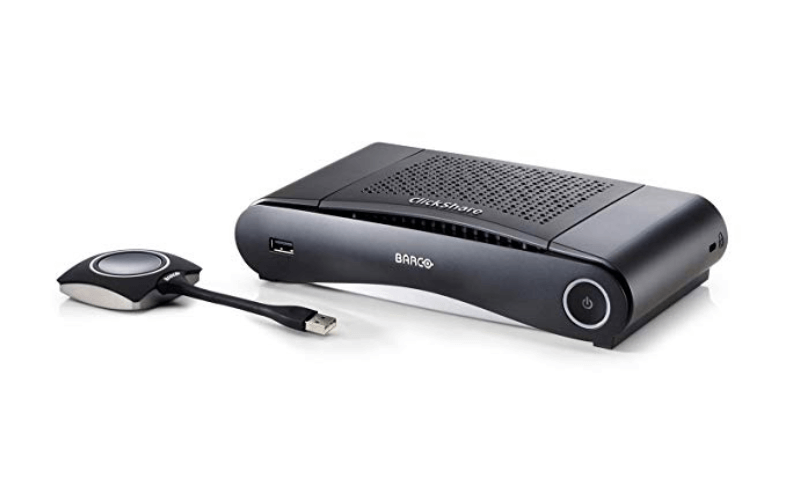
Boasts HDMI output that allows up to 8 users to connect, with one user sharing at a time.
Barco ClickShare lets you plug the button component into your laptop and click to start your immersive meeting without the need to start an application. Through this, you can access screen mirroring and ClickShare perfectly works with AirPlay, Google Cast, and Miracast.
Some noteworthy features of the Barco CS device include one-click sharing for anyone connected as well as a set of advanced interactivity features to boost your meeting collaboration: touch back support, annotation, blackboarding and moderation.
The Barco CS scored favorably in the Security section of the evaluation criteria, as it offers advanced options like the ability to establish different security points at multiple predefined levels; yet, the tools’ API keeps integration into the network clean and easy.
Barco ClickShare starts at $750.
7. Crestron – Enables wireless presentation of HD content using laptops, tablets, and smartphones and is compatible with Windows and Mac.
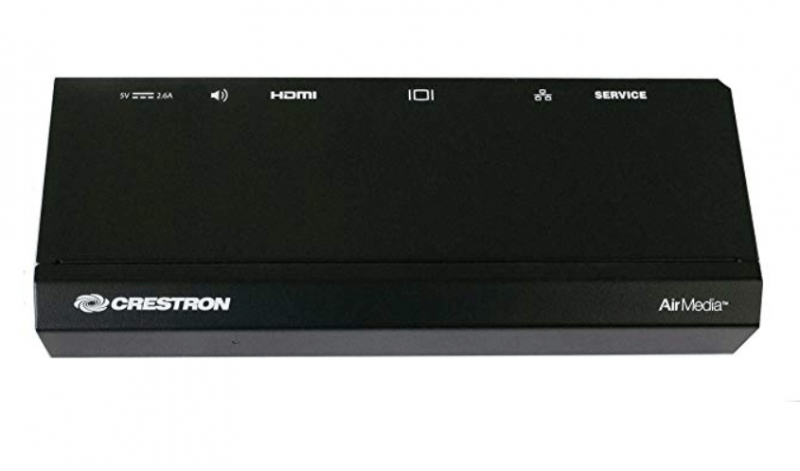
Bring your own device to a meeting or collaboration session and share your content wirelessly.
The Crestron lets users present wirelessly using laptops and mobile devices, projecting HD content using laptops, tablets, and smartphones. The tool can display up to four presentation sources at once in Quad View and is compatible with Windows, OS X, Apple iOS, and Android.
Unique key features include a customizable welcome screen with clear instructions for presenters, choice of connection methods (installed app, web browser, USB thumb drive), and its ease of deployment across many rooms at once.
This tool scored well in the Features – Collaboration section of the evaluation criteria, as it lets up to 32 users connect at once, switching from one device to the next for seamless collaboration with any Wi-Fi enabled device.
Crestron starts at $1065.
8. Kramer – A wireless collaboration and presentation solution for any laptop or mobile device – share files, chat, and display up to 4 screens.
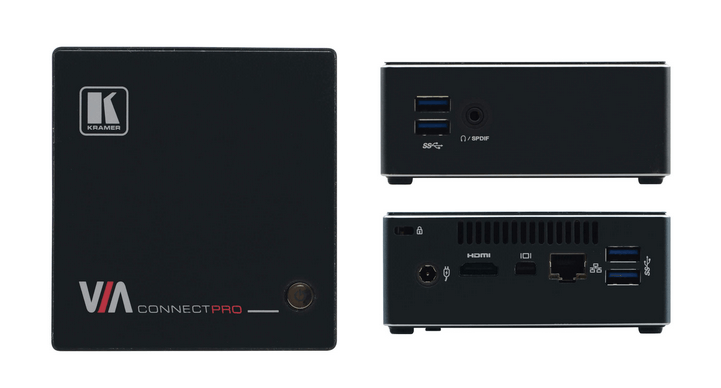
Kramer has high quality video streaming and supports full HD 1080p/60.
The Kramer ConnectPro is a wireless presentation and collaboration hub with high quality video streaming that supports full HD 1080p/60. This screen sharing hardware supports Windows laptops and MAC, as well as iOS and Android mobile operating systems.
Noteworthy features include multilingual support for the device, wireless connection for up to 254 devices utilizing any compatible external wireless network, and collaboration tools like a whiteboard, messaging/chat tools, and easy file sharing.
The Kramer VIA Connect Pro scored well in the Features – Recording section of the evaluation criteria segment, as it offers easy recording of the main display (video & audio) as well as audio from the mic input for meeting room dialog. Recordings can be saved locally to VIA’s hard drive, saved to a USB device, or pushed to VIA Site Management (VSM).
Kramer starts at $995.
9. Apple TV – Use your iPhone or Siri as a remote for sharing photos, presentations, website, device screens, and more.
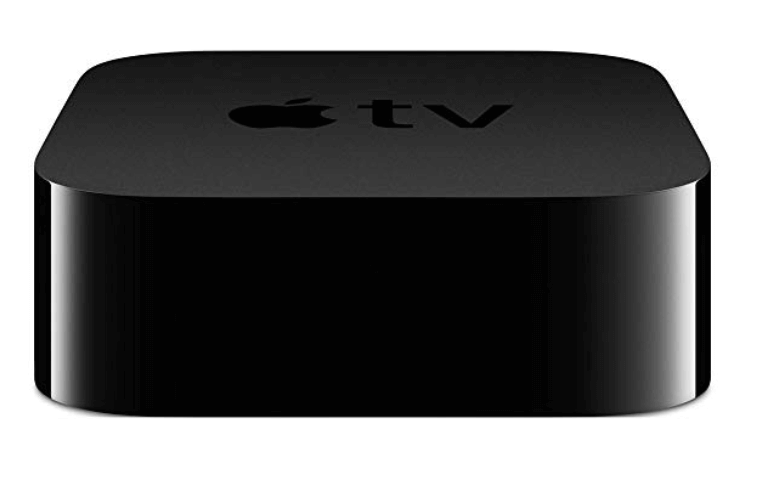
Easily view photos and videos from your iPhone and iPad on a connected TV.
The latest Apple TV model offers 4K High Dynamic Range (Dolby Vision and HDR10) for high picture quality and a 10X Fusion chip for fast graphics and performance. Users can access voice controls through the Siri system and download popular apps like Netflix from the store.
One of the most formidable features of this tool is the expansive library on third-party applications that can be found and connected through the Apple App Store. Virtually any additionally need you have can be met with these various add-ons.
Apple TV scored well in our evaluation category for Usability, as the company is not only known for excellent customer service but triahere is myriad training and resources online if you are looking for help or troubleshooting.
Apple TV starts at $179.
10. Chromecast – Offers a screen mirroring features in order to view photos, files, videos, presentations and more on the big screen.
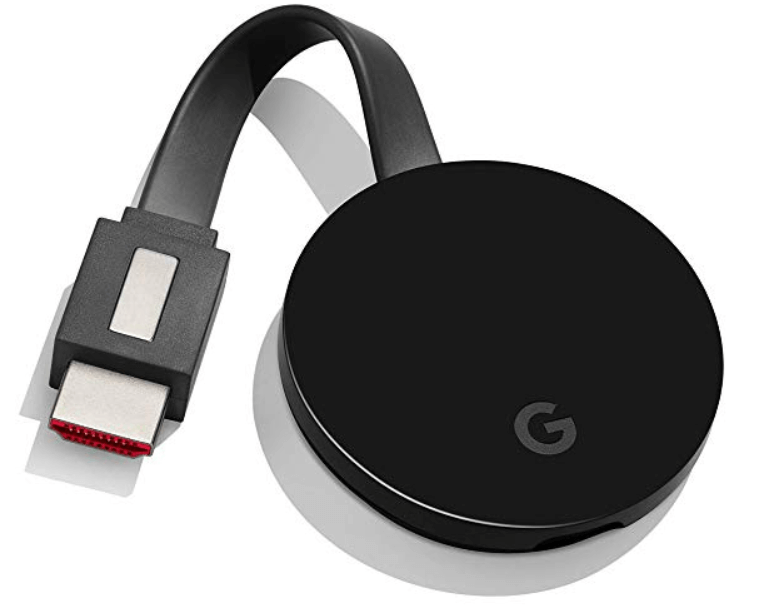
Use the Chrome browser for Windows, Mac, or Chrome OS to connect it to the Chromecast.
The Chromecast lets you screen share what’s on your device, be it a work presentation or a media-oriented streaming service like Netflix, YouTube, or Disney+. Compatible with iPhone, iPad, Android phones or tablets, Mac or Windows laptops and Chromebooks.
A few exemplary features includes a voice-activated Google home for hands-free streaming control, a robust list of accessory options (from ethernet cables to camera and speaker attachments), and over 1000 3-party apps with which to connect.
Chromecast scores highly in the Value for Cost section of the evaluation criteria, as it is not only moderately priced but hugely feature-rich and ideal for both professional and personal use. The ChromeCast Ultra can be purchased at a slightly higher price if you need a bit more oomph.
Chromecast starts at $69.
11. Airtame – Airtame allows screen sharing from any device with the ability for IT administrators to manage every screen with preferred access.
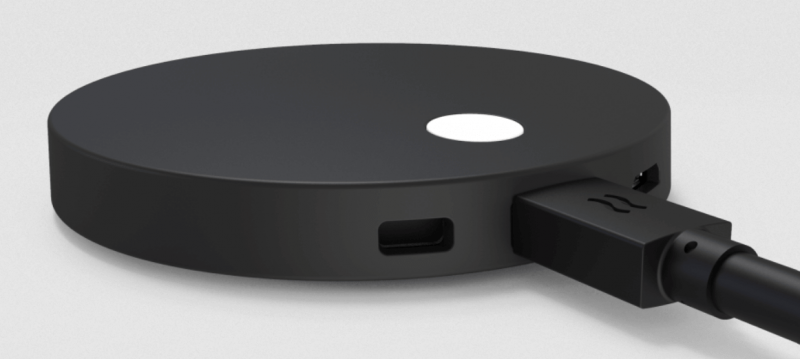
Airtame lets you present using the Airtame app, Google Cast, AirPlay or Miracast.
Airtame allows for wireless presentations from any device, digital signage for all screens, and all-in-one cloud management. Access screen sharing and digital signage for schedules, relevant news, and messaging for meetings or day-to-day instruction and updates.
Some noteworthy features include a RAM of 4 x 512Mb (64-bit Data Bus) for speedier load times and wider support for web content, a flexible accessory stock for reach and connectivity bonuses, and a state-of-the-art wifi processing chip.
If you check out Airtame’s website, you’ll see why they excelled in the Usability section of the evaluation criteria. They have a resource-rich ecosystem, with every documentation, you could need, from comparisons to other popular tools to webinar/tutorial content.
Airtame starts at $399.
Other Screen Sharing Programs
Here’s a few more that didn’t make the top list. If you need additional suggestions for the best video conferencing opportunities, check these out.
- Guidde
AI platform for screen recording how-to videos
- Google Meet
Free screen sharing software and easiest screen sharing software to learn to use
- Zoho Meeting
For secure remote meetings and webinars
- Livestorm
Communication tool for hosting online events
- join.me
Online screen sharing software (no download required)
- Adobe Connect
Screen sharing software for recording meetings and webinars
- Mikogo
Free screen sharing software to get started
- Skype for Business
Screen sharing software for Windows
- uMeeting
Screen sharing software for interactive meetings (whiteboards, pointers, etc)
- Daily
Screen sharing API to add video calls to apps and websites
- Screenleap
Screen sharing software with no download required for viewers


How I Evaluate Screen Sharing Software
I split my evaluation into two layers—the baseline any tool must clear to handle a sprint review or client walkthrough, and the differentiators that set certain options apart.
Core Functionality (Table Stakes For This List)
When I'm selecting tools for my list, I rank each one on a scale from 0 (does not offer the functionality) to 5 (excels in this area) for each core functionality listed below. Then, I calculate the tool's total score into a percentage. Each tool needs to achieve a minimum total score of 65% to be considered for inclusion.
- Real-Time Screen Sharing: I evaluate latency, resolution quality, and whether you can share a full desktop, a single app window, or a specific browser tab during a live sprint review.
- Multi-Participant Access: Supporting a five-person standup is one thing—I check whether the tool handles large stakeholder reviews across different devices, browsers, and operating systems.
- Remote Control & Annotation: I look for tools that let a teammate take control of a shared screen or draw directly on it, which matters during collaborative troubleshooting sessions.
- Session Recording: Recording a client walkthrough for async review is a common need, so I evaluate cloud and local recording options along with export formats and sharing capabilities.
- Integrated Audio/Video Conferencing: Built-in voice and video alongside screen sharing keeps meetings in one place. I check audio clarity, video quality, and participant capacity.
- Security & Access Controls: Sharing roadmaps and project plans means sensitive data is on screen. I look for encryption standards, host permissions, waiting rooms, and admin-level controls.
Once I have a list of tools that meet this criteria, I consider what sets each platform apart.
Differentiating Factors (What Sets Vendors Apart)
Here's how I compare and contrast different vendors:
Standout Features
Async video messaging is a big one for me. Being able to record a quick screen capture walkthrough of a project board saves distributed teams from scheduling yet another meeting. I also look for AI-generated meeting summaries that pull out action items after a sprint review, so nothing gets lost. Built-in whiteboard tools matter too—they turn a passive screen share into an active planning session during retros or roadmap discussions.
Beyond Features
How well a tool fits into your existing stack matters. I check for native integrations with platforms like Jira, Asana, and Slack so you can launch a screen share without leaving your workflow. Cross-platform accessibility is another priority—external stakeholders and clients should be able to join from a browser without installing anything. Pricing structure also shapes my recommendations, especially whether storage for recordings and transcription costs extra or comes bundled in.
Screen Sharing Hardware Selection Criteria
In addition to our screen sharing software list, we have also included screen sharing hardware. The evaluation criteria for that is slightly different, so I’ve done a brief outline of what I am looking for here:
- Usability: Is the hardware easy to assemble, connect, and use? Does the company offer good training and customer service support?
- Privacy Assurance: Does the tool offer ways to select what is presented on the screen, protecting potentially sensitive information on personal devices?
- Features & Functionality:
- Annotation – Does the tool allow for presenters to mark-up or draw on the presentation screen somehow?
- Collaboration – Does the tool offer ways for a group to work on or mark up a shared screen/page? Is it easy to take and share ideas, questions, and comments?
- Chat/Communication – Are there messaging/communication functions built-in for presenters and audience members to better interact?
- Recording Tools – Is there a way for the device/tool to record audio and video during the presentation and easily store/share the collected data?
- Integrations and Accessories: Does the tool work with all operating systems, all devices, and have the capacity for added accessories? Does it work with third-party software?
- Value for $: How appropriate is the price for the features, capabilities, and use case?
How to Choose Screen Sharing Software
It’s easy to get bogged down in long feature lists and complex pricing structures. To help you stay focused as you work through your unique software selection process, here’s a checklist of factors to keep in mind:
| Factor | What to Consider |
| Scalability | Will the software grow with your team? Look for solutions that support multiple users, allow for high-quality streaming across devices, and offer enterprise-grade plans if you need to expand. |
| Integrations | Does the software work with your existing tools? Seamless integration with project management apps, CRMs, and communication platforms like Slack or Microsoft Teams can help streamline workflows. |
| Customizability | Can you tailor the software to your needs? Features like branded meeting rooms, adjustable permissions, and flexible display options can enhance your team's experience. |
| Ease of Use | Is the software simple to set up and navigate? A cluttered interface or complicated onboarding process can slow down adoption. Look for intuitive controls and minimal learning curves. |
| Budget | Does the software fit within your price range? Compare free vs. paid plans, check for hidden fees, and assess whether features justify the cost. |
| Security Safeguards | How well does the software protect your data? End-to-end encryption, role-based access controls, and compliance with security standards like SOC 2 or GDPR are critical for safeguarding sensitive information. |
| Performance & Stability | Does the software deliver a smooth experience? Lag, crashes, or poor video quality can derail meetings. Ensure the tool supports high-definition streaming and performs well under different network conditions. |
| Collaboration Features | Does the software enhance teamwork? Look for annotation tools, remote control options, and multi-user screen sharing to boost engagement and productivity. |
Trends in Screen Sharing Software
In my research, I sourced countless product updates, press releases, and release logs from different screen sharing software vendors. Here are some of the emerging trends I’m keeping an eye on:
- AI-Assisted Presentations: AI is now being used to generate real-time captions, summarize key points, and suggest audience engagement prompts during screen sharing. This helps presenters keep viewers engaged while making content more accessible to diverse audiences.
- Enhanced Privacy Controls: Users can now blur sensitive information, restrict screen sharing to specific apps, or set time-limited access. These features reduce the risk of exposing confidential data during meetings and improve security for industries handling sensitive information.
- Low-Latency Streaming: Screen sharing is becoming faster and more responsive, reducing lag for real-time collaboration. This is especially useful for remote teams, online training, and industries that rely on quick decision-making based on shared visuals.
- Persistent Collaboration Spaces: Some software now saves shared content so teams can revisit previous sessions without re-uploading files or resharing screens. This feature is useful for long-term projects, brainstorming sessions, and ongoing client collaborations.
- 3D and AR Screen Sharing: Screen sharing is expanding beyond flat displays to support 3D modeling and augmented reality. This trend is gaining traction in fields like architecture, product design, and education, where interactive visuals enhance communication and understanding.
What is Screen Sharing Software?
Screen sharing software is a tool that lets you show the content of your computer screen to other people over the internet. This software is commonly used in online meetings, webinars, or remote troubleshooting sessions, allowing others to see exactly what you see on your screen.
Screen sharing tools are great for teamwork, as they make collaborating on projects easier when everyone can see the same thing at the same time, even if they're not in the same room. It's also really helpful for presentations or training, where you can walk people through a process or show them how to use a software.
Features
When selecting screen sharing software, keep an eye out for the following key features:
- Real-time HD streaming: Ensures smooth, high-quality visuals without lag, making presentations and collaborations more effective.
- Selective screen sharing: Allows users to share specific applications or windows instead of their entire screen, protecting privacy.
- Remote control access: Lets participants take control of the presenter’s screen, which can be useful for tech support, training, and collaboration.
- Annotation tools: Provides drawing, highlighting, and markup options to make presentations and discussions more interactive.
- Multi-user sharing: Enables multiple participants to share their screens simultaneously for side-by-side comparisons or discussions.
- Persistent meeting content: Saves shared screens, annotations, or whiteboards so teams can revisit them after a meeting.
- Low-bandwidth mode: Optimizes screen sharing for slow or unstable internet connections to maintain usability.
- Audio integration: Syncs screen sharing with live audio, ensuring that explanations and visuals stay aligned.
- Scheduling and permissions: Allows hosts to set screen sharing permissions in advance and control who can present.
- End-to-end encryption: Protects shared content from unauthorized access, ensuring privacy and security.
Benefits
Implementing screen sharing software can provide several benefits for your team and your business. Here are a few you can look forward to:
- Faster decision-making: Lets teams review information together in real time, reducing back-and-forth emails and long approval processes.
- Improved training and support: Allows trainers and IT teams to walk users through tasks step by step, making instructions clearer and more effective.
- Better collaboration: Helps remote and hybrid teams work together by sharing visuals, presentations, and documents instantly.
- Reduced miscommunication: Ensures everyone sees the same information at the same time, cutting down on misunderstandings and errors.
- Time and cost savings: Cuts down on unnecessary meetings, travel, and lengthy explanations by making it easier to share information quickly.
- More engaging presentations: Keeps audiences focused with interactive tools like annotations, live demos, and remote control access.
- Enhanced security: Provides controls like restricted access, encrypted sharing, and selective screen sharing to keep sensitive information private.
Costs & Pricing
Selecting screen sharing software requires an understanding of the various pricing models and plans available. Costs vary based on features, team size, add-ons, and more. The table below summarizes common plans, their average prices, and typical features included in screen sharing software solutions:
Plan Comparison Table for Screen Sharing Software
| Plan Type | Average Price | Common Features |
| Free Plan | $0 | Basic screen sharing, limited meeting duration, single-user access, and minimal security options. |
| Personal Plan | $5-$15/user/month | HD screen sharing, unlimited meeting duration, annotation tools, and chat integration. |
| Business Plan | $15-$30/user/month | Multi-user sharing, remote control access, cloud storage, and admin controls. |
| Enterprise Plan | $30-$50/user/month | Advanced security, custom branding, detailed analytics, and dedicated customer support. |
Screen Sharing Software Frequently Asked Questions
If you have some questions about screen sharing software, start here with this handy FAQ.
Is there a screen sharing software you don’t have to download?
If you are looking for a screen sharing tool that does not require any downloads, you can use: Join.me, Mikogo, and/or Google Hangouts.
Which screen sharing software works with iPad?
TeamViewer is a free screen sharing software that works with Apple iOS on iPad and iPhone.
What’s the best free screen sharing software?
There are many free screen sharing tools that you can choose from, including TeamViewer, Skype, Join.me, and Google Hangouts.
Not looking for screen sharing software? Check out our other lists of top PM tools:
- The need for screen sharing pairs well with the need for remote communication. Try one of these 10 Best Communication Tools.
- If screen sharing isn’t for you, you might need some other form of digital collaboration to connect your teams: 35 Best Online Collaboration Tools