
OneDrive Review: Pros, Cons, Features, and Pricing Explained



OneDrive is a file sharing software built for teams that need to store, sync, and collaborate on files within a Microsoft 365 environment. If your team already runs on Word, Excel, or Teams, OneDrive fits into that stack in a way Dropbox simply doesn't. Dropbox is a solid standalone storage tool, but OneDrive's native integration with Microsoft 365 apps gives it a real edge for teams where those tools are already central to how work gets done.
OneDrive Evaluation Summary
- From $7/user/month (billed annually)
- 30-day free trial
Why Trust Our Software Recommendations
Our team has been testing and reviewing software since 2012. As project managers ourselves, we know how difficult—and important—it is to choose the right software.
For this guide, we evaluated tools using hands-on testing and independent research, scoring tools using our selection criteria. We also draw on insights from industry thought leaders and practicing project management experts.
Our reviews reflect our human editorial judgment, not a sales pitch.
Expert reviewers:
OneDrive Overview
OneDrive is a file sharing software that helps teams store, access, and collaborate on documents in the cloud. For project managers juggling distributed teams, shifting requirements, and the need for secure, accessible files, Microsoft OneDrive offers deep Microsoft 365 integration and real-time collaboration features.
This OneDrive review covers features, use cases, pros and cons, and pricing—helping you decide if it's the right fit for your team's workflow and security needs.
pros
-
Real-time co-authoring with Microsoft 365 apps.
-
Automatic file versioning and recovery options.
-
Web, desktop, and mobile access for all files.
cons
-
Syncing issues reported on Mac and Windows.
-
Limited external sharing controls for sensitive files.
-
Support response times can be slow for urgent issues.
-

Smartsheet
Visit WebsiteThis rating combines scores from multiple user review sites to reflect overall customer sentiment about the product.4.5 -
Celoxis
Visit WebsiteThis rating combines scores from multiple user review sites to reflect overall customer sentiment about the product.4.5 -
Accelo
Visit WebsiteThis rating combines scores from multiple user review sites to reflect overall customer sentiment about the product.4.4





Our Review Methodology
How We Test & Score Tools
We’ve spent years building, refining, and improving our software testing and scoring system. The rubric is designed to capture the nuances of software selection and what makes a tool effective, focusing on critical aspects of the decision-making process.
Below, you can see exactly how our testing and scoring works across seven criteria. It allows us to provide an unbiased evaluation of the software based on core functionality, standout features, ease of use, onboarding, customer support, integrations, customer reviews, and value for money.
Core Functionality (25% of final scoring)
The starting point of our evaluation is always the core functionality of the tool. Does it have the basic features and functions that a user would expect to see? Are any of those core features locked to higher-tiered pricing plans? At its core, we expect a tool to stand up against the baseline capabilities of its competitors.
Standout Features (25% of final scoring)
Next, we evaluate uncommon standout features that go above and beyond the core functionality typically found in tools of its kind. A high score reflects specialized or unique features that make the product faster, more efficient, or offer additional value to the user.
We also evaluate how easy it is to integrate with other tools typically found in the tech stack to expand the functionality and utility of the software. Tools offering plentiful native integrations, 3rd party connections, and API access to build custom integrations score best.
Ease of Use (10% of final scoring)
We consider how quick and easy it is to execute the tasks defined in the core functionality using the tool. High scoring software is well designed, intuitive to use, offers mobile apps, provides templates, and makes relatively complex tasks seem simple.
Onboarding (10% of final scoring)
We know how important rapid team adoption is for a new platform, so we evaluate how easy it is to learn and use a tool with minimal training. We evaluate how quickly a team member can get set up and start using the tool with no experience. High scoring solutions indicate little or no support is required.
Customer Support (10% of final scoring)
We review how quick and easy it is to get unstuck and find help by phone, live chat, or knowledge base. Tools and companies that provide real-time support score best, while chatbots score worst.
Customer Reviews (10% of final scoring)
Beyond our own testing and evaluation, we consider the net promoter score from current and past customers. We review their likelihood, given the option, to choose the tool again for the core functionality. A high scoring software reflects a high net promoter score from current or past customers.
Value for Money (10% of final scoring)
Lastly, in consideration of all the other criteria, we review the average price of entry level plans against the core features and consider the value of the other evaluation criteria. Software that delivers more, for less, will score higher.
Core Features
Core Features
Real-Time Co-Authoring
Multiple users can edit Word, Excel, or PowerPoint files at the same time. Changes appear instantly—real time collaboration at its best.
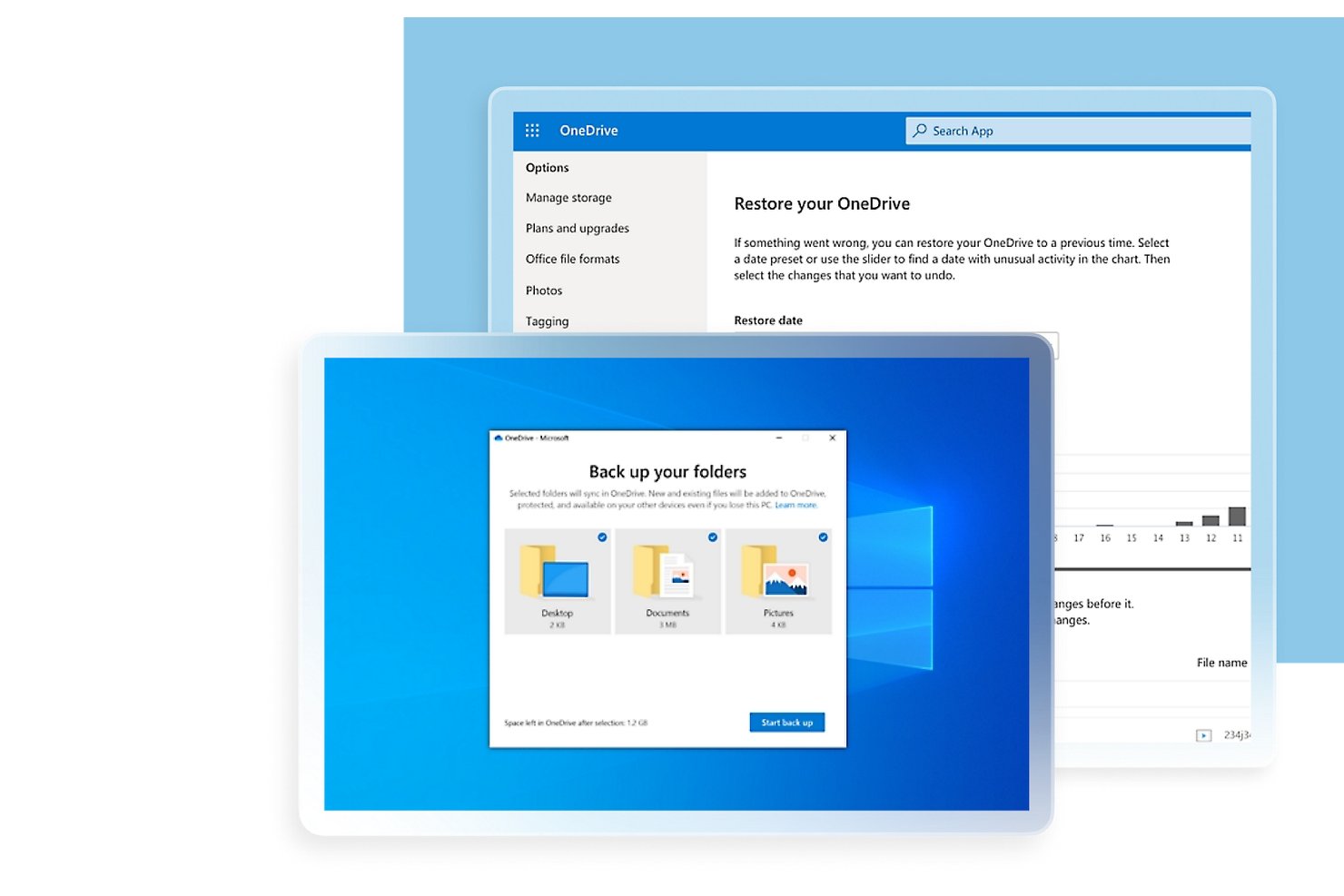
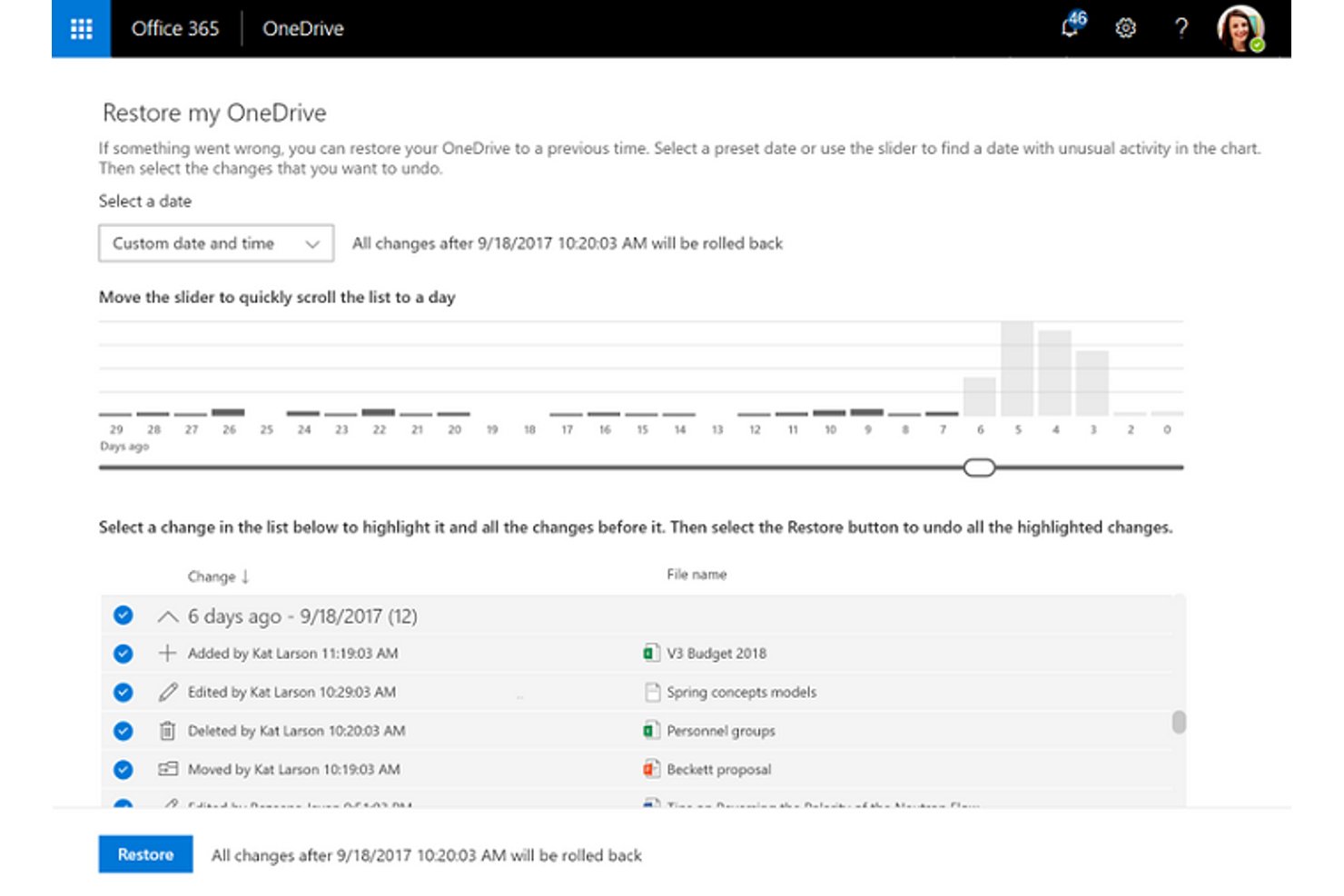
Automatic File Versioning
OneDrive saves previous versions of files, letting users restore or review changes. Recover from accidental edits or deletions with ease.
Granular Permission Controls
Set view, edit, or share permissions for individuals or groups. Protect important files with password-protected links and expiration dates.
File Sync Across Devices
OneDrive files automatically sync between desktop, web, and mobile apps. Always have the latest version—on your laptop, phone, or tablet.
Secure File Sharing
Share files or folders with internal or external users using secure links. Track who accessed files and revoke access at any time.
Advanced Search and Discovery
Search by keyword, file type, or owner to quickly locate docs. AI-powered suggestions surface relevant files based on recent activity.
Ease of Use
Ease of Use
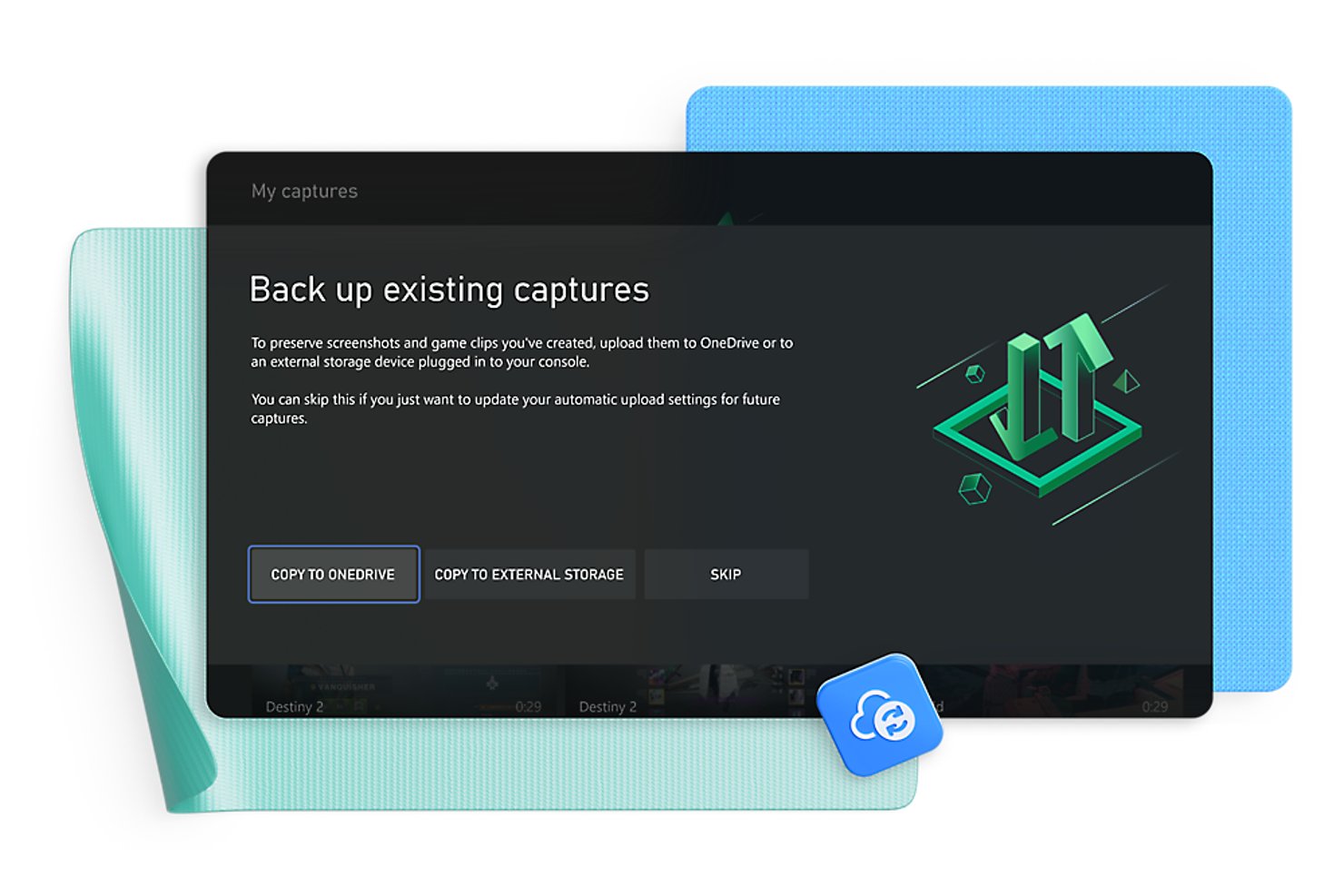
OneDrive offers a familiar, user-friendly interface that mirrors standard file systems, making onboarding quick for most users. Drag-and-drop uploads, right-click sharing, and clear permission settings simplify daily tasks. Many users appreciate the seamless experience across web, desktop, and mobile—whether they're on Windows, macOS, iOS, or Android—especially when working within Microsoft 365. However, some report occasional syncing confusion and navigation quirks, particularly with large folder structures. Overall, OneDrive balances ease of use with enough control for most business needs.
Integrations
Integrations
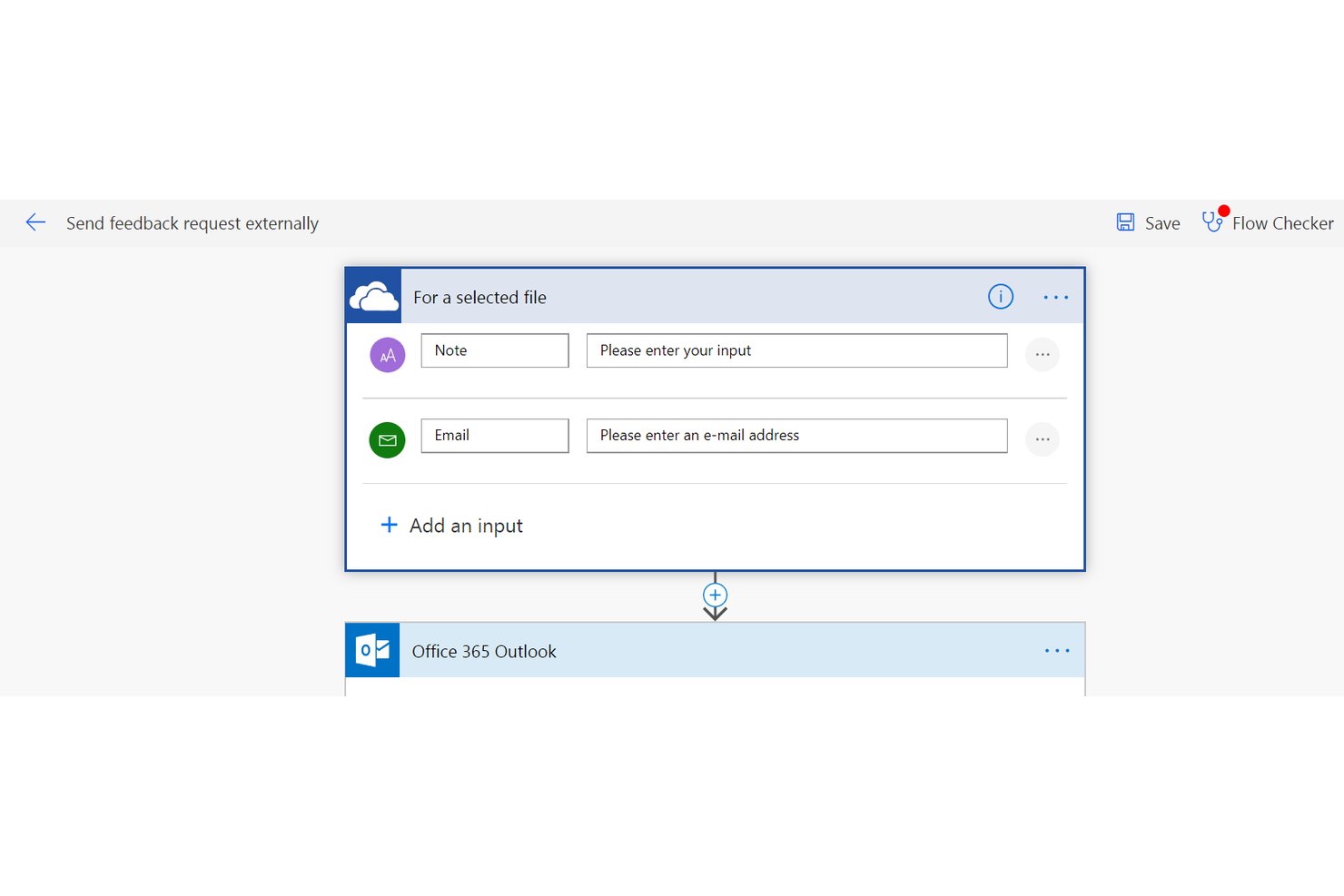
OneDrive integrates with Microsoft Teams, SharePoint, Outlook, Word, Excel, PowerPoint, Adobe Acrobat, Salesforce, DocuSign, and Zoom, among others.
OneDrive also offers an API and connects with third-party integration tools for expanded automation and workflow options.
OneDrive Specs
- 2-Factor Authentication
- API
- Chat
- Dashboard
- Data Export
- Data Import
- Document Comparison
- External Integrations
- File Sharing
- File Transfer
- History/Version Control
- Multi-User
- Network Traffic Monitoring
- Notifications
- Project Management