

15 Open Source Collaboration Software Picks for 2026

Open Source Collaboration Software Shortlist


Open source collaboration software refers to team-focused digital tools with publicly available source code that you can modify, host, and integrate as needed. If you’re searching for open source options, you likely want more control over your team’s data, workflows, and integrations than closed platforms allow.
With so many choices, it’s tough to know which tools actually support secure communication, project management, and document sharing for distributed teams. This list will help you compare the top open source collaboration software for 2026, so you can find the right fit for your team’s needs and technical requirements.
Why Trust Our Software Recommendations
Our team has been testing and reviewing software since 2012. As project managers ourselves, we know how difficult—and important—it is to choose the right software.
For this guide, we evaluated tools using hands-on testing and independent research, scoring tools using our selection criteria. We also draw on insights from industry thought leaders and practicing project management experts.
Our reviews reflect our human editorial judgment, not a sales pitch.
Expert reviewers:
Open Source Collaboration Software Comparison Table
This comparison table summarizes pricing details for my top open source collaboration software selections:
| Tool | Best For | Trial Info | Price | ||
|---|---|---|---|---|---|
| 1 | Best for code collaboration and version control | 30-day free trial | From $21/user/month | Website | |
| 2 | Best for managing complex project timelines | 14-day free trial + free plan available | From $7.25/user/month (billed annually) | Website | |
| 3 | Best for building custom digital workspaces | Free plan available | Pricing upon request | Website | |
| 4 | Best for private file sharing and team editing | Free trial + free demo available | From €71.29/user/year | Website | |
| 5 | Best for decentralized team communication | Free plan available | Pricing upon request | Website | |
| 6 | Best for secure team messaging integration | Free plan + free demo available | Pricing upon request | Website | |
| 7 | Best for integrating office suite with workflows | Free plan + 30-day free trial available | From $20/admin/month | Website | |
| 8 | Best for tracking project-related client interactions | 30-day free trial + free demo available | Free to download | Website | |
| 9 | Best for organizing and sharing team knowledge | Free plan + 30-day free trial available | From $10/month | Website | |
| 10 | Best for collaborative document editing | Free demo available | Pricing upon request | Website |
Open Source Collaboration Software Reviews
Below are my detailed summaries of open source collaboration software that made it onto my shortlist. My reviews offer a detailed look at the features, best use cases, and integrations of each platform to help you find the best one for your team.

GitHub
Best for code collaboration and version control
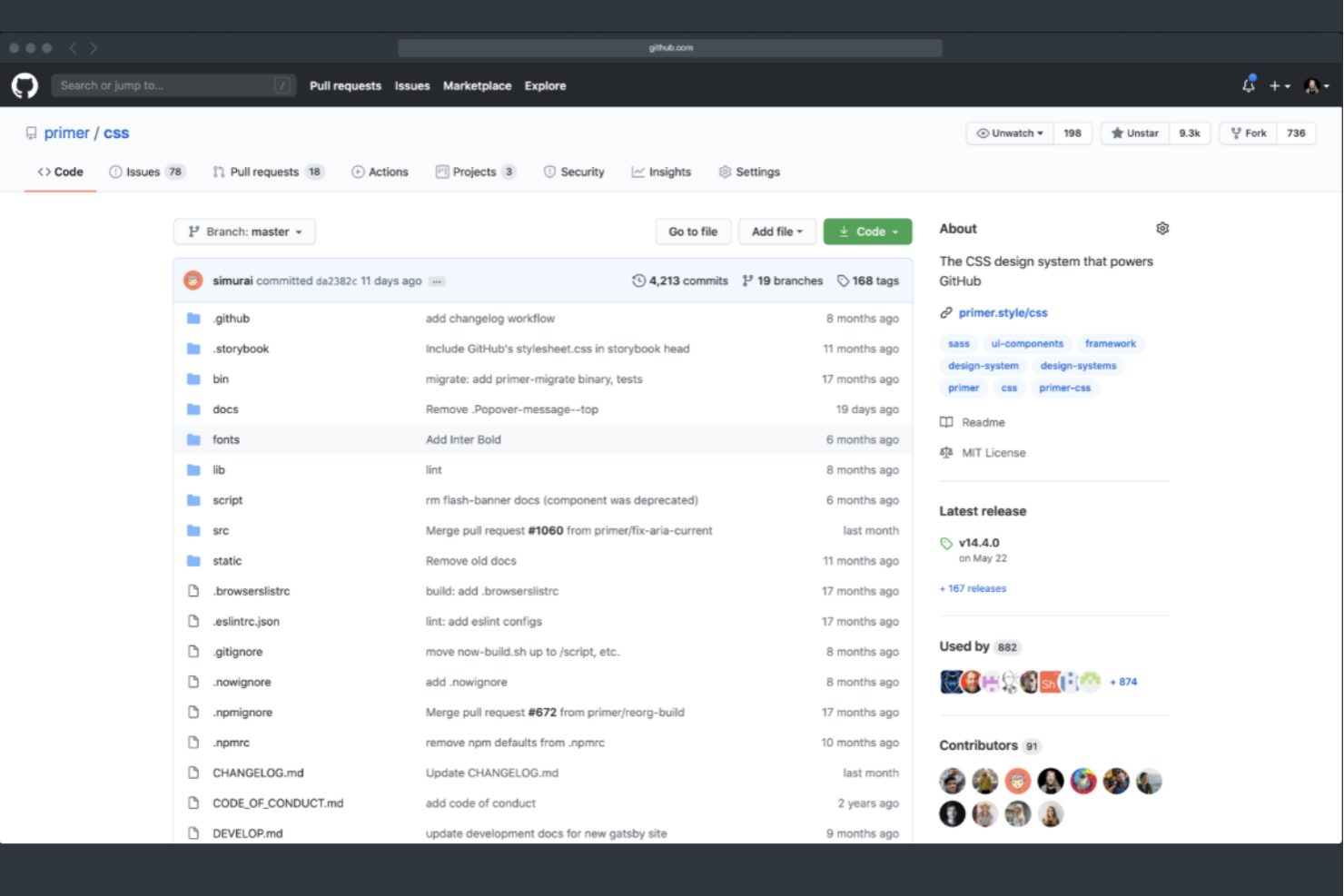
GitHub is a top choice if your team needs a platform built for code collaboration and version control. It’s especially useful for software development teams and technical project managers who need to coordinate code changes, manage pull requests, and track issues in one place. GitHub’s branching, merging, and review tools help distributed teams work together on complex codebases without losing track of changes or context.
Why I Picked GitHub
For teams that need to manage code collaboration and version control, GitHub is purpose-built for this exact workflow. I picked GitHub because its pull request system and branch management tools let multiple contributors work on the same codebase without conflicts.
The platform’s issue tracking and code review features help teams discuss changes, catch bugs, and document decisions right alongside the code. These capabilities make GitHub a natural fit for open source collaboration, where transparency and traceability are essential.
GitHub Key Features
Some other features that make GitHub valuable for open source collaboration include:
- Actions for CI/CD: Automate build, test, and deployment workflows directly from your repositories.
- Wiki Pages: Create and maintain project documentation within each repository.
- Project Boards: Organize tasks and track progress using Kanban-style boards.
- Security Alerts: Receive automated notifications about vulnerabilities in project dependencies.
GitHub Integrations
Native integrations are not currently listed.
Pros and Cons
Pros:
- Built-in Actions automate CI/CD pipelines
- Branch protection rules enforce workflow standards
- Pull request system supports structured code reviews
Cons:
- Wiki feature lacks advanced formatting options
- Large binary files require Git LFS setup
Best for managing complex project timelines
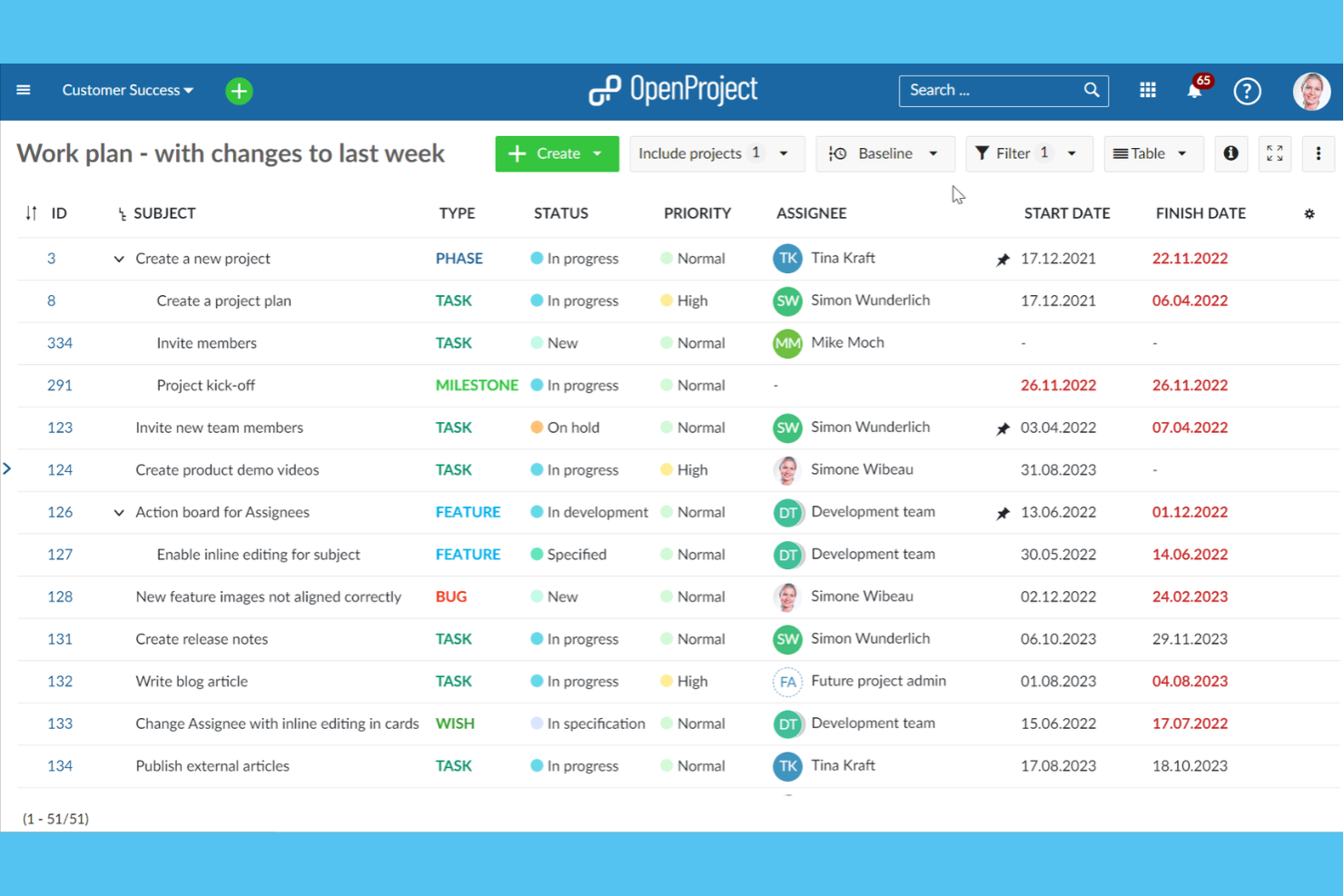
OpenProject offers a specialized platform for timeline and task management for teams handling projects with intricate dependencies and shifting deadlines. It’s especially useful for project managers in engineering, construction, or IT who need advanced scheduling, Gantt charts, and resource planning. OpenProject helps you visualize, coordinate, and adjust complex project plans in a collaborative, open-source environment.
Why I Picked OpenProject
Managing complex project timelines often requires more than basic task lists, which is why OpenProject caught my attention for open source collaboration. Its interactive Gantt charts let you map out dependencies, milestones, and deadlines visually, making it easier to coordinate across large teams.
I appreciate how the work package system ties tasks, issues, and deliverables directly to your project plan, so nothing falls through the cracks. These features make OpenProject a strong fit for organizations that need to keep multiple workstreams aligned and on schedule.
OpenProject Key Features
Some other features that make OpenProject a versatile collaboration tool include:
- Agile Boards: Create and manage Scrum and Kanban boards for iterative project workflows.
- Time Tracking: Log hours directly on tasks and generate time reports for projects.
- Document Management: Store, version, and share project-related files within the platform.
- Role-Based Access Control: Assign permissions and roles to users for secure project collaboration.
OpenProject Integrations
Integrations include Nextcloud, OneDrive, SharePoint, GitHub, GitLab, and more.
Pros and Cons
Pros:
- Built-in time tracking for project tasks
- Agile boards for Scrum and Kanban workflows
- Gantt charts support complex dependency mapping
Cons:
- Reporting tools are less flexible than alternatives
- Integrations require manual setup or plugins

Best for building custom digital workspaces
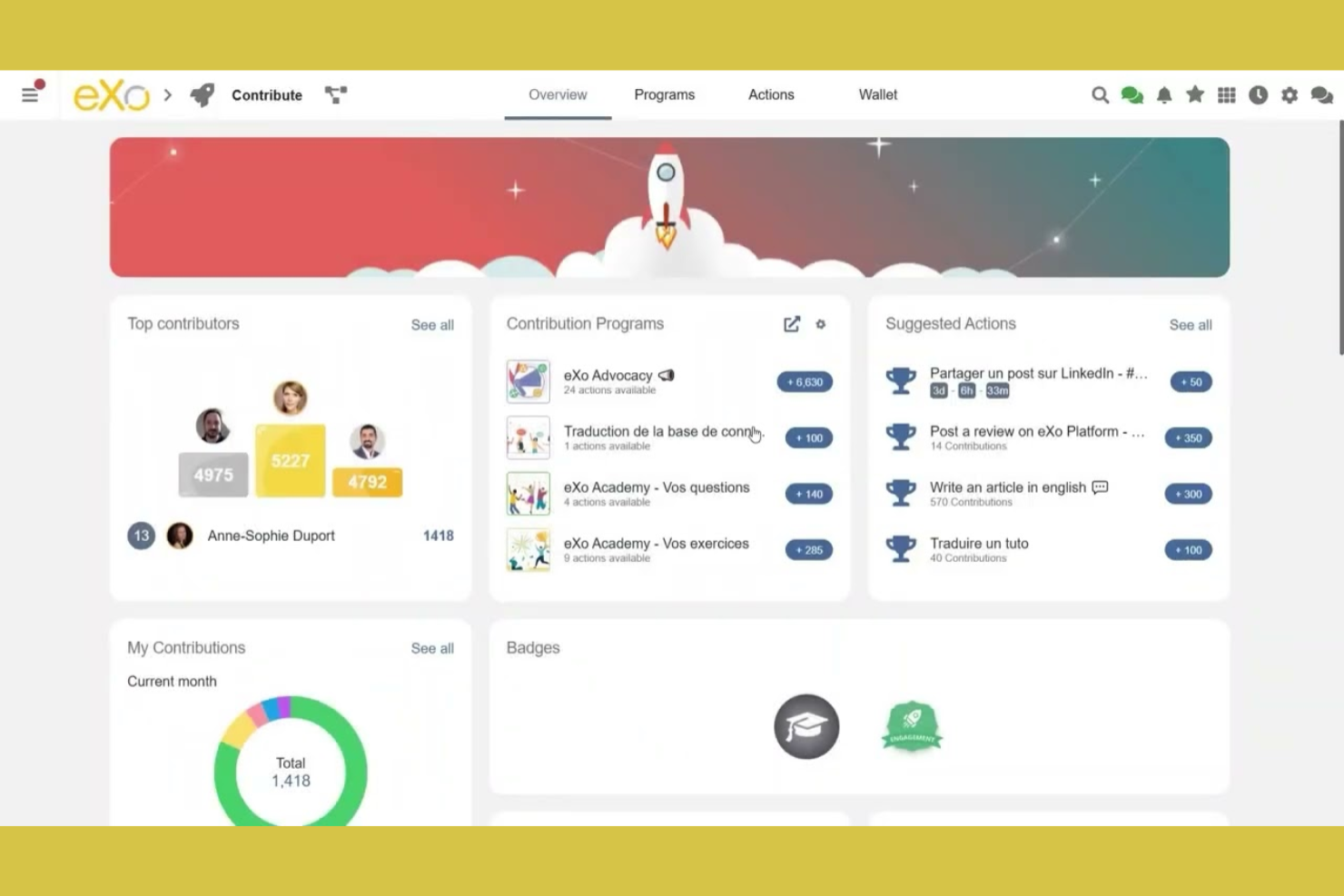
eXo Platform offers a flexible open source foundation for organizations looking to design a digital workspace tailored to their unique processes. It’s especially useful for enterprises, public sector teams, or IT departments that want to centralize communication, knowledge sharing, and collaboration in one customizable hub. With modular components and extensive APIs, eXo Platform helps you build a workspace that fits your team’s structure and workflow needs.
Why I Picked eXo Platform
What sets eXo Platform apart is its ability to serve as a foundation for building highly customized digital workspaces. I picked it because it offers modular components—like activity streams, document management, and wikis—that you can tailor to fit your organization’s structure.
The platform’s open source nature means you can extend or adapt its features to match specific collaboration needs. This flexibility makes eXo Platform a strong choice for teams that want to create a workspace aligned with their unique processes and branding.
eXo Platform Key Features
In addition to its workspace customization capabilities, eXo Platform offers several other features worth noting:
- Integrated Calendar: Schedule events, manage team calendars, and sync with external calendar tools.
- Task Management: Assign, track, and organize tasks within projects or workspaces.
- Video Conferencing Integration: Connect with video meeting tools directly from the platform for real-time collaboration.
- Mobile Apps: Access your digital workspace and collaborate with your team from iOS and Android devices.
eXo Platform Integrations
Integrations include Zoom, Microsoft Teams, Webex, Jisti Meet, ChatGPT, Gemini, and more.
Pros and Cons
Pros:
- Granular permissions for workspace and content control
- Social intranet features for employee engagement
- Built-in knowledge base with wiki functionality
Cons:
- Documentation for developers is sometimes outdated
- Upgrades can require manual intervention and planning

Best for private file sharing and team editing
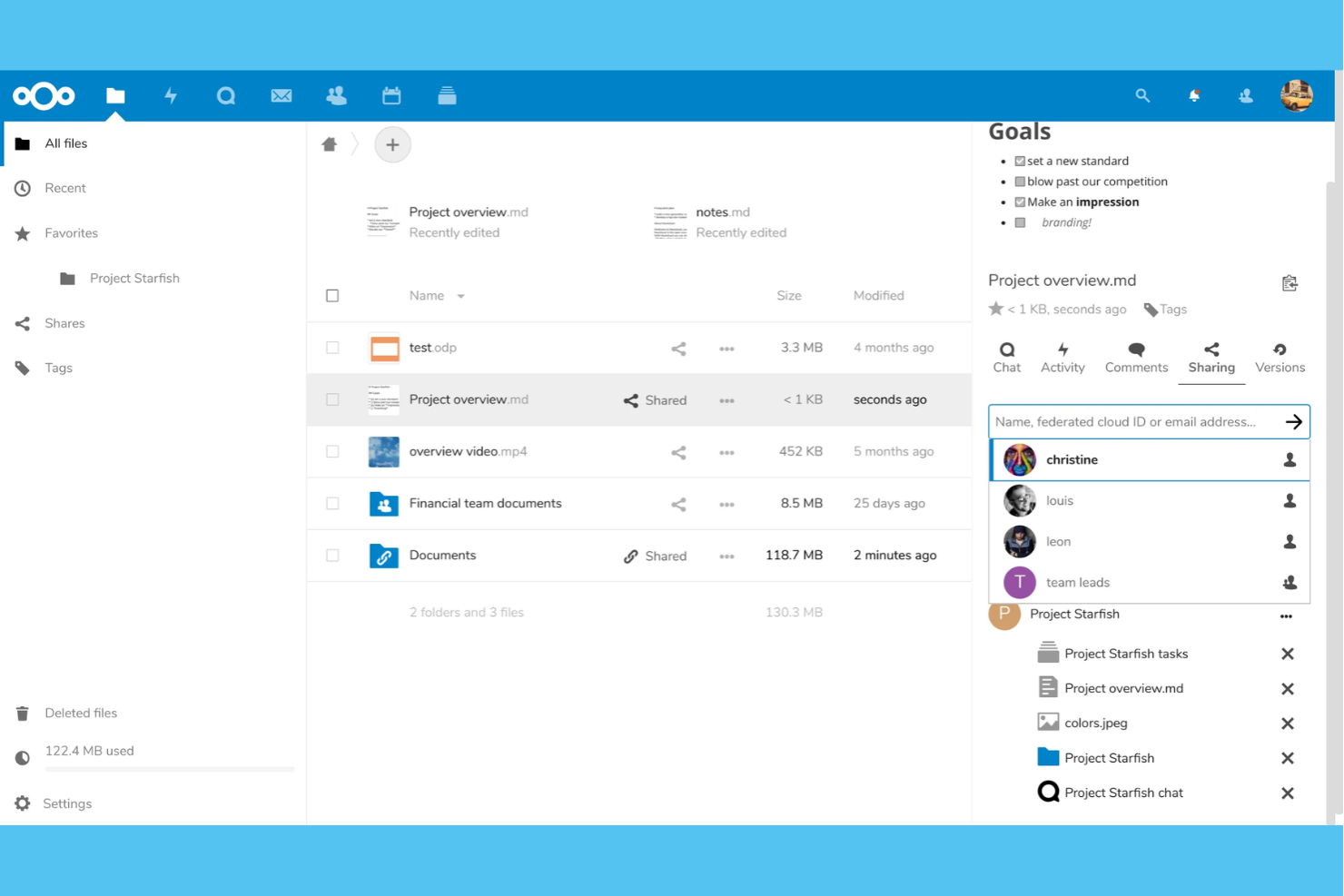
Nextcloud offers a self-hosted platform designed for privacy and flexibility if your team needs full control over file sharing and document collaboration. It’s a strong fit for organizations with strict data security requirements or those operating in regulated industries. Nextcloud stands out for its private cloud approach, letting you customize access, integrations, and editing tools to fit your workflow.
Why I Picked Nextcloud
Nextcloud stands out for teams that need private file sharing and collaborative editing without relying on third-party cloud providers. I picked it because it lets you host your own server, so you control where your data lives and who can access it.
The built-in document editing suite supports real-time collaboration, and granular permission settings help you manage sensitive files across departments. These features make Nextcloud a strong choice for organizations that prioritize privacy and want to tailor their collaboration environment.
Nextcloud Key Features
Some other features that make Nextcloud a flexible collaboration platform include:
- Calendar and Contacts Integration: Sync calendars and contacts across devices to coordinate meetings and manage team schedules.
- Nextcloud Talk: Use built-in audio, video, and chat tools for secure team communication without leaving the platform.
- Workflow Automation: Set up custom rules to automate file handling, approvals, and notifications based on triggers you define.
- App Marketplace: Extend functionality with a wide range of open source apps for project management, notes, forms, and more.
Nextcloud Integrations
Integrations include Microsoft Outlook, Microsoft SharePoint, Microsoft Teams, Roundcube, Collabora Online, ONLYOFFICE, Nextcloud Talk, Nextcloud Office, and more.
Pros and Cons
Pros:
- Built-in video, audio, and chat tools
- Real-time document editing with multiple users
- Self-hosting keeps sensitive data in-house
Cons:
- Performance depends on your server resources
- Limited project management features out of the box
Element
Best for decentralized team communication
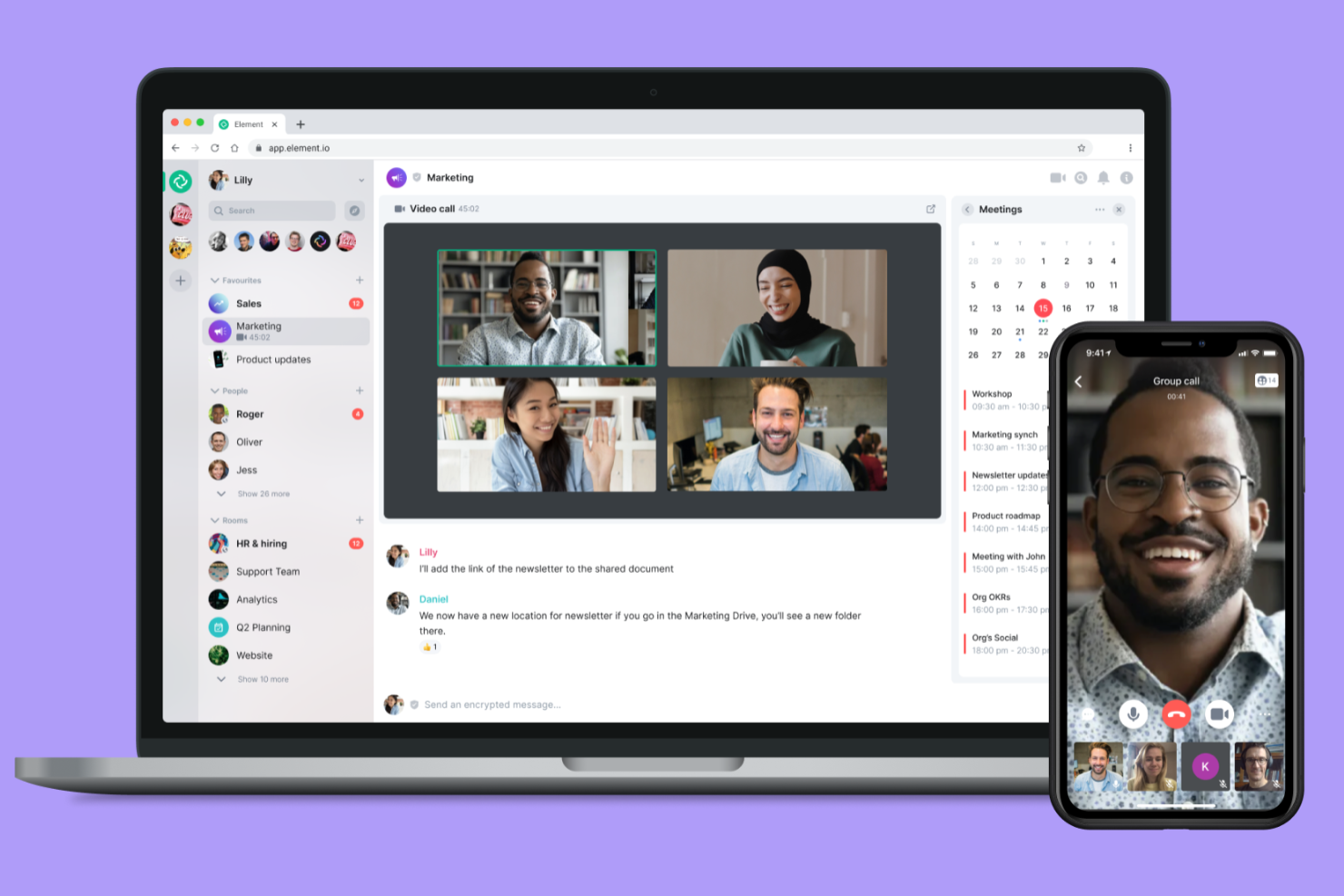
Element offers a decentralized approach to team communication for organizations that need control over their data and infrastructure. It’s especially useful for IT teams, privacy-focused businesses, and distributed organizations that want to host their own messaging platform. With end-to-end encryption and federation across servers, Element helps teams collaborate securely without relying on a single provider.
Why I Picked Element
Element stands out for teams that need decentralized communication and full control over their collaboration environment. I picked it because it’s built on the Matrix protocol, which allows organizations to host their own servers and federate with others, keeping conversations private and infrastructure flexible.
End-to-end encryption is enabled by default, so sensitive discussions stay protected across devices and locations. For teams that prioritize privacy and autonomy, Element’s decentralized architecture and secure messaging features make it a strong open source option.
Element Key Features
Some other features that make Element appealing for open source collaboration are:
- Bridging to Other Platforms: Connects with Slack, Microsoft Teams, and IRC for cross-platform messaging.
- Threaded Conversations: Organize discussions with message threads in busy rooms.
- Voice and Video Calls: Supports one-on-one and group calls directly within the app.
- Customizable Notifications: Lets users set notification preferences for rooms and mentions.
Element Integrations
Integrations Grafana, Etherpad, Jira, GitLab, Webhooks, GitHub, and more.
Pros and Cons
Pros:
- Bridges connect to Slack and Microsoft Teams
- End-to-end encryption is enabled by default
- Decentralized hosting supports private deployments
Cons:
- Limited built-in file management features
- Video call quality varies between platforms

Best for secure team messaging integration
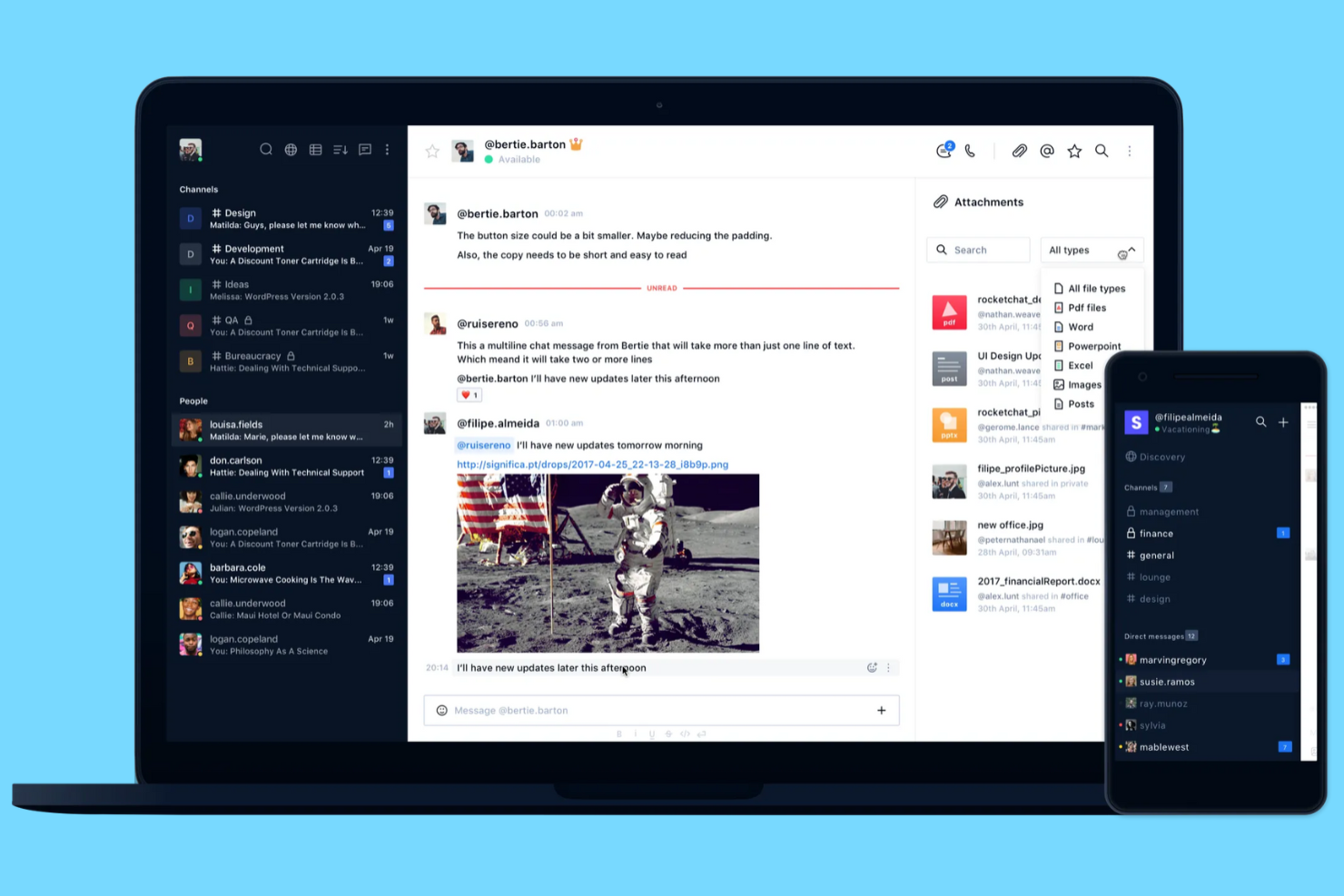
Rocket.Chat is worth a close look if your team needs secure, customizable messaging that fits strict compliance or privacy requirements. It’s designed for organizations in regulated industries, IT, or government that want full control over their communications stack. With open source code and flexible deployment options, Rocket.Chat helps you integrate chat, file sharing, and automation into your existing workflows without sacrificing data ownership.
Why I Picked Rocket.Chat
When secure team messaging is a top priority, Rocket.Chat stands out for its open source approach and strong privacy controls. I picked it because it lets you deploy on-premises or in a private cloud, so you keep full control over your data.
End-to-end encryption and granular user permissions help organizations meet strict compliance requirements. These features make Rocket.Chat a solid choice for teams that need secure, integrated communication within their open source collaboration stack.
Rocket.Chat Key Features
- Omnichannel messaging: Manage conversations from email, SMS, WhatsApp, and other channels in one place.
- Threaded messaging: Organize discussions with message threads for focused conversations.
- End-to-end encryption: Protect messages with encryption for private and group chats.
- Marketplace for apps: Extend functionality with a built-in marketplace for integrations and add-ons.
Rocket.Chat Integrations
Integrations include HubSpot, Salesforce, Telegram, Zoom, Zapier, and more.
Pros and Cons
Pros:
- LDAP and SSO integration for user management
- End-to-end encrypted messaging for private conversations
- On-premises deployment supports strict data residency
Cons:
- Push notifications can be unreliable at scale
- Voice and video calls require additional setup

Best for integrating office suite with workflows

ONLYOFFICE is worth considering if you’re looking for an open source office suite that connects tightly with your team’s workflows. It’s designed for businesses and IT teams that want to combine document editing, project management, and communication in a single platform. OnlyOffice stands out for its ability to integrate document collaboration with tools like CRM, mail, and calendar, helping teams manage both content and processes in one place.
Why I Picked ONLYOFFICE
What sets ONLYOFFICE apart is how it brings together document editing and workflow management in a single open source platform. I picked it because it lets teams create, edit, and co-author documents while also managing projects, tasks, and calendars without switching tools. Its built-in modules for CRM, mail, and project tracking help teams keep all their work connected and accessible. For organizations that want to unify office productivity with workflow automation, ONLYOFFICE offers a flexible and integrated approach.
ONLYOFFICE Key Features
Some other features that make ONLYOFFICE a strong choice for open source collaboration include:
- Document Encryption: Protect files with advanced encryption options for secure collaboration.
- Plugin Marketplace: Extend functionality with plugins for translation, digital signatures, and more.
- Customizable Access Permissions: Set detailed user and group permissions for documents and folders.
- Integrated Chat: Communicate with team members directly within the document editing interface.
ONLYOFFICE Integrations
Integrations include Trello, Odoo, Moodle, monday.com, Pipedrive, and more.
Pros and Cons
Pros:
- Plugin marketplace for extending core functionality
- Supports collaborative editing with version history
- Built-in CRM and project management modules
Cons:
- Interface translations are incomplete in some languages
- Spreadsheet formulas sometimes display inconsistently

SuiteCRM
Best for tracking project-related client interactions
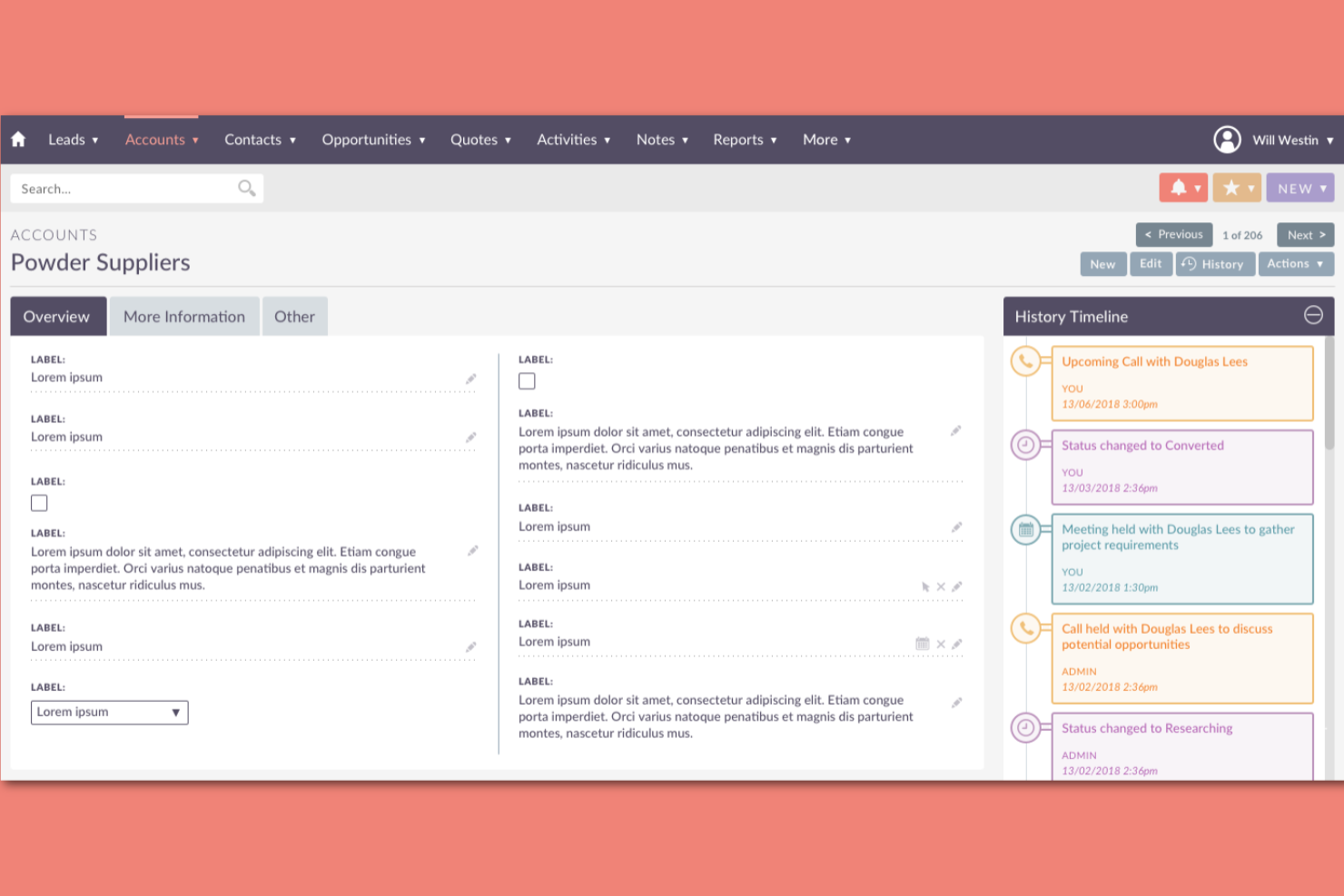
SuiteCRM stands out for teams that need to track every client interaction tied to their projects. It’s especially useful for project managers and client-facing teams who want a unified view of communications, tasks, and project milestones. With its open source foundation, SuiteCRM lets you tailor workflows and data fields to match your project and client management needs.
Why I Picked SuiteCRM
What makes SuiteCRM a strong choice for open source collaboration is its focus on tracking every project-related client interaction in detail. I picked it because it brings together contact management, project tracking, and communication history in one place, so teams never lose sight of client context.
SuiteCRM’s activity streams and case management features help you log calls, emails, and meetings directly against projects or accounts. For project managers who need a clear audit trail of client touchpoints, these features make SuiteCRM especially valuable.
SuiteCRM Key Features
Some other features that make SuiteCRM useful for open source collaboration include:
- Workflow Automation: Set up automated actions and notifications based on triggers or conditions.
- Custom Module Builder: Design and deploy custom modules to fit unique business processes.
- Reporting and Dashboards: Create visual reports and dashboards to track project and client metrics.
- Role-Based Access Control: Manage permissions and data visibility for different user groups.
SuiteCRM Integrations
Integrations include Facebook, Xero, Outlook, WhatsApp, DocuSign, LinkedIn, Zoom, QuickBooks, Mailchimp, and more.
Pros and Cons
Pros:
- Role-based access control manages data visibility
- Workflow automation reduces repetitive manual tasks
- Custom module builder supports unique workflows
Cons:
- Documentation lacks depth for advanced configurations
- Upgrades may require manual intervention or support

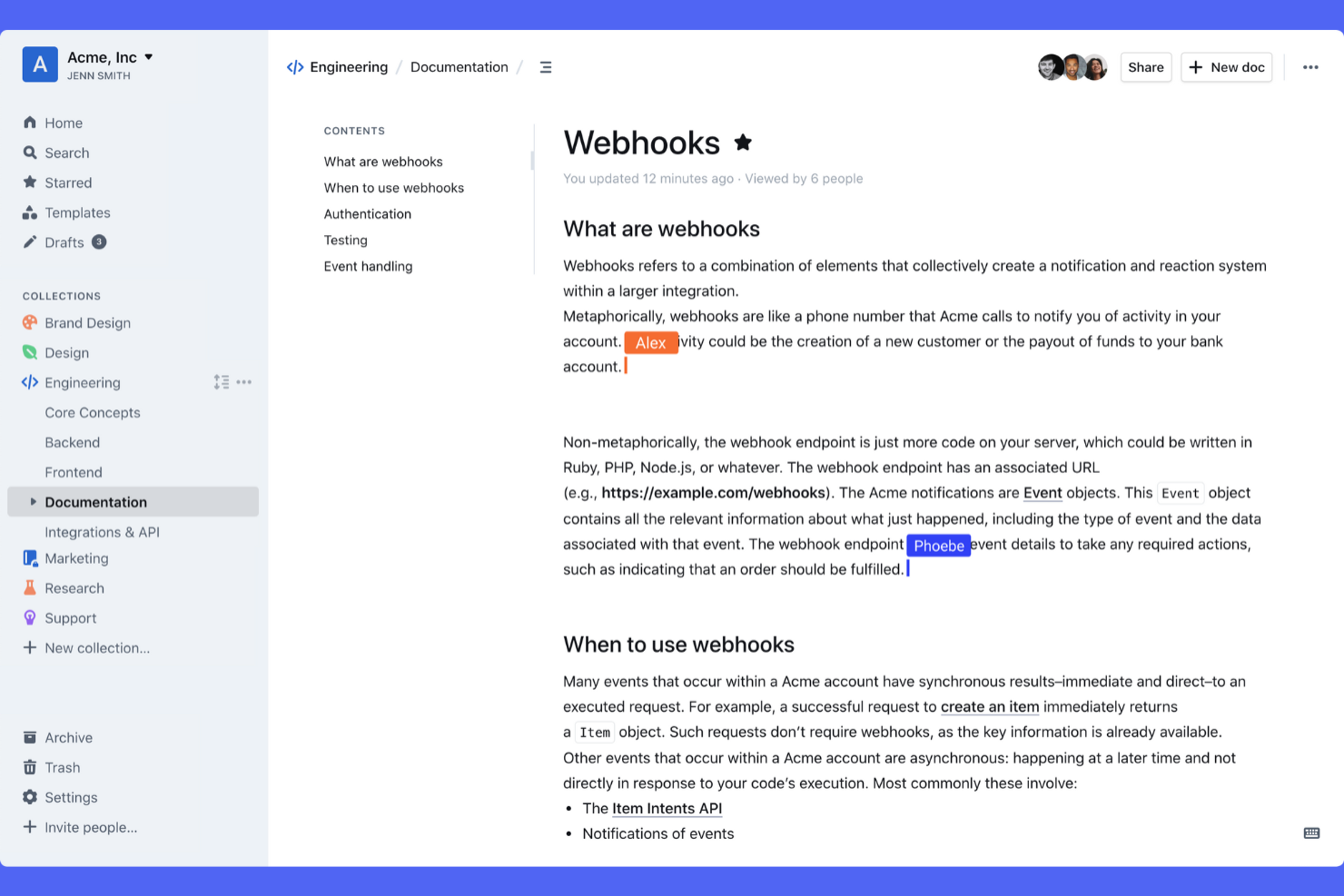
Outline is designed for teams that need a structured way to organize and share internal knowledge. It’s especially useful for fast-growing tech companies, remote teams, and organizations with complex documentation needs. Outline’s nested collections and powerful search help teams keep policies, processes, and project notes accessible and easy to update.
Why I Picked Outline
For teams that need to organize and share knowledge at scale, Outline offers a structure that’s hard to find in other open source collaboration tools. I picked Outline because its nested collections let you build a clear hierarchy for documents, making it easy to group related content and keep information organized as your team grows.
The platform’s full-text search and document linking features help users quickly find and connect relevant knowledge across the workspace. These capabilities make Outline a strong choice for teams that want to centralize documentation and keep everyone aligned.
Outline Key Features
Some other features that make Outline valuable for open source collaboration include:
- Markdown Support: Write and format documents using Markdown syntax for consistency and speed.
- Granular Permissions: Control access at the document or collection level for different team members.
- Revision History: Track changes and restore previous versions of any document.
- Slack Integration: Share updates and notifications directly to Slack channels.
Outline Integrations
Integrations include Slack, Google Docs, Figma, Airtable, Trello, Miro, Lucidchart, InVision, Typeform, and more.
Pros and Cons
Pros:
- Markdown support enables fast, consistent formatting
- Granular permissions manage access at every level
- Full-text search quickly finds relevant content
Cons:
- Importing from other platforms can be inconsistent
- No built-in real-time collaborative editing


Collabora Online brings real-time collaborative editing to teams that need open source document creation and management. It’s a strong fit for organizations that want to host their own secure office suite while supporting simultaneous editing of text documents, spreadsheets, and presentations.
Why I Picked Collabora Online
Collabora Online stands out for teams that need true collaborative document editing in an open source environment. I picked it because it supports real-time co-authoring, allowing multiple users to work on text documents, spreadsheets, and presentations simultaneously. Its compatibility with Microsoft Office file formats means you can edit and share documents without worrying about conversion issues.
For organizations that want to keep control over their data while enabling smooth document collaboration, Collabora Online offers a focused and reliable solution.
Collabora Online Key Features
Some other features that make Collabora Online appealing for open source collaboration include:
- Version History: Track changes and restore previous versions of documents directly within the editor.
- Commenting and Annotations: Add comments and mark up documents for team feedback and discussion.
- Custom Branding: Apply your organization’s logo and colors to the interface for a tailored experience.
- Accessibility Support: Use features designed to meet accessibility standards, including screen reader compatibility.
Collabora Online Integrations
Integrations include Nextcloud, openDesk, WordPress, Moodle, OpenText, Seafile, and more.
Pros and Cons
Pros:
- Self-hosting options for data privacy control
- Supports Microsoft Office file format compatibility
- Real-time co-authoring for documents and spreadsheets
Cons:
- User management tools lack granular permission settings
- Advanced formatting sometimes displays inconsistently
Other Open Source Collaboration Software
Here are some additional open source collaboration software options that didn’t make it onto my shortlist, but are still worth checking out:
- Etherpad
For real-time collaborative note-taking
- HumHub
For creating branded social intranets
- Group Office
For modular team workspace customization
- Kolab
For unified email and calendar management
- EGroupware
For coordinating distributed teams


How I Evaluate Open Source Collaboration Software
For engineering teams that need to self-host their stack, I split evaluation into two layers: baseline requirements a tool must meet and the factors that distinguish the best options.
Core Functionality (Table Stakes For This List)
When I'm selecting tools for my list, I rank each one on a scale from 0 (does not offer the functionality) to 5 (excels in this area) for each core functionality listed below. Then, I calculate the tool's total score into a percentage. Each tool needs to achieve a minimum total score of 65% to be considered for inclusion.
- Open Source Licensing: I check that each tool ships under an OSI-approved license with a publicly accessible repo—not just "source-available" code behind restrictive terms.
- Self-Hosting Capability: Whether it's Docker, Kubernetes, or a bare-metal install, I look for well-documented deployment paths your team can run on its own infrastructure.
- Project & Task Management: Every tool should cover task assignment, due dates, and at least one visual view like Kanban or Gantt for tracking sprint work or release milestones.
- Team Collaboration Tools: I evaluate shared workspaces, threaded comments, mentions, and notifications—the features distributed teams rely on to stay aligned across time zones.
- Document & Knowledge Sharing: Built-in wikis, file attachments, or knowledge bases matter here. Tools like Taiga and OpenProject handle this differently, so I compare depth.
- Extensibility & Integrations: I look for REST APIs, webhooks, and plugin support that let you connect the platform to Git repos, CI/CD pipelines, and chat tools your team already uses.
Once I have a list of tools that meet the criteria, I consider what sets each platform apart.
Differentiating Factors (What Sets Vendors Apart)
Here's how I compare and contrast different vendors:
Standout Features
Native Agile support matters when your engineering team runs sprints. I look for built-in backlogs, story points, and burndown charts rather than workarounds bolted onto a basic task board. Git and CI/CD integration is another separator—linking commits directly to tasks saves context-switching between tools like GitLab and your PM platform. I also evaluate custom workflow builders, since teams with multi-stage review or approval processes need configurable task states and automation triggers that match how they actually ship work.
Beyond Features
Community health tells you a lot about a project's future. I check commit frequency, issue response times, and governance structure to gauge whether the tool will still be maintained in two years. Security also weighs heavily—I look for SSO/SAML support, audit logs, and a documented vulnerability disclosure process, since teams handling sensitive project data need those controls from day one. Total cost of ownership rounds out my evaluation. A free community edition means little if hosting and maintenance overhead demands a dedicated DevOps engineer your team doesn't have.
How to Choose Open Source Collaboration Software
It’s easy to get bogged down in long feature lists and complex pricing structures. To help you stay focused as you work through your unique software selection process, here’s a checklist of factors to keep in mind:
| Factor | What to Consider |
|---|---|
| Scalability | Will the software handle your team size and future growth? Check user limits, storage, and performance with large data sets. |
| Integrations | Does it connect natively to your core tools (e.g., Slack, Google Workspace, GitHub)? Consider how integration gaps could impact workflows. |
| Customizability | Can you adapt the platform to your team’s processes? Look for options to modify permissions, templates, and workflows. |
| Ease of use | Will your team adopt it quickly? Evaluate the interface, navigation, and how much training is needed for non-technical users. |
| Implementation and onboarding | How long will setup and migration take? Assess available resources, documentation, and support for importing existing data. |
| Cost | Are there hidden costs for add-ons, support, or scaling? Compare open source license terms, hosting fees, and upgrade paths. |
| Security safeguards | Does the tool offer encryption, access controls, and audit logs? Ensure it meets your organization’s data protection standards. |
| Support availability | What support channels exist (community, email, live chat)? Consider response times and the reliability of help when issues arise. |
What Is Open Source Collaboration Software?
Open source collaboration software is a category of digital tools that enable team collaboration on shared projects, documents, and communications, with source code that is publicly accessible and modifiable. These open source tools support online collaboration through features like instant messaging, project coordination, and knowledge sharing.
They also offer flexibility for customization, authentication, and alignment with security policies and regulations like GDPR. Whether deployed as self-hosted solutions or combined with SaaS options, organizations often evaluate them through case studies to ensure they meet security, compliance, and workflow needs.
Features
When selecting open source collaboration software, keep an eye out for the following key features:
- Document editing: Allows multiple users to create, edit, and update documents within a shared workspace, supporting both real-time and asynchronous collaboration.
- Version history: Tracks changes made to documents or files, enabling users to review, compare, and restore previous versions as needed.
- Access controls: Lets administrators set permissions for users or groups, ensuring the right people can view, edit, or manage specific content.
- Search functionality: Provides search tools to quickly locate documents, discussions, or files across the entire platform.
- Task management: Offers tools for assigning, tracking, and updating tasks or action items within projects or teams.
- Discussion threads: Supports threaded conversations or comments within documents or projects, keeping communication organized and context-specific.
- Integration support: Connects with other commonly used tools, such as file storage, messaging platforms, or calendars, to centralize workflows.
- Customizability: Enables teams to tailor the interface, workflows, or templates to fit their unique processes and branding.
- Self-hosting options: Allow organizations to deploy the software on their own servers for greater control over data privacy and compliance.
- Notifications and alerts: Send updates to users about changes, comments, or deadlines, helping teams stay informed and responsive.
Benefits
Implementing open source collaboration software provides several benefits for your team and your business. Here are a few you can look forward to:
- Greater transparency: Open access to source code and documentation helps teams understand how the software works and fosters trust in the platform.
- Customizability: Teams can modify workflows, permissions, and templates to fit their unique processes and branding requirements.
- Cost control: Many open source solutions offer free or low-cost licensing, with the flexibility to self-host and avoid vendor lock-in.
- Improved security: Self-hosting options and open codebases allow organizations to audit, control, and strengthen their own data protection measures.
- Community-driven improvements: Active user and developer communities contribute updates, plugins, and bug fixes, keeping the software current and adaptable.
- Improved knowledge sharing: Centralized document editing, search, and discussion features make it easier for distributed teams to collaborate and retain institutional knowledge.
- Integration flexibility: Open source platforms often support a wide range of integrations, allowing teams to connect their preferred tools and simplify workflows.
Costs and Pricing
Selecting open source collaboration software requires an understanding of the various pricing models and plans available. Costs vary based on features, team size, add-ons, and more. The table below summarizes common plans, their average prices, and typical features included in open source collaboration software solutions:
Plan Comparison Table for Open Source Collaboration Software
| Plan Type | Average Price | Common Features |
|---|---|---|
| Free Plan | $0 | Basic document editing, limited integrations, community support, and self-hosting options. |
| Personal Plan | $5–$10/user/month | All free features, increased storage, basic access controls, and email support. |
| Business Plan | $10–$25/user/month | Advanced permissions, team management, integration with third-party tools, and priority support. |
| Enterprise Plan | $25–$50/user/month | Custom workflows, improved security, compliance tools, dedicated onboarding, and SLA-backed support. |
Open Source Collaboration Software FAQs
Here are some answers to common questions about open source collaboration software:
Can open source collaboration software be self-hosted?
Yes, most open source collaboration software can be self-hosted. This gives your organization full control over data, security, and compliance, but also requires internal resources for setup, maintenance, and updates.
How does open source collaboration software handle security?
Open source collaboration software typically offers features like encryption, access controls, and audit logs. Because the source code is public, your team can review and strengthen security measures, but you’ll need to stay proactive with updates and patches.
What support options are available for open source collaboration software?
Support options vary by vendor and community. Many tools offer community forums, documentation, and user guides, while paid plans may include email, live chat, or dedicated support channels for faster response times.
Is it difficult to migrate existing data into open source collaboration software?
Migration complexity depends on your current systems and the software you choose. Many platforms provide import tools or APIs, but you may need technical expertise to ensure a smooth transition and preserve data integrity.
Can open source collaboration software integrate with other business tools?
Yes, many open source collaboration platforms support integrations with tools like Slack, Google Workspace, and GitHub. Check for available plugins, APIs, or native connectors to ensure compatibility with your existing workflows.