

Os 10 Melhores Softwares de Partilha de Ficheiros para Transferências Seguras em 2026

10 Melhor seleção de software de partilha de ficheiros


O melhor software de partilha de ficheiros ajuda-o a organizar, aceder e partilhar documentos em segurança com a sua equipa, sem que o caos das versões ou permissões complicadas o atrase. Sem a ferramenta certa, você e a sua equipa perderão tempo a procurar documentos, terão dificuldade em partilhar o trabalho com clientes e ficarão confusos sobre qual é, efetivamente, a versão final do documento.
Usei a minha experiência na gestão de uma agência e mais de 3 anos de testes de software para avaliar dezenas de ferramentas e selecionar a minha lista do melhor software de partilha de ficheiros. Ajudá-lo-ei a encontrar a solução perfeita para colaboração em tempo real, partilha segura ou integração simples com o seu fluxo de trabalho.
Why Trust Our Software Recommendations
Our team has been testing and reviewing software since 2012. As project managers ourselves, we know how difficult—and important—it is to choose the right software.
For this guide, we evaluated tools using hands-on testing and independent research, scoring tools using our selection criteria. We also draw on insights from industry thought leaders and practicing project management experts.
Our reviews reflect our human editorial judgment, not a sales pitch.
Expert reviewers:
Tabela de comparação do software de partilha de ficheiros
Compare os preços e as especificações de cada uma das minhas escolhas para o melhor software de partilha de ficheiros.
| Tool | Best For | Trial Info | Price | ||
|---|---|---|---|---|---|
| 1 | Best for organizing digital content | 7-day free trial + free demo available | From $100/month | Website | |
| 2 | Best with multi-protocol transfer support | 25-day free trial | Pricing upon request | Website | |
| 3 | Best for branding and media management | 30-day free trial available | From $29/month | Website | |
| 4 | Best for controlled, multi-user collaboration | Free plan + 14-day free trial + demo available | From $99/month | Website | |
| 5 | Best for businesses using Google as an email client | Free plan + 14-day free trial available | From CAD $9.20/user/month (billed annually) | Website | |
| 6 | Best for end-to-end encrypted file sharing | 14-day free trial | From $19/user/month (billed annually) | Website | |
| 7 | Best for simple, fast large file sharing via email | Free version available | From $23/month. | Website | |
| 8 | Best for seamless collaboration and syncing | Free plan available | From $9.99/month | Website | |
| 9 | Best for seamless Microsoft ecosystem integration | 30-day free trial | From $7/user/month (billed annually) | Website | |
| 10 | Best for secure cloud-based file transfers | 7-day free trial available | From $100/month (billed annually) | Website |
Avaliações do melhor software de partilha de ficheiros
Leia abaixo a minha lista do melhor software de partilha de ficheiros e saiba por que motivo escolhi cada ferramenta de partilha de ficheiros para esta lista.

Pics.io
Best for organizing digital content

Pics.io is a digital asset management platform for creative teams and businesses that securely share, organize, and collaborate on large volumes of digital files.
Who Is Pics.io Best For?
Pics.io is a strong fit for marketing and creative teams that manage high volumes of branded assets and need a structured way to store, find, and share files across projects.
Why I Picked Pics.io
Pics.io earns its spot on my shortlist because of how well it handles the organizational side of file sharing—something most generic file sharing tools don't prioritize. I particularly like the custom metadata fields, which let my team tag and categorize assets using our own terminology rather than forcing us into a rigid folder structure. The AI-powered auto-tagging also cuts down on the manual work of labeling files at upload. When I need to share a specific asset, version control means shared links always point to the latest approved file—no broken links, no outdated versions circulating across teams.
Pics.io Key Features
- Advanced search: Search across your entire asset library using natural language, filters, and metadata—including content within PDFs and AI files.
- Access management: Set role-based and user-level permissions, add expiration dates to shared links, and password-protect individual assets.
- Facial recognition: Automatically identify and tag people across your image library to make person-specific searches faster.
- Timestamped comments: Add time-coded comments directly to photos and videos to give collaborators precise, contextual feedback.
Pics.io Integrations
Integrations include Google Drive, Amazon S3, Adobe Creative Cloud, Google Workspace, and WordPress.
Pros and Cons
Pros:
- Dynamic AI-based tagging
- Folder support with unlimited subfolders
- Large portfolio of media extension previews
Cons:
- Limited options for displaying assets on websites
- Limited customization options
New Product Updates from Pics.io
Pics.io Adds Filtered Audit Trail CSV Exports
Pics.io now lets you export Audit Trail logs to CSV and apply filters before exporting, making it easier to analyze and share activity history. For more information, visit Pics.io's official site.
 .

Best with multi-protocol transfer support
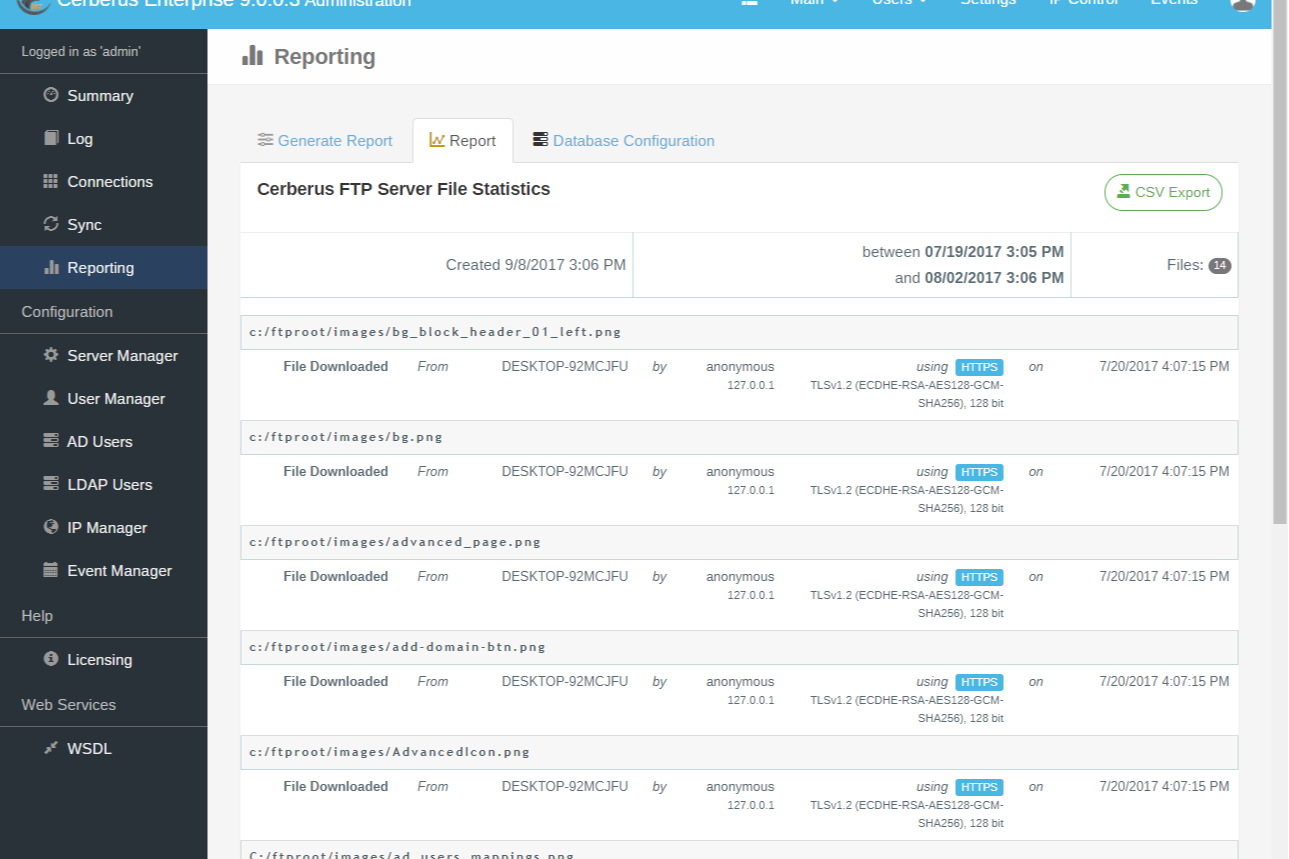
Cerberus FTP Server is a secure file sharing platform built for IT teams and organizations that need to manage sensitive data transfers, offering advanced protocol support and granular access controls for regulated industries and enterprise environments.
Who Is Cerberus FTP Server Best For?
Cerberus FTP Server is a strong fit for IT administrators and security-focused teams in regulated industries like healthcare, finance, and government that need strict control over file transfer infrastructure.
Why I Picked Cerberus FTP Server
Cerberus FTP Server earns its spot as one of the best on my shortlist because of how much protocol flexibility it packs into a single server. I like that my team can run FTP, FTPS, SFTP, SCP, and HTTPS all simultaneously on a single IP address—no separate servers, no routing headaches. That matters a lot when you're dealing with legacy systems that only speak SCP alongside modern clients that expect SFTP or browser-based HTTPS access. I also appreciate the ability to define which protocols specific users or groups can access, so you're not just supporting multiple protocols but actively enforcing which ones are allowed per connection.
Cerberus FTP Server Key Features
- AD/LDAP integration: Connect Cerberus FTP Server to Active Directory or LDAP to manage user authentication and access without maintaining a separate user database.
- Public file sharing links: Generate unique, time-limited public links to specific files or folders directly from the HTTPS web client, without requiring recipients to have an account.
- SAML SSO support: Authenticate users through Microsoft Entra ID (formerly Azure AD) or Okta via SAML-based single sign-on.
- Temporary user accounts: Create time-bound user accounts that automatically expire, useful for granting external partners short-term file access.
Cerberus FTP Server Integrations
Integrations include Microsoft Azure, Amazon Web Services, Active Directory, and LDAP.
Pros and Cons
Pros:
- Allows granular user and group permissions
- Offers detailed audit logs for compliance
- Supports FTP, FTPS, SFTP, and HTTPS protocols
Cons:
- Web interface can be slow with large directories
- Lacks built-in file versioning features

Filecamp
Best for branding and media management
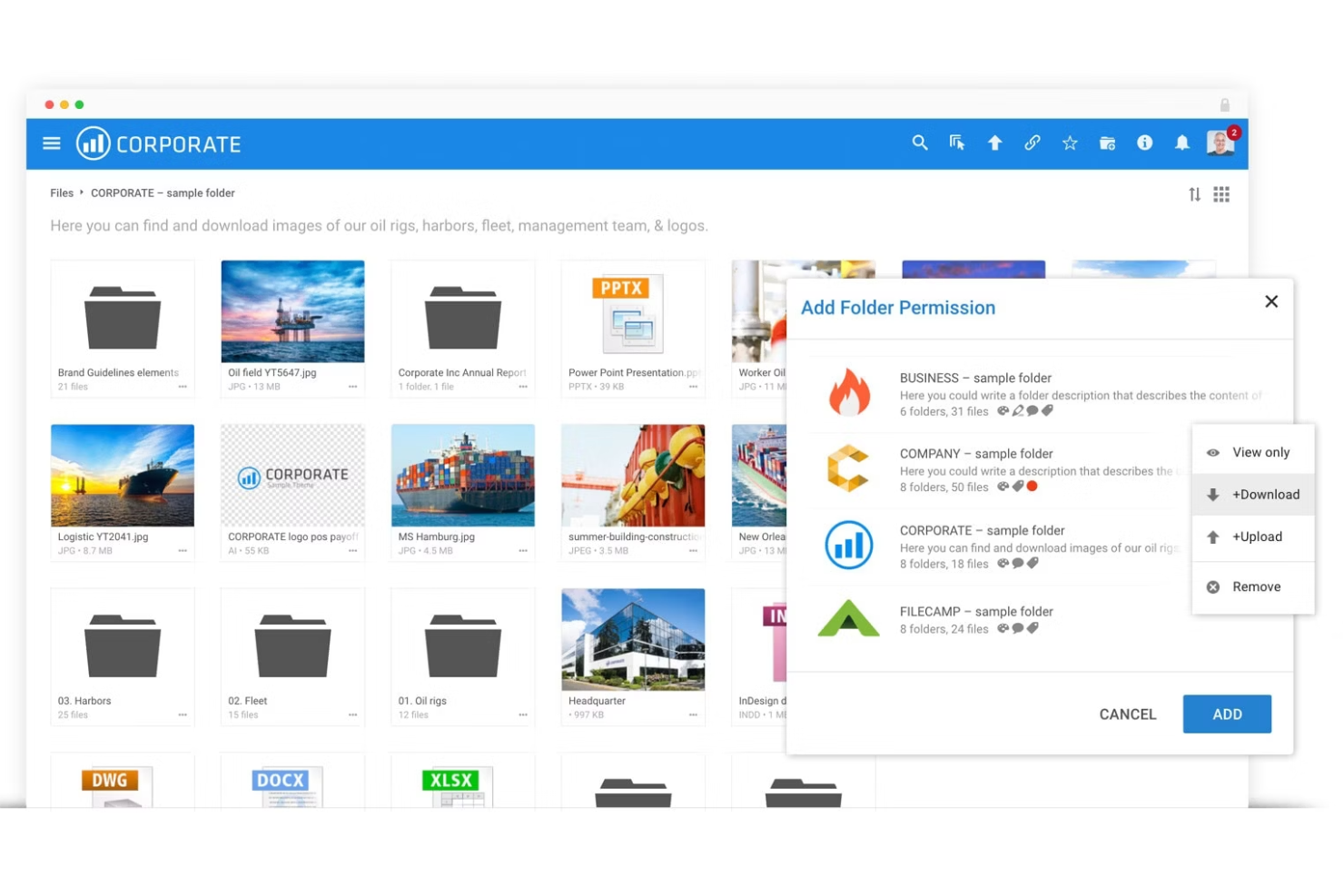
Filecamp is a file sharing and digital asset management platform built for creative teams, agencies, and marketing departments who need to organize, share, and collaborate on branded content and media files securely.
Who Is Filecamp Best For?
Filecamp is a strong fit for marketing teams and creative agencies that regularly share brand assets, media files, and visual content with clients or external collaborators.
Why I Picked Filecamp
Filecamp earns its spot on my shortlist because of how well it handles branding alongside file sharing. I particularly like the multiple themes feature, which lets my team associate different branded portals with different folders—so a client in one industry sees a completely different look and feel than one in another. I also use the brand guidelines feature to host an interactive style guide directly inside Filecamp, which keeps external partners aligned on logos, colors, and usage rules without any back-and-forth. The on-the-fly image renditions are a nice touch too, letting collaborators download assets in the exact format and resolution they need without me having to prep separate files.
Filecamp Key Features
- Granular access control: Assign folder- and file-level permissions so each user or client only sees what you've explicitly shared with them.
- Request file links: Generate upload links that let anyone send files directly into your Filecamp account, with notifications when uploads arrive.
- Collections: Pull files from multiple folders into a single shareable collection for easier distribution to collaborators.
- Version control: Store and access previous versions of a file so collaborators can review or restore earlier iterations at any point.
Filecamp Integrations
Integrations include Adobe Creative Cloud, Microsoft Office 365, Slack, Strapi, SharePoint, Salesforce, WordPress, and Google Analytics.
Pros and Cons
Pros:
- Media library management with easy file sharing and commenting.
- Custom branding with company logo.
- Digital asset management (DAM) API provision.
Cons:
- Many features can be difficult to maneuver.
- Limited third-party integrations compared to other options.
New Product Updates from Filecamp
Filecamp Adds Analytics, AI Thumbnails, and CDN Embed Links
Filecamp adds Analytics, AI-powered thumbnails, and CDN-backed Embed links. These updates give teams more visibility into asset usage, improve thumbnail presentation, and make embedded images easier to manage. For more information, visit Filecamp’s official site.
 .

Best for controlled, multi-user collaboration

Stockpress is a digital asset management platform built for teams and organizations that need to securely organize, share, and collaborate on files while maintaining control over access and permissions.
Who Is Stockpress Best For?
Stockpress is a good fit for creative and marketing teams that need structured, permission-based access to shared files and brand assets.
Why I Picked Stockpress
Stockpress earns its spot on my shortlist because of how much control it gives you over who can see and do what across a shared workspace. I particularly like the custom user roles feature, which lets you build unlimited roles from scratch rather than picking from a fixed set of preset permissions. Pair that with file and collection visibility controls that toggle between open and restricted access, and my team can share assets with external collaborators without exposing everything in the workspace. The share link tracking is a nice bonus too—I can see exactly who opened, viewed, or downloaded a file.
Stockpress Key Features
- File annotations: Add comments to specific areas on any file type, including video, to give precise feedback without back-and-forth emails.
- AI tagging: Automatically tags uploaded images with up to 90% accuracy, making files searchable without manual metadata entry.
- File versioning: Upload new versions of a file into the original to create a version stack, so your team always knows which file is current.
- Guest uploads: Create public pages that let external users upload files directly into specific collections in your workspace.
Stockpress Integrations
Integrations include Adobe Creative Cloud, Box, Canva, Design Pickle, Dropbox, Figma, Google Drive, Klaviyo, Mailchimp, and Slack.
Pros and Cons
Pros:
- Can create custom collections for assets
- Good AI tagging features
- Manages large asset volumes
Cons:
- File migration support limited to enterprise plan
- Could offer more integrations

Best for businesses using Google as an email client

Google Drive gives teams and businesses a secure way to store, share, and collaborate on files in the cloud, providing unified syncing and centralized access to documents and projects across devices and locations.
Who Is Google Drive Best For?
Google Drive is a natural fit for teams of all sizes that already rely on Gmail and Google Workspace for day-to-day communication and collaboration.
Why I Picked Google Drive
I picked Google Drive as one of the best because of how naturally it fits into a Gmail-based workflow. When my team receives a file attachment in Gmail, we can save it directly to Drive without ever leaving the inbox—and attach Drive files back to emails without leaving the inbox. I also like the shared drives feature, which gives cross-functional teams a dedicated space to store and manage files together, with granular permission controls like expiration dates on shared links. That combination of Gmail attachment handling and team-level file organization is hard to replicate without switching ecosystems.
Google Drive Key Features
- Offline access: View and edit files without an internet connection, with changes syncing automatically when you reconnect.
- File version history: Access and restore previous versions of any file stored in Drive, so you can track changes over time.
- Priority page: Drive's Priority page surfaces recently accessed and suggested files based on your activity, reducing time spent searching.
- Drive search filters: Use advanced search operators to filter files by type, owner, date modified, and location within Drive.
Google Drive Integrations
Integrations include Gmail, Google Meet, Google Chat, Google Docs, Google Sheets, Google Slides, Google Forms, Google Sites, Google Keep, and AppSheet.
Pros and Cons
Pros:
- Document revisions are automatically saved and can revert back.
- Expansively generous free storage.
- Efficient real-time collaboration.
- Deep integration with G Suite apps.
Cons:
- Large files make Google Docs sluggish.
- Limited offline access makes it only better when online.

Tresorit
Best for end-to-end encrypted file sharing

Tresorit is a secure file sharing platform designed for organizations and professionals who need to protect sensitive documents while collaborating across teams and devices.
Who Is Tresorit Best For?
Tresorit is a strong fit for security-conscious teams in legal, healthcare, and finance who handle confidential files and need strict data privacy controls.
Why I Picked Tresorit
Tresorit earns its spot on my shortlist because end-to-end encryption isn't a bolt-on feature here—it's the foundation everything else is built on. What I find particularly compelling is the zero-knowledge architecture, which means even Tresorit itself can't access your files. When my team shares a sensitive contract or confidential project brief, the file is encrypted before it ever leaves the device. I also like the granular link controls—you can set password protection, open limits, expiry dates, and access logs on any shared link, so you're not just sending a file into the void and hoping for the best.
Tresorit Key Features
- File request links: Create end-to-end encrypted links that let external partners upload sensitive files directly to your Tresorit folders without needing an account.
- Data residency options: Choose where your data is stored from a range of global locations, including the EU, Switzerland, UK, and US, to meet regional compliance requirements.
- Admin sharing policies: Set user-group-level rules that restrict who can share folders and links, preventing accidental exposure of sensitive files outside approved domains.
- Tresorit eSign: Send, sign, and manage documents directly within the platform using built-in electronic signature workflows.
Tresorit Integrations
Integrations include Microsoft Outlook, Microsoft 365, Google Workspace, Microsoft Teams, Active Directory, Okta, Azure Active Directory, Salesforce, Dropbox, and Google Drive.
Pros and Cons
Pros:
- Local and remote wipe.
- Simple electronic signatures and reduced turnaround times.
- Email encryption system for information security.
- End-to-end encryption and Zero-knowledge encryption.
Cons:
- Might lack some advanced collaboration features.
- Higher pricing compared to some alternatives.

Best for simple, fast large file sharing via email
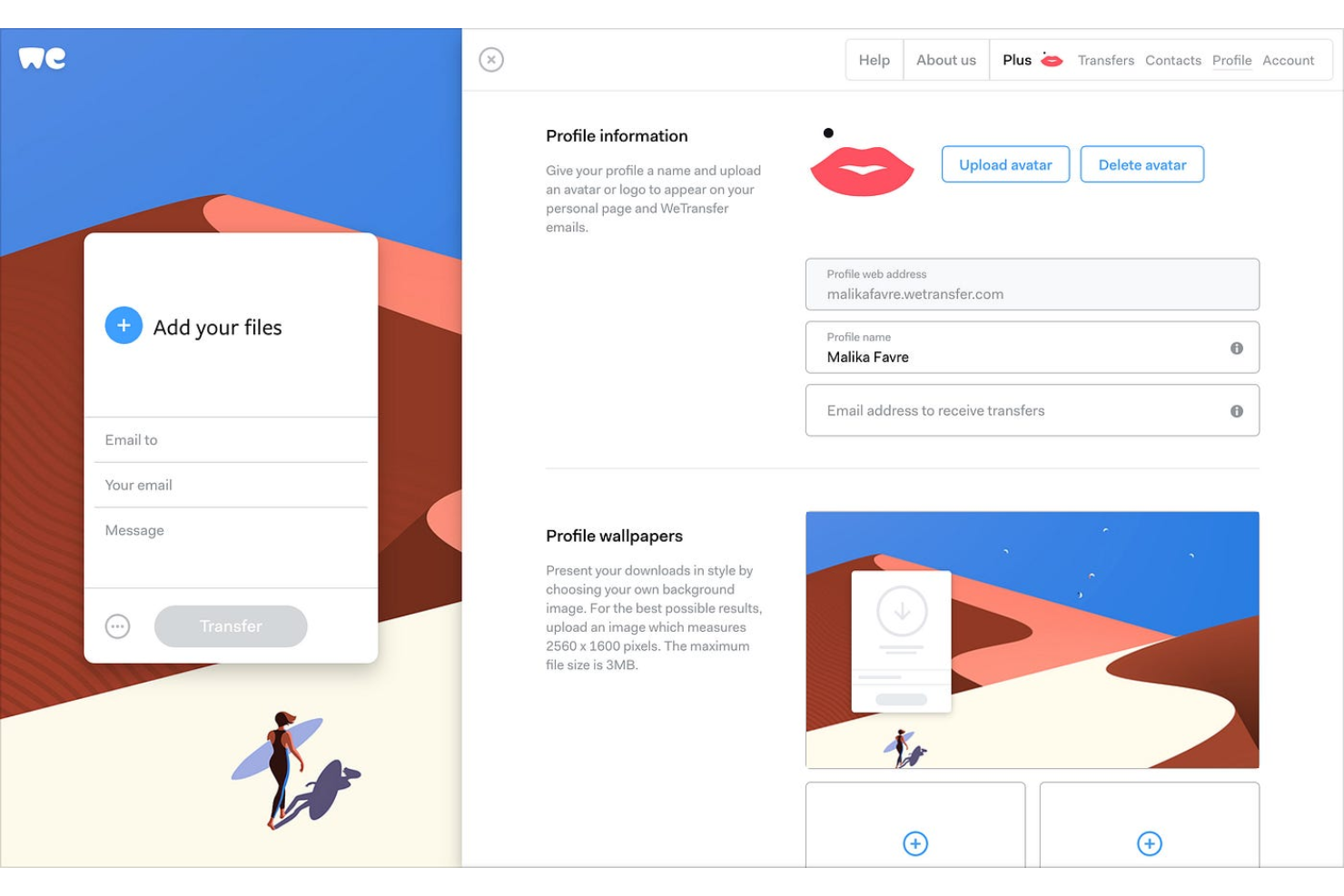
WeTransfer is a file sharing platform designed for creative professionals, agencies, and teams who need to send large files promptly, without complicated setup or account creation.
Who Is WeTransfer Best For?
WeTransfer is a great fit for freelancers, creatives, and small teams who need to send large files to clients or collaborators without asking them to create an account.
Why I Picked WeTransfer
WeTransfer earns its spot on my shortlist because it removes barriers to sending large files without delay. I picked it for the email-based sharing flow—you enter a recipient's email, attach your files, and they receive a direct download link with no account required on their end. I also like the file request feature, where you can share a personal WeTransfer page URL and let clients upload files directly to you, which eliminates the back-and-forth of coordinating transfers. On paid plans, automatic malware scanning adds a layer of security that's important when you're regularly receiving files from external contacts.
WeTransfer Key Features
- Transfer tracking: See when recipients have opened and downloaded your files directly from your transfer history.
- Custom expiry dates: Set how long a transfer link stays active, from one day up to one year on paid plans.
- Password protection: Add a password to individual transfers so only intended recipients can access the download link.
- Branded transfer pages: Customize your transfer page with your own logo, colors, and background images on paid plans.
WeTransfer Integrations
Integrations include Slack, Microsoft Teams, Adobe Creative Cloud, Sketch, Canva, and Google Reviews.
Pros and Cons
Pros:
- Supports fast and large file transfer.
- No sign-up or account required to start using.
- Extremely easy to use file sharing platform
Cons:
- Provides limited integrations with other tools and apps.
- Lacks advanced collaboration features for teams or individuals.

Dropbox
Best for seamless collaboration and syncing
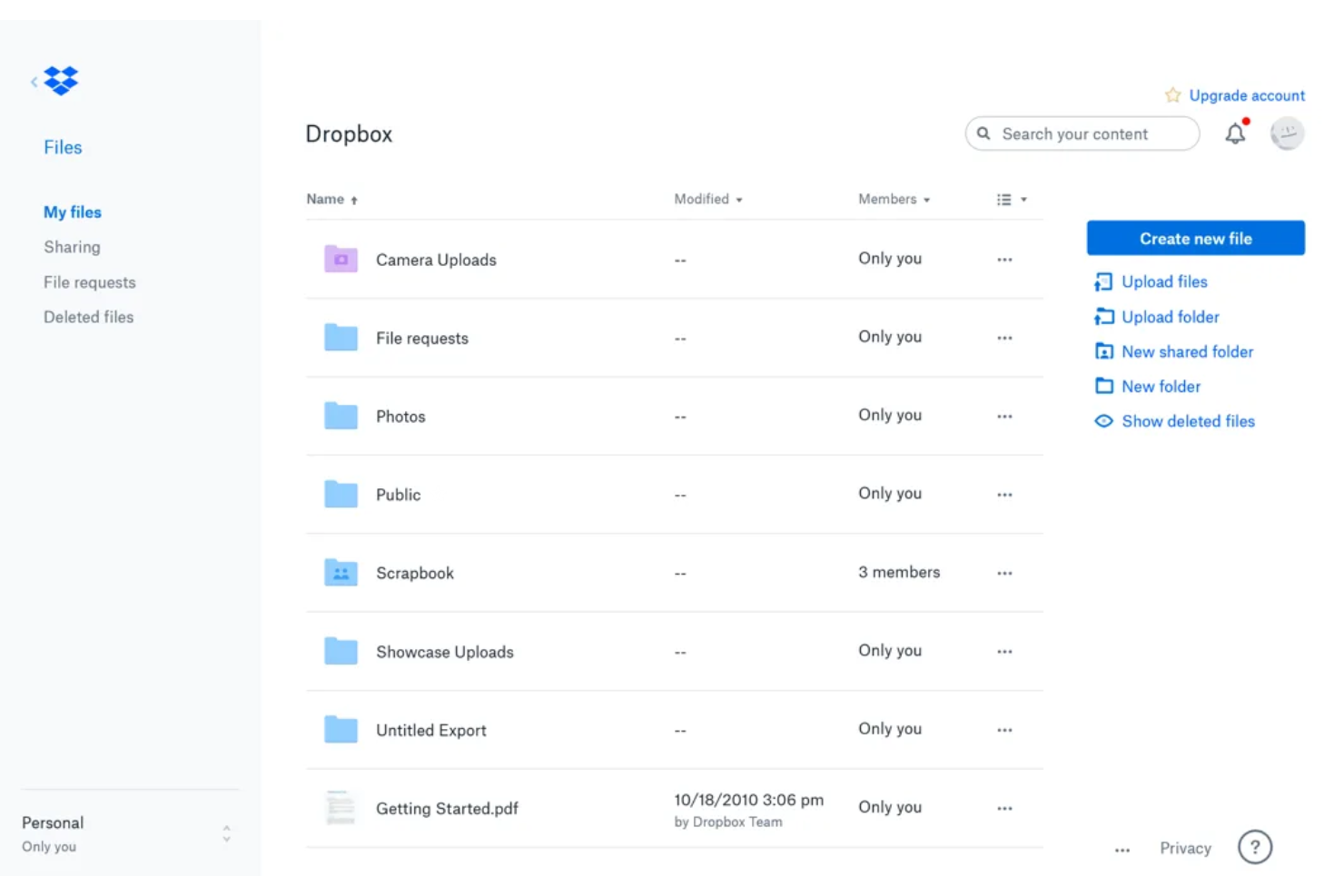
Dropbox is a cloud-based file sharing platform used by teams and businesses who need secure storage, easy access across devices, and tools for organizing and collaborating on documents in real time.
Who Is Dropbox Best For?
Dropbox is a good fit for small to mid-sized teams that work across multiple devices and need a reliable, centralized place to store, share, and access files.
Why I Picked Dropbox
Dropbox earns its spot on my shortlist because of how well it handles real-time syncing across devices—changes my team makes to a file show up instantly, no manual refreshing needed. I also like Dropbox Paper, which lets us co-edit documents, leave inline comments, and tag teammates without switching to a separate tool. Shared folders with granular permission controls mean I can give external collaborators access to specific files without exposing everything else in our workspace.
Dropbox Key Features
- Version history and file recovery: Restore previous versions of files or recover deleted items, with history going back up to 180 days on Standard plans and one year on Advanced and Enterprise plans.
- File request tool: Send a link that lets anyone upload files directly to your Dropbox folder, even if they don't have an account.
- Password-protected and expiring share links: Set passwords or expiration dates on shared links to control who can access files and for how long.
- Remote device wipe: Remove Dropbox files from a lost or stolen device without affecting files stored in the cloud.
Dropbox Integrations
Integrations include Microsoft Office, Google Workspace, Adobe Acrobat DC, Slack, Zoom, Canva, AutoCAD, DocuSign, Salesforce, and Trello.
Pros and Cons
Pros:
- Efficient third-party app integrations.
- Real-time access monitoring to detect unauthorized access.
- Widespread compatibility and sync with various devices and file formats.
Cons:
- Advanced features come with higher pricing.
- Storage limitations in lower-tier plans.

OneDrive
Best for seamless Microsoft ecosystem integration

OneDrive is a cloud-based file sharing platform for businesses and teams that need secure storage, real-time collaboration, and access to documents across devices.
Who Is OneDrive Best For?
OneDrive is a natural fit for businesses of any size that are already running on Microsoft 365 and need file sharing built into their existing workflow.
Why I Picked OneDrive
OneDrive earns its spot on my shortlist because of how naturally it fits into a Microsoft 365 workflow. When my team is editing a Word doc or reviewing a PowerPoint deck, files open directly in the browser without any app-switching or re-uploading. The co-authoring experience is immediate. I also like the Teams integration—shared files from a Teams channel show up directly in OneDrive, so there's one consistent place to find everything rather than hunting across chat threads and email attachments. The sensitivity labels and sync reports give admins real visibility into how files are being accessed and shared across the org.
OneDrive Key Features
- Version history: Access and restore previous versions of any file stored in OneDrive, going back up to 180 days.
- Granular sharing permissions: Set view-only, edit, or password-protected access on individual files and folders when sharing with internal or external users.
- Personal Vault: Store sensitive files in a protected area that requires additional identity verification to access.
- Offline sync: Sync files to your device so you can access and edit them without an internet connection, with changes uploading automatically when you're back online.
OneDrive Integrations
Integrations include Microsoft Teams, SharePoint, Outlook, Word, Excel, PowerPoint, OneNote, Microsoft Defender, Microsoft Designer, and Azure.
Pros and Cons
Pros:
- Sharing controls to authorized users.
- Automatic or manual document backup and version history.
- Advanced security, including encryption, 2FA, and expiration date for shared links.
- Seamless integration with Microsoft apps and easy collaboration within Microsoft Teams.
Cons:
- Limited storage for lower-tier plans.
- May require Microsoft and Microsoft Office ecosystem commitment.

SFTP To Go
Best for secure cloud-based file transfers

SFTP To Go is a managed SFTP solution for businesses and teams that need secure, automated file transfers and cloud-based storage without the hassle of maintaining their own servers.
Who Is SFTP To Go Best For?
SFTP To Go is a strong fit for developers and engineering teams that need a reliable, cloud-hosted SFTP server with minimal infrastructure overhead.
Why I Picked SFTP To Go
SFTP To Go is one of my top picks because I love how it handles secure cloud-based file transfers without requiring any server management on my end. The platform uses secure protocols—SFTP, FTPS, S3, and HTTPS—and encrypts files in transit and at rest with 256-bit AES, so I don't have to compromise security for convenience. I also rely heavily on the webhook triggers, which fire automations when files are uploaded or removed, letting my team build hands-off transfer workflows without custom polling. The shareable link feature lets us send password-protected, expiry-limited links to external partners without giving them full account access.
SFTP To Go Key Features
- User home directories: Assign each user their own isolated directory within your cloud storage to control exactly what files they can access.
- File versioning: Enable versioning on your storage to track changes to files over time and recover from accidental deletions or overwrites.
- Custom domain support: Connect your own domain to your SFTP To Go instance so external partners access your storage under your brand.
- IP allowlisting: Set network rules to restrict storage access to specific IP addresses, adding an extra layer of access control.
SFTP To Go Integrations
Integrations include FileZilla, CyberDuck, WinSCP, Amazon S3, and an API for custom connections.
Pros and Cons
Pros:
- Simple setup with scalable cloud storage
- Secure file sharing via share links
- Strong encryption and compliance focus
Cons:
- Higher entry pricing for small teams
- Lacks in-app document collaboration
Outro software de partilha de ficheiros
Eis algumas outras ferramentas de partilha de ficheiros que não entraram na minha lista principal, mas que merecem a sua consideração.
- Filestage
Streamlined file review and approval platform
- OneHub
For sharing files with anonymity
- Files.com
For enterprise file sharing
- Egnyte
To manage and control deletion and other content risks
- NordLocker
For file security and encryption
- ShareFile
For industry-specific modules
- Jumpshare
For Visual Communication and Annotation
- Air
For sharing files among creative teams
- Wrike
For medium to enterprise-level organizations.
- monday AI Workspace
For visual workflow management with file sharing needs.
- ClickUp
For flexible and customizable project and tasks management.
- MEGA
For generous cloud storage and encryption for individuals and businesses.
- MediaFire
For simple and fast, straightforward file sharing for small businesses.


How I Evaluate File Sharing Software
I split my evaluation into two layers: baseline capabilities every tool must have—like secure sharing and version control—and the differentiators that set the right tool apart for your team.
Core Functionality (Table Stakes For This List)
When I'm selecting tools for my list, I rank each one on a scale from 0 (does not offer the functionality) to 5 (excels in this area) for each core functionality listed below. Then, I calculate the tool's total score into a percentage. Each tool needs to achieve a minimum total score of 65% to be considered for inclusion.
- Cloud File Storage: I evaluate storage capacity, folder hierarchy depth, and multi-device sync—things like whether a distributed team can access the same project folder from desktop, browser, and mobile without lag.
- Multi-Channel Sharing: Each tool should let you share files via links, email invites, and direct assignment, with options like link expiration and password protection for external stakeholder handoffs.
- Granular Access Permissions: I look for role-based controls at both the file and folder level, so a PM can give a client view-only access to deliverables while keeping internal drafts restricted to the core team.
- Version Control & History: Teams editing project charters or scope documents need full version logs with restore options—I check how many versions a tool retains and how easy rollback is.
- Data Security & Encryption: Encryption in transit and at rest is the baseline, and I also look at compliance certifications like SOC 2, GDPR, or HIPAA depending on your industry requirements.
- Third-Party Integrations: The tool should connect to your existing PM and collaboration stack—platforms like Jira, Asana, Slack, Microsoft 365, and Google Workspace are common connectors I check for.
Once I have a list of tools that meet the criteria, I consider what sets each platform apart.
Differentiating Factors (What Sets Vendors Apart)
Here's how I compare and contrast different vendors:
Standout Features
Real-time co-editing matters when multiple stakeholders need to finalize a project brief without trading file versions back and forth. I also look for in-file commenting and annotation, which lets reviewers leave feedback directly on deliverables instead of scattering notes across email threads. Automated workflows are another differentiator—tools that trigger approval routing or notifications when a file is uploaded save PMs from manual follow-up during milestone reviews.
Beyond Features
How well a tool fits into your existing PM stack is a major consideration—I check whether it offers native integrations with platforms like Jira or Asana, not just generic API access. Compliance and data governance also weigh heavily, especially for teams handling regulated deliverables that require audit trails and data residency controls. Storage scalability is worth evaluating too, since a tool that works for a small team can hit limits fast once you're managing multiple concurrent projects with large files.
Como escolher software de partilha de ficheiros
É fácil ficar atolado em listas extensas de funcionalidades e estruturas de preços complexas. Para o ajudar a manter-se concentrado enquanto percorre o seu processo único de seleção de software, eis uma lista de verificação de fatores a ter em conta:
| Fator | O que considerar |
|---|---|
| Escalabilidade | Certifique-se de que o software consegue satisfazer as suas necessidades atuais e crescer com o seu negócio. Procure opções de armazenamento flexíveis, limites de utilizadores e um bom desempenho sob cargas elevadas. |
| Integrações | Verifique se o software se liga às ferramentas que a sua equipa já utiliza, como plataformas de gestão de projetos, CRM ou fornecedores de armazenamento na nuvem, para simplificar os fluxos de trabalho. |
| Personalização | Algumas ferramentas permitem definir permissões de utilizadores, elementos de marca e automatizações de fluxos de trabalho. Certifique-se de que pode adaptar o software às necessidades específicas da sua equipa. |
| Facilidade de utilização | Uma curva de aprendizagem acentuada abranda a produtividade. Procure uma interface intuitiva, carregamentos através de arrastar e largar e acesso rápido aos ficheiros utilizados com frequência. |
| Orçamento | Considere não só o custo base, mas também taxas ocultas, como custos por exceder o armazenamento, utilizadores adicionais ou funcionalidades de segurança avançadas. |
| Medidas de segurança | Uma encriptação forte, controlos de acesso e conformidade com os regulamentos (como o RGPD ou a HIPAA) são indispensáveis para proteger dados sensíveis. |
| Funcionalidades de colaboração | Se o trabalho em equipa for fundamental, procure edição em tempo real, histórico de versões e comentários de ficheiros integrados para manter os projetos a avançar sem problemas. |
| Acessibilidade em dispositivos móveis | A sua equipa poderá precisar de aceder aos ficheiros em qualquer lugar. Verifique se existem aplicações móveis fiáveis com acesso sem ligação à Internet e funcionalidades de sincronização. |
Tendências no software de partilha de ficheiros
Na minha pesquisa, recolhi inúmeras atualizações de produtos, comunicados de imprensa e registos de lançamentos de diferentes fornecedores de software de partilha de ficheiros. Eis algumas das tendências emergentes que estou a acompanhar:
- Encriptação de ponta a ponta por predefinição: Cada vez mais fornecedores estão a tornar a encriptação robusta uma funcionalidade padrão, em vez de um complemento opcional. Os utilizadores já não precisam de ativar manualmente definições de segurança adicionais, reduzindo o risco de erro humano. Algumas plataformas oferecem até encriptação de conhecimento zero, o que significa que apenas o utilizador — e não o fornecedor — pode aceder aos ficheiros.
- Organização de ficheiros com recurso a IA: As ferramentas de IA são utilizadas para etiquetar, categorizar e sugerir localizações de ficheiros com base no comportamento dos utilizadores. Algumas plataformas classificam automaticamente documentos sensíveis para evitar partilhas acidentais. Isto ajuda as equipas a reduzir a organização manual e a encontrar ficheiros mais rapidamente.
- Controlos granulares de expiração e acesso: As empresas querem ter mais controlo sobre quem pode aceder aos ficheiros e durante quanto tempo. Os fornecedores estão a responder com ligações de partilha que expiram automaticamente após um período definido, acesso baseado em funções associado às fases dos projetos e notificações quando os ficheiros são transferidos ou partilhados externamente.
- Partilha descentralizada e entre pares: Algumas plataformas estão a afastar-se do armazenamento centralizado na nuvem e a experimentar a partilha de ficheiros entre pares. Isto reduz a dependência de servidores, diminui os custos de armazenamento e melhora a privacidade, mantendo os ficheiros nos próprios dispositivos dos utilizadores, em vez de numa nuvem de terceiros.
- Funcionalidades de colaboração integradas: Em vez de se limitarem a partilhar ficheiros, os programas estão a adicionar comentários em documentos, aprovações e comparações de versões. Isto reduz a necessidade de transferir, editar e voltar a carregar ficheiros manualmente, mantendo tudo num só lugar e reduzindo conflitos entre versões.
O que é o software de partilha de ficheiros?
O software de partilha de ficheiros é uma ferramenta que permite partilhar e aceder a ficheiros através da Internet ou de uma rede. Permite transferir vários tipos de ficheiros, incluindo documentos, imagens e vídeos, entre diferentes dispositivos e utilizadores. Este software inclui frequentemente funcionalidades para carregar ficheiros, transferi-los, gerir o acesso e garantir a segurança dos ficheiros partilhados.
Pessoas como trabalhadores remotos, equipas de projeto e qualquer pessoa que precise de trocar documentos ou ficheiros multimédia utilizam-no para manter os ficheiros organizados e facilmente acessíveis. As ferramentas de partilha de ficheiros garantem que os ficheiros estão facilmente acessíveis, podem ser atualizados rapidamente e são partilhados de forma segura.
Funcionalidades do software de partilha de ficheiros
Ao selecionar um software de partilha de ficheiros, procure as seguintes funcionalidades principais:
- Permissões granulares: Permitem controlar quem pode visualizar, editar ou transferir ficheiros específicos, reduzindo o risco de acesso não autorizado.
- Encriptação de ponta a ponta: Protege os ficheiros contra interceção, encriptando os dados antes de estes saírem do seu dispositivo e desencriptando-os apenas para o destinatário pretendido.
- Histórico de versões e sincronização de ficheiros: Guarda versões anteriores de um ficheiro, permitindo acompanhar alterações, restaurar versões anteriores e evitar a perda acidental de dados.
- Transferências de ficheiros grandes: Permitem enviar e receber ficheiros grandes sem atingir os limites de tamanho que frequentemente restringem os anexos de e-mail.
- Ligações de partilha com expiração: Permitem definir datas de expiração automáticas para ficheiros partilhados, garantindo um acesso temporário sem intervenção manual.
- Acompanhamento da atividade: Regista visualizações, edições e partilhas de ficheiros, para que possa monitorizar quem acedeu aos seus ficheiros e quando.
- Pré-visualização e edição integradas: Permitem aos utilizadores visualizar ou editar ficheiros diretamente na plataforma, sem terem de os transferir primeiro.
- Eliminação remota: Permite eliminar ficheiros partilhados do dispositivo de um utilizador em caso de falha de segurança ou perda do dispositivo.
- Acesso offline: Permite aos utilizadores aceder e editar ficheiros sem ligação à Internet, sincronizando as alterações assim que voltarem a estar online.
- Suporte à conformidade: Ajuda a cumprir regulamentações do setor, como o RGPD ou a HIPAA, disponibilizando registos de auditoria, opções de residência dos dados e controlos de acesso seguros.
- Suporte a assinaturas eletrónicas: Permite aos utilizadores assinar documentos de forma segura dentro da plataforma, facilitando a finalização de acordos sem terem de mudar de ferramenta.
Vantagens do software de partilha de ficheiros
A implementação de um software de partilha de ficheiros pode proporcionar várias vantagens à sua equipa e à sua empresa. Eis algumas das que pode esperar:
- Colaboração mais rápida: Os membros da equipa podem aceder, editar e comentar ficheiros partilhados em tempo real, sem terem de esperar por anexos de e-mail.
- Maior segurança: A encriptação, os controlos de acesso e os registos de auditoria ajudam a proteger ficheiros sensíveis contra acessos não autorizados ou fugas de dados.
- Trabalho remoto mais fácil: O acesso baseado na nuvem garante que os funcionários podem obter e partilhar ficheiros a partir de qualquer lugar, estejam no escritório ou em deslocação.
- Armazenamento mais organizado: Os repositórios de ficheiros centralizados, com pesquisa, etiquetagem e histórico de versões, facilitam a localização e a gestão de documentos.
- Menor dependência do e-mail: As transferências de ficheiros grandes, as ligações de partilha e a colaboração na aplicação reduzem a necessidade de trocas de e-mails constantes.
- Custos de armazenamento mais baixos: As opções baseadas na nuvem reduzem a necessidade de armazenamento físico dispendioso e minimizam as versões duplicadas dos ficheiros.
- Maior conformidade: As funcionalidades de segurança integradas e o acompanhamento dos acessos ajudam as empresas a cumprir os regulamentos do setor e os requisitos de proteção de dados.
Custos e preços do software de partilha de ficheiros
A seleção de software de partilha de ficheiros requer uma compreensão dos vários modelos de preços e planos disponíveis. Os custos variam consoante as funcionalidades, a dimensão da equipa, os complementos e outros fatores. A tabela abaixo resume os planos mais comuns, os respetivos preços médios e as funcionalidades normalmente incluídas nas soluções de software de partilha de ficheiros:
Tabela de comparação de planos de software de partilha de ficheiros
| Tipo de plano | Preço médio | Funcionalidades comuns |
|---|---|---|
| Plano gratuito | $0 | Armazenamento limitado, partilha básica de ficheiros, acesso de um único utilizador e opções de segurança mínimas |
| Plano pessoal | $5-$15/utilizador/mês | Mais armazenamento, histórico de versões dos ficheiros, acesso móvel e encriptação básica |
| Plano empresarial | $15-$30/utilizador/mês | Controlos de segurança avançados, ferramentas de colaboração em equipa, controlos administrativos e registos de auditoria |
| Plano empresarial de grande escala | $30-$50+/utilizador/mês | Limites de armazenamento personalizados, encriptação de ponta a ponta, apoio à conformidade, suporte prioritário e permissões de utilizador avançadas |
Perguntas frequentes sobre software de partilha de ficheiros
Encontre respostas a perguntas comuns que outras pessoas fazem sobre este tema.
O que é a partilha de ficheiros?
A partilha de ficheiros é o ato de transferir ficheiros digitais entre dispositivos ou utilizadores, através da Internet, para fins de colaboração ou distribuição. Por exemplo, enviar uma apresentação a um colega por e-mail ou partilhar ficheiros de um projeto utilizando um serviço de armazenamento na nuvem como o Dropbox, o Filestage ou o Google Drive.
Qual é o principal benefício da partilha de ficheiros baseada na nuvem?
O principal benefício da partilha de ficheiros baseada na nuvem é a possibilidade de aceder e colaborar em ficheiros a partir de qualquer lugar com ligação à Internet, permitindo uma colaboração contínua entre equipas distribuídas e eliminando a necessidade de dispositivos de armazenamento físicos.
Quão segura é a partilha de ficheiros?
A segurança da partilha de ficheiros depende do tipo de software, métodos e ferramentas de partilha de ficheiros utilizados. Embora as plataformas baseadas na nuvem de boa reputação utilizem frequentemente encriptação e medidas de segurança para proteger os dados, é importante escolher serviços de confiança, implementar controlos de acesso sólidos e utilizar serviços que sigam as melhores práticas para reforçar a segurança.
Quais são algumas alternativas ao software de partilha de ficheiros?
Se estas ferramentas de partilha de ficheiros não forem exatamente aquilo que procura, existem outras opções. No que diz respeito à gestão e partilha de ficheiros, estão disponíveis várias alternativas ao software tradicional de partilha de ficheiros. Eis alguns tipos de ferramentas que podem servir como alternativas: