

Wrike AI Agents: Feature Deep Dive & How It Works



A new request lands in Wrike, but the information is incomplete. Someone has to review it and ask for what is missing before the work can move forward.
 , but the information is incomplete. Someone has to review it and ask for what is missing before the work can move forward.
When the same coordination keeps repeating across multiple projects, it starts taking time away from decisions that actually need human judgment. That makes Wrike AI Agents worth a closer look.
Can they handle the repeatable parts of the workflow without making the process harder to control?
This guide explains what Wrike AI Agents are and shows how they operate in practice. It then walks you through setup before examining the capabilities and limitations that matter when putting an agent to work.
Wrike's AI Agents Overview
Wrike AI Agents are configurable AI workers that monitor what is happening in Wrike and take action when certain conditions are met. They can review requests, update fields, report, route tasks, post comments, and start approvals without waiting for someone to prompt them each time.
Wrike introduced the feature as a way to move AI beyond the chat window and into the workflows where teams spend time checking information, updating tasks, assigning work, and following up with people.
That is also what separates AI Agents from Wrike Copilot. Copilot responds when someone asks it a question. An AI Agent is given instructions ahead of time and runs automatically when the right situation occurs.
So, what does that look like inside an actual workflow? It starts with a simple two-part process.
How Do Wrike's AI Agents Work?
Wrike explains that its AI Agents work in two phases: the Watcher and the Do-er.
The Watcher monitors a selected folder, project, or task for a trigger. This could be a new item being created, a field or status changing, or a date approaching. Wrike also supports scheduled, event-based, date-based, API-based, and automation-based triggers.
Once the trigger occurs, the Do-er reviews the information available within its scope and follows the instructions set by the team. Depending on its configuration, it can then post a comment, update a field, change an assignee or status, move an item, or start an approval.
For example, a marketing operations team could place an Intake agent in the folder where campaign requests arrive. Wrike lists intake and triage as one of the feature’s main use cases.
When a new request arrives, the agent could check whether it includes the deadline, audience, channel, approver, and other information the team needs.
If something is missing, it could post a comment explaining what is needed and move the request to a holding status. If everything is complete, it could update the relevant fields, assign an owner, and start an approval.
The team still decides what the agent should look for and how it should respond.
Those instructions, triggers, actions, and fallback rules are defined when the team creates and configures the agent. The agent simply applies them whenever the same situation occurs.
That basic watch-and-act process is what powers the feature. The next section looks at the capabilities that make it useful across more complex workflows.
Standout Aspects of Wrike's AI Agents
The basic watch-and-act process is only part of what Wrike AI Agents can do. Their main value comes from how they use project context, combine actions, and operate within controls set by the team.
They Can Read the Context Around a Work Item
Wrike AI Agents are not limited to the item that triggered them. Within their assigned scope, they can review parent custom fields, sibling and subtask items, dependencies, approval details, and user profile attributes.
This allows an agent to make decisions using the surrounding project information. For example, it could check a parent project’s priority before routing a task or review dependent work before flagging something as at risk.
They Can Connect Multiple Steps Into One Workflow
With Multi-Actions, one agent can perform several actions in a configured sequence. It could classify a request, update its custom fields, assign it, and post a summary after a single trigger.
Wrike also supports Agent Chaining when one decision depends on another. An Intake agent could confirm that a request is complete and update its status, which then triggers a separate Triaging agent to route it.
They Operate Within Defined Controls
AI Agents work within their assigned space and scope rather than receiving unrestricted access to the entire account. Space admins determine what each agent monitors, what instructions it follows, and which actions it may perform.
Teams can also review the agent’s reasoning and test its behavior before it affects live work. This gives project and operations leaders a clearer way to check how an agent reached a decision before expanding it across more workflows. When prompting, agent builders can also specify inclusion of a human decision step (e.g., when triaging tasks for resource assignments, unclear task requirements can be sent to a manager for manual assignments)
Other Standout Aspects
Conversational Agent Builder
Teams can create an agent by describing what they want in plain language. Wrike uses the space’s existing fields, workflows, and item types to suggest the configuration.
Prebuilt Agents
Wrike provides several prebuilt agents, including Intake, Triaging, and Risk agents. Newer options cover workflows such as revision tracking and missed deadlines.
Testing Playground
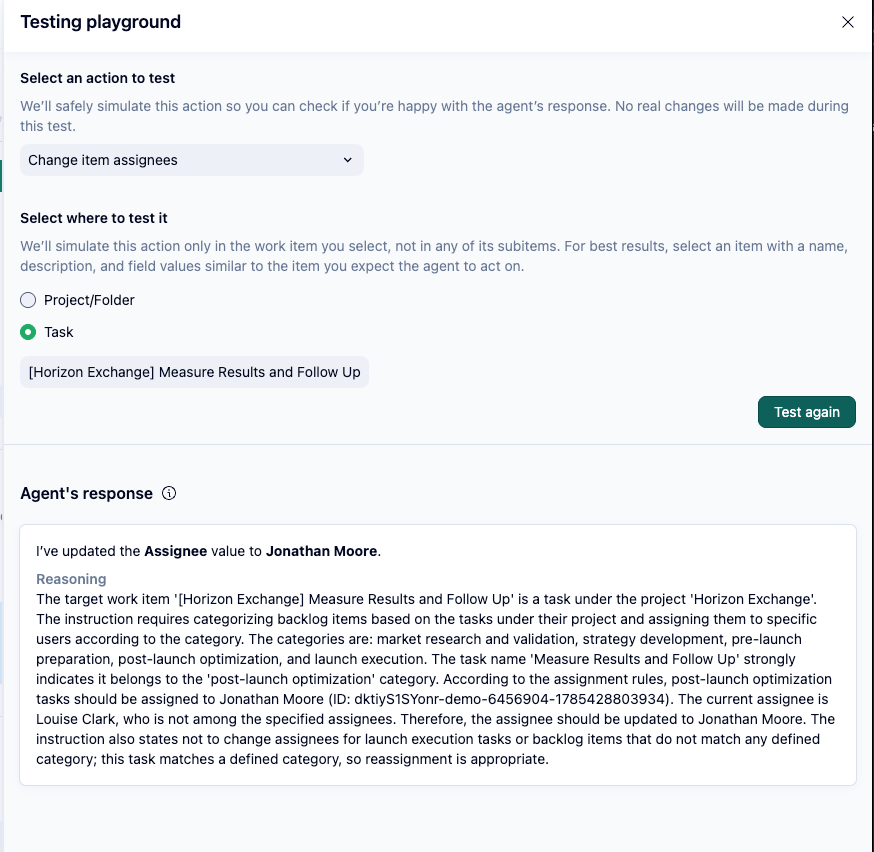
The Testing Playground lets teams preview an agent’s reasoning and response without changing live items or consuming their AI usage allowance.
Action Filters
Each action can be limited by item type, status, assignee, custom field, importance, or name. These action-level filters help prevent the agent from acting on work that does not match the intended conditions.
These capabilities make Wrike AI Agents flexible, but they still need to be configured around a clear workflow. The next section walks through how to choose, set up, test, and deploy one.
How to Use Wrike's AI Agents
Once you have a workflow in mind, setting up an agent comes down to defining what it should watch, how it should respond, and where it should run.
Step 1: Confirm Access and Prerequisites
For new accounts, Wrike AI Agents are available on Business, Pinnacle, and Apex plans, but not on Free or Team.
Your account owner must enable generative AI, and your organization must have accepted Wrike’s AI Addendum. You also need space admin permissions in the space where the agent will be configured.

Step 2: Choose a Prebuilt Agent or Build Your Own
Open the relevant space, go to Space Settings, select AI agents, and click Get started.
You can then choose one of Wrike’s prebuilt agents for Revision Tracking, Project Coordinator, Missed Deadline, Triaging, Intake, or Risk - or build a custom one through the conversational builder. A prebuilt agent works well when your workflow matches one of those common use cases, while a custom agent gives you more control over its logic.

Step 3: Define the Role and Instructions
Explain what the agent is responsible for, what information it should consider, and how it should respond.
Wrike recommends using specific instructions, providing clear examples, and defining fallback behavior for situations where the agent cannot make a confident decision.
For example, instead of telling an agent to “route campaign requests,” explain which request types belong to each team and what it should do when the correct destination is unclear.
Step 4: Set the Trigger and Scope
Choose what should activate the agent and which work items the trigger should cover.
Wrike supports scheduled, event-based, date-based, API-based, and automation-based triggers. You could run an agent when a new request is created, when a status or field changes, or several days before a due date.
Keep the trigger and scope focused on the workflow the agent is meant to handle. This makes its behavior easier to predict and helps avoid unnecessary executions.


Step 5: Configure the Actions and Their Filters
Next, choose what the agent should do after it is triggered.
Available AI Agent actions include posting comments, updating fields, changing assignees or statuses, moving work items, sending notifications, and starting approvals.
Each action can have its own filters based on item type, status, assignee, custom field, importance, or name. With Multi-Actions, the agent can also perform several actions in the order you configure.

Step 6: Test the Agent in the Playground
Before using the agent on live work, run it against sample items in the Testing Playground.
The Playground shows how the agent reasons and responds without changing the selected items. These tests also do not count against your AI usage allowance, so you can adjust the instructions and test again if the result is not what you expected.
Step 7: Create, Activate, and Appoint the Agent
Once the test results look right, create the agent and make sure it is turned on.
You must then appoint it to the folder, project, or task where it should run, usually by mentioning the agent in that location. Creating the agent in Space Settings alone does not make it active there.
Start with one location and monitor its activity before expanding it to more workflows. This gives you time to refine its instructions, filters, and fallback behavior based on how it handles real work.
Note: Wrike recommends starting with one agent in a single folder before expanding. You can then review its activity logs and refine its instructions, filters, and fallback behavior based on how it handles real work.
Who Would Benefit From Wrike's AI Agents?
Once an agent is set up, the next question is where it adds the most value. Wrike AI Agents suit teams with recurring workflows, but they should understand the limits before wider use.
Operations and PMO Leaders
Operations and PMO leaders can use AI Agents to enforce established processes across projects without reviewing every update themselves. Agents can check incoming work, flag risks, move dates out at the end of a sprint cycle, and route exceptions to the right person while leaders focus on decisions that require human judgment.
Marketing and Creative Operations Teams
These teams often manage a steady flow of campaign requests, asset reviews, and approvals.
An agent can identify incomplete briefs, update request details, track the number of revisions, assign the right resources, or move work forward once the required information is available.
Space Admins and Workflow Owners
Space admins and workflow owners are well placed to build AI Agents because they already understand how work moves through the space. They can translate existing requirements into instructions and set clear boundaries around what the agent may do.
Other Target Audiences
Product development, professional services, and manufacturing teams may also benefit when their work follows defined stages or requires frequent handoffs. For example, agents can verify data, ensure compliance checks are complete, and even score the importance of projects.
The feature is less useful when processes change constantly, or the team only needs basic task management, which brings us to the limitations worth considering before deploying an agent more widely.
Limitations and Challenges of Wrike's AI Agents
Careful setup helps, but teams should still understand an agent’s usage, access, and decision-making limits before expanding it.
The AI Elite Allowance Can Run Out Quickly
AI Agents draw from a monthly AI Elite allowance determined by the account’s plan. The allowance is pooled across the account rather than divided among individual users.
In Wrike’s example for a 100-user account, Business receives 300 monthly actions, Pinnacle receives 1,000, and Apex receives 10,000. A workflow that performs several actions across many projects can work through that allowance quickly.
Skipped and failed actions also count once the agent evaluates them, making focused triggers and filters important.
Agents Cannot Access Every Source of Information
Wrike AI Agents can read project context, but they cannot access everything a project manager might consider. Their documented data limitations include external data sources, effort values, and workload or capacity metrics.
An agent can count assigned tasks, but it cannot see the same capacity and scheduling information available through Wrike’s workload tools.
Teams may need to expose the required value through a calculated field or keep decisions involving documents, capacity, and external systems under human review.
Their Decisions Are Not Fully Predictable
AI Agents use natural-language instructions and project context to make decisions, so they may not respond identically every time. Wrike also warns that agents are unreliable at arithmetic, counting, and multi-step calculations.
This makes them better suited to tasks such as classification, summarisation, and routing than to calculations that require an exact result.
Formula fields and standard automation rules remain safer choices when the same input must always produce the same output.
Their Assigned Scope Is a Hard Boundary
An agent can only monitor and act within the location and scope to which it has been appointed. It also respects the existing permissions applied to that area.
That boundary helps protect information, but it can make workflows involving several spaces more difficult to coordinate. Teams may need separate agents or another integration method instead of expecting one agent to work across the entire account.
There Is No Documented Bulk Rollback
Wrike provides activity logs that show what an agent changed and why, but its current documentation does not describe a way to reverse multiple agent actions in bulk.
If an agent updates the wrong fields or items at scale, correcting those changes may require manual work. Testing, narrow scopes, action filters, approval steps, and regular log reviews are therefore important before giving an agent control over consequential workflows.
Apart from these, there are also several narrower limits to consider.
AI Agents are unavailable on Free and Team plans, only one agent of each type can operate in the same location, and an action can target no more than 1,000 subitems per execution.
Agents also cannot delete items, cannot write to formula or mirror fields, and cannot update date fields that include a time component.
Email, Slack, and Microsoft Teams actions have additional restrictions around recipients, channels, attachments, mentions, and threaded messages.
Conclusion
AI Agents are most useful when the surrounding Wrike setup already gives them a structured process to follow. If your request forms, workflows, and approvals are still being developed, it may be better to establish those foundations before introducing an agent.
For a broader assessment of the platform, read our in-depth Wrike review or sign up for an account to see them in action for yourself.
When you are ready to test AI Agents, start with one prebuilt agent in a single folder, monitor its activity and usage, and expand only once it behaves as expected. For further reading, visit Wrike’s help desk to get all the details.
Good luck with the rollout.
FAQs
What plan do I need for AI Agents?
Wrike AI Agents require Business, Pinnacle, or Apex and are unavailable on Free and Teams. AI Essentials is included on free and paid plans under fair-use restrictions and is tracked but not charged against the AI Elite allowance.
What exactly counts as an AI action?
An AI action is one independent AI operation. Copilot responses and individual agent actions use the AI Elite allowance, while AI Essentials features such as summaries and rewrites are tracked separately and do not reduce that allowance.
How are agent permissions and data access handled?
Agents operate within their appointed location and configured scope while respecting existing permissions. Within that boundary, they can use relevant context such as parent fields, subtasks, dependencies, approvals, and user profile attributes.
Do agents need to be prompted like a chatbot?
No. Agents normally respond to configured triggers, although users can chat with an agent afterward to understand its decisions; Copilot is Wrike’s on-demand conversational assistant.
Can agent actions be audited or undone?
Wrike logs agent activity, while its admin-only AI usage page provides more detailed usage reporting with CSV export. Its documentation does not describe a bulk rollback option.
How do AI agents in project management differ from automation rules?
Automation rules follow fixed conditions and actions, while AI Agents read surrounding context and make a judgment before acting. Rules are better for predictable logic; agents are more useful when a decision requires interpreting information.
Can external AI tools work with Wrike data?
Yes. Wrike’s MCP server allows compatible assistants such as Microsoft Copilot, ChatGPT, Claude, Gemini, and Perplexity to read and update live Wrike data through OAuth within the user’s existing permissions.

