

How to Use Wrike for Project Management in Manufacturing



A supplier misses a date, and leadership wants to know if the launch is still on schedule.
Before you can answer, you have to check the project plan, find the latest change request, and ask different teams what has changed. Everyone has part of the answer, but no one can see the full effect on the program.
What you need is a practical way to connect the schedule with the people, changes, and decisions behind it.
That is where Wrike can help.
It gives manufacturing teams a shared place to coordinate program work while continuing to use their existing ERP, PLM, and production systems.
In this guide, we will walk you through how to use Wrike for project management in manufacturing.
You will learn how to structure programs, map dependencies and float, manage change requests, coordinate handoffs, control supplier access, and build reporting that leadership can actually use.
How Wrike Works as a Manufacturing Project Management Software
If you manage manufacturing programs, you already know the hard part is not creating a task list. It is keeping engineering, operations, quality, suppliers, and leadership aligned while schedules change and work moves between teams.
Wrike for manufacturing gives you one shared place to manage that coordination across schedules, workflows, resources, and reporting.
 gives you one shared place to manage that coordination across schedules, workflows, resources, and reporting.
- You can see which delays actually matter. Dependencies, critical path, and float show you which tasks have room to move and which ones could push back production or launch.
- You do not have to rebuild every program from scratch. Blueprints let you start each build with the same phases, tasks, milestones, and fields.
- Changes have a clear path to follow. Request forms collect the right details, while workflows and automations route each request to the people responsible for reviewing and acting on it.
- Everyone works from the same information. Cross tagging lets teams view the same work in the context they need, while dashboards, reports, and workload views give managers a clearer picture of progress,capacity, and risks.
The goal is simple: help you spend less time chasing updates and more time dealing with the decisions that can affect delivery. Wrike supports this coordination while working alongside your existing ERP, PLM, and SCM systems.
What You Need Before Using Wrike for Manufacturing Project Management
Before you start building in Wrike, take a moment to confirm the basics. Getting these decisions out of the way now will save you from having to restructure the workspace once people are already using it.
Make sure you have the right plan
For the setup covered in this guide, Business is the practical starting point.
It includes access to blueprints, request forms, Workload charts, and critical path with float, and currently costs $25 per user per month when billed annually.
If you need detailed Activity Reports for audit purposes or have extensive integrations and AI needs, you will need Pinnacle or Apex.
Decide Who Will Own the Setup
You will need an account admin to manage licenses and account settings, along with a space admin who can maintain your blueprints, custom fields, AI agents, workflows, and request forms.
Include the teams that will actually use the process in the setup conversation so that responsibilities and handoffs reflect how the work happens.
Define How Wrike Fits With Your Existing Systems
Decide which information belongs in Wrike and which should remain in your ERP, PLM, MES, SCM, or other manufacturing systems.
If data needs to move between them, treat the integration as its own project and confirm the connector, ownership, and development requirements before rollout.
Wrike Integrate is included with Apex and available as a paid addition to Business and Pinnacle.
NetSuite has a prepared connector, while SAP, Oracle, and PLM platforms generally require the API, middleware, an integration platform, or custom development.
If you are using AI assistants such as Claude, Microsoft Copilot, or ChatGPT, an MCP connector is available. There is no charge for the connector.
How to Set Up Manufacturing Project Management in Wrike
Start with one active program rather than configuring your entire manufacturing operation at once. Build the workflow, test it with real work, and refine it before expanding it across other programs or plants.
Step 1: Build Your Space Architecture
Use spaces for long-term ownership or access boundaries, such as a manufacturing division, plant, or program portfolio. Within each space, use projects for individual programs and folders for groupings such as plants and product lines.
When the same task belongs to multiple operational views, cross-tag it instead of creating a duplicate. For example, a tooling approval can remain in its program project while also appearing in the appropriate plant and product-line folders.
Check permissions before cross-tagging sensitive work into a location with broader access.


If you want a prepared starting point, Wrike’s Product Manufacturing template includes a structure and views designed around product development workflows.
Step 2: Standardize Repeatable Builds as Blueprints
Turn a stable, repeatable program structure into a blueprint containing its standard phases, tasks, dependencies, fields, milestones, and ownership.
When launching a new program, reschedule the blueprint around the new start or completion date and review the assignees, dependencies, and milestones instead of assuming everything still applies.
Wrike’s blueprints are reusable templates for tasks, folders, and projects. On Business and higher accounts, creation through blueprints and duplication is limited to 12,000 items over the preceding seven days.

Step 3: Configure Manufacturing Fields and Resource Data
Add the fields your programs are actually managed by, such as part number, plant, product line, program phase, supplier, change classification, and risk level.
Use controlled dropdowns where possible so teams do not enter several versions of the same value. Also decide which fields should be available across the account and which should remain specific to one space.
These custom fields can later be used to filter, group, route, and report on work.
If you plan to monitor capacity, assign owners and effort to the tasks that consume resources. Wrike’s Workload charts rely on effort-bearing tasks to calculate workload accurately.

Step 4: Schedule With Dependencies and Read the Float
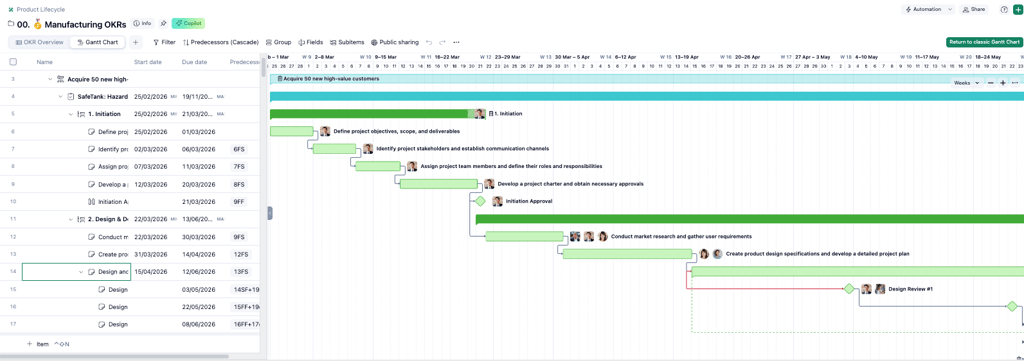
Lay the program out on the Gantt chart and connect tasks according to how the work happens.
Wrike supports finish-to-start, start-to-start, finish-to-finish, and start-to-finish dependencies, along with lead and lag time, milestones, and baselines.
Before relying on the schedule, confirm that working days, waiting periods, dependencies, and fixed milestones are represented correctly.
Then enable critical path and display the Total float and Free float columns:
- Total float shows how long a task can move without delaying the overall program.
- Free float shows how long it can move without delaying its immediate successor.
- Negative float indicates that a planned finish or successor date can no longer be met under the current schedule.
Wrike documents these calculations in its critical-path guide.
Once the schedule is approved, set a baseline so you can compare the current dates with the original plan.
Step 5: Set Up Change Request and Quality Escalation Intake
Create request forms for engineering changes and quality escalations.
Capture details such as the affected part, plant, product line, classification, requested date, potential impact, and supporting documents.
Map each answer to the appropriate title, description, date, assignee, or custom field. Wrike’s response mapping keeps submissions consistent and ready for routing.
A Wrike request form creates a new task, project, custom item, or copy. It does not directly edit an unrelated existing production task. The request form can also be filled in using natural language via an AI assistant such as Claude or Chat GPT connected to Wrike via MCP. Model the change request as a separate work item and include a reference to the affected program or task.
When a form creates work from an existing task, project, or blueprint, it can reschedule the created copy around a selected task. That option does not update the original affected work.

Step 6: Connect the Cross-Functional Handoffs
Create workflows that reflect the actual states work passes through, such as:
Submitted → Engineering Review → Impact Assessment → Approval → Implementation → Quality Verification → Closed
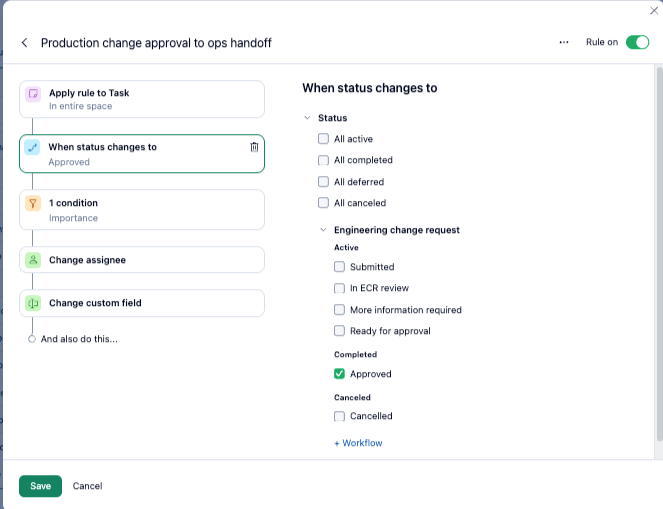
Then use automation rules to manage the handoffs.
For example:
When a production-impacting change is approved by Engineering, assign it to Operations, change its status to Implementation Required, add it to the affected plant folder, and notify Quality.
Each Wrike automation rule can contain up to 10 actions. Test each rule before applying it to live work to confirm that it reaches the correct owner and does not create duplicate tasks or unnecessary notifications.
Step 7: Give Suppliers and Contractors the Right Access
Choose external access based on what the supplier needs to do:
- Viewer: View and comment on shared work
- Contributor: Update statuses or dates, approve work, comment, and attach files
- External User: Create and participate in work with broader paid access
- Guest Reviewer: Review and approve attached files without creating a Wrike account
Check Wrike’s current license documentation before choosing a user type.
Share only the projects, folders, and tasks each supplier requires, then test the permissions using a non-admin account.
Step 8: Build and Validate the Leadership Dashboard
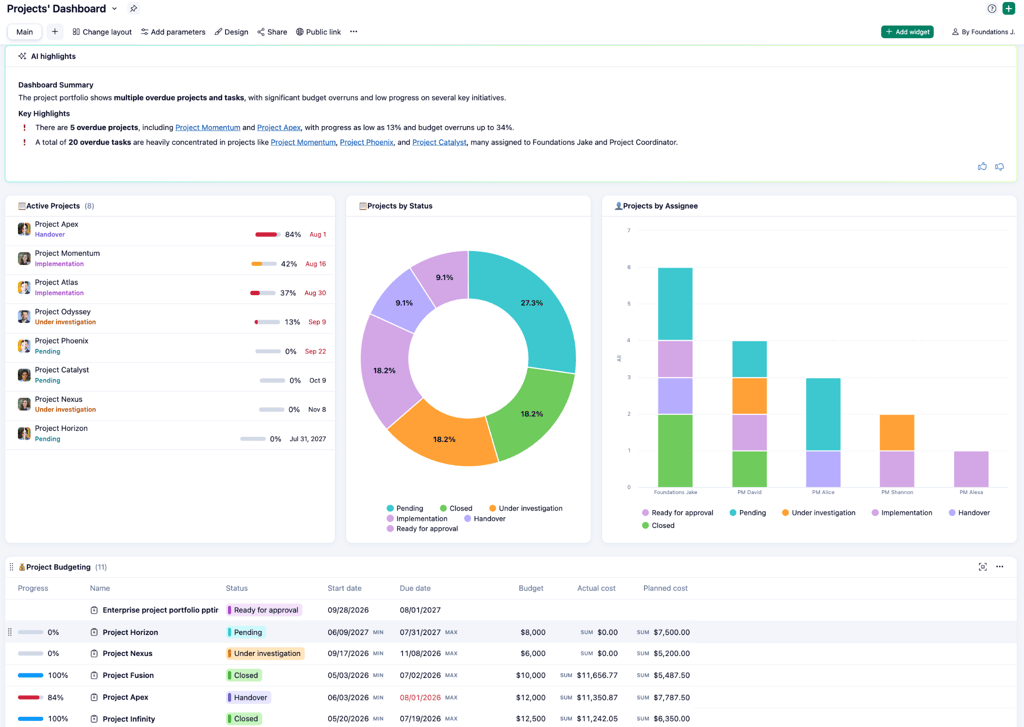
Create a dashboard around the decisions leadership needs to make. Useful widgets include:
- Open change requests by status or classification
- Upcoming milestones
- Overdue implementation tasks by plant
- Baseline due variance by program
- High-risk items
- Pending approvals
Wrike’s Dashboards can pull data from multiple projects, folders, and spaces when the viewer has permission to access them.You can also use natural language AI features to create the dashboard widget you want.
Keep detailed critical-path and float analysis in the Gantt chart, where those calculations are displayed directly. Use the dashboard to summarize schedule movement, risk, changes, approvals, and workload.
Before expanding the setup, run one program through the complete process.
Launch it from the blueprint, submit a test change request, verify each handoff, check supplier access, introduce a sample delay, and compare the dashboard with the underlying work.
Correct any gaps before rolling the configuration out more broadly.
What Successful Manufacturing Project Management in Wrike Looks Like
You do not need a perfect dashboard or a fully automated workflow on day one. Start by looking for a few practical signs that the setup is working:
- Program schedules follow the same structure because new work starts from an approved blueprint.
- Teams can see which delays consume float or affect the critical path instead of simply seeing that a task is late.
- Change and quality requests arrive with the required information and route to the right owners.
- Engineering, operations, and quality handoffs move through clear statuses with fewer manual follow-ups.
- Suppliers and contractors can complete their part without seeing work they should not have access to.
- Program reviews use current Wrike data instead of a presentation assembled the night before.
The strongest signal is consistency.
If the next program is easier to launch, changes are easier to trace, and leaders can understand schedule and risk without chasing several teams for updates, the system is doing its job.
If those things are not happening yet, revisit the relevant setup step and refine it before rolling Wrike out more widely.
Common Wrike Manufacturing Project Management Mistakes and Pro Tips
Even with the main setup in place, a few less obvious Wrike behaviors can affect what your teams see and how the workflow runs.
Review Critical Path at the Right Level
Wrike calculates the critical path within the folder, project, or space you are viewing.
When reviewing one manufacturing program, open its project directly so work from a broader plant or portfolio does not change the chain being highlighted.
Account for Work Outside the Workload Chart
A Workload chart may display tasks from one selected location, but Wrike can still include a person’s scheduled effort from elsewhere in the account. Check the shaded effort before assuming the visible tasks represent that person’s full workload.
Know What Will Not Trigger Automation
Wrike automation rules do not trigger for updates made through the API, imports, mass editing, or dependency rescheduling. If your workflow depends on any of these update methods, test the process separately and plan how the next handoff will happen.
Do Not Combine Subtask Durations
When parent dates are expanded around subtasks, the parent covers the period between the earliest start and latest finish. That date range is not the combined duration or effort of every subtask.
Do Not Treat Blueprints as Active Work
Tasks inside blueprints do not appear in dashboards, reports, or personal task lists as active assignments. Create the actual program from the blueprint before expecting it to appear in live reporting.
Final Thoughts
Wrike can support manufacturing programs through reusable blueprints, structured intake, connected schedules, and reporting across teams.
How well it fits will depend on how closely that structure reflects your existing programs and the systems surrounding them. For a broader assessment of the platform, read our in-depth Wrike review or chat directly with their team to get started today.
Before rolling it out more widely, recreate one completed program as a blueprint and test it with real dependencies and reporting requirements. Use what you learn to refine the setup before moving the next program into Wrike.
Good luck with the rollout.
FAQs About Using Wrike for Project Management in Manufacturing
Which Wrike plan do manufacturing teams need?
For the setup described in this guide, Business is the practical starting point because blueprints, request forms, Workload charts, and critical path with float are available on Business and above. Business currently costs $25 per user per month when billed annually, while Activity Reports and AI agents require Pinnacle or Apex.
Can suppliers and contractors get access without a full license?
Yes, depending on what they need to do. Guest reviewers can review attached files without an account, while Viewers, Contributors, and External Users provide increasing levels of access for updating work.
Does Wrike integrate with our ERP or PLM system?
NetSuite is supported through Wrike Integrate, which is included with Apex and available as a paid addition to Business and Pinnacle. Other ERP and PLM connections may require Wrike Integrate, the API, middleware, or custom development, so confirm support for your specific system first.
How does Wrike handle multi-plant visibility?
Cross-tagging allows the same work item to appear in both program and plant locations without creating duplicate records. You can also use a Plant custom field for filtering and reporting, but check permissions because cross-tagging can extend access to the item.
Is Wrike manufacturing project management software or a general work management platform?
Wrike is a general work management platform with manufacturing templates and workflows for scheduling, change coordination, resources, and reporting. Wrike positions the platform as working alongside ERP, PLM, and SCM systems rather than replacing them.
How long does a rollout take?
There is no standard rollout time because it depends on the number of users, workflows, locations, and integrations involved. Start with one live program, correct any setup gaps, and expand once the workflow is working consistently.

