

10 beste InVision-alternativer for prototyping i 2026

Kortliste over de beste InVision-alternativene


Hvis du har brukt InVision til designprosjektene dine, lurer du kanskje på om det finnes bedre alternativer. Kanskje du ser etter flere funksjoner, bedre priser eller noe som integreres smidigere med arbeidsflyten din. Uansett årsak kan det å utforske alternativer hjelpe deg med å finne et verktøy som passer bedre til teamets behov og øker den generelle produktiviteten.
Etter å ha testet og gjennomgått flere løsninger for prosjektstyring, er dette mine forslag til de beste InVision-alternativene.
Hva er InVision?
InVision er en plattform for digital produktdesign som hovedsakelig brukes av designere til å lage interaktive og responsive prototyper for nett- og mobilapplikasjoner. Den fungerer som et samarbeidsmiljø der team kan dele, gjennomgå og teste design. Brukerne omfatter designere, produktledere og utviklere som trenger en sentralisert plattform for å gjøre ideene sine til digitale produkter virkelige gjennom prototyping og samarbeid.
Det å finne det riktige InVision-alternativet kan til syvende og sist forbedre designprosessen betydelig og gjøre prosjektene dine mer effektive, samarbeidsorienterte og behagelige. Ved å utforske ulike alternativer kan du oppdage verktøy som tilbyr funksjonene du og teamet ditt trenger for å lykkes.
Hvorfor du kan stole på våre programvareanbefalinger
Teamet vårt har testet og anmeldt programvare siden 2012. Vi er selv prosjektledere, så vi vet hvor vanskelig og hvor viktig det er å velge riktig programvare.
I denne guiden har vi vurdert verktøyene gjennom praktisk testing og uavhengig research og gitt dem poeng ut fra våre utvelgelseskriterier. Vi bygger også på innsikt fra ledende eksperter i bransjen og erfarne prosjektledere.
Anmeldelsene våre bygger på vår egen redaksjonelle vurdering. De er ikke et salgsargument.
Ekspertanmeldere:
Sammenligningstabell for InVision-alternativer
| Tool | Best For | Trial Info | Price | ||
|---|---|---|---|---|---|
| 1 | Best for data visualization | Free plan + demo available | From $12.25/user/month (billed annually) | Website | |
| 2 | Best for low-fidelity wireframing | 14-day free trial | From $16/user/month (billed annually) | Website | |
| 3 | Best for rapid prototyping and testing | Free plan available | From $12/month (billed annually) | Website | |
| 4 | Best for design system consistency | Free plan available; 14-day free trial | From $29/user/month (billed annually) | Website | |
| 5 | Best for integrated prototyping | Free plan available | From $19/user/month | Website | |
| 6 | Best for visual development | Free plan available | From $15/month (billed annually) | Website | |
| 7 | Best for realistic simulations | 30-day free trial | From $29/user/month | Website | |
| 8 | Best for design handoff precision | Free plan available | From $15/month | Website | |
| 9 | Best for mobile prototyping | 15-day free trial | From $24/user/month (billed annually) | Website | |
| 10 | Best for no-code web building | Free plan available | From $7/month (billed annually) | Website |
Anmeldelser av de beste InVision-alternativene
Nedenfor vil jeg gi en detaljert analyse og oversikt over hvert InVision-alternativ og se nærmere på styrkene og svakhetene deres. Jeg vil også gå gjennom funksjonene til disse verktøyene og identifisere situasjonene der de er mest effektive.

Visme
Best for data visualization
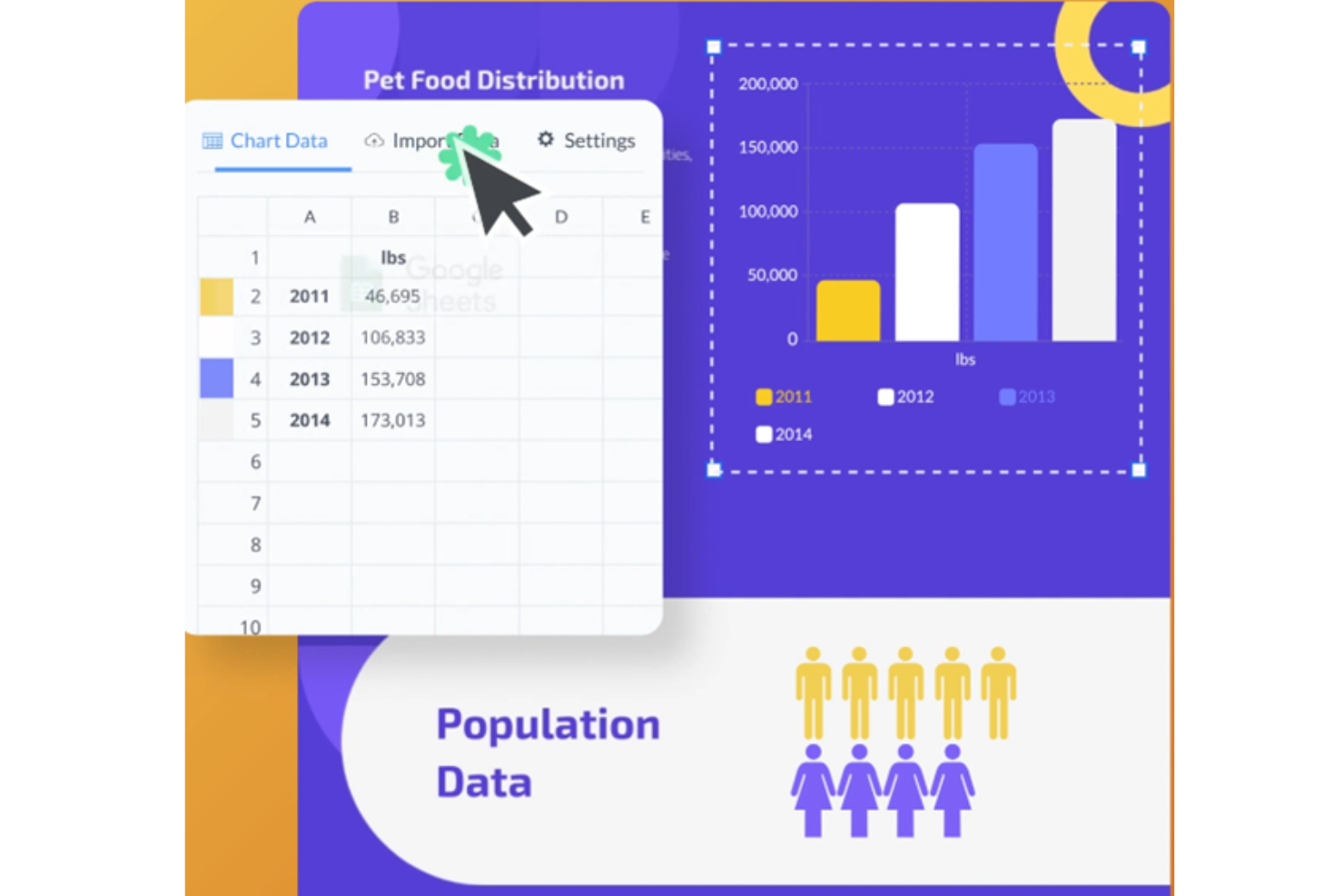
Visme is a visual content platform for project and people teams that need to turn complex workflows, policies, and plans into clear, shareable presentations and documents.
Who Is Visme Best For?
Visme suits analysts and project leads who need to present complex metrics as clear charts, infographics, and reports.
Why I Picked Visme
Visme earns my pick as “Best for data visualization” when an InVision alternative needs to communicate project findings rather than prototype screens. I like how its charts and infographics turn delivery metrics or workflow steps into visual reports, which I can share as presentations or documents. That gives stakeholders a clear view of progress and risks.
Visme Key Features
- Customizable templates: Edit handbook template slides, colors, and fonts.
- Brand Wizard: Add brand fonts, colors, images, and logos.
- Interactive content: Add interactive elements to handbook pages.
- Animation effects: Animate elements within your handbook.
Visme Integrations
Visme’s documented integrations include monday.com, Slack, Google Drive, OneDrive, Widen, and Google Analytics. You can also connect Visme with Zapier.
Pros and Cons
Pros:
- Templates speed up polished project presentations
- Interactive reports clarify workflows for stakeholders
- Built-in charts turn delivery metrics into visuals
Cons:
- Large datasets can expose chart limits
- No dedicated interface-prototyping workflows

Balsamiq
Best for low-fidelity wireframing
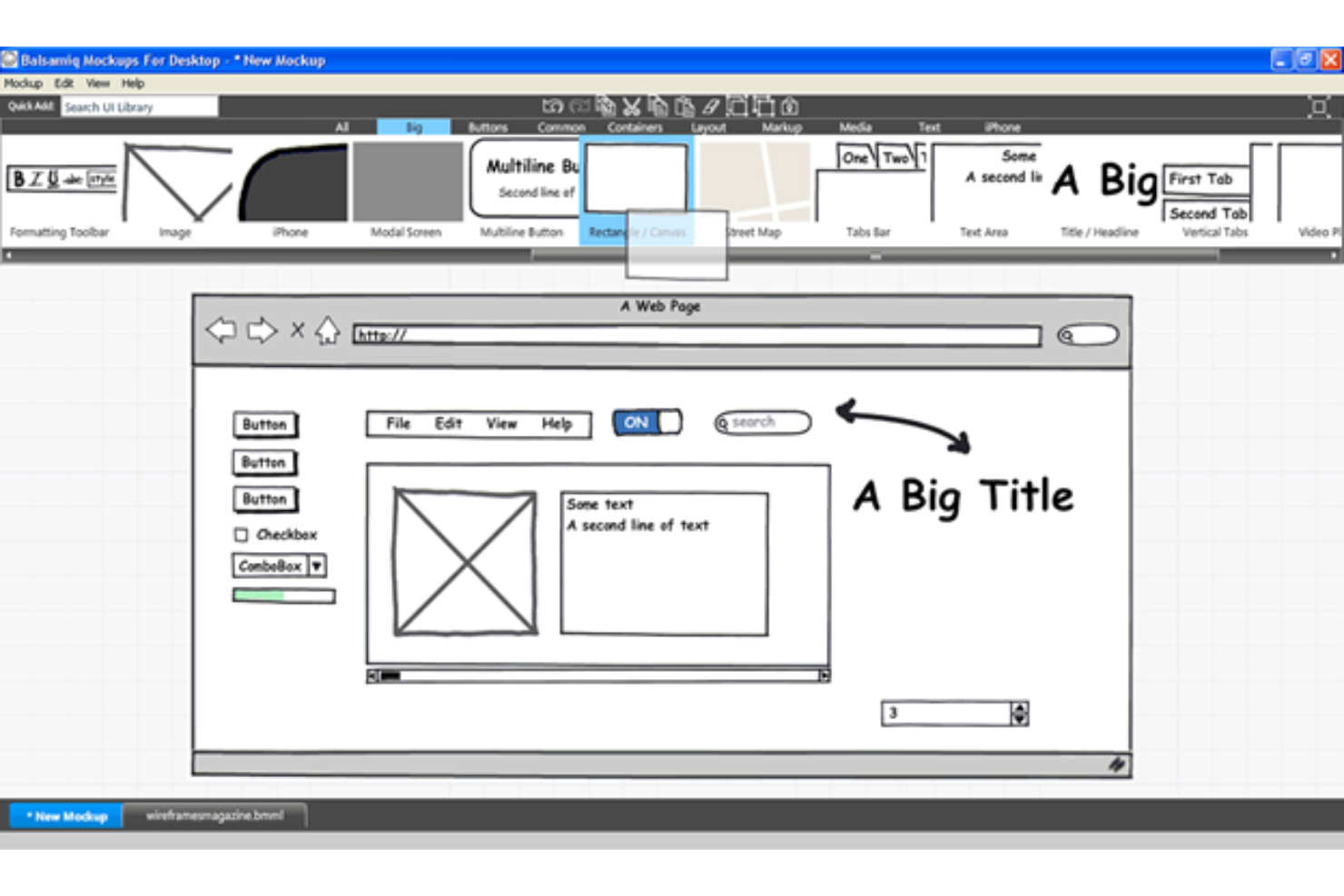
Balsamiq helps product, design, and engineering teams sketch interface ideas, align on screen layouts, and resolve early UX questions before committing to detailed designs.
Who Is Balsamiq Best For?
Balsamiq suits product managers and other non-designers who need to map app or website screens without getting pulled into visual polish.
Why I Picked Balsamiq
I picked Balsamiq as an InVision alternative for its stated strength, “Best for low-fidelity wireframing.” Sketch-style UI controls and drag-and-drop wireframes help me map a checkout flow before visual design begins. I link screens to review navigation and screen order without polishing the mockup.
Balsamiq Key Features
- Reusable components: Save groups of UI elements and reuse them across boards.
- Wireframe annotations: Add notes that explain functionality, interactions, or design rationale.
- Review comments: Leave comments and callouts on projects for team feedback.
- Alternate versions: Create and manage different versions of a wireframe.
Balsamiq Integrations
Balsamiq offers an official Slack integration for sharing projects and receiving edit and comment notifications, plus Jira and Confluence apps through the Atlassian Marketplace. Its remote MCP server connects Balsamiq Cloud projects with clients such as Claude, ChatGPT, Cursor, and GitHub Copilot.
Pros and Cons
Pros:
- Linked screens clarify basic navigation flows
- Prebuilt UI controls speed rough screen assembly
- Sketch-style mockups keep feedback on structure
Cons:
- Low-fidelity screens can't validate visual polish
- Click-through interactions remain basic beside InVision

Marvel
Best for rapid prototyping and testing
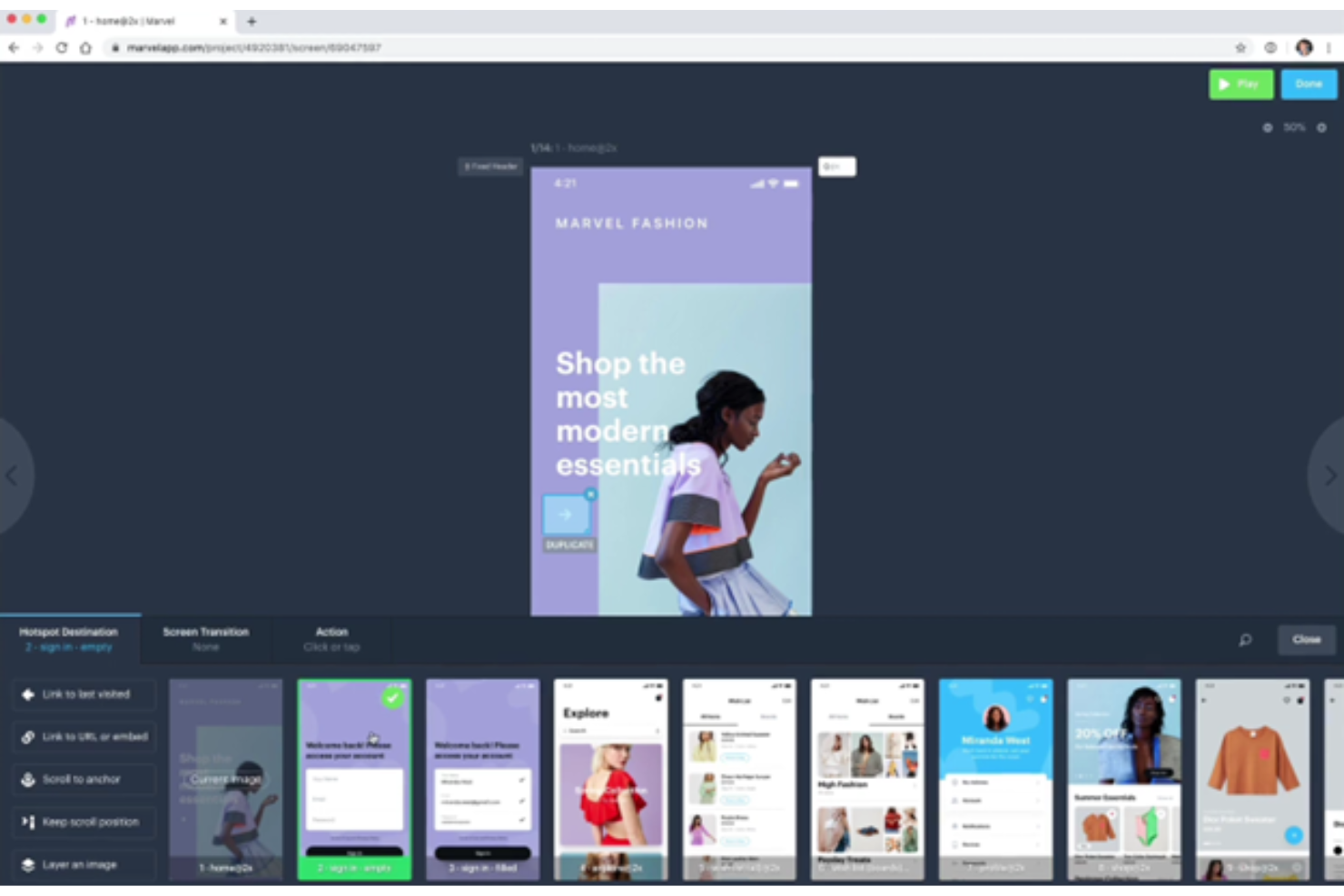
Marvel is a design and product collaboration platform for UX and product teams that need to turn concepts into interactive prototypes, gather feedback, and align stakeholders before development.
Who Is Marvel Best For?
Marvel suits UX designers and product managers who need to validate app or website flows before engineering begins.
Why I Picked Marvel
I picked Marvel as an InVision alternative because it’s “Best for rapid prototyping and testing.” I can turn app screens into clickable flows with hotspots, transitions, and gestures, then watch test participants navigate a checkout through screen, audio, and video recordings.
Marvel Key Features
- Developer handoff : Generates CSS, Swift, and Android XML specs from Marvel or Sketch designs.
- Integrations : Connects Marvel with tools such as Jira, Microsoft Teams, and Sketch.
- Wireframe templates : Provides drag-and-drop assets for mobile, tablet, and desktop layouts.
- Project permissions : Lets teams assign user roles and control access for collaborators and reviewers.
Marvel Integrations
Marvel’s integrations include Sketch, Jira, Confluence, Dropbox Paper, Microsoft Teams, Ballpark, YouTube, and Zeroheight. Marvel also provides an API for building custom integrations.
Pros and Cons
Pros:
- Generates CSS, Swift, and Android XML specs
- Captures participant audio and video feedback
- Rapidly turns static screens into clickable flows
Cons:
- Large projects can feel slow and clunky
- Advanced gestures and element animations are limited

UXPin
Best for design system consistency
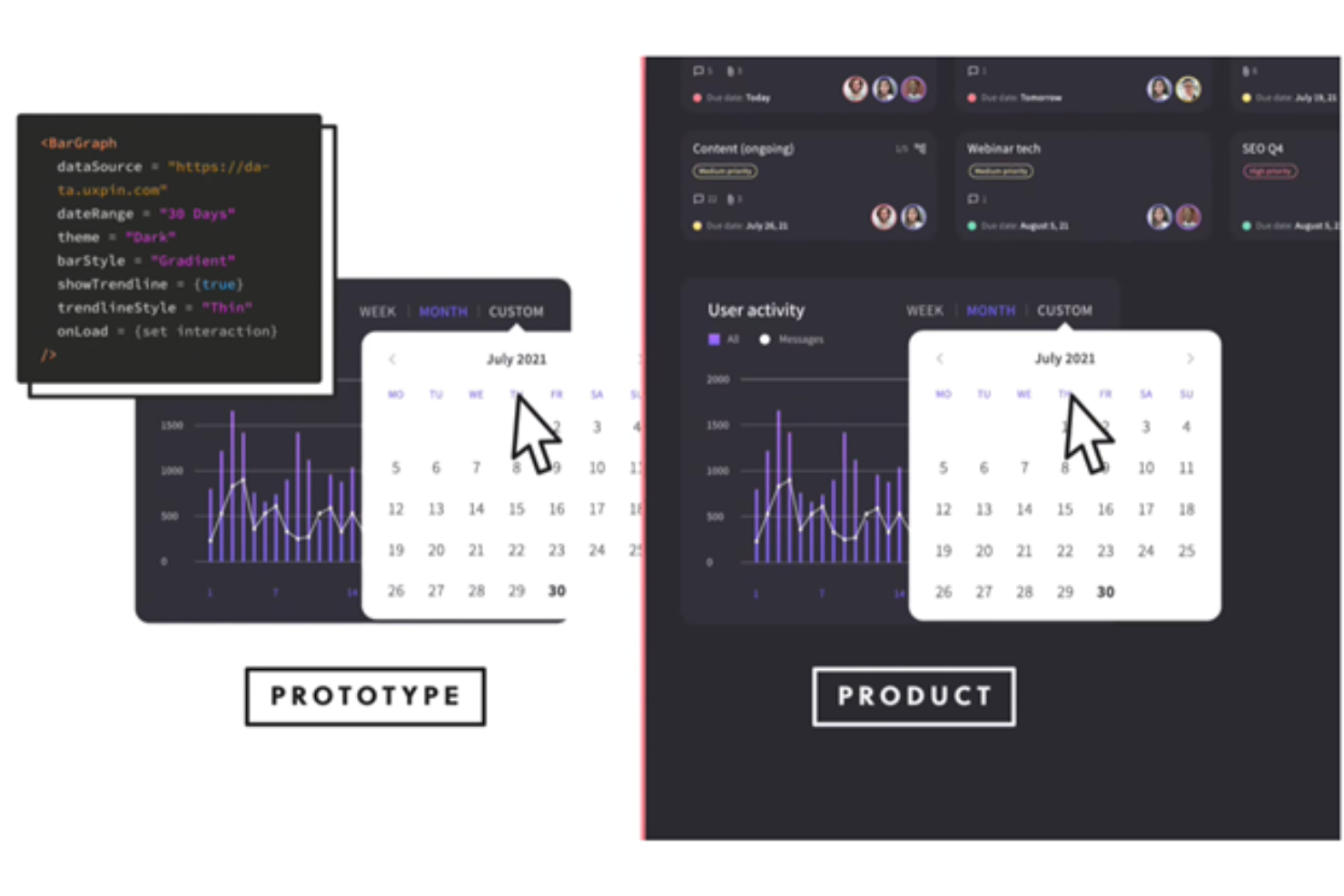
UXPin is a UI design and prototyping platform for product teams that need to turn early concepts into interactive experiences and connect design decisions with engineering handoff.
Who Is UXPin Best For?
UXPin suits UX and product design teams that need shared, reusable components to keep interfaces consistent across complex products.
Why I Picked UXPin
I picked UXPin as an InVision alternative because Merge brings React components from your codebase into design and prototyping. I like how teams can build checkout flows from the same coded components engineers ship, supporting design system consistency between prototypes and implementation.
UXPin Key Features
- Variables: Store user-entered data and reuse it across prototype pages.
- Conditional interactions: Set rules that determine when prototype interactions occur.
- Real-time editing: Work on the same design with teammates in real time.
- In-context comments: Leave feedback on designs and tag teammates.
UXPin Integrations
UXPin documents connections with Jira, Slack, FullStory, Figma, Sketch, Storybook, Adobe Fonts, Google Fonts, and Git repositories such as GitHub, GitLab, and Bitbucket. UXPin Merge brings coded components from Storybook or Git repositories into prototypes, while Jira, Slack, and FullStory support prototype handoff, notifications, and user testing.
Pros and Cons
Pros:
- Live collaboration speeds feedback cycles
- Conditional logic supports realistic product flows
- Coded React components keep prototypes aligned
Cons:
- Shared component changes are hard to track
- Complex prototypes can lag or become buggy

Best for integrated prototyping
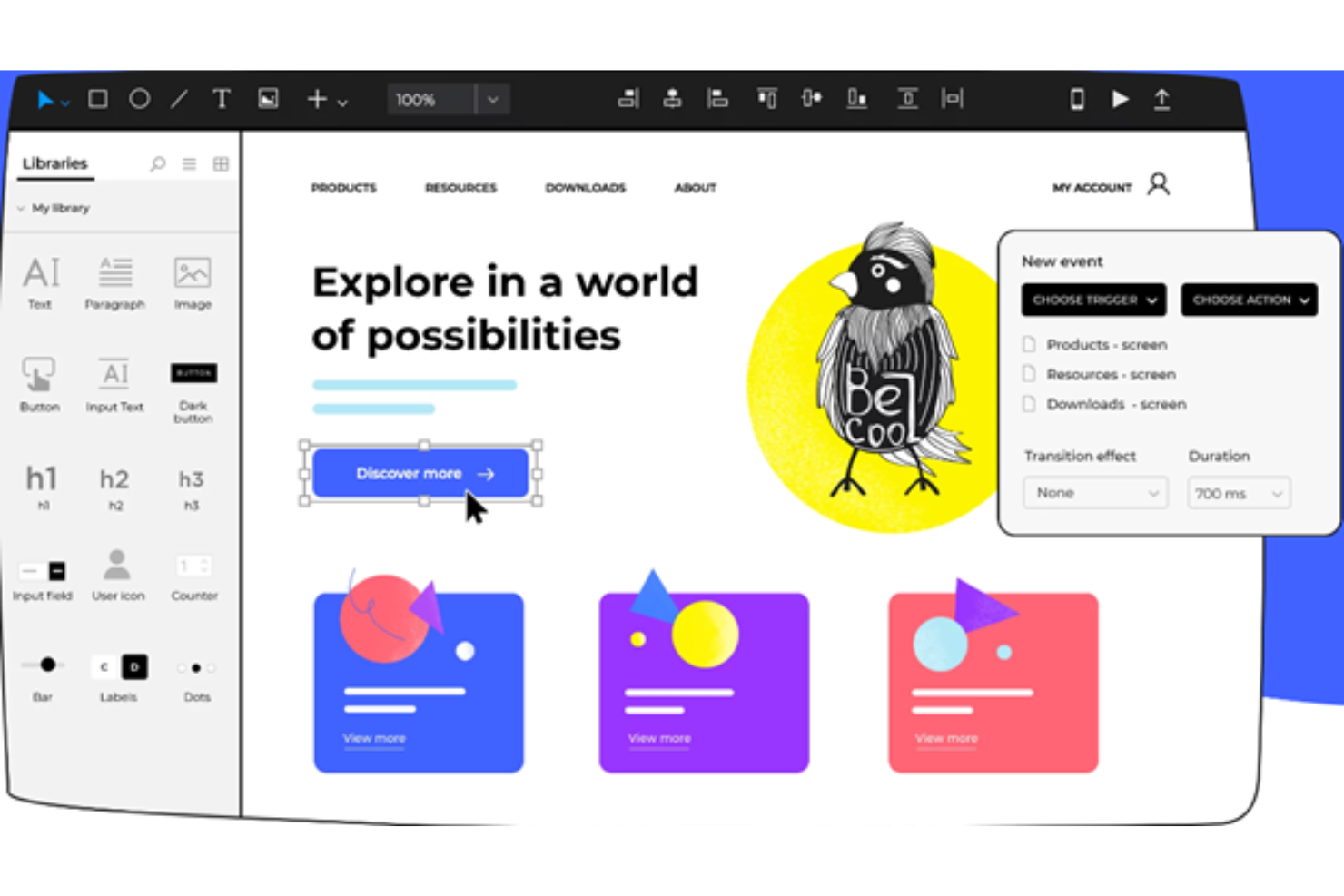
Justinmind is a web and mobile app prototyping platform for product and UX teams that helps turn early concepts into testable screens and clarify user flows before development.
Who Is Justinmind Best For?
UX teams coordinating with product and engineering can use Justinmind to validate detailed interactions before handing designs into development.
Why I Picked Justinmind
I picked Justinmind for integrated prototyping that connects web and mobile screens into testable user flows. I use it to model interactions such as checkout steps and form validation, so teams can review behavior before development. That makes it a practical InVision alternative when you need to test how a product works, not just how its screens look.
Justinmind Key Features
- Reusable masters: Create shared elements and update their instances across screens.
- UI kits: Add interface components from built-in libraries to your prototypes.
- Responsive layouts: Define layouts for different screen sizes and device orientations.
- Comments: Add feedback directly to prototypes for team review.
Justinmind Integrations
Justinmind has a built-in Jira integration and supports work-item imports from Azure DevOps, plus design imports from Sketch, Photoshop, Illustrator, Adobe XD, and Figma. Confluence embedding is available through the Justinmind+ add-on, and its API and SDK let teams build plugins and connect internal tools.
Pros and Cons
Pros:
- Reusable masters keep shared screen elements consistent
- Mobile gesture and device previews support validation
- Complex interactions with variables and conditions
Cons:
- Exports to other apps can be awkward
- Large prototypes load slowly and use resources

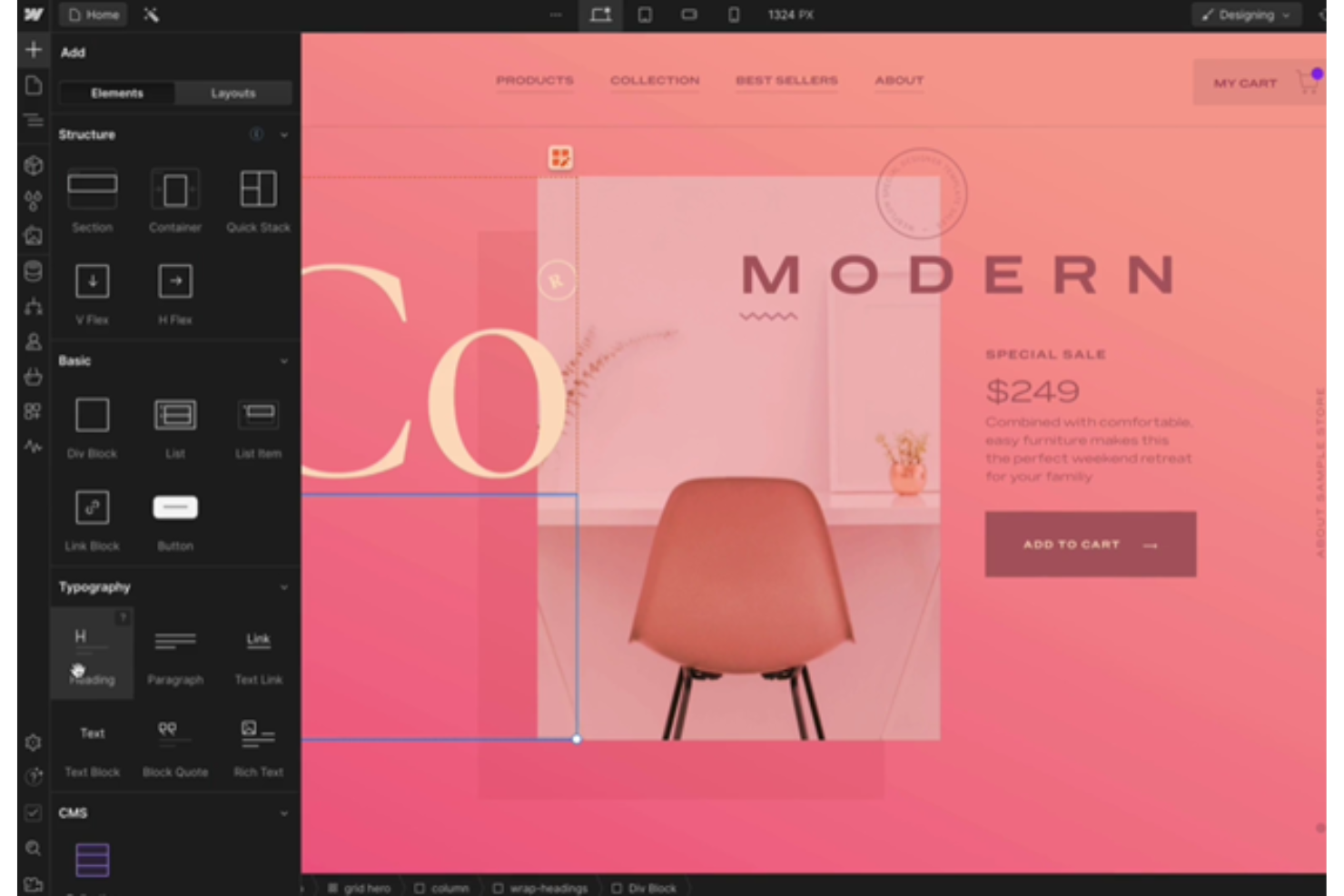
Webflow gives design teams a visual way to build responsive websites, helping them move interface concepts into working pages without relying on developers for every update.
Who Is Webflow Best For?
Webflow suits freelance web designers and digital agencies that build and iterate on client websites through a visual development workflow.
Why I Picked Webflow
I picked Webflow as an InVision alternative because it’s best for visual development. In Webflow Designer, I can build page layouts on a visual canvas, adjust them across responsive breakpoints, and add interactions to demonstrate behavior. I use that workflow when a concept needs to move beyond clickable screens into a working website.
Webflow Key Features
- CMS collections: Create structured content types for blog posts, case studies, and other repeatable pages.
- SEO controls: Set page titles, meta descriptions, canonical URLs, and Open Graph settings.
- Form builder: Add forms and configure fields, submission notifications, and success messages.
- Ecommerce tools: Manage products, categories, and store pages within your Webflow site.
Webflow Integrations
Webflow’s integrations library lists connections with Google Docs, Google Workspace, Airtable, and Zapier. It also offers a Data API and webhooks for custom integrations.
Pros and Cons
Pros:
- Add interactions to test page behavior
- Tune layouts at individual breakpoints
- Build responsive websites beyond clickable screens
Cons:
- Exported code can be hard to maintain
- Production-site setup slows quick screen tests

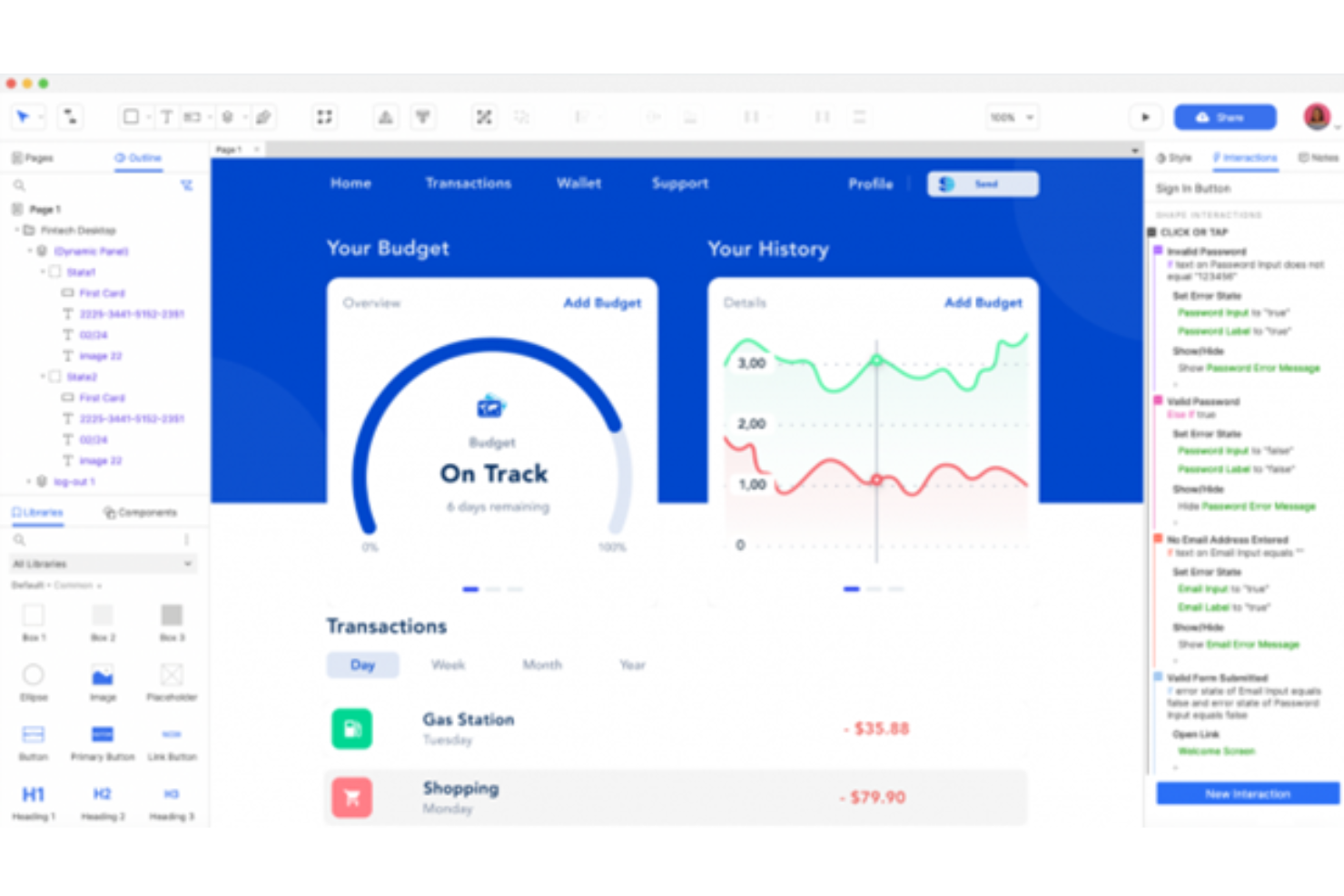
Axure is a UX design and prototyping platform for product and design teams that need to map user flows, document requirements, and explore interactive concepts as an alternative to InVision.
Who Is Axure Best For?
UX designers and product teams that need realistic, interactive simulations to test complex workflows before development.
Why I Picked Axure
I picked Axure as an InVision alternative because it builds realistic simulations of complex product flows. I use conditional logic, variables, and dynamic panels to model states such as checkout errors and account permissions, so reviewers can test how an interface responds before development.
Axure Key Features
- Sitemap: Organize prototype pages and show their hierarchy.
- Widget libraries: Add interface elements from built-in or custom libraries.
- Adaptive views: Define layouts for different screen sizes.
- Annotations: Attach notes and specifications to design elements.
Axure Integrations
Axure integrates with Jira, Confluence, Microsoft Teams, and Slack. You can embed interactive prototypes in Jira and Confluence, receive project notifications in Teams and Slack, and bring designs from Figma, Sketch, and Adobe XD into Axure RP.
Pros and Cons
Pros:
- Keep flow diagrams and specifications beside prototypes
- Prototype working forms and sortable data
- Model conditional states with variables
Cons:
- Large files can lag or freeze
- Conditional logic takes time to master

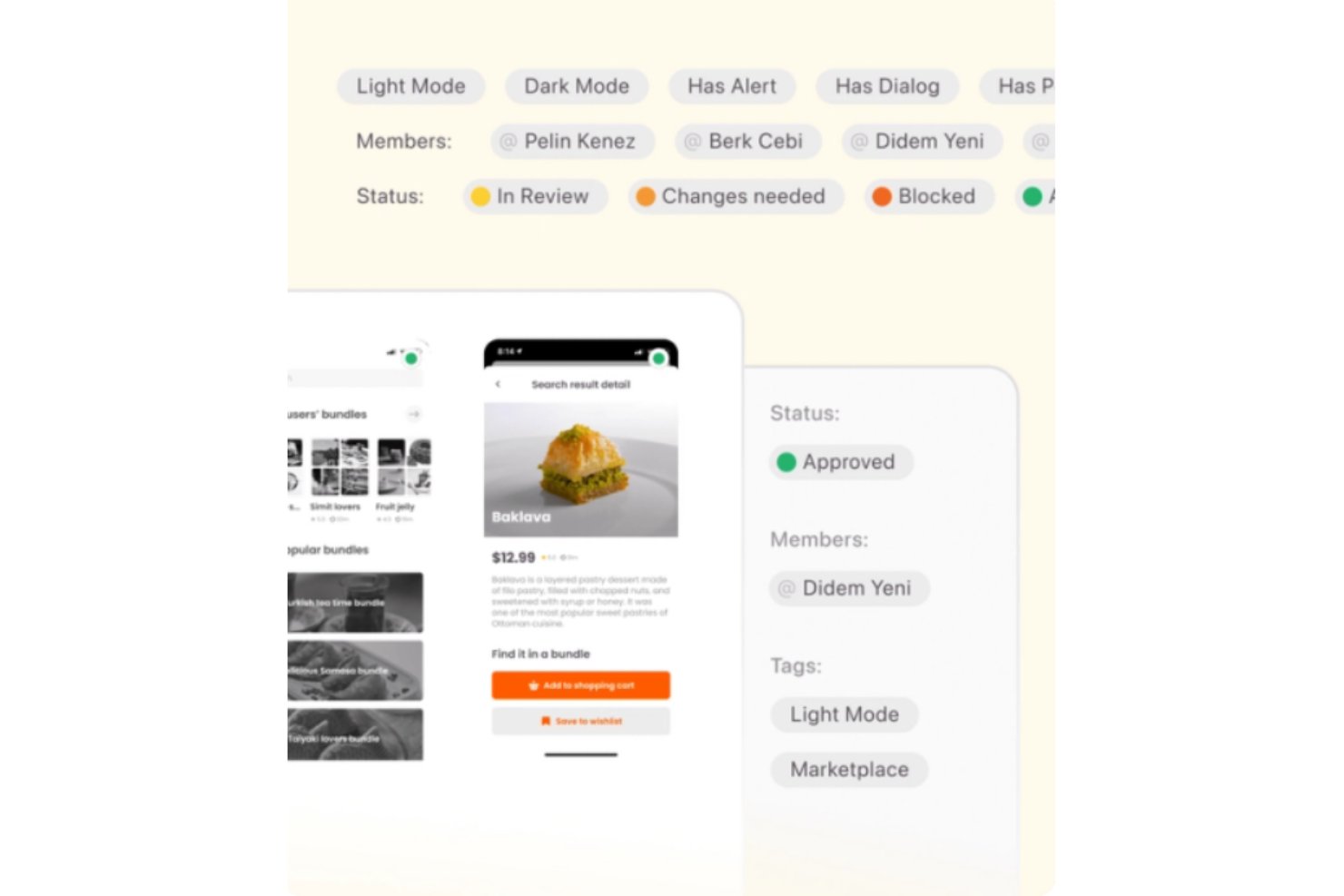
Zeplin is a design collaboration platform for product, design, and engineering teams that turns interface designs into clear specs and assets, helping reduce handoff gaps and implementation questions.
Who Is Zeplin Best For?
Zeplin suits product design and engineering teams that need implementation-ready design specs for digital products.
Why I Picked Zeplin
I picked Zeplin as an InVision alternative under “Best for design handoff precision” because it turns screens into implementation-ready specs. Engineers can inspect measurements and colors, download assets, and refer to designer annotations alongside each screen. I like that this keeps details such as button spacing connected to the design they need to build.
Zeplin Key Features
- Flow mapping: Connect screens with labels and shapes to map user journeys and decision paths.
- Version history: Review and compare earlier versions of a screen.
- Design reviews: Request reviews and track decisions on published designs.
- Integrations: Connect Zeplin projects with Jira and Storybook.
Zeplin Integrations
Zeplin documents integrations with Figma, Sketch, Jira, Storybook, VS Code, Azure DevOps, Slack, Microsoft Teams, and Trello. It also provides an API for custom integrations.
Pros and Cons
Pros:
- Version history helps compare published design revisions
- Screen-linked annotations reduce developer clarification
- Precise spacing, typography, and color inspection
Cons:
- Adds duplicate uploads beside existing design tools
- No native prototyping or design editing

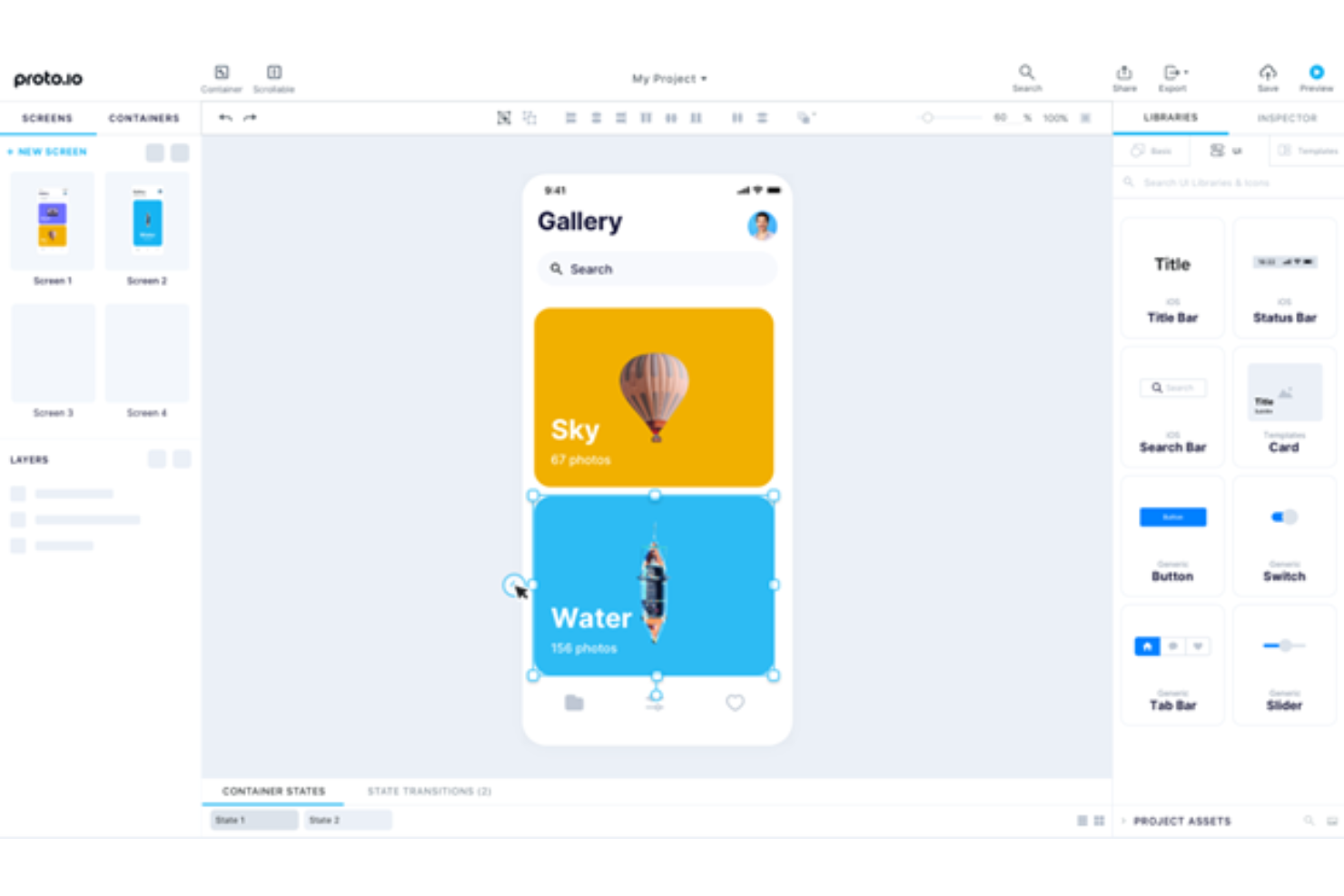
Proto.io is an interface prototyping platform for product and design teams that need to map app flows, gather stakeholder feedback, and validate concepts before development begins.
Who Is Proto.io Best For?
Proto.io suits UX and product teams that need to explore and review interactive mobile app designs before development.
Why I Picked Proto.io
For an InVision alternative, I picked Proto.io, my “Best for mobile prototyping” choice, because it lets me model app behavior, not just link screens. Its native-style mobile components, gesture-triggered interactions, and custom screen transitions help me show an onboarding flow on a phone. I can share the prototype for stakeholder feedback before engineering commits to the build.
Proto.io Key Features
- Design imports: Bring in designs from Figma, Sketch, Adobe XD, or Photoshop.
- Reusable components: Save custom components and reuse them across projects.
- Offline preview: Test prototypes offline with the iOS and Android player apps.
- Export options: Export screens as PDF or PNG, or projects as HTML.
Proto.io Integrations
Proto.io has officially supported plugins, macros, and a Power-Up for Jira, Confluence, and Trello, plus design-import plugins for Figma, Sketch, Adobe XD, and Photoshop. It supports user-testing integrations with UserTesting, UserZoom, Userlytics, Lookback, and UXArmy, and imports InVision V7 prototypes with simple interactions and transitions.
Pros and Cons
Pros:
- Comments and user testing validate flows early
- Detailed transitions clarify app behavior before development
- Native-style mobile interactions and gestures
Cons:
- New users may struggle with screen linking
- Complex prototypes can lag with many interactions

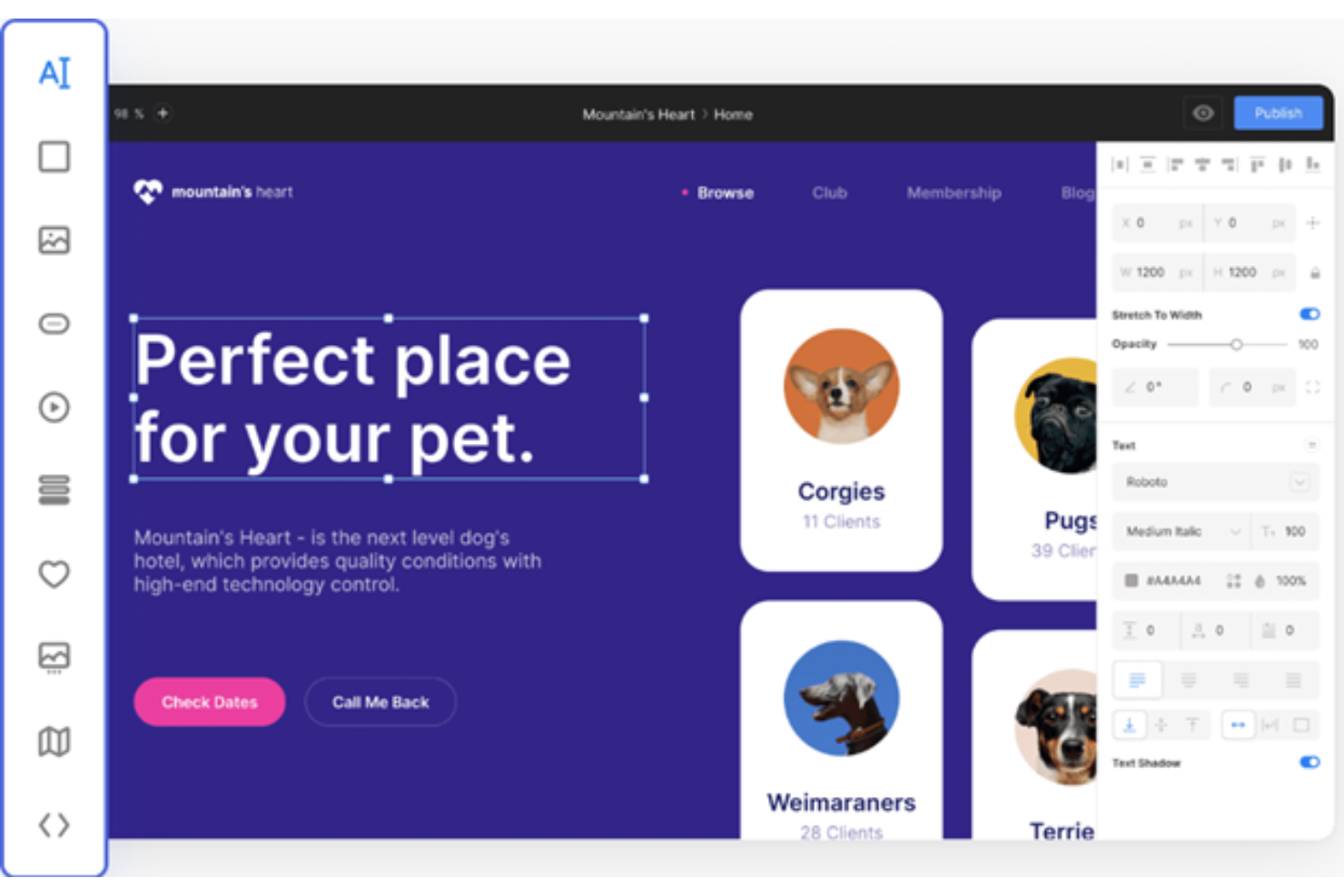
Siter.io is a visual website design platform for designers and small teams who want to create and publish custom sites without relying on developers for every layout change.
Who Is Siter.io Best For?
Siter.io suits freelance designers and creative teams who want to turn visual concepts into published websites without coding.
Why I Picked Siter.io
I picked Siter.io for no-code web building when a visual concept needs to become a live site, not just a prototype. Its Figma plugin imports frames into Siter.io, where I can set layouts for different breakpoints and publish a responsive website without code.
Siter.io Key Features
- Animations: Add appear, scroll, and hover effects, plus sticky headers and marquees.
- Forms: Create forms on the canvas and receive responses by email.
- SEO settings: Set each page’s title, description, slug, and meta tags.
- Analytics: Track visits, top pages, and traffic sources without cookies.
Siter.io Integrations
Siter.io offers seven built-in integrations: Google Analytics, Facebook Pixel, Google reCAPTCHA v3, YouTube, Vimeo, Unsplash, and Google Fonts. It also connects with Zapier.
Pros and Cons
Pros:
- Users praise fast landing-page and portfolio builds
- Separate layouts support desktop, tablet, and mobile
- Editable Figma imports reduce rebuild work
Cons:
- No real-time co-editing for team critique
- Imported Figma prototypes lose interactions and animations
Andre InVision-alternativer
Nedenfor finner du en liste over flere InVision-alternativer som jeg valgte ut. Selv om de ikke kom med blant de ti beste, er de fortsatt verdifulle og verdt å undersøke nærmere.
- Flinto
For interactive transitions
- Framer
For creative animations
- HotGloo
For wireframing
- Lunacy
For Windows users
- Mockplus
For rapid prototyping
- Figma
For real-time collaboration
- Sketch
For vector editing
- Pencil Project
For open-source enthusiasts
- Origami Studio
For interactive prototypes


Relaterte anmeldelser av programvare for prosjektstyring
Hvis du fortsatt ikke har funnet det du leter etter her, kan du ta en titt på disse andre relaterte verktøyene som vi har testet og evaluert:
- Programvare for prosjektstyring
- Programvare for ressursstyring
- Programvare for automatisering av arbeidsflyt
- Programvare for tidsregistrering
- Programvare for oppgavestyring
- Samarbeidsverktøy
- Verktøy for å lage Gantt-diagrammer
- Produktivitetsverktøy
- Programvare for prosjektsporing
- Programvare for prosjektplanlegging
How I Evaluate InVision Alternatives
I split my evaluation into baseline criteria—can it prototype, annotate, and hand off to dev?—and the differentiators that separate the right tool from a merely adequate one.
Core Functionality (Table Stakes For This List)
When I'm selecting tools for my list, I rank each one on a scale from 0 (does not offer the functionality) to 5 (excels in this area) for each core functionality listed below. Then, I calculate the tool's total score into a percentage. Each tool needs to achieve a minimum total score of 65% to be considered for inclusion.
- Interactive Prototyping: I evaluate whether you can build clickable, multi-screen prototypes with realistic transitions—like simulating a checkout flow a stakeholder can tap through on their phone.
- Real-Time Design Collaboration: Teams replacing InVision need live co-editing, so I check for multiplayer functionality where designers and PMs can work in the same file simultaneously.
- Feedback & Annotation: I look for contextual, threaded commenting directly on design screens—the kind where a product manager can pin a note on a specific button and tag the responsible designer.
- Developer Handoff: Engineering teams need inspect tools that surface spacing, colors, and exportable assets, so I evaluate how each platform bridges the gap between design files and code.
- Design System Management: Shared component libraries and reusable styles matter here—I check whether teams can maintain a single source of truth for buttons, icons, and tokens across projects.
- Project Workflow Integration: I look for native connections to tools like Jira, Asana, or Trello so design tasks stay linked to sprint boards and delivery timelines without manual updates.
Once I have a list of tools that meet this criteria, I consider what sets each platform apart.
Differentiating Factors (What Sets Vendors Apart)
Here's how I compare and contrast different vendors:
Standout Features
I pay close attention to built-in user testing capabilities. Running a usability test on a prototype without exporting it to a separate platform saves real time during validation sprints. Version control with branching is another differentiator—teams running parallel design explorations need a safe way to experiment without overwriting each other's work. I also look for integrated whiteboarding, since early-stage ideation like journey mapping or workshop facilitation often happens before any screens get designed.
Beyond Features
Migration path matters here. I check whether a platform offers import tools for existing InVision files and boards, since rebuilding prototypes from scratch can stall a team for weeks. Cross-functional accessibility is equally important—PMs and engineers who only need to review and comment shouldn't require a desktop app or a paid seat. I also evaluate pricing models closely, particularly how each vendor handles editor vs. viewer licensing for mixed teams of designers, developers, and stakeholders.
Hvorfor se etter et InVision-alternativ?
Selv om InVision er en verdifull programvareløsning for design, er det flere grunner til at du og teamet ditt vurderer et annet alternativ, blant annet:
- Kostnadsbekymringer: Hvis InVisions priser føles for høye for budsjettet ditt, finnes det rimeligere alternativer på markedet som fortsatt tilbyr gode funksjoner.
- Funksjonsbegrensninger: Noen ganger trenger du ganske enkelt spesifikke funksjoner som InVision ikke har. Ved å utforske andre verktøy kan du finne akkurat det du leter etter.
- Problemer med brukervennlighet: Hvis du synes InVisions brukergrensesnitt er vanskelig å navigere i, kan det være på tide å se nærmere på alternativer. Et mer intuitivt verktøy kan gjøre arbeidsflyten smidigere og mer behagelig.
- Integrasjonsbehov: Det er frustrerende når verktøyene dine ikke fungerer godt sammen. Å se etter alternativer som integreres bedre med de eksisterende systemene dine, kan utgjøre en stor forskjell.
- Støtte og ressurser: God støtte er viktig. Hvis du ønsker mer tilgjengelig kundeservice eller flere ressurser, kan andre alternativer tilby det du trenger.
Viktige funksjoner å se etter i alternativer til InVision
Her er noen viktige funksjoner i InVision som den alternative programvaren bør kunne gjenskape eller forbedre for å passe godt:
- Aktive punkter: Med aktive punkter kan designere legge til klikkbare områder i statiske design, noe som gjør det enklere å visualisere brukerflyter og interaksjoner.
- Interaksjoner: Denne funksjonen gjør det mulig for designere å definere ulike brukerinteraksjoner i prototyper, for eksempel klikk, sveiping og effekter ved pekerbevegelse, noe som bidrar til å skape en mer realistisk og engasjerende brukeropplevelse.
- Overganger: Dette sørger for at prototypen føles flytende, og gjør det enklere å forstå hvordan brukerne vil navigere gjennom applikasjonen.
- Overlegg: Denne funksjonen gir prototyper større dybde og bedre interaktivitet ved at designere kan vise tilleggsinformasjon uten å endre hovedskjermen.
- Innsamling av tilbakemeldinger: Når kommentarer samles inn direkte i prototyper, kan designere hente inn tilbakemeldinger fra teammedlemmer på ett sentralt sted. Alt i alt effektiviserer dette prosessen med designiterasjoner og sørger for at alle tilbakemeldinger er lett tilgjengelige.
- Inspiser: Denne funksjonen sørger for at utviklingsteamet har all nødvendig informasjon for å implementere designet nøyaktig.
- Støtte for flere enheter: Ved å bygge prototyper som fungerer sømløst på ulike enheter, inkludert datamaskiner, nettbrett og smarttelefoner, sikrer man at designet er responsivt og gir en konsekvent brukeropplevelse på alle plattformer.
- Samarbeid i sanntid: Denne funksjonen forbedrer effektiviteten og sørger for at alle teammedlemmer er samkjørte gjennom hele designprosessen.
- Sketch-integrasjon: Med det riktige verktøyet kan designere enkelt importere Sketch-filene sine til prototypverktøyet, spare tid og opprettholde en konsekvent utforming av designelementene.
- Interaktiv prototyping: Denne funksjonen gjør det mulig å lage dynamiske og engasjerende prototyper som etterligner sluttproduktet tett.