

10 beste Google-Docs-Alternativen für die Zusammenarbeit im Jahr 2026

Die besten Google-Docs-Alternativen – Übersicht


Eine gute Alternative zu Google Docs bietet die Online-Bearbeitung von Dokumenten, die Zusammenarbeit in Echtzeit und eine zuverlässige Dateikompatibilität, ohne Sie an das Google-Ökosystem zu binden. Wenn Sie nach Google-Docs-Alternativen suchen, suchen Sie wahrscheinlich nach Tools, die zum Arbeitsablauf Ihres Teams passen, Datenschutz- oder Compliance-Anforderungen unterstützen oder Funktionen bieten, die Google Docs nicht hat.
Bei der großen Auswahl ist es schwierig zu wissen, welche Plattformen tatsächlich gute Zusammenarbeit, Integration und Flexibilität bieten. Diese Liste hilft Ihnen, die besten Google-Docs-Alternativen für 2026 zu vergleichen, damit Sie die passende Online-Office-Suite für Ihre Projekte und Teams finden.
Was ist Google Docs?
Google Docs ist eine cloudbasierte Office-Suite, die als moderne Textverarbeitungsplattform dient und es Nutzern ermöglicht, Dokumente online zu erstellen, zu bearbeiten und zu teilen. Als browserbasierte Textverarbeitung unterstützt sie die Zusammenarbeit in Echtzeit, den Versionsverlauf und den Zugriff von jedem Gerät mit Internetverbindung. Teams nutzen Google Docs, um gemeinsam an Textdokumenten zu arbeiten, Änderungen nachzuverfolgen, Kommentare zu hinterlassen und geteilte Inhalte zu verwalten, ohne Desktop-Software installieren zu müssen.
Die Integration in andere Google-Workspace-Apps macht Google Docs zu einem der meistgenutzten All-in-one-Tools für die Zusammenarbeit verteilter Teams. Für viele Organisationen hilft Google Docs dabei, die Abläufe für die Dokumentenerstellung und das Feedback abteilungsübergreifend zu optimieren, insbesondere in Kombination mit Tools wie Sheets und Slides.
Vergleichstabelle der Google-Docs-Alternativen
Diese Vergleichstabelle fasst die Preisinformationen meiner besten ausgewählten Google-Docs-Alternativen zusammen:
| Tool | Best For | Trial Info | Price | ||
|---|---|---|---|---|---|
| 1 | Am besten für KI-gestützte kollaborative Bearbeitung in Echtzeit | Kostenloser Tarif verfügbar | Ab 8 $/Monat | Website | |
| 2 | Am besten geeignet für die Kombination von Notizen und Datenbanken | Kostenloser Tarif verfügbar | Ab $10/Nutzer/Monat (jährlich abgerechnet) | Website | |
| 3 | Am besten für die Verknüpfung von Aufgaben und Dokumenten geeignet | Kostenloser Tarif verfügbar | Ab 7 $/Benutzer/Monat (jährliche Abrechnung) | Website | |
| 4 | Am besten für das Hosting von Dokumenten in einer privaten Cloud geeignet | Kostenlose Testversion und kostenlose Demo verfügbar | Preise auf Anfrage | Website | |
| 5 | Am besten für die Kompatibilität mit Microsoft-Dateiformaten geeignet | Kostenloser Tarif verfügbar | Ab $2.49/Nutzer/Monat (jährlich abgerechnet) | Website | |
| 6 | Am besten für die Zusammenarbeit von Teams in Echtzeit geeignet | 30-tägige kostenlose Testversion + kostenloser Tarif verfügbar | Ab $6/Nutzer/Monat (jährlich abgerechnet) | Website | |
| 7 | Am besten für den mobilorientierten Zugriff auf Dokumente geeignet | 7-tägige kostenlose Testversion + kostenloser Tarif verfügbar | Ab 4,19 $/Monat (jährliche Abrechnung) | Website | |
| 8 | Am besten für die quelloffene Dokumentbearbeitung geeignet | Kostenloser Tarif verfügbar | Preis auf Anfrage | Website | |
| 9 | Am besten mit integrierten Projektmanagementtools | Kostenloser Tarif + 30-tägige kostenlose Testversion verfügbar | Ab $20/Administrator/Monat | Website | |
| 10 | Am besten für die Offline-Erstellung von Dokumenten geeignet | Kostenloser Tarif verfügbar | Kostenlos und quelloffen | Website |

Warum Sie unseren Software-Empfehlungen vertrauen können
Unser Team testet und bewertet Software seit 2012. Als Projektmanager wissen wir selbst, wie schwierig – und wichtig – es ist, die richtige Software auszuwählen.
Für diesen Leitfaden haben wir Tools mithilfe von praktischen Tests und unabhängiger Recherche bewertet und dabei unsere Bewertungskriterien angewendet. Zudem greifen wir auf Erkenntnisse von Branchenvordenkern und praktizierenden Projektmanagement-Experten zurück.
Unsere Bewertungen spiegeln unser menschliches redaktionelles Urteilsvermögen wider, keine Verkaufsstrategie.
Expertenprüfer:
Tests der besten Google-Docs-Alternativen
Nachfolgend finden Sie meine detaillierten Zusammenfassungen der Google-Docs-Alternativen, die es in meine Übersicht geschafft haben. Meine Tests bieten einen detaillierten Einblick in die Funktionen, die besten Einsatzmöglichkeiten und die Integrationen jeder Plattform, damit Sie die beste Option für Ihre Anforderungen finden.

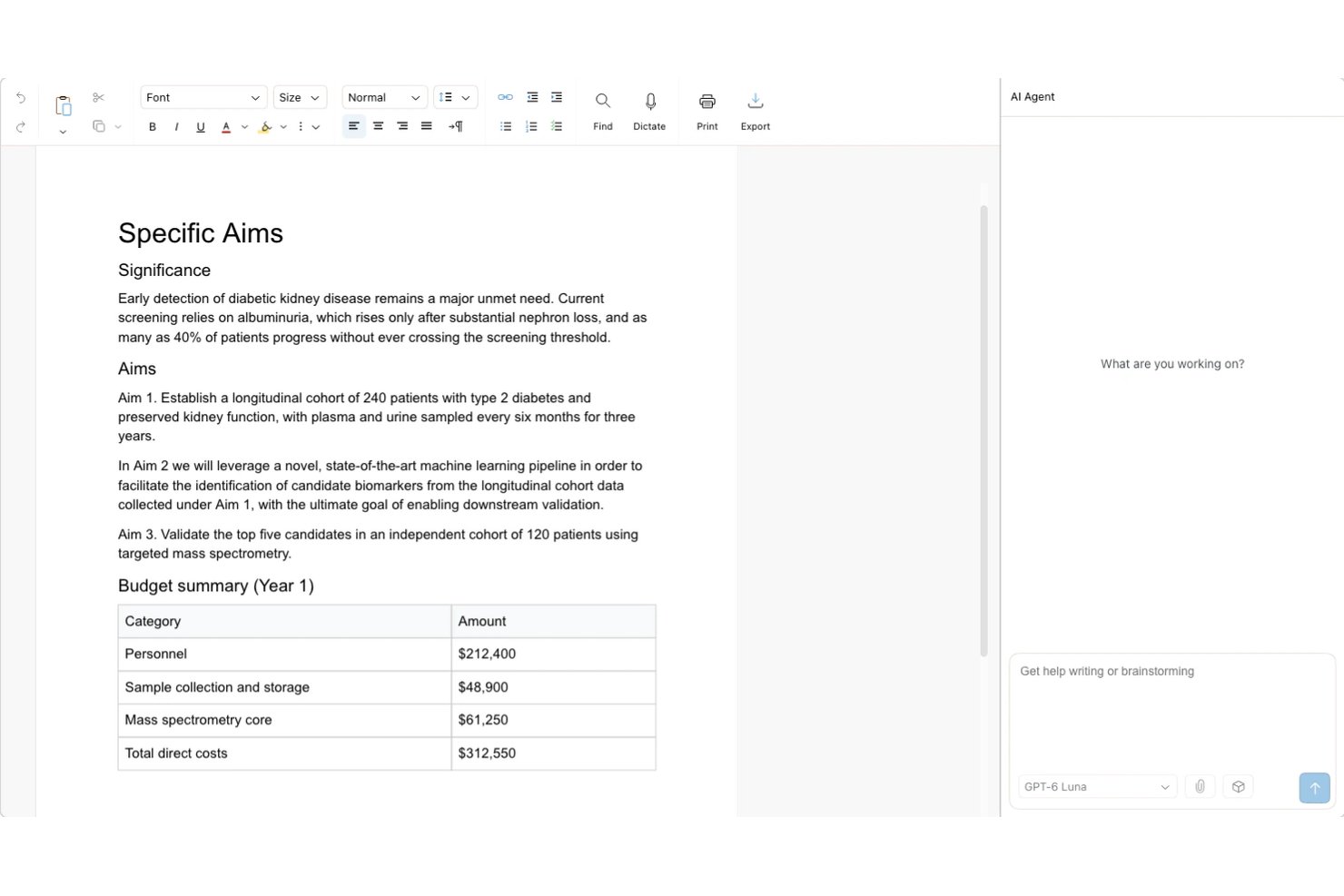
Revise ist ein browserbasierter Textverarbeitungsdienst, der KI-gestützte Bearbeitung und Zusammenarbeit in Echtzeit für Teams vereint, die nachvollziehbare und überprüfbare KI-Änderungen neben gemeinsamer Live-Autorenschaft, umfangreichen Formatierungsoptionen und hochpräzisen DOCX-Workflows benötigen.
Für wen ist Revise am besten geeignet?
Revise eignet sich besonders für verteilte Teams, die von der KI erzeugte Bearbeitungen überprüfen und verfeinern müssen, ohne die Kontrolle über das endgültige Dokument zu verlieren.
Warum Revise eine gute Alternative zu Google Docs ist
Ich habe Revise als eine der besten Lösungen ausgewählt, weil es ein echtes Problem löst: KI-Bearbeitungen, die deine Arbeit überschreiben, bevor du sie genehmigt hast. Jede Änderung, die der KI-Agent vorschlägt, wird als nachverfolgbare Änderung angezeigt – Ergänzungen grün und Löschungen rot –, sodass mein Team jede einzelne Änderung akzeptieren oder ablehnen kann. Außerdem schätze ich, dass wir mit der integrierten Modellauswahl mitten im Projekt zwischen Modellen von OpenAI, Anthropic, Google, xAI und Meta wechseln können, ohne den Editor zu verlassen.
Die wichtigsten Funktionen von Revise
- Live-Anwesenheit: Farbige Cursor, Markierungen und Avatare der Mitwirkenden zeigen, wer sich im Dokument befindet.
- Freigaberollen: Lege den Zugriff als Bearbeiter, Vorschlagender oder Betrachter fest, auch für Personen mit einem öffentlichen Link.
- Versionsverlauf: Spiele gespeicherte Versionen ab und vergleiche ausgewählte Zeitpunkte in der Zeitleiste.
- Dokumentformatierung: Füge Tabellen, Bilder, Kopfzeilen, Fußzeilen, Spalten, Fußnoten und Seitenzahlen hinzu.
Integrationen von Revise
Revise unterstützt MCP-Verbindungen mit Claude, ChatGPT, Codex, Hermes, OpenClaw und anderen MCP-Clients. Der MCP-Zugriff ist in jedem Revise-Tarif kostenlos, erfordert ein Revise-Konto und nutzt das Abonnement der KI-App; es gelten stündliche Ratenbegrenzungen.
Pros and Cons
Pros:
- KI-Bearbeitungen werden als überprüfbare nachverfolgbare Änderungen angezeigt
- Zwischen mehreren KI-Modellen mitten im Projekt wechseln
- Für die Zusammenarbeit über einen öffentlichen Link ist kein Konto erforderlich
Cons:
- Keine Wiederherstellung aus dem Versionsverlauf mit einem Klick
- Der Offline-Zugriff ist auf zuvor geöffnete Dokumente beschränkt
Notion
Am besten geeignet für die Kombination von Notizen und Datenbanken
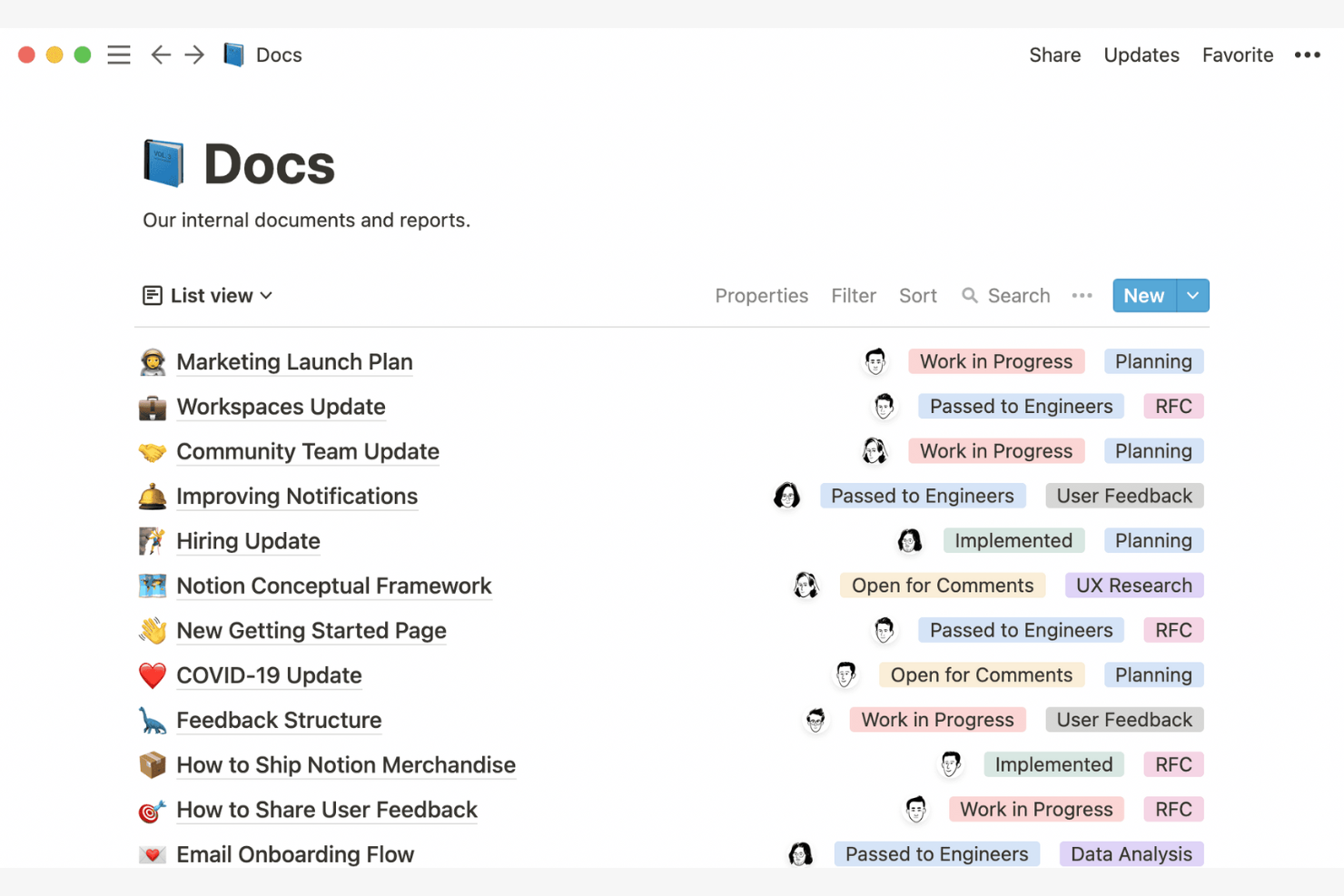
Notion bietet Teams eine Möglichkeit, Notizen, Dokumentation und Datenbanken in einem einzigen Arbeitsbereich zu verbinden. Es ist besonders nützlich für Produktmanager, operative Führungskräfte und alle, die strukturierte und unstrukturierte Informationen nebeneinander organisieren müssen. Anders als Google Docs ermöglicht Notion den Aufbau benutzerdefinierter Tabellen, die Verknüpfung von Notizen mit Projektübersichten und die Erstellung von Dashboards, die die gesamte Arbeit an einem Ort zusammenführen.
Warum Notion eine gute Alternative zu Google Docs ist
Wenn Sie sowohl Notizen als auch strukturierte Daten an einem Ort verwalten müssen, bietet Notion einen einzigartigen Ansatz, der über herkömmliche Dokumenteditoren hinausgeht. Ich habe Notion ausgewählt, weil Sie Datenbanken erstellen, sie mit Ihren Notizen verknüpfen und benutzerdefinierte Ansichten zur Nachverfolgung von Projekten oder Ressourcen erstellen können. Diese Flexibilität ermöglicht es Ihrem Team, alles von Besprechungsnotizen bis hin zu Produkt-Roadmaps zu organisieren, ohne zwischen verschiedenen Tools wechseln zu müssen. Für alle, die Dokumentation mit dynamischen Tabellen und Listen verbinden möchten, ist Notion eine starke Alternative zu Google Docs.
Wichtige Funktionen von Notion
Einige weitere Funktionen von Notion helfen Teams dabei, Inhalte flexibler zu verwalten und gemeinsam daran zu arbeiten:
- Organisation von Seiten per Ziehen und Ablegen: Verschieben Sie Seiten und Abschnitte, um Ihren Arbeitsbereich schnell neu zu strukturieren.
- Gemeinsame Bearbeitung in Echtzeit: Mehrere Benutzer können gleichzeitig dieselbe Seite bearbeiten und Änderungen direkt sehen.
- Einbettung umfangreicher Medien: Fügen Sie Bilder, Videos, Codeausschnitte und Dateien direkt in jede Seite ein.
- Anpassbare Vorlagen: Starten Sie neue Projekte oder Dokumente mit vorgefertigten Vorlagen für Wikis, Besprechungsnotizen und mehr.
Notion-Integrationen
Zu den Integrationen gehören Slack, Jira, GitHub, Asana, Google Drive, Figma, Trello, GitLab, Webex und Typeform.
Pros and Cons
Pros:
- Verbindet Dokumente mit Datenbanken für strukturiertes Wissensmanagement
- Flexible Organisation mit Vorlagen und verknüpften Seiten
- Ideal für Team-Wikis, Besprechungsnotizen und einfache Projektdokumente
Cons:
- Die Möglichkeiten zur erweiterten Dokumentformatierung sind eingeschränkt
- Beim Export in PDF oder Word können Layout und Hierarchie beeinträchtigt werden

ClickUp
Am besten für die Verknüpfung von Aufgaben und Dokumenten geeignet
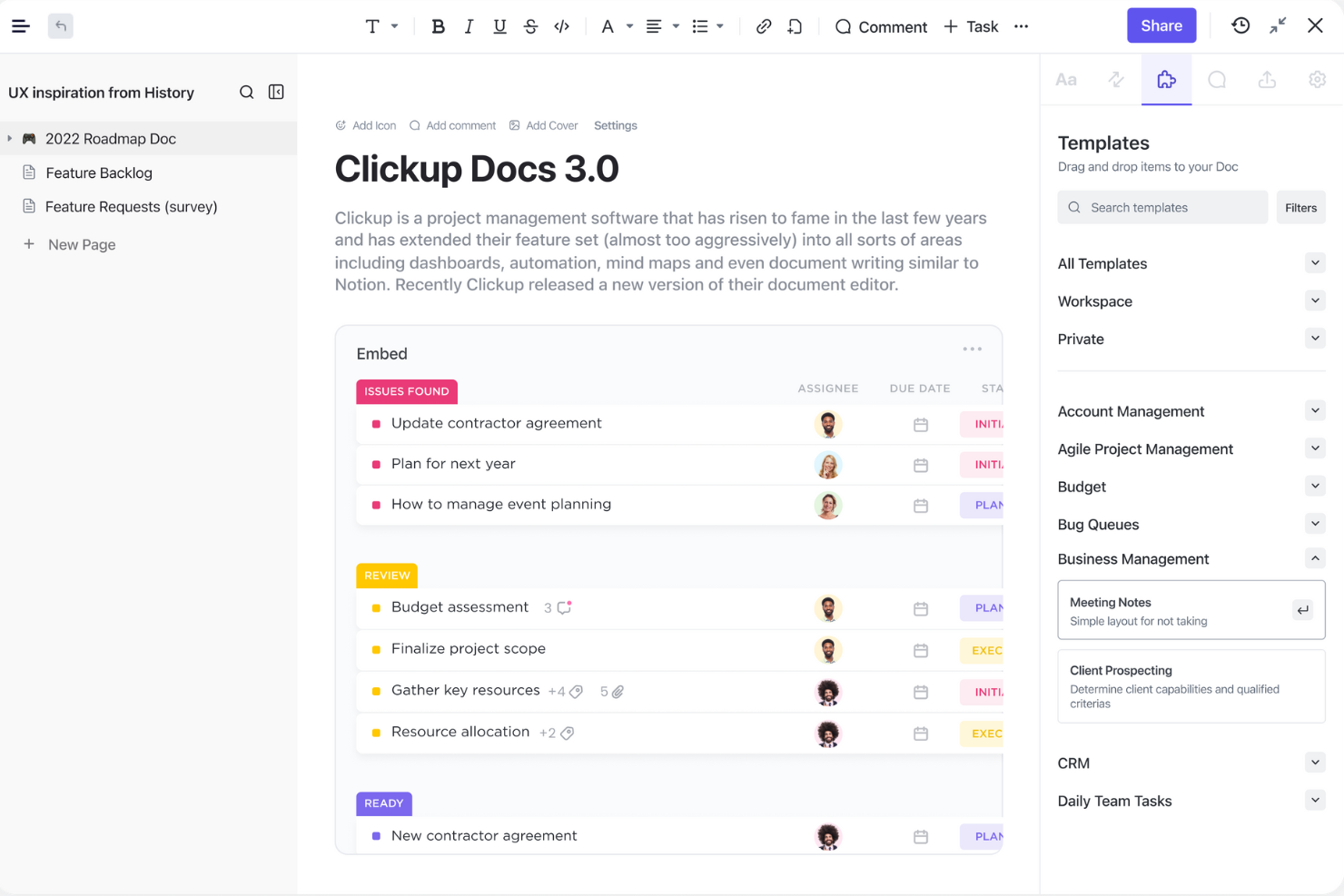
Wenn Ihr Team Dokumente direkt mit Aufgaben und Arbeitsabläufen verbinden muss, bietet ClickUp einen einheitlichen Arbeitsbereich, der Dokumente und Projektmanagement zusammenführt. Es eignet sich besonders für Produkt-, Entwicklungs- und funktionsübergreifende Teams, die Projektkontext und Dokumentation eng miteinander verknüpfen möchten. Im Gegensatz zu Google Docs können Sie mit ClickUp Aufgaben einbetten, den Fortschritt verfolgen und Arbeitselemente direkt in Ihren Dokumenten referenzieren.
Warum ClickUp eine gute Alternative zu Google Docs ist
ClickUp zeichnet sich für Teams aus, die Dokumente und Aufgaben in einem einzigen Arbeitsbereich eng miteinander verknüpfen möchten. Ich habe ClickUp ausgewählt, weil Sie Dokumente direkt mit Aufgaben verknüpfen, dynamische Aufgabenlisten in Dokumente einbetten und auf Projektelemente verweisen können, ohne zwischen Tools wechseln zu müssen. Diese Einrichtung hilft Ihrem Team, Dokumentation, Projektaktualisierungen und Aufgaben während des Arbeitsfortschritts synchron zu halten. Für alle, die mehr als nur eigenständige Dokumente benötigen, bietet ClickUp mit seiner Verknüpfung von Aufgaben und Dokumenten einen klaren Vorteil gegenüber Google Docs.
Wichtige Funktionen von ClickUp
Einige weitere Funktionen von ClickUp helfen Teams dabei, Dokumente und Projekte effizienter zu verwalten:
- Formatierung umfangreicher Texte: Formatieren Sie Dokumente mit Überschriften, Tabellen, Checklisten und Codeblöcken.
- Kommentierung und Anmerkungen: Fügen Sie Kommentare hinzu und erwähnen Sie Teammitglieder direkt in jedem Dokument.
- Steuerung der Dokumentfreigabe: Legen Sie Berechtigungen zum Anzeigen, Bearbeiten oder Kommentieren von Dokumenten fest.
- Dokumentvorlagen: Verwenden und passen Sie Vorlagen für Besprechungsnotizen, Projektpläne und mehr an.
ClickUp-Integrationen
ClickUp bietet über 1.000 integrierte Anbindungen an beliebte Tools wie Slack, GitHub, Google Drive und Zoom.
Pros and Cons
Pros:
- Verknüpft Dokumente direkt mit Aufgaben und Arbeitsabläufen für Projektkontext
- Starke Zusammenarbeit mit Kommentaren, Erwähnungen und Berechtigungen
- Dokumente befinden sich in einem zentralen Arbeitsbereich für Teams, die ClickUp bereits verwenden
Cons:
- Formatierungs- und Layoutsteuerungen sind weniger umfangreich als bei Google Docs
- Beim Export kann die Struktur verloren gehen, insbesondere bei langen oder komplexen Dokumenten
New Product Updates from ClickUp
ClickUp Adds Meetings Hub, Super Agent Templates, and ZoomInfo Integration
ClickUp adds a searchable Meetings Hub, new ways to clone and template Super Agents, and a ZoomInfo integration through the App Center. These updates improve meeting retrieval, agent reuse, and access to sales intelligence. For more information, visit ClickUp’s official site.

Am besten für das Hosting von Dokumenten in einer privaten Cloud geeignet

Wenn Ihr Team die vollständige Kontrolle über die Speicherung und den Datenschutz von Dokumenten benötigt, bietet Nextcloud eine private Cloud-Plattform, die Sie selbst hosten können. Sie eignet sich besonders für Organisationen mit strengen Anforderungen an die Datensicherheit oder für Unternehmen in regulierten Branchen. Nextcloud zeichnet sich dadurch aus, dass Sie Dokumente, Zusammenarbeit und Freigaben vollständig auf Ihrer eigenen Infrastruktur verwalten können – anders als die meisten cloudbasierten Office-Suiten.
Warum Nextcloud eine gute Google-Docs-Alternative ist
Im Gegensatz zu den meisten cloudbasierten Office-Suiten bietet Nextcloud Ihnen die Möglichkeit, Ihre eigene private Dokumentenumgebung zu hosten. Ich habe Nextcloud ausgewählt, weil Sie damit kontrollieren können, wo Ihre Daten gespeichert sind und wer darauf zugreifen kann – ein wesentlicher Aspekt für Teams mit strengen Datenschutz- oder Compliance-Anforderungen. Die Plattform unterstützt die gemeinsame Bearbeitung, Dateifreigaben und die Benutzerverwaltung – alles auf einer Infrastruktur, die Sie selbst verwalten. Dadurch ist Nextcloud eine starke Wahl für Organisationen, die sich bei vertraulichen Dokumenten nicht auf öffentliche Cloud-Dienste verlassen können.
Die wichtigsten Funktionen von Nextcloud
Einige weitere Funktionen machen Nextcloud zu einer flexiblen Plattform für die Zusammenarbeit an Dokumenten:
- Integrierter Kalender und Kontakte: Verwalten Sie Termine und Adressbücher neben Ihren Dateien und Dokumenten.
- Ende-zu-Ende-Verschlüsselung: Schützen Sie vertrauliche Dateien mit einer Verschlüsselung, auf die nur Sie und Ihre Mitwirkenden zugreifen können.
- Versionskontrolle: Verfolgen Sie Änderungen und stellen Sie bei Bedarf frühere Versionen von Dokumenten wieder her.
- Marktplatz für Kollaborations-Apps: Erweitern Sie die Funktionen mit Add-ons für Chats, Videoanrufe und Workflow-Automatisierung.
Nextcloud-Integrationen
Zu den Integrationen gehören OnlyOffice, Nextcloud Office, Nextcloud Assistant, Giphy, draw.io, Discord, Edusign, XtalaDraw, Sentry, Slack, YouTube, OneDrive, Google-Dienste, GitLab, Dropbox, Jira, Reddit, GitHub und weitere.
Pros and Cons
Pros:
- Ermöglicht das Hosten von Dokumenten auf Ihrem eigenen privaten Cloud-Server
- Bietet Ende-zu-Ende-Verschlüsselung für die Speicherung vertraulicher Dokumente
- Unterstützt die gemeinsame Bearbeitung mit OnlyOffice oder Collabora Online
- Integriert Dateifreigaben, Kalender und Kontakte in einer Plattform
- Bietet Administratoren umfangreiche Steuerungsmöglichkeiten für den Zugriff von Benutzern und Gruppen
Cons:
- Erfordert technische Einrichtung und laufende Serverwartung
- Die Qualität der Zusammenarbeit hängt vom verwendeten Editor-Stack ab

Am besten für die Kompatibilität mit Microsoft-Dateiformaten geeignet
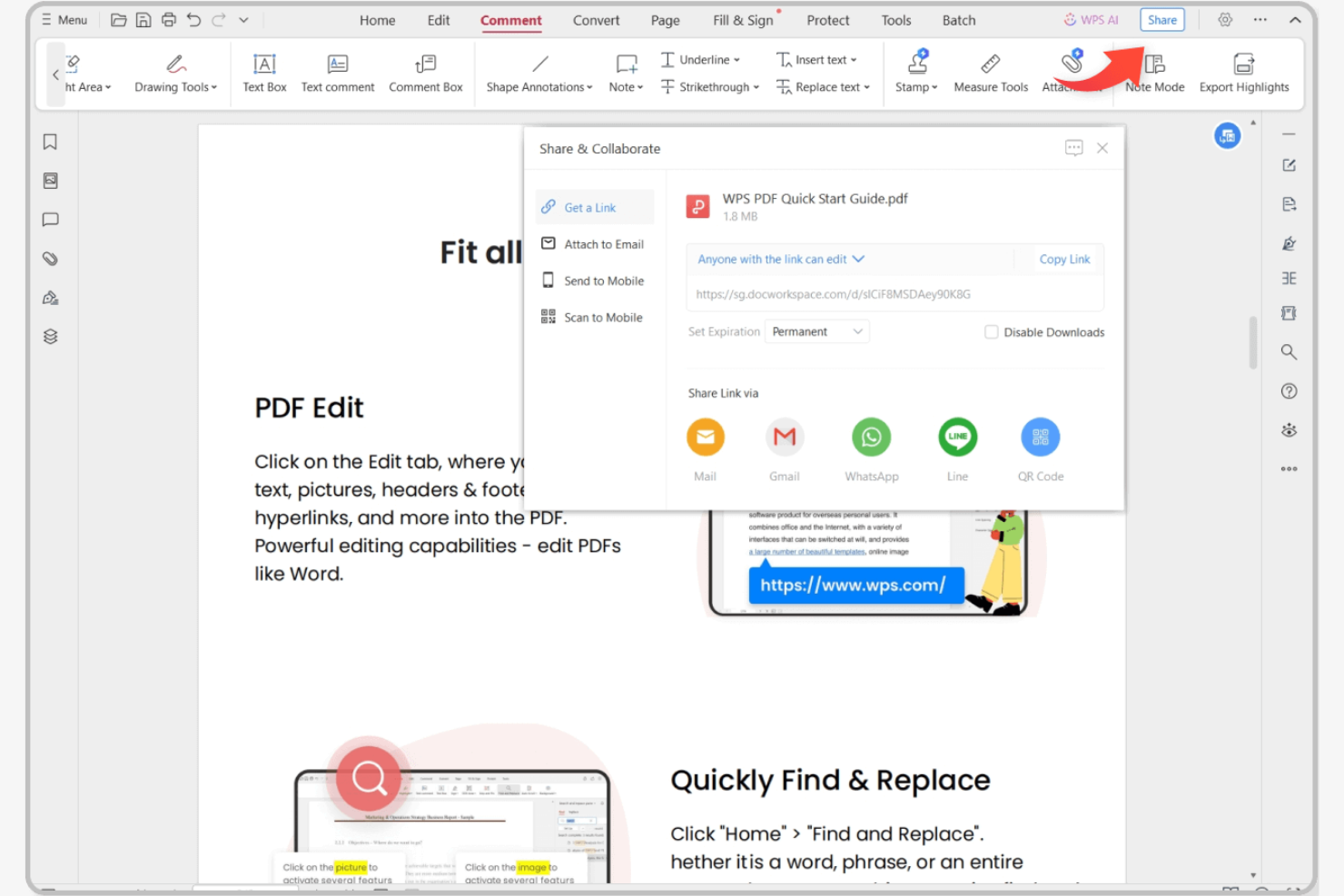
Wenn Sie nach einer Online-Office-Suite suchen, die Microsoft-Dateiformate problemlos verarbeitet, ist WPS Office einen genaueren Blick wert. Die Suite wurde für Fachleute und Teams entwickelt, die regelmäßig Word-, Excel- und PowerPoint-Dateien mit Kunden oder Kollegen austauschen, die Microsoft Office verwenden. Anders als Google Docs bewahrt WPS Office erweiterte Formatierungen und Funktionen in Microsoft-Dateien, wodurch Kompatibilitätsprobleme bei der Zusammenarbeit reduziert werden.
Warum WPS Office eine gute Alternative zu Google Docs ist
Wenn Sie eine einwandfreie Kompatibilität mit Microsoft-Dateiformaten benötigen, hebt sich WPS Office von anderen Online-Office-Suiten ab. Ich habe mich für WPS Office entschieden, weil die Suite DOCX-, XLSX- und PPTX-Dateien öffnet, bearbeitet und speichert und dabei erweiterte Formatierungen, Makros und eingebettete Objekte bewahrt. Die Suite umfasst außerdem einen integrierten PDF-Editor, der für Teams hilfreich ist, die mit verschiedenen Dokumenttypen arbeiten. Wenn Ihr Arbeitsablauf auf dem Austausch von Dateien mit Microsoft-Office-Nutzern basiert, hilft WPS Office Ihnen, Formatierungsprobleme zu vermeiden, die bei Google Docs häufig auftreten.
Die wichtigsten Funktionen von WPS Office
Einige weitere Funktionen von WPS Office helfen Teams, Dokumente und Arbeitsabläufe effizienter zu verwalten:
- Dokumentoberfläche mit Registerkarten: Öffnen Sie mehrere Dokumente in einem einzigen Fenster und wechseln Sie zwischen ihnen.
- Integration von Cloud-Speichern: Verbinden Sie Dienste wie Dropbox, Google Drive und OneDrive, um direkt auf Dateien zuzugreifen.
- Bibliothek mit Dokumentvorlagen: Greifen Sie auf eine große Auswahl vorgefertigter Vorlagen für Berichte, Lebensläufe und Präsentationen zu.
- Plattformübergreifende Unterstützung: Nutzen Sie WPS Office auf Geräten mit Windows, macOS, Linux, Android und iOS.
Integrationen von WPS Office
WPS Office führt derzeit keine nativen Integrationen auf.
Pros and Cons
Pros:
- Hohe Kompatibilität mit den Formaten von Microsoft Word, Excel und PowerPoint
- Integrierter PDF-Editor sowie umfangreiche Vorlagenbibliothek
- Funktioniert auf vielen Betriebssystemen und unterstützt die Offline-Nutzung
Cons:
- Die Zusammenarbeit in Echtzeit ist stärker eingeschränkt als bei Google Docs
- Die kostenlose Version enthält Werbung, die beim Bearbeiten ablenken kann

Am besten für die Zusammenarbeit von Teams in Echtzeit geeignet
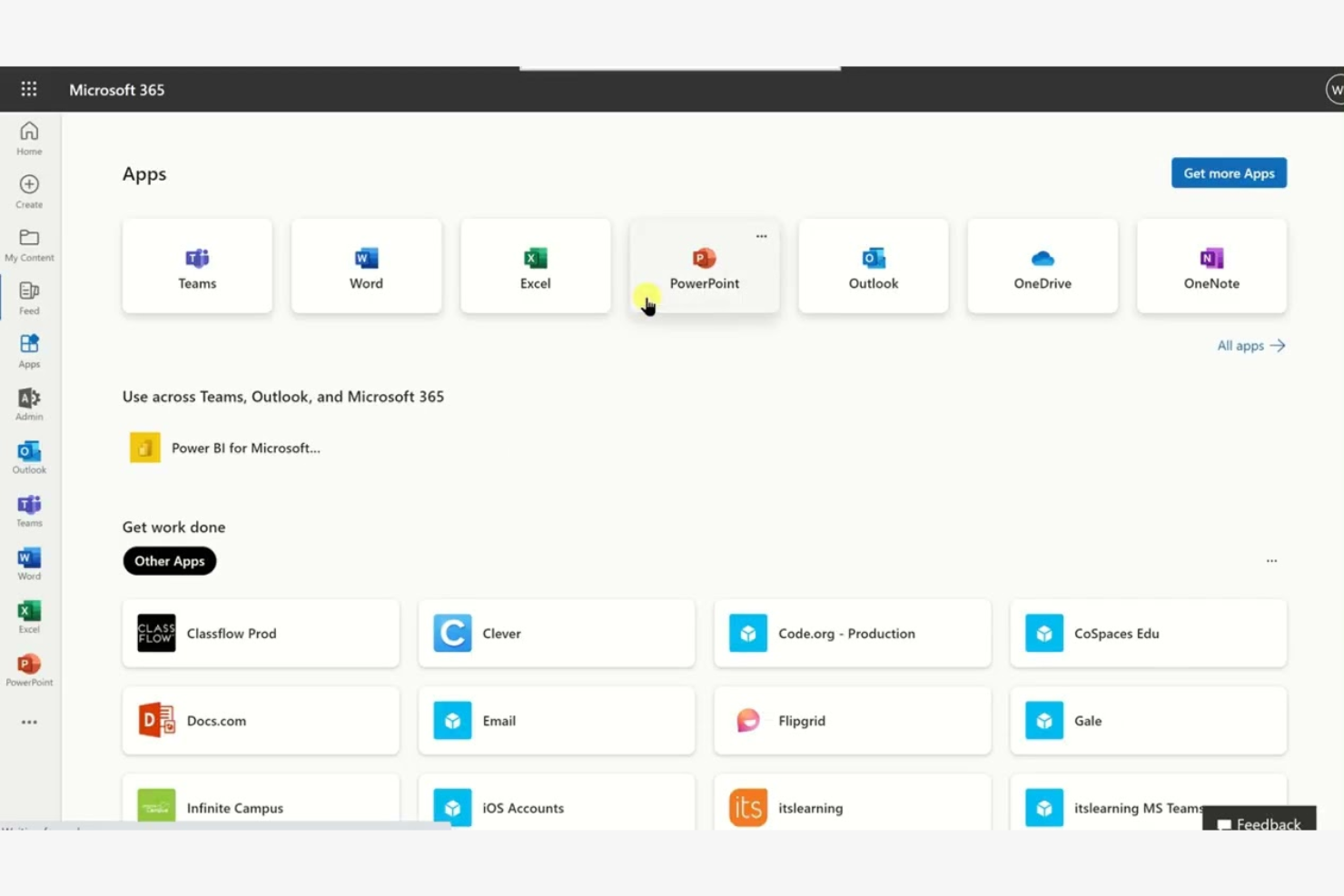
Microsoft 365 bietet eine Suite von Online-Office-Tools für Teams, die erweiterte Funktionen für Zusammenarbeit und Dokumentenverwaltung benötigen. Es eignet sich besonders für Unternehmen, die auf gemeinsames Bearbeiten in Echtzeit, eine umfassende Integration mit Microsoft Teams und die Kompatibilität mit komplexen Dateiformaten angewiesen sind. Wenn Ihre Projekte eine strenge Versionskontrolle und vereinfachte Arbeitsabläufe in Word, Excel und PowerPoint erfordern, hebt sich Microsoft 365 von Google Docs ab.
Warum Microsoft eine gute Alternative zu Google Docs ist
Für Teams, die Zusammenarbeit in Echtzeit benötigen, bietet Microsoft 365 gemeinsames Bearbeiten in Word, Excel und PowerPoint mit sofortigen Aktualisierungen auf allen Geräten. Ich habe Microsoft ausgewählt, weil die Dokumentbearbeitungstools mehreren Benutzern ermöglichen, gemeinsam an derselben Datei zu arbeiten und dabei Änderungen und Kommentare detailliert nachzuverfolgen. Durch die Integration mit Microsoft Teams können Sie chatten, Besprechungen abhalten und Dateien teilen, ohne Ihren Arbeitsbereich zu verlassen. Diese Funktionen machen Microsoft zu einer starken Wahl für Organisationen, die gemeinsames Arbeiten in Echtzeit und die Genauigkeit von Dokumenten priorisieren.
Wichtige Funktionen von Microsoft
Einige weitere Funktionen von Microsoft 365 machen die Lösung zu einer flexiblen Wahl für Teams, die Dokumente online verwalten:
- Erweiterte Berechtigungssteuerung: Legen Sie detaillierte Zugriffsebenen für Dateien und Ordner fest, um zu verwalten, wer Dokumente anzeigen, bearbeiten oder teilen kann.
- Automatisierter Versionsverlauf: Stellen Sie frühere Versionen von Dokumenten wieder her und verfolgen Sie Änderungen im Laufe der Zeit, ohne manuelle Sicherungen zu erstellen.
- Integrierte Barrierefreiheitstools: Nutzen Sie Funktionen wie den Plastischen Reader und die Spracheingabe, um unterschiedliche Arbeitsweisen und Bedürfnisse zu unterstützen.
- Offline-Bearbeitungsmodus: Arbeiten Sie ohne Internetverbindung an Dokumenten und synchronisieren Sie Änderungen automatisch, sobald Sie wieder online sind.
Microsoft-Integrationen
Zu den Integrationen gehören Microsoft Teams, OneDrive, SharePoint, Outlook, Power BI, Dynamics 365, Yammer, Planner, Forms und Power Automate.
Pros and Cons
Pros:
- Gemeinsames Bearbeiten in Echtzeit funktioniert mit Word-, Excel- und PowerPoint-Dateien
- Die umfassende Integration mit Microsoft Teams unterstützt Chats und Besprechungen innerhalb von Dokumenten
- Erweiterte Berechtigungseinstellungen ermöglichen eine detaillierte Kontrolle über den Dokumentzugriff
Cons:
- Für den vollständigen Funktionsumfang sind ein Microsoft-Konto und ein Abonnement erforderlich
- Einige erweiterte Funktionen sind nur in höherstufigen Tarifen verfügbar
Am besten für den mobilorientierten Zugriff auf Dokumente geeignet
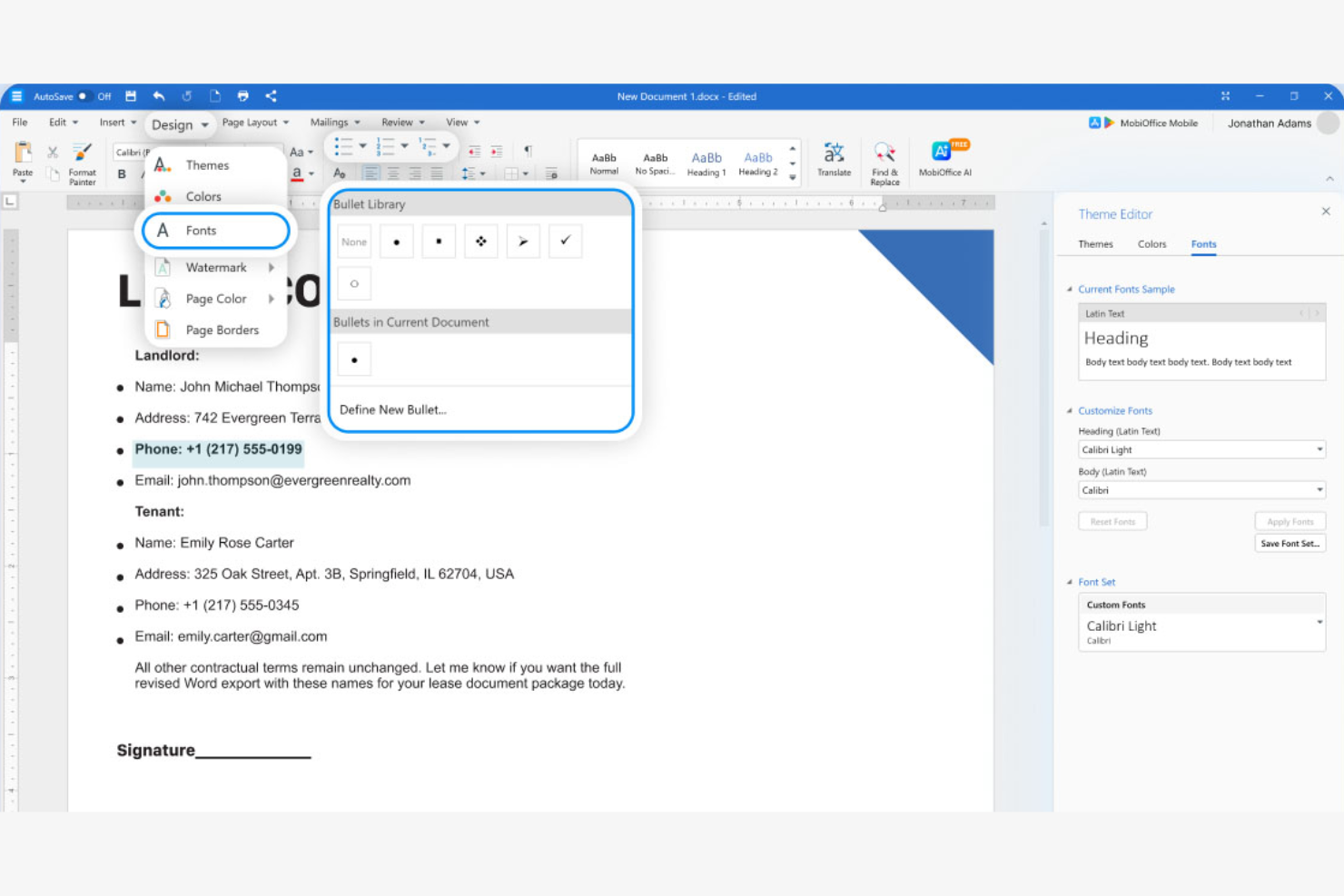
Wenn Ihr Team unterwegs mit Dokumenten arbeiten muss, bietet MobiSystems eine mobilorientierte Office-Suite, die für Smartphones und Tablets entwickelt wurde. Sie eignet sich hervorragend für Außendienstteams, Remote-Mitarbeiter und alle, die bei der Bearbeitung und dem Zugriff auf Dokumente auf mobile Geräte angewiesen sind. Im Gegensatz zu Google Docs bietet MobiSystems robuste Offline-Funktionen und native mobile Apps, die erweiterte Bearbeitungsfunktionen auf Android und iOS unterstützen.
Warum MobiSystems eine gute Alternative zu Google Docs ist
Im Gegensatz zu den meisten Office-Suiten, die sich auf die Bearbeitung auf dem Desktop oder im Browser konzentrieren, wurde MobiSystems speziell für den mobilen Zugriff auf Dokumente entwickelt. Ich habe es ausgewählt, weil die OfficeSuite-App die umfassende Bearbeitung von Dokumenten, Tabellen und Präsentationen direkt auf Android- und iOS-Geräten ermöglicht. Die Plattform unterstützt außerdem die Offline-Bearbeitung, sodass Sie auch dann mit Dateien arbeiten können, wenn keine Internetverbindung besteht. Dadurch ist MobiSystems eine gute Wahl für Teams, die auch unterwegs zuverlässigen Zugriff auf Dokumente und Bearbeitungsmöglichkeiten benötigen.
Wichtigste Funktionen von MobiSystems
Einige weitere Funktionen von MobiSystems helfen Teams dabei, Dokumente zu verwalten und geräteübergreifend zusammenzuarbeiten:
- PDF-Bearbeitungswerkzeuge: Bearbeiten, kommentieren und konvertieren Sie PDF-Dateien direkt in der App.
- Integration von Cloud-Speichern: Stellen Sie eine Verbindung zu Google Drive, Dropbox, OneDrive und MobiDrive her, um auf Dateien zuzugreifen und sie zu sichern.
- Dokumentverschlüsselung: Schützen Sie vertrauliche Dateien mit Passwort- und Verschlüsselungsoptionen.
- Plattformübergreifende Kompatibilität: Greifen Sie auf Windows-, Android- und iOS-Geräten auf Dokumente zu und bearbeiten Sie sie.
Integrationen von MobiSystems
MobiSystems bietet derzeit keine nativen Integrationen.
Pros and Cons
Pros:
- Mobilorientierte Bearbeitung mit zuverlässigem Offline-Zugriff
- Integrierte PDF-Werkzeuge zum Bearbeiten, Kommentieren und Konvertieren
- Funktioniert auf Android, iOS und Windows für Teams, die unterwegs arbeiten
Cons:
- Eingeschränkte Zusammenarbeit in Echtzeit im Vergleich zu Google Docs
- Kleineres Integrations-Ökosystem für Geschäftsabläufe
Am besten für die quelloffene Dokumentbearbeitung geeignet

Wenn Sie nach einer vollständig quelloffenen Alternative zu Google Docs suchen, ist LibreOffice eine herausragende Lösung. Es eignet sich besonders für Organisationen und Fachleute, die vollständige Kontrolle über ihre Dokumente und Daten benötigen, ohne auf cloudbasierte Plattformen angewiesen zu sein. LibreOffice spricht Teams an, denen Datenschutz, Offline-Zugriff und Kompatibilität mit einer breiten Palette von Dateiformaten wichtig sind.
Warum LibreOffice eine gute Alternative zu Google Docs ist
Im Gegensatz zu den meisten Online-Office-Suiten bietet LibreOffice vollständigen Zugriff auf seinen Quellcode und umfassende Kontrolle über Ihre Dokumente. Ich habe LibreOffice ausgewählt, weil Sie damit Dateien lokal bearbeiten und speichern können, was ideal für Teams mit strengen Datenschutz- oder Anforderungen an den Datenstandort ist. Die Unterstützung einer breiten Palette von Dateiformaten, einschließlich Microsoft Office- und älterer Dokumenttypen, erleichtert die Arbeit mit vielfältigen Inhalten. Diese quelloffenen Funktionen heben LibreOffice für Benutzer hervor, die Transparenz und Flexibilität bei ihren Werkzeugen zur Dokumentbearbeitung wünschen.
Die wichtigsten Funktionen von LibreOffice
Einige weitere Funktionen machen LibreOffice zu einer vielseitigen Wahl für die Dokumentbearbeitung:
- Integrierter PDF-Export: Erstellen Sie PDF-Dateien direkt aus jedem Dokument, ohne zusätzliche Software zu benötigen.
- Anpassbare Symbolleisten und Menüs: Passen Sie die Benutzeroberfläche an Ihren Arbeitsablauf und Ihre Vorlieben an.
- Umfangreiche Vorlagenbibliothek: Greifen Sie auf eine große Auswahl vorgefertigter Vorlagen für Dokumente, Tabellen und Präsentationen zu.
- Makroaufzeichnung und Skripterstellung: Automatisieren Sie wiederkehrende Aufgaben mithilfe integrierter Makrowerkzeuge und Skriptsprachen.
Integrationen von LibreOffice
Zu den Integrationen gehören Kasm Workspaces, Intrexx, Ultima Linux, NemoVote, TimeSpreader, BuildViewVU, Sprint Boards, File Manager Pro, Scribens, Twake, Devart ODBC Drivers, CSVpad, Agent S, FileRun, Zotero, LibreOffice Draw und weitere.
Pros and Cons
Pros:
- Kostenlose quelloffene Suite ohne Lizenzgebühren
- Leistungsstarke Offline-Bearbeitung und lokale Dateikontrolle für mehr Datenschutz
- Umfangreiche Formatunterstützung sowie PDF-Export und Makroskripterstellung
Cons:
- Keine native Bearbeitung durch mehrere Benutzer in Echtzeit wie bei Google Docs
- Die Formatierung kann sich bei der Arbeit mit komplexen Microsoft-Dateien verschieben

Am besten mit integrierten Projektmanagementtools
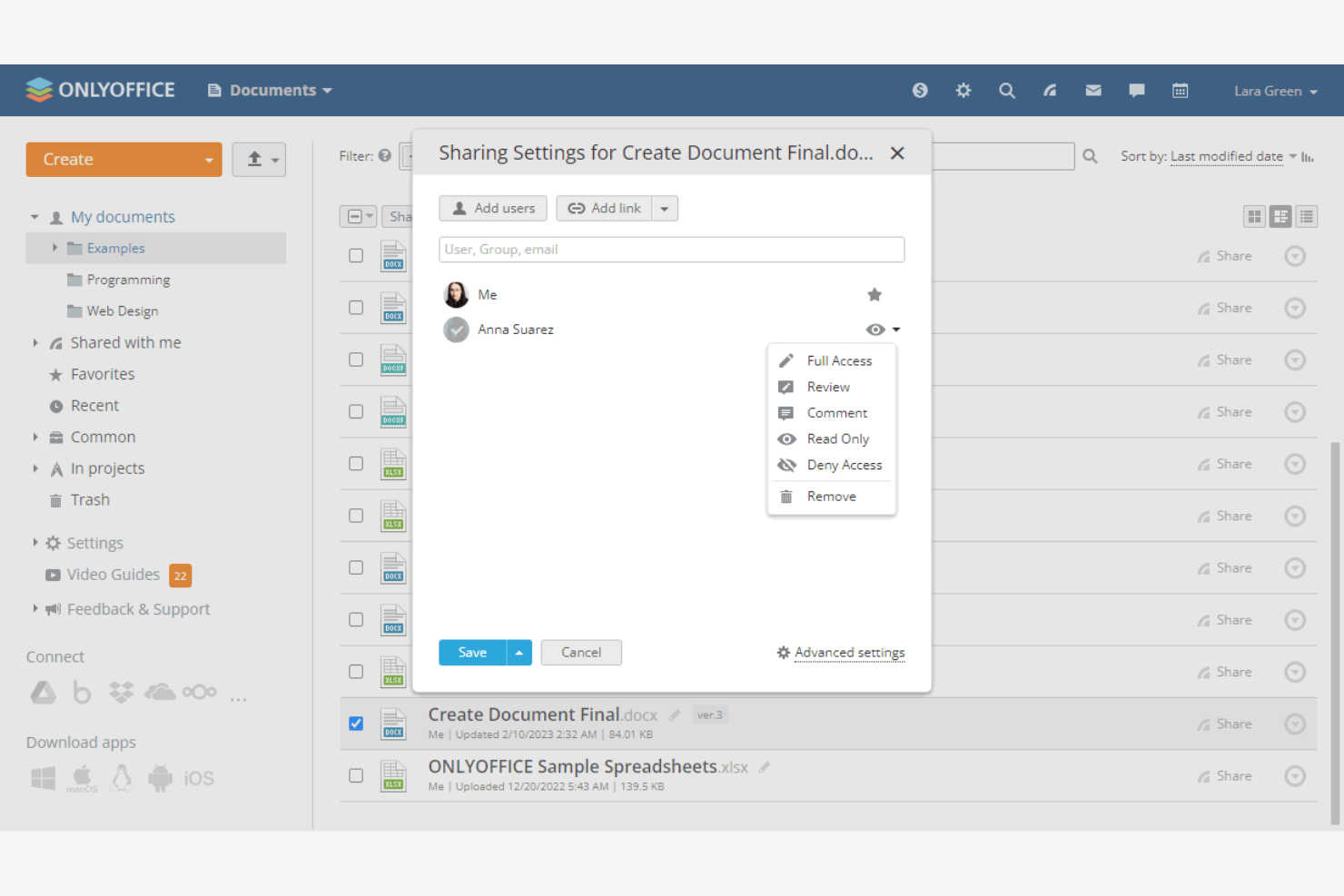
Teams, die Dokumentbearbeitung und Projektmanagement an einem Ort wünschen, greifen häufig auf ONLYOFFICE zurück. Diese Plattform ist für Unternehmen und projektorientierte Teams konzipiert, die Dokumente, Aufgaben und Zusammenarbeit über ein einziges Dashboard verwalten müssen. ONLYOFFICE zeichnet sich dadurch aus, dass vertraute Office-Suite-Tools mit integrierter Projektverfolgung und Teamkommunikationsfunktionen kombiniert werden.
Warum ONLYOFFICE eine gute Alternative zu Google Docs ist
Für Teams, die mehr als nur Dokumentbearbeitung wünschen, integriert ONLYOFFICE Projektmanagementtools direkt in seine Online-Office-Suite. Ich habe ONLYOFFICE ausgewählt, weil Sie damit Aufgaben neben Ihren Dokumenten erstellen, zuweisen und verfolgen können, sodass Sie Projekte und Inhalte an einem Ort verwalten können. Die Plattform umfasst Funktionen wie Gantt-Diagramme und Meilensteinverfolgung, die Teams dabei helfen, ihre Arbeit zu koordinieren, ohne zwischen verschiedenen Apps wechseln zu müssen. Dieser integrierte Ansatz macht ONLYOFFICE zu einer guten Wahl für Unternehmen, die sowohl Zusammenarbeit als auch Projektübersicht benötigen.
Wichtige Funktionen von ONLYOFFICE
Einige weitere Funktionen machen ONLYOFFICE zu einer flexiblen Wahl für Teams:
- Gemeinsame Dokumentbearbeitung: Mehrere Benutzer können Dokumente gleichzeitig bearbeiten und erhalten Aktualisierungen in Echtzeit.
- Integrierter Chat und Kommentare: Kommunizieren Sie direkt in Dokumenten und Projekten und hinterlassen Sie Feedback.
- Anpassbare Zugriffsberechtigungen: Legen Sie detaillierte Benutzerrollen und Berechtigungen für Dokumente und Ordner fest.
- E-Mail- und Kalendermodule: Verwalten Sie E-Mails und planen Sie Termine, ohne die Plattform zu verlassen.
Integrationen von ONLYOFFICE
Zu den Integrationen gehören Trello, Odoo, Moodle, Monday, Pipedrive, Alfresco, Box, Confluence, Dropbox, DZZ Office, Jira, Nextcloud, SharePoint, SuiteCRM, Trello, WordPress, Zapier, Zoom und weitere.
Pros and Cons
Pros:
- Kombiniert Dokumentbearbeitung mit integrierten Projektmanagementmodulen
- Unterstützt die gemeinsame Bearbeitung in Echtzeit mit rollenbasierten Zugriffsberechtigungen
- Option zur lokalen Bereitstellung für strenge Datenrichtlinien
Cons:
- Das Ökosystem für Integrationen von Drittanbietern ist kleiner als bei Google Workspace
- Mobile Apps bieten weniger Funktionen als Desktop- und Webversion
Am besten für die Offline-Erstellung von Dokumenten geeignet

Für Teams, die eine vollständig offline nutzbare Office-Suite benötigen, bietet Apache OpenOffice eine herunterladbare Lösung, für die kein Internet erforderlich ist. Sie eignet sich besonders für Organisationen mit strengen Datenschutzrichtlinien oder für diejenigen, die in Umgebungen mit schlechter Internetverbindung arbeiten. Anders als Google Docs ermöglicht OpenOffice das vollständige Erstellen, Bearbeiten und Speichern von Dokumenten auf Ihren lokalen Geräten.
Warum Apache OpenOffice eine gute Alternative zu Google Docs ist
Wenn Sie ohne Internetverbindung arbeiten müssen, erweist sich Apache OpenOffice als zuverlässige Wahl. Ich habe es ausgewählt, weil Sie damit Dokumente, Tabellen und Präsentationen vollständig offline erstellen und bearbeiten können – etwas, das Google Docs nicht nativ ermöglicht. OpenOffice unterstützt außerdem das direkte Speichern von Dateien auf Ihrem lokalen Laufwerk, sodass Sie die vollständige Kontrolle über Ihre Daten behalten. Dadurch eignet es sich besonders für Teams mit strengen Datenschutzanforderungen oder für Teams an abgelegenen Orten.
Die wichtigsten Funktionen von Apache OpenOffice
Einige weitere Funktionen machen Apache OpenOffice zu einer vielseitigen Office-Suite:
- Draw-Modul: Erstellen Sie Diagramme, Flussdiagramme und Vektorgrafiken direkt innerhalb der Suite.
- Editor für mathematische Formeln: Erstellen und bearbeiten Sie komplexe mathematische Gleichungen für technische Dokumente.
- PDF-Export: Speichern Sie jedes Dokument, jede Tabelle oder jede Präsentation ohne zusätzliche Plugins als PDF-Datei.
- Kompatibilität mit mehreren Formaten: Öffnen und speichern Sie Dateien in Microsoft-Office-, OpenDocument- und anderen gängigen Formaten.
Integrationen von Apache OpenOffice
Native Integrationen werden derzeit von Apache OpenOffice nicht aufgeführt.
Pros and Cons
Pros:
- Offline-orientierte Dokumentenerstellung ohne Abhängigkeit von der Cloud
- Kostenlose quelloffene Suite mit integriertem PDF-Export
- Enthält Draw- und Math-Werkzeuge für Diagramme und Formeln
Cons:
- Keine Zusammenarbeit in Echtzeit oder integrierte Synchronisierung
- Die Kompatibilität mit modernen Dateiformaten und die Aktualisierung der Funktionen bleiben hinter denen der Konkurrenz zurück
Weitere Google-Docs-Alternativen
Hier sind einige weitere Google-Docs-Alternativen, die es nicht in meine Übersicht geschafft haben, aber dennoch einen Blick wert sind:
- Polaris Office
Am besten für die geräteübergreifende Dateisynchronisierung geeignet
- Visual Paradigm
Am besten für die visuelle Dokumentation von Arbeitsabläufen geeignet
- Zoho
Am besten für integrierte Geschäftsanwendungen
- FreeOffice
Am besten für leichte Systemanforderungen geeignet


Wie ich Alternativen zu Google Docs bewerte
Ich unterteile meine Bewertung in grundlegende Kriterien – wie gleichzeitiges Co-Editing in Echtzeit, Aufgabenintegration und Versionierung – sowie in Unterscheidungsmerkmale, die ein Dokumenten-Tool von einem echten Projekt-Dokumentations-Hub abheben.
Kernfunktionen (Mindestanforderungen für diese Liste)
Wenn ich Tools für meine Liste auswähle, bewerte ich jedes einzelne auf einer Skala von 0 (bietet die Funktionalität nicht) bis 5 (ist in diesem Bereich herausragend) für jede der unten aufgeführten Kernfunktionen. Anschließend rechne ich die Gesamtpunktzahl des Tools prozentual um. Jedes Tool muss mindestens eine Gesamtnote von 65 % erreichen, um für eine Aufnahme in Betracht zu kommen.
- Kollaboratives Bearbeiten in Echtzeit: Ich prüfe, ob mehrere Teammitglieder ein Projektbriefing oder einen Statusbericht gleichzeitig mit Live-Cursor, Inline-Kommentaren und Vorschlägen gemeinsam verfassen können.
- Umfangreiche Dokumentenerstellung: Der Editor sollte formatierte Überschriften, Tabellen, eingebettete Medien und Inhaltsblöcke für strukturierte Dokumente wie Leistungsbeschreibungen (SOWs) und Sprintpläne unterstützen.
- Integration von Aufgaben & Projekten: Ich achte auf native Verknüpfungen zwischen Dokumenten und Aufgaben, Boards oder Zeitplänen, sodass beispielsweise ein Projektauftrag direkt mit den entsprechenden Ergebnissen verbunden ist.
- Versionsverlauf & Berechtigungen: Jede Dokumentenversion sollte nachvollziehbar und wiederherstellbar sein, mit rollenbasiertem Teilen, sodass der Zugriff für interne Teams und externe Kunden kontrolliert werden kann.
- Cloud-Speicherung & Synchronisation: Ich bewerte, ob Dokumente automatisch gespeichert, über Geräte hinweg synchronisiert und für verteilte Teams mit unterschiedlichen Zeitzonen auch offline zugänglich sind.
- Export- & Formatkompatibilität: Tools sollten Standardformate wie DOCX, PDF und Markdown importieren und exportieren, damit Projektdokumente im Workflow der Stakeholder kompatibel bleiben.
Sobald ich Tools habe, die diese Kriterien erfüllen, schaue ich mir an, wodurch sich die einzelnen Plattformen auszeichnen.
Unterscheidungsmerkmale (Was die Anbieter unterscheidet)
So vergleiche und kontrastiere ich verschiedene Anbieter:
Herausragende Funktionen
Ich achte auf integrierte Wiki- und Wissensdatenbankfunktionen, mit denen Sie Projektdokumente verschachteln, Seiten verlinken und einen durchsuchbaren Hub erstellen können, auf den Ihr Team tatsächlich zugreift. KI-Schreibtools stechen ebenfalls hervor – automatisch eine Sprint-Retro-Zusammenfassung zu erstellen oder einen Statusbericht auf Basis von Aufgabendaten zu verfassen, spart echte Zeit. Projektspezifische Vorlagen für SOWs, RAID-Logs und Kickoff-Agenden sind ebenfalls wichtig, insbesondere in Kombination mit Automatisierungen, die wiederkehrende Dokumente in verschiedenen Workstreams automatisch ausfüllen.
Über die Funktionen hinaus
Die Tiefe der Integration ist entscheidend – ich prüfe, ob das Tool eine native Anbindung an PM-Plattformen wie Jira, Asana oder monday.com bietet, denn ein Dokumententool, das außerhalb Ihrer Delivery-Umgebung läuft, führt zu Reibungsverlusten. Auch die Preisstrukturen unterscheiden sich stark. Ich bewerte, ob Gastzugänge und externer Kollaborations-Zugriff inklusive sind oder extra kosten, da die meisten Projektteams regelmäßig Kunden und externe Partner einbinden. Die Migrationsunterstützung von Google Docs oder Confluence ist ein weiterer Faktor, denn ein holpriger Wechsel kann die Einführung im Team verzögern.
Warum nach einer Alternative zu Google Docs suchen?
Google Docs ist zwar eine leistungsstarke Online-Textverarbeitung, aber es gibt mehrere Gründe, warum manche Nutzer alternative Plattformen in Betracht ziehen. Sie suchen möglicherweise nach einer Alternative zu Google Docs, weil …
- Sie eine bessere Kompatibilität mit Microsoft-Office-Dateiformaten benötigen
- Ihr Team erweiterte Tools zur PDF-Bearbeitung und -Annotation benötigt
- Sie in Regionen arbeiten, in denen Google-Dienste eingeschränkt sind
- Sie Dokumente offline bearbeiten müssen, ohne auf Browser-Erweiterungen angewiesen zu sein
- Ihre Organisation strenge Anforderungen an den Datenschutz oder den Einsatz vor Ort hat
- Sie mehr Kontrolle über die Dokumentformatierung, das Layout oder die Markdown-Unterstützung wünschen
- Sie Bedenken hinsichtlich der Lernkurve für nichttechnische Nutzer haben
- Sie eine andere benutzerfreundliche Oberfläche oder einen anderen Arbeitsablauf bevorzugen
Wenn Ihnen einer dieser Punkte bekannt vorkommt, sind Sie hier richtig. Die Optionen in dieser Liste umfassen Online-Textverarbeitungs- und Kollaborationsplattformen für Teams, die mehr Flexibilität, eine bessere Kontrolle über die Formatierung oder einen anderen Ansatz für die Dokumentverwaltung benötigen.
Wichtige Google-Docs-Funktionen
Hier sind einige der wichtigsten Funktionen von Google Docs, die Ihnen dabei helfen, es mit anderen All-in-One-Kollaborationstools und Textverarbeitungsplattformen zu vergleichen:
- Echtzeitbearbeitung mit mehreren Benutzern
- Automatisches Speichern in der Cloud auf Google Drive
- Versionsverlauf und Nachverfolgung von Dokumentänderungen
- Integrierte Kommentarfunktionen und Vorschlagswerkzeuge
- Integration mit Google-Workspace-Apps wie Sheets und Slides
- Offline-Bearbeitungsmodus für das Arbeiten ohne Internetzugang
- Umfangreiche Freigabe- und Berechtigungskontrollen
- Spracheingabe und Funktionen für Barrierefreiheit