

2026’nın En İyi Belge İş Birliği Araçları İncelemesi

En İyi Belge İş Birliği Araçları Kısa Listesi


Bu kadar çok seçenek varken doğru belge iş birliği aracını seçmek zor olabilir. Ekibinizin iş akışını kolaylaştırmak ve üretkenliği artırmak istiyorsunuz, ancak hangi aracın size en uygun olduğunu belirlemeniz gerekiyor. Size yardımcı olabilirim! Bu yazıda, farklı ekipler ve projelerde çeşitli iş birliği araçlarıyla çalışma konusundaki kapsamlı deneyimimden yararlanarak en iyi seçenekleri sizin için derledim.
Belge iş birliği araçları, birden fazla kullanıcının belgeler üzerinde aynı anda çalışmasına olanak tanıyarak gerçek zamanlı güncellemeler ve sorunsuz iş birliği sağlar. Bu araçlar, sürüm kontrolü, iletişim boşlukları ve verimsiz iş akışları gibi temel sorunları çözer.
Why Trust Our Software Recommendations
Our team has been testing and reviewing software since 2012. As project managers ourselves, we know how difficult—and important—it is to choose the right software.
For this guide, we evaluated tools using hands-on testing and independent research, scoring tools using our selection criteria. We also draw on insights from industry thought leaders and practicing project management experts.
Our reviews reflect our human editorial judgment, not a sales pitch.
Expert reviewers:
Belge İş Birliği Araçları Karşılaştırma Tablosu
Score legend (out of 5)
- Excellent 4.5–5
- Good 4–4.4
- Average 3–3.9
- Below average 2–2.9
- Poor 1–1.9
| Tool | Starting Price | Website | |||||||
|---|---|---|---|---|---|---|---|---|---|
| Best for AI-powered knowledge management | 3.8 out of 5 | 4 | 3 | 3 | 5 | 4 | 4 | $10/user/month 14-day free trial + free demo available | Website |
| Best for combining docs and apps in one platform | 3.7 out of 5 | 4 | 3 | 3 | 4 | 4 | 4 | $12/user/month Free plan + free trial available | Website |
| Best for all-in-one project management | 3.7 out of 5 | 4 | 4 | 3 | 5 | 2 | 4 | $12/user/month Free plan + free trial + free demo available | Website |
| Best for AI-powered productivity tools | 4.3 out of 5 | 5 | 4 | 4 | 5 | 3 | 5 | $7/user/month 14-day free trial available | Website |
| Best for comprehensive office suite integration | 4.0 out of 5 | 4 | 4 | 4 | 5 | 2 | 5 | Pricing upon request Free plan available | Website |
| Best for remote team collaboration | 4.2 out of 5 | 4 | 4 | 4 | 4 | 5 | 4 | $5.78/user/month Free plan + 7-day trial available | Website |
| Best for Dropbox integration | 3.5 out of 5 | 4 | 4 | 3 | 4 | 2 | 4 | $9.99/person/month Free Dropbox plan available | Website |
| Best for Salesforce integration | 3.2 out of 5 | 4 | 3 | 3 | 4 | 2 | 3 | $10/user/month Not available | Website |
| Best for secure team file storage | 4.0 out of 5 | 4 | 3 | 4 | 5 | 3 | 5 | $3/user/month Free plan available | Website |
| Best for real-time collaboration and reporting | 4.2 out of 5 | 4 | 4 | 4 | 4 | 5 | 4 | $10/user/month Free plan + 14-day trial + demo available | Book Demo |
En İyi Belge İş Birliği Araçları İncelemeleri
Bu bölüm, çeşitli belge iş birliği araçlarının kapsamlı bir analizini ve genel değerlendirmesini sunar. Bu araçların artılarını ve eksilerini, özelliklerini ve en uygun kullanım alanlarını ele alacağız.

Slite
Best for AI-powered knowledge management

I picked Slite for this list because it’s one of the few tools that transforms knowledge management with AI while still feeling intuitive for everyday document collaboration. Teams I work with turn to Slite when documentation starts to sprawl and finding up-to-date answers gets tricky.
What I appreciate most about Slite is how it uses AI to surface relevant content, automate summarization, and even generate documentation from team conversations. I’ve relied on Slite’s search and smart suggestions to help teams easily rediscover buried knowledge and cut down on repetitive questions.
Slite’s Best For
- Product, engineering, and support teams needing AI-driven knowledge base and documentation
- Distributed teams that struggle to keep information organized and easy to find
Slite’s Not Great For
- Teams that need deep document formatting or advanced publishing controls
- Organizations with strict compliance or complex records management requirements
What Sets Slite Apart
What strikes me about Slite is how it approaches documentation as a conversation-first, AI-augmented process rather than a static archive. Instead of just storing docs, Slite’s design blurs the line between chat, Q&A, and long-form documentation—especially compared to more traditional tools like Confluence that separate knowledge management from daily team dialogue.
When I see teams discuss work in Slite, it feels more like shifting from a static wiki to a knowledge flow where answers and explanations emerge dynamically as work happens.
Tradeoffs with Slite
Slite optimizes for quick, AI-driven collaboration and discovery over strict organization or publishing controls. That means teams get fast answers, but it can make granular versioning, documentation governance, or formal approvals harder to lock down as content grows.
Pros and Cons
Pros:
- Smart document organization
- AI-powered content suggestions
- Integrated knowledge base
Cons:
- Limited customization options for user interface and document layouts
- Limited third-party integrations
Coda
Best for combining docs and apps in one platform

Coda isn’t just another collaboration tool—it stands out for how it combines documentation and custom app functionality within the same workspace. I usually recommend Coda when teams start getting frustrated by the gap between static docs and real project workflows that need interactive elements.
What I appreciate most is that you can embed tables, buttons, and automations right alongside your meeting notes or project specs, so your docs actually drive action. Teams tend to use Coda when traditional docs don’t go far enough and they need living documents that function more like applications than files.
Coda’s Best For
- Teams who want to build interactive docs that double as light internal apps
- Groups that need flexible, mix-and-match workflows for projects or knowledge sharing
Coda’s Not Great For
- Teams that just need static document editing without interactive elements
- Organizations with strict document version control or complex approval chains
What Sets Coda Apart
Coda flips the usual doc tool model by letting teams blend text, data, and interactive elements inside a single canvas. Where something like Google Docs keeps docs apart from apps, Coda expects teams to build workflows that live inside their documents—integrating tables, buttons, and automations as first-class citizens.
Instead of treating documentation and process as separate, it’s designed for groups who want living docs that actually run parts of their operations, much like lightweight internal tools. This mindset drives people to combine specs, tracking, and project collaboration without ever leaving the doc.
Tradeoffs with Coda
Coda optimizes for flexibility and merging apps with documents, but that means it doesn’t enforce structure the way traditional document tools do. Teams can end up with sprawling, inconsistent workspaces if no one sets clear standards or guidelines.
Pros and Cons
Pros:
- Real-time formula editing
- Automation within documents
- Interactive data manipulation
Cons:
- Limited API access
- No pre-built project management tools

ClickUp
Best for all-in-one project management

ClickUp makes my shortlist because it brings every layer of collaboration—tasks, docs, wikis, and discussion—into a single workspace. I find this all-in-one approach helps teams avoid document sprawl since everything, including meeting notes and project plans, lives in context.
My team uses ClickUp's Docs to co-edit specs inline with tasks, using comments, version history, and real-time editing to keep everyone aligned. I appreciate how the references, embeds, and connected tasks cut down on messy duplications and make handoff points clear.
ClickUp’s Best For
- Product, marketing, and agency teams needing tasks, docs, and knowledge bases in one platform
- Project leads who want live document collaboration linked directly to project workflows
ClickUp’s Not Great For
- Teams that only need simple document sharing without project or task integration
- Groups looking for document tools tailored to heavy legal or regulated content management
What Sets ClickUp Apart
ClickUp approaches collaboration by merging docs, tasks, and conversations into a single flexible canvas. Instead of treating docs and project work as separate, everything orbits the same space—kind of the opposite philosophy from Google Workspace or Confluence, which keep docs walled off from action items and task context.
Where platforms like Notion emphasize wiki building and document elegance, ClickUp expects teams to work with documents and project plans right alongside live workflows, keeping handoffs and discussion connected.
Tradeoffs with ClickUp
ClickUp puts a lot of focus on flexibility and unifying workstreams, but that blend can get chaotic if teams crave clear separation between documents and tasks. What usually happens is documentation gets buried as projects expand and new users pile on details in too many places.
Pros and Cons
Pros:
- Global search function across documents and tasks
- Custom document hierarchies
- Task and rich media embedding in docs
Cons:
- Lack of advanced editing features
- Complex document permission management

Best for AI-powered productivity tools

What stands out is how simple and fast it is to work together in the same document.
Google Workspace’s Best For
- Teams that need fast, real-time document collaboration and co-authoring
Organizations that rely heavily on shared docs for communication, feedback, and knowledge sharing
Google Workspace’s Not Great For
- Teams that need complex formatting or highly customized document structures
Organizations that require strict data control, full offline workflows, or non-cloud environments
What Sets Google Workspace Apart
What stands out to me is how naturally it enables teams to work together in the same document. Instead of passing files back and forth, everything happens in one shared space—editing, commenting, and iterating in real time.
Compared to tools like Confluence, which are more structured and documentation-focused, Google Workspace is built for ongoing collaboration and quick iteration. AI features are layered in, but the real advantage is how frictionless it is to collaborate.
Tradeoffs with Google Workspace
Because it’s optimized for real-time collaboration, things can get messy when many people are editing at once. Version history helps, but teams often need lightweight processes to keep documents organized and avoid confusion.
Pros and Cons
Pros:
- Offline editing with automatic sync
- Automatic language detection and translation
- Integrated AI-powered research
Cons:
- Limited customization and formatting options
- Integration challenges with non-Google products and services

Best for comprehensive office suite integration

Microsoft 365 is my go-to choice when teams are already invested in the Microsoft ecosystem and need document collaboration that’s deeply woven into day-to-day work. I find it adds real value when you bring together Word, Excel, PowerPoint, and OneDrive for both synchronous and asynchronous editing, without constantly jumping between apps.
Where it really shines for me is how you can co-author, track version history, and comment inline without friction. I repeatedly see cross-department teams use the web-based apps to quickly pick up a doc where someone else left off, making even large, complex reviews feel manageable and organized.
Microsoft 365’s Best For
- Businesses already invested in Microsoft’s ecosystem who want tight integration between docs, spreadsheets, and presentations
- Cross-functional teams that require real-time co-authoring, comments, and version control inside familiar Office apps
Microsoft 365’s Not Great For
- Teams that need highly visual, kanban-style or creative collaborative experiences beyond traditional documents
- Groups prioritizing lightweight, cloud-first tools without the overhead of Microsoft’s licensing, admin, or updates
What Sets Microsoft 365 Apart
What I notice with Microsoft 365 is that it treats documents as the foundation of teamwork, not just as supporting assets. Instead of leaning into new collaboration metaphors like Notion or Airtable, it expects teams to work around traditional files—Word, Excel, and PowerPoint—where everyone can jump in, review, edit, and comment in real time or async.
Compared to Google Workspace, there’s a deeper focus on version control, document fidelity, and alignment with enterprise requirements. Microsoft 365 assumes you want a rich, standardized set of tools that look and behave the same way across devices and organizations.
Tradeoffs with Microsoft 365
Microsoft 365 optimizes for thoroughness and full compatibility with legacy workflows, but that can bog down simple collaboration. You start needing to deal with complex sharing settings and occasional confusion about whether you're in the right app or version.
Pros and Cons
Pros:
- Advanced and personalized working tools
- Automated workflow integrations
- Integrated task management
Cons:
- Limited real-time collaboration in some apps
- Complex licensing structures

Best for remote team collaboration

Confluence is always on my shortlist when remote teams need a living knowledge base that scales with them. I picked it because spaces, pages, and inline comments make asynchronous collaboration feel natural, even when nobody’s in the same room.
My team uses Confluence when we need to run distributed project documentation, brainstorm with shared templates, and capture meeting notes everyone can react to in real time. What I appreciate is how it keeps content organized as teams grow and projects multiply, which is a real challenge with most knowledge tools.
Confluence’s Best For
- Distributed product, design, or engineering teams needing a central, living knowledge hub
- Organizations where asynchronous brainstorming, feedback, and documentation need to be tightly linked
Confluence’s Not Great For
- Teams focused on short-lived docs or lightweight sharing instead of long-term knowledge management
- Groups looking for deep document formatting, advanced publishing control, or WYSIWYG editing like Google Docs
What Sets Confluence Apart
Confluence stands out to me for how deeply it’s built around open, asynchronous knowledge sharing rather than traditional document-centric editing. It’s much less about creating single polished docs, and more about letting teams create living pages, comment in context, and build evolving knowledge spaces together.
Compared to something like Google Docs, which is optimized for word processing and discrete file storage, Confluence expects teams to structure knowledge as dynamic, interconnected pages. That’s why I see it used most where there’s a strong need for wiki-style documentation, discussion, and page history.
Tradeoffs with Confluence
Confluence puts the focus on collaborative knowledge management and open editing, but in bigger or regulatory-heavy teams, it can be hard to manage page sprawl and ensure content governance is enforced. What usually happens is that older content goes stale and organization requires extra discipline—not everyone is equipped for that.
Pros and Cons
Pros:
- Page hierarchies for organization
- Flexible page templates
- Integrated roadmap planner
Cons:
- Limited document formatting options
- Cluttered interface with extensive content

Best for Dropbox integration

I include Dropbox Paper on this list because it’s the only document collaboration tool that truly disappears into the Dropbox workflow for companies already invested in that ecosystem. I see teams get the most out of it when they’re working with lots of embedded file assets and need every document to sync alongside their Dropbox content automatically.
Where Dropbox Paper shines is in linking, previewing, and commenting on files—especially when tracking feedback across a big pool of cross-referenced docs. I appreciate how you can comment on a specific section or media element so conversations stay anchored and visible right where you want them.
Dropbox Paper’s Best For
- Teams that already store and manage files in Dropbox and want docs embedded in that workflow
- Creative projects where documents, images, and file feedback need to stay tightly linked
Dropbox Paper’s Not Great For
- Teams that need granular document permissions or advanced formatting
- Organizations looking for complex workflow automation or deep integrations outside Dropbox
What Sets Dropbox Paper Apart
Dropbox Paper approaches document collaboration as an extension of file management, rather than a standalone workspace like Google Docs or Notion. It treats documents as part of a living content ecosystem, making feedback, images, and file embeds feel native instead of bolted on.
Unlike tools that silo docs away from your file storage, Paper assumes your workflow is already organized in Dropbox folders and simply brings real-time editing on top of it. I rarely see it push teams into adopting new work habits—the expectation is you’re already working out of Dropbox, and Paper just adds another layer for collaborating.
Tradeoffs with Dropbox Paper
Dropbox Paper optimizes for simplicity and fitting into Dropbox’s core files-first model, but that means teams needing more structured doc management, advanced permissions, or integrations will run into walls. In my experience, the friction comes when you want to design complex workflows—things that work great in Notion or Confluence start to feel clunky here.
Pros and Cons
Pros:
- Automatic to-do lists
- Integrated basic task management tools
Cons:
- Limited integrations with non-Dropbox services
- Limited formatting options
- Embeddable web content

Quip
Best for Salesforce integration

Quip earns a spot on my list because of how natively it connects document collaboration to Salesforce workflows. I often turn to Quip when teams live inside Salesforce and need documents, spreadsheets, and task lists deeply wired up to live data and CRM records.
Where Quip stands out for me is how it lets you embed Salesforce reports and structured data directly in documents. This makes it possible to run deal reviews or client planning docs that always show real-time figures—something I haven’t seen handled as fluidly anywhere else.
Quip’s Best For
- Teams that need live document collaboration integrated directly with Salesforce data
- Sales, customer success, and account management teams working inside Salesforce
Quip’s Not Great For
- Teams that don’t use Salesforce as a core part of their workflow
- People who need advanced document formatting or publishing capabilities
What Sets Quip Apart
Quip's approach is to weave documents, spreadsheets, and conversations right into where Salesforce work happens. Unlike Google Docs or Microsoft 365, Quip expects your team’s conversations, project plans, and collaborative notes to sit side-by-side with real-time CRM data, not outside it. The whole setup assumes you’re living in Salesforce and want your docs updating automatically with the latest pipeline details or customer info.
Compared to tools like Notion, which focus on flexible knowledge bases, Quip prioritizes real-time integration over document structure or deep customization. Everything in Quip feels designed to reduce switching costs between documentation and day-to-day sales or support workflows.
Tradeoffs with Quip
Quip is optimized around Salesforce integration, which means the document editing experience is simpler and more focused on syncing with live business data. What usually happens is teams who need advanced layouts or publishing polish run into limits, as Quip favors live updates and utility over rich styling.
Pros and Cons
Pros:
- Multi-layered document organization
- Real-time collaboration with integrated chat
- Salesforce live data embedding
Cons:
- Dependent on Salesforce integration
- Limited document formatting options

Best for secure team file storage

Zoho WorkDrive makes my shortlist for document collaboration tools because of how deeply it prioritizes secure team file storage without sacrificing real-time workflows. I’ve worked with distributed teams who rely on granular access controls and audit trails, especially during sensitive project phases.
What I like about Zoho WorkDrive is its Team Folders, which let us centralize files per project while maintaining strict security boundaries. The admin dashboard offers clear oversight of file activity and sharing, which comes in handy when compliance or confidentiality is a concern.
Zoho WorkDrive’s Best For
- Distributed teams that require secure, centralized file storage with detailed access controls
- Organizations with compliance needs where audit trails and permission management are crucial
Zoho WorkDrive’s Not Great For
- Teams looking for advanced real-time document co-editing with deep in-app commenting
- Creative groups that rely on visual file previews or multimedia collaboration features
What Sets Zoho WorkDrive Apart
What stands out to me about Zoho WorkDrive is how it puts secure storage and organizational structure at the core of collaboration. Instead of treating documents as loose files in a shared drive, it expects teams to build out Team Folders with layered permissions and visibility controls—more like a digital filing cabinet than a casual share space. Compared to Google Drive, which emphasizes broad sharing and quick access, Zoho WorkDrive is designed around tighter governance and centralized oversight.
This approach works best when teams need to know exactly who controls each document and want everything tracked—especially in environments where information access is sensitive or regulated.
Tradeoffs with Zoho WorkDrive
Because Zoho WorkDrive emphasizes security and structure, it’s harder for teams to move as quickly or informally as they would in a tool like Google Drive. That design makes one-off or cross-functional ad-hoc sharing feel a bit cumbersome, especially for groups used to loose, open collaboration.
Pros and Cons
Pros:
- Offline access with sync options
- Advanced link management
- Team folder customization
Cons:
- Storage quotas per user
- Limited advanced document editing
Wrike
Best for real-time collaboration and reporting
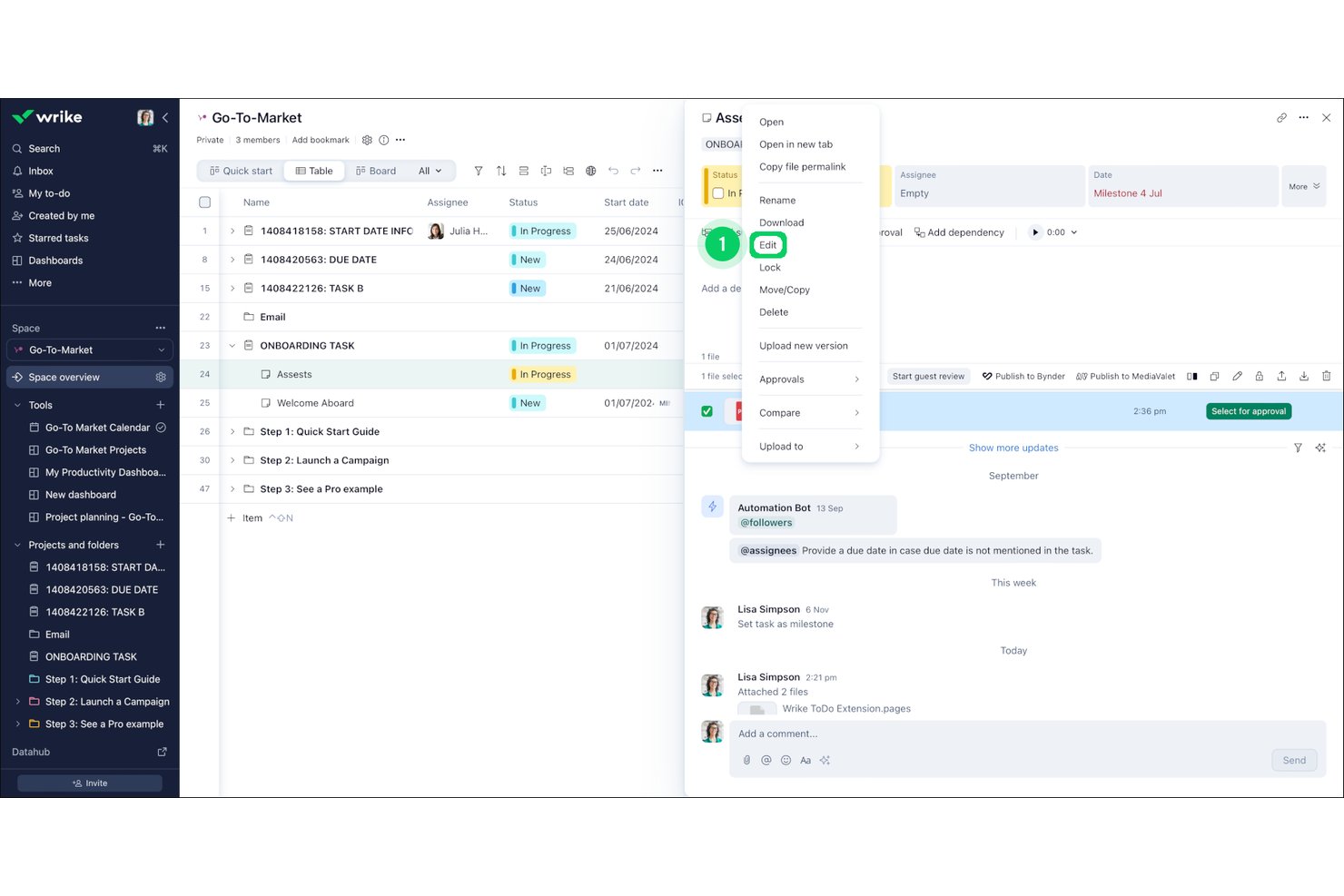
Wrike is a project management platform with document collaboration built directly into tasks, offering real-time co-editing, file proofing and annotation, version history, and approval workflows alongside Gantt charts, dashboards, and 400+ integrations.
Who Is Wrike Best For?
Wrike is a strong fit for project managers and cross-functional team leads who need document collaboration, proofing, and approvals built directly into their project workflows.
Why I Picked Wrike
I picked Wrike as one of the best because its real-time collaboration and reporting features are built directly into tasks, not bolted on as separate tools. Wrike Live lets my team co-edit project briefs and meeting notes simultaneously, while Proofing adds frame-accurate annotation on videos, PDFs, and Office files without leaving the platform. Live dashboards pull project data into shareable reports that update in real time, so stakeholders always see current status.
Wrike Key Features
- Spaces: Organize your projects, folders, and resources into team-specific hubs with nested structures and keyword search.
- Proofing: Annotate images, videos, PDFs, and Office files directly with markered comments and frame-accurate video review.
- Version history: Restore previous task description states using a revision timeline, and track file iterations through versioned attachment uploads.
- AI content generation: Use Wrike AI to draft and edit task descriptions, briefs, and comments directly within the platform.
Wrike Integrations
Wrike offers 400+ prebuilt integrations, including Jira, GitHub, Google Drive, Microsoft Teams, Slack, Salesforce, and Adobe Creative Cloud. Its paid two-way sync supports 22+ systems, including Jira and GitHub, with a no-code integration and automation builder.
Pros and Cons
Pros:
- Dashboards connect documents with project reporting
- Task edits retain restorable revision history
- Proofing adds frame-accurate file annotations
Cons:
- Interface complexity slows initial team adoption
- Proofing excludes several cloud-storage sources
New Product Updates from Wrike

Wrike Redesigns Workspace Search With New Filters
Wrike introduces a redesigned Workspace Search interface with recent search shortcuts, item type and location filters, and parent-task context. These updates help users find relevant work items and navigate search results efficiently. For more information, visit Wrike’s official site.
 .
Diğer Belge İş Birliği Araçları
Aşağıda, kısa listemize aldığımız ancak en iyi araçlar listesine giremeyen ek belge iş birliği yazılımlarının bir listesi yer alıyor. Bunlara da göz atmaya değer.
- Smartsheet
For spreadsheet-like project management
- Evernote
For note-taking and organization
- Podio
For customizable workflows
- monday AI Workspace
For visual project tracking
- ProofHub
For all-in-one project management
- Airtable
For customizable databases
- Nuclino
For knowledge management and team wikis
- ONLYOFFICE
For integrated document editing
- Bit.ai
For AI-powered document creation
- Asana
For team collaboration and task tracking
- Trello
For kanban-style task management
- Slab
For team documentation and knowledge sharing
- Box Notes
For secure note-taking and sharing


How I Evaluate Document Collaboration Tools
I look at these tools in two layers: the core capabilities every option must have—co-editing, version history, permissions—and the differentiators that determine the right fit for a PM team.
Core Functionality (Table Stakes For This List)
When I'm selecting tools for my list, I rank each one on a scale from 0 (does not offer the functionality) to 5 (excels in this area) for each core functionality listed below. Then, I calculate the tool's total score into a percentage. Each tool needs to achieve a minimum total score of 65% to be considered for inclusion.
- Real-Time Co-Editing: I check whether multiple team members can work in the same doc at once—like updating a project brief during a kickoff call—with live cursors and instant sync.
- Commenting & Annotation: Inline comments with @mentions and threaded replies matter here, especially for async review cycles on SOWs or status reports across time zones.
- Version Control & History: I evaluate how the tool tracks revisions and whether you can roll back changes, which is essential when a deliverable scope shifts mid-sprint.
- Granular Sharing & Permissions: Each tool should let you set view, comment, and edit access at the document or folder level, including controls for sharing externally with clients or vendors.
- Centralized Document Storage: I look for an organized, searchable repository—workspaces, folders, tags—so project docs don't end up scattered across Slack threads and email chains.
- Project Workflow Integrations: The tool should connect with PM platforms like Jira, Asana, or monday.com so documentation stays linked to the tasks and timelines it supports.
Once I have a list of tools that meet this criteria, I consider what sets each platform apart.
Differentiating Factors (What Sets Vendors Apart)
Here's how I compare and contrast different vendors:
Standout Features
I look for AI writing features that can draft meeting summaries or status updates, saving PMs time on repetitive documentation. Embedded live data is another differentiator—pulling a Gantt chart or task board directly into a project brief keeps context without tab-switching. Template libraries matter too, since prebuilt project charters, retros, and RACI matrices help teams standardize docs across workstreams. I also evaluate wiki capabilities for turning project docs into a linked, navigable knowledge base.
Beyond Features
Security and compliance certifications like SOC 2 and GDPR readiness are worth checking early, especially if your PMO handles sensitive client data. Pricing structure matters too—I evaluate whether guest or viewer access is affordable, since PMs regularly share docs with external stakeholders who don't need full licenses. Integration depth across the broader tech stack is another key factor. A tool that syncs with Slack, Google Drive, and your PM platform reduces context-switching for distributed teams.
Belge İş Birliği Araçları Nasıl Seçilir?
Kendinize özgü yazılım seçimi sürecinizi yürütürken aşağıdaki noktaları göz önünde bulundurun:
- Kullanım Kolaylığı ve Kullanıcı Arayüzü: Araç, teknik uzmanlık düzeyleri ne olursa olsun tüm ekip üyeleri için sezgisel ve kullanımı kolay olmalıdır. Kullanıcı dostu bir arayüz, öğrenme eğrisini önemli ölçüde azaltabilir ve benimsenme oranlarını artırabilir.
- Gerçek Zamanlı İş Birliği: Ekiplerin belgeler üzerinde aynı anda çalışabilmesi için gerçek zamanlı iş birliği büyük önem taşır. Bu özellik, karşılıklı e-posta alışverişi ihtiyacını ortadan kaldırır ve herkesin aynı bilgilerden haberdar olmasını sağlar.
- Diğer Araçlarla Entegrasyon: Belge iş birliği aracı, ekibinizin hâlihazırda kullandığı diğer yazılımlar ve araçlarla sorunsuz biçimde entegre olmalıdır. Bu, iş akışlarını kolaylaştırabilir ve üretkenliği artırabilir.
- Güvenlik ve Erişim Denetimi: Hassas bilgilerin korunması önemlidir. Araç, yalnızca yetkili kullanıcıların belgeleri görüntüleyebilmesini veya düzenleyebilmesini sağlamak için erişim denetimi ve izinler dâhil olmak üzere güçlü güvenlik özellikleri sunmalıdır.
- Sürüm Kontrolü ve Otomatik Kaydetme: Değişiklikleri izleme ve bir belgenin önceki sürümlerine geri dönme olanağı, belgenin bütünlüğünü korumak için gereklidir. Otomatik kaydetme özellikleri, elektrik kesintileri gibi beklenmedik olaylar nedeniyle hiçbir çalışmanın kaybolmamasını sağlar.
Belge İş Birliği Araçlarındaki Eğilimler
Uzaktan çalışma standart hâline geldikçe çevrim içi iş birliği araçları hızla gelişiyor. Takip edilmesi gereken bazı önemli eğilimler şunlar.
- Gerçek Zamanlı Yapay Zekâ Desteği: Gerçek zamanlı destek sağlamak için yapay zekâ entegre edilmektedir. Bu, dil bilgisi düzeltme, içerik önerileri ve hatta çeviri konularında yardımcı olarak iş birliğini daha verimli hâle getirir.
- Güvenlik için Blok Zinciri: Belge güvenliğini artırmak için blok zinciri teknolojisi kullanılmaktadır. Hassas bilgiler açısından kritik olan belgelerin üzerinde oynama yapılamaz ve doğrulanabilir olmasını sağlar.
- Sesten Metne İş Birliği: Sesten metne özellikleri giderek yaygınlaşmaktadır. Kullanıcıların belgeleri dikte etmesine ve sesli komutları kullanarak iş birliği yapmasına olanak tanır. Bu, özellikle eller serbest kullanım için oldukça faydalıdır.
- Platformlar Arası Entegrasyon: Araçlar giderek daha fazla platformlar arası entegrasyonu desteklemektedir. Bu, belgelere herhangi bir cihazdan erişilebilip düzenlenebileceği, böylece erişilebilirliğin ve esnekliğin artırılacağı anlamına gelir.
- Gelişmiş Sürüm Denetimi: Gelişmiş sürüm denetimi özellikleri uygulanmaktadır. Kullanıcıların değişiklikleri izlemesine ve önceki sürümlere kolayca dönmesine olanak tanır. Bu, belge bütünlüğünü korumak açısından önemlidir.
Belge İş Birliği Araçları Nedir?
Belge iş birliği araçları, birden fazla kişinin nihai bir sürüm oluşturmak amacıyla tek bir belge veya dosya üzerinde birlikte çalışmasına olanak tanıyan sistemler ya da yazılımlardır. Bu araçlar, ekiplerin genellikle İnternet veya "bulut" tabanlı bir yaklaşım kullanarak farklı bilgisayar terminallerinden ya da mobil cihazlardan bir belge üzerinde aynı anda çalışmasını sağlar.
Yaygın kullanıcılar arasında ortaklaşa belge hazırlaması, geri bildirim paylaşması ve sürüm denetimini sürdürmesi gereken işletme ekipleri, eğitim kurumları ve uzaktan çalışanlar yer alır. Bu araçlar, üretkenliği artırmak, belge bütünlüğünü sağlamak ve gerçek zamanlı iş birliğini kolaylaştırmak için gereklidir.
Belge iş birliği araçları genellikle gerçek zamanlı yorum yapma ve anlık mesajlaşma, çevrimiçi olma göstergeleri, izinler, kişisel etkinlik akışları, şirket güvenlik duvarı dışındaki kullanıcılarla iş birliği yapma, güvenlik ve uyumluluk çerçeveleri, değişiklik geçmişini izleme, büyük dosyaları işleme olanağı ve onay iş akışları gibi özellikleri içerir.
Belge İş Birliği Araçlarının Özellikleri
Uzaktan ve hibrit çalışma modelleri modern iş yerini yeniden şekillendirmeye devam ederken, verimli ekip çalışmasını kolaylaştıran gelişmiş çevrimiçi araçlara olan talep katlanarak artmıştır.
- Birleşik İletişim: E-postaları, sohbetleri, belgeleri ve takvim etkinliklerini tek bir platformda birleştirerek birden fazla uygulamanın kullanılmasını ortadan kaldırır.
- Gerçek Zamanlı İş Birliği: Ekip üyelerinin güncellemeleri paylaşmasına ve anında geri bildirim sağlamasına olanak tanıyarak üretkenliği ve ekip uyumunu artırır.
- Takvim Entegrasyonu: Takvim etkinliklerini daha geniş iletişim bağlamlarıyla ilişkilendirerek kullanıcıların etkinlikleri, son tarihleri ve toplantıları takip etmesine yardımcı olur.
- Sesli Arama ve Ekran Paylaşımı: Dağıtık ekipler içinde etkileşimli, yüz yüze iletişimi kolaylaştırarak ekip görüşmelerinin ve karar alma süreçlerinin kalitesini yükseltir.
- Güvenlik ve Gizlilik: Hassas verileri korumak ve gizliliği sağlamak için güçlü güvenlik önlemleri uygular; bu, kullanıcı verilerinin bütünlüğünü ve gizliliğini korumak açısından kritik öneme sahiptir.
- Üçüncü Taraf Uygulamalarla Entegrasyon: Proje yönetimi araçları, dosya depolama platformları ve üretkenlik uygulamaları gibi popüler uygulamalarla entegre olarak iş birliği yazılımını geliştirir ve kullanıcıların iş akışlarını kolaylaştırmasına olanak tanır.
- Özelleştirme ve Kişiselleştirme: Kullanıcıların temaları seçerek, tercihleri belirleyerek ve çalışma alanlarını düzenleyerek iş birliği deneyimlerini özelleştirmesine olanak tanır.
- Kullanıcı Dostu Arayüz: Temiz ve sezgisel bir arayüz sunarak kullanıcıların ihtiyaç duyduklarını hızlıca bulmasını ve genel kullanıcı deneyimini geliştirmesini sağlar.
- Çevrimiçi Olma ve Durum Göstergeleri: Ekip üyelerinin uygunluğunu ve durumunu göstererek kimin çevrimiçi, meşgul veya uzakta olduğunu belirtir; gereksiz gecikmeleri ortadan kaldırır ve etkili iletişimi sağlar.
- Canlı Yorumlar ve Güncellemeler: Katılımcıların gerçek zamanlı olarak yorum yapmasına ve güncellemeleri görmesine olanak tanıyarak hızlı yinelemeyi ve iletişimi mümkün kılar.
- Dosya Senkronizasyonu: Dosya senkronizasyonu araçları, her kopyanın güncel ve aynı kalması için dosyaları birden fazla cihaz veya konumda otomatik olarak günceller.
Belge İş Birliği Araçlarının Faydaları
Belge iş birliği araçları, esnek veya uzaktan çalışma ortamına sahip işletmeler ve ekipler için vazgeçilmez hâle gelmiştir. Aşağıda, belge iş birliği araçlarının kullanıcılar ve kuruluşlar açısından beş temel faydası yer almaktadır.
- Geliştirilmiş Ekip Koordinasyonu: Belge iş birliği araçları, her ekip üyesinin rollerini, sorumluluklarını ve bireysel görevlerini tanımlamaya yardımcı olarak ekip içinde daha iyi bir düzen ve anlayış sağlar.
- Artan Verimlilik: İş birliği araçları, ekip üyelerinin gerçek zamanlı olarak birlikte çalışmasına olanak tanıyarak belge oluşturma sürecini daha verimli hâle getirir ve görevleri tamamlamak için gereken süreyi azaltır.
- Geliştirilmiş Çalışma Kalitesi: Ekibin farklı uzmanlık alanlarından ve bakış açılarından yararlanılması, her kullanıcının ihtiyaçlarına uygun, kapsamlı ve yüksek kaliteli kaynakların oluşturulmasını sağlar.
- Daha Hızlı Düzenleme Süreci: Ortak düzenleme özellikleri, ekip üyelerinin belgeleri aynı anda düzenlemesine olanak tanır; böylece karşılıklı e-postalarla harcanan zaman azalır ve herkesin en güncel sürüm üzerinde çalışması sağlanır.
- Dağıtık Ekipleri Bir Araya Getirme: Belge iş birliği araçları, dağıtık ekipler için ortak bir çevrim içi alan sağlayarak ekip üyeleri fiziksel olarak bir arada olmadığında bile iletişimi, fikir paylaşımını ve daha güçlü ekip bağlarını destekler.
Belge iş birliği araçları, ekibinizin verimliliğini ve etkinliğini önemli ölçüde artırabilecek çok sayıda avantaj sunar. Güvenilir bir belge iş birliği aracına yatırım yapmak, ekibinizin uyum içinde çalışmasına ve daha iyi sonuçlar elde etmesine yardımcı olabilir.
Belge İş Birliği Araçlarının Maliyetleri ve Fiyatlandırması
Bu bölümde, belge iş birliği araçlarının ortalama planları ve maliyetleri hakkında bir tahmin sunulmaktadır.
Belge İş Birliği Araçları için Plan Karşılaştırma Tablosu
| Plan Türü | Ortalama Fiyat | Yaygın Özellikler |
|---|---|---|
| Ücretsiz Plan | $0 | Temel görev yönetimi, sınırlı depolama alanı, dosya paylaşımı, gerçek zamanlı iş birliği |
| Bireysel Plan | $5 - $10 kullanıcı başına/aylık | Geliştirilmiş depolama alanı, gelişmiş görev yönetimi, temel entegrasyonlar, sürüm denetimi |
| İşletme Planı | $10 - $20 kullanıcı başına/aylık | Sınırsız depolama alanı, gelişmiş entegrasyonlar, güvenlik özellikleri, ekip iş birliği |
| Kurumsal Plan | $20+ kullanıcı başına/aylık | Özelleştirilebilir özellikler, gelişmiş güvenlik, uyumluluk araçları, özel destek |
Belge İş Birliği Araçları Hakkında SSS
İş birliği araçlarında paylaşılan belgelerin güvenliğini nasıl sağlayabilirim?
İş birliği araçlarında paylaşılan belgelerin güvenliğini sağlamak birkaç en iyi uygulamayı gerektirir. Öncelikle uçtan uca şifreleme, çok faktörlü kimlik doğrulama ve GDPR veya HIPAA gibi sektör standartlarına uygunluk gibi güçlü güvenlik özellikleri sunan bir iş birliği aracı seçin.
Parolaları düzenli olarak güncelleyin ve her hesap için güçlü, benzersiz parolalar kullanın. Belgelere erişimi yalnızca ihtiyaç duyan kişilerle sınırlamak için erişim denetimleri uygulayın ve bu izinleri düzenli olarak gözden geçirip güncelleyin. Son olarak, yetkisiz erişimi önlemek için ekibinizi kimlik avı girişimlerini ve diğer güvenlik tehditlerini tanıma konusunda eğitin. HIPAA uyumlu iş birliği araçları listemize göz atın.
Belge iş birliği araçlarında sürüm denetimi için en iyi uygulamalar nelerdir?
Etkili sürüm denetimi, iş birliğine dayalı bir ortamda belgelerin bütünlüğünü korumak için kritik öneme sahiptir. Değişiklikleri otomatik olarak izleyen ve belge sürümlerinin geçmişini tutan bir araç kullanın, ekip üyelerini belge sürümleri için açık ve tutarlı adlandırma kuralları kullanmaya teşvik edin ve karmaşa ile karışıklığı önlemek için eski sürümleri düzenli olarak gözden geçirip temizleyin.
Belge iş birliği araçlarında kullanıcı izinlerini nasıl etkili bir şekilde yönetebilirim?
Kullanıcı izinlerini etkili bir şekilde yönetmek, her ekip üyesinin rolünü ve ihtiyaç duyduğu erişim düzeyini net bir şekilde anlamayı gerektirir. Farklı kullanıcılara belirli erişim düzeyleri atamanızı sağlayan ayrıntılı izin ayarları sunan bir iş birliği aracı kullanın.
Ekip rollerindeki veya proje gereksinimlerindeki değişiklikleri yansıtmak için izinleri düzenli olarak gözden geçirip güncelleyin ve en az ayrıcalık ilkesini uygulayarak kullanıcılara görevlerini yerine getirmek için gereken en düşük erişim düzeyini verin.
Belge iş birliği araçlarında iş birliğini ve iletişimi geliştirmek için hangi stratejileri kullanabilirim?
İş birliği aracının kullanımına ilişkin net yönergeler ve protokoller belirleyin. Ekip üyelerini yorumlar ve sohbet gibi yerleşik iletişim özelliklerini kullanmaya ve belge değişikliklerini ve güncellemelerini görüşmeye teşvik edin.
Düzenli aralıklarla durum değerlendirmeleri veya sanal toplantılar planlayarak ilerlemeyi gözden geçirin ve sorunları ele alın. Sorumlulukları atamak ve takip etmek için görev yönetimi özelliklerinden yararlanın; böylece herkes görevlerinin ve son teslim tarihlerinin farkında olsun.
Belge iş birliği araçlarını diğer yazılımlar ve platformlarla nasıl entegre edebilirim?
Birçok belge iş birliği aracı, iş akışlarını kolaylaştırmak için diğer yazılım ve platformlarla entegrasyonlar sunar. Ekibinizin proje yönetimi yazılımı, CRM sistemleri veya bulut depolama hizmetleri gibi sık kullandığı araçları ve platformları belirleyin.
Yerel entegrasyonlar sunan veya üçüncü taraf entegrasyon hizmetlerini destekleyen iş birliği araçlarını arayın. Veri aktarımını otomatikleştirmek ve manuel çalışmayı azaltmak için bu entegrasyonları kurup yapılandırın. Ekibinizin ihtiyaçlarını karşılamaya ve verimliliği artırmaya devam ettiklerinden emin olmak için entegrasyonları düzenli olarak gözden geçirip güncelleyin.
Belge iş birliği araçlarını kullanırken karşılaşılan yaygın zorluklar nelerdir ve bunlar nasıl ele alınabilir?
Yaygın zorluklar arasında sürüm denetimi sorunları, güvenlik endişeleri ve kullanıcı izinlerini yönetme güçlükleri bulunur. Bunları ele almak için açık adlandırma kuralları kullanmak ve sürüm geçmişi tutmak gibi sürüm denetimine yönelik en iyi uygulamaları hayata geçirin. Şifreleme ve erişim denetimleri dahil olmak üzere sıkı güvenlik önlemlerinin uygulandığından emin olun ve ekip rollerindeki değişiklikleri yansıtmak için kullanıcı izinlerini düzenli olarak gözden geçirip güncelleyin.
Bir belge iş birliği aracının etkililiğini nasıl ölçebilirim?
Bir belge iş birliği aracının etkililiğini ölçmek için kullanıcı benimseme oranları, iş birliği sıklığı ve belge tamamlanma süreleri gibi temel performans göstergelerini (KPI’lar) takip edin. Sorunlu noktaları veya iyileştirme alanlarını belirlemek için ekip üyelerinden geri bildirim toplayın.
Aracın genel üretkenlik ve proje sonuçları üzerindeki etkisini analiz edin. Ayrıca çalışma süresi ve yanıt süreleri dahil olmak üzere aracın performansını ve güvenilirliğini izleyin. İş birliği araçlarını optimize etme veya olası bir araç değişikliği konusunda bilinçli kararlar almak için bu verileri kullanın.
Yeni ekip üyelerini bir belge iş birliği aracına alıştırmanın en iyi yolları nelerdir?
Etkili işe alıştırma süreci, yeni ekip üyelerinin iş birliği aracında kısa sürede yetkinleşmesine yardımcı olacak kapsamlı eğitim ve kaynaklar sunmayı içerir. Aracın özelliklerini, en iyi uygulamaları ve şirkete özgü protokolleri kapsayan ayrıntılı bir işe alıştırma kılavuzu oluşturun.
Uygulamalı eğitim oturumları düzenleyin, eğitimlere ve belgelere erişim sağlayın ve yeni ekip üyelerinin aracı kullanırken rahat olduklarından emin olmak ve sorunları hızla ele almak için onlarla düzenli olarak iletişim kurun.