
Copper Review: Pros, Cons, Features and Pricing Overview



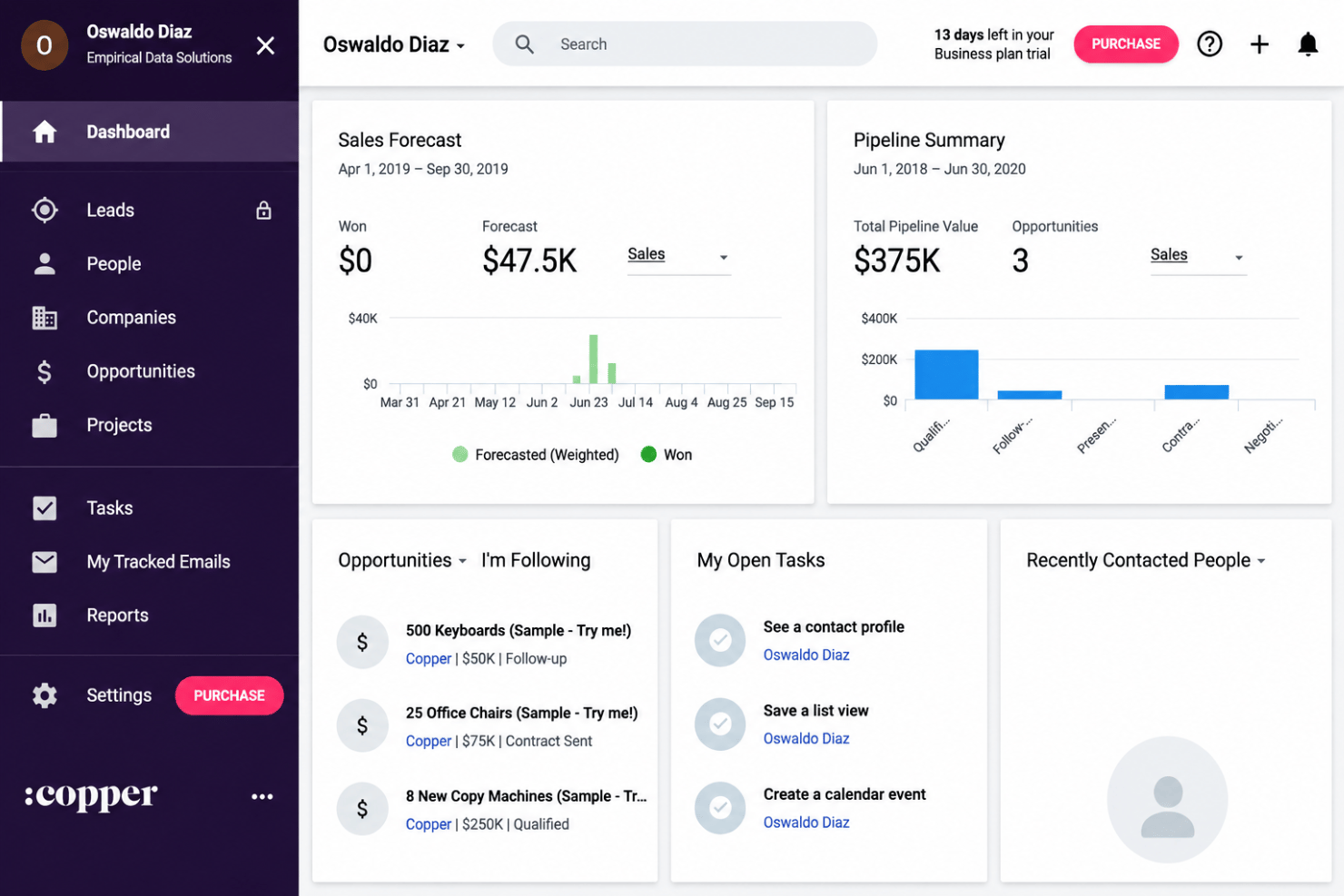
Copper is a project management software built natively into Google Workspace, giving teams a way to track clients, projects, and pipelines directly inside Gmail. It's worth considering if your team already runs on Google tools and wants project and relationship tracking without adding another platform to your stack. Compared to HubSpot, Copper is a more natural fit for Google-first teams, as it syncs automatically with Gmail and Google Calendar, so there's no manual data entry or context-switching required.
Copper Evaluation Summary
- From $23/user/month (billed annually)
- Free trial + demo available
Why Trust Our Software Recommendations
Our team has been testing and reviewing software since 2012. As project managers ourselves, we know how difficult—and important—it is to choose the right software.
For this guide, we evaluated tools using hands-on testing and independent research, scoring tools using our selection criteria. We also draw on insights from industry thought leaders and practicing project management experts.
Our reviews reflect our human editorial judgment, not a sales pitch.
Expert reviewers:
Copper Overview
If you’re judging project management software by its ability to bridge sales and delivery, Copper does a better job than most. I think its Gmail integration and relationship tracking set it apart, while its project templates and automation are solid but less advanced than some. Pricing feels reasonable for teams that value CRM and project tools together. As a day-to-day productivity tool it earns its keep by removing the copy-paste tax between your inbox and your pipeline. If you want fast onboarding, clean interfaces, and lightweight project planning—especially for client services or agencies—Copper deserves serious consideration. For deeply technical or resource-heavy projects, I’d suggest weighing its features against your must-haves.
pros
-
Syncs project tasks directly with client email threads
-
Visualizes project pipelines with drag-and-drop boards
-
Links sales and project workflows in one workspace
cons
-
Lacks advanced resource allocation or capacity planning
-
No built-in time tracking, timesheets, or invoicing features
-
Limited reporting, with few options for custom reports compared to full-featured platforms
-

Smartsheet
Visit WebsiteThis rating combines scores from multiple user review sites to reflect overall customer sentiment about the product.4.4 -
Celoxis
Visit WebsiteThis rating combines scores from multiple user review sites to reflect overall customer sentiment about the product.4.5 -
Accelo
Visit WebsiteThis rating combines scores from multiple user review sites to reflect overall customer sentiment about the product.4.4





Our Review Methodology
How We Test & Score Tools
We’ve spent years building, refining, and improving our software testing and scoring system. The rubric is designed to capture the nuances of software selection and what makes a tool effective, focusing on critical aspects of the decision-making process.
Below, you can see exactly how our testing and scoring works across seven criteria. It allows us to provide an unbiased evaluation of the software based on core functionality, standout features, ease of use, onboarding, customer support, integrations, customer reviews, and value for money.
Core Functionality (25% of final scoring)
The starting point of our evaluation is always the core functionality of the tool. Does it have the basic features and functions that a user would expect to see? Are any of those core features locked to higher-tiered pricing plans? At its core, we expect a tool to stand up against the baseline capabilities of its competitors.
Standout Features (25% of final scoring)
Next, we evaluate uncommon standout features that go above and beyond the core functionality typically found in tools of its kind. A high score reflects specialized or unique features that make the product faster, more efficient, or offer additional value to the user.
We also evaluate how easy it is to integrate with other tools typically found in the tech stack to expand the functionality and utility of the software. Tools offering plentiful native integrations, 3rd party connections, and API access to build custom integrations score best.
Ease of Use (10% of final scoring)
We consider how quick and easy it is to execute the tasks defined in the core functionality using the tool. High scoring software is well designed, intuitive to use, offers mobile apps, provides templates, and makes relatively complex tasks seem simple.
Onboarding (10% of final scoring)
We know how important rapid team adoption is for a new platform, so we evaluate how easy it is to learn and use a tool with minimal training. We evaluate how quickly a team member can get set up and start using the tool with no experience. High scoring solutions indicate little or no support is required.
Customer Support (10% of final scoring)
We review how quick and easy it is to get unstuck and find help by phone, live chat, or knowledge base. Tools and companies that provide real-time support score best, while chatbots score worst.
Customer Reviews (10% of final scoring)
Beyond our own testing and evaluation, we consider the net promoter score from current and past customers. We review their likelihood, given the option, to choose the tool again for the core functionality. A high scoring software reflects a high net promoter score from current or past customers.
Value for Money (10% of final scoring)
Lastly, in consideration of all the other criteria, we review the average price of entry level plans against the core features and consider the value of the other evaluation criteria. Software that delivers more, for less, will score higher.
Core Features
Visual Project Pipelines
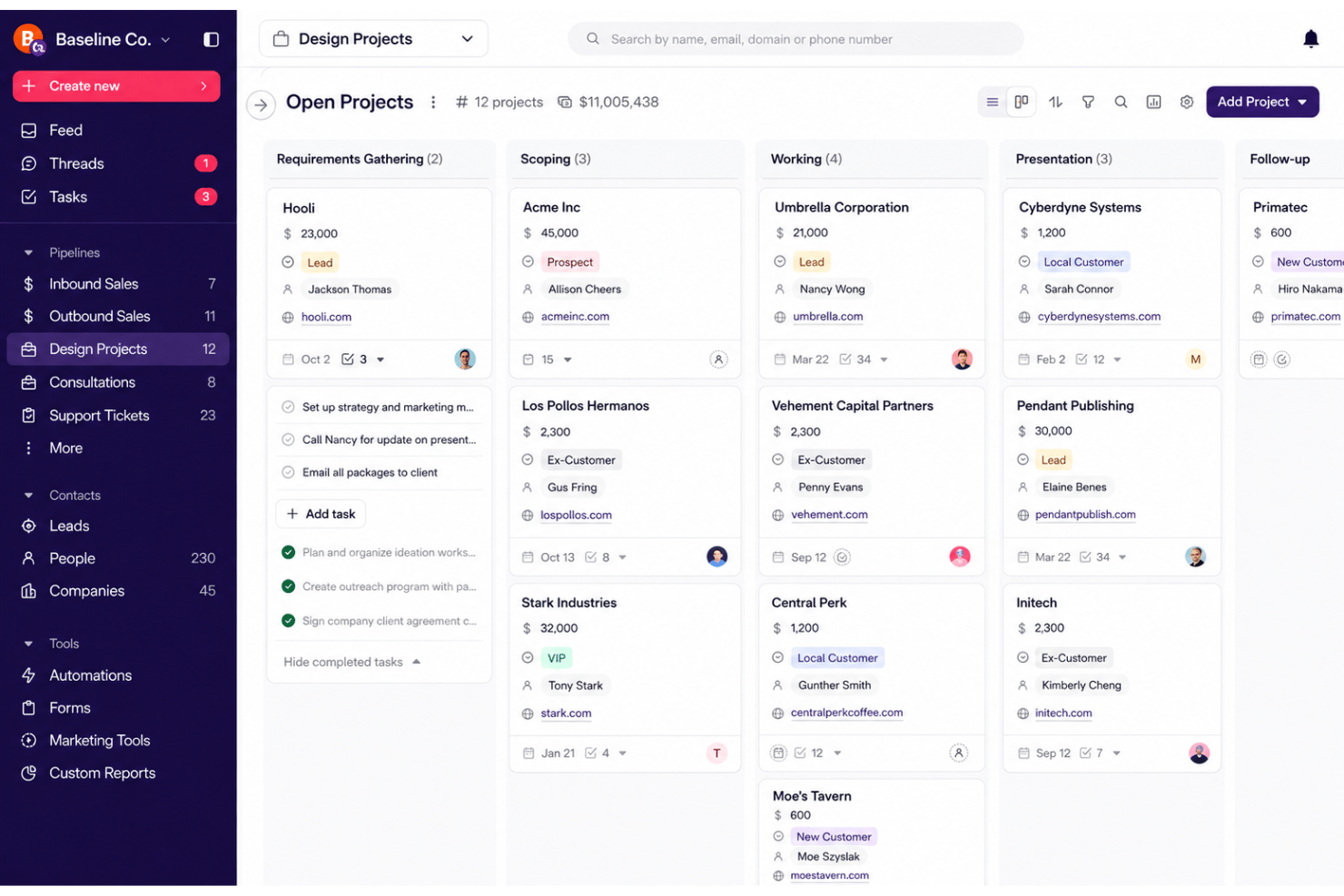
Organize projects with Kanban-style stages so status, bottlenecks, and project timelines stay visible. Move tasks through customizable columns that mirror your workflow.
Task Management
Create, assign, and track individual tasks with due dates. Automatic notifications keep everyone on the same page about next steps and responsibilities.
Activity and Communication Logs
Automatically log calls, meetings, and email threads for every project. See client conversations and progress updates in one timeline.
Custom Project Templates
Quickly launch new projects with reusable templates tailored to your process. Standardize recurring workflows for efficiency.
Contact and Relationship Linking
Tie contacts and company accounts to each project for a 360° view. Contact management sits beside the work, so you see which clients, deals, and opportunities connect.
Document and File Storage
Attach and organize project files right inside your workspace, with file sharing built in. Keep contracts, briefs, and deliverables at your fingertips.
Ease of Use
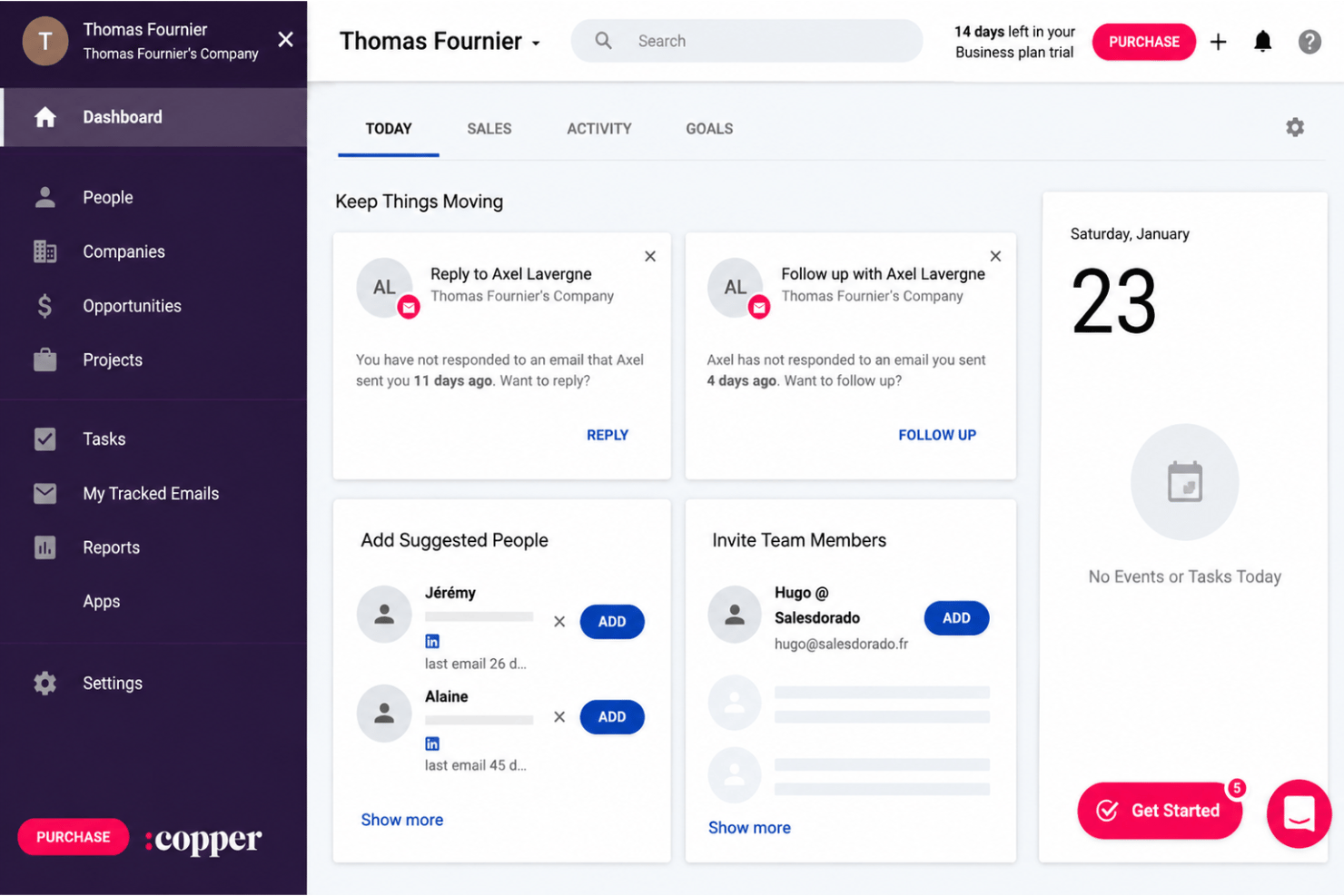
Copper stands out for its clean, intuitive interface and how easily it embeds project management into daily workflows, especially for teams using Google Workspace. I think most users can pick it up quickly since task updates, notes, and project boards stay simple without extra clutter. That restraint is the point — it behaves like a productivity tool your team actually opens, not another system to maintain. From what I’ve seen, the onboarding is straightforward and the search feature makes it easy to track client communications and project history with little training.
Integrations
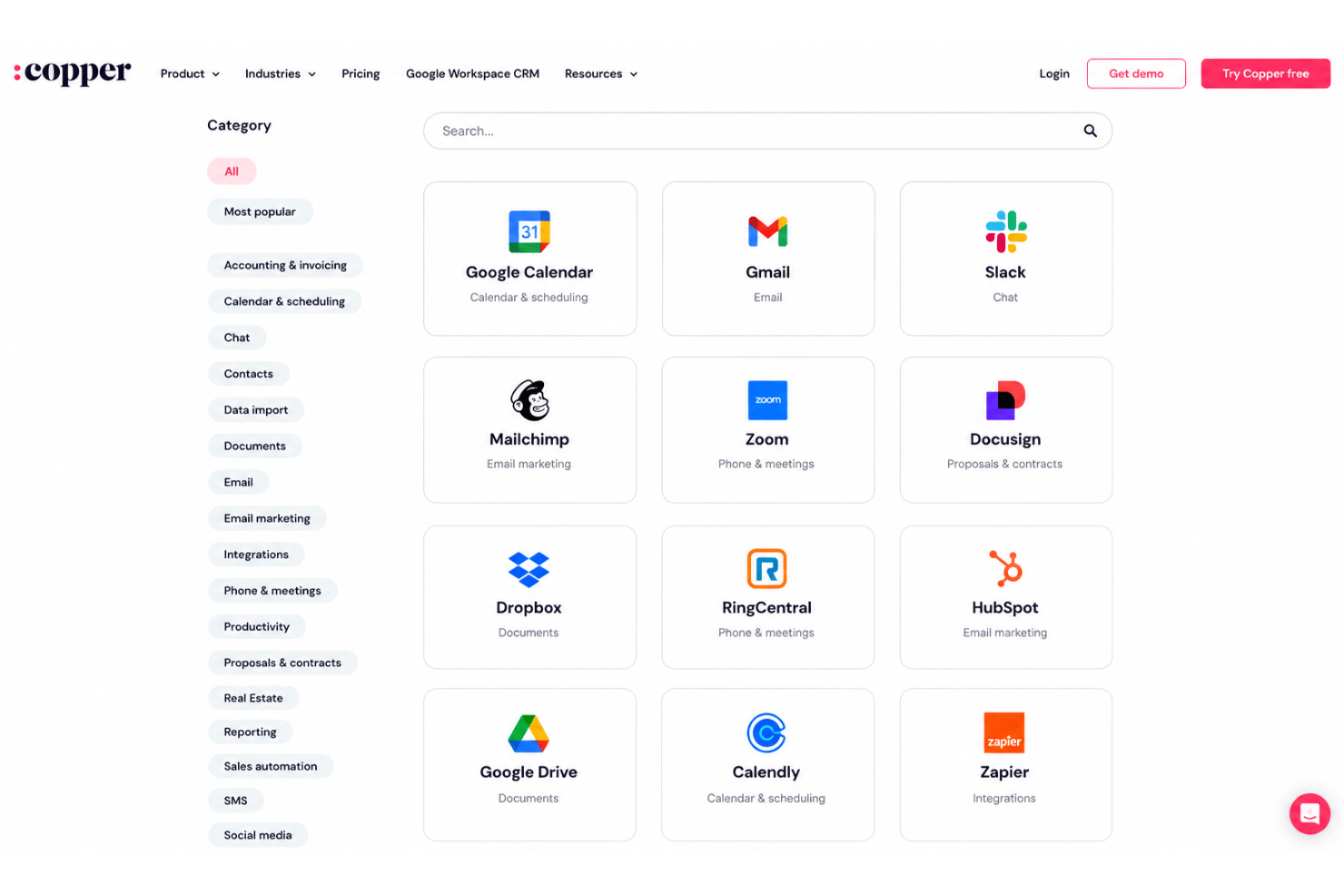
Copper integrates with Google Workspace (Gmail, Google Calendar, Google Drive), Slack, Mailchimp, Xero, QuickBooks, HubSpot, Zendesk, Mailjet, and Zapier, among others.
Copper also offers a public API and connects with third-party integration tools for custom workflows.
Copper Specs
- 2-Factor Authentication
- API
- Calendar Management
- Call Tracking
- Campaign Management
- Click-to-Dial
- Contact Management
- Contact Sharing
- Custom Data Forms
- Customer Management
- Dashboard
- Data Export
- Data Import
- Data Visualization
- Email Integration
- External Integrations
- File Sharing
- File Transfer
- Google Apps Integration
- Lead Management
- Lead Scoring
- Marketing Automation
- Mobile App
- Multi-User
- Notifications
- Pipeline Management
- Sales Automation
- Scheduling
- Social-Media Integration
- Task Scheduling/Tracking
- Third-Party Plugins/Add-Ons