

10 beste programvarer for oppgavehåndtering for enkeltpersoner i 2026

Beste programvare for oppgavehåndtering for enkeltpersoner – kortliste


Programvare for oppgavehåndtering for enkeltpersoner lar deg organisere oppgaver, angi påminnelser og følge fremdriften i dine personlige prosjekter – alt på ett sted. Hvis du ser etter verktøy som kan hjelpe deg med å prioritere, holde fokus og håndtere alt fra arbeidsfrister til daglige vaner, er du ikke alene. Med så mange alternativer som lover høyere produktivitet og mindre stress, kan det føles overveldende å finne ut hva som faktisk fungerer. I denne veiledningen går jeg gjennom den beste programvaren for oppgavehåndtering for enkeltpersoner, slik at du raskt kan sammenligne funksjoner, finne det som passer arbeidsflyten din, og få bedre kontroll over tiden din i 2026.
Hvorfor du kan stole på våre programvareanbefalinger
Teamet vårt har testet og anmeldt programvare siden 2012. Vi er selv prosjektledere, så vi vet hvor vanskelig og hvor viktig det er å velge riktig programvare.
I denne guiden har vi vurdert verktøyene gjennom praktisk testing og uavhengig research og gitt dem poeng ut fra våre utvelgelseskriterier. Vi bygger også på innsikt fra ledende eksperter i bransjen og erfarne prosjektledere.
Anmeldelsene våre bygger på vår egen redaksjonelle vurdering. De er ikke et salgsargument.
Ekspertanmeldere:
Sammenligningstabell: Sammendrag av programvare for oppgavehåndtering for enkeltpersoner
Denne sammenligningstabellen oppsummerer prisdetaljene for min utvalgte programvare for oppgavehåndtering for enkeltpersoner:
| Tool | Best For | Trial Info | Price | ||
|---|---|---|---|---|---|
| 1 | Best for task inbox for fast universal capture | 7-day free trial | From $19/user/month | Website | |
| 2 | Best for Kanban boards for solo workflows | Free plan + free trial available | From $5/user/month (billed annually) | Website | |
| 3 | Best for all-in-one docs and task workspace | Free plan + Free trial + Free demo available | From $10/user/month | Website | |
| 4 | Best for custom perspectives for workflows | 14-day free trial | From $4.99/month | Website | |
| 5 | Best for smooth integration with Google Calendar | Free-forever plan available | Free to use | Website | |
| 6 | Best for Outlook and Office 365 syncing | Free-forever plan available | Free to use | Website | |
| 7 | Best for natural language task entry | Free plan available | From $5/user/month (billed annually) | Website | |
| 8 | Best for built-in habit tracking integration | Free plan available | From $49.99/year (billed annually) | Website | |
| 9 | Best for personal cross-device reminders | Free plan + free demo available | From $4.99/user/month (billed annually) | Website | |
| 10 | Best for macOS native design and performance | 15-day free trial (Mac only) | From $9.99 | Website |
Anmeldelser av den beste programvaren for oppgavehåndtering for enkeltpersoner
Nedenfor finner du mine detaljerte sammendrag av den beste programvaren for oppgavehåndtering for enkeltpersoner som kom med på kortlisten min. Anmeldelsene mine gir en detaljert gjennomgang av funksjonene, de beste bruksområdene og integrasjonene til hvert verktøy, slik at du kan finne det beste alternativet for deg.

Akiflow
Best for task inbox for fast universal capture
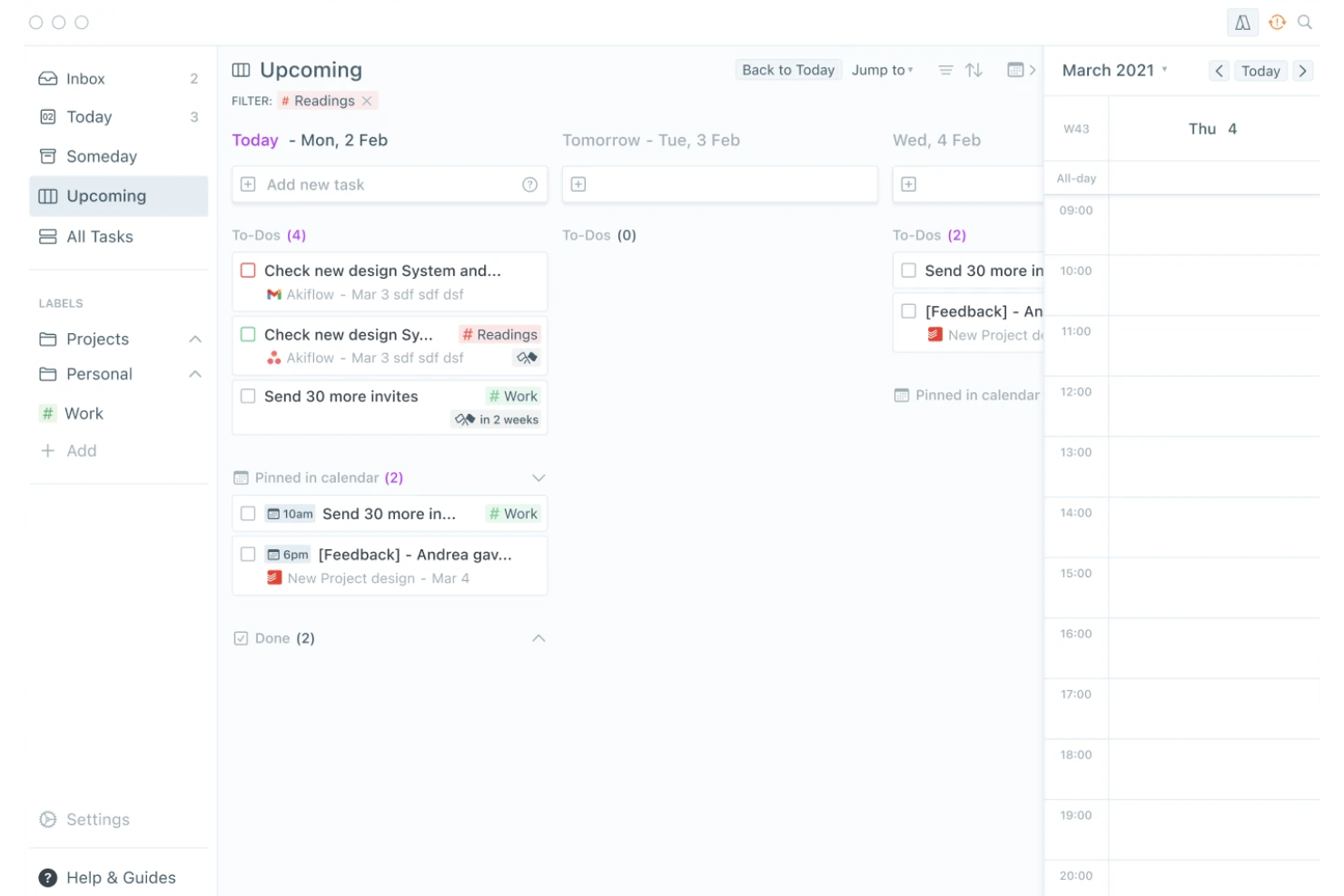
Akiflow is a personal task management app that combines a universal task inbox, time blocking, and calendar integration into a single daily planning interface.
Who Is Akiflow Best For?
Akiflow suits solo consultants and freelance professionals who manage tasks across multiple tools and need a single place to capture and schedule their day.
Why I Picked Akiflow
Akiflow earns its spot on my shortlist because the universal task inbox genuinely solves one of the messiest parts of solo work: tasks scattered across Slack, email, Notion, and five other tools. I love how the Command Bar lets me capture a task using natural language, like "Client call Friday at 2pm for 1 hour," and have it land directly on my calendar. In practice, that means I spend almost no time deciding where a task goes or how to schedule it.
Akiflow Key Features
- Custom recurring tasks: Set up tasks on daily, weekly, monthly, or fully custom repeat schedules.
- Unified calendar integration: Syncs Google and Outlook calendars for one central planning space.
- Focus timer and rituals: Use built-in timers and guided daily shutdowns to structure your workday.
- Cross-platform sync: Access tasks on Mac, Windows, iOS, Android, and web with real-time updates.
Akiflow Integrations
Akiflow offers native integrations with Google Calendar, Outlook, Gmail, Slack, Notion, Todoist, ClickUp, Linear, Microsoft Teams, and Zoom, and it connects with Zapier.
Pros and Cons
Pros:
- Natural language input for rapid task entry
- Smooth calendar integration with time blocking
- Quick universal inbox capture across platforms
Cons:
- Lacks a permanent free plan
- No Kanban or board visualization
Trello
Best for Kanban boards for solo workflows
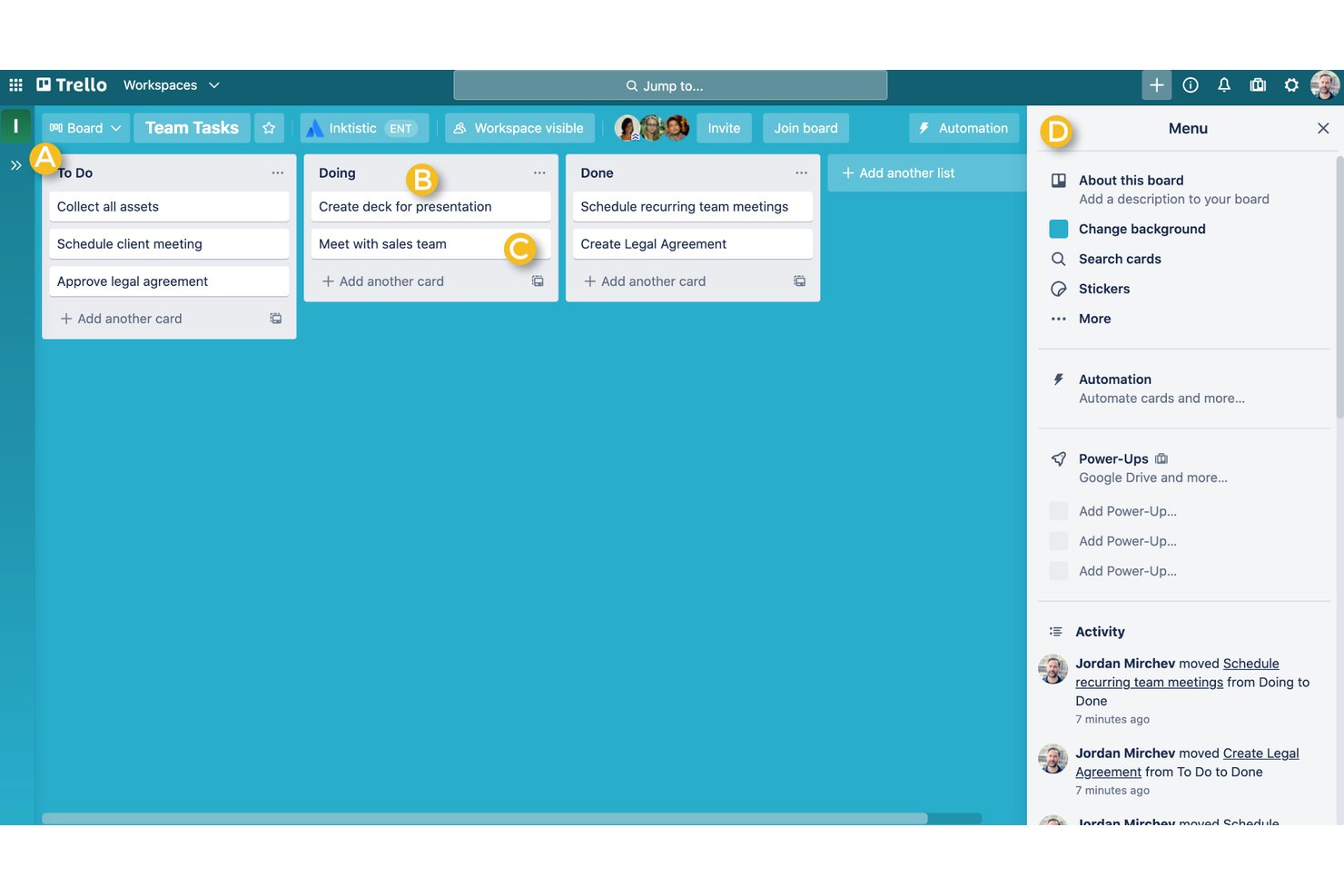
Trello is a visual task management tool built around Kanban boards, cards, and lists, with support for multiple views, built-in automation, and task capture from email and messaging apps.
Who Is Trello Best For?
Trello is a strong fit for freelancers and solo consultants who want a low-overhead, visual way to track tasks across multiple client projects.
Why I Picked Trello
Trello earns its spot on my shortlist because its Kanban board is the cleanest I've used for a solo workflow. I keep one board per client, use color-coded labels to flag priority, and pull tasks straight from email into the Inbox before sorting them into the right list. When my workload gets messy, the built-in Eisenhower Matrix template is something I keep coming back to for a fast reset.
Trello Key Features
- Advanced checklists: Break down tasks into subtasks with individual assignees and due dates.
- Power-Ups gallery: Extend boards with calendar sync, card aging, and 200+ app integrations.
- Butler automation: Create custom rules for recurring tasks, card movement, and notifications.
- AI card tools: Use AI to generate content, edit descriptions, and brainstorm directly within cards.
Trello Integrations
Trello offers native integrations through its Power-Ups gallery, including Slack, Google Drive, Figma, Jira, Google Calendar, and Zapier. An API is available for custom integrations.
Pros and Cons
Pros:
- Quick Capture pulls tasks from email and chat
- Unlimited cards for solo and client boards
- Kanban board is highly visual and flexible
Cons:
- Offline functionality is limited on mobile devices
- Recurring tasks need custom automation setup
Notion
Best for all-in-one docs and task workspace
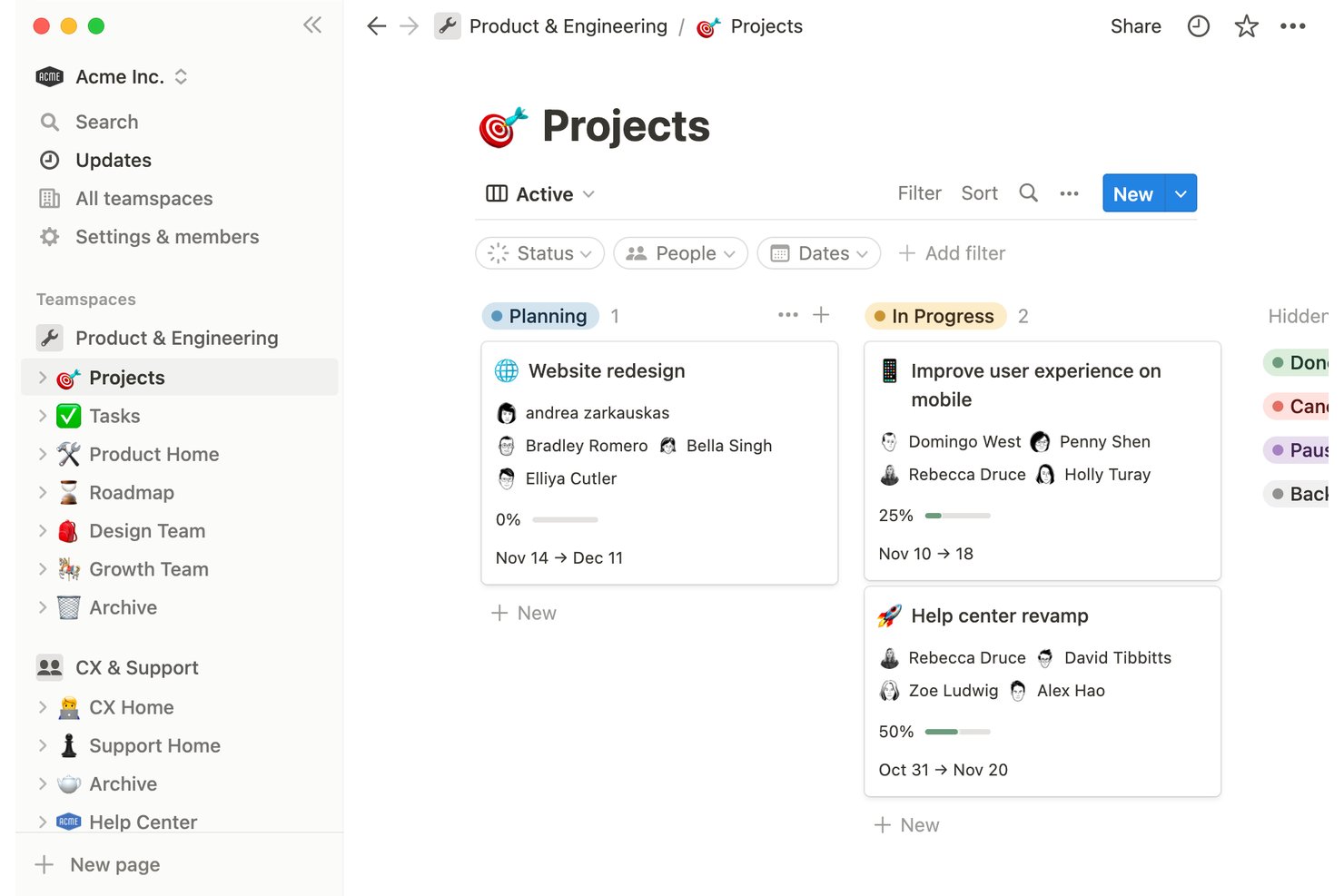
Notion is a block-based personal workspace that combines task management, notes, and databases into a single customizable environment for individuals managing projects, habits, and ideas.
Who Is Notion Best For?
Notion is a strong fit for freelancers and independent professionals who want to manage tasks, notes, and client projects in one place rather than across multiple apps.
Why I Picked Notion
I picked Notion as one of the best because no other tool on this list lets you build a task system from scratch using flexible database blocks. I can set up a board view for active client deliverables, switch to a calendar to track deadlines, and keep project notes on the same page, all without leaving the workspace. Recurring tasks with custom cadences and multi-select priority tags mean I can handle both ongoing client work and one-off to-dos in a single database.
Notion Key Features
- Multiple task views: Switch between list, board, gallery, timeline, and calendar displays for flexible project management.
- Template gallery: Access dozens of free, ready-made personal and project templates to jumpstart organization.
- Custom properties: Add fields for priority, tags, client names, and dates to any task or database.
- Offline access: Mark important pages and databases available for use without an internet connection on mobile or desktop.
Notion Integrations
Notion offers native integrations with Slack, Google Drive, GitHub, Jira, and more. It also connects with Zapier and provides an API for custom integrations.
Pros and Cons
Pros:
- Flexible tagging and prioritization for solo projects
- Allows unlimited custom task views and templates
- Combines notes, tasks, and databases together
Cons:
- Can feel slow with large databases
- Reminders and alerts are limited

Best for custom perspectives for workflows
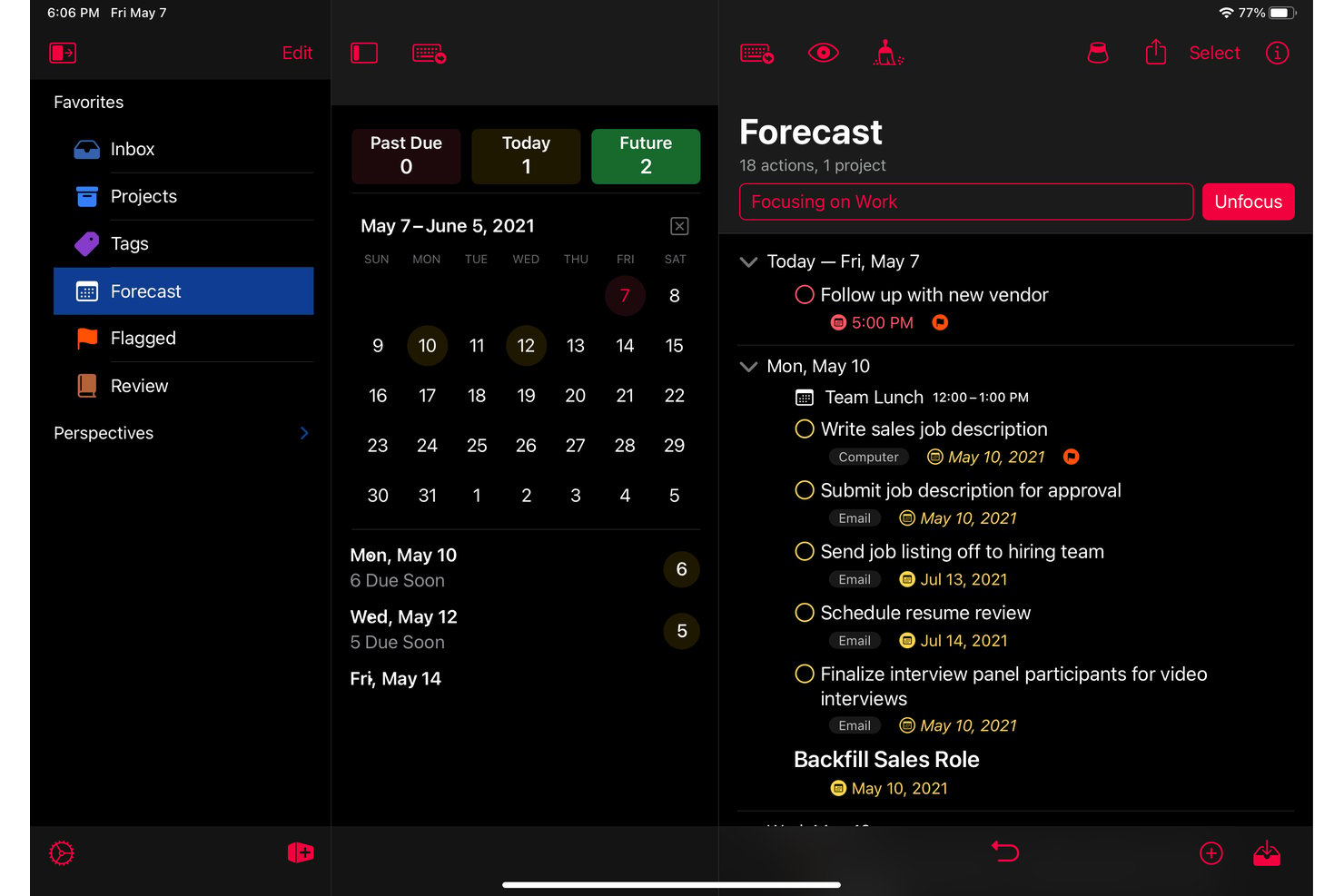
OmniFocus is an Apple-native personal task management app built around GTD methodology, with structured project organization, custom perspectives, tagging, defer and due dates, and a forecast view that combines tasks with calendar events.
Who Is OmniFocus Best For?
OmniFocus is a strong fit for solo professionals on Apple devices who manage complex, multi-project workloads and want a structured, GTD-based system for personal task management.
Why I Picked OmniFocus
OmniFocus earns its spot on my shortlist because the custom perspectives feature lets me build saved views that filter tasks by any combination of tag, project, status, and defer date. I use a "Client Deliverables Due This Week" perspective that pulls flagged tasks across all active projects into one focused list. The Forecast view then layers those tasks directly alongside my calendar, so I can see workload against availability without switching apps.
OmniFocus Key Features
- Forecast view: Combines tasks and calendar events in a single timeline for daily planning.
- End-to-end encrypted sync: Keeps tasks updated and secure across Mac, iPhone, iPad, Apple Watch, and Vision Pro.
- Review mode: Prompts structured reviews of ongoing projects and tasks on a chosen schedule.
- Batch editing: Lets users update, tag, or reschedule multiple tasks at once from any device.
OmniFocus Integrations
OmniFocus offers native integrations with Apple Calendar, Siri, and Apple Shortcuts. The tool syncs across all Apple devices, and an API is available for custom integrations.
Pros and Cons
Pros:
- Review mode for structured project check-ins
- Deep project organization with folders and tags
- Custom perspectives for workflow personalization
Cons:
- Steep initial learning for custom setups
- No native Windows or Android app

Best for smooth integration with Google Calendar
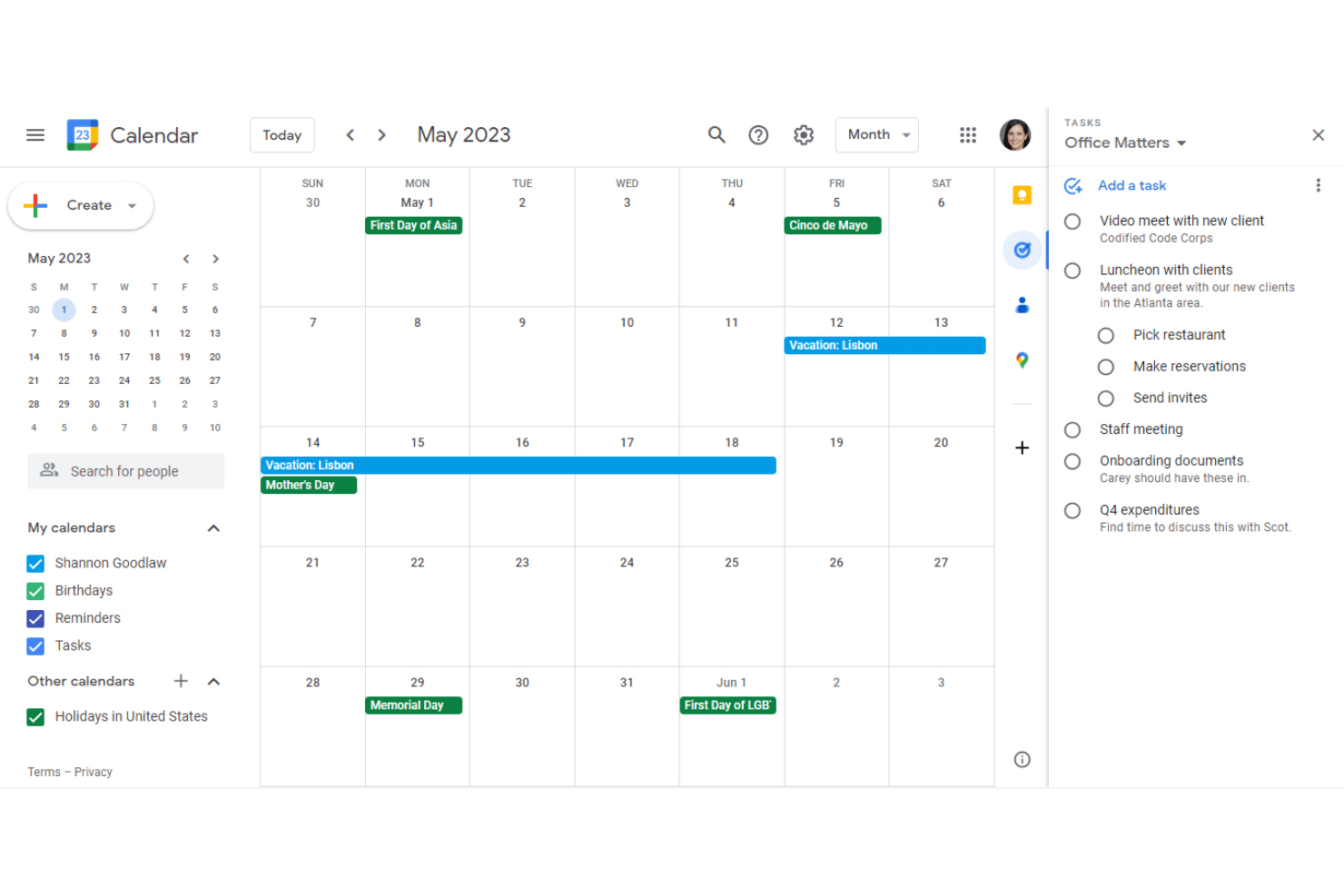
Google Tasks is a free personal task manager that lives natively inside Gmail, Google Calendar, and Google Docs, supporting to-do lists, subtasks, recurring tasks, due dates, and real-time cross-device sync.
Who Is Google Tasks Best For?
Google Tasks is a natural fit for solo professionals who already rely on Google Workspace daily and want task management without switching between apps.
Why I Picked Google Tasks
Google Tasks earns its spot on my shortlist because of how tightly it connects to Google Calendar. When I add a due date and time to a task, it shows up directly on my calendar alongside scheduled events, so nothing gets buried in a separate app. I also use the time-blocking feature to carve out focused work slots for specific tasks, which automatically mutes notifications and can decline conflicting meeting requests during that window.
Google Tasks Key Features
- Subtasks support: Break down larger tasks into manageable steps within any list.
- Multiple lists: Organize tasks by project, client, or context with separate lists for each area of work.
- Email-to-task creation: Turn Gmail messages into actionable tasks directly from your inbox for fast follow-up.
- Cross-device sync: Access and manage your task lists instantly across web and mobile devices.
Google Tasks Integrations
Google Tasks has native integrations across the Google ecosystem, including Gmail, Google Calendar, Google Chat, Google Docs, Google Drive, and the Gemini app. An API is available for custom integrations.
Pros and Cons
Pros:
- Task lists sync instantly across devices
- Quick add from Gmail or Google Chat
- Shows tasks alongside Google Calendar events
Cons:
- Cannot attach files to tasks
- Lacks board and timeline task views

Best for Outlook and Office 365 syncing
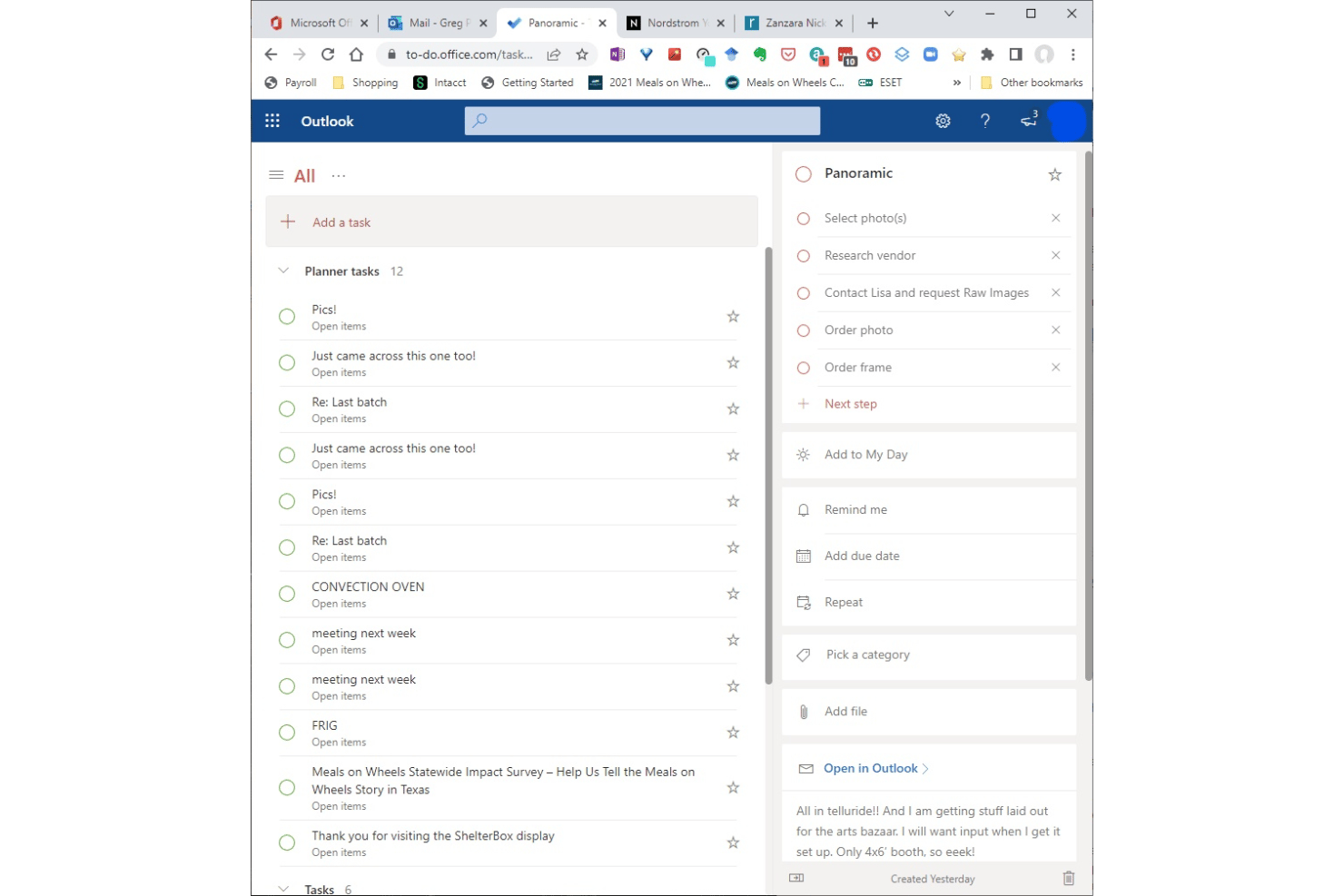
Microsoft To Do is a free personal task management app from Microsoft that lets individuals capture tasks, set due dates and reminders, build recurring to-do lists, and organize daily priorities across desktop and mobile devices.
Who Is Microsoft To Do Best For?
It's a strong fit for solo professionals and freelancers who already work within the Microsoft 365 ecosystem and want a lightweight task tool that connects directly to Outlook.
Why I Picked Microsoft To Do
I picked Microsoft To Do as one of the best because of how tightly it connects with Outlook. Flagged emails in Outlook automatically surface as tasks in To Do, which means my inbox doubles as a task capture tool with zero manual entry. The My Day view then lets me pull from that running queue and build a focused daily list across all my active client work.
Microsoft To Do Key Features
- Recurring tasks: Set custom repeat intervals for tasks to handle routines and ongoing responsibilities.
- Subtask support ("steps"): Break to-dos into smaller action items within each main task for detailed planning.
- Multi-list organization: Create and manage separate lists for each client, project, or context.
- Cross-device sync: Access and manage all tasks from Windows, macOS, iOS, Android, and the web with real-time updates.
Microsoft To Do Integrations
Microsoft To Do has native integrations across the Microsoft ecosystem, including Microsoft 365, Outlook, Teams, and Planner. An API is available for custom integrations.
Pros and Cons
Pros:
- Fast cross-device sync for all platforms
- Built-in daily focus list with My Day
- Excellent Outlook task and email syncing
Cons:
- Limited options for organizing with tags
- No calendar, board, or timeline views
Todoist
Best for natural language task entry
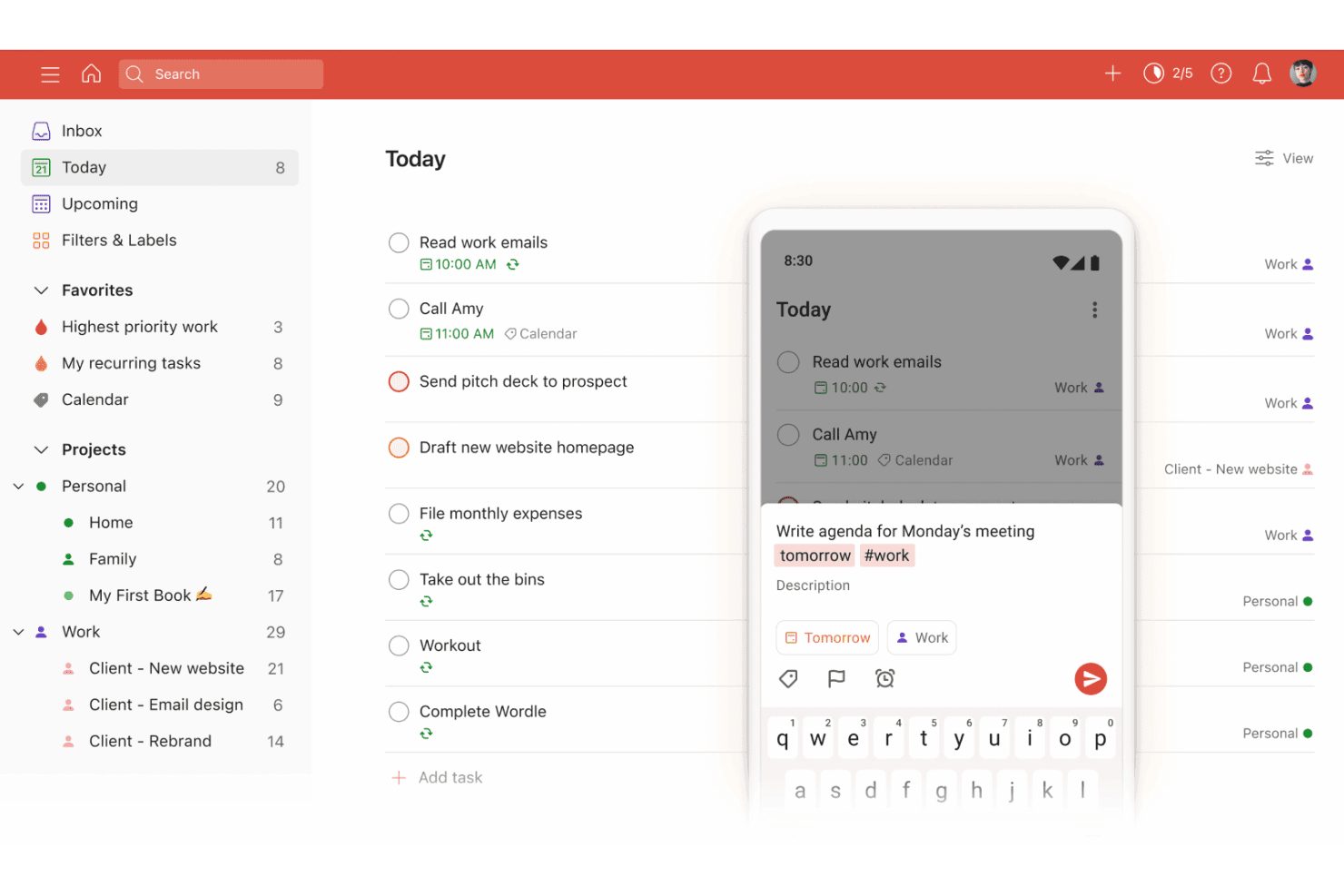
Todoist is a personal task management app that combines natural language task entry, AI-assisted capture, recurring schedules, and cross-platform sync into a single lightweight workspace.
Who Is Todoist Best For?
Todoist is a strong fit for freelancers and solo professionals managing multiple client projects who need a personal task system that works across every device.
Why I Picked Todoist
Todoist earns its spot on my shortlist because the natural language task entry is genuinely the fastest I've used. Typing "submit invoice every first Monday" instantly creates a correctly scheduled recurring task, with no dropdowns or extra clicks required. I also use Ramble, the voice capture feature, to talk through a backlog of ideas and have Todoist parse them directly into organized, actionable tasks.
Todoist Key Features
- Multiple project support: Manage up to 300 personal projects at once with color-coding and custom organization.
- Custom filter views: Create and save up to 150 unique task filters to quickly surface relevant tasks by context or tag.
- Cross-platform sync: Access your task list instantly on web, desktop, mobile apps, and browser extensions, all updated in real time.
- Recurring task rules: Set complex recurring schedules, such as tasks every third Thursday or custom intervals for ongoing routines.
Todoist Integrations
Todoist offers integrations with Google Calendar, Slack, Outlook Calendar, Dropbox, Trello, and Alexa. It also connects with automation platforms like Zapier and provides a REST API, official SDKs, and webhooks for custom integrations
Pros and Cons
Pros:
- Cross-platform sync includes offline access
- Recurring tasks handle complex schedules
- Natural language input speeds up task entry
Cons:
- Project and label limits on free plan
- No timeline or Gantt view option

TickTick
Best for built-in habit tracking integration
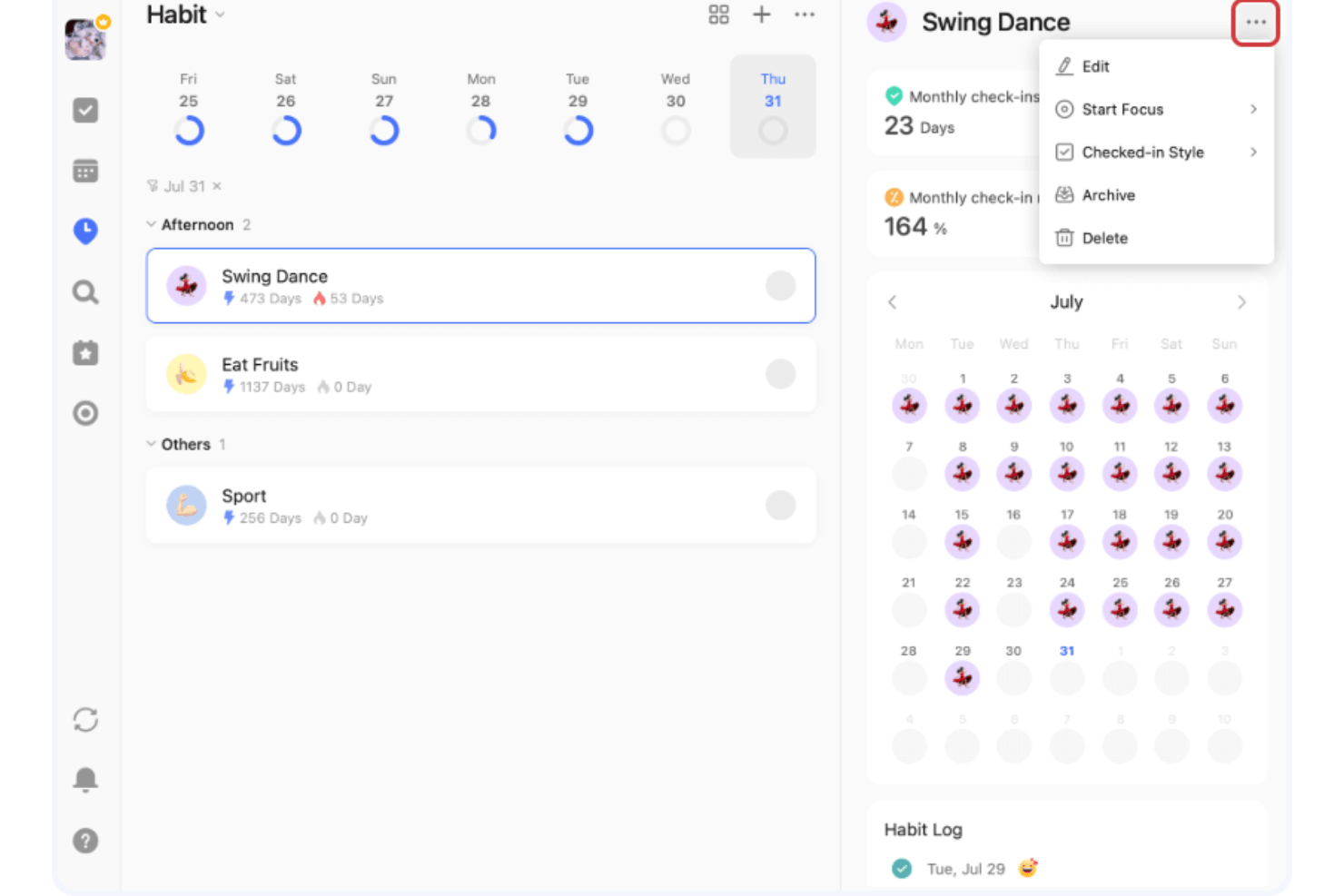
TickTick is a personal task management app that combines to-do lists, habit tracking, a Pomodoro timer, and calendar views in a single cross-platform tool.
Who Is TickTick Best For?
TickTick is a strong fit for freelancers and independent professionals who manage personal productivity alongside client deliverables.
Why I Picked TickTick
TickTick earns its spot as one of the best on my shortlist because no other task management app I've used bundles habit tracking this natively alongside task lists. The Habit Tracker includes a rich habit library, flexible scheduling, and detailed completion statistics, so I can track a daily client check-in routine right next to my project deadlines. I also like the built-in Pomodoro timer with estimated Pomos per task, which lets me attach focused work sessions directly to specific deliverables.
TickTick Key Features
- Multiple task views: Switch between list, Kanban board, timeline, and calendar layouts to organize work visually.
- Natural language processing: Add tasks using everyday speech with autofill dates, times, and reminders.
- Cross-device sync: Access and update tasks seamlessly on web, desktop, mobile, and smartwatches.
- Custom smart lists and filters: Create personalized lists and saved searches using tags, priorities, and other task properties.
TickTick Integrations
TickTick offers native integrations with Google Calendar, Notion, Siri, and Weibo, supports third-party calendar subscriptions, and connects with Zapier.
Pros and Cons
Pros:
- Fast natural language processing for tasks
- Multiple customizable task views available
- Habit tracker built directly into the app
Cons:
- No built-in collaboration or team workflows
- Advanced recurring task rules are limited

Any.do
Best for personal cross-device reminders
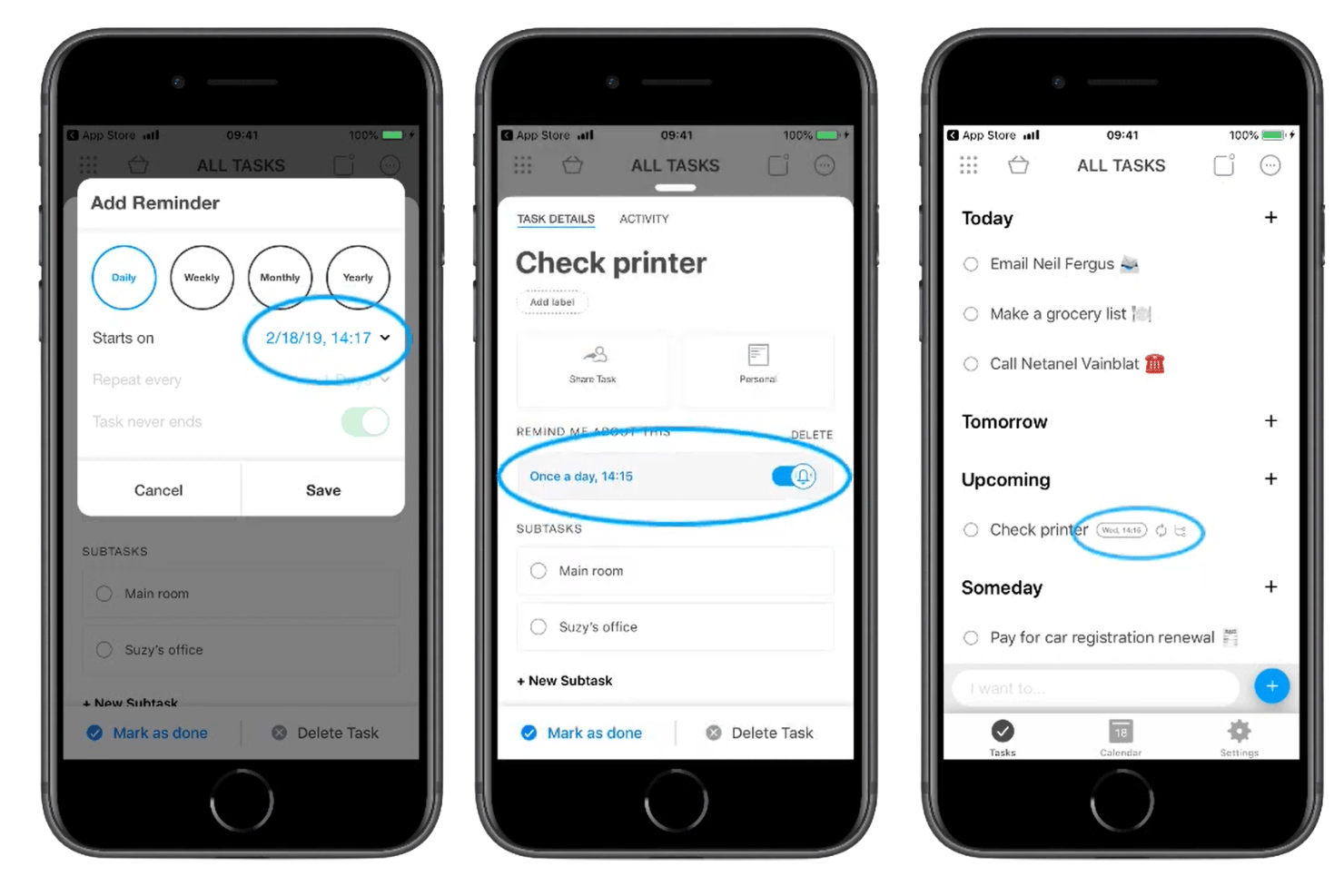
Any.do is a personal task management app that combines to-do lists, a daily planner, location-based reminders, and calendar sync across mobile, desktop, and wearable devices.
Who Is Any.do Best For?
Any.do suits solo professionals and independent contractors who need lightweight task management across personal and client workstreams without collaboration overhead.
Why I Picked Any.do
Any.do earns its spot as one of the best on my shortlist because no other personal task app matches its reminder depth. I love that you can set location-based reminders that fire when you arrive at or leave a specific place, alongside fully customizable recurring reminders. The WhatsApp integration (Premium) is also genuinely unique: you can forward a message directly to Any.do and it becomes a task with a reminder attached.
Any.do Key Features
- Color tags and labels: Organize and sort tasks by project, priority, or context using customizable colors.
- Multi-platform sync: Access and update tasks across web, desktop, mobile, and even wearable devices any time.
- Daily planner (My Day): Start each day by organizing and prioritizing tasks with a dedicated daily planning tool.
- Grocery and shopping lists: Create specialized lists that automatically group items by category and support sharing.
Any.do Integrations
Any.do offers native integrations with Google Calendar, iCloud, Outlook, Gmail, WhatsApp, Alexa, Slack, and more. It also connects with Zapier.
Pros and Cons
Pros:
- Works across mobile, desktop, and wearables
- My Day daily planning view
- Location-based and recurring reminders
Cons:
- Limited reporting or analytics features
- Kanban and calendar views require Premium

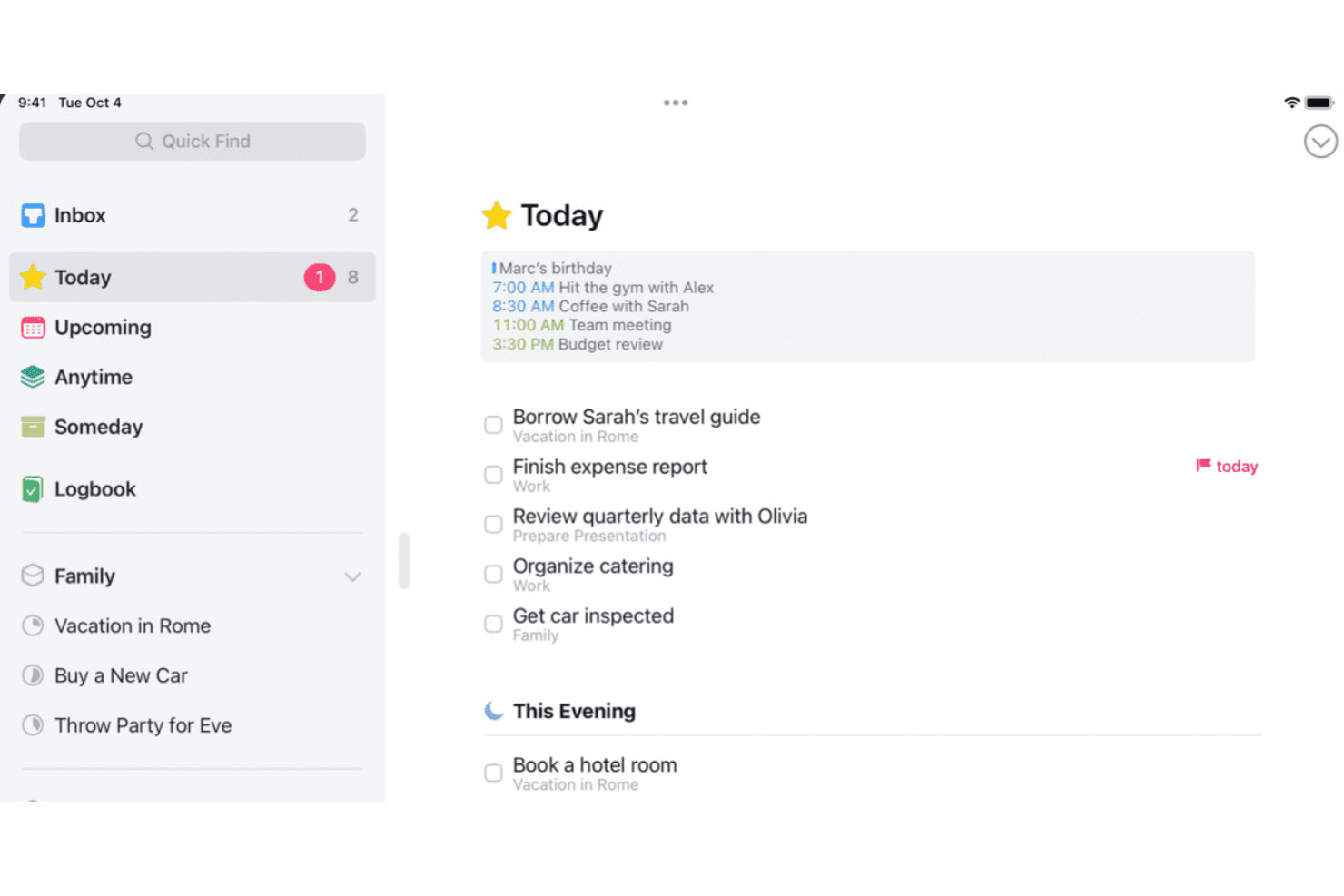
Things is an Apple-native personal task manager that lets you capture to-dos, organize them into projects and areas, set deadlines and reminders, and plan your day across Mac, iPhone, iPad, and Apple Watch.
Who Is Things Best For?
Things is a strong fit for freelancers, solo consultants, and self-employed creatives who work entirely within the Apple ecosystem and want a GTD-friendly system for managing personal workloads.
Why I Picked Things
Things earns its spot as one of the best on my shortlist because it's built exclusively for Apple hardware, and that focus shows in every interaction. I love how the Today list splits morning tasks from This Evening items, reflecting how Apple users naturally structure their day. Jump Start's natural language input lets me type 'Sat' to schedule for Saturday, and Things Cloud's Fastlane sync pushes reminders across Mac, iPhone, and Apple Watch with no lag.
Things Key Features
- Project and area organization: Group tasks within projects and organize multiple projects under larger areas for clean personal work structuring.
- Tag-based filtering: Assign custom tags to tasks and filter lists by tag to quickly drill down to context-specific to-dos.
- Mail to Things integration: Turn emails into action items by forwarding them straight into your task list from any email client.
- Checklists within tasks: Break tasks into smaller steps using checklists embedded directly inside any to-do.
Things Integrations
Things offers native integrations with Apple Calendar, Mail to Things for email capture, and provides a URL scheme and AppleScript support on Mac for advanced automation.
Pros and Cons
Pros:
- Inbox, Today, and Upcoming lists enable clarity
- Magic Plus button allows fast task organization
- Apple-native interface across Mac, iPhone, iPad
Cons:
- Cannot set explicit priority levels
- No Kanban or board view options
Annen programvare for oppgavehåndtering for enkeltpersoner
Her er noen flere alternativer innen programvare for oppgavehåndtering for enkeltpersoner som ikke kom med på kortlisten min, men som likevel er verdt å undersøke:
- Amazing Marvin
For customizable productivity frameworks
- Sunsama
For daily planning with calendar integration
- MeisterTask
For vibrant visual boards and timeline views
- ClickUp
For tailored workflows with custom task views
- Motion
For auto-scheduling tasks into your calendar
- GQueues
For Google Workspace integration
- Remember The Milk
For list creation using powerful filters
- Nozbe
For productivity with quick task input
- Habitica
For gamifying tasks and habit achievement
- Apple Reminders
For deep Siri and Apple ecosystem integration


How I Evaluate Task Management Software for Individuals
I split my evaluation into two layers: the core functionality a freelancer juggling multiple clients actually needs, and the differentiators that make one tool the right fit.
Core Functionality (Table Stakes For This List)
When I'm selecting tools for my list, I rank each one on a scale from 0 (does not offer the functionality) to 5 (excels in this area) for each core functionality listed below. Then, I calculate the tool's total score into a percentage. Each tool needs to achieve a minimum total score of 65% to be considered for inclusion.
- Personal Task Capture: I look for how fast you can go from idea to task. Tools like Todoist and TickTick let you type a sentence and auto-parse dates, priorities, and labels.
- Multiple Task Views: A good tool offers lists, boards, and calendars so you can switch views depending on whether you're planning a week or triaging a backlog.
- Reminders & Due Dates: I evaluate whether reminders go beyond basic email pings. Push notifications, snooze options, and location-based alerts matter for staying on track.
- Recurring Tasks: Freelancers juggling monthly invoicing or weekly client check-ins need flexible recurrence rules, not just daily or weekly presets.
- Task Prioritization: I check for tags, labels, priority flags, and smart filters that let you surface urgent work across multiple client projects at a glance.
- Cross-Device Sync: The tool should sync across web, desktop, and mobile apps so you can capture a task on your phone and act on it from your laptop minutes later.
Once I have a list of tools that meet the criteria, I consider what sets each platform apart.
Differentiating Factors (What Sets Vendors Apart)
Here's how I compare and contrast different vendors:
Standout Features
Natural language input saves real time when you're capturing tasks on the fly. Typing "send proposal Friday at 2pm" and having dates auto-populate beats manual entry every time. I also look for focus modes and time-blocking features, like built-in Pomodoro timers or calendar integration that reserves blocks for deep work. Quick capture matters too; global hotkeys, browser extensions, and home-screen widgets let you log a task in seconds without switching apps.
Beyond Features
Pricing matters a lot when you're self-funded. I check whether the free tier is genuinely usable or if task limits and reminder restrictions push you toward a paid plan too quickly. Ecosystem integrations are another big differentiator; syncing with Google Calendar, Outlook, or voice assistants like Siri makes capture and scheduling feel native. I also evaluate methodology flexibility. Tools that support GTD, Kanban, or Eisenhower-style workflows give you room to build a system that matches how you actually think and work.
Slik velger du programvare for oppgavehåndtering for enkeltpersoner
Det er lett å gå seg vill i lange funksjonslister og kompliserte prisstrukturer. For å hjelpe deg med å holde fokus mens du arbeider deg gjennom den unike prosessen med å velge programvare, får du her en sjekkliste over faktorer du bør ha i tankene:
| Faktor | Hva du bør vurdere |
|---|---|
| Skalerbarhet | Vil dette verktøyet fortsatt passe arbeidsflyten din hvis kundelisten din dobles eller arbeidsmengden øker? Se etter løsninger med fleksibel organisering og ingen faste begrensninger på antall oppgaver. |
| Integrasjoner | Kobler verktøyet seg til kalenderen, e-posten, notatappene eller taleassistentene du allerede bruker? Se etter innebygd synkronisering, ikke bare omveier eller tungvinte importer. |
| Tilpasningsmuligheter | Kan du tilpasse etiketter, filtre og oppsett slik at de samsvarer med måten du strukturerer prosjektene dine på? Noen verktøy passer til strenge metoder, mens andre lar deg kombinere ulike systemer. |
| Brukervennlighet | Hvor raskt kan du bli produktiv uten å lete gjennom menyer? Vurder om grensesnittet føles intuitivt for arbeids- og tenkemåten din. |
| Implementering og introduksjon | Er oppsett og migrering enkelt nok til at du kan begynne å bruke appen i dag? Vær oppmerksom på skjulte trinn, obligatoriske maler eller bratte læringskurver som sinker deg. |
| Kostnad | Er gratisabonnementet tilstrekkelig for individuell bruk, eller blir du raskt bedt om å oppgradere? Husk å sammenligne fornyelsessykluser, ikke bare prøvepriser. |
| Sikkerhetstiltak | Hvordan håndterer plattformen kundedataene og de personlige notatene dine? Se etter tydelige retningslinjer, eksportalternativer og personvernkontroller som egner seg for sensitiv informasjon. |
| Tilgjengelig kundestøtte | Er hjelpedokumentasjonen oppdatert, og kan du få tilgang til menneskelig kundestøtte hvis du støter på problemer? Raske svar på e-post eller gode forum kan være en stor fordel for enkeltbrukere. |
Hva er programvare for oppgavehåndtering for enkeltpersoner?
Programvare for oppgavehåndtering for enkeltpersoner er et digitalt verktøy som er utviklet for å hjelpe selvstendige yrkesutøvere med å organisere, prioritere og følge opp personlige oppgaver og prosjekter. Disse plattformene støtter funksjoner som påminnelser, gjentakende oppgaver og flere visningsalternativer, slik at du kan håndtere frister, vaner og mål – uten belastningen som følger med teamsamarbeid.
Funksjoner i programvare for oppgavehåndtering for enkeltpersoner
Når du velger programvare for oppgavehåndtering for enkeltpersoner, bør du se etter følgende nøkkelfunksjoner:
- Personlig registrering av oppgaver: Legg raskt til og organiser gjøremål med detaljer som forfallsdatoer, notater og prioritetsnivåer, slik at ingenting blir glemt.
- Flere oppgavevisninger: Bytt mellom lister, tavler eller kalendervisninger for å planlegge uken, følge fremdriften eller få oversikt over alt på én gang.
- Påminnelser og varsler: Angi varsler og tidsfrister for viktige oppgaver, slik at du aldri går glipp av kritiske oppfølginger eller leveranser.
- Gjentakende oppgaver: Planlegg at oppgaver skal gjentas med egendefinerte intervaller, slik at du kan automatisere rutiner som fakturering, rapportering eller regelmessige oppfølginger av kunder.
- Prioritering av oppgaver: Merk, tagg eller kategoriser elementer etter hvor presserende de er, prosjekt eller sammenheng, slik at du alltid vet hva du bør fokusere på videre.
- Synkronisering på tvers av enheter: Hold oppgavene dine oppdatert på nett, mobil og datamaskin, slik at du kan jobbe sømløst hvor som helst.
- Verktøy for rask registrering: Bruk widgeter, hurtigtaster eller funksjoner for å gjøre e-post om til oppgaver, slik at du umiddelbart kan registrere oppgaver når ideene oppstår eller når du sorterer innkommende arbeid.
- Egendefinerte filtre og smarte lister: Opprett personlige visninger som bare viser oppgavene du vil fokusere på, basert på prosjekt, tidslinje eller sammenheng.
- Personvern og datakontroll: Sørg for at personlige notater og kundeopplysninger er beskyttet med solide personvernkontroller og tydelige alternativer for eksport.
- Vaner og måloppfølging: Følg med på fremdriften for gjentakende atferd eller langsiktige mål for å støtte både profesjonelle prosjekter og personlig utvikling.
Fordeler med programvare for oppgavehåndtering for enkeltpersoner
Implementering av programvare for oppgavehåndtering for enkeltpersoner gir flere fordeler for teamet og virksomheten din. Her er noen av fordelene du kan se frem til:
- Større fokus: Egendefinerte påminnelser og smarte prioriteringsverktøy hjelper deg med å konsentrere deg om det som betyr mest hver dag.
- Bedre organisering: Fleksible oppgavevisninger og filtreringsalternativer lar deg strukturere arbeidet på måter som passer til prosjektene og den personlige arbeidsstilen din.
- Pålitelig ansvarlighet: Automatiserte påminnelser og oppfølging av tidsfrister hjelper deg med å holde oversikt over leveranser og reduserer antallet glemte forpliktelser.
- Mer effektive rutiner: Funksjoner for gjentakende oppgaver og vaner sparer tid ved å automatisere arbeidsflytene dine og redusere gjentakende administrativt arbeid.
- Sømløst arbeid hvor som helst: Synkronisering på tvers av enheter sørger for at handlingspunktene dine alltid er tilgjengelige, enten du sitter ved skrivebordet eller er på farten.
- Bedre oversikt: Rask registrering og detaljerte oppgaver hjelper deg med å omsette ideer til handling før de går i glemmeboken.
- Beskyttede data: Solide personvernkontroller og eksportalternativer lar deg trygt håndtere sensitive kundeopplysninger og personopplysninger.
Kostnader og priser for programvare for oppgavehåndtering for enkeltpersoner
Valg av programvare for oppgavehåndtering for enkeltpersoner krever en forståelse av de ulike prismodellene og abonnementene som er tilgjengelige. Kostnadene varierer basert på funksjoner, teamstørrelse, tillegg og mer. Tabellen nedenfor oppsummerer vanlige abonnementer, gjennomsnittsprisene deres og typiske funksjoner som er inkludert i løsninger for programvare for oppgavehåndtering for enkeltpersoner:
Sammenligningstabell for abonnementer for programvare for oppgavehåndtering for enkeltpersoner
| Abonnementstype | Gjennomsnittspris | Vanlige funksjoner |
|---|---|---|
| Gratisabonnement | $0 | Grunnleggende registrering av oppgaver, lister eller tavler, begrensede påminnelser, synkronisering på tvers av enheter og brukerstøtte på grunnleggende nivå. |
| Personlig abonnement | $5–$10/bruker/måned | Ubegrenset antall oppgaver, avanserte påminnelser, egendefinerte visninger, gjentakende oppgaver, integrasjoner og enkle filvedlegg. |
| Forretningsabonnement | $10–$25/bruker/måned | Teamsamarbeid, delte prosjekter, rapporteringsverktøy, prioritert brukerstøtte og flere integrasjoner. |
| Virksomhetsabonnement | $25+/bruker/måned | Avansert sikkerhet, administratorkontroller, alternativer for dataeksport, funksjoner for samsvar, personlig tilpasset oppstart og SLAs. |
Programvare for oppgavehåndtering for enkeltpersoner – vanlige spørsmål
Her finner du svar på vanlige spørsmål om programvare for oppgavehåndtering for enkeltpersoner:
Kan jeg bruke programvare for oppgavehåndtering til både arbeid og personlige prosjekter?
Ja. De fleste prosjektstyringsverktøy lar deg opprette separate arbeidsområder eller lister, slik at du kan håndtere arbeidsfrister, personlige ærender og langsiktige mål på ett sted. Mange lar deg også tildele oppgaver til deg selv eller andre og følge med på fullførte oppgaver på tvers av ulike prosjekter.
Hvor sikre er dataene mine på disse plattformene?
De fleste leverandører bruker kryptering og tilbyr personvernkontroller, men det er viktig å sjekke sikkerhetsdokumentasjonen og vilkårene for hvert verktøy, særlig hvis du følger opp sensitiv kunde- eller økonomisk informasjon. Hvis du jobber i et team, bør du undersøke hvordan teammedlemmer får tilgang til delte data, og hvilken kundestøtte som er tilgjengelig ved sikkerhetsproblemer.
Må jeg betale for grunnleggende funksjoner?
Nei. Mange produktivitetsapper tilbyr omfattende gratisabonnementer med kjernefunksjoner som registrering av oppgaver, påminnelser og synkronisering på tvers av enheter. Avanserte funksjoner som AI-drevne automatiseringer, Gantt-diagrammer, egendefinerte felt og arbeidsflytavhengigheter krever ofte et betalt abonnement.
Hvor vanskelig er det å bytte mellom verktøy for oppgavehåndtering?
De fleste plattformer tilbyr eksportalternativer i CSV- eller JSON-format, slik at du vanligvis kan flytte dataene dine. Du må likevel kanskje justere etiketter, gjentakende oppgaver eller egendefinerte felt etter import til det nye systemet.
Hvilke integrasjoner er vanligvis tilgjengelige?
Vanlige integrasjoner omfatter Google Kalender, Outlook, notatapper og taleassistenter, noe som gjør det enklere å synkronisere oppgaver og registrere handlingspunkter fra den eksisterende arbeidsflyten din. Mange verktøy kobles også til plattformer for smidig utvikling og viser informasjon gjennom tilpassbare oversikter.