

10 beste programmer for prosessdokumentasjon vurdert i 2026

Beste programvare for prosessdokumentasjon – kortliste


Det kan være frustrerende å administrere prosjekter når prosessene ikke er dokumentert. Misforståelser, forsinkelser og bortkastet tid kan føre til at teamet ditt føler seg overveldet. Det er her programvare for prosessdokumentasjon kommer inn, og hjelper deg med å organisere arbeidsflyter slik at alle vet nøyaktig hva de skal gjøre og når.
Etter min erfaring kan riktig programvare endre måten teamet ditt arbeider på, fullstendig. Jeg har vurdert og testet de beste verktøyene for å gi deg objektive anbefalinger som er tilpasset dine faktiske behov.
Les videre mens jeg går gjennom de beste tilgjengelige alternativene og forklarer hvordan hvert av dem kan hjelpe teamet ditt med å holde seg samkjørt, spare tid og håndtere de største utfordringene innen prosjektstyring.
Why Trust Our Software Recommendations
Our team has been testing and reviewing software since 2012. As project managers ourselves, we know how difficult—and important—it is to choose the right software.
For this guide, we evaluated tools using hands-on testing and independent research, scoring tools using our selection criteria. We also draw on insights from industry thought leaders and practicing project management experts.
Our reviews reflect our human editorial judgment, not a sales pitch.
Expert reviewers:
Sammenligningstabell for programvare for prosessdokumentasjon
Denne sammenligningstabellen oppsummerer prisdetaljene for mine beste utvalg av programvare for prosessdokumentasjon:
| Tool | Best For | Trial Info | Price | ||
|---|---|---|---|---|---|
| 1 | Best for capturing step-by-step workflows | 7-day free trial | From $29/month | Website | |
| 2 | Best for turning documents into live tasks | Free plan available | From $9/user/month (billed annually) | Website | |
| 3 | Best for AI‑guided process writing | Free demo available | Pricing upon request | Website | |
| 4 | Best for automating document creation | Free plan + free demo available | From $12/seat/month (billed annually) | Website | |
| 5 | Best for user onboarding | Free trial available | Pricing upon request | Website | |
| 6 | Best for recurring workflows | Free demo available | Pricing upon request | Website | |
| 7 | Best for diagram-based documentation | Free plan available | From $5/month (billed annually) | Website | |
| 8 | Best with secure, role-based document workspaces | 7-day free trial | From $19.99/user/month (billed annually) | Website | |
| 9 | Best for internal knowledge sharing | 30-day free trial | From $8/user/month (billed annually) | Website | |
| 10 | Best for team collaboration | Free plan available | From $5.78/user/month | Website |

Anmeldelser av den beste programvaren for prosessdokumentasjon
Nedenfor finner du mine detaljerte sammendrag av den beste programvaren for prosessdokumentasjon som kom med på kortlisten. Anmeldelsene mine gir en detaljert gjennomgang av de viktigste funksjonene, fordeler & ulemper, integrasjoner og ideelle bruksområder for hvert verktøy, slik at du kan finne det beste alternativet for deg.
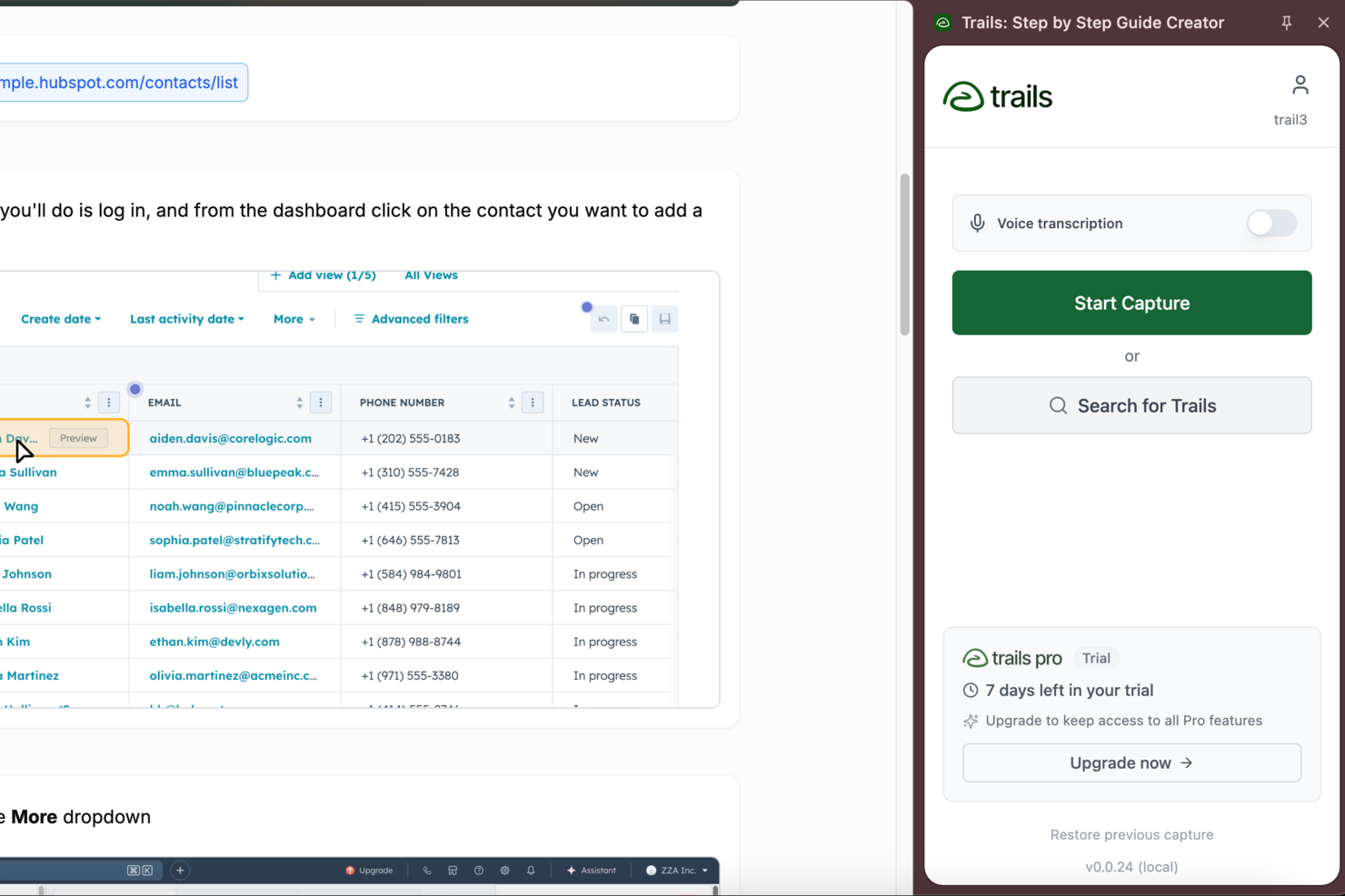
Trails is a process documentation platform built for capturing, organizing, and sharing detailed step-by-step workflows using screen recording, annotations, and knowledge libraries.
Who Is Trails Best For?
Trails is a good fit for operations and enablement teams at growing SaaS companies who need to document and share internal processes across distributed teams.
Why I Picked Trails
Trails earns its spot on my shortlist because of how well it handles step-by-step workflow capture. I record a rough run-through using the Trails Chrome Extension, and it automatically generates a structured, numbered guide with annotated screenshots. What I like most is that editing the text in the guide simultaneously updates the video, so my team isn't managing two separate assets. The AI also cleans up mistakes from the original recording, which means we're not re-recording just because someone clicked the wrong thing.
Trails Key Features
- PDF and multi-format export: Export any guide as a PDF, HTML, or Markdown file to share documentation outside of Trails.
- Sensitive information blurring: Automatically blur confidential data in screenshots and screen recordings before sharing guides.
- Version history: Restore any previous version of a guide, so your team always has a reliable record of changes.
- Role-based access controls: Set permissions to control who can view, edit, and manage guides across your team.
Trails Integrations
Native integrations are not clearly documented. An API is available for custom integrations.
Pros and Cons
Pros:
- Supports public sharing and custom branding for guides
- In-editor video trimming without external tools needed
- Chrome Extension captures browser-based SaaS workflows
Cons:
- No automated screenshot annotation beyond step numbers
- Lacks workflow analytics or usage reporting features
Best for turning documents into live tasks
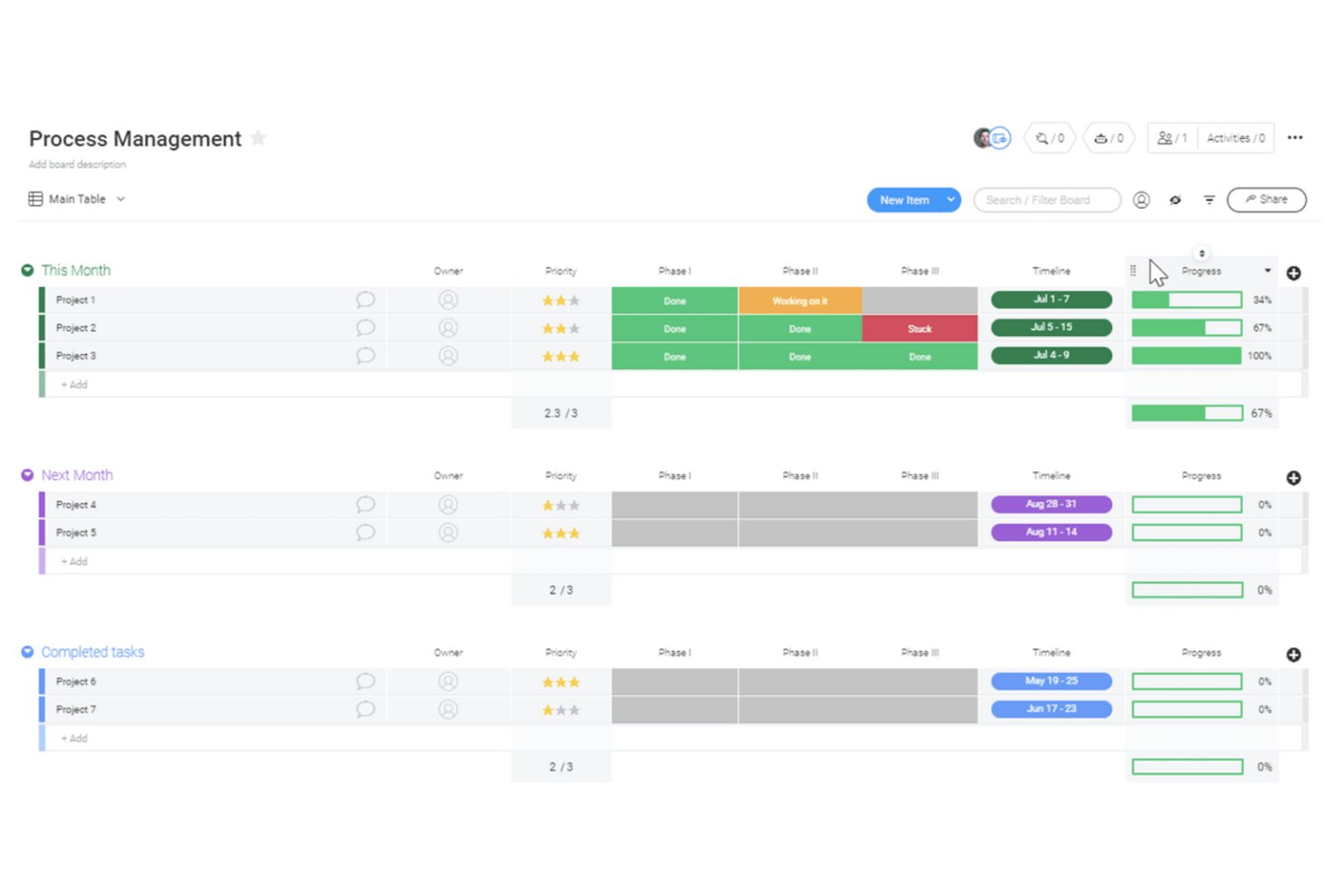
monday AI Workspace is a work management platform with built-in AI-powered docs that connect directly to boards, tasks, and workflows, letting teams create, store, and execute process documentation without switching tools.
Who Is monday AI Workspace Best For?
It's a strong fit for mid-market operations teams and PMOs that manage multiple workstreams and need process documentation tied directly to project execution.
Why I Picked monday AI Workspace
monday AI Workspace earns its spot on my shortlist because of how tightly workdocs connects documentation to live project work. I can write an SOP inside a workdoc and convert any line of text into a board item, complete with an assigned owner and due date, in a single click. The AI meeting notetaker adds another layer, automatically turning meeting notes into actionable tasks so process decisions made in calls don't get buried in a doc no one revisits.
monday AI Workspace Key Features
- Workdoc version history: Track document changes over time and revert to previous versions as needed.
- Document-level permissions: Set viewing and editing permissions for individuals, teams, or guests within each document or folder.
- Real-time co-editing: Multiple users can collaborate on documents at the same time with instant updates and inline comments.
- Full-text search and tagging: Search across all docs and use tags to organize and quickly find process documentation within workspaces.
monday AI Workspace Integrations
monday AI Workspace offers native integrations with Slack, Google Drive, Dropbox, Box, OneDrive, GitHub, Gmail, Outlook, and Microsoft Excel. It also supports Zapier and provides an API for custom integrations.
Pros and Cons
Pros:
- Process docs linked directly to project boards
- Real-time multi-user document collaboration
- Turn any doc step into actionable task
Cons:
- Advanced permission settings require higher-tier plans
- No native diagram or flowchart tool
New Product Updates from monday AI Workspace
monday AI Workspace Adds Human Approval Routing
monday AI Workspace adds a human-in-the-loop approval block to AI Workflows, sending approval requests and routing workflow paths based on responses. For more information, visit monday AI Workspace's official site.

Best for AI‑guided process writing

Document360 is a cloud-based platform that helps teams create and manage process documentation, SOPs, and user guides.
Who Is Document360 Best For?
Document360 suits technical writers, product teams, and customer support teams at mid-size to enterprise SaaS companies that need a dedicated platform for structured knowledge base and process documentation.
Why I Picked Document360
Document360 earns its spot on my shortlist because of how far its AI writing tools go beyond basic autocomplete. I particularly like the AI Writing Agent, which I use to turn video walkthroughs, audio files, or a simple prompt into fully structured documentation—complete with formatting, internal links, and SEO metadata. It also includes a style guide feature that lets my team define tone, formatting rules, and editorial standards so the AI generates content that matches how we write. The SOP generator is another standout for process documentation, producing step-by-step procedures with compliance guidelines built in.
Document360 Key Features
- Version control: Track and manage every revision of a document, with the ability to restore previous versions at any point.
- Category manager: Organize documentation into a hierarchical structure with up to six levels of nested categories.
- Content reuse (snippets): Create reusable content blocks that can be inserted across multiple articles without duplicating edits.
- Analytics dashboard: Monitor article performance, search queries, and reader engagement to identify gaps in your documentation.
Document360 Integrations
Document360 integrates with tools like Slack, Microsoft Teams, Zendesk, Freshdesk, Intercom, Google Analytics, Disqus, and Segment. It also supports additional integrations via Zapier and offers an API for custom connections.
Pros and Cons
Pros:
- Allows for creating personalized workflows to fit organizational needs
- Supports markdown and WYSIWYG editors for technical content
- Fast, robust search capability supports quick retrieval of SOPs
Cons:
- Occasional performance hiccups when loading large projects
- Limited offline access
New Product Updates from Document360

Document360 Adds Bulk Mirroring, Eddy AI Citations, and Unified SSO
Document360 adds bulk article mirroring, citations in Eddy AI chatbot responses, and a unified Enterprise SSO setup. These updates improve content reuse, answer verification, and access management. For more information, visit Document360’s official site.
 .
.
Scribe
Best for automating document creation

Scribe is a process documentation platform that captures workflows, generates step-by-step guides with screenshots, and lets teams create and share detailed process documents.
Who Is Scribe Best For?
Scribe is a good fit for operations and enablement teams that need to document processes without relying on technical writers.
Why I Picked Scribe
Scribe earns its spot on my shortlist because of how it handles document creation—you just run through a process once, and Scribe captures every click and keystroke to generate a formatted, screenshot-annotated guide. I picked it specifically for its browser extension, which works in the background without interrupting your workflow. I also like the AI-generated text feature, which drafts step descriptions so my team isn't writing from scratch. For teams documenting repetitive processes like onboarding or software walkthroughs, that combination reduces documentation time.
Scribe Key Features
- Pages: Combine multiple Scribe guides into a single, organized process document with added text, videos, screenshots, and links.
- Sensitive data redaction: Automatically or manually blur sensitive information from captured screenshots before sharing guides.
- Viewer insights: Track who has viewed and completed a guide, and collect feedback to flag outdated content.
- Company branding: Upload your logo, brand colors, and website URL to apply consistent styling across all published guides.
Scribe Integrations
Scribe primarily works through a browser extension that captures workflows and lets users embed or share guides across tools. It allows content to be embedded in platforms like Confluence, Notion, and Google Docs, but does not offer a broad set of native integrations. Zapier and API support are not clearly documented.
Pros and Cons
Pros:
- Redacts sensitive information
- Easy customization options
- Fast documentation creation
Cons:
- Requires internet for full functionality
- Limited offline access

Whatfix
Best for user onboarding

Whatfix is a digital adoption platform for process documentation that lets you create interactive guides, in-app walkthroughs, and knowledge bases to document and deliver process instructions within your software tools.
Who Is Whatfix Best For?
Whatfix is a strong fit for mid-size to enterprise teams that need to document and deliver process guidance directly inside the software their employees or customers use every day.
Why I Picked Whatfix
I picked Whatfix as one of the best because of how it handles user onboarding documentation in a way that's genuinely different from static wikis or PDFs. Instead of asking new users to read a process doc and then figure out the application themselves, Whatfix lets me embed role-specific Flows and Task Lists directly inside the app they're learning. A new hire working in a CRM or ERP sees step-by-step guidance appear in context, right at the moment they need it. I also like the in-app survey feature, which lets me collect onboarding feedback without pulling users out of their workflow to fill out a separate form.
Whatfix Key Features
- No-code content editor: Create and update in-app guidance across any application without writing code or relying on developers.
- Multi-format content exporting: Export Whatfix content as videos, PDFs, slide decks, or how-to articles to embed in your LMS or knowledge base.
- Self Help widget: Give users an in-app help center with AI-powered conversational search that pulls answers from your existing knowledge repositories.
- Cross-application workflow support: Guide users through processes that span multiple applications without interrupting their workflow.
Whatfix Integrations
Whatfix offers native integrations with Salesforce, Oracle CX, SAP S/4HANA, NetSuite, and Bullhorn, and the Microsoft ecosystem, including Microsoft 365 and Azure. An API is available for custom integrations.
Pros and Cons
Pros:
- Real-time user analytics
- Customizable learning paths
- Effective in-app guidance
Cons:
- Requires initial training
- Complex setup process

Best for recurring workflows

Process Street is a process documentation platform designed for teams to create, organize, and manage detailed workflows and checklists with automation and collaboration features.
Who Is Process Street Best For?
Process Street suits operations and process-focused teams in small to mid-sized businesses that need a structured way to document and run repeatable procedures.
Why I Picked Process Street
Process Street earns its spot on my shortlist because of how well it handles recurring workflows through a structured, checklist-driven approach. I like that you can build workflow templates once and then run them as individual instances—so each time a process repeats, it gets its own tracked run with assignees, due dates, and conditional logic intact. My team uses the scheduled workflow feature to automatically trigger recurring processes on a set cadence, which removes the manual overhead of remembering to kick things off. The approval steps built into each workflow also make it easy to document who signed off on what, which matters when you're running the same process across a team.
Process Street Key Features
- Role assignments: Assign specific tasks within a workflow to different team members based on their role.
- Conditional logic: Set rules that show or hide tasks depending on how previous steps are completed.
- Form fields: Embed data-capture fields directly into workflow tasks to collect structured information as work progresses.
- Audit trail: Track a timestamped record of every action taken within a workflow run for accountability and review.
Process Street Integrations
Process Street integrates with tools like Slack, Google Sheets, Salesforce, Jira, DocuSign, Dropbox, Airtable, and Trello. It also connects via Zapier for additional integrations and offers an API for custom setups.
Pros and Cons
Pros:
- Offers Process AI
- Supports complex workflows
- Easy process creation
Cons:
- It can be complex to set up
- Limited offline features

Creately
Best for diagram-based documentation

Creately is a process documentation platform that lets you create, organize, and collaborate on diagrams, flowcharts, and visual process maps in a shared workspace.
Who Is Creately Best For?
Creately is a good fit for cross-functional teams in tech and product organizations who need to document and communicate processes visually.
Why I Picked Creately
Creately earns its spot on my shortlist because it goes deeper on diagram-based documentation than most tools in this category. I particularly like the BPMN support—when my team needs to document a multi-step approval workflow or a cross-functional handoff process, we can map it out using proper BPMN notation with swimlanes, decision gateways, and event triggers, all within the same canvas. Creately also supports 70 diagram types with 1,000+ purpose-built shapes, so you're not forcing a flowchart to do the job of a UML sequence diagram or a data flow diagram. The per-item docs feature lets you attach rich notes and context directly to individual shapes, which keeps the diagram and its supporting documentation in one place.
Creately Key Features
- Real-time editing: Multiple team members can work on the same canvas simultaneously, with live cursor tracking to see who's changing what.
- 8,000+ templates: Pre-built templates spanning process maps, org charts, and more, so you're not starting from scratch.
- Presentation mode: Present diagrams directly from the canvas by selecting shapes and adding them to slides, with content that updates automatically as the canvas changes.
- Full version history: Item-level change history and a per-item status feed let you track how a process document has evolved over time.
Creately Integrations
Creately offers native integrations with Google Drive, Slack, Microsoft Teams, Confluence, and Jira, and connects with Zapier. An API is available for custom integrations.
Pros and Cons
Pros:
- Real-time collaboration features
- Supports multi-page documents
- Extensive template library
Cons:
- Requires a stable internet connection
- It can be overwhelming for beginners

Best with secure, role-based document workspaces
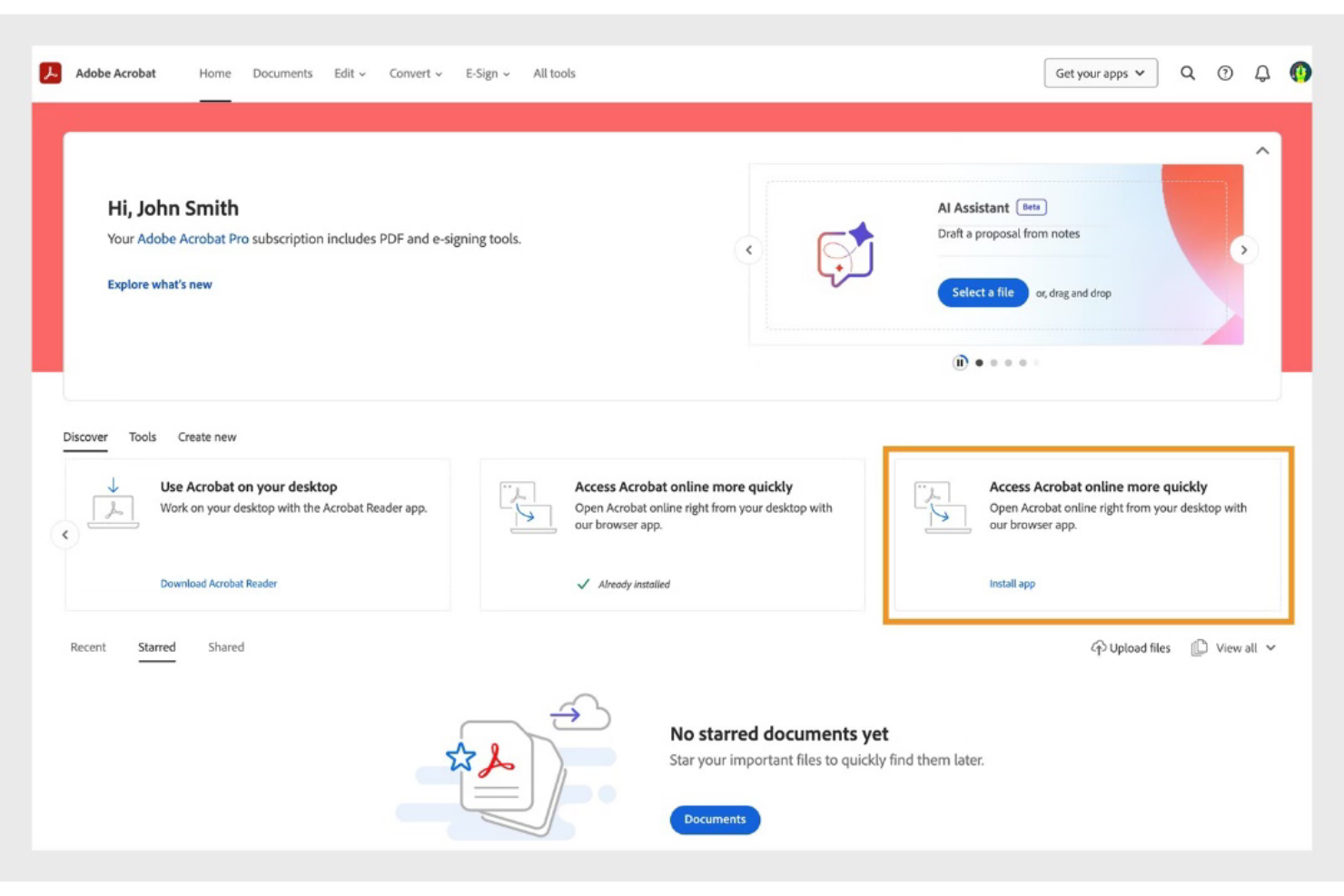
Adobe Acrobat is a document management platform that supports creating, editing, organizing, and securing process documentation in PDF format. It enables teams to manage documentation workflows, collaborate on files, and maintain controlled access to sensitive documents.
Who Is Adobe Acrobat Best For?
Adobe Acrobat is best suited for teams in regulated industries and large organizations that require secure document control, audit tracking, and structured collaboration on process documentation.
Why I Picked Adobe Acrobat
I picked Adobe Acrobat because it provides secure, role-based document controls that help manage access to sensitive process documentation. Teams can assign permissions to restrict editing, commenting, or viewing rights. Audit trails and activity tracking support accountability and compliance across documentation workflows.
Adobe Acrobat Key Features
- PDF editing tools: Edit text, images, and formatting directly within PDF documents.
- Template management: Create reusable document templates for consistent process documentation.
- E-signature workflows: Collect legally binding electronic signatures on process documents.
- Commenting and markup: Add annotations, highlights, and comments for collaborative review.
- OCR technology: Convert scanned documents into searchable, editable text.
Adobe Acrobat Integrations
Adobe Acrobat integrates with Microsoft 365, Google Workspace, Microsoft Teams, SharePoint, Box, Salesforce, and Workday. APIs are available for custom integrations.
Pros and Cons
Pros:
- Advanced PDF editing and redaction tools
- Deep integration with Microsoft 365 and Google Workspace
- Supports secure, role-based access for documents
Cons:
- Workflow automation features are basic compared to peers
- No free-forever business plan available

Tettra
Best for internal knowledge sharing

Tettra is a process documentation platform designed for teams to create, organize, and manage internal knowledge bases, structured wikis, and collaborative documentation.
Who Is Tettra Best For?
Tettra is a good fit for small to mid-sized teams that need a centralized place to document processes, answer recurring questions, and keep internal knowledge organized.
Why I Picked Tettra
Tettra earns its spot on my shortlist because of how well it handles the ongoing challenge of keeping internal knowledge accurate and findable. I particularly like the content verification feature, which lets subject matter experts review pages on a set schedule—so my team isn't accidentally relying on outdated process docs. The AI-powered Q&A bot, Kai, is also genuinely useful: when a teammate asks a question in Slack, Kai searches the knowledge base and surfaces an answer instantly, and if it can't find one, it routes the question to the right person. Structured documentation combined with active knowledge maintenance gives Tettra an advantage over more passive wiki tools.
Tettra Key Features
- Page templates: Use pre-built templates to create consistently structured process documents, SOPs, and team wikis.
- Content request workflows: Team members can flag missing documentation, which gets routed to the right person to fill the gap.
- Role-based permissions: Control who can view, edit, or manage specific pages and categories within your knowledge base.
- Slack and Teams integration: Surface and share knowledge base content directly within Slack or Microsoft Teams without switching tools.
Tettra Integrations
Tettra offers native integrations with Slack, Microsoft Teams, Google Workspace, GitHub, and Zapier. An API is available for custom integrations.
Pros and Cons
Pros:
- Assigns content ownership
- Simple editor for quick updates
- Easy content categorization
Cons:
- May not scale for larger teams
- Limited advanced features
Confluence
Best for team collaboration

Confluence is a process documentation platform from Atlassian that lets you create, organize, and manage collaborative documentation, knowledge bases, and project pages for teams.
Who Is Confluence Best For?
Confluence is a strong fit for mid-size to enterprise tech teams that need a centralized space to document processes, share knowledge, and collaborate across product, engineering, and design.
Why I Picked Confluence
Confluence earns its spot on my shortlist because of how well it supports real-time collaboration on process documentation. I like that multiple team members can edit the same page simultaneously, leave inline comments, and tag each other directly in the content—so feedback loops happen inside the document, not across a separate thread. I also use Confluence's live docs feature when my team needs to co-author something in the moment, like a sprint retrospective or a process update after an incident. The structured spaces and content hierarchy make it easy to keep documentation organized as the team scales.
Confluence Key Features
- Page templates: Choose from a library of pre-built templates for process docs, runbooks, meeting notes, and more to standardize documentation across your team.
- Version history: Track every change made to a page, compare past versions, and restore previous content when needed.
- Spaces: Organize documentation into dedicated spaces by team, project, or department to keep content structured and easy to navigate.
- Macros: Embed dynamic content like tables of contents, status labels, and task lists directly into pages to add structure and interactivity.
Confluence Integrations
Confluence offers 3,000+ native integrations through the Atlassian Marketplace, including Jira, Trello, Loom, Slack, Microsoft 365, Google Drive, Figma, Dropbox, Salesforce, and GitHub, and it connects with Zapier. An API is available for custom integrations.
Pros and Cons
Pros:
- Extensive template library
- Real-time collaboration features
- Centralized content management
Cons:
- Requires setup time
- Can be overwhelming for new users
Annen programvare for prosessdokumentasjon
Her er noen flere alternativer for programvare for prosessdokumentasjon som ikke kom med på kortlisten min, men som likevel er verdt å ta en titt på:
- Floik
For visual process mapping
- Tallyfy
For non-technical users
- SweetProcess
For small business processes
- Heflo
For process modeling
- Miro
For creative visual teamwork
- Tango
For AI-driven insights
- Trupeer
For AI-powered script generation
- Lucidchart
For diagramming and visualization
- ProcessMaker
For low-code process management
- Nintex
For enterprise-level automation


How I Evaluate Process Documentation Software
I split my evaluation into baseline must-haves—like structured step capture and version control—and the differentiators that separate tools built for PMOs from glorified wikis.
Core Functionality (Table Stakes For This List)
When I'm selecting tools for my list, I rank each one on a scale from 0 (does not offer the functionality) to 5 (excels in this area) for each core functionality listed below. Then, I calculate the tool's total score into a percentage. Each tool needs to achieve a minimum total score of 65% to be considered for inclusion.
- Step-by-Step Process Capture: I evaluate whether the tool supports structured, sequential steps with assigned owners—like documenting a sprint retrospective SOP with clear task holders per phase.
- Rich Media & Visual Documentation: Screenshots, screen recordings, and embedded diagrams make or break adoption, so I check for native media tools beyond basic image uploads.
- Centralized Document Repository: Every tool gets evaluated on how it organizes and surfaces documents at scale—tagging, folder hierarchies, and search quality across hundreds of SOPs.
- Version Control & Revision History: I look for full revision timelines with author attribution and rollback, especially for teams that update release management or change control procedures frequently.
- Collaborative Editing & Review: Real-time co-editing, threaded comments, and formal approval workflows matter here—particularly for cross-functional teams aligning on shared delivery playbooks.
- Access Controls & Sharing Permissions: Granular role-based permissions are key, so I check whether the tool lets you separate viewer and editor access at the document level for stakeholders outside your core team.
Once I have a list of tools that meet this criteria, I consider what sets each platform apart.
Differentiating Factors (What Sets Vendors Apart)
Here's how I compare and contrast different vendors:
Standout Features
Automatic process capture is a big one—tools like Scribe and Tango can record your clicks and auto-generate annotated guides, which saves hours when documenting onboarding or deployment workflows. I also look for AI-assisted documentation that drafts or refines SOPs from rough inputs. Analytics and usage insights help PMOs spot stale playbooks nobody's reading. Finally, embedded process execution lets teams run documented steps as live checklists, turning static SOPs into trackable tasks.
Beyond Features
Integration depth matters—I check whether a tool connects natively with Jira, Confluence, Slack, or Microsoft Teams, so process docs stay where project work actually happens. Pricing structure is another consideration, particularly whether viewer-only seats are free or discounted, since project stakeholders who just need to reference an SOP shouldn't inflate your licensing costs. I also evaluate time-to-value by looking at pre-built templates, import options from Google Docs or Word, and onboarding resources that help teams start documenting within days, not weeks.
Slik velger du programvare for prosessdokumentasjon
Det er lett å gå seg vill i lange funksjonslister og komplekse prisstrukturer. For å hjelpe deg med å holde fokus mens du går gjennom den unike prosessen med å velge programvare, har jeg laget en sjekkliste over faktorer du bør ha i bakhodet:
| Faktor | Hva du bør vurdere |
|---|---|
| Skalerbarhet | Sørg for at programvaren kan vokse med teamet ditt. Vurder om den kan håndtere flere brukere og mer data uten at det går ut over ytelsen eller krever hyppige oppgraderinger |
| Integrasjoner | Kontroller om programvaren kan integreres med verktøy teamet ditt allerede bruker, for eksempel Slack, Google Workspace eller Trello. Dette sikrer en smidigere arbeidsflyt og konsistente data |
| Tilpasningsmuligheter | Se etter alternativer for å tilpasse programvaren til teamets behov. Tilpassbare maler og arbeidsflyter kan forbedre effektiviteten og oppfylle spesifikke prosjektkrav |
| Brukervennlighet | Vurder brukergrensesnittet og læringskurven. Verktøyet bør være intuitivt, slik at teamet raskt kan ta det i bruk uten omfattende opplæring |
| Budsjett | Vurder kostnaden opp mot budsjettet ditt. Se etter fleksible prisplaner som gir god valuta for pengene, og undersøk om det finnes skjulte gebyrer eller langsiktige kontrakter |
| Sikkerhetstiltak | Kontroller at programvaren har sterke sikkerhetstiltak, som datakryptering og tilgangskontroller for brukere, for å beskytte sensitiv informasjon. |
| Støttetjenester | Sørg for at det finnes responsiv kundestøtte. Tilgang til direktechat, telefonstøtte og et omfattende hjelpesenter kan være avgjørende under konfigurering og feilsøking |
| Samarbeidsfunksjoner | Se etter funksjoner som legger til rette for teamsamarbeid, for eksempel redigering i sanntid, kommentering og versjonskontroll, for å styrke samarbeid og kommunikasjon |
Trender innen programvare for prosessdokumentasjon
I arbeidet med undersøkelsen hentet jeg inn utallige produktoppdateringer, pressemeldinger og lanseringslogger fra ulike leverandører av programvare for prosessdokumentasjon. Her er noen av trendene som vokser frem, og som jeg følger med på:
- KI-drevet innsikt: Leverandører integrerer KI for å gi innsikt i effektiviteten i arbeidsflyten og brukeratferd. Dette hjelper team med å identifisere flaskehalser og optimalisere prosesser. Noen verktøy tilbyr nå prediktiv analyse for å forutse fremtidige behov i arbeidsflyten.
- Samarbeid i sanntid: Flere verktøy muliggjør samarbeid i sanntid, slik at flere brukere kan redigere og kommentere dokumenter samtidig. Denne funksjonen blir stadig viktigere for eksterne team som skal opprettholde produktiviteten og sørge for at alle er samkjørte.
- Interaktive veiledninger: Interaktive trinnvise veiledninger utvikles for å forbedre brukeropplæring og introduksjon. Disse veiledningene hjelper brukerne med å forstå komplekse prosesser på en mer intuitiv måte, noe som reduserer behovet for omfattende opplæringsøkter.
- Forbedrede sikkerhetsfunksjoner: Etter hvert som databeskyttelse blir viktigere, fokuserer leverandører på avanserte sikkerhetsfunksjoner som kryptering og tilgangskontroller basert på roller. Dette sørger for at sensitiv informasjon forblir beskyttet, noe som er avgjørende for å overholde kravene i mange bransjer.
- Tilpassbare arbeidsflyter: Det er økende etterspørsel etter tilpassbare arbeidsflyter som dekker spesifikke forretningsbehov. Leverandører tilbyr større fleksibilitet i hvordan prosesser struktureres og gjennomføres, slik at virksomheter kan tilpasse programvaren til sine unike krav.
Hva er programvare for prosessdokumentasjon?
Programvare for prosessdokumentasjon er et verktøy som hjelper teamet ditt med å opprette, organisere og administrere hvordan arbeidet utføres. Den brukes av prosjektledere, driftsteam og HR-avdelinger for å tydeliggjøre daglige oppgaver og forbedre hvordan ting fungerer.
Med funksjoner som samarbeid i sanntid, KI-innsikt og tilpassbare arbeidsflyter kan teamet ditt organisere informasjon, samarbeide bedre og finne måter å forbedre arbeidet på. Disse verktøyene gir deg en tydelig og strukturert måte å dokumentere og oppdatere prosessene dine på.
Funksjoner i programvare for prosessdokumentasjon
Når du velger programvare for prosessdokumentasjon, bør du se etter følgende viktige funksjoner:
- Samarbeid i sanntid: Gjør det mulig for flere brukere å redigere og kommentere dokumenter samtidig, noe som styrker teamarbeid og kommunikasjon.
- AI-drevet innsikt: Gir analyser av effektiviteten i arbeidsflyten og brukeratferd, slik at team kan optimalisere prosesser og identifisere flaskehalser.
- Tilpassbare arbeidsflyter: Gir fleksibilitet til å strukturere prosesser etter spesifikke forretningsbehov, slik at løsningene kan skreddersys.
- Interaktive veiledninger: Gjør det mulig å lage trinnvise veiledninger som forenkler komplekse prosesser og reduserer behovet for omfattende opplæring.
- Sikkerhetstiltak: Omfatter funksjoner som kryptering og rollebasert tilgangskontroll for å beskytte sensitiv informasjon og sikre samsvar med regelverk.
- Integrasjonsmuligheter: Kobler sammen andre verktøy teamet bruker, sikrer jevn dataflyt og øker den generelle produktiviteten.
- Oppgavehåndtering: Hjelper med å tildele og følge opp oppgaver slik at teamet holder orden og følger tidsplanen.
- Malbibliotek: Tilbyr ferdige maler for rask konfigurering og konsekvent dokumentasjon.
- Versjonskontroll: Fører oversikt over endringer og revisjoner, slik at team kan opprettholde en nøyaktig og oppdatert dokumentasjonshistorikk.
- Dra-og-slipp-grensesnitt: Forenkler oppretting og organisering av prosesselementer, noe som gjør løsningen brukervennlig og effektiv.
Fordeler med programvare for prosessdokumentasjon
Implementering av programvare for prosessdokumentasjon gir flere fordeler for teamet og virksomheten din. Her er noen av fordelene du kan se frem til:
- Bedre effektivitet: Strømlinjeformer arbeidsflyter og reduserer dobbeltarbeid, slik at teamet kan arbeide mer effektivt med funksjoner som oppgavehåndtering og tilpassbare arbeidsflyter.
- Forbedret samarbeid: Verktøy for samarbeid i sanntid gjør det mulig for teammedlemmer å arbeide sømløst sammen, noe som forbedrer kommunikasjon og teamarbeid.
- Bedre prosessforståelse: Interaktive veiledninger og maler sikrer at alle forstår prosessene tydelig, reduserer feil og forbedrer konsistensen.
- Datasikkerhet: Avanserte sikkerhetstiltak beskytter sensitiv informasjon og gir trygghet for at dataene er i samsvar med regelverk og er sikre.
- Bedre beslutningsgrunnlag: AI-drevet innsikt gir verdifulle analyser og hjelper deg med å ta datadrevne beslutninger for å optimalisere prosesser.
- Tidsbesparelser: Automatisering av gjentakende oppgaver frigjør tid slik at teamet kan fokusere på aktiviteter med høyere verdi, noe som øker den samlede produktiviteten.
- Skalerbarhet: Muligheten til å tilpasse og utvide prosesser i takt med virksomheten sikrer langsiktig tilpasningsevne og suksess.
Kostnader og priser for programvare for prosessdokumentasjon
Ved valg av programvare for prosessdokumentasjon er det nødvendig å forstå de ulike prismodellene og tilgjengelige abonnementene. Kostnadene varierer basert på funksjoner, teamstørrelse, tillegg og mer. Tabellen nedenfor oppsummerer vanlige abonnementer, gjennomsnittsprisene deres og typiske funksjoner som inngår i løsninger for programvare for prosessdokumentasjon:
Sammenligningstabell for programvare for prosessdokumentasjon
| Abonnementstype | Gjennomsnittspris | Vanlige funksjoner |
|---|---|---|
| Gratisabonnement | $0 | Grunnleggende dokumentasjonsverktøy, begrenset lagringsplass og brukerstøtte fra fellesskapet |
| Personlig abonnement | $5 - $15/bruker/måned | Ekstra lagringsplass, grunnleggende integrasjoner og enkelte tilpasningsmuligheter |
| Bedriftsabonnement | $20 - $50/bruker/måned | Avanserte integrasjoner, forbedrede sikkerhetsfunksjoner og samarbeidsverktøy |
| Storbedriftsabonnement | $60 - $100/bruker/måned | Tilpassbare arbeidsflyter, dedikert brukerstøtte, omfattende analyse- og rapporteringsfunksjoner |
Vanlige spørsmål om programvare for prosessdokumentasjon
Her er noen svar på vanlige spørsmål om programvare for prosessdokumentasjon:
Hvilke spørsmål bør man stille når man dokumenterer en prosess?
Når du dokumenterer en prosess, bør du begynne med å undersøke når den sist ble oppdatert. Identifiser hvert trinn og hvor lang tid det tar. Finn ut hvilke trinn som er problematiske eller tidkrevende. Vurder også hvilke teammedlemmer som er involvert, og hvordan de påvirker prosessen. Disse spørsmålene bidrar til at du dekker alle aspekter.
Hva bør inngå i prosessdokumentasjonen?
Effektiv prosessdokumentasjon inkluderer et tydelig start- og sluttpunkt, forventede resultater og detaljerte inndata. Gå gjennom hele prosessen for å dokumentere hvert trinn nøyaktig. Identifiser hvem som er involvert, og bruk dokumentasjonssystemet ditt til å organisere denne informasjonen. Dette sikrer tydelighet og konsistens for alle brukere.
Hva er det mest nyttige verktøyet for prosessdokumentasjon?
Populære verktøy for prosessdokumentasjon omfatter programvare for prosesskartlegging, som Lucidchart og Microsoft Visio. Disse verktøyene gjør det enklere å visualisere arbeidsflyter. Verktøy for forretningsprosessstyring og systemer for kunnskapsforvaltning er også nyttige. De effektiviserer dokumentasjonen og sikrer at teammedlemmene enkelt får tilgang til den.
Hva er risikoen ved manglende prosessdokumentasjon?
Uten tilstrekkelig prosessdokumentasjon risikerer du ujevn ytelse og vanskeligheter med opplæring av nye ansatte. Det kan oppstå problemer med etterlevelse og ineffektivitet, noe som påvirker den samlede produktiviteten. Dokumentasjon av prosesser bidrar til å redusere disse risikoene og sikrer smidigere drift.
Hvordan kan programvare for prosessdokumentasjon forbedre effektiviteten?
Programvare for prosessdokumentasjon forbedrer effektiviteten ved å tilby en sentral plassering for alle prosesser. Den gjør det enkelt å oppdatere og dele informasjon med teammedlemmer. Funksjoner som samarbeid i sanntid og oppgavebehandling effektiviserer arbeidsflyter og reduserer dobbeltarbeid, slik at du sparer tid og ressurser.
Hvordan velger jeg riktig programvare for prosessdokumentasjon for teamet mitt?
For å velge riktig programvare bør du vurdere teamets spesifikke behov og hvilke funksjoner som kreves. Se etter verktøy som tilbyr skalerbarhet, integrasjon med eksisterende systemer og brukervennlige grensesnitt. Vurder prisplanene for å sikre at de passer budsjettet ditt, og undersøk alternativene for kundestøtte for å få løpende hjelp.