

10 beste programmer for intern wiki i 2026

Kortliste over den beste wiki-programvaren for intern bruk


Ved å bygge en intern kunnskapsbase får teamet ditt et felles sted for å opprette, lagre og organisere virksomhetens kunnskap, slik at alle får tilgang til den nyeste informasjonen. Hvis du leter etter den beste wiki-programvaren for intern drift, ønsker du sannsynligvis en løsning som er enkel å bruke, bygger bro over kommunikasjonsgap og holder prosjektdetaljer og dokumentasjon lett tilgjengelig for alle. Med så mange alternativer kan det føles overveldende å velge det rette.
Denne veiledningen sammenligner de beste verktøyene og fremhever hva som gjør hvert av dem unikt, slik at du raskt kan ta det beste valget for teamets arbeidsflyt og behov for kunnskapsdeling.
Hvorfor du kan stole på våre programvareanbefalinger
Teamet vårt har testet og anmeldt programvare siden 2012. Vi er selv prosjektledere, så vi vet hvor vanskelig og hvor viktig det er å velge riktig programvare.
I denne guiden har vi vurdert verktøyene gjennom praktisk testing og uavhengig research og gitt dem poeng ut fra våre utvelgelseskriterier. Vi bygger også på innsikt fra ledende eksperter i bransjen og erfarne prosjektledere.
Anmeldelsene våre bygger på vår egen redaksjonelle vurdering. De er ikke et salgsargument.
Ekspertanmeldere:
Sammenligningstabell for intern wiki-programvare
Denne sammenligningstabellen oppsummerer prisopplysningene for mine beste utvalg av wiki-programvare for intern bruk:
| Tool | Best For | Trial Info | Price | ||
|---|---|---|---|---|---|
| 1 | Best for advanced content versioning controls | Free demo available | Pricing upon request | Website | |
| 2 | Best for async team knowledge sharing | Free demo + 14-day free trial available | From $10/user/month (billed annually) | Website | |
| 3 | Best for real-time editing with visual workspace | Free plan available | From $6/user/month (billed annually) | Website | |
| 4 | Best for Slack and Microsoft Teams integration | 30-day free trial | From $8/user/month (billed annually) | Website | |
| 5 | Best for linking company knowledge across tools | Free plan available | From $6.67/user/month (billed annually) | Website | |
| 6 | Best for building collaborative knowledge bases | Free plan available | From $12/user/month (billed annually) | Website | |
| 7 | Best for unifying notes, tasks, and databases | Free plan + free demo available | From $10/user/month (billed annually) | Website | |
| 8 | Best for collaboration on structured documents | Free plan available | From $5.78/user/month | Website | |
| 9 | Best for Microsoft ecosystems document management | 30-day free trial | From $5.00/user/month (billed annually) | Website | |
| 10 | Best for fast answers with integrations | Free demo available | Pricing upon request | Website |
Anmeldelser av den beste wiki-programvaren for intern bruk
Nedenfor finner du mine detaljerte sammendrag av den beste wiki-programvaren for intern bruk som kom med på kortlisten. Anmeldelsene mine gir en detaljert gjennomgang av funksjonene, de beste bruksområdene og integrasjonene til hver plattform, slik at du kan finne den som passer best for deg.

Best for advanced content versioning controls
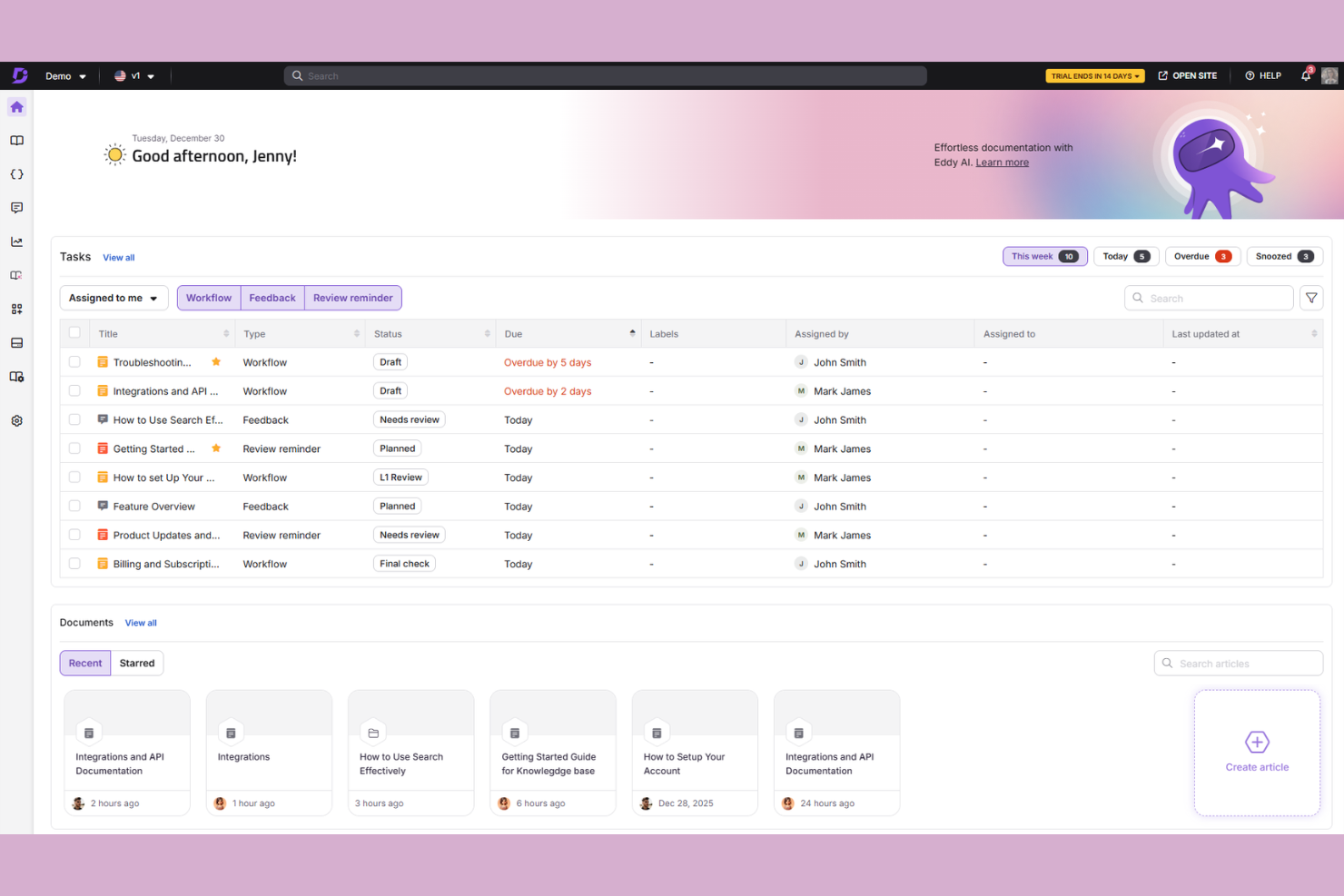
Document360 is a knowledge base platform built for teams that need structured content management, with a dual-editor experience, AI-powered search, and support for both internal wikis and external documentation sites.
Who Is Document360 Best For?
Document360 is a strong fit for mid-sized to enterprise SaaS and tech teams that manage large volumes of documentation across multiple product versions or audiences.
Why I Picked Document360
Document360 earns its spot on my shortlist because its versioning controls go well beyond a basic "last edited" log. I can view a full version history for any article, compare changes between specific versions side by side, and restore any prior state instantly. I also like that version tracking works at the category level, so when a product update affects an entire section of your wiki, you can roll back a whole content branch rather than hunting through individual pages.
Document360 Key Features
- Dual-mode article editor: Switch between a block-based WYSIWYG editor, raw HTML, and a Markdown editor on a per-article basis.
- Role-based access controls: Assign granular permissions across readers, editors, and admins at the project or category level.
- Content reuse via snippets: Create reusable text blocks that auto-update across every article where they appear when edited once.
- Built-in article analytics: Track views, search queries, and reader feedback scores to identify gaps in your wiki content.
Document360 Integrations
Document360 offers over 25 integrations across its marketplace, including Zendesk, Freshdesk, Intercom, Slack, Microsoft Teams, Salesforce, GitHub, Crowdin, and Google Analytics. It also connects with Zapier and Make, and provides an API for custom integrations.
Pros and Cons
Pros:
- Multilingual support with translation management workflows
- Reusable snippets, variables, and glossary terms
- Separate portals for internal and public docs
Cons:
- Word imports require manual formatting cleanup
- Analytics cannot consolidate multiple workspaces
New Product Updates from Document360

Document360 Adds Bulk Mirroring, Eddy AI Citations, and Unified SSO
Document360 adds bulk article mirroring, citations in Eddy AI chatbot responses, and a unified Enterprise SSO setup. These updates improve content reuse, answer verification, and access management. For more information, visit Document360’s official site.
 .
.
Slite
Best for async team knowledge sharing
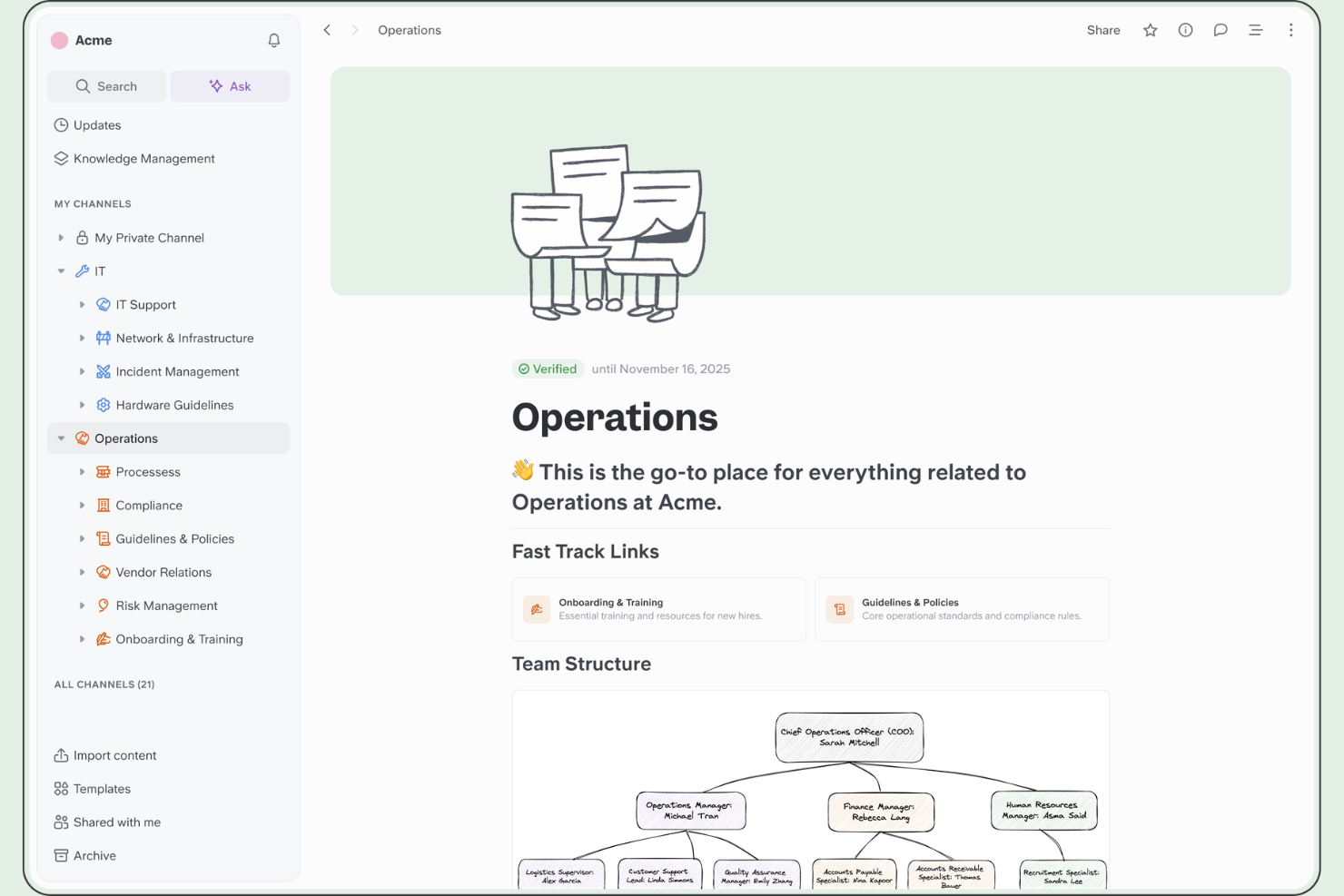
Slite is a wiki and knowledge base platform that combines structured documentation, channel-based content organization, and an AI-powered search assistant for surfacing answers across your team's knowledge base.
Who Is Slite Best For?
Slite is a natural fit for remote and distributed teams that rely on written communication to keep everyone aligned across time zones.
Why I Picked Slite
I've included Slite in my top picks because it's genuinely built around the idea that teammates shouldn't have to ask each other for information. The Ask feature lets anyone query the knowledge base in plain language and get a direct answer pulled from existing docs, which cuts down on repeat questions in Slack. I also like the doc verification system, where content owners can mark pages as verified or flag them as outdated, so distributed teams aren't making decisions based on stale documentation.
Slite Key Features
- Channels: Organize wiki content into dedicated channels by team, project, or topic to keep documentation grouped and browsable.
- Doc templates: Create new pages from pre-built or custom templates to standardize how your team documents processes, meeting notes, or onboarding guides.
- Inline comments: Leave threaded comments directly on any section of a document so feedback and discussion stay tied to the relevant content.
- Real-time collaborative editing: Multiple team members can edit the same document simultaneously, with live cursor tracking showing who's working where.
Slite Integrations
Slite offers 40+ native integrations across three categories: searchable sources (like Google Drive, Confluence, Notion, SharePoint, GitHub, GitLab, Jira, Linear, and HubSpot), document embeds (like Figma, Miro, Loom, Google Sheets, and Airtable), and a Slack integration for querying your knowledge base directly from channels. It's also available on Zapier and has an API for custom integrations.
Pros and Cons
Pros:
- Constrained editor keeps docs visually consistent
- Doc verification flags stale wiki content
- AI Ask feature surfaces answers from docs
Cons:
- Offline editing is basically unavailable
- No database views or relational content structures

Nuclino
Best for real-time editing with visual workspace
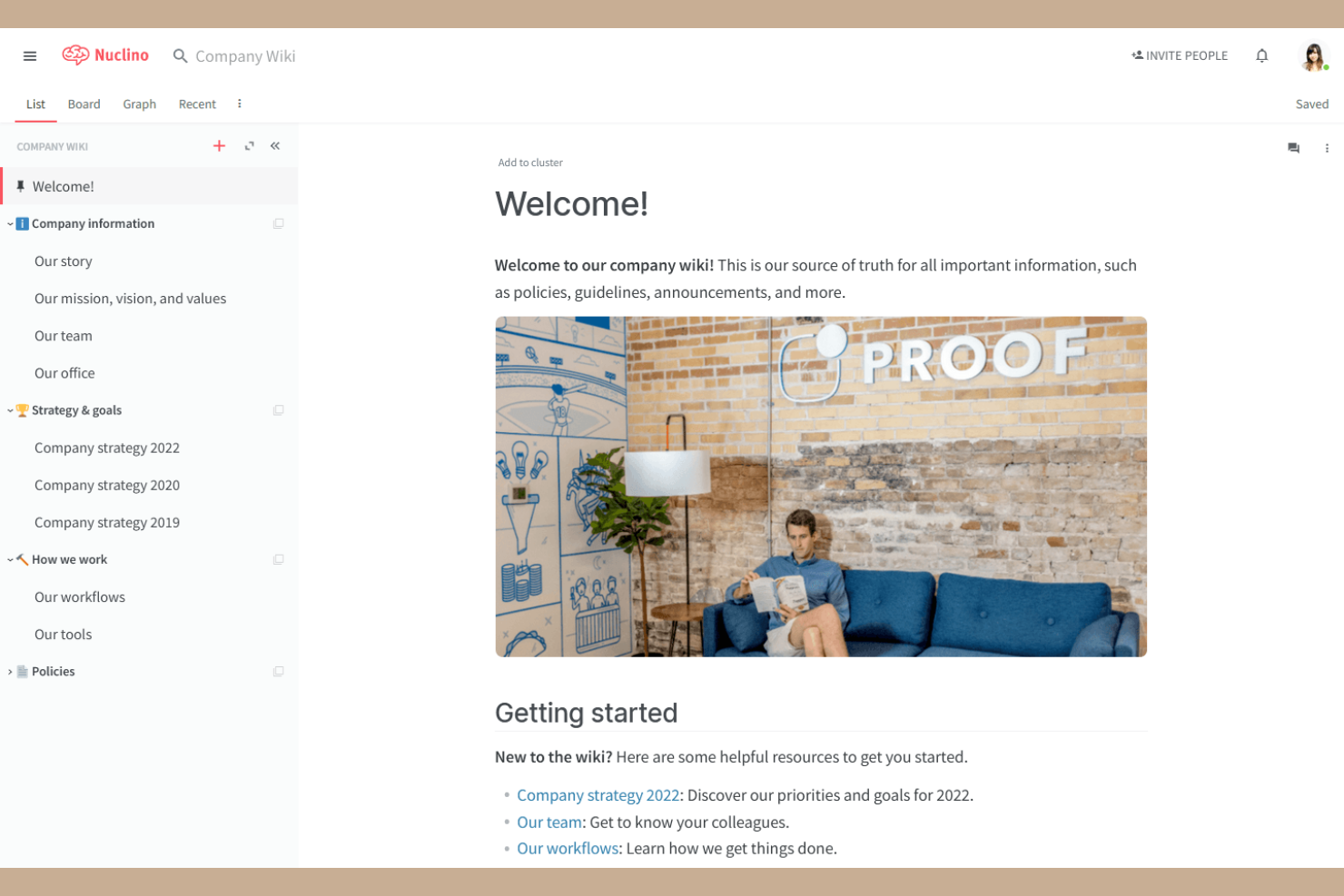
Nuclino is an internal wiki and team knowledge base that combines collaborative docs, multiple workspace views (list, board, table, and graph), and a built-in infinite canvas for visual collaboration.
Who Is Nuclino Best For?
Nuclino is a strong fit for small to mid-size tech teams that want a lightweight wiki with visual workspace mapping built in.
Why I Picked Nuclino
Nuclino earns its spot as one of the best on my shortlist because it's one of the few wiki tools that makes real-time visual collaboration a native part of the experience. The built-in Canvas lets my team drop an infinite whiteboard directly inside any wiki page, so we can diagram a system architecture or map out a sprint workflow right next to the written docs. The graph view also lets us explore how wiki pages connect to each other visually, which I find genuinely useful for navigating a growing knowledge base.
Nuclino Key Features
- Universal search: Search across all pages, items, and content within the workspace from a single search bar.
- Version history: View and restore any previous version of a page to track how wiki content has changed over time.
- Page templates: Start new wiki pages from pre-built templates to keep documentation structure consistent across your team.
- Inline task assignments: Assign tasks directly within wiki pages so action items stay connected to the relevant documentation.
Nuclino Integrations
Nuclino offers 40+ integrations, including Slack, Microsoft Teams, Jira, Figma, Miro, Lucidchart, Google Drive, Dropbox, Loom, and Airtable, along with SSO support through Google Workspace and Microsoft Active Directory. An API is available for custom integrations.
Pros and Cons
Pros:
- Markdown rendering works without dual-pane editing
- Search returns results with sub-second speed
- Graph view maps page relationships visually
Cons:
- No page-level permission controls available
- Search fails to handle typos gracefully

Tettra
Best for Slack and Microsoft Teams integration
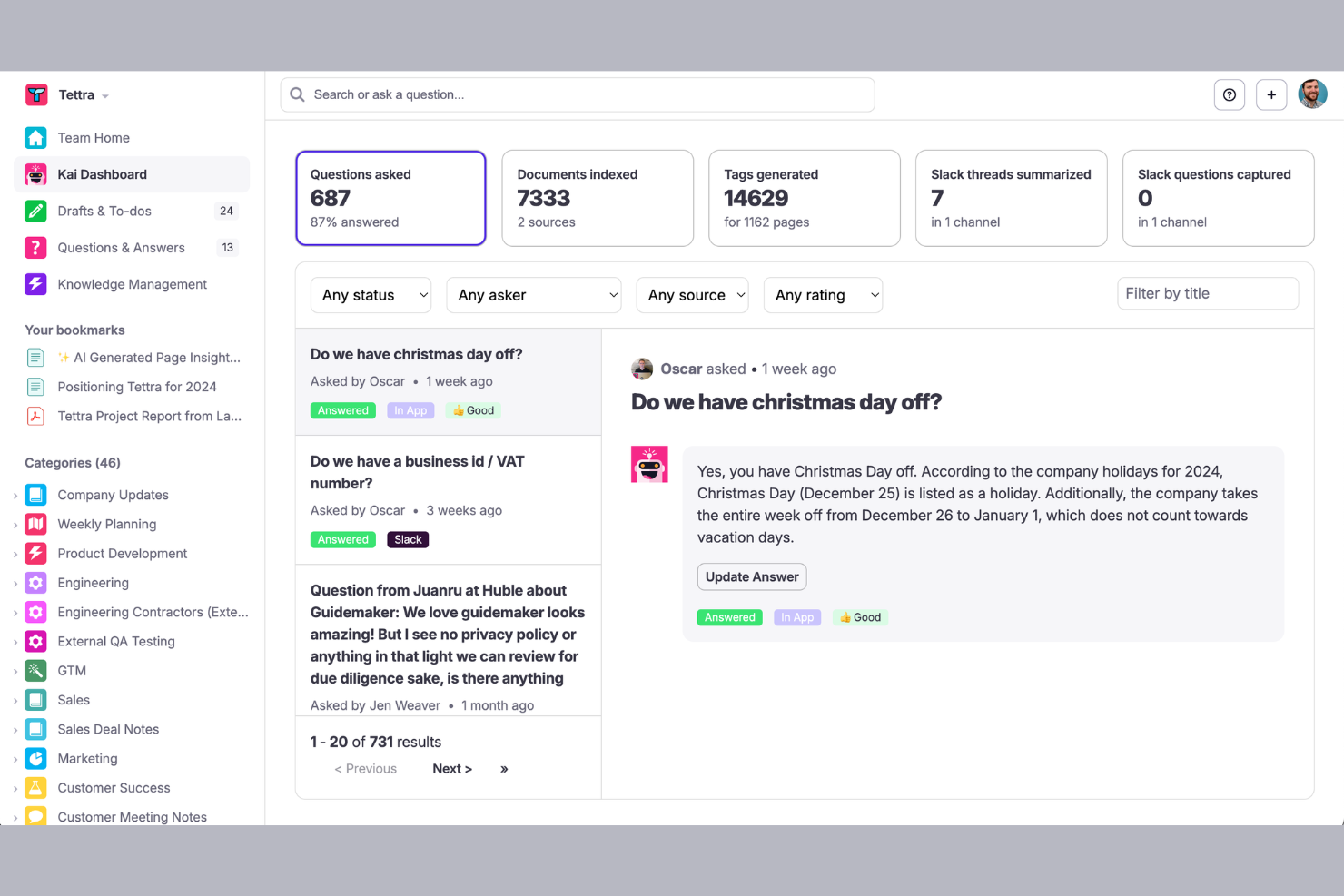
Tettra is an internal wiki and knowledge base platform built around AI-powered Q&A, with tools for creating and verifying documentation and surfacing answers directly inside Slack.
Who Is Tettra Best For?
Tettra is a strong fit for small to mid-sized teams that run day-to-day communication through Slack or Microsoft Teams and need a wiki that works inside those tools.
Why I Picked Tettra
I picked Tettra as one of the best because its Slack integration goes far deeper than just sharing links. Kai, Tettra's AI bot, monitors Slack channels in real time, answers questions automatically using your knowledge base, and prompts teammates to save unresolved threads as new wiki pages. I also like that Kai assigns unanswered questions to subject-matter experts directly in Slack, so nothing falls through the cracks without switching tools.
Tettra Key Features
- Page ownership and verification: Assign owners to individual pages and set review schedules to flag outdated content for updates.
- Pre-built page templates: Use structured templates for common documentation types like onboarding guides, meeting notes, and SOPs.
- Content request system: Team members can submit specific knowledge requests that get routed to the right person to fill the gap.
- Nested categories and subcategories: Organize pages into a structured hierarchy so teams can browse the wiki by topic or department.
Tettra Integrations
Tettra offers a smaller set of native integrations, including Slack, Google Workspace, GitHub, and Notion. It connects with Zapier and provides an API for custom integrations.
Pros and Cons
Pros:
- Page export prevents vendor lock-in
- AI bot answers questions without app switching
- Q&A workflow turns Slack threads into pages
Cons:
- Limited layout and design customization options
- Search slows down in large knowledge bases

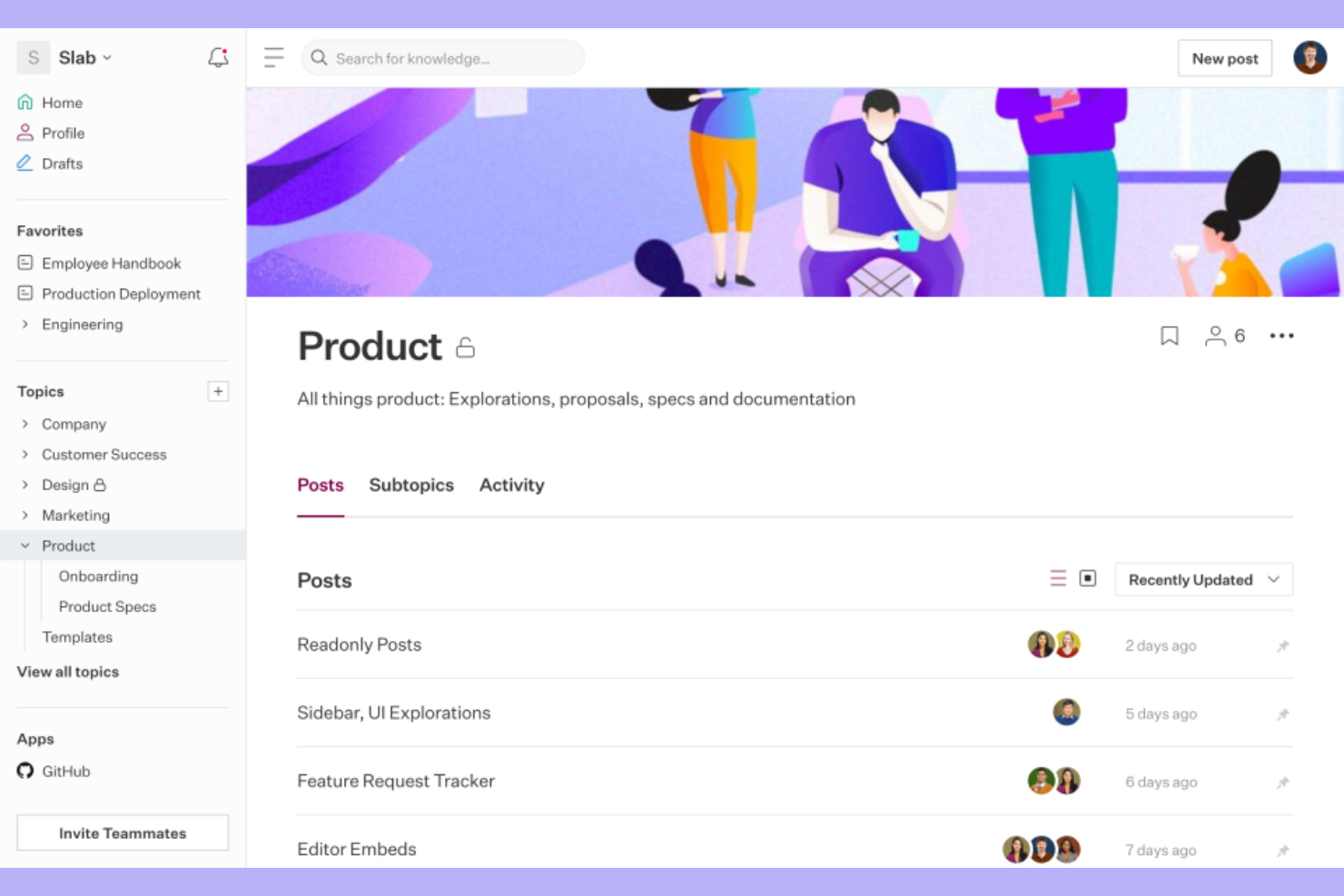
Slab is an internal wiki and knowledge base platform built around a Unified Search feature that surfaces answers from both Slab content and connected third-party tools in a single search.
Who Is Slab Best For?
Slab is a strong fit for mid-sized tech and product teams that work across multiple tools and need their documentation to stay connected to where actual work happens.
Why I Picked Slab
I picked Slab as one of the best because its Unified Search is the most practical answer I've seen to a real problem: company knowledge scattered across GitHub, Google Drive, Slack, and Asana. Instead of hunting through five tabs, my team can run one search in Slab and pull results from all connected tools at once. I also like that Slab Topics adds context around docs, showing what to read, in what order, and who to contact with follow-up questions.
Slab Key Features
- Admin insights: View data on which posts are getting read, which are going stale, and what questions your team is asking that have no documented answer.
- Slab Provisions: Create custom user templates so new team members see role-specific content the moment they sign in, without any manual setup.
- Inline reactions and comments: Teammates can comment, react with emoji, or thank post authors directly within a doc to signal what's clear and what needs work.
- Relevance-ranked search results: Slab tracks reads, views, links, and mentions to rank results by importance, not just keyword match.
Slab Integrations
Slab offers 50+ native integrations, including Slack, Google Workspace, GitHub, Asana, Jira, Linear, Confluence, Figma, Loom, and Miro. An API and webhooks are available for custom integrations and automation.
Pros and Cons
Pros:
- Real-time co-editing prevents version conflicts
- Imported Google Drive docs stay searchable
- Multi-topic tagging organizes cross-team docs
Cons:
- Mobile experience lacks full feature parity
- Table formatting inside posts is limited
Coda
Best for building collaborative knowledge bases
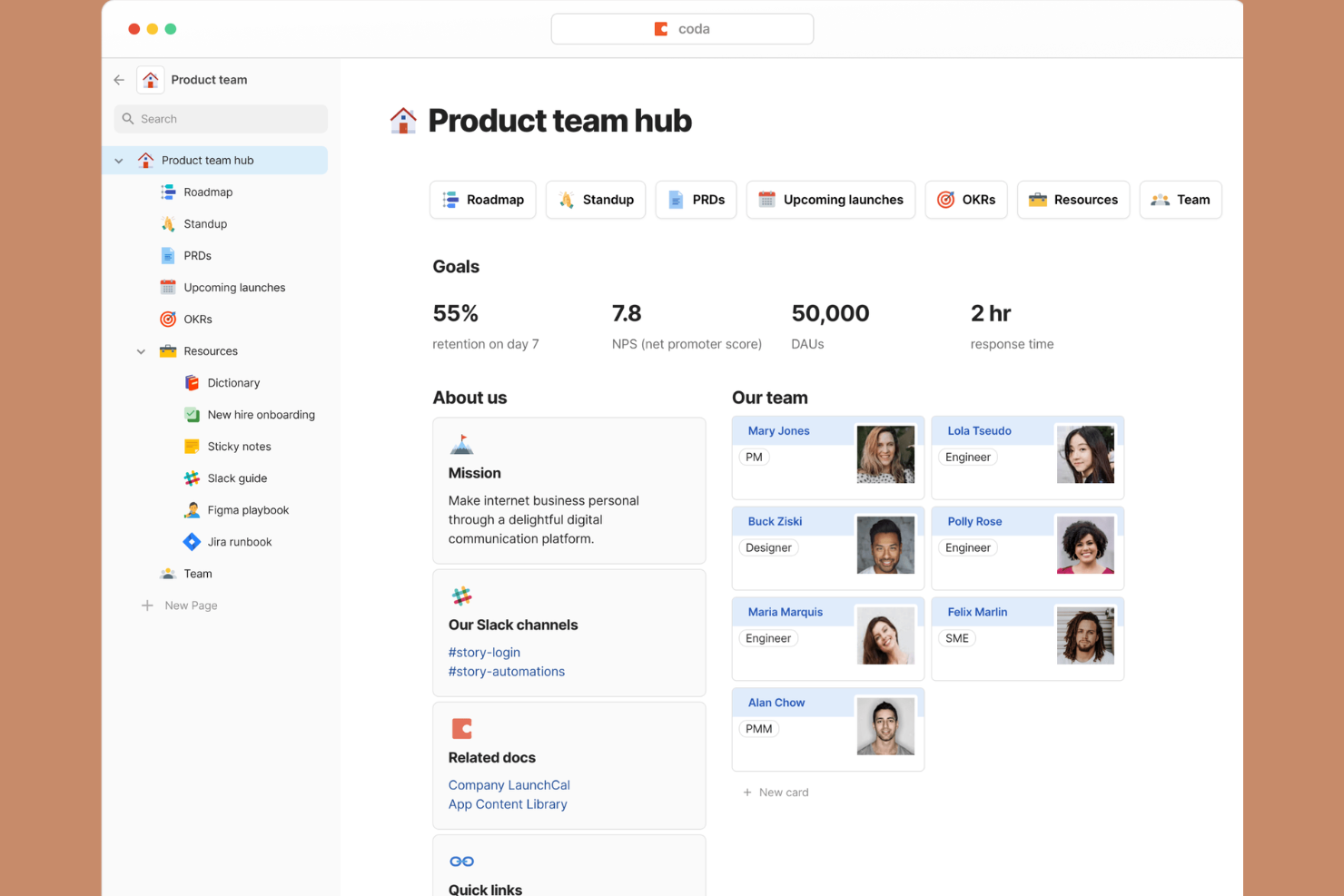
Coda is a doc-based wiki platform that blends pages, tables, and formulas into a single workspace where teams can build and manage collaborative knowledge bases.
Who Is Coda Best For?
Coda is a strong fit for product and cross-functional teams that need a shared workspace combining documentation with live, structured data.
Why I Picked Coda
I picked Coda as one of the best because every page functions as a canvas that holds text, tables, and formulas together. My team uses this to build product wikis where written context sits directly alongside a live task tracker or decision log. The cross-page formula system means updates in one doc automatically flow through to related pages, which keeps a shared knowledge base current without manual upkeep.
Coda Key Features
- Coda AI: A built-in AI assistant that drafts, summarizes, and generates content directly inside any doc or page.
- Page locking: Restrict editing on specific pages while keeping them visible to the broader team.
- Version history: Track changes to any doc over time and restore previous versions as needed.
- Doc publishing: Share any Coda doc as a publicly accessible or access-controlled web page.
Coda Integrations
Coda offers 500+ integrations through its Packs system, including Slack, Jira, Figma, Salesforce, Google Sheets, Microsoft Teams, GitHub, HubSpot, Miro, and Zoom. An API is also available for custom integrations.
Pros and Cons
Pros:
- Large template gallery for quick setup
- Only Doc Makers need paid seats
- Embeds tables and formulas inside wiki pages
Cons:
- Large docs can slow down noticeably
- No offline access or desktop app
Notion
Best for unifying notes, tasks, and databases

Notion is a flexible wiki and knowledge base platform that combines docs, databases, and task tracking in one connected workspace.
Who Is Notion Best For?
Notion can function as a personal wiki or scale into a strong fit for small to mid-size tech teams that want a single workspace for documentation, project tracking, and knowledge management.
Why I Picked Notion
I picked Notion as one of the best because it lets my team build a wiki where documentation and project data live on the same page. I can embed a live database of sprint tasks directly inside a team handbook page, so context and work are never separated. Notion's linked databases mean I can reference the same dataset across multiple wiki pages without duplicating it.
Notion Key Features
- Notion AI: Generate page summaries, auto-fill database fields, and draft wiki content directly inside any page.
- Synced blocks: Write a content block once and sync it across multiple pages so updates apply everywhere automatically.
- Granular page permissions: Set view, comment, or edit access at the individual page or workspace level.
- Inline comments and mentions: Leave feedback on specific text and tag teammates directly within any wiki page.
Notion Integrations
Notion offers dozens of integrations through its integration gallery, including native connections with Slack, Google Drive, Jira, GitHub, Asana, GitLab, Figma, Trello, and Miro. It connects with Zapier and Make for workflow automation, and provides a public API for building custom integrations.
Pros and Cons
Pros:
- Block-based editor supports flexible layouts
- Embed databases directly inside wiki pages
- Verified pages flag outdated wiki content
Cons:
- Automations are limited to a single database scope
- Requires significant initial workspace setup time
Best for collaboration on structured documents
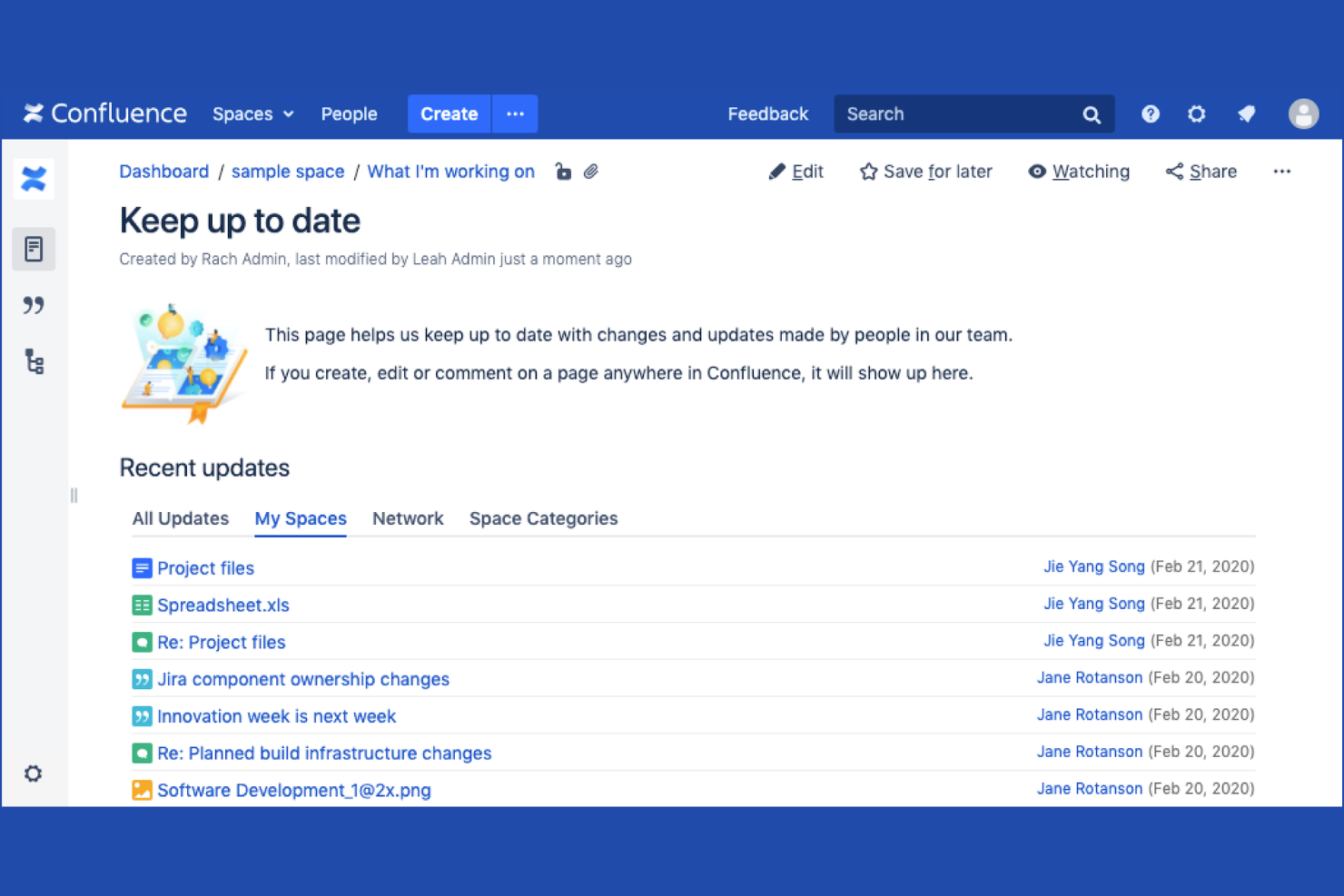
Confluence is an AI-powered company wiki and knowledge-sharing platform from Atlassian that lets teams create, organize, and collaborate on pages, live docs, whiteboards, and databases in a single shared workspace.
Who Is Confluence Best For?
Confluence is a strong fit for mid-size to enterprise tech teams already working within the Atlassian ecosystem with Jira or other Atlassian products.
Why I Picked Confluence
Confluence earns its spot on my shortlist because of how well it handles structured document collaboration across large teams. I particularly like the page hierarchy system, which lets my team nest docs within spaces so technical specs, PRDs, and runbooks stay organized by project or team. Inline commenting on pages keeps feedback in context rather than scattered across emails. The page templates for things like meeting notes and product requirements are genuinely useful for getting structured docs off the ground fast.
Confluence Key Features
- Spaces: Organize wiki content into dedicated, permission-controlled areas for each team, department, or project.
- Atlassian Intelligence: Use built-in AI to summarize pages, generate draft content, and surface relevant documentation.
- Page history: View, compare, and restore previous versions of any page to track how content has evolved over time.
- Macros: Embed dynamic content blocks like status labels, roadmaps, and tables of contents directly into pages.
Confluence Integrations
Confluence offers 1,000+ marketplace plugins and integrations through the Atlassian Marketplace, including native integrations with Jira, Jira Service Management, Slack, Microsoft Teams, Google Drive, Microsoft Office 365, Trello, Loom, and Bitbucket. An API is also available for custom integrations.
Pros and Cons
Pros:
- Large template library for common documents
- Real-time co-editing on the same page
- Deep page nesting for organized knowledge bases
Cons:
- The page editor feels slow with complex content
- Search results can be unreliable in large wikis

Best for Microsoft ecosystems document management
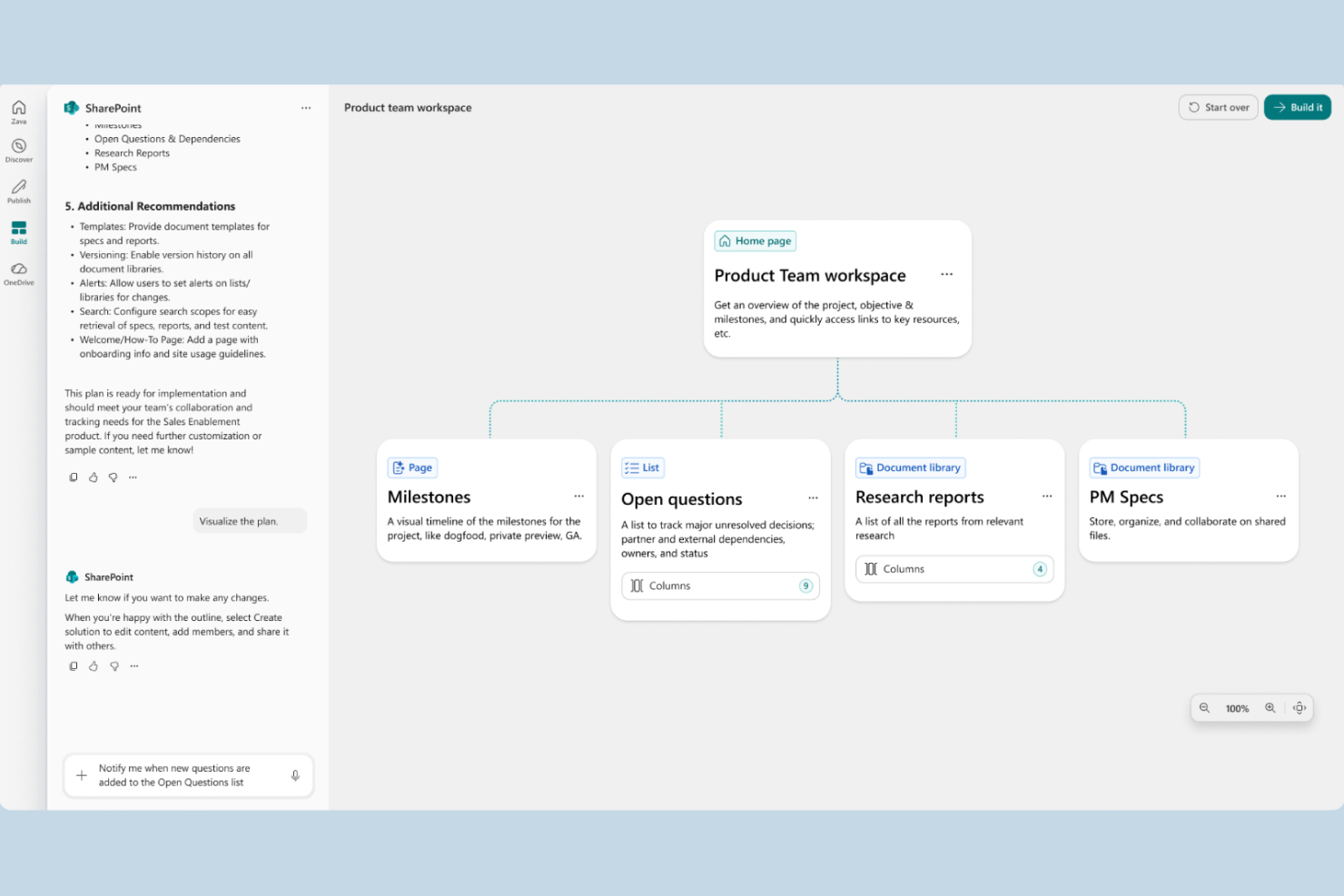
SharePoint is Microsoft's intranet and document management platform that lets teams build wiki-style sites, organize files in structured libraries, and manage internal knowledge across departments.
Who Is SharePoint Best For?
SharePoint is a natural fit for mid-size to enterprise organizations already running Microsoft 365, where IT teams manage access and governance across departments.
Why I Picked SharePoint
I picked SharePoint as one of the best because no other wiki tool matches its depth of integration within the Microsoft 365 ecosystem. My team uses SharePoint document libraries with co-authoring in Word and Excel directly in the browser, and content syncs automatically with OneDrive. I also rely on its metadata tagging and content types to keep large libraries organized across departments without manual sorting.
SharePoint Key Features
- Site pages editor: A drag-and-drop page builder with web parts for text, images, tables, and embedded content to structure wiki-style documentation.
- Granular permissions: Access controls at the site, library, folder, and individual file level, managed through Active Directory groups.
- Version history with check-in/check-out: Tracks document revisions and lets users lock files during editing to prevent conflicting changes.
- Microsoft Search: Cross-site full-text search that indexes pages, files, and list items across your entire SharePoint environment.
SharePoint Integrations
SharePoint has deep native integrations across the Microsoft ecosystem, including Teams, OneDrive, Outlook, Power Automate, Power Apps, Power BI, and Microsoft Lists. It also connects with third-party tools like Salesforce, Trello, Asana, DocuSign, and Adobe Sign through Power Automate connectors. SharePoint provides a REST API and Microsoft Graph API for custom integrations.
Pros and Cons
Pros:
- Scales from small teams to large enterprises
- Granular access controls at every level
- Deep native ties to Microsoft 365 apps
Cons:
- Requires significant admin setup and governance
- Wiki pages lack built-in content categorization
Guru
Best for fast answers with integrations
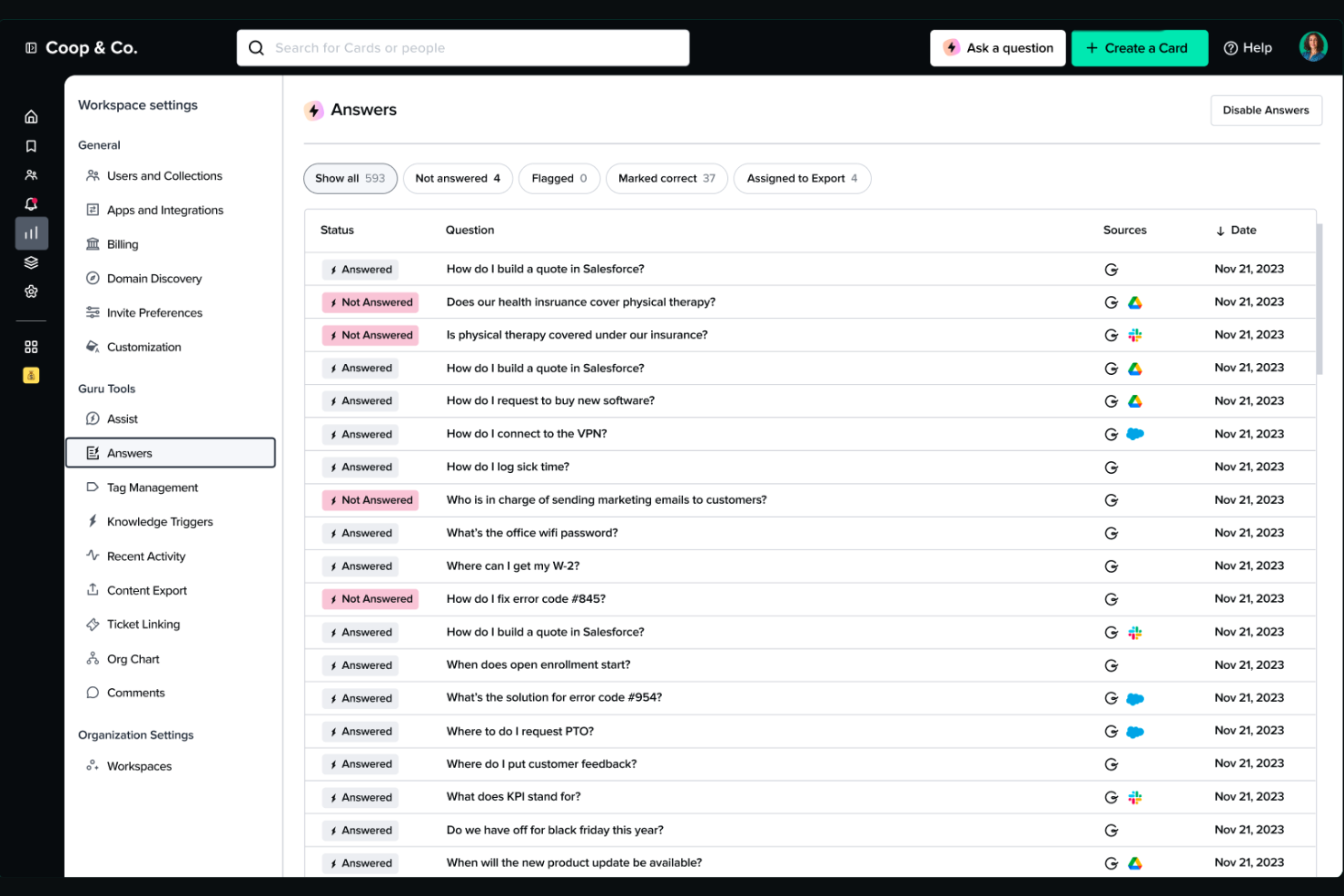
Guru is a knowledge management platform that captures, organizes, and verifies company knowledge, then surfaces it inside the tools your team already uses, including Slack, Chrome, and your browser.
Who Is Guru Best For?
Guru is a strong fit for customer-facing and support teams at growing companies that need instant access to verified answers without leaving their existing workflows.
Why I Picked Guru
I picked Guru as one of the best because its browser extension is one of the most practical features I've come across in this space. It surfaces contextual, cited answers directly on the page I'm already viewing, without opening a new tab or switching tools. I also love Guru's verification workflows, which route cards to subject-matter experts on a set review cycle so outdated answers don't sit in the wiki unchecked.
Guru Key Features
- Content deduplication and reconciliation: AI detects redundant or conflicting content across sources and reconciles it automatically.
- Gap detection and auto-generated knowledge: Identifies missing knowledge and drafts structured documentation where none existed yet.
- Targeted announcements: Push updates with read-tracking to specific teams or roles so nothing gets missed.
- Analytics and usage reporting: Tracks search behavior, usage patterns, and knowledge health metrics across the wiki.
Guru Integrations
Guru offers 100+ native integrations, including Slack, Microsoft Teams, Salesforce, Jira, Confluence, Google Drive, HubSpot, Intercom, Zendesk, and Notion. It also connects with Zapier, Workato, and Prismatic, and provides an API for custom integrations.
Pros and Cons
Pros:
- Decision trees guide step-by-step troubleshooting
- Card-based format surfaces answers quickly
- Verification workflows keep wiki content current
Cons:
- Content structure feels rigid for unique workflows
- Verification reminders can be overwhelming with notifications
Annen wiki-programvare for intern bruk
Her er noen flere alternativer for wiki-programvare til intern bruk som ikke kom med på kortlisten, men som likevel er verdt å undersøke:
- Outline
For customizable access permissions
- BookStack
For open-source, self-hosted deployments
- ClickUp
For integrating wikis with project workflows
- Bloomfire
For enterprise-grade knowledge search
- Archbee
For API documentation and technical teams
- Zoho Learn
For course creation with content organization
- XWiki
For content structuring and customization
- GitBook
For developer-friendly documentation
- Wiki.js
For flexible integrations with modern tools
- MediaWiki
For community-driven documentation


How I Evaluate Internal Wiki Software
I evaluate wikis in two layers: non-negotiable baseline criteria—like nested pages, search, and permissions—and differentiators that reveal the best-fit tool for your team.
Core Functionality (Table Stakes For This List)
When I'm selecting tools for my list, I rank each one on a scale from 0 (does not offer the functionality) to 5 (excels in this area) for each core functionality listed below. Then, I calculate the tool's total score into a percentage. Each tool needs to achieve a minimum total score of 75% to be considered for inclusion.
- Hierarchical Page Structure: I check whether a wiki supports nested pages, multiple spaces, and drag-and-drop reorganization so teams can mirror their project structure in documentation.
- Rich Collaborative Editing: Real-time co-editing, inline comments, and embedded content matter here—especially for distributed teams co-authoring specs or retro notes.
- Powerful Internal Search: I evaluate how quickly a tool surfaces answers across pages and attachments, including whether it offers filters by space, author, or date.
- Granular Permissions & Access: Project wikis often mix sensitive content with open docs, so I look for page-level and role-based controls rather than just workspace-wide toggles.
- Version History & Revisions: Teams editing living documents like runbooks need diff views, rollback, and change notifications—not just a record of the latest save.
- Project Tool Integrations: I look at native connectors with tools like Jira, Asana, Slack, and Google Drive, plus whether the platform offers an open API for custom workflows.
Once I have a list of tools that meet this criteria, I consider what sets each platform apart.
Differentiating Factors (What Sets Vendors Apart)
Here's how I compare and contrast different vendors:
Standout Features
AI-powered search is a major differentiator—I evaluate whether a wiki can answer natural-language questions from existing content, not just return keyword matches. Content freshness workflows matter just as much. When project docs go stale, teams stop trusting the wiki entirely. I look for tools that let you assign page owners, set verification cycles, and flag outdated content automatically. Template libraries round this out by giving teams ready-made structures for meeting notes, RFCs, and runbooks so documentation stays consistent across projects.
Beyond Features
Content migration is the first thing I consider. Moving hundreds of pages from Confluence or Google Docs into a new wiki can stall a rollout without dedicated import tools. Integration depth with your existing stack also matters. A wiki that connects to Jira, Slack, and GitHub keeps project context linked rather than siloed. Pricing structure deserves close attention too, especially whether guest or read-only seats are included or billed separately, since project wikis often serve contributors well beyond the core team.
Slik velger du wiki-programvare for intern bruk
Det er lett å gå seg vill i lange funksjonslister og kompliserte prismodeller. For å holde fokus mens du arbeider deg gjennom den unike prosessen med å velge programvare, får du her en sjekkliste over faktorer du bør ha i mente:
| Faktor | Hva du bør vurdere |
|---|---|
| Skalerbarhet | Vil wikien støtte antallet brukere og innholdsmengden etter hvert som teamet eller virksomheten vokser? Vurder minimumskrav til lisenser, brukerbegrensninger og langsiktige behov for lagring eller datalagring. |
| Integrasjoner | Kan programvaren kobles til de viktigste verktøyene dine (Slack, Jira, Google Drive, Teams)? Vurder hvor godt integrasjonene samsvarer med dagens arbeidsflyter og fremtidige behov. |
| Tilpasningsmuligheter | Kan du tilpasse maler, oppsett, tillatelser og arbeidsflyter slik at de passer til prosessene dine? Unngå rigide verktøy som låser deg til sin egen struktur. |
| Brukervennlighet | Vil ikke-tekniske og distribuerte team ta det i bruk raskt? Prioriter intuitive grensesnitt, gode ressurser for opplæring og enkel navigering mellom sider. |
| Implementering og opplæring | Hvor bratt er læringskurven? Vurder hjelp med migrering, kundestøtte og dokumentasjon for utrulling til nye brukere i stor skala. |
| Kostnad | Finnes det skjulte kostnader utover grunnlisensen for lagring, prioritert kundestøtte eller KI-funksjoner? Lag scenarier basert på forventet teamstørrelse og funksjonsbehov. |
| Sikkerhetstiltak | Er tilgangskontroller, SSO-alternativer og revisjonsspor i tråd med virksomhetens krav til personvern og datasikkerhet? Sørg for at sikkerheten oppfyller organisasjonens minimumsstandarder. |
| Tilgjengelig kundestøtte | Er kundestøtte tilgjengelig i tidssonene dine og gjennom kanalene du foretrekker (e-post, chat, telefon)? Vurder responstid og dekning før du bestemmer deg. |
Hva er wiki-programvare for intern bruk?
Intern wiki-programvare er en sentralisert digital plattform for å opprette, organisere og dele bedriftskunnskap blant ansatte. Den støtter samarbeid i sanntid, strukturerte innholdshierarkier og sikre tilgangskontroller, og hjelper team med å dokumentere prosjektinformasjon, opplæringsmateriell og standardiserte arbeidsprosedyrer. Med funksjoner for søk og versjonshistorikk fungerer denne plattformen som en sikker, bedriftsintern Wikipedia som gjør det enkelt for alle i organisasjonen å finne, oppdatere og stole på nøyaktig og oppdatert dokumentasjon.
Funksjoner i intern wiki-programvare
Når du velger intern wiki-programvare, bør du se etter følgende viktige funksjoner:
- Hierarkisk organisering av sider: Strukturer innholdet ved hjelp av nestede sider, områder eller mapper, slik at team enkelt kan organisere dokumentasjon etter prosjekter eller avdelinger.
- Samarbeidsredigering: Flere brukere kan opprette, redigere og oppdatere innhold i sanntid, noe som støtter samarbeid og eliminerer forvirring rundt versjoner.
- Detaljerte tillatelser: Kontroller hvem som kan se, redigere eller administrere innhold på side-, område- eller gruppenivå for å beskytte sensitiv eller konfidensiell informasjon.
- Kraftig søk: Finn sider, vedlegg eller nøkkelord i hele wikien ved hjelp av fulltekstsøk, filtre og søkeforslag.
- Versjonshistorikk: Spor alle endringer som er gjort på en side, sammenlign tidligere versjoner og gjenopprett tidligere innhold ved behov.
- Maler: Bruk innebygde maler for møtenotater, opplæringsveiledninger, driftsprosedyrer og mer for å standardisere dokumentasjonen og gjøre innholdsproduksjonen raskere.
- Varsler og kommentarer: Legg til rette for diskusjon og tilbakemeldinger gjennom kommentarer på sider, omtaler og endringsvarsler, slik at alle holdes oppdatert.
- Integrasjoner: Koble til verktøy for prosjektstyring, kommunikasjon og lagring, for eksempel Jira, Slack og Google Drive, slik at informasjonen er tilgjengelig og vises i riktig kontekst.
- Mobiltilgang: Vis, rediger og kommenter dokumentasjon fra smarttelefoner eller nettbrett for å støtte eksterne og geografisk distribuerte team.
Vanlige AI-funksjoner i intern wiki-programvare
I tillegg til standardfunksjonene i intern wiki-programvare som er nevnt ovenfor, tar mange av disse løsningene i bruk kunstig intelligens med funksjoner som:
- AI-drevet søk: Bruker naturlig språkbehandling til å forstå søk og finne frem det mest relevante innholdet, selv når nøkkelordene ikke samsvarer nøyaktig.
- Automatisk innholdssammendrag: Genererer umiddelbart korte sammendrag av lange sider eller dokumenter, slik at brukerne raskt kan få oversikt over hovedpunktene uten å lese alt.
- AI-drevne spørsmål-og-svar-assistenter: Svarer på brukernes spørsmål ved å hente informasjon fra hele wikien og gir umiddelbare, kontekstbevisste svar på spørsmål formulert i naturlig språk.
- Oppdagelse av utdatert innhold: Identifiserer utdatert eller foreldet dokumentasjon ved hjelp av kunstig intelligens, og ber deretter innholdseierne om å gjennomgå eller oppdatere sidene etter behov.
- Smarte anbefalinger: Foreslår relaterte artikler, sider eller ressurser basert på brukeradferd og innholdskontekst, slik at det blir enklere å oppdage relevant informasjon.
Fordeler med intern wiki-programvare
Implementering av intern wiki-programvare gir flere fordeler for teamet og virksomheten din. Her er noen av fordelene du kan se frem til:
- Sentralisert kunnskapsbase: Lagre retningslinjer, prosesser og prosjektdokumentasjon på ett organisert og søkbart sted, slik at alle har tilgang til den samme informasjonen.
- Raskere opplæring: Bruk maler og konsekvent dokumentasjon for å få nye teammedlemmer raskt oppdatert.
- Forbedret samarbeid: Redigering i sanntid, kommentarer og varsler holder teamene tilknyttet og sikrer innspill fra flere interessenter.
- Bevaring av kunnskap: Versjonshistorikk, tilgangskontroller og utpekte innholdseiere gjør det enklere å bevare institusjonell kunnskap og forhindre tap av informasjon når teamene endres.
- Færre gjentakende spørsmål: AI-drevet søk, strukturerte hierarkier og enkle integrasjoner hjelper teammedlemmer med å finne svarene de trenger uten å forstyrre andre.
- Økt åpenhet: Tillatelser og tilgangskontroller gjør det mulig både å dele generell informasjon åpent og å beskytte sensitive emner etter behov.
- Bedre støtte for fjernarbeid: Mobiltilgang og asynkron redigering gjør det enkelt for distribuerte team å bidra til eller bruke dokumentasjon hvor som helst og når som helst.
Kostnader og priser for intern wiki-programvare
Valg av programvare for intern wiki krever en forståelse av de ulike prismodellene og planene som er tilgjengelige. Kostnadene varierer basert på funksjoner, teamstørrelse, tillegg og mer. Tabellen nedenfor oppsummerer vanlige planer, gjennomsnittsprisene deres og typiske funksjoner som er inkludert i løsninger for programvare for intern wiki:
Sammenligningstabell for planer for programvare for intern wiki
| Plantype | Gjennomsnittspris | Vanlige funksjoner |
|---|---|---|
| Gratisplan | $0 | Grunnleggende sideredigering, begrenset lagringsplass, brukerstøtte fra fellesskapet og grunnleggende integrasjoner. |
| Personlig plan | $5-$10/bruker/måned | Individuelle arbeidsområder, avansert søk, personlige maler og brukerstøtte via e-post. |
| Forretningsplan | $10-$25/bruker/måned | Verktøy for teamsamarbeid, detaljerte tillatelser, integrasjoner med tredjepartsapper og versjonshistorikk. |
| Plan for store virksomheter | $25-$50/bruker/måned | Avansert sikkerhet, SSO, revisjonslogger, prioritert brukerstøtte, alternativer for datalagring i bestemte regioner og tilpasset introduksjon. |
Vanlige spørsmål om programvare for intern wiki
Her er noen svar på vanlige spørsmål om programvare for intern wiki:
Hvordan flytter jeg innhold fra en gammel wiki eller dokumentasjonsplattform?
De fleste programmer for intern wiki inkluderer importverktøy for å flytte innhold fra plattformer som Confluence, Notion eller Google Docs. Jeg anbefaler å kartlegge sidestrukturen og først teste en liten flytting for å kontrollere formatering og tillatelser før den rulles ut i hele virksomheten.
Kan jeg kontrollere hvem som kan se eller redigere bestemte sider i en intern wiki?
Ja, du kan angi detaljerte tillatelser for å kontrollere hvem som kan se, redigere eller administrere innhold. Tildel tillatelser på side-, område- eller gruppenivå for å holde sensitiv informasjon privat, samtidig som generell dokumentasjon kan deles bredt.
Hvilke integrasjoner bør jeg se etter i programvare for intern wiki?
Prioriter integrasjoner med verktøyene teamet allerede bruker, for eksempel Slack, Microsoft Teams, Jira, Google Drive og SSO-leverandører. Dette gjør det enklere å koble, synkronisere og dele kunnskap i de daglige arbeidsflytene.
Hvordan støtter programvare for intern wiki eksterne og distribuerte team?
Med mobilapper, asynkron redigering, varsler i sanntid og samarbeidsverktøy hjelper interne wikier distribuerte team med å finne og bidra til dokumentasjon uten hindringer knyttet til tidssoner eller geografisk plassering.
Hvordan forbedrer KI-funksjoner programvare for intern wiki?
KI-funksjoner hjelper ved å automatisere søk, oppsummere lange sider, markere utdatert innhold og svare på spørsmål i naturlig språk. Dette sparer tid og holder dokumentasjonen oppdatert uten manuelt vedlikehold.