

10 beste gratis kanban-tavler i 2026

Kortliste over de beste gratis Kanban-tavlene


En gratis Kanban-tavle er et digitalt verktøy for å visualisere arbeid på kort og i kolonner, og tilbys uten kostnad gjennom en gratisplan eller prøveperiode. Hvis du ser etter de beste gratis Kanban-verktøyene, trenger du sannsynligvis en fleksibel måte å administrere oppgaver på, følge prosjektfremdriften og hjelpe teamet med å holde seg samkjørte – uten å sprenge budsjettet.
I denne veiledningen finner du ut hvilke gratis Kanban-tavleverktøy som faktisk tilbyr pålitelige funksjoner for å optimalisere arbeidsflyten, en enkel brukeropplevelse og samarbeid utviklet for virkelige prosjektteam. Du får også se hvordan hvert alternativ passer til ulike arbeidsflyter, slik at du trygt kan finne verktøyet som passer prosjektets behov.
Hvorfor du kan stole på våre programvareanbefalinger
Teamet vårt har testet og anmeldt programvare siden 2012. Vi er selv prosjektledere, så vi vet hvor vanskelig og hvor viktig det er å velge riktig programvare.
I denne guiden har vi vurdert verktøyene gjennom praktisk testing og uavhengig research og gitt dem poeng ut fra våre utvelgelseskriterier. Vi bygger også på innsikt fra ledende eksperter i bransjen og erfarne prosjektledere.
Anmeldelsene våre bygger på vår egen redaksjonelle vurdering. De er ikke et salgsargument.
Ekspertanmeldere:
Sammenligningstabell for gratis Kanban-tavler
Denne sammenligningstabellen oppsummerer prisdetaljene for mine best utvalgte gratis Kanban-tavler:
| Tool | Best For | Trial Info | Price | ||
|---|---|---|---|---|---|
| 1 | Best for real-time collaboration | Free plan + 14-day trial available | From €6/user/month | Website | |
| 2 | Best for open-source customization | Free plan available | From €50/year (billed annually) | Website | |
| 3 | Best for agile teams needing backlog support | Free plan available | From 5€/month | Website | |
| 4 | Best for all-in-one CRM and task boards | 15-day free trial + free demo available | From $49/month (billed annually) | Website | |
| 5 | Best for self-hosted visual task management | Free plan available | Free forever plan | Website | |
| 6 | Best with built-in AI task recommendations | Free plan + 14-day trial available | From $9/user/month (billed annually) | Website | |
| 7 | Best for customizable workflows and layouts | Free plan + free demo available | From $10/user/month | Website | |
| 8 | Best timeline view for task planning | Free plan + trial + demo available | From $10.99/user/month (billed annually) | Website | |
| 9 | Best for multi-view boards on a free plan | Free plan + 14-day trial + demo available | From $10/user/month (billed annually) | Website | |
| 10 | Best for advanced agile project tracking | Free plan + free trial available | From $7.91/user/month | Website |


Anmeldelser av gratis Kanban-tavler
Nedenfor finner du mine detaljerte sammendrag av de gratis Kanban-tavlene som kom med på kortlisten. Anmeldelsene mine gir en grundig gjennomgang av funksjonene, de beste bruksområdene og integrasjonene for hvert verktøy, slik at du kan finne det beste alternativet for deg.

Best for real-time collaboration
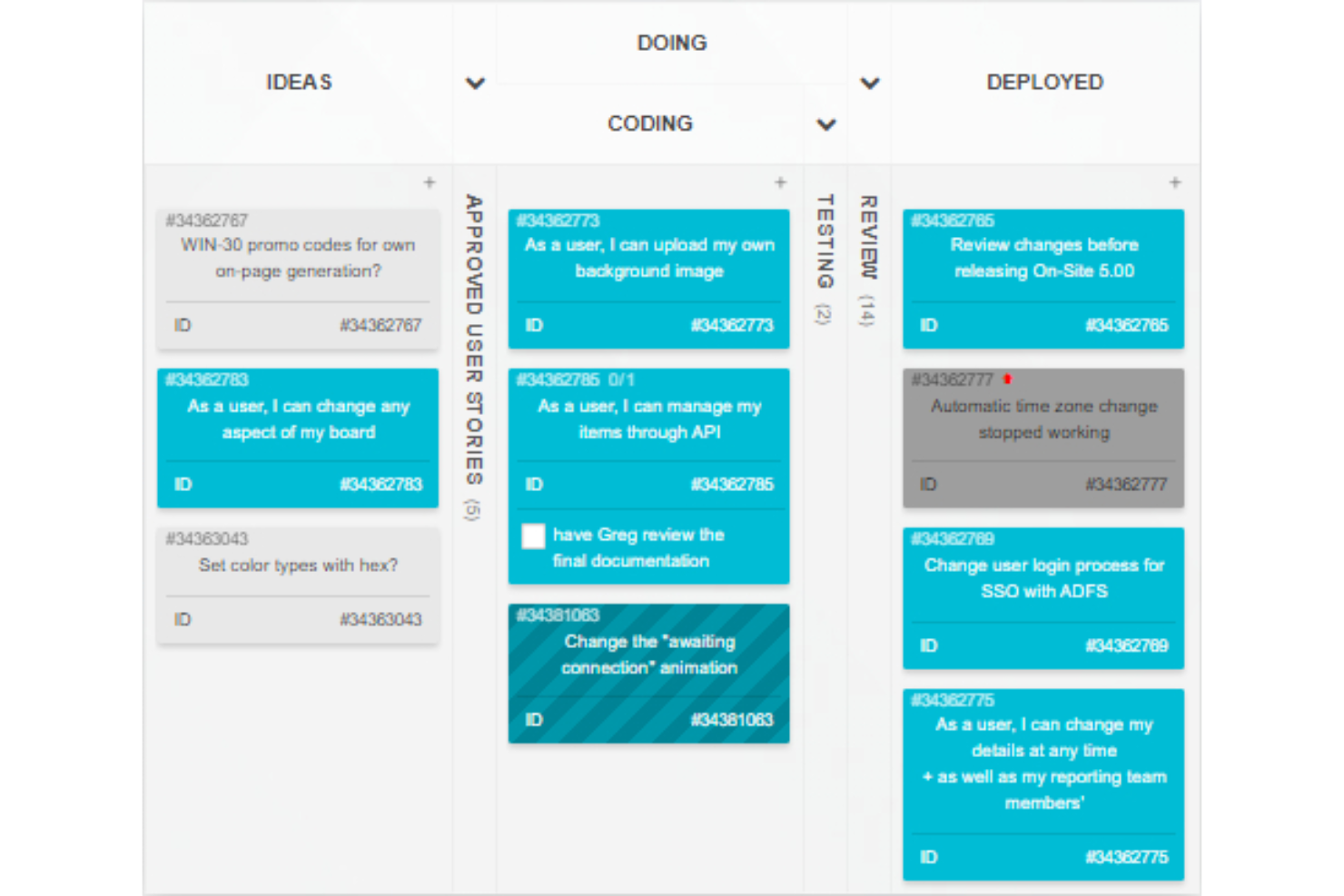
Kanban Tool is an online kanban board platform designed for task visualization, card-based workflows, time tracking, and team activity management in real time.
Who Is Kanban Tool Best For?
Kanban Tool suits distributed teams or small businesses needing visual project management and real-time task updates.
Why I Picked Kanban Tool
I picked Kanban Tool as one of the best because real-time card updates, collaborative commenting, and visual activity indicators keep everyone on the same page during fast-paced project work. I use the swimlanes and card color-coding for progress tracking.
Kanban Tool Key Features
- Time tracking: Track time spent on tasks with built-in timers.
- File attachments: Attach files and documents directly to cards.
- Checklists: Add multiple checklists to each card for detailed task steps.
- Analytics and reporting: View cumulative flow diagrams and other visual project metrics.
Kanban Tool Integrations
Kanban Tool offers native integrations with Zapier, Dropbox, Google Drive, and Box, and provides an API for custom integrations.
What's Free?
Kanban Tool offers a 14-day free trial of all features. There is no mention of a free-forever plan, and all users must select a paid plan after the trial period ends.
Pros and Cons
Pros:
- Swimlanes for managing parallel workflows
- Built-in time tracking per task
- Real-time board and card updates
Cons:
- No mobile app for iOS or Android
- Free plan limits to two boards

WeKan
Best for open-source customization
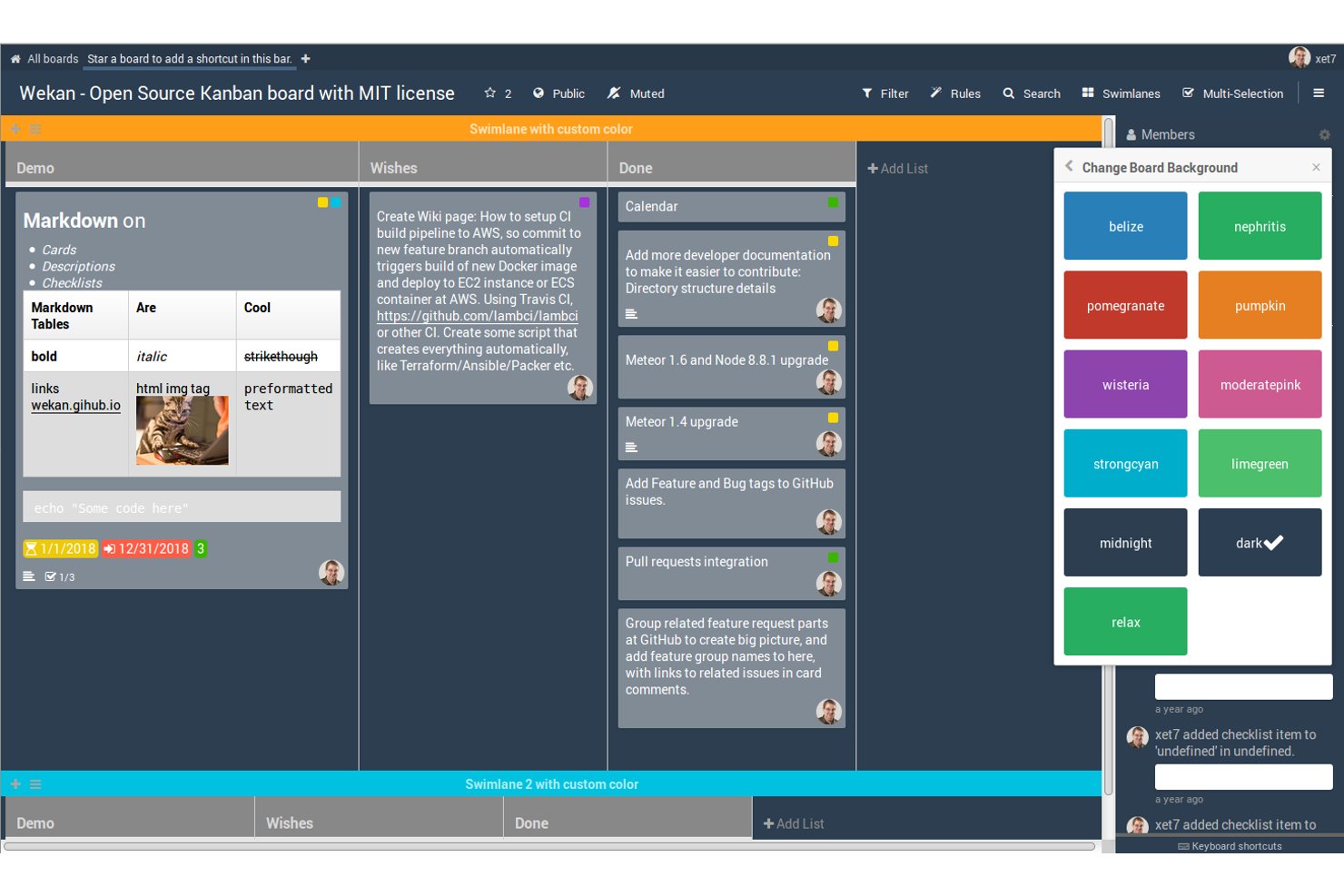
Wekan is an open-source kanban board platform that gives users tools to create, organize, and manage cards and lists for projects or workflows.
Who Is Wekan Best For?
Wekan is a fit for teams and developers seeking a self-hosted kanban solution with control over customization and deployment.
Why I Picked Wekan
I picked Wekan as one of the best because I can fully control and customize my kanban boards using its open-source codebase. I like that I can modify the UI, add custom features, and deploy it on my own infrastructure. This flexibility fits unique project needs.
Wekan Key Features
- Card checklists: Add detailed checklists to cards for subtasks.
- Swimlane support: Visually separate workflows using horizontal swimlanes.
- Card due dates: Assign and track deadlines for individual cards.
- Board member permissions: Set user roles with view, edit, or admin access.
Wekan Integrations
Native integrations are not clearly documented. The tool supports integrations via its REST API for custom workflows.
What's Free?
Wekan is completely free and open-source for unlimited users if you self-host. There are no feature, user, or time restrictions on the open-source version.
Pros and Cons
Pros:
- Custom fields and advanced swimlane options
- Active open-source community for development support
- Self-hosted deployment for full data control
Cons:
- Interface updates are less frequent than competitors
- Fewer features than leading SaaS kanban tools

Taiga
Best for agile teams needing backlog support
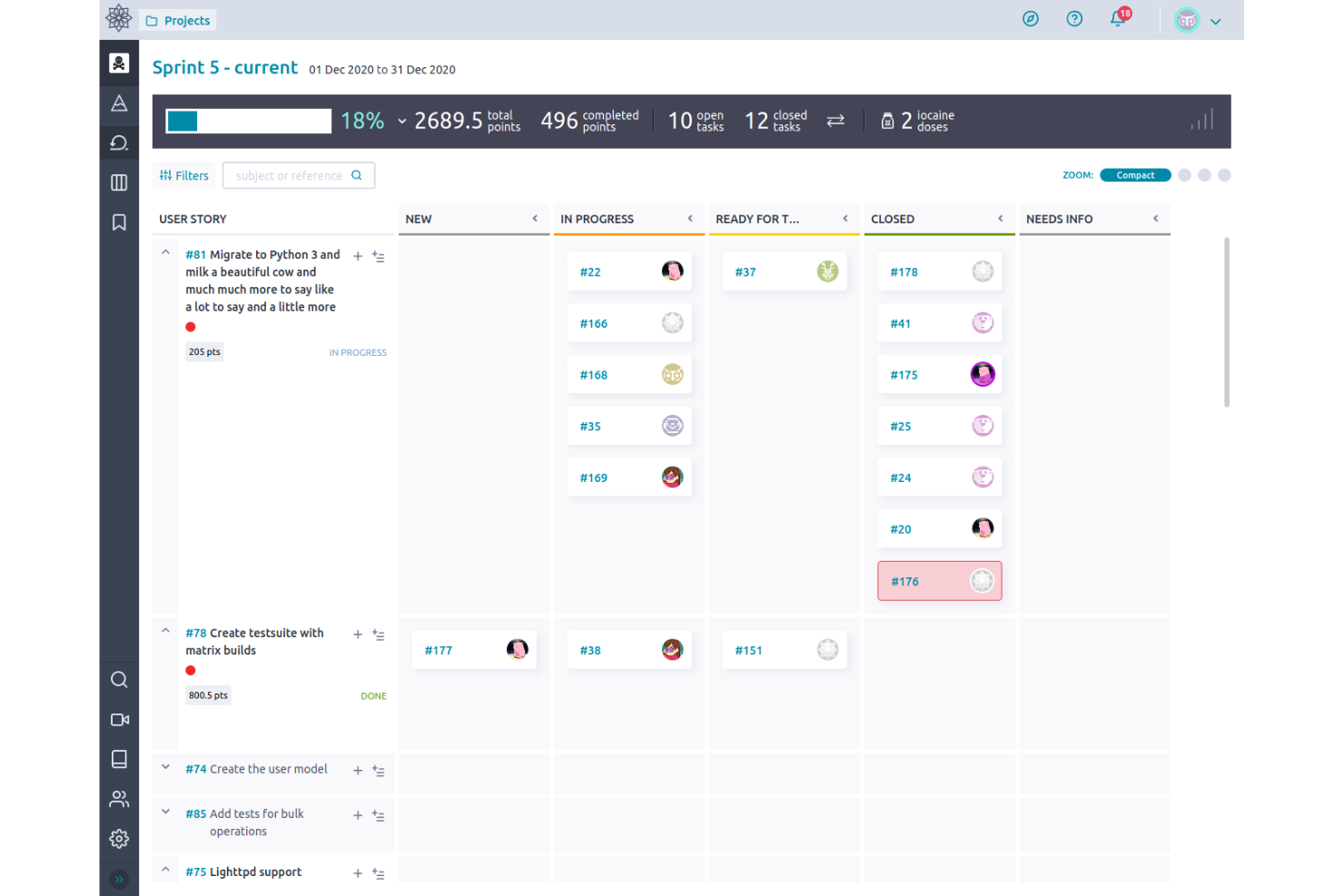
Taiga is an open-source project management tool for agile teams that combines kanban boards, powerful backlog management, sprint planning, and issue tracking in a single workspace.
Who Is Taiga Best For?
Agile product managers and scrum masters at startups or small technology teams looking for flexible kanban workflows and backlog organization.
Why I Picked Taiga
I picked Taiga because I need a kanban tool with strong backlog management. I use user stories, epics, and backlog refinement features to keep priorities clear for agile teams. Taiga’s boards and sprints make managing evolving product backlogs smooth.
Taiga Key Features
- Kanban swimlanes: Organize tasks into multiple horizontal lanes for added structure on your boards.
- Custom workflows: Define and automate unique status progressions for different task types.
- Markdown support: Add markdown formatting to task descriptions, comments, and wiki pages.
- Embedded wiki: Document project knowledge and share resources directly alongside your board.
Taiga Integrations
Taiga offers native integrations with GitHub, GitLab, Bitbucket, and Slack. An API is available for custom integrations.
What's Free?
Taiga offers a free-forever plan that includes unlimited public and private projects, but usage is limited to teams of up to 15 members. Some advanced features may require a paid upgrade.
Pros and Cons
Pros:
- Detailed permissions for project roles
- Built-in wiki and markdown support
- Open-source with kanban and scrum boards
Cons:
- No built-in calendar view
- Reporting options are limited

Bitrix24
Best for all-in-one CRM and task boards
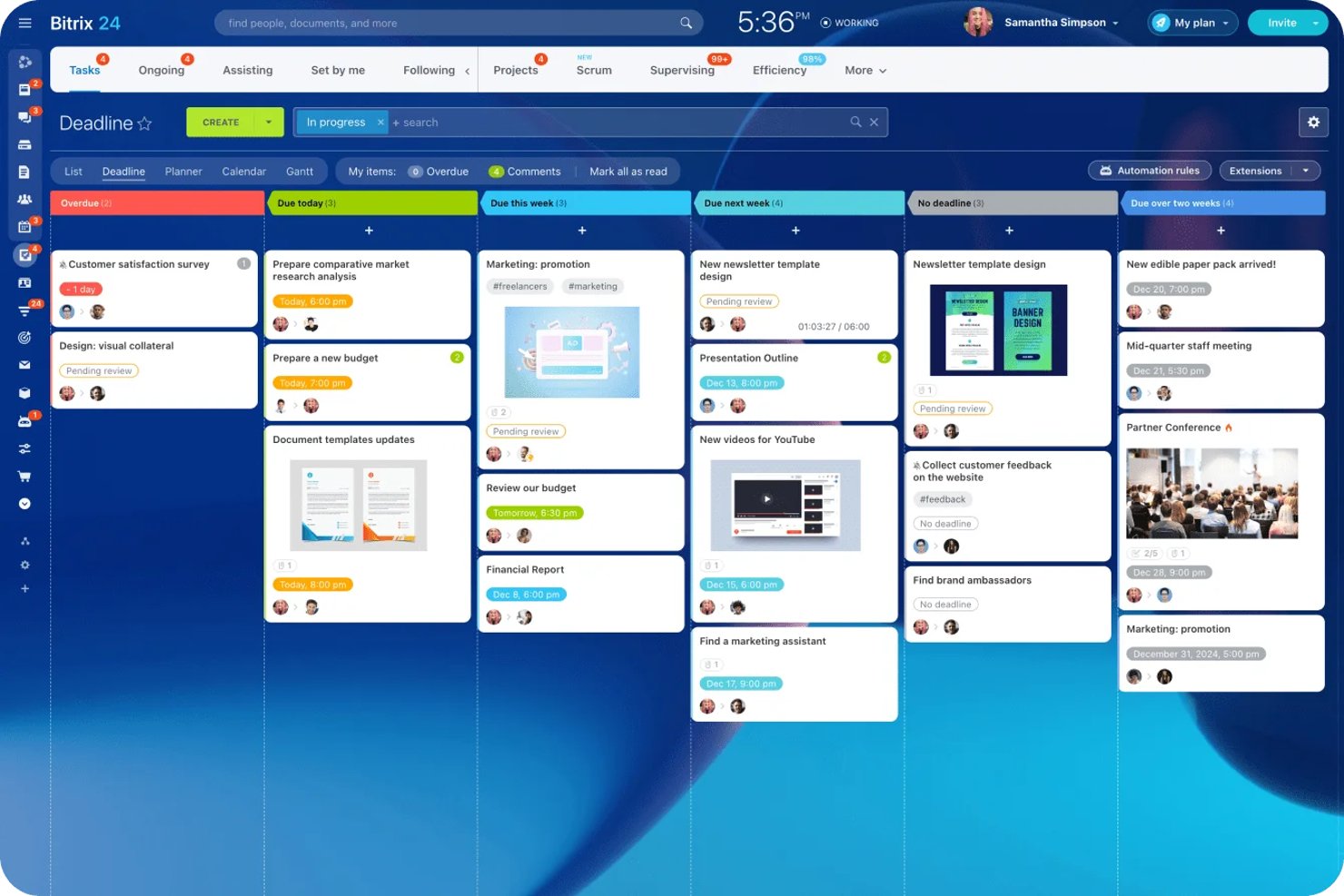
Bitrix24 is a free kanban board solution that unifies task and project management, CRM, chat, video calls, file sharing, automation, and multiple board views within one platform.
Who Is Bitrix24 Best For?
Bitrix24 is a strong choice for small businesses and teams that want to manage tasks, projects, and client relationships on a single, all-in-one platform.
Why I Picked Bitrix24
I picked Bitrix24 as one of the best because it lets my team manage projects, tasks, sales, and client interactions in one place. I like how we can switch between kanban, Gantt, and scrum boards depending on our workflow. Built-in chat, video, and file sharing make collaboration easy as we move tasks or deals through custom kanban stages.
Bitrix24 Key Features
- AI CoPilot integration: Use AI to generate task descriptions, create checklists, and summarize updates directly within cards.
- Project and task templates: Save and reuse templates for common task structures and workflows across boards.
- External collaborator access: Invite clients or freelancers to secure coworking spaces with custom permissions for specific projects.
- Multiple board views: Switch between kanban, Gantt, list, planner, scrum, and calendar views without leaving the platform.
Bitrix24 Integrations
Bitrix24 offers native integrations with WhatsApp, Instagram, Facebook, Telegram, Viber, Google Docs, Microsoft Office, Slack, Skype, QuickBooks, and Xero. It supports marketplace integrations via Bitrix24 Market, connects with Zapier, and provides an open API for custom integrations.
What's Free?
Bitrix24 offers a free-forever plan that supports unlimited users, but has limited storage space and feature access compared to paid plans. The free plan includes core task and project management features, kanban boards, and CRM, but advanced tools, automation, and some integrations are restricted.
Pros and Cons
Pros:
- Team chat and video calls built in
- Built-in AI generates task content and summaries
- Includes kanban, gantt, scrum, calendar views
Cons:
- User limit on free plan is unclear
- Interface is cluttered and overwhelming

Kanboard
Best for self-hosted visual task management
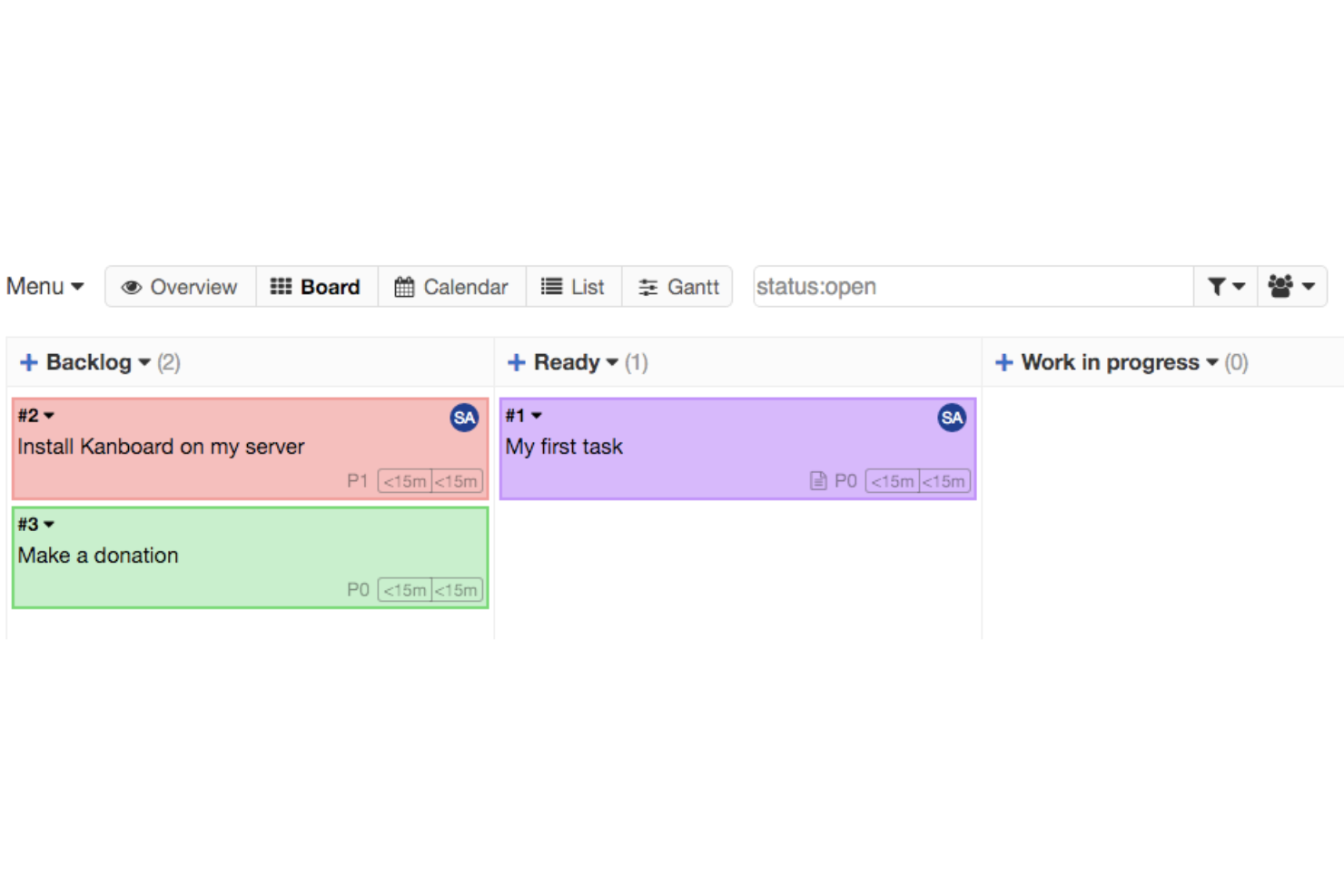
Kanboard is an open-source kanban board solution focused on visual task management, allowing you to create boards, customize workflows, automate processes with integrations, and manage projects entirely on your own infrastructure.
Who Is Kanboard Best For?
Kanboard is a strong fit for IT teams and technical project managers at organizations that want full control over self-hosted, open-source kanban boards.
Why I Picked Kanboard
I picked Kanboard as one of the best because I appreciate how it lets me fully deploy and manage kanban boards on our own infrastructure. I like the deep workflow customization, built-in automations, and ability to add open-source plugins for niche requirements.
Kanboard Key Features
- Subtask management: Break cards into smaller tasks for tracking.
- Swimlane organization: Separate boards into different workstreams or priorities.
- Gantt chart view: Visualize tasks and dependencies on a timeline.
- Markdown support: Format card descriptions and comments using markdown syntax.
Kanboard Integrations
Kanboard offers native integrations with LDAP, RSS feeds, and has an API for custom integrations.
What's Free?
Kanboard is completely free and open-source with no user limits. All core features are available without restrictions for self-hosted use.
Pros and Cons
Pros:
- Extensive workflow automation options
- Self-hosted with complete data control
- Fully open-source with no vendor lock-in
Cons:
- Interface feels dated compared to competitors
- Minimal native integrations with external tools
Best with built-in AI task recommendations
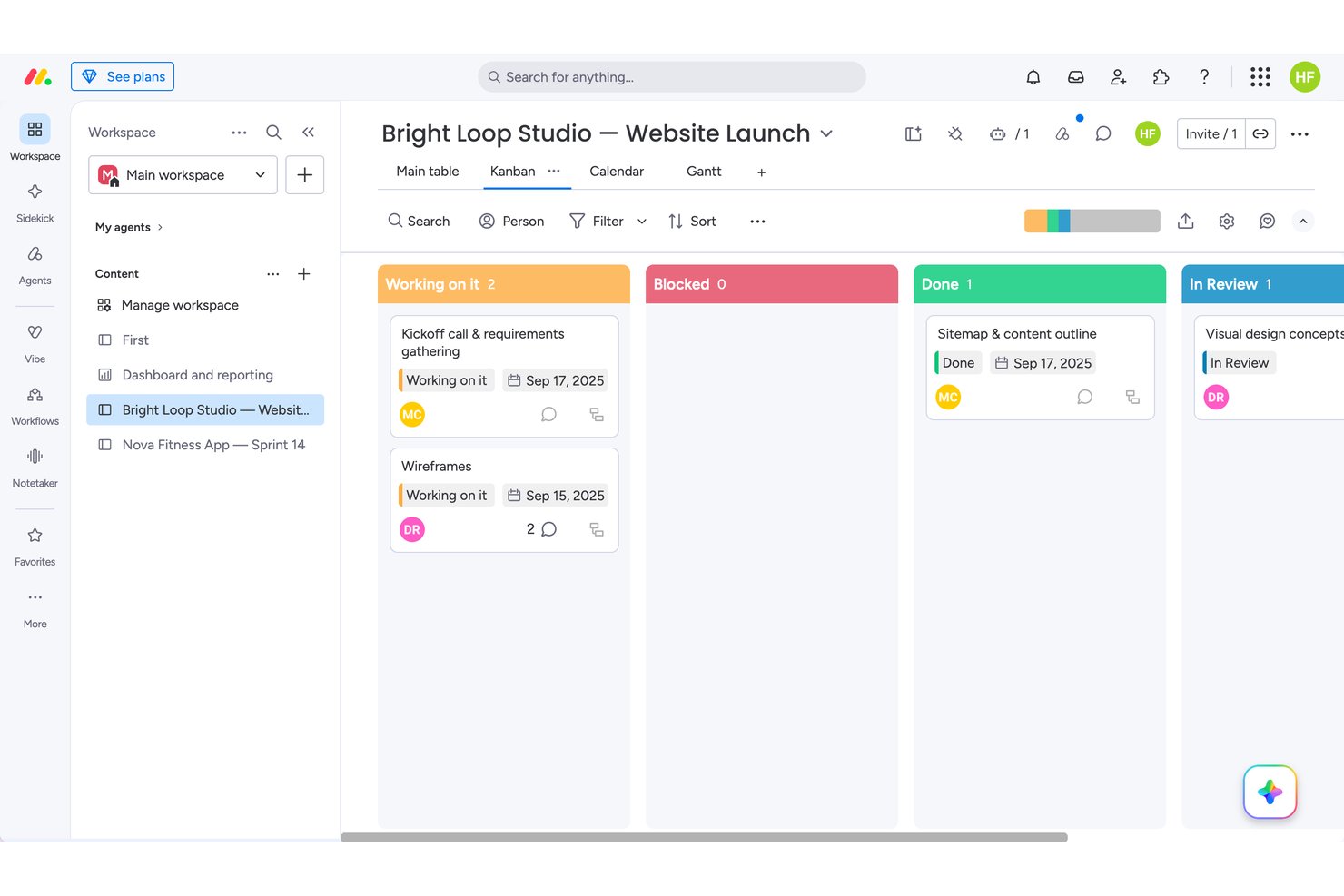
monday.com fits solo users or two-person teams who want visual flexibility over deep collaboration. In testing, I found dependency chains and drag-and-drop synced instantly across Kanban, Calendar, and Gantt views, though WIP limits didn't actually block overflow. That makes it stronger for individual planners than for larger teams, who'll hit the 2-seat cap that rivals like Trello handle more generously on their free tiers.
Why I Picked monday
I picked monday because its automation builder suggests next-step actions and notifications right inside the workflow, closer to true AI-assisted task guidance than most free kanban tools attempt. When I built out a dependency chain across four relationship types, the Gantt view auto-rendered arrows connecting every linked task, something I didn't see elsewhere. Drag-and-drop between Kanban, Calendar, and Table synced instantly with zero refresh lag. WIP limits are configurable, though I noticed they don't actually block overflow when exceeded.
monday Key Features
- Dependency mapping: I linked tasks with four relationship types, including finish-to-start and start-to-start, for real project logic.
- Item activity log: Every field change I made was tracked with a one-click undo option, making mistakes easy to reverse.
- Automation recipes: I built a status-based notification rule from a browsable catalog, though unfilled fields failed silently without an error.
- Custom column editor: I renamed, recolored, and reordered status labels without restructuring any underlying board data.
monday.com Integrations
monday.com offers 850+ marketplace integrations and apps, including Slack, Microsoft Teams, Google Calendar, Google Drive, GitHub, and GitLab. Its open API and SDK support custom integrations, while integration actions require a paid plan.
What's Free?
monday.com offers a free-forever plan with no credit card required, capped at 2 users and 3 boards. I tested real-time drag-and-drop, Kanban, and activity features—everything synced instantly and worked for basic planning, but team collaboration is limited and automation is not available until paid tiers.
Pros and Cons
Pros:
- Activity log offers one-click undo on changes
- Drag-and-drop synced across boards with zero lag
- Dependency chains rendered instantly across Gantt view
Cons:
- Card details spread across separate tabs
- WIP limits don't block or flag overflow
New Product Updates from monday AI Workspace
monday AI Workspace Adds Human Approval Routing
monday AI Workspace adds a human-in-the-loop approval block to AI Workflows, sending approval requests and routing workflow paths based on responses. For more information, visit monday AI Workspace's official site.

ClickUp
Best for customizable workflows and layouts
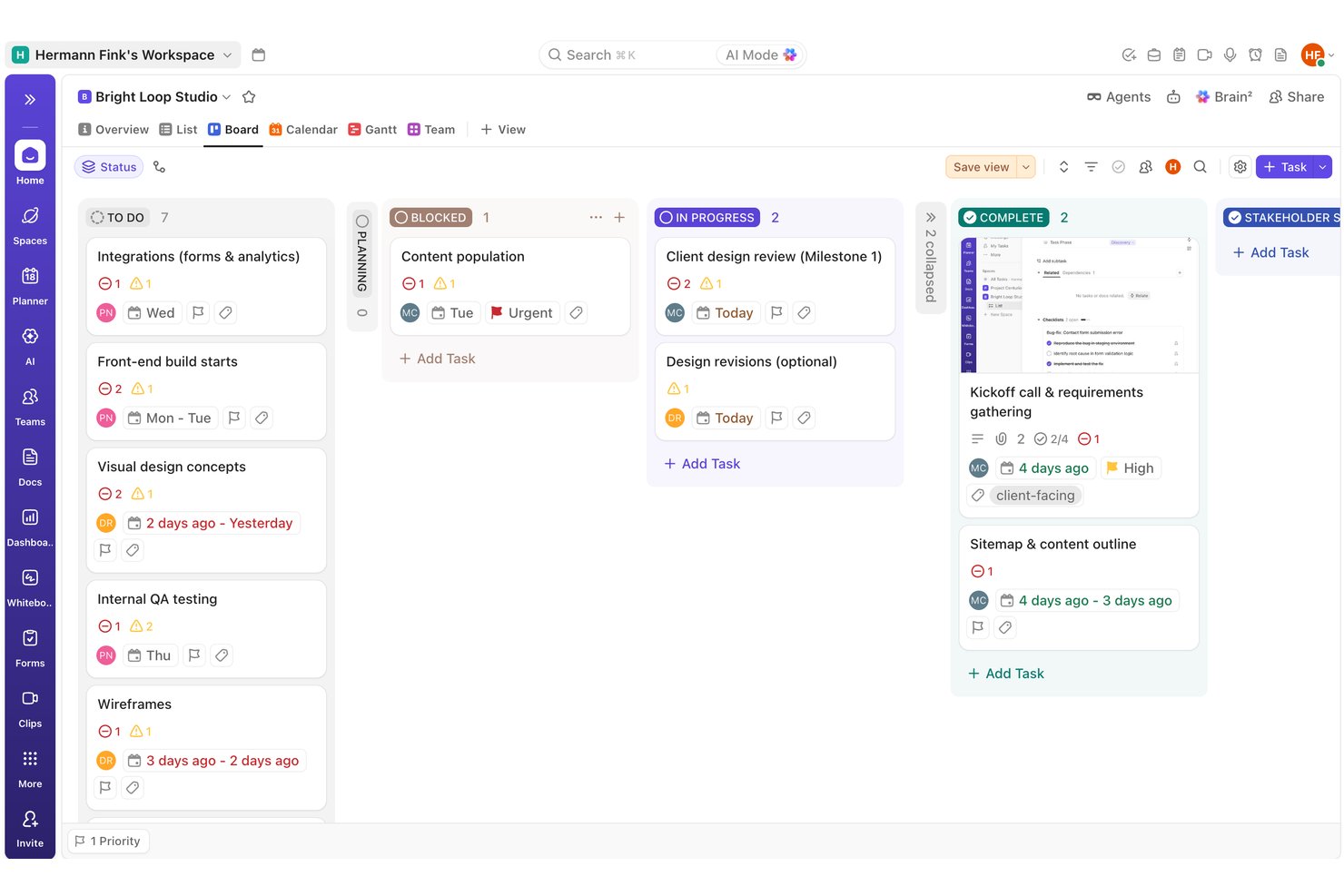
I'd point ClickUp toward teams juggling multiple workflows who want to reshape boards by status, assignee, or priority rather than sticking to one rigid layout. In testing, I built out a full task and dependency structure and found the automation builder fired correctly on the first try, something Trello's free tier can't match.
Why I Picked ClickUp
I picked ClickUp because it lets you rebuild a board around whatever structure your work actually needs. During testing, I set up a dependency chain with multiple blockers per task and watched the warning icons update correctly across both List and Board views without a refresh. I also built an automation rule that shifted priority to Urgent when a status changed to Blocked, and it fired correctly on the first real trigger. That combination of flexible column logic and reliable rule-based automation is hard to find on other free plans.
ClickUp Key Features
- Task dependencies: I linked multiple blockers to a single task and watched warning icons update correctly across List and Board views.
- Quick-add task creation: I built out a dozen tasks in seconds using the type-and-Enter quick-add row, with no extra clicks needed.
- Milestone task type: I flagged key dates using the native diamond-icon milestone type, which stayed visually distinct across every view.
- Comment reactions and mentions: I tested @mentions, file attachments, and emoji reactions on comments, and all worked correctly on the first try.
ClickUp Integrations
ClickUp has native integrations with Slack, Microsoft Teams, GitHub, GitLab, Bitbucket, Google Drive, Dropbox, Google Calendar, Figma, and HubSpot. It also provides a public API and Zapier.
What's Free?
ClickUp offers a free-forever plan with unlimited team members, guests, tasks, and boards—no credit card required. In my own testing, I built out a full board with dependencies, statuses, milestones, and automations, all without hitting user or project limits. The biggest constraints are low storage (just 60MB total for file attachments) and a 60-use cap on custom fields, which I found can restrict richer board setups over time. Most collaboration and workflow features, however, worked as expected with no paywall interruptions for basic use.
Pros and Cons
Pros:
- Automation rule fired correctly on first trigger
- Dependency chains show clear blocker warning icons
- Bulk task creation with type-and-enter quick add
Cons:
- Couldn't locate native WIP limit controls anywhere
- Custom field values didn't render visibly in list view
New Product Updates from ClickUp
ClickUp Adds Meetings Hub, Super Agent Templates, and ZoomInfo Integration
ClickUp adds a searchable Meetings Hub, new ways to clone and template Super Agents, and a ZoomInfo integration through the App Center. These updates improve meeting retrieval, agent reuse, and access to sales intelligence. For more information, visit ClickUp’s official site.
Asana
Best timeline view for task planning
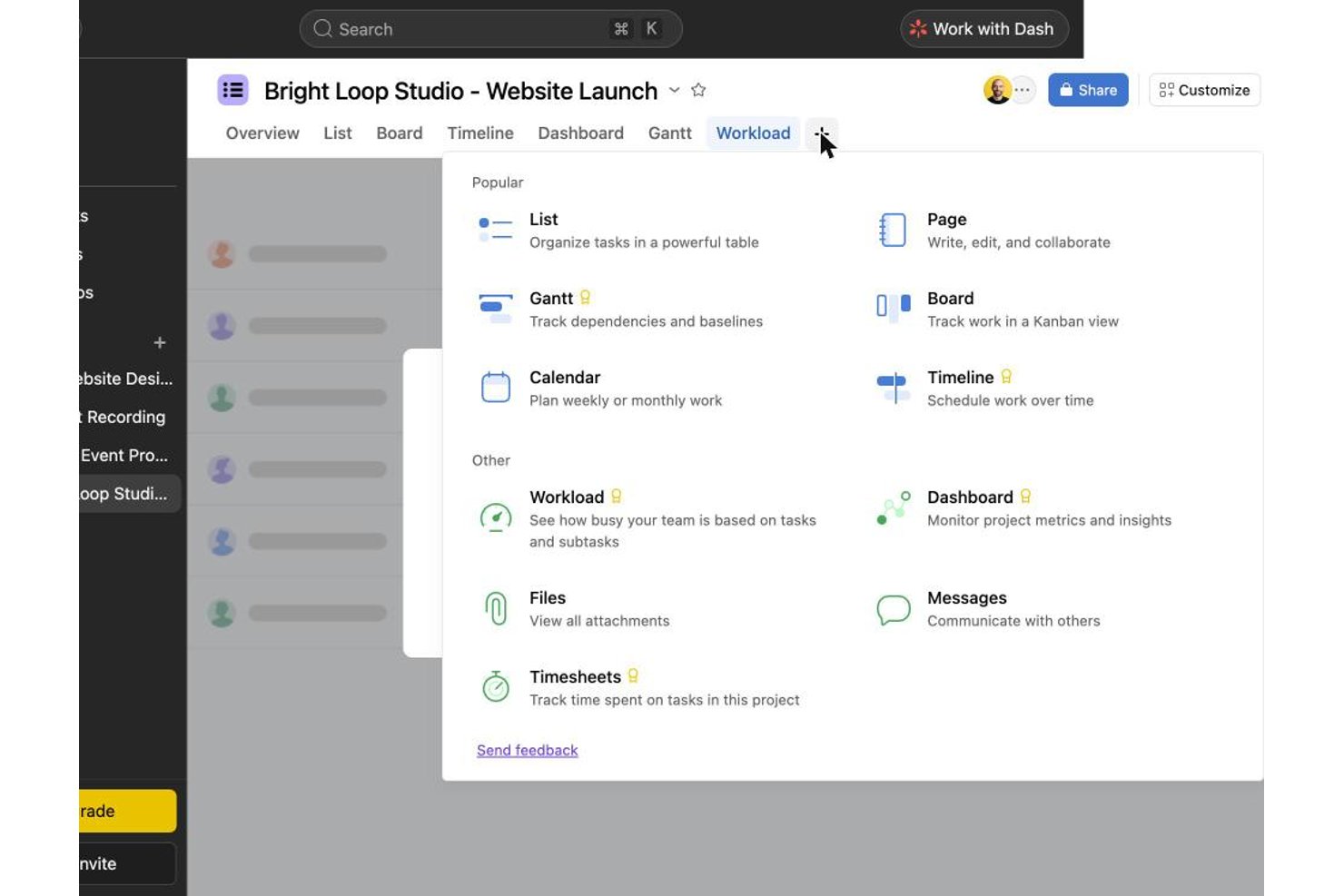
Asana works well for solo users or two-person teams who want a polished task-card experience without juggling multiple tools. In testing, bulk task creation, checklists, and tags felt smoother than in Trello or ClickUp, though drag-and-drop between columns failed on roughly a third of my attempts. It's a stronger fit for individuals than growing teams, since collaboration beyond two free seats requires upgrading.
Why I Picked Asana
I chose Asana because its Timeline view actually delivers on scheduling, even though native start dates and dependencies sit behind a paywall on the free plan. When I tried to map an 11-link dependency chain and two milestones, I had to write date ranges and dependency notes into task descriptions since those fields weren't unlockable. That workaround still produced a usable, readable project plan, which tells me the underlying structure for timeline planning is solid once you upgrade. Switching between Board and List while keeping that same data intact, instantly, is what earns Asana its spot here.
Asana Key Features
- Subtask checklists: Breaking tasks into subtasks gave me a progress counter and a small celebration animation when I checked off the last item.
- Activity log: Every field change I made was timestamped and attributed, making it easy to trace who edited what.
- Board column customization: I added, renamed, and reordered columns to match a workflow, though one reorder attempt didn't register on the first try.
- Comment reactions and @mentions: Tagging teammates and reacting to comments worked smoothly, though attaching files directly inside a comment never visibly completed.
Asana Integrations
Asana offers 200+ integrations, including Slack, Google Drive, Zoom, Microsoft Teams, Jira Cloud, Dropbox, Box, HubSpot, Salesforce, and Power BI. It also provides an open REST API for custom integrations.
What's Free?
Asana offers a free-forever Personal plan with unlimited boards, tasks, and storage, but you’re limited to two users and can’t access Timeline, custom fields, or automations. While I could set up boards, bulk-create tasks, switch between Board, List, and Calendar views, and manage details like checklists and tags without trouble, the paywall blocked start dates, dependencies, and most advanced features—so I relied on workarounds for anything beyond basic kanban.
Pros and Cons
Pros:
- List, board, and calendar views sync instantly
- Activity log timestamps every field change precisely
- Checklist subtasks show satisfying progress animations
Cons:
- Free plan caps collaboration at two users
- Drag-and-drop failed on roughly a third of attempts
Wrike
Best for multi-view boards on a free plan
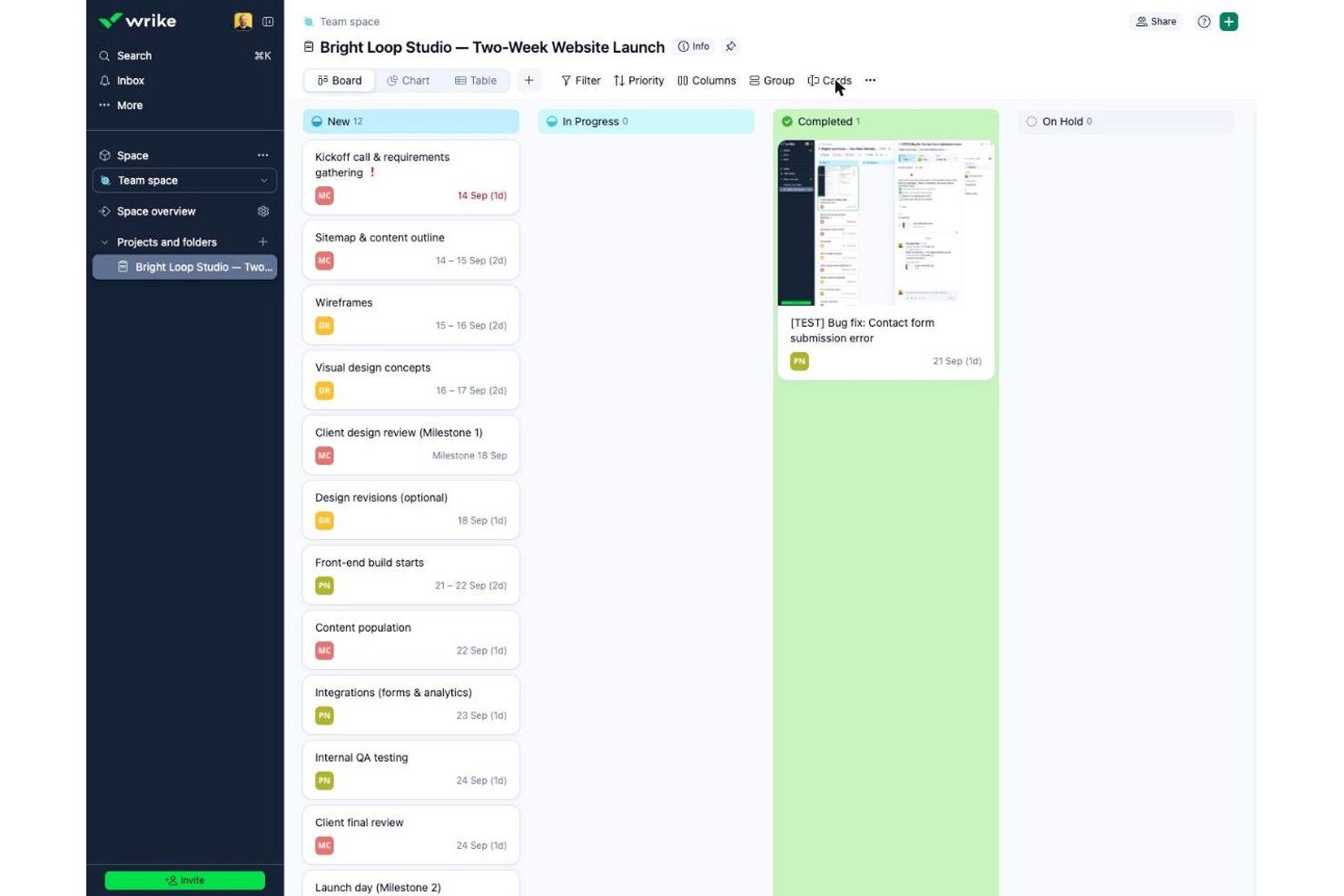
Wrike suits small teams needing unlimited free seats for task-heavy coordination, unlike Asana or monday.com, which cap free users. In testing, bulk task creation and card-level collaboration felt fast and polished, though I couldn't find WIP limits or column customization anywhere in the free interface.
Why I Picked Wrike
Wrike earns its spot for how it handles multiple views on one free plan, letting you flip between Board and Table without losing data. Toggling boards to show projects instead of tasks gave me a portfolio-level read that most free kanban tools reserve for paid tiers. Bulk task creation in Table view felt faster than typing into columns directly, and converting a task to a milestone took one click. I did hit walls trying to add or rename columns, and I never found a native dependency field despite float fields existing behind the scenes.
Wrike Key Features
- Bulk table entry: I created a dozen tasks in minutes by typing names directly into Table view and pressing Enter.
- One-click milestones: Converting a task to a milestone relabeled its date field instantly, with no extra setup.
- Checklist subitems: Adding checklist items to a card gave instant checkbox feedback for tracking small deliverables.
- Mention-aware comments: Commenting on cards prompted a nudge when I forgot to @mention a teammate, keeping updates visible.
Wrike Integrations
Wrike lists about 60 integrations, including Google Workspace, Microsoft 365, Slack, Jira, GitHub, Miro, and Google Sheets. The Free plan includes an Open RESTful API and selected productivity integrations for custom connectivity.
What's Free?
Wrike gives you a free-forever plan with unlimited seats, letting anyone join your workspace at no cost. You get Board and Table views, assignees, file attachments, subtasks, and folder hierarchy, but I couldn’t add or customize columns or set up workflow rules without hitting a paywall. The plan caps storage at 2 GB per account and doesn’t include automation, custom fields, or dashboards. I found task entry and basic collaboration smooth, but key Kanban features like WIP limits and workflow customization aren’t included.
Pros and Cons
Pros:
- Comment nudges keep teammate mentions from slipping through
- Converting tasks into milestones took one click
- Bulk task entry in Table view was very fast
Cons:
- Escape key silently discarded assignee selections
- No visible way to link task dependencies
New Product Updates from Wrike
Wrike Expands Gantt Planning, Approvals, and AI Work Intake
Wrike adds cross-project Gantt dependencies, flexible approval routing, and AI work intake through Wrike MCP. These updates give teams more control over planning, decision-making, and incoming work. For more information, visit Wrike’s official site.

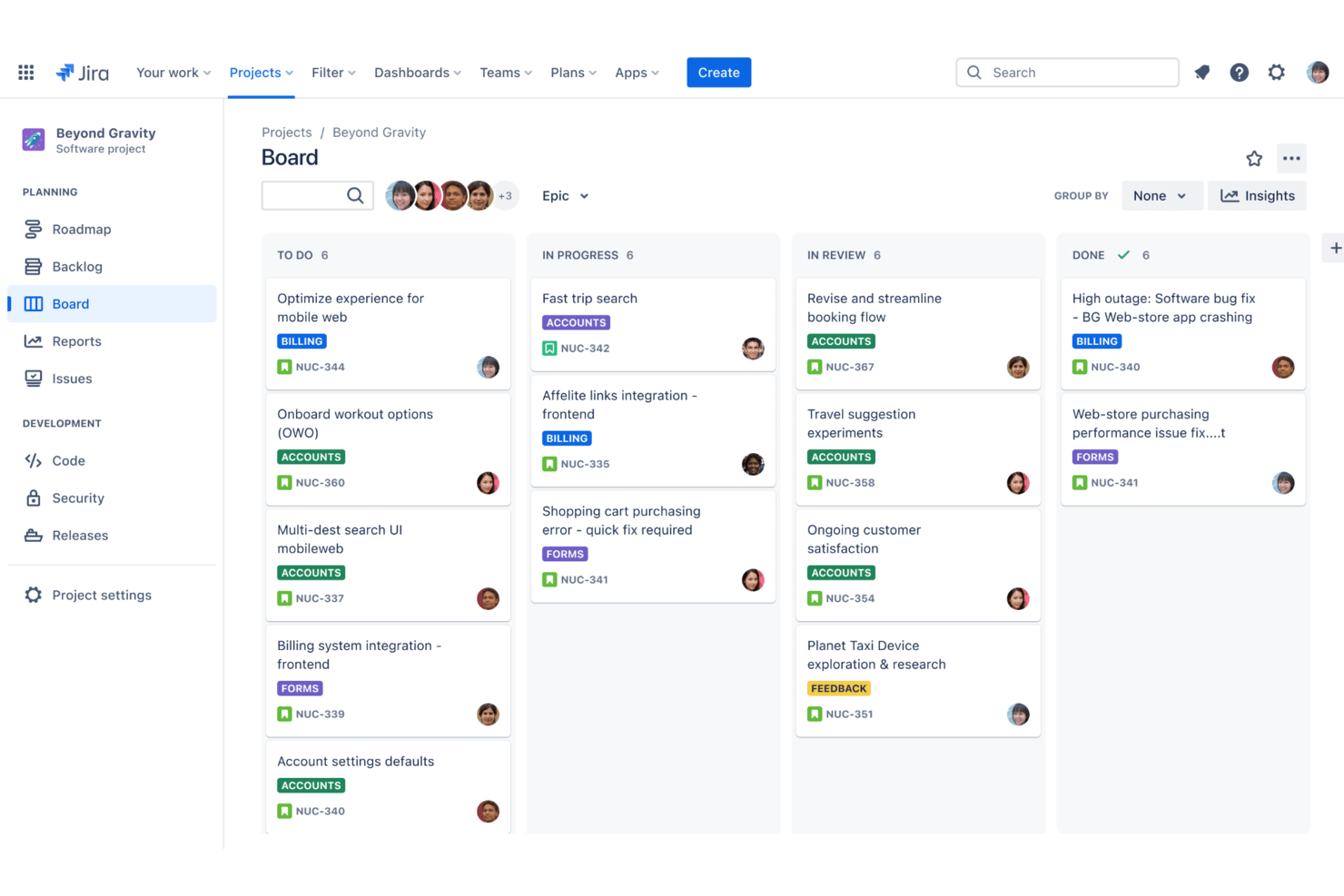
Jira is a project and issue tracking platform for teams that need detailed kanban boards, advanced agile workflows, custom fields, granular permissions, and sprint planning tools.
Who Is Jira Best For?
Jira is a strong fit for software development teams at startups and enterprises who need structured project tracking with agile methodologies.
Why I Picked Jira
I picked Jira as one of the best because I can create highly detailed kanban boards and combine them with advanced agile tools like custom workflows, epics, and sprint automation. Tracking stories and deliverables at multiple levels is seamless for my team.
Jira Key Features
- Backlog management: Prioritize, organize, and plan tasks in a dedicated backlog view.
- Swimlane support: Group cards by assignee, story, or other custom fields.
- Bulk issue editing: Update many tasks at once from the board or backlog.
- Advanced permission controls: Set detailed access and action rights by team, role, or project.
Jira Integrations
Jira offers native integrations with Confluence, Bitbucket, Trello, Slack, GitHub, GitLab, Microsoft Teams, Dropbox, Google Drive, and Salesforce. An API is available for custom integrations.
What's Free?
Jira offers a free-forever plan for up to 10 users. Some advanced features, permissions, and support options are only available on paid plans.
Pros and Cons
Pros:
- Detailed permission settings for boards
- Advanced issue automation and triggers
- Fully configurable kanban workflows
Cons:
- Limited reporting in free plan
- Must enable kanban templates manually
Andre gratis Kanban-tavler
Her er noen flere gratis Kanban-tavler som ikke kom med på kortlisten min, men som likevel er verdt å sjekke ut:
- Miro
For Kanban on an infinite visual canvas
- Teamhood
For timeline and dependency views
- Freedcamp
For unlimited-user boards on a free plan
- MeisterTask
For intuitive drag-and-drop interface
- Trello
Workflow templates for faster setup
- Pipefy
For workflow process automation
- Nifty
For managing sprints across unlimited members
- Notion
For combining notes and task boards
- Plaky
For unlimited free users on a kanban board
- KanbanFlow
Built-in Pomodoro time tracking


How I Evaluate Free Kanban Boards
First, I define what counts as free. A kanban board must offer a free-forever plan—not a trial—since these tools support ongoing workflows, not one-off projects. From there, I evaluate each tool across two layers: the core functionality it must deliver to make this list, and the differentiators that separate a great option from a merely adequate one.
Core Functionality (Table Stakes For This List)
In addition to my free offer requirements, I also use a scoring system to select tools for my list. Here's how it works:
When I'm selecting tools for my list, I rank each one on a scale from 0 (does not offer the functionality) to 5 (excels in this area) for each core functionality listed below. I then calculate the tool's total score into a percentage, using 75% as a benchmark to help assess its overall fit for the list.
- Kanban Board View: I look at whether the board supports customizable columns and multiple boards, since a fixed To Do/In Progress/Done setup rarely reflects how real teams work.
- Task Cards: I check how much detail you can pack into a card on the free plan—due dates, assignees, and descriptions are the baseline I expect to see without paying.
- Drag-and-Drop: Reliable, real-time card movement matters more than it sounds. I evaluate whether dragging a card across columns actually reflects the update for every team member instantly.
- Team Collaboration: I look at how many users the free plan supports and whether teammates can assign tasks, leave comments, and get notified—core needs for any shared board.
- WIP Limits & Customization: I evaluate whether you can set work-in-progress limits per column, since that's a fundamental part of kanban methodology that many free plans quietly skip.
- Labels, Filters & Search: With boards that grow quickly, I look for multi-criteria filtering and search that helps you find the right card without scrolling through dozens of tasks.
Once I have a list of tools that meet the criteria, I consider what sets each platform apart.
Differentiating Factors (What Sets Vendors Apart)
Here's how I compare and contrast different vendors:
Standout Features
I pay close attention to native automation rules—specifically whether free plans include them at all, since auto-moving cards or auto-assigning on column changes saves real time for teams running recurring workflows. I also evaluate mobile app parity, checking whether the iOS and Android experience actually mirrors the desktop. For distributed teams updating boards between meetings, a stripped-down mobile app is a meaningful limitation. Finally, I look at the templates library to see if it covers practical use cases like sprint planning or bug tracking out of the box.
Beyond Features
Free plan transparency matters more than most people expect. I check whether limits on boards, cards, and storage are disclosed upfront—not buried in fine print after you've built out your workflow. I also look at the upgrade path. If the jump to a paid tier is steep or restructures how your free-plan workflows behave, that's a real risk for growing teams. Finally, data portability is worth evaluating early: knowing you can export your boards as CSV or JSON means you're never fully locked in if your needs change.
Slik velger du en gratis Kanban-tavle
Det er lett å gå seg vill i lange funksjonslister og komplekse prisstrukturer. For å hjelpe deg med å holde fokus mens du går gjennom den unike prosessen med å velge programvare, får du her en sjekkliste over faktorer du bør ha i tankene:
| Faktor | Hva du bør vurdere |
|---|---|
| Skalerbarhet | Kan teamet legge til flere brukere og tavler etter hvert som prosjektene vokser, eller er det begrensninger du raskt vil støte på i gratisplanen? |
| Integrasjoner | Kan den gratis Kanban-tavlen kobles til viktige verktøy som Slack, Google Workspace eller fillagring, eller er integrasjoner betalingsbelagte? |
| Tilpasningsmuligheter | Kan du endre kolonner, arbeidsflyter eller etiketter slik at de samsvarer med teamets prosesser uten å oppgradere? |
| Brukervennlighet | Vil teamet enkelt ta i bruk plattformen, eller vil du bruke for mye tid på å forklare grunnleggende handlinger og innstillinger? |
| Implementering og innføring | Får du tilgang til innføringsveiledninger, maler eller verktøy for dataimport som hjelper teamet med å komme raskt i gang? |
| Kostnad | Finnes det skjulte betalingsmurer som blokkerer viktige handlinger, eller begrensninger på lagring eller brukere som du raskt vil vokse fra uten å betale? |
| Sikkerhetstiltak | Tilbyr plattformen tofaktorautentisering, regelmessige sikkerhetskopier og tydelige kontroller for brukertillatelser, også i gratisplaner? |
| Tilgjengelig kundestøtte | Hvis du får problemer, er noe kundestøtte inkludert i gratisplanen, for eksempel chat, dokumentasjon eller brukerfora? |
Hva er en gratis Kanban-tavle?
Gratis Kanban-tavler er digitale verktøy som lar deg organisere oppgaver på flyttbare kort i kolonner, slik at det blir enkelt å følge arbeidet og visualisere fremdriften uten kostnad. Disse plattformene tilbyr grunnleggende funksjoner for prosjektstyring, som oppgavetildeling, arbeidsflyt med dra-og-slipp og enkelt samarbeid, slik at team kan holde orden, prioritere oppgaver og fremme åpenhet – alt uten lisensavgift.
Funksjoner i gratis Kanban-tavler
La oss gå gjennom funksjonene som vanligvis finnes i en kanban-tavle, og hvilke som vanligvis er inkludert i gratis- kontra betalingsabonnementer.
Vanlige funksjoner i gratis kanban-tavler
- Oppgavekort med dra-og-slipp: Flytt kort mellom kolonner for å oppdatere oppgavestatus, rekkefølge eller ansvarlig, slik at team raskt kan visualisere fremdriften.
- Grunnleggende tavleoppretting: Opprett tavler for ulike prosjekter, kunder eller arbeidsflyter, slik at du kan organisere og skille arbeidsområder etter behov.
- Tilpassede kolonner: Definer prosessfaser som Ikke påbegynt, Pågår og Ferdig for å tilpasse tavlen til teamets arbeidsflyt og sikre en felles forståelse.
- Oppgavedetaljer: Legg til beskrivelser, sjekklister, start- og forfallsdatoer samt grunnleggende kommentarer på individuelle kort, slik at viktig informasjon om oppgaven er samlet på ett sted.
- Tilordning av brukere: Tilordne kort til bestemte personer for å tydeliggjøre ansvar og gi innsyn i hvem som arbeider med hver oppgave.
- Enkelt samarbeid: Nevn teammedlemmer i kommentarer, merk oppgaver og del tavler, slik at det blir enklere å samarbeide og diskutere arbeid i riktig kontekst.
- Aktivitetssporing: Se en tidslinje over endringer, flyttinger og oppdateringer på hvert kort, slik at du vet hva som har skjedd og når.
- Grunnleggende filvedlegg: Last opp dokumenter, bilder eller lenker til oppgavekort for referanse, slik at teammedlemmene har det de trenger for hånden.
- Tillatelser på tavlenivå: Gi visnings- eller redigeringstilgang til tavler, slik at team kan invitere samarbeidspartnere samtidig som de begrenser hvem som kan gjøre endringer.
Vanlige funksjoner i betalte kanban-tavler
- Avanserte automatiseringsregler: Bruk utløsere og handlinger til å automatisere gjentakende arbeidsflyter, for eksempel ved å flytte kort på forfallsdatoer eller tilordne oppgaver når kolonner endres.
- Gantt- eller tidslinjevisninger: Visualiser oppgaver på tidslinjer for bedre planlegging, ressursfordeling og håndtering av avhengigheter utover den vanlige kanban-tavlen.
- Tidsregistrering og rapportering: Registrer timer, generer timelister eller produktivitetsrapporter, og analyser teamets prestasjoner for å få innsikt i prosjekter og fakturering.
- Ubegrenset antall tavler og lagringsplass: Fjern begrensninger på antall tavler, brukere eller filopplastinger, slik at større og mer komplekse prosjekter kan støttes.
- Tilpassede felt og kortmaler: Legg til strukturerte datafelt eller gjenbrukbare oppgavemaler, og tilpass tavlene til bestemte prosjekt- eller forretningsbehov.
- Rollebaserte tillatelser: Angi detaljerte tilganger og handlinger basert på brukerroller, slik at sensitiv prosjektinformasjon beskyttes og du kan kontrollere hvem som kan redigere eller administrere innstillinger.
- Integrasjon med tredjepartsapper: Koble tavler til verktøy som Slack, Google Drive eller CRM-systemer for bedre arbeidsflyt på tvers av plattformer og bedre varslinger.
- Prioritert brukerstøtte: Få tilgang til raskere og mer personlig tilpassede hjelpetilbud, for eksempel telefon, direktechat eller egne kundeansvarlige.
- Betinget formatering eller filtre: Fremhev eller filtrer kort basert på bestemte kriterier (f.eks. forfalte oppgaver eller tilordnede brukere), slik at prioritering og fokus blir bedre.
- Avansert analyse og oversikter: Få dypere innsikt og visualiseringer av flaskehalser i arbeidsflyten, gjennomføringstider og produktivitetstrender.
Fordeler med en gratis kanban-tavle
Å ta i bruk en gratis kanban-tavle gir flere fordeler for teamet og virksomheten din. Her er noen av fordelene du kan se frem til:
- Ingen programvarekostnader: Eliminer lisensavgifter, slik at team av alle størrelser kan organisere og følge opp arbeidet uten budsjettbekymringer.
- Tydelig visuell arbeidsflyt: Hjelp alle med å se oppgavestatus og prosjektfremdrift takket være tilpassbare kolonner og tavler med dra-og-slipp.
- Enkelt samarbeid: Gjør det mulig for team å tilordne oppgaver, kommentere og dele tavler, slik at alle holder seg oppdatert.
- Raskere opplæring: Få nye brukere raskt i gang med maler, produktveiledninger og enkelt oppsett av tavler uten kostnad.
- Tilgjengelig overalt: Bruk skybaserte plattformer til å oppdatere tavler og oppgaver hvor som helst, noe som gjør koordinering av fjernarbeidende og hybride team enklere.
- Fleksibel skalering: Legg til prosjekter og nye brukere innenfor begrensningene i gratisabonnementet etter hvert som behovene vokser, uten kompliserte oppgraderinger eller kontrakter.
- Bedre ansvarliggjøring: Tilordne oppgaver og følg aktivitetshistorikken, slik at du alltid vet hvem som har ansvaret og hva som er endret.
Kostnader og priser for en kanban-tavle
Jeg forstår at du kom til denne artikkelen på jakt etter de beste kanban-tavlene som er tilgjengelige gratis. Ettersom gratisabonnementer bare tilbyr begrensede funksjoner, er det imidlertid stor sannsynlighet for at du vil måtte oppgradere abonnementet ditt i fremtiden.
Tabellen nedenfor oppsummerer vanlige abonnementer, gjennomsnittsprisene deres og typiske funksjoner som er inkludert i en kanban-tavle:
Sammenligningstabell for kanban-tavle
| Abonnementstype | Gjennomsnittspris | Vanlige funksjoner |
|---|---|---|
| Gratis abonnement | $0 | Oppretting av grunnleggende tavler, oppgavekort, tildeling av brukere, grunnleggende filvedlegg, sentrale samarbeidsverktøy og begrenset lagringsplass. |
| Personlig abonnement | $5-$10 per bruker/måned | Ubegrenset antall tavler, grunnleggende automatisering, mer lagringsplass, prioritert kundestøtte og egendefinerte bakgrunner. |
| Bedriftsabonnement | $10-$25 per bruker/måned | Avansert automatisering, integrasjon med tredjepartsapper, teamtillatelser, rapportering og utvidet kundestøtte. |
| Virksomhetsabonnement | $25-$40 per bruker/måned | SSO/SAML-sikkerhet, rollebaserte tillatelser, revisjonslogger, avansert analyse og kundestøtte på virksomhetsnivå. |
Vanlige spørsmål om gratis kanban-tavler
Her er noen svar på vanlige spørsmål om gratis kanban-tavler:
Er gratis kanban-tavler trygge å bruke for forretningsdata?
Ja, de fleste gratis kanban-tavler bruker kryptering og grunnleggende sikkerhetsprotokoller, men funksjoner som SSO eller avanserte tillatelser kan være begrenset til betalte abonnementer. Gå alltid gjennom retningslinjene for hvert verktøy før du deler sensitiv informasjon.
Kan jeg oppgradere fra et gratis kanban-tavleabonnement hvis behovene mine øker?
Ja, de fleste leverandører tilbyr betalte abonnementer som gir tilgang til flere brukere, integrasjoner og avanserte funksjoner. Det er vanligvis enkelt å oppgradere, og du kan beholde de eksisterende tavlene og dataene dine.
Har gratis kanban-tavler begrensninger på antall brukere eller lagringsplass?
Ja, gratis abonnementer har ofte begrensninger på antall brukere, tavler, filvedlegg eller lagringsplass. Hvis du møter disse begrensningene, må du vanligvis oppgradere til et betalt abonnement.
Hvilke integrasjoner er vanligvis tilgjengelige i gratis kanban-tavler?
De fleste gratis kanban-tavler tilbyr grunnleggende integrasjoner med vanlige verktøy som e-post, kalender eller chat-apper. Mer avanserte integrasjoner med CRM-systemer eller automatiseringsverktøy er vanligvis forbeholdt betalte abonnementer.
Kan jeg invitere eksterne samarbeidspartnere eller kunder til en gratis kanban-tavle?
Ja, mange gratis kanban-tavler tillater et begrenset antall invitasjoner til gjester eller eksterne brukere, men tilgangstillatelsene kan være grunnleggende. Gå gjennom tilgangskontrollene før du deler sensitiv informasjon eller kundeinformasjon.