

10 alternativer til Microsoft Whiteboard som er verdt å prøve i 2026

Kortliste over alternativer til Microsoft Whiteboard


Et godt alternativ til Microsoft Whiteboard gir teamet ditt en fleksibel virtuell tavle, en robust samarbeidsplattform og integrasjoner som passer arbeidsflyten deres, enten dere bruker Windows eller macOS. Hvis du leter etter en nettbasert tavle som Conceptboard eller et annet tavleverktøy, trenger du sannsynligvis avanserte tavlefunksjoner, integrert oppgavebehandling eller et moderne brukergrensesnitt med en skånsom læringskurve. Denne listen hjelper deg med å sammenligne den beste tavleprogramvaren for 2026, slik at du kan finne en brukervennlig løsning som passer teamets arbeidsmåte, støtter kritiske beslutninger og tilpasser seg måten dere jobber på.
Hva er Microsoft Whiteboard?
Microsoft Whiteboard er en frihåndstavleplattform fra Microsoft, som enkelt er tilgjengelig via en gratisversjon. Den lar enkeltpersoner og fjernteam tegne, skrive, legge til klistrelapper og dele ideer i sanntid, noe som gjør visualisering for planlegging eller retrospektiver sømløs. Microsoft Whiteboard integreres direkte med Microsoft 365-apper, noe som sikrer høy brukervennlighet sammen med Teams og OneNote. Den er utviklet for idémyldring, planlegging og visuelt samarbeid på tvers av enheter.
Sammenligningstabell over alternativer til Microsoft Whiteboard
Tabellen nedenfor sammenligner prisopplysningene for mine beste alternativer til Microsoft Whiteboard.
| Tool | Best For | Trial Info | Price | ||
|---|---|---|---|---|---|
| 1 | Best for design-to-whiteboard workflows | Free plan available | From $3/user/month | Website | |
| 2 | Best for GDPR-compliant EU-hosted whiteboarding | Free plan + free trial available | From €5/user/month | Website | |
| 3 | Best for turning meetings into structured outputs | Free plan + 30-day free trial available | From $10/user/month | Website | |
| 4 | Best for multimedia board sharing in class | Free plan available | From $11.61/month | Website | |
| 5 | Best for workshop facilitation controls | Free plan available | From $9.99/user/month (billed annually) | Website | |
| 6 | Best for GDPR-compliant workshop facilitation | Free plan + free trial available | From €5/user/month | Website | |
| 7 | Best for wireframing and UI planning | Free plan available | From $9/user/month (billed annually) | Website | |
| 8 | Best for defense-grade secure visual collaboration | Free demo available | Pricing upon request | Website | |
| 9 | Best for brainstorming with design assets on hand | Free plan available | Free plan available | Website | |
| 10 | Best for large-scale team collaboration | Free plan + 14-day free trial available | From $8/user/month (billed annually) | Website |

Hvorfor du kan stole på våre programvareanbefalinger
Teamet vårt har testet og anmeldt programvare siden 2012. Vi er selv prosjektledere, så vi vet hvor vanskelig og hvor viktig det er å velge riktig programvare.
I denne guiden har vi vurdert verktøyene gjennom praktisk testing og uavhengig research og gitt dem poeng ut fra våre utvelgelseskriterier. Vi bygger også på innsikt fra ledende eksperter i bransjen og erfarne prosjektledere.
Anmeldelsene våre bygger på vår egen redaksjonelle vurdering. De er ikke et salgsargument.
Ekspertanmeldere:
Anmeldelser av alternativer til Microsoft Whiteboard
Nedenfor finner du mine detaljerte sammendrag av de beste alternativene til Microsoft Whiteboard som kom med på kortlisten min. Anmeldelsene mine gir et detaljert innblikk i funksjonene, de beste bruksområdene og integrasjonene til hver plattform, slik at du kan finne den som passer best for deg.
FigJam
Best for design-to-whiteboard workflows
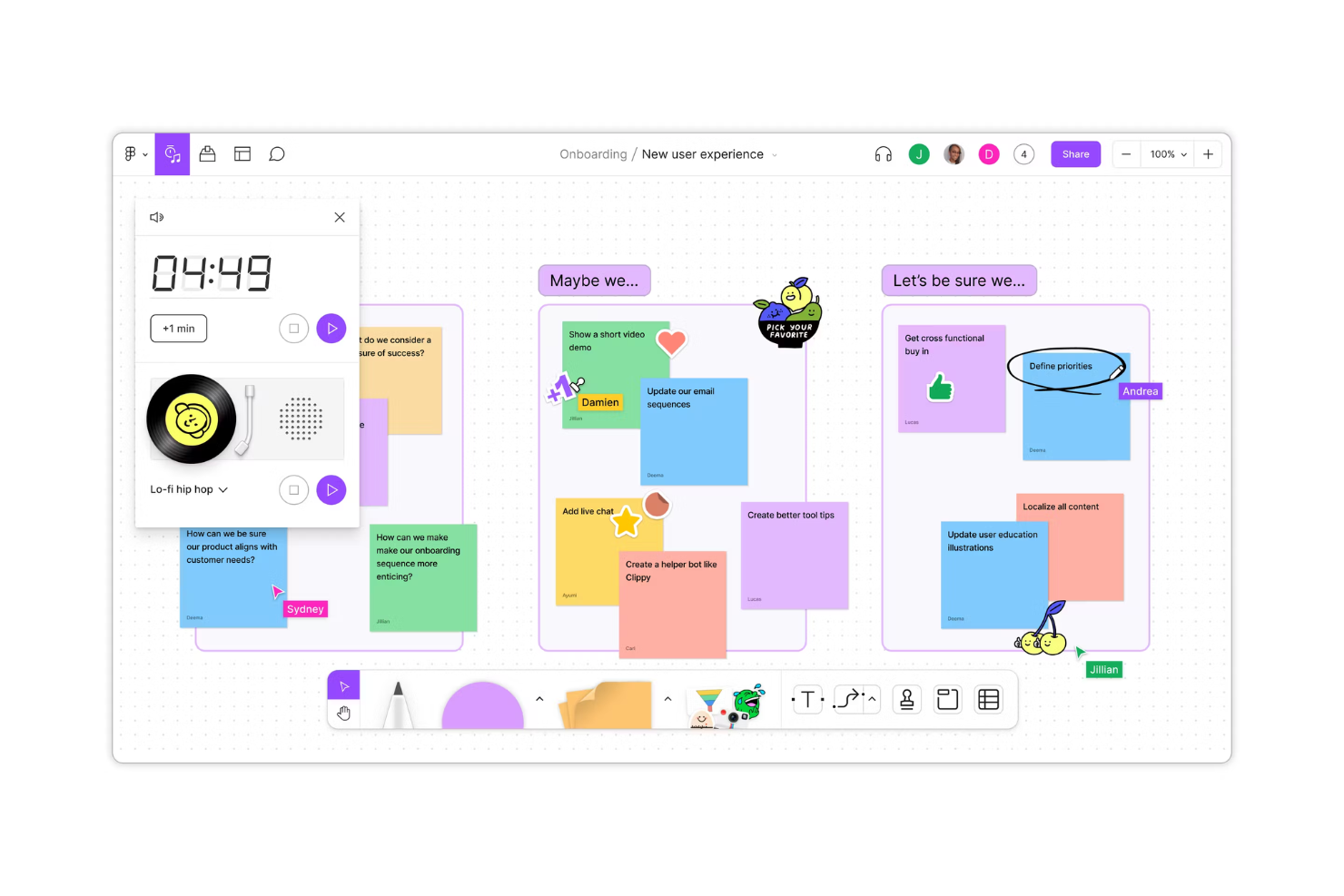
FigJam is Figma’s collaborative whiteboard for product and design teams that need to gather ideas, map decisions, and keep cross-functional work aligned.
Who Is FigJam Best For?
FigJam suits UX and product teams that want to move from design work into collaborative workshops and planning.
Why I Picked FigJam
I picked FigJam because it earns “Best for design-to-whiteboard workflows.” I can bring Figma frames into a board, then use sticky notes and connectors to collect feedback on specific screens. My team can turn that discussion into a prioritized flow while keeping the design context visible.
FigJam Key Features
- Voting: Run timed votes with set limits per participant.
- Timer: Add a countdown timer to keep workshop activities on schedule.
- Audio chat: Talk with collaborators directly from the board.
- Templates: Start with ready-made layouts for activities like retrospectives and planning.
FigJam Integrations
FigJam offers integrations with Jira, Asana, and GitHub; its Jira widget lets you turn board stickies into issues. Figma also supports Slack, Zapier, and an API for custom integrations.
Pros and Cons
Pros:
- Run timed votes and workshop activities
- Collect feedback alongside specific design screens
- Bring Figma designs directly into workshops
Cons:
- Large boards can become messy or slow
- Advanced diagramming options remain limited

Best for GDPR-compliant EU-hosted whiteboarding
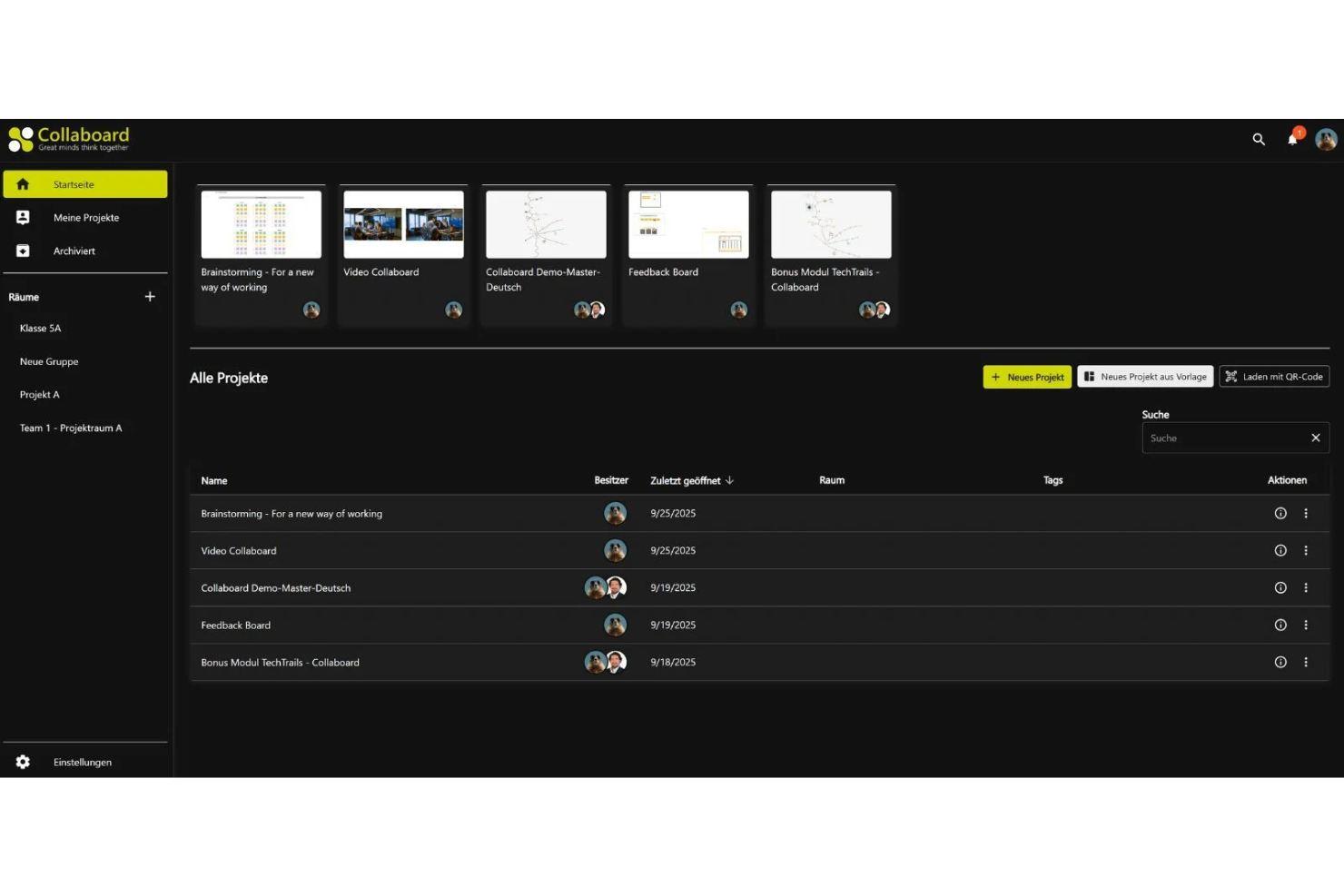
For product and project teams that need more than a blank canvas, Collaboard is an online whiteboard for brainstorming, mapping workflows, and aligning on shared plans.
Who Is Collaboard Best For?
Collaboard suits teams that need a collaborative whiteboard with EU hosting and GDPR-focused data protection.
Why I Picked Collaboard
I picked Collaboard for GDPR-compliant EU-hosted whiteboarding, with hosting options that include Germany and the Netherlands. I value its TLS encryption in transit and AES-256 encryption at rest. Role-based permissions and password-protected boards help me control access to project plans and workshop notes.
Collaboard Key Features
- Infinite canvas: Zoom and add sticky notes, shapes, drawings, and mind maps.
- Templates: Choose from more than 150 Collaboard and community templates.
- Anonymous voting: Collect votes and ratings directly on a board.
- Jira integration: Import issues to plan projects, workshops, and retrospectives.
Collaboard Integrations
Collaboard documents integrations with Jira, Pexip, Microsoft Teams, Nextcloud, Cisco Webex, and Rocket.Chat. It also offers a public API for custom integrations.
Pros and Cons
Pros:
- Editable imports help preserve existing board content
- Anonymous voting and timers support workshops
- EU-hosted boards support data-sovereignty needs
Cons:
- Handwriting and mind mapping need refinement
- Some reviewers describe the interface as dated

Best for turning meetings into structured outputs
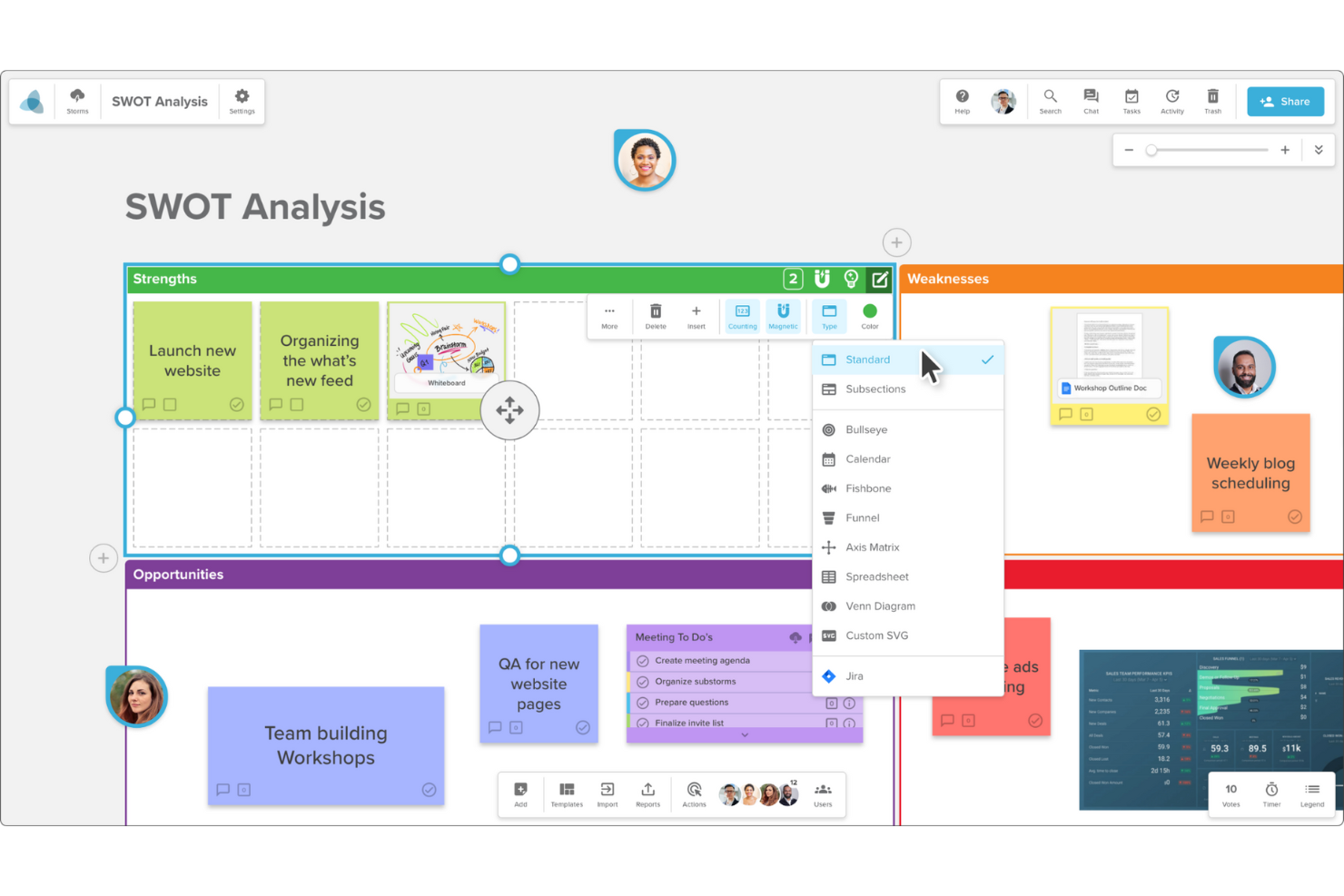
Stormboard is an online whiteboard for project and product teams who need to organize ideas, map workflows, and carry workshop discussions into project work.
Who Is Stormboard Best For?
Stormboard suits project managers who run cross-functional planning sessions and need to capture decisions and follow-up work in one shared workspace.
Why I Picked Stormboard
I picked Stormboard for “Best for turning meetings into structured outputs.” Its reports turn board content into editable meeting minutes or presentations, while task exports capture assignees, due dates, and status. I like how those exports give decisions from a Microsoft Whiteboard alternative a clear path into follow-up work.
Stormboard Key Features
- Customizable templates: Choose from templates for brainstorming, project planning, Agile workflows, and meetings.
- Infinite canvas: Add and resize template sections, then adjust their colors, backgrounds, titles, and types.
- Comments and chat: Discuss ideas in comments or message teammates within a Storm.
- Dot voting: Vote on ideas with dotmocracy to help prioritize options.
Stormboard Integrations
Stormboard offers integrations with Microsoft Teams, Google Drive, Jira, Rally, Azure DevOps, Webex, Zoom, Slack, Dropbox, and Box, and connects with Zapier. It also provides a REST API for custom integrations.
Pros and Cons
Pros:
- Dot voting helps prioritize workshop ideas
- Task exports preserve owners and due dates
- Editable reports turn discussions into minutes
Cons:
- Finding items across storms feels difficult
- Large boards can lag with many users
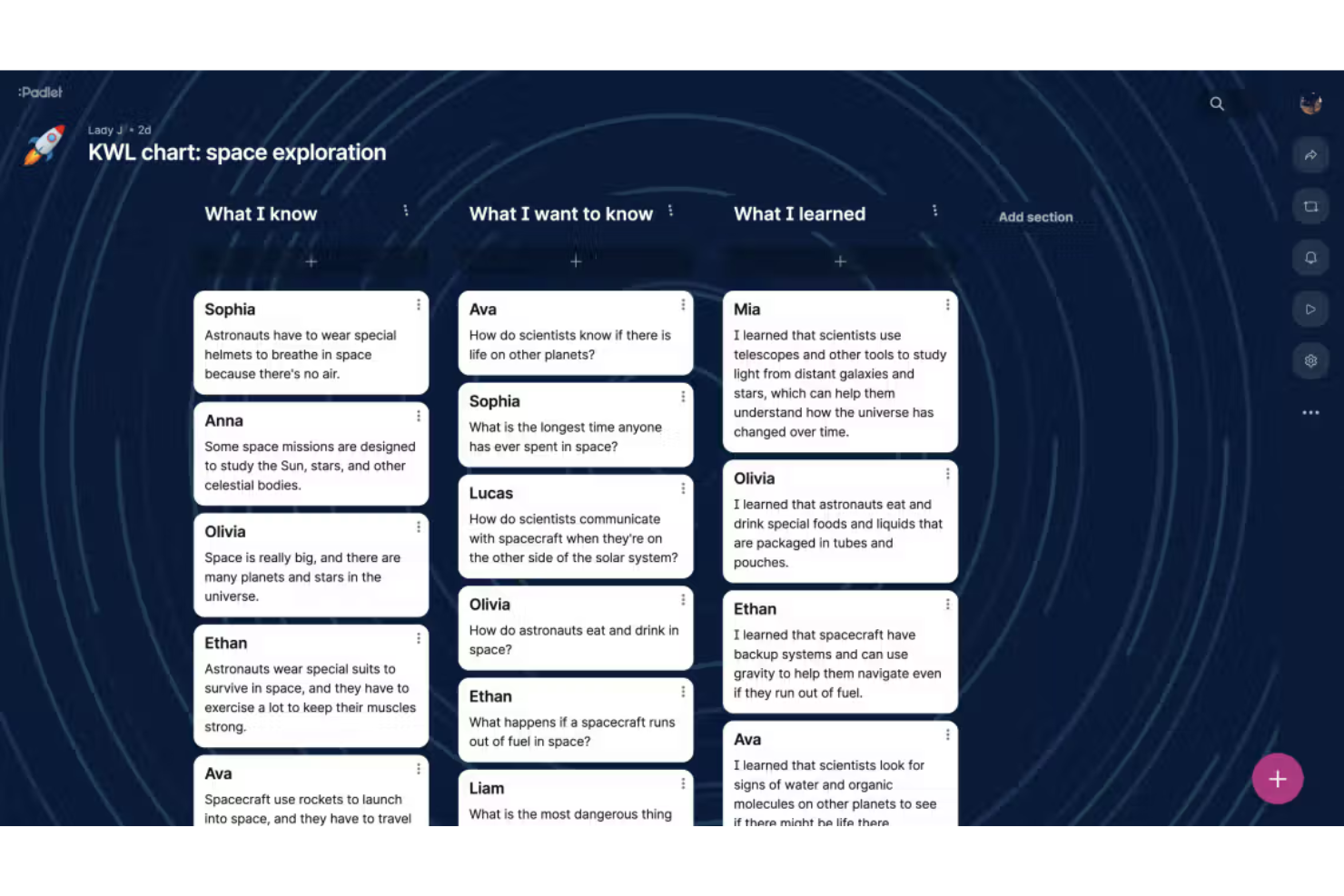
Padlet is a visual collaboration platform for educators and project teams who need a flexible Microsoft Whiteboard alternative to gather ideas and organize shared work.
Who Is Padlet Best For?
Padlet is a good fit for teachers and instructors who want students to share ideas, media, and project work on a collaborative classroom board.
Why I Picked Padlet
I picked Padlet because it’s Best for multimedia board sharing in class. Students can add images, video, audio, and links to a shared board, then respond to classmates’ posts with comments and reactions. I like it as a Microsoft Whiteboard alternative when a lesson or project needs students to collect and discuss media, not just sketch ideas.
Padlet Key Features
- Board layouts: Arrange posts in formats such as a grid, columns, or canvas.
- Visitor permissions: Set access levels, from read-only to post approval.
- Board embedding: Embed a board on another website or share it by QR code.
- Export options: Save board content as an image, PDF, CSV, or Excel spreadsheet.
Padlet Integrations
Padlet supports LTI 1.3 integrations with Moodle, Canvas, Blackboard, Brightspace, Schoology, itslearning, Google Classroom, and Microsoft Teams; LMS integrations require a School subscription. It also connects with Zapier and offers a public API for custom integrations.
Pros and Cons
Pros:
- Comments and reactions support peer feedback
- Anonymous responses invite broader participation
- Students can post videos, audio, and images
Cons:
- Board limits hinder use across multiple classes
- Dense boards become hard to scan

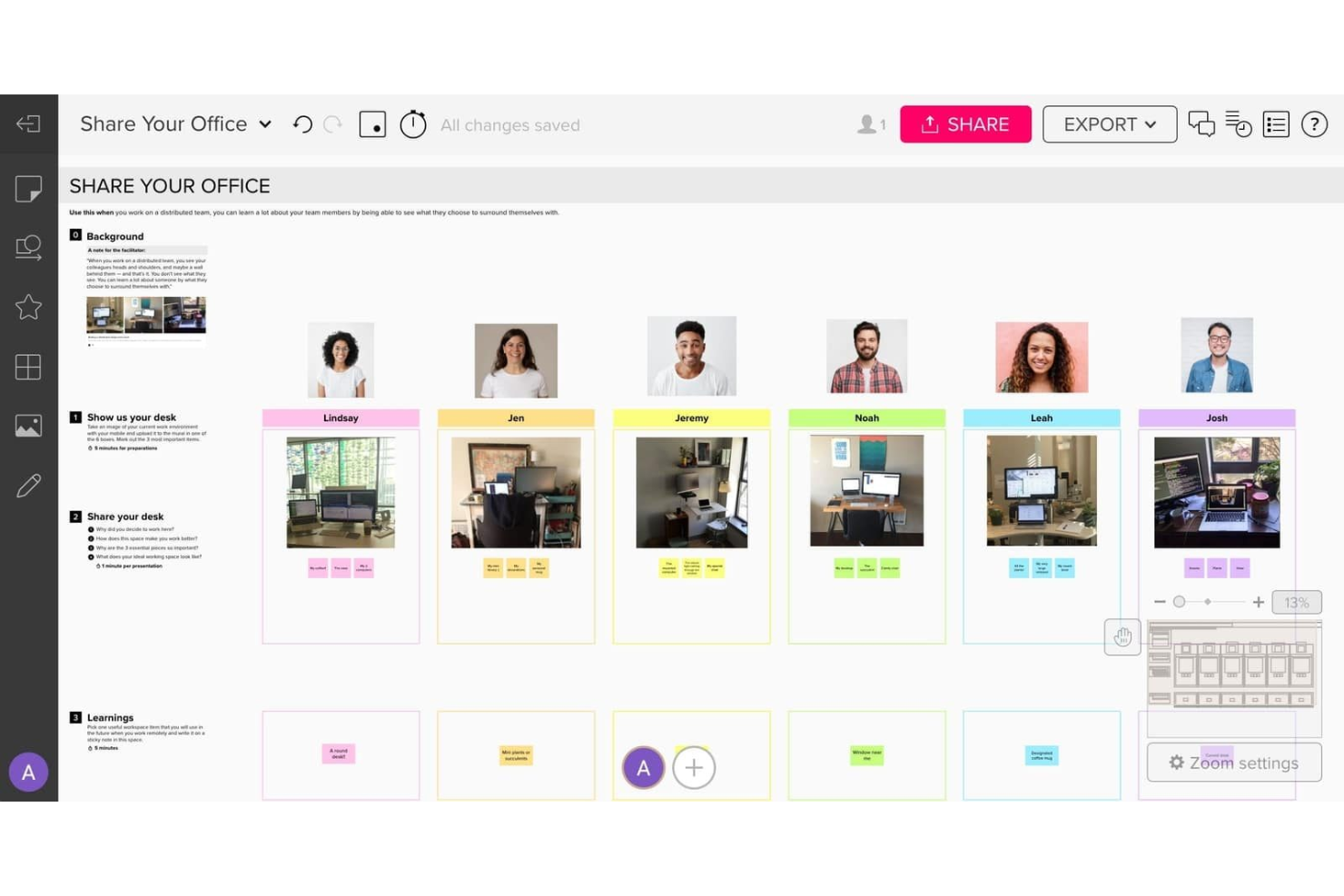
For product, design, and delivery teams that need more structure than Microsoft Whiteboard offers, Mural is an online whiteboard for mapping ideas, planning work, and aligning stakeholders across projects.
Who Is Mural Best For?
Mural suits project managers and workshop facilitators who need structured controls to guide collaborative planning and decision-making sessions.
Why I Picked Mural
I picked Mural as “Best for workshop facilitation controls” because it gives me ways to guide live sessions beyond a blank canvas. I use private mode to collect ideas before revealing them, then voting to help a group prioritize options. A timer keeps breakout activities on track.
Mural Key Features
- Templates: Start from ready-made boards for planning, mapping, and retrospectives.
- Sticky notes: Add and arrange text notes on the canvas.
- Connectors: Link shapes and notes to show relationships between ideas.
- Comments: Add comments to specific areas of a mural for asynchronous discussion.
Mural Integrations
Mural’s documented integrations include Microsoft Teams, Jira, Asana, Azure DevOps, Slack, Confluence, Figma, GitHub, and Linear, and it connects with Zapier. Mural also offers an API for custom integrations.
Pros and Cons
Pros:
- Templates structure planning beyond blank canvases
- Timers and voting keep workshops focused
- Private mode prevents groupthink during ideation
Cons:
- Tables and charts trail Miro’s options
- Large boards can lag with collaborators

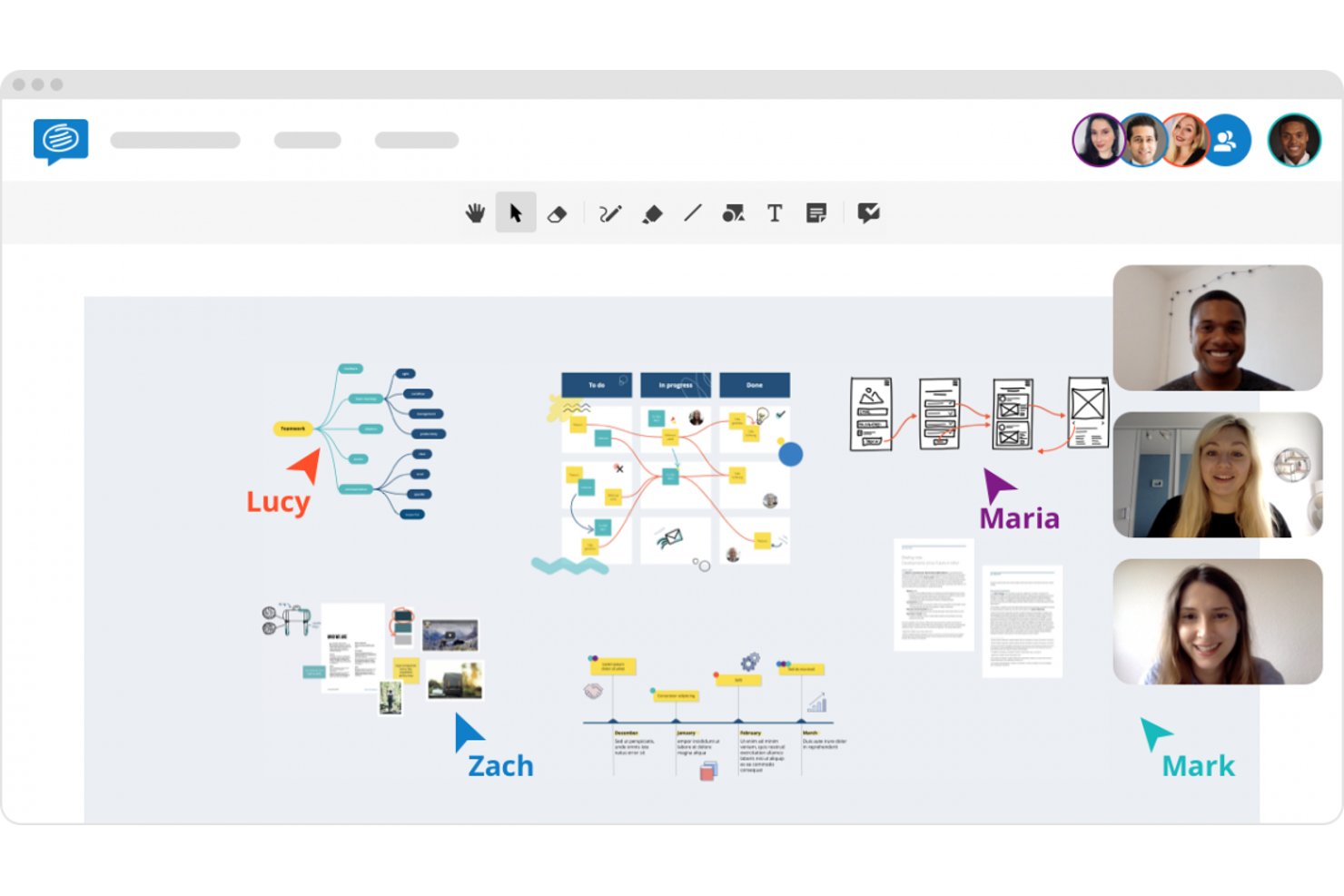
For product and project teams seeking a Microsoft Whiteboard alternative, Conceptboard is an online whiteboard for mapping ideas, planning work, and coordinating distributed collaboration on shared visual boards.
Who Is Conceptboard Best For?
Project managers and facilitators who run distributed workshops and need a GDPR-compliant visual collaboration space.
Why I Picked Conceptboard
I picked Conceptboard as a Microsoft Whiteboard alternative because it’s Best for GDPR-compliant workshop facilitation. Its Germany-based hosting and board-level permissions support sensitive workshops. I can invite stakeholders as reviewers, grant editing access during the session, then revoke it afterward.
Conceptboard Key Features
- Workshop templates: Start sessions with templates for retrospectives, brainstorming, and process mapping.
- Board tasks: Turn board content into tasks with assignees, deadlines, and tags.
- Live comments: Add comments directly to board content during collaborative sessions.
- Voting: Let participants vote on ideas and options directly on the board.
Conceptboard Integrations
Conceptboard documents integrations with Microsoft Teams, Jira, Azure, Confluence, Webex, Google Drive, OneDrive, and Dropbox. These connections let teams embed boards in collaboration tools and bring tickets or files into their visual workflows.
Pros and Cons
Pros:
- Board tasks retain ideas with owners
- Workshop templates structure facilitated sessions
- Board-level permissions protect sensitive workshops
Cons:
- Sticky notes can snap or glitch
- Large boards can load slowly
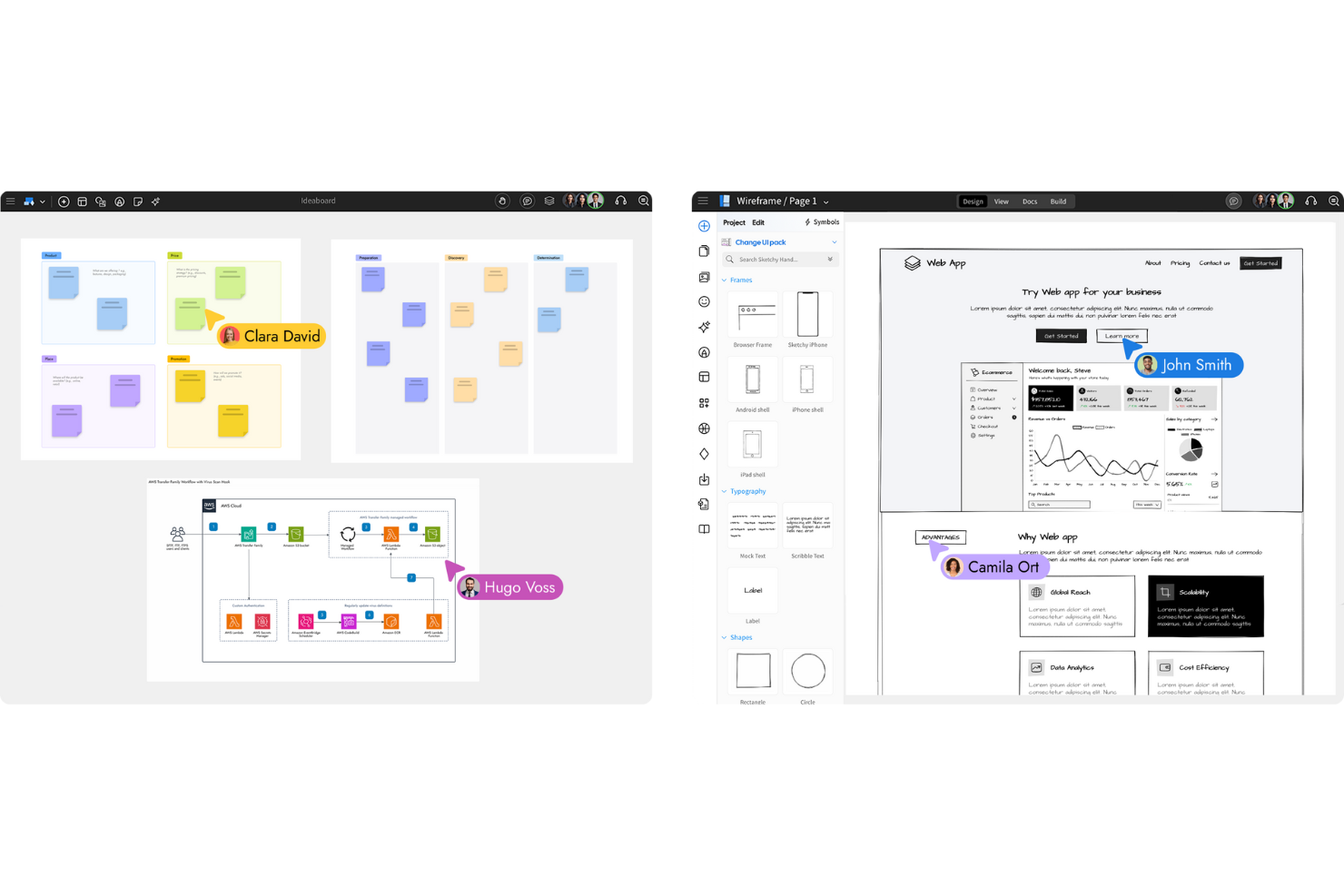
MockFlow gives product and design teams an online visual workspace to organize early ideas, align stakeholders, and clarify project decisions as an alternative to Microsoft Whiteboard.
Who Is MockFlow Best For?
Product managers and UX designers on digital product teams can use MockFlow to sketch interfaces and align on UI plans before development.
Why I Picked MockFlow
I picked MockFlow as a Microsoft Whiteboard alternative because its wireframe editor combines a UI widget library and reusable UI packs with a shared canvas. I like how teams can link onboarding screens into a clickable prototype, then preview the flow full-screen or on a phone before engineering starts.
MockFlow Key Features
- Board components: Add sticky notes, mind maps, kanban boards, diagrams, and polls to a board.
- AI board generation: Create boards from prompts, meeting notes, transcripts, or product requirements documents.
- Board meetings: Run audio or video calls and present live from a board.
- Pinned comments: Attach text, audio, or video comments to specific board locations.
MockFlow Integrations
MockFlow offers board integrations with Microsoft Teams, Google Meet, Confluence, Jira, Trello, and Slack, plus live data connectors for Notion, GitHub, and Google Drive. A Boards API and webhooks are available for custom integrations.
Pros and Cons
Pros:
- Clickable prototypes preview flows on phones
- Whiteboards and UI planning share one workspace
- Quick low-fidelity wireframes clarify screen structure
Cons:
- Prototype controls don’t simulate interactions realistically
- Some UI elements feel dated or incomplete

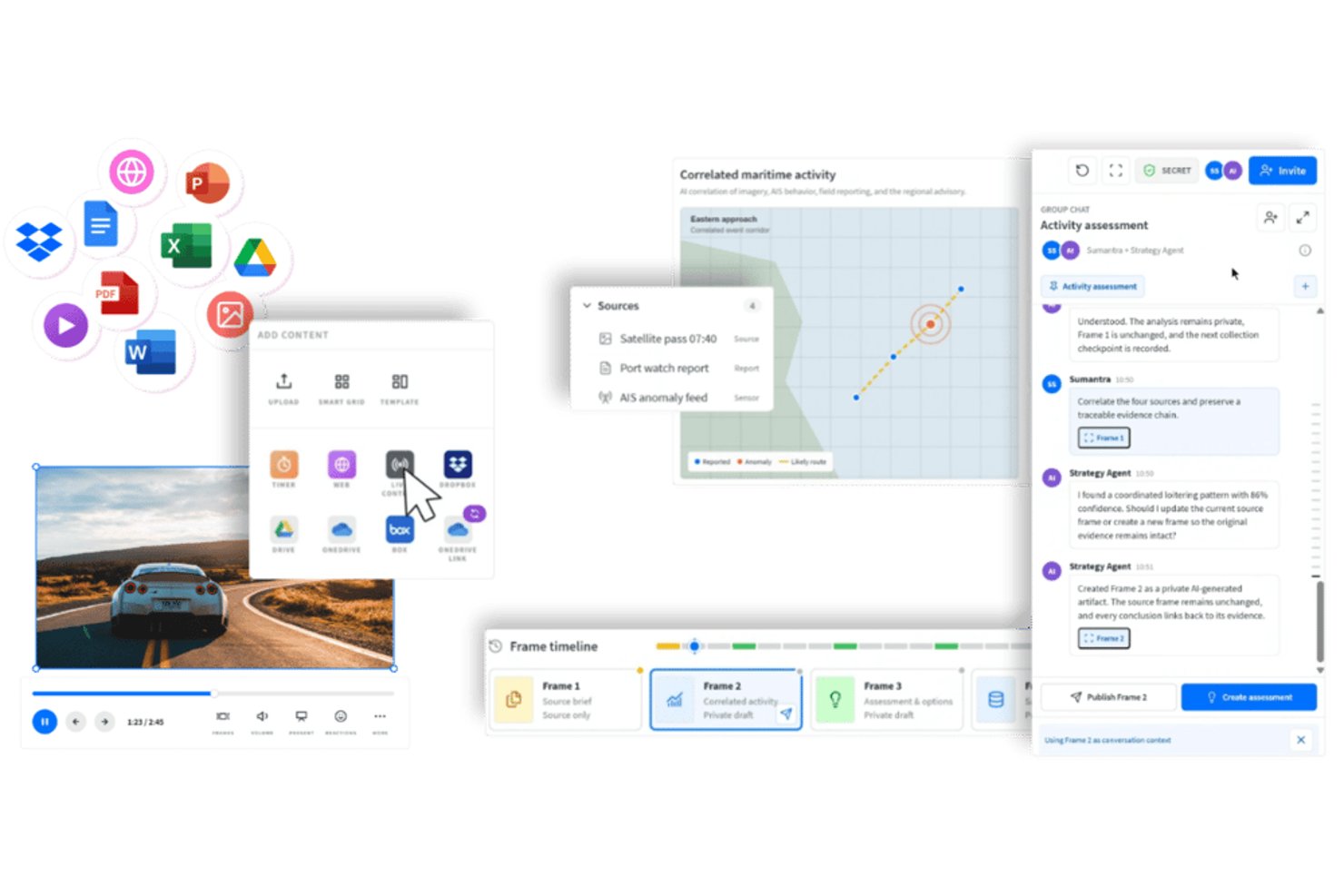
Bluescape is an online visual collaboration workspace for product, engineering, and design teams that need to organize project materials, map workflows, and align stakeholders on shared canvases.
Who Is Bluescape Best For?
Bluescape is a good fit for defense and government teams that need secure visual collaboration to coordinate plans and align stakeholders.
Why I Picked Bluescape
I picked Bluescape as a Microsoft Whiteboard alternative because its USP is “Best for defense-grade secure visual collaboration.” I like that teams can deploy it on-premises or in a private cloud, set role-, attribute-, or policy-based access, and bring documents and live feeds onto a persistent canvas for operational planning.
Bluescape Key Features
- Synchronized video playback: Upload videos, review them frame by frame, and keep playback synchronized for everyone.
- Document annotation: View and annotate documents with full-screen viewing, zoom, and page extraction.
- Canvas carousels: Automatically present selected canvases at configured intervals.
- Multi-page PDF export: Organize selected canvases and export them as a multi-page PDF.
Bluescape Integrations
Bluescape has a native integration with n8n and integrations with Microsoft Teams, OneDrive, Microsoft 365, Webex by Cisco, Box, Autodesk Flow Production Tracking, and Slack. Its REST API supports custom integrations with external systems.
Pros and Cons
Pros:
- Persistent canvas keeps project files and decisions together
- Frame-synchronized video review beats screen sharing
- Secure on-premises deployment supports sensitive planning
Cons:
- Comments don’t translate readily into tracked tasks
- Large workspaces can lag or feel cumbersome

Canva Whiteboard gives product, design, and marketing teams a shared online space to map ideas, discuss workflows, and keep visual collaboration connected to their wider Canva work.
Who Is Canva Whiteboard Best For?
Canva Whiteboard suits product and UX teams that want to brainstorm early ideas alongside Canva’s templates, photos, and other design assets.
Why I Picked Canva Whiteboard
I picked Canva Whiteboard as a Microsoft Whiteboard alternative because it’s best for brainstorming with design assets on hand. I like using its shared board to map early ideas and workflows alongside Canva templates, photos, and other design assets. For example, I can sketch a product concept while keeping relevant visual references on the board.
Canva Whiteboard Key Features
- Timers: Add a timer to keep group activities on schedule.
- Comments: Leave comments directly on the whiteboard.
- Sticky-note reactions: Add reactions to sticky notes.
- Sketching tools: Draw and annotate ideas on the canvas.
Canva Whiteboard Integrations
Canva lists integrations with Slack, Google Drive, Mailchimp, and HubSpot. Canva AI also supports read-only connections to Notion, Asana, Gmail, and Zoom.
Pros and Cons
Pros:
- Presentation slides can expand into whiteboards
- Templates cover mind maps and project plans
- Canva's design library adds visual references
Cons:
- Stylus strokes may lag during writing
- Complex boards can slow editing
Miro
Best for large-scale team collaboration
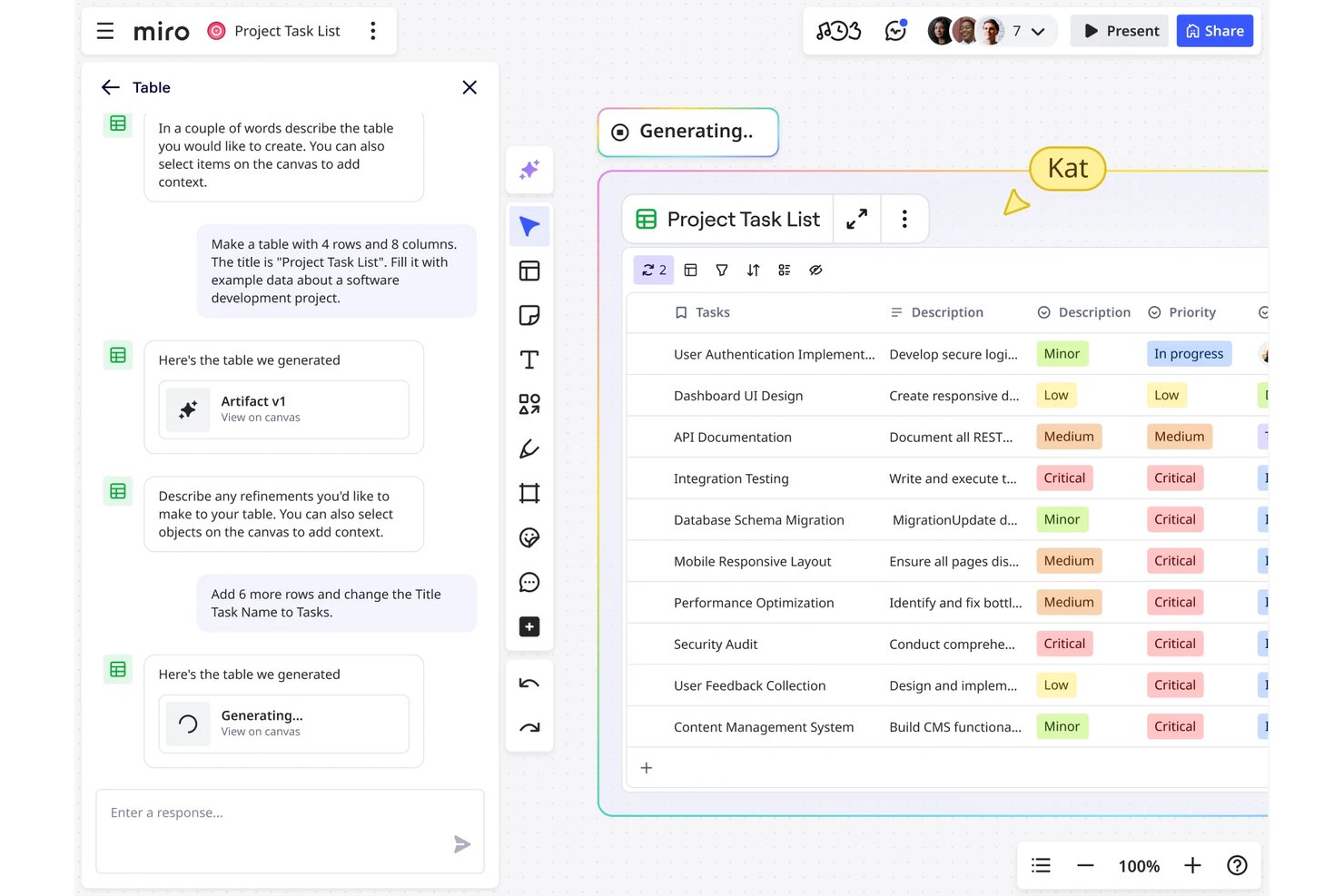
Miro is an online whiteboard for product, design, and project teams that need to map ideas, plan workflows, and keep distributed stakeholders aligned beyond Microsoft Whiteboard’s basic canvas.
Who Is Miro Best For?
Miro suits project and product teams at growing or large organizations that need a shared visual workspace for cross-functional planning across departments.
Why I Picked Miro
I picked Miro as a Microsoft Whiteboard alternative for its stated strength: “Best for large-scale team collaboration.” Its infinite canvas and frames let product, design, and engineering teams map workstreams and dependencies on one board. I like using built-in voting to help a large workshop prioritize ideas while keeping the discussion context visible.
Miro Key Features
- Template library: Start workshops with templates for storyboarding, design thinking, and brainstorming.
- Sticky note clustering: Group notes by tag, color, author, or selection.
- Board timer: Set a timer to pace activities during meetings and workshops.
- File support: Add images, GIFs, documents, spreadsheets, and PDFs to a board.
Miro Integrations
Miro’s marketplace lists 250+ apps, integrations, and AI tools, including Jira Cards, Azure Cards, Google Drive, Miro for Microsoft Teams, Slack, and Miro for Google Meet, with connections across Microsoft 365, Google Workspace, and Atlassian. Miro also connects with Zapier and offers APIs and SDKs for custom integrations.
Pros and Cons
Pros:
- Templates support mapping, storyboarding, and planning
- Voting and timers guide group prioritization
- Real-time input supports distributed workshops
Cons:
- Crowded boards are hard to navigate
- Large boards can slow during collaboration
New Product Updates from Miro
Miro Adds Japan Data Residency for Enterprise Customers
Miro has introduced Japan data residency for enterprise customers, offering in-region storage for production data, backups, and metadata, plus in-region compute infrastructure. For more information, visit Miro's official site.
Andre alternativer til Microsoft Whiteboard
Her er noen flere alternativer til Microsoft Whiteboard som ikke kom med på kortlisten min, men som likevel er verdt å se nærmere på:
- Klaxoon
For gamified workshop facilitation
- Lucidspark
With visual ideation tools
- Creately
For diagramming-led project workflows
- Whimsical
For diagrams and wireframes in one canvas
- Weje
For free, no-limit board organization
- Explain Everything
For recording whiteboard video explanations
- Milanote
For creative moodboarding and visual planning
- Boardmix
For AI-aided flowchart and diagram mapping
- tldraw
For building custom canvas apps
- ClickUp Whiteboards
For turning whiteboard ideas into tracked tasks


Kriterier for valg av alternativer til Microsoft Whiteboard
Da jeg valgte ut de beste alternativene til Microsoft Whiteboard som skulle inkluderes i denne listen, tok jeg hensyn til vanlige behov og utfordringer hos kjøpere knyttet til produkter for digitale frihåndslerret og samarbeidsprogramvare, for eksempel støtte for strukturert trådmodellering og muligheten til å legge til rette for teamsamarbeid i sanntid. Jeg brukte også følgende rammeverk for å holde vurderingen strukturert og rettferdig:
Kjernefunksjonalitet (25 % av totalpoengsummen)
For å bli vurdert for inkludering i denne listen måtte hver løsning oppfylle disse vanlige bruksområdene:
- Opprette og redigere digitale tavler
- Samarbeide med flere brukere i sanntid
- Legge til klistrelapper, former og koblinger
- Dele tavler med teammedlemmer eller gjester
- Eksportere tavler til vanlige filformater
Flere fremtredende funksjoner (25 % av totalpoengsummen)
For å snevre inn konkurransen ytterligere så jeg også etter unike funksjoner, for eksempel:
- Innebygde verktøy for trådmodellering og prototyping
- Muligheter for administrasjon av designsystemer
- Avanserte tillatelses- og tilgangskontroller
- Integrasjon med plattformer for prosjektstyring
- KI-drevne forslag til diagrammer eller innhold
Brukervennlighet (10 % av totalscoren)
For å få et inntrykk av brukervennligheten til hvert system vurderte jeg følgende:
- Rent og intuitivt grensesnittdesign
- Minimalt med klikk for å få tilgang til kjernefunksjoner
- Responsiv ytelse med store tavler
- Tilpassbare arbeidsområdeoppsett
- Tilgjengelighet for brukere med funksjonsnedsettelser
Introduksjon (10 % av totalscoren)
For å vurdere introduksjonsopplevelsen for hver plattform vurderte jeg følgende:
- Tilgjengelighet av trinnvise produktomvisninger
- Tilgang til opplæringsvideoer og dokumentasjon
- Ferdiglagde maler for vanlige bruksområder
- Chatboter i appen eller veiledet hjelp
- Nettseminarer eller direktesendte introduksjonsøkter
Kundestøtte (10 % av totalscoren)
For å vurdere kundestøttetjenestene til hver programvareleverandør vurderte jeg følgende:
- Flere støttekanaler (chat, e-post, telefon)
- Rask svartid på henvendelser
- Tilgang til en søkbar kunnskapsbase
- Fellesskapsfora eller brukergrupper
- Tilgjengelighet av dedikerte kundeansvarlige
Valuta for pengene (10 % av totalscoren)
For å vurdere valutaen for pengene til hver plattform vurderte jeg følgende:
- Gjennomsiktige og fleksible prisplaner
- Funksjoner som er inkludert i rimeligere abonnementer
- Tilgjengelighet av gratisabonnement eller prøveperiode
- Rabatter ved årlig fakturering eller for ideelle organisasjoner
- Ingen skjulte gebyrer eller uventede kostnader
Kundeanmeldelser (10 % av totalscoren)
For å få et inntrykk av den generelle kundetilfredsheten vurderte jeg følgende da jeg leste kundeanmeldelser:
- Positive tilbakemeldinger om samarbeidsfunksjoner
- Rapporter om pålitelig oppetid og ytelse
- Kommentarer om hvor enkelt det er for team å ta løsningen i bruk
- Kritikk av manglende funksjoner eller begrensninger
- Vurderinger av samlet verdi og tilfredshet
Hvorfor se etter et alternativ til Microsoft Whiteboard?
Selv om Microsoft Whiteboard er et godt valg for et digitalt lerret i fri form og samarbeidsprogramvare, finnes det flere grunner til at noen brukere ser etter alternative løsninger. Det kan hende du ser etter et alternativ til Microsoft Whiteboard fordi …
- Du trenger avanserte verktøy for trådmodellering eller prototyping
- Teamet ditt samarbeider på tvers av plattformer som ikke er fra Microsoft
- Du trenger mer detaljerte tilgangskontroller
- Du ønsker tilgang til tavlene dine uten nett
- Organisasjonen din trenger integrasjoner utover Microsoft 365
- Du trenger bedre støtte for verksteder i stor skala
Hvis noe av dette høres kjent ut, har du kommet til rett sted. Listen min inneholder flere alternativer innen programvare for digitale lerreter i fri form og samarbeid som er bedre egnet for team som møter disse utfordringene med Microsoft Whiteboard og ser etter alternative løsninger.
Viktige funksjoner i Microsoft Whiteboard
Her er noen av de viktigste funksjonene i Microsoft Whiteboard, slik at du kan sammenligne hva alternative løsninger tilbyr:
- Samarbeid i sanntid for flere brukere på delte tavler
- Integrasjon med Microsoft Teams og Office 365
- Gule lapper, tekst, figurer og tegneverktøy
- Uendelig lerret for idémyldring i fri form
- Maler for vanlige møte- og verkstedsscenarioer
- Støtte for opplasting av bilder og dokumenter
- Blekkfunksjon og håndskriftgjenkjenning
- Deling av tavler med interne og eksterne brukere
- Versjonshistorikk og alternativer for gjenoppretting av tavler
- Tilgjengelighet via apper for nettleser, Windows, iOS og Android