

I 10 migliori software per la condivisione di file per trasferimenti sicuri nel 2026

10 Elenco dei migliori software per la condivisione di file


Il miglior software per la condivisione di file ti aiuta a organizzare, accedere e condividere in modo sicuro i documenti con il tuo team, evitando il caos delle versioni o autorizzazioni macchinose che rallentano il lavoro. Senza lo strumento giusto, tu e il tuo team perderete tempo a cercare i documenti, avrete difficoltà a condividere il lavoro con i clienti e non saprete quale documento sia effettivamente la versione finale.
Ho utilizzato la mia esperienza nella gestione di un'agenzia e oltre 3 anni di test del software per esaminare decine di strumenti e selezionare il mio elenco dei migliori software per la condivisione di file. Ti aiuterò a trovare la soluzione perfetta per la collaborazione in tempo reale, la condivisione sicura o la facile integrazione con il tuo flusso di lavoro.
Perché fidarsi dei nostri consigli sui software
Il nostro team testa e recensisce software dal 2012. In quanto project manager noi stessi, sappiamo quanto sia difficile — e importante — scegliere il software giusto.
Per questa guida, abbiamo valutato gli strumenti attraverso test pratici e ricerche indipendenti, assegnando un punteggio agli strumenti in base ai nostri criteri di selezione. Ci basiamo inoltre sulle competenze di leader di pensiero del settore e di professionisti attivi nella gestione dei progetti.
Le nostre recensioni riflettono il nostro giudizio editoriale umano, non un discorso di vendita.
Revisori esperti:
Tabella comparativa dei software per la condivisione di file
Confronta prezzi e specifiche di ciascuna delle mie scelte per il miglior software per la condivisione di file.
| Tool | Best For | Trial Info | Price | ||
|---|---|---|---|---|---|
| 1 | Ideale per organizzare contenuti digitali | Prova gratuita di 7 giorni | Da $100/mese/utente | Website | |
| 2 | Ideale per il supporto a più protocolli di trasferimento | Prova gratuita di 25 giorni | Prezzo su richiesta | Website | |
| 3 | Ideale per branding e gestione dei media | Prova gratuita di 30 giorni | Da $29/utente/mese | Website | |
| 4 | Ideale per la collaborazione controllata e multiutente | Piano gratuito disponibile | Da $99/mese (fatturazione annuale) | Website | |
| 5 | Ideale per le aziende che usano Google come client email | Prova gratuita di 14 giorni e piano gratuito disponibili | Da $6.30/mese (fatturazione annuale) | Website | |
| 6 | Ideale per la condivisione di file con crittografia end-to-end | Prova gratuita di 14 giorni + demo gratuita disponibile | A partire da $4.75/mese (fatturazione annuale) | Website | |
| 7 | Ideale per la condivisione semplice e veloce di grandi file tramite email | Versione gratuita disponibile | Da $23/mese. | Website | |
| 8 | Ideale per la collaborazione e sincronizzazione senza interruzioni | Prova gratuita + piano gratuito disponibile | Da $9.99/utente/mese (fatturato annualmente) | Website | |
| 9 | Ideale per un'integrazione senza interruzioni nell'ecosistema Microsoft | Piano gratuito disponibile | A partire da £1,99/utente/mese | Website | |
| 10 | Ideale per trasferimenti di file sicuri basati su cloud | Prova gratuita di 7 giorni disponibile | Da $100/mese (fatturazione annuale) | Website |
Recensioni dei migliori software per la condivisione di file
Leggi qui sotto il mio elenco dei migliori software per la condivisione di file e scopri perché ho scelto ciascuno strumento per la condivisione di file incluso in questo elenco.

Pics.io
Ideale per organizzare contenuti digitali

Pics.io è una piattaforma di gestione delle risorse digitali per team creativi e aziende che condividono, organizzano e collaborano in modo sicuro su grandi volumi di file digitali.
Per chi è ideale Pics.io?
Pics.io è particolarmente adatto a team di marketing e creativi che gestiscono grandi quantità di asset di marca e necessitano di un modo strutturato per archiviare, trovare e condividere file tra diversi progetti.
Perché ho scelto Pics.io
Pics.io si guadagna un posto nella mia shortlist per come gestisce bene l'organizzazione nella condivisione dei file—un aspetto spesso trascurato dagli strumenti di condivisione file più generici. Apprezzo in particolare i campi di metadati personalizzati, che permettono al mio team di etichettare e categorizzare gli asset utilizzando la nostra terminologia invece di costringerci a una struttura di cartelle rigida. Il sistema di auto-etichettatura tramite intelligenza artificiale riduce anche il lavoro manuale all'atto del caricamento. Quando devo condividere un asset specifico, il controllo delle versioni garantisce che i link condivisi puntino sempre all'ultima versione approvata—niente link non funzionanti o versioni obsolete che circolano tra i team.
Funzionalità principali di Pics.io
- Ricerca avanzata: Effettua ricerche in tutta la libreria di asset utilizzando linguaggio naturale, filtri e metadati—including contenuti all'interno di PDF e file AI.
- Gestione degli accessi: Imposta permessi a livello di ruolo e utente, aggiungi date di scadenza ai link condivisi e proteggi con password i singoli asset.
- Riconoscimento facciale: Identifica e tagga automaticamente le persone nella tua libreria di immagini per rendere più rapide le ricerche specifiche per persona.
- Commenti con timestamp: Aggiungi commenti con codifica temporale direttamente su foto e video per offrire ai collaboratori feedback precisi e contestualizzati.
Integrazioni di Pics.io
Le integrazioni includono Google Drive, Amazon S3, Adobe Creative Cloud, Google Workspace e WordPress.
Pros and Cons
Pros:
- Ampio portafoglio di anteprime per estensioni multimediali
- Supporto per cartelle con sottocartelle illimitate
- Tag dinamico basato su AI
Cons:
- Opzioni di personalizzazione limitate
- Opzioni limitate per mostrare gli asset sui siti web
New Product Updates from Pics.io
Pics.io Adds AVIF File Support
Pics.io now supports AVIF files, expanding the image formats you can upload and manage in the platform. This gives teams more flexibility when working with modern image assets. For more information, visit Pics.io’s official site.
 .
.
Ideale per il supporto a più protocolli di trasferimento

Cerberus FTP Server è una piattaforma sicura per la condivisione di file creata per team IT e organizzazioni che devono gestire trasferimenti di dati sensibili, offrendo supporto avanzato ai protocolli e controlli di accesso granulari per settori regolamentati e ambienti aziendali.
Per chi è Cerberus FTP Server?
Cerberus FTP Server è adatto ad amministratori IT e team orientati alla sicurezza in settori regolamentati come sanità, finanza e pubblica amministrazione che necessitano di un controllo rigoroso sull'infrastruttura di trasferimento file.
Perché ho scelto Cerberus FTP Server
Cerberus FTP Server si è guadagnato un posto nella mia lista dei migliori grazie all'estrema flessibilità di protocollo concentrata in un unico server. Mi piace poter eseguire FTP, FTPS, SFTP, SCP e HTTPS tutti contemporaneamente su un singolo indirizzo IP: niente server separati, niente problemi di instradamento. Questo fa molta differenza quando si lavora con sistemi legacy che supportano solo SCP insieme a client moderni che richiedono SFTP o l'accesso via browser HTTPS. Apprezzo anche la possibilità di definire quali protocolli siano accessibili da parte di utenti o gruppi specifici: così non si supportano solo più protocolli, ma si impone attivamente quali sono consentiti per ogni connessione.
Funzionalità principali di Cerberus FTP Server
- Integrazione AD/LDAP: Collega Cerberus FTP Server ad Active Directory o LDAP per gestire autenticazione e accesso utenti senza la necessità di un database utenti separato.
- Link pubblici per la condivisione di file: Genera link pubblici unici e con scadenza temporale a file o cartelle specifici direttamente dal client web HTTPS, senza che i destinatari debbano avere un account.
- Supporto SAML SSO: Autentica gli utenti tramite Microsoft Entra ID (precedentemente Azure AD) o Okta attraverso single sign-on basato su SAML.
- Account utente temporanei: Crea account utente a tempo che scadono automaticamente, utili per concedere accesso file temporaneo a partner esterni.
Integrazioni Cerberus FTP Server
Le integrazioni includono Microsoft Azure, Amazon Web Services, Active Directory e LDAP.
Pros and Cons
Pros:
- Supporta i protocolli FTP, FTPS, SFTP e HTTPS
- Offre log dettagliati per audit di conformità
- Permette permessi granulati per utenti e gruppi
Cons:
- Manca di funzionalità di versioning file integrate
- L'interfaccia web può risultare lenta con directory di grandi dimensioni

Filecamp
Ideale per branding e gestione dei media
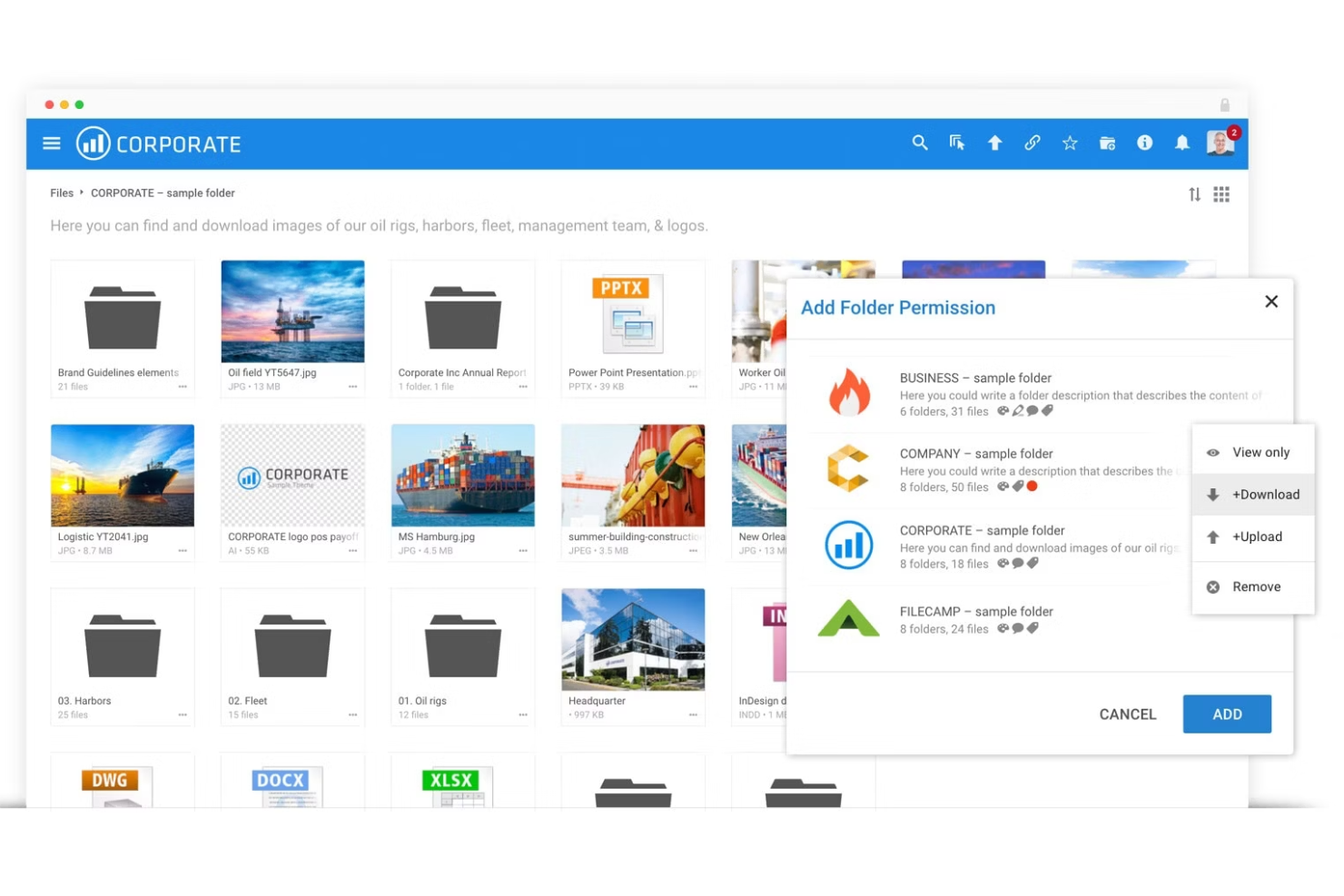
Filecamp è una piattaforma di condivisione file e gestione delle risorse digitali pensata per team creativi, agenzie e dipartimenti marketing che hanno bisogno di organizzare, condividere e collaborare su contenuti di brand e file multimediali in modo sicuro.
Per chi è migliore Filecamp?
Filecamp è particolarmente indicato per team di marketing e agenzie creative che condividono regolarmente asset di brand, file multimediali e contenuti visivi con clienti o collaboratori esterni.
Perché ho scelto Filecamp
Filecamp si è guadagnato un posto nella mia selezione grazie alla sua straordinaria gestione del branding insieme alla condivisione dei file. Apprezzo in particolare la funzione dei temi multipli, che permette al mio team di associare portali di brand differenti a diverse cartelle—così un cliente di un settore vede un aspetto completamente diverso rispetto a quello di un altro. Uso anche la funzione linee guida di brand per ospitare una guida di stile interattiva direttamente all'interno di Filecamp, il che mantiene i partner esterni allineati su loghi, colori e regole di utilizzo senza bisogno di continui scambi. Le versioni di immagini generate al volo sono anche molto utili, perché consentono ai collaboratori di scaricare gli asset nel formato e nella risoluzione esatti di cui hanno bisogno senza dover preparare file separati.
Funzionalità chiave di Filecamp
- Controllo degli accessi granulare: Assegna permessi a livello di cartella e file affinché ogni utente o cliente veda solo ciò che hai condiviso esplicitamente con lui.
- Link per richiedere file: Genera link per il caricamento che permettono a chiunque di inviare file direttamente nel tuo account Filecamp, con notifiche quando arrivano i nuovi upload.
- Raccolte: Raccogli file da più cartelle in una singola raccolta condivisibile per una distribuzione più semplice ai collaboratori.
- Controllo delle versioni: Archivia e accedi alle versioni precedenti dei file, così i collaboratori possono esaminare o ripristinare le versioni precedenti in qualsiasi momento.
Integrazioni di Filecamp
Le integrazioni includono Adobe Creative Cloud, Microsoft Office 365, Slack, Strapi, SharePoint, Salesforce, WordPress e Google Analytics.
Pros and Cons
Pros:
- API per la gestione delle risorse digitali (DAM).
- Branding personalizzato con logo aziendale.
- Gestione della libreria multimediale con condivisione file e commenti facilitati.
Cons:
- Integrazioni di terze parti limitate rispetto ad altre opzioni.
- Molte funzionalità possono risultare difficili da gestire.
New Product Updates from Filecamp
Filecamp Adds Analytics, AI Thumbnails, and CDN Embed Links
Filecamp adds Analytics, AI-powered thumbnails, and CDN-backed Embed links. These updates give teams more visibility into asset usage, improve thumbnail presentation, and make embedded images easier to manage. For more information, visit Filecamp’s official site.
 .
.
Ideale per la collaborazione controllata e multiutente
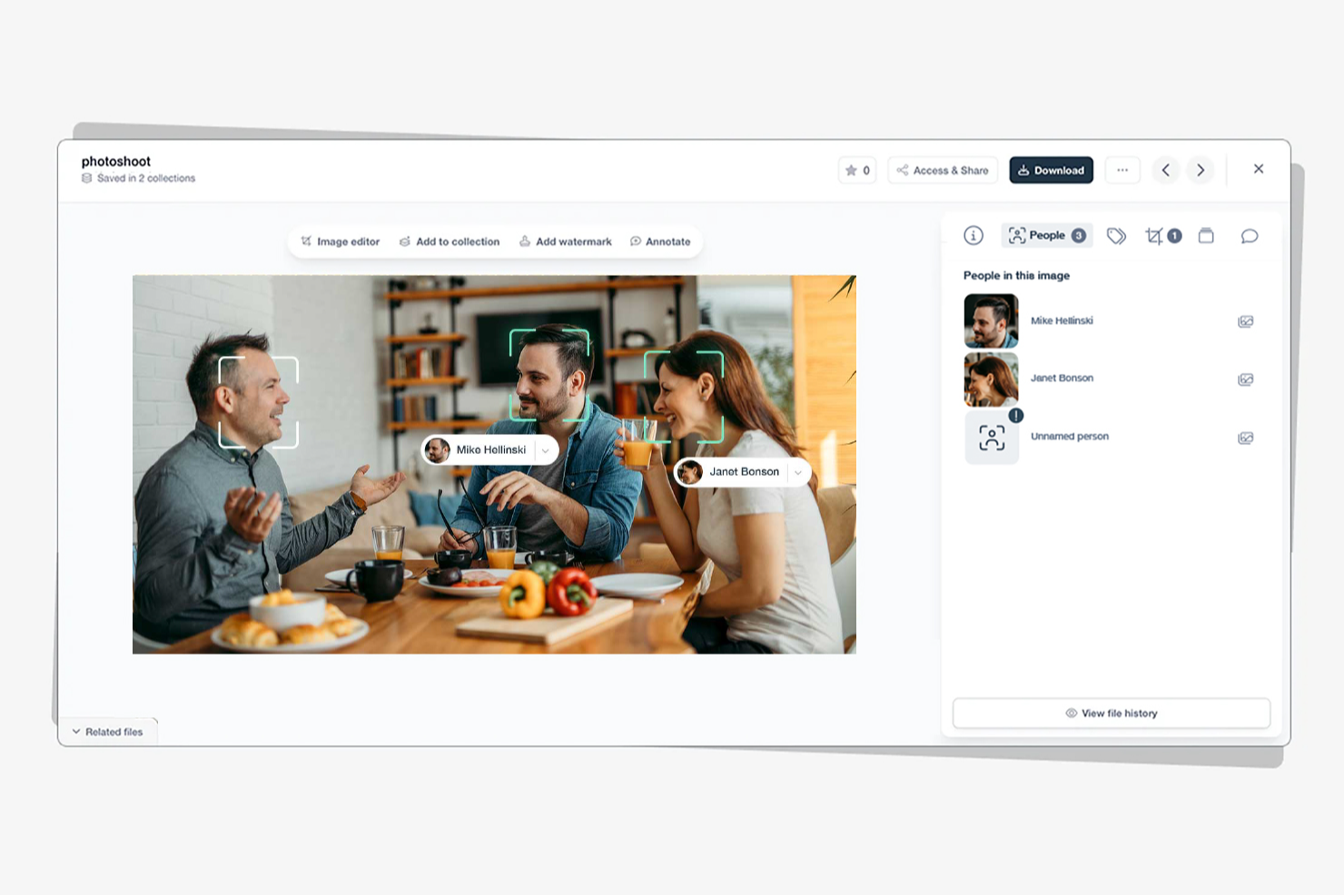
Stockpress è una piattaforma di gestione delle risorse digitali progettata per team e organizzazioni che necessitano di organizzare, condividere e collaborare su file in modo sicuro, mantenendo il controllo su accessi e permessi.
Per chi è ideale Stockpress?
Stockpress è una scelta ideale per team creativi e di marketing che hanno bisogno di accesso strutturato e basato su permessi a file condivisi e risorse di brand.
Perché ho scelto Stockpress
Stockpress si è guadagnato un posto nella mia shortlist grazie al livello di controllo che offre su chi può vedere e fare cosa in uno spazio di lavoro condiviso. Mi piace particolarmente la funzione dei ruoli utente personalizzati, che permette di creare un numero illimitato di ruoli da zero invece di scegliere da un insieme fisso di permessi preimpostati. Insieme ai controlli di visibilità di file e raccolte, che permettono di passare da accesso aperto a ristretto, il mio team può condividere risorse con collaboratori esterni senza esporre tutto lo spazio di lavoro. Anche il tracciamento dei link di condivisione è molto utile: posso vedere esattamente chi ha aperto, visualizzato o scaricato un file.
Funzionalità principali di Stockpress
- Annotazioni sui file: Aggiungi commenti a aree specifiche di qualsiasi tipo di file, compresi i video, per fornire feedback precisi senza scambi di email.
- Tagging AI: Tag automatici alle immagini caricate con una precisione fino al 90%, rendendo i file ricercabili senza inserimento manuale di metadati.
- Versionamento file: Carica nuove versioni di un file nell'originale per creare una pila di versioni, così il tuo team saprà sempre qual è il file aggiornato.
- Upload ospite: Crea pagine pubbliche che consentono a utenti esterni di caricare file direttamente in raccolte specifiche del tuo spazio di lavoro.
Integrazioni Stockpress
Le integrazioni includono Adobe Creative Cloud, Box, Canva, Design Pickle, Dropbox, Figma, Google Drive, Klaviyo, Mailchimp e Slack.
Pros and Cons
Pros:
- Gestisce grandi volumi di risorse
- Buone funzionalità di tagging AI
- È possibile creare raccolte personalizzate per le risorse
Cons:
- Potrebbe offrire più integrazioni
- Il supporto alla migrazione dei file è limitato al piano enterprise

Ideale per le aziende che usano Google come client email
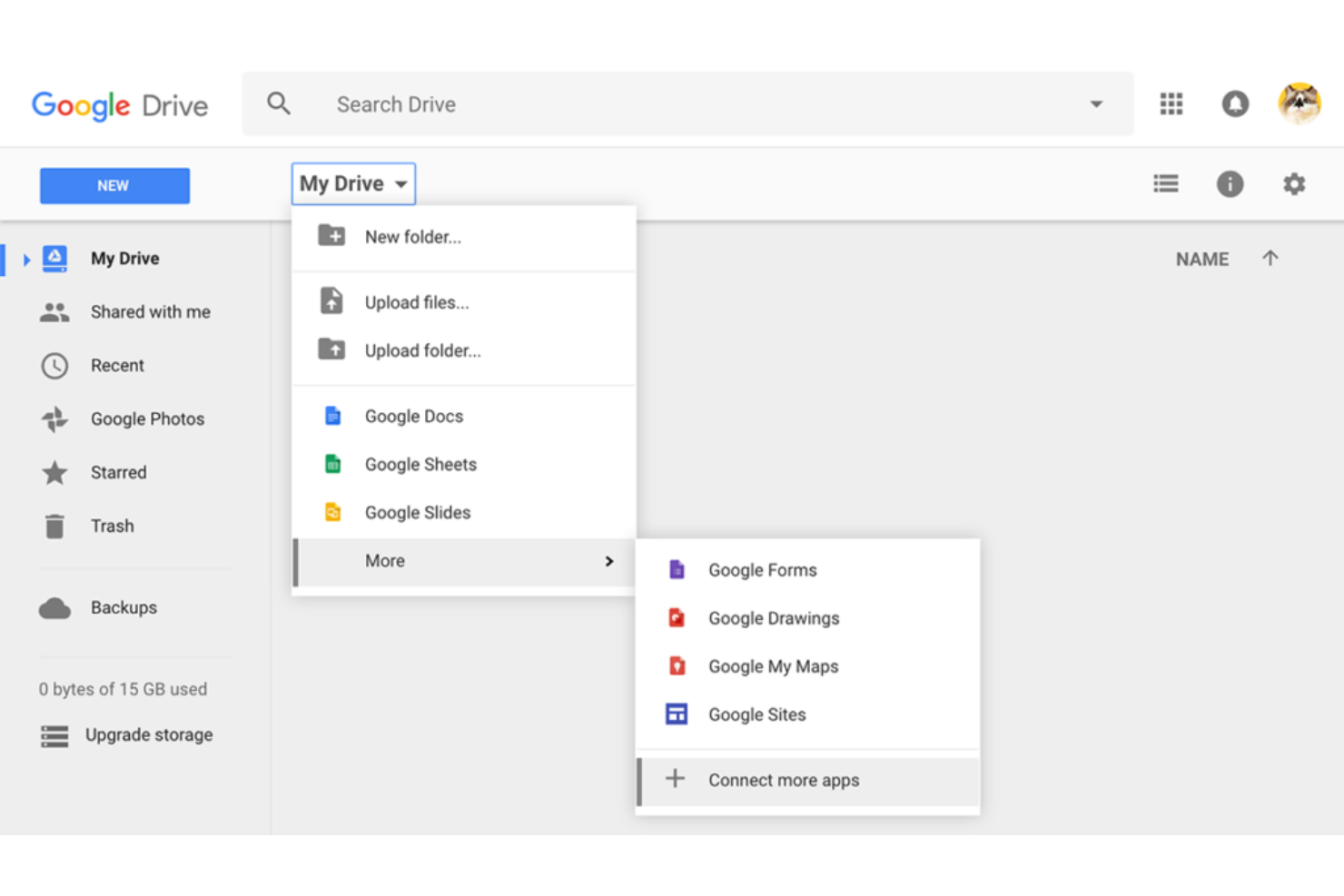
Google Drive offre a team e aziende un modo sicuro per archiviare, condividere e collaborare su file nel cloud, fornendo sincronizzazione unificata e accesso centralizzato a documenti e progetti da dispositivi e località diverse.
Per chi è ideale Google Drive?
Google Drive è particolarmente indicato per team di tutte le dimensioni che già utilizzano Gmail e Google Workspace per la comunicazione e collaborazione quotidiana.
Perché ho scelto Google Drive
Ho scelto Google Drive tra i migliori proprio per quanto sia naturale integrarsi in un flusso di lavoro basato su Gmail. Quando il mio team riceve un allegato in Gmail, possiamo salvarlo direttamente su Drive senza mai uscire dalla casella di posta—e allegare file di Drive alle email senza lasciare la posta. Inoltre, apprezzo la funzione dei drive condivisi, che offre ai team interfunzionali uno spazio dedicato dove archiviare e gestire file insieme, con controlli granulari sui permessi come le scadenze sui link condivisi. Questa combinazione tra gestione degli allegati in Gmail e organizzazione dei file a livello di team è difficile da replicare senza cambiare ecosistema.
Funzionalità principali di Google Drive
- Accesso offline: Visualizza e modifica i file senza connessione internet, con sincronizzazione automatica delle modifiche appena ti riconnetti.
- Cronologia delle versioni dei file: Accedi e ripristina versioni precedenti di qualsiasi file archiviato su Drive, così puoi monitorare le modifiche nel tempo.
- Pagina Priorità: La pagina Priorità di Drive mette in risalto file aperti di recente e suggeriti in base alla tua attività, riducendo il tempo speso nella ricerca.
- Filtri di ricerca in Drive: Usa operatori di ricerca avanzati per filtrare file per tipo, proprietario, data di modifica e posizione in Drive.
Integrazioni di Google Drive
Le integrazioni includono Gmail, Google Meet, Google Chat, Google Docs, Google Sheets, Google Slides, Google Forms, Google Sites, Google Keep e AppSheet.
Pros and Cons
Pros:
- Profonda integrazione con le app di G Suite.
- Collaborazione efficiente in tempo reale.
- Spazio di archiviazione gratuito molto generoso.
- Le revisioni dei documenti vengono salvate automaticamente e possono essere ripristinate.
Cons:
- Accesso offline limitato: funziona meglio solo online.
- File di grandi dimensioni rendono Google Docs lento.

Tresorit
Ideale per la condivisione di file con crittografia end-to-end

Tresorit è una piattaforma sicura per la condivisione di file, progettata per organizzazioni e professionisti che hanno la necessità di proteggere documenti sensibili durante la collaborazione tra team e dispositivi.
Per chi è più indicato Tresorit?
Tresorit è particolarmente adatto a team attenti alla sicurezza nei settori legale, sanitario e finanziario che gestiscono file riservati e richiedono stringenti controlli sulla privacy dei dati.
Perché ho scelto Tresorit
Tresorit si è guadagnato un posto nella mia shortlist perché la crittografia end-to-end non è una funzionalità aggiuntiva, ma la base su cui tutto il resto è costruito. Trovo particolarmente interessante l’architettura zero-knowledge, che significa che nemmeno Tresorit può accedere ai tuoi file. Quando il mio team condivide un contratto sensibile o una bozza di progetto confidenziale, il file viene crittografato prima ancora di lasciare il dispositivo. Apprezzo anche i controlli granulari dei link: puoi impostare protezione tramite password, limiti di apertura, date di scadenza e log di accesso su qualsiasi link condiviso, così non ti limiti a inviare un file sperando che vada tutto bene.
Funzionalità principali di Tresorit
- Link di richiesta file: Crea link crittografati end-to-end che permettono a partner esterni di caricare file sensibili direttamente nelle tue cartelle Tresorit senza bisogno di un account.
- Opzioni di residenza dei dati: Scegli dove archiviare i tuoi dati tra diverse località globali, inclusi UE, Svizzera, Regno Unito e Stati Uniti, per rispettare i requisiti di conformità regionali.
- Politiche di condivisione per amministratori: Imposta regole a livello di gruppo utente che limitano chi può condividere cartelle e link, evitando l’esposizione accidentale di file sensibili fuori dai domini approvati.
- Tresorit eSign: Invia, firma e gestisci documenti direttamente sulla piattaforma utilizzando i flussi di lavoro di firma elettronica integrati.
Integrazioni di Tresorit
Le integrazioni includono Microsoft Outlook, Microsoft 365, Google Workspace, Microsoft Teams, Active Directory, Okta, Azure Active Directory, Salesforce, Dropbox e Google Drive.
Pros and Cons
Pros:
- Crittografia end-to-end e crittografia zero-knowledge.
- Sistema di crittografia delle email per la sicurezza delle informazioni.
- Semplice firma elettronica e tempi di risposta ridotti.
- Cancellazione locale e remota.
Cons:
- Prezzo superiore rispetto ad alcune alternative.
- Potrebbe mancare di alcune funzionalità avanzate di collaborazione.

Ideale per la condivisione semplice e veloce di grandi file tramite email

WeTransfer è una piattaforma di condivisione file pensata per professionisti creativi, agenzie e team che devono inviare file di grandi dimensioni rapidamente, senza configurazioni complicate o la creazione di un account.
Per chi è ideale WeTransfer?
WeTransfer è perfetto per freelance, creativi e piccoli team che hanno bisogno di inviare file di grandi dimensioni a clienti o collaboratori senza chiedere loro di creare un account.
Perché ho scelto WeTransfer
WeTransfer merita il suo posto nella mia lista perché elimina le barriere all'invio di file di grandi dimensioni senza ritardi. L'ho scelto per il flusso di condivisione tramite email: inserisci l'email del destinatario, alleghi i tuoi file e loro ricevono un link diretto per il download senza dover creare un account. Mi piace anche la funzione di richiesta file, con cui puoi condividere l'URL della tua pagina personale WeTransfer e lasciare che i clienti carichino i file direttamente a te, eliminando lo scambio di messaggi per coordinare i trasferimenti. Nei piani a pagamento, la scansione automatica dei malware aggiunge un livello di sicurezza importante quando si ricevono regolarmente file da contatti esterni.
Funzionalità principali di WeTransfer
- Tracciamento dei trasferimenti: Visualizza quando i destinatari hanno aperto e scaricato i tuoi file direttamente dalla cronologia dei trasferimenti.
- Date di scadenza personalizzate: Imposta per quanto tempo rimane attivo il link di trasferimento, da un giorno fino a un anno nei piani a pagamento.
- Protezione tramite password: Aggiungi una password ai singoli trasferimenti, così solo i destinatari previsti possono accedere al link di download.
- Pagine di trasferimento personalizzate: Personalizza la pagina di trasferimento con il tuo logo, i tuoi colori e le immagini di sfondo nei piani a pagamento.
Integrazioni di WeTransfer
Le integrazioni includono Slack, Microsoft Teams, Adobe Creative Cloud, Sketch, Canva e Google Reviews.
Pros and Cons
Pros:
- Piattaforma di condivisione file estremamente facile da usare
- Non è necessaria la registrazione o un account per iniziare a usare il servizio.
- Supporta il trasferimento rapido di file di grandi dimensioni.
Cons:
- Manca di funzionalità avanzate di collaborazione per team o singoli.
- Offre integrazioni limitate con altri strumenti e app.

Dropbox
Ideale per la collaborazione e sincronizzazione senza interruzioni

Dropbox è una piattaforma di condivisione file basata su cloud utilizzata da team e aziende che necessitano di archiviazione sicura, facile accesso attraverso diversi dispositivi e strumenti per organizzare e collaborare su documenti in tempo reale.
Per chi è più adatto Dropbox?
Dropbox è adatto a team di piccole e medie dimensioni che lavorano su più dispositivi e hanno bisogno di un luogo affidabile e centralizzato dove archiviare, condividere e accedere ai file.
Perché ho scelto Dropbox
Dropbox si guadagna un posto nella mia lista di preferiti per quanto gestisce bene la sincronizzazione in tempo reale tra dispositivi: le modifiche che il mio team apporta a un file compaiono istantaneamente, senza bisogno di aggiornamenti manuali. Mi piace anche Dropbox Paper, che permette di co-modificare documenti, lasciare commenti in linea e taggare i colleghi senza dover cambiare strumento. Le cartelle condivise con controlli granulari sui permessi mi consentono di dare ai collaboratori esterni accesso solo a file specifici senza mostrare tutto il resto all'interno del nostro spazio di lavoro.
Funzionalità principali di Dropbox
- Cronologia delle versioni e recupero dei file: Ripristina versioni precedenti dei file o recupera elementi eliminati, con una cronologia che arriva fino a 180 giorni nei piani Standard e fino a un anno nei piani Advanced ed Enterprise.
- Strumento di richiesta file: Invia un link che permette a chiunque di caricare file direttamente nella tua cartella Dropbox, anche senza avere un account.
- Link di condivisione protetti da password e a scadenza: Imposta password o date di scadenza sui link condivisi per controllare chi può accedere ai file e per quanto tempo.
- Cancellazione remota dei dispositivi: Rimuovi i file Dropbox da un dispositivo perso o rubato senza influire sui file memorizzati nel cloud.
Integrazioni di Dropbox
Le integrazioni includono Microsoft Office, Google Workspace, Adobe Acrobat DC, Slack, Zoom, Canva, AutoCAD, DocuSign, Salesforce e Trello.
Pros and Cons
Pros:
- Ampia compatibilità e sincronizzazione con vari dispositivi e formati di file.
- Monitoraggio in tempo reale degli accessi per rilevare tentativi non autorizzati.
- Integrazioni efficienti con app di terze parti.
Cons:
- Limitazioni di archiviazione nei piani di fascia bassa.
- Le funzionalità avanzate hanno prezzi più elevati.

OneDrive
Ideale per un'integrazione senza interruzioni nell'ecosistema Microsoft
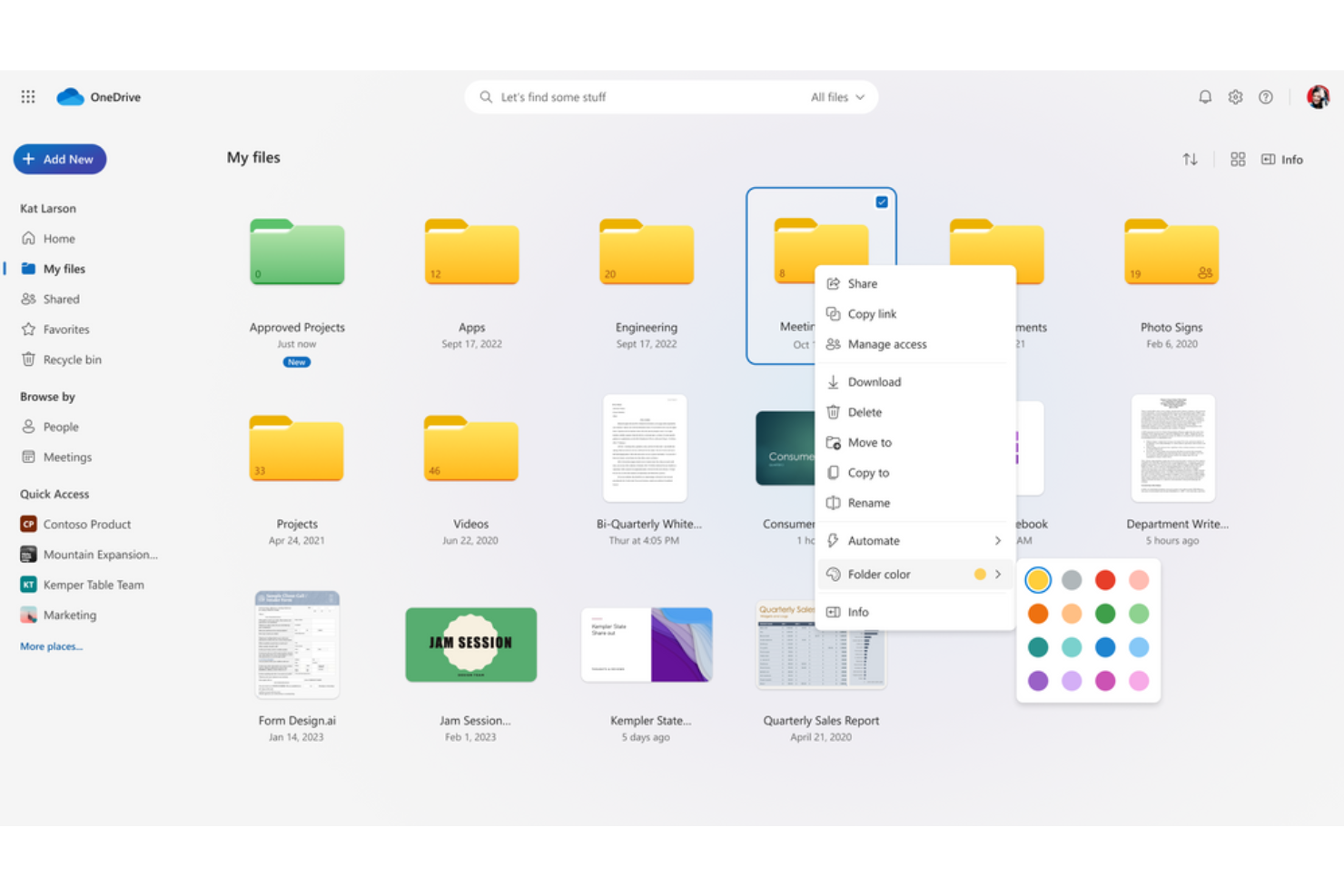
OneDrive è una piattaforma di condivisione file basata su cloud per aziende e team che necessitano di archiviazione sicura, collaborazione in tempo reale e accesso ai documenti da qualsiasi dispositivo.
Per chi è ideale OneDrive?
OneDrive è adatto ad aziende di qualsiasi dimensione che già utilizzano Microsoft 365 e necessitano di una condivisione dei file integrata nel loro flusso di lavoro esistente.
Perché ho scelto OneDrive
OneDrive si guadagna il suo posto nella mia lista ristretta per la sua integrazione naturale nel flusso di lavoro di Microsoft 365. Quando il mio team modifica un documento Word o revisiona una presentazione PowerPoint, i file si aprono direttamente nel browser senza dover cambiare applicazione o ricaricare il file. L'esperienza di co-autorizzazione è immediata. Apprezzo anche l'integrazione con Teams: i file condivisi da un canale Teams vengono visualizzati direttamente in OneDrive, così c'è un unico luogo in cui trovare tutto invece di dover cercare tra thread di chat e allegati email. Le etichette di sensibilità e i report di sincronizzazione offrono agli amministratori una reale visibilità su come i file vengono accessi e condivisi all'interno dell'organizzazione.
Funzionalità principali di OneDrive
- Cronologia delle versioni: Accedi e ripristina versioni precedenti di qualsiasi file archiviato su OneDrive, fino a 180 giorni.
- Permessi di condivisione granulari: Imposta diritti di sola visualizzazione, modifica o accesso protetto da password su file e cartelle individuali quando li condividi con utenti interni o esterni.
- Personal Vault: Archivia file sensibili in un'area protetta che richiede una verifica aggiuntiva dell'identità per accedervi.
- Sincronizzazione offline: Sincronizza i file sul tuo dispositivo così puoi accedervi e modificarli anche senza connessione a internet; i cambiamenti vengono caricati automaticamente quando torni online.
Integrazioni di OneDrive
Le integrazioni includono Microsoft Teams, SharePoint, Outlook, Word, Excel, PowerPoint, OneNote, Microsoft Defender, Microsoft Designer e Azure.
Pros and Cons
Pros:
- Integrazione perfetta con le app Microsoft e collaborazione facilitata all'interno di Microsoft Teams.
- Sicurezza avanzata, inclusi crittografia, 2FA e data di scadenza per i link condivisi.
- Backup dei documenti automatico o manuale e cronologia delle versioni.
- Controlli di condivisione per utenti autorizzati.
Cons:
- Può richiedere un impegno nell'ecosistema Microsoft e Microsoft Office.
- Spazio di archiviazione limitato nei piani di livello inferiore.

SFTP To Go
Ideale per trasferimenti di file sicuri basati su cloud
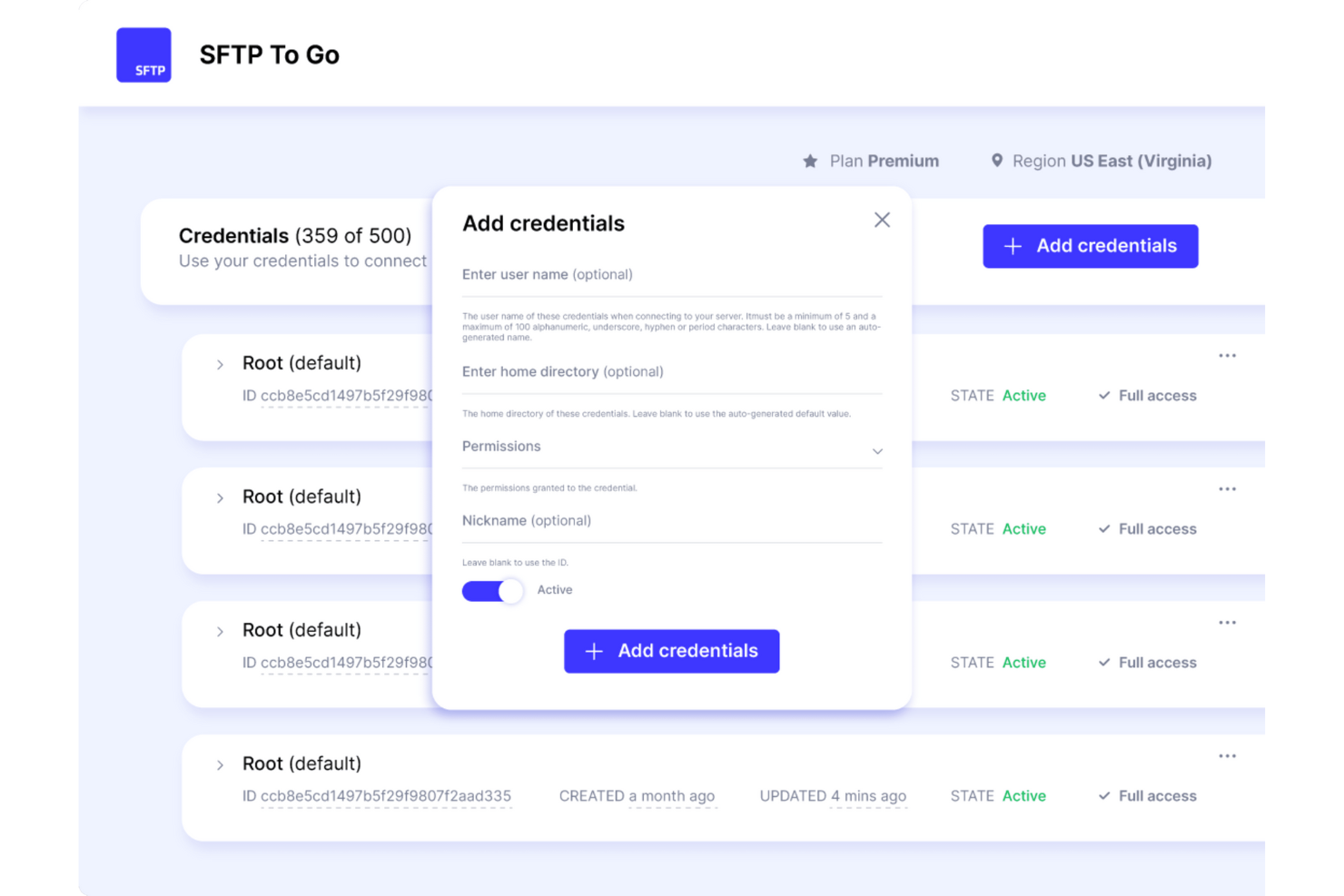
SFTP To Go è una soluzione SFTP gestita per aziende e team che necessitano di trasferimenti di file sicuri, automatizzati e uno spazio di archiviazione cloud senza il fastidio di dover mantenere i propri server.
Per chi è ideale SFTP To Go?
SFTP To Go è particolarmente indicato per sviluppatori e team di ingegneria che hanno bisogno di un server SFTP affidabile, ospitato nel cloud, con un carico minimo sull'infrastruttura.
Perché ho scelto SFTP To Go
SFTP To Go è tra le mie migliori scelte perché apprezzo la gestione sicura dei trasferimenti di file su cloud senza dover gestire io stesso il server. La piattaforma utilizza protocolli sicuri—SFTP, FTPS, S3 e HTTPS—e cripta i file sia in transito che a riposo con AES a 256 bit, quindi non devo compromettere la sicurezza per la comodità. Faccio anche ampio uso dei trigger webhook, che avviano automazioni quando i file vengono caricati o rimossi, permettendo al mio team di creare flussi di lavoro di trasferimento senza intervento manuale e senza polling personalizzato. La funzione di link condivisibili ci consente di inviare link protetti da password e con scadenza ai partner esterni senza dover dare loro accesso completo all'account.
Funzionalità principali di SFTP To Go
- Directory personali utenti: Assegna a ciascun utente una directory isolata all'interno dello storage cloud per controllare esattamente quali file può visualizzare.
- Versioning dei file: Abilita il versioning sull'archiviazione per tenere traccia delle modifiche ai file nel tempo e recuperare da cancellazioni o sovrascritture accidentali.
- Supporto dominio personalizzato: Collega il tuo dominio alla tua istanza SFTP To Go in modo che i partner esterni accedano allo spazio di archiviazione con il tuo brand.
- Consentire solo IP specifici: Imposta regole di rete per limitare l'accesso allo storage a determinati indirizzi IP, aggiungendo un ulteriore livello di controllo.
Integrazioni di SFTP To Go
Le integrazioni includono FileZilla, CyberDuck, WinSCP, Amazon S3 e un'API per connessioni personalizzate.
Pros and Cons
Pros:
- Elevata attenzione a crittografia e conformità
- Condivisione sicura dei file tramite link condivisibili
- Configurazione semplice con storage cloud scalabile
Cons:
- Non permette la collaborazione sui documenti all'interno dell'app
- Prezzo di ingresso elevato per piccoli team
Altri software per la condivisione di file
Ecco alcuni altri strumenti per la condivisione di file che non sono entrati nel mio elenco principale, ma che meritano di essere presi in considerazione.
- Filestage
La migliore piattaforma snella per revisione e approvazione di file
- OneHub
Ideale per condividere file in modo anonimo
- Files.com
Ideale per la condivisione di file aziendali
- Egnyte
Migliore per gestire e controllare la cancellazione e altri rischi legati ai contenuti
- NordLocker
Ideale per la sicurezza e la crittografia dei file
- ShareFile
Ideale per moduli specifici del settore
- Jumpshare
Ideale per comunicazione visiva e annotazione
- Air
Ideale per la condivisione di file tra team creativi


Come Valuto il Software di Condivisione File
Divido la mia valutazione in due livelli: le funzionalità di base che ogni strumento deve avere—come la condivisione sicura e il controllo delle versioni—e i fattori distintivi che rendono uno strumento il più adatto per il tuo team.
Funzionalità di Base (Requisiti Fondamentali per Questa Lista)
Quando seleziono gli strumenti per la mia lista, valuto ciascuno su una scala da 0 (non offre la funzionalità) a 5 (eccelle in questo aspetto) per ogni funzione di base elencata di seguito. Poi calcolo il punteggio totale dello strumento convertendolo in percentuale. Ogni strumento deve raggiungere un punteggio minimo totale del 65% per essere considerato idoneo all'inclusione.
- Archiviazione Cloud: Valuto la capacità di archiviazione, la profondità della gerarchia delle cartelle e la sincronizzazione multi-dispositivo—ad esempio se un team distribuito può accedere alla stessa cartella di progetto da desktop, browser e mobile senza ritardi.
- Condivisione Multi-Canale: Ogni strumento dovrebbe permettere la condivisione dei file tramite link, inviti email e assegnazione diretta, con opzioni come la scadenza dei link e la protezione tramite password per il passaggio di file a stakeholder esterni.
- Permessi di Accesso Granulari: Ricerco controlli basati sui ruoli sia a livello di file che di cartella, così un PM può concedere a un cliente l’accesso di sola visualizzazione alle consegne mantenendo le bozze interne riservate solo al team principale.
- Controllo Versioni e Cronologia: I team che modificano business plan o documenti di scopo hanno bisogno di report completi delle versioni con opzioni di ripristino—verifico quante versioni lo strumento conserva e quanto sia semplice il rollback.
- Sicurezza dei Dati e Crittografia: La crittografia durante la trasmissione e a riposo è il minimo, e verifico anche certificazioni di conformità come SOC 2, GDPR o HIPAA in base alle necessità del settore.
- Integrazioni con Terze Parti: Lo strumento dovrebbe connettersi con la tua suite esistente di project management e collaborazione—piattaforme come Jira, Asana, Slack, Microsoft 365 e Google Workspace sono i collegamenti principali che verifico.
Una volta che dispongo di una lista di strumenti che soddisfano i criteri, considero ciò che distingue ciascuna piattaforma.
Fattori Differenzianti (Cosa Distingue i Fornitori)
Ecco come confronto e metto a confronto diversi fornitori:
Funzionalità Distintive
La co-modifica in tempo reale è fondamentale quando più stakeholder devono finalizzare un documento di progetto senza scambiarsi versioni di file. Cerco anche il commenting e l’annotazione all'interno del file, che permettono ai revisori di lasciare feedback direttamente sulle consegne invece di disperdere note tra le email. I flussi di lavoro automatizzati sono un altro fattore distintivo—gli strumenti che attivano i processi di approvazione o notifiche quando un file viene caricato semplificano ai PM il follow-up manuale durante le revisioni delle milestone.
Oltre le Funzionalità
Quanto bene un sistema si integra con la tua suite di project management è cruciale—verifico se offre integrazioni native con piattaforme come Jira o Asana, e non solo l’accesso API generico. Anche la conformità e la governance dei dati pesano molto, soprattutto per i team che gestiscono deliverable regolamentati e necessitano di audit trail e controlli sulla residenza dei dati. È importante valutare anche la scalabilità dello storage, dato che uno strumento adatto a un piccolo team può raggiungere i suoi limiti rapidamente quando gestisci progetti multipli e file di grandi dimensioni.
Come scegliere un software per la condivisione di file
È facile perdersi in lunghi elenchi di funzionalità e strutture tariffarie complesse. Per aiutarti a rimanere concentrato mentre affronti il tuo specifico processo di selezione del software, ecco un elenco di fattori da tenere a mente:
| Fattore | Cosa considerare |
|---|---|
| Scalabilità | Assicurati che il software sia in grado di gestire le tue esigenze attuali e di crescere insieme alla tua attività. Cerca opzioni di archiviazione flessibili, limiti per gli utenti e prestazioni affidabili sotto carichi elevati. |
| Integrazioni | Verifica se il software si connette agli strumenti che il tuo team già utilizza, come piattaforme di gestione dei progetti, CRM o fornitori di archiviazione nel cloud, per ottimizzare i flussi di lavoro. |
| Personalizzazione | Alcuni strumenti consentono di definire le autorizzazioni degli utenti, l'identità del marchio e le automazioni dei flussi di lavoro. Assicurati di poter adattare il software alle esigenze specifiche del tuo team. |
| Facilità d'uso | Una curva di apprendimento ripida rallenta la produttività. Cerca un'interfaccia intuitiva, caricamenti tramite trascinamento e accesso rapido ai file utilizzati più di frequente. |
| Budget | Considera non solo il costo di base, ma anche i costi nascosti come gli addebiti per il superamento dello spazio di archiviazione, gli utenti aggiuntivi o le funzionalità di sicurezza avanzate. |
| Misure di sicurezza | Una crittografia solida, i controlli degli accessi e la conformità alle normative (come il GDPR o l'HIPAA) sono indispensabili per proteggere i dati sensibili. |
| Funzionalità di collaborazione | Se il lavoro di squadra è fondamentale, cerca funzionalità di modifica in tempo reale, cronologia delle versioni e commenti fluidi sui file per mantenere i progetti in movimento. |
| Accessibilità da dispositivi mobili | Il tuo team potrebbe dover accedere ai file mentre è in movimento. Verifica la disponibilità di app mobili affidabili con accesso senza connessione e funzionalità di sincronizzazione. |
Tendenze nei software per la condivisione di file
Durante la mia ricerca, ho raccolto innumerevoli aggiornamenti sui prodotti, comunicati stampa e registri delle versioni di diversi fornitori di software per la condivisione di file. Ecco alcune delle tendenze emergenti che sto tenendo d’occhio:
- Crittografia end-to-end per impostazione predefinita: Sempre più fornitori stanno rendendo la crittografia avanzata uno standard anziché un componente aggiuntivo opzionale. Gli utenti non devono più abilitare manualmente impostazioni di sicurezza aggiuntive, riducendo il rischio di errori umani. Alcune piattaforme offrono persino la crittografia a conoscenza zero, il che significa che solo l’utente, e non il fornitore, può accedere ai file.
- Organizzazione dei file basata sull’intelligenza artificiale: Gli strumenti di intelligenza artificiale vengono utilizzati per aggiungere tag, classificare e suggerire la posizione dei file in base al comportamento degli utenti. Alcune piattaforme classificano automaticamente anche i documenti sensibili per impedire la condivisione accidentale. Questo aiuta i team a ridurre il tempo dedicato all’ordinamento manuale e a trovare più rapidamente i file.
- Controlli granulari su scadenza e accesso: Le aziende desiderano un maggiore controllo su chi può accedere ai file e per quanto tempo. I fornitori stanno rispondendo con link di condivisione che scadono automaticamente dopo un periodo prestabilito, accessi basati sui ruoli e collegati alle fasi del progetto e notifiche quando i file vengono scaricati o condivisi esternamente.
- Condivisione decentralizzata e peer-to-peer: Alcune piattaforme si stanno allontanando dall’archiviazione cloud centralizzata e stanno sperimentando la condivisione di file peer-to-peer. Questo riduce la dipendenza dai server, diminuisce i costi di archiviazione e migliora la privacy, mantenendo i file sui dispositivi degli utenti anziché su un cloud di terze parti.
- Funzionalità di collaborazione integrate: Anziché limitarsi alla condivisione dei file, i software stanno aggiungendo commenti nei documenti, approvazioni e confronti tra versioni. Questo riduce la necessità di scaricare, modificare e ricaricare manualmente i file, mantenendo tutto in un unico luogo e riducendo i conflitti tra versioni.
Che cos’è un software per la condivisione di file?
Un software per la condivisione di file è uno strumento che consente di condividere e accedere ai file tramite Internet o una rete. Supporta il trasferimento di vari tipi di file, inclusi documenti, immagini e video, tra dispositivi e utenti diversi. Questo software include spesso funzionalità per il caricamento, il download, la gestione degli accessi e la sicurezza dei file condivisi.
Persone come lavoratori da remoto, team di progetto e chiunque abbia bisogno di scambiare documenti o contenuti multimediali lo utilizzano per mantenere i file organizzati e facilmente accessibili. Gli strumenti per la condivisione di file assicurano che i file siano facilmente accessibili, possano essere aggiornati rapidamente e vengano condivisi in modo sicuro.
Funzionalità dei software per la condivisione di file
Quando scegli un software per la condivisione di file, presta attenzione alle seguenti funzionalità principali:
- Autorizzazioni granulari: Consentono di controllare chi può visualizzare, modificare o scaricare file specifici, riducendo il rischio di accessi non autorizzati.
- Crittografia end-to-end: Protegge i file dall’intercettazione crittografando i dati prima che lascino il dispositivo e decifrandoli solo per il destinatario previsto.
- Cronologia delle versioni e sincronizzazione dei file: Salva le versioni precedenti di un file, consentendo di tenere traccia delle modifiche, ripristinare le versioni precedenti ed evitare la perdita accidentale di dati.
- Trasferimento di file di grandi dimensioni: Supporta l’invio e la ricezione di file di grandi dimensioni senza incorrere nei limiti di dimensione che spesso restringono gli allegati delle e-mail.
- Link di condivisione con scadenza: Consentono di impostare date di scadenza automatiche per i file condivisi, garantendo un accesso temporaneo senza interventi manuali.
- Monitoraggio delle attività: Registra visualizzazioni, modifiche e condivisioni dei file, permettendo di monitorare chi ha effettuato l’accesso ai file e quando.
- Anteprima e modifica integrate: Consentono agli utenti di visualizzare o modificare i file direttamente all’interno della piattaforma senza doverli prima scaricare.
- Cancellazione da remoto: Consente di eliminare i file condivisi dal dispositivo di un utente in caso di violazione della sicurezza o smarrimento del dispositivo.
- Accesso offline: Consente agli utenti di accedere e modificare i file senza una connessione Internet, sincronizzando le modifiche una volta tornati online.
- Supporto alla conformità: Aiuta a rispettare normative di settore come il GDPR o l’HIPAA fornendo registri di audit, opzioni di residenza dei dati e controlli di accesso sicuri.
- Supporto per la firma elettronica: Consente agli utenti di firmare i documenti in modo sicuro all’interno della piattaforma, facilitando la finalizzazione degli accordi senza dover passare da uno strumento all’altro.
Vantaggi dei software per la condivisione di file
Implementare un software per la condivisione di file può offrire diversi vantaggi al tuo team e alla tua azienda. Ecco alcuni dei benefici che puoi aspettarti:
- Collaborazione più rapida: i membri del team possono accedere, modificare e commentare i file condivisi in tempo reale senza dover attendere gli allegati delle e-mail.
- Maggiore sicurezza: la crittografia, i controlli di accesso e i registri di audit aiutano a proteggere i file sensibili da accessi non autorizzati o fughe di dati.
- Lavoro da remoto più semplice: l’accesso basato sul cloud garantisce che i dipendenti possano recuperare e condividere file ovunque si trovino, in ufficio o in movimento.
- Archiviazione più organizzata: gli archivi centralizzati dei file, con ricerca, tag e cronologia delle versioni, facilitano la ricerca e la gestione dei documenti.
- Minore dipendenza dalle e-mail: i trasferimenti di file di grandi dimensioni, i link di condivisione e la collaborazione integrata nell’app riducono la necessità di scambi continui di e-mail.
- Costi di archiviazione inferiori: le opzioni basate sul cloud riducono la necessità di costosi sistemi di archiviazione fisici e minimizzano le versioni duplicate dei file.
- Conformità più solida: le funzionalità di sicurezza integrate e il monitoraggio degli accessi aiutano le aziende a rispettare le normative del settore e i requisiti di protezione dei dati.
Costi e prezzi dei software per la condivisione di file
La scelta di un software per la condivisione di file richiede la conoscenza dei vari modelli di prezzo e dei piani disponibili. I costi variano in base alle funzionalità, alle dimensioni del team, ai componenti aggiuntivi e ad altri fattori. La tabella seguente riassume i piani più comuni, i relativi prezzi medi e le funzionalità tipicamente incluse nelle soluzioni software per la condivisione di file:
Tabella comparativa dei piani per i software di condivisione di file
| Tipo di piano | Prezzo medio | Funzionalità comuni |
|---|---|---|
| Piano gratuito | $0 | Spazio di archiviazione limitato, condivisione di file di base, accesso per un singolo utente e opzioni di sicurezza minime |
| Piano personale | $5-$15/utente/mese | Maggiore spazio di archiviazione, cronologia delle versioni dei file, accesso da dispositivi mobili e crittografia di base |
| Piano aziendale | $15-$30/utente/mese | Controlli di sicurezza avanzati, strumenti di collaborazione del team, controlli amministrativi e registri di audit |
| Piano per grandi aziende | $30-$50+/utente/mese | Limiti di archiviazione personalizzati, crittografia end-to-end, supporto alla conformità, assistenza prioritaria e autorizzazioni utente avanzate |
Domande frequenti sui software per la condivisione di file
Trova le risposte alle domande comuni che altre persone pongono su questo argomento.
Che cos’è la condivisione di file?
La condivisione di file è l’atto di trasferire file digitali tra dispositivi o utenti tramite Internet, per finalità di collaborazione o distribuzione. Ad esempio, inviare una presentazione a un collega tramite e-mail o condividere file di progetto utilizzando un servizio di archiviazione cloud come Dropbox, Filestage o Google Drive.
Qual è il principale vantaggio della condivisione di file basata sul cloud?
Il principale vantaggio della condivisione di file basata sul cloud è la possibilità di accedere ai file e collaborare su di essi da qualsiasi luogo con una connessione Internet, favorendo una collaborazione fluida tra team distribuiti ed eliminando la necessità di dispositivi di archiviazione fisici.
Quanto è sicura la condivisione di file?
La sicurezza della condivisione di file dipende dal tipo di software, dai metodi e dagli strumenti utilizzati. Sebbene le piattaforme cloud affidabili adottino spesso la crittografia e misure di sicurezza per proteggere i dati, è importante scegliere servizi affidabili, implementare controlli di accesso solidi e utilizzare servizi che seguano le migliori pratiche per aumentare la sicurezza.
Quali sono alcune alternative ai software per la condivisione di file?
Se questi strumenti per la condivisione di file non sono esattamente ciò che stai cercando, hai diverse opzioni. Per la gestione e la condivisione dei file sono disponibili diverse alternative ai software tradizionali per la condivisione di file. Ecco alcuni tipi di strumenti che possono fungere da alternative: