
15 meilleurs outils de gestion de projet de 2026

15 Quels sont les meilleurs outils de gestion de projet?
Here's my pick of the 15 best software from the 26 tools reviewed.


Vous trouverez ci-dessous un aperçu de ces outils de gestion de projet, avec des captures d’écran, les fonctionnalités, les prix et notre note.
Notions de base de la gestion de projet
Que sont les outils de gestion de projet?
Lorsque nous parlons d’outils de gestion de projet, nous parlons de deux choses :
- Les rapports, les graphiques, les mémoires, les plans et les documents qu’un chef de projet produit et utilise pour faire son travail.
- Le Logiciel de gestion de projets, qui comprend des fonctions de génération de graphiques et de rapports, de partage de documents, de suivi de budget, de communication, etc.
Dans cette revue, nous utilisons le terme “outils de gestion de projet” pour parler de la deuxième définition – le logiciel. Pour obtenir d’excellentes ressources sur les autres types d’outils (rapports, graphiques, mémoires, plans), commencez par jeter un coup d’œil à Guide du Chef de Projet Digital “Comment faire” .
Pourquoi utiliser un logiciel de gestion de projet?
Que ce soit dans les agences, les communications marketing ou le consulting, sans bon logiciel de gestion de projet, nous nous retrouvons noyés dans océan de feuilles de calcul, de post-it et de paperasse. En tant que chef de projet, notre trousse d’outils peut être la seule chose qui nous empêche de jeter le bébé avec l’eau du bain et d’avoir une effondrement total. Pour mener à bien les projets, nous avons besoin des bons outils pour les réaliser.
Qu’est-ce qu’un outil de gestion de projet Agile?
Les outils Agile sont des outils de gestion de projet conçus pour supporter une méthodologie Agile, qu’il s’agisse de Scrum, Kanban, Scrumban ou autres méthodes hybrides Agile. Voici quelques exemples d’outils Agile :
- Zenhub
- Taiga
- Pivotal Tracker
Trouvez d’autres outils Agile dans ma revue complète de logiciels de gestion de projet Agile.
Quel est le logiciel de gestion de projet le plus simple?
Selon les commentaires des utilisateurs, voici quelques outils logiciels de gestion de projet les plus faciles à utiliser.
Ils ont tous reçu des éloges pour leur navigation intuitive, leurs interfaces simples et leurs bonnes ressources de formation qui les rendent faciles à utiliser.
Jira est-il un outil de gestion de projet?
Oui. Jira, un outil développé par Atlassian, a commencé comme un outil de développement logiciel, mais il est maintenant utilisé pour le suivi des bugs, la gestion des problèmes et la gestion de projet. Il est conçu pour être utilisé dans le développement de logiciels Agile et offre des outils tels que des tableaux Scrum, des tableaux Kanban, roadmaps, des outils de gestion des flux de travail et des fonctions de reporting de projets ainsi qu’une application de développement logiciel.
Comment évaluez-vous les logiciels de gestion de projet?
Il existe une relation symbiotique entre nos outils et techniques de gestion de projet. Choisir les bons pour chaque cas unique est une pratique courante, mais vous pouvez commencer par les critères de base que j’utilise pour évaluer les logiciels de gestion de projet :
- Interface utilisateur : est-elle bien conçue avec des affichages clairs et une navigation intuitive?
- Facilité d’utilisation : est-il facile à apprendre? L’entreprise offre-t-elle de la formation, des tutoriels et du soutien technique et des services aux utilisateurs?
- Caractéristiques et fonctionnalités : fournit-il les fonctionnalités clés de gestion de projet comme la gestion des tâches, les outils de planification, les rapports, le partage de fichiers, les outils de collaboration?
- Intégrations : se synchronise-t-il facilement avec d’autres outils business?
- Valeur pour $ : le prix est-il raisonnable compte tenu de ses caractéristiques et de ses capacités?
Vous venez de réaliser que vous ne recherchez pas un logiciel de gestion de projet? Jetez un coup d’œil à d’autres outils utiles :
- Logiciel de planification des ressources pour vous aider à allouer l’équipement, les salles, le personnel et les autres ressources.
- Logiciel de gestion des flux de travail pour rationaliser votre collaboration, vos documents et vos charges de travail du début à la fin.
Dans cet article, vous trouverez une revue experte des outils de gestion de projet afin que vous puissiez choisir le meilleur logiciel de gestion de projet pour vos projets.
Dans les agences digitales à évolution rapide, le chef de projet moyen utilise probablement une douzaine d’applications de gestion de projet différentes pour rester à jouer avec sa liste de choses à faire en constante évolution. Cet article vous aidera à préciser les options pour choisir le bon logiciel de gestion de projet en répondant à certaines questions courantes et en offrant une comparaison des outils de gestion de projet ainsi que les critères utilisés pour les évaluer.
Comparez et évaluez rapidement les 15 meilleurs outils de gestion de projet
La gestion de projet est un secteur d’activité très vaste. Dans le cadre de la revue de nos outils de gestion de projet, nous avons sélectionné les plateformes qui conviennent le mieux aux environnements des agences. Bien sûr, certains d’entre elles peuvent s’adapter à différents environnements (informatique, santé, finance), mais nous nous concentrons sur la façon dont elles travaillent pour les équipes des agences numériques. Il s’agit notamment de :
- Projets de développement de logiciels
- Agences Web
- Agences créatives
- Agences de marketing digital (bien que vous auriez peut-être plus de chance avec notre revue spécifique sur les outils de gestion de projet des agences de marketing)
The Digital Project Manager est sponsorisé par le lecteur. Lorsque vous cliquez sur les liens de notre site, nous pouvons gagner une commission. En Savoir Plus.
-

Insightful
Visit WebsiteThis is an aggregated rating for this tool including ratings from Crozdesk users and ratings from other sites.4.8 -
Accelo
Visit WebsiteThis is an aggregated rating for this tool including ratings from Crozdesk users and ratings from other sites.4.4 -
Wrike
Visit WebsiteThis is an aggregated rating for this tool including ratings from Crozdesk users and ratings from other sites.4.2


Revues des 15 meilleurs outils de gestion de projet
Dans cet article, nous avons essayé de couvrir un large éventail d’outils de GP, en tenant compte de la complexité, des prix et des fonctionnalités. Mais cela dépendra de votre flux de travail et des fonctionnalités spécifiques dont vous avez besoin pour améliorer cette fonction. Jetez un coup d’œil, profitez des essais gratuits pour vraiment trouver les meilleurs outils de gestion de projet pour votre agence ou studio.
Poursuivez votre lecture pour trouver le meilleur logiciel de gestion de projet pour les agences et les studios :

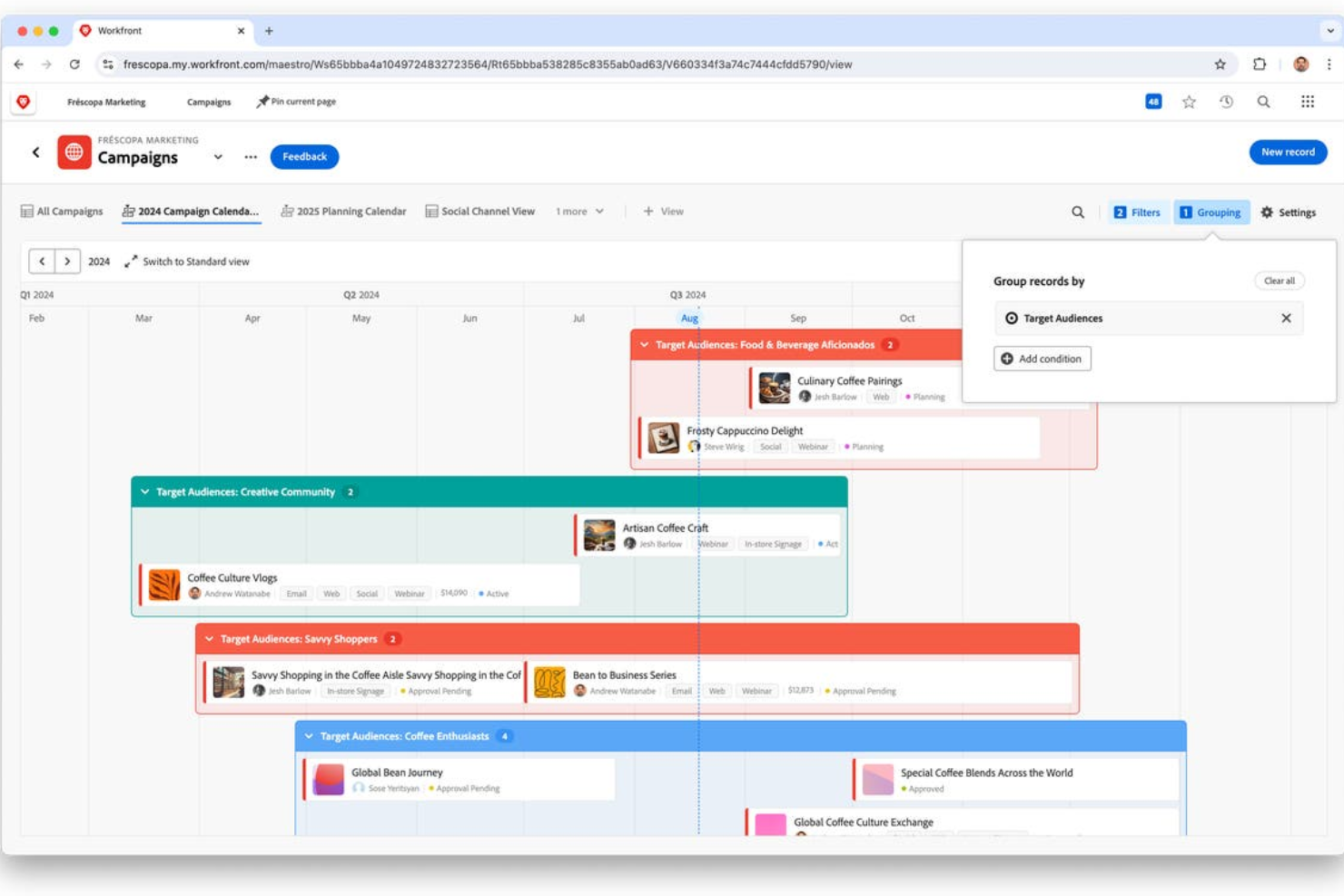
Adobe Workfront is a project management platform built for enterprise teams who need to manage complex workflows, coordinate cross-functional projects, and gain real-time visibility into work across departments.
Who Is Adobe Workfront Best For?
Adobe Workfront is a strong fit for large enterprises and marketing operations teams managing high volumes of work across multiple departments.
Why I Picked Adobe Workfront
Adobe Workfront earns its spot on my shortlist because of how well it handles customizable project templates at an enterprise scale. I particularly like the blueprints feature—Workfront ships with a curated library of ready-to-deploy templates for common use cases like digital asset production, IT organization setup, and services delivery plans. When my team needs to spin up a new campaign project, we're not starting from scratch. We pull a blueprint, adjust the task structure and settings to match our process, and save it as a reusable "starter" project. The automated workflow templates layer on top of that, letting us lock in review stages, approval sequences, and stakeholder permissions so the same process runs consistently every time.
Adobe Workfront Key Features
- Resource capacity planning: Track team utilization and forecast staffing needs to balance workloads across projects and individuals.
- Digital proofing: Review, annotate, and approve creative assets directly within Workfront using built-in proofing tools.
- Custom dashboards and reporting: Build visual dashboards with configurable report widgets and export data to BI tools or data lakes.
- Work request management: Create a centralized intake channel with custom forms that automatically route requests to the right team.
Adobe Workfront Integrations
Integrations include Adobe Experience Manager Assets, Adobe Creative Cloud, Adobe Express, Frame.io, GenStudio for Performance Marketing, Slack, Microsoft Teams, Figma, Marketo Engage, and Acrobat Sign.
Pros and Cons
Pros:
- Customizable dashboards and reports
- Integration with BI tools like Tableau and Power BI
- Supports various project methodologies
Cons:
- Integration setup can be time-consuming
- No AI forecasting or predictive analytics

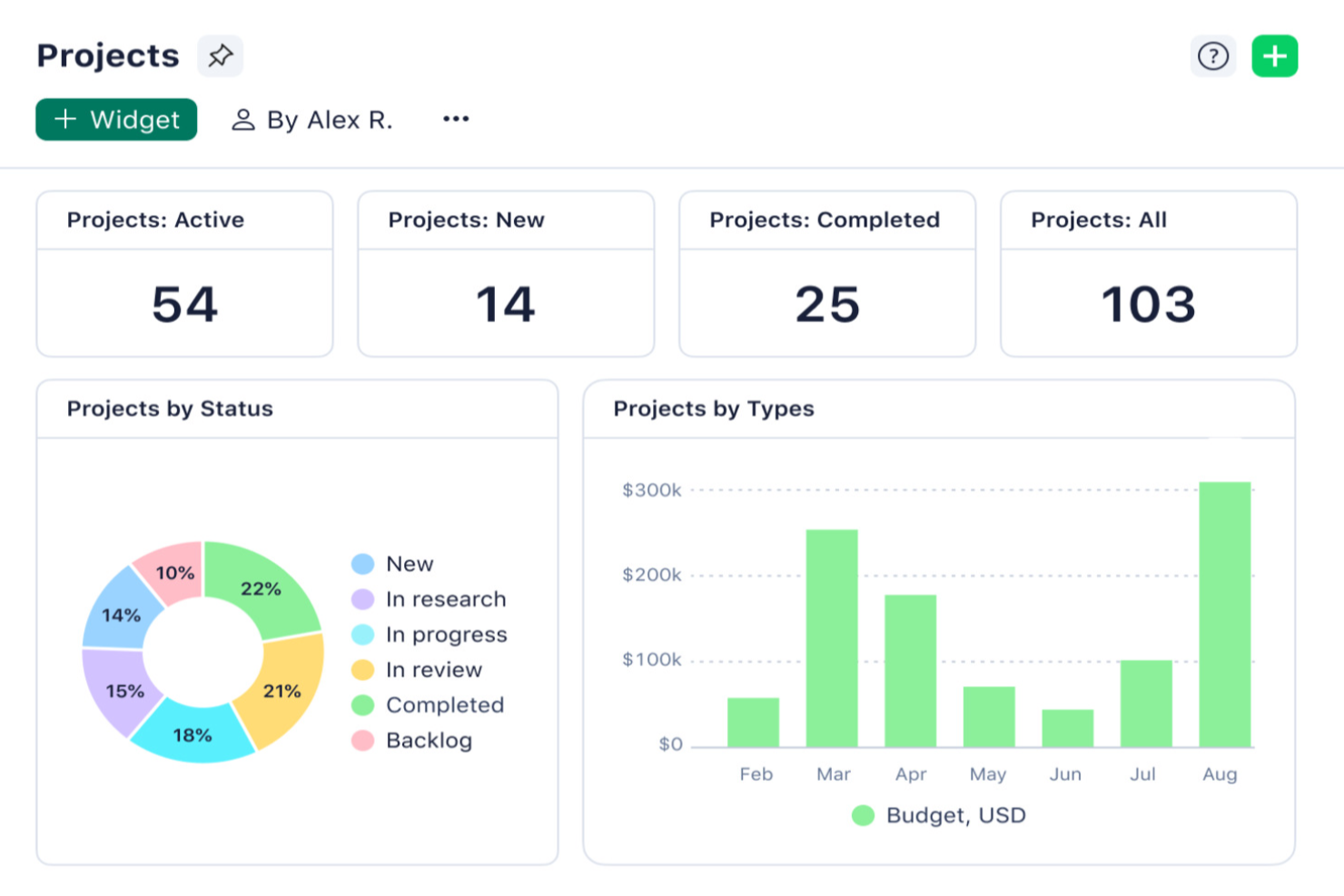
Wrike is a project management platform built for teams in fast-paced industries who need customizable workflows, advanced resource planning, and real-time collaboration to keep complex projects on track.
Who Is Wrike Best For?
Wrike is a strong fit for mid-size to enterprise teams managing multiple concurrent projects across cross-functional departments like marketing, product, and professional services.
Why I Picked Wrike
Wrike earns its spot on my shortlist because it handles the kind of project complexity that most tools start to buckle under. I particularly like the cross-project portfolio management view, which lets my team track dependencies and workloads across multiple large initiatives at once—without jumping between separate tools. Resource bookings let me reserve capacity by team member or job role and estimate hours against actual availability, so I can catch overallocation before it becomes a problem. The effort management feature also helps when scoping tasks, since I can flag how demanding a piece of work is before assigning it, which makes forecasting delivery timelines much more accurate at scale.
Wrike Key Features
- Custom project views: Toggle between Gantt, Kanban, Board, Calendar, and Chart views to visualize project progress in the format that works best for your team.
- Scrum boards: Manage Agile sprints with shared Scrum boards, backlog prioritization, and real-time progress tracking.
- Custom request forms: Build dynamic intake forms that automatically generate tasks, projects, and workflows when submitted.
- Wrike Copilot: An AI assistant that answers queries, flags project risks, and surfaces priority insights directly within your workspace.
Wrike Integrations
Integrations include Microsoft Teams, Salesforce, Google Drive, Adobe Creative Cloud, Zoom, Power BI, Tableau, QuickBooks, Miro, and Microsoft SharePoint.
Pros and Cons
Pros:
- Worldclass onboarding through video walkthroughs
- Right-click context menus allow you to do more with fewer clicks
- AI features are available in all plans at no extra cost
Cons:
- Integrations come at an extra cost, regardless of the plan
- 2FA is locked behind the enterprise plan
New Product Updates from Wrike

Streamlining Workspaces with New Updates
Wrike announces custom space templates, AI Agents in Wrike Labs, and a new Guage widget to improve project management. For more information, visit Wrike's official site.
 .
.
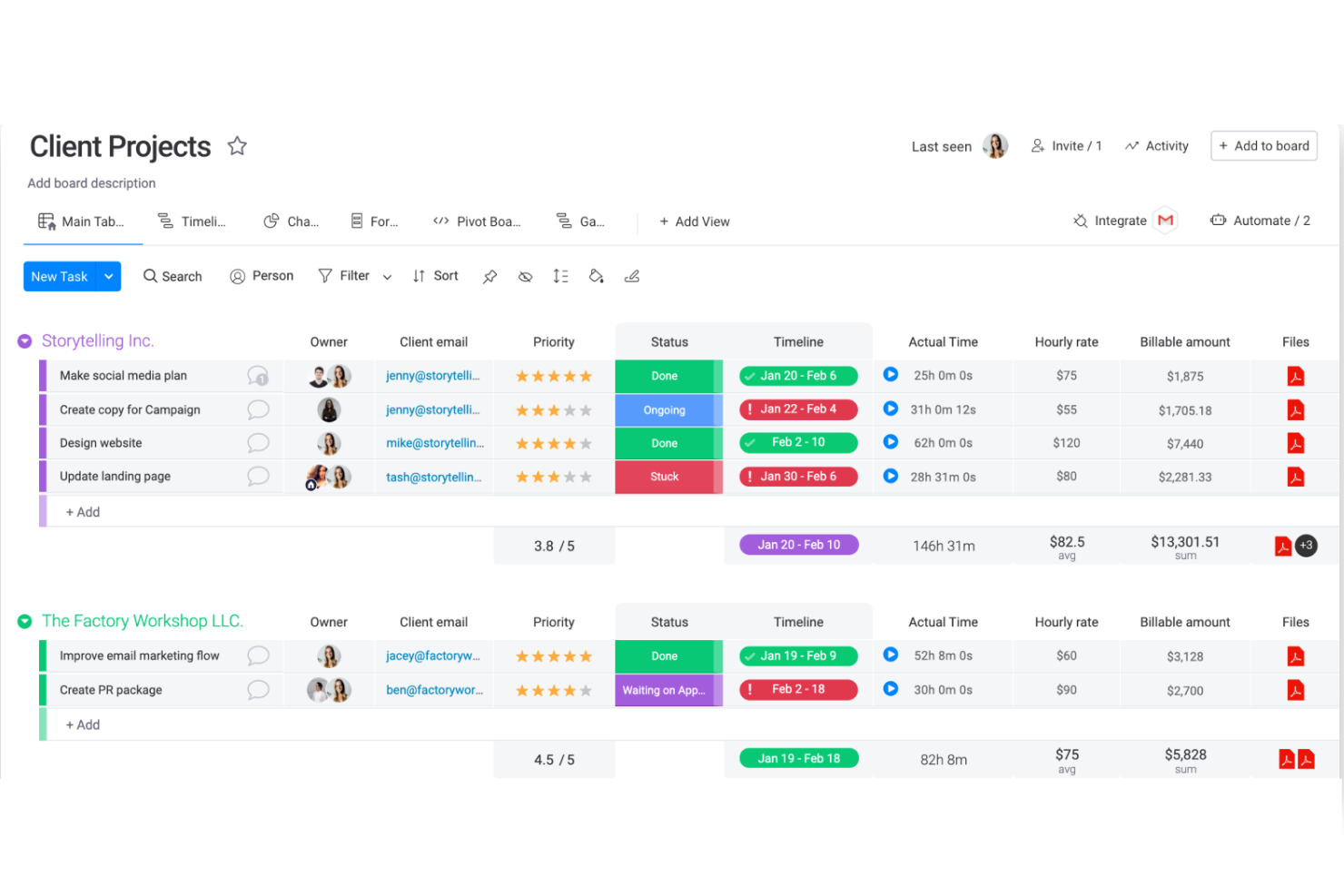
monday.com gives teams in tech, marketing, and operations a flexible platform to organize projects, manage tasks, and keep everyone aligned as work moves from planning to delivery.
Who Is monday.com Best For?
monday.com is a good fit for mid-sized to enterprise teams that need a customizable system for managing multiple projects across departments like product, marketing, and operations.
Why I Picked monday.com
monday.com earns its spot as one of the best on my shortlist because its no-code automation builder is one of the most flexible I've used. I can set up triggers like "when a task status changes to Done, assign the next task to a specific person and notify the stakeholder"—all without writing a single line of code. I also like how monday.com lets you automate across boards, so when a dependency in one project updates, connected boards update to reflect that change. That kind of cross-board automation is what keeps large, multi-team projects from falling apart at the handoff points.
monday.com Key Features
- Multiple project views: Switch between Gantt, Kanban, calendar, and timeline views to match how your team tracks work.
- Customizable dashboards: Build real-time dashboards that pull data from multiple boards to give stakeholders a clear project overview.
- Task dependencies: Link tasks so that when one item is delayed, connected tasks update to reflect the updated timeline.
- Workload management: See how work is distributed across team members and reassign tasks from the workload view.
monday.com Integrations
Integrations include Salesforce, QuickBooks, HubSpot, Zendesk, Active Directory, GitHub, GitLab, Slack, Gmail, and Microsoft Teams.
Pros and Cons
Pros:
- Automations are easy to create and require no coding
- Easy to connect to other tools via integrations library
- Huge focus on collaboration
Cons:
- Some views have trouble auto-updating
- The Gantt view cannot be used to build a project from scratch
New Product Updates from monday.com

monday.com's AI Blocks Now Available to All Users
monday.com AI Blocks are now available to all users, enabling teams to integrate AI directly into workflows. This rollout helps automate tasks and improve productivity across projects. For more information, visit monday.com's official site.
 .
.
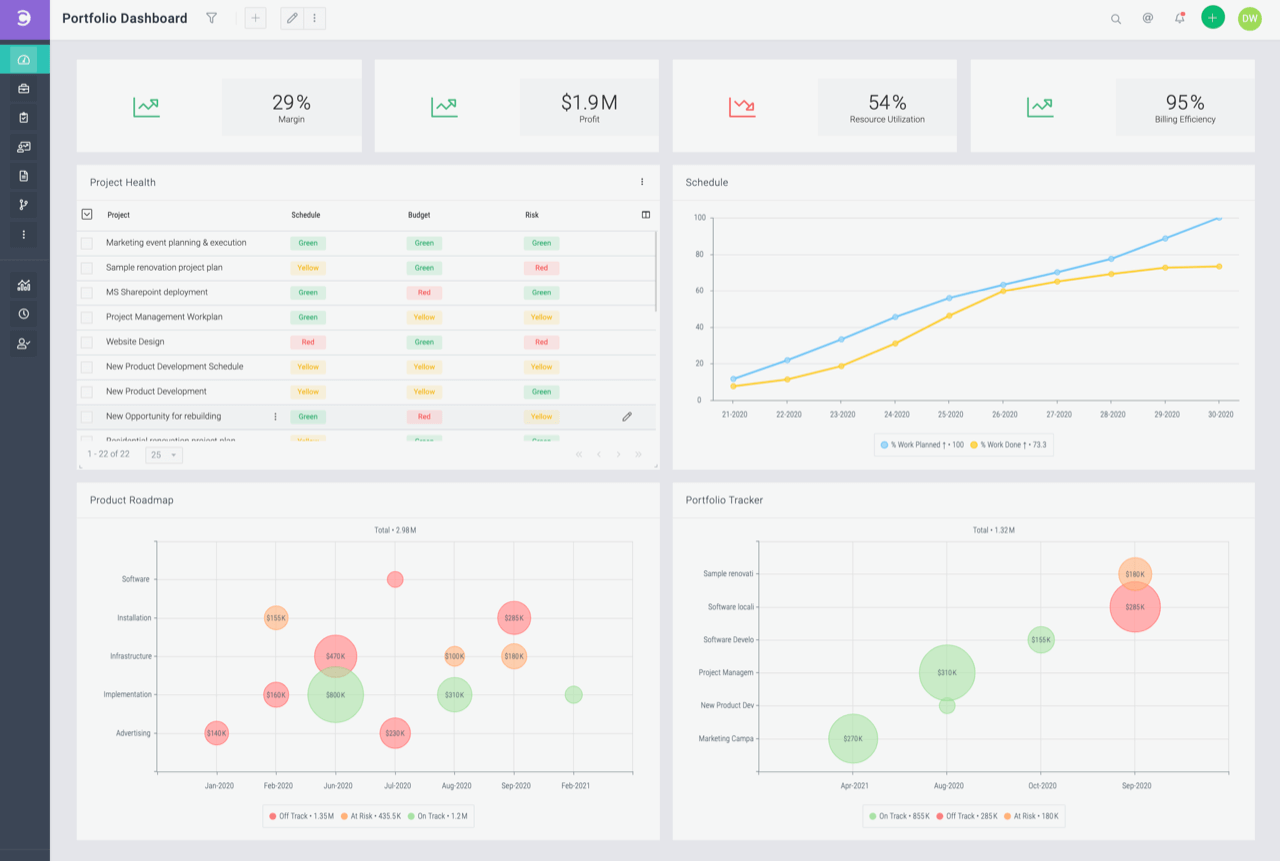
Celoxis is a project management platform built for teams and organizations that need to manage complex projects, track resources, and automate workflows across multiple departments or client projects.
Who Is Celoxis Best For?
Celoxis is a good fit for mid-size to large teams that need a centralized platform to manage multiple projects, resources, and stakeholders at once.
Why I Picked Celoxis
I picked Celoxis as one of the best because of how well it handles planning complexity without making the process feel heavy. The interactive Gantt chart automatically adjusts to changes in real time—so when a dependency shifts, the schedule updates without me having to manually rework the whole plan. I also like the built-in workflow apps for tracking risks, issues, change requests, and bugs alongside the project itself, which means my team isn't juggling separate spreadsheets for each. The custom routing rules and escalation policies in those workflows keep the right people informed at the right time, without any extra setup.
Celoxis Key Features
- Project accounting: Track budget spend, revenue forecasting, and profit margins across projects and portfolios in real time.
- Resource capacity planning: View team availability, assign work based on skills, and get instant alerts when someone is overloaded.
- Portfolio management dashboard: Monitor progress, budgets, and risks across multiple projects in a single customizable view.
- Client portal: Share project updates, files, and discussions with clients through a free, customizable portal built into the platform.
Celoxis Integrations
Integrations include Microsoft Project, Microsoft Excel, Google Drive, Outlook, Salesforce, Jira, QuickBooks Online, Slack, Trello, and Okta.
Pros and Cons
Pros:
- Offers a portfolio-level view with real-time dashboards
- Highly customizable and flexible for scaling organizations
- Advanced reporting and analytics, including AI forecasting
Cons:
- No mobile app available
- May not be suitable for small teams or organizations with fewer than 5 employees
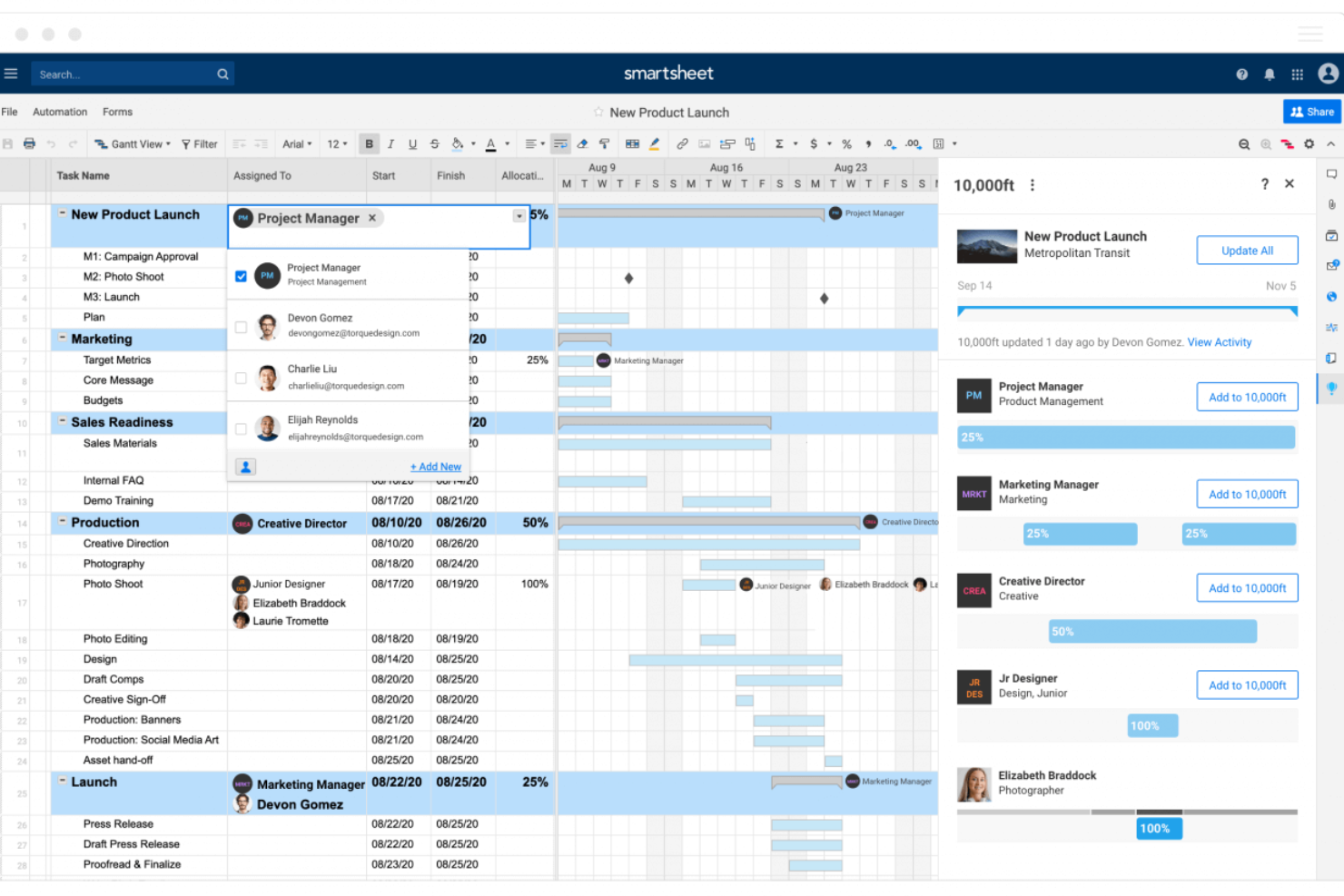
Smartsheet is a project management platform built for teams who need flexible planning, real-time collaboration, and visibility across complex projects, making it popular with organizations in tech, marketing, and operations looking to manage work at scale.
Who Is Smartsheet Best For?
Smartsheet is a strong fit for mid-size to enterprise teams in project management, operations, and IT who need to coordinate work across multiple departments or workstreams.
Why I Picked Smartsheet
I picked Smartsheet as one of the best because of how much control it gives you over dashboard design and data presentation. You can build dashboards from scratch using a drag-and-drop widget system—pulling in metric, chart, report, and web content widgets, then resizing and repositioning them on a grid. I like that you can apply custom hex color codes to individual widgets, set dashboard-wide themes, and even create and export custom themes to share across your organization. That level of visual consistency matters when you're presenting project status to executives or stakeholders who need to read a dashboard at a glance. The automatic 10-minute refresh on published dashboards keeps stakeholder data current without manual updates.
Smartsheet Key Features
- Gantt chart view: Visualize project timelines, set dependencies between tasks, and adjust schedules by dragging and dropping bars directly on the chart.
- Automated workflows: Set up no-code automation rules to trigger alerts, approval requests, or row updates based on conditions you define in your sheets.
- Resource management: View team capacity across projects, allocate work by role or individual, and track time logged against planned hours.
- Baseline tracking: Capture a snapshot of your original project plan and compare it against current progress to measure schedule and budget variance.
Smartsheet Integrations
Integrations include Adobe, AWS, Box, DocuSign, Dropbox, Google, Power BI, SAP, Jira, and Microsoft.
Pros and Cons
Pros:
- Facilitates collaborative project management
- Allows for automation of tasks
- Can tailor the tool to specific project management needs
Cons:
- Not ideal for simpler project management needs
- Lacks built-in time tracking
New Product Updates from Smartsheet

Smartsheet Adds Direct Data Import to Existing Sheets
Smartsheet introduces direct data import to existing sheets in table view. This update lets you import CSV, XLS, and XLSX files directly into sheets, reducing manual work and speeding up data setup. For more information, visit Smartsheet's official site.
 .
.
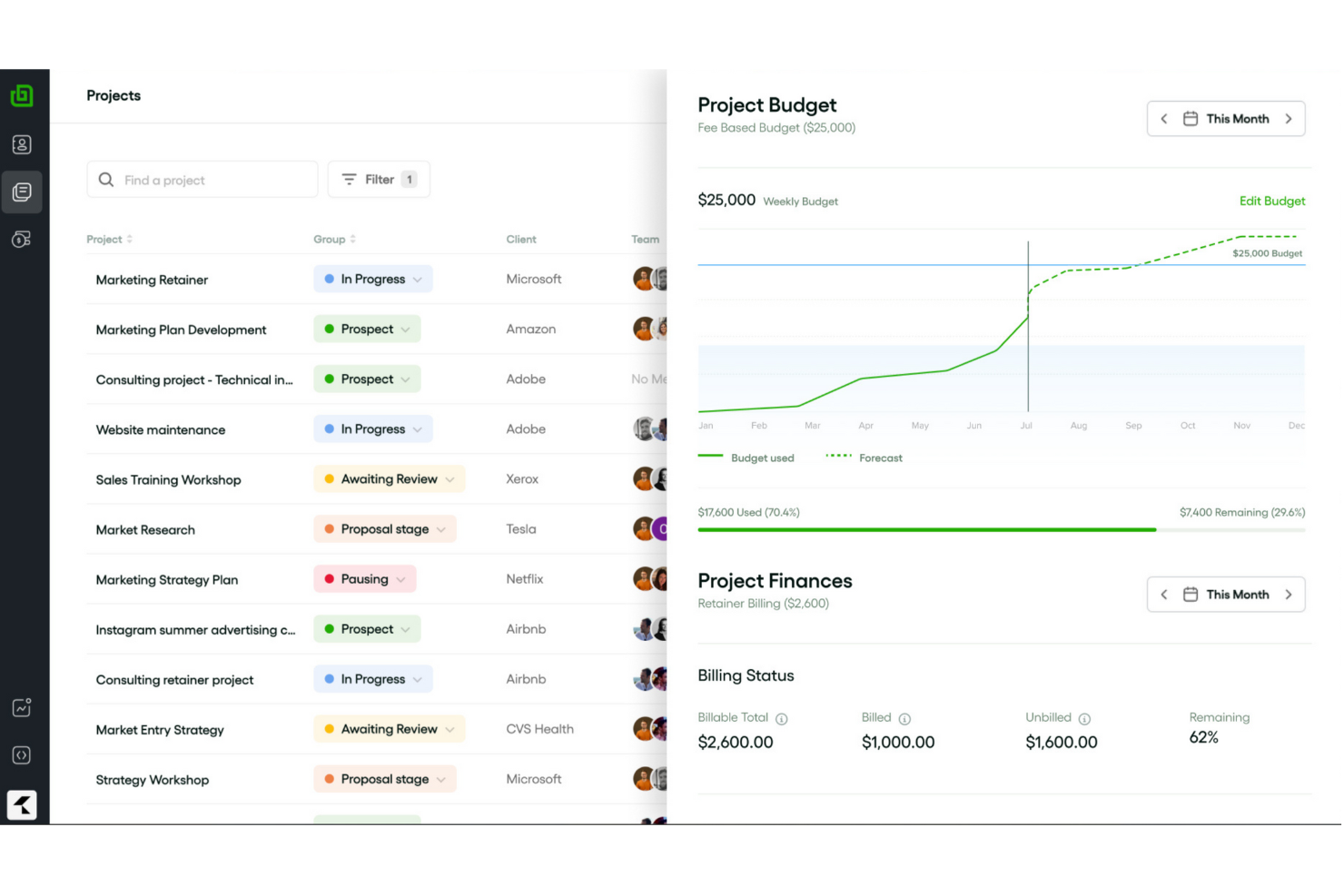
Bonsai Agency Software gives creative agencies and consultancies a unified workspace to manage projects, collaborate with clients, track time, and handle billing—all in one place.
Who Is Bonsai Agency Software Best For?
Bonsai Agency Software is a strong fit for small to mid-sized agencies—creative, marketing, or consulting—that need to manage client work, projects, and finances in one tool.
Why I Picked Bonsai Agency Software
Bonsai Agency Software earns its spot on my shortlist because it covers the full arc of an agency project—from scoping and resource allocation through to time tracking and budget reporting—without needing a separate tool for each stage. I particularly like the real-time budget and margin tracking, which updates the moment a booking is placed, so my team can catch scope creep before it becomes a problem. The integrated task timer lets us log hours directly from tasks, and those hours feed straight into project budget reports. That kind of tight connection between task execution and financial visibility is what makes Bonsai genuinely useful for end-to-end agency project management.
Bonsai Agency Software Key Features
- Task estimates: Add time estimates to tasks and run reports comparing estimated vs. actual hours to spot overruns and improve future planning.
- Live capacity tracking: See team utilization in real time as you schedule, with automatic adjustments for part-time staff and public holidays.
- Task views: Switch between Kanban, Gantt, and calendar views to track task progress and visualize project timelines.
- Tentative allocations: Assign resources to potential projects with placeholder bookings that can be adjusted as project scope is confirmed.
Bonsai Agency Software Integrations
Integrations include Stripe and Zoom.
Pros and Cons
Pros:
- Client portal helps manage multiple clients
- Offers high-quality customizable templates
- Automation for tasks like recurring invoices
Cons:
- May not be best for scaling operations
- Lack of advanced features

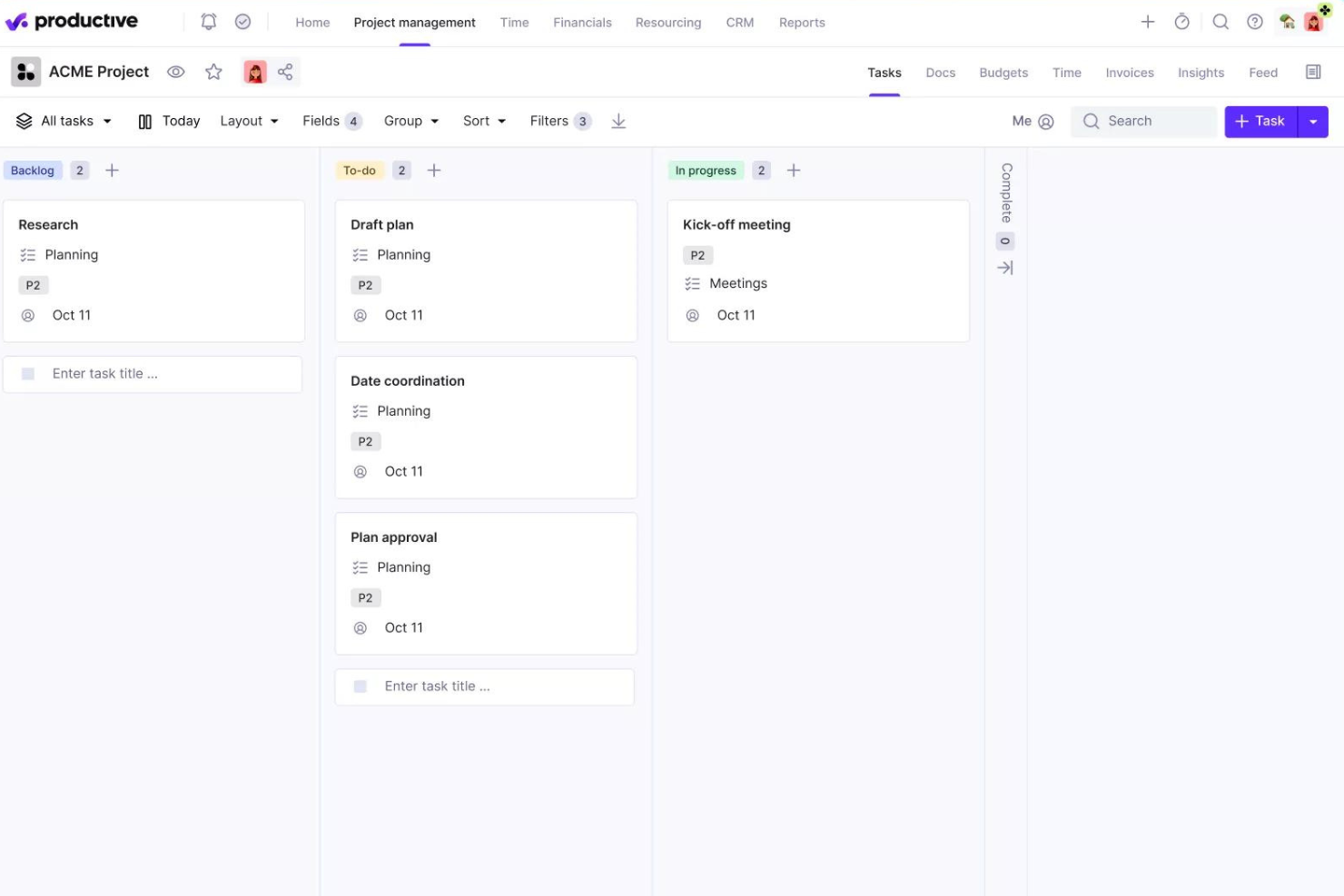
Productive is a project management platform built for agencies and service businesses that need to manage projects, budgets, resources, and profitability in one place.
Who Is Productive Best For?
Productive is a strong fit for digital agencies, creative studios, and consulting firms that need to track project delivery and financial performance together.
Why I Picked Productive
Productive earns its spot on my shortlist because it connects project delivery and financial performance in a way most project management tools simply don't. I love that every hour my team logs against a project updates the budget in real time—so I can see profitability without waiting on a monthly finance report. The budget overrun alerts are useful; I can set custom thresholds so the team is notified before a project burns through its budget, not after. For agency work, the ability to split large projects into separate budget phases helps manage long-running client retainers.
Productive Key Features
- Multiple project views: Switch between Gantt, Kanban board, timeline, calendar, list, and table views depending on how your team prefers to work.
- Resource scheduling: See team capacity, balance workloads, and manage time off requests directly within the resource planner.
- Project templates: Duplicate full project setups—including tasks, subtasks, descriptions, and assignees—to spin up new client projects faster.
- Automated workflows: Trigger actions like creating invoices or sending Slack messages based on project activity, without manual follow-up.
Productive Integrations
Integrations include Jira, HubSpot, Xero, Google Calendar, Sage, Gmail, Microsoft Outlook, Slack, BugHerd, and QuickBooks.
Pros and Cons
Pros:
- Integrated financial management and reporting
- User-friendly interface that simplifies task management
- Robust resource planning and tracking
Cons:
- Initial setup can be time-consuming
- Could have more integrations
New Product Updates from Productive

Productive Introduces Resource Request Feature
Productive introduces a resource request feature that helps teams request and allocate resources more efficiently. For more information, visit Productive's official site.
 .
.

Deltek Replicon Time is a project time tracking platform for professional services teams and organizations that need precise project costing, resource allocation, and real-time visibility into project hours and budgets.
Who Is Deltek Replicon Time Best For?
Deltek Replicon Time is a strong fit for professional services firms—like consulting, IT services, and staffing agencies—that bill clients by the hour and need accurate project time data.
Why I Picked Deltek Replicon Time
I picked Deltek Replicon Time as one of the best because of how it handles intelligent project time capture through ZeroTime™. This feature automatically pulls time data from 100+ work apps—think Jira, Slack, or GitHub—so my team doesn't have to manually reconstruct their hours at the end of the week. I also like the AI-powered timesheet validation, which flags anomalies and missing entries before they become billing errors. The estimated vs. actual cost comparison gives project managers a live read on budget burn without having to export data into a separate tool.
Deltek Replicon Time Key Features
- Global labor compliance tracking: Monitor compliance with labor laws across 145+ jurisdictions in 75+ countries, covering pay, overtime, breaks, and leave rules.
- CloudClock time capture: Record time and attendance via a dedicated cloud-based time clock device, alongside web and mobile options.
- Custom reports and dashboards: Build tailored reports and connect to Tableau and Power BI for project time, costs, and workforce data.
- Expense tracking: Log and manage project-related expenses alongside time data for accurate billing and reimbursement.
Deltek Replicon Time Integrations
Integrations include SAP, Oracle, ADP, QuickBooks, Microsoft Dynamics, Salesforce, Jira, Slack, Tableau, and Power BI.
Pros and Cons
Pros:
- Offers flexible approval workflows
- Real-time updates make project monitoring easier
- Detailed time tracking helps manage client billing
Cons:
- Mobile app is less robust than the desktop version
- Setting up new tasks and configuring the system can be complex

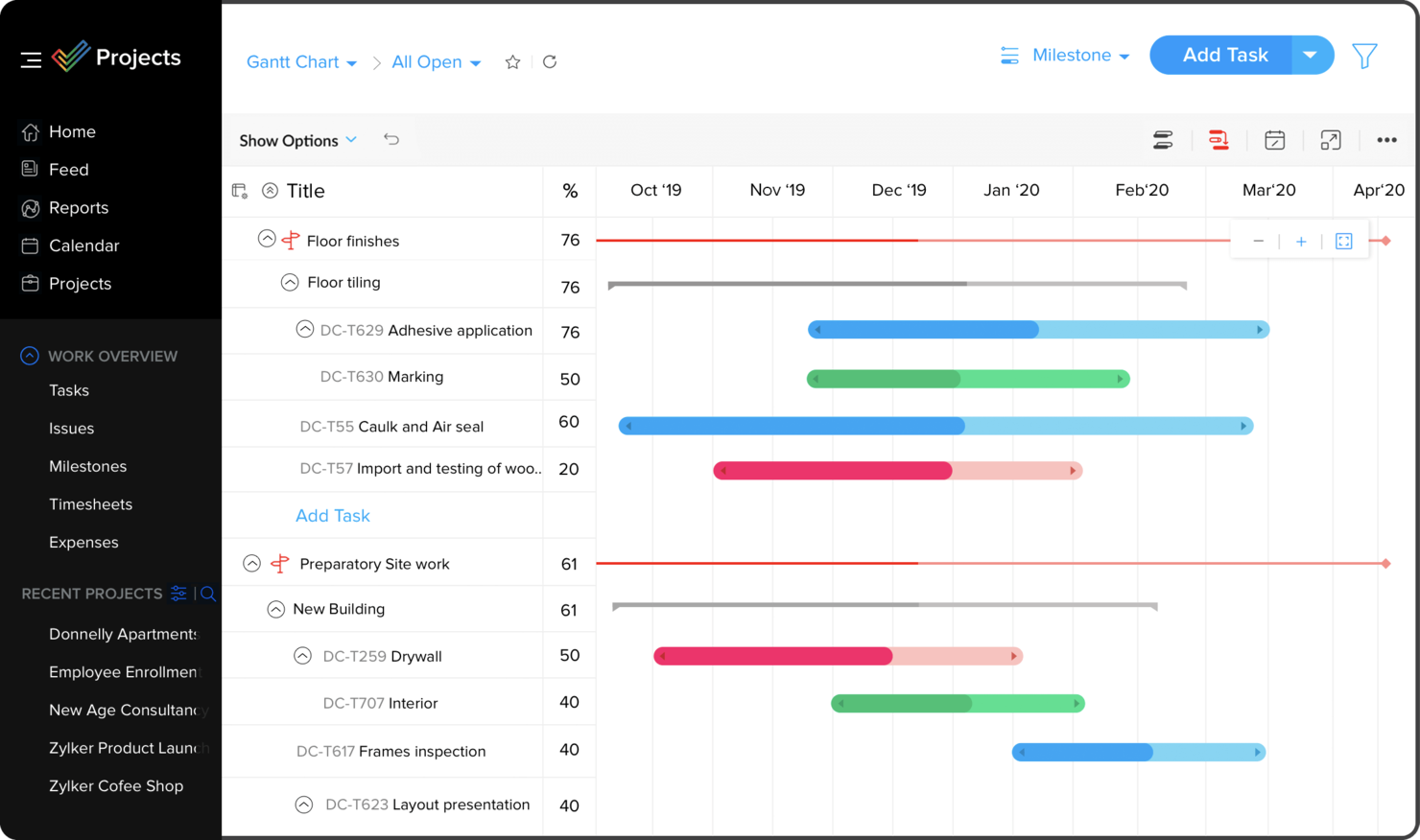
Zoho Projects is a cloud-based project management platform for teams and businesses needing to organize tasks, track progress, and collaborate on complex projects.
Who Is Zoho Projects Best For?
Zoho Projects is a great fit for small to mid-sized businesses already using Zoho tools that need project management built into their existing workflows.
Why I Picked Zoho Projects
I picked Zoho Projects as one of the best because of how naturally it fits into a broader Zoho ecosystem. My team uses Zoho CRM alongside Projects, and the two-way sync means that when a deal closes in CRM, we can spin up a project immediately without re-entering any data. I also like the Zoho Books and Invoice integration—time logs from Projects feed directly into invoices, so billing clients based on actual hours tracked is a one-click process. The integration with Zoho People is another feature I rely on, since it pulls in approved leave requests automatically and prevents me from assigning tasks to someone who's out of office.
Zoho Projects Key Features
- Gantt chart: Visualize project timelines, set task dependencies, and reschedule tasks directly from the chart view.
- Blueprint workflow automation: Design step-by-step task workflows that automatically update fields, assign users, and trigger alerts as statuses change.
- Resource management: View each team member's workload in real time and reassign tasks when someone is over- or under-allocated.
- Project baseline tracking: Capture a snapshot of your project plan at any point and compare it against actual progress to spot schedule deviations early.
Zoho Projects Integrations
Integrations include Zoho CRM, Zoho Desk, Zoho People, Zoho Books, Zoho Analytics, Google Calendar, Microsoft Teams, Dropbox, GitHub, and Slack.
Pros and Cons
Pros:
- Time-track multiple tasks at once
- Easy workflow automations
- Unlimited number of projects
Cons:
- Lack of file type export options
- Does not integrate with Quickbooks

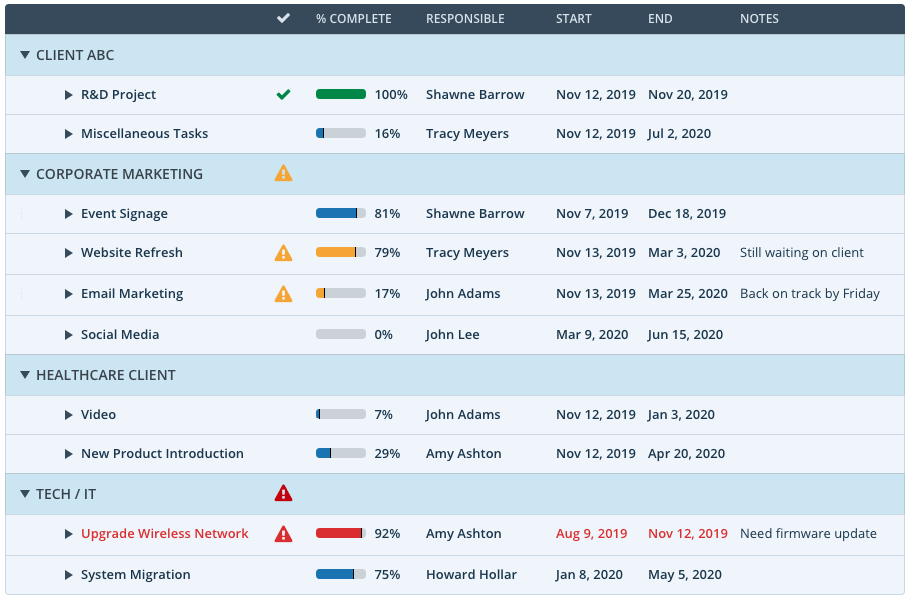
Workzone is a project management platform built for teams in marketing, operations, and agencies who need to manage complex projects, coordinate tasks across departments, and keep everyone aligned with clear project tracking and collaboration tools.
Who Is Workzone Best For?
Workzone is a strong fit for mid-sized teams in marketing, creative, and operations who need structured project oversight across multiple concurrent workstreams.
Why I Picked Workzone
Workzone earns its spot on my shortlist because of how well it handles visibility across multiple projects at once. I particularly like the portfolio-to-task-level dashboard, which lets me see every project's status at a glance and drill down into specific tasks without switching views. When I'm running a status review meeting, that single dashboard does the heavy lifting—color-coded indicators flag late or overdue work immediately. The workload management and real-time reporting features round this out, helping identify capacity issues before they cause missed deadlines.
Workzone Key Features
- Creative proofing: Review and mark up creative assets directly in the platform, with centralized feedback to reduce revision rounds.
- Centralized request intake: Capture incoming work through a standardized request form so every project starts with the right details in place.
- Project templates: Build and reuse templates tailored to specific workflows so recurring projects launch consistently without manual setup.
- Gantt chart view: Visualize task sequences, dependencies, and timelines in a single chart to track project schedules across workstreams.
Workzone Integrations
Integrations include Box, Dropbox, Everhour, Freshbooks, Github, Google Drive, Harvest, HubSpot, Jira, and Microsoft Office 365.
Pros and Cons
Pros:
- Easy template creation from existing projects
- Thoughtful collaboration so you don’t have to dig for comments
- Portfolio-to-task level visibility with robust filtering
Cons:
- Waterfall and board views are separate
- No video mark-up tool
- Delayed tasks negatively affect independent tasks on the timeline


Hive is a project management platform built for teams in fast-paced industries who need flexible task tracking, real-time collaboration, and customizable workflows to keep projects moving and everyone aligned.
Who Is Hive Best For?
Hive is a good fit for mid-sized teams in marketing, operations, and creative industries who need a central workspace to manage projects and collaborate in real time.
Why I Picked Hive
Hive is one of my top picks because I love how it keeps collaboration woven into the actual work, not bolted on as an afterthought. My team uses Hive Notes to co-edit meeting docs in real time, then convert action items into tracked tasks without switching context. I also rely on the proofing and approvals feature—marking up files and routing them for sign-off directly inside a project card eliminates many back-and-forth emails. The native in-app chat tied to specific action cards means conversations stay attached to the work they're about, so nothing gets lost.
Hive Key Features
- Multiple project views: Switch between Kanban, Gantt, timeline, calendar, and portfolio views to match how your team tracks work.
- Resourcing: Assign team members to projects and visualize their availability across the full project lifecycle.
- Workflow automation: Build custom automated workflows to handle repeatable tasks like status updates, handoffs, and reminders.
- Form intakes: Collect incoming work requests through shareable forms that feed directly into your Hive projects.
Hive Integrations
Integrations include Google Drive, Google Calendar, Dropbox, QuickBooks, Zoom, Microsoft OneDrive, Microsoft Teams, Outlook Calendar, Jira, and Slack.
Pros and Cons
Pros:
- Easy to integrate with other tools
- Great all-in-one option for SMBs
- Excellent built-in communication features
Cons:
- Mobile version limited in functionality
- Reporting functions could be expanded
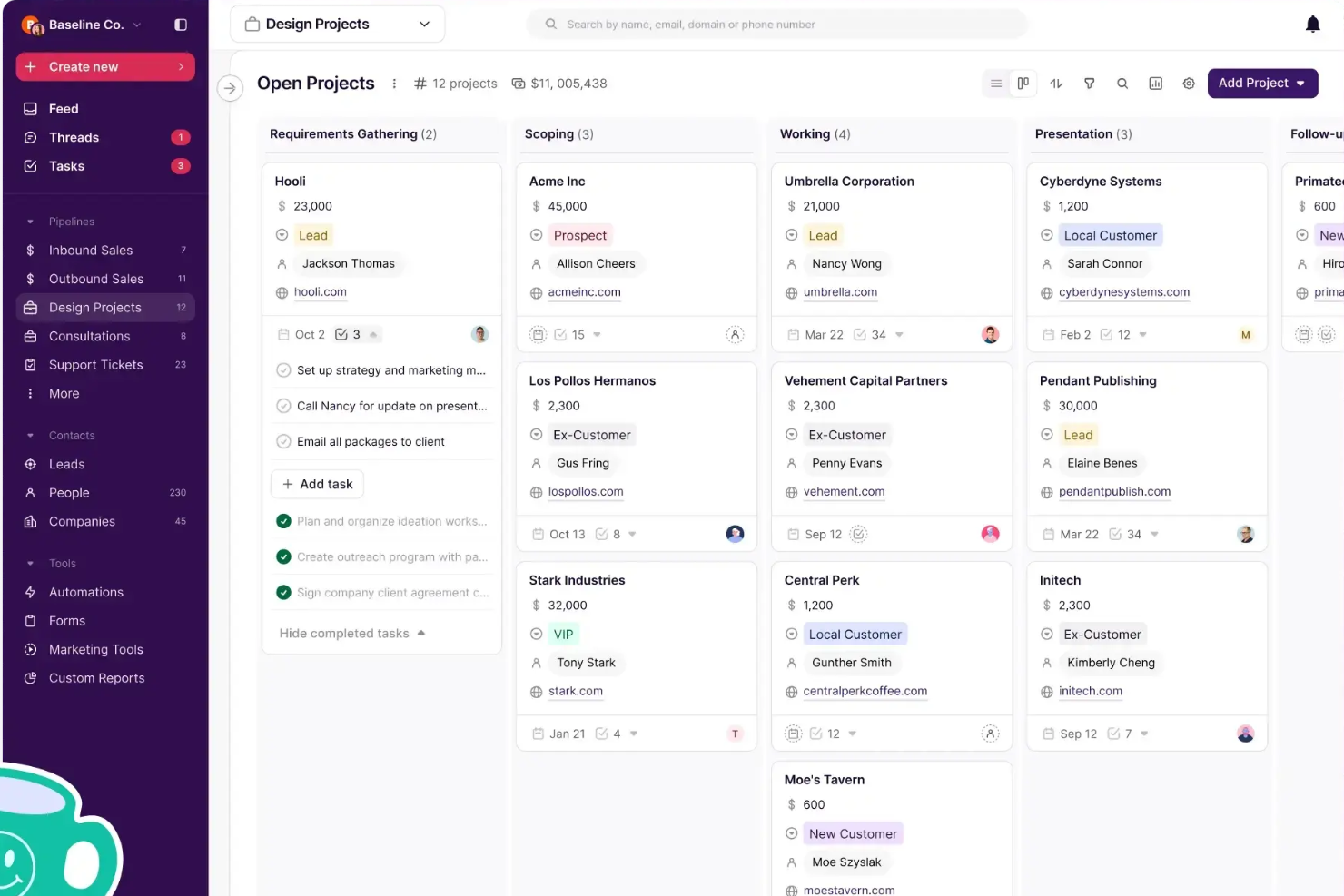
Copper is a CRM platform designed for small to midsize businesses that want to manage client relationships and sales activities alongside project tasks, helping teams keep customer data and project progress connected in one place.
Who Is Copper Best For?
Copper is a strong fit for agencies and service-based businesses that need to manage client relationships and project delivery within a single platform.
Why I Picked Copper
I picked Copper as one of the best because of how it handles the sales-to-delivery handoff that trips up so many agencies. When a deal closes, you can duplicate it directly into a project pipeline—no handoff doc, no re-entering client details, no briefing a separate tool. The client context your sales team built up just carries over. I also like the pipeline automations, which let you trigger task creation or send emails automatically as a project moves through stages, so nothing gets dropped between kickoff and delivery. For agencies running both new business and active client work, having those two workflows in one place—with a shared activity feed your whole team can see—makes a real operational difference.
Copper Key Features
- Contact and relationship tracking: Store and organize all client contact details, communication history, and relationship context in a single record.
- Custom reporting: Build custom reports to track team activity, revenue projections, and client trends across your pipeline.
- Email series and automation: Set up automated email sequences that trigger based on pipeline stage changes or form submissions.
- Mobile app: Log calls and SMS automatically from your phone so client interactions are captured without manual data entry.
Copper Integrations
Integrations include Gmail, Google Calendar, Google Drive, Mailchimp, Google Sheets, LinkedIn, RingCentral, DocuSign, QuickBooks, and Dropbox.
Pros and Cons
Pros:
- Integrates CRM and project management
- Chrome extension brings tools into Gmail, Calendar, LinkedIn, and more
- Ideal for Google Workspace-based client teams
Cons:
- Does not connect to Microsoft 365, Outlook, or other email platforms
- Could offer more robust project management features, like resourcing

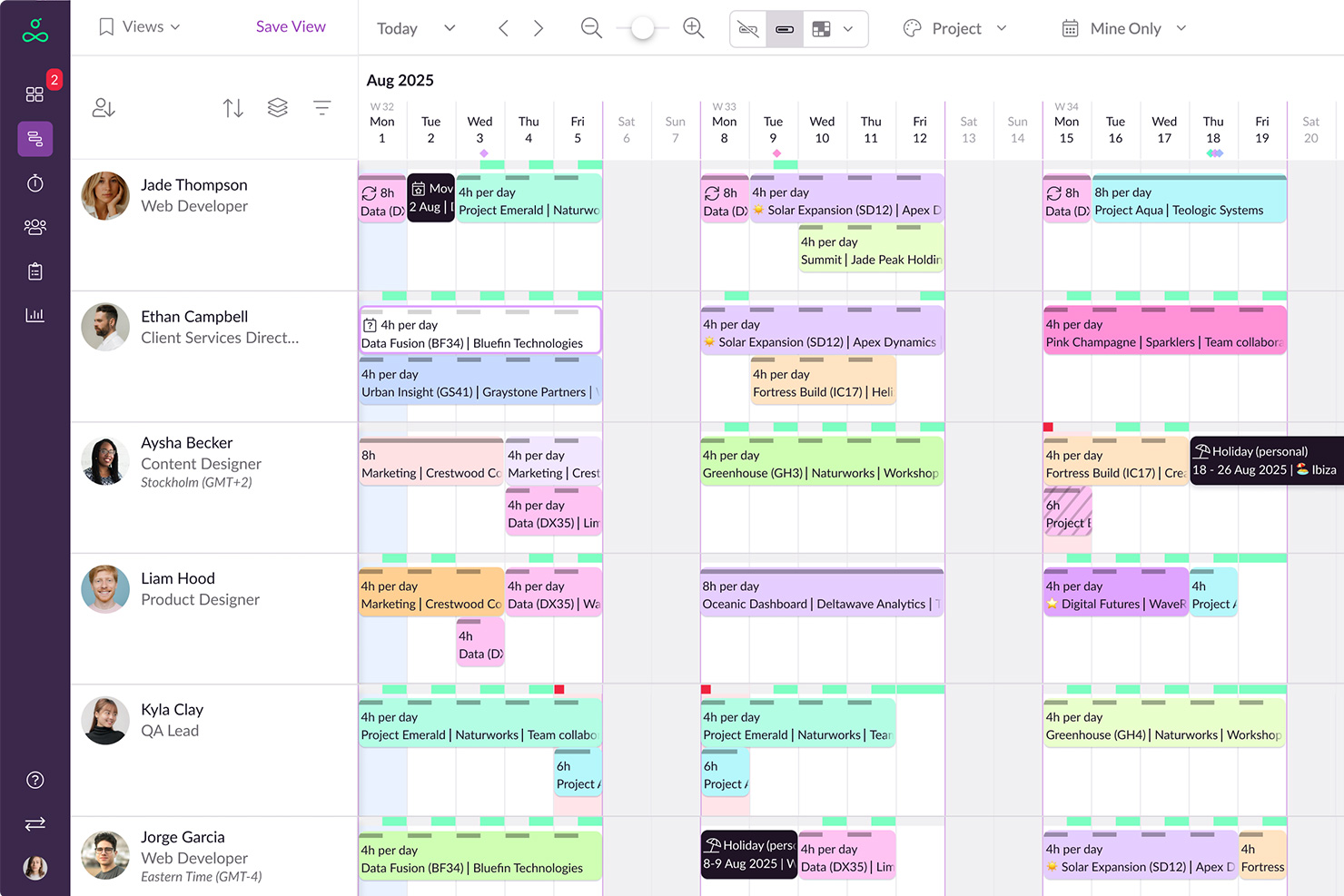
Resource Guru is a resource management platform designed for project managers and teams who need to balance workloads, track availability, and schedule people or equipment without the risk of double-booking or confusion.
Who Is Resource Guru Best For?
Resource Guru is a strong fit for agencies, consultancies, and professional services teams that manage multiple projects and need clear visibility into who's available and when.
Why I Picked Resource Guru
Resource Guru earns its spot on my shortlist because of how well it handles the over-allocation problem that quietly derails so many projects. I particularly like the clash management system—when a booking conflicts with someone's existing schedule, Resource Guru flags it immediately and offers a waiting list for unresolved bookings rather than just letting the conflict sit. The availability heatmap is another feature I rely on heavily; it color-codes each team member's workload so I can see at a glance who's at capacity, who's approaching burnout territory, and who has room for more work. I also use the approval workflows to protect high-demand team members from getting double-booked across competing projects.
Resource Guru Key Features
- Drag-and-drop scheduling: Move and resize bookings directly on the schedule to adjust assignments without re-entering data.
- Leave and time-off management: Log vacation, sick days, and public holidays so they're reflected in availability calculations.
- Utilization reports: Track billable vs. non-billable time across individuals or teams over any date range.
- Custom fields and filters: Tag resources by skill, department, or location and filter the schedule to surface the right people quickly.
Resource Guru Integrations
Integrations include Outlook Calendar, Google Calendar, Jira, Asana, Slack, Microsoft Teams, Google Sheets, Salesforce, Workday, and Basecamp.
Pros and Cons
Pros:
- Comprehensive reporting features
- Good leave management system
- Offers flexibility in managing different types of resources
Cons:
- Could offer more native integrations
- Approval workflows are limited to higher-tier plans

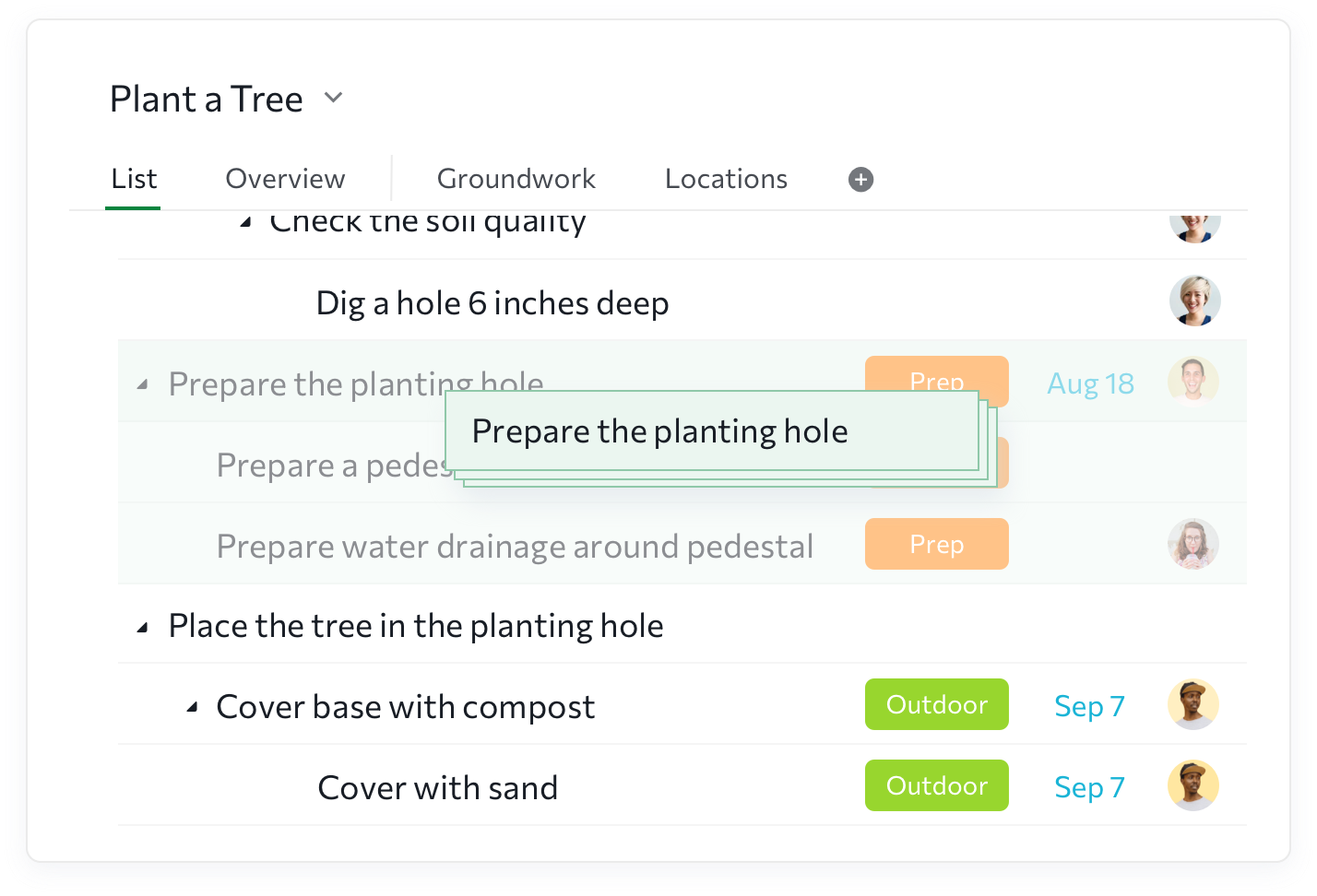
Quire is a project management platform designed for teams and businesses that need to organize complex projects, break down tasks, and collaborate visually to keep work moving forward.
Who Is Quire Best For?
Quire is a good fit for small to mid-sized teams that need to manage multi-layered projects without the overhead of enterprise-grade tools.
Why I Picked Quire
Quire earns its spot on my shortlist because of how well it handles task breakdown for complex projects. I love the infinite nested task list, which lets me drill down from a high-level goal into granular subtasks without losing sight of the bigger picture. I also use the Sublist feature to pull specific tasks out of the main tree and work on them in a focused view, which is great when my team needs to zero in on a sprint or a specific deliverable. The "Zoom In" feature takes this even further, letting me isolate a single task and see only its subtasks while everything else disappears from view.
Quire Key Features
- Kanban board: Move tasks through custom stages visually, with a drag-and-drop board that sits alongside your nested task list.
- Timeline view: Map out project schedules using a Gantt chart view that's switchable between list and board layouts.
- Time tracking: Log hours directly against tasks and review team workload with built-in timesheet reports.
- Task dependencies: Link tasks to show how one affects another, helping you spot scheduling conflicts before they become blockers.
Quire Integrations
Integrations include Google Drive, Dropbox, Box, Microsoft OneDrive, Gmail, Outlook, Google Calendar, iCal, Outlook Calendar, and Slack.
Pros and Cons
Pros:
- Easy to customize
- Intuitive user interface & dashboard
- Excellent for time tracking
- Free to use
Cons:
- More integrations needed
- Mobile app not as robust as web
- Additional communication tools welcomed
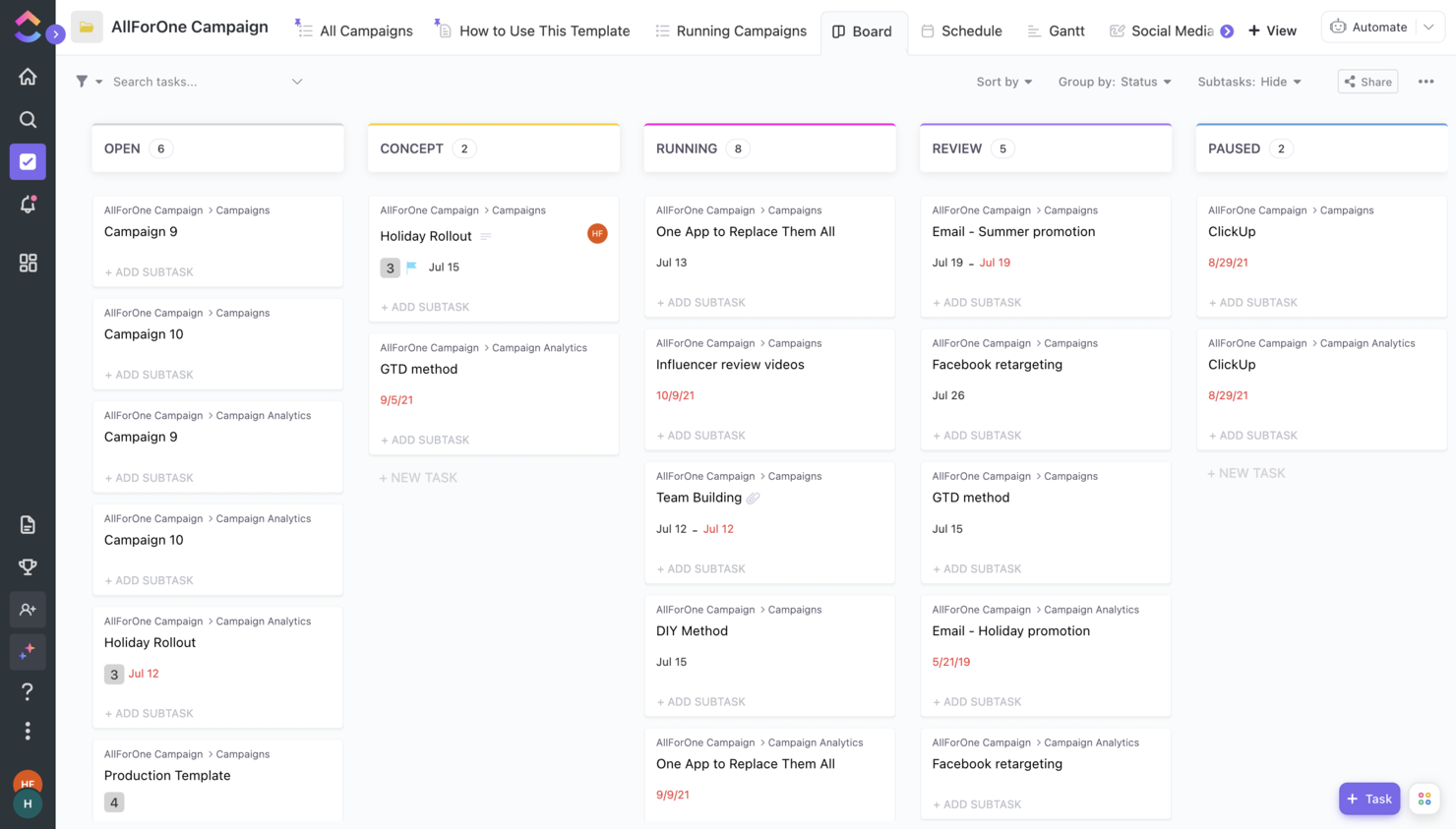
ClickUp is a project management platform built for teams in tech, marketing, and operations who want to centralize tasks, docs, and workflows in one place to reduce tool sprawl and improve visibility across projects.
Who Is ClickUp Best For?
ClickUp is a good fit for mid-sized to large teams that need a single platform to manage projects, documentation, and communication without juggling multiple tools.
Why I Picked ClickUp
ClickUp earns its spot on my shortlist because it genuinely replaces tools I'd otherwise need separately—docs, tasks, goals, and whiteboards all live in one place. I like that ClickUp Docs lets my team write briefs and project specs directly alongside the tasks they relate to, so nothing gets lost in a separate wiki. We also use custom views heavily, switching between Gantt, Board, and List depending on the workstream, without ever leaving the platform. That kind of flexibility is what makes ClickUp a real alternative to running three or four tools at once.
ClickUp Key Features
- Automations: Set up rule-based triggers to move tasks, assign team members, or update statuses without manual input.
- Time tracking: Log hours directly on tasks and view time estimates vs. actuals across your project.
- Workload view: See each team member's assigned tasks and capacity in a single view to spot bottlenecks before they happen.
- Goals: Create trackable objectives and link them directly to tasks so progress updates automatically as work gets done.
ClickUp Integrations
Integrations include Slack, GitHub, HubSpot, Everhour, Google Drive, OneDrive, Dropbox, Outlook, Google Calendar, and Figma.
Pros and Cons
Pros:
- Improved performance after its latest upgrade to ClickUp 3.0
- Low price compared to the number of features it offers.
- Great knowledge base with helpful articles and tutorials.
Cons:
- AI is available for an extra fee, regardless of the plan.
- Free version becomes read-only after reaching limits.
Résumé des meilleurs outils logiciels de gestion de projet
Vous trouverez ci-dessous un résumé des meilleurs outils logiciels de gestion de projet disponibles sur le marché.
| Tool | Best For | Trial Info | Price | ||
|---|---|---|---|---|---|
| 1 | Best for customizable project templates | Free demo available | Pricing upon request | Website | |
| 2 | Best for large projects and scaling | Free plan + free demo + 14-day free trial available | From $10/user/month (billed annually) | Website | |
| 3 | Best for workflow automation | Free plan available | From $9/seat/month (billed annually) | Website | |
| 4 | Best for simplified planning and workflows | 14-day free trial + free demo available | From $10/user/month (billed annually) | Website | |
| 5 | Best for customizable dashboards | Free trial + free demo available | From $9/member/month (billed annually) | Website | |
| 6 | Best for end-to-end agency projects | Free 7-day trial available | From $9/user/month (billed annually) | Website | |
| 7 | Best for agency projects and budgeting | 14-day free trial available | From $10/user/month (billed annually) | Website | |
| 8 | Best for intelligent project time capture | Free trial + demo available | From $6/user/month | Website | |
| 9 | Best for integration with Zoho Suite | 15-day free trial + free plan + free demo available | From $4/user/month (billed annually) | Website | |
| 10 | Best for comprehensive project visibility | 14-day free trial + free demo available | From $6/user/month | Website | |
| 11 | Best for collaborative project management | Free plan available | From $1/user/month (billed annually) | Website | |
| 12 | Best for agencies streamlining sales to delivery | Free trial + free demo available | From $9/seat/month (billed annually) | Website | |
| 13 | Best for preventing over-allocation | Free 30-day trial available | From $4.16/user/month | Website | |
| 14 | Best for task breakdown | 30-day free trial + free plan available | From $7.65/member/month (billed annually) | Website | |
| 15 | Best for replacing multiple separate tools | Free plan + free demo available | From $7/user/month (billed annually) | Website |

Autres outils logiciels de gestion de projet à considérer
Bien qu’elle ne fasse pas partie de cette évaluation du logiciel de gestion de projet, la liste ci-dessous présente d’autres options d’outils de gestion de projet. Consultez-les si vous recherchez le meilleur logiciel de gestion de projet pour votre agence ou studio:
- Bubble PPM
For portfolio management
- Microsoft Project
For teams using Microsoft 365
- FigJam
For creative collaboration
- Dock
For customer collaboration management
- MeisterTask
For simple project management
- Nifty
For milestone tracking
- Plaky
For cost-effective project management
- Kintone
For custom applications
- Teamwork.com
For remote teams
- awork
UI for usability & intuitiveness


Vous voulez de l’aide pour réduire les options?
Cet outil est très utile. Nous nous sommes associés à Crozdesk pour vous donner accès à leur “Software Finder”.
Si vous saisissez certains détails sur votre projet et les fonctionnalités que vous recherchez dans un outil de gestion de projet, une liste d’outils correspondant à vos préférences sera générée. Vous fournissez votre email, et ils vous envoient un beau guide PDF avec un résumé de vos meilleures options.
Le meilleur – Les logiciels de projet qui ne font qu’une chose
Mais qu’est-ce qu’un “bon outil de gestion de projet” ? Il y a beaucoup d’outils qui font un seul travail lié à un projet, vraiment bien. Il s’agit d’outils spécialisés dans la planification de la gestion de projet, l’ordonnancement, le suivi des jalons, la communication, la gestion des tâches, le reporting, etc. Des outils comme Slack, Microsoft Project, Harvest et Dropbox sont des exemples de ces outils de projet spécialisés. Les outils spécialisés peuvent être formidables, surtout pour une petite équipe, ou lorsqu’il s’agit de travailler avec des besoins spécifiques ou peu de clients.
Les outils de gestion de projet vous permettent de travailler plus intelligemment
Cependant, si vous n’êtes pas prudent, vous vous retrouvez avec une collection de logiciels de projet SaaS en ligne qui ne se synchronisent pas correctement. Vous utilisez un outil de communication, un autre pour le partage de fichiers et un autre encore pour la gestion des tâches. Et vous finissez par saisir les mêmes données dans chaque application.
Il y a peut-être une meilleure solution? Au lieu d’utiliser des outils dédiés et de les lier manuellement entre eux, utilisez un outil de gestion de projet avec une fonctionnalité de données partagées intégrée. Cela facilite un meilleur briefing, une communication contextuelle et une gestion plus simple des équipes de projet et des clients.
Qu’est-ce qui fait un bon outil de gestion de projet?
Dans la définition d’un bon outil de gestion de projet numérique, nous nous sommes concentrés sur les outils qui facilitent l’aspect “pratique” d’un projet. Cela signifie réunir les gens pour créer quelque chose d’incroyable dans le monde digital.
Que faut-il donc pour livrer un projet numérique? Nous avons identifié cinq aspects clés de la fonctionnalité qui, à notre avis, facilitent la réalisation de projets digitaux. Vous pouvez les utiliser pour vous débarrasser de vos post-it, spreadsheets et emails ainsi que pour exécuter votre projet plus efficacement.
- Listes de tâches – Les projets se composent de sous-tâches et de sous-sous-tâches, de listes de contrôle et de tâches à faire. Il est essentiel pour la bonne exécution d’un projet d’être en mesure de déterminer ce qui doit être fait, quand et par qui.
- Horaires – Les délais, les calendriers et les diagrammes de Gantt vous aident à savoir où se situent les tâches dans le cadre plus large d’un projet. C’est la clé pour être en mesure de livrer un projet à temps.
- Partage de fichiers – Personne n’aime avoir à perdre du temps à chercher des fichiers au hasard. La capacité d’organiser et de partager les fichiers et les informations clés d’un projet est importante pour réaliser un projet efficacement.
- Communication – La communication contextuelle spécifique à un projet pour régler les choses rapidement et discuter avec votre équipe et votre client est vitale pour garder les tâches sur la bonne voie.
- Rapports – En tant que gestionnaires de projet, il est de notre devoir de savoir si notre projet est sur la bonne voie ou non. Il est donc essentiel de connaître l’état d’avancement des tâches d’un projet, sera-t-il livré à temps ou non?
Mais il vous manque des choses…
Oui, beaucoup. Avec tout logiciel de gestion de projet, il faut faire la distinction entre ce qui est essentiel et ce qui ne l’est pas. Dans nos critères pour les outils de gestion de projet, nous nous sommes concentrés sur l’exécution d’un projet. Cela signifie que nous ne nous sommes pas concentrés sur la planification, la facturation ou d’autres fonctionnalités. C’est pour cela que nous n’avons pas mis l’accent sur l’estimation préalable au projet, ni sur les aspects postérieurs au projet du logiciel de gestion de projet. Consultez notre article sur les meilleurs outils de planification des ressources, si cela vous intéresse. Cela dit, il existe de nombreuses similitudes entre ces outils. Nous avons essayé de mettre en évidence les fonctionnalités ou les caractéristiques qui, selon nous, les rendent uniques.
Qu’en pensez-vous?
Selon vous, que manque-t-il dans cette évaluation des outils de gestion de projet? Vous avez des critères différents pour choisir un outil de gestion de projet pour votre agence ou studio? Nous aimerions avoir vos suggestions, conseils ou idées sur l’utilisation de ce type de logiciel de gestion de projet. Pourquoi ne pas les partager en utilisant les commentaires ci-dessous?