


Microsoft To Do Aufgabenmanagement Software Test für 2026



Microsoft To Do is a task management software for individuals and small teams who need a simple way to manage tasks, to-do lists, and daily priorities. I'd consider it over Todoist if your team already runs on Microsoft 365, as the native connections to Outlook, Teams, and Planner give you an integrated workflow that Todoist and other task management tools can't replicate without workarounds.
Microsoft To Do Evaluation Summary
- Free to use
- Free-forever plan available
Warum Sie unseren Software-Empfehlungen vertrauen können
Unser Team testet und bewertet Software seit 2012. Als Projektmanager wissen wir selbst, wie schwierig – und wichtig – es ist, die richtige Software auszuwählen.
Für diesen Leitfaden haben wir Tools mithilfe von praktischen Tests und unabhängiger Recherche bewertet und dabei unsere Bewertungskriterien angewendet. Zudem greifen wir auf Erkenntnisse von Branchenvordenkern und praktizierenden Projektmanagement-Experten zurück.
Unsere Bewertungen spiegeln unser menschliches redaktionelles Urteilsvermögen wider, keine Verkaufsstrategie.
Expertenprüfer:
Microsoft To Do Overview
In my opinion, Microsoft To Do is a task management tool that works especially well for teams already using Microsoft 365. Its strength lies in its simplicity and smooth integration with other Microsoft apps—such as Outlook, Teams, and Planner—that offers a unified experience across tools.
That said, the platform may not meet the needs of users seeking advanced project management features like Gantt charts, Kanban boards, or complex automations. It’s best suited for small to mid-sized teams looking for a simple, cost-effective option that fits into the Microsoft ecosystem.

pros
-
Intuitive interface for easy task organization
-
Seamless Microsoft 365 integration
-
Cross-device synchronization
cons
-
Limited advanced project management features
-
Basic customization options
-
Not ideal for large teams or detailed tracking
-

Smartsheet
Visit WebsiteThis rating combines scores from multiple user review sites to reflect overall customer sentiment about the product.4.5 -
Celoxis
Visit WebsiteThis rating combines scores from multiple user review sites to reflect overall customer sentiment about the product.4.5 -
Accelo
Visit WebsiteThis rating combines scores from multiple user review sites to reflect overall customer sentiment about the product.4.4




Unsere Bewertungsmethodik
Wie wir Tools testen & bewerten
Wir haben jahrelang unser System zur Softwareüberprüfung und -bewertung aufgebaut, verfeinert und verbessert. Das Bewertungsschema wurde entwickelt, um die Feinheiten der Softwareauswahl und die Effektivität eines Tools einzufangen, wobei der Fokus auf den entscheidenden Aspekten des Entscheidungsprozesses liegt. Unten sehen Sie genau, wie unser Test- und Bewertungssystem über sieben Kriterien hinweg funktioniert. So können wir eine objektive Einschätzung der Software auf Grundlage von Kernfunktionen, herausragenden Merkmalen, Benutzerfreundlichkeit, Onboarding, Kundenservice, Integrationen, Kundenbewertungen und Preis-Leistungs-Verhältnis bieten.
Kernfunktionalität (25% der Gesamtbewertung)
Ausgangspunkt unserer Bewertung ist immer die Kernfunktionalität des Tools. Hat es die grundlegenden Funktionen, die ein Nutzer erwarten würde? Sind einige dieser Kernfunktionen nur in höherpreisigen Tarifen verfügbar? Wir erwarten, dass ein Tool mindestens den grundlegenden Leistungsumfang seiner Mitbewerber erfüllt.
Herausragende Funktionen (25% der Gesamtbewertung)
Anschließend bewerten wir außergewöhnliche Funktionen, die über die üblichen Kernfunktionen hinausgehen. Eine hohe Bewertung spiegelt spezialisierte oder einzigartige Eigenschaften wider, durch die das Produkt schneller, effizienter oder für den Nutzer besonders wertvoll wird. Wir bewerten auch, wie einfach sich das Tool in andere Tools integrieren lässt, die üblicherweise im Tech-Stack zu finden sind, um die Funktionalität zu erweitern. Lösungen mit vielen nativen Integrationen, Drittanbieter-Anbindungen und API-Zugang zur Erstellung individueller Verknüpfungen schneiden am besten ab.
Benutzerfreundlichkeit (10% der Gesamtbewertung)
Wir berücksichtigen, wie schnell und einfach sich die Aufgaben – basierend auf der Kernfunktionalität – mit dem Tool erledigen lassen. Eine hohe Bewertung erhalten Tools, die durchdacht gestaltet und intuitiv bedienbar sind, mobile Apps und Vorlagen bieten und sogar komplexe Aufgaben einfach erscheinen lassen.
Onboarding (10% der Gesamtbewertung)
Wir wissen, wie wichtig eine schnelle Einführung im Team ist, und bewerten deshalb, wie leicht ein Tool mit minimaler Schulung erlernt und genutzt werden kann. Wir prüfen, wie schnell neue Teammitglieder ohne Vorkenntnisse starten können. Lösungen, die wenig oder gar keine Unterstützung erfordern, erhalten die höchste Bewertung.
Kundenservice (10% der Gesamtbewertung)
Wir überprüfen, wie schnell und unkompliziert Hilfe per Telefon, Live-Chat oder Wissensdatenbank verfügbar ist. Tools und Unternehmen, die Echtzeit-Support bieten, schneiden am besten ab; Chatbots am schlechtesten.
Kundenbewertungen (10% der Gesamtbewertung)
Neben unseren eigenen Tests beziehen wir auch den Net Promoter Score aktueller und ehemaliger Nutzer ein. Wir prüfen die Wahrscheinlichkeit, mit der sie das Tool erneut für die Kernfunktionalitäten wählen würden. Ein hohes Ergebnis spiegelt einen hohen Net Promoter Score bei aktuellen oder früheren Kund:innen wider.
Preis-Leistungs-Verhältnis (10% der Gesamtbewertung)
Abschließend vergleichen wir – unter Berücksichtigung aller anderen Kriterien – den Durchschnittspreis der Einstiegstarife mit den Kernfunktionen und bewerten das Preis-Leistungs-Verhältnis. Software, die mehr Leistung für weniger Geld bietet, bekommt die höchsten Werte.
Core Features
Task lists: You can create tasks, break them into smaller subtasks (called “steps”) and arrange them into organized to-do lists, making it easy to categorize, prioritize, and track various aspects of your professional or personal tasks.
Due dates: Set deadlines for each task to ensure timely completion. Due dates appear across your devices and sync with Outlook, which can help you manage schedules and meet project timelines consistently.
Reminders: You can set time-based reminders for tasks, so you never miss an important deadline. These notifications are designed to keep your team on-track and avoid last-minute rushes.
Recurring tasks: Schedule tasks to repeat at customizable intervals (daily, weekly, monthly, etc.). This is perfect for repetitive work like weekly reports, follow-ups, or administrative tasks.
Custom themes: You can personalize your task lists by applying different background themes and colors, making your workspace more visually appealing and easier to organize.
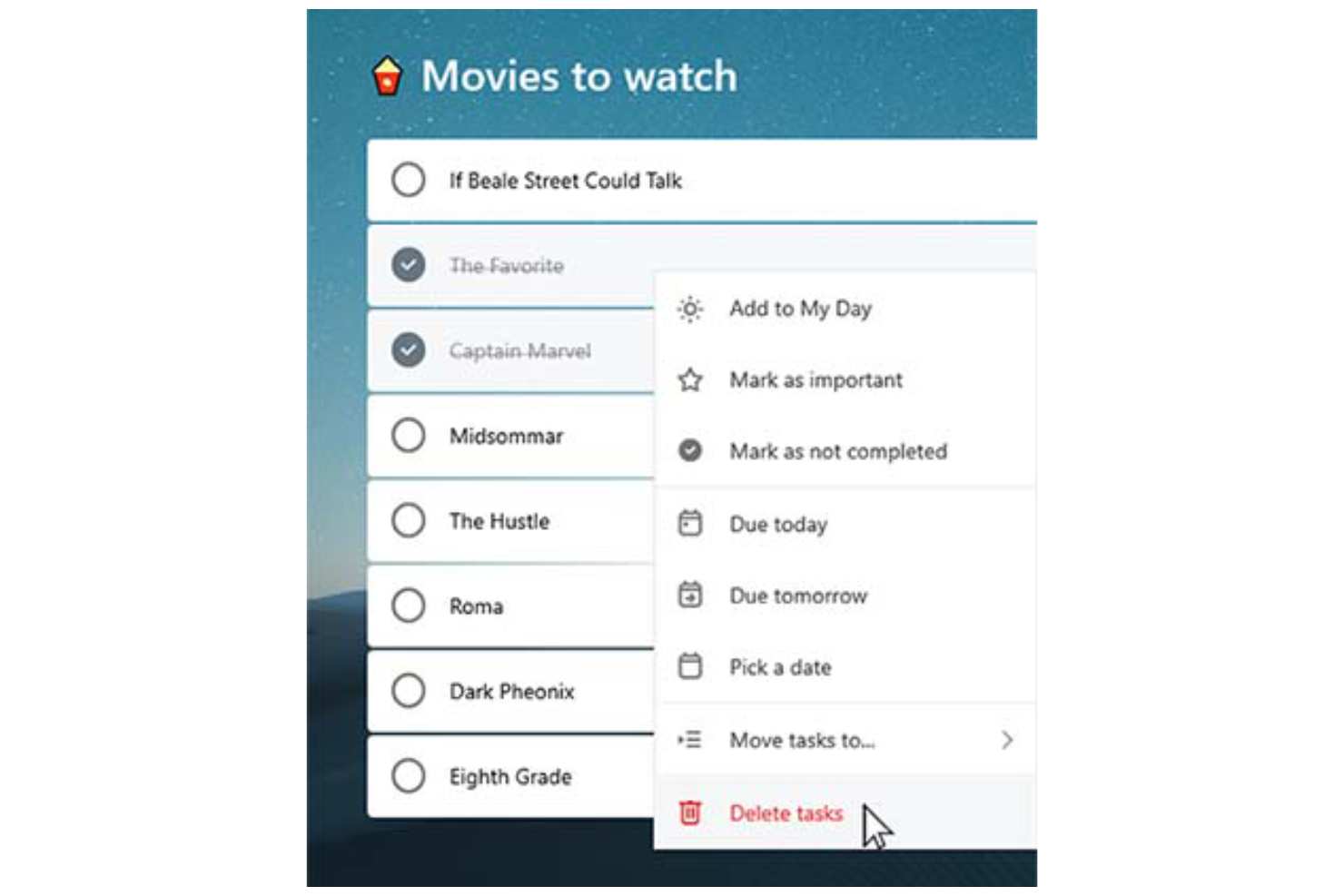
Priority levels: Assign priority tags (Important or Normal) to tasks. The “Important” tag adds the task to the "Important" smart list, helping you focus on high-priority work and better manage your workload.
Ease of Use
Microsoft To Do stands out with its clean, user-friendly interface that simplifies task management for you and your team. Features like drag-and-drop organization make it easy to rearrange tasks and update priorities on the fly.
The system’s integration with Microsoft 365 also enhances accessibility, allowing you to manage tasks across desktop (Mac or Windows), web, and mobile devices (including Android, iPhone, iPad, and Apple Watch). The mobile to-do list app, available on iOS and Android, ensures you can stay organized and productive wherever you are.
For simple and efficient task management, Microsoft To Do is a reliable choice.

Microsoft To Do Specs
- API
- Batch Permissions & Access
- Budgeting
- Calendar Management
- Collaboration Support
- Contact Management
- Contact Sharing
- Customer Management
- Dashboard
- Dashboards
- Data Export
- Data Import
- Data Visualization
- Dependency Tracking
- Document Sharing
- Expense Tracking
- External Integrations
- File Sharing
- Gantt Charts
- Kanban Boards
- Multi-User
- Notifications
- Project Management
- Resource Management
- Scheduling
- Task Scheduling/Tracking
- Third-Party Plugins/Add-Ons
- Time Management
- Travel Management
- Workflow Management
Alternatives to Microsoft To Do



Microsoft To Do – Häufig gestellte Fragen
Wie sorgt Microsoft To Do für Datensicherheit?
Microsoft To Do basiert auf der Microsoft 365-Sicherheitsinfrastruktur und profitiert dadurch von Schutz auf Unternehmensniveau. Ihre Daten werden mit branchenüblichen Verschlüsselungsprotokollen gesichert, einschließlich Verschlüsselung sowohl im Ruhezustand als auch bei der Übertragung. Aufgaben und weitere Benutzerdaten werden in den weltweit verteilten Rechenzentren von Microsoft gespeichert, die nach internationalen Standards wie ISO/IEC 27001, SOC 1, 2 und 3 sowie DSGVO zertifiziert sind.
Zusätzlich unterstützt Microsoft To Do Multi-Faktor-Authentifizierung (MFA) und rollenbasierte Zugriffskontrolle als Teil der Microsoft-Konto-Umgebung.
Kann ich Microsoft To Do offline nutzen?
Sie können Microsoft To Do auch offline verwenden, um Ihre Aufgaben anzuzeigen und zu bearbeiten. Jegliche Änderungen werden automatisch auf all Ihren Geräten synchronisiert, sobald Sie wieder online gehen – so bleibt alles aktuell.
Unterstützt Microsoft To Do Teamarbeit?
Microsoft To Do bietet grundlegende Team-Zusammenarbeit über gemeinsam genutzte Aufgabenlisten. Sie können andere einladen, einer Liste beizutreten, sodass Teammitglieder Aufgaben anzeigen, hinzufügen, erledigen oder bearbeiten können. Das macht die Lösung zu einem nützlichen Werkzeug für einfache Koordination in kleinen Teams oder in Abteilungen, um gemeinsame Aufgaben zu verfolgen oder Checklisten zu planen.
Allerdings bietet Microsoft To Do keine erweiterten Kollaborationsfunktionen wie Aufgabenkommentare, Aktivitätsverfolgung, gemeinsames Bearbeiten in Echtzeit oder rollenbasierte Berechtigungen. Für fortgeschrittene Projektzusammenarbeit – wie Sprint-Planung, Dateifreigabe oder Team-Chat – bevorzugen Teams meist integrierte Produktivitätstools wie Microsoft Planner, Trello oder Asana.
Wie integriert sich Microsoft To Do mit anderen Microsoft-Anwendungen?
Microsoft To Do lässt sich mit anderen Microsoft-Apps wie Outlook und Teams verbinden. Aufgaben aus Outlook-E-Mails und Kalenderereignissen können synchronisiert werden, sodass Sie Ihre Organisation an einem Ort bündeln und so Ihre Produktivität steigern können.
Kann ich Aufgabenansichten in Microsoft To Do individuell anpassen?
Microsoft To Do bietet nur begrenzte Möglichkeiten zur individuellen Anpassung der Aufgabenansichten. Sie können Aufgaben nach Fälligkeitsdatum, Wichtigkeit oder Hinzufügedatum sortieren, darüber hinaus sind die Anpassungsoptionen jedoch minimal. Die Software ist darauf ausgelegt, übersichtlich und einfach zu bleiben, damit Sie sich effizient auf das Aufgabenmanagement konzentrieren.
Gibt es eine mobile App für Microsoft To Do?
Ja, Microsoft To Do bietet eine mobile App sowohl für iOS- als auch für Android-Geräte. Die App synchronisiert automatisch Daten zwischen Web- und Desktop-Versionen über Ihr Microsoft-Konto, sodass Aufgabenlisten und Aktualisierungen auf allen Plattformen in Echtzeit verfügbar sind.
Mit der mobilen App können Sie Aufgaben unterwegs erstellen, bearbeiten, organisieren, Erinnerungen setzen und Aufgaben als erledigt markieren – so bleiben Sie überall organisiert und produktiv.
Kann ich Aufgaben aus anderen Apps in Microsoft To Do importieren?
Ja, Sie können Aufgaben in Microsoft To Do importieren – insbesondere aus Outlook und anderen Anwendungen des Microsoft-Ökosystems. Aufgaben aus Outlook werden automatisch synchronisiert, wenn Sie dasselbe Microsoft-Konto nutzen. Der Import von Aufgaben aus Drittanbieter-Apps wie Todoist oder TickTick erfordert in der Regel entweder die manuelle Eingabe oder Tools wie Zapier bzw. Microsoft Power Automate, um den Wechsel zu automatisieren.
Wenn Sie von einer App wechseln, die über eine Exportfunktion verfügt, können Sie Ihre Aufgaben möglicherweise als CSV-Datei exportieren und anschließend manuell oder per Skript in To Do übertragen. Eine native Importfunktion für CSV- oder JSON-Dateien ist jedoch nicht vorhanden.
Microsoft To Do: Unternehmensüberblick & Geschichte
Microsoft To Do ist eine cloudbasierte Aufgabenverwaltungs-App, die von Microsoft in Redmond, Washington, entwickelt wurde. Die App wurde im April 2017 offiziell als Nachfolger von Wunderlist veröffentlicht, das Microsoft im Juni 2015 vom Berliner Startup 6Wunderkinder übernommen hatte.
Als Teil der Microsoft 365 Suite integriert sie sich mit Diensten wie Outlook, um die Produktivität zu unterstützen. Die App ermöglicht es Nutzern, Aufgaben geräteübergreifend zu verwalten und bietet dabei eine konsistente und vernetzte Nutzererfahrung.
Microsoft To Do – Wichtige Meilensteine
- 2015: Microsoft übernimmt Wunderlist.
- 2017: Microsoft To Do wird als Nachfolger von Wunderlist eingeführt.
- 2019: Ein großes Redesign passt Microsoft To Do stärker an die Benutzeroberfläche von Wunderlist an.
- 2020: Microsoft stellt Wunderlist offiziell ein, um sich auf Microsoft To Do zu konzentrieren.
Wie geht es weiter?
Möchten Sie sich mit anderen Digitalprojektmanager:innen vernetzen, um Ressourcen und Best Practices auszutauschen? Treten Sie unserer Community bei und erhalten Sie Zugriff auf über 100 Vorlagen, Muster und Beispiele und vernetzen Sie sich mit Hunderten weiteren Digitalprojektmanager:innen in Slack.