

Best Workflow Automation Software in 2026
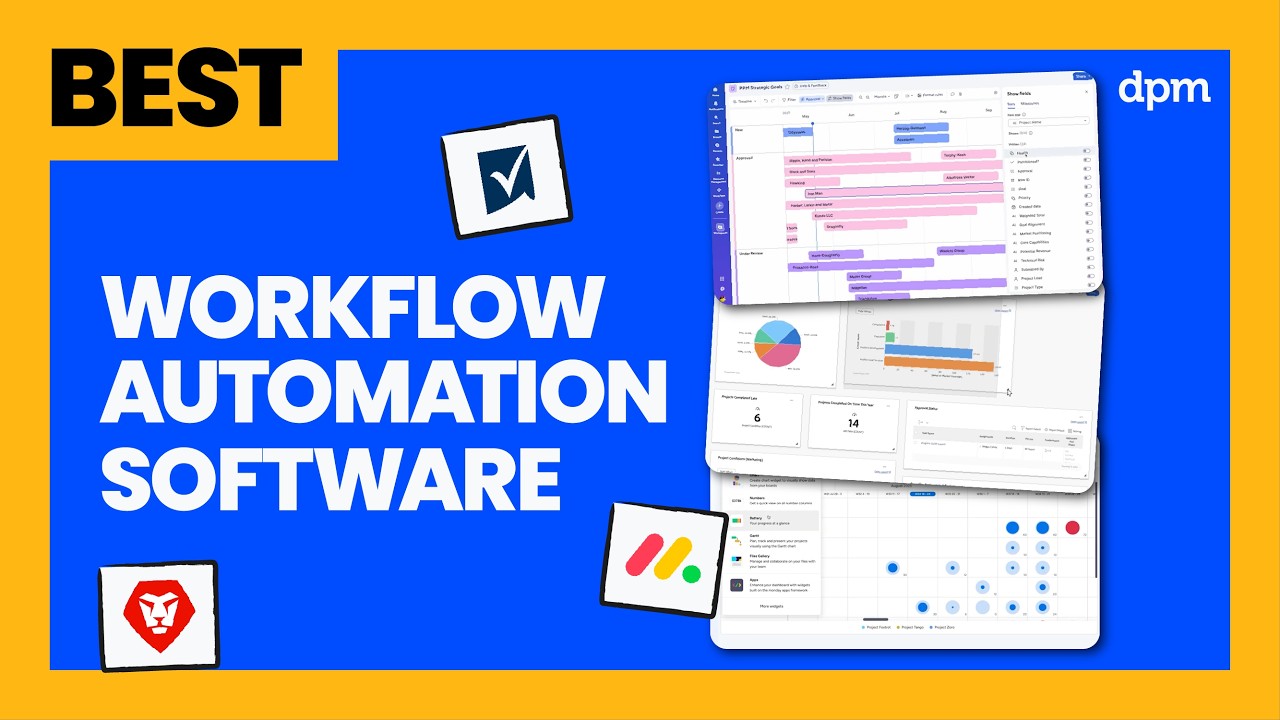
Looking for the best workflow automation software in 2026?
In this video, we compare five of the top workflow automation tools, breaking down how they help teams automate processes, streamline approvals, and reduce manual work—plus what each tool is best for, how AI features actually show up, and pricing at a glance.
Whether you’re managing approvals, coordinating cross-team workflows, or trying to eliminate repetitive tasks, this comparison will help you choose the right workflow automation tool to improve efficiency and keep work moving.
Workflow Automation Tools covered in this video:
0:23 – monday.com
1:55 – Adobe Workfront
3:19 – Smartsheet
5:04 – ClickUp
6:44 – Wrike
For a deeper comparison, check out our full guide to workflow automation software.
If your team is still chasing approvals and updates, your workflow isn’t automated. That’s where the right workflow automation software makes a difference.
In this video, I’ll walk you through five of the best workflow automation tools, breaking down who each tool is best for, standout features, how AI shows up, and pricing at a glance. Let’s get into it.
First up is monday.com. This one is great if your team needs to create repeatable workflows, enforce consistent processes, and reduce confusion as projects move between stages. Customizable workflow templates let you standardize project stages and handoffs, so every team follows the same steps from kickoff to delivery.
Automation rules handle repetitive tasks like status updates or notifications, which helps reduce manual errors and keeps everyone aligned. Plus, monday.com’s visual board system makes it easy to spot bottlenecks or missed steps at a glance, giving teams clearer oversight across the entire workflow. As for AI features, automations can generate task summaries and suggest next steps based on project updates, which helps teams keep momentum without missing key actions.
Plus, the AI assistant can draft emails or meeting notes directly from board activity, saving time on routine communication. A key advantage of monday.com is its integrations marketplace, which connects project boards with tools like Slack, Jira, and Google Drive, helping teams centralize updates and reduce context switching across platforms.
On the other hand, a potential downside is that its boards and dashboards can become cluttered as projects scale, which may make it harder for teams to quickly surface key information in larger or more complex workspaces. monday.com has a free plan, and paid plans start around nine dollars per seat per month, with higher tiers unlocking timeline and Gantt views, automation and integration actions, and advanced reporting features.
Next up is Adobe Workfront. This one is great if your team needs to coordinate complex projects across multiple departments, track dependencies, and maintain full visibility from intake to delivery. Customizable dashboards let you monitor project health, resource allocations, and timelines in one place, so you can quickly spot risks and bottlenecks as projects evolve.
Built-in request queues and automated approval workflows help you manage incoming work and stakeholder feedback without losing track of priorities. Another thing that stands out is the advanced reporting, which gives you detailed insights into project performance for executive updates or process improvements.
On the AI side, Adobe Workfront uses intelligent data analysis to help you spot workload imbalances before they turn into bottlenecks. It also uses AI-driven prioritization to surface the tasks that need attention first, so your team can focus on what’s most urgent instead of sorting through competing deadlines.
If your team is already working in Adobe Creative Cloud, one of the biggest draws is Workfront’s native integration, which keeps creative production and project management connected in one system. However, if your team isn’t already working within the Adobe ecosystem, Workfront’s depth and structure may feel more robust than necessary, especially for teams looking for a lighter-weight workflow management solution.
Adobe Workfront does not have a free plan, and pricing is quote-based.
Next up is Smartsheet. This one is great if your team needs to manage projects with shifting requirements, frequent changes, or complex dependencies that require flexible workflows and real-time adjustments. Grid, card, Gantt, and calendar views let you switch between different perspectives as project needs shift, so you can quickly adapt to changing priorities or timelines.
Automated workflows handle approvals, reminders, and status updates, which helps teams stay on top of moving parts without manual follow-up. Plus, you can link sheets and create cross-project reports, making it easier to manage dependencies and spot risks across multiple initiatives. When it comes to AI features, Smartsheet can generate formulas and summarize columns based on your sheet data, helping you automate calculations and surface insights without manual settings.
Its AI assistant can also draft project plans or update task descriptions using natural language prompts, saving time on routine documentation. A key strength of Smartsheet is its cell-level commenting and attachment capabilities, which let teams keep conversations and supporting files directly within the context of each task, making it easier to track decisions and reference key documents without leaving the project sheet.
However, that same spreadsheet-style design may feel less intuitive for teams that prefer visual task management, which could slow onboarding for users who aren’t comfortable working in grid-based environments. Smartsheet has a thirty-day free trial, and paid plans start around nine dollars per user per month, with higher tiers unlocking timeline view, unlimited automations, and advanced reporting features.
Before we move to the next tool, if you’d like a more in-depth comparison of workflow automation software, check out our full guide linked in the description. Okay, back to our list.
Next up is ClickUp. This one is great if your team needs to automate repetitive tasks, customize workflows for different projects, or quickly adapt processes as priorities shift across product, engineering, and design teams.
Custom automation rules let you trigger actions like task assignments, status changes, or notifications based on almost any event, so you can tailor processes to fit each team’s workflow. Meanwhile, the ability to create nested subtasks and dependencies helps you map out complex projects and keep cross-functional work streams aligned as priorities shift.
Plus, integrations with tools like Slack, GitHub, and Google Drive mean you can connect updates and automate handoffs without leaving your workspace. On the AI side, ClickUp Brain, the platform’s built-in AI assistant, can draft meeting notes, summarize project updates, and generate task descriptions directly within your workspace, helping you and your team document progress and communicate changes faster.
It can also suggest action items from comments or chat threads, so important follow-ups don’t get lost during busy project cycles. A major strength of ClickUp is its customizable dashboards, which allow teams to combine charts, task lists, and workload views in one place, making it easier to monitor project health and resource allocation without constantly switching tools.
But one thing to keep in mind is that ClickUp’s flexibility can make it harder to maintain consistency across teams without strong governance in place. ClickUp has a free plan and paid plans start around seven dollars per user per month, with higher tiers unlocking unlimited dashboards, advanced automations, and workload management features.
And last but not least is Wrike. This one is great if your organization is growing fast and you need a platform that can handle increasing project volume, complex team structures, and evolving workflows without losing visibility or control. Customizable folder structures and dynamic request forms let you organize projects by department, client, or initiative so you can scale up without losing track of work as teams grow.
Meanwhile, advanced resource management tools help you balance workloads and forecast capacity across multiple teams or locations. Plus, real-time reporting and analytics give you a clear view of project health and bottlenecks, even as your organization adds new layers of complexity. When it comes to AI features, Wrike uses work intelligence to flag projects that may be at risk based on timeline or workload patterns, helping teams address potential issues before they escalate.
It can also generate task summaries and extract action items from project updates, reducing the time spent on manual documentation. A key strength of Wrike is its built-in proofing and approval tools, which allow teams to review, comment on, and finalize creative assets directly within tasks, speeding up feedback cycles and reducing reliance on external tools or long email strings.
That said, Wrike’s workflows and reporting tools often require initial configuration, which can take time before teams are fully set up to take advantage of its more advanced capabilities. Wrike has a free plan, and paid plans start around ten dollars per user per month, with higher tiers unlocking interactive Gantt charts, advanced management, and AI-powered work intelligence features.
So which of these tools actually makes the most sense for you?
If you need to standardize repeatable workflows and reduce confusion as work moves between stages, Monday.com is a great choice.
If your team runs complex projects and relies heavily on Adobe Creative Cloud, Adobe Workfront could be the way to go.
If you manage complex dependencies and want the structure of a spreadsheet with built-in automation and reporting, Smartsheet is a great option.
If you want deep customization and powerful automation across different teams and processes, ClickUp stands out.
And if your organization is scaling and needs structured workflows, resource visibility, and room to grow without losing control, Wrike is a solid option.
If you’re still wanting to dig deeper, we’ve linked our full workflow automation software guide below. Thanks for watching.
