

10 programvarer for oppgavehåndtering uten nett i 2026

Kortliste over programvare for frakoblet oppgavehåndtering


Programvare for frakoblet oppgavehåndtering lar deg organisere, spore og oppdatere oppgaver uten internettilkobling. Hvis du leter etter verktøy som holder prosjektene dine i gang selv når du er frakoblet – enten du er på reise, jobber eksternt eller har ustabilt Wi-Fi – trenger du alternativer som ikke lar deg i stikken. Denne listen hjelper deg med å sammenligne den beste programvaren for frakoblet oppgavehåndtering i 2026, slik at du kan finne det som passer best til arbeidsflyten din, holde teamet samkjørt og unngå avbrudd uansett hvor du jobber.
Why Trust Our Software Recommendations
Our team has been testing and reviewing software since 2012. As project managers ourselves, we know how difficult—and important—it is to choose the right software.
For this guide, we evaluated tools using hands-on testing and independent research, scoring tools using our selection criteria. We also draw on insights from industry thought leaders and practicing project management experts.
Our reviews reflect our human editorial judgment, not a sales pitch.
Expert reviewers:
Sammenligningstabell for programvare for frakoblet oppgavehåndtering
Denne sammenligningstabellen oppsummerer prisdetaljene for mine beste utvalgte programmer for frakoblet oppgavehåndtering.
| Tool | Best For | Trial Info | Price | ||
|---|---|---|---|---|---|
| 1 | Best for no-code field task dispatch offline | Free trial + free demo available | From $20/user/month (billed annually) | Website | |
| 2 | Best for cross-platform syncing without internet | Free plan available | From $5/user/month (billed annually) | Website | |
| 3 | Best for integration with Microsoft 365 apps | Free-forever plan available | Free to use | Website | |
| 4 | Best with markdown-based task linking | Free plan available | From $4/user/month (billed annually) | Website | |
| 5 | Best for offline calendar and reminders | Free plan available | From $49.99/year (billed annually) | Website | |
| 6 | Best with offline voice input for tasks | Free plan + free demo available | From $4.99/user/month (billed annually) | Website | |
| 7 | Best for team collaboration in offline mode | Free plan + free demo available | From $9/user/month (billed annually) | Website | |
| 8 | Best with built-in time tracking tools | Free plan available | Free to use | Website | |
| 9 | Offline Task Management Software | Free plan available | Free to use | Website | |
| 10 | Best for customizable task hierarchies | Free, open-source | Free to use | Website |
Anmeldelser av programvare for frakoblet oppgavehåndtering
Nedenfor finner du mine detaljerte sammendrag av programmene for frakoblet oppgavehåndtering som kom med på kortlisten min. Anmeldelsene mine gir en detaljert gjennomgang av funksjonene, mulighetene for frakoblet bruk og de beste bruksområdene for hvert verktøy, slik at du kan finne det som passer best for deg.

Appenate
Best for no-code field task dispatch offline
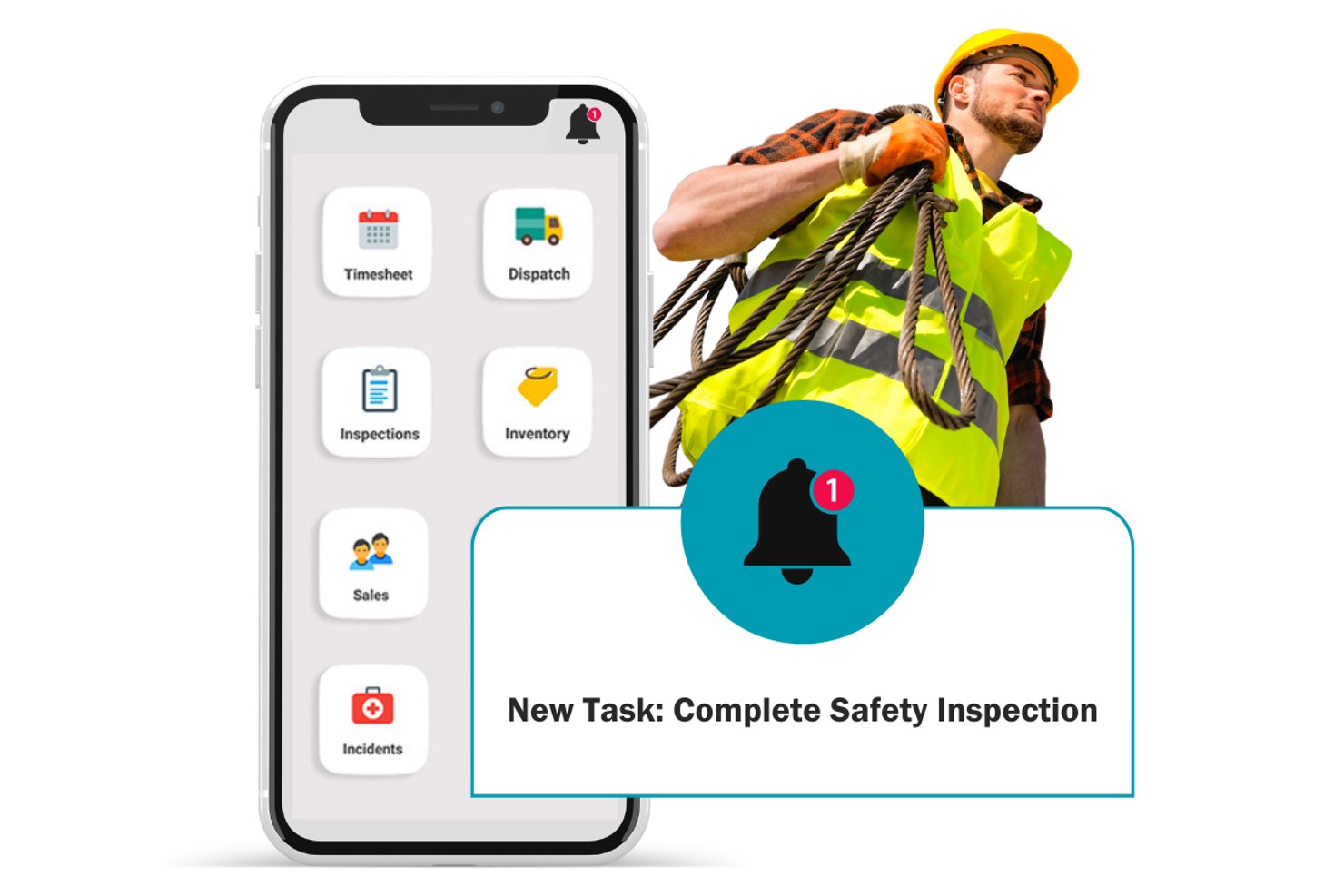
Appenate is a no-code mobile app builder with offline-first form collection, job dispatch, and field task management across iOS, Android, and Windows.
Who Is Appenate Best For?
Appenate is a strong fit for field teams that need to collect data, dispatch jobs, and complete tasks in areas with little or no connectivity.
Why I Picked Appenate
I picked Appenate as one of the best because it's built offline-first from the ground up, which matters when your field team is dispatching and completing tasks in areas with no signal. I love that the Tasking module lets you assign jobs with location targets, step-by-step briefs, and recurring schedules, then automatically syncs everything once connectivity returns. Barcode and NFC scanning work fully offline too, so a technician can look up asset records against thousands of items without ever needing a connection.
Appenate Key Features
- GPS-tagged task completion: Each task captures where it was assigned and where it was actually completed, so you have a location record tied to every job.
- Barcode and NFC scanning: Scan barcodes, QR codes, and NFC tags to pull up asset records offline against lookup lists of up to 50,000 items.
- Calendar and map views: View active and upcoming tasks in either a calendar or a map layout to manage scheduling and field coverage at a glance.
- Custom form outputs: Generate completed task records as formatted PDF, Word, or Excel files directly from the app.
Appenate Integrations
Appenate offers native integrations with SharePoint, OneDrive for Business, Excel Online, Google Sheets, SQL Server, Salesforce, NetSuite, Xero, ArcGIS, and Amazon S3. It also provides a REST API for custom integrations and supports Zapier.
Pros and Cons
Pros:
- GPS, barcode, and OCR support
- Automatic syncing after connectivity returns
- Offline-first field task dispatch
Cons:
- Requires workflow configuration before deployment
- Limited priorities, subtasks, and dependencies

Todoist
Best for cross-platform syncing without internet
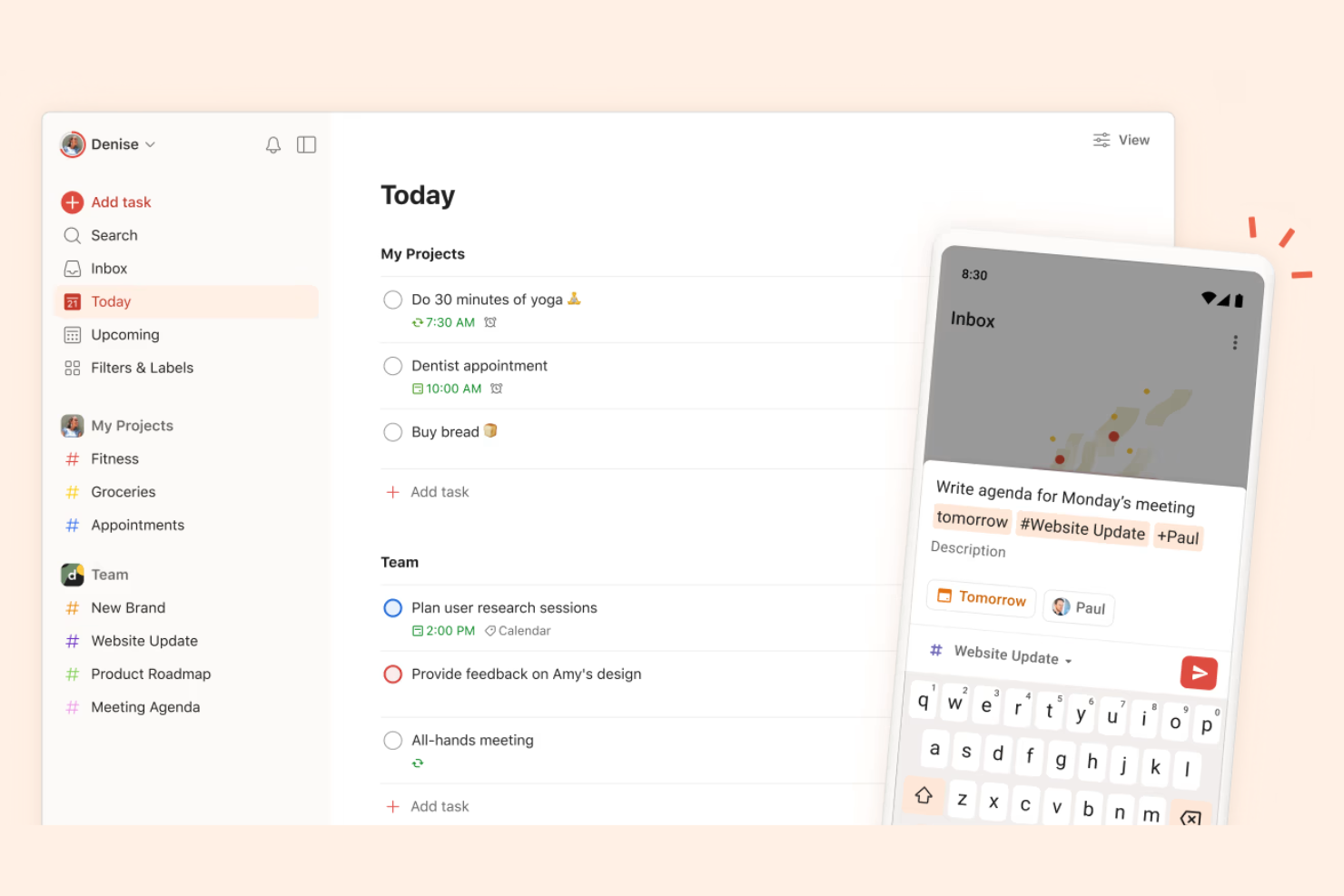
If you need a task manager that keeps your lists updated across devices even when you’re offline, Todoist is worth a look. This tool suits professionals and teams who move between laptops, tablets, and phones but can’t always count on a stable internet connection. Its cross-platform syncing and offline access help you stay organized and productive wherever you work.
Why I Picked Todoist
I chose Todoist because its offline functionality is paired with reliable cross-platform syncing, which is essential for users who switch between devices. When you update tasks on your phone, tablet, or desktop without internet, Todoist stores those changes locally and syncs them automatically once you’re back online. I appreciate that you can access and edit your entire task list offline, so you’re never locked out of your workflow. This makes Todoist a strong choice for anyone who needs uninterrupted task management across multiple devices.
Todoist Key Features
Some other features in Todoist make it a flexible option for offline task management:
- Task Prioritization: Assign priority levels to tasks so you can focus on what matters most, even when working offline.
- Recurring Due Dates: Set up repeating tasks with custom schedules to keep regular responsibilities on track.
- Project Sections: Organize tasks into sections within projects for clearer structure and easier navigation.
- Offline Comments: Add comments to tasks while offline, which sync with your team or devices once you reconnect.
Todoist Integrations
Integrations include Google Calendar, Outlook, Trello, Slack, Jira, Microsoft Teams, Task Assist, Safari, Gmail, Zapier, and more.
Pros and Cons
Pros:
- Supports offline task creation and editing
- Allows offline access to all task lists
- Syncs tasks across devices after reconnecting
Cons:
- Limited offline reporting and analytics
- Offline changes may cause sync conflicts

Best for integration with Microsoft 365 apps
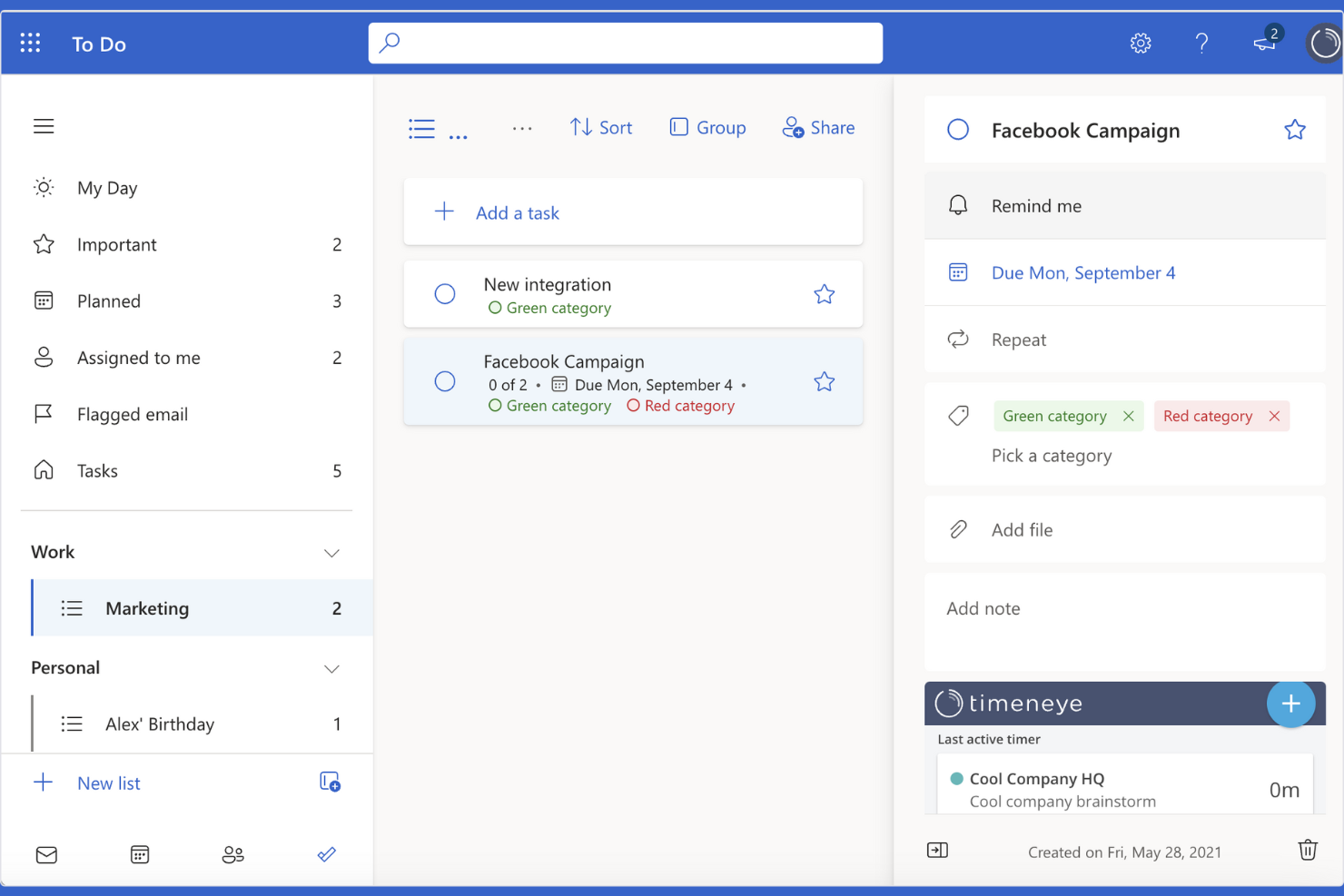
Microsoft To Do is designed for teams and professionals who rely on Microsoft 365 apps and want their task management to fit smoothly into that ecosystem. It’s especially useful for businesses that need to sync tasks across Outlook, Teams, and other Microsoft tools, even when working offline. As a to-do list app, it helps users keep personal and shared tasks organized within the familiar Microsoft environment, with connections to tools like Excel for broader workflow support.
Why I Picked Microsoft To Do
When you need task management that fits right into your Microsoft 365 workflow, Microsoft To Do is a natural choice. Its deep connection with Outlook lets you turn emails into actionable tasks and keep everything synced, even when you’re offline. I appreciate how you can access and update your lists from the desktop app without an internet connection, which is helpful for users who travel or work in low-connectivity environments. The ability to share lists and assign tasks within your organization also makes it practical for teams already using Microsoft 365.
Microsoft To Do Key Features
Some other features that make Microsoft To Do useful for offline task management include:
- Subtasks: Break larger tasks into smaller, manageable steps within any list.
- Due Dates and Reminders: Set deadlines and receive notifications for upcoming tasks.
- Color-Coded Lists: Organize tasks visually by assigning different colors to each list.
- File Attachments: Add files and documents directly to tasks for easy reference.
Microsoft To Do Integrations
Integrations include Outlook, Microsoft Teams, OneNote, Microsoft 365, and OneDrive.
Pros and Cons
Pros:
- Supports recurring tasks without internet
- Desktop app allows offline access to lists
- Syncs tasks with Outlook automatically offline
Cons:
- No offline calendar integration available
- Lacks offline file attachment support

Obsidian
Best with markdown-based task linking
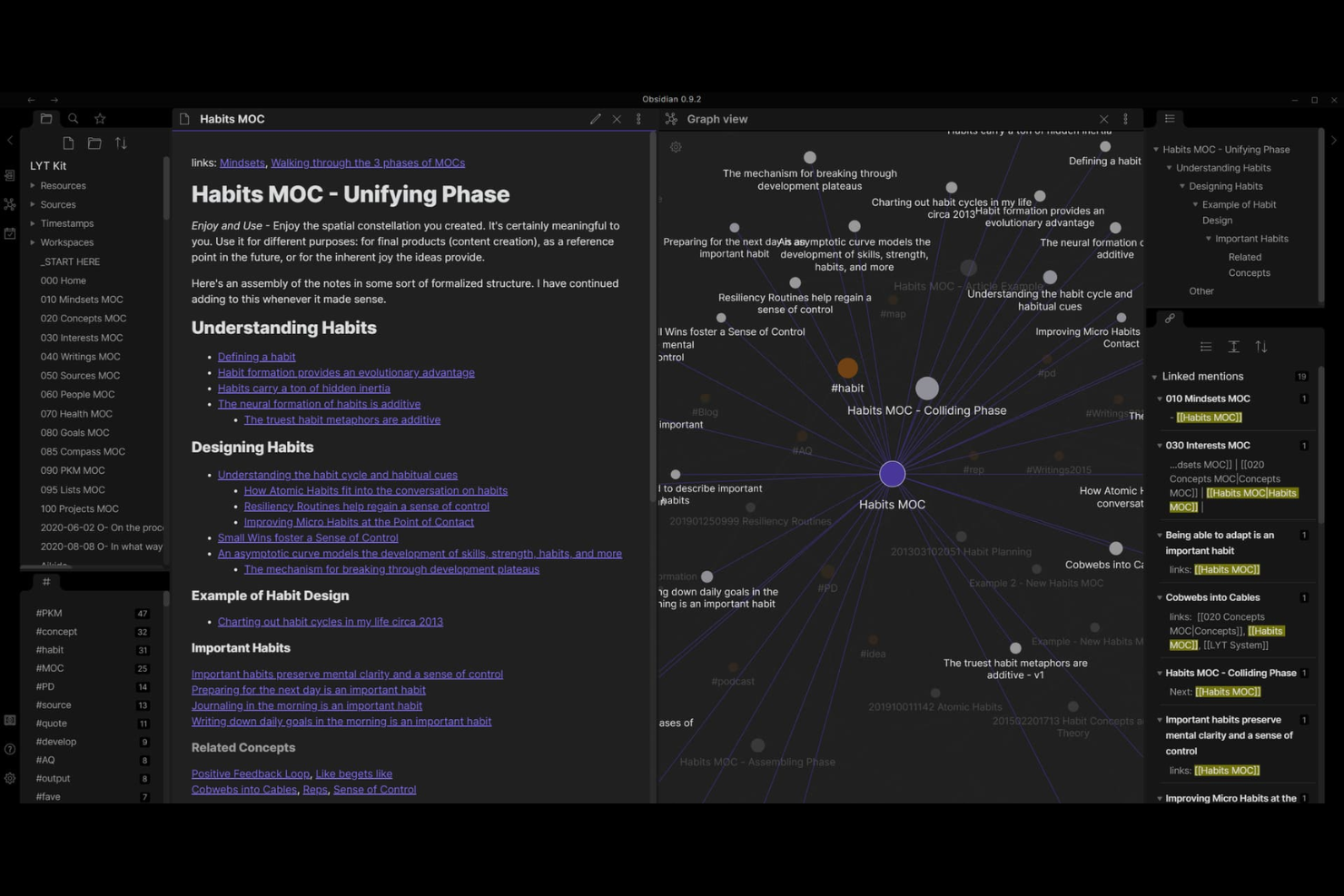
Obsidian is a markdown-based knowledge management app that’s ideal for users who want to link tasks, notes, and ideas offline. It appeals to researchers, writers, and technical professionals who need to organize complex information and connect tasks across documents. Its local-first approach and powerful linking features make it a strong choice for anyone managing projects or workflows without relying on cloud access.
Why I Picked Obsidian
For anyone who wants to manage tasks offline and connect them across notes, Obsidian’s markdown-based linking stands out. You can create tasks directly within any note and use backlinks or tags to connect related items, making it easy to track dependencies and context without internet access. I like that you can visualize relationships between tasks and notes using the graph view, which helps keep complex projects organized. Obsidian’s offline-first design and flexible linking features make it a strong fit for users who want to manage tasks and knowledge in one place.
Obsidian Key Features
In addition to its markdown-based task linking, I also found these features useful for offline task management:
- Local-First Storage: All notes and tasks are saved directly to your device, so you retain full control over your data.
- Customizable Plugins: Extend functionality with a wide range of community and core plugins, including calendar and kanban boards.
- Daily Notes: Quickly capture tasks and ideas in automatically generated daily note files.
- Multi-Device Sync (Optional): Sync your vaults across devices using Obsidian Sync or third-party solutions, while still supporting offline access.
Obsidian Integrations
Native integrations are not currently listed.
Pros and Cons
Pros:
- Plugins add kanban and calendar features
- Markdown syntax supports flexible task formatting
- Local vaults keep all data offline
Cons:
- No native recurring task support
- No built-in task reminders offline

TickTick
Best for offline calendar and reminders
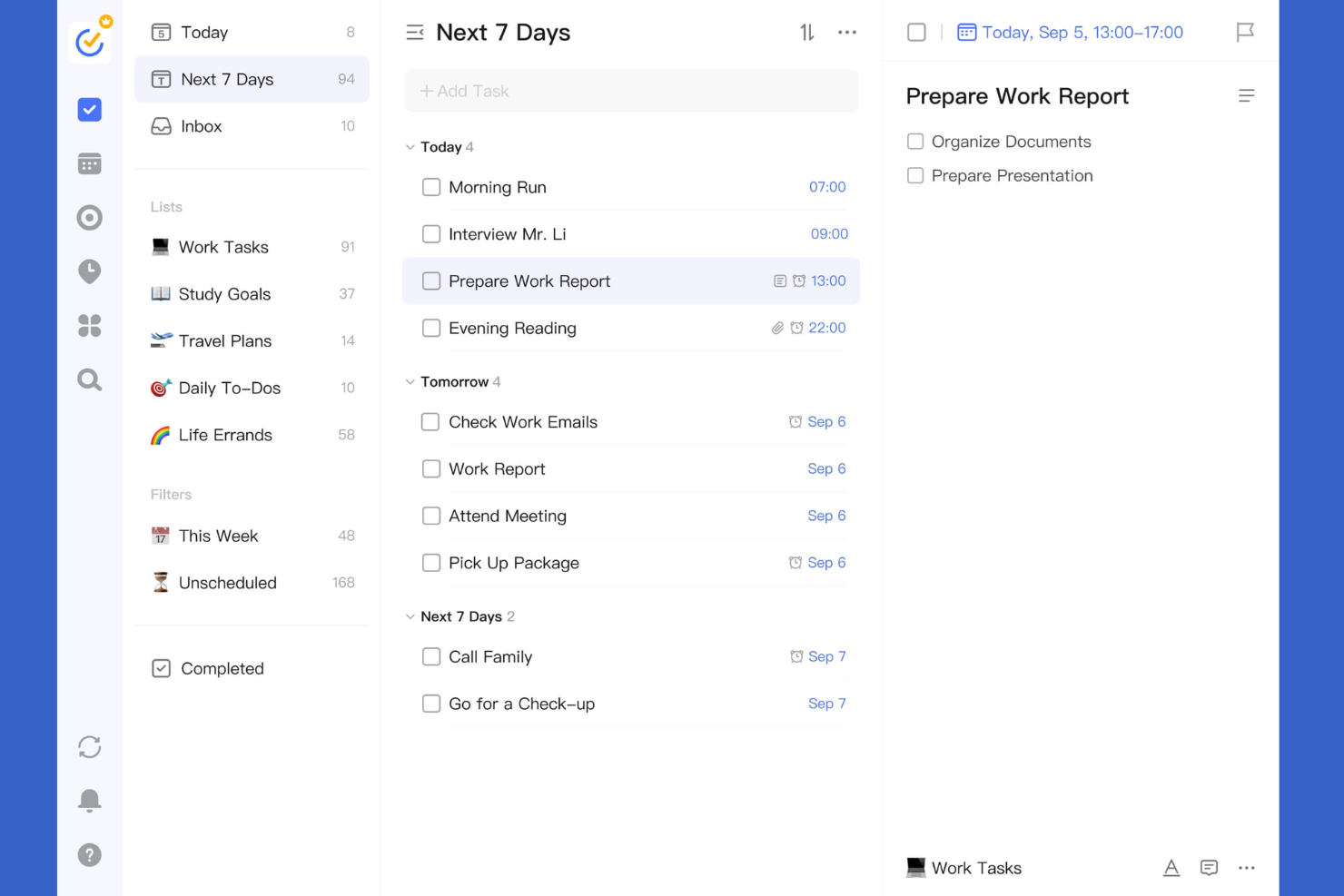
TickTick stands out for teams and individuals who need reliable offline access to both calendar and reminder features. It’s a strong fit for professionals who juggle complex schedules and want to manage tasks, events, and deadlines without always being connected. The app’s offline calendar, recurring reminders, and cross-device sync help users stay organized even when internet access is limited.
Why I Picked TickTick
For anyone who needs offline access to both calendar and reminders, TickTick offers a unique combination that’s hard to find elsewhere. Its offline calendar lets you view, edit, and schedule events without an internet connection, which is especially useful for users who travel or work in areas with spotty connectivity. I like that you can set recurring reminders and manage your daily agenda even when you’re offline, so nothing slips through the cracks. The ability to sync changes automatically once you’re back online makes TickTick a practical choice for dependable offline task management.
TickTick Key Features
Some other features that make TickTick useful for offline task management include:
- Task Prioritization: Assign priority levels to tasks to help organize your workload.
- Pomodoro Timer: Use a built-in timer to break work into focused intervals.
- Habit Tracker: Track daily habits alongside your tasks within the same app.
- List Sharing: Share task lists with others for collaborative planning.
TickTick Integrations
Integrations include Gmail, Spark, Amazon Alexa, Apple Shortcuts, Outlook, Slack, Chatmind, and more.
Pros and Cons
Pros:
- Habit tracker logs progress offline
- Pomodoro timer works fully offline
- Reminders trigger without internet connection
Cons:
- Calendar sync may lag after reconnecting
- No offline access to attachments

Any.do
Best with offline voice input for tasks
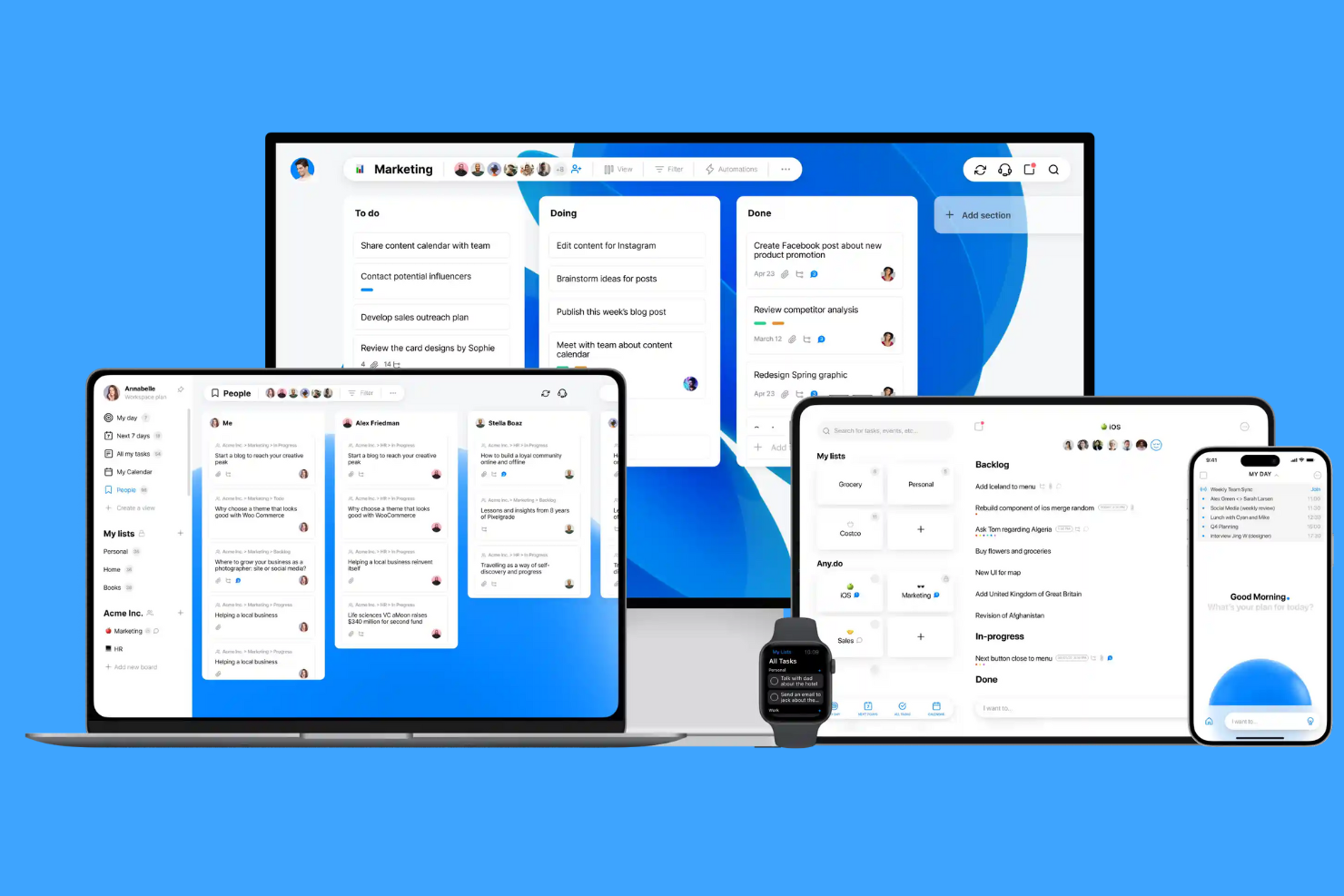
Any.do stands out for users who want to capture tasks quickly using offline voice input. It’s a strong fit for busy professionals, field workers, or anyone who needs to add tasks hands-free when internet access is unreliable. The app’s offline voice capture and task syncing help you keep your to-do list updated wherever you are.
Why I Picked Any.do
Unlike many task managers, Any.do lets you add tasks using voice input even when you’re offline. This feature is especially useful for people who need to capture ideas or reminders on the go, without relying on a data connection. I picked Any.do because its offline voice capture is reliable and works smoothly with its task list, letting you organize and review tasks later when you’re back online. For anyone who values hands-free task entry in areas with spotty internet, this tool stands out.
Any.do Key Features
Some other features that make Any.do useful for offline task management include:
- Task List Widgets: Add and view tasks directly from your device’s home screen.
- Subtasks: Break down larger tasks into smaller, actionable steps.
- Offline Task Editing: Edit and organize your to-do list without an internet connection.
- Recurring Tasks: Set up tasks to repeat on a custom schedule.
Any.do Integrations
Integrations include Slack, Microsoft Teams, Zoom, Google Meet, WhatsApp, Gmail, Google Calendar, Zapier, and more.
Pros and Cons
Pros:
- Offline editing syncs when reconnected
- Task list widgets work without internet
- Offline voice input for task creation
Cons:
- Offline recurring task setup is limited
- Some integrations require internet connection

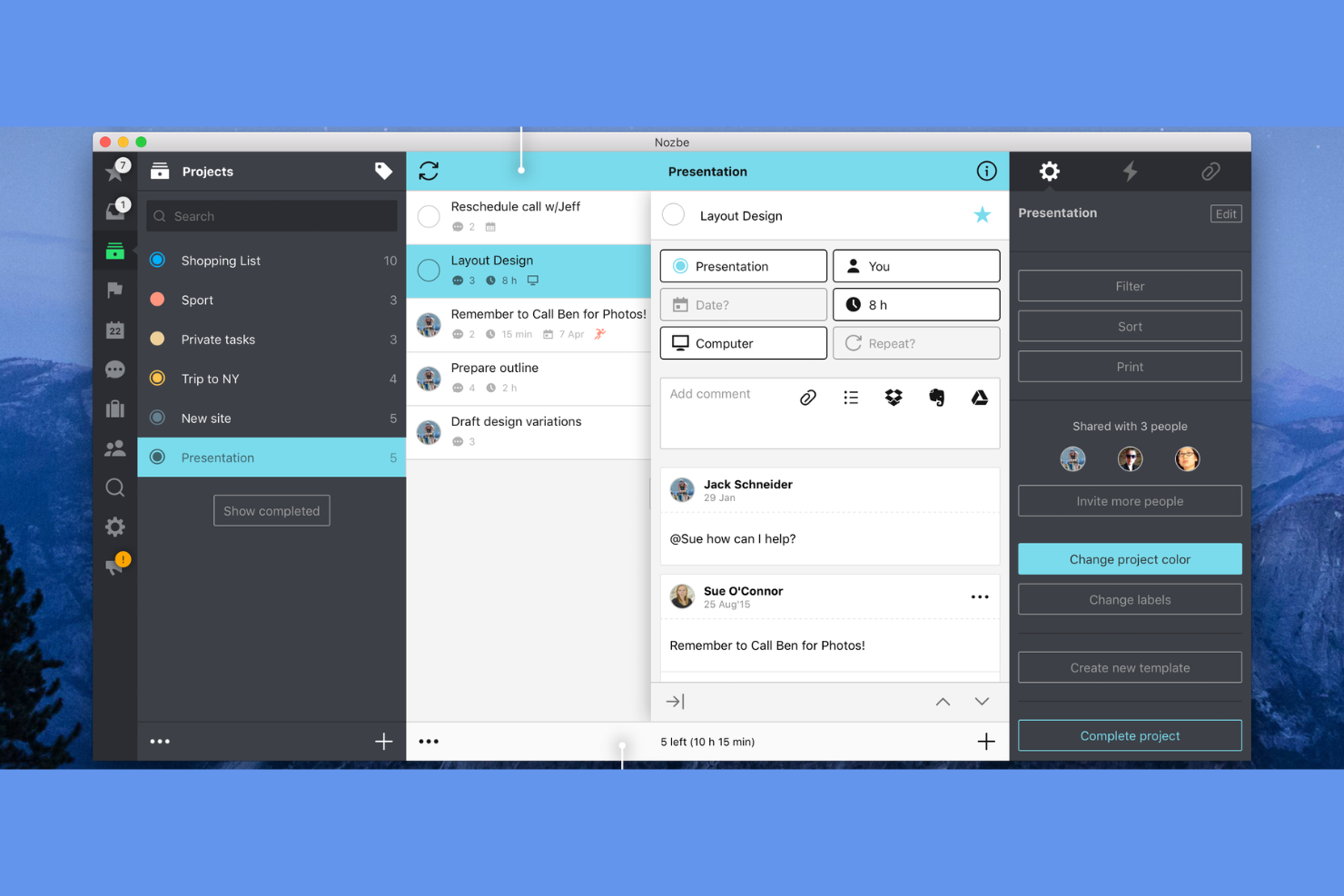
Nozbe stands out for teams that need to collaborate on tasks and projects, even when internet access is unreliable or unavailable. It’s designed for distributed teams, small businesses, and professionals who want to keep projects moving forward with offline syncing and shared task lists. The app’s offline-first approach helps teams stay coordinated and productive without being tied to a constant connection.
Why I Picked Nozbe
Unlike many task management tools, Nozbe is built with offline team collaboration in mind, making it a strong choice for distributed teams that can’t always rely on a stable internet connection. You can assign tasks, comment, and update project details while offline, and everything syncs automatically once you’re back online. I appreciate how Nozbe’s shared project spaces and real-time updates help teams stay aligned, even when working remotely or travelling. For teams that need to keep projects moving regardless of connectivity, Nozbe’s offline collaboration features are a clear advantage.
Nozbe Key Features
Some other features that make Nozbe useful for offline task management include:
- Multi-Platform Support: Access your tasks and projects on Windows, macOS, Android, and iOS devices.
- Task Templates: Create reusable templates for recurring projects or workflows.
- Priority and Tagging System: Organize and filter tasks using custom priorities and tags.
- File Attachments: Attach documents, images, or other files directly to tasks for easy reference.
Nozbe Integrations
Integrations include Google Calendar, Outlook Calendar, Slack, Dropbox, OneDrive, Evernote, and more.
Pros and Cons
Pros:
- Built-in templates for recurring offline workflows
- Cross-platform support for desktop and mobile
- Shared project spaces for team collaboration offline
Cons:
- Subtasks lack advanced nesting options
- No Linux desktop application available

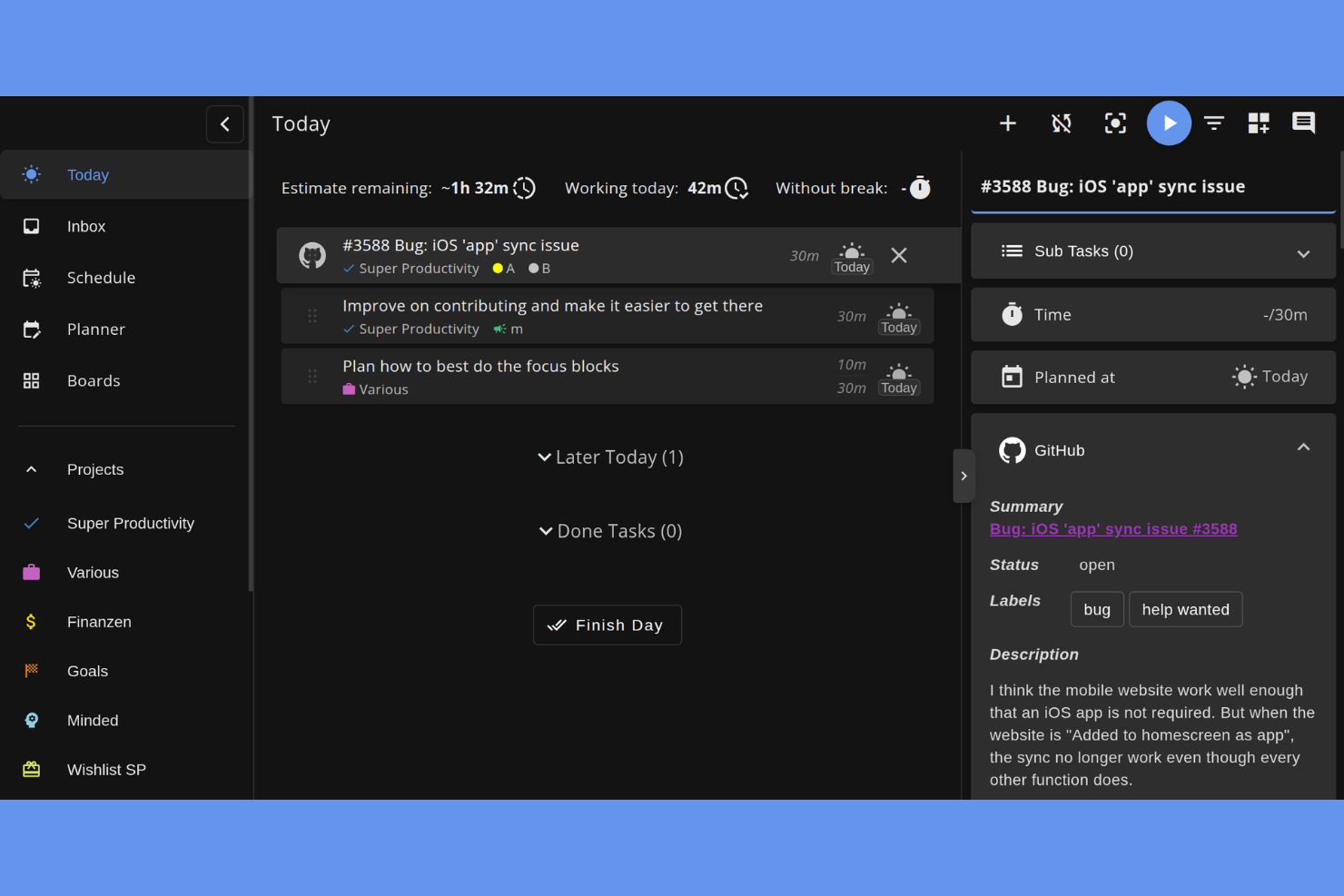
Super Productivity stands out for anyone who wants offline task management with built-in time tracking. This app is a strong fit for freelancers, developers, and project managers who need to track work hours alongside their to-dos without relying on internet access. Its integrated timer and offline-first design help you manage both tasks and time in one place, even when you’re disconnected.
Why I Picked Super Productivity
What drew me to Super Productivity is its focus on time tracking that works fully offline, which is rare among task management tools. You can start, pause, and stop timers for individual tasks without needing an internet connection, so your time logs are always up to date. I like that the app automatically links tracked time to your tasks, making it easy to review how you’re spending your work hours. This combination of offline task management and built-in time tracking makes Super Productivity a strong choice for anyone who needs both features in one place.
Super Productivity Key Features
In addition to its offline time tracking, there are several other features that make Super Productivity useful for managing tasks without internet access:
- Task Hierarchies: Organize tasks into subtasks and projects for better structure and clarity.
- Daily Planning View: Review and adjust your daily agenda in a dedicated planning interface.
- Attachment Support: Add files and links to tasks for easy reference, even when offline.
- Built-In Pomodoro Timer: Use a Pomodoro timer to break work into focused intervals directly within the app.
Super Productivity Integrations
Integrations include GitHub, GitLab, Jira, Gitea, Forgejo, CalDAV, Google Calendar, and support for custom plugins and REST API.
Pros and Cons
Pros:
- Supports offline file attachments to tasks
- Task data is stored locally without syncing
- Built-in Pomodoro timer works offline
Cons:
- Offline mode does not support collaboration
- No offline notifications or reminders

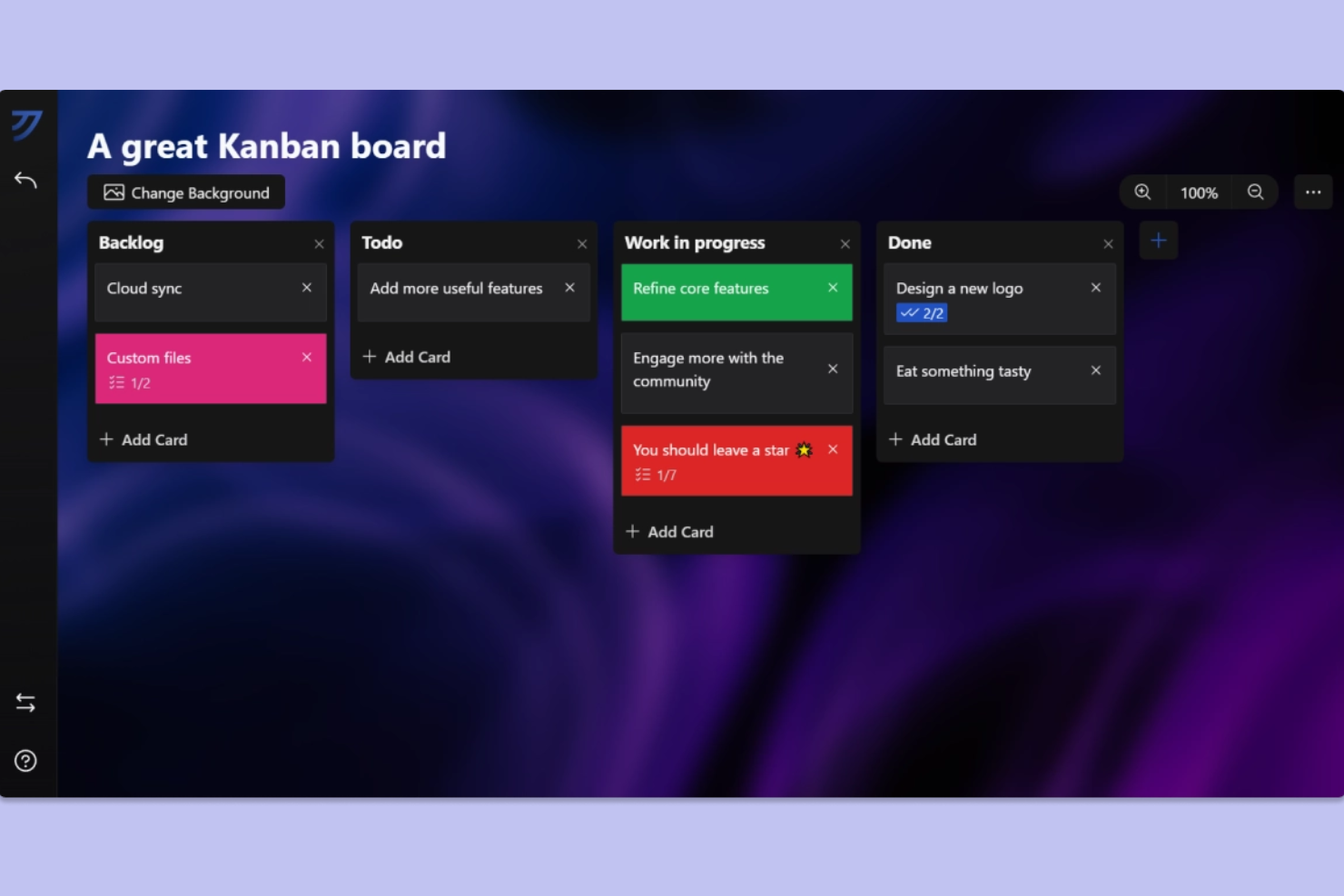
Kanri is designed for teams and individuals who want a Kanban-style workflow that works fully offline. It’s especially useful for project managers and professionals who need to visualize and update tasks without relying on internet access. With its local-first approach, Kanri helps users manage projects and track progress even in environments with limited or no connectivity.
Why I Picked Kanri
Unlike many task management tools that require constant connectivity, Kanri is built to support Kanban workflows entirely offline. Its local-first architecture means you can create, move, and update cards on your boards without an internet connection, which is ideal for users who work in remote or restricted environments. I appreciate that Kanri automatically syncs your changes once you’re back online, so you don’t have to worry about losing progress. This focus on offline Kanban functionality makes Kanri a strong choice for anyone who needs reliable project tracking without relying on the cloud.
Kanri Key Features
Some other features that make Kanri useful for offline task management include:
- Customizable Board Templates: Set up boards with custom columns and workflows to match your team’s process.
- Drag-and-Drop Card Movement: Move tasks between columns using a simple drag-and-drop interface.
- Task Color Coding: Assign colors to cards for quick visual categorization.
- Markdown Support: Format card descriptions and comments using Markdown for clearer communication.
Kanri Integrations
Native integrations are not currently listed.
Pros and Cons
Pros:
- Drag-and-drop task movement offline
- Local data storage ensures privacy
- Kanban boards work fully offline
Cons:
- No built-in calendar view
- Lacks recurring task automation

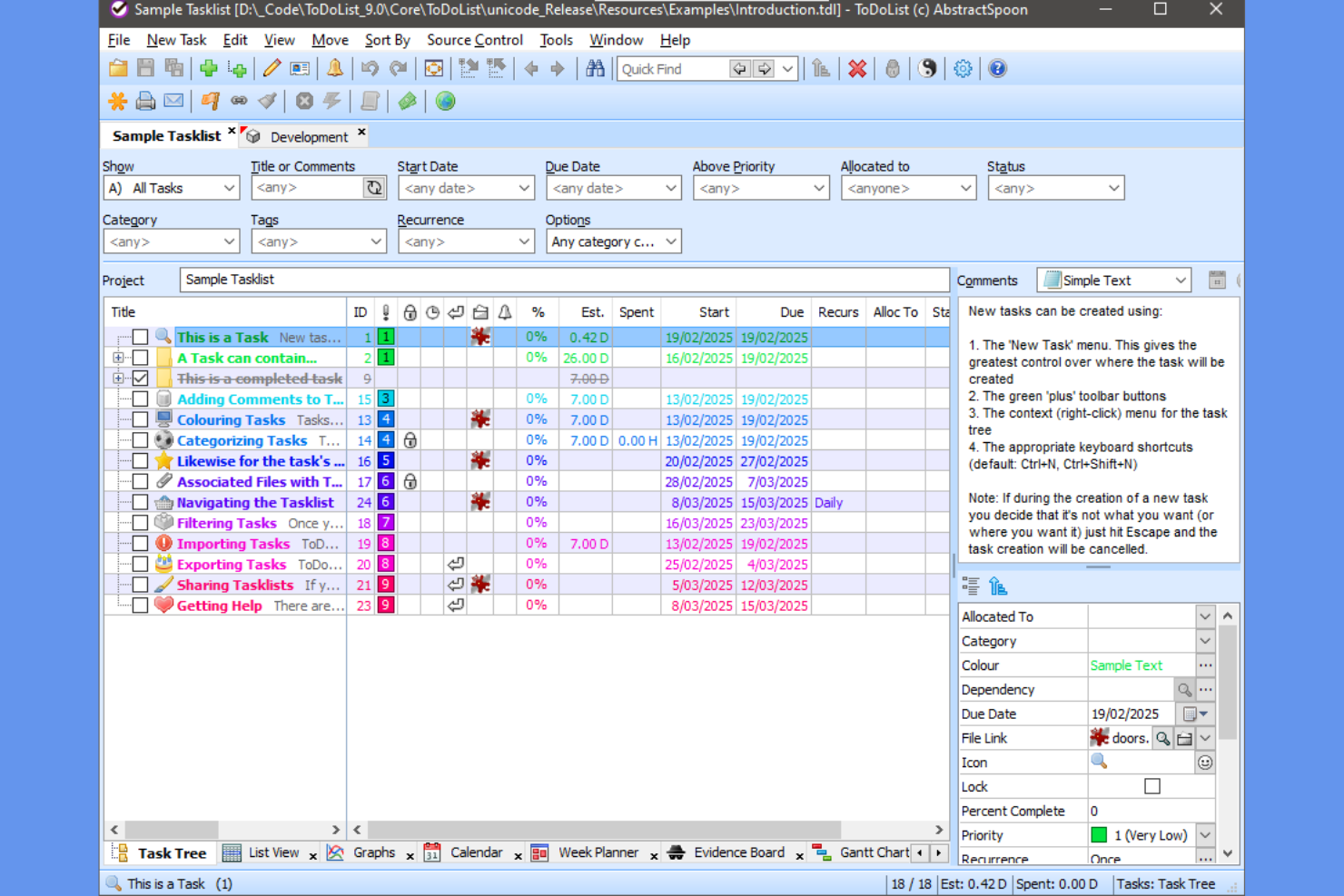
AbstractSpoon ToDoList is a Windows-based task manager designed for users who need deep customization and control over their task structures. It’s especially useful for project managers, consultants, and anyone handling complex projects that require detailed task hierarchies and dependencies. The tool’s offline functionality and flexible task tree system make it a strong choice for those who want to organize projects without relying on cloud services.
Why I Picked AbstractSpoon ToDoList
What sets AbstractSpoon ToDoList apart is its ability to let you build highly customizable task hierarchies, all while working completely offline. You can create unlimited levels of subtasks, set dependencies, and organize projects in a way that matches your workflow. I appreciate how you can tailor fields, columns, and views to fit different project needs, which is especially useful for complex or evolving projects. For anyone who wants granular control over task structure without relying on cloud storage, ToDoList offers a unique offline solution.
AbstractSpoon ToDoList Key Features
Some other features that make AbstractSpoon ToDoList stand out for offline project management include:
- Portable Application Option: Run the tool from a USB drive without installation.
- Customizable Task Attributes: Add custom fields to tasks for tracking unique project data.
- Recurring Task Support: Set up tasks to repeat on custom schedules.
- Gantt Chart Visualization: View project timelines and task dependencies in a Gantt chart format.
AbstractSpoon ToDoList Integrations
Native integrations are not currently listed.
Pros and Cons
Pros:
- Custom fields for tracking unique project data
- Portable app runs from USB without installation
- Unlimited task hierarchy depth for complex projects
Cons:
- Manual backup required for data protection
- Windows-only with no native Mac version
Annen programvare for frakoblet oppgavehåndtering
Her er noen ekstra alternativer for frakoblet oppgavehåndtering som ikke kom med på kortlisten min, men som likevel er verdt å se nærmere på:
- MyLifeOrganized
For advanced task automation offline
- Things
With intuitive Mac and iOS workflows
- Asana
For structured task planning with visual workflows
- AppFlowy
For local-first data privacy


How I Evaluate Offline Task Management Software
When a field supervisor loses signal mid-project, I want to know a tool won't fail them—so I evaluate on two layers: baseline offline functionality and the differentiators that set options apart.
Core Functionality (Table Stakes For This List)
When I'm selecting tools for my list, I rank each one on a scale from 0 (does not offer the functionality) to 5 (excels in this area) for each core functionality listed below. Then, I calculate the tool's total score into a percentage. Each tool needs to achieve a minimum total score of 65% to be considered for inclusion.
- Offline Task Access: I check whether you can view, create, and edit tasks with no internet—like updating a punch list from a basement job site with zero signal.
- Local Data Storage: Each tool should persist data on-device so nothing disappears if you close the app mid-commute or your laptop dies before reconnecting.
- Automatic Sync: I look for tools that push offline changes to the cloud the moment connectivity returns, without requiring you to hit a manual sync button.
- Core Task Features Offline: Due dates, priorities, assignments, and status updates all need to function offline—not just a read-only snapshot of your task board.
- Cross-Device Offline Support: I evaluate whether offline mode works across desktop, mobile, and tablet so a site supervisor on a phone gets the same experience as someone on a laptop.
- Sync Conflict Resolution: When two people edit the same task offline, I look at how the tool handles the merge—whether it flags conflicts, auto-resolves, or silently overwrites.
Once I have a list of tools that meet the criteria, I consider what sets each platform apart.
Differentiating Factors (What Sets Vendors Apart)
Here's how I compare and contrast different vendors:
Standout Features
Offline time tracking matters when consultants need to log billable hours at a client site with spotty Wi-Fi. I also look for offline file attachments—being able to pull up a blueprint or spec sheet without re-downloading it saves real time on-site. Collaboration notes that queue locally and deliver once you're back online keep distributed teams moving without creating communication gaps between field and office.
Beyond Features
Local data security is a top concern—when project data lives on a field worker's phone or tablet, I check for on-device encryption and app-level authentication like biometric locks. The integration ecosystem also matters. A tool that syncs with your existing stack (Slack, Google Drive, Outlook calendars) once online reduces duplicate data entry. I also evaluate whether a vendor offers a free tier that includes full offline access, so your team can properly test it before committing.
Slik velger du programvare for frakoblet oppgavehåndtering
Det er lett å gå seg vill i lange funksjonslister og komplekse prismodeller. For å holde fokus mens du arbeider deg gjennom den unike prosessen med å velge programvare, får du her en sjekkliste over faktorer du bør ha i tankene:
| Faktor | Hva du bør vurdere |
|---|---|
| Skalerbarhet | Vil verktøyet støtte teamstørrelsen din og fremtidig vekst? Vurder om det kan håndtere flere brukere eller prosjekter etter hvert som behovene dine øker. |
| Integrasjoner | Kan det kobles direkte til de eksisterende verktøyene dine (e-post, kalendere, plattformer for prosjektstyring)? Se etter direkte integrasjoner, ikke bare API- eller Zapier-alternativer. |
| Tilpasningsmuligheter | Kan du tilpasse oppgavekategorier, etiketter eller arbeidsflyter slik at de passer til teamets prosesser? Se etter fleksibel organisering og innstillinger for frakoblet bruk. |
| Brukervennlighet | Er grensesnittet enkelt å bruke for alle brukere? Test med en liten gruppe for å se om noen får problemer med frakoblet tilgang eller navigering. |
| Implementering og innføring | Hvor lang tid vil det ta å få teamet i gang? Vurder hvor tilgjengelige migreringsverktøy, opplæringsressurser og støtte er under lanseringen. |
| Kostnad | Er prisnivåene tydelige og forutsigbare? Vær oppmerksom på skjulte gebyrer, begrensninger på frakoblede funksjoner eller nødvendige oppgraderinger for grunnleggende funksjonalitet. |
| Sikkerhetstiltak | Hvordan beskyttes de frakoblede dataene dine? Se etter lokal kryptering, sikkerhet på enhetsnivå og tydelige retningslinjer for datasynkronisering og lagring. |
| Tilgjengelig kundestøtte | Kan du få kontakt med kundestøtten når du trenger hjelp? Se etter støtte via livechat, e-post eller telefon, særlig hvis teamet ditt jobber på tvers av tidssoner. |
Hva er programvare for frakoblet oppgavehåndtering?
Frakoblet programvare for oppgavehåndtering er en type app for oppgavehåndtering som lar deg opprette, organisere og oppdatere personlige oppgaver og teamarbeid uten behov for internettilkobling. Disse verktøyene lagrer dataene dine lokalt og synkroniserer endringer når du er på nett igjen, slik at du kan fullføre oppgaver og opprettholde produktiviteten i alle miljøer. Mange løsninger kombinerer funksjoner fra prosjektstyringsverktøy og samarbeidsverktøy, og tilbyr oppgavesporing, prosjektplanlegging og tidsstyring i ett samlet arbeidsområde. Med elementer som dashbord og støtte for håndtering av leveranser hjelper de små team og enkeltpersoner med å effektivisere arbeidsflyter og tilpasse seg sine spesifikke behov.
Funksjoner
Når du velger programvare for frakoblet oppgavehåndtering, bør du se etter følgende viktige funksjoner:
- Oppretting av oppgaver uten nett: Legg til nye oppgaver og gjøremål selv når du ikke har internettilkobling, slik at ingenting blir glemt under driftsavbrudd.
- Lokal datalagring: Lagre alle oppgavedata direkte på enheten din, slik at du kan få tilgang til og oppdatere informasjon uten å være avhengig av skytjenester.
- Automatisk synkronisering: Oppdater og synkroniser oppgavene dine automatisk på tvers av enheter når du kobler deg til internett igjen, slik at alt holdes oppdatert.
- Organisering av oppgaver: Grupper oppgaver i lister, prosjekter eller mapper for å holde arbeidet strukturert og enkelt å navigere i, selv uten nett.
- Påminnelser og varsler: Angi varsler for tidsfrister eller viktige oppgaver som utløses lokalt, slik at du aldri går glipp av en forpliktelse når du er frakoblet.
- Gjentakende oppgaver: Planlegg at oppgaver skal gjentas med bestemte intervaller, slik at du kan håndtere løpende ansvarsområder uten å legge dem inn på nytt manuelt.
- Deloppgaver: Del større oppgaver opp i mindre, gjennomførbare trinn for bedre oversikt og fremdriftssporing, uavhengig av tilkobling.
- Søk og filtrering: Finn raskt bestemte oppgaver eller sorter listene dine ved hjelp av søke- og filtreringsverktøy som fungerer uten internettilgang.
- Brukertillatelser: Bestem hvem som kan se eller redigere oppgaver på delte enheter, og legg til rette for sikkert samarbeid i frakoblede miljøer.
- Eksport og sikkerhetskopiering: Lagre eller eksporter oppgavedataene dine for sikkerhetskopiering eller deling, slik at du kan føle deg trygg dersom du trenger å gjenopprette informasjon senere.
Fordeler
Implementering av programvare for frakoblet oppgavehåndtering gir flere fordeler for teamet og virksomheten din. Her er noen av fordelene du kan se frem til:
- Uavbrutt tilgang: Arbeid med oppgaver og prosjekter når som helst, selv i områder med ustabil eller manglende internettilkobling, takket være lokal datalagring og redigering uten nett.
- Påminnelser du kan stole på: Motta varsler og meldinger om tidsfrister eller viktige oppgaver, uavhengig av tilkoblingsstatus, slik at ingenting blir oversett.
- Stabil produktivitet: Registrer ideer, oppdater fremdrift og organiser arbeidet uten å vente på en nettverkstilkobling, slik at arbeidsflyten opprettholder momentum.
- Datasikkerhet: Oppbevar sensitiv informasjon lokalt på enheten din, reduser eksponeringen for skybaserte sikkerhetsrisikoer og støtt personvernkrav.
- Automatisk synkronisering: Få sømløse oppdateringer på tvers av enheter når du er på nett igjen, slik at oppgavelistene og prosjektdataene dine alltid er oppdaterte på alle arbeidsstedene dine.
- Fleksibelt samarbeid: Gjør det mulig for teammedlemmer å bidra til eller gjennomgå oppgaver på delte enheter i frakoblede miljøer, noe som støtter feltarbeid eller reisesituasjoner.
- Mindre avhengighet av skytjenester: Oppretthold full funksjonalitet for oppgavehåndtering uten å være avhengig av tredjepartsservere, og reduser avbrudd som følge av tjenesteutfall.
Kostnader og priser
Valg av programvare for frakoblet oppgavehåndtering krever en forståelse av de ulike prismodellene og abonnementene som er tilgjengelige. Kostnadene varierer basert på funksjoner, teamstørrelse, tillegg og mer. Tabellen nedenfor oppsummerer vanlige abonnementer, gjennomsnittsprisene deres og typiske funksjoner som inngår i løsninger for frakoblet oppgavehåndtering:
Sammenligningstabell for abonnementer for programvare for frakoblet oppgavehåndtering
| Plantype | Gjennomsnittspris | Vanlige funksjoner |
|---|---|---|
| Plantype | Gjennomsnittspris | Vanlige funksjoner |
| Gratisplan | $0 | Grunnleggende oppretting av oppgaver uten nett, begrensede lister, støtte for én enhet og grunnleggende påminnelser. |
| Personlig plan | $4–$8/bruker/måned | Synkronisering mellom flere enheter, redigering uten nett, gjentakende oppgaver, deloppgaver og prioritert støtte. |
| Bedriftsplan | $8–$15/bruker/måned | Samarbeid i team, delte prosjekter, avanserte funksjoner uten nett, administratorkontroller og integrasjoner. |
| Enterprise-plan | $15–$35/bruker/måned | Tilpasset oppstart, forbedret sikkerhet, avanserte tillatelser, dedikert støtte og verktøy for overholdelse av krav. |