

I 10 migliori software per visualizzare Microsoft Project recensiti per il 2026

10 Selezione dei software visualizzatori di Microsoft Project


I migliori strumenti per visualizzare Microsoft Project semplificano l’apertura, la condivisione e la revisione dei file .MPP, senza dover acquistare una licenza completa di Microsoft Project. Che tu debba presentare diagrammi di Gantt ai portatori di interesse o offrire ai membri del team visibilità sulle dipendenze e sulle tempistiche delle attività, un visualizzatore affidabile può semplificare la collaborazione e ridurre i costi del software in tutta l’organizzazione.
Microsoft Project rimane la piattaforma di riferimento per la gestione di pianificazioni complesse, ma i requisiti di licenza possono limitare chi vi ha effettivamente accesso. Per questo molti responsabili di progetto si affidano a strumenti di visualizzazione autonomi, che mantengono formattazione e funzionalità senza la curva di apprendimento o il prezzo del prodotto completo.
Dopo aver gestito centinaia di pianificazioni e aver lavorato con MS Project in grandi team e ambienti aziendali, ho testato e recensito i principali visualizzatori di Microsoft Project disponibili. In questa guida ti illustrerò i migliori strumenti per condividere in modo efficiente i file di progetto, così potrai trovare la soluzione più adatta al tuo team.
Perché fidarsi dei nostri consigli sui software
Il nostro team testa e recensisce software dal 2012. In quanto project manager noi stessi, sappiamo quanto sia difficile — e importante — scegliere il software giusto.
Per questa guida, abbiamo valutato gli strumenti attraverso test pratici e ricerche indipendenti, assegnando un punteggio agli strumenti in base ai nostri criteri di selezione. Ci basiamo inoltre sulle competenze di leader di pensiero del settore e di professionisti attivi nella gestione dei progetti.
Le nostre recensioni riflettono il nostro giudizio editoriale umano, non un discorso di vendita.
Revisori esperti:
Tabella comparativa dei visualizzatori di Microsoft Project
Questa tabella comparativa riassume i dettagli sui prezzi delle mie migliori selezioni di visualizzatori di Microsoft Project:
| Tool | Best For | Trial Info | Price | ||
|---|---|---|---|---|---|
| 1 | Ideale per importare dati da file .mpp | Prova gratuita di 14 giorni | A partire da $7.99 | Website | |
| 2 | Ideale per importare file CSV in una piattaforma di gestione del lavoro | Piano gratuito disponibile | A partire da $7/utente/mese (con fatturazione annuale) | Website | |
| 3 | Miglior editor .mpp gratuito per l'uso multipiattaforma | Piano gratuito disponibile | A partire da $9.99/utente/mese (con fatturazione annuale) | Website | |
| 4 | Ideale per la distribuzione di file .mpp su scala aziendale | Prova gratuita di 15 giorni | A partire da $114/utente/anno (con fatturazione annuale) | Website | |
| 5 | Miglior visualizzatore MPP per Windows, Mac e dispositivi mobili | Visualizzatore gratuito disponibile | A partire da $59.99/utente (una tantum) | Website | |
| 6 | Ideale per andare oltre la semplice visualizzazione e passare al lavoro di squadra in tempo reale | Prova gratuita di 30 giorni | Da $12.90/utente/mese | Website | |
| 7 | Ideale per la sincronizzazione bidirezionale dei file .mpp con visualizzazione per gli ospiti | Prova gratuita di 30 giorni | A partire da $15/utente/mese | Website | |
| 8 | Il miglior pianificatore di tipo MS Project disponibile su PC, Mac e telefoni cellulari | 30 giorni di prova gratuita | A partire da $10.99/utente/mese | Website | |
| 9 | Miglior visualizzatore MPP gratuito per Windows, Mac e Linux | Piano gratuito disponibile | A partire da $4/utente/mese | Website | |
| 10 | Ideale per aprire file .mpp e Primavera P6 | Prova gratuita di 7 giorni | A partire da $7.99/utente/mese | Website |


Panoramica dei 10 migliori visualizzatori di Microsoft Project
Ecco una breve descrizione di ogni strumento, per mostrarti perché può essere un’opzione valida da prendere in considerazione come prossimo visualizzatore di Microsoft Project.

GanttPRO
Ideale per importare dati da file .mpp
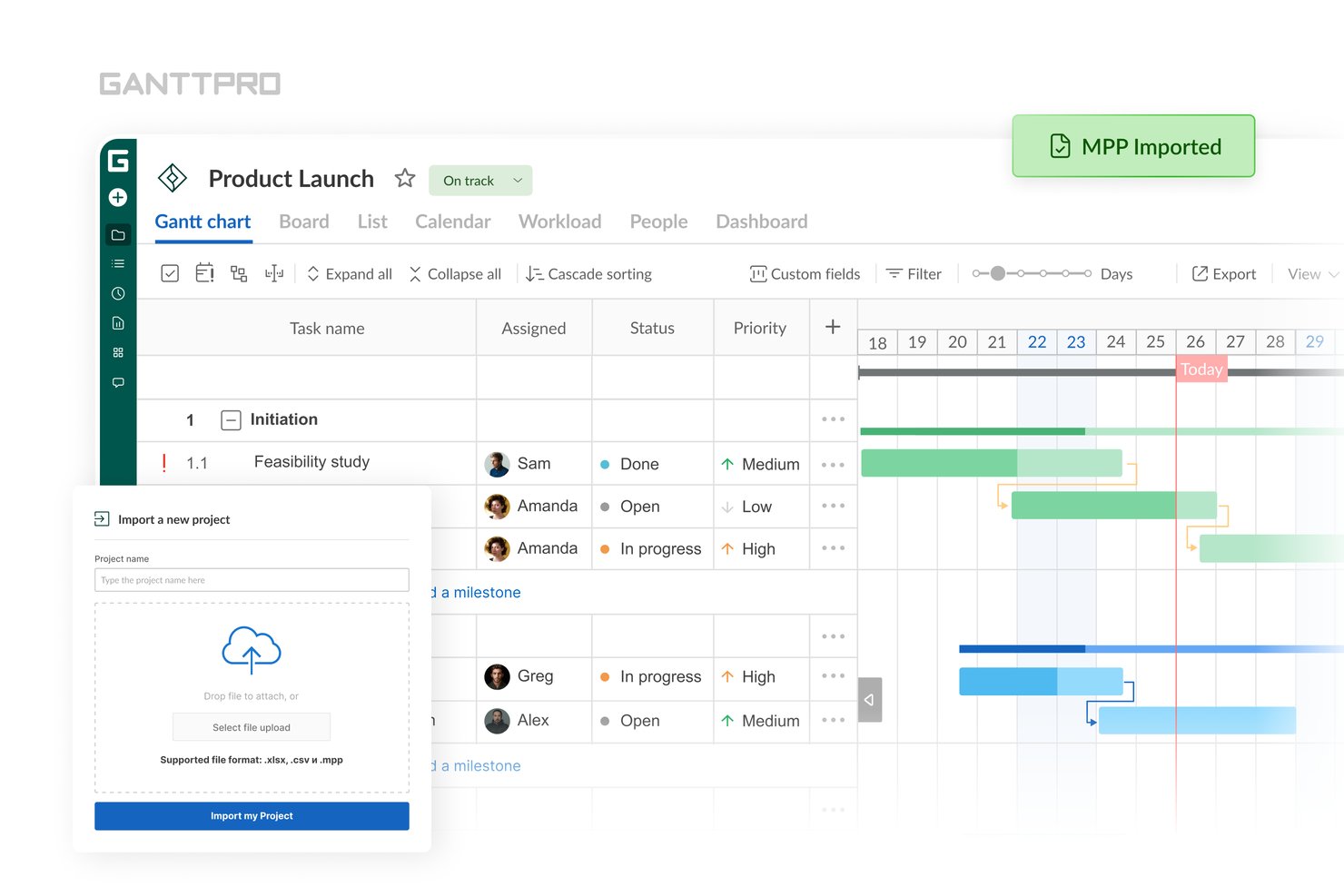
GanttPRO è uno strumento basato su browser per i diagrammi di Gantt e la gestione dei progetti, che consente di aprire, visualizzare e condividere file
.mpp
su Windows, Mac e Linux senza una licenza di Microsoft Project.
A chi è più adatto GanttPRO?
GanttPRO è particolarmente adatto ai project manager e ai responsabili PMO che devono aprire, visualizzare e condividere file
.mpp
con gli stakeholder su Mac, Windows o Linux senza pagare licenze di Microsoft Project.
Perché ho scelto GanttPRO
GanttPRO è entrato nella mia selezione perché consente di trascinare un file
.mpp
direttamente in un browser e ottenere un diagramma di Gantt completamente interattivo senza utilizzare una licenza di Microsoft Project. Apprezzo il fatto che, durante l'importazione, preservi le dipendenze tra le attività, le milestone e il percorso critico, così la struttura della pianificazione rimane intatta per la revisione e la condivisione. L'unica sincera limitazione da segnalare è che le descrizioni delle attività, i commenti e gli allegati non vengono importati, quindi funziona al meglio quando i dati essenziali della pianificazione sono la priorità.
Funzionalità principali di GanttPRO
- Monitoraggio della baseline e degli scostamenti: Imposta un'istantanea di baseline del tuo piano e confrontala visivamente con la pianificazione aggiornata direttamente sul diagramma di Gantt.
- Condivisione tramite URL pubblico: Genera un link condivisibile che consente agli stakeholder di visualizzare la pianificazione del progetto in un browser senza un account GanttPRO o una licenza a pagamento.
- Esportazione in più formati: Esporta il diagramma di Gantt in PDF, PNG, XML o Excel con layout, intervalli di date e impostazioni di visibilità delle colonne personalizzabili.
- Collaborazione in tempo reale: Aggiungi commenti e allegati ai file a livello di attività, con sincronizzazione in tempo reale tra tutti i membri del team.
Integrazioni di GanttPRO
GanttPRO offre integrazioni native con Microsoft Teams, Slack, Google Drive, OneDrive, Outlook Calendar, Google Calendar e Jira Cloud (beta), oltre a un'API per integrazioni personalizzate.
Pros and Cons
Pros:
- Importa file .mpp con le dipendenze tra le attività
- Offre la condivisione delle pianificazioni tramite URL pubblico
- Preserva il percorso critico e le baseline durante l'importazione
Cons:
- Non importa le descrizioni delle attività o gli allegati
- Nessuna sincronizzazione bidirezionale con Microsoft Project

ClickUp
Ideale per importare file CSV in una piattaforma di gestione del lavoro
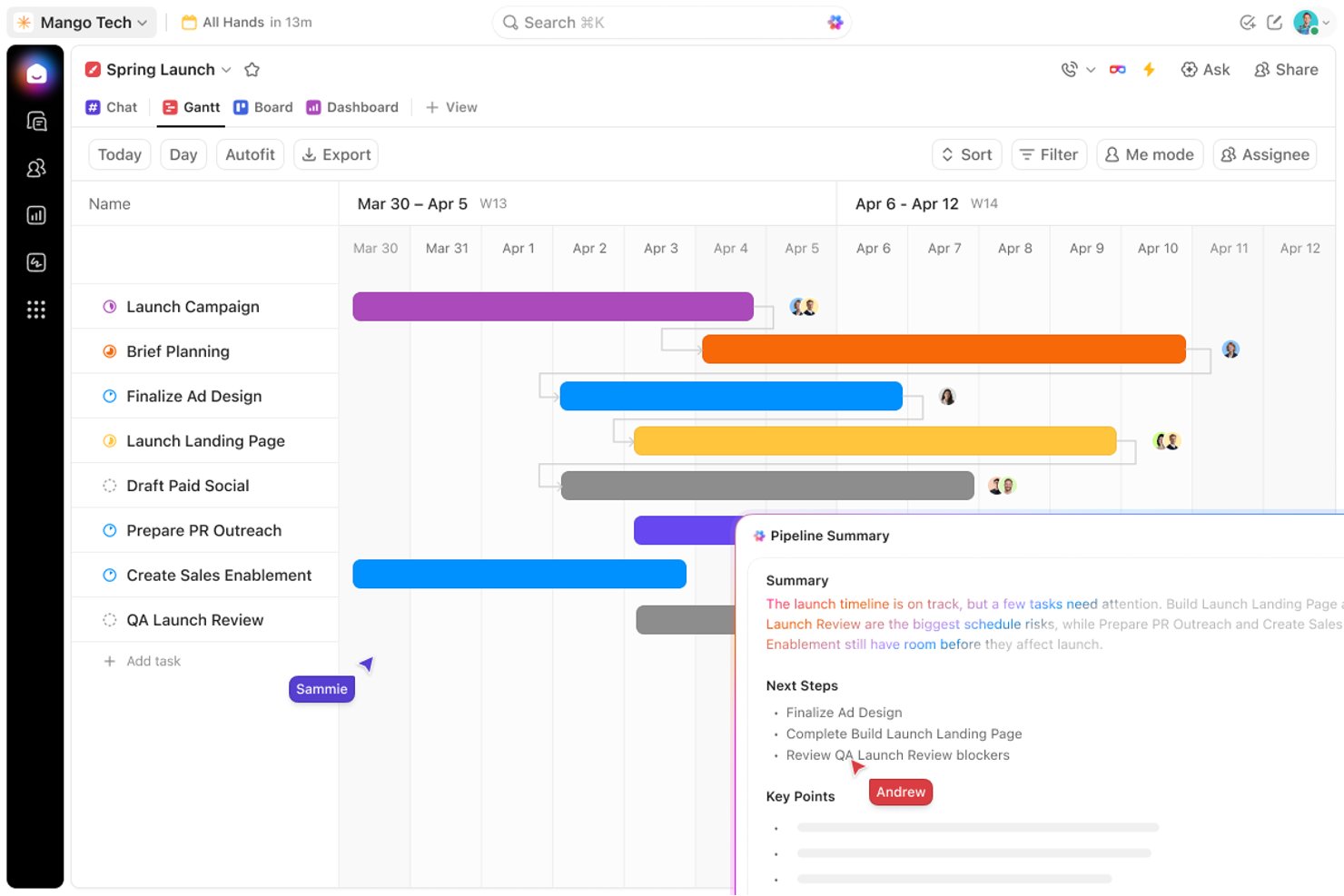
ClickUp è una piattaforma completa per la gestione del lavoro che offre diagrammi di Gantt, visualizzazioni delle attività, collaborazione in tempo reale e importazione di progetti basata su CSV, come percorso alternativo per i team che desiderano trasferire le pianificazioni di MS Project in uno spazio di lavoro attivo e condivisibile.
Per chi è più adatto ClickUp?
ClickUp è adatto ai team pronti a lasciarsi alle spalle MS Project e che desiderano trasformare le pianificazioni esportate in uno spazio di lavoro operativo e collaborativo.
Perché ho scelto ClickUp
Ho incluso ClickUp tra le mie scelte principali perché offre ai team un percorso chiaro per uscire da MS Project e passare a uno spazio di lavoro operativo e collaborativo. Il flusso di importazione CSV consente di trasferire direttamente le pianificazioni esportate nella visualizzazione Gantt di ClickUp, ottenendo visibilità sul percorso critico, monitoraggio della linea di base e ripianificazione tramite trascinamento. Una volta importati i dati, gli stakeholder possono accedere alla pianificazione, commentarla e rivederla senza dover mai utilizzare una licenza di MS Project.
Funzionalità principali di ClickUp
- Importazione di file CSV e fogli di calcolo: Trasferisci le pianificazioni di MS Project esportate in ClickUp tramite CSV o Excel utilizzando lo strumento integrato per l'importazione dei fogli di calcolo.
- Evidenziazione del percorso critico: Identifica ed evidenzia automaticamente la catena di attività che determina la scadenza del progetto nella visualizzazione Gantt.
- Sovrapposizione della linea di base: Salva un'istantanea della pianificazione e sovrapponila al diagramma di Gantt attivo per confrontare in qualsiasi momento l'avanzamento pianificato con quello effettivo.
- Accesso degli ospiti con controlli delle autorizzazioni: Condividi visualizzazioni specifiche con stakeholder esterni con permessi di sola visualizzazione o di modifica, senza esporre l'intero spazio di lavoro.
Integrazioni di ClickUp
ClickUp offre integrazioni native con Microsoft Teams, Outlook, OneDrive, Google Drive e Slack. Fornisce inoltre un'API pubblica per le integrazioni personalizzate e supporta Zapier.
Pros and Cons
Pros:
- Diagramma di Gantt completo con linee di base e percorso critico
- Consente la collaborazione in tempo reale sulle pianificazioni importate
- Condivisione flessibile con ospiti e tramite link pubblici
Cons:
- Non è possibile aprire o visualizzare file .mpp nativi
- Le dipendenze tra le attività vengono perse durante l'importazione CSV
New Product Updates from ClickUp
ClickUp Adds Meetings Hub, Super Agent Templates, and ZoomInfo Integration
ClickUp adds a searchable Meetings Hub, new ways to clone and template Super Agents, and a ZoomInfo integration through the App Center. These updates improve meeting retrieval, agent reuse, and access to sales intelligence. For more information, visit ClickUp’s official site.

Miglior editor .mpp gratuito per l'uso multipiattaforma
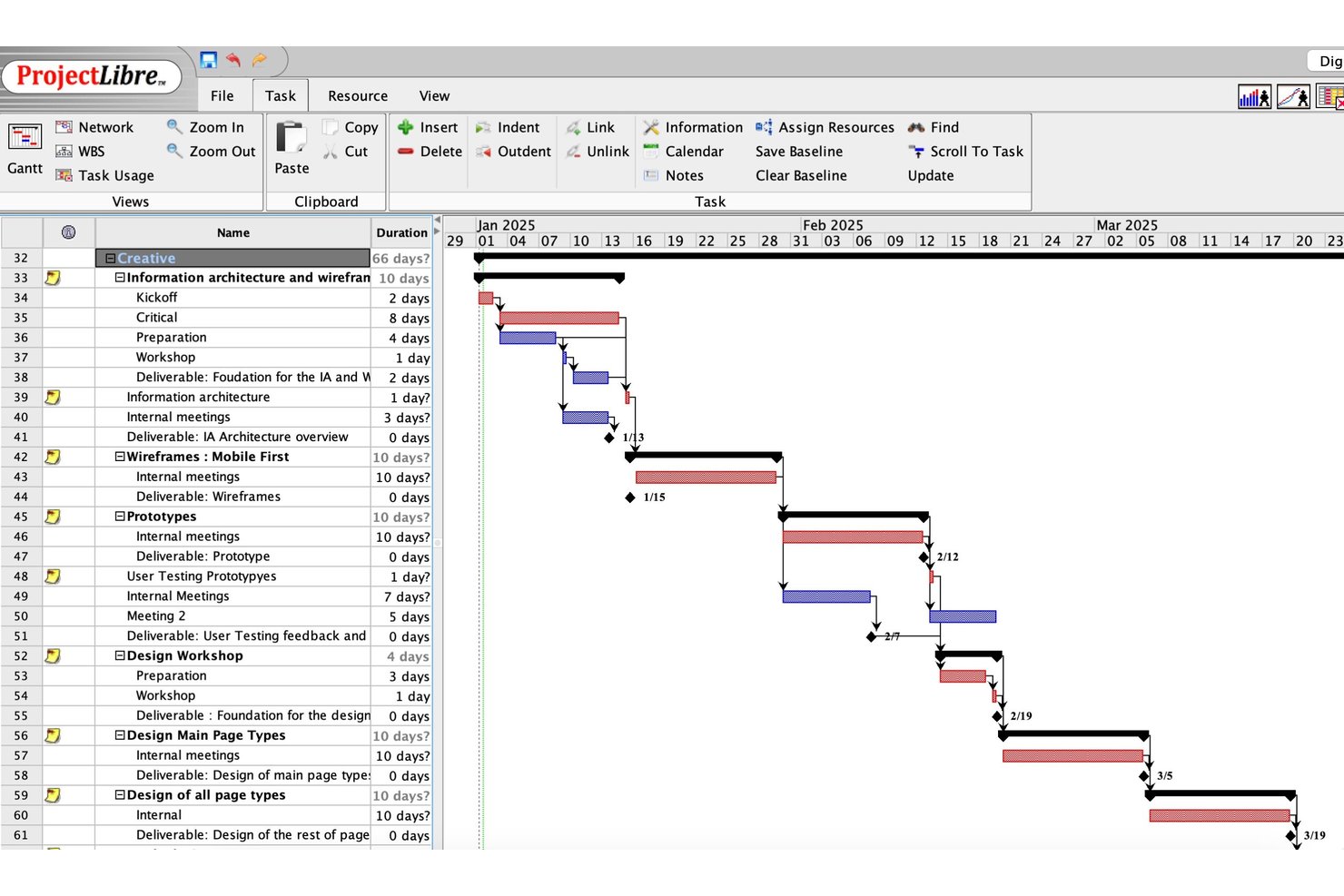
ProjectLibre è un programma a codice sorgente aperto per la gestione dei progetti che apre, modifica e salva nativamente i file .mpp su Windows, macOS e Linux, con viste che includono diagrammi di Gantt, diagrammi di rete, fogli delle risorse e diagrammi WBS.
Per chi è più adatto ProjectLibre?
ProjectLibre è una scelta ottimale per singoli responsabili di progetto e piccole squadre su Linux, macOS o Windows che devono aprire, modificare e salvare file .mpp senza pagare una licenza di Microsoft Project.
Perché ho scelto ProjectLibre
ProjectLibre si è guadagnato un posto nella mia selezione ristretta perché è l'unico strumento gratuito che apre, modifica e salva nativamente i file
.mpp
su Windows, macOS e Linux senza richiedere una licenza di Microsoft Project. L'ho scelto nello specifico per le squadre multipiattaforma in cui un ingegnere che utilizza Linux o un responsabile di progetto che usa macOS deve aprire una pianificazione inviata da un utente di MS Project. La vista completa del diagramma di Gantt, con percorso critico, linea di riferimento e diagrammi di rete, viene caricata direttamente dal file
.mpp
, senza alcuna fase di conversione.
Funzionalità principali di ProjectLibre
- Analisi dei rischi Monte Carlo: Esegue simulazioni statistiche sulla pianificazione per modellare i rischi e prevedere le probabili date di completamento.
- Gestione del valore acquisito (EVM): Monitora i costi e le prestazioni della pianificazione del progetto rispetto a una linea di riferimento utilizzando metriche EVM standard.
- Vista Diagramma di rete: Visualizza attività e dipendenze in un diagramma di flusso in stile PERT per esaminare dipendenze e logica.
- Esportazione CSV e XML: Esporta i dati del progetto in formato CSV o XML per utilizzarli in altri strumenti o flussi di lavoro di reportistica.
Integrazioni di ProjectLibre
ProjectLibre non dispone di integrazioni native documentate con Microsoft 365, SharePoint, Teams, Jira, Asana, Slack o Google Workspace. Supporta lo scambio di file .mpp, .mpx, XML e CSV, ma non dispone di un'API pubblica documentata per le integrazioni personalizzate.
Pros and Cons
Pros:
- Apre e modifica nativamente i file .mpp
- Funziona su Windows, macOS e Linux
- Include viste Gantt, PERT e linea di riferimento
Cons:
- Nessuna modalità di visualizzazione in sola lettura o semplificata
- Richiede un'installazione completa su desktop per l'accesso gratuito

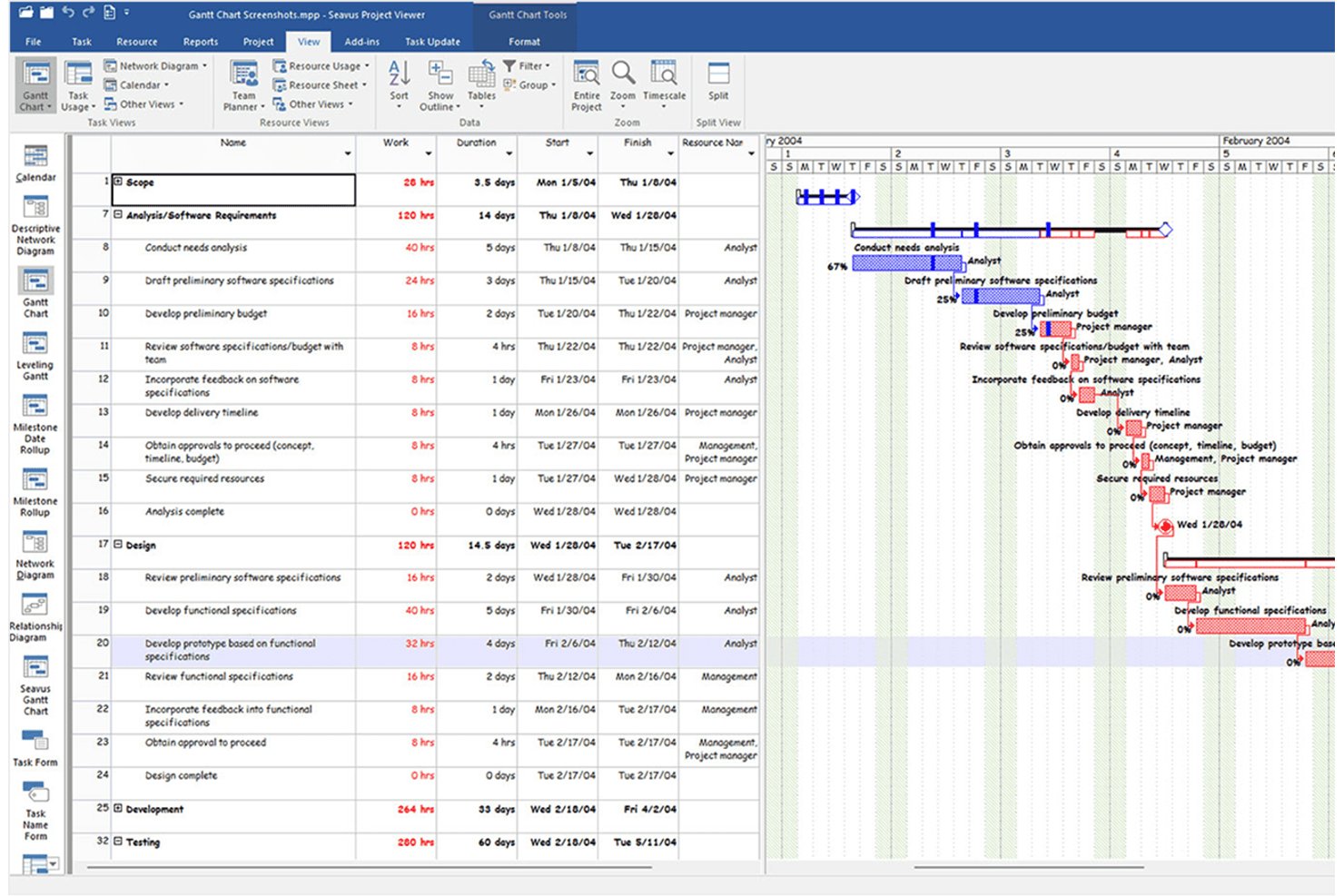
Seavus Project Viewer è un visualizzatore .mpp di sola lettura che apre i file di Microsoft Project in oltre 27 visualizzazioni, tra cui Gantt, Diagramma di rete e Pianificazione del team, senza richiedere una licenza di Microsoft Project, su Windows, macOS, iOS, Android e web.
Per chi è più adatto Seavus Project Viewer?
Seavus Project Viewer è adatto alle grandi organizzazioni che devono distribuire file .mpp a numerosi stakeholder senza acquistare ulteriori licenze di Microsoft Project.
Perché ho scelto Seavus Project Viewer
Seavus Project Viewer si è guadagnato un posto nella mia selezione perché nessun altro visualizzatore offre la stessa portata quando è necessario distribuire file .mpp in una grande organizzazione. Ho visto team utilizzarlo per condividere piani di progetto con centinaia di stakeholder, dagli stabilimenti produttivi BMW alle operazioni della NATO, senza utilizzare una sola licenza aggiuntiva di MS Project. Apre file da MS Project 98 fino al 2024, con oltre 27 visualizzazioni, e gestisce file fino a 500 MB senza difficoltà.
Funzionalità principali di Seavus Project Viewer
- Componente aggiuntivo per l'aggiornamento delle attività: i membri del team possono inviare direttamente dal visualizzatore l'avanzamento delle attività e i commenti, mentre i responsabili di progetto possono accettare, rifiutare o rispondere agli aggiornamenti senza condividere il file di origine.
- Confronto dei piani di progetto: apre due versioni di un file .mpp affiancate per evidenziare le differenze nei parametri delle attività e delle risorse.
- Report grafici e pannelli di controllo: visualizza i report predefiniti di MS Project nelle categorie Pannello di controllo, Risorse e Costi, con opzioni per modificare il tipo di grafico, i campi e l'ordinamento.
- Interfaccia multilingue: supporta 11 lingue, tra cui giapponese, cinese, russo e tedesco, per consentire l'accesso ai team internazionali.
Integrazioni di Seavus Project Viewer
Seavus Project Viewer si integra con SharePoint, OneDrive e Google Drive per aprire i file di progetto e si connette a Microsoft Project tramite il componente aggiuntivo per l'aggiornamento delle attività. Non sono documentati né API né controlli nativi per la condivisione sul cloud.
Pros and Cons
Pros:
- Apre file .mpp da MS Project 98 al 2024
- Conserva la formattazione originale e tutte le oltre 27 visualizzazioni
- Il componente aggiuntivo per l'aggiornamento delle attività consente un riscontro strutturato del team
Cons:
- Nessuna opzione diretta di esportazione in PDF o Excel
- Mancano funzionalità di collaborazione in tempo reale nell'applicazione

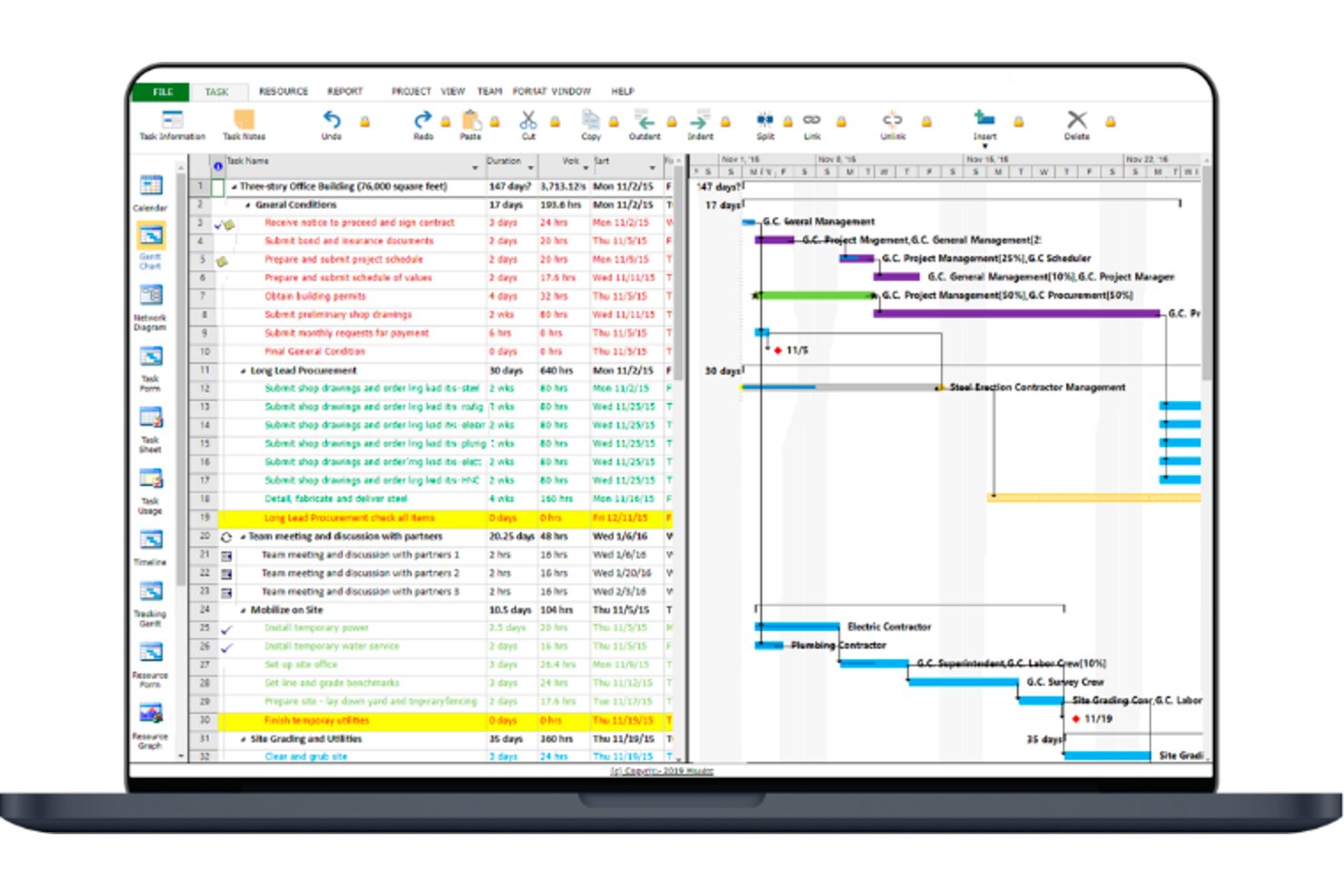
Project Viewer 365 è un visualizzatore dedicato di file MPP che consente di aprire, navigare e consultare i piani di Microsoft Project su Windows, Mac, iOS, Android e nei browser web, senza una licenza di Microsoft Project.
Per chi è più adatto Project Viewer 365?
Project Viewer 365 è particolarmente adatto ai team che lavorano su Windows, Mac e dispositivi mobili e necessitano di un accesso affidabile ai file .mpp senza acquistare ulteriori licenze di Microsoft Project.
Perché ho scelto Project Viewer 365
Project Viewer 365 si è guadagnato un posto nella mia selezione perché nessun altro visualizzatore MPP dedicato offre una compatibilità multipiattaforma paragonabile. Posso aprire lo stesso file .mpp su un computer Windows, un Mac, un iPhone e in un browser, senza installare Microsoft Project su nessuno di questi dispositivi. Il visualizzatore gratuito basato sul browser è particolarmente utile quando devo condividere un piano con una persona interessata che non può installare software. Le visualizzazioni delle baseline e del percorso critico vengono mantenute su tutte le piattaforme, quindi nulla va perso nella conversione.
Funzionalità principali di Project Viewer 365
- Visualizzazione del diagramma di rete: mostra le dipendenze e le relazioni tra le attività in un diagramma basato su nodi, riproducendo il layout del diagramma di rete di MS Project.
- Stampa in batch: invia più piani di progetto a una stampante in un'unica operazione, con Anteprima di stampa e filtro dell'intervallo di righe prima della stampa.
- Supporto per progetti master e sottoprogetti: apre e consente di navigare nei file di progetto master con sottoprogetti collegati, mantenendo i percorsi relativi dei file nell'intera gerarchia del progetto.
- Accesso all'archiviazione cloud: apre i file .mpp direttamente da OneDrive, Google Drive, Dropbox, Box, SharePoint e iCloud Drive senza doverli prima scaricare localmente.
Integrazioni di Project Viewer 365
Project Viewer 365 si integra con Google Drive, OneDrive, Dropbox, Box, SharePoint Online, iCloud Drive, Microsoft Project Server, Microsoft Project Online e BaseCamp. Non è documentata alcuna API pubblica.
Pros and Cons
Pros:
- Disponibile su Windows, Mac, dispositivi mobili e web
- Mantiene le baseline e le visualizzazioni personalizzate di MS Project
- Apre file MPP di grandi dimensioni senza conversioni
Cons:
- Nessuna modifica o annotazione nell'app
- Sono necessari abbonamenti separati per dispositivi mobili e computer

Ideale per andare oltre la semplice visualizzazione e passare al lavoro di squadra in tempo reale
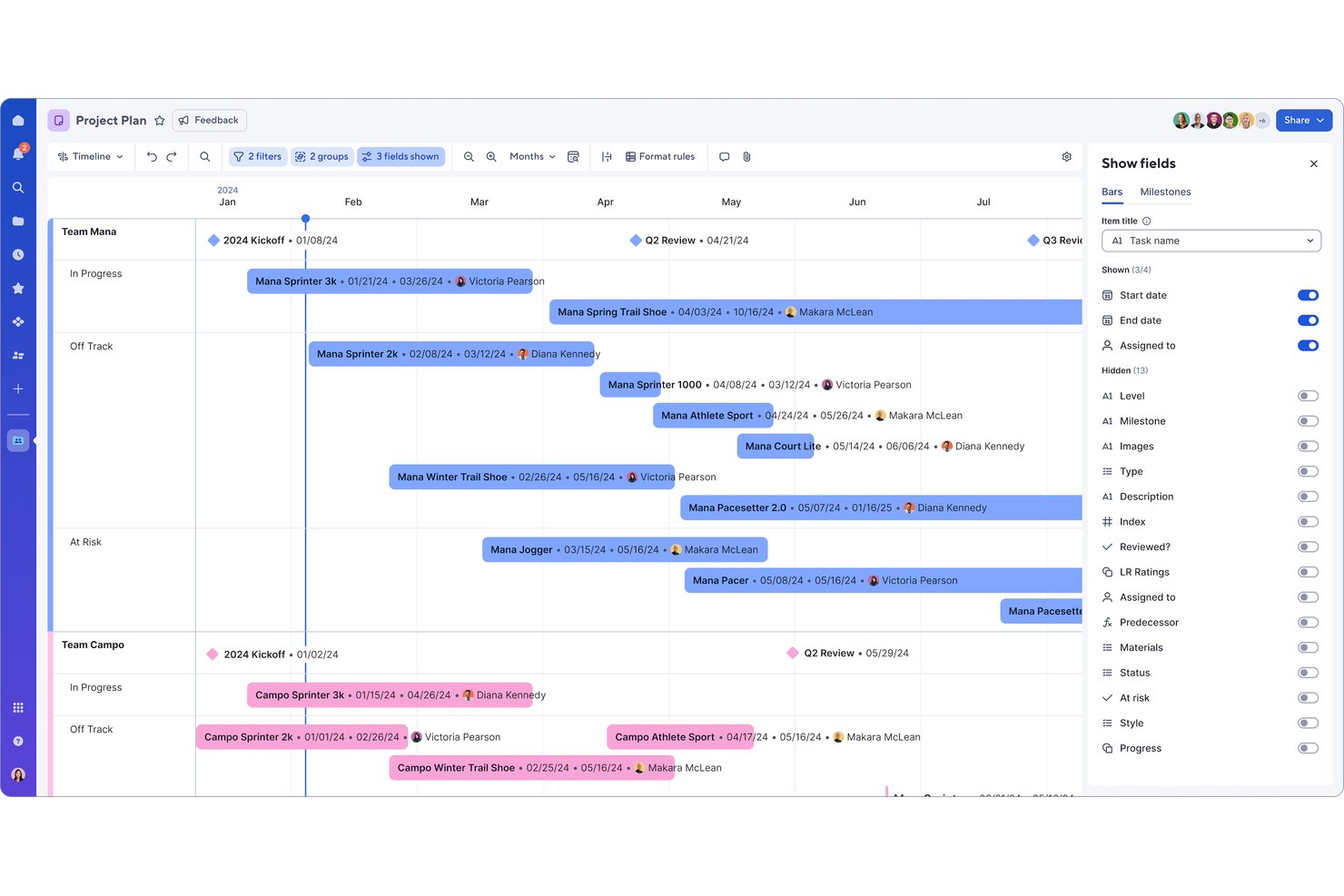
Smartsheet è una piattaforma di gestione del lavoro basata sul cloud che importa file di Microsoft Project (.mpp, .mpx, .xml) e li converte in diagrammi di Gantt interattivi, griglie di attività e viste delle risorse accessibili da qualsiasi browser senza una licenza di MS Project.
Per chi è più adatto Smartsheet?
Smartsheet è ideale per i responsabili di progetto e i team interfunzionali che vogliono andare oltre la semplice lettura passiva di un file di MS Project e passare alla gestione attiva del lavoro in tempo reale.
Perché ho scelto Smartsheet
Ho incluso Smartsheet tra le mie scelte principali perché è l'unico strumento di questo elenco che trasforma l'importazione di file .mpp in un lavoro completamente operativo e collaborativo in tempo reale, non in una semplice visualizzazione statica. Una volta importato il file di MS Project in Smartsheet, il team dispone della modifica collaborativa in tempo reale, di diagrammi di Gantt con attivazione e disattivazione del percorso critico e di livelli granulari di autorizzazione, così che gli stakeholder possano visualizzare, commentare o modificare i contenuti senza aver mai bisogno di una licenza di MS Project.
Funzionalità principali di Smartsheet
- Attivazione del percorso critico: Attiva o disattiva il percorso critico direttamente nella vista Gantt per identificare quali attività determinano la data di fine del progetto.
- Monitoraggio della linea di base: Salva una linea di base del progetto e confrontala visivamente con l'avanzamento effettivo nella vista Gantt, disponibile per tutti i livelli di autorizzazione, inclusi i Visualizzatori.
- Esportazione in più formati: Esporta i dati del progetto in formato PDF, Excel, PNG o XML per reinviarli a MS Project, con opzioni personalizzabili per l'impaginazione dei diagrammi di Gantt in PDF.
- Avvisi automatici e richieste di aggiornamento: Configura automazioni dei flussi di lavoro senza codice che informano gli stakeholder di modifiche, approvazioni o scadenze senza richiedere loro di effettuare l'accesso.
Integrazioni di Smartsheet
Smartsheet offre integrazioni native nell'ecosistema Microsoft, tra cui Microsoft Teams, Power BI, Microsoft 365, OneDrive e SharePoint, oltre a integrazioni con Jira e ServiceNow. Supporta inoltre Zapier e un'API REST per connessioni personalizzate.
Pros and Cons
Pros:
- Importa file .mpp per la collaborazione del team in tempo reale
- Consente l'accesso gratuito come visualizzatore ai programmi condivisi
- Supporta diagrammi di Gantt e linee di base interattivi
Cons:
- Non visualizza nativamente i file .mpp originali
- L'importazione può modificare le date o rimuovere i vincoli
New Product Updates from Smartsheet

Smartsheet Adds Non-Plan User Management in Admin Center
Smartsheet adds a Non plan users tab to the Seat types and true-up page in Admin Center. This lets system admins review non-plan users and add them to the plan or remove them from the organization in one place. For more information, visit Smartsheet’s official site.

Ideale per la sincronizzazione bidirezionale dei file .mpp con visualizzazione per gli ospiti
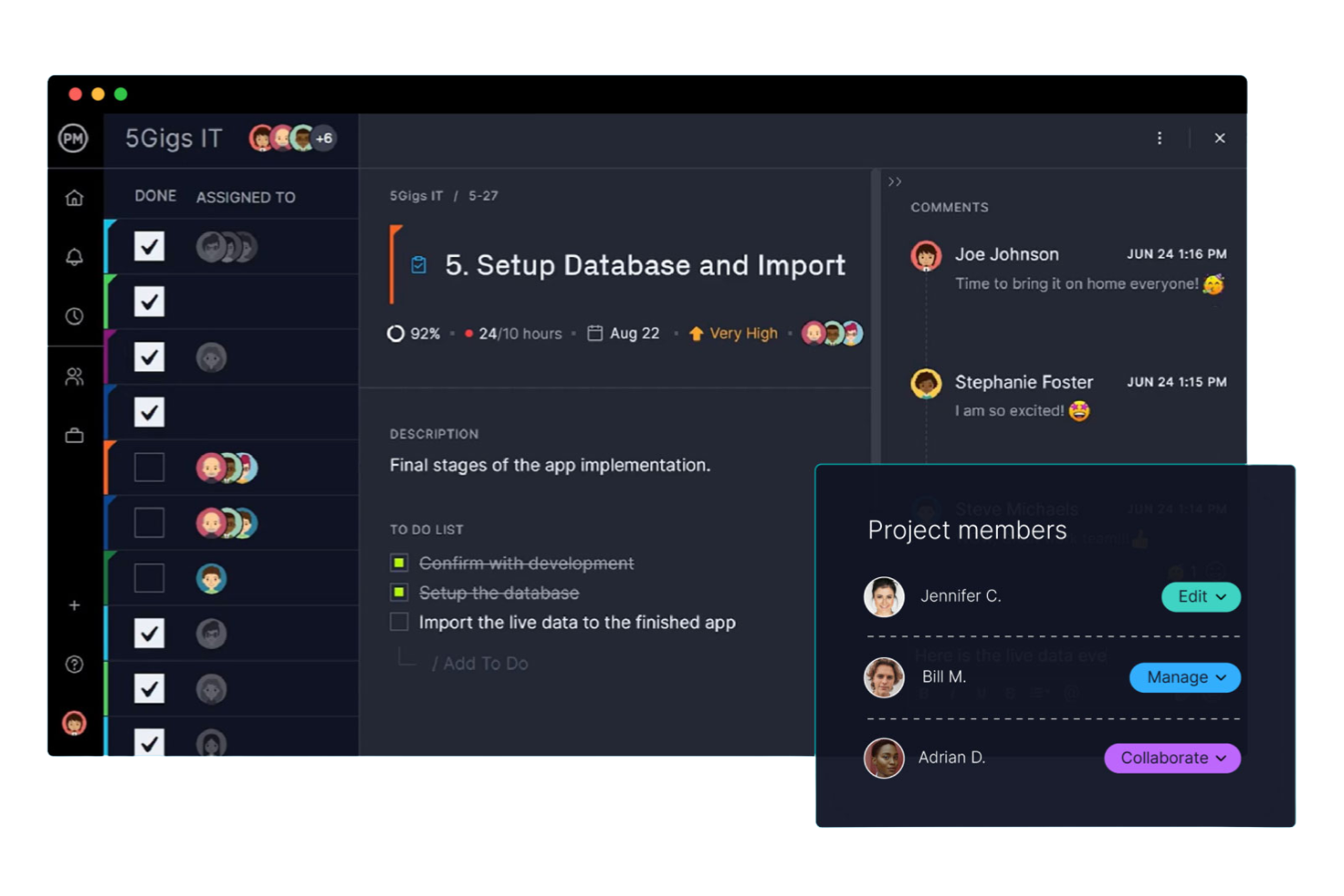
ProjectManager è una piattaforma di gestione dei progetti basata sul cloud che supporta l'importazione e l'esportazione di file MPP, diagrammi di Gantt interattivi, diverse visualizzazioni dei progetti e accesso illimitato in sola lettura per gli ospiti esterni.
Per chi è più adatto ProjectManager?
ProjectManager è ideale per i project manager che devono condividere con clienti o dirigenti pianificazioni .mpp aggiornate in tempo reale senza pagare licenze aggiuntive.
Perché ho scelto ProjectManager
Ho incluso ProjectManager tra le mie scelte principali perché la sua sincronizzazione bidirezionale dei file .mpp lo distingue dagli strumenti che consentono solo di leggere i file di MS Project. Posso importare il file .mpp di un cliente, aggiornare la pianificazione ed esportarlo nuovamente senza perdita di dati né necessità di riformattare alcunché. Trovo particolarmente utile la disponibilità di licenze ospite gratuite illimitate: clienti e dirigenti possono visualizzare diagrammi di Gantt aggiornati in tempo reale, evidenziazioni del percorso critico e confronti con il piano di riferimento senza dover acquistare una licenza a pagamento o disporre di una licenza di Microsoft Project.
Funzionalità principali di ProjectManager
- Filtro del percorso critico: evidenzia automaticamente il percorso più lungo delle attività dipendenti, così puoi vedere quali ritardi influiranno sulla data di fine del progetto.
- Monitoraggio del piano di riferimento: salva un'istantanea del piano originale e mostra lo scostamento rispetto ai valori effettivi direttamente sul diagramma di Gantt.
- Cinque visualizzazioni dei progetti: passa dalle visualizzazioni Gantt, Elenco, Foglio, Bacheca e Calendario per adattarti alle modalità di lavoro preferite dai diversi membri del team.
- Automazione dei flussi di lavoro: configura automazioni basate su regole per attivare aggiornamenti delle attività, notifiche o modifiche di stato senza interventi manuali.
Integrazioni di ProjectManager
ProjectManager offre integrazioni native con Microsoft Project, Microsoft Teams, Microsoft Excel, Power BI, Jira, Azure DevOps e Slack. Fornisce inoltre un'API per integrazioni personalizzate e supporta Zapier.
Pros and Cons
Pros:
- Visualizzazione gratuita e illimitata delle pianificazioni per gli ospiti
- La sincronizzazione bidirezionale dei file .mpp supporta le modifiche con andata e ritorno
- I diagrammi di Gantt corrispondono strettamente all'aspetto di MS Project
Cons:
- Non è disponibile un piano permanente gratuito per i visualizzatori
- Manca una visualizzazione del diagramma di rete o PERT

Il miglior pianificatore di tipo MS Project disponibile su PC, Mac e telefoni cellulari
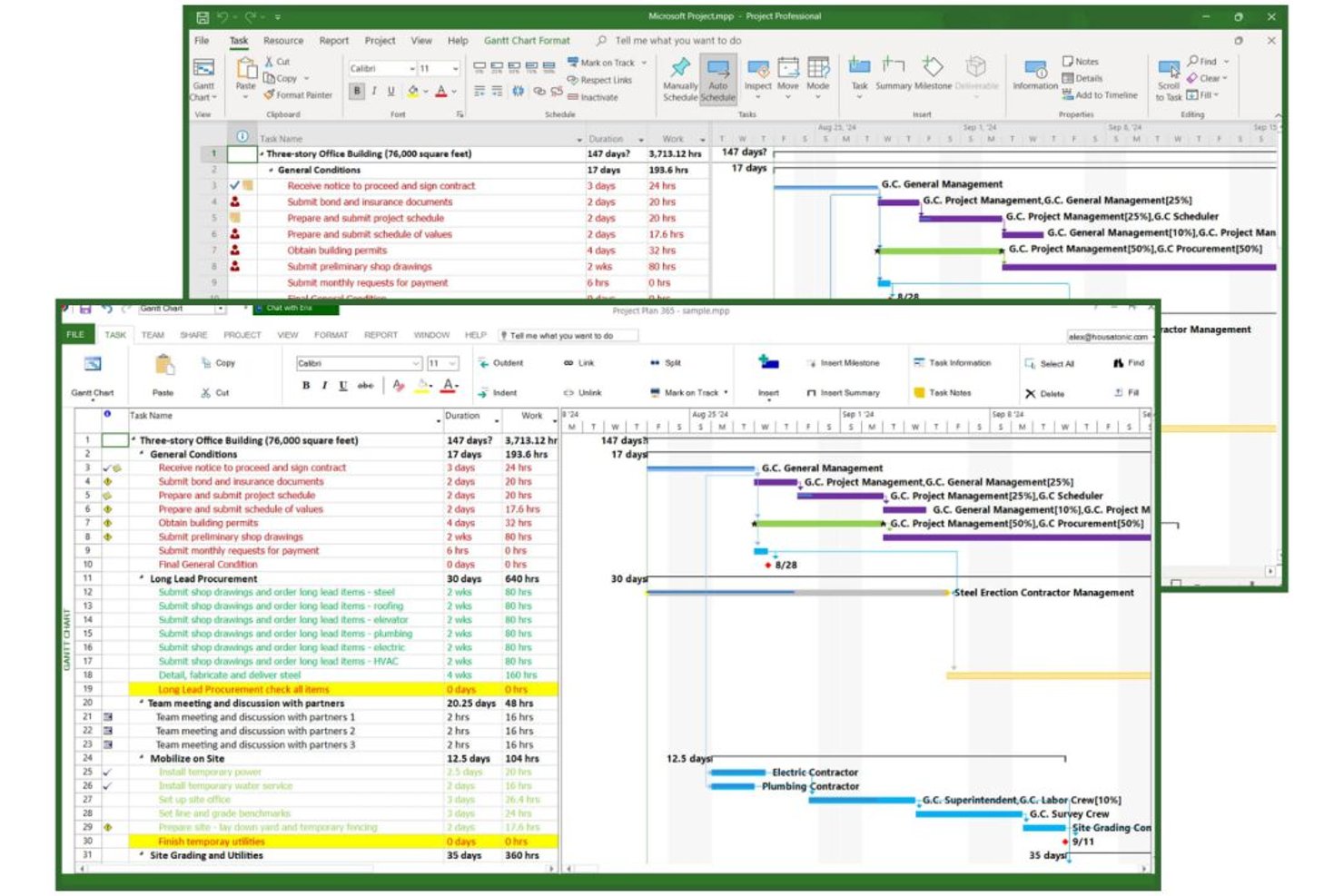
Project Plan 365 è un'applicazione multipiattaforma compatibile con MS Project che apre, modifica e salva file .MPP nativi su Windows, Mac, iOS, Android e web, senza richiedere una licenza di Microsoft Project.
Per chi è più adatto Project Plan 365?
Project Plan 365 è una scelta eccellente per i project manager che lavorano su Mac e per i team multipiattaforma che devono aprire, modificare e condividere file .MPP senza pagare licenze di MS Project.
Perché ho scelto Project Plan 365
Project Plan 365 è entrato nella mia selezione ristretta perché è l'unico editor .MPP nativo che funziona su Mac, Windows, iOS, Android e web con un unico abbonamento. L'ho scelto in particolare per i team multipiattaforma che trasferiscono file .MPP tra utenti Mac e Windows senza voler pagare licenze di MS Project su ogni macchina. Il visualizzatore gratuito basato su browser consente a qualsiasi stakeholder di aprire, stampare ed esportare istantaneamente un diagramma di Gantt in PDF o PowerPoint, senza bisogno di installazione.
Funzionalità principali di Project Plan 365
- Report sullo stato con Erix AI: Genera report sullo stato del progetto scritti dall'intelligenza artificiale, con riepiloghi esecutivi, metriche del valore acquisito e monitoraggio delle milestone, distribuibili tramite e-mail programmata.
- Archiviazione di più baseline: Memorizza più snapshot della baseline per progetto, per supportare il monitoraggio delle variazioni relative a costi, lavoro, durata e date di inizio/fine.
- Postazioni utente di sola lettura: I piani a pagamento includono 5–10 postazioni utente di sola lettura, consentendo agli stakeholder di visualizzare, stampare ed esportare i programmi senza una licenza a pagamento.
- Collaborazione in tempo reale: Il piano Business consente a più utenti di aprire e modificare contemporaneamente lo stesso file .MPP senza sovrascrivere l'originale.
Integrazioni di Project Plan 365
Project Plan 365 offre integrazioni native nell'ecosistema Microsoft, tra cui OneDrive, SharePoint Online, Microsoft Project Online e Project Server, oltre a Google Drive, Dropbox, Box, iCloud e Basecamp. È supportata l'esportazione del calendario di Microsoft Outlook, ma non è documentata un'API per le integrazioni personalizzate.
Pros and Cons
Pros:
- Apre e modifica file .MPP su Mac
- Modalità visualizzatore gratuita per l'accesso istantaneo dal browser
- Conserva tutte le principali visualizzazioni di MS Project
Cons:
- L'interfaccia appare datata e antiquata
- La collaborazione in tempo reale è disponibile solo nel piano Business

Miglior visualizzatore MPP gratuito per Windows, Mac e Linux
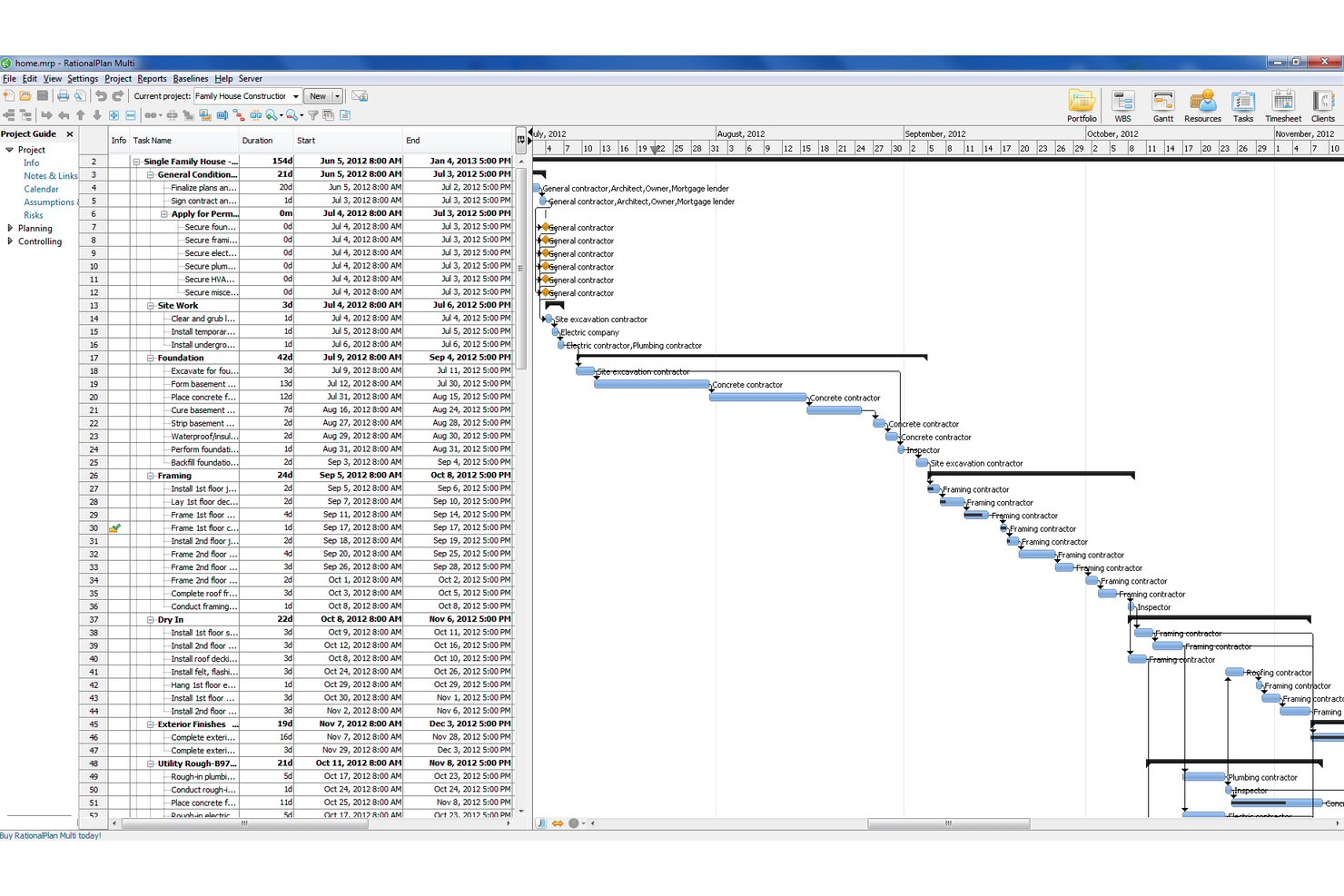
RationalPlan è un software multipiattaforma per la gestione dei progetti e la visualizzazione dei file MPP che apre i file di Microsoft Project in formati tra cui .mpp, .mpt, .xml e .mpx, con viste complete del diagramma di Gantt, del foglio attività, del foglio risorse e del diagramma di rete disponibili su Windows, Mac e Linux.
Per chi è più indicato RationalPlan?
RationalPlan è particolarmente adatto a ingegneri, stakeholder e project manager che utilizzano Windows, Mac o Linux e hanno bisogno di aprire e rivedere file .mpp senza pagare una licenza di Microsoft Project.
Perché ho scelto RationalPlan
RationalPlan è entrato nella mia lista ristretta perché è uno dei pochi visualizzatori MPP gratuiti eseguiti nativamente su Windows, Mac e Linux. Ho aperto file .mpp, .mpt, .xml e .mpx con questo strumento e il diagramma di Gantt viene visualizzato esattamente come in Microsoft Project, mantenendo l'ordine delle colonne, le larghezze e le posizioni dei riquadri. Mi piace anche il fatto che il visualizzatore gratuito consenta di esportare in PDF ed Excel, senza richiedere alcun aggiornamento.
Funzionalità principali di RationalPlan
- Attivazione del percorso critico: Mostra o nascondi il percorso critico direttamente nel diagramma di Gantt per identificare rapidamente quali attività determinano la data di fine del progetto.
- Vista del diagramma di rete: Visualizza le dipendenze e la sequenza delle attività in un diagramma basato su nodi, mantenuto dal file MS Project originale.
- Vista del foglio risorse: Esamina le assegnazioni delle risorse, la disponibilità e i dati di allocazione dal file di progetto importato senza modificare la fonte.
- Formati della scala temporale pluriennale: Visualizza pianificazioni a lungo termine utilizzando viste della scala temporale per anni/mesi o anni/trimestri per la pianificazione di progetti pluriennali.
Integrazioni di RationalPlan
RationalPlan non dispone di integrazioni native. Si collega ai file di Microsoft Project tramite importazioni di
.mpp
,
.mpt
,
.xml
e
.mpx
, con possibilità di esportazione in Excel e nel formato XML di MS Project.
Pros and Cons
Pros:
- Apre file .mpp, .mpt, .xml e .mpx
- Visualizzatore gratuito disponibile per tutti i principali sistemi operativi
- Mantiene esattamente le viste Gantt e delle risorse
Cons:
- Nessuna app mobile per iOS o Android
- Nessuna funzionalità di collaborazione in tempo reale per i team

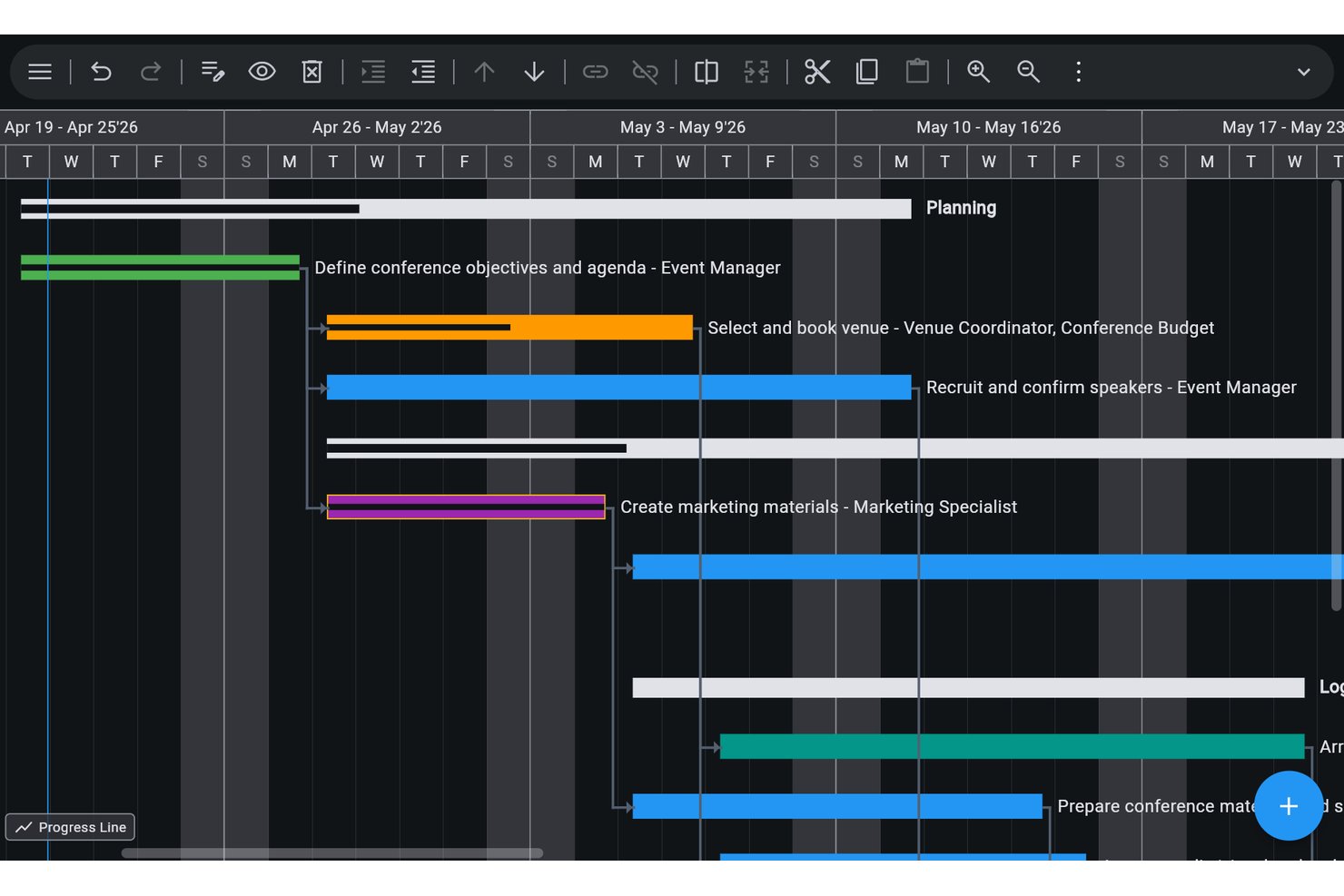
Ingantt è un visualizzatore multipiattaforma di Microsoft Project e uno strumento completo di pianificazione che apre file .mpp, .mpt, .mpx, Primavera P6 e diversi altri formati di file di progetto sul web, su desktop e su dispositivi mobili, senza richiedere una licenza di Microsoft Project.
Per chi è più adatto Ingantt?
Ingantt è particolarmente adatto ai responsabili di progetto e agli addetti alla pianificazione che lavorano regolarmente con file di Microsoft Project e Primavera P6 in squadre che utilizzano piattaforme diverse.
Perché ho scelto Ingantt
Ingantt si è guadagnato un posto nella mia rosa di strumenti perché è uno dei pochi software in grado di aprire sia file .mpp sia file di Primavera P6 (.xer, .pmxml) senza richiedere una licenza per nessuna delle due piattaforme. Ho lavorato con squadre che utilizzano entrambi gli ecosistemi e disporre di un unico visualizzatore in grado di gestire entrambi i formati elimina notevoli difficoltà operative. La vista Gantt di monitoraggio consente di sovrapporre le linee di base direttamente alla pianificazione attuale, permettendo di individuare a colpo d'occhio eventuali ritardi in un file importato.
Funzionalità principali di Ingantt
- Generatore di progetti basato sull'AI: Crea una pianificazione completa del progetto con attività, dipendenze e WBS a partire da una descrizione in testo semplice, senza limiti di token né abbonamenti separati.
- 10 viste sincronizzate: Include le viste Diagramma di rete, Utilizzo delle risorse, Pianificatore del team, Kanban e Calendario, che si aggiornano tutte in tempo reale quando apporti modifiche in una qualsiasi delle viste.
- Livellamento delle risorse: Risolve automaticamente le sovrallocazioni in base a priorità, margine o ID attività, con supporto per le attività in corso suddivise e le tabelle delle tariffe con efficacia in base alla data.
- Gestione del valore acquisito: Tiene traccia di 13 colonne EV, tra cui CPI, SPI, EAC e TCPI, calcolate in base alle tariffe delle risorse, ai costi fissi e a una data di stato del progetto definita.
Integrazioni di Ingantt
Ingantt si integra con Google Drive per l'archiviazione dei file, la condivisione, la cronologia delle versioni e la sincronizzazione senza connessione, ed è disponibile tramite Google Workspace Marketplace. Importa file di Microsoft Project e Primavera P6, ma non sono documentate integrazioni native con Microsoft 365, SharePoint, Teams, OneDrive e API.
Pros and Cons
Pros:
- Apre sia file .mpp sia file di Primavera P6
- Offre 10 viste sincronizzate della pianificazione del progetto
- Funziona su piattaforme web, desktop e mobili
Cons:
- Nessuna integrazione nativa con Microsoft 365 o Teams
- Supporta la condivisione in tempo reale solo tramite Google Drive
Altre opzioni di visualizzatori di Microsoft Project
Ecco alcune altre opzioni che non sono entrate nella lista principale. Aggiungerò a questa sezione quelle che suggerirai nei commenti!
- Wrike
Ideale per i team che vogliono abbandonare completamente MS Project
- Zoho Projects
Ideale per importare file MPP in una piattaforma completa per la gestione dei progetti
- Jira
Ideale per le squadre agili e i flussi di lavoro basati sulle attività
- Merlin Project
Ideale per l'importazione di file .mpp nativi di Apple e la visualizzazione dei set
- OmniPlan
Ideale per aprire file .mpp su Mac senza MS Project
- Project Reader
Ideale per visualizzare sei viste MPP su Windows
- Steelray
Il miglior visualizzatore esclusivo per Windows per file MS Project e P6
- Asta Powerproject
Ideale per la pianificazione dei lavori edili e la visualizzazione dei file XER
- MOOS Project Viewer
Ideale per licenze basate sull'utente su più piattaforme


Quali sono le alternative ai visualizzatori di Microsoft Project?
Le alternative ai visualizzatori di Microsoft Project sono strumenti che consentono agli utenti di aprire, visualizzare e talvolta modificare i file .MPP, senza dover utilizzare l’applicazione completa Microsoft Project.
Questi visualizzatori aiutano i membri del team, i portatori di interesse o gli utenti Mac/Windows ad accedere ai piani di progetto creati in MS Project, consentendo la collaborazione, la condivisione dei file e il monitoraggio senza dover acquistare costose licenze. Risolvono problemi come la compatibilità tra piattaforme, il costo delle licenze e l’accesso limitato per chi non è responsabile di progetto.
Come valuto i visualizzatori di Microsoft Project
Divido la mia valutazione in criteri di base—come la visualizzazione accurata dei file .mpp e l'accesso senza licenza—e fattori differenzianti che distinguono gli strumenti per stakeholder occasionali da quelli per i team PMO aziendali.
Funzionalità principali (requisiti minimi per questa lista)
Quando seleziono gli strumenti per la mia lista, valuto ciascun su una scala da 0 (non offre la funzionalità) a 5 (eccelle in quest'area) per ogni funzionalità principale elencata qui sotto. Poi, calcolo il punteggio totale dello strumento in percentuale. Ogni strumento deve raggiungere un punteggio totale minimo del 65% per poter essere considerato.
- Compatibilità file MPP: Controllo che lo strumento apra file .mpp, .mpx e XML su tutte le versioni di MS Project—da pianificazioni storiche del 2003 fino agli export delle versioni 365 attuali—senza perdite di layout o dati.
- Visualizzazione Gantt: Il visualizzatore deve mostrare grafici di Gantt interattivi con barre attività, collegamenti di dipendenza, milestone e percorso critico, corrispondenti a quanto si vede su MS Project nativo.
- Viste attività & risorse: Cerco più modalità di visualizzazione come fogli attività, tabelle di allocazione risorse e calendari, così schedulatori e stakeholder possono trovare i dati di cui hanno bisogno.
- Accesso standalone: Un motivo principale per usare un visualizzatore è evitare licenze extra di MS Project, quindi valuto se lo strumento funziona totalmente indipendente da qualunque installazione di Microsoft Project.
- Esportazione & supporto stampa: Gli esaminatori di progetti spesso devono distribuire pianificazioni in PDF o estrarre dati attività in Excel, quindi verifico i formati di esportazione disponibili e i controlli di layout di stampa.
- Condivisione & controlli di accesso: Valuto come lo strumento gestisce la condivisione di link in sola lettura e le impostazioni dei permessi, specialmente per i team che distribuiscono piani a clienti o collaboratori esterni.
Dopo aver raccolto gli strumenti che rispettano questi criteri, considero cosa distingue ciascuna piattaforma.
Fattori differenzianti (cosa distingue i fornitori)
Ecco come metto a confronto i diversi fornitori:
Caratteristiche distintive
L'accesso da mobile e web è importante quando ingegneri di cantiere o dirigenti in viaggio devono consultare le pianificazioni dal telefono senza installare software desktop. Valuto anche la funzione di confronto con la baseline e il monitoraggio delle varianze, che aiuta i responsabili PMO a rilevare derive di pianificazione rispetto ai piani originali senza aprire MS Project. La sincronizzazione bidirezionale è un altro elemento che vale la pena menzionare: permette ai visualizzatori di inviare aggiornamenti sullo stato delle attività direttamente al file .mpp di origine, risparmiando al responsabile della pianificazione di inseguire manualmente i progressi.
Oltre le caratteristiche
La struttura delle licenze è molto importante qui: alcuni visualizzatori fanno pagare per singolo utente mentre altri offrono licenze per tutta l'azienda, e il modello più adatto dipende se stai equipaggiando cinque responsabili PMO o centinaia di revisori esterni. Valuto anche la profondità di integrazione con strumenti come SharePoint, Teams, Jira e Primavera P6, poiché la maggior parte delle pianificazioni non vive in isolamento. Il ritmo di aggiornamento del fornitore è anch'esso rilevante, perché un visualizzatore che resta indietro rispetto ai nuovi formati di file di MS Project diventa rapidamente inaffidabile per i team che utilizzano le versioni più recenti.
Come scegliere un visualizzatore di Microsoft Project
È facile perdersi in lunghi elenchi di funzionalità e strutture di prezzo complesse. Per aiutarti a rimanere concentrato mentre affronti il tuo particolare processo di selezione del software, ecco una lista di fattori da tenere presenti:
| Fattore | Cosa considerare |
|---|---|
| Scalabilità | Assicurati che il visualizzatore possa crescere insieme alle esigenze del tuo team, gestendo un numero maggiore di progetti o utenti senza compromettere le prestazioni. |
| Integrazioni | Verifica la compatibilità con gli strumenti che utilizzi già, come Microsoft Office o i servizi di archiviazione cloud, per semplificare il flusso di lavoro. |
| Personalizzazione | Cerca opzioni che consentano di adattare l'interfaccia o le funzionalità ai processi specifici di gestione dei progetti del tuo team. |
| Facilità d'uso | Dai priorità a un'interfaccia intuitiva che richieda una formazione minima, così il tuo team potrà adattarsi rapidamente e rimanere produttivo. |
| Budget | Considera non solo il costo di acquisto, ma anche eventuali costi ricorrenti. Assicurati che la soluzione sia compatibile con i tuoi vincoli finanziari e che offra le funzionalità necessarie. |
| Misure di sicurezza | Assicurati che il software disponga di solide misure di sicurezza per proteggere i dati del progetto da accessi non autorizzati o violazioni. |
| Compatibilità | Verifica che il visualizzatore sia compatibile con le diverse versioni dei file di Microsoft Project che potresti incontrare. |
| Opzioni di supporto | Valuta la disponibilità dell'assistenza clienti e delle risorse, come tutorial o community di utenti, per ricevere aiuto quando si verificano problemi. |
Onestamente, c'è molto da assimilare e molta pressione per fare la scelta giusta; per questo ti suggerirei di utilizzare il nostro servizio di consulenza sui software di gestione dei progetti per aiutarti a selezionare gli strumenti per responsabili di progetto più adatti alle esigenze specifiche tue e della tua organizzazione.
Che cos'è un visualizzatore di Microsoft Project?
Un visualizzatore di progetti è uno strumento che puoi utilizzare per aprire e leggere file MPP nativi e tutti i dettagli di un piano di Microsoft Project senza dover installare Microsoft Project sul tuo computer.
Lo strumento consente di aprire, visualizzare e consultare i file di Microsoft Project senza dover utilizzare Microsoft Project. Permette di vedere i dettagli del progetto, gli elenchi delle attività, le tempistiche, le dipendenze e altre informazioni relative al progetto, senza poter apportare modifiche o correzioni al piano di progetto originale. Può essere utile per gli stakeholder, i clienti o i membri del team che devono rimanere informati sull'avanzamento del progetto o collaborare con i responsabili di progetto e i responsabili del team.
Funzionalità di un visualizzatore di Microsoft Project
Quando scegli un visualizzatore di Microsoft Project, presta attenzione alle seguenti funzionalità principali:
- Gestione delle attività: consente di visualizzare le attività e i relativi dettagli, come date di inizio e fine, durate e dipendenze, con viste chiare del diagramma di Gantt e della sequenza temporale. Sebbene la modifica delle attività non sia supportata dalla maggior parte degli strumenti, puoi monitorare efficacemente l'avanzamento del progetto.
- Gestione delle risorse: offre viste delle risorse che mostrano allocazioni e assegnazioni, aiutandoti a comprendere la distribuzione del carico di lavoro nel progetto. Tuttavia, la maggior parte degli strumenti non supporta la modifica delle risorse.
- Visualizzazione dei documenti: consente di accedere ai documenti e agli allegati incorporati nei file di progetto, offrendo visibilità sui file correlati alle attività per un recupero e una consultazione organizzati.
- Integrazioni: offre compatibilità con gli strumenti dell'ecosistema Microsoft, consentendo di visualizzare i dati del progetto insieme ai documenti archiviati in SharePoint o ai dati rappresentati nei cruscotti di Power BI.
- Strumenti di reportistica: consente di visualizzare i report e i cruscotti già incorporati nel file di progetto, facilitando l'analisi dell'avanzamento del progetto e delle metriche principali.
- Supporto multipiattaforma: è accessibile su diverse piattaforme, tra cui Windows, Mac e i browser web, garantendo l'accesso alle informazioni del progetto ovunque ti trovi.
- Formattazione condizionale: mostra le regole di formattazione applicate all'interno del file di progetto, evidenziando i dati critici o i campi importanti per una maggiore chiarezza.
- Convenienza economica: un'alternativa conveniente a Microsoft Project, che offre un modo per accedere ai dati del progetto senza richiedere una licenza completa.
Scegliendo un visualizzatore di Microsoft Project con queste funzionalità, puoi tenere facilmente sotto controllo i dettagli del progetto, monitorare l'avanzamento e mantenere informato il tuo team, risparmiando denaro e semplificando la supervisione del progetto.
Domande frequenti sul visualizzatore di Microsoft Project
Ecco alcune delle domande frequenti che ricevo sui visualizzatori di Microsoft Project.
Esiste un visualizzatore di progetti gratuito?
Sì. Puoi trovare visualizzatori gratuiti, come quello di Project Plan 365. Tuttavia, queste versioni gratuite consentono soltanto di leggere i file, non di modificarli.
Perché dovrei utilizzare un visualizzatore di progetti?
Mentre i responsabili di progetto e i responsabili della pianificazione creano i piani in Microsoft Project, gli altri membri del team non devono modificare i piani di progetto, ma solo aprirli e visualizzarli. Pertanto, puoi utilizzare un visualizzatore di progetti per consentire l'accesso in sola lettura a determinati membri del progetto e risparmiare sui costi delle licenze.
Inoltre, i visualizzatori di progetto possono essere utilizzati per garantire scalabilità e sicurezza a livello aziendale. Strumenti come Project Viewer 365, ad esempio, sono progettati tenendo conto della scalabilità, della sicurezza e della flessibilità delle licenze, per supportare implementazioni aziendali corporate con un numero elevato di utenti.
Poiché costa molto meno di una licenza standard di MS Project, il responsabile IT ti sarà grato per il risparmio sui costi delle licenze di Microsoft Project.