

Recensione dei 10 migliori strumenti per la collaborazione sui documenti 2026

Selezione dei migliori strumenti per la collaborazione sui documenti


Scegliere lo strumento giusto per la collaborazione sui documenti può essere difficile, vista la vasta gamma di opzioni disponibili. Vuoi ottimizzare il flusso di lavoro del tuo team e migliorare la produttività, ma devi capire quale strumento sia più adatto. Sono qui per aiutarti! In questo articolo, sfrutto la mia vasta esperienza con diversi strumenti di collaborazione utilizzati da vari team e in numerosi progetti per presentarti le opzioni migliori.
Gli strumenti per la collaborazione sui documenti consentono a più utenti di lavorare contemporaneamente sui documenti, garantendo aggiornamenti in tempo reale e una collaborazione fluida. Risolvono problemi fondamentali come il controllo delle versioni, le lacune nella comunicazione e i flussi di lavoro inefficienti.
Perché fidarsi dei nostri consigli sui software
Il nostro team testa e recensisce software dal 2012. In quanto project manager noi stessi, sappiamo quanto sia difficile — e importante — scegliere il software giusto.
Per questa guida, abbiamo valutato gli strumenti attraverso test pratici e ricerche indipendenti, assegnando un punteggio agli strumenti in base ai nostri criteri di selezione. Ci basiamo inoltre sulle competenze di leader di pensiero del settore e di professionisti attivi nella gestione dei progetti.
Le nostre recensioni riflettono il nostro giudizio editoriale umano, non un discorso di vendita.
Revisori esperti:
Tabella comparativa degli strumenti per la collaborazione sui documenti
| Tool | Best For | Trial Info | Price | ||
|---|---|---|---|---|---|
| 1 | Ideale per la gestione della conoscenza potenziata dall’IA | Prova gratuita di 14 giorni + demo gratuita disponibile | Da $10/utente/mese (fatturazione annuale) | Website | |
| 2 | Ideale per combinare documenti e app in un'unica piattaforma | Prova gratuita + piano gratuito + demo gratuita disponibili | Da $10/creatore di documenti/mese (fatturazione annuale) | Website | |
| 3 | Ideale per la gestione progetti tutto-in-uno | Piano gratuito + demo gratuita disponibile | Da $7/utente/mese (fatturazione annuale) | Website | |
| 4 | Ideale per strumenti di produttività potenziati dall’intelligenza artificiale | Prova gratuita di 14 giorni disponibile | Da $7/utente/mese (fatturazione annuale) | Website | |
| 5 | Ideale per chi cerca integrazione completa della suite d’ufficio | Prova gratuita di 30 giorni disponibile | A partire da $6/utente/mese (fatturazione annuale) | Website | |
| 6 | Ideale per l'integrazione con Dropbox | Disponibile piano Dropbox gratuito | Da $9.99/persona/mese (fatturato annualmente) | Website | |
| 7 | Ideale per integrazione con Salesforce | Non disponibile | Da $10/utente/mese (fatturazione annuale) | Website | |
| 8 | Ideale per l’archiviazione sicura dei file di team | Prova gratuita di 15 giorni + demo gratuita disponibile | A partire da $2.50/utente/mese (fatturazione annuale) | Website | |
| 9 | Ideale per la collaborazione di team remoti | Prova gratuita di 7 giorni + piano gratuito disponibile | A partire da $5.42/utente/mese | Website | |
| 10 | Ideale per la collaborazione e la reportistica in tempo reale | Prova gratuita di 14 giorni | Da $10/utente/mese (con fatturazione annuale) | Website |

Recensioni dei migliori strumenti per la collaborazione sui documenti
Questa sezione offre un’analisi approfondita e una panoramica dei vari strumenti per la collaborazione sui documenti. Esamineremo i loro vantaggi e svantaggi, le funzionalità e i casi d’uso più indicati.

Slite
Ideale per la gestione della conoscenza potenziata dall’IA

Ho scelto Slite per questa lista perché è uno dei pochi strumenti che rivoluziona la gestione della conoscenza con l’IA pur rimanendo intuitivo per la collaborazione quotidiana sui documenti. I team con cui lavoro si affidano a Slite quando la documentazione inizia a proliferare e trovare risposte aggiornate diventa complicato.
Quello che apprezzo di più di Slite è il modo in cui utilizza l’IA per mettere in evidenza contenuti rilevanti, automatizzare i riassunti e persino generare documentazione dalle conversazioni del team. Mi sono affidato alla ricerca e ai suggerimenti intelligenti di Slite per aiutare i team a riscoprire facilmente conoscenze sepolte e ridurre le domande ripetitive.
Ideale per
- Team di prodotto, ingegneria e supporto che necessitano di una base di conoscenza e documentazione guidata dall’IA
- Team distribuiti che fanno fatica a mantenere le informazioni organizzate e facili da trovare
Non adatto per
- Team che necessitano di una formattazione avanzata dei documenti o controlli di pubblicazione complessi
- Organizzazioni con requisiti di conformità rigorosi o gestione complessa degli archivi
Cosa distingue Slite
Ciò che mi colpisce di Slite è il modo in cui affronta la documentazione come un processo guidato dalla conversazione e arricchito dall’IA, piuttosto che come un archivio statico. Invece di limitarsi a conservare i documenti, il design di Slite sfuma i confini tra chat, domande e risposte e documentazione approfondita—soprattutto se confrontato con strumenti più tradizionali come Confluence, che separano la gestione della conoscenza dal dialogo quotidiano del team.
Quando vedo i team discutere il lavoro su Slite, sembra più un passaggio da una wiki statica a un flusso di conoscenza in cui risposte e spiegazioni emergono dinamicamente mentre il lavoro avanza.
Compromessi con Slite
Slite privilegia la collaborazione e la scoperta rapide guidate dall’IA rispetto a un’organizzazione o controlli di pubblicazione rigorosi. Ciò significa che i team ottengono risposte immediate, ma può rendere più difficile gestire versioni dettagliate, governance della documentazione o approvazioni formali man mano che i contenuti aumentano.
Pros and Cons
Pros:
- Base di conoscenza integrata
- Suggerimenti di contenuto basati sull’IA
- Organizzazione intelligente dei documenti
Cons:
- Integrazioni limitate con terze parti
- Opzioni di personalizzazione limitate per l’interfaccia utente e il layout dei documenti
Coda
Ideale per combinare documenti e app in un'unica piattaforma

Coda non è solo un altro strumento di collaborazione: si distingue per il modo in cui combina la documentazione e la funzionalità delle app personalizzate all'interno dello stesso spazio di lavoro. Di solito consiglio Coda quando i team iniziano a sentirsi frustrati dal divario tra documenti statici e flussi di lavoro reali che richiedono elementi interattivi.
Ciò che apprezzo di più è che puoi incorporare tabelle, pulsanti e automazioni direttamente accanto ai tuoi appunti delle riunioni o alle specifiche di progetto, così i tuoi documenti conducono davvero all'azione. I team tendono a usare Coda quando i documenti tradizionali non sono sufficienti e hanno bisogno di documenti dinamici che funzionino più come applicazioni che come file.
Coda è ideale per
- Team che vogliono creare documenti interattivi che fungano anche da leggere app interne
- Gruppi che necessitano di flussi di lavoro flessibili e personalizzabili per progetti o condivisione di conoscenze
Coda non è adatto a
- Team che necessitano solo della modifica di documenti statici senza elementi interattivi
- Organizzazioni con controllo di versione dei documenti rigoroso o catene di approvazione complesse
Cosa distingue Coda
Coda ribalta il modello abituale degli strumenti di documentazione permettendo ai team di combinare testo, dati ed elementi interattivi in un'unica area di lavoro. Mentre strumenti come Google Docs separano i documenti dalle applicazioni, Coda si aspetta che i team creino flussi di lavoro che vivono all’interno dei loro documenti – integrando tabelle, pulsanti e automazioni come elementi di primo livello.
Invece di trattare documentazione e processi come separati, è pensato per i gruppi che vogliono documenti dinamici che gestiscono veramente parti delle loro operazioni, quasi come strumenti interni leggeri. Questa filosofia porta le persone a combinare specifiche, monitoraggio e collaborazione sui progetti senza mai uscire dal documento.
Compromessi con Coda
Coda punta tutto sulla flessibilità e sulla fusione di app e documenti, ma questo significa che non impone una struttura come fanno gli strumenti di documentazione tradizionali. I team possono ritrovarsi con spazi di lavoro vasti e incoerenti se nessuno stabilisce standard o linee guida chiare.
Pros and Cons
Pros:
- Manipolazione interattiva dei dati
- Automazione all'interno dei documenti
- Modifica di formule in tempo reale
Cons:
- Nessun strumento di gestione progetti predefinito
- Accesso limitato alle API

ClickUp
Ideale per la gestione progetti tutto-in-uno

ClickUp merita un posto nella mia lista perché riunisce tutti i livelli della collaborazione—attività, documenti, wiki e discussioni— in un unico spazio di lavoro. Trovo che questo approccio all-in-one aiuti i team a evitare la dispersione di documenti, poiché tutto, inclusi appunti delle riunioni e piani di progetto, rimane contestualizzato.
Il mio team utilizza i Docs di ClickUp per co-modificare specifiche direttamente insieme alle attività, usando commenti, cronologia delle versioni e modifica in tempo reale per mantenere il gruppo sincronizzato. Apprezzo come i riferimenti, gli embed e le attività collegate riducano le duplicazioni disordinate e rendano chiari i punti di passaggio.
ClickUp è Ideale Per
- Team di prodotto, marketing e agenzie che hanno bisogno di attività, documenti e knowledge base in un'unica piattaforma
- Responsabili di progetto che desiderano la collaborazione su documenti dal vivo, collegata direttamente ai flussi di lavoro di progetto
ClickUp Non è Ideale Per
- Team che necessitano solo di una semplice condivisione di documenti senza l'integrazione di progetti o attività
- Gruppi che cercano strumenti documentali pensati per la gestione di contenuti legali complessi o altamente regolamentati
Cosa Rende ClickUp Unico
ClickUp affronta la collaborazione fondendo documenti, attività e conversazioni in un unico ambiente flessibile. Invece di trattare documenti e lavoro di progetto come separati, tutto ruota nello stesso spazio—un approccio opposto rispetto, ad esempio, a Google Workspace o Confluence, che tengono i documenti separati dagli elementi di azione e dal contesto delle attività.
Mentre piattaforme come Notion puntano sull'organizzazione wiki e sull'eleganza dei documenti, ClickUp prevede che i team lavorino su documenti e piani di progetto a stretto contatto con i flussi di lavoro attivi, mantenendo collegati passaggi e discussioni.
Compromessi con ClickUp
ClickUp punta molto su flessibilità e unificazione dei flussi di lavoro, ma questa combinazione può diventare caotica se i team desiderano una netta separazione tra documenti e attività. Di solito, ciò che accade è che la documentazione si perde quando i progetti crescono e i nuovi utenti aggiungono dettagli in troppi posti.
Pros and Cons
Pros:
- Integrazione di attività e contenuti multimediali nei documenti
- Gerarchie documentali personalizzabili
- Funzione di ricerca globale tra documenti e attività
Cons:
- Gestione complessa dei permessi sui documenti
- Mancanza di funzionalità avanzate di editing

Ideale per strumenti di produttività potenziati dall’intelligenza artificiale

Quello che colpisce è quanto sia semplice e veloce lavorare insieme nello stesso documento.
Per chi è migliore Google Workspace
- Team che necessitano di una collaborazione e co-redazione di documenti veloce e in tempo reale
Organizzazioni che fanno grande affidamento su documenti condivisi per comunicazione, feedback e condivisione della conoscenza
Quando Google Workspace non è l'ideale
- Team che necessitano di formattazioni complesse o strutture documentali altamente personalizzate
Organizzazioni che richiedono un rigido controllo dei dati, workflow completamente offline o ambienti non basati su cloud
Cosa distingue Google Workspace
Quello che mi colpisce di più è la naturalezza con cui permette ai team di lavorare insieme nello stesso documento. Invece di scambiarsi i file, tutto avviene in uno spazio condiviso—modifica, commenti e iterazioni avvengono in tempo reale.
Rispetto a strumenti come Confluence, che sono più strutturati e orientati alla documentazione, Google Workspace è pensato per collaborazione continua e iterazioni rapide. Le funzioni AI sono integrate, ma il vero vantaggio è quanto sia senza attriti la collaborazione.
Compromessi con Google Workspace
Poiché è ottimizzato per la collaborazione in tempo reale, le cose possono diventare caotiche quando molte persone modificano contemporaneamente. La cronologia delle versioni aiuta, ma spesso i team hanno bisogno di processi leggeri per mantenere i documenti organizzati ed evitare confusione.
Pros and Cons
Pros:
- Ricerca integrata potenziata dall’IA
- Rilevamento e traduzione automatica della lingua
- Modifica offline con sincronizzazione automatica
Cons:
- Sfide di integrazione con prodotti e servizi non Google
- Opzioni di personalizzazione e formattazione limitate

Ideale per chi cerca integrazione completa della suite d’ufficio
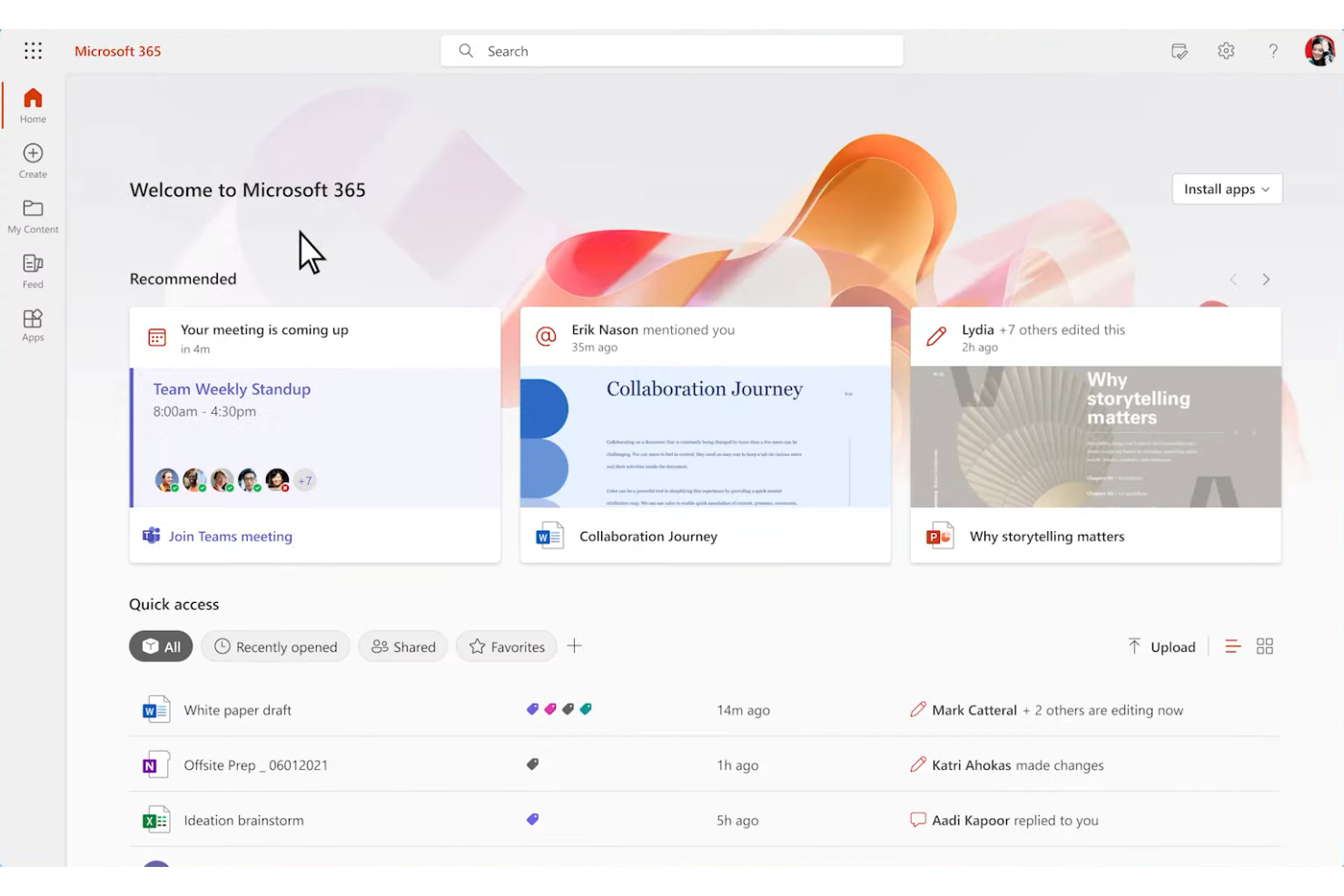
Microsoft 365 è la mia scelta preferita quando i team sono già inseriti nell’ecosistema Microsoft e hanno bisogno di collaborazione sui documenti profondamente integrata nelle attività quotidiane. Secondo me aggiunge davvero valore quando si riuniscono Word, Excel, PowerPoint e OneDrive sia per la modifica sincrona che asincrona, senza dover passare continuamente da un’app all’altra.
Ciò che mi colpisce particolarmente è la possibilità di co-creare, tracciare la cronologia delle versioni e commentare direttamente nel testo senza problemi. Ho visto più volte team interfunzionali usare le app web per riprendere rapidamente un documento da dove qualcun altro l’aveva lasciato, rendendo anche le revisioni più grandi e complesse gestibili e organizzate.
Per chi è ideale Microsoft 365
- Aziende già inserite nell’ecosistema Microsoft che vogliono un’integrazione stretta tra documenti, fogli di lavoro e presentazioni
- Team trasversali che necessitano di co-creazione in tempo reale, commenti e controllo delle versioni all’interno delle familiari app Office
Quando Microsoft 365 non è la soluzione migliore
- Team che hanno bisogno di esperienze collaborative molto visuali, creative o in stile kanban oltre ai documenti tradizionali
- Gruppi che danno priorità a strumenti leggeri, pensati solo per il cloud, senza la complessità di licenze, amministrazione o aggiornamenti Microsoft
Cosa distingue Microsoft 365 dagli altri
Quello che noto con Microsoft 365 è che considera i documenti la base del lavoro di squadra, non solo risorse di supporto. Invece di puntare su nuovi modelli di collaborazione come Notion o Airtable, si aspetta che i team lavorino intorno ai file tradizionali—Word, Excel e PowerPoint—dove chiunque può intervenire, rivedere, modificare e commentare in tempo reale o in asincrono.
Rispetto a Google Workspace, c’è una maggiore attenzione al controllo delle versioni, alla fedeltà dei documenti e all’allineamento con le esigenze aziendali. Microsoft 365 parte dal presupposto che tu voglia un set di strumenti ricco e standardizzato, che abbia lo stesso aspetto e comportamento su tutti i dispositivi e organizzazioni.
Compromessi di Microsoft 365
Microsoft 365 è ottimizzato per completezza e piena compatibilità con i flussi di lavoro legacy, ma questo può rallentare la collaborazione più semplice. Inizi ad avere a che fare con impostazioni di condivisione complesse e a volte confusione su quale app o versione stai usando.
Pros and Cons
Pros:
- Gestione delle attività integrata
- Integrazioni automatizzate dei flussi di lavoro
- Strumenti di lavoro avanzati e personalizzati
Cons:
- Strutture di licenza complesse
- Collaborazione in tempo reale limitata in alcune app

Ideale per l'integrazione con Dropbox
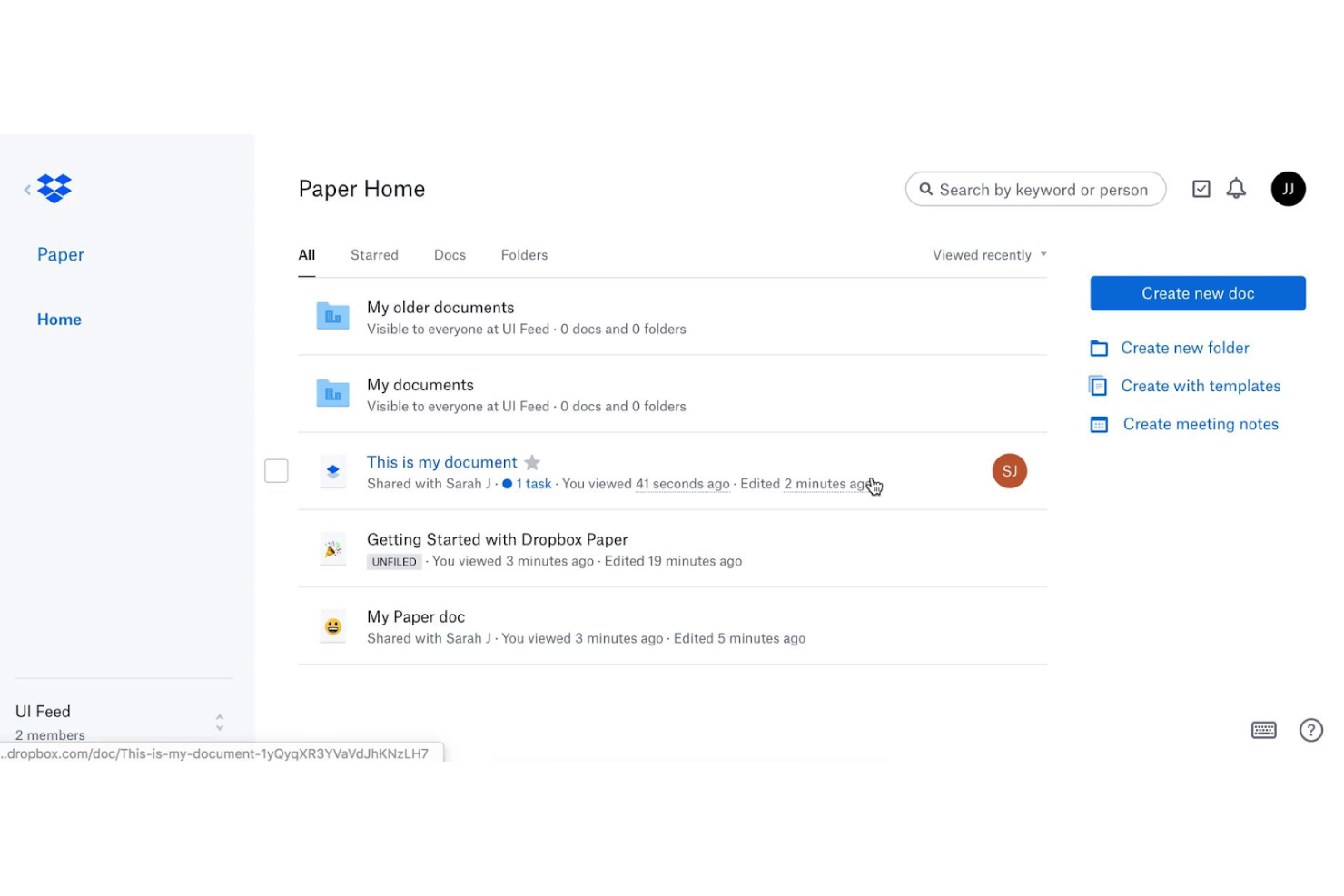
Includo Dropbox Paper in questo elenco perché è l'unico strumento di collaborazione sui documenti che si integra davvero nel flusso di lavoro di Dropbox per le aziende già investite in quell'ecosistema. Ho visto i team ottenere il massimo da questo strumento quando lavorano con molti file incorporati e hanno bisogno che ogni documento si sincronizzi automaticamente insieme ai contenuti Dropbox.
Dropbox Paper eccelle nel collegare, visualizzare in anteprima e commentare i file—soprattutto quando si tratta di tracciare feedback su un vasto pool di documenti interconnessi. Apprezzo molto il fatto che si possano commentare sezioni specifiche o elementi multimediali, così le conversazioni rimangono ancorate e visibili proprio dove servono.
Dropbox Paper è ideale per
- Team che già archiviano e gestiscono file in Dropbox e desiderano documenti integrati in quel flusso di lavoro
- Progetti creativi in cui documenti, immagini e feedback sui file devono restare strettamente collegati
Dropbox Paper non è adatto per
- Team che necessitano di permessi dettagliati sui documenti o formattazione avanzata
- Organizzazioni alla ricerca di automazioni complesse dei workflow o integrazioni avanzate al di fuori di Dropbox
Cosa distingue Dropbox Paper
Dropbox Paper tratta la collaborazione sui documenti come un’estensione della gestione dei file, anziché come uno spazio di lavoro autonomo come Google Docs o Notion. Considera i documenti parte di un ecosistema di contenuti in continua evoluzione, rendendo feedback, immagini e incorporamenti di file naturali invece che accessori.
A differenza degli strumenti che isolano i documenti dal tuo archivio file, Paper presume che il tuo flusso di lavoro sia già organizzato in cartelle Dropbox e aggiunge semplicemente la modifica in tempo reale sopra di esso. Raramente vedo che costringa i team ad adottare nuove abitudini di lavoro—l'idea è che tu stia già lavorando da Dropbox, e Paper aggiunge solo un ulteriore livello per collaborare.
Compromessi con Dropbox Paper
Dropbox Paper è ottimizzato per la semplicità e per adattarsi al modello di gestione file-centrico di Dropbox, ma ciò significa che i team che necessitano di una gestione dei documenti più strutturata, permessi avanzati o integrazioni potranno incontrare dei limiti. Per mia esperienza, la frizione emerge quando si vogliono realizzare workflow complessi—funzionalità che in Notion o Confluence funzionano benissimo qui rischiano di diventare macchinose.
Pros and Cons
Pros:
- Strumenti integrati di base per la gestione delle attività
- Liste di cose da fare automatiche
Cons:
- Contenuti web incorporabili
- Opzioni di formattazione limitate
- Integrazioni limitate con servizi non Dropbox

Quip
Ideale per integrazione con Salesforce
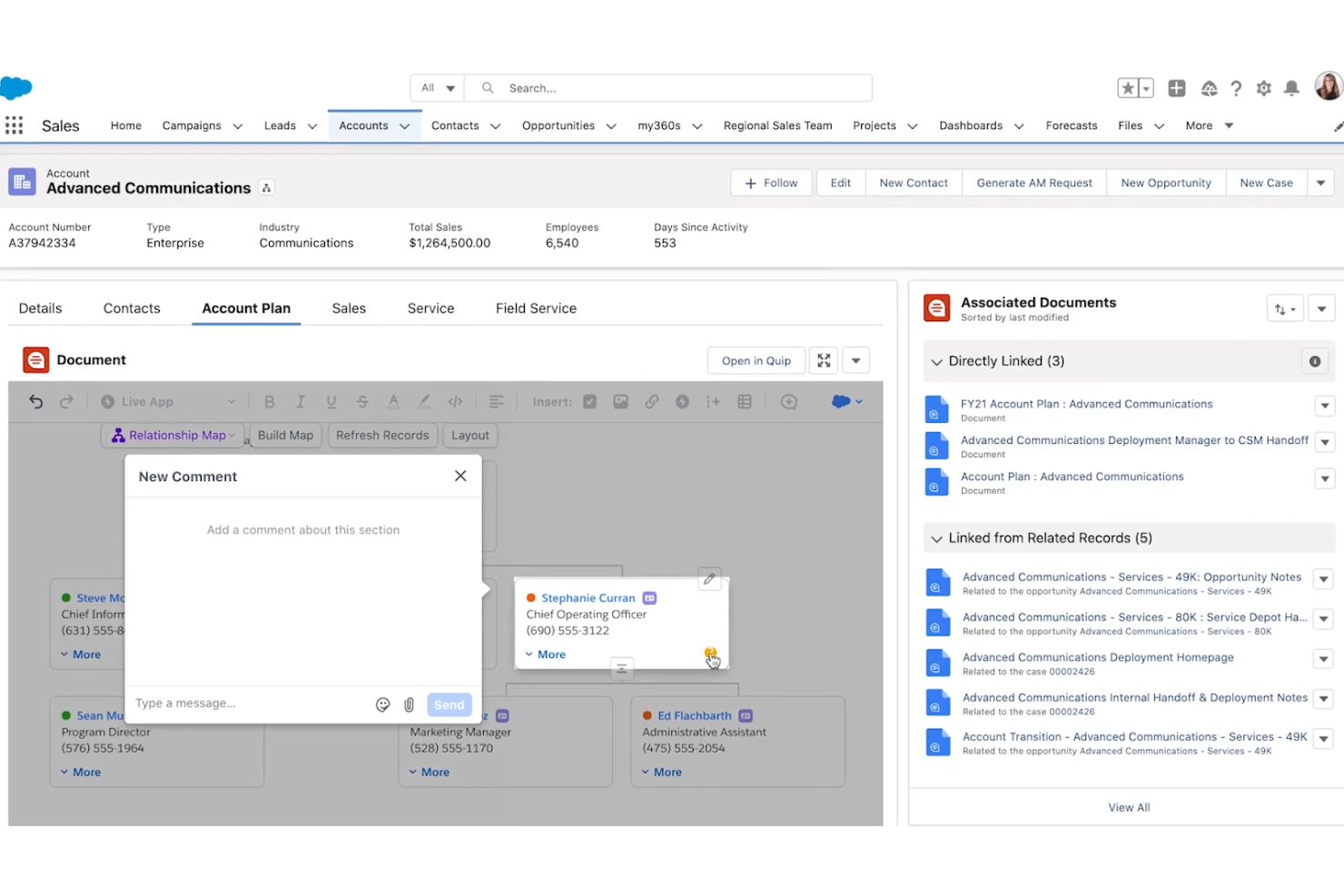
Quip merita un posto nella mia lista per come integra in modo nativo la collaborazione sui documenti ai flussi di lavoro di Salesforce. Mi affido spesso a Quip quando i team lavorano principalmente su Salesforce e hanno bisogno che documenti, fogli di calcolo e liste di attività siano strettamente collegati a dati live e record CRM.
Quello che distingue davvero Quip, secondo me, è la possibilità di incorporare report Salesforce e dati strutturati direttamente nei documenti. Questo rende possibile condurre revisioni delle trattative o documenti di pianificazione per i clienti che mostrano sempre dati aggiornati in tempo reale—una fluidità che non ho visto gestita così bene altrove.
Ideale per
- Team che necessitano di collaborazione sui documenti in tempo reale integrata direttamente con i dati Salesforce
- Team di vendita, customer success e account management che lavorano all’interno di Salesforce
Non ideale per
- Team che non usano Salesforce come parte fondamentale del flusso di lavoro
- Chi ha bisogno di funzioni avanzate di formattazione o pubblicazione dei documenti
Cosa distingue Quip
L’approccio di Quip consiste nell’intrecciare documenti, fogli di calcolo e conversazioni direttamente dove avviene il lavoro su Salesforce. Al contrario di Google Docs o Microsoft 365, Quip prevede che le conversazioni, i piani di progetto e le note condivise della tua squadra si trovino affiancate ai dati CRM in tempo reale, non fuori da essi. L’intero sistema dà per scontato che tu viva in Salesforce e voglia che i tuoi documenti si aggiornino automaticamente con gli ultimi dettagli della pipeline o informazioni sui clienti.
Rispetto a strumenti come Notion, che danno priorità a basi di conoscenza flessibili, Quip mette l’accento sull’integrazione in tempo reale più che sulla struttura avanzata dei documenti o la personalizzazione spinta. Tutto in Quip sembra progettato per ridurre i costi di passaggio tra la documentazione e i flussi di lavoro quotidiani di vendita o supporto.
Compromessi di Quip
Quip è ottimizzato per l’integrazione con Salesforce, il che significa che l’esperienza di editing dei documenti è più semplice e focalizzata sulla sincronizzazione con i dati business in tempo reale. In genere, i team che necessitano di layout avanzati o di rifiniture editoriali si scontrano con dei limiti, poiché Quip privilegia aggiornamenti live e funzionalità rispetto alla ricca formattazione.
Pros and Cons
Pros:
- Incorporamento di dati live da Salesforce
- Collaborazione in tempo reale con chat integrata
- Organizzazione multilivello dei documenti
Cons:
- Opzioni di formattazione dei documenti limitate
- Dipende dall'integrazione con Salesforce

Ideale per l’archiviazione sicura dei file di team
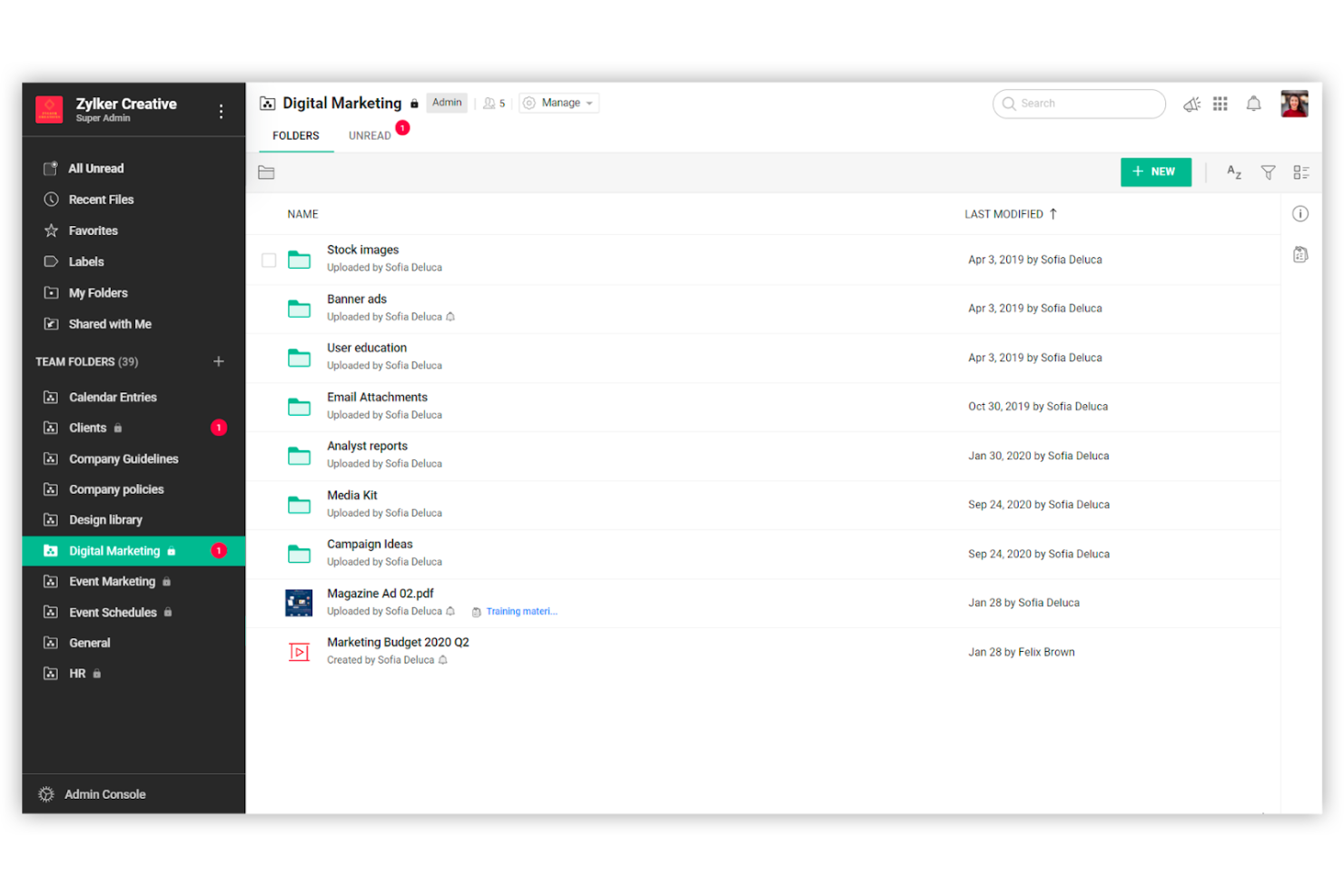
Zoho WorkDrive entra nella mia selezione di strumenti per la collaborazione sui documenti grazie all’elevata priorità che dà all’archiviazione sicura dei file di team senza sacrificare i flussi di lavoro in tempo reale. Ho lavorato con team distribuiti che si affidano a controlli di accesso dettagliati e storici delle attività, soprattutto durante fasi progettuali sensibili.
Ciò che apprezzo di Zoho WorkDrive sono le Cartelle di Team, che consentono di centralizzare i file per progetto mantenendo limiti di sicurezza rigorosi. La dashboard di amministrazione offre una chiara panoramica delle attività sui file e sulle condivisioni, una funzione molto utile quando ci sono esigenze di conformità o riservatezza.
Ideale per
- Team distribuiti che necessitano di uno spazio centralizzato e sicuro per i file, con controlli di accesso dettagliati
- Organizzazioni con esigenze di conformità dove le tracce di controllo e la gestione dei permessi sono fondamentali
Meno indicato per
- Team che cercano co-editing avanzato dei documenti in tempo reale con commenti approfonditi nell’applicazione
- Gruppi creativi che si affidano a anteprime visive dei file o a funzionalità di collaborazione multimediale
Cosa distingue Zoho WorkDrive
Ciò che mi colpisce di Zoho WorkDrive è come ponga l’archiviazione sicura e la struttura organizzativa al centro della collaborazione. Invece di trattare i documenti come semplici file dispersi in un drive condiviso, si aspetta che i team costruiscano Cartelle di Team con permessi stratificati e controlli sulla visibilità—più simile a un archivio digitale che a uno spazio di condivisione informale. Rispetto a Google Drive, che privilegia la condivisione ampia e l’accesso rapido, Zoho WorkDrive è progettato per una governance più rigida e un maggiore controllo centralizzato.
Questo approccio funziona al meglio quando i team devono sapere esattamente chi gestisce ciascun documento e desiderano che tutto sia tracciato—specialmente in ambienti dove l’accesso alle informazioni è sensibile o regolamentato.
Compromessi con Zoho WorkDrive
Poiché Zoho WorkDrive predilige sicurezza e struttura, per i team risulta più difficile muoversi con la rapidità o l’informalità di uno strumento come Google Drive. Questo design rende un po’ macchinose le condivisioni occasionali o ad hoc tra funzioni diverse, soprattutto per i gruppi abituati a una collaborazione più libera e aperta.
Pros and Cons
Pros:
- Personalizzazione delle cartelle di team
- Gestione avanzata dei link
- Accesso offline con opzioni di sincronizzazione
Cons:
- Modifica avanzata dei documenti limitata
- Quote di spazio di archiviazione per utente
Ideale per la collaborazione di team remoti

Confluence è sempre nella mia lista dei preferiti quando i team remoti hanno bisogno di una base di conoscenza dinamica che cresca con loro. L’ho scelto perché spazi, pagine e commenti in linea rendono naturale la collaborazione asincrona, anche quando nessuno si trova nello stesso luogo.
Il mio team utilizza Confluence quando abbiamo bisogno di gestire la documentazione di progetto distribuita, fare brainstorming con template condivisi e catturare note riunione su cui tutti possono reagire in tempo reale. Ciò che apprezzo è il modo in cui mantiene i contenuti organizzati man mano che i team crescono e i progetti si moltiplicano, cosa che rappresenta una vera sfida con la maggior parte degli strumenti di conoscenza.
Confluence è ideale per
- Team di prodotto, design o ingegneria distribuiti che necessitano di un hub centrale di conoscenza sempre aggiornato
- Organizzazioni in cui brainstorming asincrono, feedback e documentazione devono essere strettamente collegati
Quando Confluence non è la soluzione migliore
- Team focalizzati su documenti di breve durata o condivisioni leggere invece che sulla gestione del sapere a lungo termine
- Gruppi che cercano formattazione avanzata dei documenti, controllo avanzato sulla pubblicazione o editing WYSIWYG come in Google Docs
Cosa distingue Confluence
Confluence si distingue per essere progettato profondamente attorno alla condivisione aperta e asincrona della conoscenza, piuttosto che sull’editing tradizionale orientato al documento. È molto meno orientato alla creazione di documenti rifiniti e molto più incentrato sul permettere ai team di costruire pagine vive, commentare nel contesto e sviluppare insieme spazi di conoscenza in evoluzione.
Rispetto a qualcosa come Google Docs, ottimizzato per l’elaborazione di testi e l’archiviazione di file separati, Confluence prevede che i team strutturino la conoscenza come pagine dinamiche e interconnesse. Ecco perché lo vedo usato soprattutto dove c’è una forte esigenza di documentazione in stile wiki, discussione e cronologia delle pagine.
Compromessi con Confluence
Confluence punta sulla gestione collaborativa della conoscenza e sull’editing aperto, ma nei team numerosi o con forti esigenze normative può essere difficile gestire la proliferazione delle pagine e garantire la governance dei contenuti. Di solito quello che succede è che i vecchi contenuti diventano obsoleti e mantenere l’organizzazione richiede una disciplina extra—non tutti sono preparati per questo.
Pros and Cons
Pros:
- Roadmap planner integrato
- Modelli di pagina flessibili
- Gerarchie di pagine per l’organizzazione
Cons:
- Interfaccia affollata con molti contenuti
- Opzioni di formattazione dei documenti limitate

Wrike
Ideale per la collaborazione e la reportistica in tempo reale
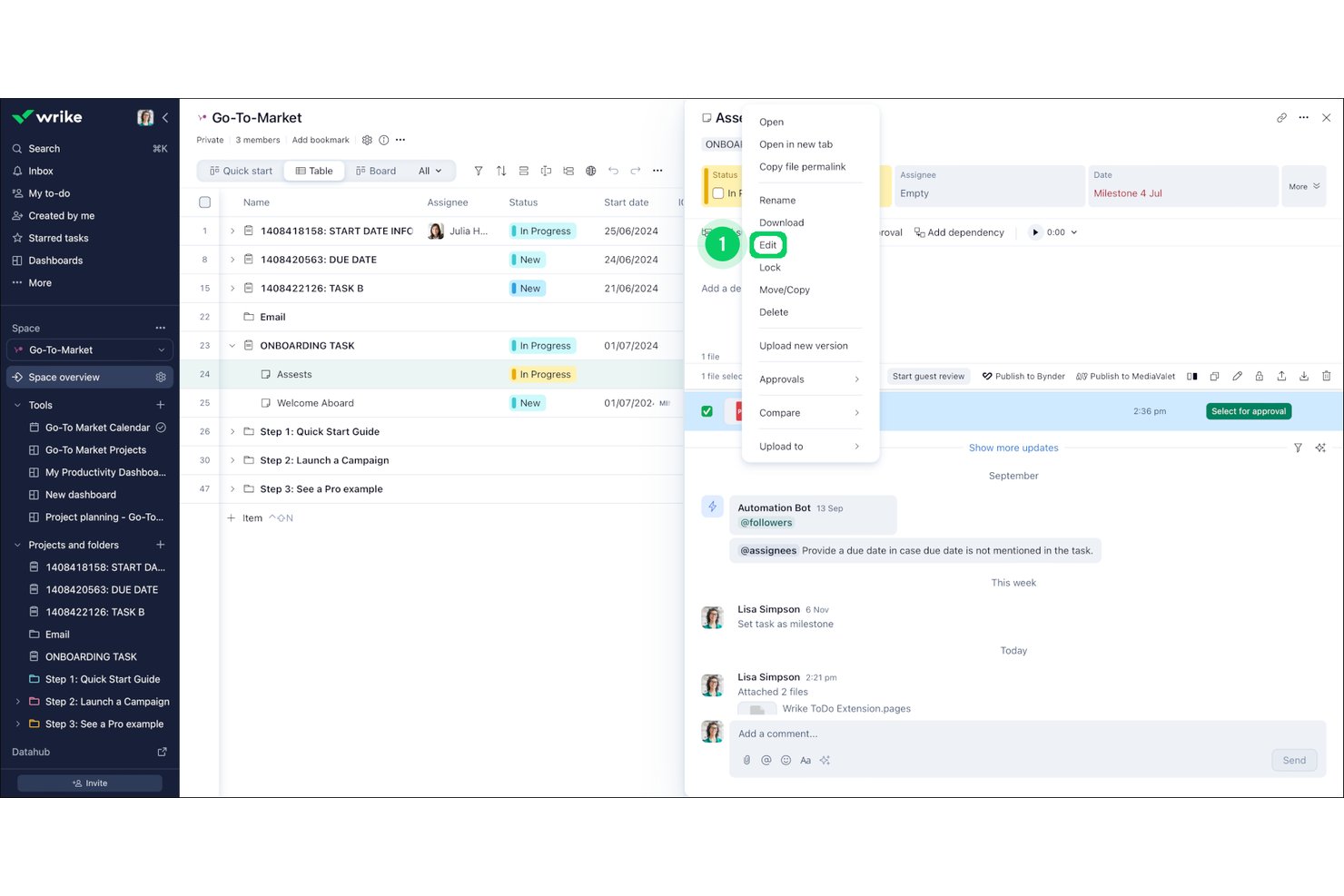
Wrike è una piattaforma di gestione dei progetti con collaborazione sui documenti integrata direttamente nelle attività, che offre co-modifica in tempo reale, revisione e annotazione dei file, cronologia delle versioni e flussi di approvazione, oltre a diagrammi di Gantt, dashboard e oltre 400 integrazioni.
A chi è più adatto Wrike?
Wrike è particolarmente adatto ai project manager e ai responsabili di team interfunzionali che necessitano di collaborazione sui documenti, revisione e approvazioni integrate direttamente nei flussi di lavoro dei progetti.
Perché ho scelto Wrike
Ho scelto Wrike come una delle soluzioni migliori perché le sue funzionalità di collaborazione e reportistica in tempo reale sono integrate direttamente nelle attività, anziché essere aggiunte come strumenti separati. Wrike Live consente al mio team di modificare simultaneamente briefing di progetto e note delle riunioni, mentre la revisione aggiunge annotazioni precise al fotogramma su video, PDF e file di Office senza dover uscire dalla piattaforma. Le dashboard in tempo reale raccolgono i dati dei progetti in report condivisibili che si aggiornano in tempo reale, così gli stakeholder visualizzano sempre lo stato attuale.
Funzionalità principali di Wrike
- Spazi: Organizza i tuoi progetti, cartelle e risorse in hub specifici per ogni team, con strutture nidificate e ricerca per parole chiave.
- Revisione: Annota direttamente immagini, video, PDF e file di Office con commenti contrassegnati e revisione video precisa al fotogramma.
- Cronologia delle versioni: Ripristina gli stati precedenti della descrizione delle attività utilizzando una sequenza temporale delle revisioni e monitora le iterazioni dei file tramite caricamenti degli allegati con controllo delle versioni.
- Generazione di contenuti con IA: Utilizza Wrike AI per redigere e modificare descrizioni delle attività, briefing e commenti direttamente nella piattaforma.
Integrazioni di Wrike
Wrike offre oltre 400 integrazioni predefinite, tra cui Jira, GitHub, Google Drive, Microsoft Teams, Slack, Salesforce e Adobe Creative Cloud. La sincronizzazione bidirezionale a pagamento supporta oltre 22 sistemi, tra cui Jira e GitHub, con uno strumento senza codice per la creazione di integrazioni e automazioni.
Pros and Cons
Pros:
- La revisione aggiunge annotazioni sui file precise al fotogramma
- Le modifiche alle attività conservano una cronologia delle revisioni ripristinabile
- Le dashboard collegano i documenti alla reportistica dei progetti
Cons:
- La revisione esclude diverse origini di archiviazione cloud
- La complessità dell'interfaccia rallenta l'adozione iniziale da parte del team
New Product Updates from Wrike

Wrike Adds Quick Search to Table View
Wrike adds Quick Search to Table View with full-table search across titles, descriptions, and fields, plus highlighted matches. This helps users find tasks faster in large tables. For more information, visit Wrike’s official site.
Altri strumenti per la collaborazione sui documenti
Di seguito è riportato un elenco di altri software per la collaborazione sui documenti che abbiamo selezionato, ma che non sono rientrati nella lista principale. Vale la pena dar loro un’occhiata.


Come Valuto gli Strumenti di Collaborazione sui Documenti
Esamino questi strumenti su due livelli: le capacità fondamentali che ogni opzione deve avere—co-editing, cronologia delle versioni, permessi—e i fattori differenzianti che determinano la scelta giusta per un team di project management.
Funzionalità Principali (Requisiti Indispensabili per Questa Lista)
Quando seleziono gli strumenti per la mia lista, valuto ciascuno su una scala da 0 (non offre la funzionalità) a 5 (eccelle in quest'area) per ogni funzionalità principale elencata qui sotto. Poi, calcolo il punteggio totale dello strumento in percentuale. Ogni strumento deve raggiungere un punteggio totale minimo del 65% per essere preso in considerazione per l'inclusione.
- Co-Editing in Tempo Reale: Verifico se più membri del team possono lavorare contemporaneamente nello stesso documento—come aggiornare un brief di progetto durante una call di kickoff—con cursori live e sincronizzazione istantanea.
- Commenti e Annotazioni: Qui sono importanti i commenti in linea con @menzioni e risposte in thread, soprattutto per le revisioni asincrone su SOW o report di stato tra diversi fusi orari.
- Controllo delle Versioni e Cronologia: Valuto come lo strumento traccia le revisioni e se è possibile ripristinare modifiche fatte in precedenza, aspetto essenziale quando il perimetro di un deliverable cambia a metà sprint.
- Condivisione Granulare e Permessi: Ogni strumento dovrebbe permettere di impostare i permessi di visualizzazione, commento e modifica a livello di documento o cartella, inclusi controlli per la condivisione esterna con clienti o fornitori.
- Archivio Centralizzato dei Documenti: Cerco un repository organizzato e ricercabile—workspace, cartelle, tag—in modo che i documenti di progetto non finiscano dispersi tra thread di Slack ed email.
- Integrazioni con i Workflow di Progetto: Lo strumento dovrebbe collegarsi a piattaforme di PM come Jira, Asana o monday.com, così la documentazione resta connessa alle attività e alle scadenze di riferimento.
Dopo aver individuato gli strumenti che soddisfano questi criteri, considero ciò che distingue ciascuna piattaforma.
Fattori Differenzianti (Cosa Distingue i Fornitori)
Ecco come metto a confronto i diversi fornitori:
Funzionalità Distintive
Cerco funzionalità di scrittura AI che possano generare riassunti di riunioni o aggiornamenti di stato, facendo risparmiare tempo ai PM sulla documentazione ripetitiva. Un altro differenziatore sono i dati live incorporati—inserire direttamente un Gantt o una board di task all'interno di un brief di progetto mantiene il contesto senza dover cambiare scheda. Anche le librerie di template sono importanti, perché chart preimpostati di progetto, retrospettive e matrici RACI aiutano i team a standardizzare i documenti nei vari flussi di lavoro. Valuto anche le capacità di wiki per trasformare i documenti di progetto in una knowledge base collegata e facilmente navigabile.
Oltre le Funzionalità
Le certificazioni di sicurezza e conformità come SOC 2 e l'adeguamento GDPR sono aspetti da verificare sin da subito, specialmente se il tuo PMO gestisce dati sensibili dei clienti. Anche la struttura dei prezzi è importante: verifico se l'accesso come ospite o visualizzatore sia economicamente accessibile, dato che i PM condividono regolarmente documenti con stakeholder esterni che non necessitano di licenze complete. La profondità d'integrazione sull'intero stack tecnologico è un altro fattore chiave. Uno strumento che si sincronizza con Slack, Google Drive e la tua piattaforma di PM riduce il cambio di contesto per i team distribuiti.
Come scegliere gli strumenti per la collaborazione sui documenti
Mentre affronti il tuo processo di selezione del software, unico per le tue esigenze, tieni presenti i seguenti aspetti:
- Facilità d'uso e interfaccia utente: lo strumento dovrebbe essere intuitivo e facile da utilizzare per tutti i membri del team, indipendentemente dalle loro competenze tecniche. Un'interfaccia intuitiva può ridurre significativamente la curva di apprendimento e aumentare i tassi di adozione.
- Collaborazione in tempo reale: collaborare in tempo reale è fondamentale affinché i team possano lavorare contemporaneamente sui documenti. Questa funzionalità elimina la necessità di scambiarsi continuamente e-mail e garantisce che tutti siano aggiornati.
- Integrazione con altri strumenti: lo strumento per la collaborazione sui documenti dovrebbe integrarsi perfettamente con gli altri software e strumenti già utilizzati dal team. Questo può ottimizzare i flussi di lavoro e migliorare la produttività.
- Sicurezza e controllo degli accessi: proteggere le informazioni sensibili è importante. Lo strumento dovrebbe offrire solide funzionalità di sicurezza, tra cui il controllo degli accessi e le autorizzazioni, per garantire che solo gli utenti autorizzati possano visualizzare o modificare i documenti.
- Controllo delle versioni e salvataggio automatico: la possibilità di tenere traccia delle modifiche e ripristinare le versioni precedenti di un documento è essenziale per mantenerne l'integrità. Le funzionalità di salvataggio automatico garantiscono che nessun lavoro vada perso a causa di eventi imprevisti come le interruzioni di corrente.
Tendenze degli strumenti per la collaborazione sui documenti
Gli strumenti per la collaborazione online si stanno evolvendo rapidamente, mentre il lavoro da remoto diventa la norma. Ecco alcune tendenze chiave da tenere d'occhio.
- Assistenza IA in tempo reale: l'IA viene integrata per fornire assistenza in tempo reale. Questo aiuta nella correzione grammaticale, nei suggerimenti sui contenuti e persino nella traduzione, rendendo la collaborazione più efficiente.
- Blockchain per la sicurezza: la tecnologia blockchain viene utilizzata per migliorare la sicurezza dei documenti. Garantisce che i documenti siano a prova di manomissione e verificabili, aspetto fondamentale per le informazioni sensibili.
- Collaborazione tramite conversione da voce a testo: le funzionalità di conversione da voce a testo stanno diventando sempre più comuni. Consentono agli utenti di dettare documenti e collaborare utilizzando comandi vocali. Questa soluzione è particolarmente utile per il funzionamento a mani libere.
- Integrazione multipiattaforma: gli strumenti supportano sempre più l'integrazione multipiattaforma. Ciò significa che è possibile accedere ai documenti e modificarli da qualsiasi dispositivo, migliorando l'accessibilità e la flessibilità.
- Controllo avanzato delle versioni: vengono implementate funzionalità avanzate di controllo delle versioni. Consentono agli utenti di monitorare le modifiche e tornare facilmente alle versioni precedenti. Questo è importante per mantenere l'integrità dei documenti.
Cosa sono gli strumenti di collaborazione sui documenti?
Gli strumenti di collaborazione sui documenti sono sistemi o software che consentono a più persone di lavorare insieme su un singolo documento o file per raggiungere una versione finale. Questi strumenti permettono ai team di lavorare contemporaneamente su un documento da diversi terminali informatici o dispositivi mobili, spesso utilizzando un approccio basato su Internet o sul "cloud".
Tra gli utenti comuni vi sono i team aziendali, gli istituti scolastici e i lavoratori da remoto che hanno bisogno di creare documenti a più mani, condividere feedback e mantenere il controllo delle versioni. Questi strumenti sono essenziali per migliorare la produttività, garantire l'integrità dei documenti e facilitare la collaborazione in tempo reale.
Gli strumenti di collaborazione sui documenti includono in genere funzionalità come commenti in tempo reale e messaggistica istantanea, indicatori di presenza, autorizzazioni, feed delle attività personali, collaborazione con utenti esterni al firewall aziendale, strutture di sicurezza e conformità, monitoraggio della cronologia delle modifiche, capacità di gestire file di grandi dimensioni e flussi di lavoro per le approvazioni.
Funzionalità degli strumenti di collaborazione sui documenti
Poiché i modelli di lavoro da remoto e ibrido continuano a trasformare il luogo di lavoro moderno, la domanda di strumenti online avanzati che facilitino il lavoro di squadra produttivo è cresciuta in modo esponenziale.
- Comunicazione unificata: riunisce email, chat, documenti ed eventi del calendario in un'unica piattaforma, eliminando la necessità di utilizzare più applicazioni.
- Collaborazione in tempo reale: consente ai membri del team di condividere aggiornamenti e fornire feedback immediati, migliorando la produttività e l'allineamento del team.
- Integrazione del calendario: collega gli eventi del calendario a contesti di comunicazione più ampi, aiutando gli utenti a tenere sotto controllo attività, scadenze e riunioni.
- Chiamate vocali e condivisione dello schermo: facilita interazioni coinvolgenti e faccia a faccia all'interno dei team distribuiti, elevando la qualità delle discussioni di gruppo e dei processi decisionali.
- Sicurezza e privacy: implementa solide misure di sicurezza per proteggere i dati sensibili e garantire la privacy, un aspetto fondamentale per mantenere l'integrità e la riservatezza dei dati degli utenti.
- Integrazione con app di terze parti: migliora il software di collaborazione integrandolo con applicazioni popolari come strumenti di gestione dei progetti, piattaforme di archiviazione dei file e app per la produttività, consentendo agli utenti di ottimizzare il proprio flusso di lavoro.
- Personalizzazione e adattamento: consente agli utenti di personalizzare la propria esperienza di collaborazione scegliendo temi, impostando preferenze e organizzando il proprio spazio di lavoro.
- Interfaccia intuitiva: offre un'interfaccia chiara e intuitiva, garantendo agli utenti la possibilità di trovare rapidamente ciò di cui hanno bisogno e migliorando l'esperienza utente complessiva.
- Indicatori di presenza e stato: mostra la disponibilità e lo stato dei membri del team, indicando chi è online, occupato o assente, eliminando ritardi inutili e garantendo una comunicazione efficace.
- Commenti e aggiornamenti in tempo reale: consente una rapida iterazione e comunicazione permettendo ai partecipanti di commentare e visualizzare gli aggiornamenti in tempo reale.
- Sincronizzazione dei file: gli strumenti di sincronizzazione dei file aggiornano automaticamente i file su più dispositivi o posizioni, in modo che ogni copia rimanga aggiornata e identica.
Vantaggi degli strumenti di collaborazione sui documenti
Gli strumenti di collaborazione sui documenti sono diventati essenziali per le aziende e i team che operano in un ambiente di lavoro flessibile o da remoto. Di seguito sono riportati cinque vantaggi principali degli strumenti di collaborazione sui documenti per utenti e organizzazioni.
- Coordinamento migliorato del team: gli strumenti di collaborazione sui documenti aiutano a definire i ruoli, le responsabilità e le singole attività di ogni membro del team, garantendo una migliore organizzazione e comprensione all'interno del team.
- Aumento della produttività: gli strumenti di collaborazione consentono ai membri del team di lavorare insieme in tempo reale, rendendo il processo di documentazione più efficiente e riducendo il tempo necessario per completare le attività.
- Maggiore qualità del lavoro: sfruttando le diverse competenze e prospettive del team, la collaborazione sui documenti porta alla creazione di risorse complete e di alta qualità, in grado di soddisfare le esigenze di ogni utente.
- Processo di modifica più rapido: le funzionalità di modifica collaborativa consentono ai membri del team di modificare i documenti simultaneamente, riducendo il tempo dedicato alle email di risposta e garantendo che tutti lavorino sulla versione più recente.
- Unire i team distribuiti: gli strumenti di collaborazione sui documenti forniscono uno spazio online condiviso per i team distribuiti, favorendo la comunicazione, la condivisione delle idee e legami più solidi all'interno del team, anche quando i membri non si trovano fisicamente nello stesso luogo.
Gli strumenti di collaborazione sui documenti offrono numerosi vantaggi che possono migliorare significativamente l'efficienza e l'efficacia del team. Investire in uno strumento affidabile per la collaborazione sui documenti può aiutare il team a lavorare in modo coeso e a ottenere risultati migliori.
Costi e prezzi degli strumenti di collaborazione sui documenti
Questa sezione fornisce una stima dei piani e dei costi medi degli strumenti di collaborazione sui documenti.
Tabella comparativa dei piani degli strumenti di collaborazione sui documenti
| Tipo di piano | Prezzo medio | Funzionalità comuni |
|---|---|---|
| Piano gratuito | $0 | Gestione di base delle attività, spazio di archiviazione limitato, condivisione dei file, collaborazione in tempo reale |
| Piano personale | $5 - $10 per utente/mese | Spazio di archiviazione ampliato, gestione avanzata delle attività, integrazioni di base, controllo delle versioni |
| Piano aziendale | $10 - $20 per utente/mese | Spazio di archiviazione illimitato, integrazioni avanzate, funzionalità di sicurezza, collaborazione del team |
| Piano aziendale avanzato | $20+ per utente/mese | Funzionalità personalizzabili, sicurezza avanzata, strumenti per la conformità, assistenza dedicata |
Domande frequenti sugli strumenti di collaborazione sui documenti
Come posso garantire la sicurezza dei documenti condivisi sugli strumenti di collaborazione?
Garantire la sicurezza dei documenti condivisi sugli strumenti di collaborazione richiede l’adozione di diverse buone pratiche. Innanzitutto, scegli uno strumento di collaborazione che offra potenti funzionalità di sicurezza, come la crittografia end-to-end, l’autenticazione a più fattori e la conformità agli standard di settore come il GDPR o l’HIPAA.
Aggiorna regolarmente le password e utilizza password complesse e uniche per ogni account. Implementa controlli di accesso per limitare l’accesso ai documenti alle sole persone che ne hanno bisogno e rivedi e aggiorna regolarmente queste autorizzazioni. Infine, forma il tuo team affinché sappia riconoscere i tentativi di phishing e altre minacce alla sicurezza, così da prevenire gli accessi non autorizzati. Consulta il nostro elenco di \u003ca href=\u0022https://thedigitalprojectmanager.com/tools/best-asynchronous-collaboration-tools/\u0022\u003estrumenti di collaborazione conformi all’HIPAA\u003c/a\u003e.
Quali sono le buone pratiche per il controllo delle versioni negli strumenti di collaborazione sui documenti?
Un controllo efficace delle versioni è fondamentale per mantenere l’integrità dei documenti in un ambiente collaborativo. Utilizza uno strumento che tenga traccia automaticamente delle modifiche e conservi una cronologia delle versioni dei documenti, incoraggia i membri del team a utilizzare convenzioni di denominazione chiare e coerenti per le versioni dei documenti e rivedi e riordina regolarmente le versioni meno recenti per evitare disordine e confusione.
Come posso gestire efficacemente le autorizzazioni degli utenti negli strumenti di collaborazione sui documenti?
Gestire efficacemente le autorizzazioni degli utenti richiede una chiara comprensione del ruolo di ciascun membro del team e del livello di accesso di cui ha bisogno. Utilizza uno strumento di collaborazione che consenta impostazioni granulari delle autorizzazioni, permettendoti di assegnare livelli di accesso specifici a utenti diversi.
Rivedi e aggiorna regolarmente le autorizzazioni per riflettere i cambiamenti nei ruoli del team o nei requisiti del progetto e applica il principio del privilegio minimo, concedendo agli utenti il livello minimo di accesso necessario per svolgere le loro attività.
Quali strategie posso utilizzare per migliorare la collaborazione e la comunicazione negli strumenti di collaborazione sui documenti?
Stabilisci linee guida e protocolli chiari per l’utilizzo dello strumento di collaborazione. Incoraggia i membri del team a utilizzare le funzionalità di comunicazione integrate, come commenti e chat, e a discutere delle modifiche e degli aggiornamenti ai documenti.
Pianifica controlli periodici o riunioni virtuali per esaminare i progressi e affrontare eventuali problemi. Utilizza le funzionalità di gestione delle attività per assegnare e monitorare le responsabilità, assicurandoti che tutti siano a conoscenza delle proprie attività e scadenze.
Come posso integrare gli strumenti di collaborazione sui documenti con altri software e piattaforme?
Molti strumenti di collaborazione sui documenti offrono integrazioni con altri software e piattaforme per ottimizzare i flussi di lavoro. Individua gli strumenti e le piattaforme utilizzati frequentemente dal tuo team, come software di gestione dei progetti, sistemi CRM o servizi di archiviazione cloud.
Cerca strumenti di collaborazione che offrano integrazioni native o supportino servizi di integrazione di terze parti. Configura queste integrazioni per automatizzare il trasferimento dei dati e ridurre il lavoro manuale. Rivedi e aggiorna regolarmente le integrazioni per assicurarti che continuino a soddisfare le esigenze del tuo team e a migliorare l’efficienza.
Quali sono le difficoltà più comuni nell'utilizzo degli strumenti di collaborazione sui documenti e come possono essere affrontate?
Le difficoltà più comuni includono problemi di controllo delle versioni, preoccupazioni relative alla sicurezza e difficoltà nella gestione delle autorizzazioni degli utenti. Per affrontarle, applica le buone pratiche per il controllo delle versioni, come l’utilizzo di convenzioni di denominazione chiare e la conservazione di una cronologia delle versioni. Assicurati che siano in atto rigorose misure di sicurezza, tra cui crittografia e controlli di accesso, e rivedi e aggiorna regolarmente le autorizzazioni degli utenti per riflettere i cambiamenti nei ruoli del team.
Come posso misurare l'efficacia di uno strumento di collaborazione sui documenti?
Per misurare l’efficacia di uno strumento di collaborazione sui documenti, monitora indicatori chiave di prestazione (KPI) come i tassi di adozione da parte degli utenti, la frequenza della collaborazione e i tempi di elaborazione dei documenti. Raccogli il feedback dei membri del team per individuare eventuali difficoltà o aree di miglioramento.
Analizza l’impatto dello strumento sulla produttività complessiva e sui risultati dei progetti. Inoltre, monitora le prestazioni e l’affidabilità dello strumento, compresi i tempi di disponibilità e di risposta. Utilizza questi dati per prendere decisioni informate sull’ottimizzazione o sull’eventuale sostituzione degli strumenti di collaborazione.
Quali sono i modi migliori per inserire i nuovi membri del team in uno strumento di collaborazione sui documenti?
Un inserimento efficace prevede la fornitura di formazione e risorse complete per aiutare i nuovi membri del team a diventare rapidamente competenti nell’uso dello strumento di collaborazione. Crea una guida dettagliata per l’inserimento che illustri le funzionalità dello strumento, le buone pratiche e i protocolli specifici dell’azienda.
Offri sessioni di formazione pratica, fornisci l’accesso a tutorial e documentazione e verifica regolarmente con i nuovi membri del team che si sentano a proprio agio nell’utilizzo dello strumento, affrontando tempestivamente eventuali problemi.