Scribe Test: Vorteile, Nachteile, Funktionen und Preisübersicht



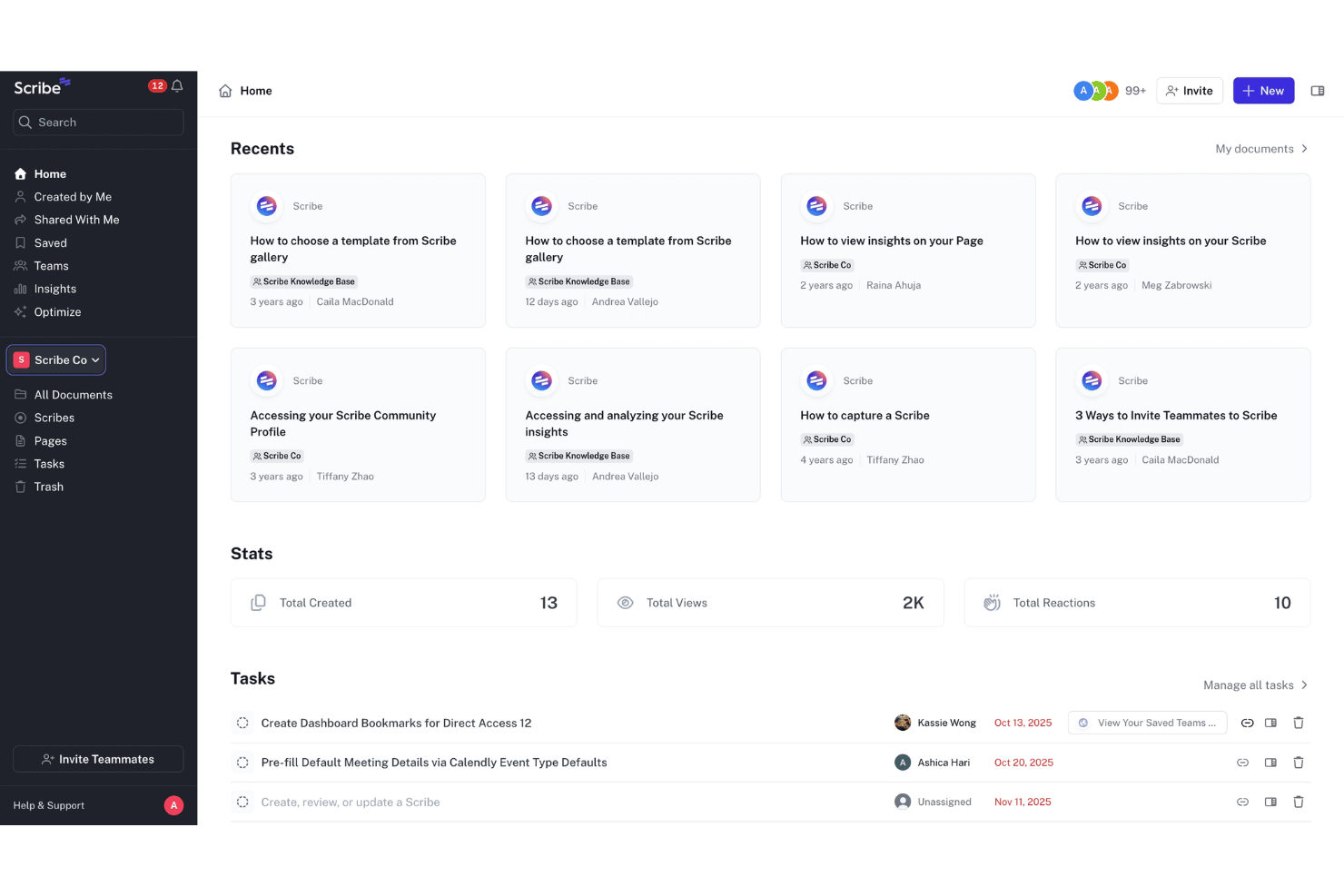
Scribe is a process documentation software that auto-generates step-by-step guides by capturing your screen as you work. It's a strong fit for teams that need to document recurring workflows, SOPs, and onboarding processes without writing guides from scratch. If you've been manually building process docs in Confluence or Notion, Scribe is worth a closer look. It builds the guide for you as you complete the process.
Scribe Evaluation Summary
- From $12/seat/month (billed annually)
- Free plan + free demo available
Warum Sie unseren Software-Empfehlungen vertrauen können
Unser Team testet und bewertet Software seit 2012. Als Projektmanager wissen wir selbst, wie schwierig – und wichtig – es ist, die richtige Software auszuwählen.
Für diesen Leitfaden haben wir Tools mithilfe von praktischen Tests und unabhängiger Recherche bewertet und dabei unsere Bewertungskriterien angewendet. Zudem greifen wir auf Erkenntnisse von Branchenvordenkern und praktizierenden Projektmanagement-Experten zurück.
Unsere Bewertungen spiegeln unser menschliches redaktionelles Urteilsvermögen wider, keine Verkaufsstrategie.
Expertenprüfer:
Scribe Overview
When I compare Scribe to other SOP creation options, I think its instant step-by-step capture and clean interface set it apart for teams that need fast, visual guides with minimal setup. The generous free tier and straightforward pricing help with decision-making, though integrations are a bit limited and complex workflows require workarounds. For onboarding, training, and routine task documentation, especially in fast-moving environments, I’d judge Scribe as an easy choice—just keep in mind its simplicity is a strength and a constraint depending on your needs.
pros
-
Automatically generates step-by-step guides from your screen actions
-
Supports screenshots and text annotations in captured guides
-
Guides can be shared with links or embedded in wikis
cons
-
No workflow automation or process approval features
-
Limited options for advanced formatting or conditional steps
-
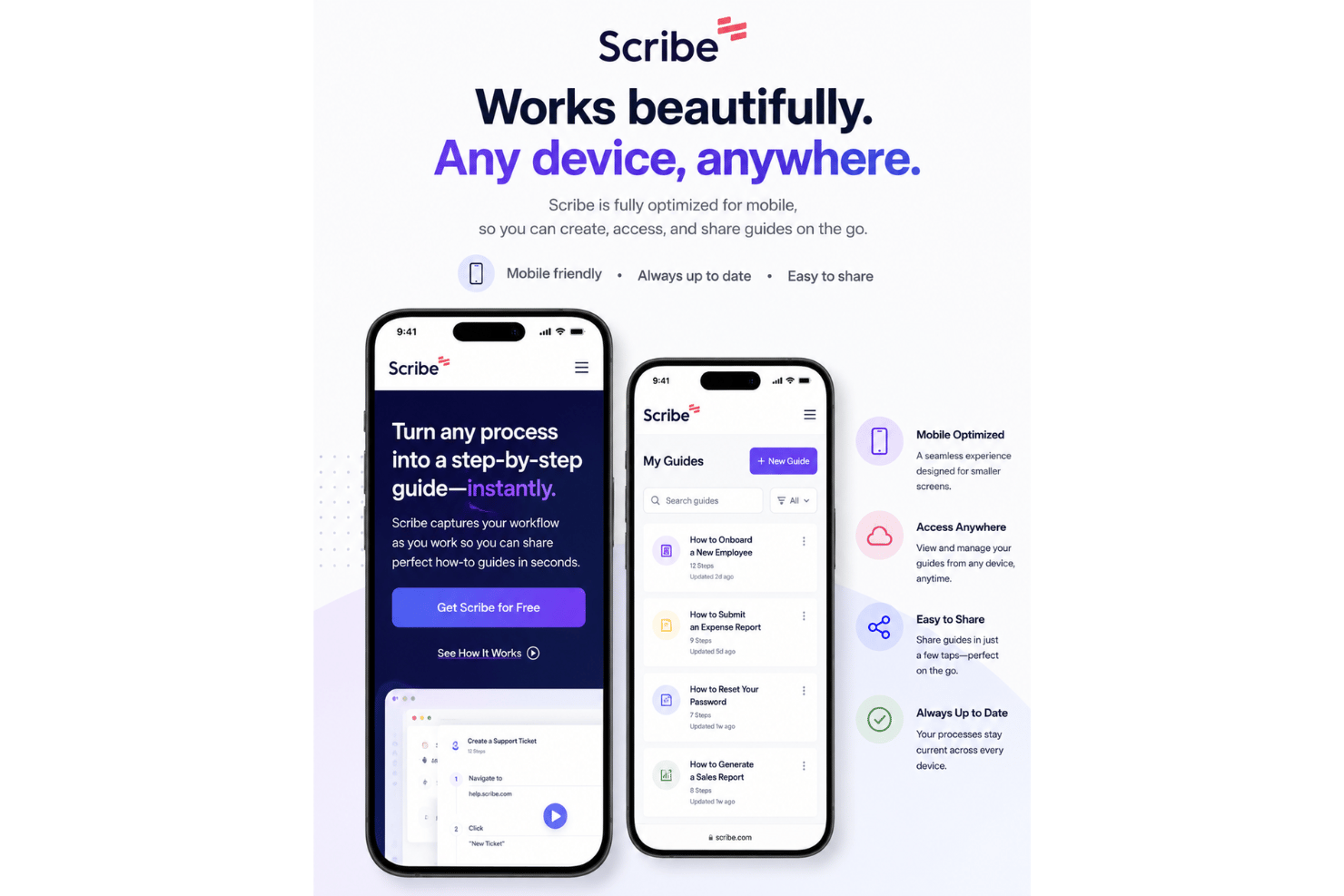
Mobile functionality may be restricted depending on the plan.
-

Smartsheet
Visit WebsiteThis rating combines scores from multiple user review sites to reflect overall customer sentiment about the product.4.5 -
Celoxis
Visit WebsiteThis rating combines scores from multiple user review sites to reflect overall customer sentiment about the product.4.5 -
Accelo
Visit WebsiteThis rating combines scores from multiple user review sites to reflect overall customer sentiment about the product.4.4





Unsere Bewertungsmethodik
Wie wir Tools testen & bewerten
Wir haben jahrelang unser System zur Softwareüberprüfung und -bewertung aufgebaut, verfeinert und verbessert. Das Bewertungsschema wurde entwickelt, um die Feinheiten der Softwareauswahl und die Effektivität eines Tools einzufangen, wobei der Fokus auf den entscheidenden Aspekten des Entscheidungsprozesses liegt. Unten sehen Sie genau, wie unser Test- und Bewertungssystem über sieben Kriterien hinweg funktioniert. So können wir eine objektive Einschätzung der Software auf Grundlage von Kernfunktionen, herausragenden Merkmalen, Benutzerfreundlichkeit, Onboarding, Kundenservice, Integrationen, Kundenbewertungen und Preis-Leistungs-Verhältnis bieten.
Kernfunktionalität (25% der Gesamtbewertung)
Ausgangspunkt unserer Bewertung ist immer die Kernfunktionalität des Tools. Hat es die grundlegenden Funktionen, die ein Nutzer erwarten würde? Sind einige dieser Kernfunktionen nur in höherpreisigen Tarifen verfügbar? Wir erwarten, dass ein Tool mindestens den grundlegenden Leistungsumfang seiner Mitbewerber erfüllt.
Herausragende Funktionen (25% der Gesamtbewertung)
Anschließend bewerten wir außergewöhnliche Funktionen, die über die üblichen Kernfunktionen hinausgehen. Eine hohe Bewertung spiegelt spezialisierte oder einzigartige Eigenschaften wider, durch die das Produkt schneller, effizienter oder für den Nutzer besonders wertvoll wird. Wir bewerten auch, wie einfach sich das Tool in andere Tools integrieren lässt, die üblicherweise im Tech-Stack zu finden sind, um die Funktionalität zu erweitern. Lösungen mit vielen nativen Integrationen, Drittanbieter-Anbindungen und API-Zugang zur Erstellung individueller Verknüpfungen schneiden am besten ab.
Benutzerfreundlichkeit (10% der Gesamtbewertung)
Wir berücksichtigen, wie schnell und einfach sich die Aufgaben – basierend auf der Kernfunktionalität – mit dem Tool erledigen lassen. Eine hohe Bewertung erhalten Tools, die durchdacht gestaltet und intuitiv bedienbar sind, mobile Apps und Vorlagen bieten und sogar komplexe Aufgaben einfach erscheinen lassen.
Onboarding (10% der Gesamtbewertung)
Wir wissen, wie wichtig eine schnelle Einführung im Team ist, und bewerten deshalb, wie leicht ein Tool mit minimaler Schulung erlernt und genutzt werden kann. Wir prüfen, wie schnell neue Teammitglieder ohne Vorkenntnisse starten können. Lösungen, die wenig oder gar keine Unterstützung erfordern, erhalten die höchste Bewertung.
Kundenservice (10% der Gesamtbewertung)
Wir überprüfen, wie schnell und unkompliziert Hilfe per Telefon, Live-Chat oder Wissensdatenbank verfügbar ist. Tools und Unternehmen, die Echtzeit-Support bieten, schneiden am besten ab; Chatbots am schlechtesten.
Kundenbewertungen (10% der Gesamtbewertung)
Neben unseren eigenen Tests beziehen wir auch den Net Promoter Score aktueller und ehemaliger Nutzer ein. Wir prüfen die Wahrscheinlichkeit, mit der sie das Tool erneut für die Kernfunktionalitäten wählen würden. Ein hohes Ergebnis spiegelt einen hohen Net Promoter Score bei aktuellen oder früheren Kund:innen wider.
Preis-Leistungs-Verhältnis (10% der Gesamtbewertung)
Abschließend vergleichen wir – unter Berücksichtigung aller anderen Kriterien – den Durchschnittspreis der Einstiegstarife mit den Kernfunktionen und bewerten das Preis-Leistungs-Verhältnis. Software, die mehr Leistung für weniger Geld bietet, bekommt die höchsten Werte.
Core Features
Instant Step-by-Step Recording
Capture any workflow in real time, automatically generating visual guides from your screen actions. This feature reduces the time spent manually documenting processes.
Smart Screenshot Annotation
Add highlights, arrows, icons, and text to screenshots within your guide. It’s an easy way to clarify or call out critical actions in each step.
One-Click Sharing and Embedding
Share process guides with a link, or embed them in your team’s wiki or knowledge base. Teams quickly distribute and centralize documentation with minimal friction.
Guide Editing and Customization
Edit recorded steps, swap screenshots, and insert extra notes or context. This gives you granular control over what’s shown to guide readers accurately.
Team Spaces and Organization
Sort guides into folders and workspaces for departments or projects. Teams can keep documentation organized and easy to navigate as content grows.
Export to PDF or HTML
Download guides as PDFs or HTML files for offline distribution or archiving. This is handy for compliance or sharing outside your typical platforms.
Ease of Use
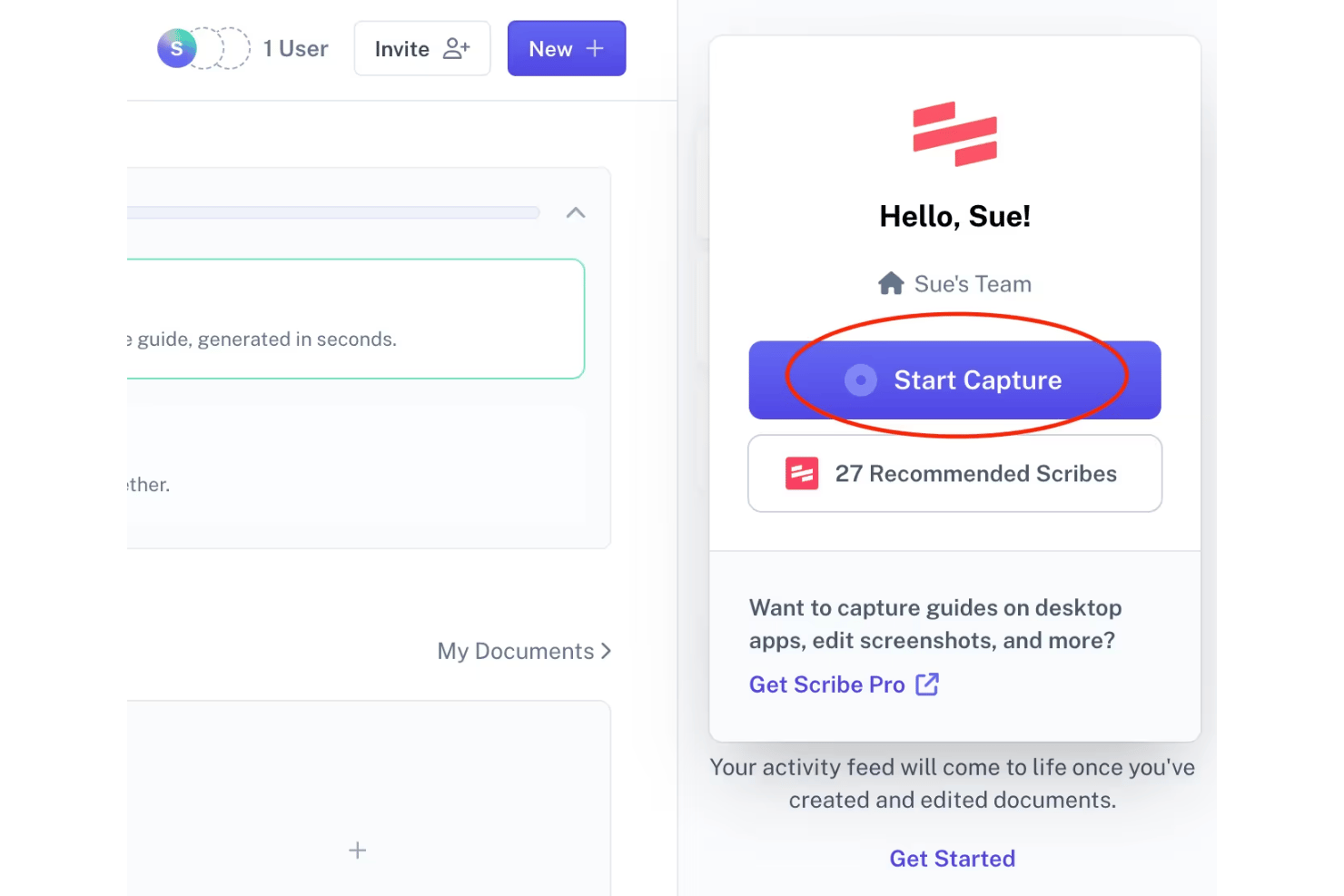
Scribe stands out for its user-friendliness, letting anyone create polished process guides in minutes without training. The instant capture and simple annotation tools remove the friction of manual documentation, while the clean interface puts everything just a click away. Users repeatedly mention how quickly they can create, edit, and share walkthroughs, even if they’re not tech-savvy.
Integrations
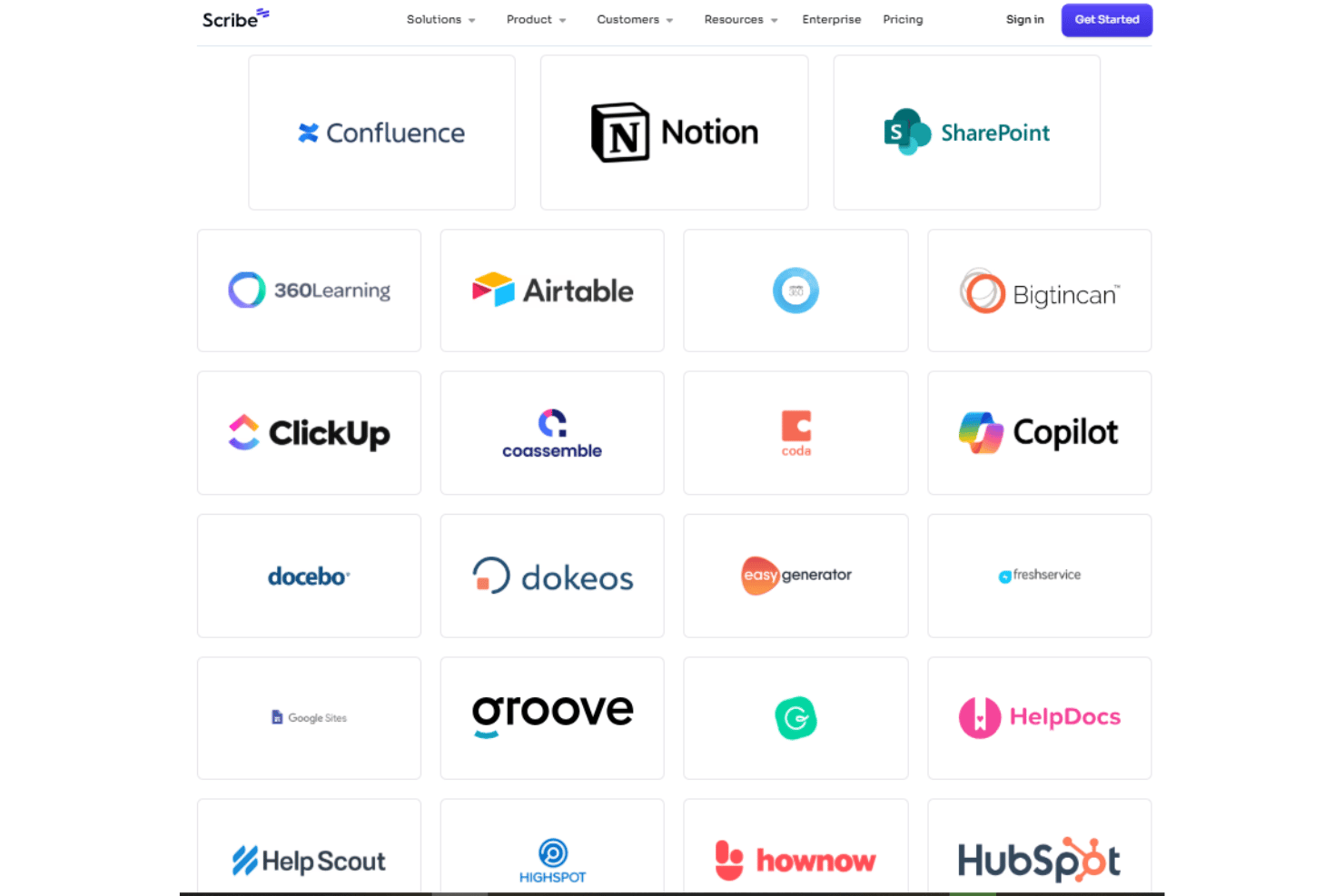
Scribe integrates with Confluence, Notion, Slack, WordPress, miro, Salesforce, monday.com, and ClickUp, among others.
Scribe offers an API for programmatic access to its platform, including the Enterprise Search API, which enables organizations to search and retrieve internal documents within their applications.
Scribe Specs
- Access Management
- API
- Audit Management
- Batch Permissions & Access
- Calendar Management
- Collaboration Support
- Custom Data Forms
- Customer Management
- Dashboards
- Data Export
- Data Import
- Data Visualization
- Document Management
- External Integrations
- Form Builder
- Inventory Tracking
- Notifications
- Process Modeling
- Process Reporting
- Project Management
- Reports
- Status Notifications
- Supplier Management
- Task Scheduling/Tracking
- Third-Party Plugins/Add-Ons