

10 gratis produktivitetsapper for 2026

Gratis produktivitetsapper på kortlisten


Gratis produktivitetsapper er programvareverktøy som hjelper deg med å organisere oppgaver, administrere prosjekter, redusere prokrastinering og øke fokuset – uten at du må betale på forhånd. Hvis du leter etter de beste gratis produktivitetsappene, ønsker du sannsynligvis å forbedre hvordan du og teamet ditt arbeider uten å øke budsjettet, enten du er en enkeltbruker eller driver en liten bedrift. Mange moderne verktøy har også kunstig intelligens-funksjoner, integrasjoner med verktøy som ChatGPT og en gratisversjon som lar deg teste kjernefunksjonaliteten før du oppgraderer. Med så mange alternativer som tilbyr gratisabonnementer eller prøveperioder, er det vanskelig å vite hvilke verktøy som faktisk har funksjonene du trenger. Denne listen hjelper deg med å sammenligne de beste gratis produktivitetsappene for 2026 raskt, slik at du kan finne det som passer best til arbeidsflyten din og begynne å jobbe smartere i dag.
Hvorfor du kan stole på våre programvareanbefalinger
Teamet vårt har testet og anmeldt programvare siden 2012. Vi er selv prosjektledere, så vi vet hvor vanskelig og hvor viktig det er å velge riktig programvare.
I denne guiden har vi vurdert verktøyene gjennom praktisk testing og uavhengig research og gitt dem poeng ut fra våre utvelgelseskriterier. Vi bygger også på innsikt fra ledende eksperter i bransjen og erfarne prosjektledere.
Anmeldelsene våre bygger på vår egen redaksjonelle vurdering. De er ikke et salgsargument.
Ekspertanmeldere:
Sammenligningstabell for gratis produktivitetsapper
Denne sammenligningstabellen oppsummerer prisdetaljene for mine beste utvalgte gratis produktivitetsapper:
| Tool | Best For | Trial Info | Price | ||
|---|---|---|---|---|---|
| 1 | Best for visual project board customization | Free plan + free demo available | From $3.99/seat/month (billed annually) | Website | |
| 2 | Best for focus-enhancing background audio | Free trial available | From $14.99/month | Website | |
| 3 | Best for managing complex task hierarchies | Free plan available | From $5/user/month (billed annually) | Website | |
| 4 | Best for Microsoft 365 ecosystem users | Free-forever plan available | Free to use | Website | |
| 5 | Best for combining notes and databases | Free plan + Free trial + Free demo available | From $10/user/month | Website | |
| 6 | Best for built-in habit tracking features | Free plan available | From $49.99/year (billed annually) | Website | |
| 7 | Best for risk and issue management tools | Not available | Pricing upon request | Website | |
| 8 | Best for workflow automation with integrations | Free plan available | From $10.99/user/month (billed annually) | Website | |
| 9 | Best for daily planning with calendar integration | 14-day free trial | From $17/user/month (billed annually) | Website | |
| 10 | Best for gamifying daily task completion | Free plan available | From $9/month (+$3 per additional member) | Website |
Anmeldelser av gratis produktivitetsapper
Nedenfor finner du mine detaljerte oppsummeringer av de gratis produktivitetsappene som kom med på kortlisten min. Anmeldelsene mine gir en grundig gjennomgang av funksjonene, de beste bruksområdene og integrasjonene for hvert verktøy, slik at du kan finne det beste alternativet for deg.

Plaky
Best for visual project board customization

If you want a free productivity app that lets you customize project boards visually, Plaky is worth considering. This tool is designed for teams that need flexible board layouts and detailed field customization to match their workflows. Plaky helps project managers and team leads organize, track, and adapt projects with a visual approach that’s easy to tailor for different industries.
Why I Picked Plaky
What sets Plaky apart for me among free productivity apps is how much control it gives you over customizing project boards. You can create boards with unique fields, color-coded labels, and custom views that match your team’s workflow, which is especially useful if you manage projects that don’t fit a standard template. I also like that you can adjust board layouts and add as many columns or data types as you need, so you’re not boxed in by rigid structures. For project managers who want a visual, flexible way to organize and track work, Plaky’s board customization features make it a strong choice.
Plaky Key Features
Some other features in Plaky that help teams manage productivity include:
- Task Assignment: Assign tasks to specific team members and set deadlines for each item.
- Commenting and Mentions: Add comments and tag teammates directly on tasks to keep communication organized.
- File Attachments: Upload and attach files to tasks so all related documents stay in one place.
- Activity Log: Track all changes and updates on boards with a detailed activity history.
Plaky Integrations
Integrations include Clockify, Pumble, and more.
What's Free?
Plaky offers a free-forever plan with unlimited users, boards, and tasks. The free plan does not include native integrations or advanced reporting features.
Pros and Cons
Pros:
- Activity logs track project changes
- Task assignments manage team accountability
- Custom fields tailor board workflows
Cons:
- Only Kanban board visualization
- No time tracking or workload tools
Brain.fm
Best for focus-enhancing background audio
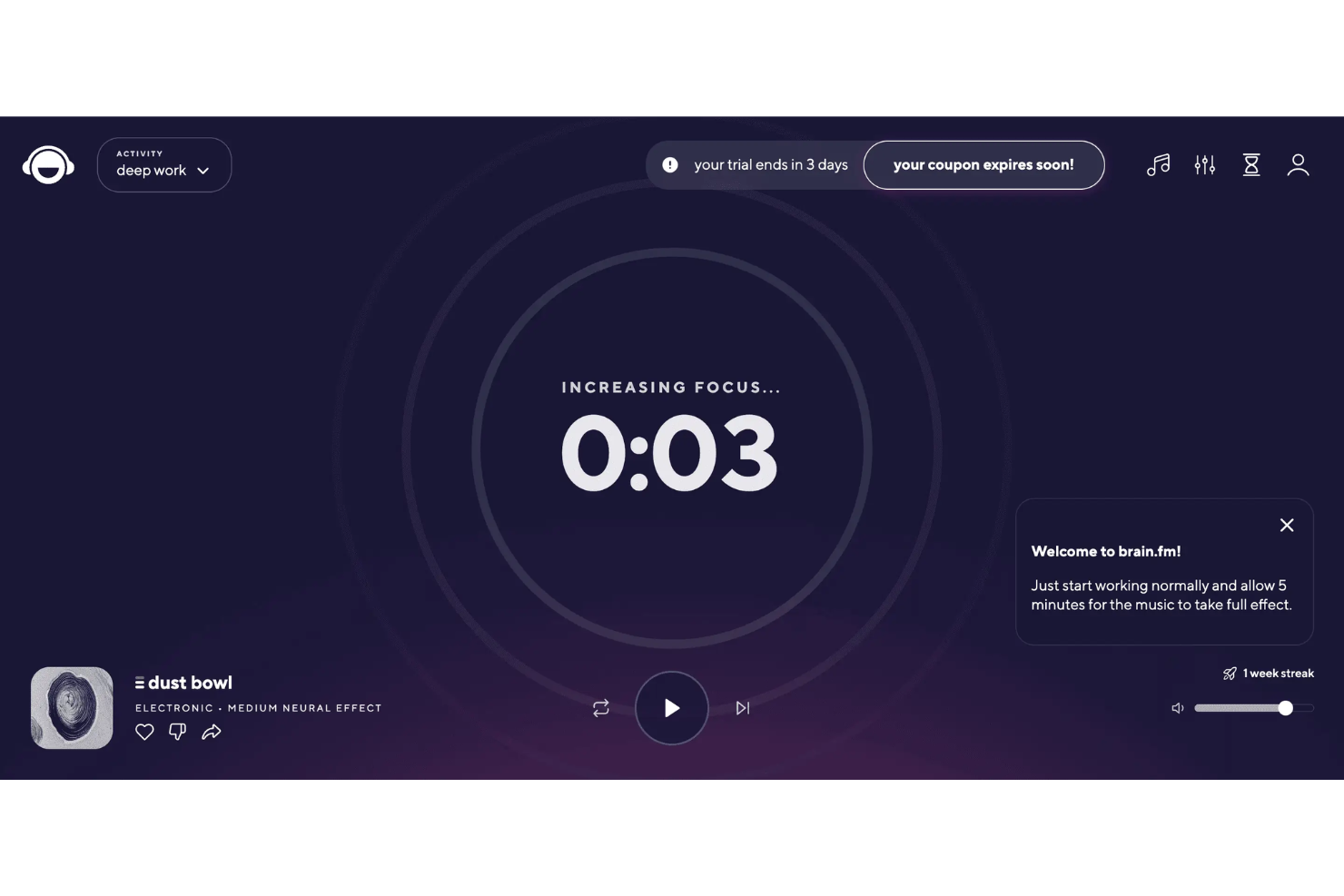
If you’re looking for a way to boost focus while working, Brain.fm offers science-backed background audio designed to help you concentrate. This tool is a good fit for professionals, students, or anyone who needs to minimize distractions and stay on task. Brain.fm stands out by using specially engineered music that aims to support productivity, relaxation, or sleep, depending on your needs.
Why I Picked Brain.fm
What makes Brain.fm a strong choice for free productivity apps is its unique approach to focus-enhancing background audio. The platform uses AI-generated music that’s specifically designed to support deep work, which is something I haven’t seen in most other productivity tools. You can choose from different focus modes, like “Deep Work” or “Light Work,” to match the intensity of your task. For anyone who struggles with distractions or needs help maintaining concentration, Brain.fm’s science-backed audio features offer a practical way to create a more productive work environment.
Brain.fm Key Features
Some other features in Brain.fm that help users get more out of their workday include:
- Offline Listening: Download sessions to use Brain.fm’s audio without an internet connection.
- Session Length Customization: Set the duration of your audio session to match your planned work period.
- Mobile and Desktop Apps: Access Brain.fm on both mobile devices and desktop computers for flexibility.
- Timer and Pomodoro Mode: Use built-in timers and Pomodoro settings to structure your focus sessions.
Brain.fm Integrations
Native integrations are not currently listed.
What's Free?
Brain.fm offers a limited free trial that gives you access to its full feature set for a short period. After the trial ends, continued use requires a paid subscription, and there is no free-forever plan.
Pros and Cons
Pros:
- Science-backed music for productivity
- Pomodoro timer structures work sessions
- Audio sessions designed for focus
Cons:
- Cannot upload custom audio
- No productivity tool integrations
Todoist
Best for managing complex task hierarchies
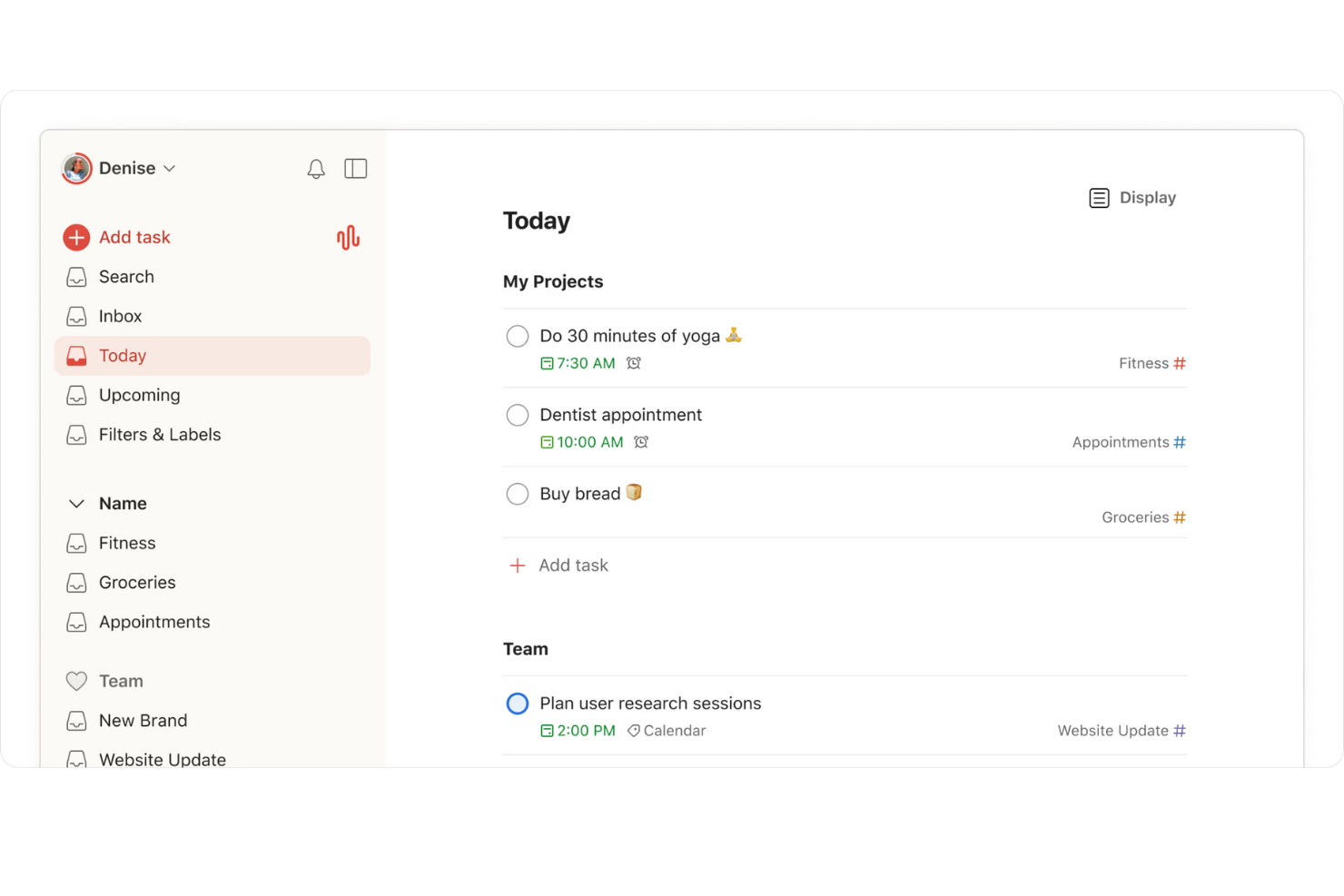
If you need a way to organize complex projects with many moving parts, Todoist is worth a look. This tool is designed for anyone who manages layered task lists, from project managers to freelancers juggling multiple clients. Its flexible hierarchy system helps you break down big goals into actionable steps and keep everything visible in one place.
Why I Picked Todoist
Todoist stands out for its ability to handle complex task hierarchies, which is something many free productivity apps struggle with. I picked it because you can nest tasks within projects, create multiple sub-tasks, and use labels to organize work at several levels. The section and sub-section structure lets you break down even the most complicated projects into manageable pieces. This makes Todoist a strong choice if you need to keep track of dependencies or want a clear overview of multi-step workflows.
Todoist Key Features
Some other features in Todoist that are useful for productivity and organization include:
- Recurring due dates: Set tasks to repeat on a custom schedule so you never miss regular responsibilities.
- Priority levels: Assign priority flags to tasks to help you focus on what matters most each day.
- Productivity visualizations: View progress trends and completed tasks with built-in charts and activity logs.
- Collaboration tools: Share projects, assign tasks, and comment with team members directly inside the app.
Todoist Integrations
Integrations include Google Calendar, Slack, Gmail, Outlook, Zapier, Dropbox, Google Drive, Trello, and more.
What’s Free?
Todoist offers a free-forever plan. Free users can create up to five active projects, collaborate with up to five people per project, and access basic task management features, but advanced features like reminders, labels, and filters are restricted to paid plans.
Pros and Cons
Pros:
- Activity logs track productivity
- Recurring due dates on free tier
- Nested subtasks organize projects
Cons:
- File uploads restricted on free plan
- Reminders require paid upgrade

Best for Microsoft 365 ecosystem users
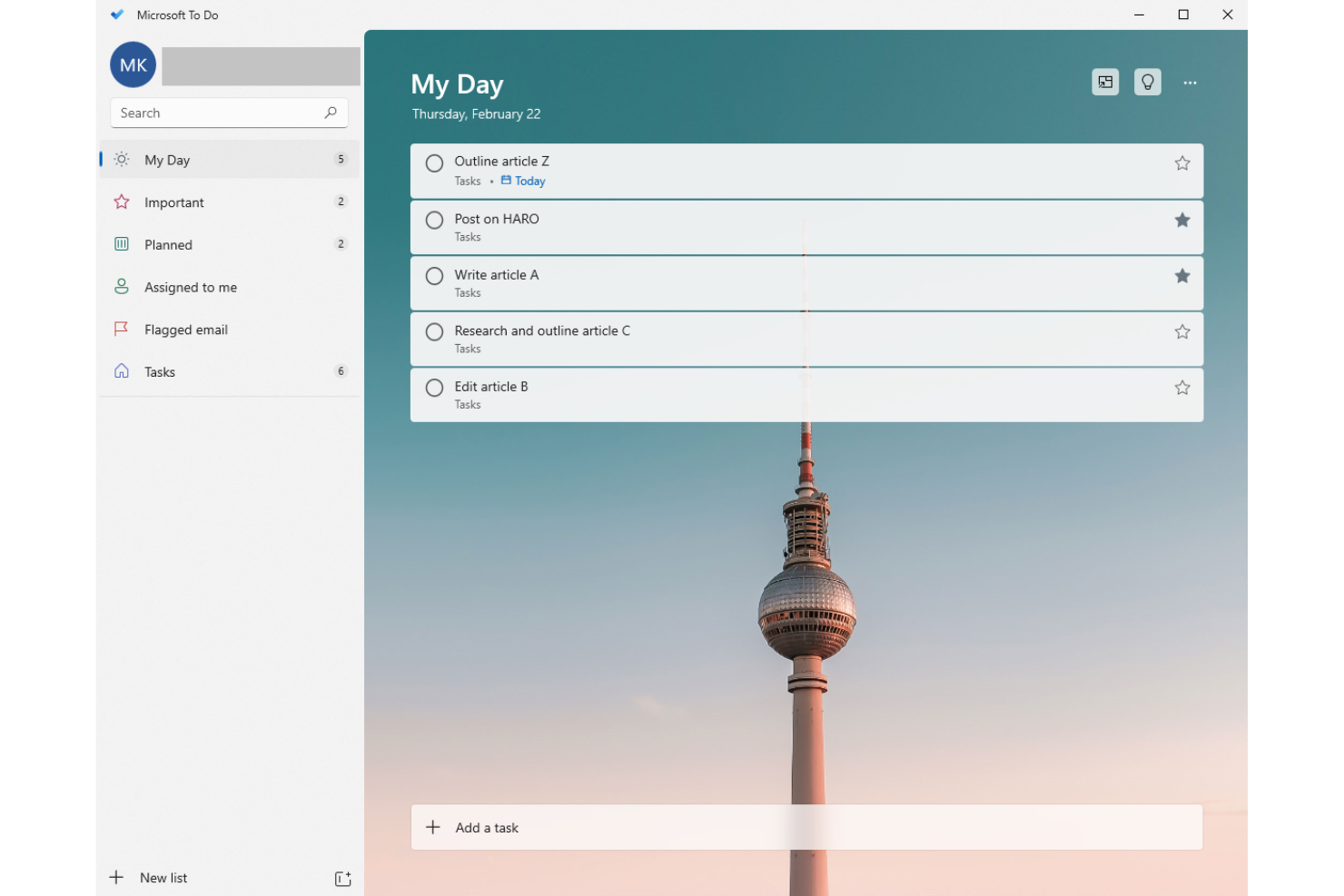
If your team already uses Microsoft 365, Microsoft To Do fits right into your workflow. This task management app is designed for users who want to organize personal and professional tasks within the Microsoft ecosystem. It helps you keep track of daily priorities, share lists, and sync tasks across Outlook and other Microsoft apps.
Why I Picked Microsoft To Do
What makes Microsoft To Do a strong choice for free productivity apps is how seamlessly it fits into the Microsoft 365 ecosystem. If your team already relies on Outlook, Teams, or other Microsoft tools, you can sync tasks and lists directly across these platforms without extra setup. I like that you can flag emails in Outlook and have them appear as actionable tasks in To Do, which helps keep everything connected. For anyone looking to manage tasks within a familiar Microsoft environment, this integration is a clear advantage.
Microsoft To Do Key Features
Some other features in Microsoft To Do that help teams manage productivity include:
- My Day planning tool: Start each day with a clean slate and add tasks you want to focus on.
- Task reminders: Set one-time or recurring reminders to help you stay on top of deadlines.
- Subtasks and notes: Break down larger tasks into smaller steps and add notes for extra context.
- List sharing: Share task lists with colleagues or family members for collaborative planning.
Microsoft To Do Integrations
Native integrations are not currently listed.
What's Free?
Microsoft To Do offers a free-forever plan with unlimited tasks, lists, and users. All core features are available for free, but advanced integrations are limited to the Microsoft 365 ecosystem.
Pros and Cons
Pros:
- Mobile, web, and desktop apps
- List sharing supports simple collaboration
- Reminders and recurring tasks included
Cons:
- Subtasks limited to simple checklists
- No Gantt charts or advanced projects
Notion
Best for combining notes and databases
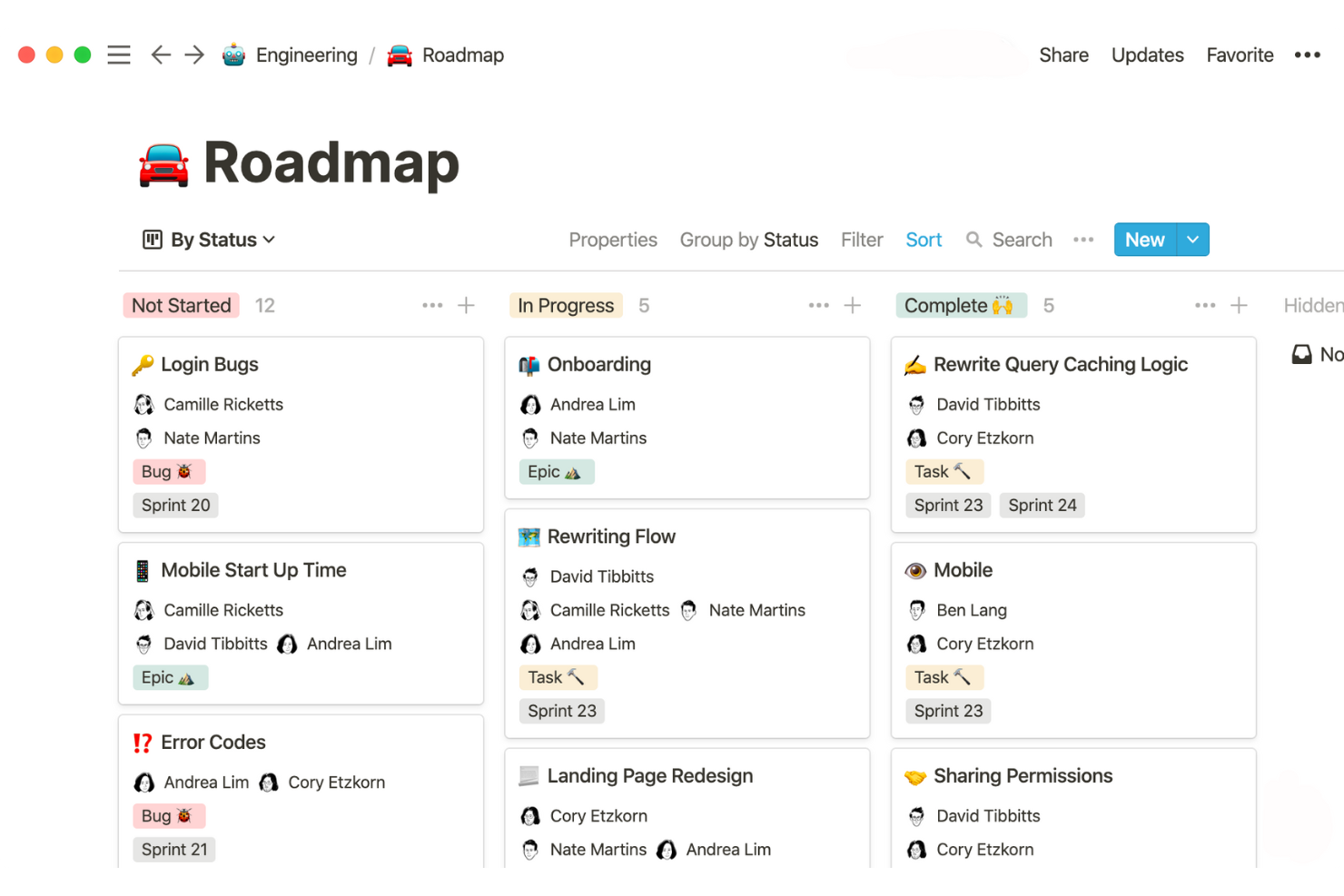
If you need a workspace that blends note-taking with structured data, Notion is worth considering. This tool appeals to project managers, product teams, and anyone who wants to link meeting notes, tasks, and databases in one place. Notion helps you organize scattered information and build custom workflows that go beyond basic lists or documents.
Why I Picked Notion
Notion stands out because it lets you combine free-form notes with structured databases in a single workspace. I picked it for this list since you can create linked tables, kanban boards, and wikis right alongside your meeting notes or project documentation. This flexibility means you can build custom dashboards or track project deliverables without switching between separate tools. If you want a free productivity app that adapts to both unstructured brainstorming and organized data management, Notion is a strong choice.
Notion Key Features
Some other features in Notion that help teams stay organized and productive include:
- Template Gallery: Access a library of pre-built templates for project management, meeting notes, and personal productivity.
- Page Sharing and Permissions: Control who can view, comment, or edit each page or database within your workspace.
- Version History: Review and restore previous versions of any page to track changes or recover lost content.
- Web Clipper: Save articles, web pages, and research directly into Notion from your browser.
Notion Integrations
Integrations include Slack, Google Drive, GitHub, Figma, Jira, Asana, Zoom, Typeform, Miro, and an API for custom integrations.
What's Free?
Notion offers a free-forever plan for individuals with unlimited pages, blocks, and up to 10 guests. The free plan limits file uploads to 5MB per file and restricts some advanced features like version history and admin controls.
Pros and Cons
Pros:
- Wide range of workflow templates
- Real-time collaboration with multiple users
- Free plan allows unlimited pages
Cons:
- No built-in time tracking or reminders
- No native calendar sync

TickTick
Best for built-in habit tracking features
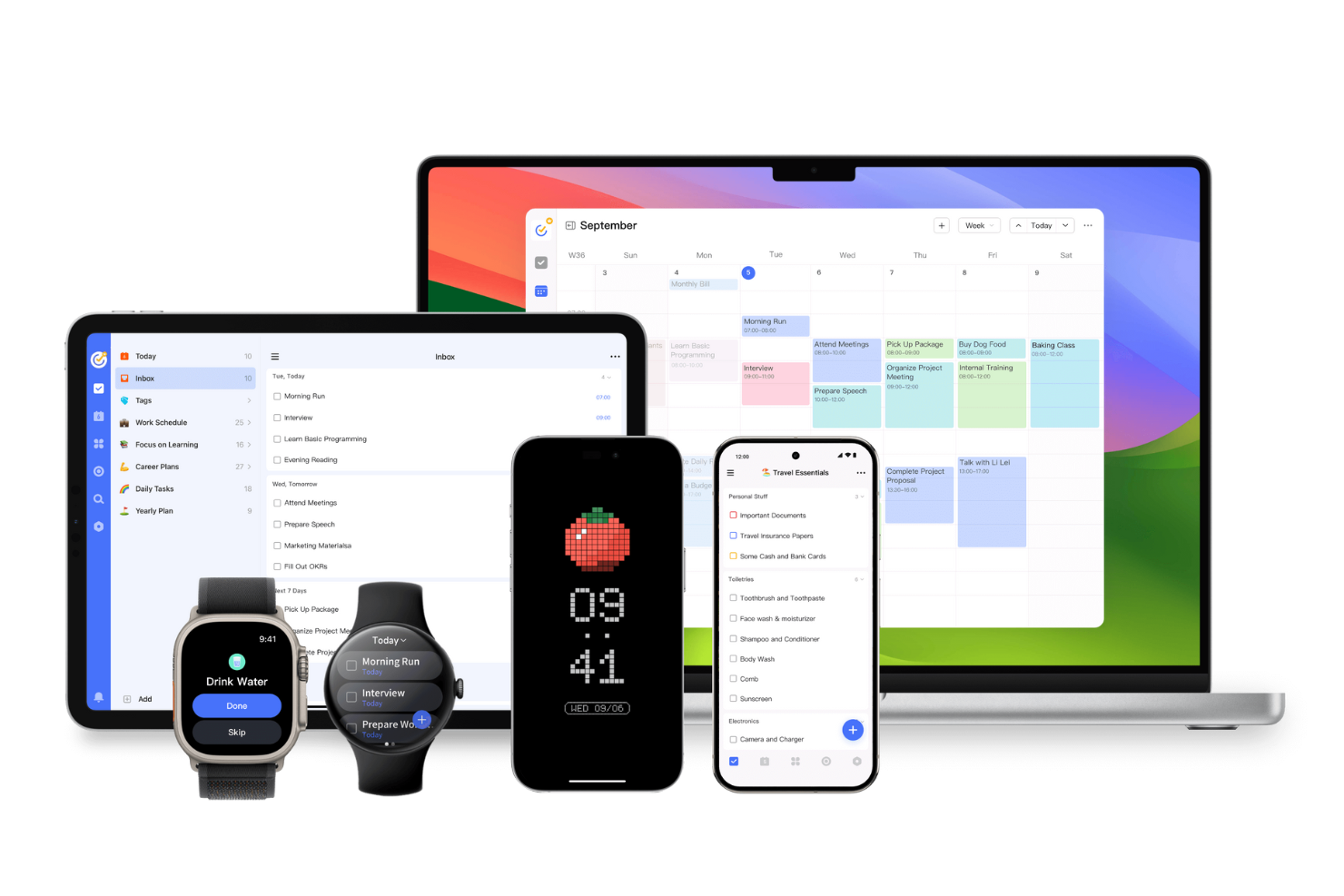
If you want a free productivity app that goes beyond basic task lists, TickTick brings built-in habit tracking into your daily workflow. This tool is a good fit for individuals and teams who want to manage tasks while also building positive routines. With its focus on both productivity and personal development, TickTick helps you keep projects and habits in one place.
Why I Picked TickTick
What sets TickTick apart in the free productivity app space is its built-in habit tracking, which you rarely find alongside standard task management features. I picked TickTick because it lets you create recurring habits right next to your to-dos, so you can track daily routines and project tasks in one place. The habit tracker includes visual streaks and progress charts, making it easy to see how consistent you’ve been over time. For anyone who wants to build better habits while staying on top of work, TickTick brings both together in a single, unified app.
TickTick Key Features
Some other features in TickTick that help teams and individuals manage productivity include:
- Calendar view: See all your tasks and deadlines in a visual calendar layout.
- Priority levels: Assign priority flags to tasks to help organize your workload.
- Pomodoro timer: Use a built-in timer to break work into focused intervals.
- Attachment support: Add files and images directly to tasks for extra context.
TickTick Integrations
Integrations include Amazon Alexa, Slack, Outlook, Gmail, Zapier, and more.
What's Free?
TickTick offers a free-forever plan with basic task management, habit tracking, and calendar features. The free plan limits you to 9 lists, 99 tasks per list, and 19 subtasks per task, and some advanced features require a paid upgrade.
Pros and Cons
Pros:
- Task attachments add files and images
- Calendar view shows upcoming deadlines
- Habit tracker monitors routines and tasks
Cons:
- No team chat or collaboration
- Subtasks require paid upgrade
nTask
Best for risk and issue management tools
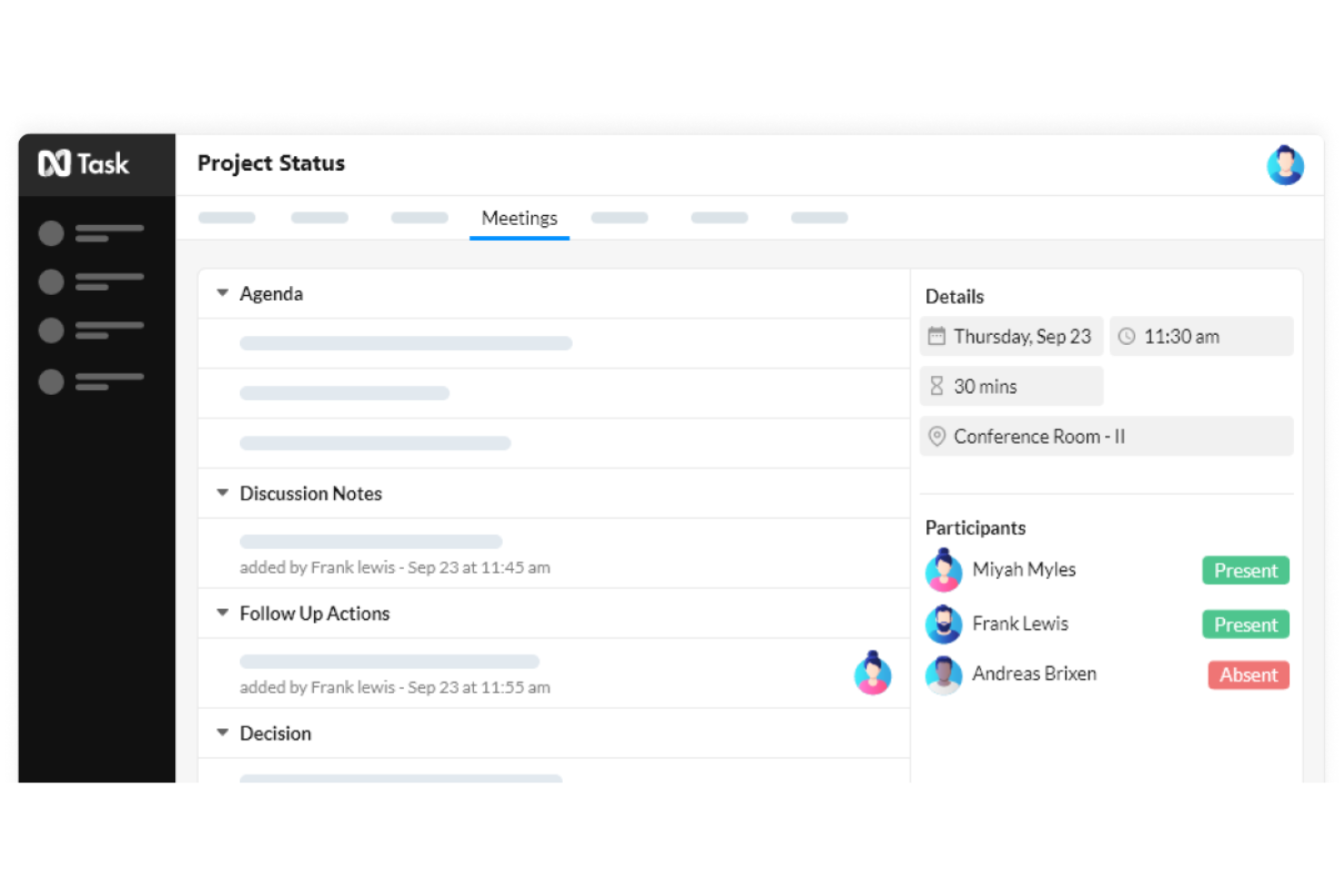
If you need a free productivity app with built-in risk and issue management, nTask is worth a look. This tool is designed for project managers and teams who want to track risks, issues, and tasks in one workspace. nTask helps you identify, document, and monitor project risks alongside your daily work, making it easier to keep projects on track.
Why I Picked nTask
What makes nTask stand out among free productivity apps is its dedicated risk and issue management tools, which you rarely find in this category. I picked nTask because it lets you log, categorize, and track project risks and issues directly within your workspace, so you don’t need a separate tool for this critical part of project delivery. The risk register and issue log features help you document details, assign owners, and monitor status changes as your project progresses. For project managers who need more than just task lists, nTask brings risk and issue tracking into your daily workflow.
nTask Key Features
Some other features in nTask that help teams manage productivity include:
- Task Dependencies: Set relationships between tasks to control workflow order and timing.
- Time Tracking: Track time spent on tasks with built-in timers and manual entry.
- Meeting Management: Schedule, organize, and document meetings directly within the platform.
- Gantt Charts: Visualize project timelines and task progress with interactive Gantt charts.
nTask Integrations
Integrations include Google Calendar, Google Meet, Outlook, Microsoft Teams, and more.
What's Free?
nTask offers a free-forever plan for up to 5 users with basic task management, issue tracking, and meeting management features. The free plan limits file attachments to 100MB per workspace and does not include advanced features like Gantt charts, Kanban boards, or native integrations.
Pros and Cons
Pros:
- Time tracking monitors project hours
- Meeting tools manage agendas and follow-ups
- Gantt charts visualize timelines
Cons:
- Recurring tasks require paid upgrade
- Kanban boards require paid plan
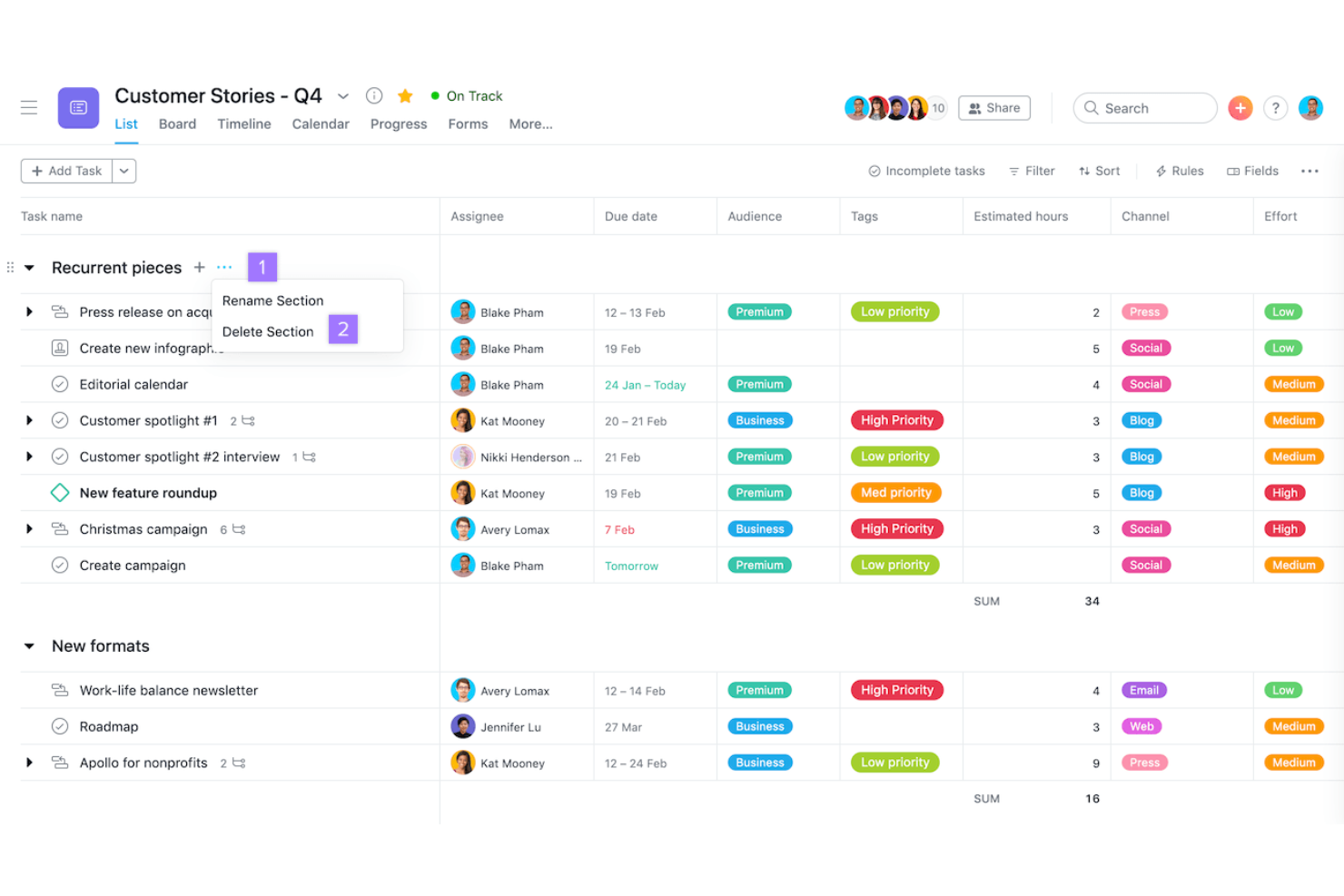
If you’re looking for a free productivity app that excels at automating workflows, Asana is worth a look. This tool is especially useful for teams that need to connect tasks across multiple apps and automate repetitive project steps. Asana helps project managers and cross-functional teams coordinate work, reduce manual updates, and keep projects moving with built-in automation features.
Why I Picked Asana
What makes Asana a strong choice for free productivity apps is how it lets you automate routine workflows and connect your project boards with other tools you already use. I picked Asana because its automation builder allows you to set up custom rules that trigger actions—like moving tasks, assigning work, or sending notifications—without manual effort. I also appreciate that you can integrate Asana with a wide range of apps, so updates and information flow automatically between platforms. For project managers who want to reduce repetitive work and keep projects in sync across tools, Asana’s automation and integration features are especially valuable.
Asana Key Features
Some other features in Asana that help teams manage productivity include:
- Timeline View: Visualize project schedules and dependencies with a drag-and-drop Gantt chart.
- Task Dependencies: Mark tasks as dependent on others to clarify sequencing and avoid blockers.
- Custom Fields: Add custom data fields to tasks for tracking project-specific information.
- Project Templates: Use pre-built templates to quickly launch new projects with best-practice workflows.
Asana Integrations
Integrations include Slack, Google Drive, Microsoft Teams, Zoom, Dropbox, Salesforce, Jira Cloud, Adobe Creative Cloud, Gmail, and Outlook.
What's Free?
Asana offers a free-forever plan for up to 15 users. The free plan includes unlimited tasks, projects, and messages, but limits access to advanced features like timeline view, reporting, and some integrations.
Pros and Cons
Pros:
- Task assignments manage accountability
- Multiple views include list and calendar
- Automation rules support basic workflows
Cons:
- Guest access is limited
- Timeline view is not in free plan

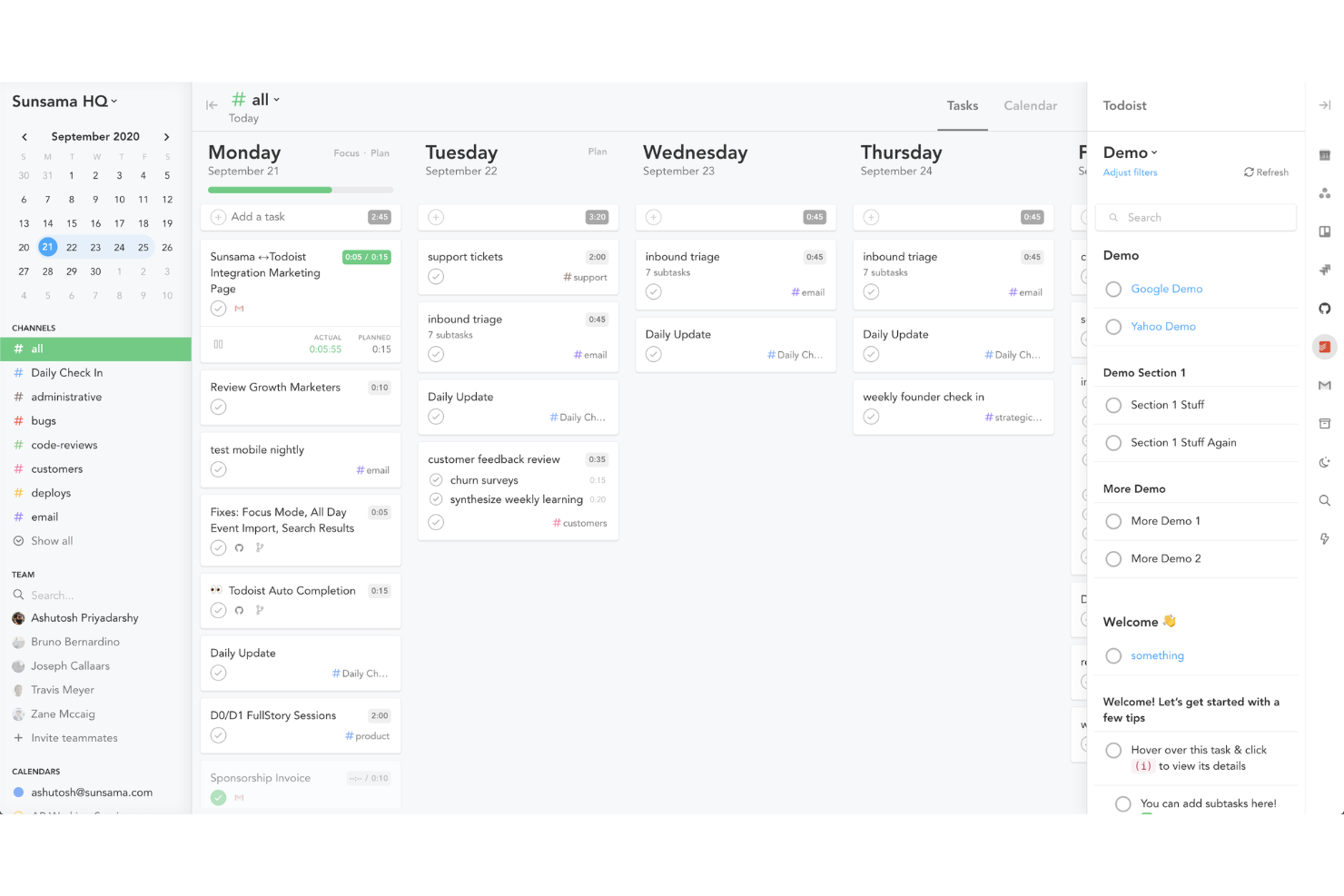
If you want a daily planner that brings your tasks and calendar together, Sunsama is worth a look. This tool appeals to professionals who need to organize their day by pulling in tasks from multiple sources and aligning them with their schedule. Sunsama helps you plan realistic workloads and stay focused by integrating your to-dos directly with your calendar.
Why I Picked Sunsama
What drew me to Sunsama is how it connects daily planning directly with your calendar, making it easy to see your tasks and meetings in one place. You can drag and drop tasks onto your schedule, which helps you realistically plan your day and avoid overcommitting. I also like that Sunsama pulls in tasks from other tools, so you can organize everything from email follow-ups to project work alongside your calendar events. For anyone who wants a daily planning tool that actually syncs with how they work, Sunsama’s calendar integration stands out.
Sunsama Key Features
Some other features in Sunsama that help teams and individuals manage their workday include:
- Focus Mode: This feature lets you work through your daily tasks one at a time, minimizing distractions.
- Task Channel Organization: You can group tasks by channels or categories to keep different workstreams organized.
- Daily Review and Planning Prompts: Sunsama guides you through a daily review and planning process to help you reflect and prioritize.
- Email Task Import: You can turn emails from Gmail or Outlook directly into actionable tasks within your daily plan.
Sunsama Integrations
Integrations include Asana, ClickUp, GitHub, Notion, Google Calendar, Jira, Google Tasks, monday.com, Slack, Microsoft Teams, and more.
What's Free?
Sunsama offers a 14-day free trial with full access to all features. After the trial, continued use requires a paid subscription, and there is no free-forever plan available.
Pros and Cons
Pros:
- Converts emails into tasks
- Guided daily planning prompts
- Imports tasks from major tools
Cons:
- No team collaboration on trial
- Task analytics require paid plan
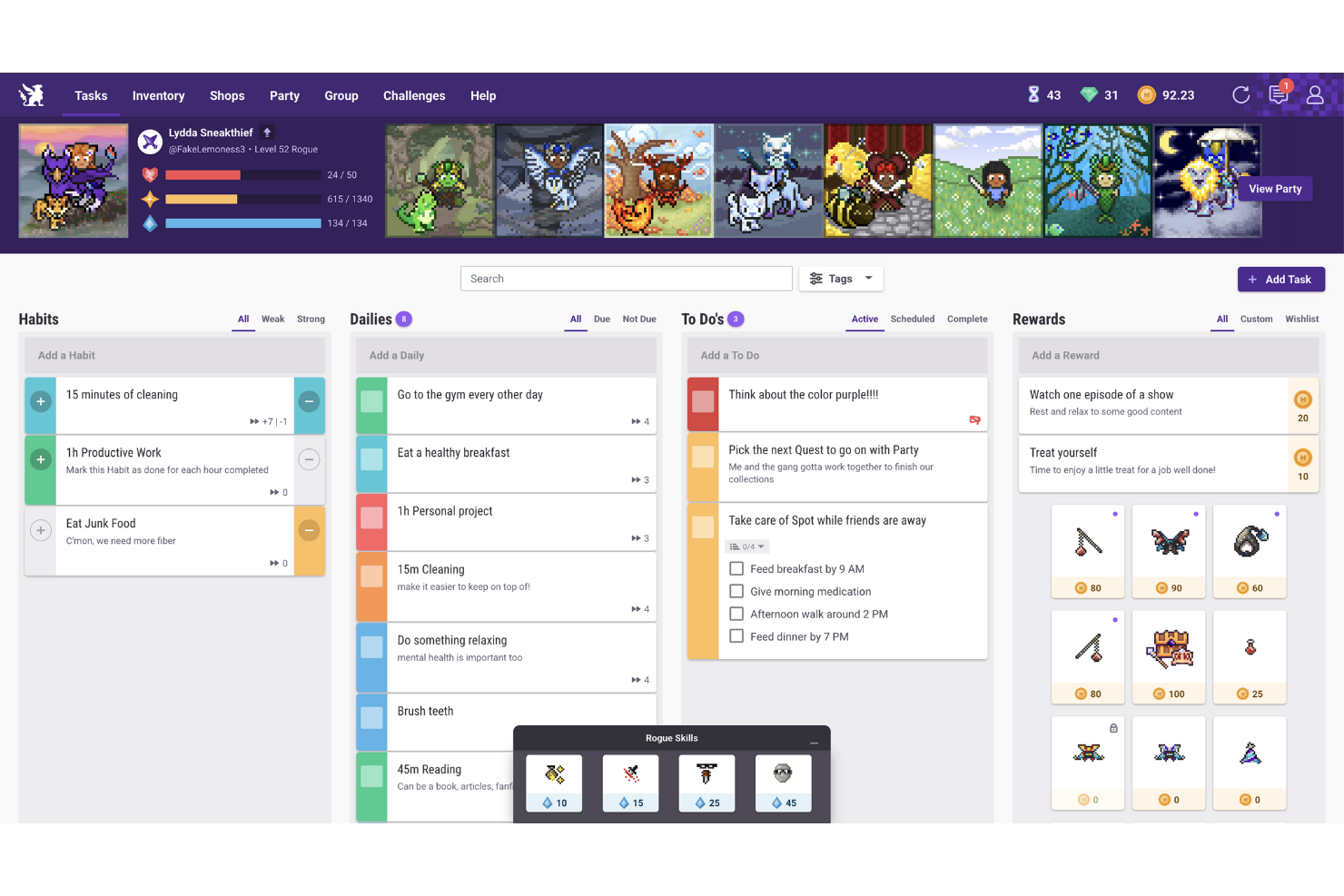
If you want to turn daily task management into a game, Habitica offers a unique approach. This app is designed for individuals and teams who find motivation in rewards, challenges, and levelling up. Habitica helps you build better habits and stay productive by making task completion feel like a role-playing game.
Why I Picked Habitica
What sets Habitica apart from other free productivity apps is how it transforms daily task completion into a game-like experience. I picked Habitica because it uses features like avatars, experience points, and in-app rewards to motivate users to check off tasks and build positive habits. The app also lets you join parties and participate in group challenges, which adds a social and collaborative element to staying productive. For anyone who wants to make habit tracking and task management more engaging, Habitica’s gamification approach is a strong fit.
Habitica Key Features
Some other features in Habitica that help users manage productivity include:
- Daily, Habit, and To-Do Lists: Organize tasks into separate categories for recurring habits, daily routines, and one-time to-dos.
- Customizable Task Difficulty: Set difficulty levels for each task to adjust the challenge and rewards.
- Mobile and Web Access: Use Habitica on both mobile devices and web browsers for flexible task management.
- Open Source Community Plugins: Extend functionality with community-created plugins and add-ons.
Habitica Integrations
Native integrations are not currently listed.
What's Free?
Habitica offers a free-forever plan with access to unlimited tasks, habits, and to-dos. Some advanced features, cosmetic items, and group management options require a paid subscription, but there are no user or time restrictions on the free plan.
Pros and Cons
Pros:
- Custom avatars and rewards personalize productivity
- Community challenges encourage accountability
- Gamified system motivates daily tasks
Cons:
- Progress tracking focuses on gamification
- Task organization limited versus task apps
Andre gratis produktivitetsapper
Her er noen flere alternativer for gratis produktivitetsapper som ikke kom med på kortlisten min, men som likevel er verdt å sjekke ut:


How I Evaluate Free Productivity Apps
I split my evaluation into two layers—core requirements like a genuinely free multi-user plan, and differentiators that separate the tools worth using from the ones that hit a wall fast.
Core Functionality (Table Stakes For This List)
When I'm selecting tools for my list, I rank each one on a scale from 0 (does not offer the functionality) to 5 (excels in this area) for each core functionality listed below. Then, I calculate the tool's total score into a percentage. Each tool needs to achieve a minimum total score of 65% to be considered for inclusion.
- Free Plan Availability: I check whether the tool offers a truly free tier with ongoing access, not just a 14-day trial that locks you out mid-sprint.
- Task & Project Management: Assigning tasks with due dates and statuses is table stakes, but I also look for subtasks and dependencies for managing real delivery workflows.
- Time Tracking: I evaluate time tracking capabilities, including timers, to ensure teams can accurately log work, monitor productivity, and track project progress in one centralized workspace.
- Multiple Project Views: Different workflows need different lenses. I look for at least two views like Kanban boards, calendars, or timelines to support varied planning styles.
- Notifications & Reminders: Missed deadlines often trace back to poor alerts. I check for in-app and email notifications that keep assignees aware of upcoming due dates.
- Third-Party Integrations: Most PMs live across multiple tools, so I evaluate native connections with platforms like Google Workspace, Slack, and common developer tools.
Once I have a list of tools that meet this criteria, I consider what sets each platform apart.
Differentiating Factors (What Sets Vendors Apart)
Here's how I compare and contrast different vendors:
Standout Features
Built-in automation is a major differentiator. I look for tools that let you set rules like auto-assigning tasks when a status changes or triggering reminders before a sprint deadline. Time tracking matters too, especially for freelance PMs who need to log hours against specific projects without adding a separate app. I also evaluate template libraries—a strong set of pre-built templates for sprints, launches, or onboarding workflows saves real setup time when you're spinning up new projects weekly.
Beyond Features
Free plan generosity varies widely. I evaluate how many users, projects, and storage each tool allows before gating features behind a paywall—because a three-person cap can stall a growing team fast. The upgrade path matters just as much. I check whether scaling from a free plan to a paid tier is smooth or forces a painful data migration. Onboarding speed is another factor I weigh. Tools with in-app walkthroughs and quickstart templates get new team members productive in hours, not days.
Slik velger du gratis produktivitetsapper
Det er lett å gå seg vill i lange funksjonslister og kompliserte prismodeller. For å holde fokus mens du går gjennom den unike prosessen med å velge programvare, får du her en sjekkliste over faktorer du bør ha i tankene:
| Faktor | Hva bør du vurdere? |
|---|---|
| Skalerbarhet | Vil appen støtte teamet ditt etter hvert som det vokser, eller finnes det begrensninger på antall brukere eller oppgaver som kan hindre fremtidig utvidelse? |
| Integrasjoner | Kobler appen seg direkte til de eksisterende verktøyene dine, som Slack, Google Kalender eller Trello, eller trenger du alternative løsninger? |
| Tilpasningsmuligheter | Kan du tilpasse oppgavekategorier, arbeidsflyter og varsler til teamets arbeidsprosesser, eller er du bundet til faste maler? |
| Brukervennlighet | Hvor raskt kan nye brukere komme i gang, og reduserer grensesnittet friksjonen ved daglig oppgavehåndtering? Test med en liten gruppe hvis det er mulig. |
| Implementering og innføring | Hvilke ressurser er tilgjengelige for å hjelpe teamet med å komme i gang – for eksempel veiledninger, maler eller direkte brukerstøtte? Ta hensyn til tiden og innsatsen som kreves for å ta løsningen i bruk. |
| Kostnad | Finnes det skjulte kostnader, oppfordringer til å oppgradere eller bruksgrenser som kan tvinge deg til å betale tidligere enn forventet? Les vilkårene for gratisabonnementet nøye. |
| Sikkerhetstiltak | Tilbyr appen grunnleggende beskyttelse som datakryptering, brukertillatelser og regelmessige oppdateringer? Kontroller at den oppfyller organisasjonens sikkerhetsstandarder. |
| Tilgjengelig brukerstøtte | Hvis du får problemer, finnes det rask hjelp via chat, e-post eller fora, eller blir du nødt til å vente på svar? Se nærmere på åpningstidene for brukerstøtte og svartidene. |
Hva er gratis produktivitetsapper?
Gratis produktivitetsapper er programvareverktøy som hjelper enkeltpersoner eller team med å organisere oppgaver, administrere prosjekter og følge med på fremdriften uten at det kreves betaling. Disse appene tilbyr vanligvis kjernefunksjoner som oppgavelister, påminnelser og samarbeidsverktøy kostnadsfritt. De er utviklet for å støtte bedre tidsstyring, gi bedre oversikt over arbeidsflyten og gjøre det mulig for brukerne å holde oversikt over ansvarsområdene sine, noe som gjør dem til tilgjengelige alternativer for dem med begrensede budsjetter.
Funksjoner i gratis produktivitetsapper
La oss gå gjennom funksjonene som er vanlige i produktivitetsapper, og se hvilke som vanligvis er inkludert i gratis- og betalingsabonnementer.
Funksjoner som vanligvis er gratis i produktivitetsapper
- Oppgavehåndtering: Opprett, rediger og organiser oppgaver eller gjøremål, slik at brukerne kan holde oversikt over hva som må gjøres hver dag.
- Forfallsdatoer og påminnelser: Angi tidsfrister og motta varsler for å sikre at viktige oppgaver blir fullført i tide.
- Grunnleggende samarbeid: Del oppgaver eller lister med andre, slik at dere kan samarbeide enkelt og dele ansvaret.
- Sjekklister: Del større oppgaver opp i mindre, konkrete trinn som kan krysses av etter hvert som de fullføres.
- Grunnleggende prosjektorganisering: Grupper oppgaver etter prosjekt, kategori eller etikett for å holde arbeidet organisert og enkelt å finne.
- Tilgang via mobil og nett: Bruk appen på tvers av enheter, slik at oppgaver og oppdateringer alltid er tilgjengelige, enten du sitter ved skrivebordet eller er på farten.
- Enkel fremdriftsoppfølging: Se fullførte og utestående oppgaver for å følge med på produktiviteten daglig eller ukentlig.
- Begrensede filvedlegg: Legg til dokumenter eller bilder i oppgaver, vanligvis med begrensninger på filstørrelse eller lagringsplass.
Funksjoner som vanligvis er betalingsfunksjoner i produktivitetsapper
- Avanserte integrasjoner: Koble til annen programvare, for eksempel kalendere, kommunikasjonsverktøy eller skylagring, for å få en mer helhetlig arbeidsflyt.
- Tilpasset automatisering: Sett opp regler eller utløsere som automatiserer gjentakende handlinger, for eksempel å flytte oppgaver eller sende påminnelser.
- Tidsregistrering: Følg med på hvor mye tid som brukes på oppgaver eller prosjekter, og legg til rette for bedre planlegging og rapportering.
- Avansert rapportering og analyse: Få tilgang til detaljert innsikt i produktivitetstrender, teamets prestasjoner og prosjektets fremdrift.
- Rollebaserte tillatelser: Bestem hvem som kan se, redigere eller administrere bestemte oppgaver og prosjekter for bedre sikkerhet og oversikt.
- Prioritert brukerstøtte: Få raskere svartider og dedikert hjelp fra brukerstøtteteam.
- Utvidet lagringsplass: Last opp større filer eller lagre flere dokumenter i appen, slik at mer komplekse prosjekter kan håndteres.
- Tilpasset profilering: Legg til organisasjonens logo og farger i appens grensesnitt for et mer profesjonelt utseende.
- Arbeidsflytmaler: Få tilgang til eller opprett gjenbrukbare maler for vanlige prosesser, slik at du sparer tid på oppsett av gjentakende prosjekter.
- Avanserte samarbeidsverktøy: Bruk funksjoner som sanntidschat, kommentarer eller videosamtaler direkte i appen for å styrke samarbeidet.
Fordeler med gratis produktivitetsapper
Implementering av gratis produktivitetsapper gir flere fordeler for teamet og virksomheten din. Her er noen av fordelene du kan se frem til:
- Kostnadsbesparelser: Få tilgang til viktige funksjoner for oppgavehåndtering og samarbeid uten å øke programvarebudsjettet.
- Bedre organisering: Bruk oppgavelister, påminnelser og prosjektgruppering for å holde arbeidet strukturert og enkelt å administrere.
- Økt ansvarlighet: Tildel oppgaver og del fremdrift med teammedlemmer, slik at det blir enklere å følge opp ansvarsområder.
- Raskere opplæring: Kom raskt i gang med intuitive grensesnitt, maler og grunnleggende samarbeidsverktøy som krever lite opplæring.
- Fleksibilitet og tilgjengelighet: Administrer oppgaver hvor som helst med tilgang via mobil og nett, noe som støtter distribuerte team og fjernteam.
- Eksperimentering med lav risiko: Prøv ut ulike arbeidsflyter og funksjoner uten økonomisk forpliktelse, slik at du kan finne det som passer best før du oppgraderer.
- Økt engasjement i teamet: Bruk spillifisering eller sosiale funksjoner for å motivere til deltakelse og opprettholde fremdriften i de daglige oppgavene.
Kostnader og priser for produktivitetsapper
Jeg innser at du kom til denne artikkelen på jakt etter de beste alternativene for produktivitetsapper som er tilgjengelige gratis. Men siden gratisabonnementer bare tilbyr begrensede funksjoner, er det en god sjanse for at du må oppgradere abonnementet ditt senere.
Tabellen nedenfor oppsummerer vanlige abonnementer, gjennomsnittsprisene deres og typiske funksjoner som følger med produktivitetsapper:
Sammenligningstabell for produktivitetsapper
| Abonnementstype | Gjennomsnittspris | Vanlige funksjoner |
|---|---|---|
| Gratisabonnement | $0 | Grunnleggende oppgavehåndtering, enkelt samarbeid, begrensede filvedlegg, tilgang via mobil og nett samt grunnleggende påminnelser. |
| Personlig abonnement | $5–$10/bruker/måned | Alle gratisfunksjoner, kalenderintegrasjoner, gjentakende oppgaver, økt lagringsplass og grunnleggende tilpasningsmuligheter. |
| Bedriftsabonnement | $10–$25/bruker/måned | Alle funksjoner i det personlige abonnementet, avanserte integrasjoner, automatisering av arbeidsflyter, verktøy for teamadministrasjon og rapporteringsfunksjoner. |
| Foretaksabonnement | $25–$40/bruker/måned | Alle bedriftsfunksjoner, avansert sikkerhet, tilpassede roller og tillatelser, prioritert brukerstøtte og alternativer for samsvar. |
Vanlige spørsmål om gratis produktivitetsapper
Her er noen svar på vanlige spørsmål om gratis produktivitetsapper:
Er gratis produktivitetsapper sikre nok til bruk i virksomheter?
Ja, de fleste gratis produktivitetsapper tilbyr grunnleggende sikkerhetsfunksjoner som datakryptering og brukerautentisering. Avanserte sikkerhetskontroller og alternativer for samsvar er imidlertid vanligvis forbeholdt betalte abonnementer, så gå gjennom personvernerklæringen og sikkerhetsdokumentasjonen for hver app før du bruker den til sensitive virksomhetsdata.
Kan jeg oppgradere fra et gratisabonnement til et betalt abonnement senere?
Ja, nesten alle produktivitetsapper lar deg starte med et gratisabonnement og oppgradere til et betalt abonnement etter hvert som behovene dine vokser. En oppgradering låser vanligvis opp mer avanserte funksjoner, høyere lagringsgrenser og bedre brukerstøtte uten at du må flytte dataene dine.
Hva er de viktigste begrensningene ved gratis produktivitetsapper?
Gratis produktivitetsapper begrenser ofte antallet brukere, prosjekter eller mengden lagringsplass du kan bruke. Du kan også finne begrensninger på integrasjoner, automatisering og avansert rapportering. Disse begrensningene kan påvirke større team eller mer komplekse arbeidsflyter, så vurder behovene dine før du bestemmer deg.
Fungerer gratis produktivitetsapper på både stasjonære og mobile enheter?
Ja, de fleste gratis produktivitetsapper tilbyr både nett- og mobilversjoner, slik at du kan administrere oppgaver og samarbeide hvor som helst. Enkelte funksjoner eller integrasjoner kan imidlertid være begrenset på mobil, så sjekk dokumentasjonen for appen for mer informasjon.
Hvordan velger jeg riktig gratis produktivitetsapp for teamet mitt?
Begynn med å identifisere teamets viktigste behov, for eksempel oppgavehåndtering, samarbeid eller integrasjon med andre verktøy. Sammenlign brukervennlighet, skalerbarhet og brukerstøtte, og test noen apper sammen med teamet for å se hvilken som passer best til arbeidsflyten deres.