

10 beste programmer for visning av Microsoft Project, vurdert for 2026

10 Kortliste over programvare for visning av Microsoft Project


De beste verktøyene for visning av Microsoft Project gjør det enkelt å åpne, dele og gå gjennom .MPP-filer – uten behov for en full Microsoft Project-lisens. Enten du presenterer Gantt-diagrammer for interessenter eller gir teammedlemmer innsyn i oppgaveavhengigheter og tidslinjer, kan et pålitelig visningsverktøy effektivisere samarbeidet og redusere programvarekostnadene i hele organisasjonen.
Microsoft Project er fortsatt den foretrukne plattformen for håndtering av komplekse tidsplaner, men lisenskravene kan begrense hvem som faktisk har tilgang. Derfor benytter mange prosjektledere seg av frittstående visningsverktøy som bevarer formatering og funksjonalitet uten læringskurven eller prislappen til hele produktet.
Etter å ha administrert hundrevis av tidsplaner og arbeidet med MS Project på tvers av store team og virksomhetsmiljøer har jeg testet og vurdert de beste tilgjengelige visningsverktøyene for Microsoft Project. I denne veiledningen går jeg gjennom de beste verktøyene for effektiv deling av prosjektfiler – slik at du kan finne den riktige løsningen for teamet ditt.
Why Trust Our Software Recommendations
Our team has been testing and reviewing software since 2012. As project managers ourselves, we know how difficult—and important—it is to choose the right software.
For this guide, we evaluated tools using hands-on testing and independent research, scoring tools using our selection criteria. We also draw on insights from industry thought leaders and practicing project management experts.
Our reviews reflect our human editorial judgment, not a sales pitch.
Expert reviewers:
Sammenligningstabell for visningsverktøy for Microsoft Project
Denne sammenligningstabellen oppsummerer prisdetaljene for mine utvalgte visningsverktøy for Microsoft Project:
| Tool | Best For | Trial Info | Price | ||
|---|---|---|---|---|---|
| 1 | Best to import data from .mpp files | 14-day free trial | From $7/user/month (billed annually) | Website | |
| 2 | Best for CSV-based migration into live collaboration | Free plan available | From $9/user/month (billed annually) | Website | |
| 3 | Best free .mpp editor for cross-platform use | Free plan available | From $9.99/user/month (billed annually) | Website | |
| 4 | Best for enterprise-scale .mpp distribution | 15-day free trial | From $114/user/year (billed annually) | Website | |
| 5 | Best MPP viewer across Windows, Mac, and mobile | Free viewer available | From $59.99/user (one-time) | Website | |
| 6 | Best for scaling beyond viewing into live team work | 30-day free trial | From $9/user/month (billed annually) | Website | |
| 7 | Best for two-way .mpp sync with guest viewing | 30-day free trial | From $15/user/month (billed annually) | Website | |
| 8 | Best free MPP viewer for Windows, Mac, and Linux | Free plan available | From $4/user/month | Website | |
| 9 | Best project planner for PC, Mac, and mobile | 14-day free trial | From $10.99/user/month (billed annually) | Website | |
| 10 | Best for opening .mpp and Primavera P6 files | 7-day free trial | From $7.99/user/month | Website |


Oversikt over de 10 beste visningsverktøyene for Microsoft Project
Her er en kort beskrivelse av hvert verktøy, slik at du kan se hvorfor det kan være et aktuelt alternativ når du skal velge ditt neste visningsverktøy for Microsoft Project.

GanttPRO
Best to import data from .mpp files
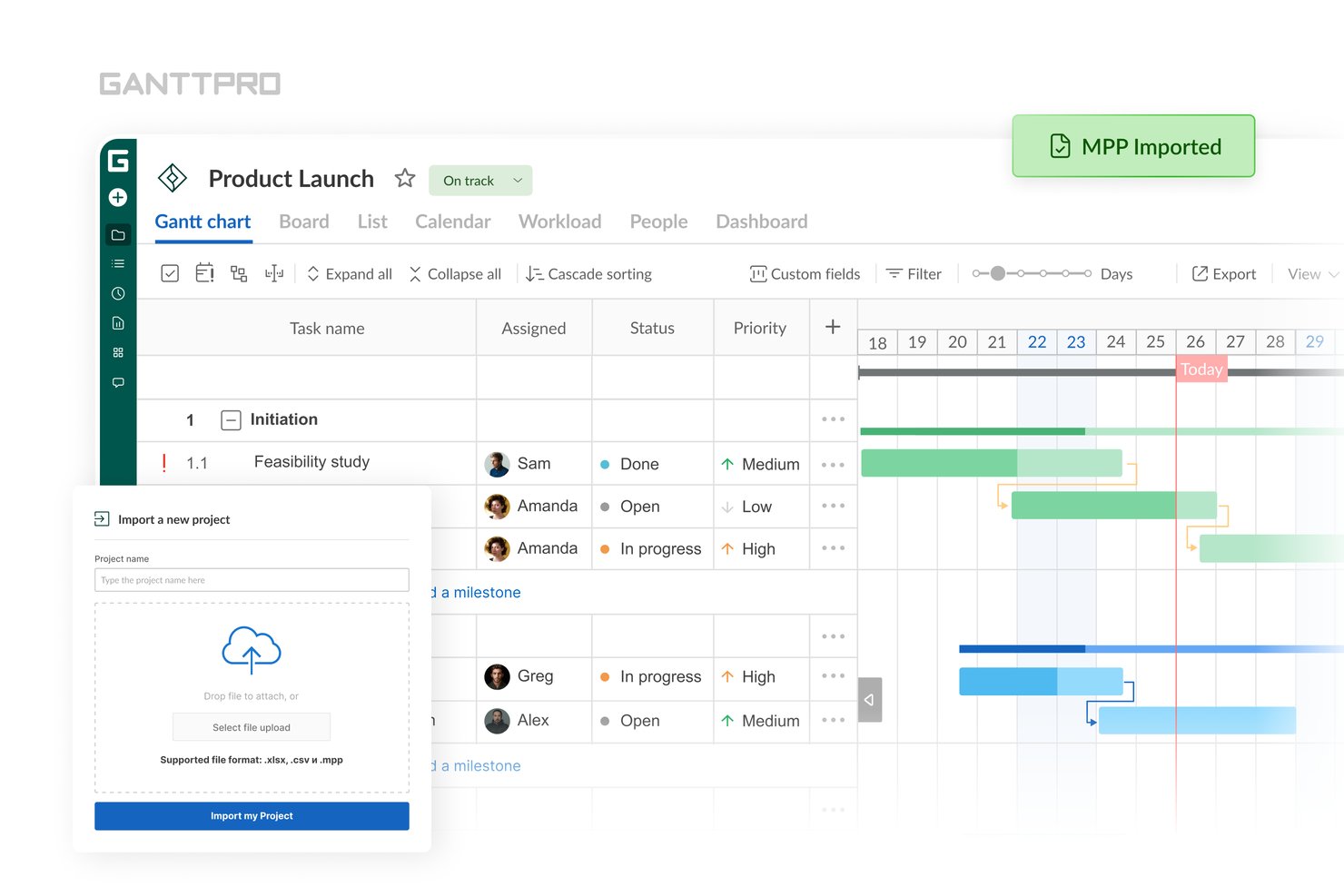
GanttPRO is a browser-based Gantt chart and project management tool that lets you open, visualize, and share
.mpp
files across Windows, Mac, and Linux without a Microsoft Project license.
Who Is GanttPRO Best For?
GanttPRO is a strong fit for project managers and PMO leads who need to open, visualize, and share
.mpp
files with stakeholders across Mac, Windows, or Linux without paying for Microsoft Project licenses.
Why I Picked GanttPRO
GanttPRO earns its spot on my shortlist because it lets you drag and drop an
.mpp
file directly into a browser and get a fully interactive Gantt chart without touching a Microsoft Project license. I like that it preserves task dependencies, milestones, and critical path on import, so the schedule structure stays intact for review and sharing. The one honest caveat I'll flag: task descriptions, comments, and attachments don't come through on import, so it works best when your core scheduling data is the priority.
GanttPRO Key Features
- Baseline and variance tracking: Set a baseline snapshot of your plan and compare it visually against your live schedule directly on the Gantt chart.
- Public URL sharing: Generate a shareable link that lets stakeholders view your project schedule in a browser without a GanttPRO account or paid seat.
- Multi-format export: Export your Gantt chart to PDF, PNG, XML, or Excel with customizable layouts, date ranges, and column visibility settings.
- Real-time collaboration: Add comments, , and file attachments at the task level, with live sync across all team members.
GanttPRO Integrations
GanttPRO offers native integrations with Microsoft Teams, Slack, Google Drive, OneDrive, Outlook Calendar, Google Calendar, and Jira Cloud (beta), plus an API for custom integrations.
Pros and Cons
Pros:
- Preserves critical path and baselines on import
- Offers public URL sharing for schedules
- Imports .mpp files with task dependencies
Cons:
- No two-way sync with Microsoft Project
- Does not import task descriptions or attachments

ClickUp
Best for CSV-based migration into live collaboration
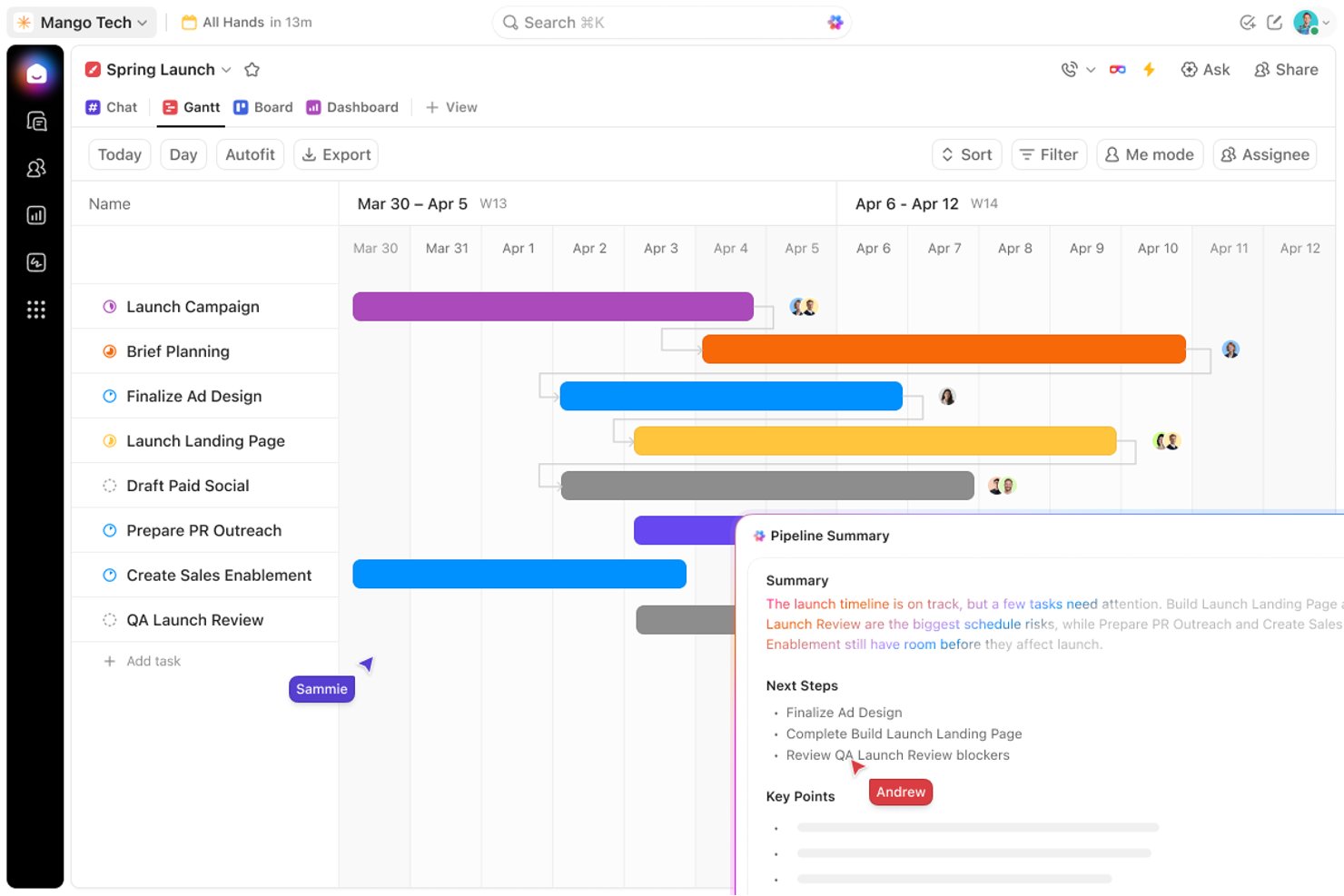
ClickUp is a full work management platform that offers Gantt charts, task views, real-time collaboration, and CSV-based project import as an alternative path for teams looking to move MS Project schedules into an active, shareable workspace.
Who Is ClickUp Best For?
ClickUp suits teams that are ready to leave MS Project behind and want to turn exported schedules into a live, collaborative workspace.
Why I Picked ClickUp
I've included ClickUp in my top picks because it gives teams a clear migration path out of MS Project and into a live, collaborative workspace. The CSV import workflow lets you pull exported schedules directly into ClickUp's Gantt view, where you get critical path visibility, baseline tracking, and drag-and-drop rescheduling. Once the data's in, stakeholders can access, comment on, and review the schedule without ever touching an MS Project license.
ClickUp Key Features
- CSV and spreadsheet import: Bring exported MS Project schedules into ClickUp via CSV or Excel using the built-in Spreadsheets Importer.
- Critical path highlighting: Automatically identifies and highlights the task chain controlling your project deadline within the Gantt view.
- Baseline overlay: Save a schedule snapshot and overlay it on your live Gantt to compare planned vs. actual progress at any point.
- Guest access with permission controls: Share specific views with external stakeholders at view-only or edit level without exposing your full workspace.
ClickUp Integrations
ClickUp offers native integrations with Microsoft Teams, Outlook, OneDrive, Google Drive, and Slack. It also provides a public API for custom integrations and supports Zapier.
Pros and Cons
Pros:
- Flexible sharing with guest and public links
- Enables real-time collaboration on imported schedules
- Robust Gantt with baselines and critical path
Cons:
- Task dependencies lost during CSV import
- Cannot open or view native .mpp files
New Product Updates from ClickUp
ClickUp Adds Meetings Hub, Super Agent Templates, and ZoomInfo Integration
ClickUp adds a searchable Meetings Hub, new ways to clone and template Super Agents, and a ZoomInfo integration through the App Center. These updates improve meeting retrieval, agent reuse, and access to sales intelligence. For more information, visit ClickUp’s official site.

Best free .mpp editor for cross-platform use
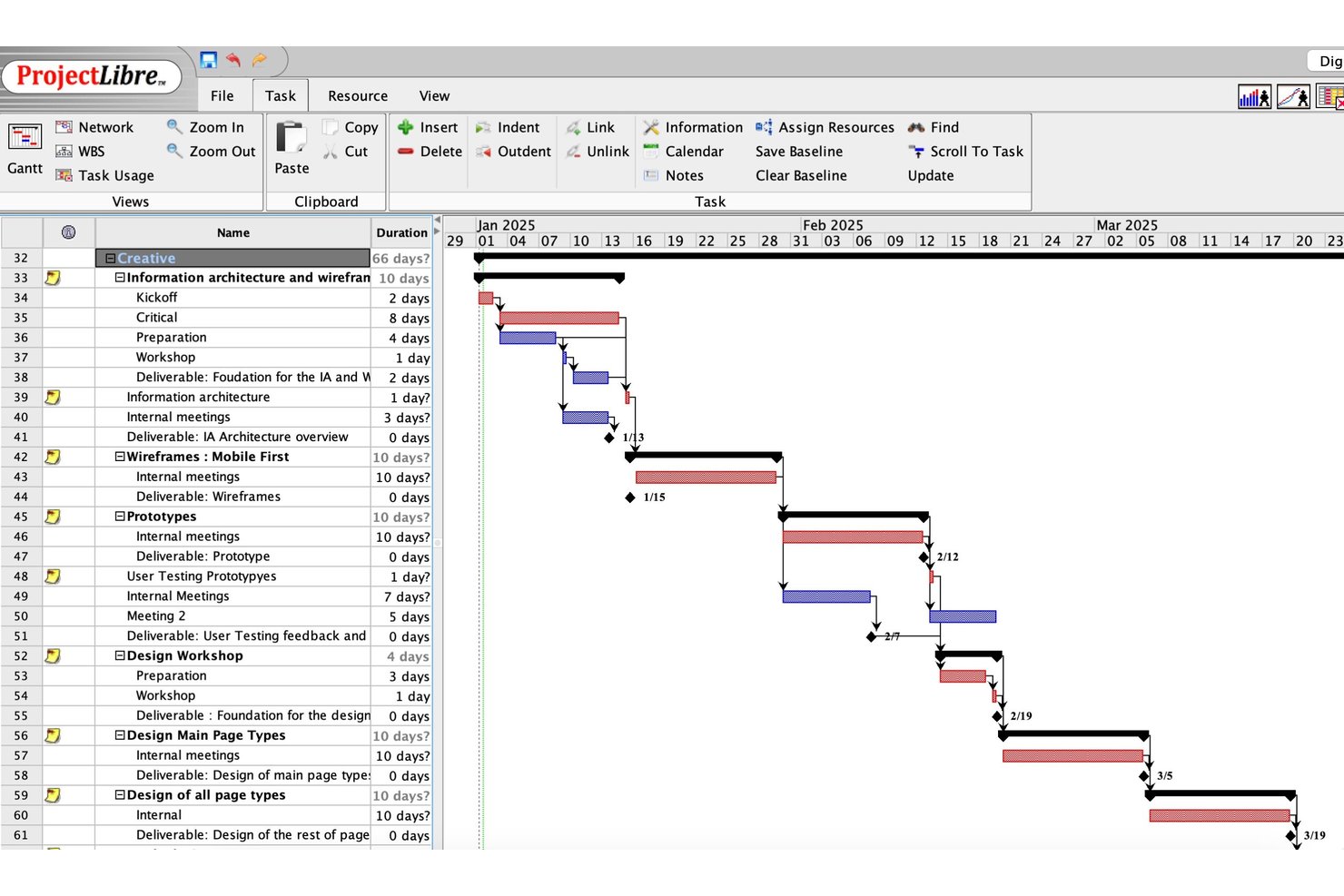
ProjectLibre is an open-source project management editor that opens, edits, and saves .mpp files natively across Windows, macOS, and Linux, with views spanning Gantt charts, Network Diagrams, resource sheets, and WBS charts.
Who Is ProjectLibre Best For?
ProjectLibre is a strong fit for individual project managers and small teams on Linux, macOS, or Windows who need to open, edit, and save .mpp files without paying for a Microsoft Project license.
Why I Picked ProjectLibre
ProjectLibre earns its spot on my shortlist because it's the only free tool that opens, edits, and saves
.mpp
files natively across Windows, macOS, and Linux without requiring a Microsoft Project license. I picked it specifically for cross-platform teams where a Linux-based engineer or a macOS-using PM needs to open a schedule sent by an MS Project user. The full Gantt view with critical path, baselines, and Network Diagrams loads right from the
.mpp
file, with no conversion step.
ProjectLibre Key Features
- Monte Carlo risk analysis: Runs statistical simulations on your schedule to model risk and forecast likely completion dates.
- Earned Value Management (EVM): Tracks project cost and schedule performance against a baseline using standard EVM metrics.
- Network Diagram view: Displays tasks and dependencies in a PERT-style flowchart for dependency and logic review.
- CSV and XML export: Exports project data to CSV or XML for use in other tools or reporting workflows.
ProjectLibre Integrations
ProjectLibre doesn't have documented native integrations with Microsoft 365, SharePoint, Teams, Jira, Asana, Slack, or Google Workspace. It supports .mpp, .mpx, XML, and CSV file exchange, but no documented public API for custom integrations.
Pros and Cons
Pros:
- Includes Gantt, PERT, and baseline views
- Runs on Windows, macOS, and Linux
- Opens and edits .mpp files natively
Cons:
- Requires full desktop install for free access
- No read-only or lightweight viewer mode

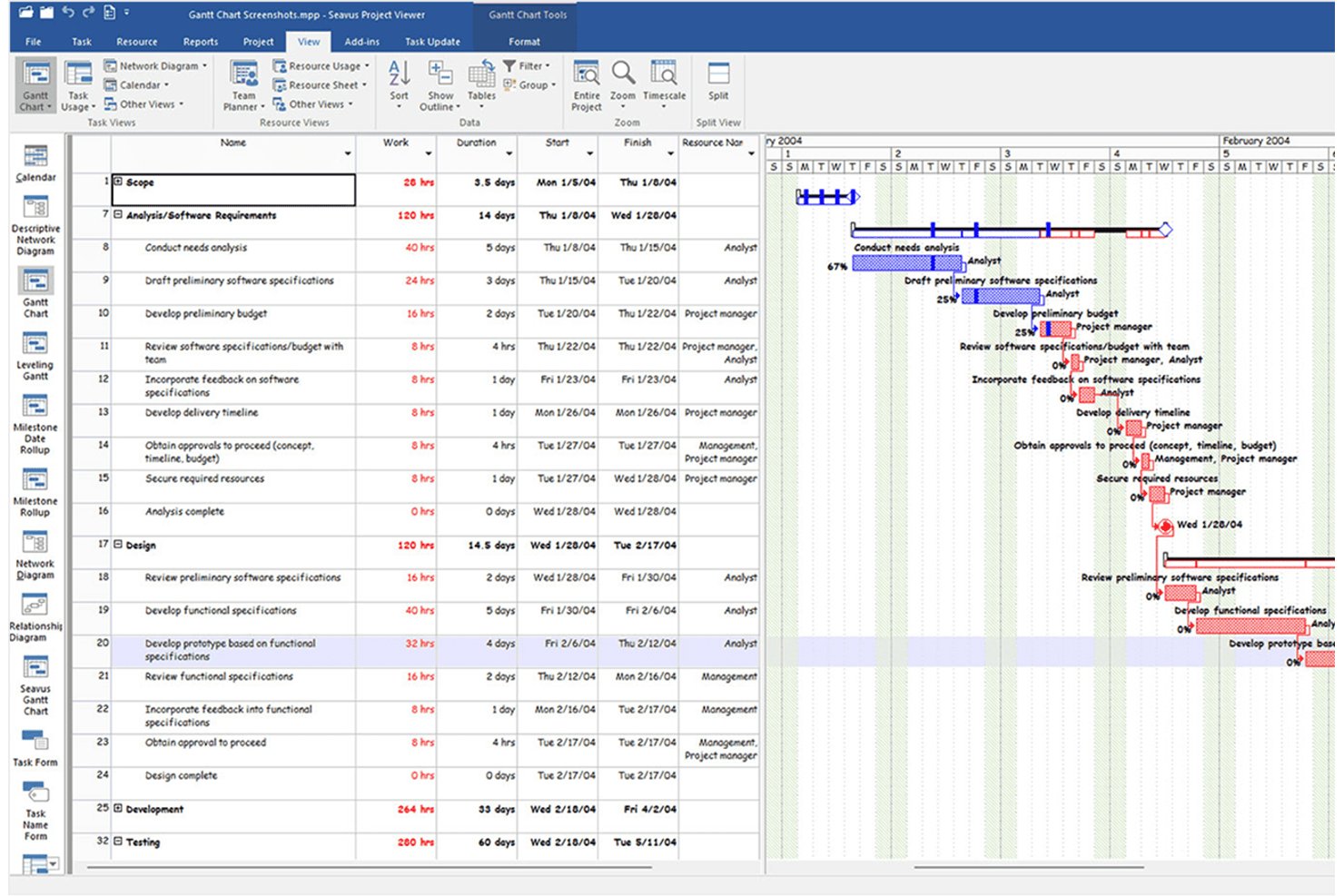
Seavus Project Viewer is a read-only .mpp viewer that opens Microsoft Project files across 27+ views—including Gantt, Network Diagram, and Team Planner—without requiring a Microsoft Project license, on Windows, macOS, iOS, Android, and web.
Who Is Seavus Project Viewer Best For?
Seavus Project Viewer suits large organizations that need to distribute .mpp files across many stakeholders without buying additional Microsoft Project licenses.
Why I Picked Seavus Project Viewer
Seavus Project Viewer earns its spot on my shortlist because no other viewer matches its reach when you need to distribute .mpp files across a large organization. I've seen teams use it to share project plans with hundreds of stakeholders, from BMW manufacturing floors to NATO operations, without touching a single additional MS Project license. It opens files from MS Project 98 all the way through 2024, across 27+ views, and handles files up to 500 MB without breaking a sweat.
Seavus Project Viewer Key Features
- Task Update Add-in: Team members can submit task progress and comments directly from the viewer, and project managers can accept, reject, or respond to updates without sharing the source file.
- Project plan comparison: Opens two versions of a .mpp file side by side to highlight differences in task and resource parameters.
- Graphical reports and dashboards: Displays predefined MS Project reports across Dashboard, Resources, and Cost categories, with options to adjust chart type, fields, and sorting.
- Multi-language interface: Supports 11 languages, including Japanese, Chinese, Russian, and German, for global team access.
Seavus Project Viewer Integrations
Seavus Project Viewer integrates with SharePoint, OneDrive, and Google Drive for opening project files, and connects to Microsoft Project through the Task Update Add-in. No API or native cloud-sharing controls are documented.
Pros and Cons
Pros:
- Task Update Add-in enables structured team feedback
- Preserves original formatting and all 27+ views
- Opens .mpp files from MS Project 98–2024
Cons:
- Lacks real-time in-app collaboration features
- No direct PDF or Excel export option

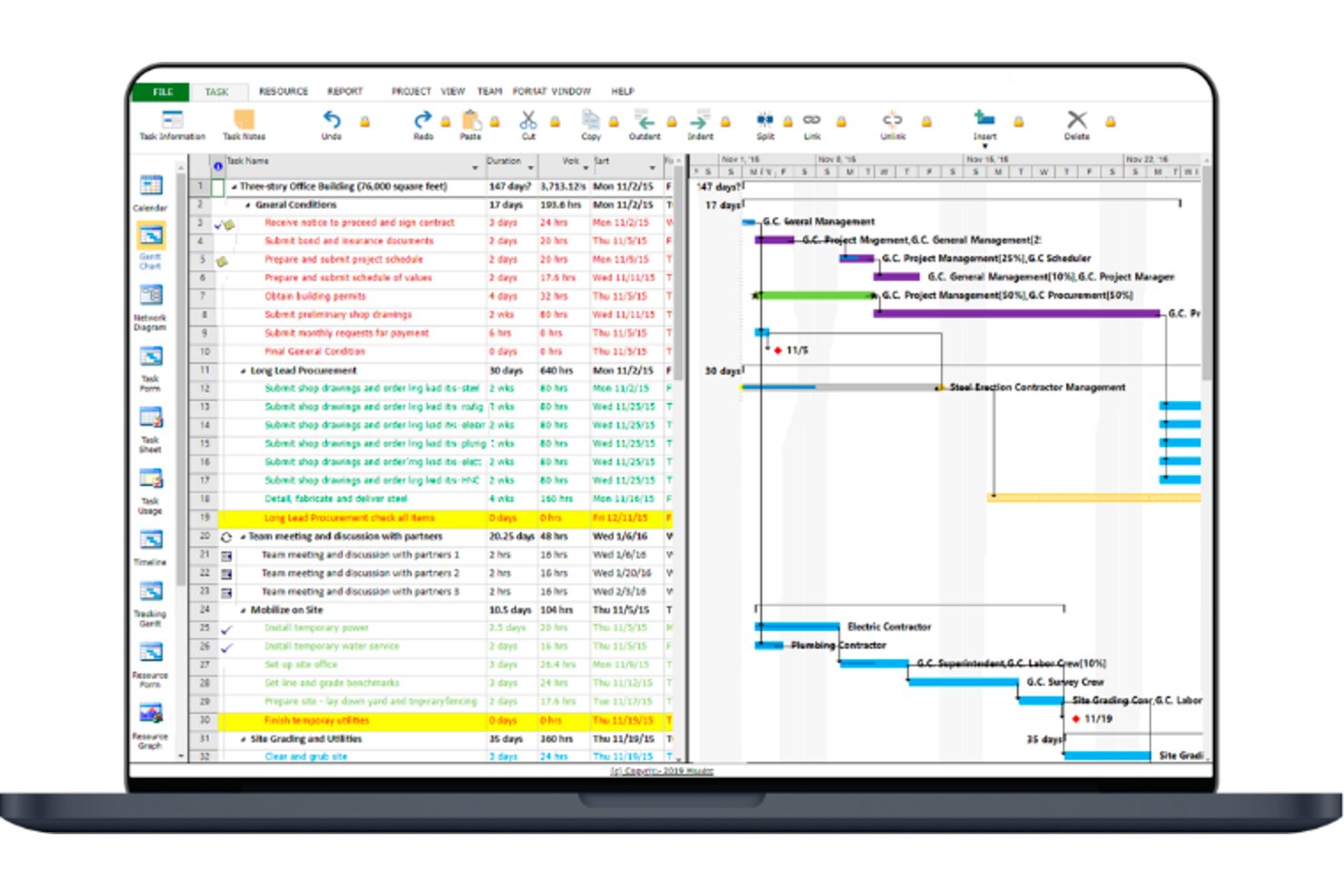
Project Viewer 365 is a dedicated MPP file viewer that lets you open, navigate, and review Microsoft Project schedules across Windows, Mac, iOS, Android, and web browsers—without a Microsoft Project license.
Who Is Project Viewer 365 Best For?
Project Viewer 365 is a strong fit for teams that work across Windows, Mac, and mobile devices and need reliable access to .mpp files without buying additional Microsoft Project licenses.
Why I Picked Project Viewer 365
Project Viewer 365 earns its spot on my shortlist because no other dedicated MPP viewer matches its cross-platform reach. I can open the same .mpp file on a Windows desktop, a Mac, an iPhone, and in a browser—without installing Microsoft Project on any of them. The browser-based free viewer is particularly useful when I need to share a schedule with a stakeholder who can't install software. Baseline views and critical path display are preserved across all platforms, so nothing gets lost in translation.
Project Viewer 365 Key Features
- Network diagram view: Displays task dependencies and relationships in a node-based diagram, mirroring the MS Project Network Diagram layout.
- Batch printing: Sends multiple project plans to a printer in a single batch, with Print Preview and row-range filtering before printing.
- Master/subproject support: Opens and navigates master project files with linked subprojects, preserving relative file paths across the project hierarchy.
- Cloud storage access: Opens .mpp files directly from OneDrive, Google Drive, Dropbox, Box, SharePoint, and iCloud Drive without downloading locally first.
Project Viewer 365 Integrations
Project Viewer 365 integrates with Google Drive, OneDrive, Dropbox, Box, SharePoint Online, iCloud Drive, Microsoft Project Server, Microsoft Project Online, and BaseCamp. No public API is documented.
Pros and Cons
Pros:
- Opens large MPP files without conversions
- Preserves MS Project baselines and custom views
- Available on Windows, Mac, mobile, and web
Cons:
- Separate mobile and desktop subscriptions required
- No in-app editing or annotations

Best for scaling beyond viewing into live team work
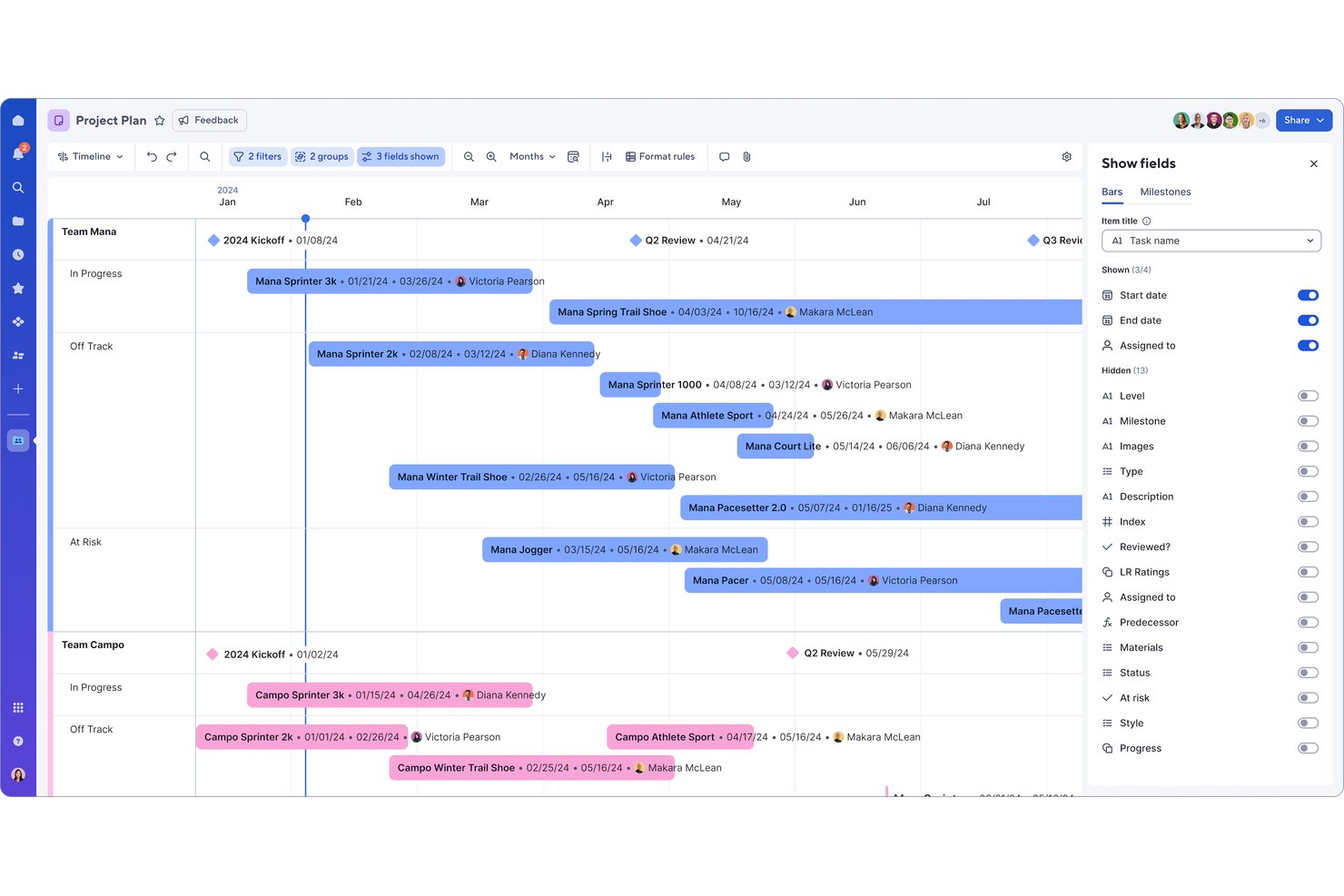
Smartsheet is a cloud-based work management platform that imports Microsoft Project files (.mpp, .mpx, .xml) and converts them into interactive Gantt charts, task grids, and resource views accessible from any browser without an MS Project license.
Who Is Smartsheet Best For?
Smartsheet is a strong fit for project managers and cross-functional teams who want to move beyond passively reading an MS Project file and into actively managing live work.
Why I Picked Smartsheet
I've included Smartsheet in my top picks because it's the only tool on this list that turns .mpp file imports into fully live, collaborative work—not just a static read. Once your MS Project file is in Smartsheet, your team gets real-time co-editing, Gantt charts with critical path toggling, and granular permission tiers so stakeholders can view, comment, or edit without ever needing an MS Project license.
Smartsheet Key Features
- Critical path toggle: Switch the critical path on or off directly within the Gantt view to identify which tasks drive your project's end date.
- Baseline tracking: Save a project baseline and compare it visually against actual progress in the Gantt view, available to all permission levels including Viewers.
- Multi-format export: Export your project data as PDF, Excel, PNG, or XML to send back to MS Project, with customizable Gantt-to-PDF layout options.
- Automated alerts and update requests: Set up no-code workflow automations that notify stakeholders of changes, approvals, or due dates without requiring them to log in.
Smartsheet Integrations
Smartsheet offers native integrations across the Microsoft ecosystem, including Microsoft Teams, Power BI, Microsoft 365, OneDrive, and SharePoint, plus integrations with Jira and ServiceNow. It also supports Zapier and a REST API for custom connections.
Pros and Cons
Pros:
- Supports interactive Gantt charts and baselines
- Grants free viewer access to shared schedules
- Imports .mpp files for live team collaboration
Cons:
- Import may alter dates or remove constraints
- Does not natively display original .mpp files
New Product Updates from Smartsheet

Smartsheet Adds Non-Plan User Management in Admin Center
Smartsheet adds a Non plan users tab to the Seat types and true-up page in Admin Center. This lets system admins review non-plan users and add them to the plan or remove them from the organization in one place. For more information, visit Smartsheet’s official site.

Best for two-way .mpp sync with guest viewing
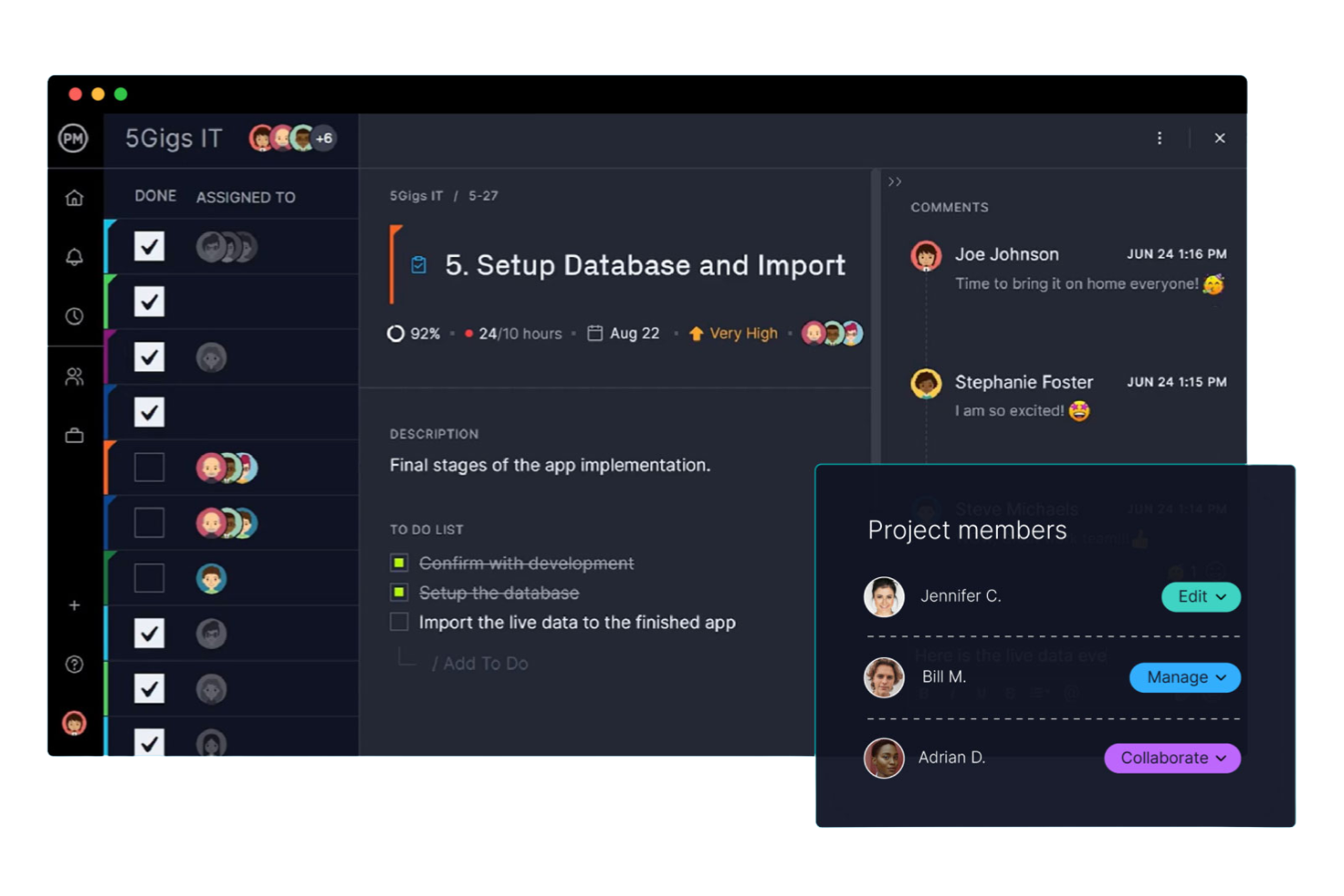
ProjectManager is a cloud-based project management platform that supports MPP import and export, interactive Gantt charts, multiple project views, and unlimited read-only guest access for external stakeholders.
Who Is ProjectManager Best For?
ProjectManager works well for project managers who need to share live .mpp schedules with clients or executives without paying for extra seats.
Why I Picked ProjectManager
I've included ProjectManager in my top picks because its two-way .mpp sync sets it apart from tools that only let you read MS Project files. I can import a client's .mpp file, update the schedule, and export it back without anyone losing data or reformatting anything. What I find especially useful is the unlimited free guest licenses: clients and executives can view live Gantt charts, critical path highlights, and baseline comparisons without needing a paid seat or a Microsoft Project license.
ProjectManager Key Features
- Critical path filtering: Automatically highlights the longest path of dependent tasks so you can see which delays will impact your project end date.
- Baseline tracking: Saves a snapshot of your original plan and displays variance against actuals directly on the Gantt chart.
- Five project views: Switch between Gantt, List, Sheet, Board, and Calendar views to match how different team members prefer to work.
- Workflow automation: Set up rule-based automation to trigger task updates, notifications, or status changes without manual input.
ProjectManager Integrations
ProjectManager offers native integrations with Microsoft Project, Microsoft Teams, Microsoft Excel, Power BI, Jira, Azure DevOps, and Slack. It also provides an API for custom integrations and supports Zapier.
Pros and Cons
Pros:
- Gantt charts closely match MS Project visuals
- Two-way .mpp sync supports round-tripping edits
- Unlimited free guest viewing for schedules
Cons:
- Lacks network diagram or PERT view
- No permanent free viewer plan available

Best free MPP viewer for Windows, Mac, and Linux
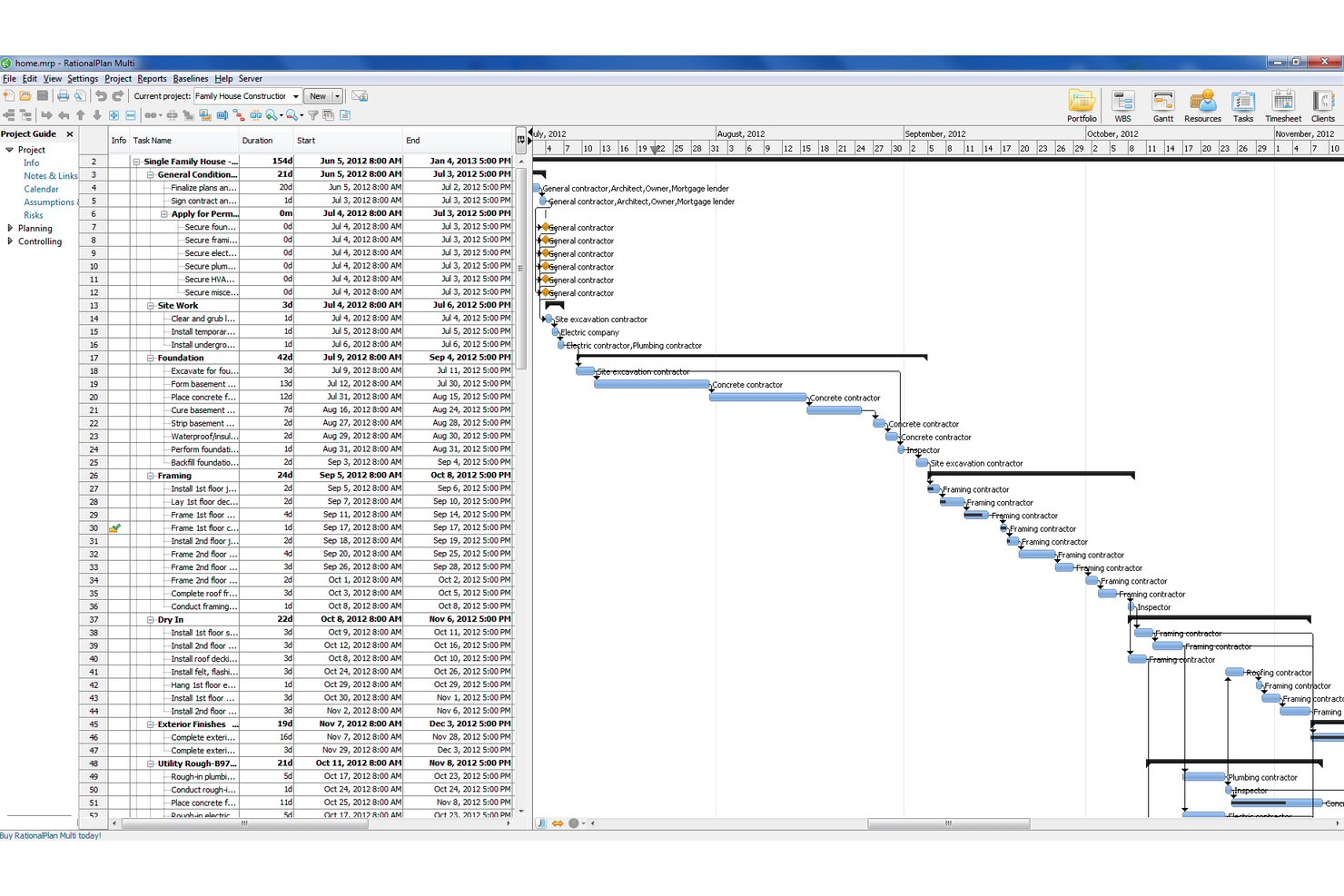
RationalPlan is a cross-platform project management and MPP file viewer that opens Microsoft Project files in formats including .mpp, .mpt, .xml, and .mpx, with full Gantt chart, task sheet, resource sheet, and network diagram views available across Windows, Mac, and Linux.
Who Is RationalPlan Best For?
RationalPlan is a strong fit for engineers, stakeholders, and project managers on Windows, Mac, or Linux who need to open and review .mpp files without paying for a Microsoft Project license.
Why I Picked RationalPlan
RationalPlan earns its spot on my shortlist because it's one of the only free MPP viewers that runs natively on Windows, Mac, and Linux. I've opened .mpp, .mpt, .xml, and .mpx files with it and the Gantt chart renders exactly as it does in Microsoft Project, preserving column order, widths, and split positions. I also like that export to PDF and Excel is available in the free viewer, with no upgrade required.
RationalPlan Key Features
- Critical path toggle: Show or hide the critical path directly in the Gantt chart to quickly identify which tasks drive your project's end date.
- Network diagram view: Visualize task dependencies and sequencing in a node-based diagram preserved from the original MS Project file.
- Resource sheet view: Review resource assignments, availability, and allocation data from your imported project file without editing the source.
- Multi-year timescale formats: Display long-horizon schedules using years/months or years/quarters timescale views for multi-year project planning.
RationalPlan Integrations
RationalPlan doesn't have any native integrations. It connects to Microsoft Project files through
.mpp
,
.mpt
,
.xml
, and
.mpx
imports, with Excel and MS Project XML export available.
Pros and Cons
Pros:
- Preserves exact Gantt and resource views
- Free viewer available for all major OS
- Opens .mpp, .mpt, .xml, .mpx files
Cons:
- No real-time team collaboration features
- No mobile app for iOS or Android

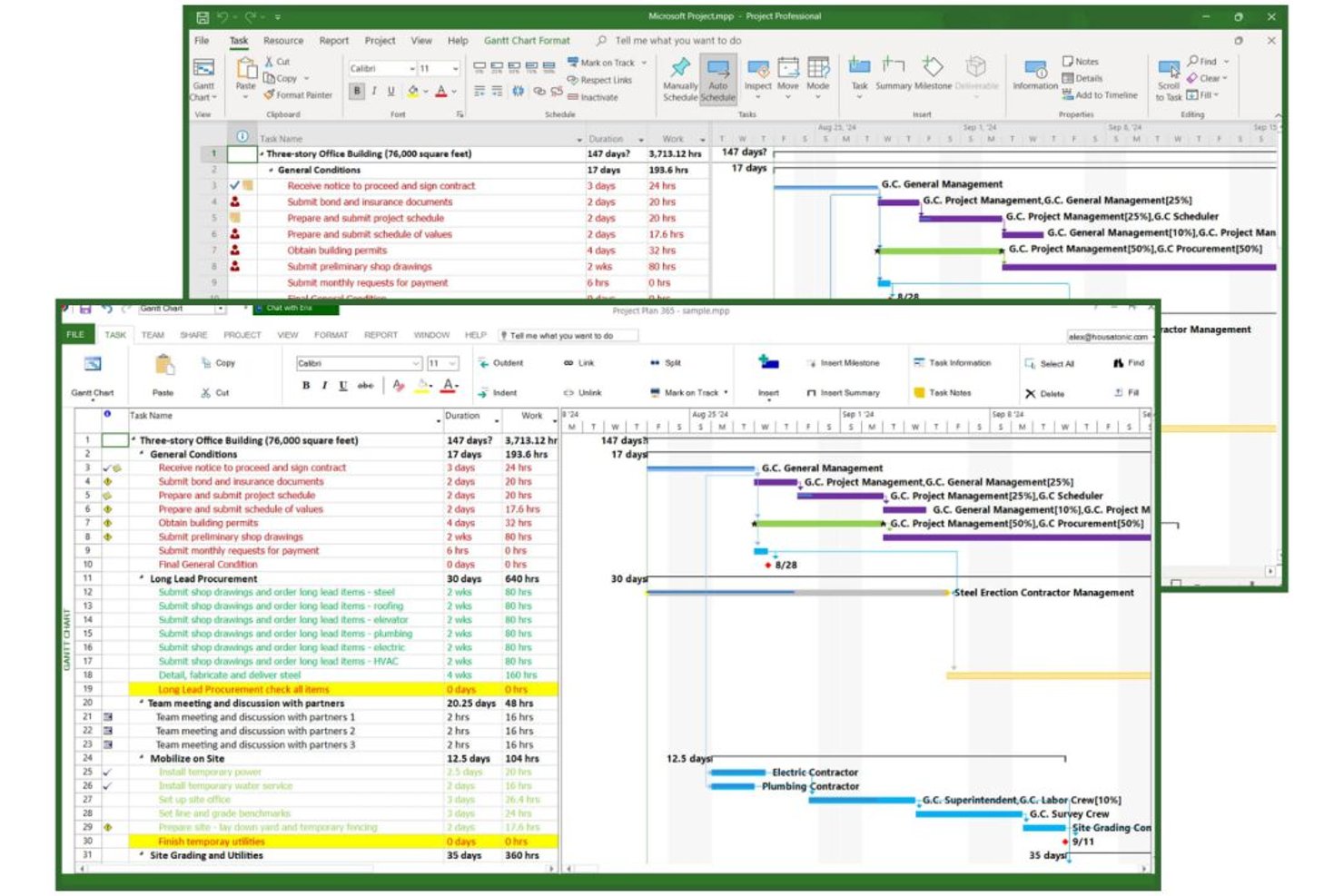
Project Plan 365 is a cross-platform MS Project-compatible application that opens, edits, and saves native .MPP files across Windows, Mac, iOS, Android, and web—without requiring a Microsoft Project license.
Who Is Project Plan 365 Best For?
Project Plan 365 is a strong fit for Mac-based project managers and cross-platform teams that need to open, edit, and share .MPP files without paying for MS Project licenses.
Why I Picked Project Plan 365
Project Plan 365 earns its spot on my shortlist because it's the only native .MPP editor that runs on Mac, Windows, iOS, Android, and web under a single subscription. I picked it specifically for cross-platform teams that pass .MPP files between Mac and Windows users without wanting to pay for MS Project licenses on every machine. The free browser-based viewer lets any stakeholder open, print, and export a Gantt chart to PDF or PowerPoint instantly, with no install required.
Project Plan 365 Key Features
- Erix AI status reports: Generates AI-written project status reports with executive summaries, earned value metrics, and milestone tracking, deliverable via scheduled email.
- Multi-baseline storage: Stores multiple baseline snapshots per project to support variance tracking across cost, work, duration, and start/finish dates.
- Read-only user seats: Paid plans include 5–10 read-only user seats, letting stakeholders view, print, and export schedules without a paid license.
- Real-time collaboration: The Business plan enables multiple users to open and edit the same .MPP file simultaneously without overwriting the source.
Project Plan 365 Integrations
Project Plan 365 offers native integrations across the Microsoft ecosystem, including OneDrive, SharePoint Online, Microsoft Project Online, and Project Server, plus Google Drive, Dropbox, Box, iCloud, and Basecamp. Microsoft Outlook calendar export is supported, but an API for custom integrations isn't documented.
Pros and Cons
Pros:
- Preserves all major MS Project views
- Free viewer mode for instant browser access
- Opens and edits .MPP files on Mac
Cons:
- Real-time collaboration only in Business plan
- Interface looks dated and old-fashioned

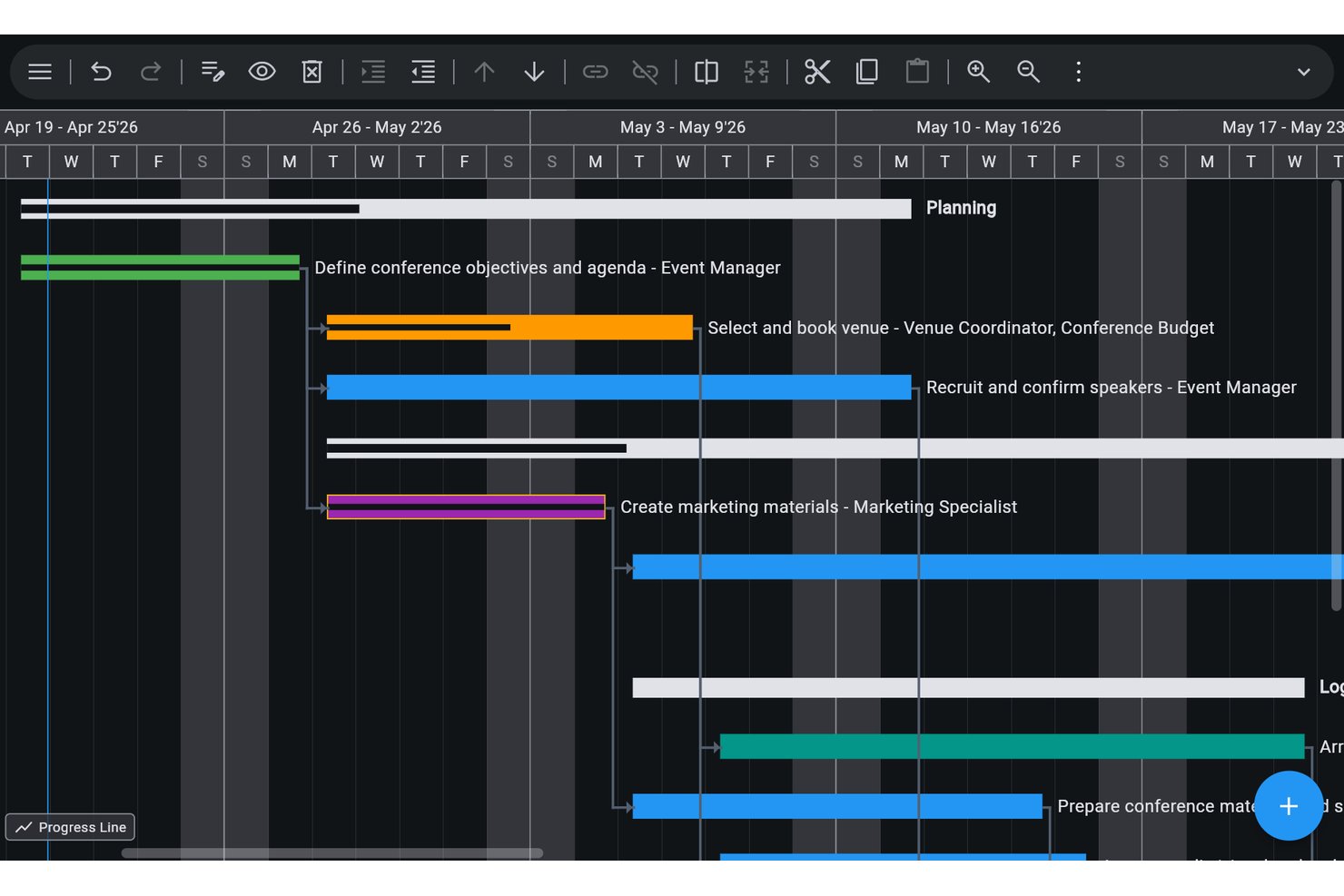
Ingantt is a cross-platform Microsoft Project viewer and full scheduling tool that opens .mpp, .mpt, .mpx, Primavera P6, and several other project file formats across web, desktop, and mobile without requiring a Microsoft Project license.
Who Is Ingantt Best For?
Ingantt is a strong fit for project managers and schedulers who regularly work with both Microsoft Project and Primavera P6 files across mixed-platform teams.
Why I Picked Ingantt
Ingantt earns its spot on my shortlist because it's one of the few tools that opens both .mpp and Primavera P6 files (.xer, .pmxml) without requiring a license for either platform. I've worked with teams that straddle both ecosystems, and having a single viewer handle both formats removes real friction. The Tracking Gantt view lets you overlay baselines directly on the current schedule, so you can spot slippage at a glance in an imported file.
Ingantt Key Features
- AI project generator: Creates a full project schedule with tasks, dependencies, and WBS from a plain-text description, with no token limits or separate subscription required.
- 10 synchronized views: Includes Network Diagram, Resource Usage, Team Planner, Kanban, and Calendar views that all update in real time when you make changes in any one view.
- Resource leveling: Automatically resolves overallocations by priority, slack, or task ID, with support for split in-progress tasks and date-effective rate tables.
- Earned value management: Tracks 13 EV columns—including CPI, SPI, EAC, and TCPI—calculated from resource rates, fixed costs, and a defined project status date.
Ingantt Integrations
Ingantt integrates with Google Drive for file storage, sharing, version history, and offline sync, and is available through Google Workspace Marketplace. It imports Microsoft Project and Primavera P6 files, but native Microsoft 365, SharePoint, Teams, OneDrive, and API integrations aren’t documented.
Pros and Cons
Pros:
- Runs on web, desktop, and mobile platforms
- Offers 10 synchronized project schedule views
- Opens both .mpp and Primavera P6 files
Cons:
- Only supports real-time sharing via Google Drive
- No native Microsoft 365 or Teams integration
Andre alternativer for visning av Microsoft Project
Her er noen flere alternativer som ikke kom med på topplisten. Jeg legger til forslagene dere kommer med i kommentarfeltet i denne delen!
- Wrike
For migrating teams off MS Project entirely
- Zoho Projects
For MPP import into a full PM platform
- Jira
For agile teams and issue-based workflows
- Merlin Project
For Apple-native .mpp import and view sets
- OmniPlan
For opening .mpp files on Mac without MS Project
- Project Reader
For viewing six MPP views on Windows
- Steelray
Windows-only viewer for MS Project and P6 files
- Asta Powerproject
For construction scheduling and XER file viewing
- MOOS Project Viewer
For user-based licensing across platforms


Hva er alternativer til visningsverktøy for Microsoft Project?
Alternativer til visningsverktøy for Microsoft Project er verktøy som lar brukere åpne, vise og noen ganger redigere .MPP-filer – uten behov for hele Microsoft Project-programmet.
Disse visningsverktøyene hjelper teammedlemmer, interessenter eller Mac-/Windows-brukere med å få tilgang til prosjektplaner som er opprettet i MS Project, og muliggjør samarbeid, fildeling og oversikt uten at man må kjøpe dyre lisenser. De løser utfordringer som plattformkompatibilitet, lisenskostnader og begrenset tilgang for personer som ikke er prosjektledere.
How I Evaluate Microsoft Project Viewers
I split my evaluation into baseline criteria—like accurate .mpp rendering and no-license access—and differentiating factors that separate tools for occasional stakeholders versus enterprise PMO teams.
Core Functionality (Table Stakes For This List)
When I'm selecting tools for my list, I rank each one on a scale from 0 (does not offer the functionality) to 5 (excels in this area) for each core functionality listed below. Then, I calculate the tool's total score into a percentage. Each tool needs to achieve a minimum total score of 65% to be considered for inclusion.
- MPP File Compatibility: I check whether the tool opens .mpp, .mpx, and XML files across MS Project versions—from legacy 2003 schedules through current 365 exports—without layout or data loss.
- Gantt Chart Visualization: The viewer should render interactive Gantt charts showing task bars, dependency links, milestones, and critical path, matching what you'd see in native MS Project.
- Task & Resource Views: I look for multiple viewing modes like task sheets, resource allocation tables, and calendars so schedulers and stakeholders can each find the data they need.
- Standalone Access: A core reason to use a viewer is avoiding extra MS Project licenses, so I evaluate whether the tool runs fully independent of any Microsoft Project installation.
- Export & Print Support: Project reviewers regularly need to distribute schedules as PDFs or pull task data into Excel, so I check available export formats and print layout controls.
- Sharing & Access Controls: I evaluate how each tool handles read-only link sharing and permission settings, especially for teams distributing plans to clients or external contractors.
Once I have a list of tools that meet this criteria, I consider what sets each platform apart.
Differentiating Factors (What Sets Vendors Apart)
Here's how I compare and contrast different vendors:
Standout Features
Mobile and web access matter when field engineers or traveling executives need to check schedules from a phone without installing desktop software. I also evaluate baseline and variance tracking, which helps PMO leads spot schedule drift against original plans without opening MS Project. Two-way sync is another differentiator worth noting—it lets viewers push task status updates back to the source .mpp file, saving the schedule owner from chasing progress manually.
Beyond Features
Licensing structure is a big deal here—some viewers charge per user while others offer site-wide licenses, and the right model depends on whether you're equipping five PMO leads or hundreds of external reviewers. I also evaluate integration depth with tools like SharePoint, Teams, Jira, and Primavera P6, since most schedules don't live in isolation. Vendor update cadence matters too, because a viewer that lags behind new MS Project file format releases quickly becomes unreliable for teams on current versions.
Slik velger du visningsverktøy for Microsoft Project
Det er lett å gå seg vill i lange funksjonslister og kompliserte prismodeller. For å hjelpe deg med å holde fokus mens du arbeider deg gjennom den unike prosessen med å velge programvare, får du her en sjekkliste over faktorer du bør ha i bakhodet:
| Faktor | Hva du bør vurdere |
|---|---|
| Skalerbarhet | Sørg for at visningsverktøyet kan vokse i takt med teamets behov og håndtere flere prosjekter eller brukere uten redusert ytelse. |
| Integrasjoner | Kontroller at det er kompatibelt med verktøyene du allerede bruker, for eksempel Microsoft Office eller skylagringstjenester, slik at arbeidsflyten blir mer effektiv. |
| Tilpasningsmuligheter | Se etter alternativer for å tilpasse grensesnittet eller funksjonene slik at de passer til teamets spesifikke prosesser for prosjektstyring. |
| Brukervennlighet | Prioriter et brukervennlig grensesnitt som krever minimal opplæring, slik at teamet raskt kan tilpasse seg og opprettholde produktiviteten. |
| Budsjett | Ta ikke bare kjøpskostnaden i betraktning, men også eventuelle løpende kostnader. Sørg for at løsningen samsvarer med de økonomiske rammene dine og samtidig tilbyr nødvendige funksjoner. |
| Sikkerhetstiltak | Sørg for at programvaren har robuste sikkerhetstiltak som beskytter prosjektdataene dine mot uautorisert tilgang eller datainnbrudd. |
| Kompatibilitet | Kontroller at visningsverktøyet er kompatibelt med ulike versjoner av Microsoft Project-filer du kan komme til å møte. |
| Supportalternativer | Vurder tilgjengeligheten av kundestøtte og ressurser, for eksempel veiledninger eller brukerfellesskap, som kan hjelpe når det oppstår problemer. |
For å være ærlig er det mye å sette seg inn i – og det er stort press for å få det riktig. Derfor vil jeg foreslå at du bruker vår rådgivningstjeneste for prosjektstyringsprogramvare for å få hjelp til å velge ut prosjektstyringsverktøy som passer godt til dine og organisasjonens spesifikke behov.
Hva er et visningsverktøy for Microsoft Project?
Et visningsverktøy for prosjekter er et verktøy du kan bruke til å åpne og lese opprinnelige MPP-filer og alle detaljene i en Microsoft Project-plan uten å måtte installere Microsoft Project på datamaskinen.
Verktøyet lar deg åpne, vise og gjennomgå Microsoft Project-filer uten at du trenger Microsoft Project. Det gjør det mulig å se prosjektdetaljer, oppgavelister, tidslinjer, avhengigheter og annen prosjektrelatert informasjon, uten mulighet til å gjøre endringer eller redigeringer i den opprinnelige prosjektplanen. Dette kan være nyttig for interessenter, kunder eller teammedlemmer som trenger å holde seg oppdatert om prosjektets fremdrift eller samarbeide med prosjektledere og teamledere.
Funksjoner i et visningsverktøy for Microsoft Project
Når du velger et visningsverktøy for Microsoft Project, bør du se etter følgende viktige funksjoner:
- Oppgavehåndtering: Gir deg mulighet til å vise oppgaver og detaljene deres, for eksempel start- og sluttdatoer, varigheter og avhengigheter, med tydelige visninger av Gantt-diagrammer og tidslinjer. Selv om redigering av oppgaver ikke støttes i de fleste verktøy, kan du følge prosjektets fremdrift effektivt.
- Ressursstyring: Tilbyr ressursvisninger som viser fordelinger og tildelinger, slik at du kan forstå hvordan arbeidsbelastningen er fordelt i prosjektet. De fleste støtter imidlertid ikke redigering av ressurser.
- Dokumentvisning: Gir deg tilgang til dokumenter og vedlegg som er integrert i prosjektfiler, slik at du får oversikt over oppgaverelaterte filer og kan finne frem til og bruke dem på en strukturert måte.
- Integrasjoner: Tilbyr kompatibilitet med verktøy i Microsoft-økosystemet, slik at du kan vise prosjektdata sammen med dokumenter som er lagret i SharePoint, eller data som er visualisert i Power BI-instrumentbord.
- Rapporteringsverktøy: Lar deg vise rapporter og instrumentbord som allerede er integrert i prosjektfilen, slik at det blir enkelt å analysere prosjektets fremdrift og viktige måltall.
- Støtte for flere plattformer: Tilgjengelig på flere plattformer, inkludert Windows, Mac og nettlesere, slik at du kan få tilgang til prosjektinformasjon hvor som helst.
- Betinget formatering: Viser eventuelle formateringsregler som er brukt i prosjektfilen, og fremhever kritiske data eller viktige felt for bedre oversikt.
- Kostnadseffektivitet: Et budsjettvennlig alternativ til Microsoft Project som gir deg tilgang til prosjektdata uten at du trenger en full lisens.
Ved å velge et visningsverktøy for Microsoft Project med disse funksjonene kan du enkelt holde oversikt over prosjektdetaljer, følge fremdriften og holde teamet informert – samtidig som du sparer penger og forenkler prosjektoppfølgingen.
Vanlige spørsmål om visningsverktøy for Microsoft Project
Her er noen av de vanligste spørsmålene jeg får om visningsverktøy for Microsoft Project.
Finnes det et gratis visningsverktøy for prosjekter?
Ja. Du kan finne gratis visningsverktøy, for eksempel verktøyet fra Project Plan 365. Disse gratisversjonene lar deg imidlertid bare lese filene, ikke redigere dem.
Hvorfor bør jeg bruke et visningsverktøy for prosjekter?
Mens prosjektledere og planleggere oppretter planer i Microsoft Project, trenger ikke andre teammedlemmer å redigere prosjektplaner – de trenger bare å åpne og vise dem. Derfor bruker du et visningsverktøy for prosjekter for å gi bestemte prosjektmedlemmer lesetilgang og spare lisenskostnader.
I tillegg kan prosjektvisningsprogrammer brukes for skalering og sikkerhet i virksomheter. Verktøy som Project Viewer 365 er for eksempel utviklet med skalering, sikkerhet og fleksibilitet når det gjelder lisenser i tankene, slik at de kan håndtere distribusjoner i større virksomheter med et hvilket som helst stort antall brukere.
Siden det koster mye mindre enn en standard MS Project-lisens, vil IT-lederen din sette pris på at du sparer penger på lisensavgifter for Microsoft Project.