

Le 10 migliori app per prendere appunti per aumentare la produttività nel 2026

10 Elenco delle migliori app per prendere appunti


Le migliori app per prendere appunti ti permettono di catturare rapidamente le idee, organizzare le informazioni e trovare facilmente ciò di cui hai bisogno in un secondo momento, contribuendo a semplificare il tuo flusso di lavoro e a prevenire ritardi dovuti alla mancanza di chiarezza sulle decisioni e sulle attività da svolgere. Senza lo strumento giusto, potresti incontrare problemi come ruoli e responsabilità poco chiari nei tuoi progetti, scadenze mancate e comunicazioni inefficaci.
Ho utilizzato la mia esperienza nella gestione dei progetti e oltre 3 anni di test del software per esaminare decine di strumenti e creare il mio elenco delle migliori app per prendere appunti. Ogni mia raccomandazione ti aiuterà a prendere appunti migliori durante le riunioni, monitorare le decisioni e le attività da svolgere nei tuoi progetti e mantenere le attività in movimento, aumentando la produttività.
Perché fidarsi dei nostri consigli sui software
Il nostro team testa e recensisce software dal 2012. In quanto project manager noi stessi, sappiamo quanto sia difficile — e importante — scegliere il software giusto.
Per questa guida, abbiamo valutato gli strumenti attraverso test pratici e ricerche indipendenti, assegnando un punteggio agli strumenti in base ai nostri criteri di selezione. Ci basiamo inoltre sulle competenze di leader di pensiero del settore e di professionisti attivi nella gestione dei progetti.
Le nostre recensioni riflettono il nostro giudizio editoriale umano, non un discorso di vendita.
Revisori esperti:
Tabella comparativa delle app per prendere appunti
Questa tabella comparativa riassume i dettagli sui prezzi delle mie migliori selezioni di app per prendere appunti:
| Tool | Best For | Trial Info | Price | ||
|---|---|---|---|---|---|
| 1 | Migliore app per prendere appunti per utenti Apple | Piano gratuito disponibile per sempre | Gratis | Website | |
| 2 | Ideale per creare una base di conoscenza | Piano gratuito disponibile | Da $4/utente/anno (fatturazione annuale) | Website | |
| 3 | Ideale per la collaborazione tra team multifunzionali | Prova gratuita di 30 giorni disponibile | Da $6/utente/mese (fatturazione annuale) | Website | |
| 4 | Ideale per un sistema basato su schede | Piano gratuito + prova gratuita disponibile | Da $1,67/mese (fatturato annualmente) | Website | |
| 5 | Ideale per funzionalità di ricerca avanzate | Non disponibile | Prezzo su richiesta | Website | |
| 6 | Ideale per promemoria basati sulla posizione | Prova gratuita disponibile | Da $6.30/utente/mese | Website | |
| 7 | Migliore app per prendere appunti per la scrittura concentrata | Piano gratuito + demo gratuita disponibile | A partire da $10/membro/mese (fatturato annualmente) | Website | |
| 8 | Migliore app per la presa di appunti durante le riunioni | Piano gratuito disponibile | Da $16/utente/mese | Website | |
| 9 | Ideale per il tracciamento dettagliato dei documenti | Piano gratuito disponibile | Da $8/utente/mese | Website | |
| 10 | Migliore app per prendere appunti con post-it digitali | Piano gratuito disponibile | Da $8/membro/mese (fatturato annualmente) | Website |

Recensioni delle migliori app per prendere appunti
Ecco una breve descrizione di ogni app per prendere appunti, per mostrare il caso d’uso migliore di ciascuno strumento, alcune funzionalità degne di nota e i pro e contro. Ho incluso anche schermate per offrirti un’istantanea dell’interfaccia utente.

Migliore app per prendere appunti per utenti Apple
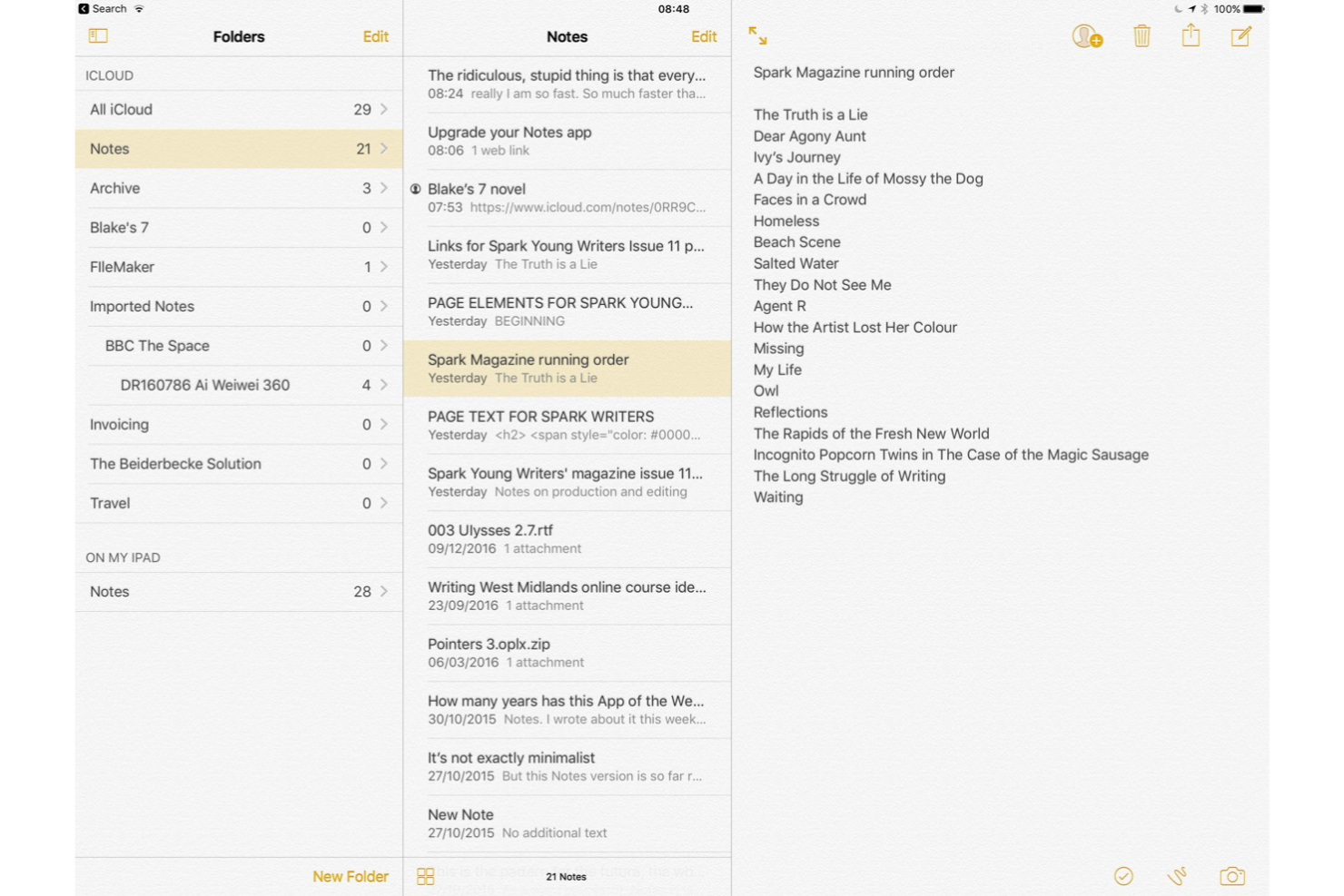
Apple Notes è un'app di gestione delle note integrata pensata per individui e team che utilizzano dispositivi Apple e desiderano una cattura delle note veloce, organizzata e sicura con sincronizzazione tra iPhone, iPad e Mac.
Per chi è ideale Apple Notes?
Apple Notes è perfetta per persone e piccoli team che lavorano esclusivamente nell’ecosistema Apple e vogliono una soluzione per prendere appunti pronta all’uso e senza configurazioni.
Perché ho scelto Apple Notes
Apple Notes merita il suo posto tra le migliori della mia lista perché è l’opzione più immediata per prendere appunti per chi già utilizza dispositivi Apple. Adoro il fatto che la sincronizzazione iCloud mantiene ogni nota aggiornata su iPhone, iPad e Mac senza alcuna configurazione. La funzione di registrazione audio e trascrizione in iOS 18 è utile: posso registrare una riunione o un promemoria vocale e ottenere una trascrizione di testo ricercabile direttamente nella nota. Gli Strumenti di Scrittura di Apple Intelligence mi permettono di correggere o riassumere i contenuti senza uscire dall'app.
Funzionalità principali di Apple Notes
- Organizzazione tramite cartelle e tag: Crea cartelle, sottocartelle e tag per organizzare le note, poi utilizza le Cartelle Intelligenti per filtrare automaticamente le note taggate in tutta la libreria.
- Scansione documenti: Scansiona documenti cartacei direttamente in una nota usando la fotocamera dell’iPhone o dell’iPad, con riconoscimento del testo per cercare all’interno delle scansioni.
- Collegamento tra note: Collega direttamente altre note all’interno di una nota digitando '>>' seguito dal titolo della nota, facilitando il collegamento di idee correlate.
- Protezione tramite password: Proteggi singole note con password, Face ID o Touch ID per mantenere al sicuro contenuti sensibili.
Integrazioni di Apple Notes
Le integrazioni includono iCloud, Apple Pencil, Apple Intelligence, Apple Watch, Siri, FaceTime, Telefono, Foto, File e Mail.
Pros and Cons
Pros:
- Supporta molte funzioni utili
- Interfaccia pulita e ben organizzata
- Gratis per tutti gli utenti
Cons:
- Disponibile solo su dispositivi Apple
- Manca di funzionalità avanzate per prendere appunti

Obsidian
Ideale per creare una base di conoscenza

Obsidian è un'app per prendere appunti basata su markdown, pensata per professionisti e team che desiderano organizzare, collegare e visualizzare le proprie idee grazie a opzioni avanzate di collegamento e personalizzazione.
Per chi è ideale Obsidian?
Obsidian è perfetto per ricercatori, scrittori e lavoratori della conoscenza che necessitano di un sistema flessibile e archiviato localmente per catturare e collegare informazioni complesse.
Perché ho scelto Obsidian
Obsidian si è guadagnato un posto nella mia shortlist grazie all'efficacia con cui permette di costruire una base di conoscenza personale tramite i collegamenti bidirezionali. Mi piace che ogni nota che creo possa essere collegata ad altre note correlate, e la visualizzazione a grafo mi permette di mappare visivamente tali connessioni in tutto l'archivio. Quando sono immerso in un progetto di ricerca, utilizzo il pannello dei backlink per trovare idee correlate che altrimenti dimenticherei. Il modello di archiviazione locale inoltre garantisce che tutta la mia base di conoscenza sia conservata sul mio computer, non su un server di terze parti.
Funzionalità principali di Obsidian
- Editor markdown: Scrivi e formatta note usando la sintassi plain markdown con anteprima dal vivo.
- Libreria di plugin: Estendi le funzionalità di Obsidian con centinaia di plugin sviluppati dalla community e plugin core.
- Canvas: Disporre e collegare note, immagini e schede su una bacheca visiva libera.
- Sistema di tag: Organizza le note con tag annidati per filtrare e raggruppare contenuti correlati in tutto l’archivio.
Integrazioni di Obsidian
I plugin includono PandaDoc, Apple Promemoria, Evidenziazioni Kindle, Wikipedia, Excalidraw, Electron, TypeScript e molti altri.
Pros and Cons
Pros:
- Supportato da una forte community
- Orientato alla privacy
- Altamente personalizzabile
Cons:
- Richiede una curva di apprendimento iniziale
- Disponibile solo su desktop
Ideale per la collaborazione tra team multifunzionali

Microsoft OneNote è un'app di gestione delle note digitali progettata per team e professionisti che hanno bisogno di organizzare, condividere e collaborare su appunti, dettagli di riunioni e idee di progetto su dispositivi e piattaforme diverse.
Per chi è ideale Microsoft OneNote?
Microsoft OneNote è perfetto per i team che già lavorano all'interno dell'ecosistema Microsoft 365 e necessitano di uno spazio condiviso per note, registri delle riunioni e documentazione di progetto.
Perché ho scelto Microsoft OneNote
Ho scelto Microsoft OneNote tra le migliori app per prendere appunti per quanto si integri in modo naturale nei flussi di lavoro dei team multifunzionali. Il mio team utilizza OneNote per creare blocchi appunti condivisi dove i membri di prodotto, ingegneria e design hanno ciascuno le proprie sezioni, ma tutti possono visualizzare e modificare ovunque. La co-creazione in tempo reale permette a due persone di lavorare sulla stessa pagina contemporaneamente senza conflitti. Inoltre, mi piace come la condivisione dei blocchi appunti avvenga tramite le autorizzazioni di Microsoft 365, così posso dare a uno stakeholder l'accesso di sola lettura a un blocco appunti di progetto senza alcuna configurazione aggiuntiva.
Caratteristiche principali di Microsoft OneNote
- Gerarchia dei blocchi appunti: Organizza le note in blocchi appunti, sezioni e pagine per mantenere la documentazione di progetto strutturata e facile da navigare.
- Supporto per note multimediali: Inserisci immagini, registrazioni audio, video e allegati direttamente in qualsiasi pagina delle note.
- Tag e ricerca: Applica tag personalizzati alle note e utilizza la ricerca full-text per individuare contenuti specifici in tutti i blocchi appunti.
- Web clipper: Acquisisci pagine web, articoli e screenshot direttamente in OneNote dal browser per riferimento e ricerca.
Integrazioni di Microsoft OneNote
Le integrazioni includono Microsoft Word, Microsoft Excel, Microsoft PowerPoint, Microsoft Outlook, Microsoft Teams, Microsoft OneDrive, Microsoft Defender, Microsoft Designer, Microsoft Clipchamp e Microsoft 365 Copilot.
Pros and Cons
Pros:
- Rende le informazioni facili da condividere
- Ottima per prendere appunti delle riunioni
- Ben organizzata e coerente
Cons:
- Problemi di sincronizzazione e ripristino
- Sono necessarie più integrazioni con strumenti Microsoft

Ideale per un sistema basato su schede

Zoho Notebook è un'app per prendere appunti dal design visivo, pensata per individui e team che desiderano organizzare idee, file e contenuti multimediali in modo flessibile e creativo su diversi dispositivi.
Per chi è più adatto Zoho Notebook?
Zoho Notebook è ideale per privati e piccoli team che cercano uno spazio pulito e intuitivo per catturare e organizzare appunti senza dover affrontare una curva di apprendimento troppo ripida.
Perché ho scelto Zoho Notebook
Ho scelto Zoho Notebook tra i migliori perché il suo sistema basato su schede gestisce diversi tipi di contenuti in modo efficiente. Invece di inserire tutto in un unico blocco di testo, ogni nota ha il suo tipo di scheda: testo, checklist, audio, foto, disegno o file. In pratica, posso registrare una riunione con una Scheda Audio, allegare un documento scannerizzato con una Scheda Foto e tracciare le attività da svolgere con una Scheda Checklist, tutto nello stesso taccuino. La funzione Scheda Intelligente è particolarmente utile: incollando contenuti dal web, questi vengono automaticamente formattati in una scheda nota chiara e leggibile.
Funzionalità principali di Zoho Notebook
- Noteboards: Una visualizzazione a bacheca stile Kanban che permette di organizzare e tracciare le schede delle note tra colonne, utile per gestire visualmente le note relative ai progetti.
- Web clipper: Estensioni per browser Chrome, Firefox, Safari ed Edge che consentono di catturare testo e immagini da qualsiasi pagina web direttamente in un taccuino.
- Cronologia delle versioni: Accedi alle versioni precedenti di qualsiasi nota, così da poter rivedere o ripristinare bozze precedenti senza perdere contenuti.
- Blocco con codice e Touch ID: Proteggi singole note o interi taccuini con un codice di accesso o l'autenticazione biometrica per la privacy.
Integrazioni di Zoho Notebook
Le integrazioni includono Zoho Mail, Zoho Calendar, Zoho Projects, Zoho Connect, Google Drive, Dropbox, Box, OneDrive, Microsoft Teams, Slack, ed è disponibile un’API per integrazioni personalizzate.
Pros and Cons
Pros:
- Alto livello di sicurezza
- Supporta l'importazione da Evernote
- Web clipper potente
Cons:
- Nessuna opzione visualizzazione elenco
- Funzionalità limitate

Guru
Ideale per funzionalità di ricerca avanzate

Guru è una piattaforma di gestione delle conoscenze pensata per i team che hanno bisogno di catturare, organizzare e recuperare note e informazioni su progetti dinamici e workforce distribuite.
Per chi è più adatto Guru?
Guru è particolarmente adatto a team di medie e grandi dimensioni che operano a contatto con i clienti, come assistenza, vendite e successo del cliente, e che necessitano di una base di conoscenza condivisa e facilmente ricercabile.
Perché ho scelto Guru
Ho incluso Guru nella mia lista per il modo in cui la sua ricerca potenziata dall'intelligenza artificiale funziona nella pratica. A differenza di una semplice ricerca per parole chiave, la ricerca agentica di Guru recupera risposte verificate e con citazioni da tutti gli strumenti collegati—Slack, Google Drive, Confluence, il tuo CRM—senza richiedere la migrazione dei contenuti. Apprezzo anche la funzione Modalità Ricerca, che gestisce domande complesse e di fonti multiple restituendo analisi approfondite con citazioni, utile quando cerco contesto su un progetto ampio. La qualità della ricerca migliora in base ai segnali d'uso reale, quindi più il mio team lo utilizza, più i risultati diventano accurati.
Caratteristiche principali di Guru
- Automazione della qualità della conoscenza: Guru segnala automaticamente le schede obsolete e le inoltra agli esperti di settore per la verifica secondo una programmazione di revisione prestabilita.
- Editor collaborativo: Più membri del team possono co-autorare e modificare le schede informative in tempo reale all'interno di un workspace condiviso.
- Rilevamento dei duplicati: Guru identifica contenuti sovrapposti o ridondanti nella base delle conoscenze in modo che tu possa consolidare le note prima che creino confusione.
- Collezioni e cartelle: Organizza le schede in collezioni strutturate e cartelle annidate per raggruppare le note per team, argomento o progetto.
Integrazioni Guru
Le integrazioni includono Slack, Microsoft Teams, Google Drive, Confluence, Jira, Notion, Asana, Box, Dropbox e HubSpot.
Pros and Cons
Pros:
- Il processo di configurazione è semplice
- Facile da usare con un'interfaccia intuitiva
- I suggerimenti basati su IA migliorano la pertinenza e il recupero delle informazioni
Cons:
- Può diventare opprimente se non organizzato correttamente
- Principalmente focalizzato sull'uso di team, meno per la presa di appunti individuale


Google Keep è un'app leggera per prendere appunti, progettata per chiunque abbia bisogno di catturare idee, elenchi e promemoria su più dispositivi. È particolarmente utile per professionisti impegnati e team che necessitano di un accesso semplice e immediato alle proprie note ovunque si trovino.
Per Chi è Ideale Google Keep?
Google Keep è perfetto per individui e piccoli team che già lavorano nell'ecosistema Google e che cercano un modo pratico e senza complicazioni per raccogliere e organizzare note ovunque si trovino.
Perché Ho Scelto Google Keep
Google Keep merita un posto nella mia lista grazie a come gestisce i promemoria basati sulla posizione — una funzione che la maggior parte delle app per appunti ignora completamente. Posso assegnare un promemoria a una nota che si attiva quando arrivo o lascio un luogo specifico, come un negozio o un ufficio. Ciò significa che se scrivo una lista della spesa o un'attività da svolgere in loco, Keep me la mostra esattamente quando sono lì. Mi piace anche il fatto che le note si sincronizzano in tempo reale su tutti i dispositivi, così il promemoria impostato sul telefono appare anche sul mio laptop senza alcuna sincronizzazione manuale.
Funzionalità Principali di Google Keep
- Etichette a colori: Assegna codici colore ed etichette alle note così da poterle suddividere e filtrare visivamente a colpo d'occhio.
- Accesso offline: Visualizza e modifica le note anche senza connessione internet; le modifiche verranno sincronizzate automaticamente non appena torni online.
- Modifica collaborativa delle note: Condividi singole note con colleghi o familiari e modificale insieme in tempo reale.
- Esporta su Google Docs: Invia qualsiasi nota direttamente su Google Docs per espanderla in un documento completo senza copiare e incollare.
Integrazioni di Google Keep
Le integrazioni includono Gmail, Google Drive, Google Meet, Google Chat, Google Calendar, Google Tasks, Google Docs, Google Sheets, Google Slides e Google Forms.
Pros and Cons
Pros:
- Ha tutte le funzioni necessarie per la maggior parte degli utenti
- Integrato con l'ecosistema Google
- Gratuito e immediatamente disponibile
Cons:
- Web clipper poco efficace
- Nessun formato di testo avanzato
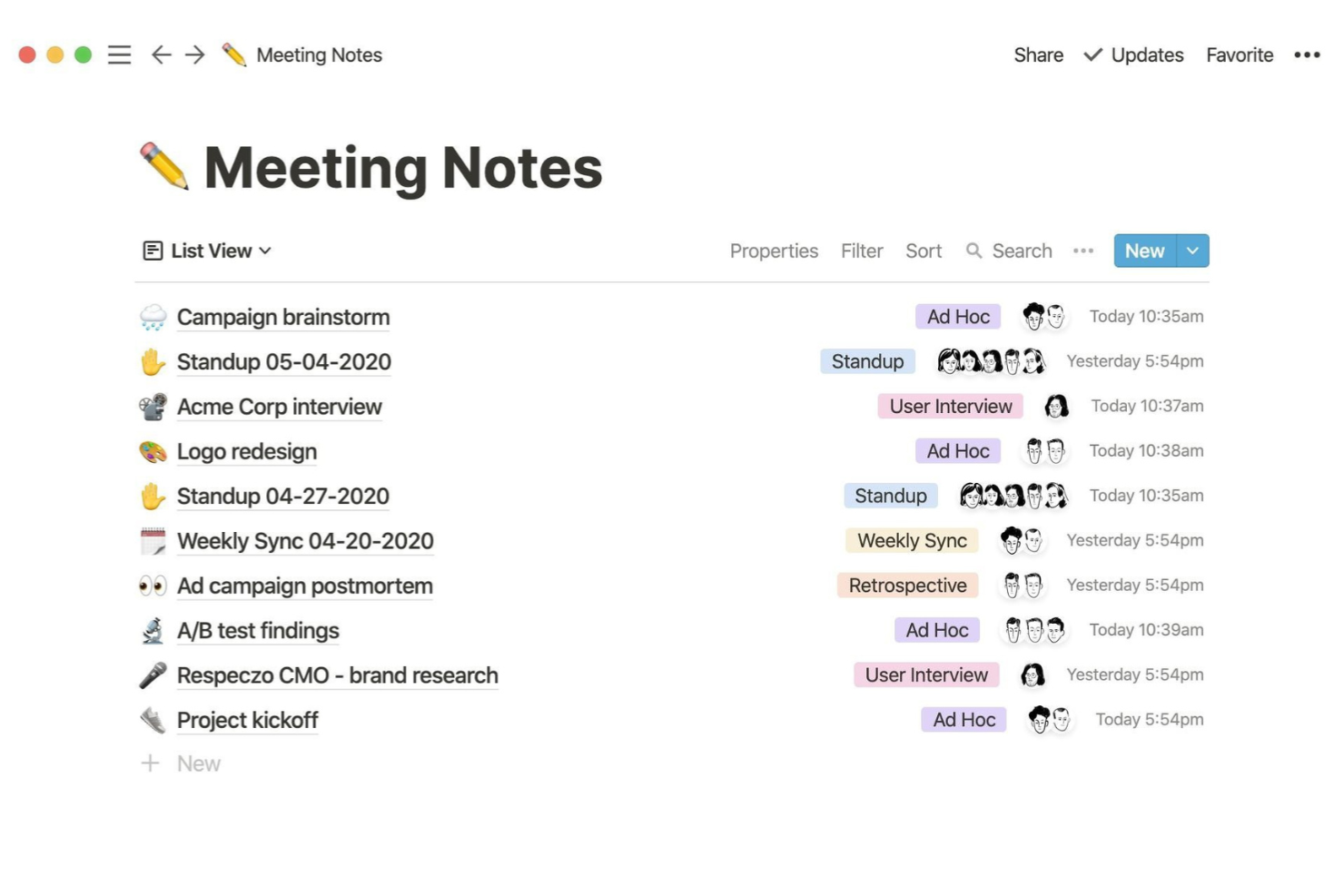
Notion offre a team e individui uno spazio di lavoro flessibile per prendere appunti, organizzare idee e costruire basi di conoscenza personalizzate, diventando il preferito per chi cerca qualcosa in più rispetto al semplice prendere appunti.
Per chi è ideale Notion?
Notion è perfetto per singoli, freelance e team di piccole e medie dimensioni che desiderano un unico spazio di lavoro per appunti, documenti e informazioni di progetto.
Perché ho scelto Notion
Ho scelto Notion come una delle migliori app per prendere appunti per la scrittura concentrata grazie a come il suo editor non intralcia il lavoro. La modalità di scrittura a schermo intero elimina barre laterali e distrazioni, lasciando solo la pagina davanti a te. Mi piace anche poter usare il comando
/
per inserire qualsiasi blocco di contenuto—intestazioni, riquadri di attenzione, elementi a scomparsa, frammenti di codice—senza interrompere il flusso di scrittura. Notion AI è integrato direttamente nell'editor, così quando ho bisogno di espandere un'idea grezza o sistemare una bozza, non devo lasciare la pagina per farlo.
Caratteristiche principali di Notion
- Pagine nidificate: Organizza appunti all'interno di altri appunti creando infiniti livelli di sottopagine all'interno di qualsiasi documento.
- Modelli: Inizia nuove note da layout preimpostati per appunti di riunione, briefing di progetto, diari e altro ancora.
- Web clipper: Salva pagine web, articoli e contenuti direttamente nel tuo spazio di lavoro Notion dal browser.
- Modifica collaborativa: Più membri del team possono modificare e commentare la stessa pagina in tempo reale.
Integrazioni Notion
Le integrazioni includono Slack, Jira, GitHub, Asana, Google Drive, Figma, Trello, Miro, Typeform e Gitlab.


Hive Notes è uno strumento collaborativo per la presa di appunti progettato per team e project manager che desiderano catturare i dettagli delle riunioni, assegnare compiti e mantenere le discussioni organizzate insieme ai flussi di lavoro del progetto.
Per chi è ideale Hive Notes?
Hive Notes è particolarmente adatto a team trasversali e project manager che hanno bisogno di collegare direttamente gli appunti delle riunioni alle attività e alle scadenze di progetto.
Perché ho scelto Hive Notes
Ho scelto Hive Notes come uno dei migliori perché è sviluppato specificamente per rendere le riunioni produttive invece che semplicemente documentarle. Quello che apprezzo di più è la possibilità di trasformare qualsiasi punto della discussione direttamente in un'attività durante la riunione—puoi assegnarla, impostare una scadenza e andare avanti senza perdere il ritmo. Uso anche la funzione di agenda condivisa per fissare le aspettative prima di una chiamata, così tutti arrivano preparati. La sezione delle note private è un'aggiunta interessante, che mi permette di annotare i miei follow-up personali separatamente da quanto viene condiviso con il team.
Caratteristiche principali di Hive Notes
- Co-editing in tempo reale: Più membri del team possono scrivere e modificare la stessa nota contemporaneamente durante una riunione dal vivo.
- Monitoraggio degli obiettivi negli appunti: Aggiungi un obiettivo attivo di Hive direttamente in una nota per seguirne i progressi senza cambiare vista.
- Thread di commenti sui punti della discussione: Lascia commenti in linea su elementi specifici di una nota per una rapida verifica successiva alla riunione.
- Controlli per la condivisione delle note: Condividi una nota con membri specifici del team o mantieni delle sezioni private, decidendo così cosa può vedere ciascuno.
Integrazioni di Hive Notes
Le integrazioni includono Google Drive, Google Calendar, Dropbox, QuickBooks, Zoom, Microsoft OneDrive, Microsoft Teams, Outlook Calendar, Jira e Slack.
Pros and Cons
Pros:
- Trasforma le riunioni in progetti
- Aggiornato regolarmente
- Efficiente e facile da usare
Cons:
- Servono strumenti di commento migliori
- Funzionalità limitate nell'app mobile


Bit.ai è una piattaforma collaborativa per la presa di appunti e la documentazione, progettata per team e professionisti che necessitano di organizzare, condividere e gestire contenuti ricchi in un unico posto mantenendo efficienti i flussi di lavoro e le informazioni accessibili.
Per chi è più indicato Bit.ai?
Bit.ai è particolarmente adatto a team trasversali in ambienti tecnologici e digitali che necessitano di uno spazio centralizzato per la documentazione collaborativa e la condivisione della conoscenza.
Perché ho scelto Bit.ai
Ho scelto Bit.ai tra i migliori grazie all'ampiezza delle sue funzionalità di tracciamento dei documenti, andando ben oltre ciò che offre la maggior parte degli strumenti per appunti. Quando condivido un documento tramite un link tracciabile, posso vedere il tempo trascorso nella visualizzazione, la profondità di scorrimento, il numero totale di visite e chi vi ha avuto accesso—tutto in tempo reale. Mi piace anche che sia possibile creare più link tracciabili per un singolo documento, funzione utile quando si condivide la stessa specifica o brief con diversi stakeholder, desiderando monitorare separatamente ogni pubblico. Inoltre, i moduli di raccolta lead consentono di limitare l'accesso e raccogliere i dati dei visualizzatori prima che aprano il documento.
Funzionalità principali di Bit.ai
- Wiki intelligenti: Trasforma qualsiasi documento in un wiki multipagina con una gerarchia annidata di sottopagine per organizzare conoscenze di progetti complessi.
- Cronologia delle versioni: Salva automaticamente le versioni precedenti di ogni documento così da poter rivedere le modifiche o ripristinare una bozza precedente.
- Commenti in linea: Evidenzia qualsiasi testo nell'editor per lasciare un commento e @menzionare i membri del team, che saranno notificati e indirizzati direttamente a quella sezione.
- Incorporamento di contenuti multimediali: Aggiungi link condivisibili da oltre 100 integrazioni—come Figma, YouTube o Google Sheets—che vengono visualizzati come contenuti interattivi e dinamici all'interno dei tuoi documenti.
Integrazioni di Bit.ai
Le integrazioni includono Google Drive, Dropbox, Box, Airtable, Figma, Trello, Smartsheet, YouTube, Slack e OneDrive.
Pros and Cons
Pros:
- Ampia selezione di modelli
- Funzionalità avanzate per la collaborazione sui documenti
- Intuitivo e facile da usare
Cons:
- Necessità di un maggior numero di font
- Formattazione e design limitati

Miro
Migliore app per prendere appunti con post-it digitali

Miro è una piattaforma di collaborazione e presa di appunti visuale pensata per team e professionisti che vogliono catturare, organizzare e condividere idee utilizzando una lavagna digitale interattiva.
Per Chi è Ideale Miro?
Miro è particolarmente adatto per team trasversali nei settori di prodotto, design ed engineering che necessitano di uno spazio visivo condiviso per brainstorming e presa di appunti collaborativa.
Perché Ho Scelto Miro
Miro merita un posto tra i migliori nella mia lista per come le sue funzionalità di post-it digitali riescano a riportare l’esperienza del brainstorming fisico in ambiente digitale. Adoro la modalità Bulk che permette di inserire più note adesive sulla canvas in una volta sola: basta scrivere ogni idea su una nuova riga e Miro le trasforma istantaneamente in singole note, mantenendo il ritmo veloce delle sessioni. Una funzione d'eccellenza è il raggruppamento tramite IA: dopo un brainstorming, puoi selezionare tutte le note adesive e lasciare che Miro le raggruppi automaticamente per tema, per poi trasformare l’intera board in un documento strutturato con riepilogo e azioni da eseguire. Uso spesso anche la conversione da foto a note adesive: basta scattare una foto ai post-it scritti a mano durante una sessione dal vivo e Miro li digitalizza direttamente sulla canvas.
Funzionalità Chiave di Miro
- Miro Docs: Crea documenti di testo strutturati direttamente sulla canvas, integrandoli con board, post-it e diagrammi in un unico ambiente di lavoro.
- Mappe mentali: Costruisci mappe mentali ramificate da zero oppure trasforma appunti e idee già disponibili in una gerarchia visiva collegata.
- Libreria di template: Accedi a centinaia di template pre-impostati per note di riunione, retrospettive e sessioni di pianificazione per iniziare a raccogliere idee subito.
- Registrazione video e schermo: Registra walkthrough o note video asincrone direttamente in una board per aggiungere contesto al contenuto visivo.
Integrazioni di Miro
Le integrazioni includono Microsoft Teams, Slack, Jira, Confluence, Google Drive, Google Meet, monday.com, Notion, Asana e Azure DevOps.
Pros and Cons
Pros:
- Canvas infinito per il lavoro di progetto
- Collaborazione e presa di appunti in tempo reale
- Template preimpostati per vari workflow
Cons:
- La grande flessibilità richiede tempo per abituarsi
- Alcune integrazioni disponibili solo nei piani avanzati
New Product Updates from Miro
Miro Adds Japan Data Residency for Enterprise Customers
Miro has introduced Japan data residency for enterprise customers, offering in-region storage for production data, backups, and metadata, plus in-region compute infrastructure. For more information, visit Miro's official site.
Altre opzioni di app per prendere appunti
Ecco alcune altre opzioni che non sono entrate nel mio elenco delle migliori app per prendere appunti, ma che vale comunque la pena provare.
- Clover
Ideale per combinare appunti e gestione dei progetti
- Ulysses
Ideale per scrivere libri
- Typora
Ideale per la scrittura senza distrazioni
- Roam Research
Ideale per organizzare la ricerca


Come Valuto le App per Prendere Appunti
La mia valutazione si basa su due livelli: criteri di base che uno strumento deve soddisfare—come la raccolta di appunti delle riunioni e la sincronizzazione tra dispositivi—e fattori differenzianti che distinguono le migliori scelte.
Funzionalità di Base (Requisiti Minimi per Questa Lista)
Quando seleziono gli strumenti per la mia lista, valuto ciascuno su una scala da 0 (non offre la funzionalità) a 5 (eccelle in quest'area) per ogni funzionalità di base elencata qui sotto. Successivamente, calcolo il punteggio totale dello strumento in percentuale. Ogni strumento deve raggiungere un punteggio minimo totale del 65% per essere preso in considerazione.
- Creazione di Note Ricche: Cerco editor flessibili in grado di gestire testo formattato, immagini, allegati e incorporamenti—la profondità necessaria per documentare requisiti di progetto o obiettivi di sprint.
- Organizzazione & Struttura: Un elenco piatto di note si disorganizza rapidamente. Verifico se gli strumenti offrono cartelle, etichette, pagine nidificate o collegamenti incrociati per mantenere la documentazione di progetto raggruppata logicamente.
- Ricerca & Recupero: Trovare il feedback degli stakeholder dello scorso trimestre non dovrebbe richiedere cinque minuti. Controllo la presenza di una ricerca full-text con filtri per tag, date o quaderni.
- Supporto ad Attività e Azioni: Gli appunti delle riunioni senza un seguito sono uno sforzo sprecato. Cerco liste di controllo all’interno delle note, assegnatari o scadenze che collegano le decisioni alle consegne.
- Collaborazione & Condivisione in Tempo Reale: I team di progetto hanno bisogno di co-modificare documenti come agende delle riunioni e bacheche dei feedback insieme. Valuto permessi di condivisione, co-editing in tempo reale e funzionalità di commento.
- Sincronizzazione Tra Dispositivi: Controllo che le note si sincronizzino affidabilmente tra desktop, mobile e web così da poter raccogliere feedback dei clienti sul posto e accedervi dal laptop in un secondo momento senza perdere nulla.
Una volta ottenuta una lista di strumenti che soddisfano i criteri, considero cosa distingue ciascuna piattaforma.
Fattori Differenzianti (Cosa Distingue i Fornitori)
Ecco come confronto e metto a confronto i vari fornitori:
Funzionalità Distintive
Funzionalità basate sull'intelligenza artificiale come la sintesi automatica e l’estrazione delle azioni possono trasformare la registrazione di uno stand-up di 30 minuti in un riepilogo strutturato in pochi secondi. Cerco anche la trascrizione integrata delle riunioni, perché abbinata all'AI rende la documentazione post-riunione quasi automatica. Anche i modelli predefiniti per retrospettive di sprint, report di avanzamento e briefing di progetto sono importanti—fanno risparmiare tempo e mantengono la documentazione uniforme nel team senza dover ricominciare ogni volta da zero.
Oltre le Funzionalità
L'integrazione con strumenti come Jira, Asana, Slack e Zoom è fondamentale—verifico se un'app per prendere appunti si collega alle piattaforme di project management e comunicazione che il tuo team già utilizza quotidianamente. Anche la portabilità dei dati è importante. Cerco opzioni di esportazione come Markdown, PDF o HTML in modo che non si rimanga bloccati se cambiano le priorità. Per i team che gestiscono dati sensibili di progetto o informazioni di clienti, valuto le credenziali di sicurezza come la conformità SOC 2, standard di crittografia e controlli dei permessi a livello amministrativo.
Come scegliere le app per prendere appunti
È facile perdersi in lunghi elenchi di funzionalità e strutture tariffarie complesse. Per aiutarti a rimanere concentrato mentre affronti il tuo specifico processo di selezione del software, ecco una lista di controllo dei fattori da tenere a mente:
| Fattore | Cosa considerare |
|---|---|
| Scalabilità | Lo strumento supporterà nel tempo team di progetto in crescita e la collaborazione tra diverse funzioni? Cerca autorizzazioni flessibili, note illimitate e spazio di archiviazione scalabile. |
| Integrazioni | Si collega agli strumenti che il tuo team utilizza già, come gestori delle attività, calendari o Slack? Meno integrazioni significano più aggiornamenti manuali e tempo perso. |
| Personalizzazione | Puoi organizzare le note nel modo in cui lavora il tuo team, per progetto, attività o sequenza temporale? Evita sistemi rigidi che ti obbligano a seguire un unico flusso di lavoro. |
| Facilità d'uso | I nuovi utenti possono iniziare a utilizzarlo rapidamente senza bisogno di un manuale? Se servono più di 15 minuti per sentirsi a proprio agio, l'adozione potrebbe risentirne. |
| Implementazione e introduzione | Quanto tempo richiede la configurazione? Sono disponibili modelli, strumenti di importazione o procedure guidate per aiutare il tuo team a iniziare rapidamente e senza difficoltà? |
| Costo | Come variano i prezzi in base al numero di utenti o allo spazio di archiviazione? Fai attenzione ai costi per utente, che possono aumentare rapidamente, o ai costi nascosti per le funzionalità aggiuntive. |
| Misure di sicurezza | Supporta la crittografia, i controlli degli accessi e i backup dei dati? Se le tue note contengono informazioni sensibili sui progetti, non scendere a compromessi su questo aspetto. |
| Disponibilità dell'assistenza | È facile ricevere aiuto quando qualcosa non funziona? Cerca strumenti con chat dal vivo o risposte rapide via e-mail, soprattutto se non puoi contare sul supporto IT interno. |
Cosa sono le app per prendere appunti?
Le app per prendere appunti sono strumenti digitali che consentono di scrivere, organizzare e recuperare appunti o idee sul telefono o sul computer. I project manager, i professionisti impegnati e i membri dei team che gestiscono numerose attività utilizzano queste app per tenere sotto controllo elenchi, promemoria, cose da fare, attività operative e dettagli importanti in un unico posto.
È possibile aggiungere tag, cercare o sincronizzare gli appunti per non perdere mai un'idea, sia alla scrivania sia in movimento. Le app per prendere appunti sono un valido supporto alla memoria per svolgere più attività contemporaneamente e tenere sotto controllo numerose responsabilità o attività mentre si è in movimento.
Funzionalità
Ecco le funzionalità principali che qualsiasi ottimo software per prendere appunti dovrebbe offrire:
- Modifica del testo avanzata: consente di formattare gli appunti con titoli, elenchi, collegamenti ed evidenziazioni per migliorarne la leggibilità e la struttura.
- Funzionalità di ricerca: permette di trovare rapidamente appunti, parole chiave o tag specifici senza scorrere lunghi elenchi.
- Tag e organizzazione: aiuta a raggruppare, filtrare e recuperare gli appunti utilizzando cartelle, tag o etichette.
- Sincronizzazione tra dispositivi: garantisce che gli appunti siano sempre aggiornati e accessibili da computer, dispositivi mobili e web.
- Accesso offline: consente di visualizzare e modificare gli appunti senza connessione a Internet, una funzione utile durante i viaggi o le interruzioni del servizio.
- Strumenti di collaborazione: consentono di condividere e modificare insieme gli appunti con altre persone in tempo reale o in modo asincrono.
- Registrazione audio: consente di acquisire note vocali durante riunioni o sessioni di brainstorming.
- Acquisizione di contenuti web: permette di salvare articoli, pagine o schermate dal web direttamente nel sistema di appunti.
- Libreria di modelli: fornisce formati di appunti predefiniti per aiutare a standardizzare note di riunioni, liste di controllo e piani di progetto.
- Opzioni di esportazione dei dati: consentono di eseguire il backup o migrare gli appunti in formati comuni come PDF, DOCX o testo semplice.
Vantaggi
L'implementazione di app per prendere appunti offre diversi vantaggi al team e all'azienda. Ecco alcuni dei risultati che è possibile aspettarsi:
- Acquisizione più rapida delle informazioni: i team possono annotare rapidamente idee, note di riunioni o aggiornamenti sui progetti senza dover cercare nelle e-mail o nei documenti.
- Organizzazione migliore: funzionalità come tag, cartelle e ricerca aiutano a mantenere tutto facilmente reperibile quando serve.
- Collaborazione migliorata: gli appunti condivisi e la modifica in tempo reale consentono ai colleghi di rimanere allineati senza messaggi o riunioni aggiuntivi.
- Documentazione più coerente: i modelli e i formati strutturati per gli appunti aiutano a garantire che non vengano trascurate informazioni importanti.
- Accesso ovunque: la sincronizzazione sul cloud rende disponibili gli appunti sul telefono, sul portatile o sul tablet ogni volta che servono.
- Meno attività dimenticate: le liste di controllo e i promemoria integrati negli appunti aiutano a monitorare le attività operative proprio nel punto in cui vengono registrate.
- Trasferimento delle conoscenze più semplice: conservare gli appunti in un unico sistema aiuta i nuovi membri del team a diventare operativi senza dover cercare informazioni sparse.
Costi e prezzi
La scelta delle app per prendere appunti richiede la comprensione dei diversi modelli di prezzo e dei piani disponibili. I costi variano in base alle funzionalità, alle dimensioni del team, agli elementi aggiuntivi e ad altro ancora. La tabella seguente riassume i piani più comuni, i relativi prezzi medi e le funzionalità tipicamente incluse nelle soluzioni per prendere appunti:
Tabella di confronto dei piani per app per prendere appunti
| Tipo di piano | Prezzo medio | Funzionalità comuni |
|---|---|---|
| Piano gratuito | $0 | Appunti di testo di base, spazio di archiviazione limitato, dispositivi limitati e ricerca di base. |
| Piano personale | $5–$10/user/month | Appunti illimitati, sincronizzazione tra dispositivi, organizzazione di base e accesso offline. |
| Piano aziendale | $10–$25/user/month | Aree di lavoro condivise, controlli amministrativi, integrazioni con strumenti e funzionalità di collaborazione. |
| Piano per grandi aziende | $25–$40/user/month | Sicurezza avanzata, ruoli personalizzati, supporto alla conformità e assistenza dedicata per l'account. |
Domande frequenti
Per aiutarti a scegliere l'app per prendere appunti più adatta alle tue esigenze, ecco alcune risposte alle domande frequenti.
Quali sono le funzionalità principali da cercare quando si valutano le app per prendere appunti?
Cerca uno strumento per prendere appunti che sia facile da usare e accessibile ovunque da tutti i tuoi dispositivi. Una buona app dovrebbe inoltre consentire di aggiungere immagini o altri contenuti multimediali e includere opzioni per condividere gli appunti.
Dovresti anche avere la flessibilità di organizzare le note come preferisci, usando cartelle o etichette. Le app migliori ti permetteranno inoltre di inserire note vocali o di usare uno stilo per crearne di scritte a mano.
Quali sono le migliori app per prendere appunti su iPad o iPhone?
Se vuoi prendere appunti sul tuo iPad o iPhone, avrai bisogno di un'app iOS. Fortunatamente, nell'App Store ce ne sono molte tra cui scegliere. Alcuni degli strumenti più popolari includono Notability, Evernote, GoodNotes 5 e Nebo. Tuttavia, molte persone ritengono di avere tutto ciò di cui hanno bisogno con Apple Notes, l'app inclusa gratuitamente in ogni dispositivo Apple.
Quali sono le migliori app per prendere appunti sui dispositivi Android?
Gli utenti Android hanno molte opzioni per scegliere un'app per prendere appunti. Tra le scelte più popolari ci sono OneNote, Standard Notes, Simplenote e Nimbus Notes. In alternativa, puoi risparmiare usando Google Keep, l'app per prendere appunti offerta gratuitamente con ogni account Google.
In che modo le app per prendere appunti aiutano a migliorare la produttività?
Le app per prendere appunti sono ottime per catturare ogni buona idea che ti viene in mente. È facile tirare fuori il telefono, il tablet o un altro dispositivo per annotare i tuoi pensieri.
Una buona app ti aiuterà a organizzare efficacemente le informazioni, ti permetterà di impostare promemoria e si integrerà facilmente con le altre app che usi. In breve, un'ottima app per prendere appunti può fare molto per renderti più efficiente e produttivo.