

2026 İçin İncelenen En İyi 10 Microsoft Project Görüntüleyici Yazılımı

10 Microsoft Project Görüntüleyici Yazılımı Kısa Listesi


En iyi Microsoft Project görüntüleyici araçları, tam bir Microsoft Project lisansına ihtiyaç duymadan .MPP dosyalarını açmayı, paylaşmayı ve incelemeyi kolaylaştırır. İster Gantt grafiklerini paydaşlara sunuyor ister ekip üyelerinin görev bağımlılıklarını ve zaman çizelgelerini görmesini sağlıyor olun, güvenilir bir görüntüleyici iş birliğini kolaylaştırabilir ve kuruluşunuz genelinde yazılım maliyetlerini azaltabilir.
Microsoft Project, karmaşık zaman çizelgelerini yönetmek için hâlâ başvurulan platformdur, ancak lisans gereksinimleri gerçekten kimlerin erişebileceğini sınırlayabilir. Bu nedenle birçok proje yöneticisi, tam ürünün öğrenme eğrisi veya fiyat etiketi olmadan biçimlendirmeyi ve işlevselliği koruyan bağımsız görüntüleyici araçlara yönelir.
Yüzlerce zaman çizelgesini yönetip büyük ekipler ve kurumsal ortamlarda MS Project ile çalıştıktan sonra, kullanıma sunulan en iyi Microsoft Project görüntüleyicilerini test edip inceledim. Bu rehberde, proje dosyalarını verimli bir şekilde paylaşmak için en iyi araçları açıklayacağım; böylece ekibiniz için doğru çözümü bulabilirsiniz.
Why Trust Our Software Recommendations
Our team has been testing and reviewing software since 2012. As project managers ourselves, we know how difficult—and important—it is to choose the right software.
For this guide, we evaluated tools using hands-on testing and independent research, scoring tools using our selection criteria. We also draw on insights from industry thought leaders and practicing project management experts.
Our reviews reflect our human editorial judgment, not a sales pitch.
Expert reviewers:
Microsoft Project Görüntüleyicileri Karşılaştırma Tablosu
Bu karşılaştırma tablosu, en iyi Microsoft Project görüntüleyicisi seçimlerim için fiyatlandırma ayrıntılarını özetlemektedir:
Score legend (out of 5)
- Excellent 4.5–5
- Good 4–4.4
- Average 3–3.9
- Below average 2–2.9
- Poor 1–1.9
| Tool | Starting Price | Website | |||||||
|---|---|---|---|---|---|---|---|---|---|
| Best to import data from .mpp files | 4.3 out of 5 | 4 | 3 | 5 | 5 | 4 | 5 | $7/user/month 14-day free trial + demo available | Website |
| Best free .mpp editor for cross-platform use | 4.2 out of 5 | 5 | 4 | 4 | 5 | 3 | 4 | $9.99/user/month Free plan available | Website |
| Best for enterprise-scale .mpp distribution | 4.0 out of 5 | 5 | 4 | 4 | 5 | 3 | 3 | $114/user/year 15-day free trial | Website |
| Best MPP viewer across Windows, Mac, and mobile | 4.7 out of 5 | 5 | 5 | 5 | 4 | 4 | 5 | $59.99/user Free viewer available | Website |
| Best for CSV-based migration into live collaboration | — | 4 | — | 5 | 4 | 4 | 4 | $12/user/month Free plan + free demo available | Book Demo |
| Best for scaling beyond viewing into live team work | 3.8 out of 5 | 4 | 1 | 5 | 4 | 5 | 4 | $9/user/month 30-day free trial + demo available | Book Demo |
| Best for two-way .mpp sync with guest viewing | 4.5 out of 5 | 4 | 4 | 5 | 5 | 5 | 4 | $15/user/month 30-day free trial + demo available | Website |
| Best free MPP viewer for Windows, Mac, and Linux | 3.8 out of 5 | 4 | 4 | 4 | 5 | 3 | 3 | $4/user/month Free plan available | Website |
| Best for opening .mpp and Primavera P6 files | 4.5 out of 5 | 5 | 4 | 5 | 5 | 4 | 4 | $7.99/user/month 7-day free trial | Website |
| Best project planner for PC, Mac, and mobile | 4.7 out of 5 | 5 | 4 | 5 | 5 | 4 | 5 | $10.99/user/month 14-day free trial | Website |
En İyi 10 Microsoft Project Görüntüleyicisine Genel Bakış
Bir sonraki Microsoft Project görüntüleyiciniz olarak değerlendirebileceğiniz seçeneklerin neden uygun olduğunu göstermek için her aracın kısa bir açıklamasını burada bulabilirsiniz.

GanttPRO
Best to import data from .mpp files
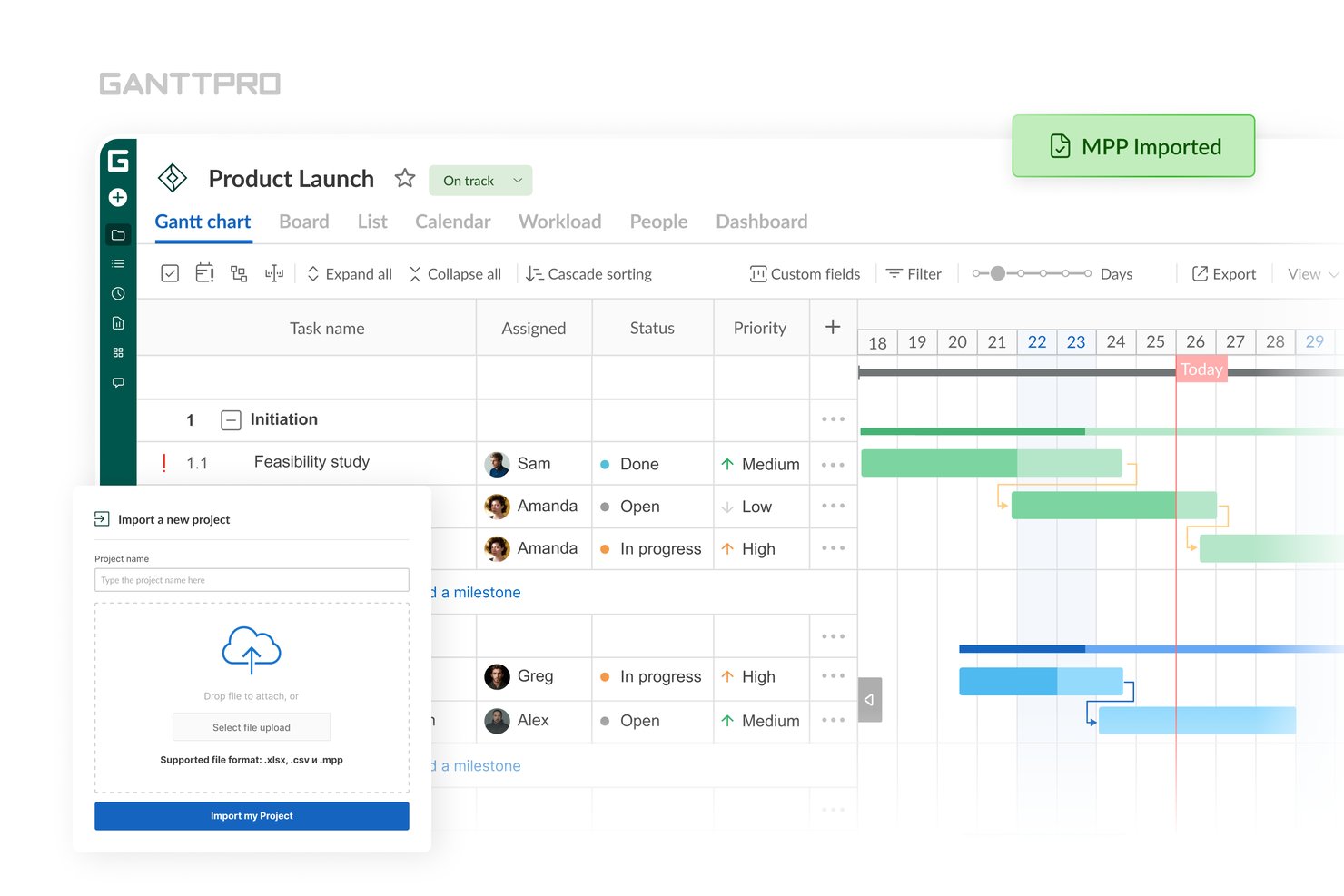
GanttPRO is a browser-based Gantt chart and project management tool that lets you open, visualize, and share
.mpp
files across Windows, Mac, and Linux without a Microsoft Project license.
Who Is GanttPRO Best For?
GanttPRO is a strong fit for project managers and PMO leads who need to open, visualize, and share
.mpp
files with stakeholders across Mac, Windows, or Linux without paying for Microsoft Project licenses.
Why I Picked GanttPRO
GanttPRO earns its spot on my shortlist because it lets you drag and drop an
.mpp
file directly into a browser and get a fully interactive Gantt chart without touching a Microsoft Project license. I like that it preserves task dependencies, milestones, and critical path on import, so the schedule structure stays intact for review and sharing. The one honest caveat I'll flag: task descriptions, comments, and attachments don't come through on import, so it works best when your core scheduling data is the priority.
GanttPRO Key Features
- Baseline and variance tracking: Set a baseline snapshot of your plan and compare it visually against your live schedule directly on the Gantt chart.
- Public URL sharing: Generate a shareable link that lets stakeholders view your project schedule in a browser without a GanttPRO account or paid seat.
- Multi-format export: Export your Gantt chart to PDF, PNG, XML, or Excel with customizable layouts, date ranges, and column visibility settings.
- Real-time collaboration: Add comments, , and file attachments at the task level, with live sync across all team members.
GanttPRO Integrations
GanttPRO offers native integrations with Microsoft Teams, Slack, Google Drive, OneDrive, Outlook Calendar, Google Calendar, and Jira Cloud (beta), plus an API for custom integrations.
Pros and Cons
Pros:
- Preserves critical path and baselines on import
- Offers public URL sharing for schedules
- Imports .mpp files with task dependencies
Cons:
- No two-way sync with Microsoft Project
- Does not import task descriptions or attachments

Best free .mpp editor for cross-platform use
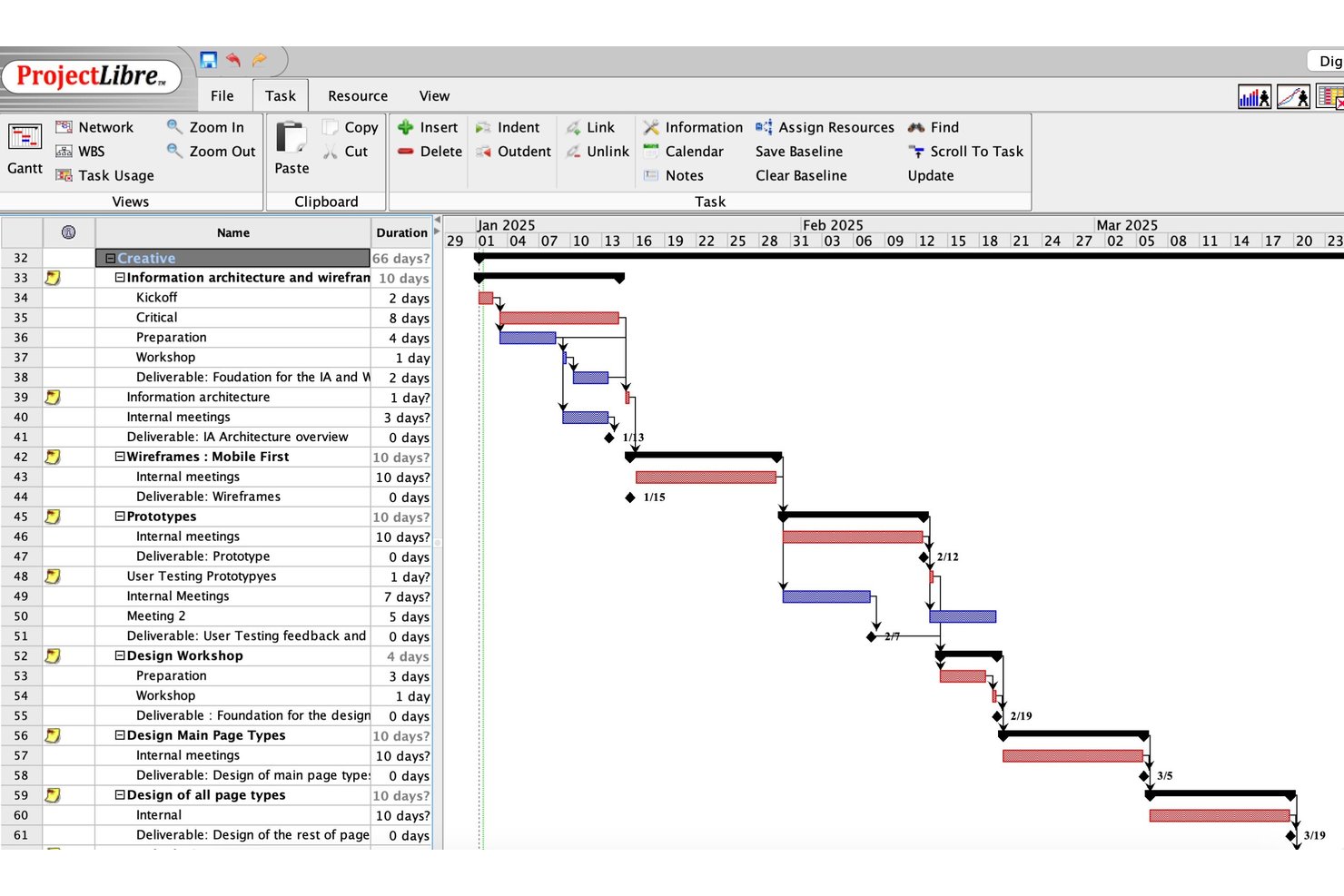
ProjectLibre is an open-source project management editor that opens, edits, and saves .mpp files natively across Windows, macOS, and Linux, with views spanning Gantt charts, Network Diagrams, resource sheets, and WBS charts.
Who Is ProjectLibre Best For?
ProjectLibre is a strong fit for individual project managers and small teams on Linux, macOS, or Windows who need to open, edit, and save .mpp files without paying for a Microsoft Project license.
Why I Picked ProjectLibre
ProjectLibre earns its spot on my shortlist because it's the only free tool that opens, edits, and saves
.mpp
files natively across Windows, macOS, and Linux without requiring a Microsoft Project license. I picked it specifically for cross-platform teams where a Linux-based engineer or a macOS-using PM needs to open a schedule sent by an MS Project user. The full Gantt view with critical path, baselines, and Network Diagrams loads right from the
.mpp
file, with no conversion step.
ProjectLibre Key Features
- Monte Carlo risk analysis: Runs statistical simulations on your schedule to model risk and forecast likely completion dates.
- Earned Value Management (EVM): Tracks project cost and schedule performance against a baseline using standard EVM metrics.
- Network Diagram view: Displays tasks and dependencies in a PERT-style flowchart for dependency and logic review.
- CSV and XML export: Exports project data to CSV or XML for use in other tools or reporting workflows.
ProjectLibre Integrations
ProjectLibre doesn't have documented native integrations with Microsoft 365, SharePoint, Teams, Jira, Asana, Slack, or Google Workspace. It supports .mpp, .mpx, XML, and CSV file exchange, but no documented public API for custom integrations.
Pros and Cons
Pros:
- Includes Gantt, PERT, and baseline views
- Runs on Windows, macOS, and Linux
- Opens and edits .mpp files natively
Cons:
- Requires full desktop install for free access
- No read-only or lightweight viewer mode

Best for enterprise-scale .mpp distribution
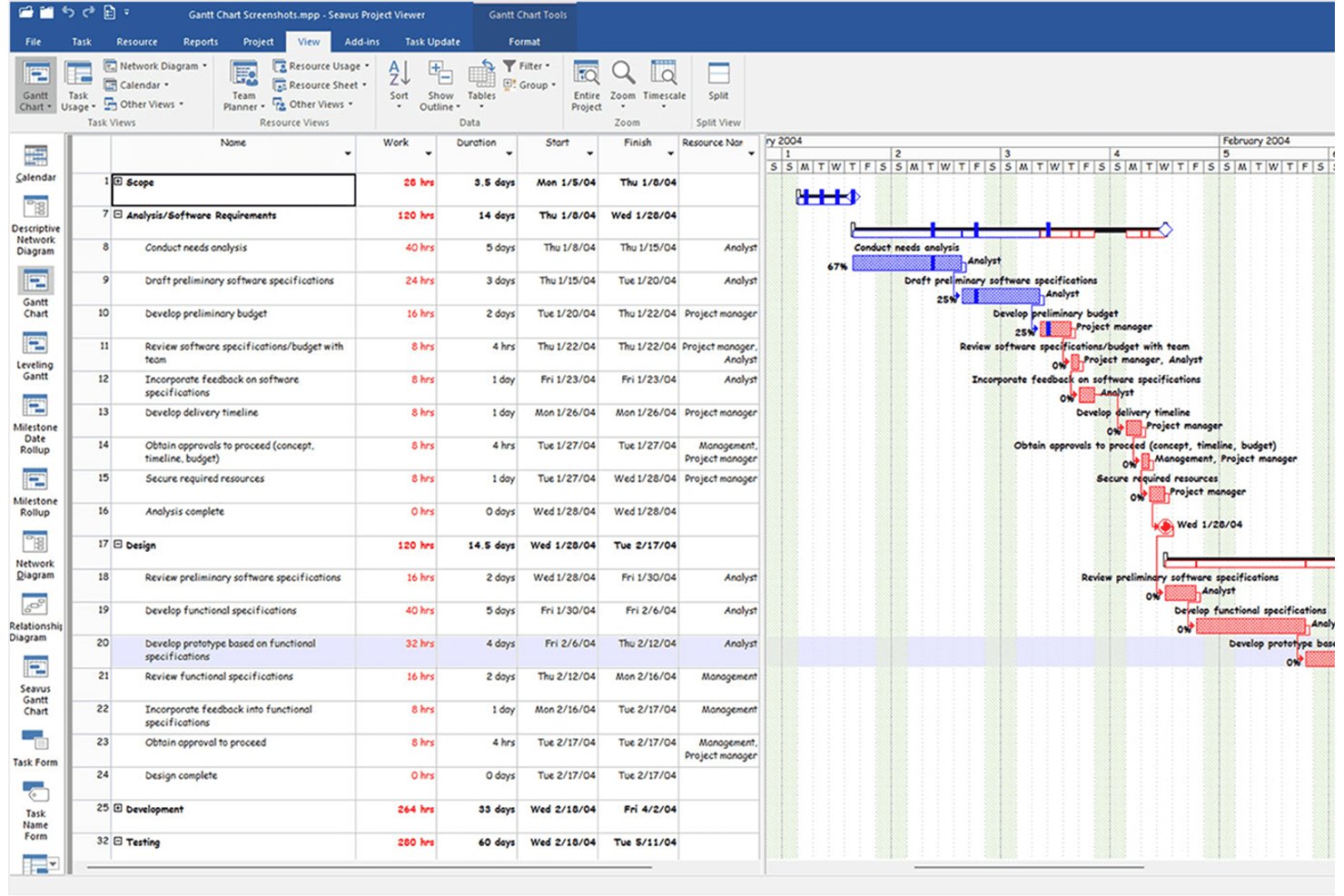
Seavus Project Viewer is a read-only .mpp viewer that opens Microsoft Project files across 27+ views—including Gantt, Network Diagram, and Team Planner—without requiring a Microsoft Project license, on Windows, macOS, iOS, Android, and web.
Who Is Seavus Project Viewer Best For?
Seavus Project Viewer suits large organizations that need to distribute .mpp files across many stakeholders without buying additional Microsoft Project licenses.
Why I Picked Seavus Project Viewer
Seavus Project Viewer earns its spot on my shortlist because no other viewer matches its reach when you need to distribute .mpp files across a large organization. I've seen teams use it to share project plans with hundreds of stakeholders, from BMW manufacturing floors to NATO operations, without touching a single additional MS Project license. It opens files from MS Project 98 all the way through 2024, across 27+ views, and handles files up to 500 MB without breaking a sweat.
Seavus Project Viewer Key Features
- Task Update Add-in: Team members can submit task progress and comments directly from the viewer, and project managers can accept, reject, or respond to updates without sharing the source file.
- Project plan comparison: Opens two versions of a .mpp file side by side to highlight differences in task and resource parameters.
- Graphical reports and dashboards: Displays predefined MS Project reports across Dashboard, Resources, and Cost categories, with options to adjust chart type, fields, and sorting.
- Multi-language interface: Supports 11 languages, including Japanese, Chinese, Russian, and German, for global team access.
Seavus Project Viewer Integrations
Seavus Project Viewer integrates with SharePoint, OneDrive, and Google Drive for opening project files, and connects to Microsoft Project through the Task Update Add-in. No API or native cloud-sharing controls are documented.
Pros and Cons
Pros:
- Task Update Add-in enables structured team feedback
- Preserves original formatting and all 27+ views
- Opens .mpp files from MS Project 98–2024
Cons:
- Lacks real-time in-app collaboration features
- No direct PDF or Excel export option

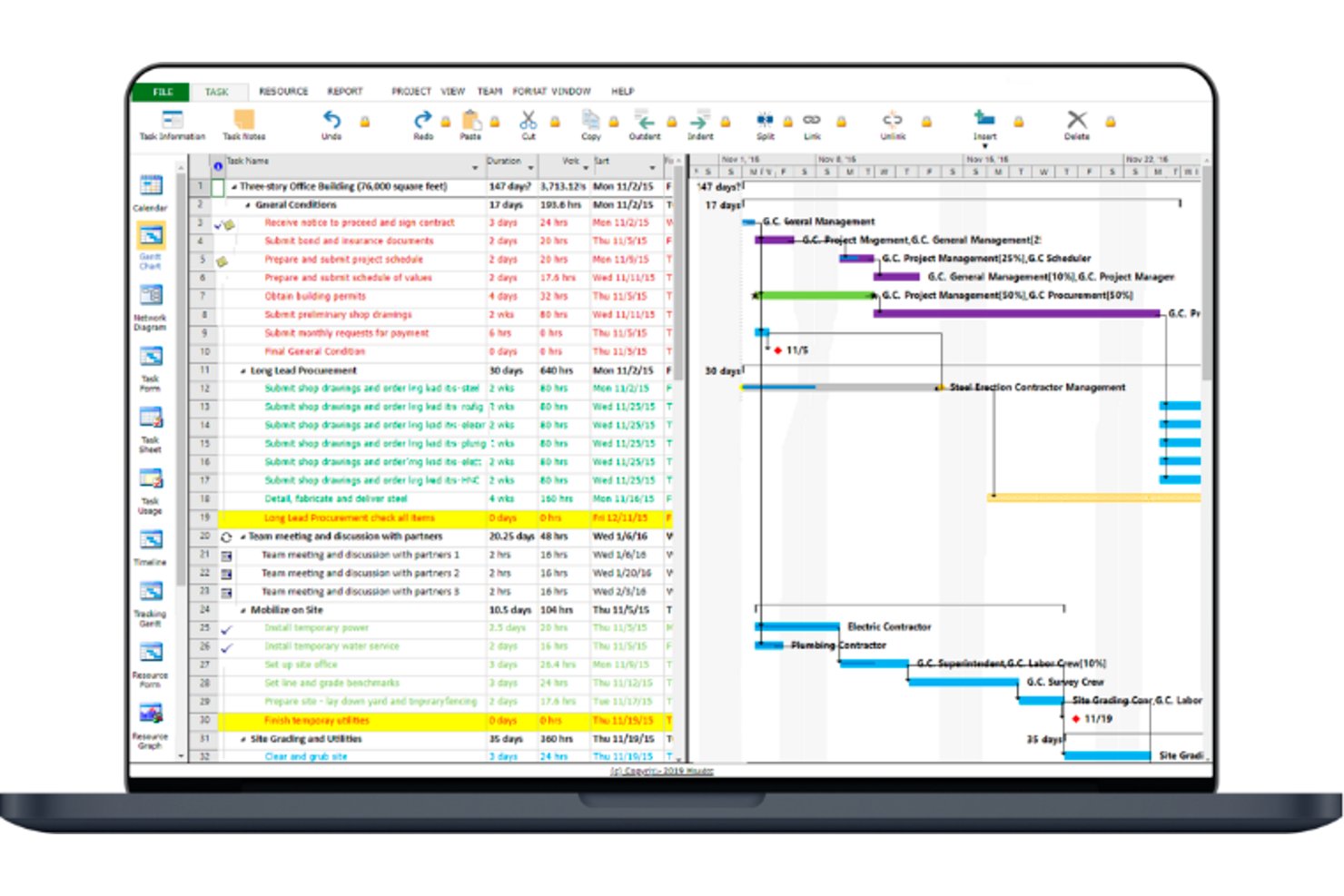
Project Viewer 365 is a dedicated MPP file viewer that lets you open, navigate, and review Microsoft Project schedules across Windows, Mac, iOS, Android, and web browsers—without a Microsoft Project license.
Who Is Project Viewer 365 Best For?
Project Viewer 365 is a strong fit for teams that work across Windows, Mac, and mobile devices and need reliable access to .mpp files without buying additional Microsoft Project licenses.
Why I Picked Project Viewer 365
Project Viewer 365 earns its spot on my shortlist because no other dedicated MPP viewer matches its cross-platform reach. I can open the same .mpp file on a Windows desktop, a Mac, an iPhone, and in a browser—without installing Microsoft Project on any of them. The browser-based free viewer is particularly useful when I need to share a schedule with a stakeholder who can't install software. Baseline views and critical path display are preserved across all platforms, so nothing gets lost in translation.
Project Viewer 365 Key Features
- Network diagram view: Displays task dependencies and relationships in a node-based diagram, mirroring the MS Project Network Diagram layout.
- Batch printing: Sends multiple project plans to a printer in a single batch, with Print Preview and row-range filtering before printing.
- Master/subproject support: Opens and navigates master project files with linked subprojects, preserving relative file paths across the project hierarchy.
- Cloud storage access: Opens .mpp files directly from OneDrive, Google Drive, Dropbox, Box, SharePoint, and iCloud Drive without downloading locally first.
Project Viewer 365 Integrations
Project Viewer 365 integrates with Google Drive, OneDrive, Dropbox, Box, SharePoint Online, iCloud Drive, Microsoft Project Server, Microsoft Project Online, and BaseCamp. No public API is documented.
Pros and Cons
Pros:
- Opens large MPP files without conversions
- Preserves MS Project baselines and custom views
- Available on Windows, Mac, mobile, and web
Cons:
- Separate mobile and desktop subscriptions required
- No in-app editing or annotations

ClickUp
Best for CSV-based migration into live collaboration
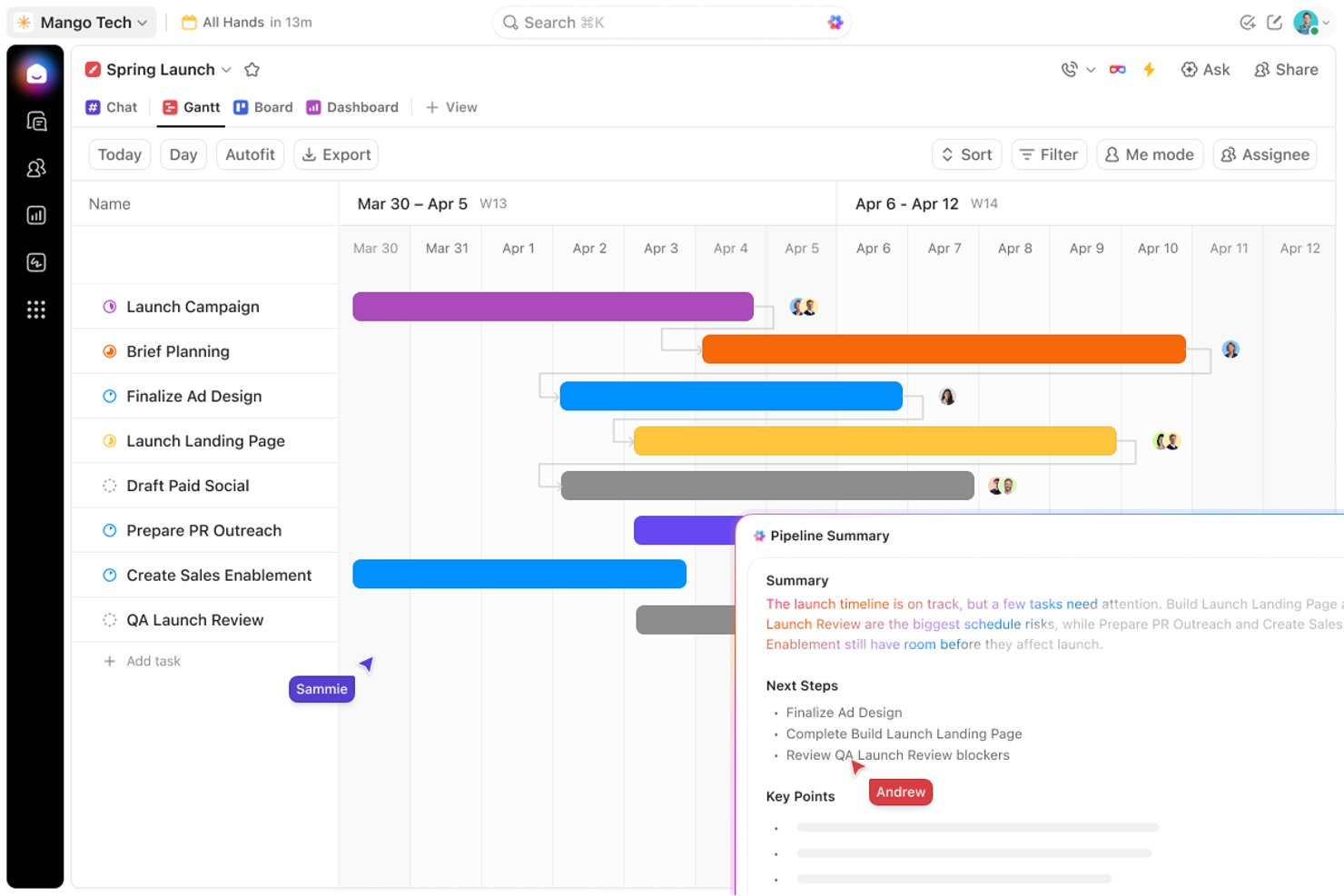
ClickUp is a full work management platform that offers Gantt charts, task views, real-time collaboration, and CSV-based project import as an alternative path for teams looking to move MS Project schedules into an active, shareable workspace.
Who Is ClickUp Best For?
ClickUp suits teams that are ready to leave MS Project behind and want to turn exported schedules into a live, collaborative workspace.
Why I Picked ClickUp
I've included ClickUp in my top picks because it gives teams a clear migration path out of MS Project and into a live, collaborative workspace. The CSV import workflow lets you pull exported schedules directly into ClickUp's Gantt view, where you get critical path visibility, baseline tracking, and drag-and-drop rescheduling. Once the data's in, stakeholders can access, comment on, and review the schedule without ever touching an MS Project license.
ClickUp Key Features
- CSV and spreadsheet import: Bring exported MS Project schedules into ClickUp via CSV or Excel using the built-in Spreadsheets Importer.
- Critical path highlighting: Automatically identifies and highlights the task chain controlling your project deadline within the Gantt view.
- Baseline overlay: Save a schedule snapshot and overlay it on your live Gantt to compare planned vs. actual progress at any point.
- Guest access with permission controls: Share specific views with external stakeholders at view-only or edit level without exposing your full workspace.
ClickUp Integrations
ClickUp offers native integrations with Microsoft Teams, Outlook, OneDrive, Google Drive, and Slack. It also provides a public API for custom integrations and supports Zapier.
Pros and Cons
Pros:
- Flexible sharing with guest and public links
- Enables real-time collaboration on imported schedules
- Robust Gantt with baselines and critical path
Cons:
- Task dependencies lost during CSV import
- Cannot open or view native .mpp files
New Product Updates from ClickUp
ClickUp Adds List Automations, Time Off Scheduling, and Org Charts
ClickUp adds template-based List automations, personal time off scheduling, a unified picker, automatic task date syncing, and Org Charts. These updates help teams automate project setup, manage availability, and organize work. For more information, visit ClickUp’s official site.
 .

Best for scaling beyond viewing into live team work
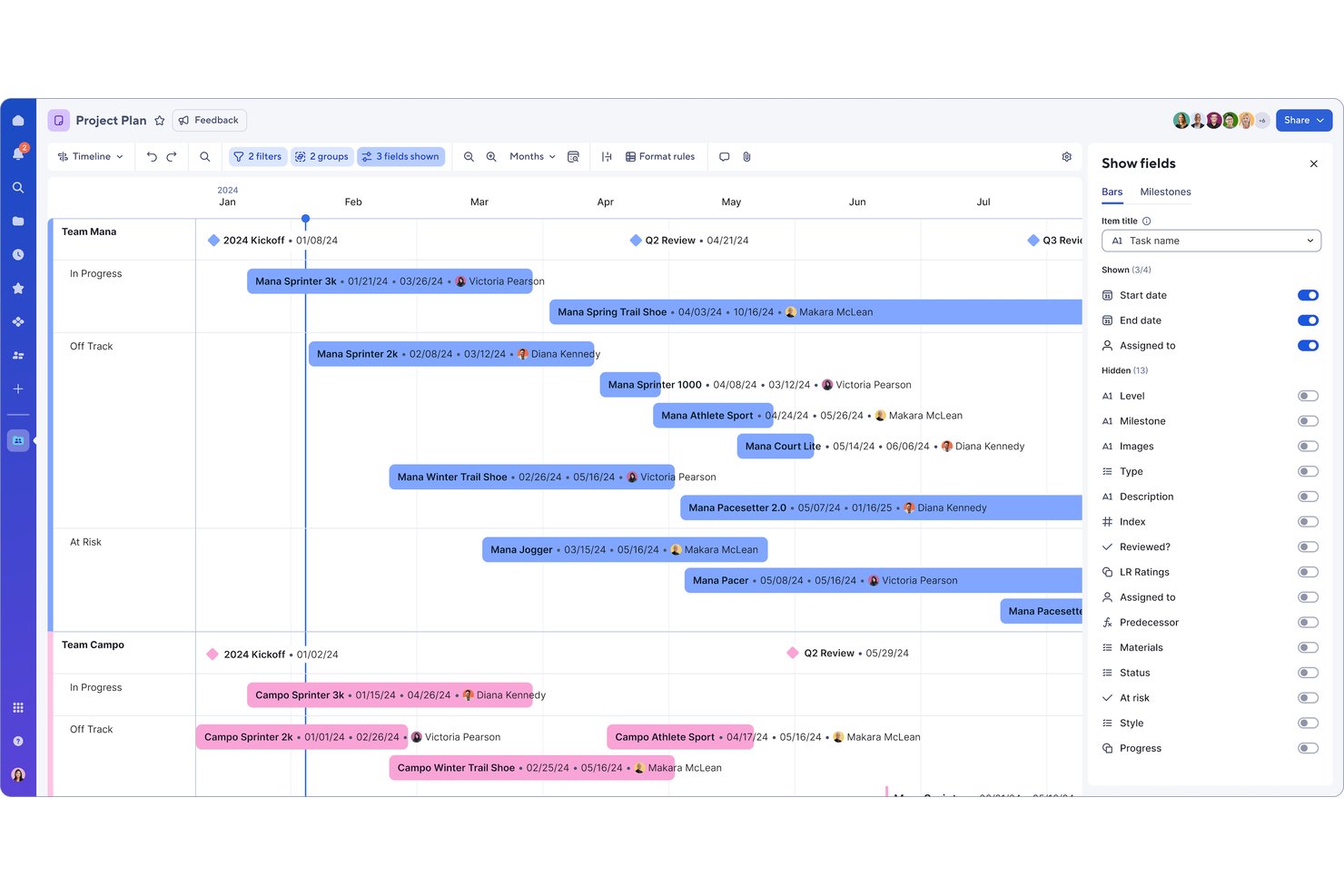
Smartsheet is a cloud-based work management platform that imports Microsoft Project files (.mpp, .mpx, .xml) and converts them into interactive Gantt charts, task grids, and resource views accessible from any browser without an MS Project license.
Who Is Smartsheet Best For?
Smartsheet is a strong fit for project managers and cross-functional teams who want to move beyond passively reading an MS Project file and into actively managing live work.
Why I Picked Smartsheet
I've included Smartsheet in my top picks because it's the only tool on this list that turns .mpp file imports into fully live, collaborative work—not just a static read. Once your MS Project file is in Smartsheet, your team gets real-time co-editing, Gantt charts with critical path toggling, and granular permission tiers so stakeholders can view, comment, or edit without ever needing an MS Project license.
Smartsheet Key Features
- Critical path toggle: Switch the critical path on or off directly within the Gantt view to identify which tasks drive your project's end date.
- Baseline tracking: Save a project baseline and compare it visually against actual progress in the Gantt view, available to all permission levels including Viewers.
- Multi-format export: Export your project data as PDF, Excel, PNG, or XML to send back to MS Project, with customizable Gantt-to-PDF layout options.
- Automated alerts and update requests: Set up no-code workflow automations that notify stakeholders of changes, approvals, or due dates without requiring them to log in.
Smartsheet Integrations
Smartsheet offers native integrations across the Microsoft ecosystem, including Microsoft Teams, Power BI, Microsoft 365, OneDrive, and SharePoint, plus integrations with Jira and ServiceNow. It also supports Zapier and a REST API for custom connections.
Pros and Cons
Pros:
- Supports interactive Gantt charts and baselines
- Grants free viewer access to shared schedules
- Imports .mpp files for live team collaboration
Cons:
- Import may alter dates or remove constraints
- Does not natively display original .mpp files
New Product Updates from Smartsheet

Smartsheet Adds Non-Plan User Management in Admin Center
Smartsheet adds a Non plan users tab to the Seat types and true-up page in Admin Center. This lets system admins review non-plan users and add them to the plan or remove them from the organization in one place. For more information, visit Smartsheet’s official site.
 .

Best for two-way .mpp sync with guest viewing
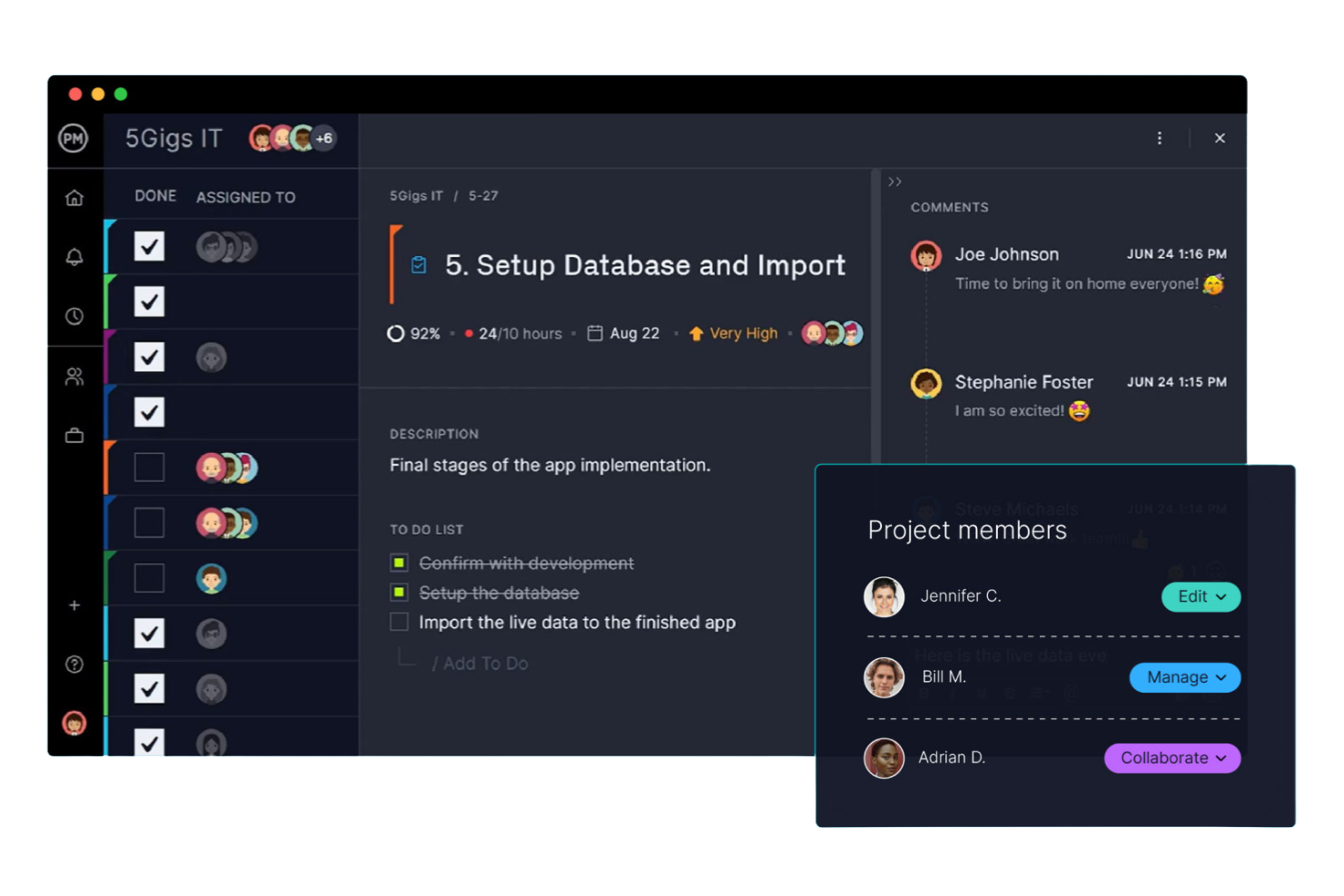
ProjectManager is a cloud-based project management platform that supports MPP import and export, interactive Gantt charts, multiple project views, and unlimited read-only guest access for external stakeholders.
Who Is ProjectManager Best For?
ProjectManager works well for project managers who need to share live .mpp schedules with clients or executives without paying for extra seats.
Why I Picked ProjectManager
I've included ProjectManager in my top picks because its two-way .mpp sync sets it apart from tools that only let you read MS Project files. I can import a client's .mpp file, update the schedule, and export it back without anyone losing data or reformatting anything. What I find especially useful is the unlimited free guest licenses: clients and executives can view live Gantt charts, critical path highlights, and baseline comparisons without needing a paid seat or a Microsoft Project license.
ProjectManager Key Features
- Critical path filtering: Automatically highlights the longest path of dependent tasks so you can see which delays will impact your project end date.
- Baseline tracking: Saves a snapshot of your original plan and displays variance against actuals directly on the Gantt chart.
- Five project views: Switch between Gantt, List, Sheet, Board, and Calendar views to match how different team members prefer to work.
- Workflow automation: Set up rule-based automation to trigger task updates, notifications, or status changes without manual input.
ProjectManager Integrations
ProjectManager offers native integrations with Microsoft Project, Microsoft Teams, Microsoft Excel, Power BI, Jira, Azure DevOps, and Slack. It also provides an API for custom integrations and supports Zapier.
Pros and Cons
Pros:
- Gantt charts closely match MS Project visuals
- Two-way .mpp sync supports round-tripping edits
- Unlimited free guest viewing for schedules
Cons:
- Lacks network diagram or PERT view
- No permanent free viewer plan available

Best free MPP viewer for Windows, Mac, and Linux
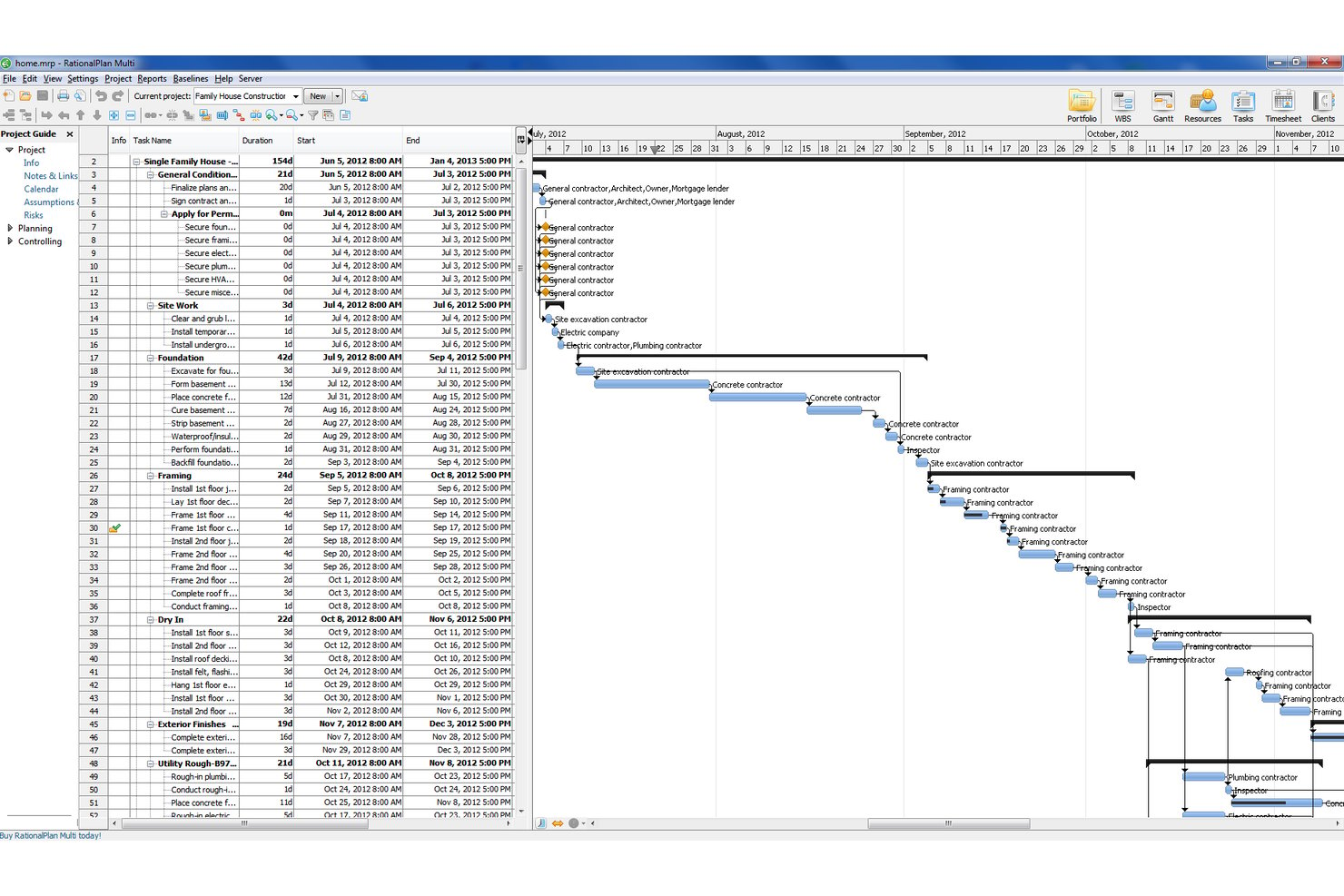
RationalPlan is a cross-platform project management and MPP file viewer that opens Microsoft Project files in formats including .mpp, .mpt, .xml, and .mpx, with full Gantt chart, task sheet, resource sheet, and network diagram views available across Windows, Mac, and Linux.
Who Is RationalPlan Best For?
RationalPlan is a strong fit for engineers, stakeholders, and project managers on Windows, Mac, or Linux who need to open and review .mpp files without paying for a Microsoft Project license.
Why I Picked RationalPlan
RationalPlan earns its spot on my shortlist because it's one of the only free MPP viewers that runs natively on Windows, Mac, and Linux. I've opened .mpp, .mpt, .xml, and .mpx files with it and the Gantt chart renders exactly as it does in Microsoft Project, preserving column order, widths, and split positions. I also like that export to PDF and Excel is available in the free viewer, with no upgrade required.
RationalPlan Key Features
- Critical path toggle: Show or hide the critical path directly in the Gantt chart to quickly identify which tasks drive your project's end date.
- Network diagram view: Visualize task dependencies and sequencing in a node-based diagram preserved from the original MS Project file.
- Resource sheet view: Review resource assignments, availability, and allocation data from your imported project file without editing the source.
- Multi-year timescale formats: Display long-horizon schedules using years/months or years/quarters timescale views for multi-year project planning.
RationalPlan Integrations
RationalPlan doesn't have any native integrations. It connects to Microsoft Project files through
.mpp
,
.mpt
,
.xml
, and
.mpx
imports, with Excel and MS Project XML export available.
Pros and Cons
Pros:
- Preserves exact Gantt and resource views
- Free viewer available for all major OS
- Opens .mpp, .mpt, .xml, .mpx files
Cons:
- No real-time team collaboration features
- No mobile app for iOS or Android

Ingantt
Best for opening .mpp and Primavera P6 files
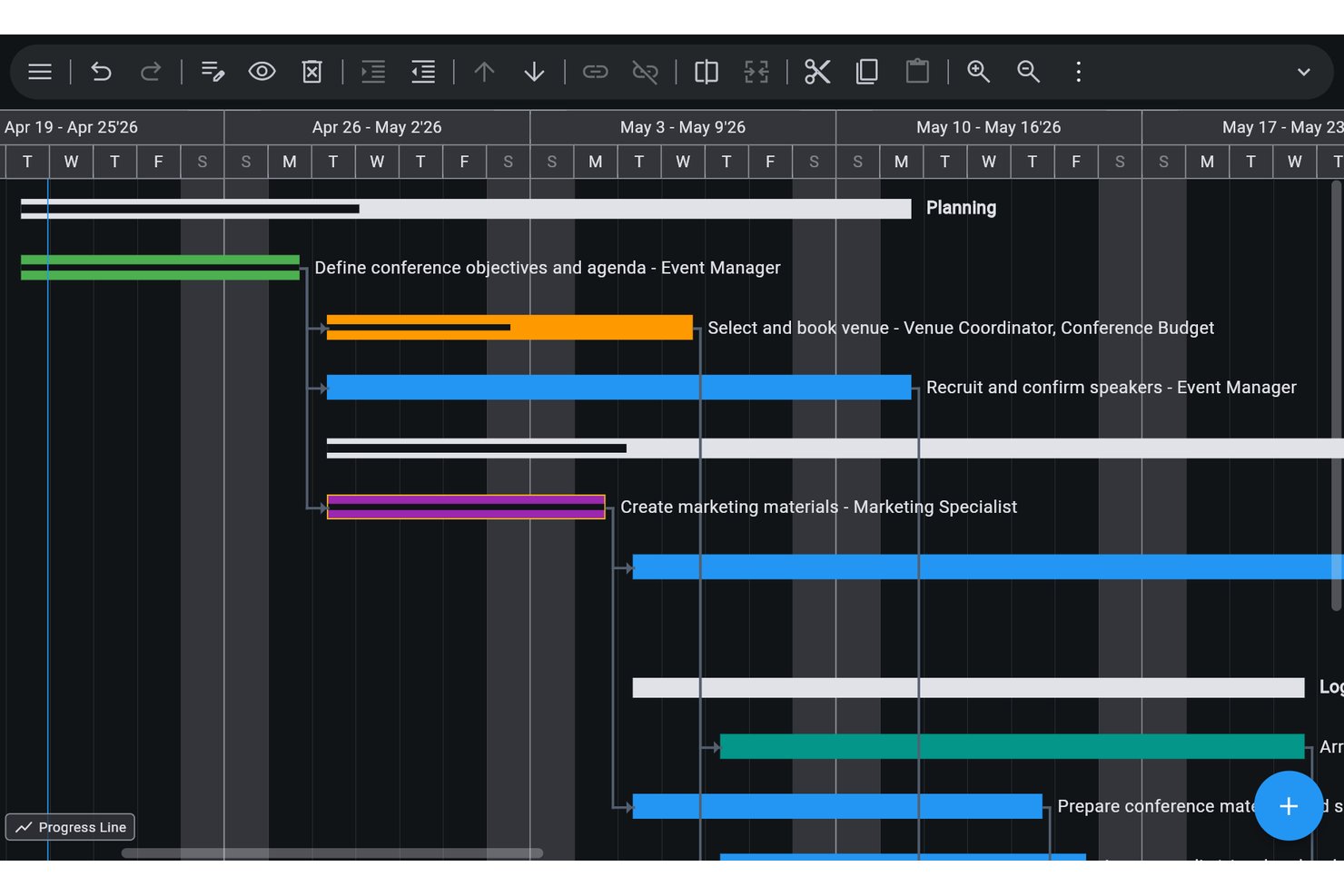
Ingantt is a cross-platform Microsoft Project viewer and full scheduling tool that opens .mpp, .mpt, .mpx, Primavera P6, and several other project file formats across web, desktop, and mobile without requiring a Microsoft Project license.
Who Is Ingantt Best For?
Ingantt is a strong fit for project managers and schedulers who regularly work with both Microsoft Project and Primavera P6 files across mixed-platform teams.
Why I Picked Ingantt
Ingantt earns its spot on my shortlist because it's one of the few tools that opens both .mpp and Primavera P6 files (.xer, .pmxml) without requiring a license for either platform. I've worked with teams that straddle both ecosystems, and having a single viewer handle both formats removes real friction. The Tracking Gantt view lets you overlay baselines directly on the current schedule, so you can spot slippage at a glance in an imported file.
Ingantt Key Features
- AI project generator: Creates a full project schedule with tasks, dependencies, and WBS from a plain-text description, with no token limits or separate subscription required.
- 10 synchronized views: Includes Network Diagram, Resource Usage, Team Planner, Kanban, and Calendar views that all update in real time when you make changes in any one view.
- Resource leveling: Automatically resolves overallocations by priority, slack, or task ID, with support for split in-progress tasks and date-effective rate tables.
- Earned value management: Tracks 13 EV columns—including CPI, SPI, EAC, and TCPI—calculated from resource rates, fixed costs, and a defined project status date.
Ingantt Integrations
Ingantt integrates with Google Drive for file storage, sharing, version history, and offline sync, and is available through Google Workspace Marketplace. It imports Microsoft Project and Primavera P6 files, but native Microsoft 365, SharePoint, Teams, OneDrive, and API integrations aren’t documented.
Pros and Cons
Pros:
- Runs on web, desktop, and mobile platforms
- Offers 10 synchronized project schedule views
- Opens both .mpp and Primavera P6 files
Cons:
- Only supports real-time sharing via Google Drive
- No native Microsoft 365 or Teams integration

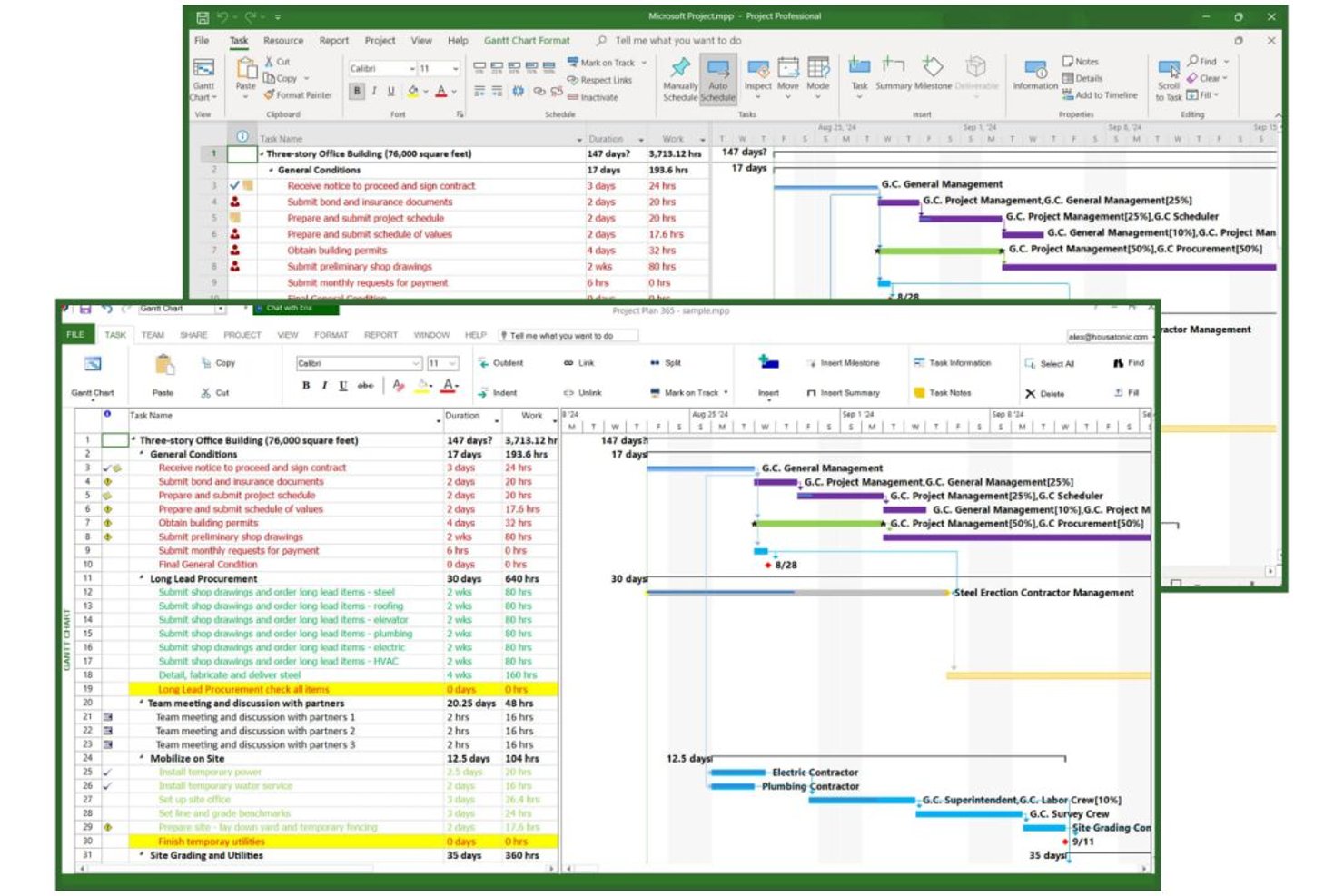
Project Plan 365 is a cross-platform MS Project-compatible application that opens, edits, and saves native .MPP files across Windows, Mac, iOS, Android, and web—without requiring a Microsoft Project license.
Who Is Project Plan 365 Best For?
Project Plan 365 is a strong fit for Mac-based project managers and cross-platform teams that need to open, edit, and share .MPP files without paying for MS Project licenses.
Why I Picked Project Plan 365
Project Plan 365 earns its spot on my shortlist because it's the only native .MPP editor that runs on Mac, Windows, iOS, Android, and web under a single subscription. I picked it specifically for cross-platform teams that pass .MPP files between Mac and Windows users without wanting to pay for MS Project licenses on every machine. The free browser-based viewer lets any stakeholder open, print, and export a Gantt chart to PDF or PowerPoint instantly, with no install required.
Project Plan 365 Key Features
- Erix AI status reports: Generates AI-written project status reports with executive summaries, earned value metrics, and milestone tracking, deliverable via scheduled email.
- Multi-baseline storage: Stores multiple baseline snapshots per project to support variance tracking across cost, work, duration, and start/finish dates.
- Read-only user seats: Paid plans include 5–10 read-only user seats, letting stakeholders view, print, and export schedules without a paid license.
- Real-time collaboration: The Business plan enables multiple users to open and edit the same .MPP file simultaneously without overwriting the source.
Project Plan 365 Integrations
Project Plan 365 offers native integrations across the Microsoft ecosystem, including OneDrive, SharePoint Online, Microsoft Project Online, and Project Server, plus Google Drive, Dropbox, Box, iCloud, and Basecamp. Microsoft Outlook calendar export is supported, but an API for custom integrations isn't documented.
Pros and Cons
Pros:
- Preserves all major MS Project views
- Free viewer mode for instant browser access
- Opens and edits .MPP files on Mac
Cons:
- Real-time collaboration only in Business plan
- Interface looks dated and old-fashioned
Diğer Microsoft Project Görüntüleyicisi Seçenekleri
En iyi listeye giremeyen birkaç seçenek daha burada. Yorumlarda önerdiğiniz seçenekleri bu bölüme ekleyeceğim!
- Wrike
For migrating teams off MS Project entirely
- Zoho Projects
For MPP import into a full PM platform
- Jira
For agile teams and issue-based workflows
- Merlin Project
For Apple-native .mpp import and view sets
- Asta Powerproject
For construction scheduling and XER file viewing
- OmniPlan
For opening .mpp files on Mac without MS Project
- Project Reader
For viewing six MPP views on Windows
- Steelray
Windows-only viewer for MS Project and P6 files
- MOOS Project Viewer
For user-based licensing across platforms


Microsoft Project Görüntüleyicisi Alternatifleri Nelerdir?
Microsoft Project görüntüleyicisi alternatifleri, kullanıcıların tam Microsoft Project uygulamasına ihtiyaç duymadan .MPP dosyalarını açmasına, görüntülemesine ve bazen düzenlemesine olanak tanıyan araçlardır.
Bu görüntüleyiciler, ekip üyelerinin, paydaşların veya Mac/Windows kullanıcılarının MS Project'te oluşturulan proje planlarına erişmesine yardımcı olarak pahalı lisanslar satın almadan iş birliği, dosya paylaşımı ve denetim olanağı sağlar. Platform uyumluluğu, lisans maliyeti ve proje yöneticisi olmayan kişilerin sınırlı erişimi gibi sorunları çözerler.
How I Evaluate Microsoft Project Viewers
I split my evaluation into baseline criteria—like accurate .mpp rendering and no-license access—and differentiating factors that separate tools for occasional stakeholders versus enterprise PMO teams.
Core Functionality (Table Stakes For This List)
When I'm selecting tools for my list, I rank each one on a scale from 0 (does not offer the functionality) to 5 (excels in this area) for each core functionality listed below. Then, I calculate the tool's total score into a percentage. Each tool needs to achieve a minimum total score of 65% to be considered for inclusion.
- MPP File Compatibility: I check whether the tool opens .mpp, .mpx, and XML files across MS Project versions—from legacy 2003 schedules through current 365 exports—without layout or data loss.
- Gantt Chart Visualization: The viewer should render interactive Gantt charts showing task bars, dependency links, milestones, and critical path, matching what you'd see in native MS Project.
- Task & Resource Views: I look for multiple viewing modes like task sheets, resource allocation tables, and calendars so schedulers and stakeholders can each find the data they need.
- Standalone Access: A core reason to use a viewer is avoiding extra MS Project licenses, so I evaluate whether the tool runs fully independent of any Microsoft Project installation.
- Export & Print Support: Project reviewers regularly need to distribute schedules as PDFs or pull task data into Excel, so I check available export formats and print layout controls.
- Sharing & Access Controls: I evaluate how each tool handles read-only link sharing and permission settings, especially for teams distributing plans to clients or external contractors.
Once I have a list of tools that meet this criteria, I consider what sets each platform apart.
Differentiating Factors (What Sets Vendors Apart)
Here's how I compare and contrast different vendors:
Standout Features
Mobile and web access matter when field engineers or traveling executives need to check schedules from a phone without installing desktop software. I also evaluate baseline and variance tracking, which helps PMO leads spot schedule drift against original plans without opening MS Project. Two-way sync is another differentiator worth noting—it lets viewers push task status updates back to the source .mpp file, saving the schedule owner from chasing progress manually.
Beyond Features
Licensing structure is a big deal here—some viewers charge per user while others offer site-wide licenses, and the right model depends on whether you're equipping five PMO leads or hundreds of external reviewers. I also evaluate integration depth with tools like SharePoint, Teams, Jira, and Primavera P6, since most schedules don't live in isolation. Vendor update cadence matters too, because a viewer that lags behind new MS Project file format releases quickly becomes unreliable for teams on current versions.
Microsoft Project Görüntüleyicisi Nasıl Seçilir?
Uzun özellik listeleri ve karmaşık fiyatlandırma yapılarına kendinizi kaptırmak kolaydır. Kendinize özgü yazılım seçimi sürecinizde ilerlerken odağınızı korumanıza yardımcı olmak için göz önünde bulundurmanız gereken faktörlerin bir kontrol listesini burada bulabilirsiniz:
| Faktör | Dikkat Edilmesi Gerekenler |
|---|---|
| Ölçeklenebilirlik | Görüntüleyicinin ekibinizin ihtiyaçlarıyla birlikte büyüyebildiğinden, performansı düşürmeden daha fazla projeyi veya kullanıcıyı yönetebildiğinden emin olun. |
| Entegrasyonlar | İş akışınızı kolaylaştırmak için Microsoft Office veya bulut depolama hizmetleri gibi hâlihazırda kullandığınız araçlarla uyumluluğunu kontrol edin. |
| Özelleştirilebilirlik | Arayüzü veya özellikleri ekibinizin belirli proje yönetimi süreçlerine uyarlamanıza olanak tanıyan seçenekleri arayın. |
| Kullanım Kolaylığı | Ekibinizin hızla uyum sağlayıp üretken kalabilmesi için minimum eğitim gerektiren, kullanıcı dostu bir arayüze öncelik verin. |
| Bütçe | Yalnızca satın alma maliyetini değil, devam eden ücretleri de göz önünde bulundurun. Gerekli özellikleri sunarken mali kısıtlamalarınızla uyumlu olduğundan emin olun. |
| Güvenlik Önlemleri | Yazılımın proje verilerinizi yetkisiz erişimden veya güvenlik ihlallerinden korumak için güçlü güvenlik önlemlerine sahip olduğundan emin olun. |
| Uyumluluk | Görüntüleyicinin karşılaşabileceğiniz farklı Microsoft Project dosyası sürümleriyle uyumlu olduğunu doğrulayın. |
| Destek Seçenekleri | Sorunlar ortaya çıktığında yardımcı olabilecek müşteri desteği ve eğitimler veya kullanıcı toplulukları gibi kaynakların mevcut olup olmadığını değerlendirin. |
Açıkçası, sindirmesi gereken çok şey var ve doğru seçimi yapma konusunda büyük bir baskı hissedebilirsiniz. Bu nedenle, sizin ve kuruluşunuzun özel ihtiyaçlarına uygun olacak proje yöneticisi araçlarını kısa listeye almanıza yardımcı olması için proje yönetimi yazılımı danışmanlığı hizmetimizi kullanmanızı öneririm.
Microsoft Project Görüntüleyici Nedir?
Proje görüntüleyici, bilgisayarınıza Microsoft Project yüklemenize gerek kalmadan yerel MPP dosyalarını ve bir Microsoft Project planının tüm ayrıntılarını açıp okumak için kullanabileceğiniz bir araçtır.
Bu araç, Microsoft Project'e ihtiyaç duymadan Microsoft Project dosyalarını açmanıza, görüntülemenize ve incelemenize olanak tanır. Orijinal proje planında değişiklik veya düzenleme yapma olanağı olmadan proje ayrıntılarını, görev listelerini, zaman çizelgelerini, bağımlılıkları ve projeyle ilgili diğer bilgileri görmenizi sağlar. Bu özellik; proje ilerlemesi hakkında bilgi sahibi olması veya proje yöneticileri ve ekip liderleriyle iş birliği yapması gereken paydaşlar, müşteriler ya da ekip üyeleri için yararlı olabilir.
Microsoft Project Görüntüleyicisinin Özellikleri
Bir Microsoft Project görüntüleyicisi seçerken aşağıdaki temel özelliklere dikkat edin:
- Görev yönetimi: Başlangıç ve bitiş tarihleri, süreler ve bağımlılıklar gibi görevleri ve ayrıntılarını, anlaşılır Gantt şeması ve zaman çizelgesi görünümleriyle görüntülemenizi sağlar. Çoğu araçta görev düzenleme desteklenmese de proje ilerlemesini etkili bir şekilde takip edebilirsiniz.
- Kaynak yönetimi: Kaynak dağılımlarını ve atamalarını gösteren kaynak görünümleri sunarak proje genelindeki iş yükü dağılımını anlamanıza yardımcı olur. Ancak çoğu araç kaynak düzenlemeyi desteklemez.
- Belge görüntüleme: Proje dosyalarına gömülü belgeler ve ekler için erişim sağlayarak, düzenli erişim ve başvuru amacıyla görevle ilgili dosyaların görünür olmasını mümkün kılar.
- Entegrasyonlar: Microsoft ekosistemindeki araçlarla uyumluluk sunarak proje verilerini SharePoint'te depolanan belgelerle veya Power BI panolarında görselleştirilen verilerle birlikte görüntülemenizi sağlar.
- Raporlama araçları: Proje dosyasına önceden gömülmüş raporları ve panoları görüntülemenizi sağlayarak proje ilerlemesini ve temel ölçümleri kolayca analiz etmenize olanak tanır.
- Platformlar arası destek: Windows, Mac ve web tarayıcıları dâhil olmak üzere birden fazla platformdan erişilebilir olması, proje bilgilerine her yerden ulaşabilmenizi sağlar.
- Koşullu biçimlendirme: Proje dosyasında uygulanan biçimlendirme kurallarını görüntüleyerek daha iyi anlaşılabilmesi için kritik verileri veya önemli alanları vurgular.
- Uygun maliyet: Tam lisans gerektirmeden proje verilerine erişmenizi sağlayan, Microsoft Project'e bütçe dostu bir alternatif sunar.
Bu özelliklere sahip bir Microsoft Project Görüntüleyici seçerek proje ayrıntılarını kolayca takip edebilir, ilerlemeyi izleyebilir ve ekibinizi bilgilendirebilirsiniz. Üstelik paradan tasarruf eder ve proje denetimini kolaylaştırırsınız.
Microsoft Project Görüntüleyici Hakkında Sıkça Sorulan Sorular
Microsoft Project görüntüleyicileri hakkında aldığım sıkça sorulan sorulardan bazıları şunlardır.
Ücretsiz bir proje görüntüleyici var mı?
Evet. Project Plan 365 tarafından sunulan gibi ücretsiz görüntüleyiciler bulabilirsiniz. Ancak bu ücretsiz sürümler yalnızca dosyaları okumanıza (düzenlemenize değil) olanak tanır.
Neden bir proje görüntüleyicisi kullanmalıyım?
Proje yöneticileri ve planlayıcılar Microsoft Project'te planlar oluştururken diğer ekip üyelerinin proje planlarını düzenlemesi gerekmez; yalnızca bunları açıp görüntülemeleri yeterlidir. Bu nedenle, belirli proje üyelerine okuma erişimi vermek ve lisans maliyetlerinden tasarruf etmek için proje görüntüleyicisi kullanırsınız.
Ayrıca proje görüntüleyicileri, kurumsal ölçeklenebilirlik ve güvenlik için kullanılabilir. Örneğin Project Viewer 365 gibi araçlar, çok sayıda kullanıcıya sahip kurumsal dağıtımlara uyum sağlamak amacıyla ölçeklenebilirlik, güvenlik ve lisans esnekliği göz önünde bulundurularak tasarlanmıştır.
Standart bir MS Project lisansından çok daha düşük maliyetli olduğundan, Microsoft Project lisans ücretlerinden tasarruf ettiğiniz için BT yöneticiniz sizi takdir edecektir.